

Want to colorize paint sketches or black-and-white drawings effortlessly? Whether you're a beginner painter still learning shading, an artist pressed for time, or a designer looking for fresh visual inspiration, AI-powered drawing colorizers are a game-changer in 2025. These tools transform monochrome sketches into vibrant digital artwork in just a few clicks.
In this guide, we'll explore the best 5 AI drawing colorizers, compare their strengths, and show before-and-after results so you can choose the right one for your creative workflow. Plus, we'll walk you through step-by-step tutorials for each—starting with UniConverter's new batch sketch coloring tool.
Table of Contents:
Part 1. Why Colorize Drawing with AI
In the past, adding color to hand-drawn sketches or illustrations required artistic precision and deep knowledge of color theory. But today, AI coloring tools have revolutionized how we colorize drawings, especially for beginners and time-strapped professionals. Here comes how AI can help with drawing colorizing:
1. Assist Coloring for Beginners
Struggling with Color Blending: For those new to drawing, blending colors in a color pencil sketch can be tough, especially without a solid understanding of color theory.
Hard to Imagine the Final Look: Beginners often have trouble picturing how their sketches will turn out once they’re fully colored.
2. Save Time and Efficiency
Slow and Labor-Intensive Coloring: Manually adding color to drawings can take a lot of time, particularly with detailed or complex designs.
Not Enough Time for the Details: When coloring by hand, it’s easy to get bogged down with the basic fill-in work, leaving little time to focus on the finer aspects of the art.
3. Experimenting with Ideas
Limited Ways to Try New Concepts: Without the right tools, artists often find it hard to play around with new ideas or color sketch techniques.
Need for Quick Color Inspiration: Designers sometimes need a fast way to get color suggestions or references but don’t always have a quick solution at hand.
4. Inconsistent Color and Composition
Achieving Consistent Palettes: Maintaining a balanced color palette and realistic lighting can be tricky without guidance on what colors work well together.
Planning Digital Colors for Traditional Art: For artists who prefer working with paint, figuring out how to apply color digitally first can be tough without making mistakes or wasting time.
5. Previews for Traditional Artists
Struggling to See the Full Picture: Sketch artists might find it hard to get a feel for how their pencil drawings will look when fully colored, making it hard to finalize their ideas.
Complicated Composition Planning: Artists working with traditional media may find it challenging to plan detailed works without being able to test out color choices beforehand.
Part 2. How to Batch Colorize Shaded Sketch with UniConverter
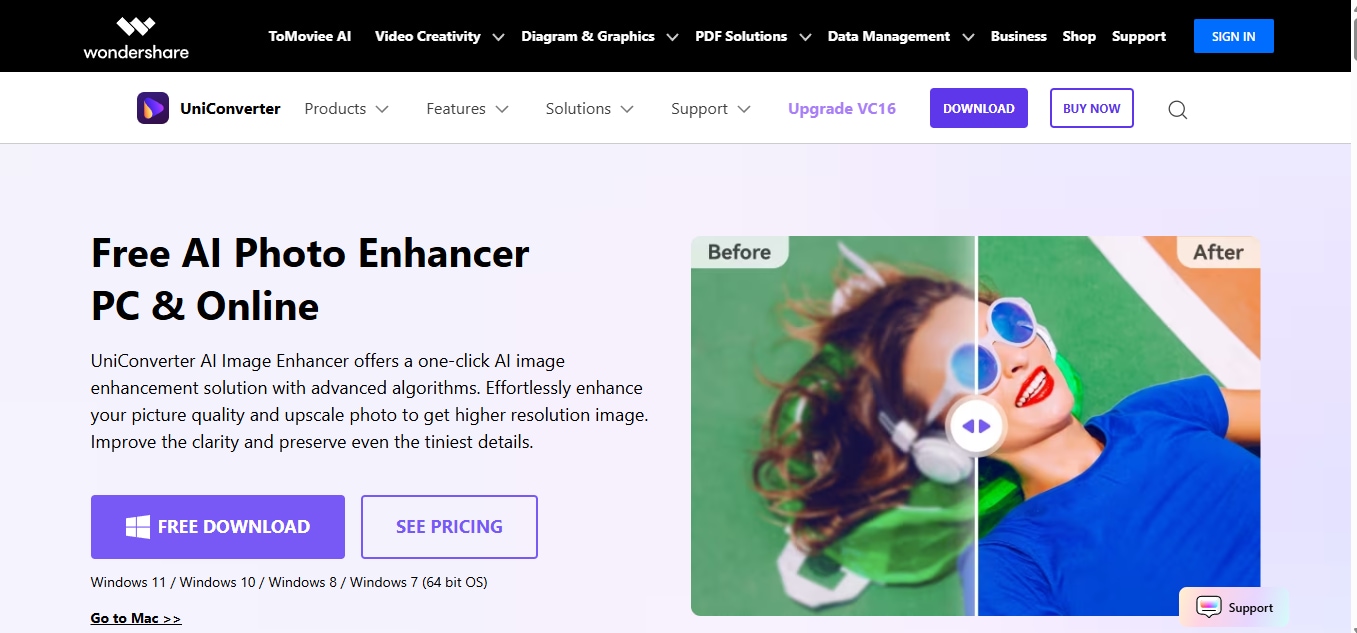
This tool is ideal if you're processing multiple sketches at once. Simply drag and drop your files, choose the AI coloring option, and preview the results in real time before exporting. One of its standout features is the batch image resizer, which lets you resize paintings to match the dimensions and aspect ratios ideal for social media platforms like Instagram, Pinterest, or Behance. Whether you're working on digital illustrations, inked sketches, or vintage hand-drawn art, UniConverter delivers corrected picture with speed, quality, and consistency.
For artists and designers seeking to colorize drawings online or offline with professional control, UniConverter combines automated colorization with formatting tools—saving both time and effort.
Step-by-Step Guide:
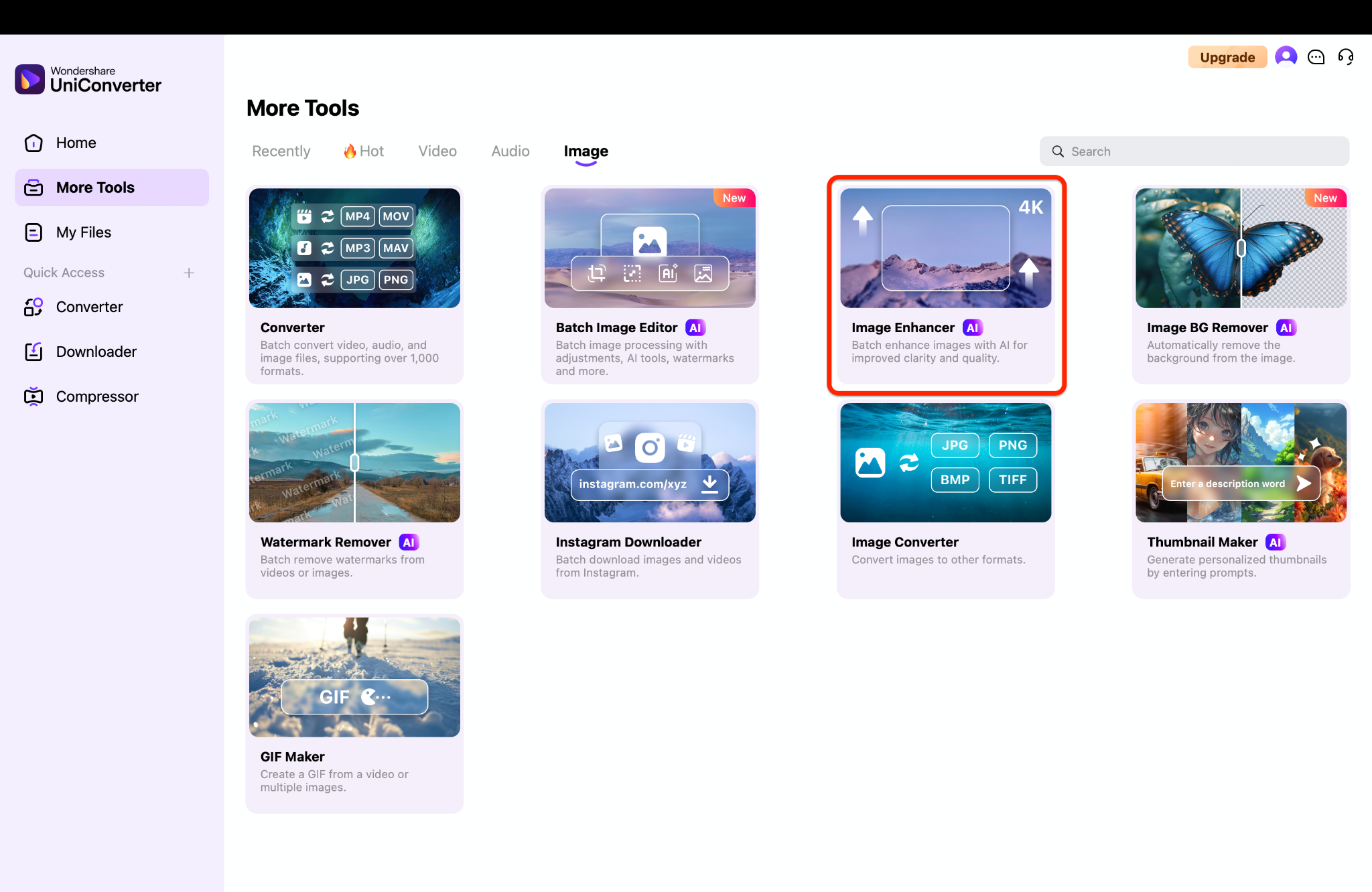
Step 1: Launch UniConverter and Open the AI Image Enhancer
Start by opening Wondershare UniConverter on your computer. From the left sidebar, go to More Tools > AI Image Enhancer under the "Image" section. Click + Add Images to upload your files—whether they're old family portraits, grayscale illustrations, or pencil-drawn sketches.
UniConverter supports batch uploading, so you can enhance multiple images at once.
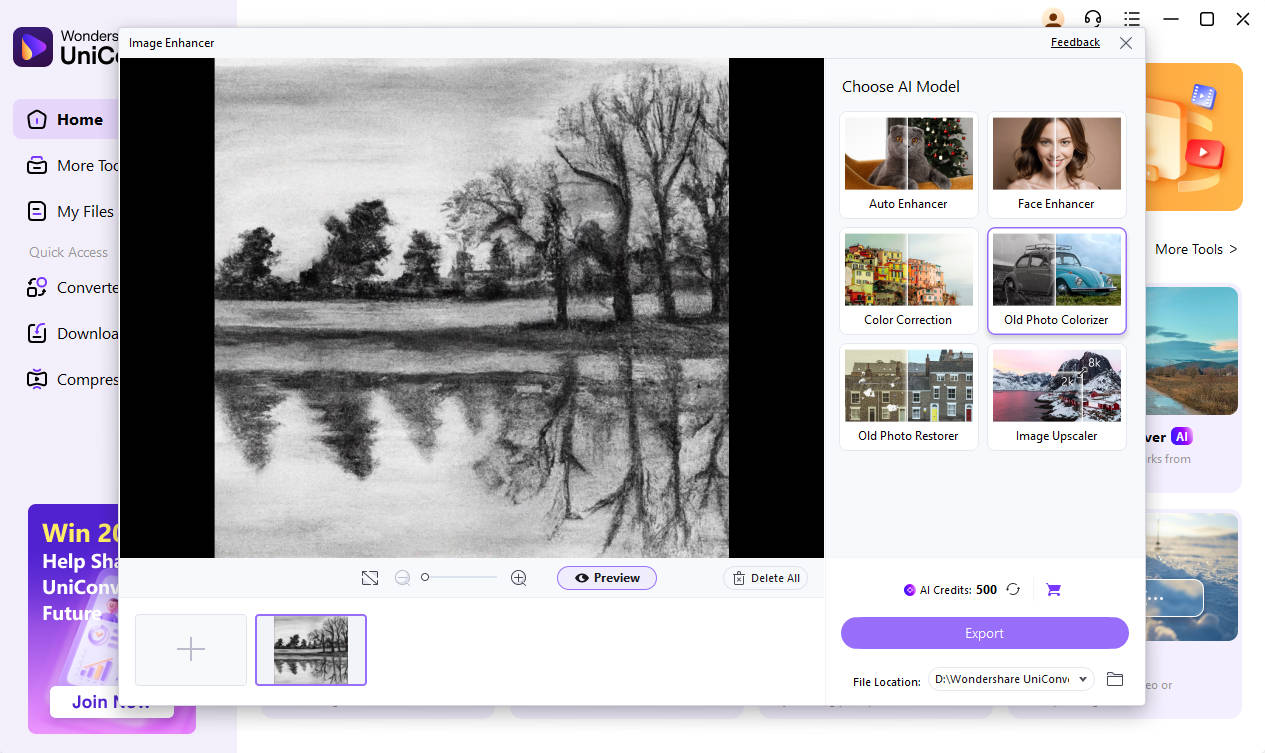
Step 2: Automatically Colorize with the Old Photo Colorizer
Once uploaded, choose the Old Photo Colorizer model under the AI enhancement options. Click Preview and let UniConverter's AI do the rest—it automatically identifies skin tones, fabrics, faded elements, and natural backgrounds to apply rich, realistic colors.
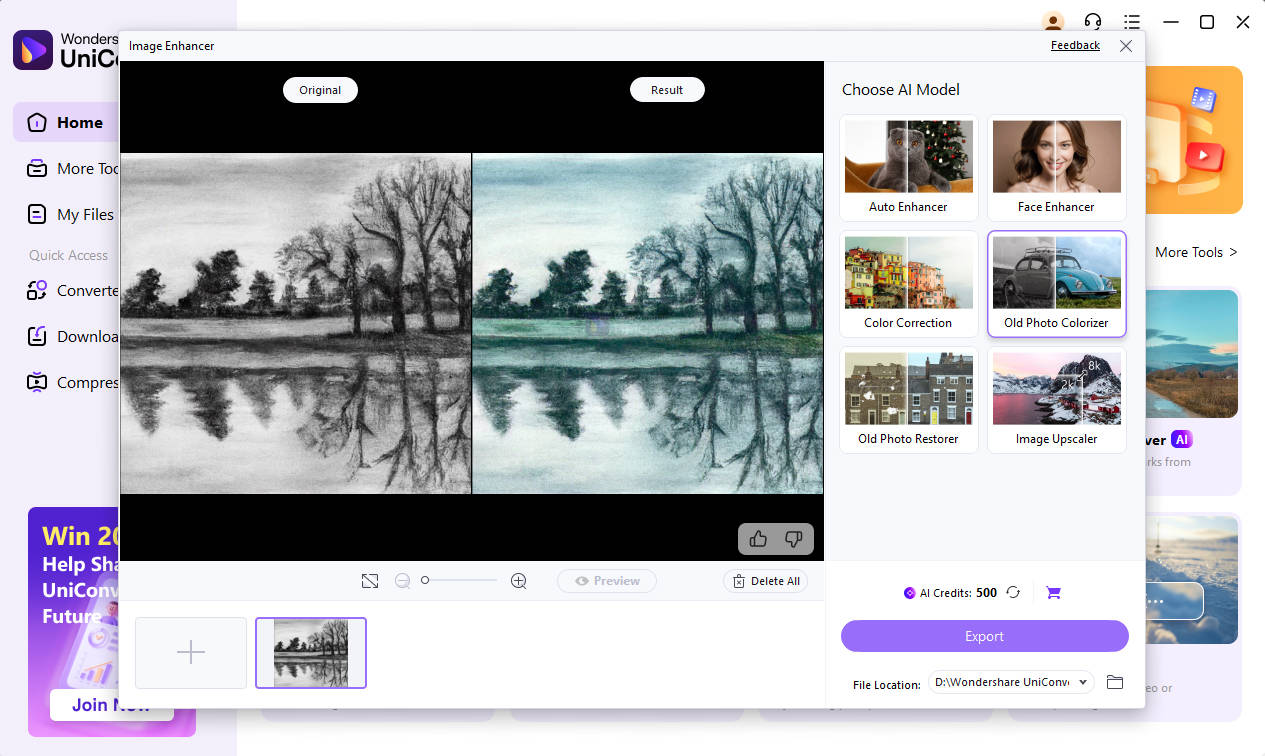
You'll instantly see a side-by-side comparison of the original grayscale image and the colorized output.
Step 3: Preview, Edit, and Export All
After processing, preview each image directly in the app. You can adjust brightness, contrast, or crop if needed using UniConverter's built-in editor. Once satisfied, choose your output format (JPG or PNG) and click Export All to save all images at once.
Best For :
- Artists who want to colorize multiple sketches at once.
- Social media creators who need platform-ready artwork.
- Designers looking for quick AI color previews.
- Users who prefer offline tools for AI coloring.
- Creators who want to resize images for Instagram or Pinterest.

Easy to Use Batch Shaded Sketch Colorizer

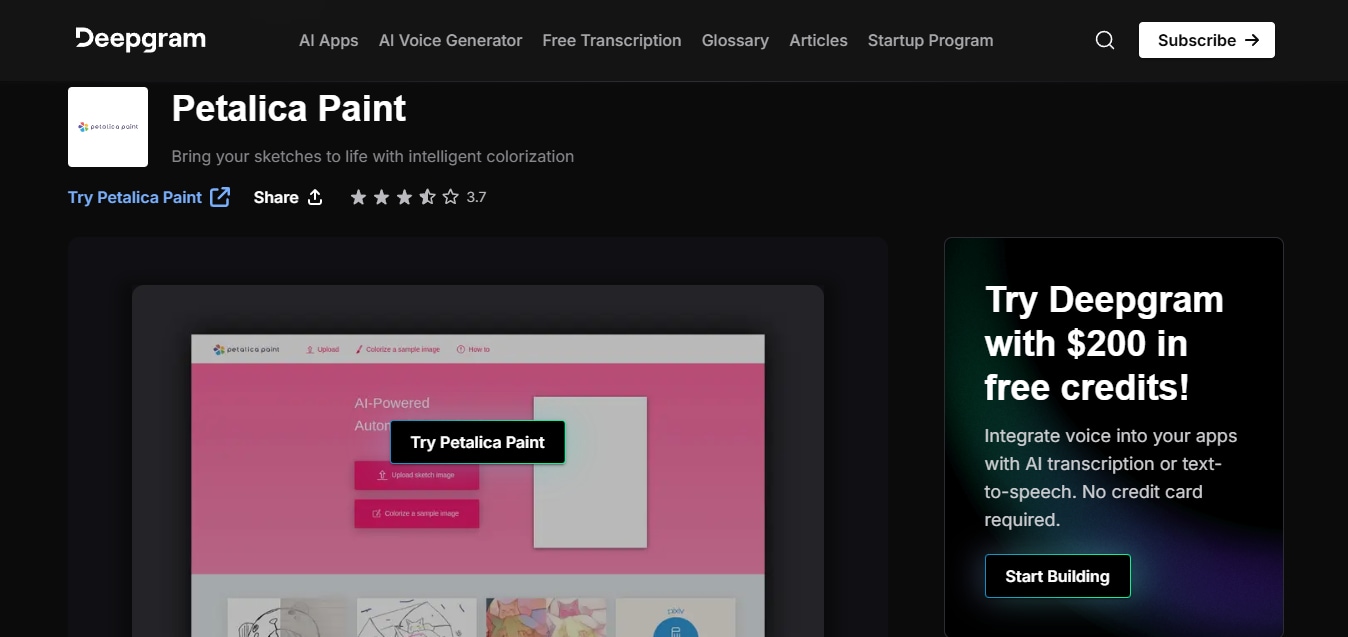
Part 3. How to Colorize Paintings with Petalica Paint
Step-by-Step Guide:
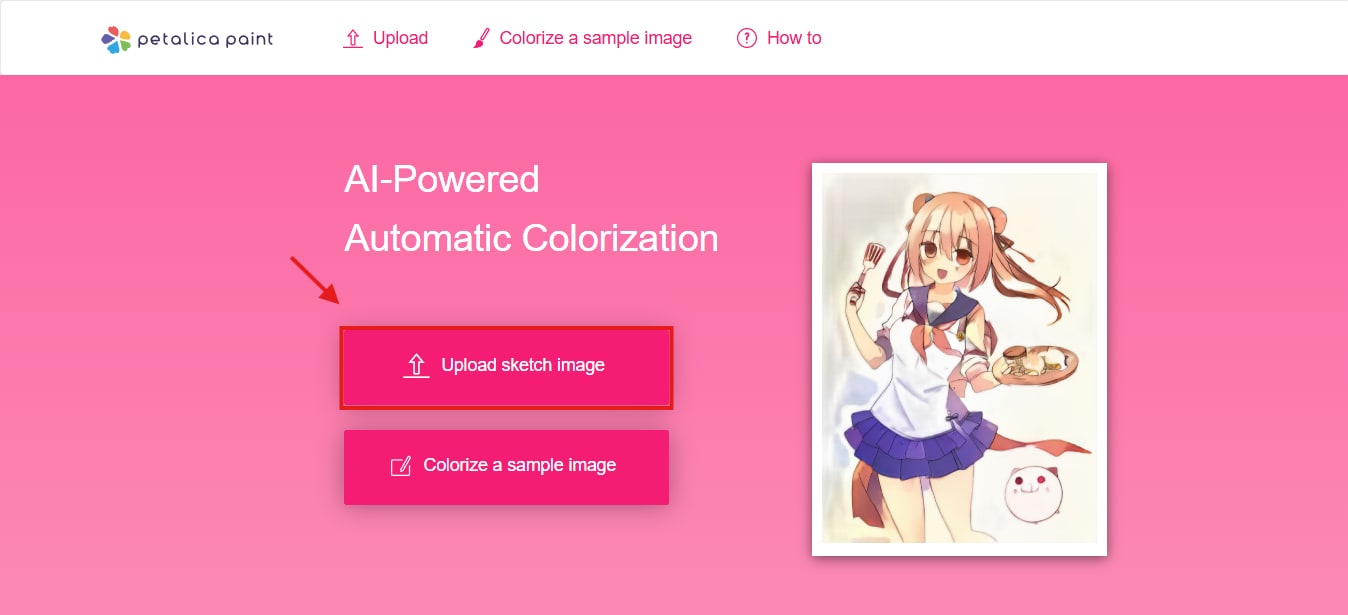
Step 1: Upload Your Sketch or Photo
Step 2: Choose a Style and Let AI Do the Work
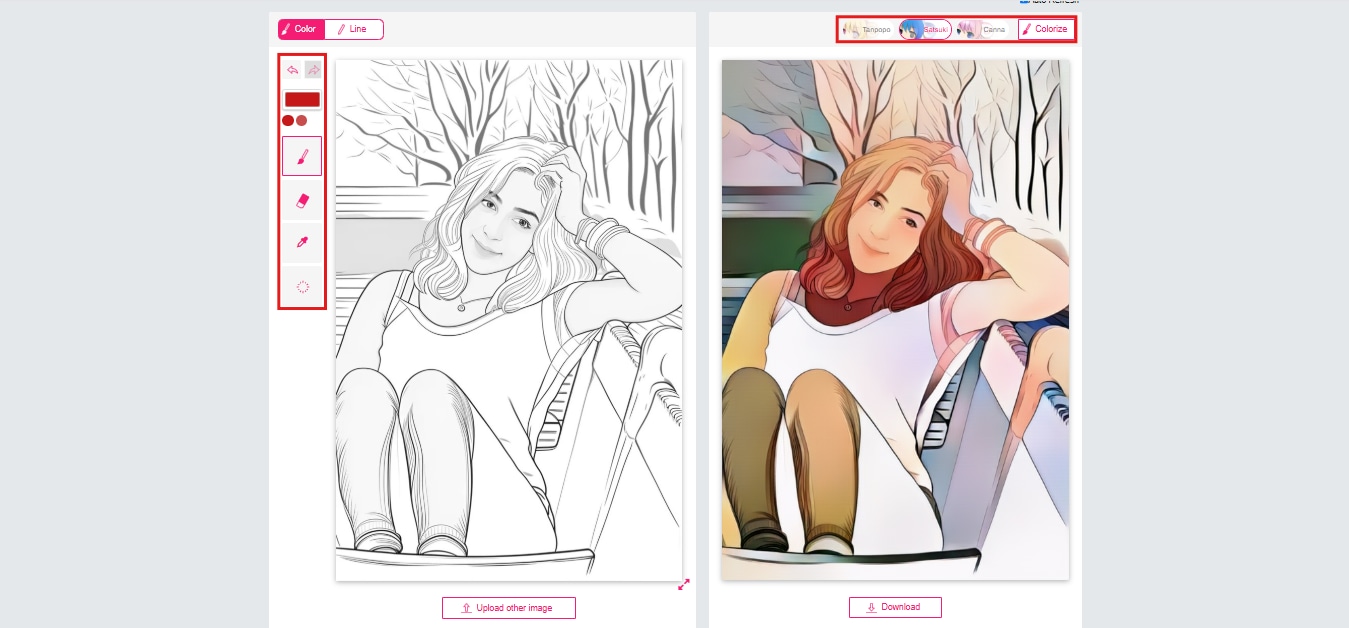
Once uploaded, pick a coloring style like Satsuki, Canna, etc that suits your creative vision. Petalica Paint will then process the image and generate a preview within seconds. You can switch between styles to compare the results. The AI enhances contrast, brightness, and shadows to mimic realistic shading.
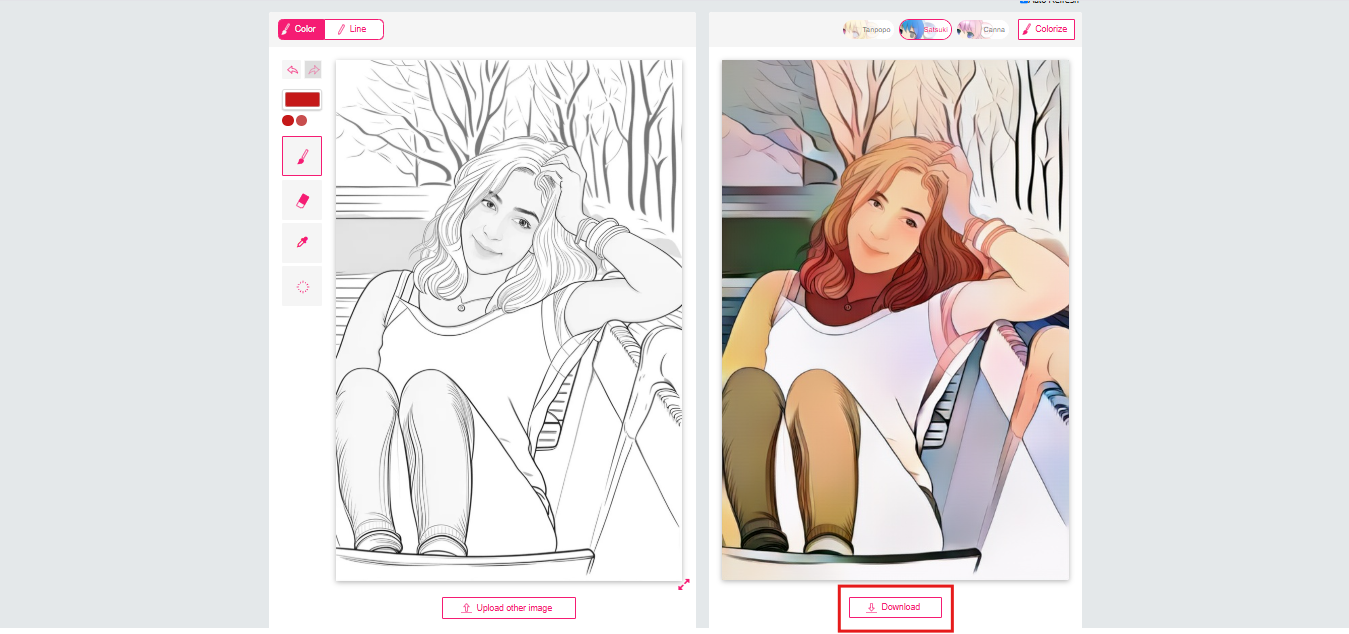
Step 3: Download the Colorized Image
Best For:
- Artists working on anime-style line art or manga
- Beginners who want auto-coloring without needing Photoshop
- Illustrators needing quick previews of their drawings in color
- Fans restoring vintage inked art with modern tones
- Social media creatives looking to colorize drawings for sharing
Part 4. How to Colorize Paintings With Artificial Studio

Step-by-Step Guide:
Step 1: Upload your black-and-white sketch or photo
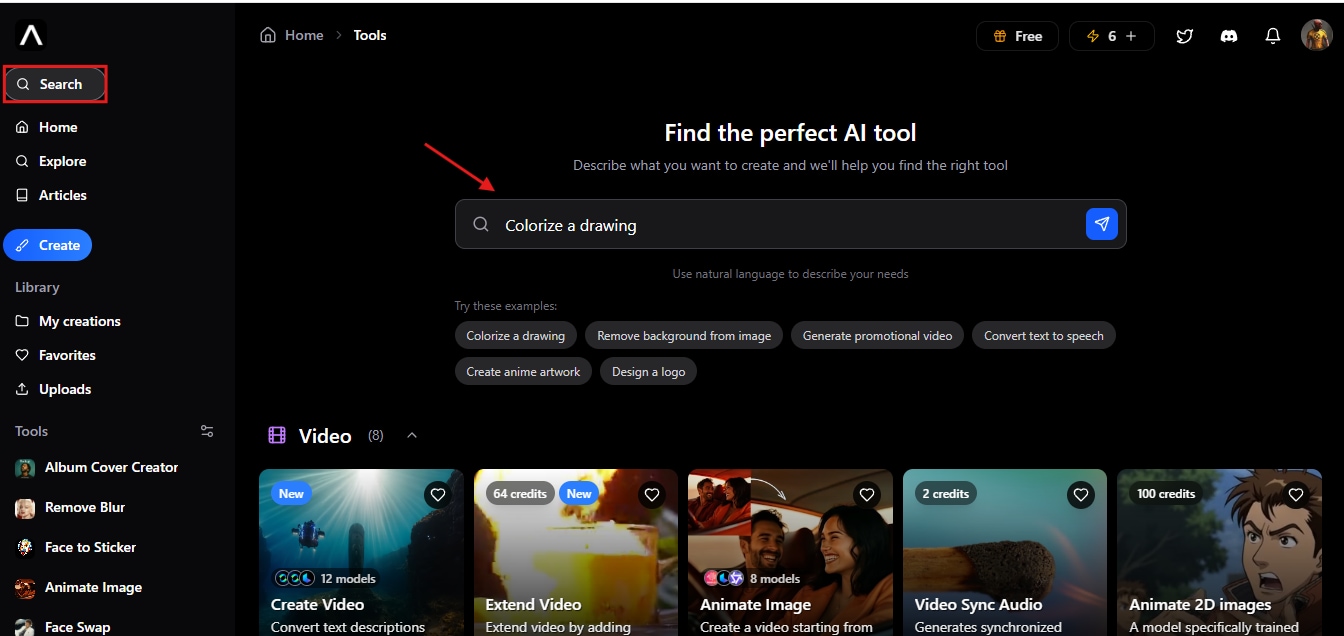
Go to the Artificial Studio homepage and go to the colorize drawing under the Tools section, or directly search for it from the "Search" button. You can upload JPG or PNG files—whether it's a color pencil sketch, anime-style line art, or a scanned ink drawing.
Step 2: Upload your black-and-white sketch or photo
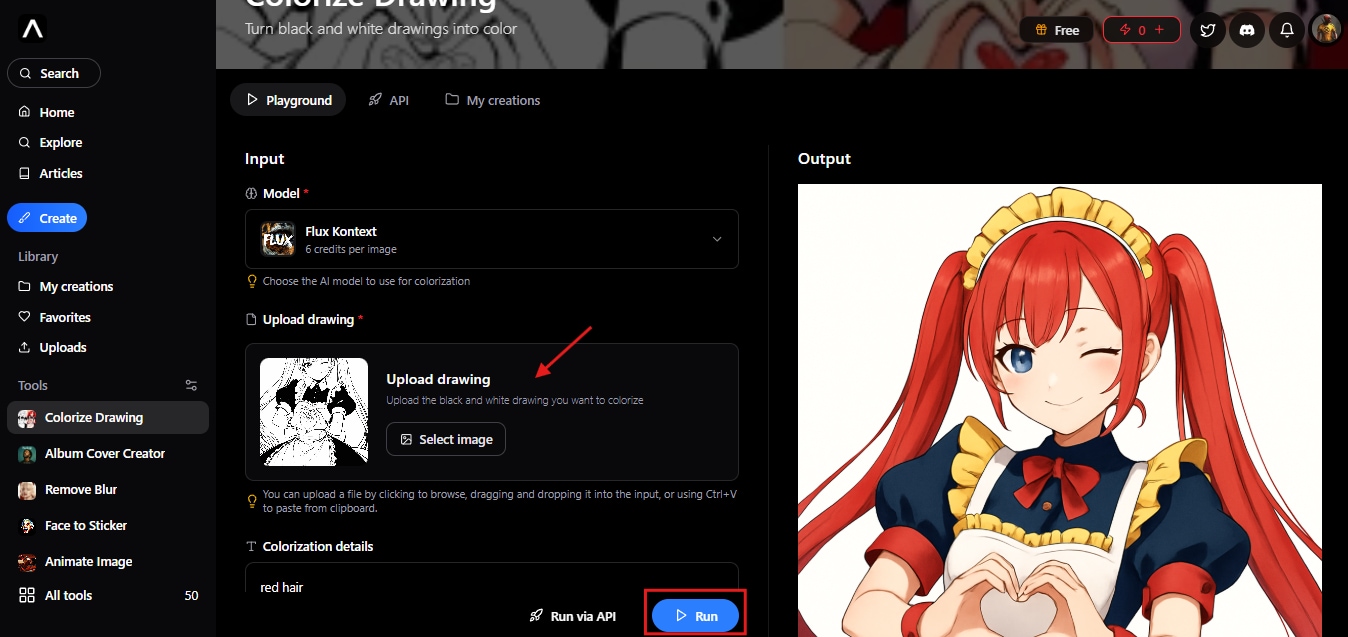
Upload your drawing by hitting the "Select image" button. After uploading, click on the "Run" button so that the AI engine analyzes your artwork and applies colors based on contours and shading. The intelligent AI coloring system is tuned to simulate real-world hues, shadows, and light—giving life-like depth even to simple outlines.
Step 3: Preview, edit, and download your output
Once the AI finishes processing, you'll get a side-by-side view of the original and colorized version. Review the results. You can also animate or edit your image, and once clear, click "Download" to save your colored sketch. You can now print drawings to color manually later or share the digital version directly online.
Best For:
- Artists want quick previews of an AI color sketch before painting manually
- Hobbyists or illustrators exploring different color palettes for line art
- Social media creators who wish to create vibrant sketches or concept art posts
- Teachers and students who want to colorize drawings for class material
- Anyone looking to colorize paint or pencil-based art without advanced tools
Easy to Use Batch Shaded Sketch Colorizer
Part 5. How to Colorize Paintings with InstructPix2Pix
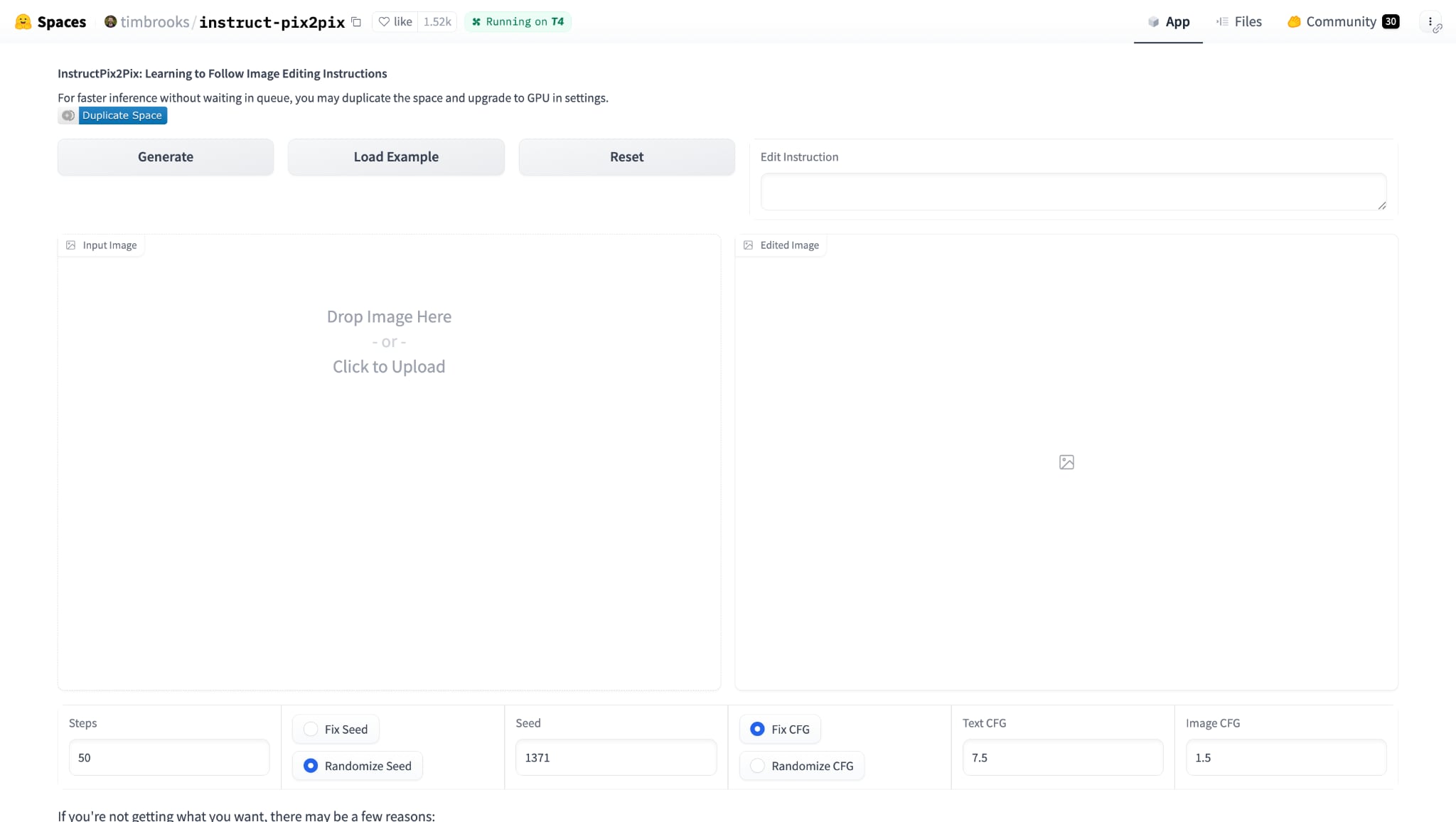
Unlike traditional Pix2Pix, which relies on paired datasets and fixed transformations, InstructPix2Pix is fine-tuned with instruction-based tuning on a large dataset of image-prompt pairs, enabling a wide variety of artistic or photorealistic changes.
Step-by-Step Guide:
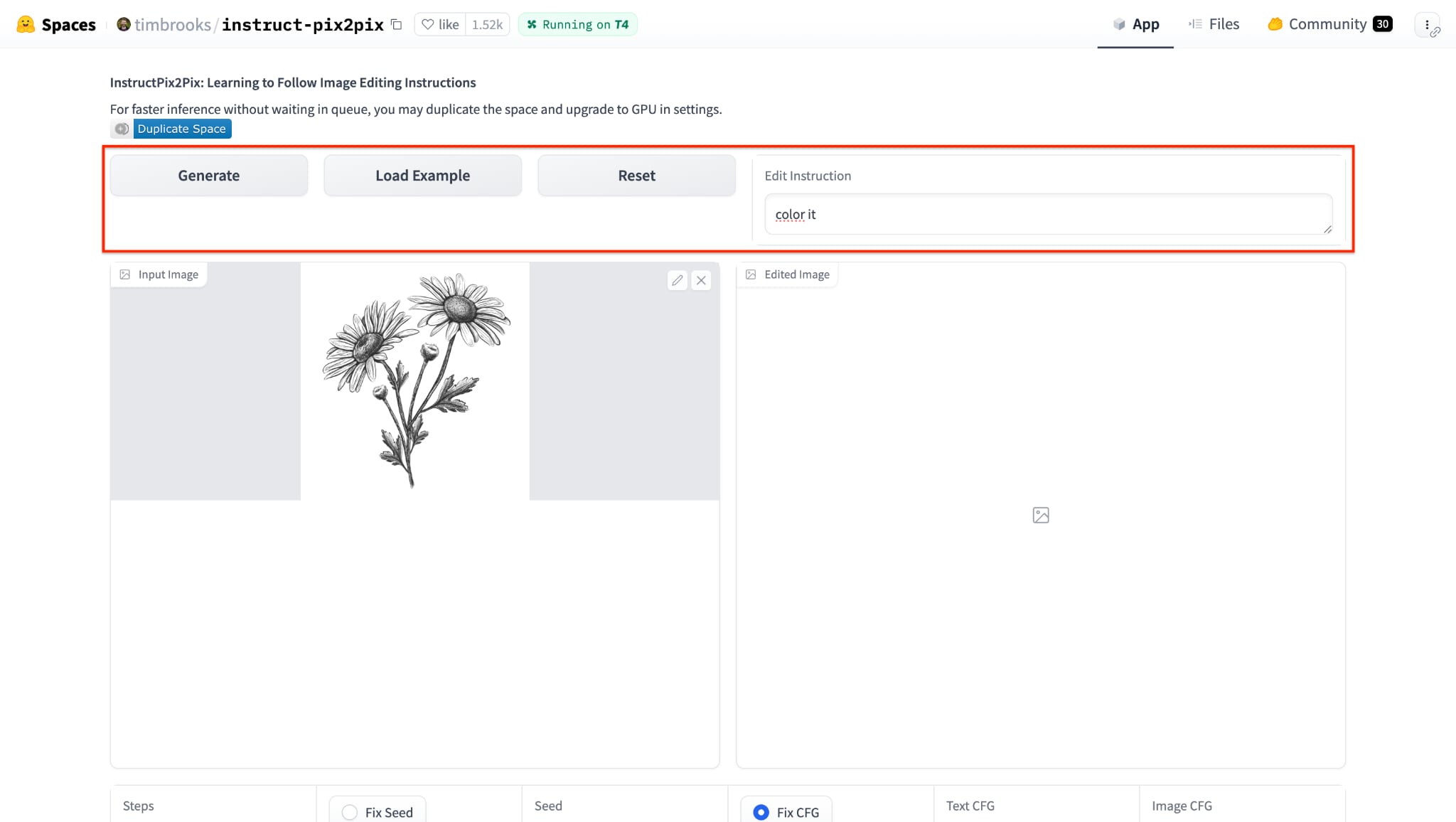
Step 1: Access the Pix2Pix interface and upload your sketch
Go to the Pix2Pix Demo on Affinelayer or a hosted version like Hugging Face's implementation. Upload a clean black-and-white drawing, line art, or old photo. The steps below are from Hugging Face; you can follow the same for AffineLayer.
Step 2: Let Pix2Pix generate the colored output
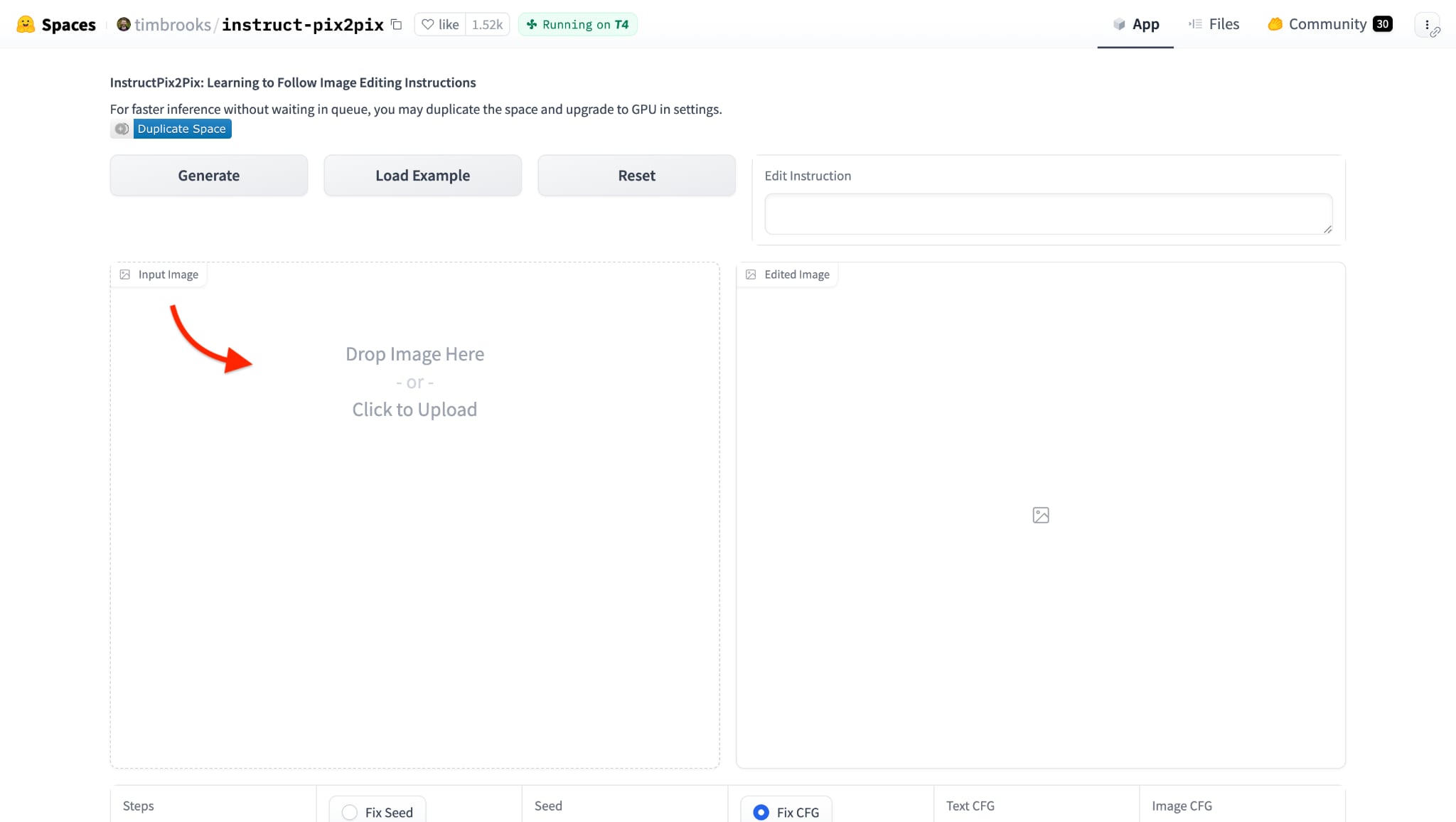
Once uploaded, click the "Generate" button, and optionally load an example, reset, and add instructions. The AI will analyze the lines and shadows of your sketch, then automatically apply color based on learned visual data. This AI coloring method works exceptionally well for anime art, landscapes, and comic-style sketches.
Step 3: Review and download the result
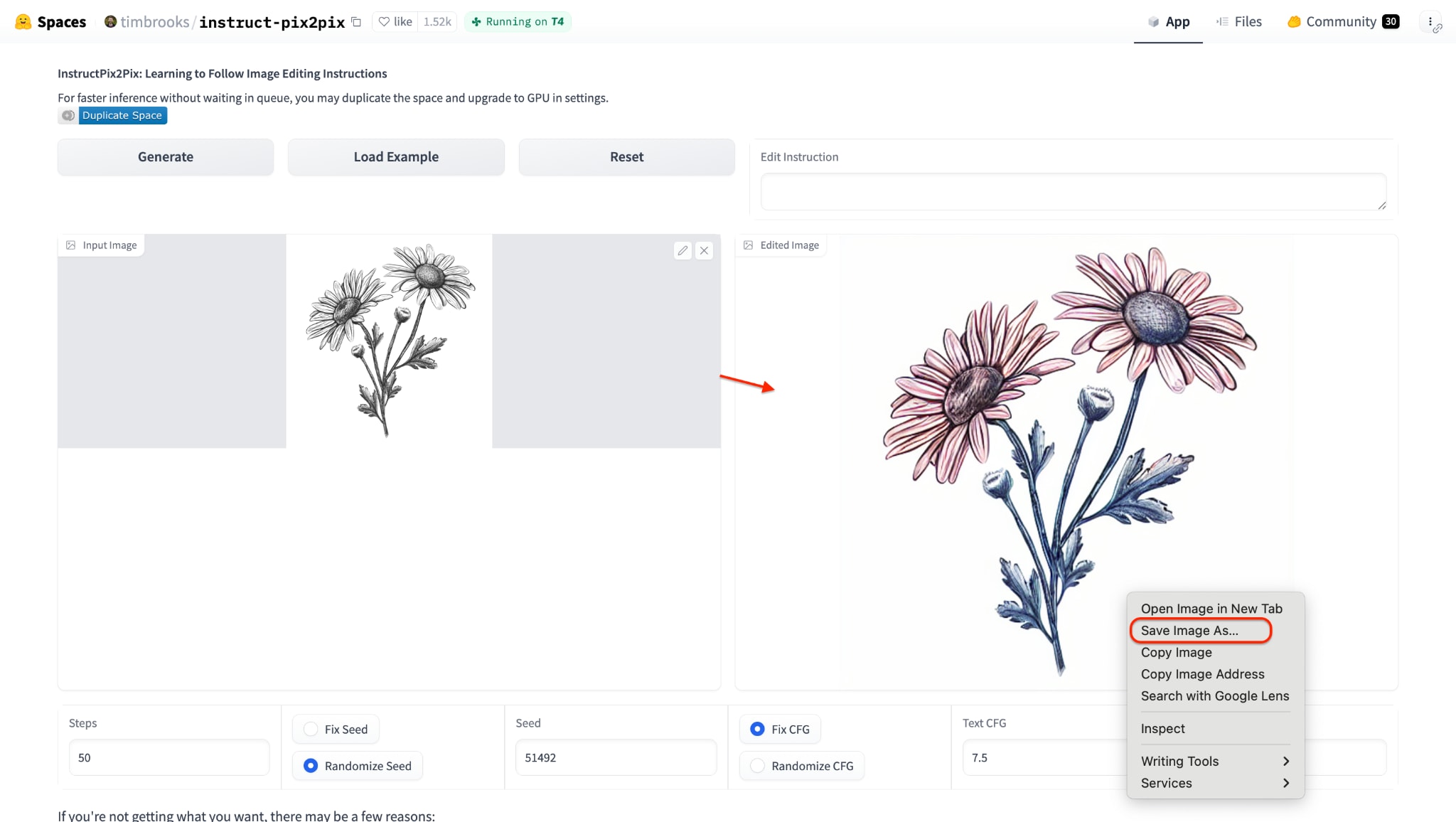
After a few seconds, Pix2Pix will display the colorized version alongside the input. If satisfied, right-click and save the image. You can also fine-tune the sketch and rerun the tool for alternate outputs.
Best For:
- Use AI colorize drawing tools to bring sketches to life quickly.
- Try AI coloring to instantly colorize paint styles with one click.
- Turn outlines into vibrant color pencil sketch art with AI.
- Print drawings to color or use colorize drawing features online.
- Create bold edits with AI color sketch tools for creative workflows.
Part 6. How to Colorize Paintings with Komiko
Komiko is a sleek AI photo restoration and colorization tool that allows users to bring vintage photos to life with rich, natural hues. It uses advanced neural networks trained on historical photo datasets to ensure authentic, skin-tone-accurate, and realistic results. The interface is beginner-friendly and offers fast upload and colorization options without needing any technical background. Kamiko is especially suited for restoring old family portraits, worn film stills, and aged grayscale photos.
Step-by-Step Guide:
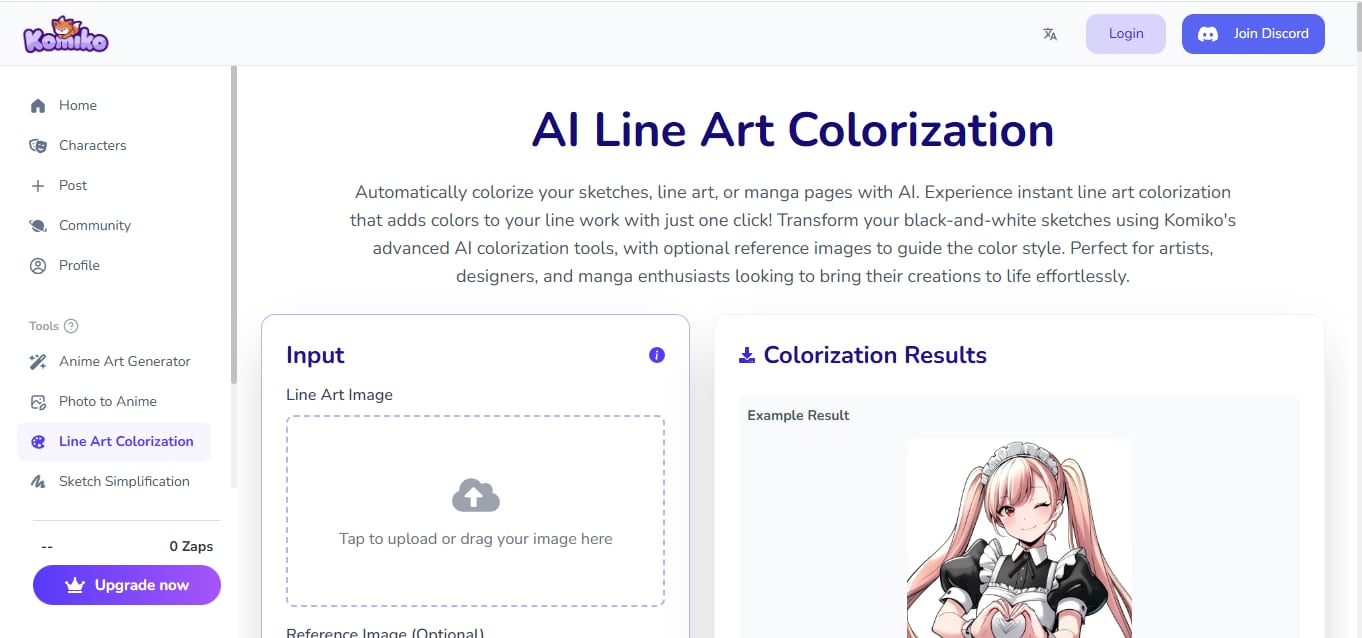
Step 1: Visit the Kamiko website and upload your photo
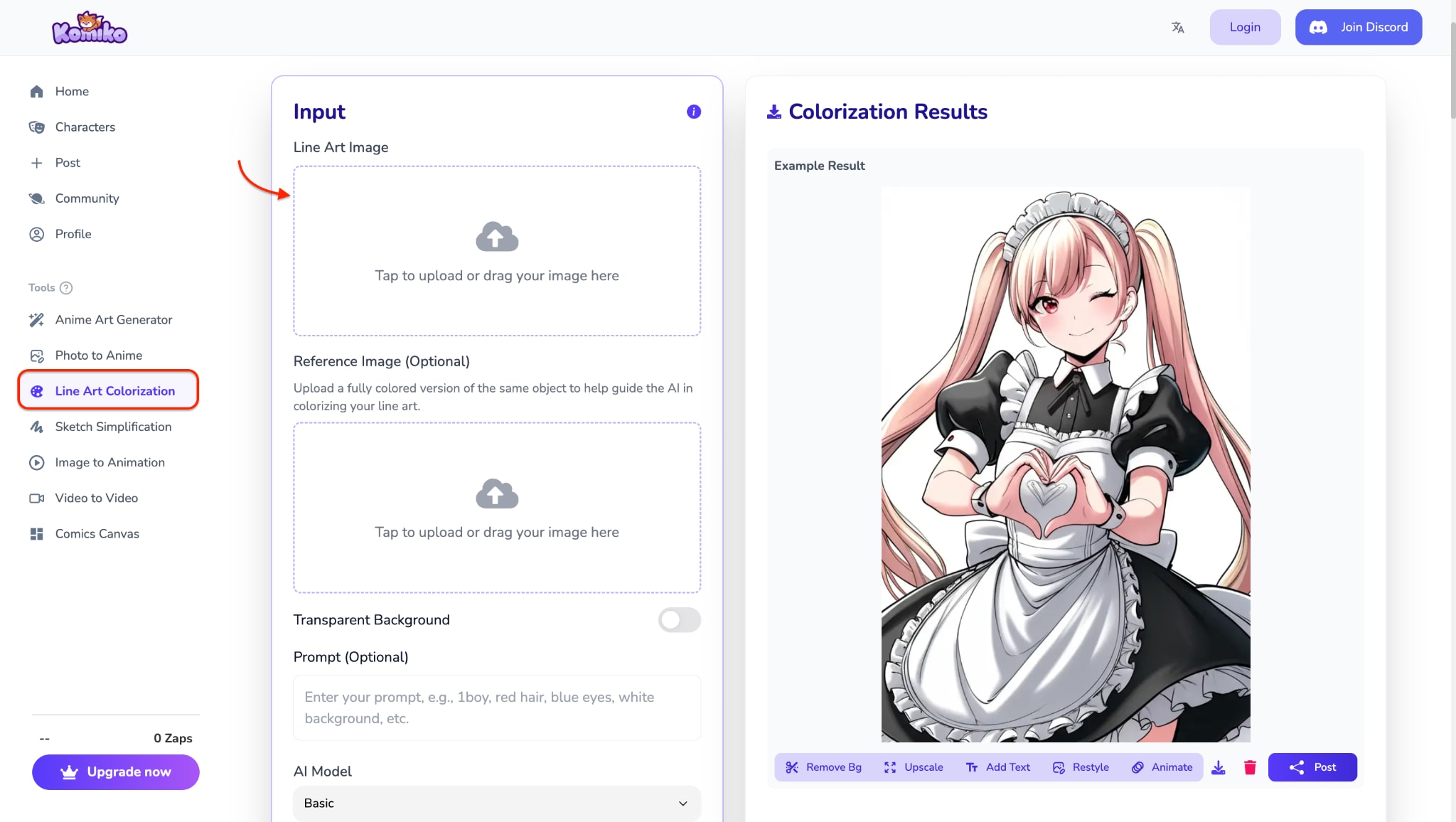
Go to the Kamiko AI homepage and click "Tap to upload or drag your image here" under the Input section. Choose a black-and-white image from your device—old portraits, scanned paper prints, or film scans.
Step 2: Let Kamiko automatically colorize your image
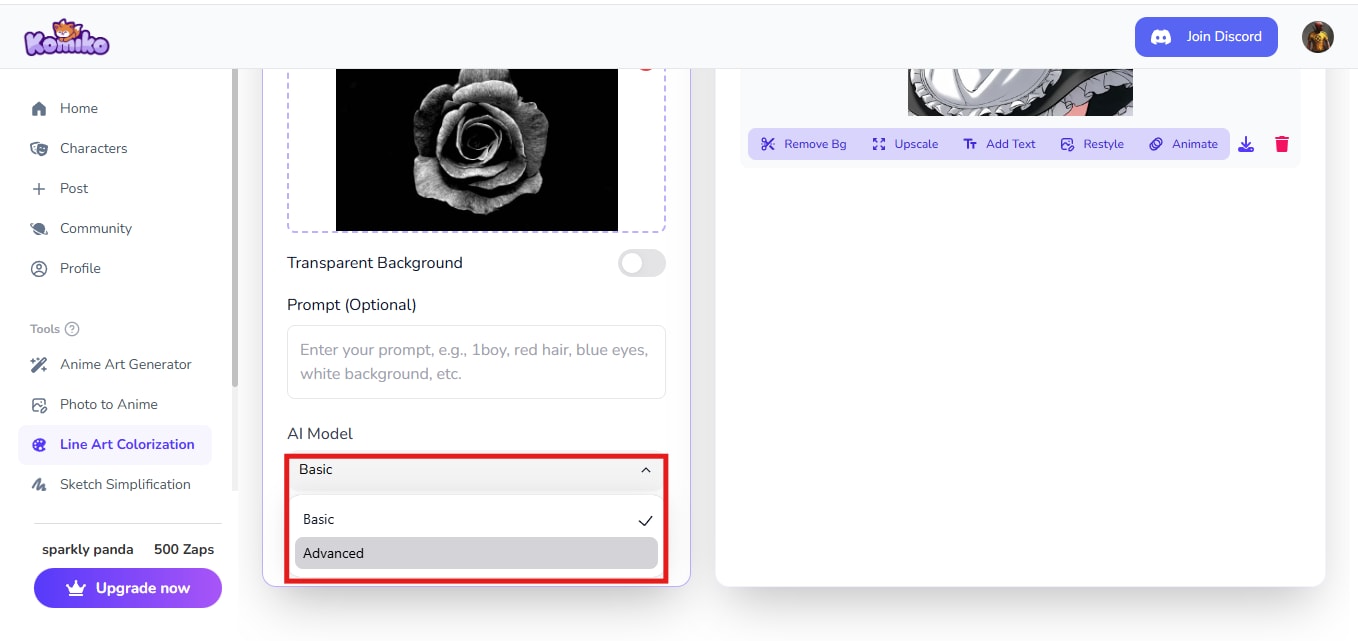
Step 3: Preview, adjust, and download
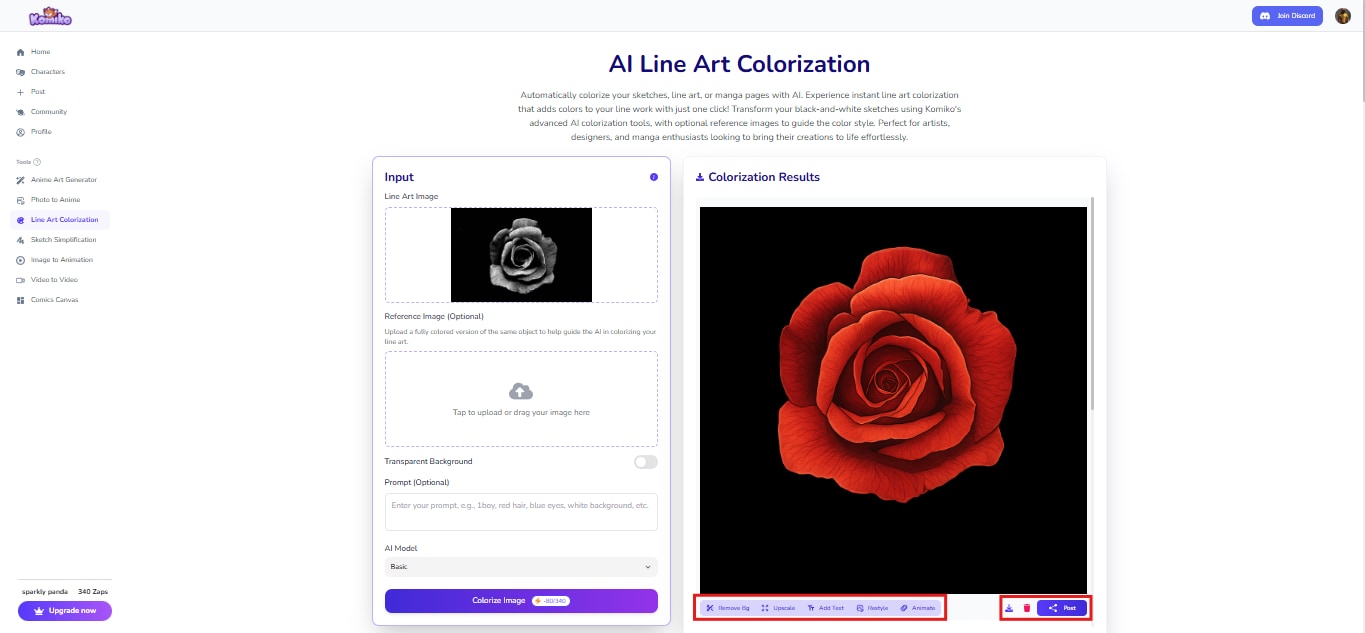
The output appears beside the original image. If needed, use the basic adjusters to tweak like Remove Bg, Upscale, Add text, Restyle, or Animate. Once satisfied, download the result in HD quality.
Best For:
- Families digitizing and restoring old photo albums
- Historians and archivists who want true-to-era photo colorization
- Users looking for fast, accurate skin-tone rendering in portraits
- Anyone wishing to enhance grayscale memories with lifelike tones
- Non-tech users needing one-click AI-powered colorization
Conclusion
Bringing black-and-white photos to life has never been easier, thanks to the rise of AI-powered tools like UniConverter, Petalica Paint, Artificial Studio, Pix2Pix, Komiko, and others. Whether you're restoring old family portraits, enhancing anime sketches, or breathing color into pencil drawings, there's a perfect tool tailored to your needs.
Suppose you're looking for an all-in-one solution that lets you batch-process, preview, and export stunning colorized images alongside other media features. In that case, UniConverter stands out as the most versatile pick.
Easy to Use Batch Shaded Sketch Colorizer
FAQs
-
1. Can I use UniConverter to batch colorize multiple old photos at once?
Yes, UniConverter allows batch processing so that you can upload and colorize multiple black-and-white photos at once. -
2. Does UniConverter offer other features beyond colorizing black and white photos?
Absolutely! You can also convert, compress, edit, and enhance videos, audio, and images in a few clicks. -
3. Is UniConverter available for both Windows and Mac?
Yes, UniConverter runs smoothly on both platforms with a clean and intuitive interface. -
4. What's the best AI tool to colorize anime-style sketches?
Petalica Paint and Pix2Pix are great for anime-style coloring thanks to their line-aware AI coloring methods. -
5. Can I preview my colorized image before downloading it?
Most tools like UniConverter, Artificial Studio, and Pix2Pix let you view results side-by-side with the original before saving.

