
Faded memories don't have to stay lifeless. If your photo albums are full of dull black-and-white images, it's time to bring them back to life—fast and for free. With modern tools, you can colorize black and white photos for free using powerful AI—no editing skills, software, or subscriptions required.
In this guide, we'll show you the best free online tools to colorize photos to restore old portraits, handraw sketches, or historical shots. These 4 methods are quick, innovative, and easy solutions for you to consider.
Table of Contents:
Part 1: Use Cases of AI Black and White Photo Colorizers
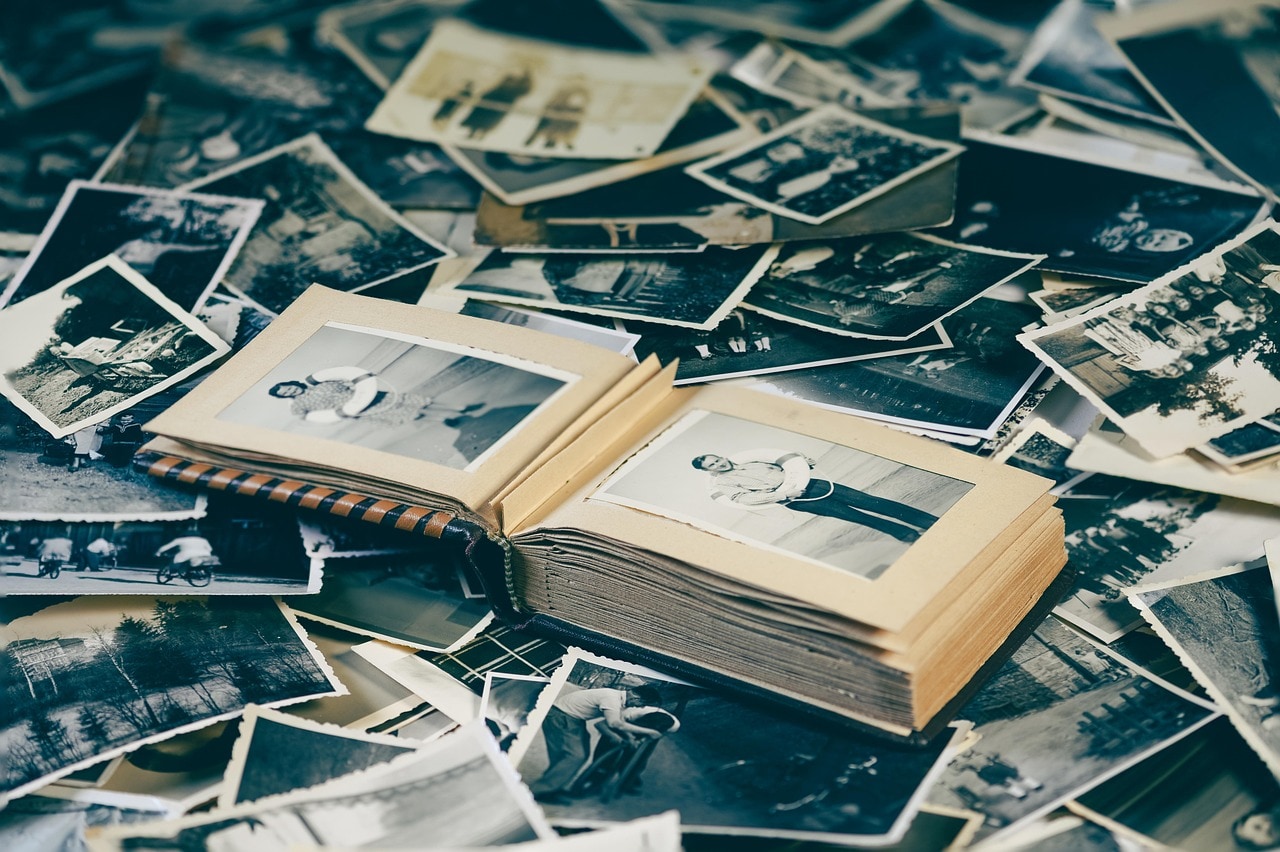
Here are some of the most popular use cases:
1. Old Family Photos
Imagine seeing your grandparents' wedding photo or your baby pictures in full color. AI makes it possible to colorize online free, giving emotional depth to these moments. This is especially powerful when archiving family history or creating legacy albums.
2. Historical Photos
Historians and educators often use AI to convert black and white photo to color online free so that younger audiences can connect more deeply with historical figures and events. Colored photos make the past feel more immediate and real.
3. Shaded Sketches
Artists and illustrators can colorize a photo online using free AI to experiment with different styles, palettes, or vibes for shaded drawings. It's an easy way to preview finished looks without having to do the complete coloring manually.
4. Line Drawings
Have a clean black-and-white sketch or illustration? Tools that colorize black and white photos online free also work on crisp line art. You can turn outlines into polished pieces instantly—ideal for comic artists, tattoo designers, or coloring book creators.
In short, whether you want to colorize black and white photos freeware or simply explore different looks for your art, these tools let you do it free and online, powered by AI.

Easy to Use Batch Black and White Photo Colorizer

Part 2: How to Convert Black and White Photos to Color with UniConverter
If you're looking to colorize black and white photos free using a desktop application with AI precision, Wondershare UniConverter is a solid choice. It's more than a video tool — it features an AI-powered Photo Colorizer that gives grayscale images new life with just a few clicks. You can colorize photo online free AI or use the desktop version for added power, including batch photo enhancement and even colorize video online free via its broader suite.
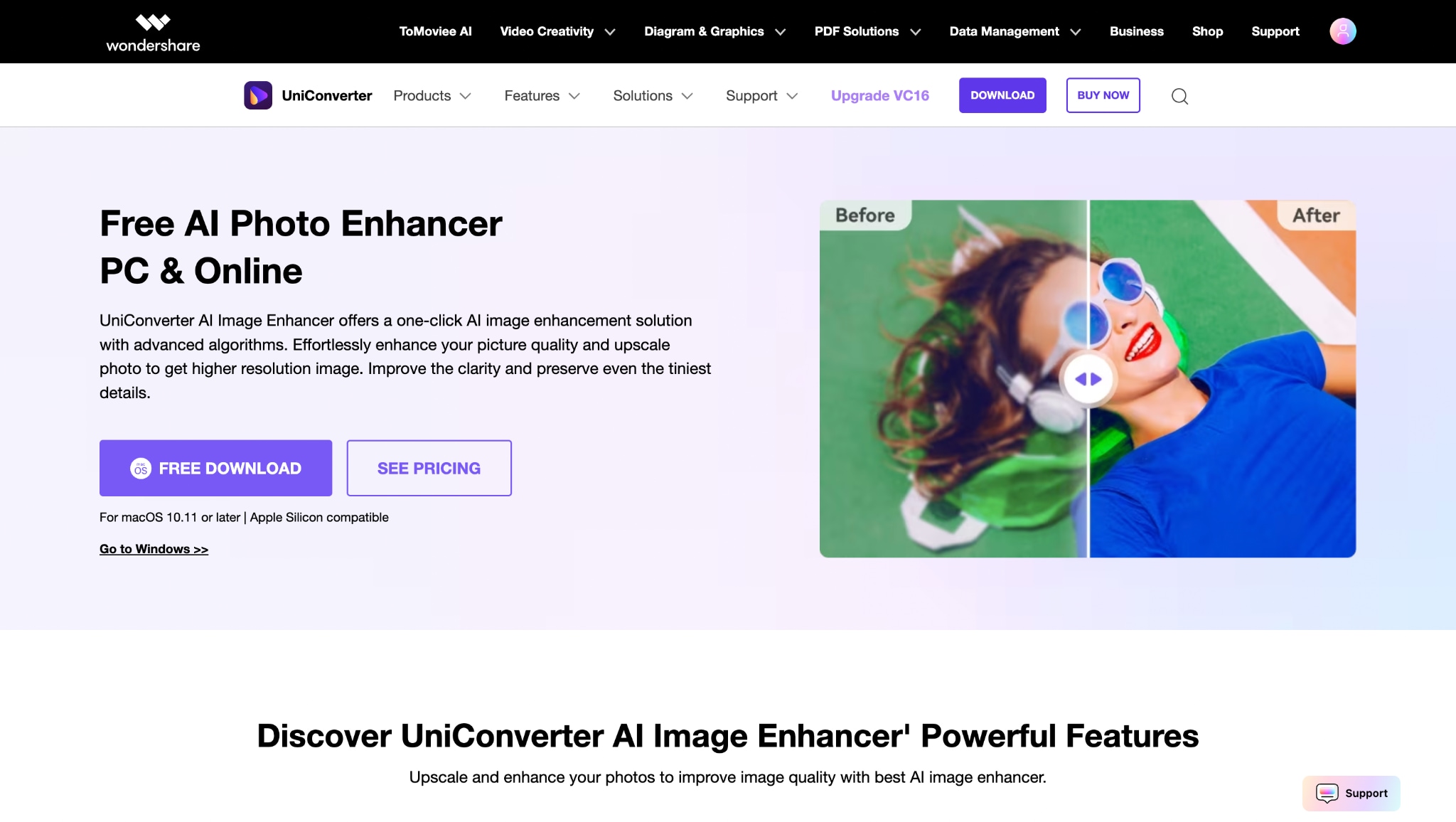
UniConverter supports everything from scanned family portraits to shaded pencil drawings, making it ideal for anyone who wants to convert black and white photo to color online free, or offline, with more control.
Steps to Colorize Old Photos Using UniConverter
It's one of the few desktop apps that strikes a balance between ease of use and powerful AI enhancements, making it a reliable choice for anyone needing to colorize old photos AI-style with just a few clicks:
Step 1: Launch UniConverter and Navigate to the Image Enhancer
Open Wondershare UniConverter on your computer to get started. From the left-hand sidebar, click More Tools> Image> AI Image Enhancer. Then click + Add Images to upload your black-and-white photos—whether they're scanned portraits, old family albums, or pencil-drawn sketches.
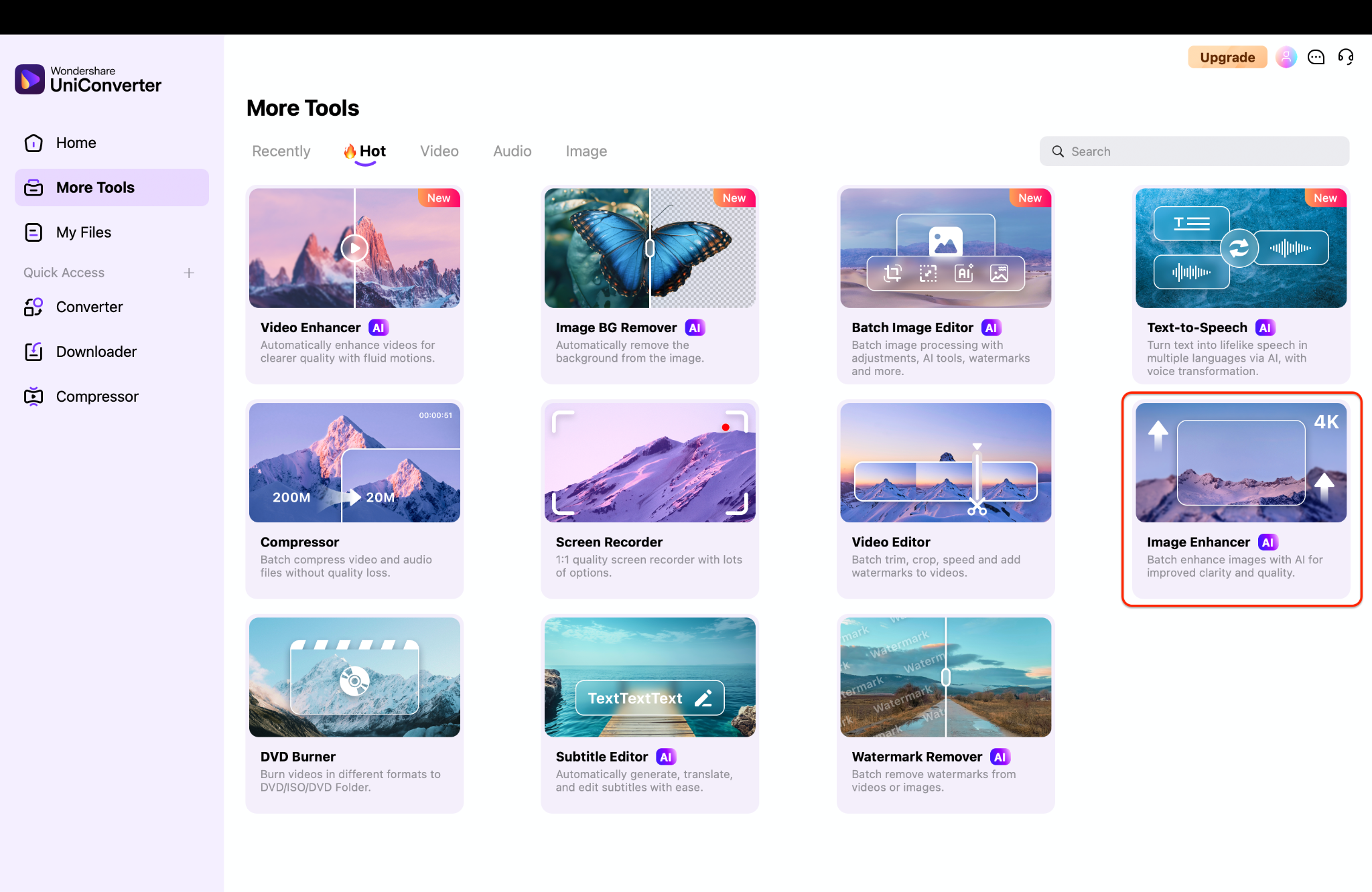
Step 2: Automatically Colorize Old Photos with AI
After uploading, choose the "Old Photo Colorizer" option inside the enhancement AI Models. Click Preview to let UniConverter's advanced AI engine process your image.
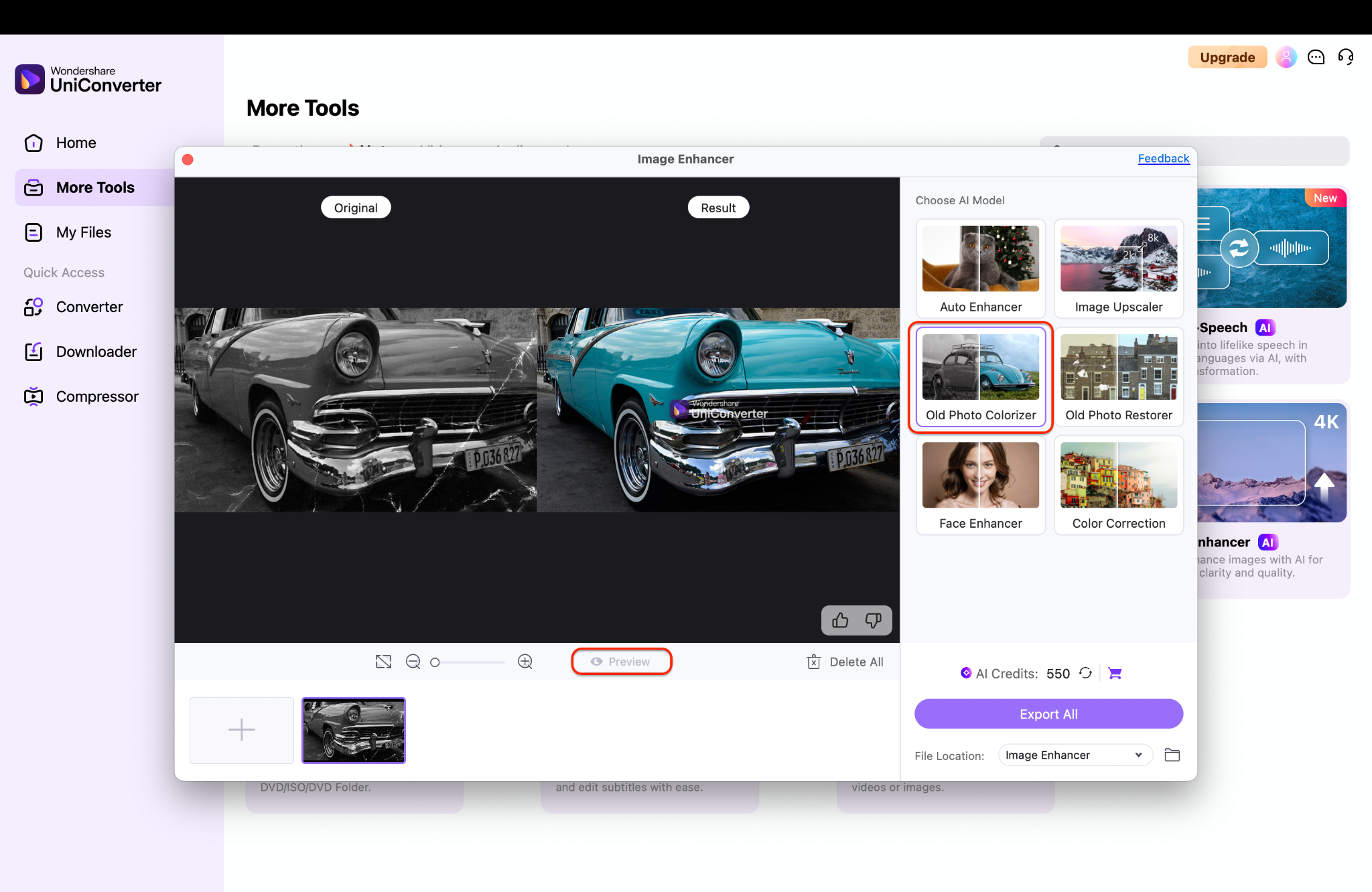
Note: Your photo should be no larger than 2000 x 2000 pixels for best results.
Step 3: Preview, Edit, and Save the Colorized Photos
Once the AI finishes, you can preview the colorized photo directly in the app. Use the built-in tools to adjust brightness, contrast, or cropping if necessary.
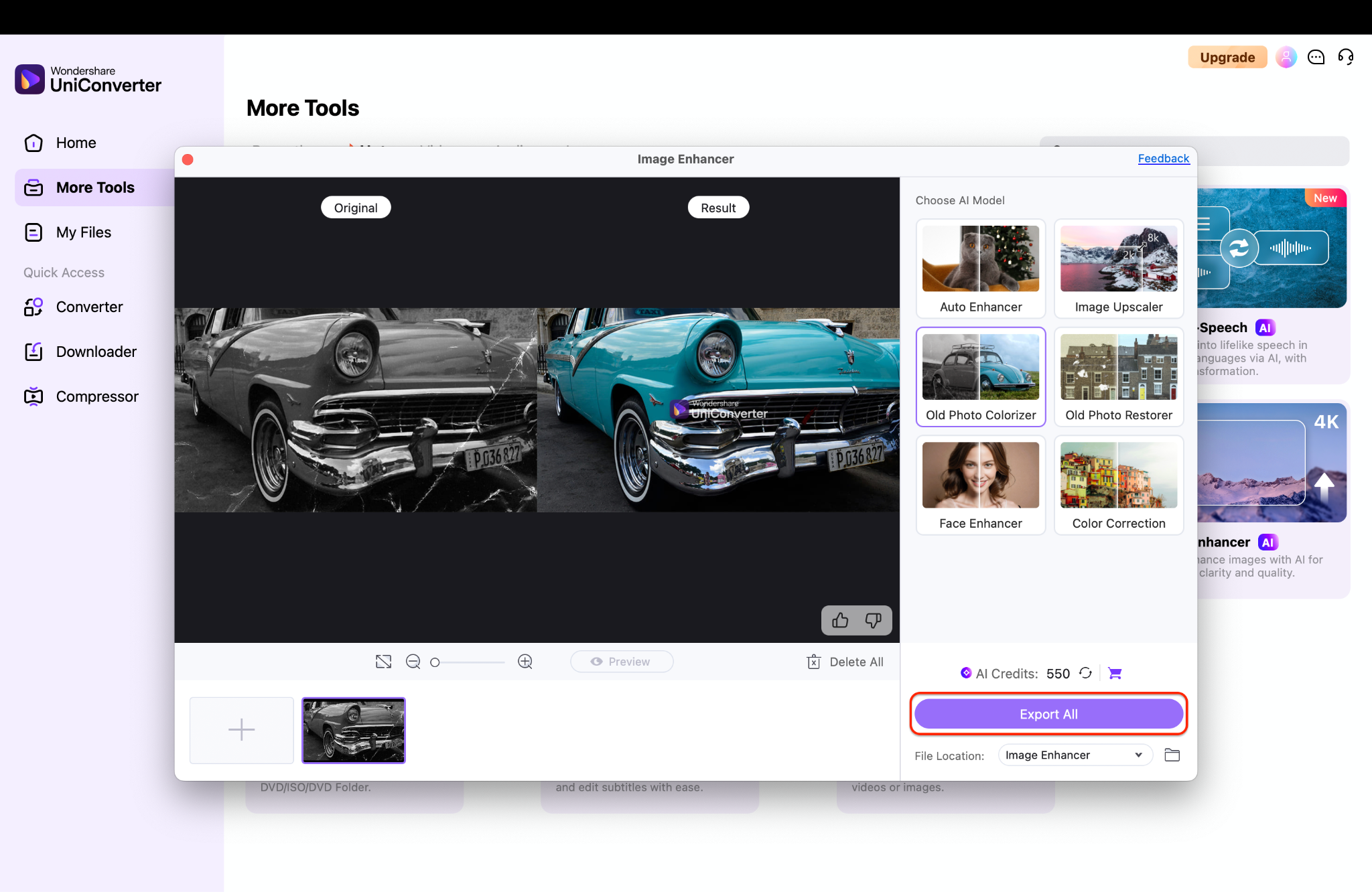
Best For:
- People looking to colorize black and white photos online free with offline options
- Users who want batch colorization for old family albums
- Those interested in both photo and video AI enhancement
Part 3: How to Turn Black and White Photos to Color with ImageColorizer
If you're searching for a dedicated tool to colorize black and white photos free, ImageColorizer is one of the most popular and effective options. Built specifically for photo restoration, it uses cutting-edge AI technology to deliver realistic results—automatically detecting skin tones, skies, and background features with precision. Unlike other tools that bundle photo editing into broader software, ImageColorizer focuses exclusively on bringing black-and-white photos back to life.
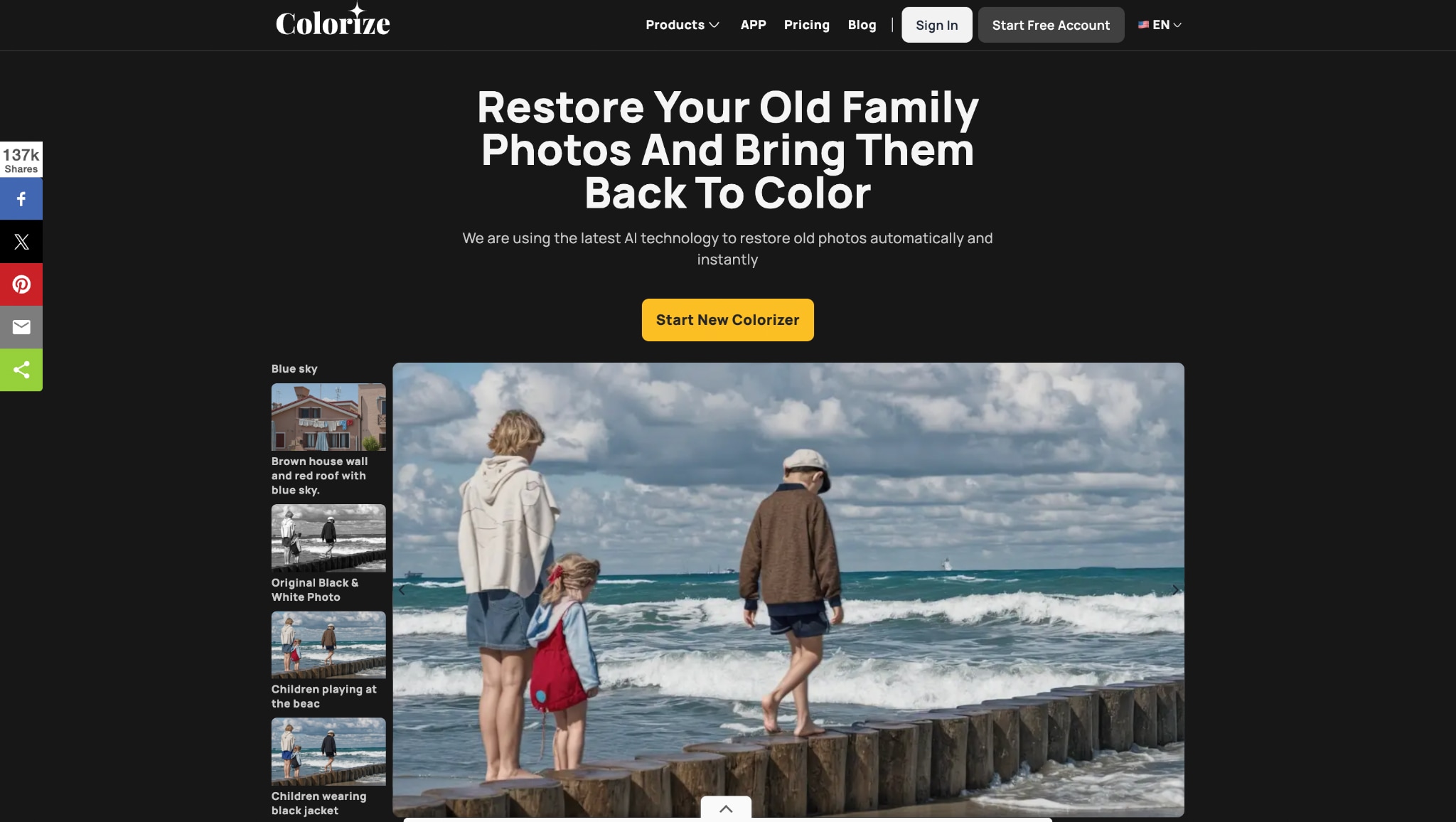
Steps to Colorize Black and White Photos Using ImageColorizer
Step 1: Visit the ImageColorizer Website
Open your preferred browser and head to https://imagecolorizer.com. The website is clean and minimal, with a central upload button right on the homepage named Start New Colorizer. There are no confusing menus or features to navigate, making it ideal for first-time users.
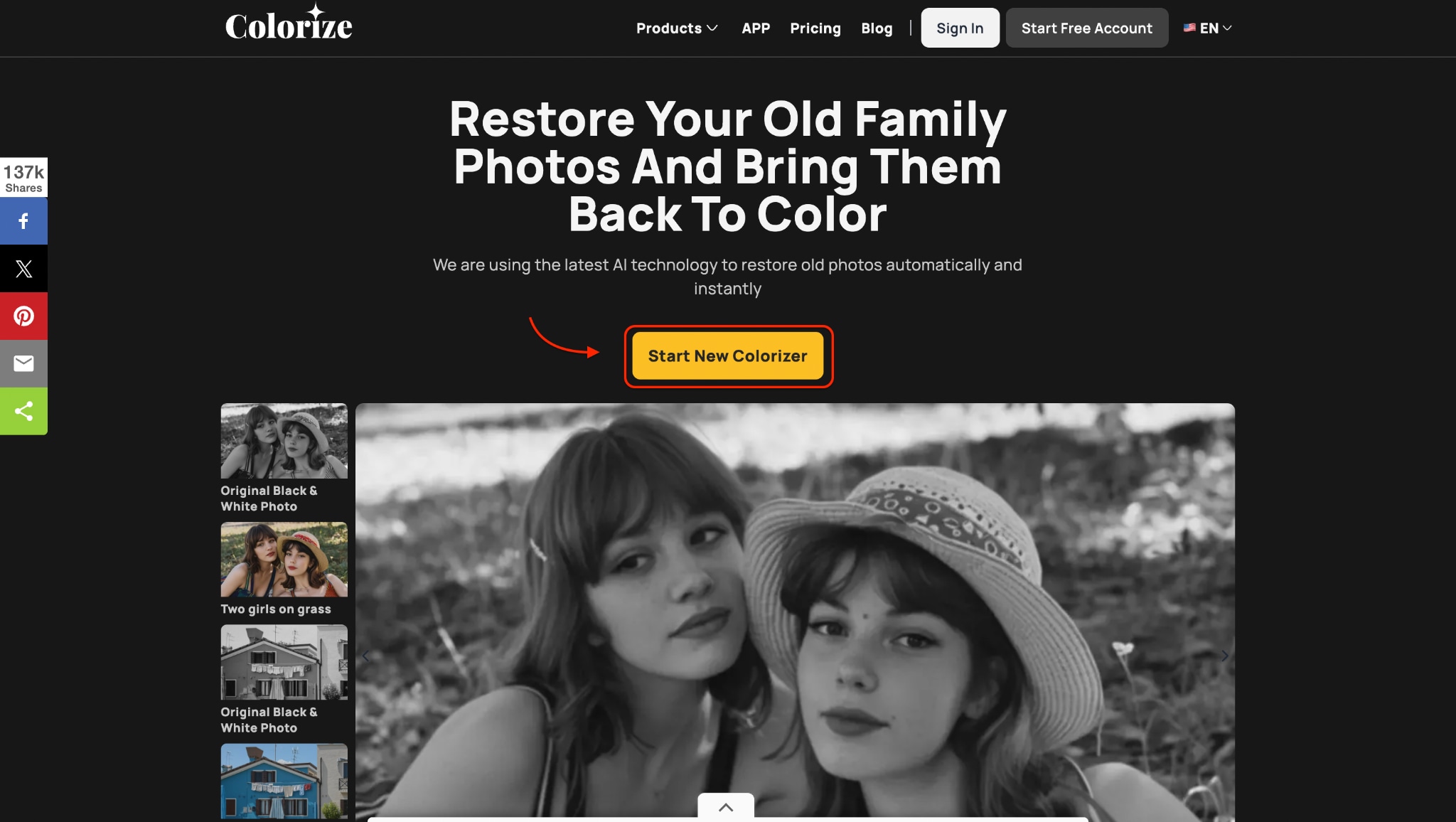
Step 2: Upload a Black-and-White Photo
Click the Add B&W Image button, then select the black-and-white photo you want to colorize from your device. Supported formats include JPG, PNG, and WebP, and the upload process is quick and responsive. You can upload a variety of images, such as scanned portraits, historic photos, pencil sketches, or grayscale selfies.
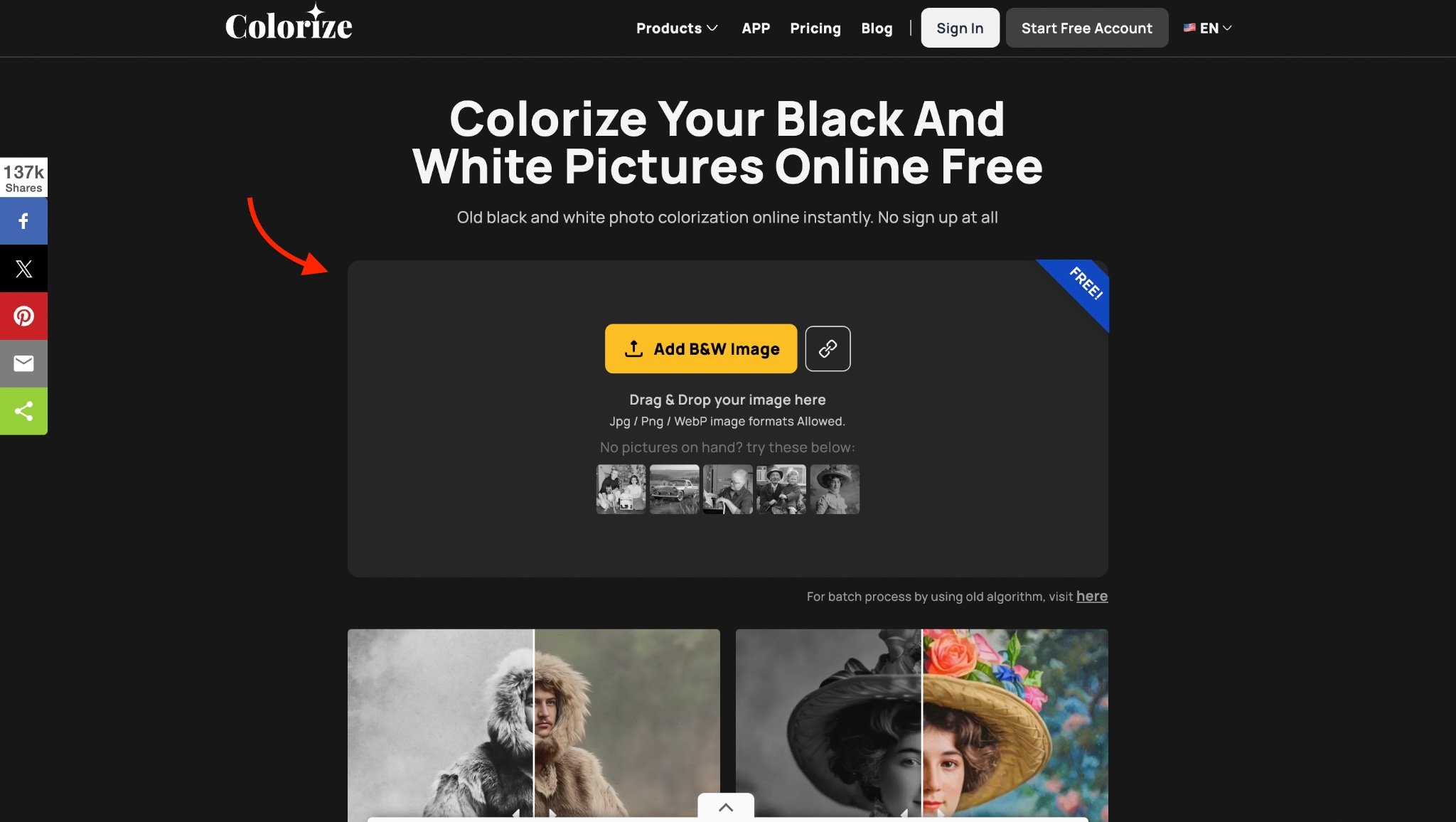
Step 3: Auto-Colorize and Download
After uploading, iImageColorizer gives a variety of options to choose from, like Default or Customized colorization, and makes your black and white image with whatever prompts you enter, either positive or negative.Then simply hit the Upload & Start button. If you're satisfied, click Download to save the high-resolution result to your device. This seamless process allows you to colorize black and white photos online for free without watermarks, logins, or hidden fees.
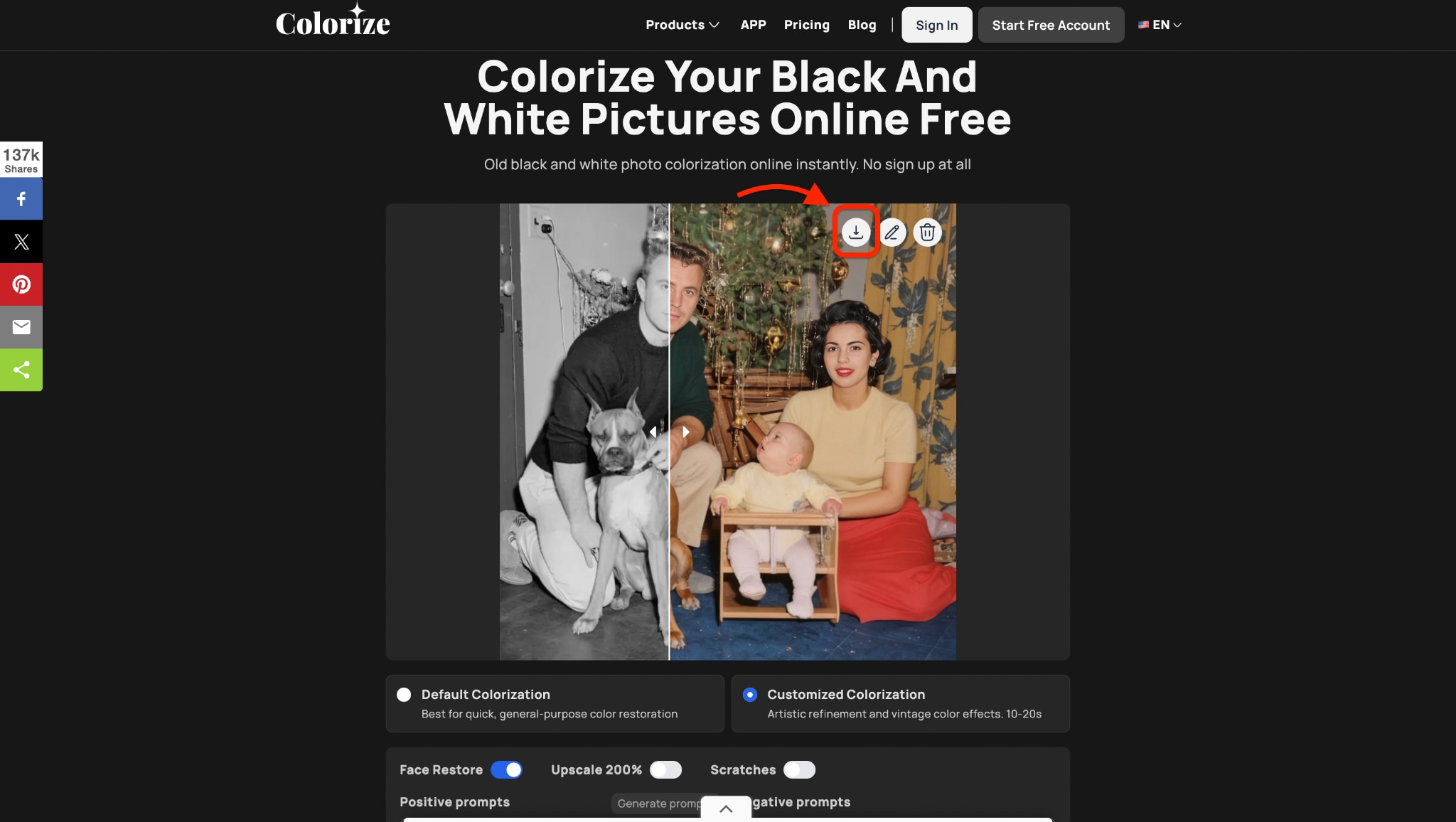
Best For:
- Users looking to colorize black and white photos freeware without extra features
- Anyone needing a tool to colorize old family photos, drawings, or historical archives
- People who want to colorize photo online free AI without creating an account
ImageColorizer also offers iOS, Android, and Windows apps for offline use. But for most users, the web version is all you need to convert a black and white photo to color online for free in under a minute.
Easy to Use Batch Black and White Photo Colorizer
Part 4: How to Make Black and White Photos to Color with Canva Colorize App
Canva, the popular online design platform, now offers a Colorize tool as part of its photo effects suite. This feature allows you to colorize black and white photos online free without needing complex software. While still in beta and available through Canva's web interface, it's an excellent option for casual users and designers alike. You can turn grayscale portraits or sketches into color images, then add them directly into Canva designs—perfect for social media, flyers, or memory projects.

Steps to Colorize Black and White Photos Using Canva
Step 1: Open Canva and Upload Your Black-and-White Photo
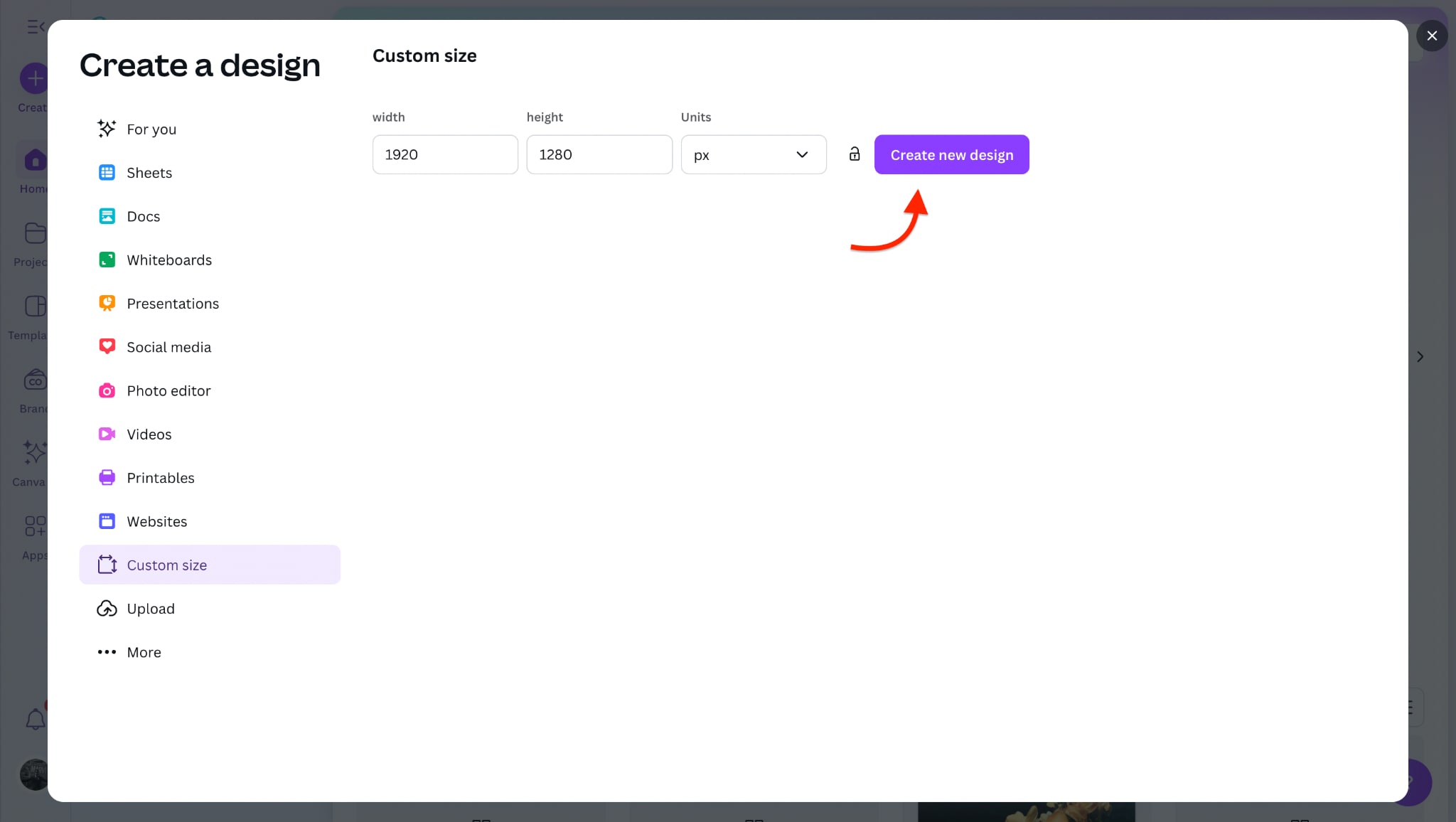
Head to canva.com and log in or create a free account. From the homepage, click Create a Design, and choose a layout like Instagram Post, A4, or Custom Size. Once inside the editor, use the Uploads tab and click on Upload Files to import your black-and-white image. Canva supports JPG, PNG, and SVG formats for this process. You can drag the photo directly onto your canvas once uploaded.
Step 2: Apply the Colorize Filter
Click on your image on the canvas to select it, then hit the Apps button from the left-side menu. Scroll through the panel until you see the Colorize option, or simply search for it in the search bar. Click Colorize > Colorize and replace, and let Canva's AI automatically apply color tones to your image.
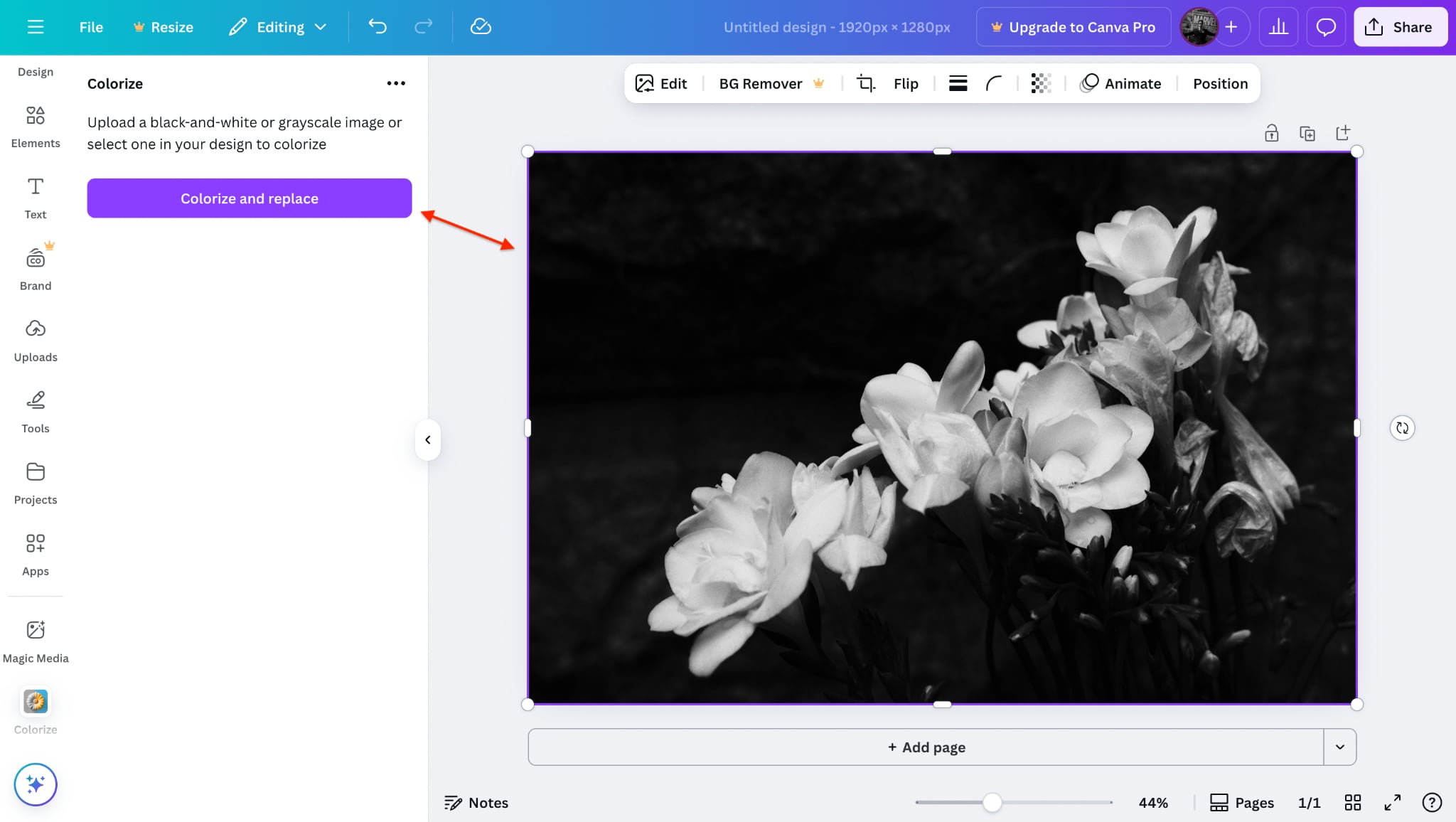
Step 3: Download or Use in Your Design
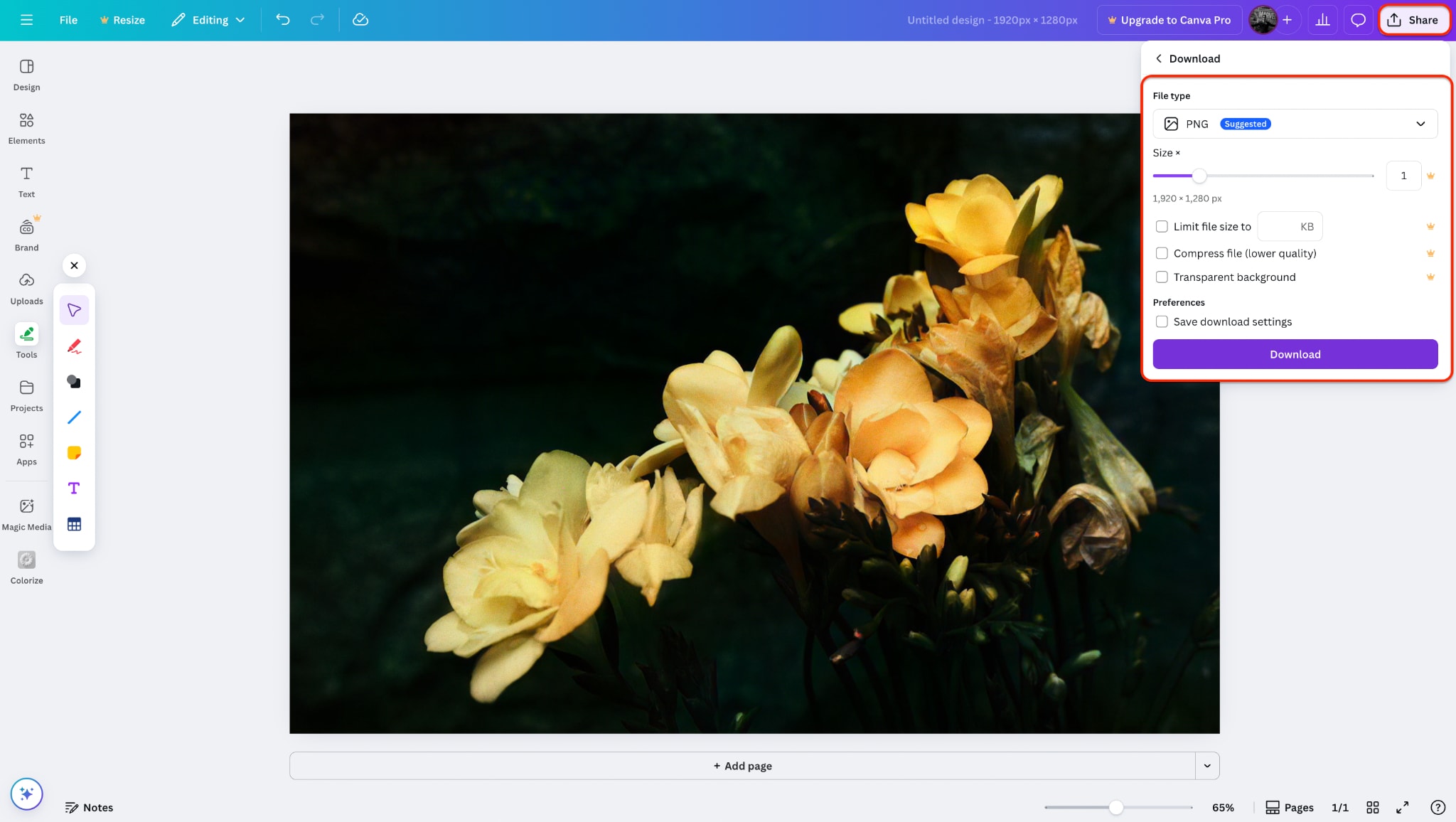
Once your photo is colorized, you can either continue editing it inside Canva or download the file for use elsewhere. To download, click Share in the top-right corner, then Download, and choose your format (JPG or PNG recommended). Canva makes it easy to colorize photo online free AI and immediately apply that image in your creative workflow.
Best For:
- Designers who want to colorize black and white photos online free and integrate them into creative projects
- Beginners looking for an all-in-one tool for photo editing and design
- Social media marketers are enhancing old content with fresh visuals
- Teachers, students, or creators working with line art, portraits, or retro photos
Part 5: How to Convert Black and White Photos to Color with Colourise.com
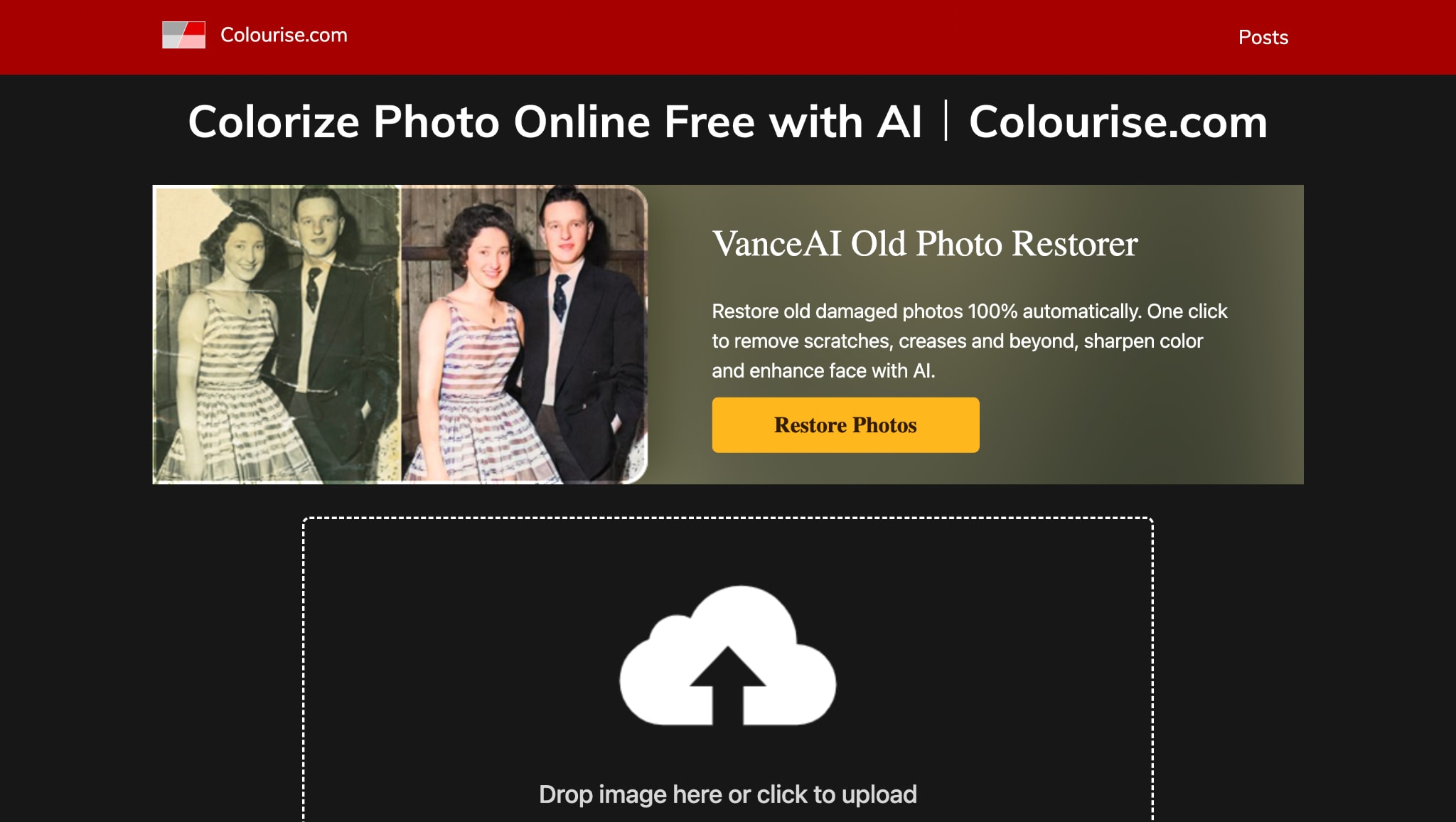
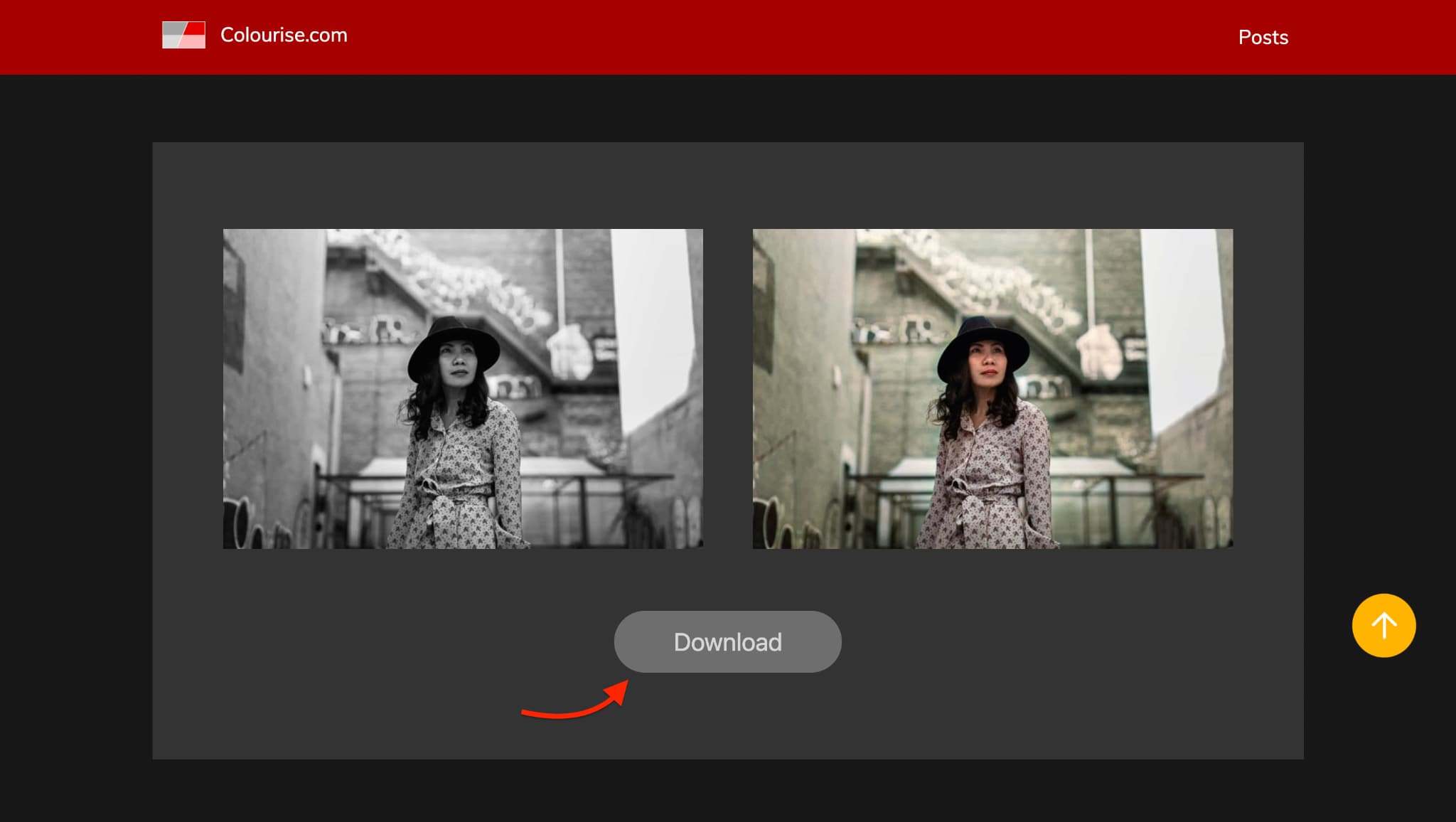
If you're looking for one of the fastest and most minimalist ways to colorize black and white photos online free, Colourise.com is your go-to tool. Developed using deep learning by the team at GovTech Singapore, Colourise.com is entirely web-based, free to use, and doesn't require any account or downloads. It's focused purely on turning grayscale images into natural-looking color without manual adjustments. Whether you're restoring a vintage photo or just experimenting with AI, it gets the job done in under 30 seconds.
Steps to Colorize Old Photos Using Colourise.com
Step 1: Visit the Colourise.com Website
Open your browser and head to https://colourise.com. A simple interface with a single upload button and clear instructions will welcome you.
Step 2: Upload Your Grayscale Image
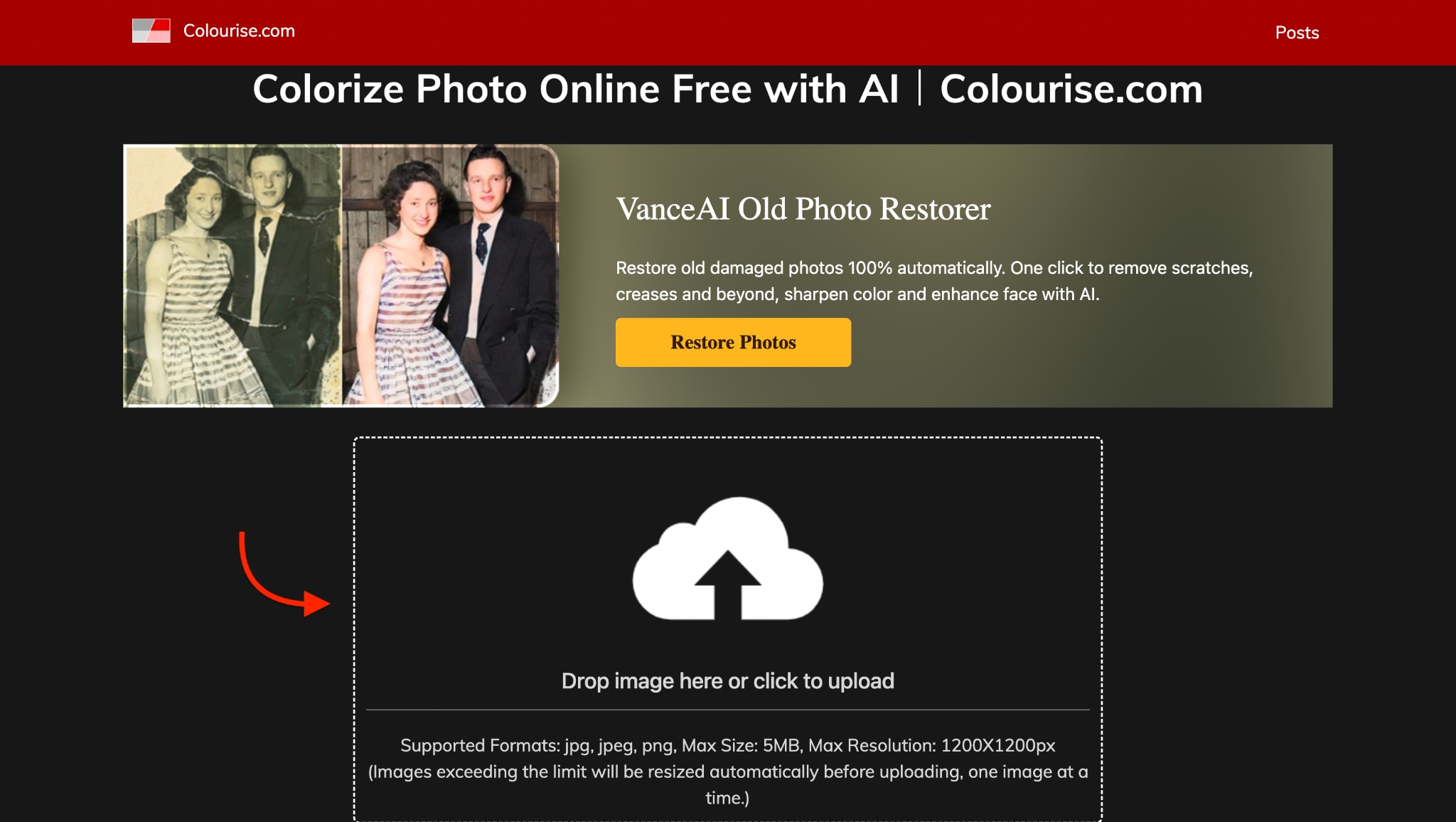
Click the Upload Photo button and choose your black-and-white image from your device. It works best with JPG or PNG files and supports photos under 5MB. You can upload old portraits, scanned prints, or grayscale art.
Step 3: Preview and Download the Colorized Photo
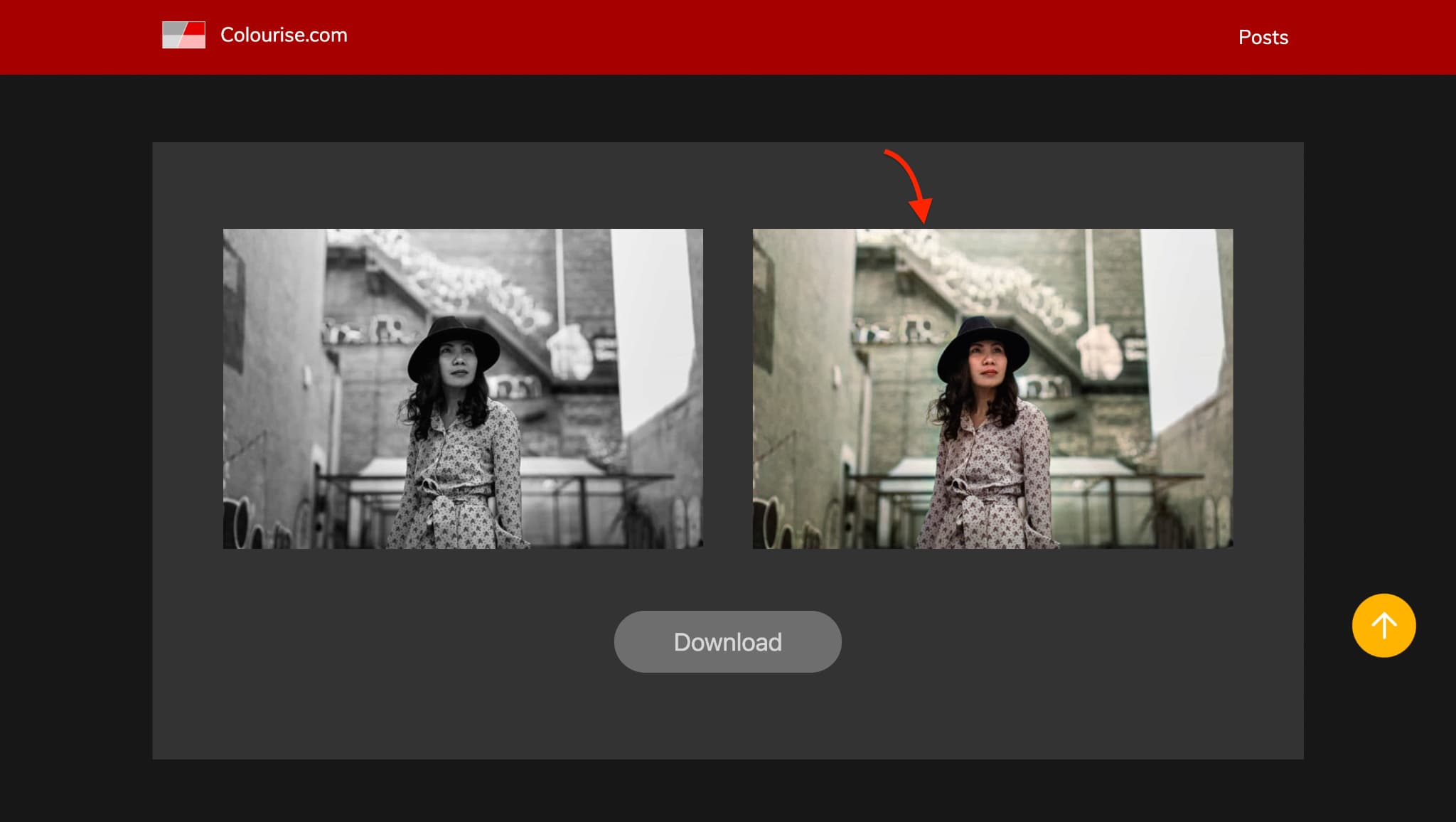
Within seconds, you'll see the colorized version of your photo displayed on the screen. If you want a lightweight tool to colorize a black and white photo online free, this is it.
Best For:
- People who want a quick, one-click colorize photo online free AI tool
- Students, educators, or casual users looking to restore grayscale photos
- Mobile users who wish to have a no-login, no-watermark option
- Anyone trying to free colorize black and white photos with zero setup or downloads
Conclusion
With today's AI tools, anyone can colorize black and white photos free—no design skills or expensive software required. Whether you're restoring family portraits, reviving historic scenes, or coloring sketches, tools like UniConverter, ImageColorizer, Canva, and Colourise.com make the process quick and accessible. You can now colorize photos online free AI or even convert black and white photo to color online free in seconds.
If you want more control, batch editing, and offline performance, we recommend starting with UniConverter's AI Image Enhancer. It's powerful, beginner-friendly, and offers some of the best colorize photo online free results with bonus features like video enhancement too.
Easy to Use Batch Black and White Photo Colorizer
FAQs
-
What's the best tool to colorize black and white photos for free?
The best tool depends on your needs. For all-in-one features and batch processing, UniConverter is highly recommended. If you want a quick web-based option, ImageColorizer or Colourise.com are great choices to colorize black and white photos online free without installing anything. -
Can I colorize photos online for free without signing up?
Yes. Tools like Colourise.com and ImageColorizer let you colorize photos online for free with no account required. Simply upload your image and download the result in seconds. -
Are these tools safe to use with old family photos?
Yes. Most reputable tools like UniConverter and ImageColorizer securely process images without storing them long-term. They're ideal for preserving memories and free colorize black and white photos digitally. -
Can I colorize drawings or sketches?
Absolutely. Canva and UniConverter work well for line art, shaded drawings, or scanned pencil sketches. These tools can colorize black and white photos and convert artwork into vibrant, editable images. -
Is there a way to colorize videos online free?
Some tools, like UniConverter, offer experimental features that allow users to colorize video online for free on a desktop. However, most online tools currently focus on photo colorization.

