Nothing disrupts a great clip or a cherished family memory quite like a massive, hardcoded subtitle, a bouncing social media logo, or an intrusive digital timestamp. These visual distractions pull focus away from the main subject and lower the overall production value. In the past, editors had to aggressively crop the footage or apply a heavy, pixelated mosaic to hide unwanted elements. Today, modern editing relies on sophisticated inpainting algorithms. Instead of just covering the blemish, intelligent software analyzes the surrounding pixels to remove text from video without blur. It accurately recreates the missing background, leaving zero trace of the original watermark.
Table of Contents
Part 1: Why Annoying Video Text Ruins Your Content
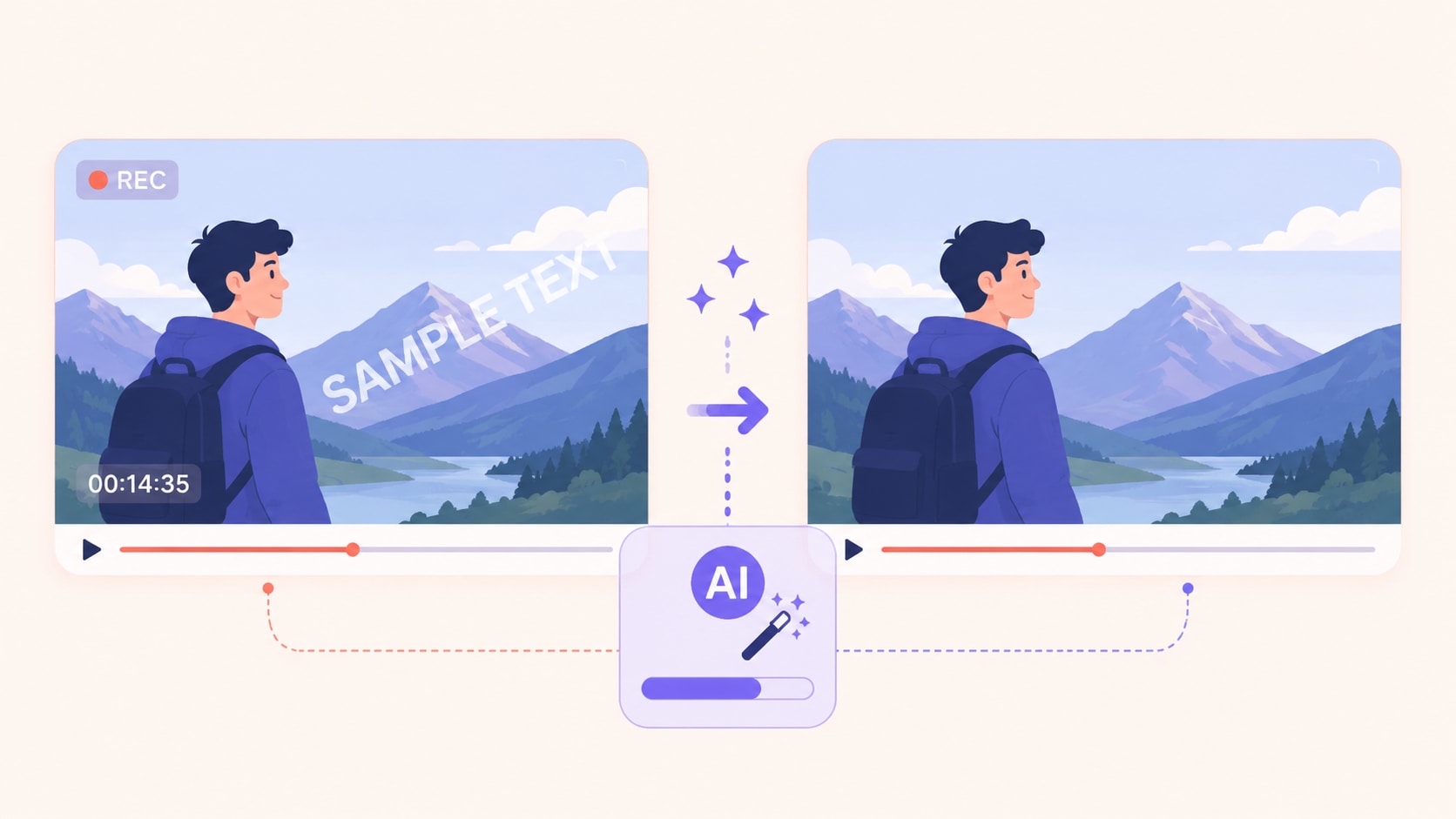
Nothing disrupts a perfectly framed clip or a cherished family memory quite like a massive, hardcoded subtitle, a bouncing social media logo, or an intrusive digital timestamp. These visual distractions pull focus away from the main subject and lower the overall production value. In the past, editors had to aggressively crop the footage or apply a heavy, pixelated mosaic to hide unwanted elements.
Today, a modern AI text remover from video relies on sophisticated inpainting algorithms. Instead of just covering the blemish, the software analyzes the pixels surrounding the overlay. It intelligently recreates the missing background and fills the gap, allowing creators to remove text from video seamlessly and leave zero trace of the original watermark.
Part 2: At-a-Glance Comparison of Top AI Erasers
Finding the right software quickly saves hours of editing time. This scannable table highlights the top solutions available for various skill levels and operating systems.
| Tool Name | Device / Platform | True AI Inpainting | Best For |
| UniConverter | Windows, macOS | Yes | High-quality batch processing |
| HitPaw | Windows, macOS | Yes | Specialized watermark removal |
| Fotor | Web Browser | Yes | Quick online edits |
| Vmake.ai | Web Browser | Yes | Browser-based workflow |
| Media.io | Web Browser | Partial | Fast web exports |
| RunwayML | Web Browser | Yes | Complex background recreation |
| CapCut | iOS, Android | Partial | Social media creators |
| Video Eraser | iOS, Android | No (Blurring) | Basic mobile fixes |
Part 3: Top 8 AI Video Text Removers by Device
Our team conducted hands-on testing to evaluate processing speed, export quality, and background reconstruction capabilities. Exploring these options helps in finding the best application to remove text from video without blur across multiple platforms.
Desktop Tools for No-Blur Edits
Desktop applications utilize the full processing power of a computer to handle large files and complex AI rendering tasks.
1. Wondershare UniConverter
Wondershare UniConverter serves as an excellent desktop multimedia processing toolbox designed for fast, high-quality, and lightweight video handling. This software excels at analyzing surrounding pixels to erase watermarks seamlessly without degrading the original resolution. With its intuitive interface, educators, professionals, and hobbyists can easily clean up their footage and prepare it for professional distribution in seconds.


All-in-One Multimedia Processing Tool

Key Features:
Batch processing handles multiple clips simultaneously.
AI-driven inpainting reconstructs backgrounds accurately.
Supports over 1,000 different audio and video formats.
Includes built-in compression and conversion utilities.
2. HitPaw Watermark Remover
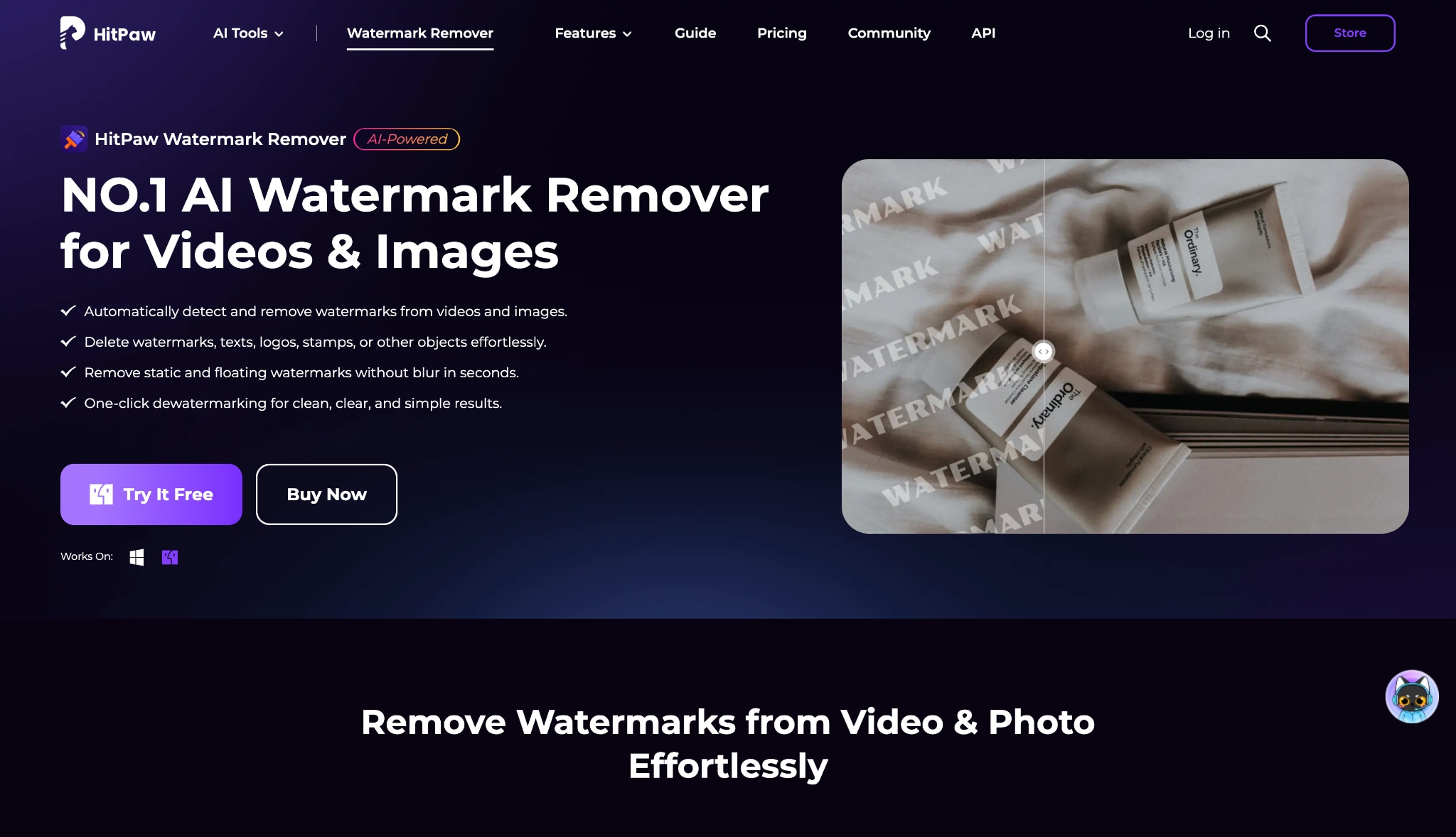
HitPaw Watermark Remover focuses specifically on erasing unwanted elements from media files with extreme precision. It provides several selection modes, allowing editors to target static logos or moving text effectively. The desktop software leverages advanced AI algorithms to blend the erased area smoothly with the surrounding environment, reducing the visibility of the original edit and saving hours of manual correction.
Key Features:
Multiple removal modes (smooth filling, matte filling).
Timeline integration for tracking moving objects.
Hardware acceleration for faster rendering.
Direct preview function before exporting.
Free Online AI Text Removers
Browser-based solutions offer immense convenience. They allow anyone to remove text from video online for free without downloading heavy software packages.
3. Fotor Video Object Eraser
Fotor Video Object Eraser has transitioned from a popular web photo editor to a highly capable online media toolkit. Its object eraser applies smart inpainting algorithms to video files directly within your modern web browser. Users simply brush over the unwanted text, and the cloud servers handle the rendering process, making it a great tool for quick social media clips.

Key Features:
Brush-based selection tool.
Cloud-based rendering engine.
Integration with other Fotor design templates.
Drag-and-drop file uploading.
4. Vmake.ai Video Text Eraser
Vmake.ai Video Text Eraser focuses heavily on AI automation for e-commerce store owners and social media marketing teams. It simplifies the editing workflow by automatically detecting and erasing text overlays with minimal user input. This web tool works efficiently for cleaning up product demonstration videos or short promotional clips before reposting them to other platforms to boost your brand.

Key Features:
Automated text detection algorithms.
Optimized for e-commerce video formats.
Fast cloud processing speeds.
Simple, minimal dashboard.
5. Media.io Watermark Remover
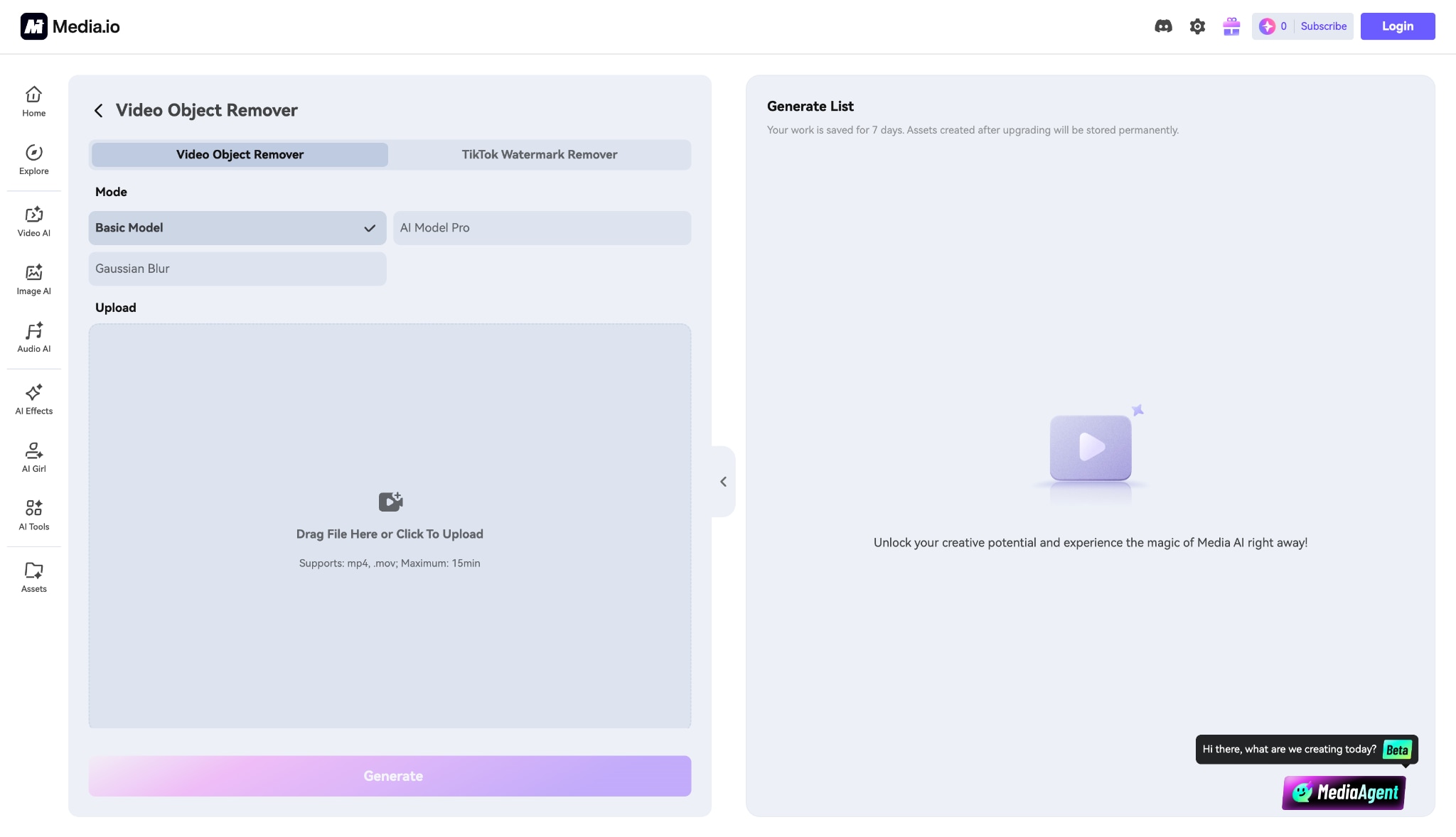
Media.io Watermark Remover provides a helpful suite of online media tools aimed at quick, everyday editing tasks. Its watermark removal module offers a straightforward way to erase static logos, text, and dates. While it leans slightly more toward smart blurring than full AI reconstruction, it remains a highly accessible option for fast web exports without requiring a mandatory software installation.
Key Features:
Straightforward bounding box selection.
Supports standard formats like MP4 and WebM.
Integrates with cloud storage platforms.
No registration required for basic tasks.
6. RunwayML Inpainting
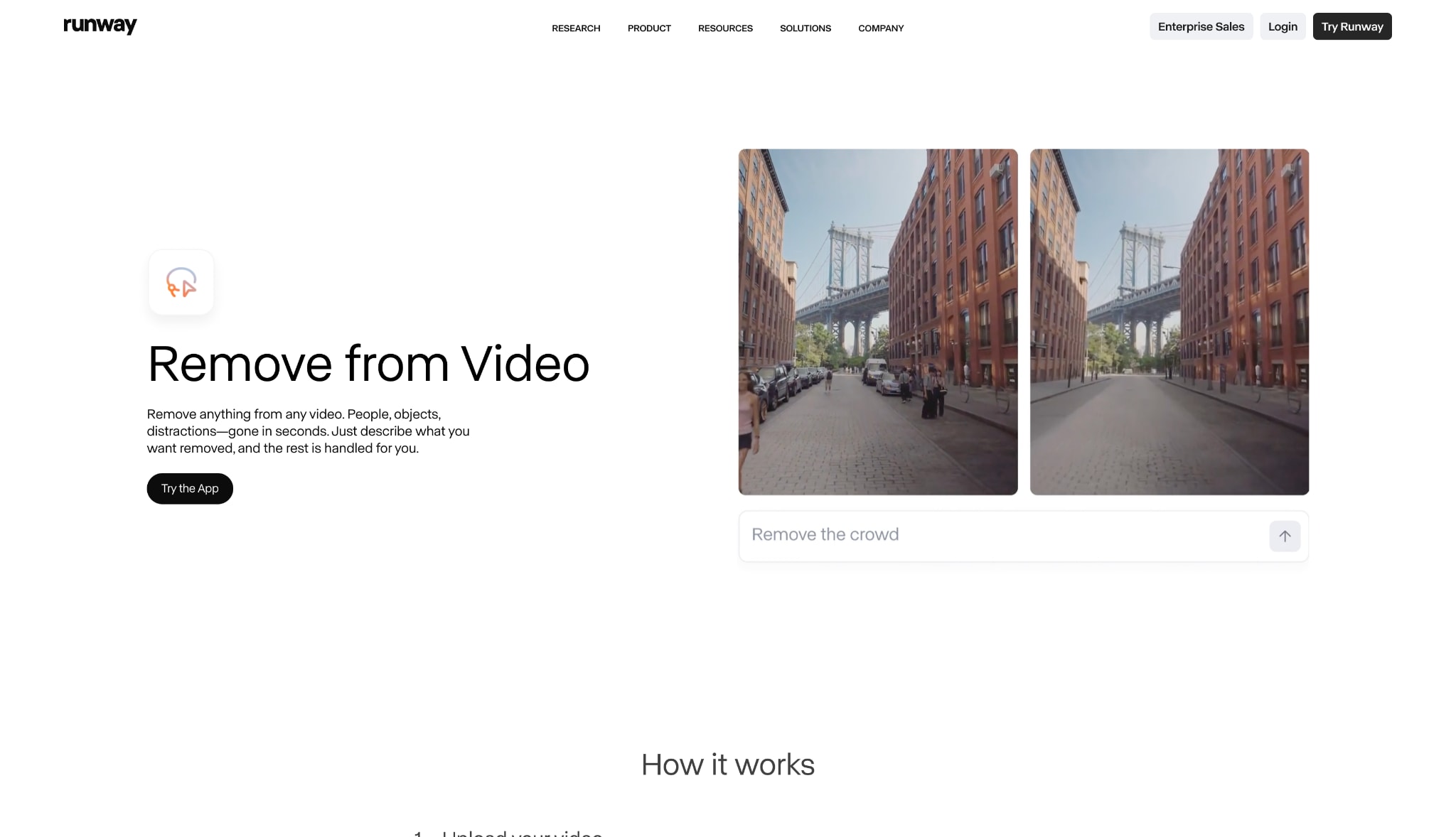
RunwayML Inpainting caters to creative professionals seeking advanced AI generative capabilities for high-end video projects. Its professional-grade inpainting tool handles moving objects and dynamic text overlays with remarkable precision. The platform uses deep learning models to predict and render missing pixels, making it ideal for cinematic footage where visual fidelity and background consistency are absolutely critical to the story.
Key Features:
Advanced deep-learning inpainting models.
Keyframe tracking for moving text.
Professional-grade timeline editor.
Collaboration tools for remote teams.
Top Mobile Apps for Quick Edits
Mobile apps provide the flexibility to edit directly from a smartphone, perfect for creators managing content on the go.
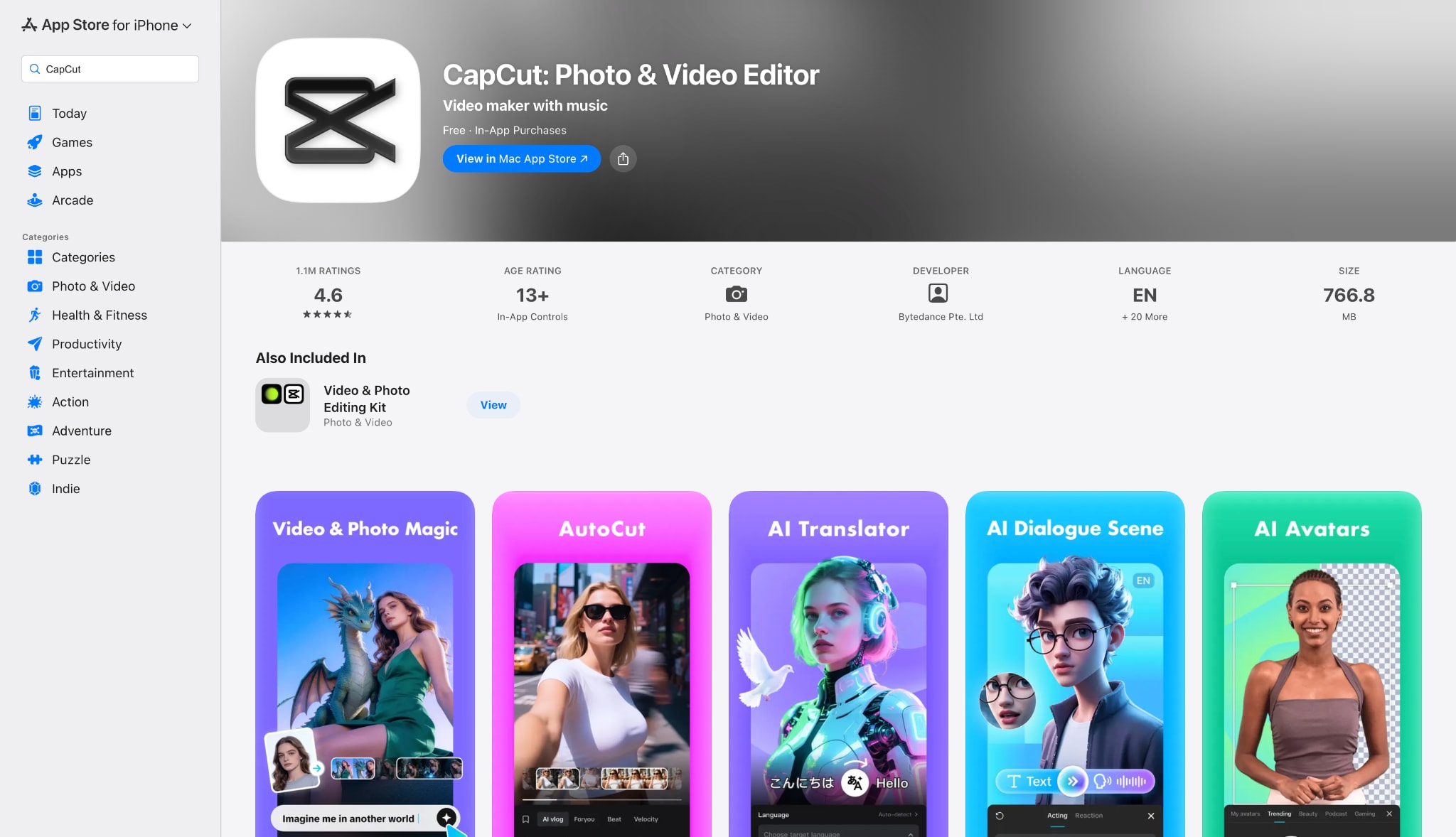
7. CapCut (Mobile App)
CapCut dominates the mobile editing space with its rich feature set tailored specifically for popular social platforms. While it lacks a dedicated one-click AI eraser button, its masking, overlay, and tracking tools allow clever creators to hide or blend away unwanted text directly on their smartphones. This makes it an incredibly flexible solution for editing high-quality clips on the go.
Key Features:
Advanced masking and blending modes.
Extensive library of stickers and overlays.
Multi-track timeline for mobile.
Direct export to social media platforms.
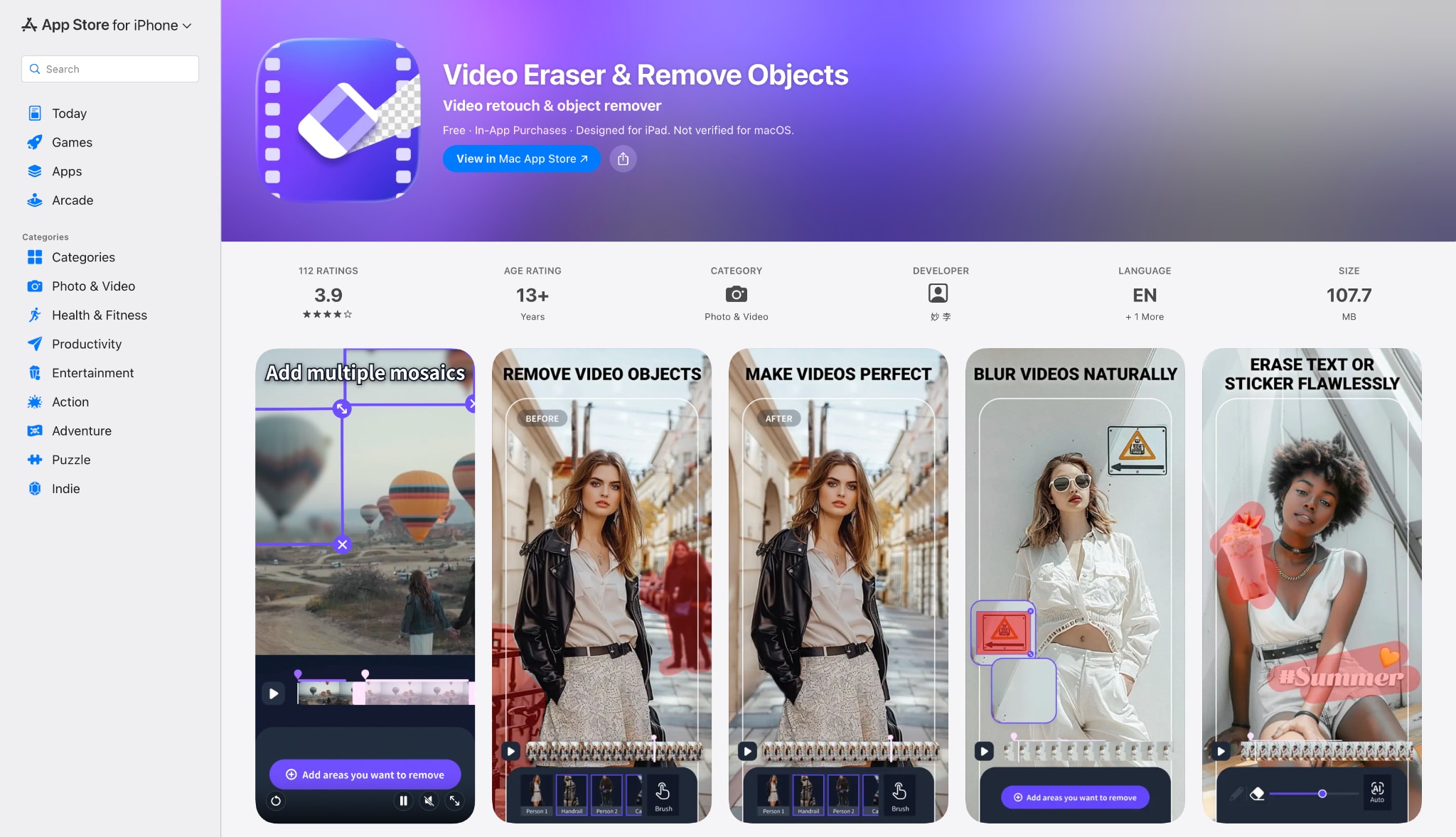
8. Video Eraser (iOS & Android)
Video Eraser serves as a straightforward utility mobile application designed for one specific purpose on smartphones. It lets users draw a bounding box around an annoying watermark or timestamp to blur it out instantly. While it relies on basic pixel interpolation rather than advanced generative AI, it remains highly popular for quick, low-stakes fixes directly on your mobile device.
Key Features:
Touch-based selection box.
Lightweight app size.
Basic video cropping included.
Local processing on the device.
Part 4: 5 Factors to Choose the Right AI Tool
Not all text removers are created equal. Selecting the appropriate software depends entirely on your project's technical demands. Here are the 5 core factors to evaluate before committing to a software solution:
1. True AI Inpainting vs. Simple Blurring
Ensuring the tool actually reconstructs the background makes a massive difference in the final product. Basic software simply places a foggy, pixelated smudge over your text. A true AI text remover from video analyzes surrounding textures and generates new pixels to fill the void, creating a seamless visual experience.
2. Handling Moving vs. Static Text
Text that bounces around the screen requires different technology than a stationary watermark. Software equipped with time-based tracking follows the moving element frame by frame. This capability prevents the background from freezing or warping as the camera pans.
3. File Size and Quality Retention
Online tools frequently compress files to save server bandwidth. Working with high-resolution 4K or 8K footage demands a desktop tool capable of lossless exporting. Keeping the original bitrate intact prevents the final video from looking grainy or degraded after the text is removed.
4. Processing Speed & Batch Capabilities
Managing dozens of clips quickly becomes tedious without automation. Software that allows editors to queue up a batch of files to process simultaneously saves significant time. Desktop applications generally utilize local hardware acceleration to speed up rendering times significantly.
5. Platform and Device Compatibility
Determine the computing environment that best fits your daily workflow. Heavy cinematic editing benefits from a PC desktop engine. Quick social media updates might only require an iOS or Android app, while casual users often prefer the convenience of an online browser tool.
Part 5: Top 5 Use Cases for Video Text Removal
Whether managing corporate assets or salvaging family memories, erasing unwanted on-screen text remains essential for several specific scenarios:
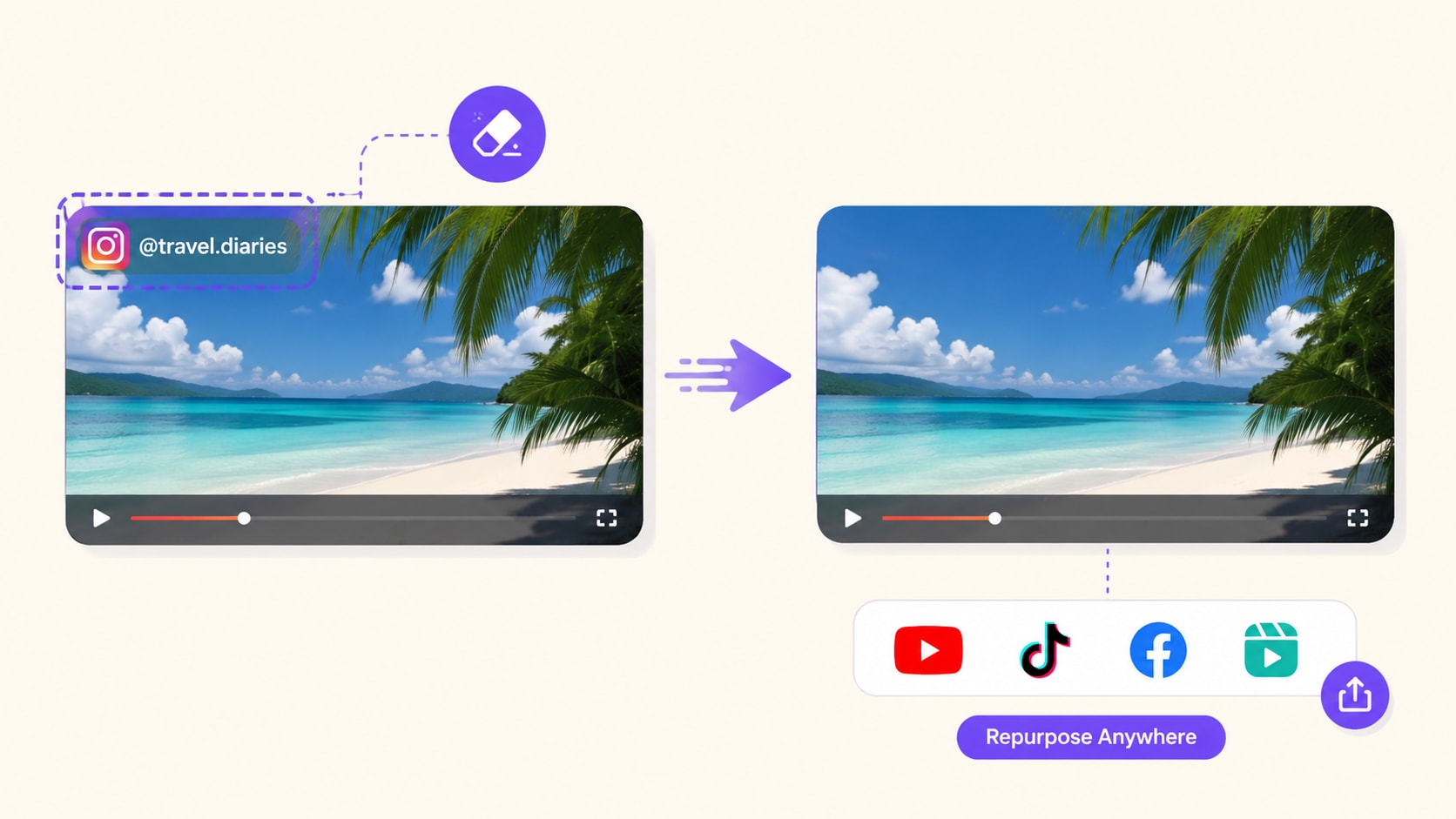
Repurposing Social Media Content: Cleanly remove platform-specific watermarks (like YouTube or Instagram overlays) so you can cross-post your videos across different platforms without facing algorithmic view penalties.
Cleaning Up Archival & Family Footage: Seamlessly erase the ugly, bright yellow digital date/time stamps from old 90s and 2000s camcorder home movies to modernize their look.
Updating Corporate Branding: Strip outdated company logos, promo codes, or discontinued pricing text from marketing materials without needing to re-shoot the original footage.
Removing Hardcoded Foreign Subtitles: Extract baked-in, poorly translated subtitles from downloaded movies so you can enjoy the raw cinematic experience or apply your own accurate SRT files.
Erasing Outdated Promotional Overlays: Quickly patch out old sale dates, "Link in Bio" stickers, or outdated event locations so a promotional clip remains evergreen for future campaigns.
Part 6: Step-by-Step Video Text Removal Guide
Using a reliable desktop application ensures a smooth editing process without compromising visual quality. Here is how to clean up your footage using Wondershare UniConverter.
Step 1: Launch the Watermark Remover Tool
Launch Wondershare UniConverter on a desktop computer to view the main dashboard. Navigate to the tools section and click the Watermark Remover icon. This action immediately opens the dedicated workspace for cleaning up media files.

Step 2: Import Your Video File
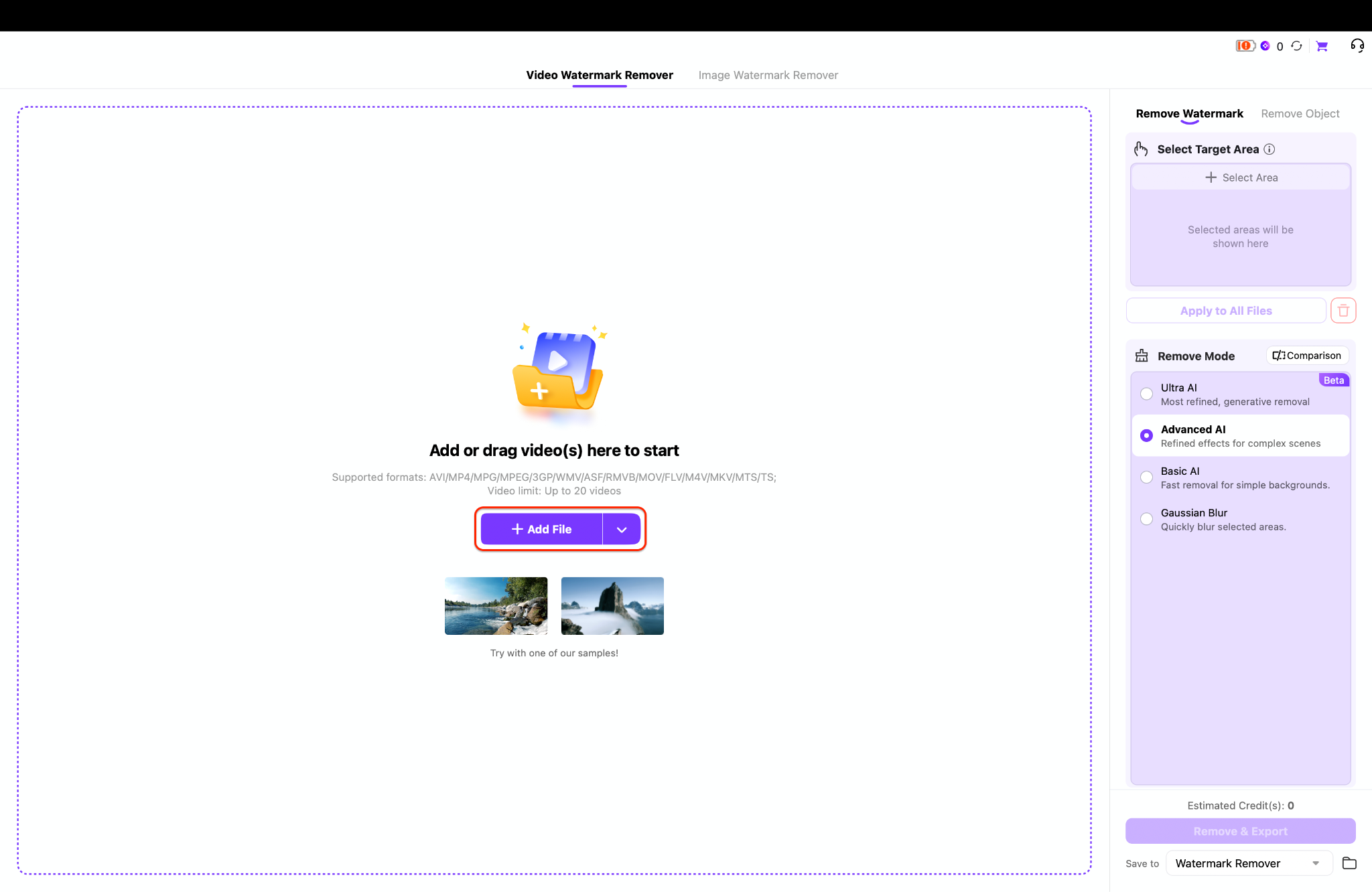
Click the + Add File button in the center of the screen to browse local folders. Alternatively, drag and drop the target video directly into the application window.
Pro tip: Sorting media assets into a dedicated folder beforehand significantly speeds up the import process.
Step 3: Select the Text and Add More Files
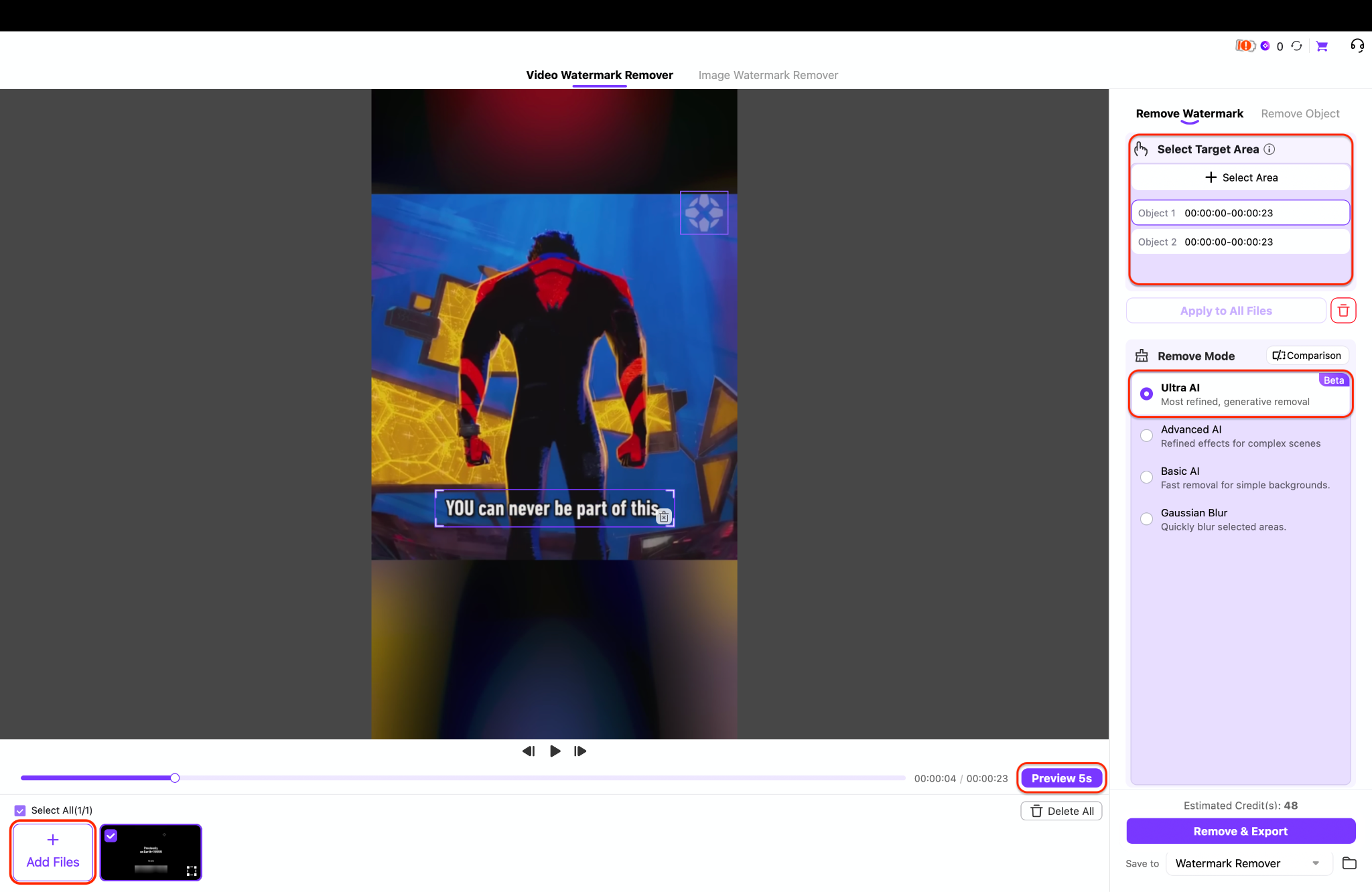
Highlight the unwanted text by drawing a box around it, and select a removal mode like Ultra AI for clear background reconstruction. To process multiple media items simultaneously, use the Add Files option in the bottom-left corner to build a queue. This robust batch capability also extends to other software modules, empowering creators to manage bulk image brightening and export tasks efficiently.
Step 4: Remove and Export
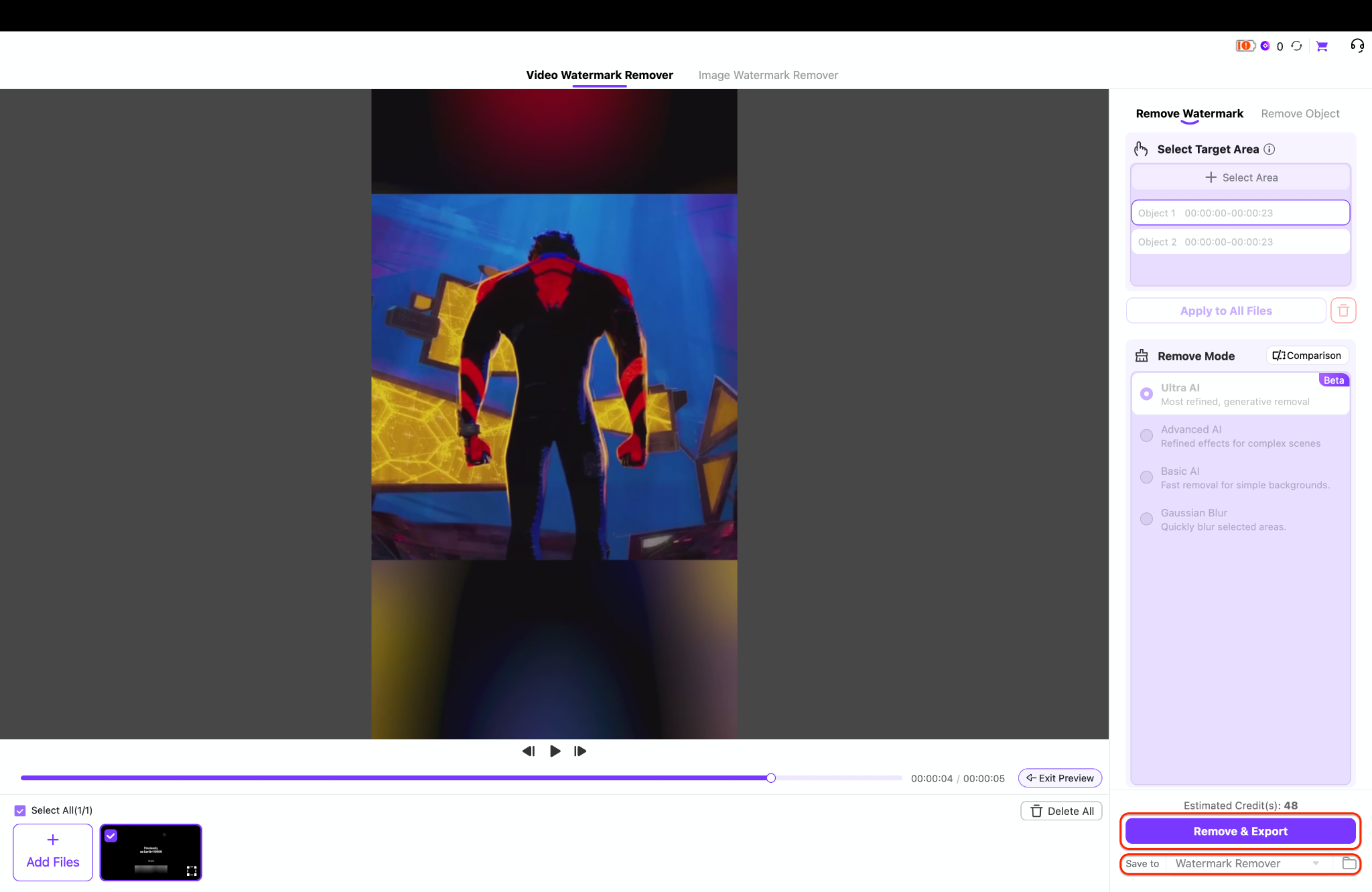
Review the highlighted area one last time to ensure accurate placement over the watermark. Click the Remove & Export button in the bottom-right corner to initiate rendering. The application automatically saves the clean, text-free video to the designated local output folder.
Part 7: Conclusion: Achieve Flawless Video Edits
Content creators no longer have to settle for cropped frames or ugly mosaics. Whether using a quick web browser solution or a heavy-duty desktop engine, modern AI can salvage almost any ruined footage. For those who manage professional workflows, high-resolution clips, or massive batch folders, relying on an advanced desktop setup is essential. Take complete control of your post-production quality by downloading a free trial of Wondershare UniConverter today to experience true, lossless AI inpainting for yourself.