

Open the Kapwing, upload the clip, trim unwanted parts, add a caption, and download the video. When you download the video, there will be a watermark and a hard stop at the one-minute mark. If your clip is longer than 1 minute, you need to subscribe to the Kapwing online video editor to get the desired outcome.
This is the time when Kapwing users end up on Google, and it is why you are here. Kapwing is an online video editor for quick, AI-assisted video editing. For short social media clips and light editing, Kapwing works well. For anything longer or export-ready, the free plan is restrictive and slow.
So let's learn everything about the Kapwing video online editor: how you can edit videos, its core free features, its alternatives for better results, and a free plan too.
In this Article
- Part 1: How Do You Edit a Video with Kapwing's Online Editor
- Part 2: Kapwing Video Editor: 5 Free Features for Content Creators
- Part 3: Kapwing Video Editor Alternatives: 5 Alternatives for YouTube Creators
- Part 4: How Do You Edit Videos in 4 Steps With the Kapwing Video Editor Alternative
- Part 5: Kapwing Online Video Editor vs. Alternatives: When to Choose Kapwing
- Conclusion
- FAQs
Part 1: How Do You Edit a Video with Kapwing's Online Editor
Follow these steps to learn how to edit a video with the Kapwing online editor:
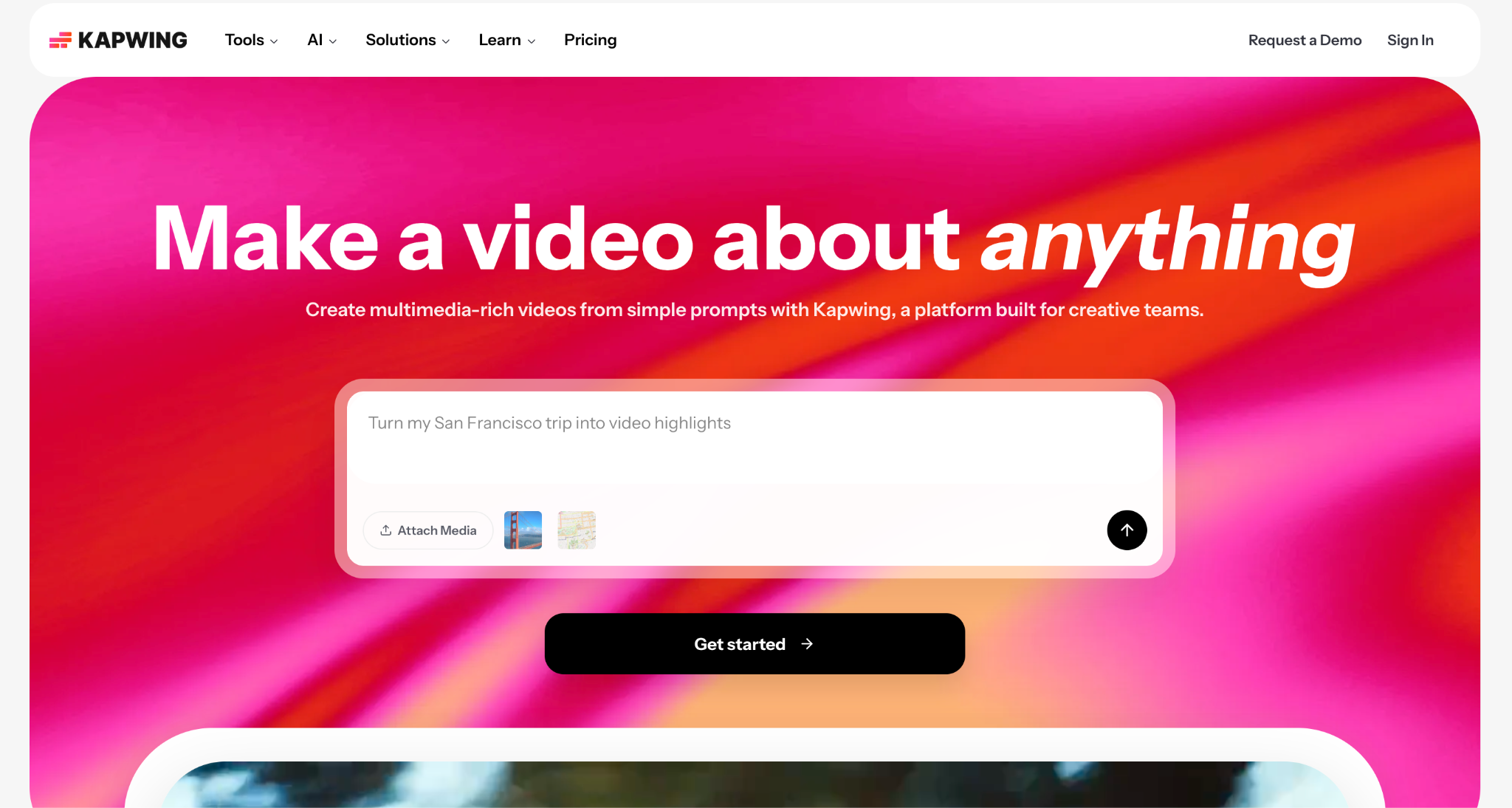
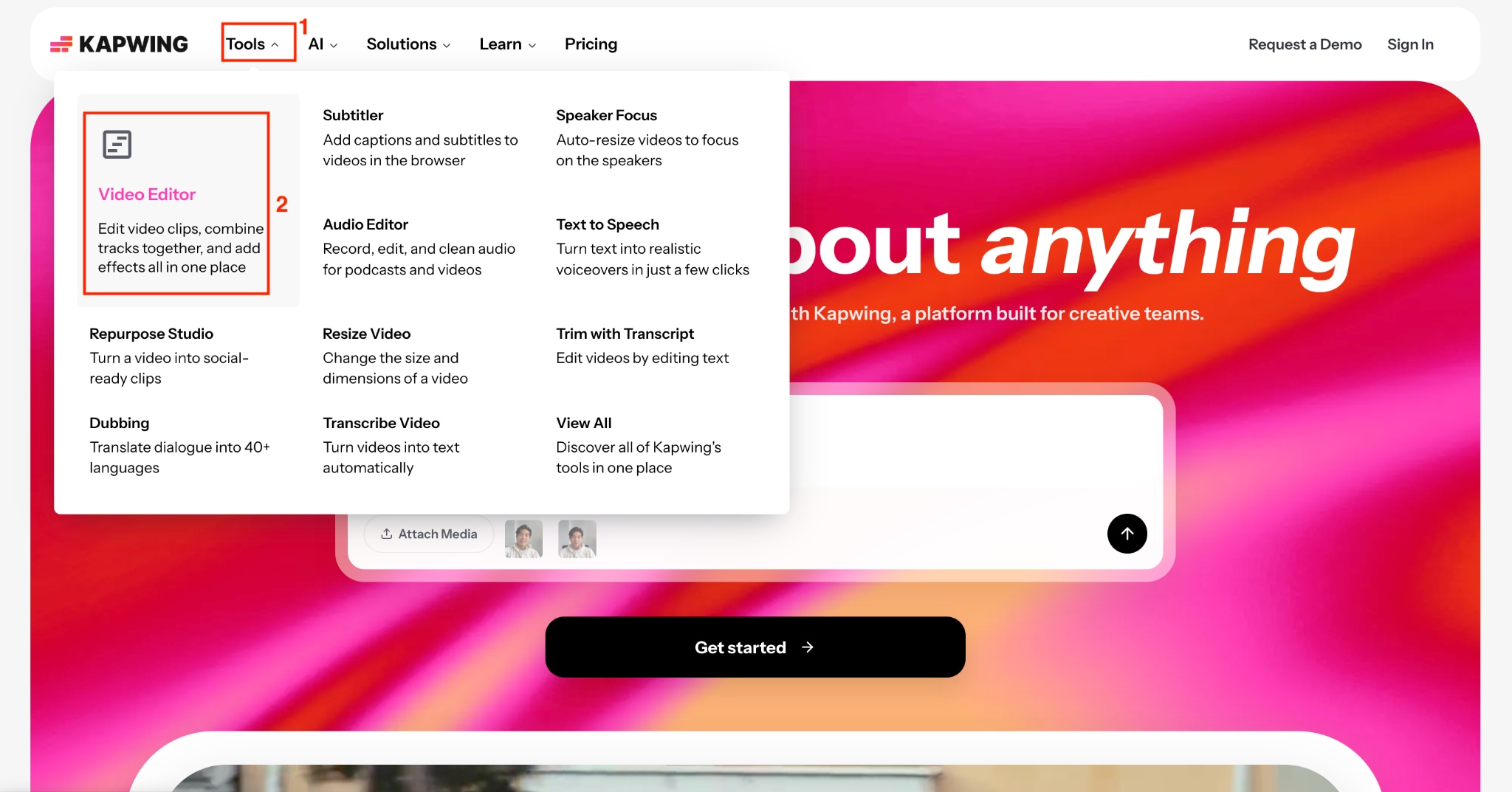
Step 1: Visit the official website and head towards Tools > Video Editor.
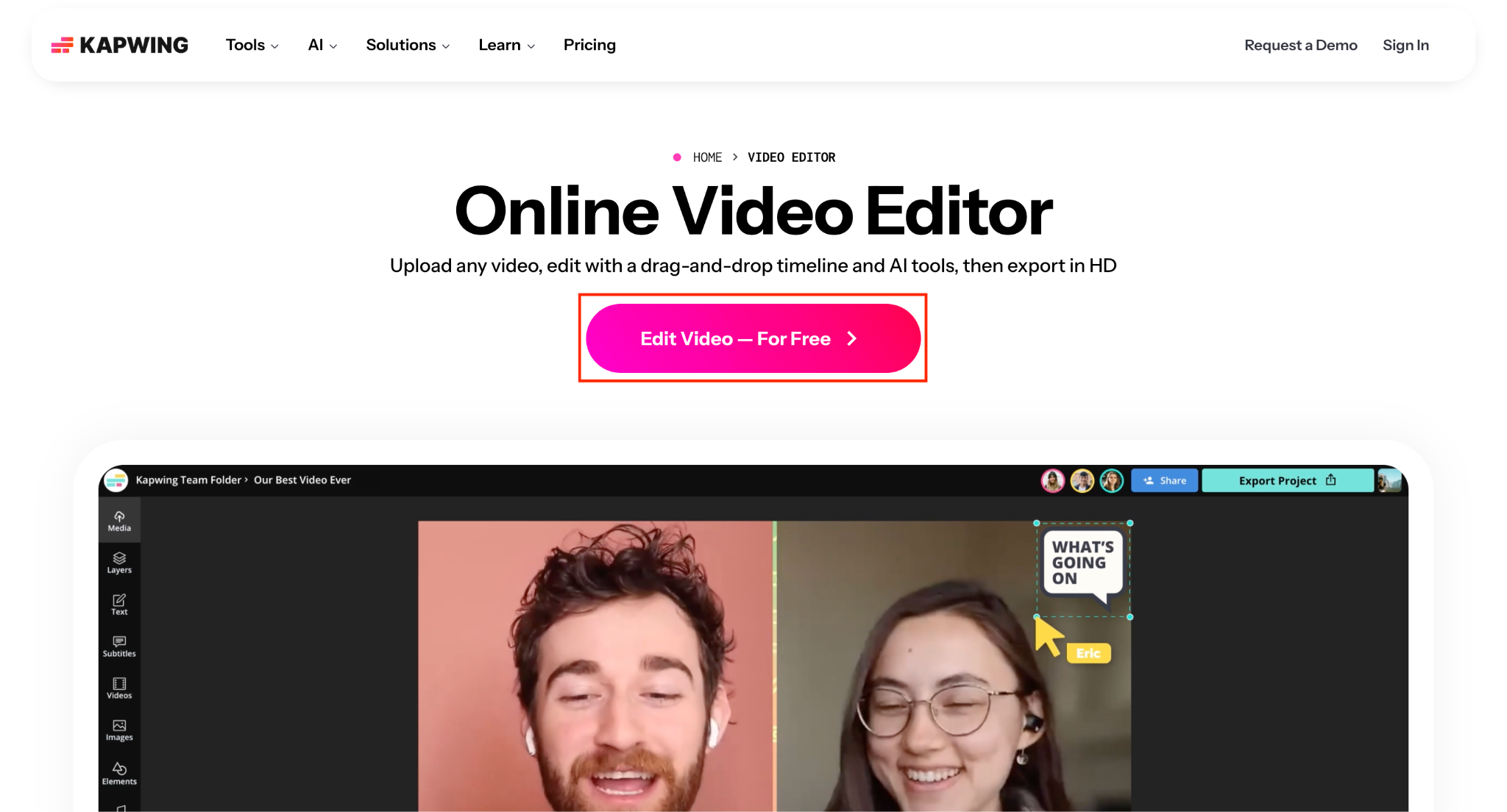
Step 2: Click the Edit Video - For Free button to go to the dashboard.
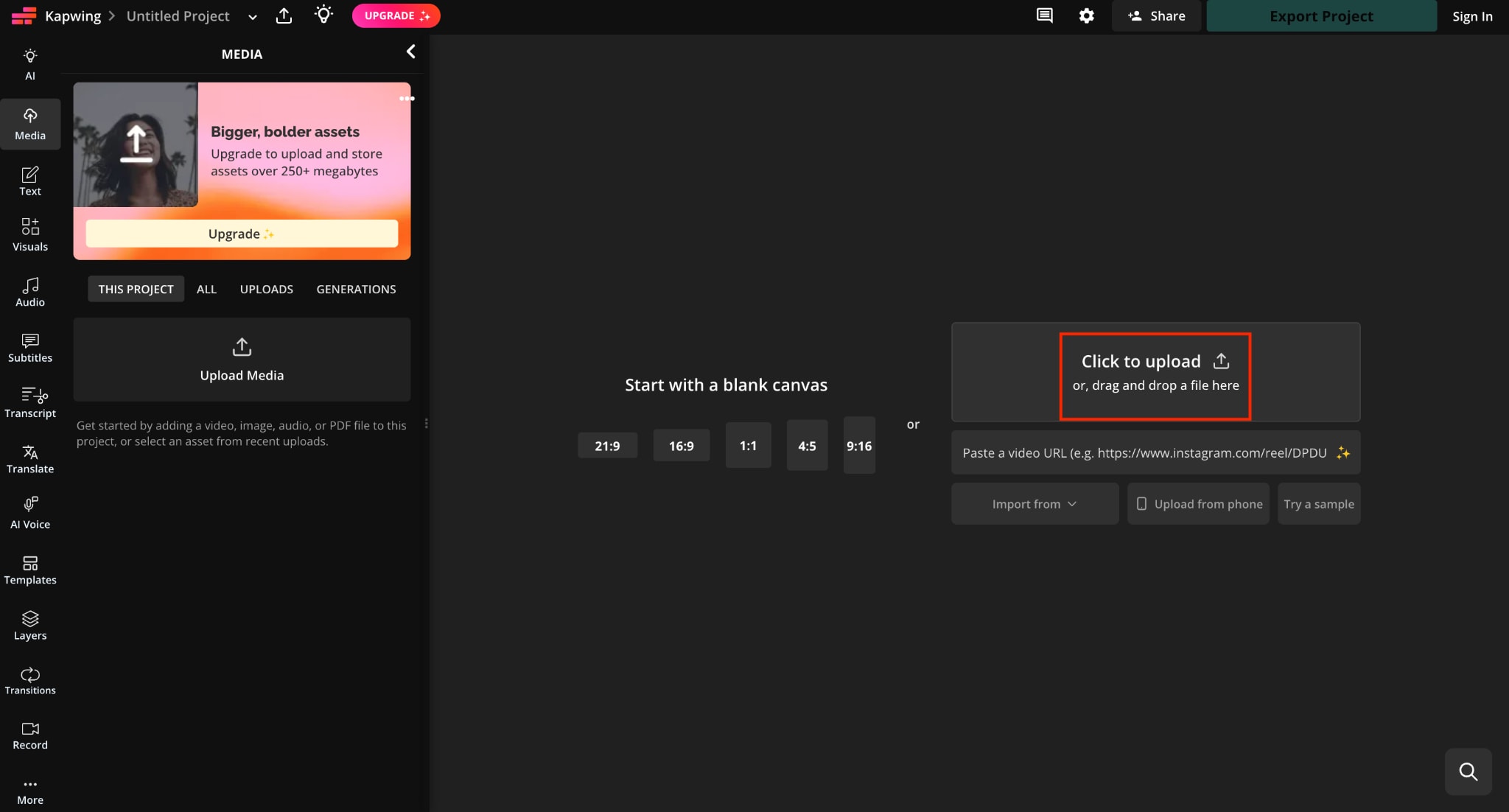
Step 3: Tap the Click to Upload button to upload the video you want to edit, or you can also paste the social media video link.
Step 4: Once the video is uploaded, you can change the position, trim, crop, or change the aspect ratio.
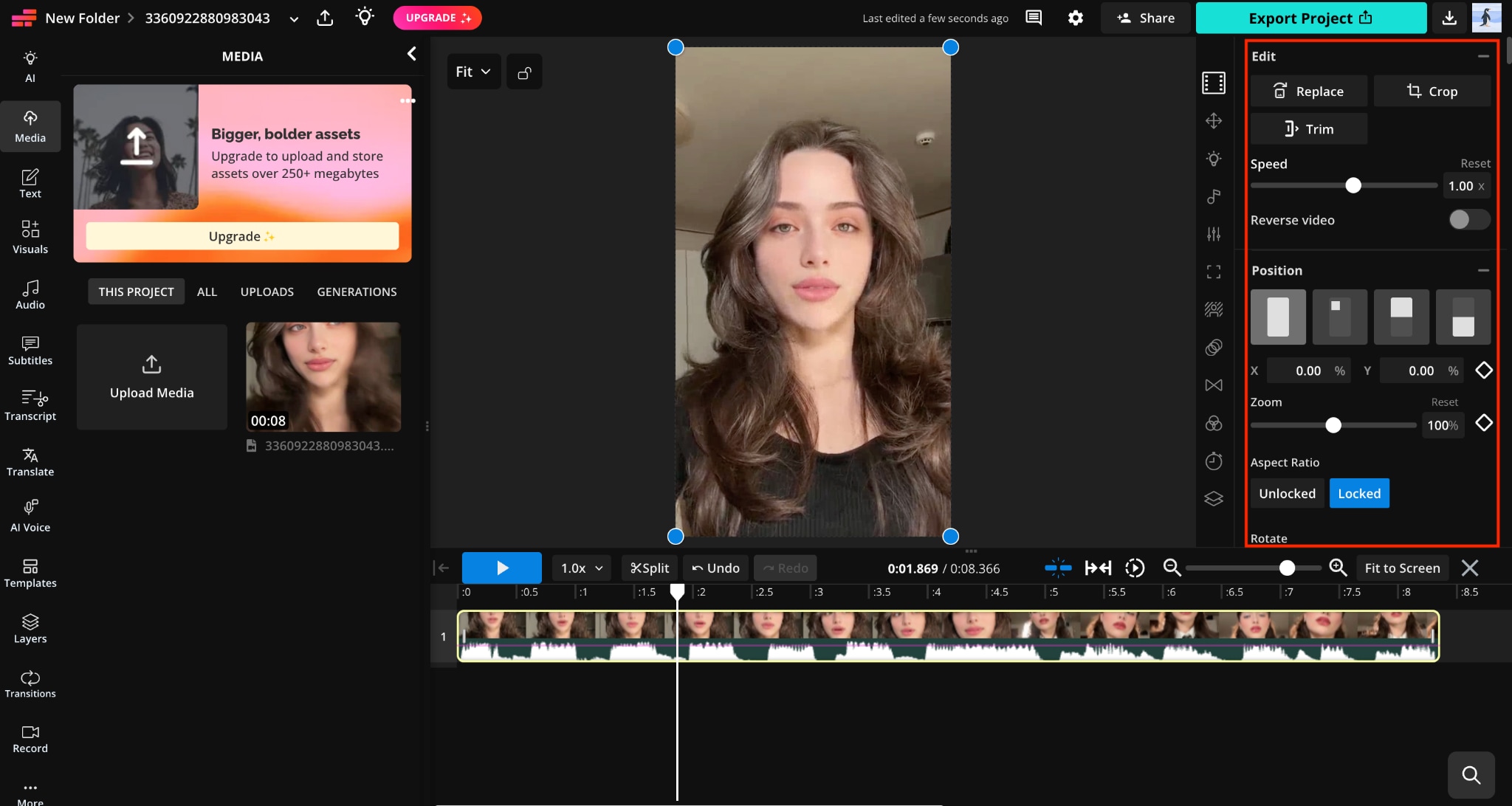
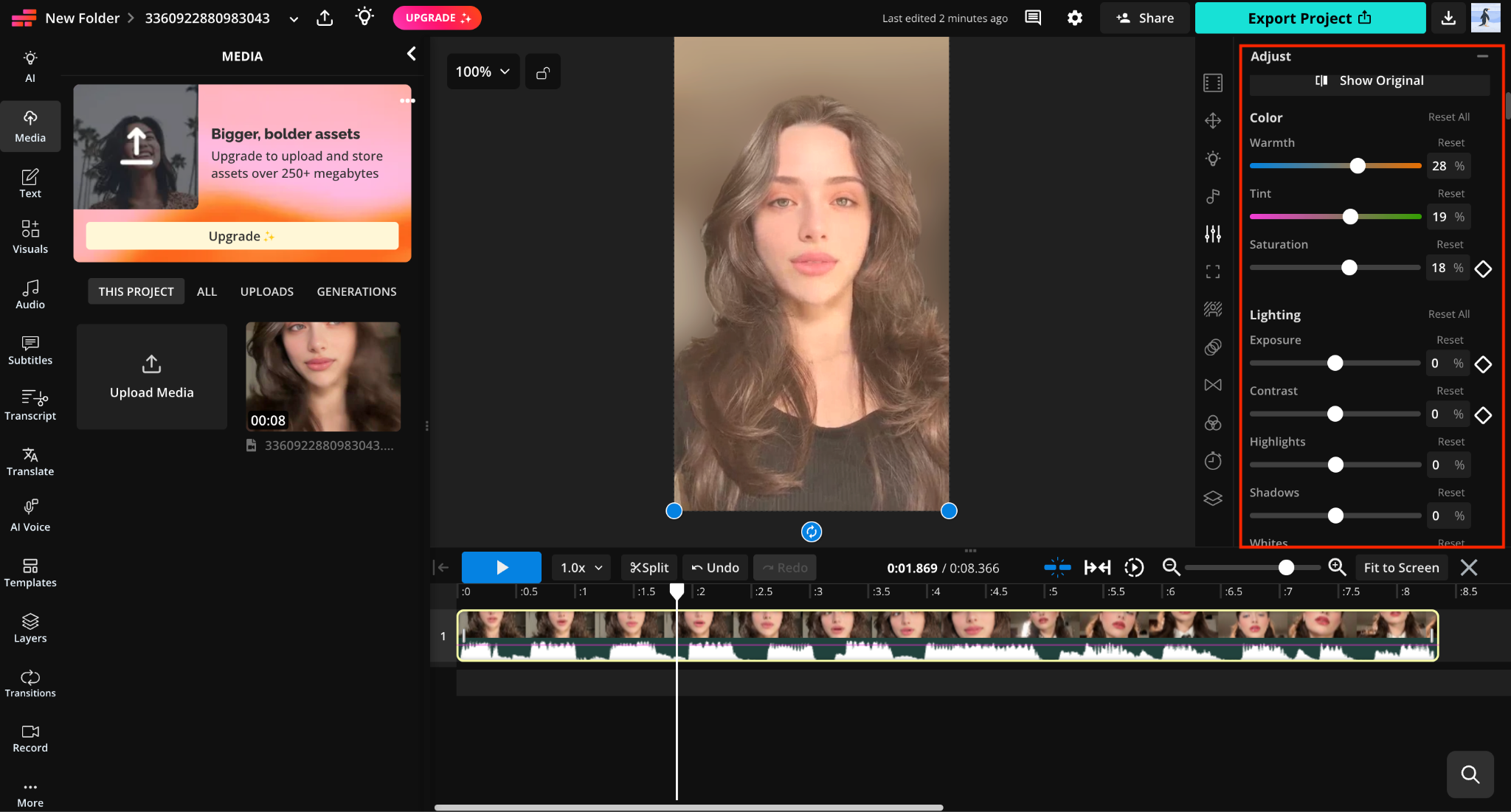
Step 5: You can use AI tools, with Find Scenes as the only free option. You can adjust audio settings, lighting, color, blur the background, and more.
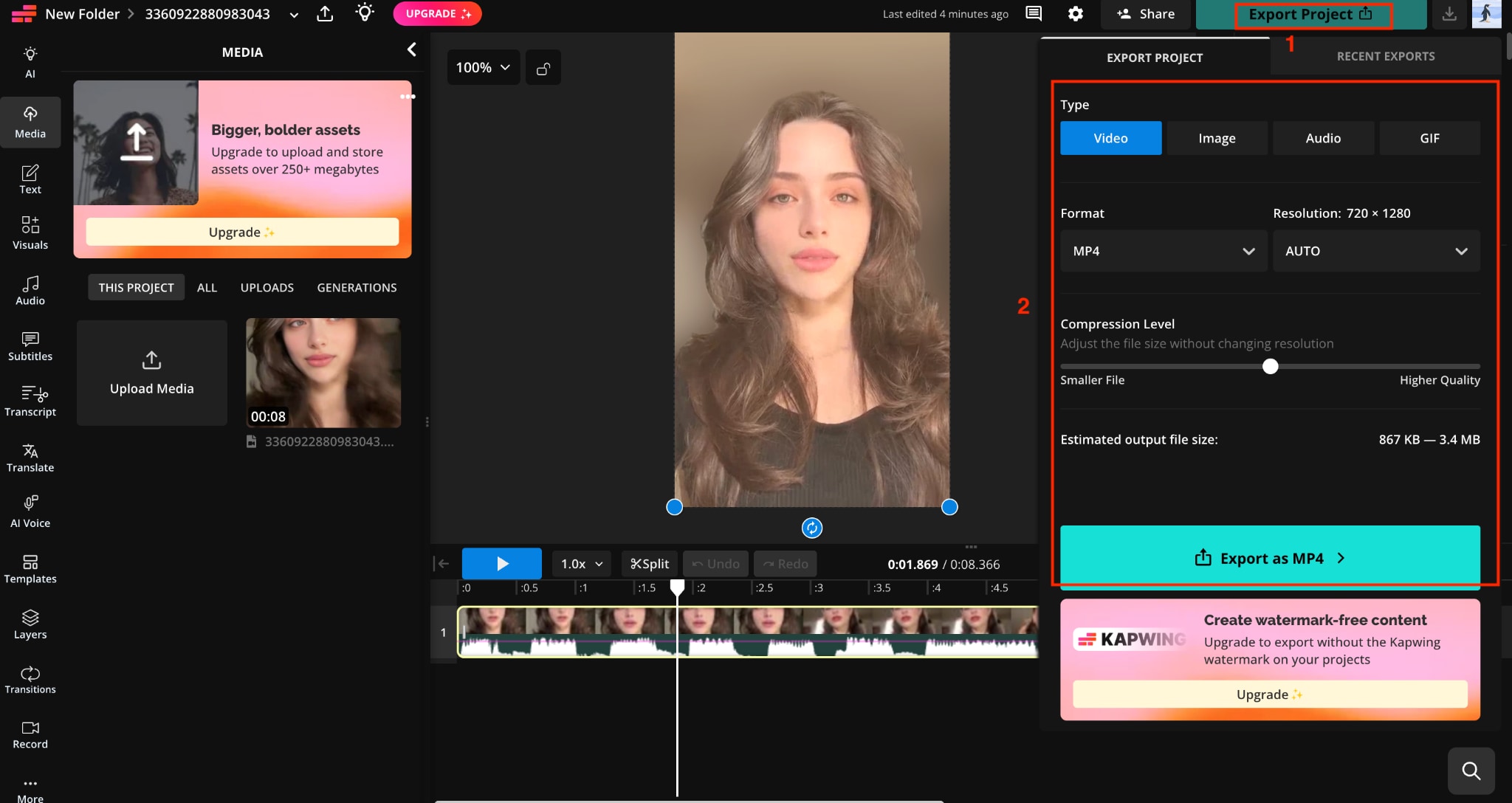
Step 6: Click Export Project, choose the format, resolution, and compression (if you want), and get the edited video.
Part 2: Kapwing Video Editor: 5 Free Features for Content Creators
Even with the export restrictions, Kapwing's free plan gives you real access to its core toolset. You just cannot download long, high-resolution, watermark-free files without paying. Here are five features to test before deciding whether Pro is worth the upgrade, based on hands-on use in the Studio Editor.
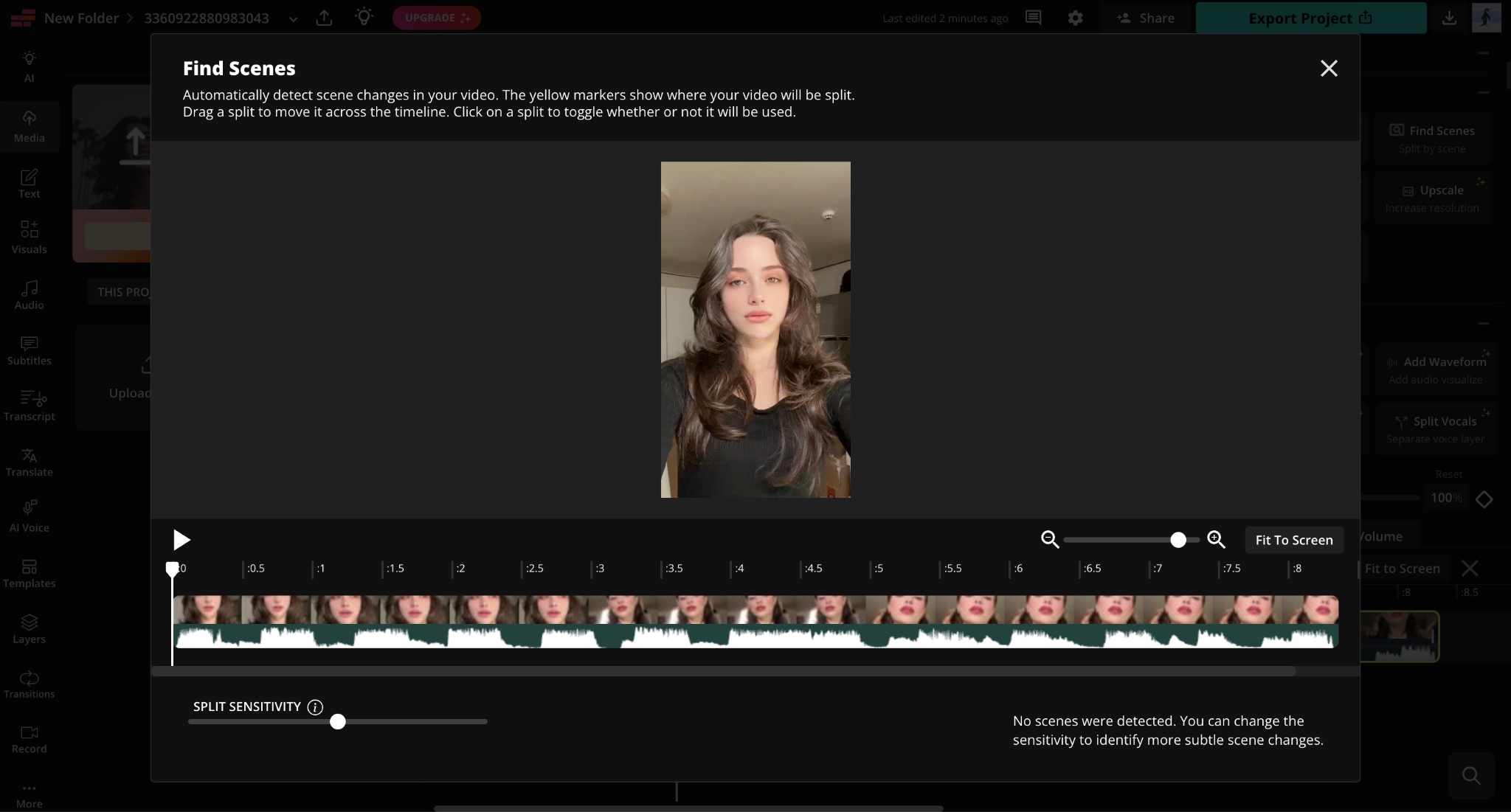
1. Find Scenes: It scans your uploaded footage and automatically detects scene changes, marking each one with a yellow split point on the timeline. You get a Split Sensitivity slider to control how aggressively Kapwing looks for cuts. Raise it if your footage has subtle transitions the tool misses, or lower it if it is over-splitting a continuous shot. Once the splits appear, you can drag any marker to reposition it, or click a split to toggle it on or off before committing. This converts a single long take into a set of separate clips in the timeline, making it much faster to resize, reorder, or delete individual scenes.
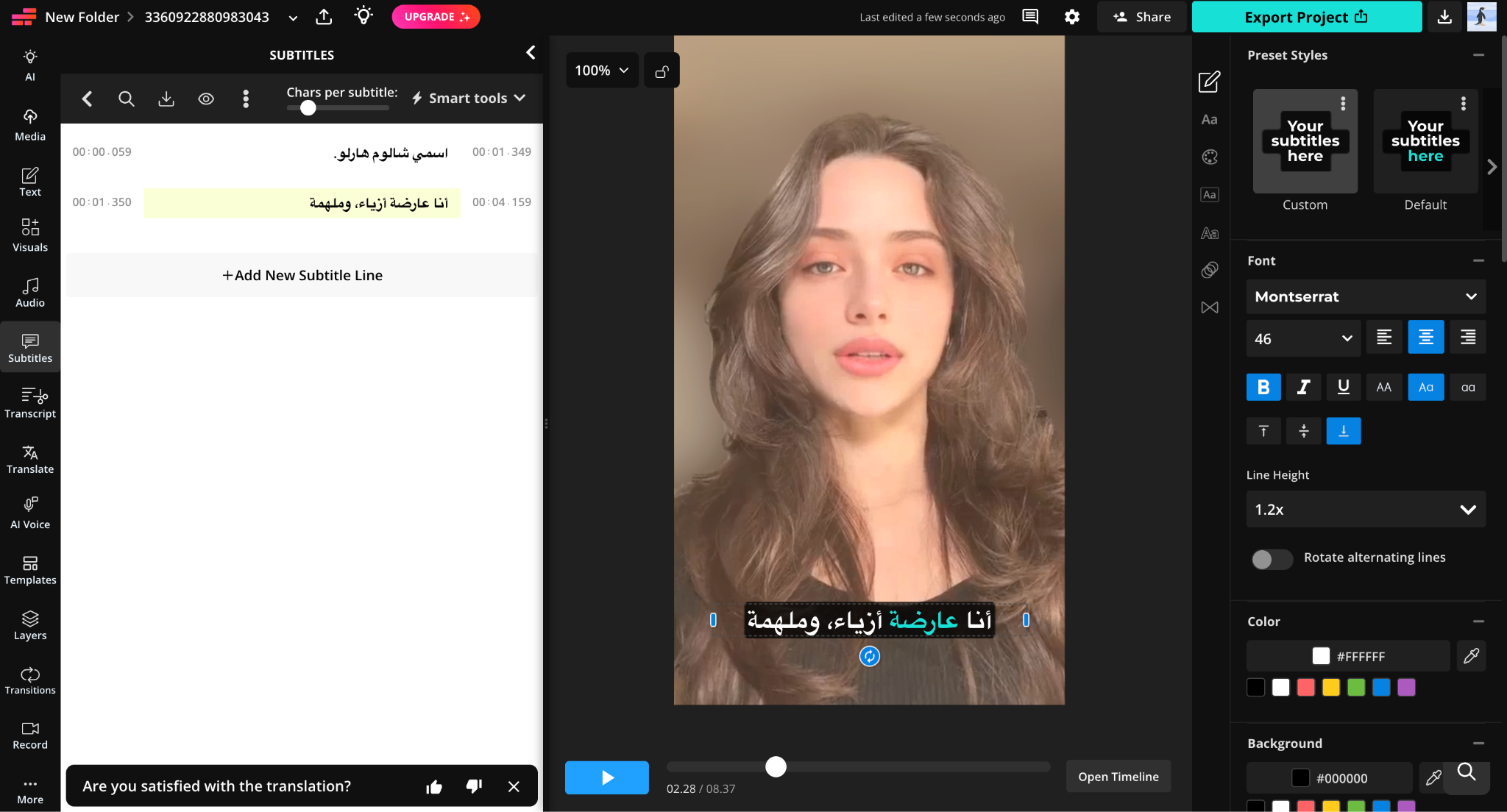
2. Subtitle Editor: The Subtitles panel generates a full timestamped transcript next to your video, with each line broken into its own editable block showing the exact start and end times. You can rewrite any line directly in the transcript, adjust how many characters appear per subtitle using the slider at the top, and use Smart Tools for quick cleanup. Kapwing also supports translation into other languages, including right-to-left scripts like Arabic, and the caption styling updates live in the preview as you edit.
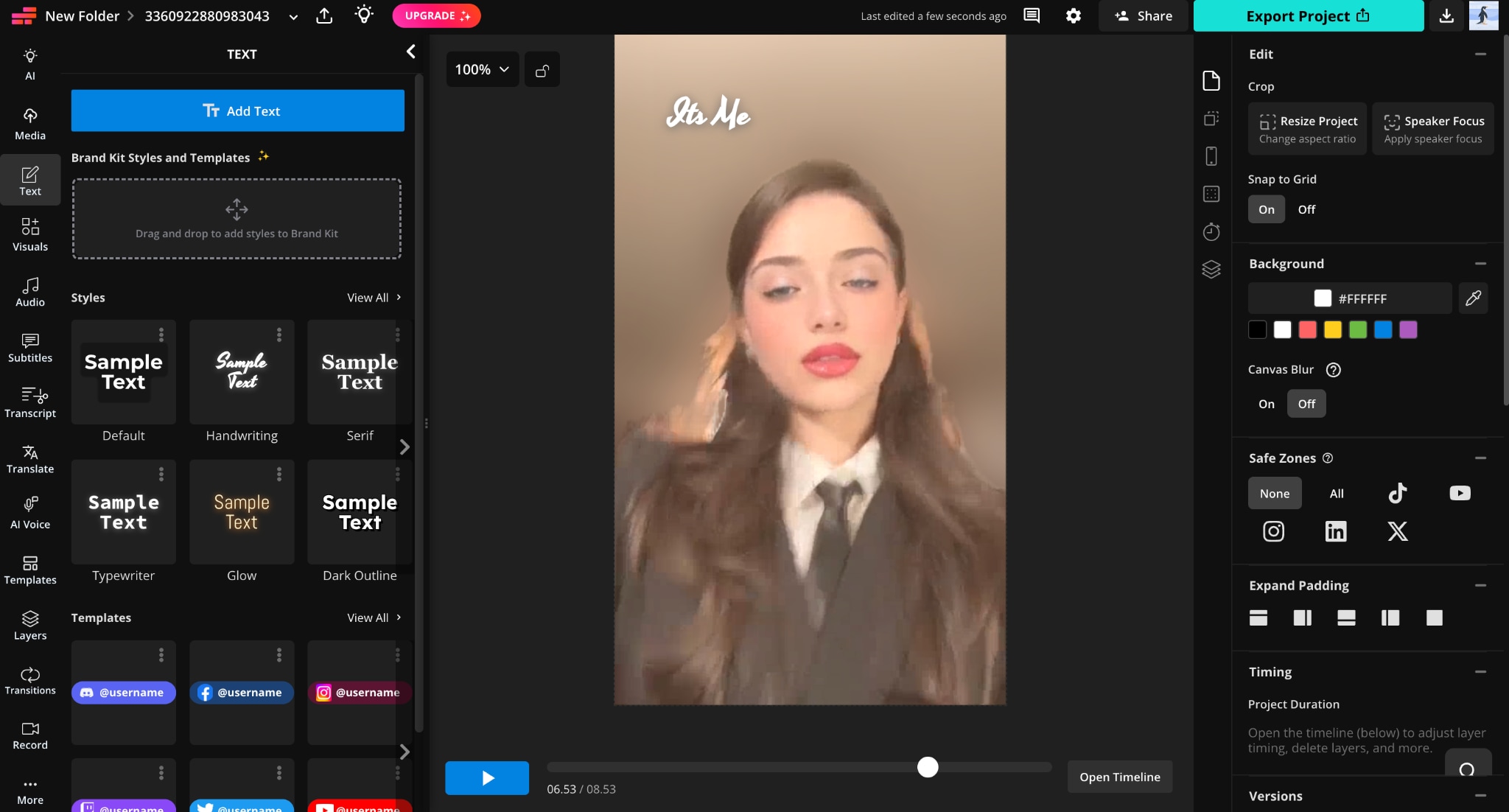
3. Text Adding: The Text panel lets you drop a text layer directly onto your canvas with a single "Add Text" click, then style it using a library of preset looks such as Default, Handwriting, Serif, Typewriter, Glow, and Dark Outline. Kapwing also includes pre-built social handle templates for platforms like Discord, Facebook, Instagram, and X, which are useful if you are branding a clip with a creator handle.
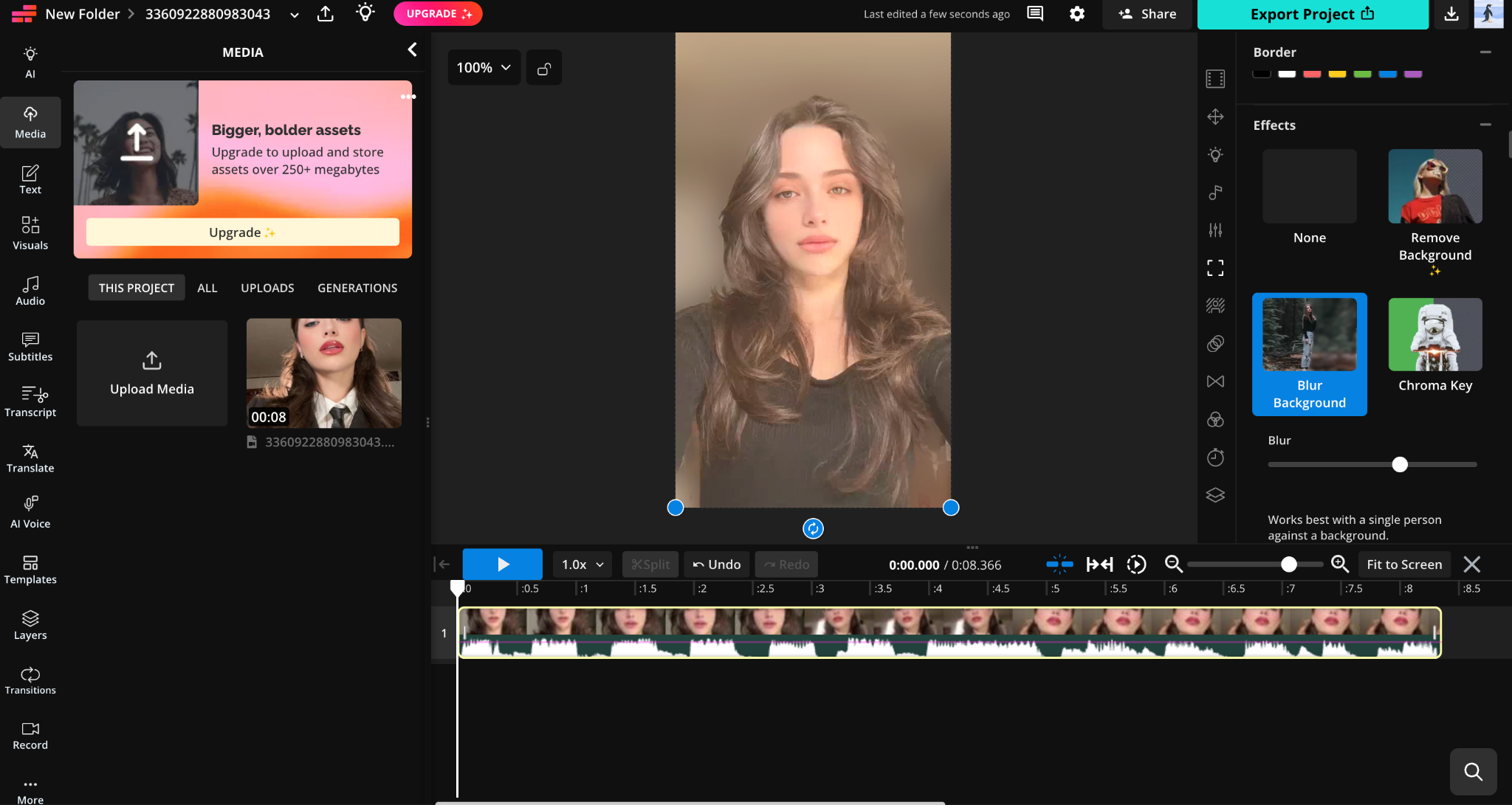
4. Background Blur and Chroma Key: Under Effects, Kapwing gives you one-click background treatments once a clip is selected in the timeline: None, Remove Background, Blur Background, and Chroma Key. Blur Background softens whatever is behind your subject with an adjustable blur intensity slider, which works well when you filmed against a messy or distracting room and do not have a clean backdrop. Chroma Key removes a solid color background entirely, making it the standard tool for green-screen-style shots.
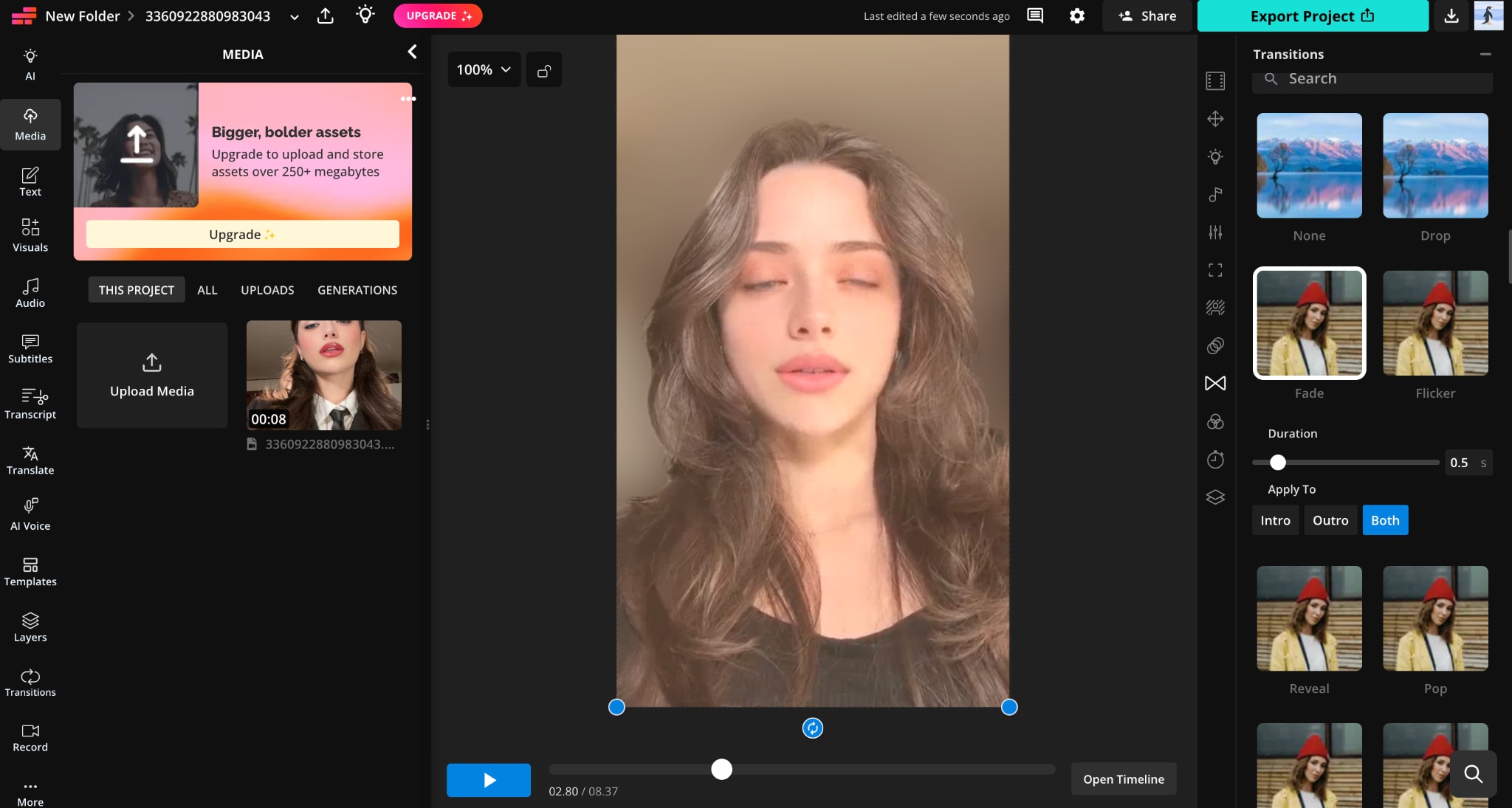
5. Transitions: Kapwing includes a dedicated Transitions panel in the sidebar with a library of built-in effects you can apply at the start or end of any clip on the timeline. After selecting a clip, you choose a transition style, set its duration, and decide whether it plays at the beginning, the end, or both.
| Feature | Best Use Case |
| Find Scenes | Automatically splitting a long take into separate clips at each scene change |
| Subtitle Editor | Generating, editing, translating, and styling accurate captions on a timestamped transcript |
| Text Adding | Building on-screen titles, callouts, and branded lower-thirds with reusable styles |
| Background Blur and Chroma Key | Cleaning up a messy backdrop or swapping a green-screen background on talking-head clips |
| Transitions | Smoothing the cut between two scenes at the start or end of a clip |
Part 3: Kapwing Video Editor Alternatives: 5 Alternatives for YouTube Creators
If the one-minute export cap or the watermark policy does not work for your workflow, these five tools are worth comparing before you commit to a Kapwing subscription.
Wondershare UniConverter
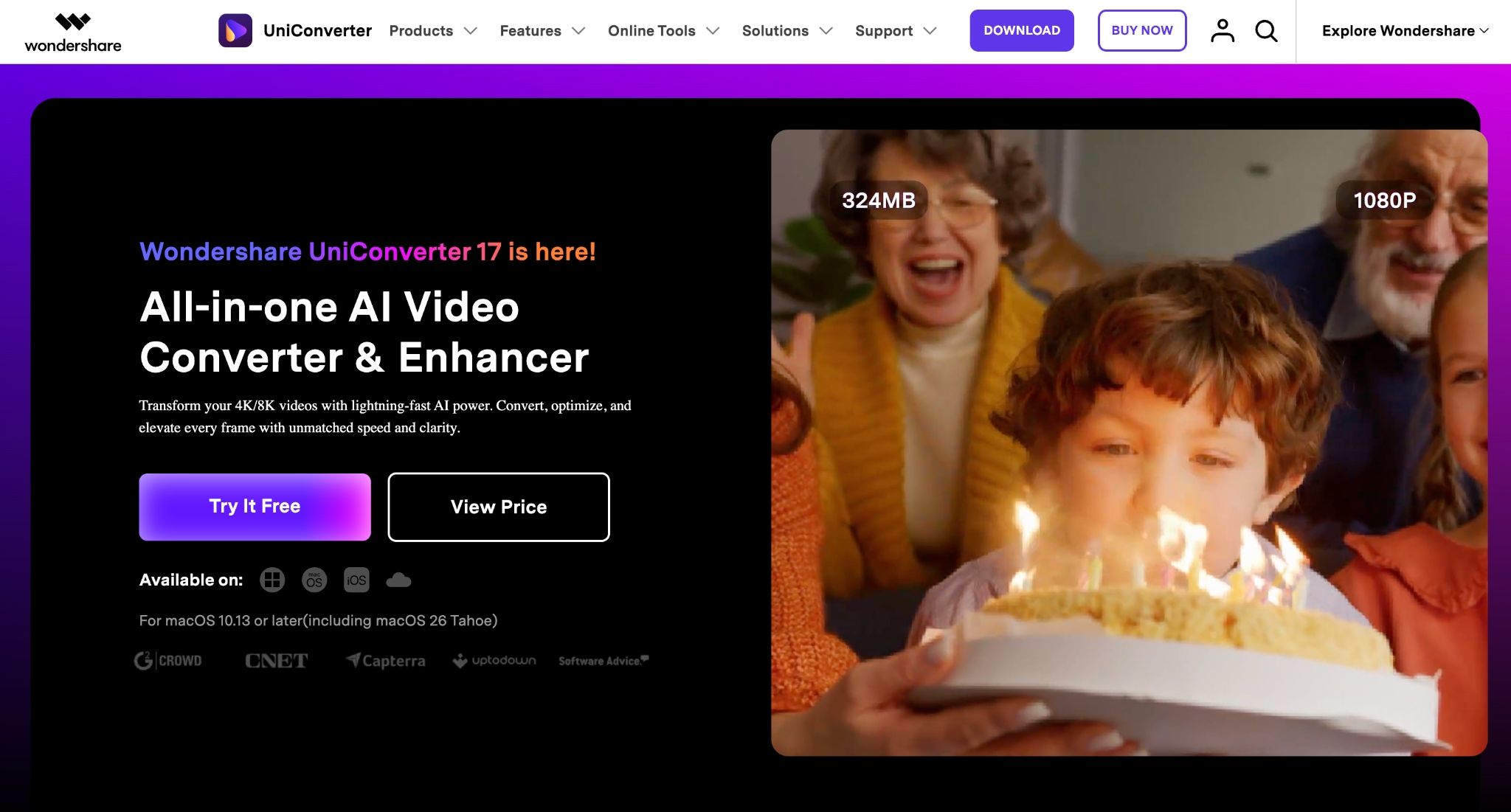

All-in-One Multimedia Processing Tool

Wondershare UniConverter is an all-in-one video, audio, and image editor that pairs editing with format conversion, compression, and downloading in a single interface. Unlike Kapwing, which is primarily a browser-based editor, UniConverter offers a desktop application that provides full control over editing. It supports over 1,000 file formats and batch processing, which matter if you regularly convert and edit footage across multiple platforms or devices.
Key Features of Wondershare UniConverter
Trim, crop, merge, and add or remove watermarks in batch mode across multiple files at once
Convert between more than 1,000 video and audio formats without visible quality loss
AI-powered tools, including background removal, video stabilization, and auto crop for social formats
Built-in screen recorder and downloader for saving and repurposing existing video content
Veed
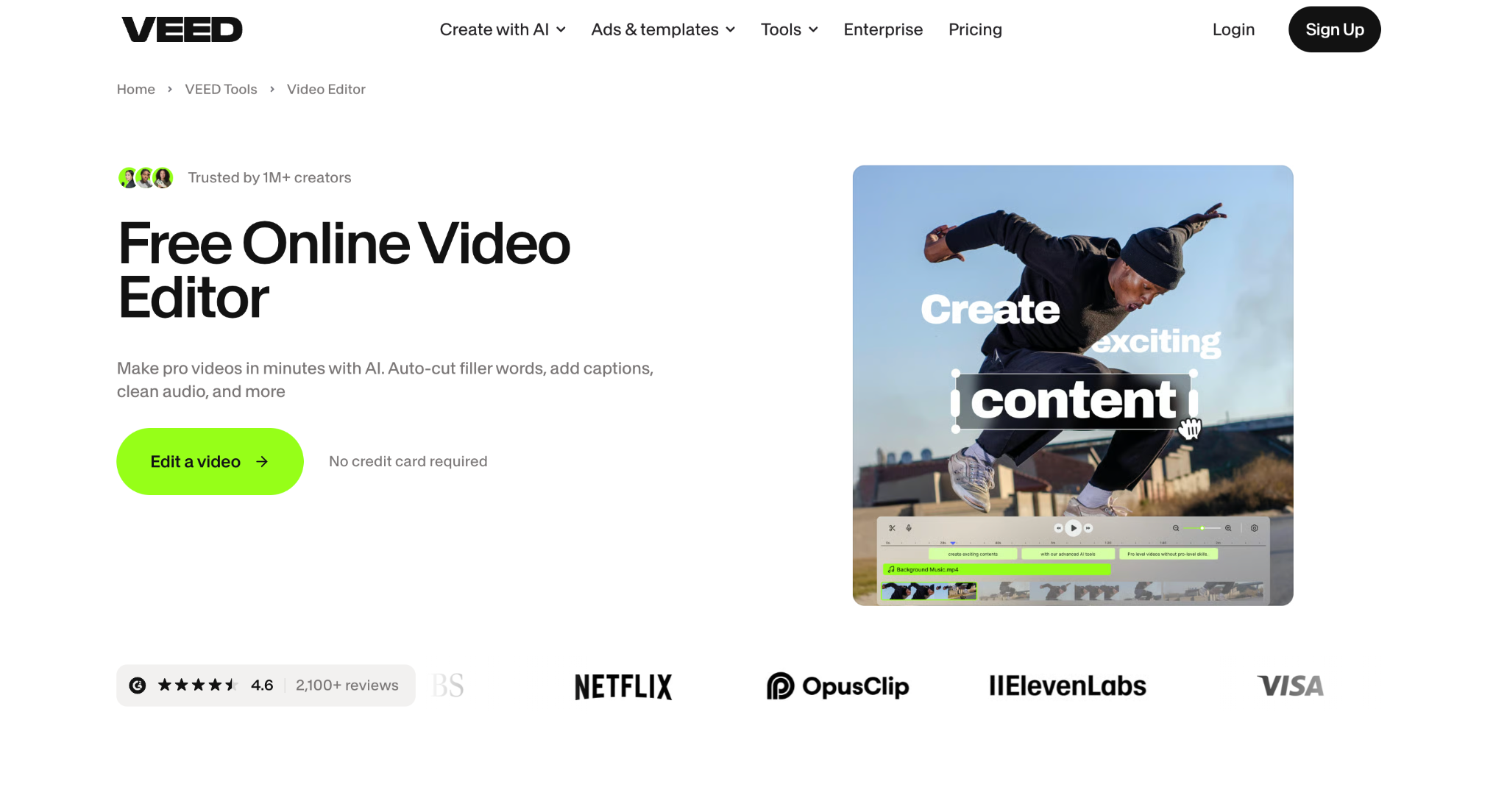
Veed is a browser-based editor built around auto subtitles, AI dubbing, and team collaboration, and it competes directly with Kapwing on the AI-editing front. Its free plan offers basic editing and subtitles, but exports still carry a Veed watermark, cap out at 720p, and are limited to 10 minutes.
Key Features of Veed
Auto subtitle generation across 100+ languages with strong accuracy on accented speech
One-click AI dubbing that translates and re-voices your video into another language
Real-time collaboration tools built for marketing and content teams working on shared projects
AI avatars and a text-to-video generator for producing content without filming new footage
CapCut
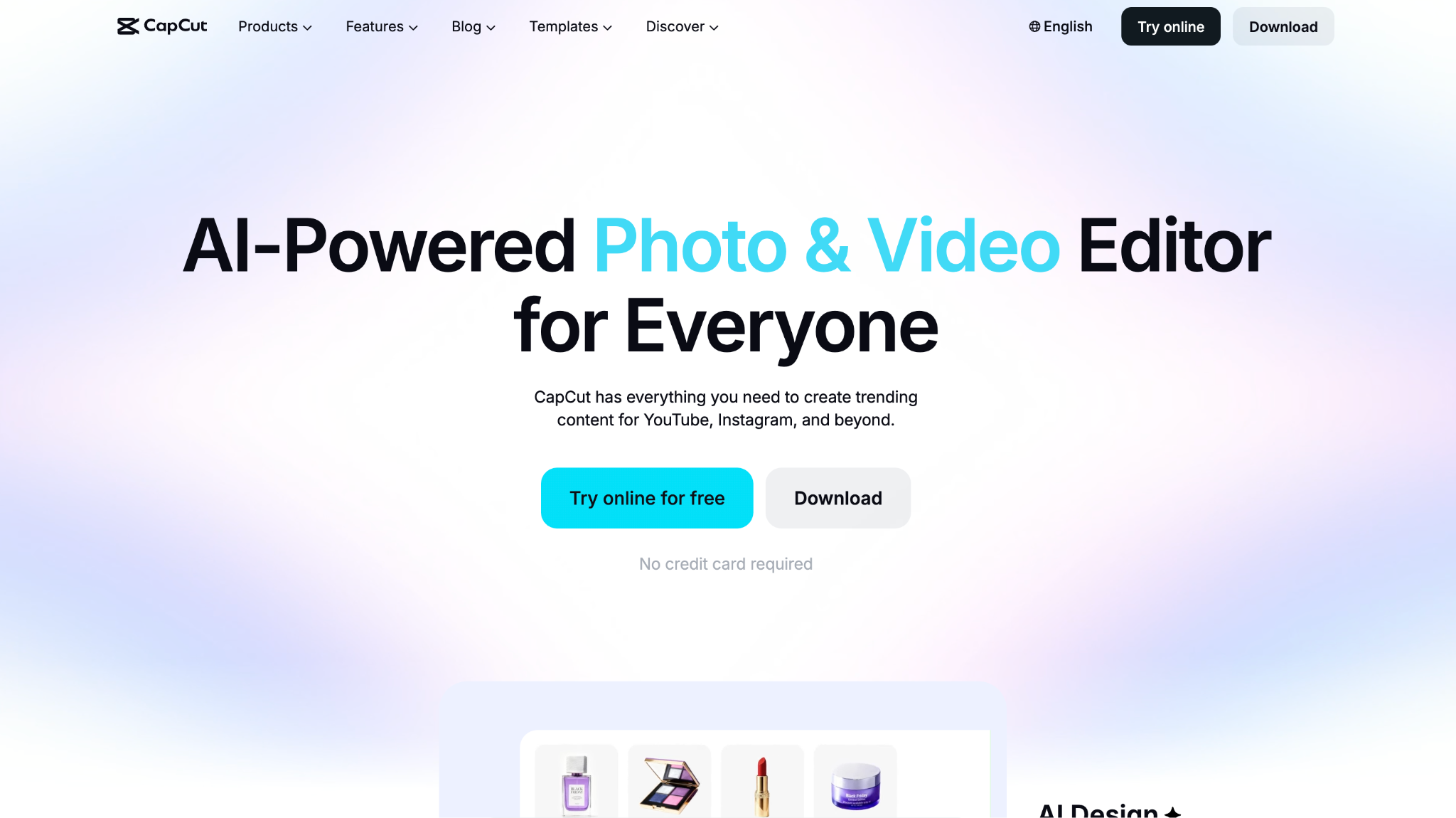
CapCut, owned by ByteDance, started as a mobile-only app for TikTok creators and has since grown into a full cross-platform editor with a capable browser version. Its free tier is one of the most generous in the category: most exports do not carry a watermark, and 1080p exports are included.
Key Features of CapCut
Auto captions, background removal, and one-click object removal are built into the free tier
Large library of trending effects, filters, and transitions aimed at short-form content
AI Video Maker that turns a text script into a rough cut with stock footage and music
Cross-device editing that syncs projects between mobile, desktop, and browser
Canva
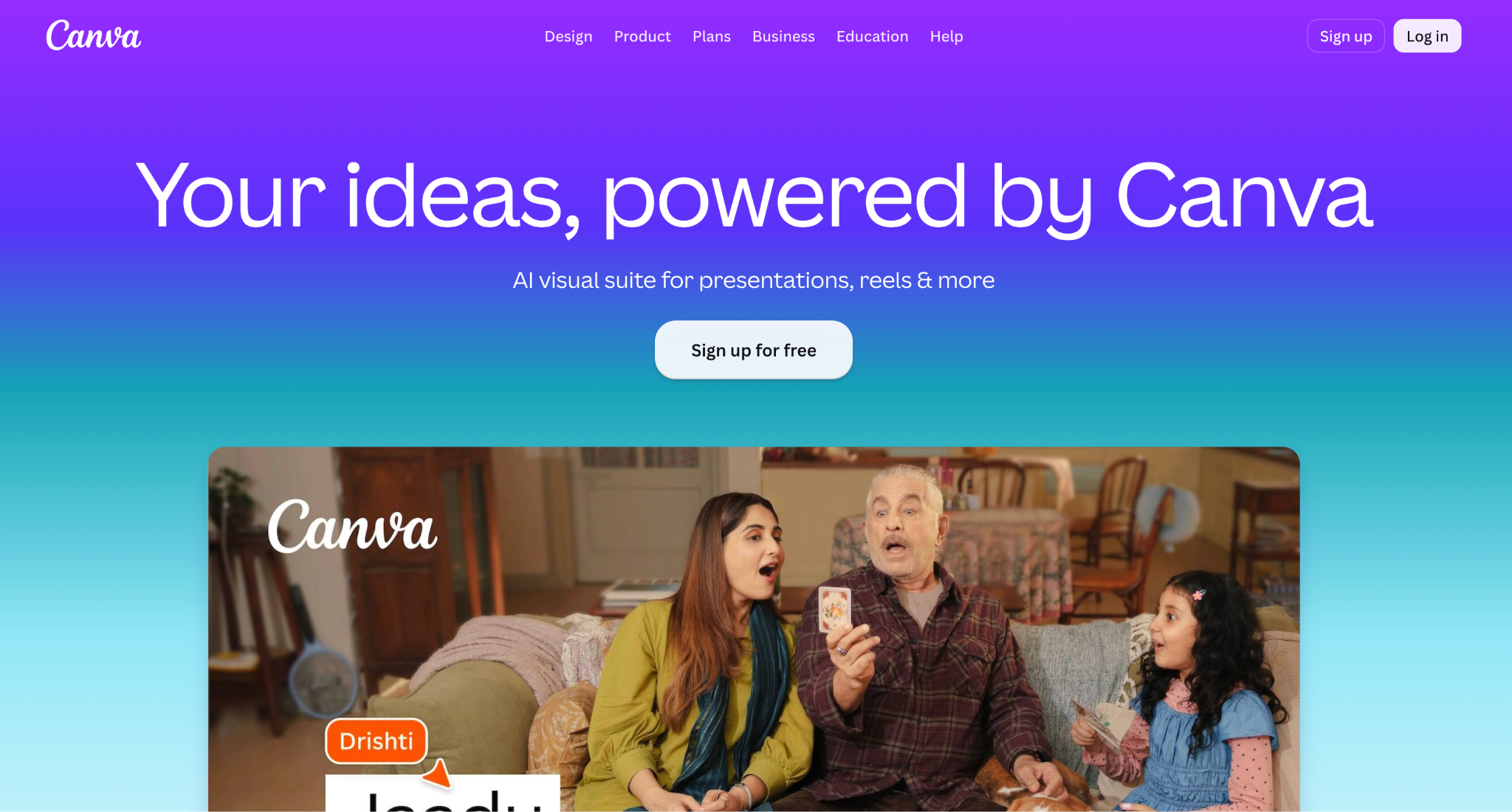
Canva's video editor is part of its broader design platform, which makes it a natural fit if your team already uses Canva for graphics, presentations, or social posts. The editing tools are simpler than a dedicated video app, but the drag-and-drop workflow and shared brand kit make it fast for teams producing templated content.
Key Features of Canva
Massive template library organized by platform, industry, and content type
Brand kit that automatically applies your fonts, colors, and logo across every new video
Magic Video AI tools for auto-generating scenes and transitions from text or images
Real-time collaboration that mirrors Canva's existing team editing experience
Clipchamp
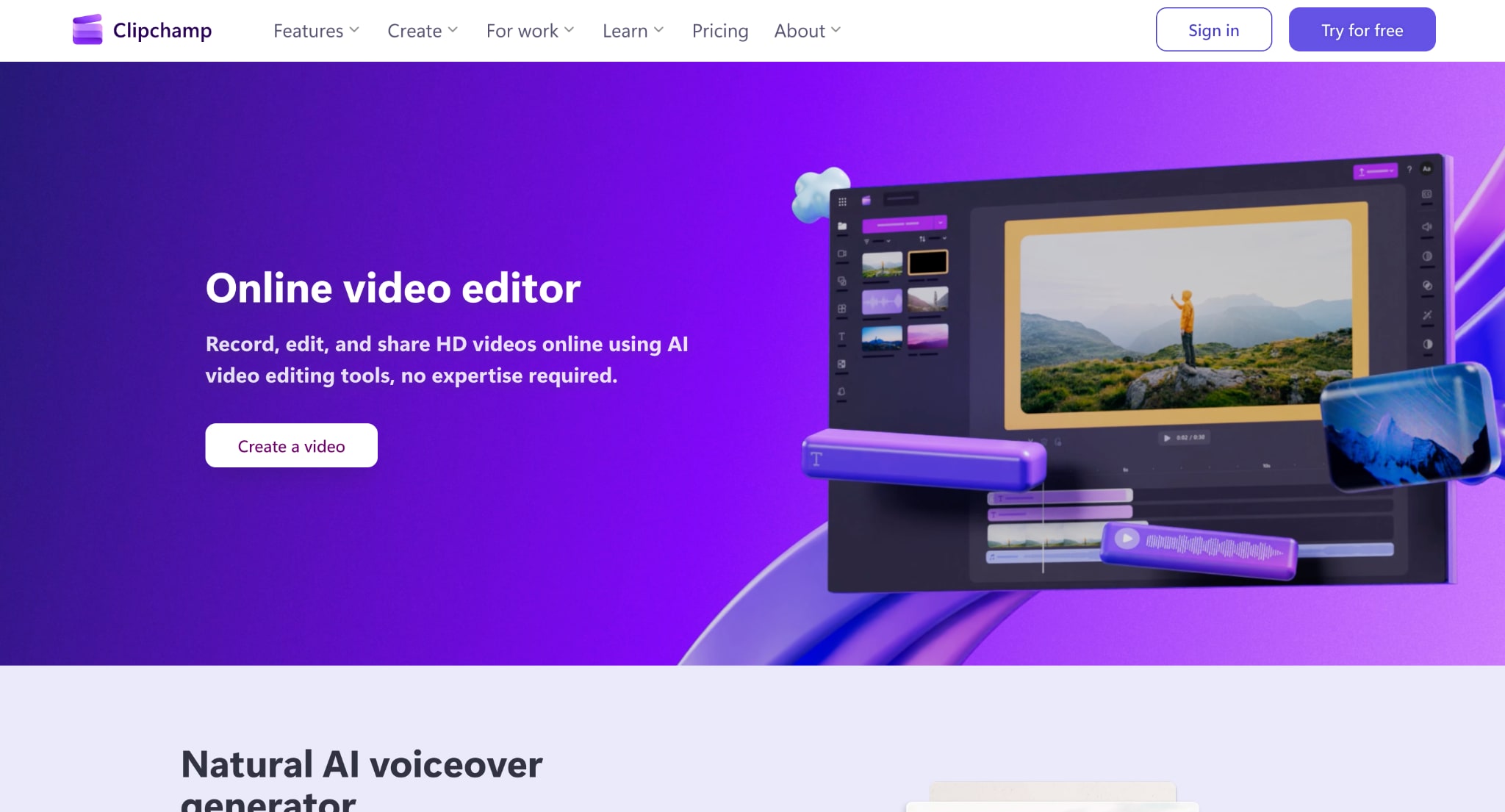
Clipchamp is Microsoft's built-in video editor for Windows 11. Its biggest advantage over Kapwing is the free export policy: 1080p exports are unlimited and watermark-free on the free plan, with 4K reserved for Microsoft 365 subscribers. It also includes AI-powered tools such as auto-captioning, text-to-speech, silence removal, and a library of stock media, making it a solid choice for creating social media videos, presentations, and simple marketing content.
Key Features of Clipchamp
Unlimited, watermark-free exports at up to 1080p on the free tier
AI auto-captions in 90+ languages plus AI-assisted script suggestions through Copilot
Built-in screen recorder with simultaneous webcam overlay capture
Direct OneDrive integration for teams already working inside the Microsoft 365 ecosystem
Part 4: How Do You Edit Videos in 4 Steps With the Kapwing Video Editor Alternative
Follow the steps below to edit a video with the Kapwing video editor alternative:
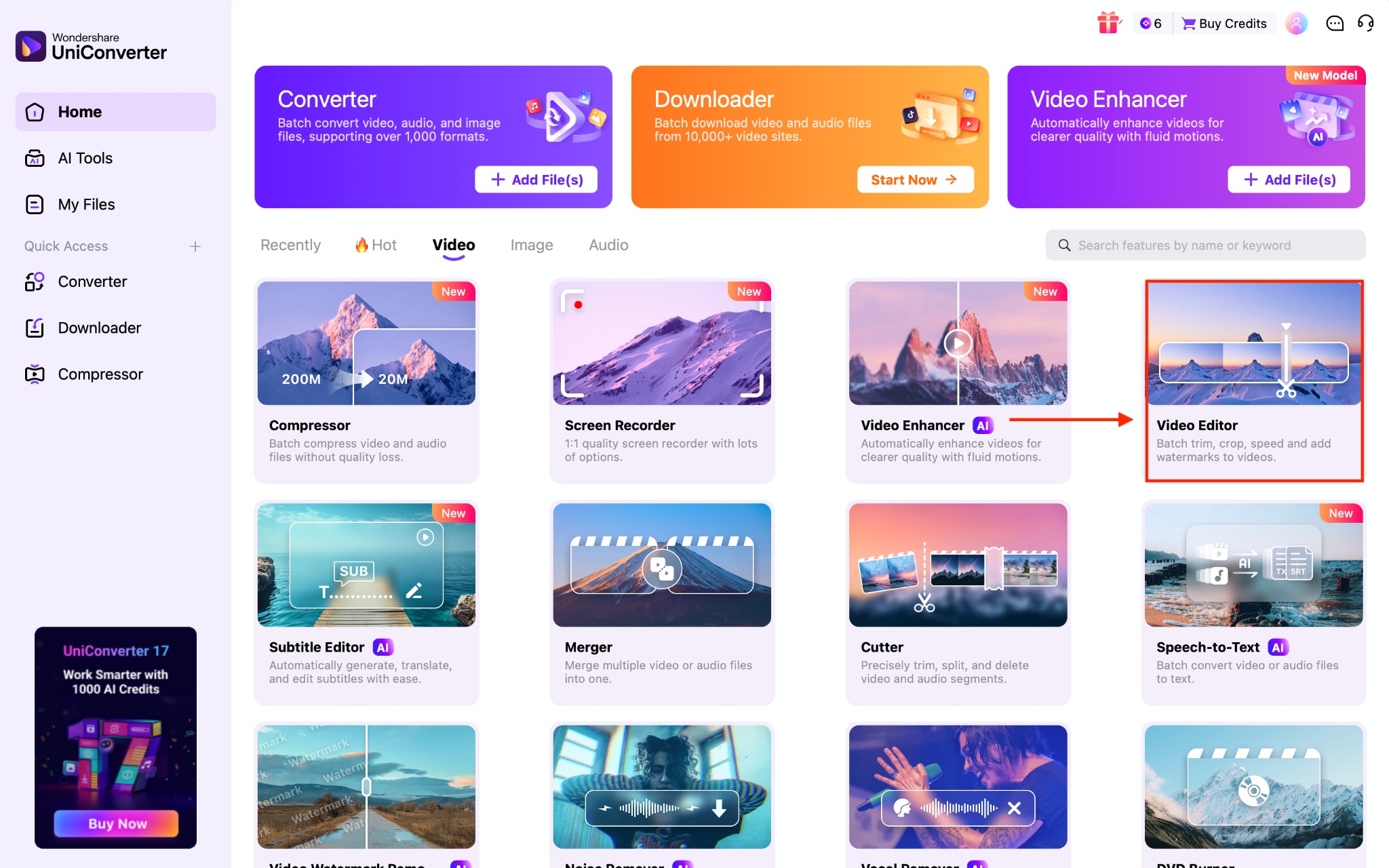
Step 1: On the Wondershare UniConverter dashboard, click Video Editor.
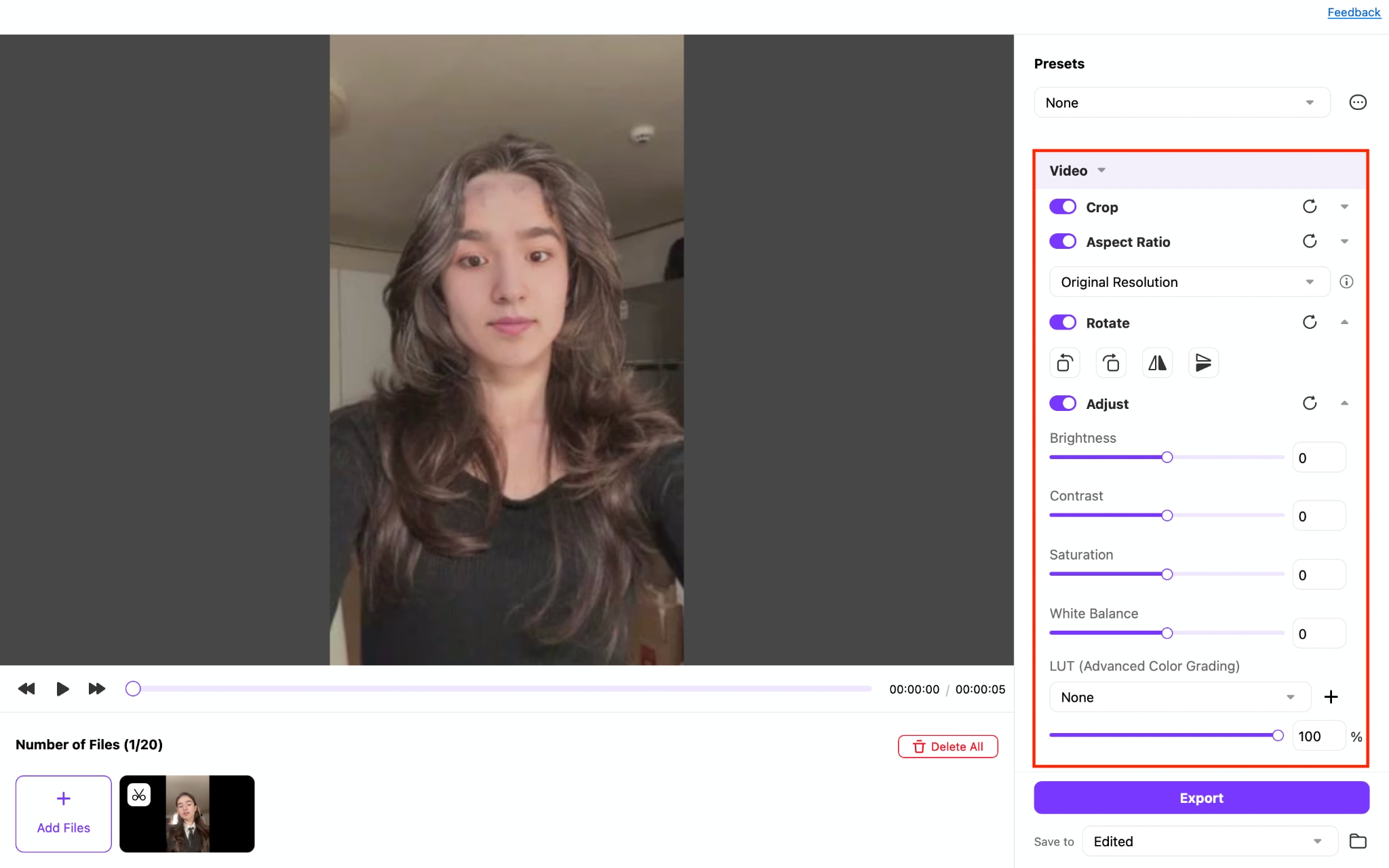
Step 2: Upload the video file, and you can rotate, crop, and adjust brightness, contrast, saturation, and more.
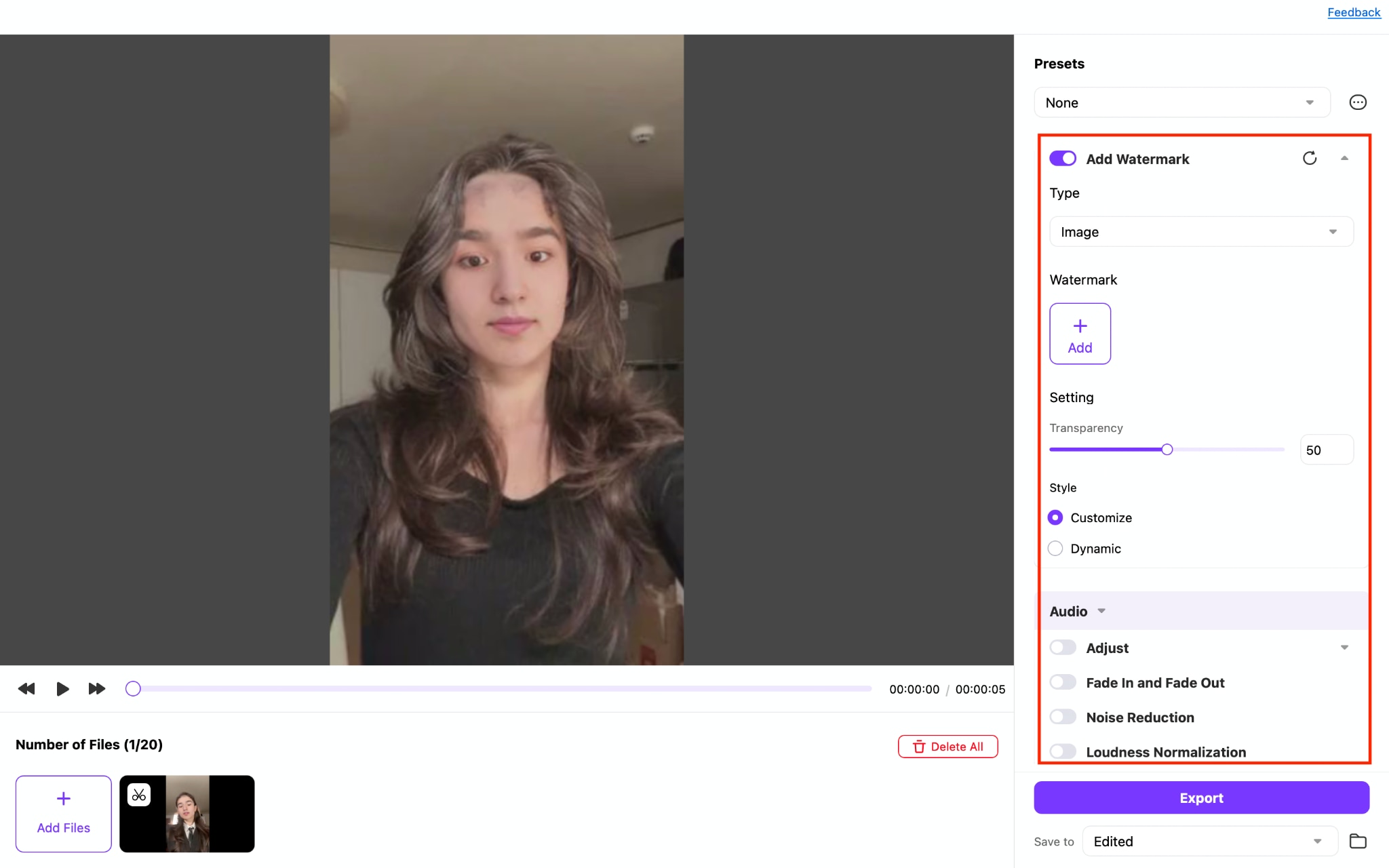
Step 3: If you want to add a personalized watermark to the video, you can also adjust the audio settings.
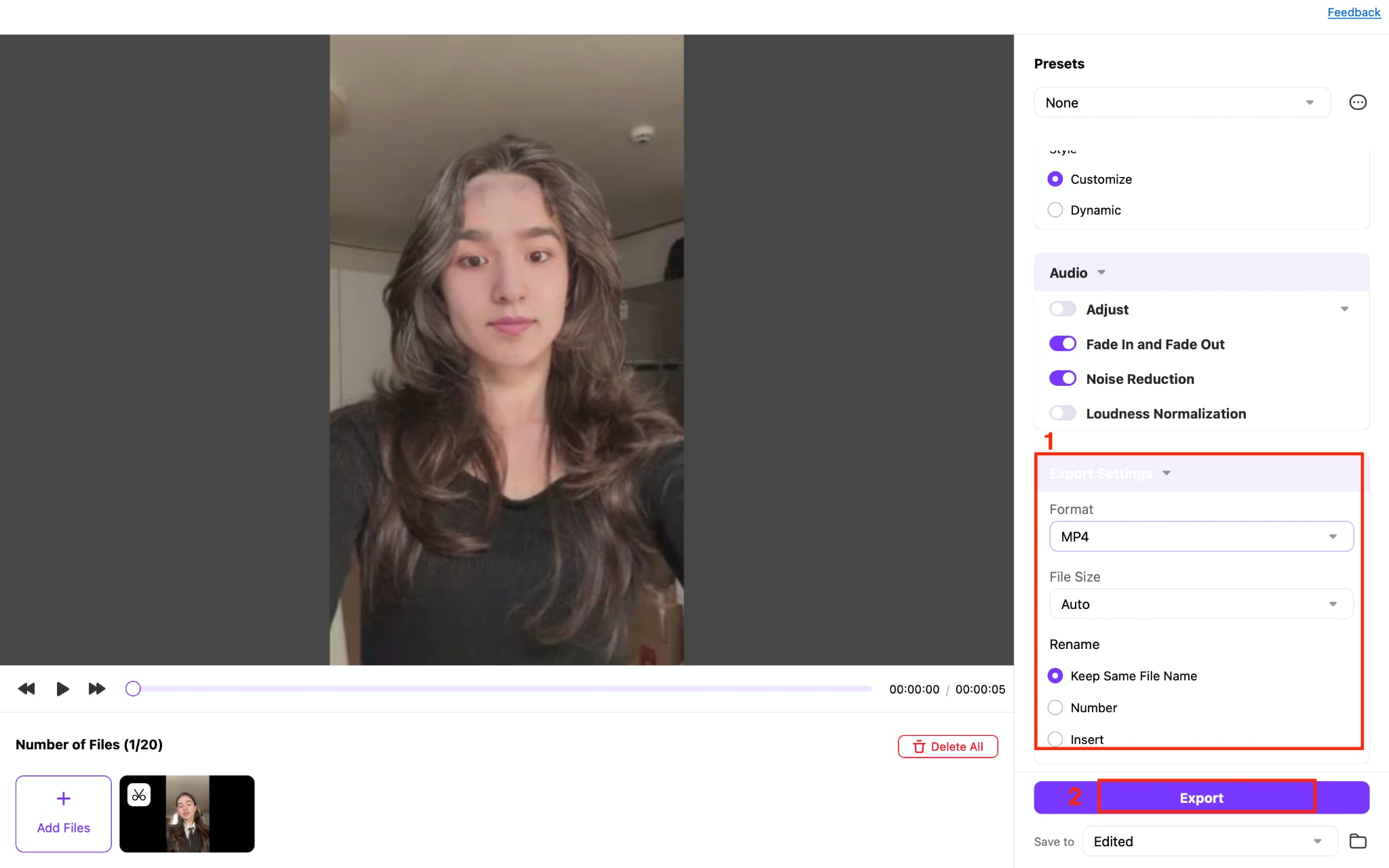
Step 4: Choose the format and video file size, then click Export.
Part 5: Kapwing Online Video Editor vs. Alternatives: When to Choose Kapwing
Kapwing is a strong choice if you need real-time team collaboration on video projects, if Smart Cut and text-based editing fit how you already work with transcripts, or if you produce short-form content under the free plan's one-minute cap and do not mind the watermark for early drafts and internal reviews.
Where Kapwing struggles is with longer-form content on a budget. If you are exporting anything over a minute without paying, need batch conversion across many files, or want a desktop option that does not depend on a stable internet connection, one of the five alternatives above will likely serve you better.
| Tool | Free Plan Watermark | Free Export Length | Best For |
| Kapwing | Yes | 1 minute | Fast AI edits and team collaboration on short clips |
| Wondershare UniConverter | No (Video Editor tool) | No fixed cap | Batch editing, format conversion, and desktop stability |
| Veed | Yes | 10 minutes | Multilingual subtitles and AI dubbing |
| CapCut | No (most exports) | Unlimited | Short-form, trend-driven social content |
| Canva | Yes (if using premium elements) | Unlimited | Teams already using Canva for design |
| Clipchamp | No | Unlimited at 1080p | Windows users who want a built-in, no-cost editor |
Conclusion
The Kapwing video editor is a good option if you want to edit videos quickly in your browser, especially for short social media content, captions, and basic AI-powered edits. Its interface is easy to use, but the free plan's one-minute export limit and watermark can become restrictive if you edit videos regularly.
If those limitations don't fit your workflow, Wondershare UniConverter is worth considering. It offers a desktop-based editing experience with additional tools like format conversion, batch processing, and unrestricted exports, making it more suitable for longer videos or frequent editing.
If you need more flexibility without worrying about export restrictions, UniConverter may be a better fit.

