

Veed has become one of the most popular browser-based video editors, all thanks to its AI-powered editing tools, auto-subtitles, and built-in video compressor. But while it promises fast compression without noticeable quality loss, not every compression tool performs equally well when larger files, longer videos, or professional workflows come into play.
In this Veed review, you get a closer look at the Veed Video Compressor, its key features, pricing, ease of use, and overall value for creators in 2026. Before diving into the detailed analysis, here is a quick overview of where Veed performs well, where it falls short, and who should consider using it.
| Category | Veed verdict |
| Best for | Fast short-form social edits, auto-captions, and quick one-off compression |
| Standout feature | Auto-subtitles in 125+ languages with on-screen styling |
| Veed video compressor | Quality and resolution presets, CRF/Bitrate advanced mode, up to 91% size reduction |
| Works on | Any browser (Windows, Mac, Chromebook, tablet); no install |
| Free plan | 720p exports with a Veed watermark |
| Paid plans | From $12 per month |
| Top alternative | Wondershare UniConverter (desktop, 4K/8K, bulk conversion) |
Table of Contents
Part 1: What Are Veed's Best Features for Video Editors and Creators?

Veed's strongest features are its browser-based video editor, AI-powered subtitles, video compression tools, screen recording, and content creation AI. Together, these tools let you edit, compress, caption, record, and repurpose videos without installing desktop software.
Video Editing and Timeline Tools
Veed runs a drag-and-drop timeline that opens in any browser, so editing starts without a download on Windows, Mac, or a Chromebook. Users trim clips, split footage, layer text, apply transitions, and pull royalty-free media from a stock library of more than 2 million assets. Brand kits keep fonts, colors, and logos consistent across a project, and auto-resize reformats a single video for Instagram Reels, TikTok, or YouTube Shorts in one click. The editor favors speed over deep control, so color grading and multi-layer compositing stay basic.
Subtitles, Captions, and Transcription
Auto-subtitles rank as the feature reviewers most often signal out in Veed reviews. Veed transcribes speech and generates captions in 125+ languages with a single click, then lets users adjust timing, font, and animation directly on screen. Caption files can be exported as SRT, VTT, or TXT, or burned straight into the video for social clips that play without sound. Accuracy holds high for clear English audio and dips slightly past the 30-minute mark, where a quick manual review cleans up stray words.
AI Tools (Avatars, Voice, and Background Removal)
Veed's AI toolkit covers the parts of production that creators tend to dread. AI avatars generate talking-head videos from a script with lip-sync, drawing from 50+ avatars and 35+ voices, and voice cloning narrates from text in a user's own voice.
Gen-AI Studio generates rough video drafts from a text prompt, and Magic Cut automatically trims filler words and dead air. Background removal uses an AI chroma key with no green screen, and Eye Contact Correction plus Clean Audio to sharpen footage shot on a webcam. The quality suits social content more than broadcast work.
Screen Recording
The built-in screen recorder captures the display and webcam simultaneously, making it ideal for tutorials, product demos, and remote presentations. Recordings land straight on the timeline, ready for trimming, captions, and a Magic Cut pass to remove pauses.
A presenter can frame their face in a corner while slides fill the rest of the screen, then publish without switching to a separate recorder. Because everything runs in the browser, a locked work laptop with no install permissions still records and edits a clip end-to-end.
Veed Video Compressor
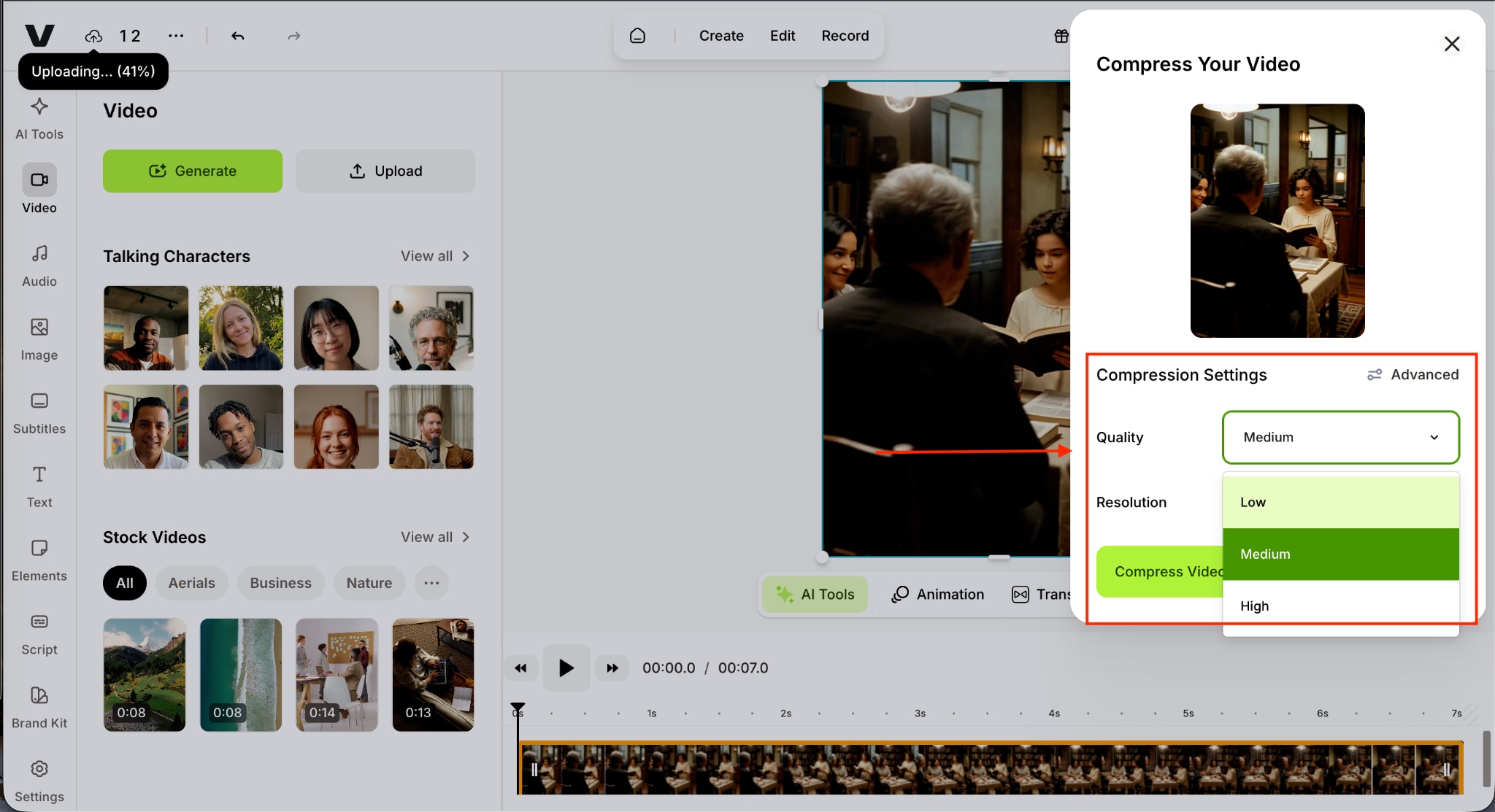
The Veed video compressor reduces file size in a single pass while maintaining visual quality, which is the core reason this Veed review exists. Users pick a Quality level (Low, Medium, or High) and a target resolution, and the tool shows a real-time size estimate and the percentage saved before processing starts.
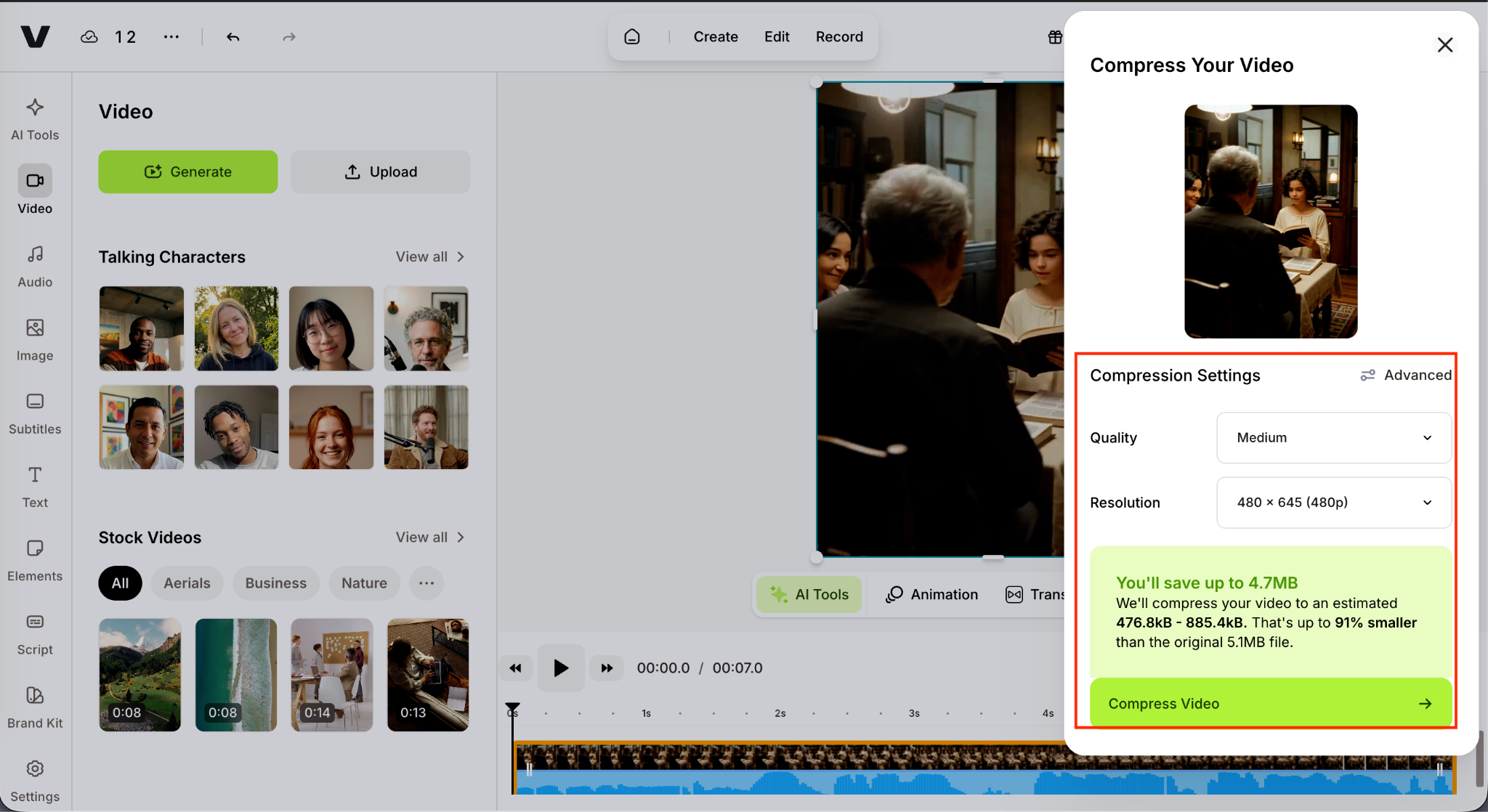
An Advanced mode switches between CRF and Bitrate control, with a CRF slider and a frame rate limit for finer control over the output. In testing on Veed's own page, a 5.1MB clip dropped by up to 91% at 480p. The compressed file downloads directly or is moved into the editor for further work.
Templates and Collaboration
Veed includes ready-made templates for social media formats, plus collaboration tools for small marketing teams. Several people work on a shared project, leave feedback on the timeline, and keep brand assets in one place, which cuts the back-and-forth that usually lives in email and Slack.
An AI Copilot takes plain-language commands such as 'resize for Instagram' or 'add Spanish subtitles,' and AI Dubbing translates audio into 50+ languages for multilingual posts. Monthly quotas cap the AI features on paid tiers, so heavy users watch their limits.
Part 2: How Do You Compress a Video Using the Veed Video Compressor?
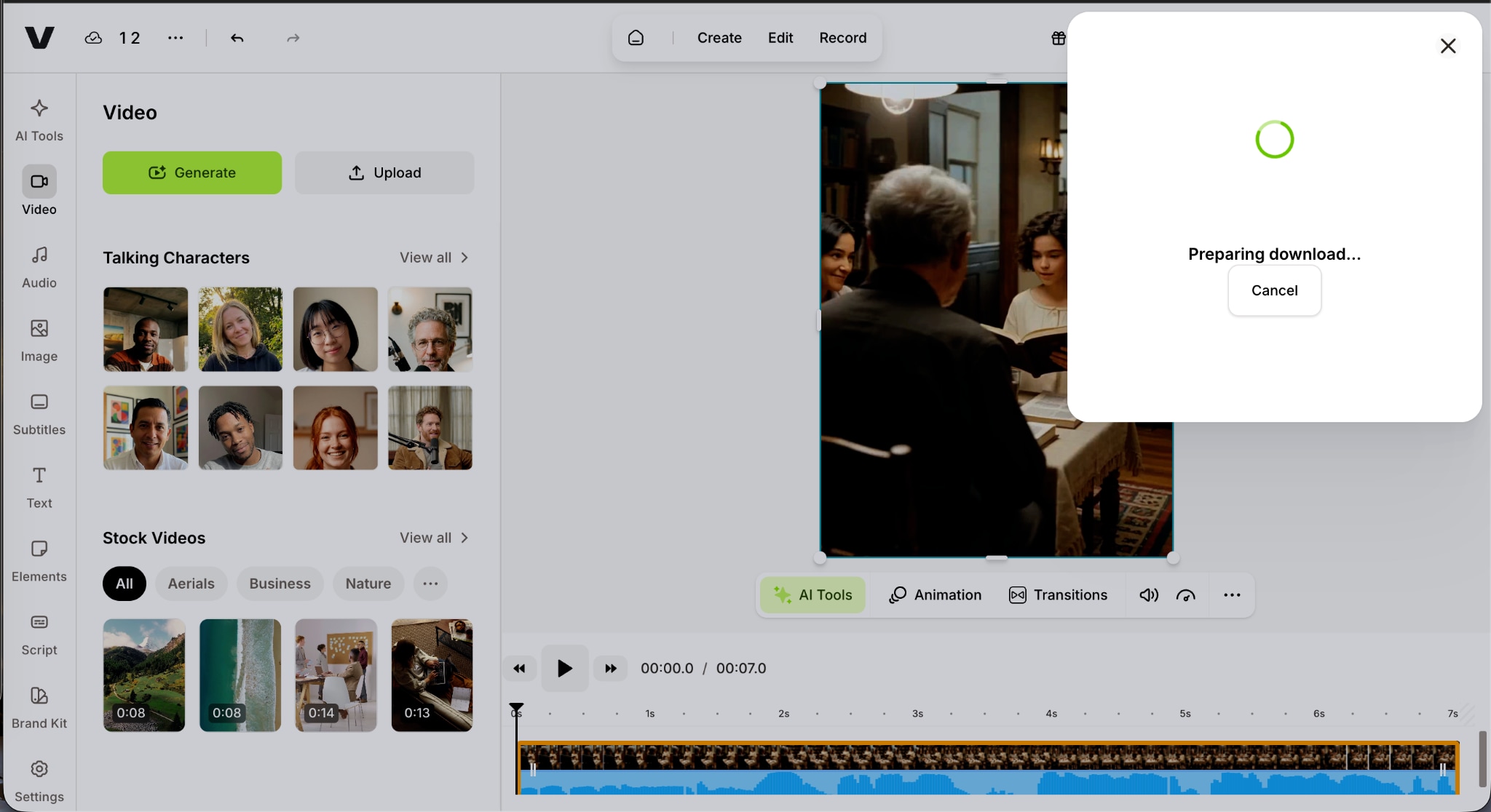
The Veed video compressor works in five short steps from the dashboard. Each step below matches the screenshot beside it.
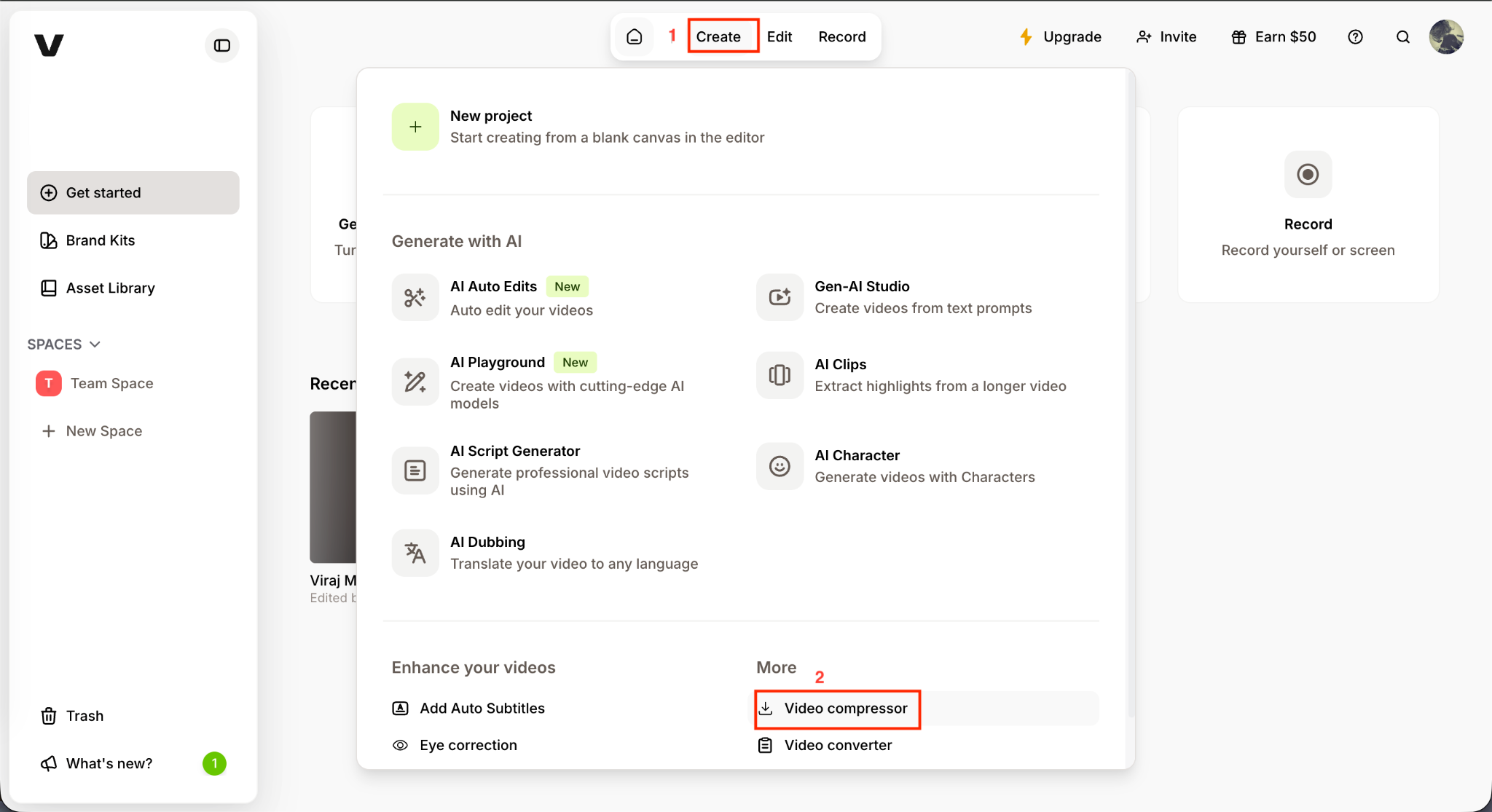
Step 1: From the Veed dashboard, click Create at the top of the screen to open the panel, then scroll to the More section and choose Video compressor.
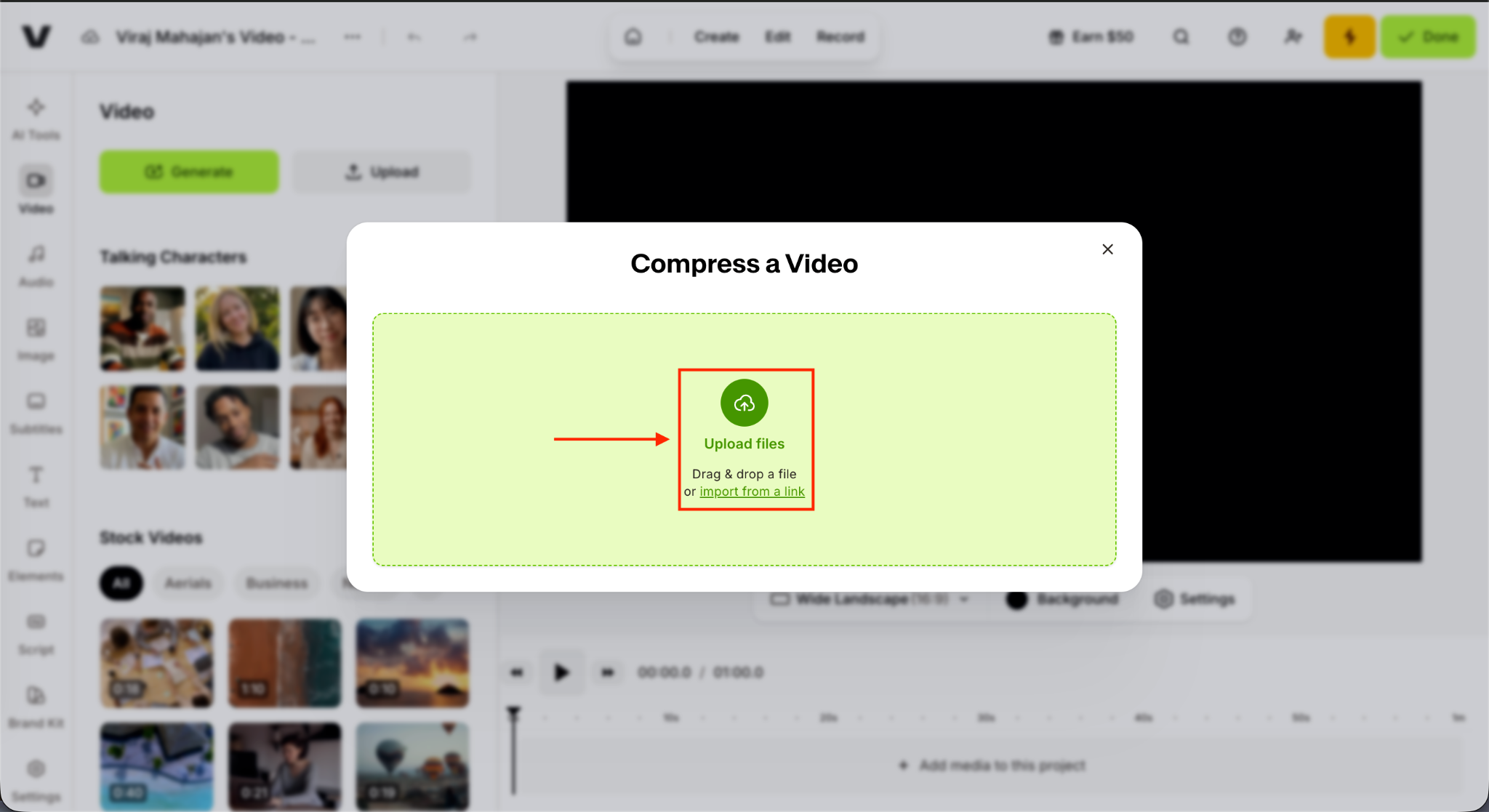
Step 2: In the Compress a Video window, drag and drop the file into the upload area, or click Upload files and import from a link.
Step 3: Set Quality to Low, Medium, or High, then pick a target resolution from the dropdown. Veed shows the estimated output size and the percentage saved as each option changes.
Step 4: Switch the panel to Advanced, select CRF or Bitrate mode, then adjust the CRF value and frame rate limit for tighter control over quality and file size.
Step 5: Click Compress Video, wait for the file to process, then download the smaller clip or send it into the editor for trimming and captions.
Part 3: What Are the Top 5 Veed Alternatives in 2026?
Veed covers fast social editing well, while creators who need bulk format conversion, desktop power, or true 4K and 8K output often look elsewhere. These five Veed alternatives each win a different use case, starting with the strongest all-rounder.
Wondershare UniConverter


All-in-One Multimedia Processing Tool

Wondershare UniConverter is a desktop application for Windows and Mac that combines video conversion, compression, recording, subtitle editing, and enhancement features in one place. It is designed for creators and businesses working with large files, high resolutions, and multiple media formats.
Compared to Veed, UniConverter offers greater control over compression, supports a wider range of file formats, and processes videos locally on the computer. It is a better choice for users handling large 4K or 8K projects, which browser-based editors often struggle to process efficiently.
Key Features
Converts videos between more than 1,000 formats for greater compatibility across platforms and devices
AI Smart Compression reduces file sizes by up to 90% while preserving visual quality for storage and sharing
Enhances footage with 4K and 8K upscaling, frame-rate improvement, and video cleanup features
Processes multiple files at once, making large conversion and compression jobs easier to manage
Descript
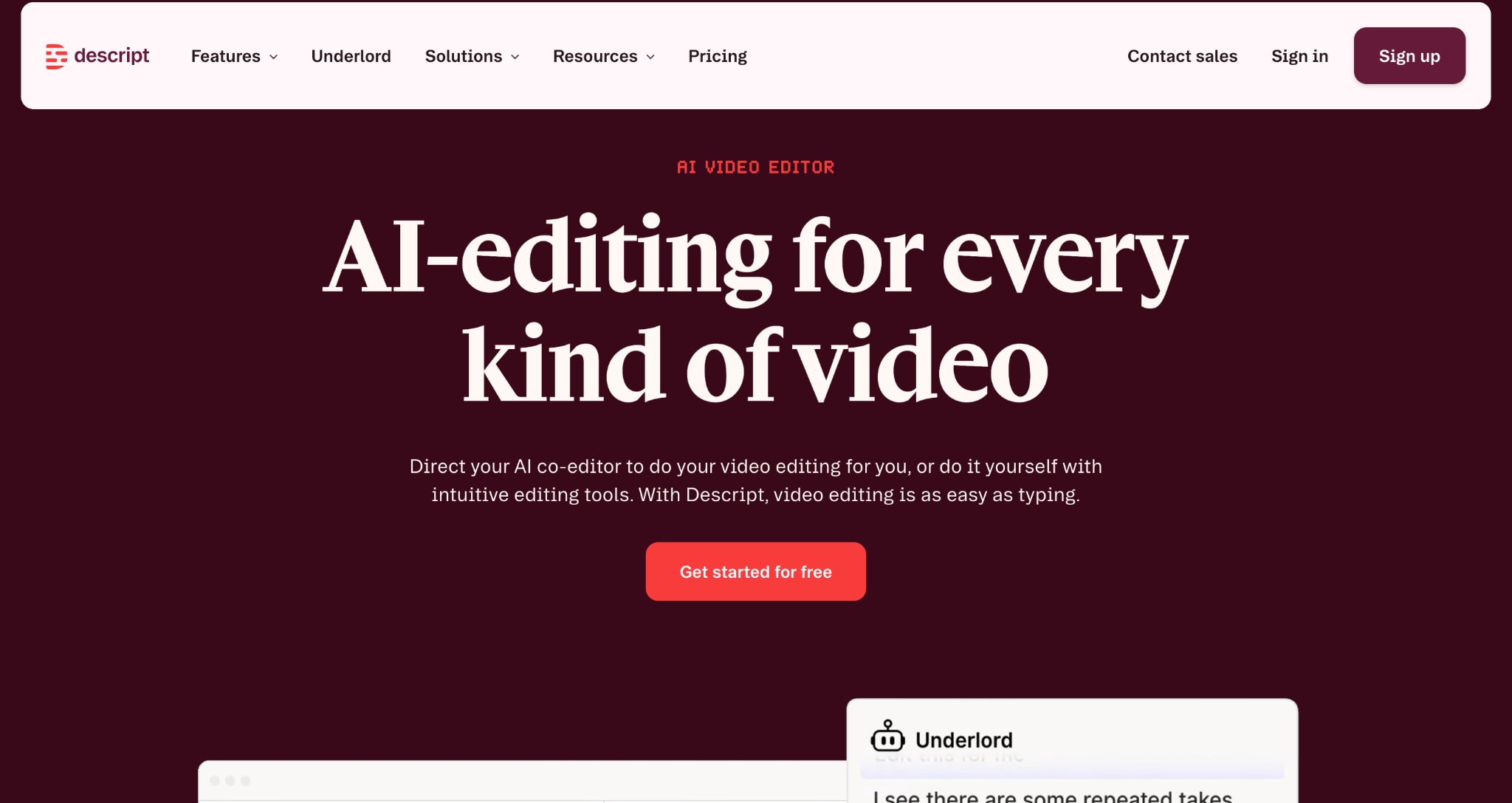
Descript is a text-first video and podcast editor that lets users edit recordings by editing the transcript. Removing a sentence from the transcript automatically removes the matching audio and video, making it especially useful for podcasts, interviews, webinars, and talking-head content.
Compared to Veed, Descript is better suited to long-form spoken content than to social video creation. It is a stronger choice for creators who spend most of their time editing conversations, presentations, or podcasts rather than producing short marketing videos.
Key Features
Let you remove unwanted sections by deleting text from the transcript, automatically cutting the matching footage
Fixes spoken mistakes by generating replacement words that sound like the original speaker
Improves recordings by reducing background noise and removing filler words such as "um" and "uh."
Allows teams to review projects, leave comments, and collaborate in shared workspaces
Clipchamp
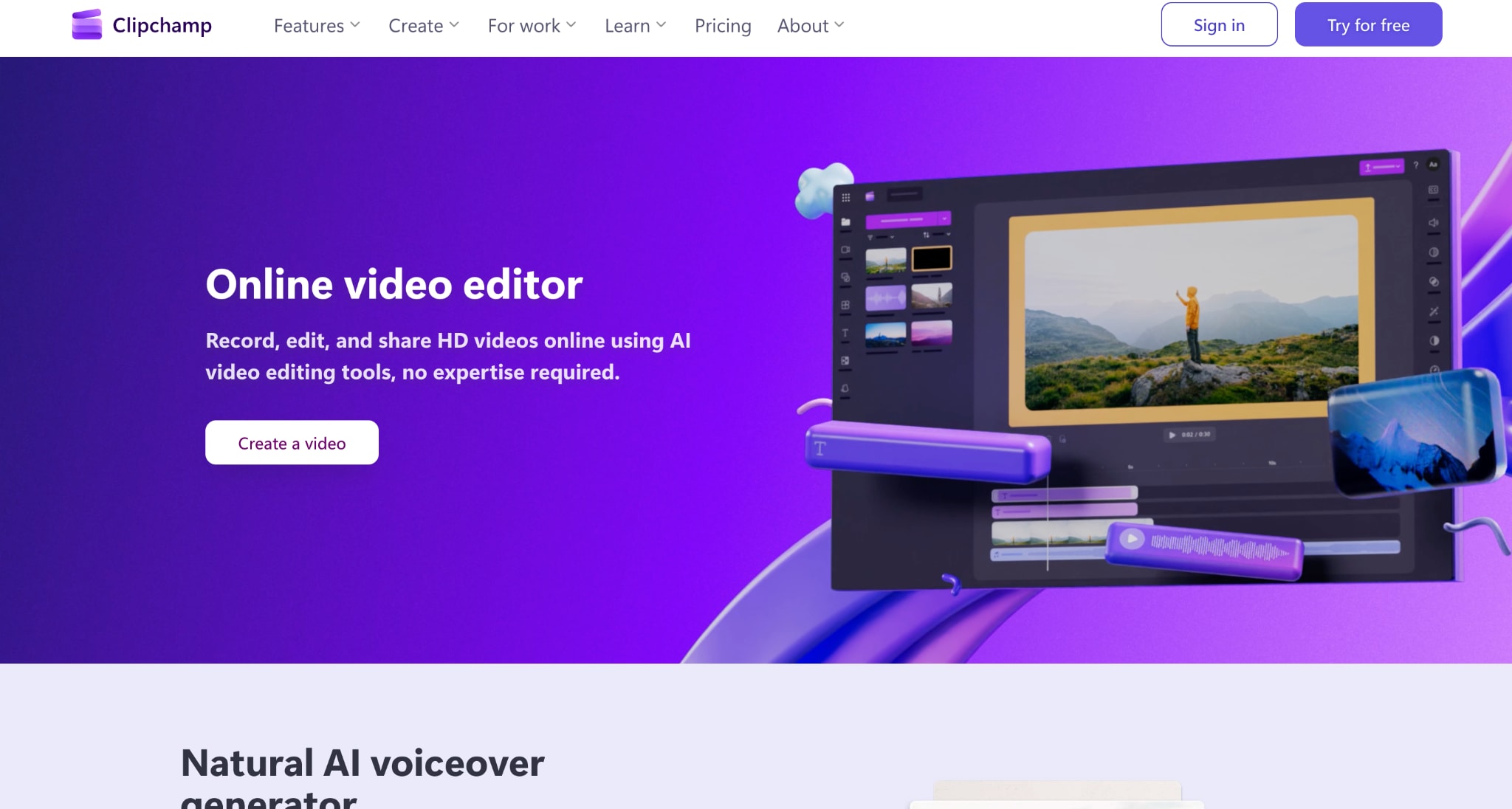
Clipchamp is Microsoft's browser-based video editor designed for beginners who want to create videos quickly without learning professional editing software. It combines templates, screen recording, captions, and simple editing tools in an interface that feels familiar to Windows users.
Compared to Veed, Clipchamp offers a more accessible free experience with watermark-free 1080p exports and a simpler learning curve. It is a good option for users who want straightforward editing and basic content creation without relying heavily on advanced paid features.
Key Features
Builds videos quickly with templates designed for presentations, social posts, ads, and tutorials
Creates captions automatically so videos remain accessible when viewed without sound
Generates voiceovers from text for users who prefer not to record narration manually
Records screens and webcams directly inside the editor for demonstrations and training videos
CapCut

CapCut is a video editor available on desktop, web, and mobile, known for its templates, captions, and short-form editing tools. It is widely used by creators producing content for TikTok, Instagram Reels, and YouTube Shorts at a high volume.
Compared to Veed, CapCut offers a larger collection of social media templates and trend-focused editing features. Creators who prioritize short-form content and fast publishing workflows often find it better suited to daily social media production.
Key Features
Turns long recordings into multiple short clips suitable for social media platforms
Creates captions in multiple languages and adds voiceovers without extra software
Provides trend-based templates, effects, and background editing features for social content
Keeps projects synced across desktop, mobile, and web editing environments
Kapwing

Kapwing is a browser-based video editor built around collaboration, making it popular with marketing teams, agencies, and businesses that create content together. Shared workspaces, commenting tools, and brand management features help teams review and publish videos more efficiently.
Compared to Veed, Kapwing places a stronger emphasis on collaborative workflows and content repurposing. It is often a better fit for teams that need multiple people involved in editing, reviewing, and adapting videos for different platforms.
Key Features
Allows team members to edit projects together and leave feedback directly on the timeline
Removes pauses and filler words to reduce manual editing work on recorded content
Creates and translates subtitles for multilingual marketing and social media campaigns
Converts webinars, podcasts, and long videos into shorter clips for distribution across channels
Part 4: Veed vs. Alternatives: A Quick Comparison
Not every creator uses Veed for the same reason. Some need better video compression; others need podcast editing, social media templates, or team collaboration features. The table below compares Veed with five leading alternatives across use case, platform support, standout features, and free-plan limitations, so you can quickly identify the best fit for your workflow.
| Tool | Best for | Runs on | Standout feature | Free plan |
| Veed | Fast social edits and captions | Browser | Auto-subtitles, 125+ languages | 720p, watermark |
| Wondershare UniConverter | Bulk conversion and 4K/8K compression | Windows, Mac | 1,000+ formats, GPU up to 130x | Limited trial |
| Descript | Podcast and talking-head editing | Desktop, web | Text-based editing plus Overdub | 1 hr transcription |
| Clipchamp | Beginner social video | Browser, Windows | Free 1080p, AI Auto Compose | 1080p, no watermark |
| CapCut | Short-form at volume | Web, desktop, mobile | Trend templates, AI Auto-Edit | Core editor, watermark |
| Kapwing | Team collaboration and repurposing | Browser | Real-time collaboration | Short, watermarked |
Part 5: Why Choose Wondershare UniConverter as a Veed Alternative?
Veed works well for quick browser-based edits, but it becomes constrained when projects involve large files, batch processing, or professional codec workflows. In those cases, a desktop-based system performs more efficiently. Wondershare UniConverter is built as a full media processing toolkit rather than a lightweight online editor.
Speed (Hardware-accelerated processing)
Wondershare UniConverter uses GPU acceleration via NVIDIA CUDA, Intel QSV, and AMD support to handle encoding and conversion locally. Unlike browser tools that rely on cloud rendering and upload queues, processing occurs directly on the system's hardware. This significantly improves performance for 4K/8K footage, long recordings, and batch conversions where browser-based tools typically slow down due to server-side limits.
Compression (Codec-level control instead of generic shrinking)
Instead of applying a simple bitrate reduction, UniConverter offers structured compression modes, including quality-first, size-first, and AI-assisted optimization. These modes adjust encoding parameters such as bitrate, resolution, and codec behavior together. Support for AV1 further improves compression efficiency, allowing substantially smaller file sizes while maintaining visual fidelity compared to typical H.264-based browser compressors.
Format support (Professional-grade codec coverage)
Wondershare UniConverter supports 1,000+ formats, including professional codecs such as ProRes, HEVC, and VP9, as well as legacy broadcast standards. This reduces friction in workflows that involve multiple stages of conversion, such as camera-native footage to editing formats to final delivery. Browser tools with limited export options often require additional conversions, increasing processing time and risking quality loss.
Toolset (Unified workflow instead of separate utilities)
Rather than splitting tasks across multiple browser applications, UniConverter combines conversion, compression, subtitle editing, screen recording (up to 4K at 120 FPS), AI upscaling, and watermark removal in one environment. This reduces the need for repeated export-import cycles, where quality degradation and workflow inefficiencies typically accumulate.
Processing model (Local execution without uploads)
All processing runs locally on the device rather than on cloud servers. This removes upload time for large files, avoids bandwidth constraints, and ensures stable performance regardless of internet speed. It also improves privacy control, since media files do not leave the user's system during processing.
Part6:Is Veed Worth It in 2026?
Veed works well as a fast, browser-based editor for short-form content, especially for Reels, TikToks, and YouTube Shorts. In most cases, the Veed video compressor is enough for quick edits and lightweight file size reduction without leaving the browser. Overall, this Veed review shows it as a convenient tool for creators who prioritize speed and simplicity over advanced control.
The limitations become more visible with long-form projects, large files, and 4K or 8K exports, where browser processing can feel restrictive in both speed and output flexibility. For users who need more control, Wondershare UniConverter supports 1,000+ formats, offers three compression modes, and uses GPU acceleration for faster processing. It works as an all-in-one desktop option for compressing, converting, and upscaling videos without browser constraints.

