

Managing digital media requires secure and efficient tools. If you struggle with broken web pages, low-resolution files, and severe security risks, updating your workflow is essential. In 2026, the demand for offline 8K and HDR content necessitates reliable software. Relying on an unstable internet connection disrupts viewing and professional tasks. You need a secure method to download video from link without exposing your system to malware. This comprehensive guide outlines the safest methods available today and evaluates the premier tools for processing exceptional quality media.
Table of Contents
Part 1. The Legal & Safety Landscape of Video URL Downloading
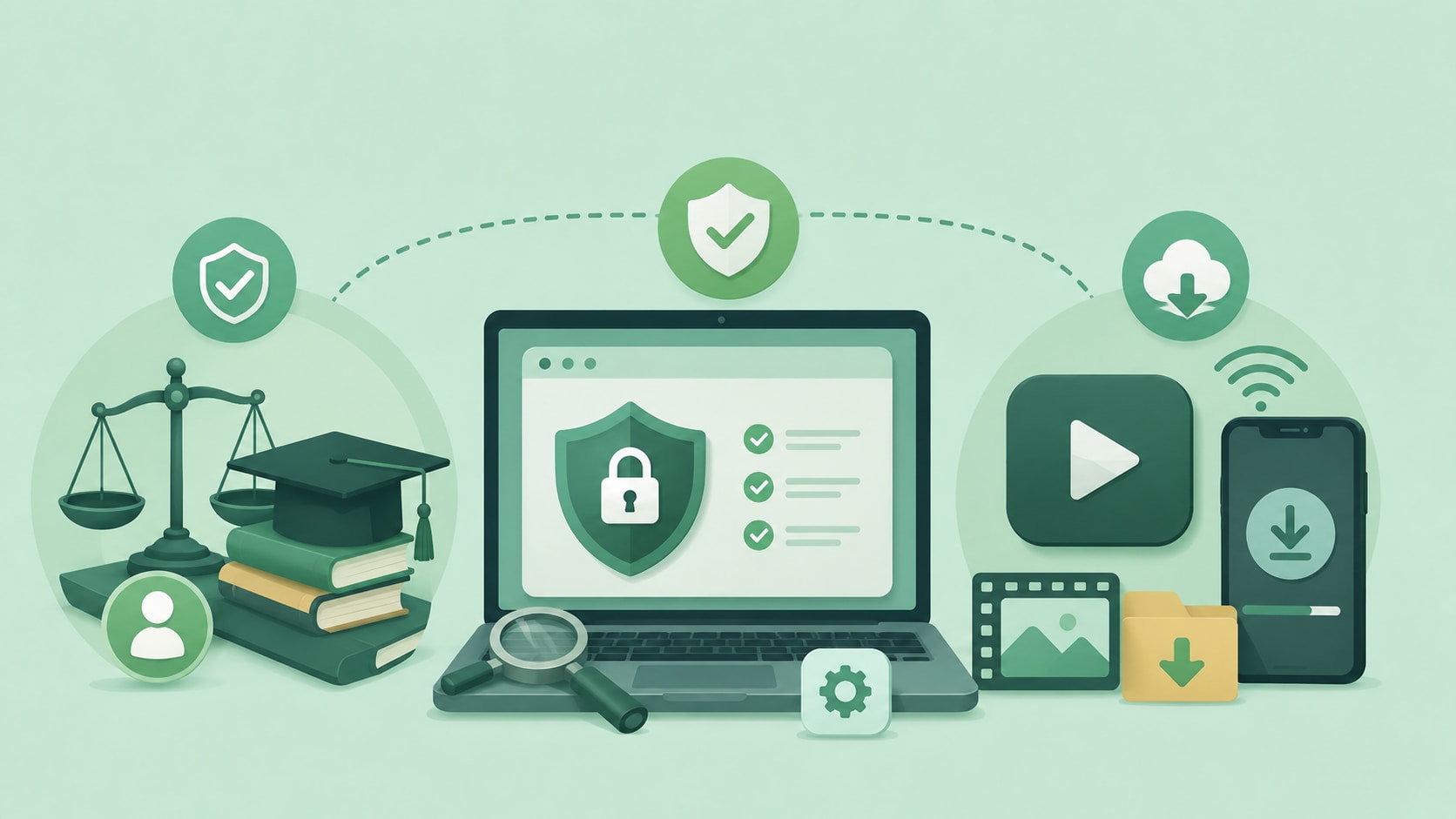
Fair Use in 2026: Understanding the Ethics of "Offline Saving"
The digital landscape continues to evolve, yet the core principles of fair use remain steadfast. When you save content for offline viewing, the purpose must align with personal, educational, or transformative applications. Distributing copyrighted material without explicit permission violates intellectual property rights. You can safely retain media on your local drive for academic research or private viewing during travel. Always attribute content to the original creators and manage your offline library responsibly.
Security First: Avoiding "Scareware" Pop-Ups
Utilizing unverified websites exposes your device to substantial security risks. These platforms frequently rely on deceptive advertisements that prompt you to install malicious software. In 2026, browser-based scripts remain highly vulnerable to data tracking and malware insertion. Native desktop applications offer a significantly safer alternative because they process data locally. Choosing verified software protects your operating system and maintains your personal privacy.
YouTube's Official Stance
YouTube Premium provides a native "Save Offline" feature as a baseline solution. This subscription allows you to retain content temporarily within the mobile application. However, the platform encrypts these files, restricting playback exclusively to their proprietary ecosystem. Professionals who require permanent access for presentations or editing workflows find this limitation restrictive. Independent desktop software provides the necessary flexibility while allowing you to adhere to fair use guidelines.
Part 2. Key Features to Look for in a 2026 Link Downloader
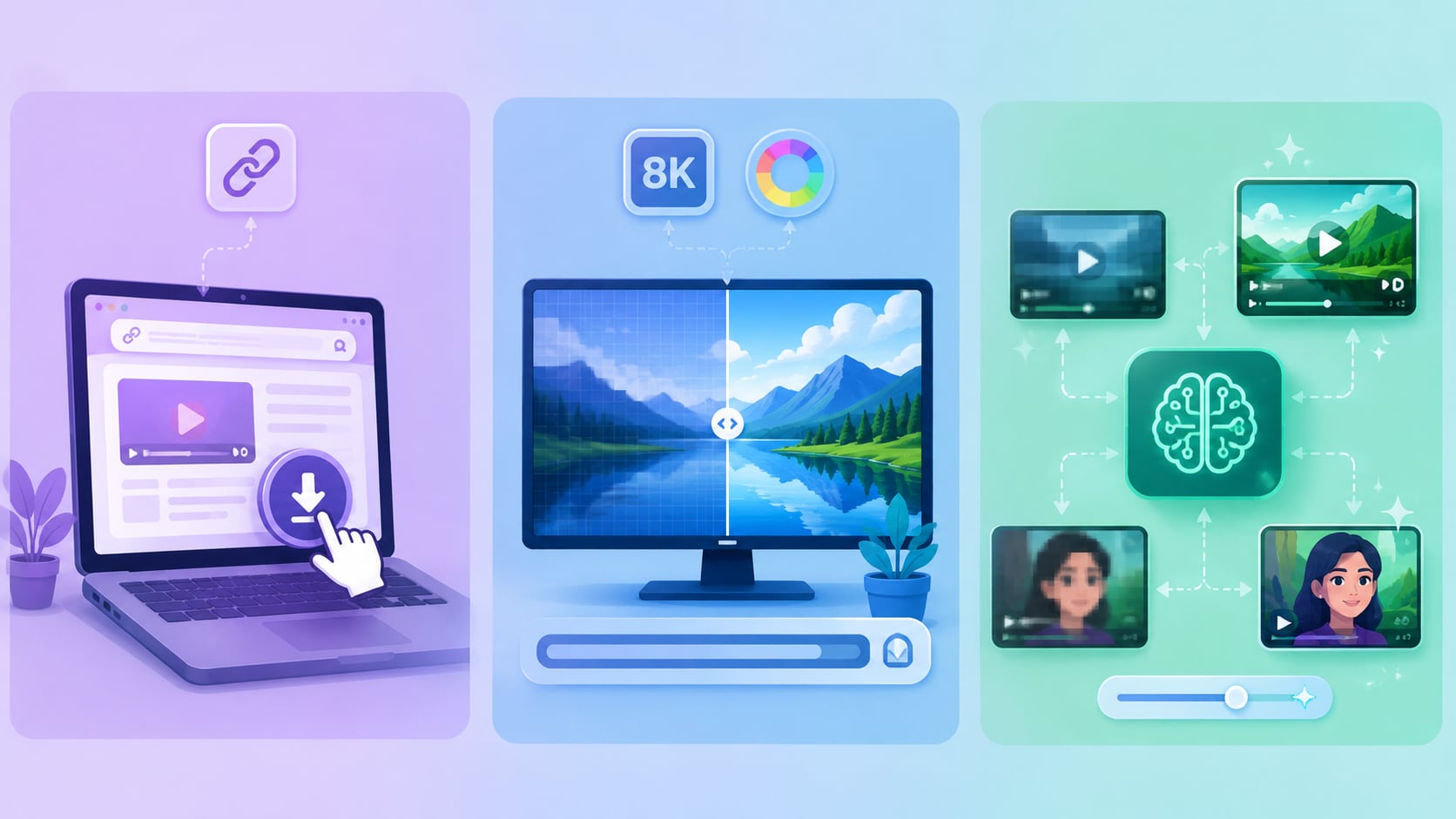
One-Click Parsing
Navigating multiple menus to save a single clip reduces efficiency. Modern software should feature one-click parsing to streamline your workflow. This capability ensures you can download video from YouTube by link without manually configuring formats for every file. An advanced application remembers your preferred resolution and codec settings. This automation transforms a repetitive task into a seamless operation.
8K & HDR Support
Standard 1080p resolution appears pixelated on modern OLED displays and expansive monitors. Your software must process 4K, 8K, and High Dynamic Range (HDR) formats proficiently. High-resolution files deliver accurate color representation and sharp details for professional presentations. The application must decode and export these substantial files without causing system instability. High-speed processing for 8K media is a fundamental requirement in 2026.
AI-Enhanced Quality
Contemporary tools offer advanced functionalities beyond basic file retrieval. They integrate artificial intelligence to refine media quality during the saving process. You can apply an AI video enhancer to reduce visual noise or upscale older content. This technology ensures that archival clips maintain clarity on modern hardware. Utilizing AI tools guarantees your offline library reflects the highest visual standards.
Part 3. Comparison: Best 2026 Tools to Download from Video URL
| Tool Name | Max Resolution | Batch Mode | Speed | Top Feature |
| UniConverter | 8K & HDR | Yes | Ultra-Fast | AI-powered media toolbox |
| 4K Video Downloader Plus | 8K | Yes | Fast | Smart Mode automation |
| SnapDownloader | 8K | Yes | High | Built-in proxy support |
| ByClick Downloader | 4K | Yes | Medium | Browser integration |
| ClipGrab | 1080p | No | Standard | Free open-source |
| VideoProc Converter AI | 4K | Yes | High | GPU acceleration |
| Y2Mate Pro | 1080p | No | Slow | No-install web tool |

All-in-One Multimedia Processing Tool

Part 4. Top 7 Video Link Downloaders Reviewed
1. Wondershare UniConverter (Best Overall)
Wondershare UniConverter functions as a comprehensive multimedia processing toolbox for professionals. It helps you process media files faster while preserving the original 8K or HDR quality securely, bypassing the severe risks associated with ad-supported websites. Furthermore, it provides essential features like a Batch Convert tool for managing diverse formats simultaneously. It remains the most reliable desktop solution available today.

Devices: Windows, macOS
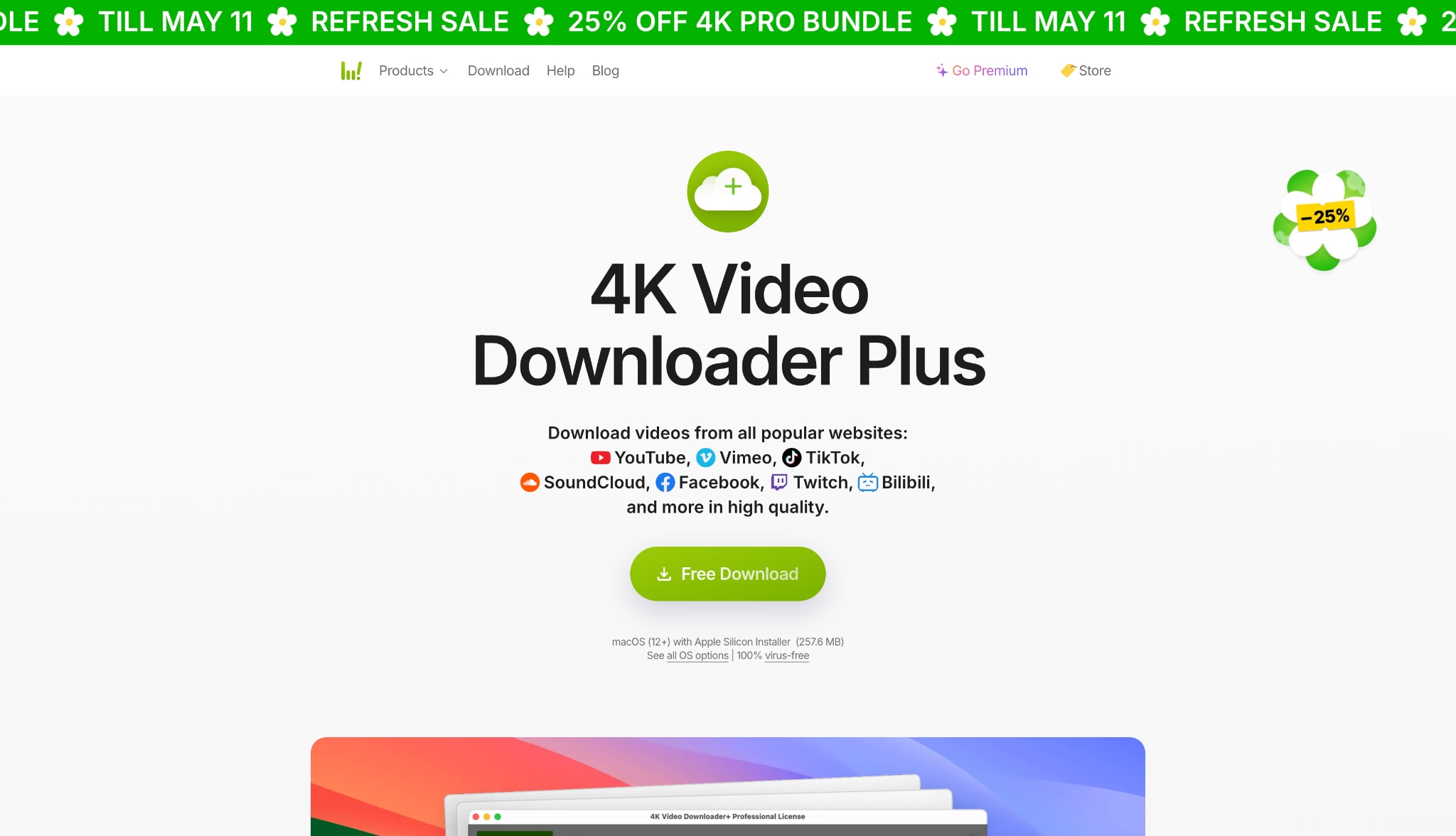
2. 4K Video Downloader Plus (The Power User Choice)
This software provides users with granular control over their offline media management. It allows you to download from video URL while specifying exact audio bitrates and subtitle languages. The "Smart Mode" feature enables you to apply standardized settings across all future processing tasks. It handles high-resolution files reliably, making it a functional tool for media professionals.
Devices: Windows, macOS, Linux, Android
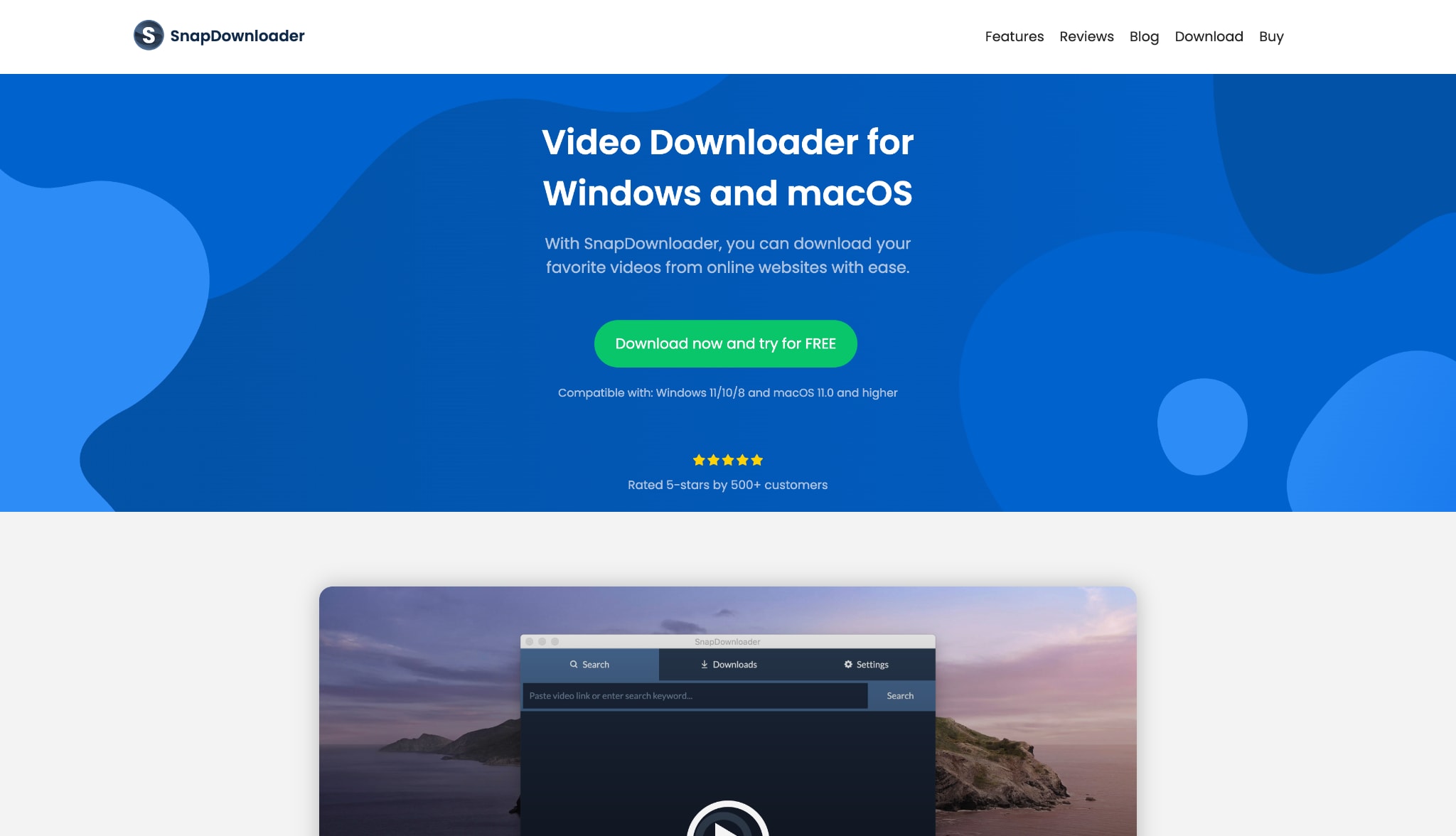
3. SnapDownloader (The Specialist for Bulk Content)
SnapDownloader prioritizes processing speed and bulk management for content creators and educators. You can queue hundreds of links simultaneously and allow the software to operate in the background. It incorporates a built-in proxy configuration to bypass regional network restrictions securely. This tool proves highly efficient if your primary objective is assembling a substantial offline library.
Devices: Windows, macOS
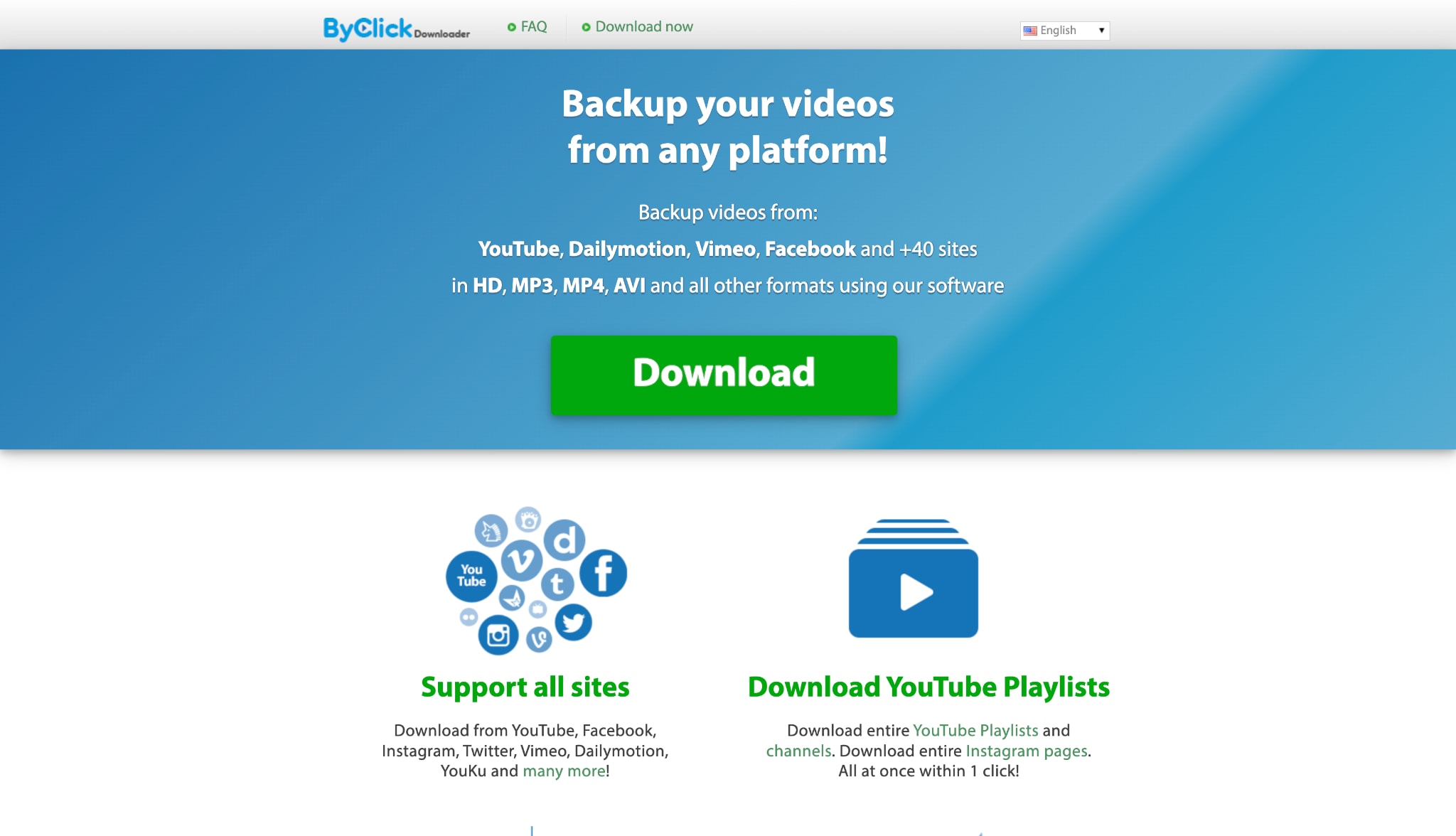
4. ByClick Downloader (The Browser Hybrid)
ByClick Downloader operates as a hybrid between a standalone desktop application and a browser extension. It automatically detects active media playback and generates a prompt to save the file effortlessly with a single click during your browsing session. It provides significant convenience, although its maximum output resolution is limited to 4K.
Devices: Windows
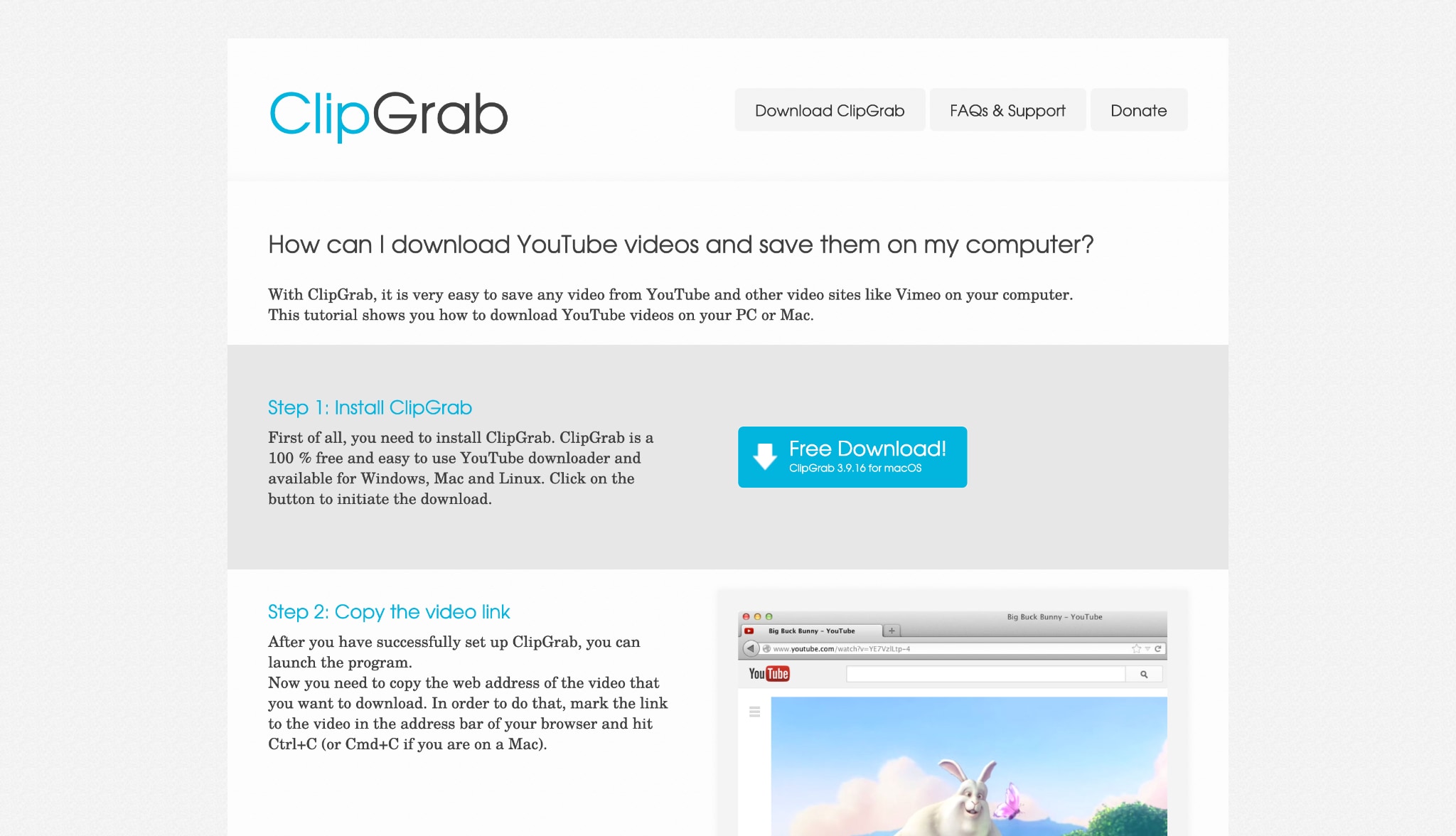
5. ClipGrab (The Best Open Source Option)
ClipGrab serves as a dependable option for users who prioritize open-source software solutions. It provides a straightforward interface to manage your offline media without subscription fees. It features an integrated search function, allowing you to locate content directly within the application. While it lacks premium enhancements, it manages standard 1080p tasks competently.
Devices: Windows, macOS, Linux
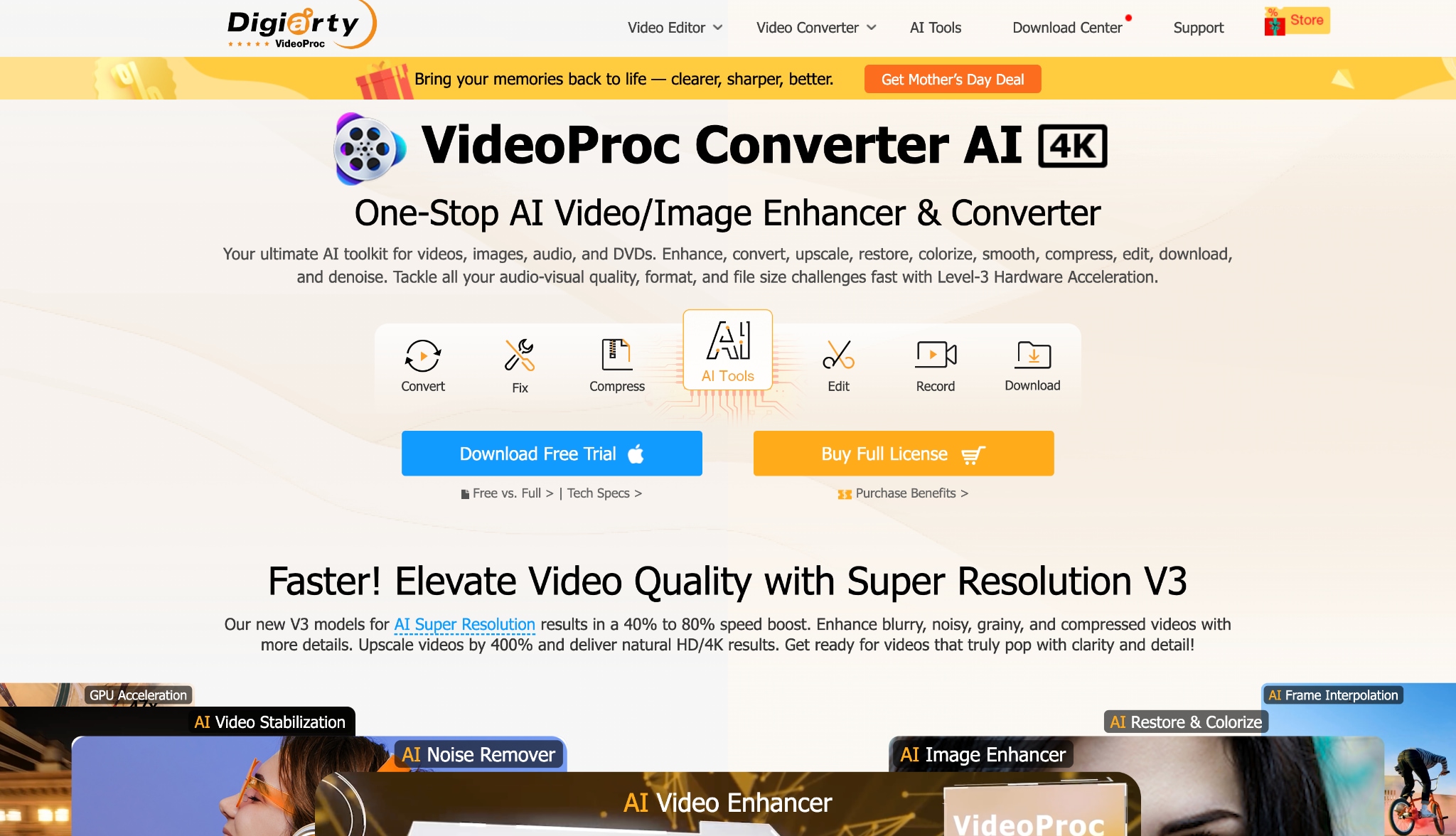
6. VideoProc Converter AI (Best for Frame Interpolation)
VideoProc utilizes hardware acceleration to process substantial media files efficiently. After saving your media, you can subsequently enhance the frame rate using artificial intelligence. This functionality benefits sports highlights or action sequences requiring fluid motion playback. It balances reliable media extraction with entry-level post-processing capabilities effectively.
Devices: Windows, macOS
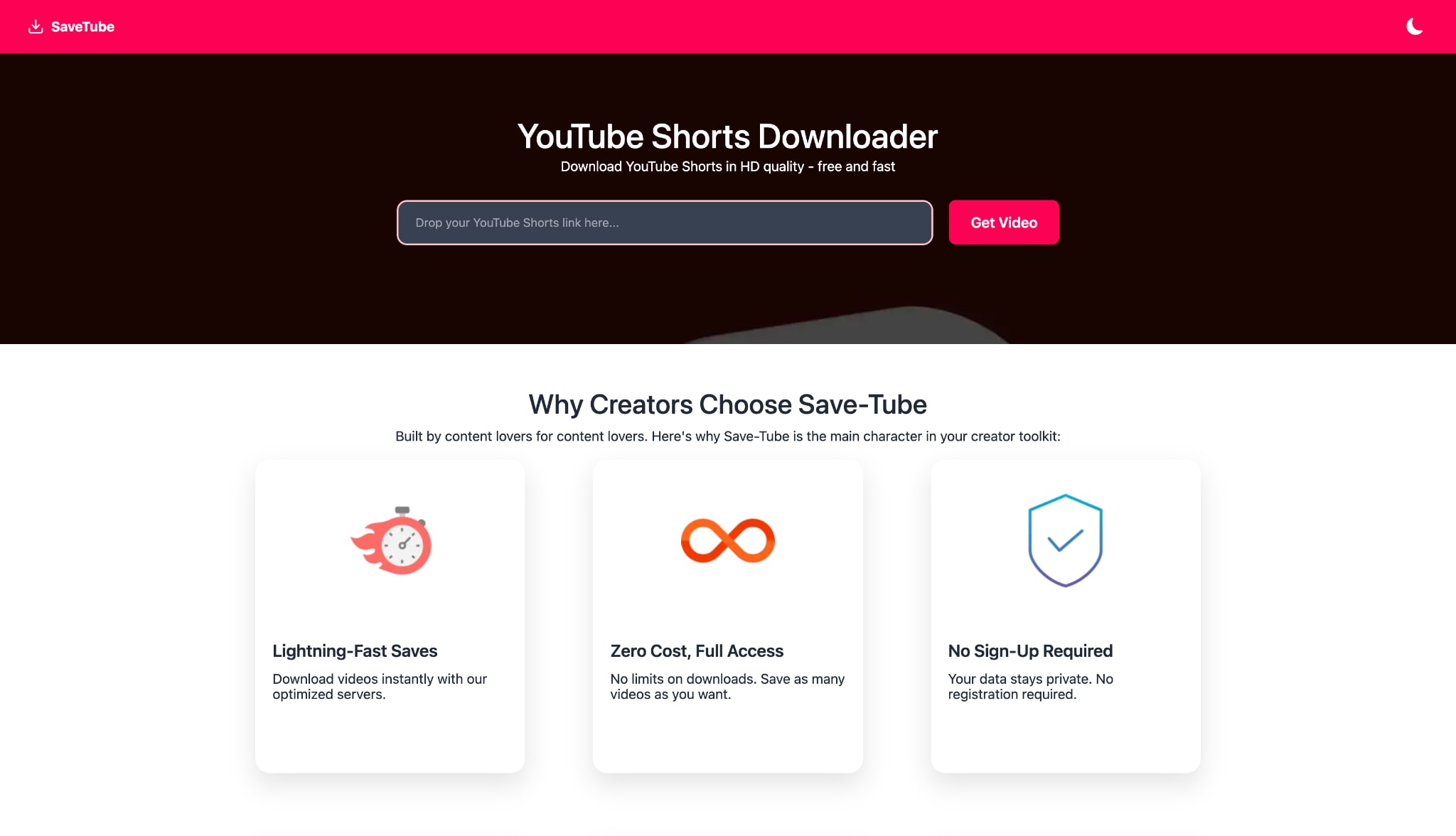
7. SaveTube (The Quick Web Fallback)
SaveTube offers a web-based alternative when local software installation is not feasible. You simply paste the required link into the browser interface and select a standard resolution. It serves as a practical solution for immediate tasks on shared or public computers. However, utilizing this service exposes users to the inherent risks of browser-based ad networks.
Devices: Any device with a web browser
Part 5. Step-by-Step: How to Download Video from Link using UniConverter
Wondershare UniConverter provides a streamlined experience for managing high-resolution media efficiently. You can download video from link securely by following five precise steps. Utilize this guide to optimize your media workflow.
Step 1: Copy Your Video URL
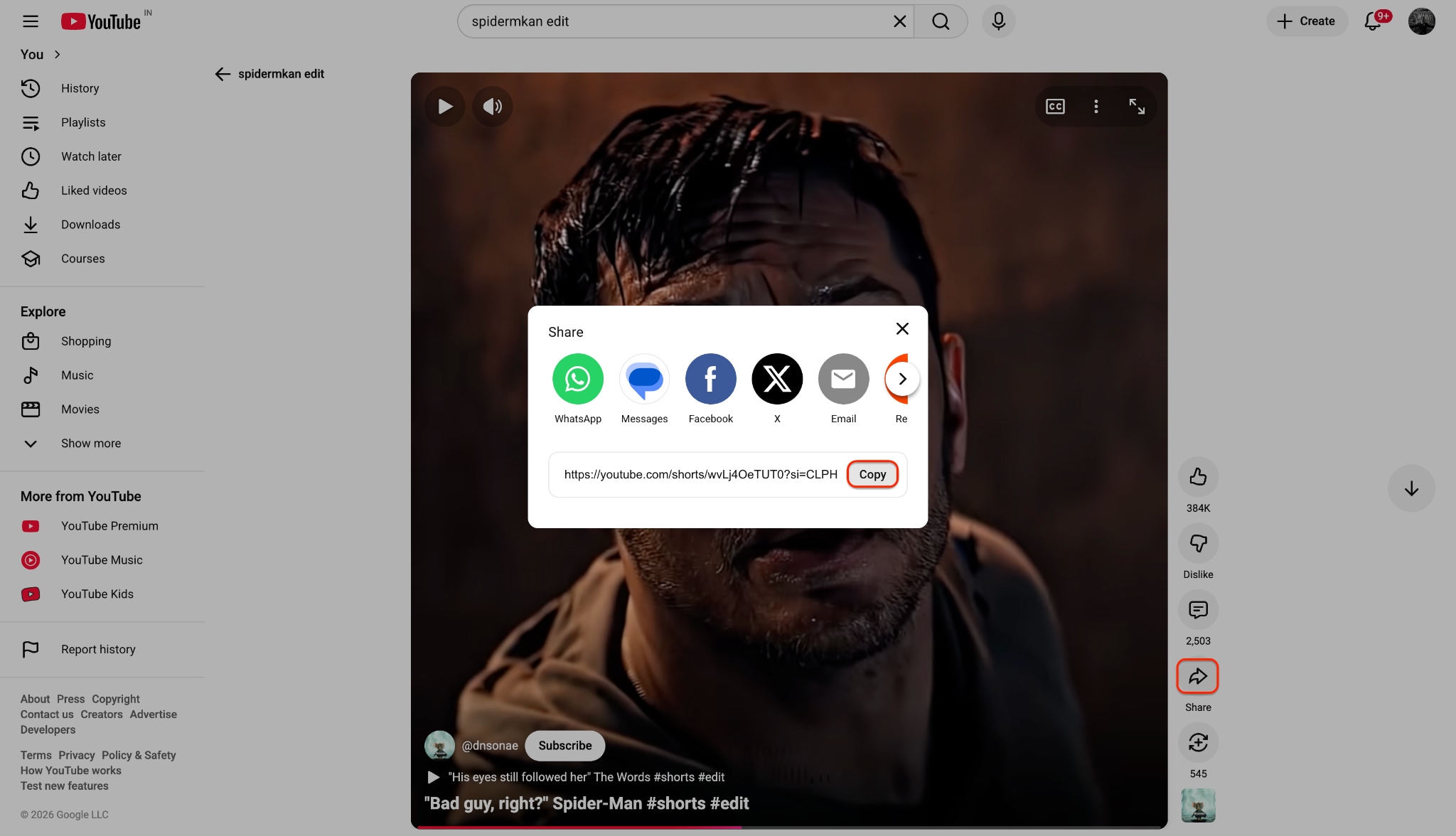
Navigate to your required media platform using your preferred web browser and locate the target video. Click the "Share" button situated below the media player to access the platform's quick sharing options. Select the "Copy" function to save the specific URL directly to your system clipboard for processing.
Step 2: Open the Processing Module
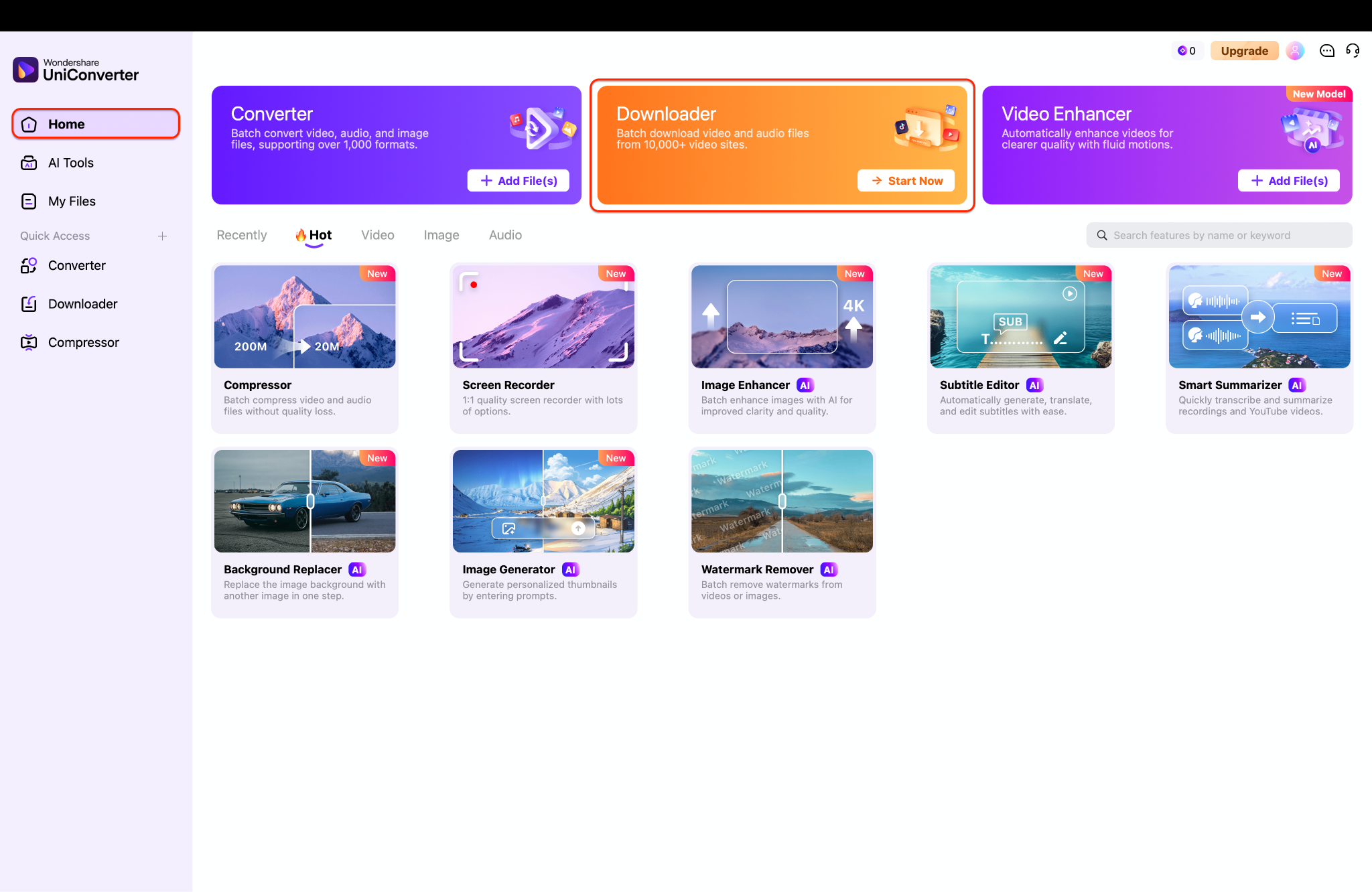
Open Wondershare UniConverter on your desktop to access the main multimedia processing dashboard. Locate and click the prominent "Downloader" module situated at the center of the home screen. This action transitions you into the dedicated workspace built for processing online media links securely.
Step 3: Configure Your Preferences
A dialog window will surface presenting various format configurations tailored for your specific project. Select your necessary resolution, such as 4K or 8K, and confirm your subtitle preferences.
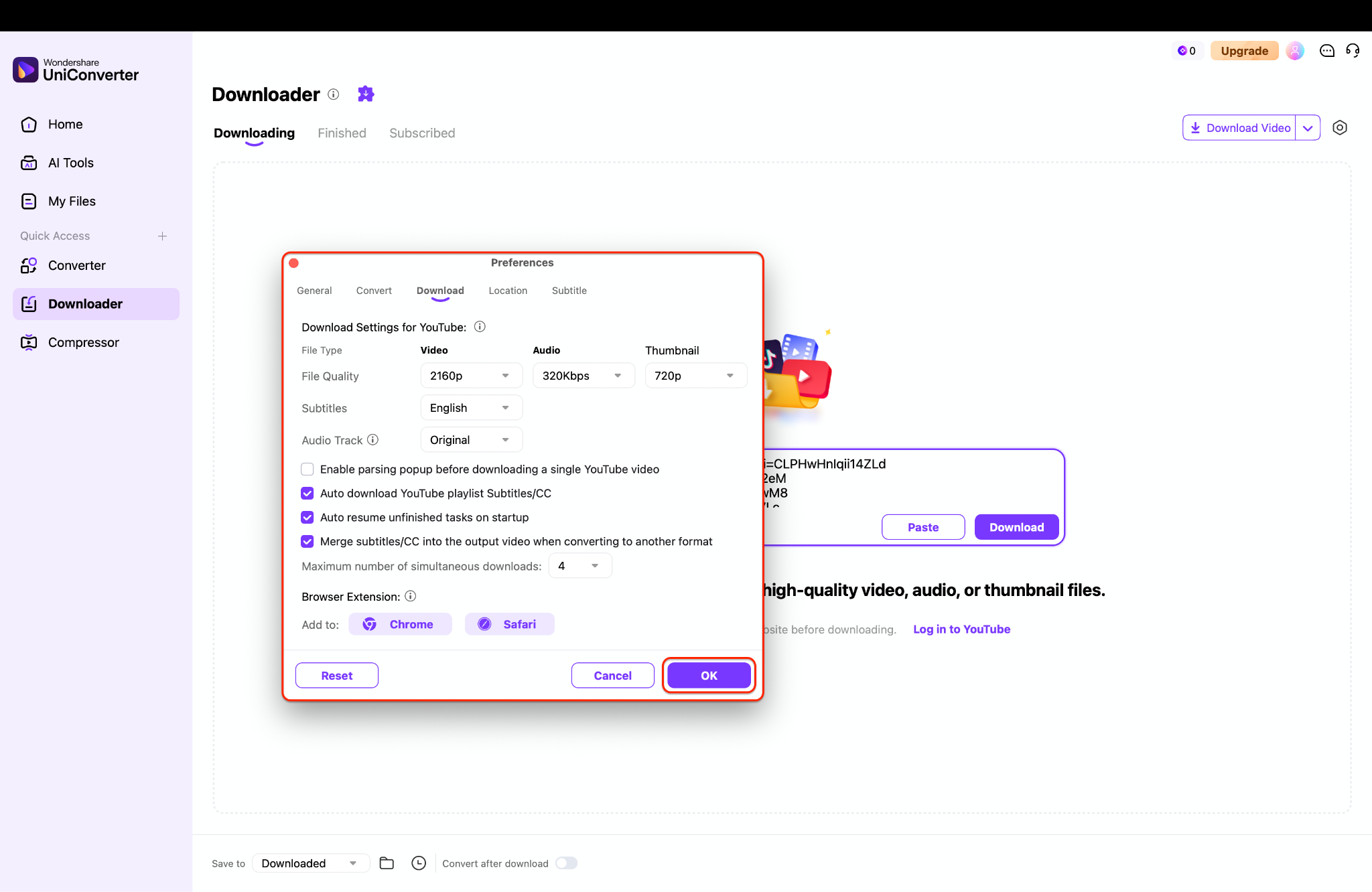
Pro Tip: Toggle the "High Speed Download" switch at the top-right to accelerate processing times significantly, and utilize the "Download then Convert Mode" to automatically format files for specific devices post-download.
Step 4: Execute and Manage Your Files
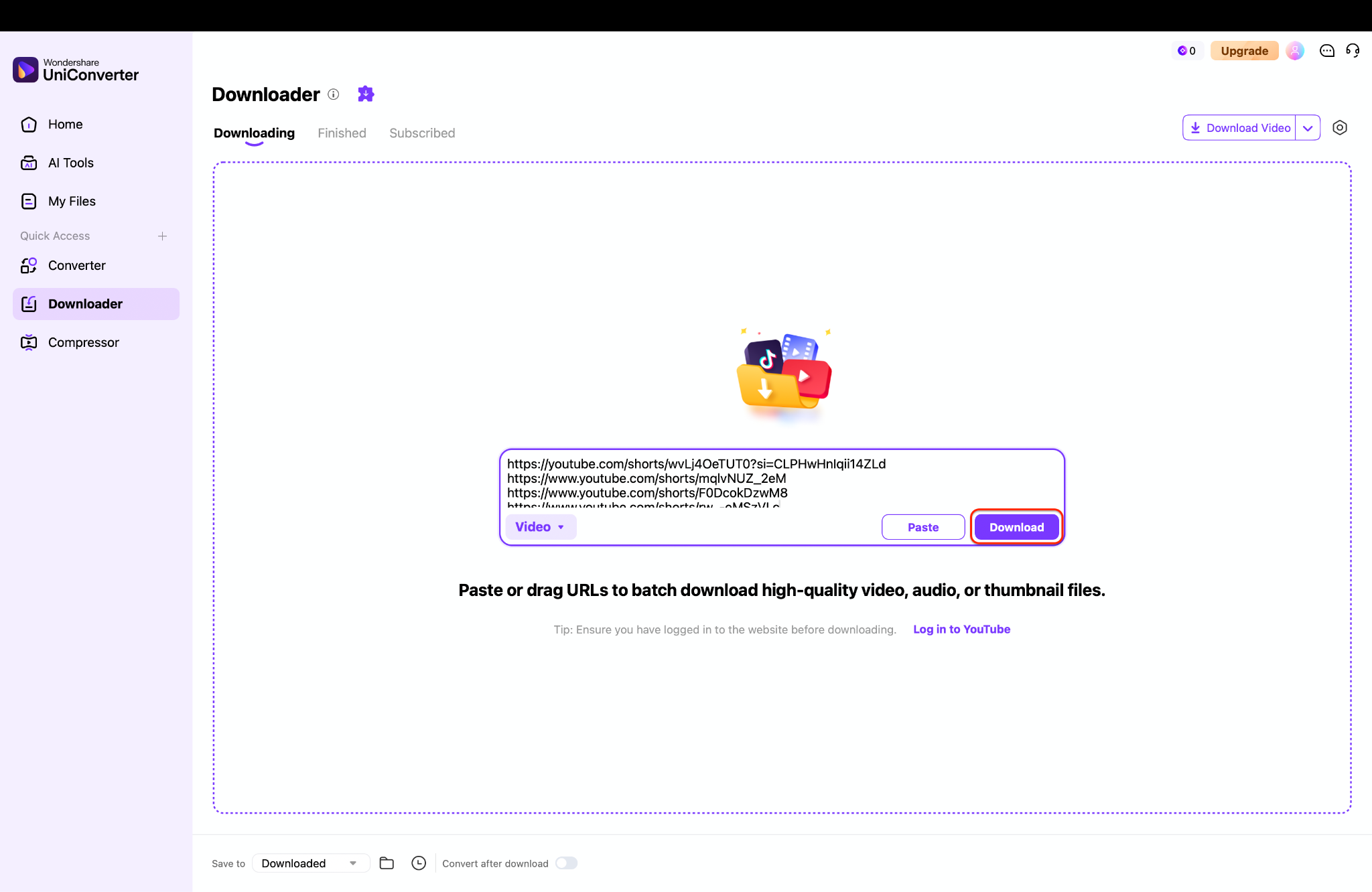
Click the "Download" button to commence the data extraction process and monitor its real-time progress. Upon task completion, navigate to the "Finished" tab to rename, play, or locate your new files. You can now transfer these files to any device for offline viewing or explore further AI edits.
Part 6. Conclusion
As digital media standards advance in 2026, relying on outdated web scripts compromises both quality and system security. Identifying a secure method to process media ensures your offline library remains pristine and accessible, for those who frequently need to download videos from YouTube by link, utilizing a dedicated desktop application is paramount. We highly recommend Wondershare UniConverter for its comprehensive capabilities and efficient performance. It empowers you to process media safely in high-resolution formats like 8K. Enhance your multimedia workflow today with a reliable, professional-grade processing tool.

