

A dark video can make valuable footage look unclear, dull, and difficult to use. Whether it was recorded in low light, shot at night, or captured with incorrect exposure settings, poor brightness can hide important details and reduce overall video quality.
The good news is that you do not always need to reshoot. With a reliable video brightness editor, you can improve visibility and make the footage easier to watch. If you are dealing with a dark video, the right editing workflow can help restore clarity while keeping the result natural.
Read more if you want to learn practical and straightforward ways to fix a dark video, understand what a video brightness editor does, and brighten footage step by step in Wondershare UniConverter.
In this article
Part 1. What Is a Dark Video?
A dark video is a video that appears underexposed or lacks enough visible light in the frame. In some cases, the whole scene looks dim. In others, the main subject is too dark while only a few bright areas remain visible.
When a video is too dark, viewers may struggle to recognize faces, objects, backgrounds, or actions in the frame. This can reduce both the visual quality and the usefulness of the content.
Here are some of the most common signs of a dark video:
- The subject is hard to see: Important people or objects blend into the shadows.
- Shadow areas look too heavy: Dark regions dominate the frame and hide details.
- Colors look weak or muddy: The video may feel flat and lifeless.
- Important details disappear: Background elements and small objects become unclear.
There are also several reasons why a video may turn out too dark:
- Low-light recording: Indoor or night scenes often do not provide enough light.
- Incorrect exposure settings: The camera may capture less light than needed.
- Backlighting: A bright light behind the subject can make the foreground look darker.
- Weak low-light performance: Some phones and cameras struggle in darker environments.
- Export or compression issues: In some cases, clarity can be affected during processing.
If your footage has any of these issues, a video brightness editor is often the most practical way to improve it after recording.
Part 2. What Does a Video Brightness Editor Do?
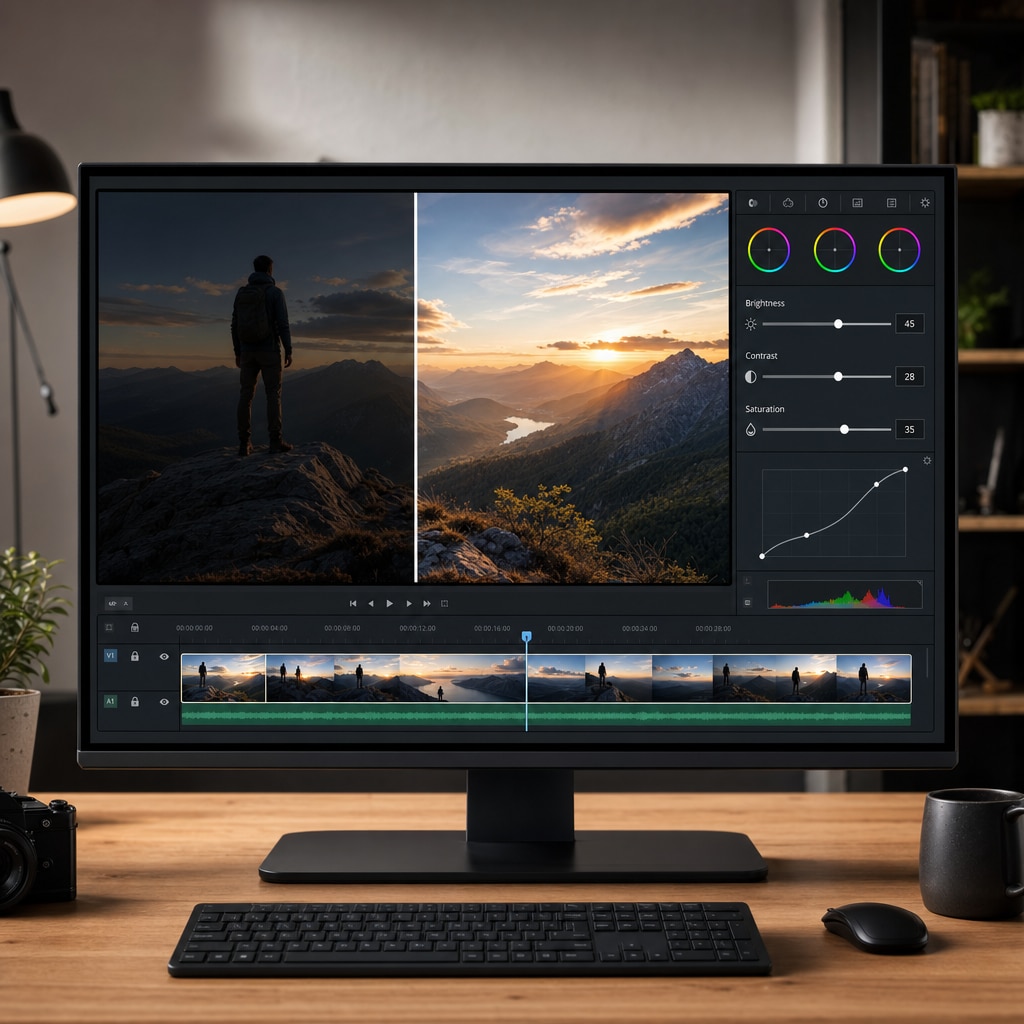
A video brightness editor helps make a video look lighter and clearer by adjusting the actual image rather than just changing your screen display. This matters because the goal is to improve the video file itself so it looks better on different devices and platforms.
In most cases, brightness editing is not only about raising the light level. It also involves balancing related image settings so the final video still looks natural and watchable.
| Setting | What It Does | Why It Matters for a Dark Video |
| Brightness | Increases the overall lightness of the image. | Makes dark areas easier to see. |
| Contrast | Adjusts the difference between bright and dark areas. | Helps the video keep depth after brightening. |
| Saturation | Controls how rich or muted the colors appear. | Prevents the video from looking pale or washed out. |
Using these settings together usually gives a better result than increasing brightness alone. If you only raise brightness, the image may become too flat or unnatural. A proper video brightness editor lets you create a more balanced output.
It is also better than simply turning up screen brightness. Screen adjustments only help one viewer on one device, while video editing improves the file itself so the result is clearer for everyone.
Part 3. How to Brighten a Dark Video Step by Step in UniConverter
If you want a simple way to fix dark footage, Wondershare UniConverter offers a straightforward workflow for brightness adjustment.

Best Video Brightness Editor for Dark Video

UniConverter Key Features
- Simple Editor Workflow: Access visual editing tools directly from the Home interface.
- Brightness Adjustment: Improve visibility in underexposed footage with easy slider controls.
- Contrast and Saturation Controls: Fine-tune the image so it stays natural after brightening.
- Built-in Filters: Apply extra visual improvements when needed.
- Flexible Export Options: Save the edited video in the format you need.
How to Brighten a Dark Video in UniConverter
- Launch UniConverter and open the program on your computer.
- On the Home interface, click on Editor.
- Click Add Video to import the dark video file you want to fix.
- Open the Effect panel and increase Brightness until the dark areas become easier to see.
- If the image looks too flat, adjust Contrast. If the colors look weak, increase Saturation slightly.
- Preview the result, then click Export Settings to choose the output format.
- Click Export to save the brightened video to your device.
That is all it takes. UniConverter gives you a quick and accessible way to improve dark footage without using a complicated professional editor.
Part 4. Best Ways to Improve a Dark Video Naturally
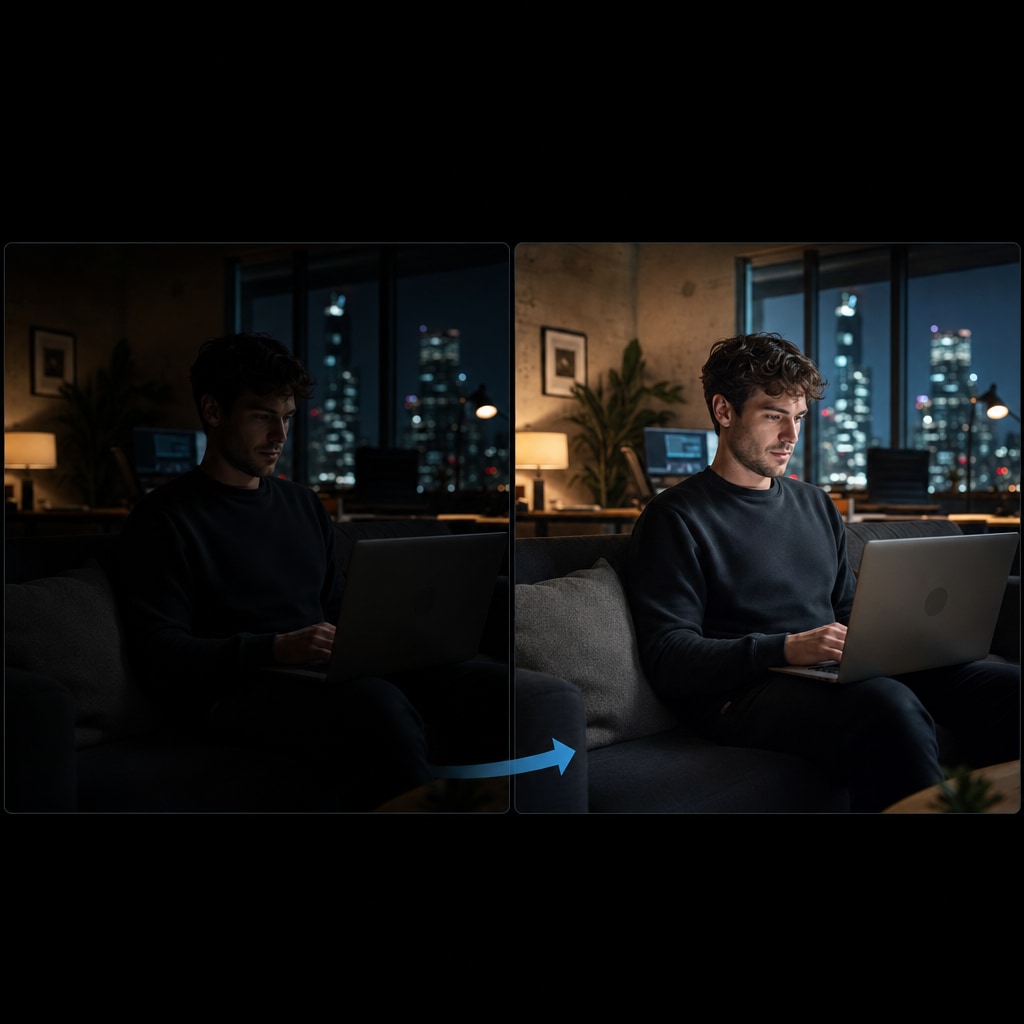
Brightening a dark video is helpful, but the best result usually comes from controlled adjustment instead of aggressive editing. If you push the image too far, the video may start to look unnatural.
Here are some practical ways to keep the result balanced:
- Raise brightness gradually: Small adjustments help you find a natural-looking level.
- Keep visual depth in the image: Supporting changes can help the video avoid looking overly flat.
- Watch the color appearance: Slight color correction can make the brightened video feel more complete.
- Review the full preview: Always check how the changes look across the whole frame before exporting.
- Aim for clarity, not overcorrection: The goal is to make the content easier to see while preserving its original mood.
These simple habits can make a big difference when working with low-light footage, especially for social media clips, product videos, tutorials, and personal recordings.
Part 5. Why Use UniConverter as a Video Brightness Editor?
UniConverter is a practical choice for users who want to fix a dark video without spending time learning a complicated color-grading tool.
It works especially well because it combines accessibility and useful editing controls in one place. Instead of dealing with a complex interface, you can quickly import a file, adjust the image, and export the result.
Main advantages of UniConverter for dark video editing:
- Beginner-friendly interface: Easy to navigate even if you do not edit videos often.
- Fast workflow: Import, adjust, preview, and export in just a few steps.
- Useful image controls: Brightness, contrast, and saturation are all available in the same workflow.
- Extra editing value: Built-in filters and other multimedia tools add flexibility.
- Suitable for different use cases: Helpful for social media content, tutorials, indoor videos, and archived footage.
If your main goal is to make a dark video clearer and more watchable, UniConverter offers a simple and efficient way to get the job done.

FAQs About Dark Video Editing
1. Can a video brightness editor recover details from an extremely dark video?
A video brightness editor can improve visibility in many cases, but it cannot fully restore details that were never captured by the camera. If the original footage is extremely underexposed, some shadow areas may remain noisy or unclear after editing.
2. Does brightening a video make file size larger?
It can. The final file size depends more on export settings such as resolution, bitrate, and output format than on the brightness adjustment itself. After editing and exporting, the file may become larger than the original.
3. Which video formats can usually be edited for brightness correction?
Most modern video brightness editors support popular formats such as MP4, MOV, AVI, and MKV. Before editing, it is best to confirm that the software supports both your input file and your preferred export format.
4. Is it better to brighten a dark video on desktop or mobile?
That depends on your needs. Mobile apps are convenient for quick edits and short clips, while desktop software is usually better for larger files, higher-quality output, and more precise control over visual settings.
5. When should I use an AI enhancer instead of manual brightness editing?
An AI enhancer is often a better option when the video has multiple quality issues at once, such as low light, blur, noise, or low resolution. Manual brightness editing is usually enough for simple dark-video correction, while AI tools are more suitable for broader enhancement.
Conclusion
A dark video does not always need to be deleted or reshot. In many cases, it can be improved with a video brightness editor that helps increase visibility and make the footage easier to watch.
If you want a simple workflow, UniConverter makes the process easy: import the video, open the effect settings, adjust the brightness, refine the look, and export the final file.
With the right edits, a dark video can become clearer, more usable, and more suitable for sharing, publishing, or presenting.

