


Back in the early 2010s, Screenpresso screen recorder became a go-to tool for office professionals, trainers, and bloggers. At a time when remote collaboration and online education were on the rise, people needed a lightweight, reliable tool for capturing screenshots and creating simple tutorials. Screenpresso delivered exactly that: fast screenshots, scrolling webpage captures, and built-in annotations. Teams used it to report bugs, HR departments created manuals, and educators shared visual guides effortlessly.
But as digital workflows have evolved—with the explosion of online teaching, live streaming, content creation, and gaming—users now demand more advanced recording solutions. This is where UniConverter Screen Recorder enters the picture, providing modern, versatile features that go beyond Screenpresso’s original scope.
In this article
Part 1. What is Screenpresso? (Overview & Use Cases)
Screenpresso is a screen capture and recording software built for Windows users. It is most widely known as a screenshot utility rather than a full video solution, but its simplicity and fast annotation tools made it popular for productivity tasks. With a minimal interface and intuitive controls, users could quickly capture a screen region, edit it with arrows or highlights, and share it instantly.
One of its defining strengths was the ability to take scrolling screenshots—something particularly useful for capturing long web pages or documents that did not fit within a single screen view. Combined with its built-in editor, users could highlight important sections, add explanatory notes, and save or share their work instantly. This workflow made it popular among business professionals who needed to provide instructions or bug reports, as well as educators preparing teaching materials.
Common Use Cases:
- Corporate environments: IT staff documenting bugs, HR teams building guides.
- Educators & trainers: Quick tutorials and annotated visuals.
- Bloggers & content creators: Screenshots for articles and reviews.
By targeting professionals who valued speed and clarity, Screenpresso became a practical option for visual communication. However, it was never intended for intensive recording like gaming or long-form streaming.
Part 2. Screenpresso Features and Current Status in 2025
Screenpresso still exists today, but its scope has remained largely unchanged. While competitors have added advanced editing, streaming, and gaming support, Screenpresso continues to focus on lightweight screenshot capture with basic video recording.
Key Features:
- Screenshot capture (window, region, scrolling).
- Built-in editor with arrows, highlights, and text.
- Cloud sharing integrations (Dropbox, Google Drive, OneDrive).
- Basic video recording in MP4/WMV/WebM.
Current Limitations:
- Windows-only, no macOS version.
- Watermarks applied on HD videos in free version.
- Limited advanced recording functions (e.g., no streaming or gaming optimization).
- Outpaced by more versatile tools offering editing, annotations, and live capture.
Status in 2025
Today, Screenpresso retains a niche among users who mainly need quick annotated screenshots, but it is overshadowed by all-in-one recorders. It is no longer the top choice for creators who need flexibility across multiple platforms.
Part 3. Screenpresso vs Modern Screen Recorders (Comparison)
In the 2020s, the way people use screen recorders has changed dramatically. Tools are no longer just about screenshots—they’re about creating content for YouTube, TikTok, Twitch, Zoom classes, and professional presentations. Features like live annotation, simultaneous mic + system audio, and gameplay recording have become essential. This shift highlights the gap between Screenpresso and modern solutions like UniConverter Screen Recorder.
|
Feature |
|||||
|
Platform Support |
Windows only |
Windows 7–11 & macOS (incl. Apple Silicon) |
Windows, macOS, Linux |
Windows, macOS |
Windows, macOS |
|
Screenshot Capture |
Yes (strong feature) |
Yes |
Limited (manual screenshots only) |
Yes (powerful) |
Yes (basic) |
|
Video Recording |
Basic MP4/WMV/WebM |
Full HD/4K with audio |
Full HD/4K, streaming |
Limited video capture |
Full HD/4K editing suite |
|
Audio Recording |
Limited |
Mic + system audio simultaneously |
Yes (multi-track) |
Limited |
Yes (multi-track) |
|
Gaming/Streaming |
No |
Yes (optimized for Twitch, YouTube, TikTok) |
Yes (professional streaming) |
No |
Not ideal for streaming |
|
Annotation |
Post-capture editing |
Live drawing & text while recording |
Limited overlays |
Powerful post-capture |
Post-capture editing only |
|
Cloud Sharing |
Yes |
Yes (via cloud sync options) |
No native cloud |
Yes |
Limited |
|
Watermark |
Yes in free HD videos |
No watermark in free version |
No |
No |
No |
|
Price Model |
Free + Pro |
Free + optional premium |
Free |
Paid (one-time license) |
Paid (premium) |
Part 4. Why UniConverter Screen Recorder is the Best Alternative to Screenpresso
As digital demands expanded beyond screenshots, UniConverter positioned itself as an all-in-one solution. Unlike Screenpresso, which is mainly screenshot-focused, UniConverter supports recording of meetings, webinars, online classes, gameplay, and live streams.
Why Choose UniConverter?
- Cross-Platform: Works on both Windows & Mac.
- Versatile Recording: Capture meetings, classes, gameplay, or streaming content.
- Live Annotation: Draw, highlight, and add text while recording.
- Audio Flexibility: Record system sound and mic together.
- Smart Controls: Schedule recordings, switch screens, show mouse clicks.
Step-by-Step: How to Use UniConverter on Desktop
Install & Launch: Download UniConverter Screen Recorder for Windows or Mac and open it.

Choose Recording Mode: Select full screen, window, or custom area.

Enable Audio: Turn on mic, system sound, or both.

Start Recording: Hit the record button and begin your session.

Annotate Live: Use drawing tools to highlight or explain in real time.
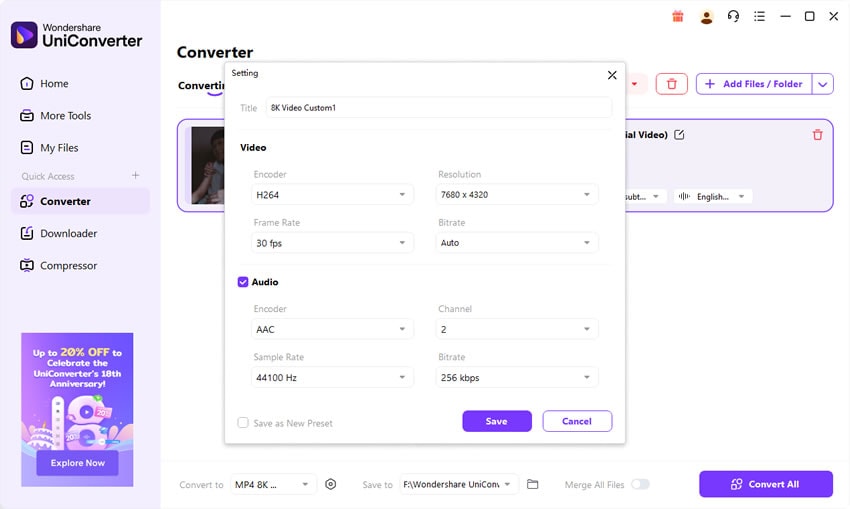
Stop & Save: End recording and export in MP4 or other formats.


Powerful Screenpresso Screen Recorder Alternative
Part 5. Pro Tips for High-Quality Screen Recording
Screen recording quality depends on both software settings and user technique. Here are best practices to maximize results:
- Set resolution & frame rate: 1080p at 30fps for tutorials, 60fps for gameplay.
- Use proper audio sources: Combine mic + system audio for professional sound.
- Pick the right export format: MP4 (H.264) for universal use, HEVC for smaller file size.
- Annotate wisely: Highlight key steps instead of cluttering the screen.
- Batch save & organize: Keep recordings labeled for easy sharing.
- Enable GPU acceleration: If available, speed up the process and maintain smooth quality.
Conclusion
Screenpresso screen recorder deserves recognition for being an early leader in screenshot and light screen recording tools. It empowered office teams, trainers, and bloggers during a time when lightweight solutions were rare. But in 2025, with streaming, gaming, and professional workflows dominating, Screenpresso’s limitations are more evident than ever.
UniConverter Screen Recorder fills that gap—offering a powerful, watermark-free, cross-platform solution for creators, gamers, educators, and professionals alike. For anyone who once relied on Screenpresso, UniConverter is the natural modern upgrade.
FAQs
-
Q1. Is Screenpresso still free in 2025?
Yes, Screenpresso offers a free version, but HD video exports are watermarked. -
Q2. Does Screenpresso support screen recording without a watermark?
Only in the paid Pro version. Free users get watermarks on HD video. -
Q3. Can UniConverterrecord both mic and system audio at the same time?
Yes. UniConverter records both microphone and system audio simultaneously, perfect for narration and tutorials. -
Q4. Which is better for gamers—Screenpresso or UniConverter?
VC is much better for gamers thanks to high frame rate recording and streaming compatibility. -
Q5. Does UniConverterwork on macOS as well as Windows?
Yes. Unlike Screenpresso, UniConverter supports both Windows and macOS (including Apple Silicon).

