


YouTube is the undisputed king of video content, but its default formats don't always play nicely with legacy Windows systems or specific editing workflows. That's where the need to convert YouTube to WMV arises. WMV (Windows Media Video) remains a powerhouse format for Windows users, offering excellent compression without sacrificing significant quality, making it ideal for archiving, emailing, or embedding in PowerPoint presentations.
In this comprehensive guide, we have tested and ranked the top tools to download YouTube to WMV—covering everything from powerful desktop software to quick YouTube to WMV online solutions. We will walk you through the pros, cons, and step-by-step guides to ensure you get the pristine video quality you deserve.
In this article
Part 1. How We Choose the Best YouTube to WMV Converters

Selecting the right tool to convert a YouTube video to WMV isn't just about picking the first result on Google. The market is flooded with "free" tools that are often riddled with malware or limitations. To ensure we only recommend the best, we evaluated dozens of software and online services based on the following rigorous criteria:
Supported Formats (MP4 to WMV, MP3 to WMV): A top-tier tool shouldn't just be a one-trick pony. We looked for converters that handle the full spectrum of conversion—not just YouTube converter MP4 to WMV, but also extracting audio via YouTube converter MP3 to WMV for users who only need the soundtrack in a Windows-friendly format.
Quality & Resolution Support: YouTube now hosts 4K and even 8K content. The best converters must preserve this fidelity. We prioritized tools that support high-bitrate encoding to ensure your downloaded WMV files look crisp on high-resolution monitors.
Speed & Stability: Nobody wants to wait an hour to download a YouTube video as WMV. We tested conversion speeds and software stability to ensure the process is fast and crash-free, even with long files.
Free vs. Limitations: Many tools claim to be free but impose watermarks, time limits, or file-size caps. We clearly distinguish between truly free tools and those that require a premium for usability.
Platform Compatibility: Whether you are on Windows, Mac, or looking for a browser extension, we selected tools that fit every workflow.
Part 2. Best YouTube Video Converter MP4 to WMV
Best Overall YouTube Video Converter MP4 to WMV (Windows & Mac)
1. Wondershare UniConverter
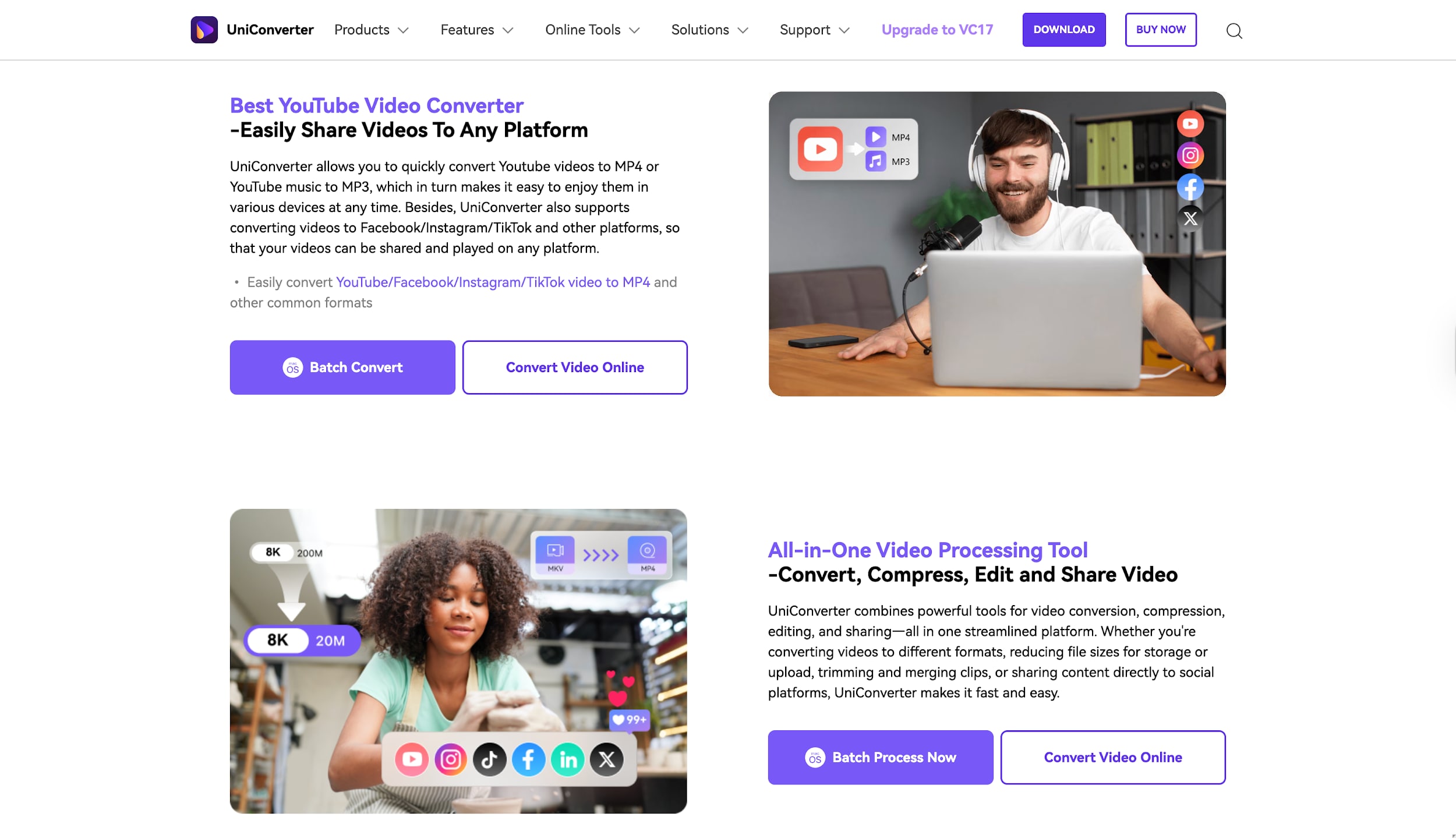
Wondershare UniConverter is widely recognized as the ultimate all-in-one video toolbox, specifically engineered for users who demand speed and quality without compromise. Unlike standard converters that struggle with large files, UniConverter utilizes advanced GPU acceleration to deliver conversion speeds up to 90x faster than competitors. It isn't just a converter; it features a powerful downloader that can grab videos from YouTube playlists and instantly transform them into pristine WMV files for Windows compatibility. It also offers an online free video conversion tool which can help you process YouTube videos format conversion to WMV. Whether you are archiving YouTube video at 1080p, or needing to convert YouTube video to WMV with subtitles intact, UniConverter handles it all seamlessly. Its intuitive, ad-free interface ensures that even beginners can achieve professional results, making it the top recommendation.
Key Features:
- Direct URL to WMV: Download and convert in a single click.
- High-Fidelity Support: Handles 4K, 8K, and HDR content effortlessly.
- Batch Processing: Convert entire playlists or multiple files at once.
- Built-in Toolbox: Includes editor, compressor, watermark remover, and screen recorder.
How it converts YouTube video to WMV (Steps Guide):
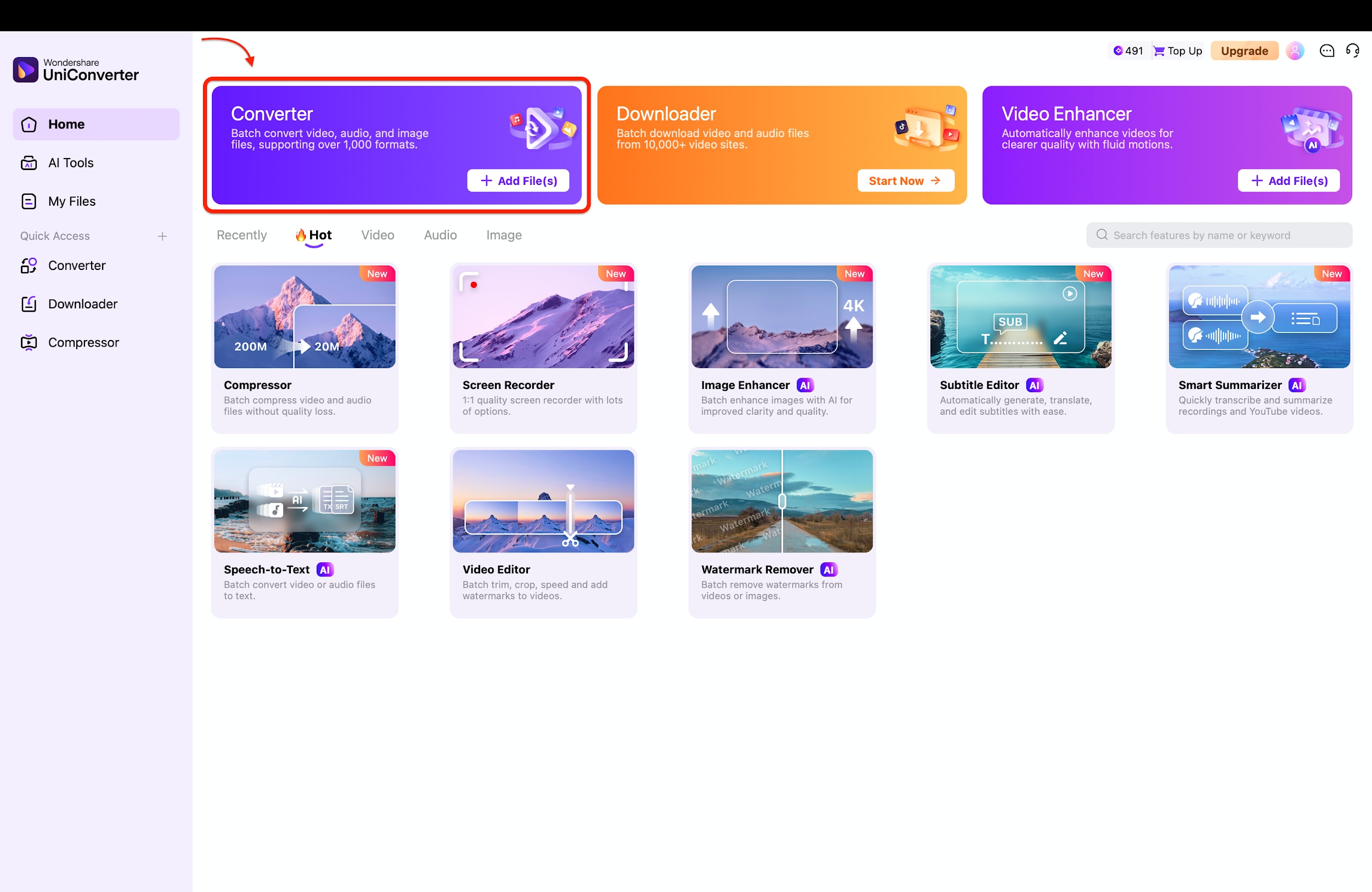
Step 1: Access the Converter Tool
Launch Wondershare UniConverter on your desktop and locate the main feature menu on the left side of the "Home" interface. Click on the Converter tab, which is highlighted in the menu, to open the dedicated video conversion workspace. This action sets up the software to process your existing video files and prepares the interface for importing media.
Pro Tip: If you don't have the YouTube video saved yet, you can download it with the help of UniConverter's download feature before starting the conversion.
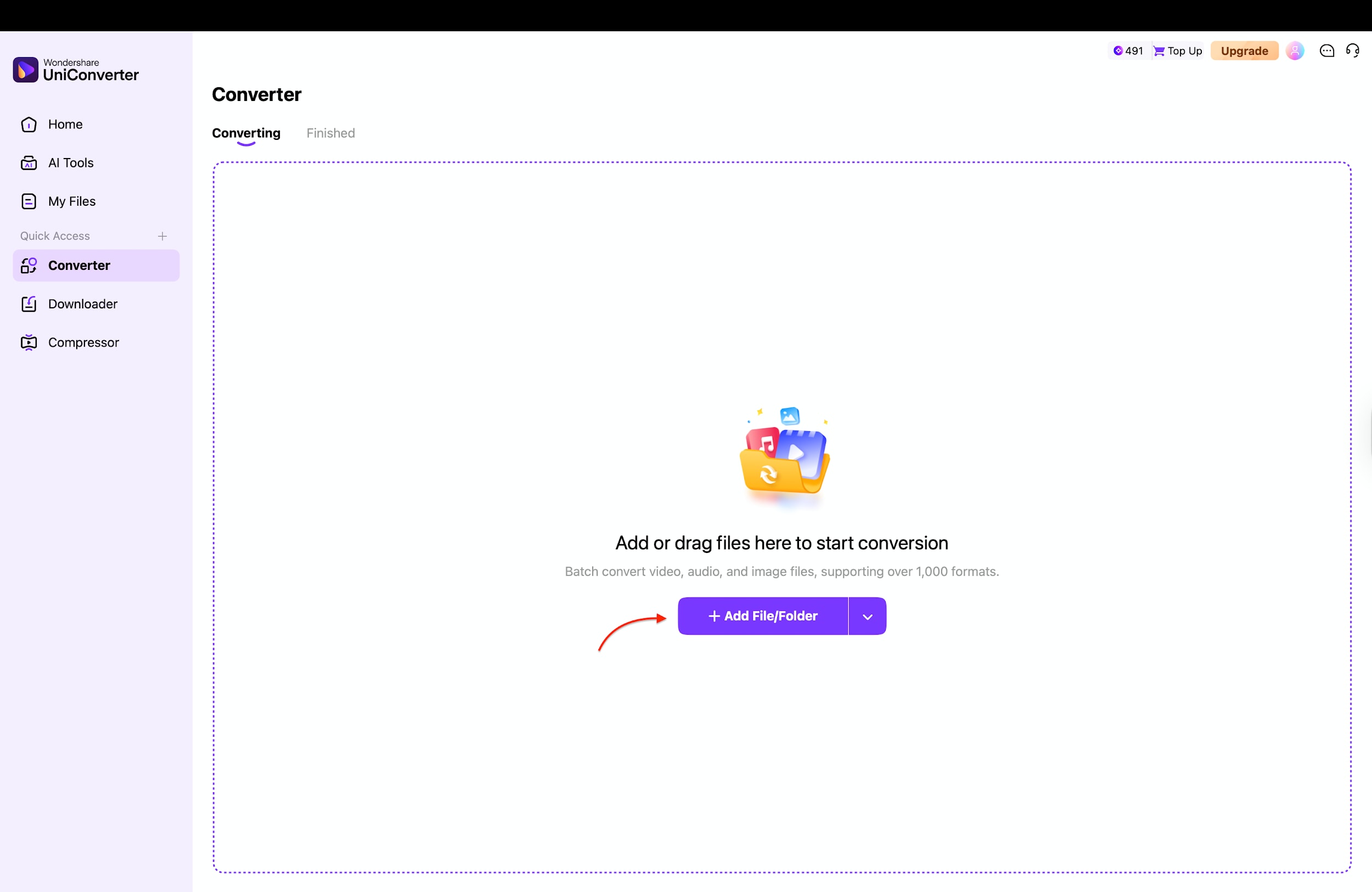
Step 2: Import Your Video File
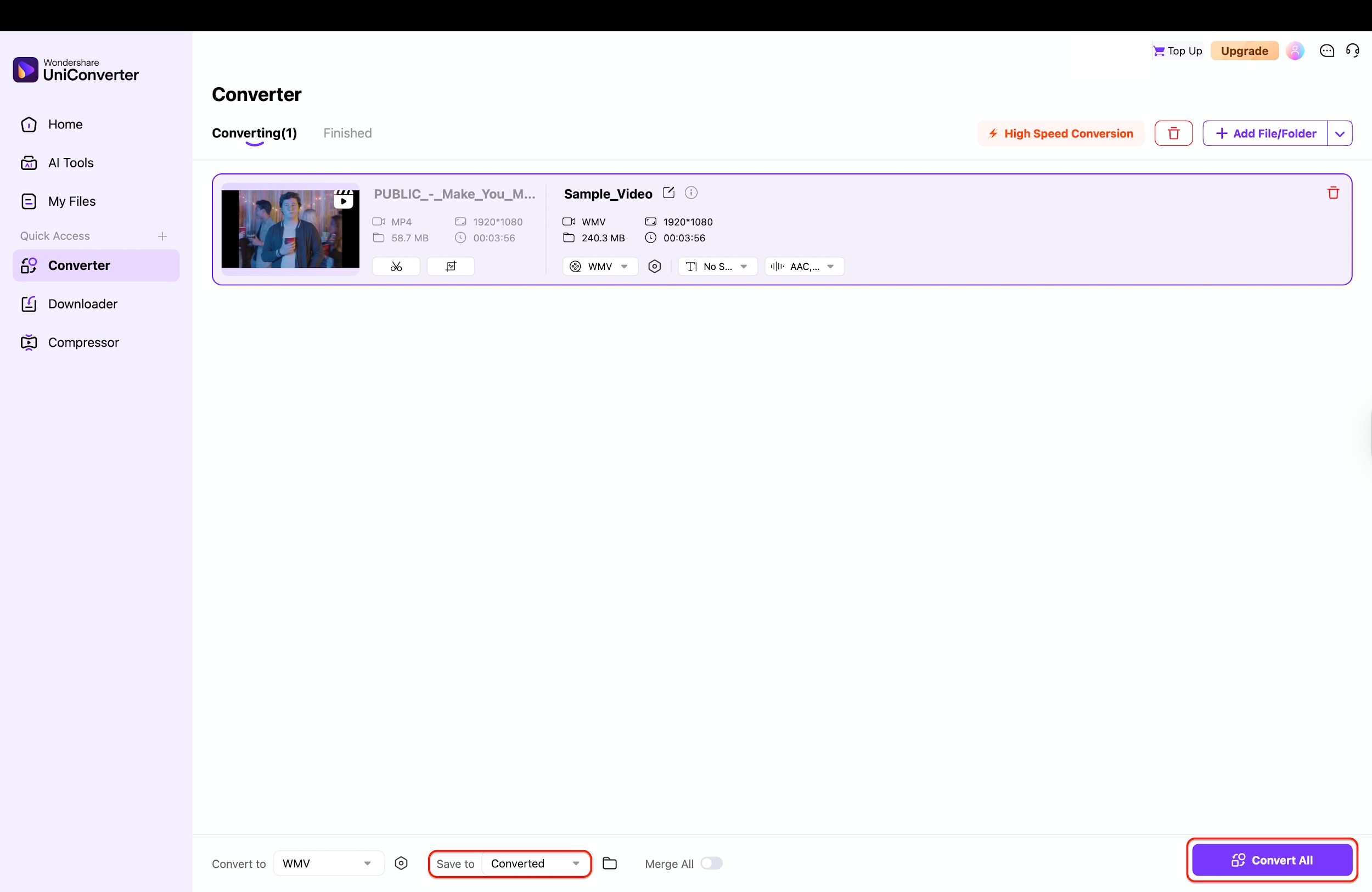
Click the large purple + Add File/Folder button located in the center of the screen to browse your computer storage for the video you wish to convert. Alternatively, you can simply drag and drop your downloaded YouTube video file directly into the dotted rectangular area to import it instantly. The file will successfully load into the interface, displaying a thumbnail preview and file details for your verification.
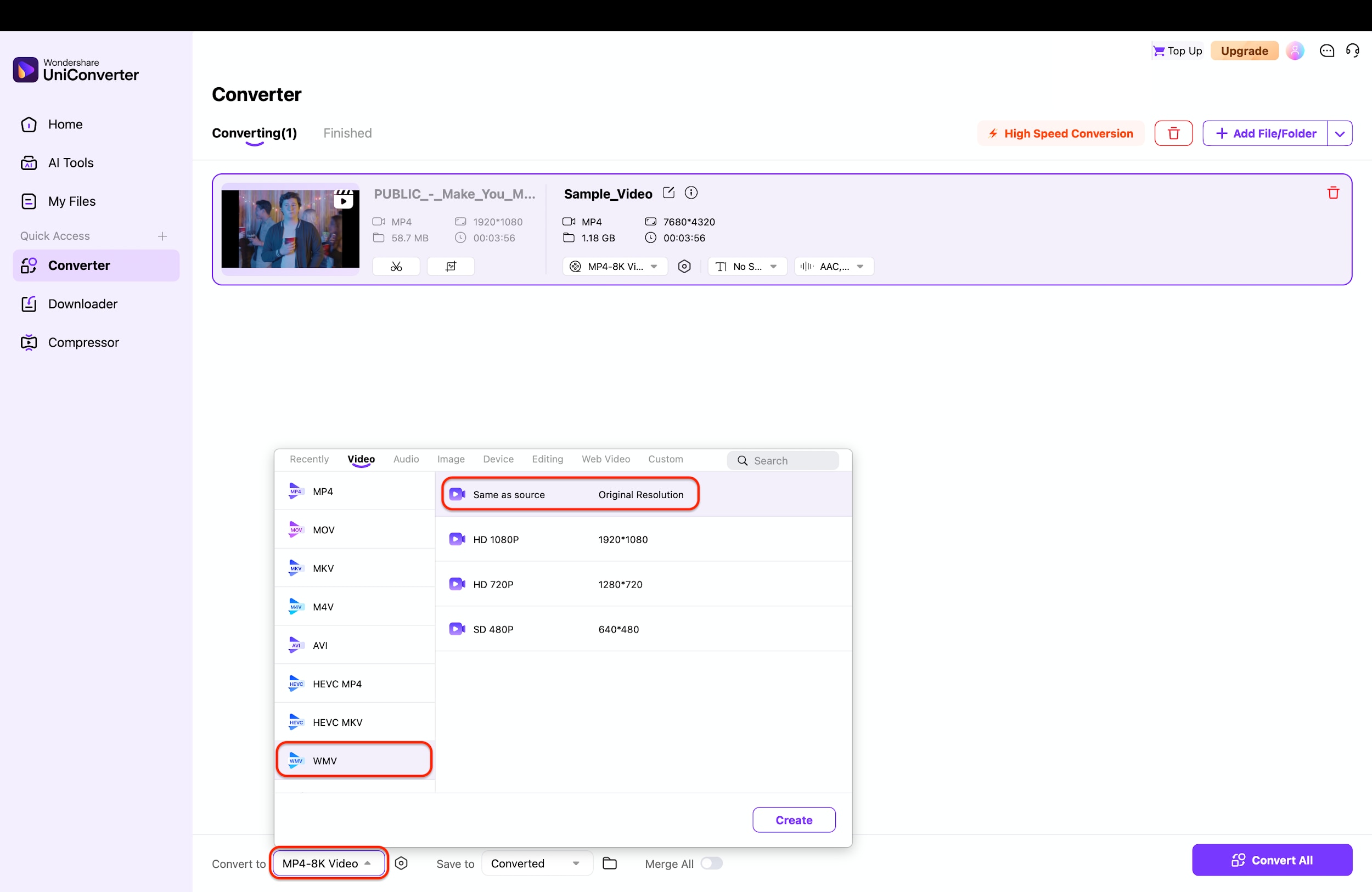
Step 3: Select WMV as Output Format
Click the format settings icon next to your video to open the comprehensive drop-down menu of supported output formats. Navigate to the Video tab, select WMV from the left-hand list, and choose Same as source to maintain the original resolution and quality. This critical step ensures your video is re-encoded into the Windows Media Video format while preserving the visual fidelity of the original file.
Step 4: Convert and Save
Confirm your desired destination folder by checking the "Save to" options at the bottom of the window to ensure easy access later. Click the purple Convert All button located in the bottom-right corner to trigger the high-speed conversion process immediately. Once the process completes, you can navigate to the "Finished" tab to find your fully converted WMV video ready for playback or sharing.
Pros:
- Lightning-fast 90x conversion speed.
- Zero quality loss during conversion.
- Supports over 1,000 formats beyond WMV.
- Ad-free and secure environment.
Cons:
- Free trial has specific limitations on download length.
- Requires software installation.
Best For:
High-quality batch conversion, editing, and downloading in one suite.

YouTube to WMV Converter for Windows Compatibility
2. Any Video Converter (AVC)
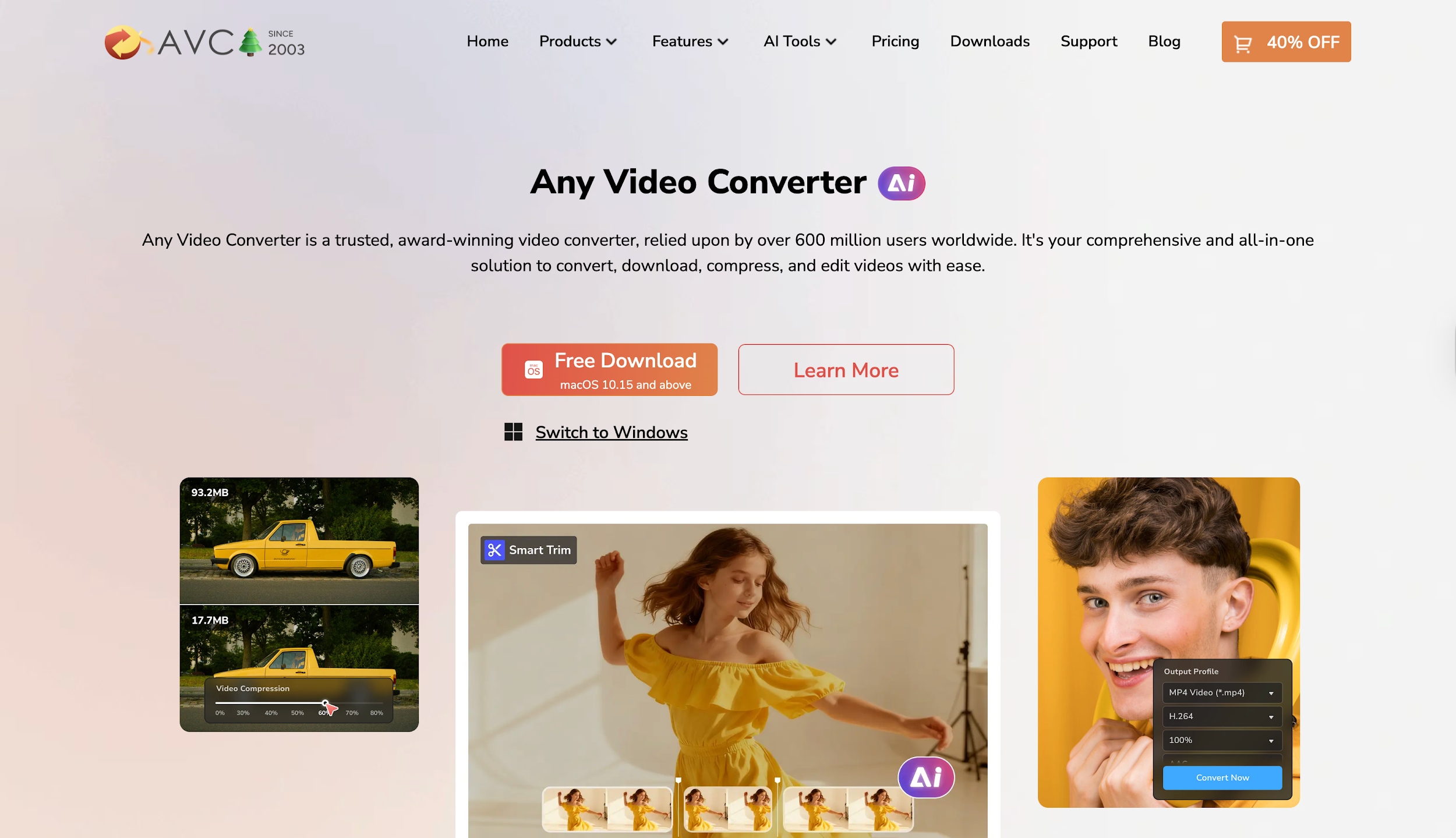
Any Video Converter (AVC) has been a reliable name in the industry for over a decade, offering a solid solution for users who need to convert YouTube to WMV without spending money. While the interface feels slightly nostalgic, it is robust, supporting over 100 input formats and allowing basic editing, such as clipping and cropping. It is particularly good at handling legacy device profiles, ensuring your WMV files work on older Windows systems. The free version is fully functional but does nudge users toward the paid upgrade.
Key Features:
- NVIDIA NVENC hardware acceleration.
- Basic video editing (crop, trim, rotate).
- Disc burning capabilities included.
Pros:
- Entirely free for standard conversions.
- Wide range of supported legacy devices.
- Includes a built-in media player.
Cons:
- Installer often bundles unwanted software (bloatware).
- Slower conversion speeds compared to UniConverter.
Best For:
Users needing a reliable, free desktop tool for legacy formats.
3. HitPaw Video Converter
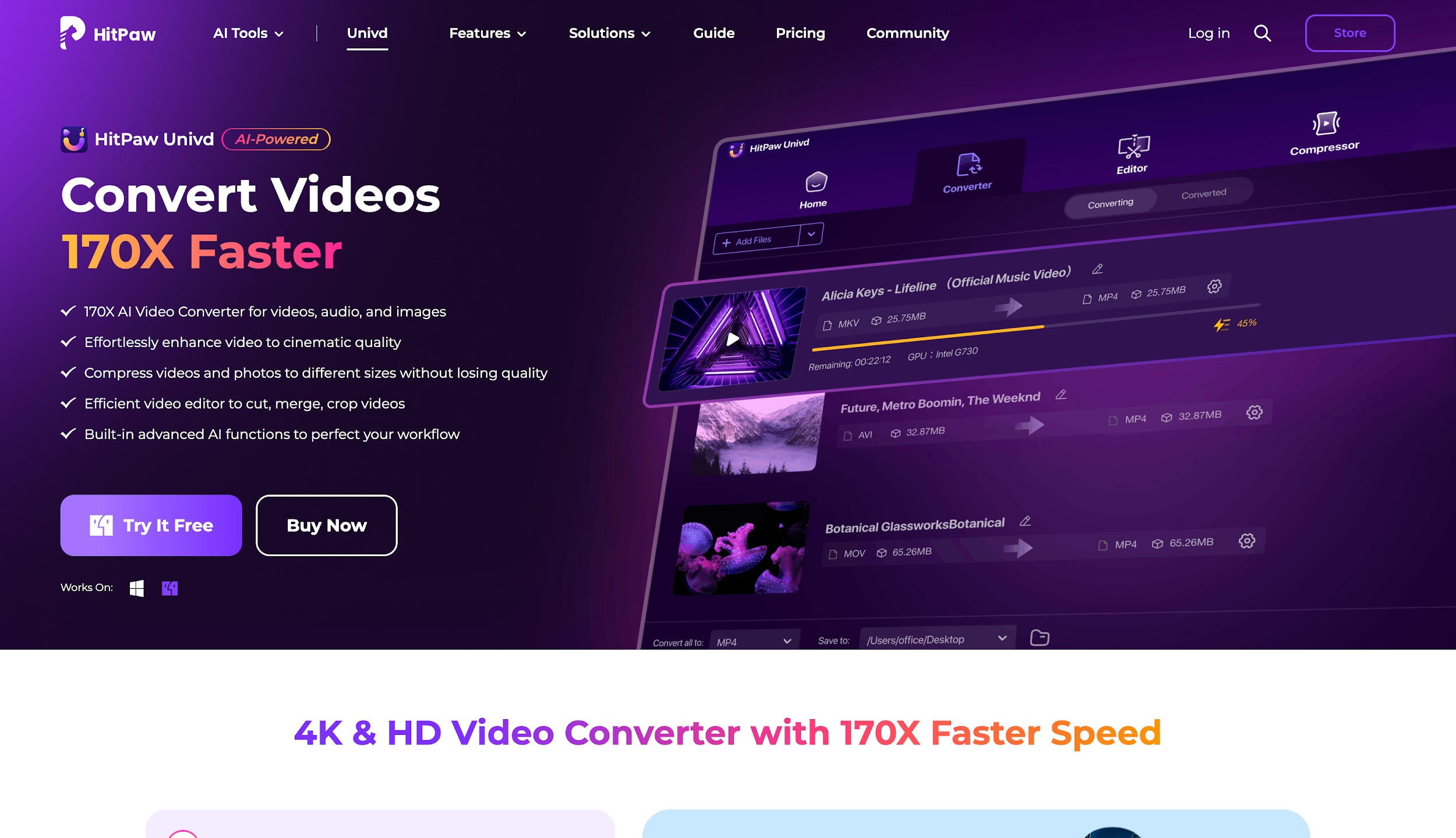
HitPaw Video Converter is a modern competitor that brings a fresh, dark-mode aesthetic to the download YouTube to WMV landscape. Beyond standard conversion, it differentiates itself with a suite of AI-powered tools, including an art generator and a vocal remover. For the core task of converting YouTube videos, it performs admirably, thanks to a fast download engine that supports batch processing. The interface is clean and snappy, making it an excellent choice for users who find older tools like AVC too clunky or dated.
Key Features:
- Lossless conversion technology.
- Downloads from 10,000+ video sites.
- Built-in AI video enhancer.
Pros:
- Modern, intuitive user interface.
- Fast download speeds.
- Versatile toolbox with AI features.
Cons:
- The free trial is minimal.
- AI features require separate module downloads.
Best For:
Users looking for modern AI features and a sleek design.
4. 4K Video Downloader+
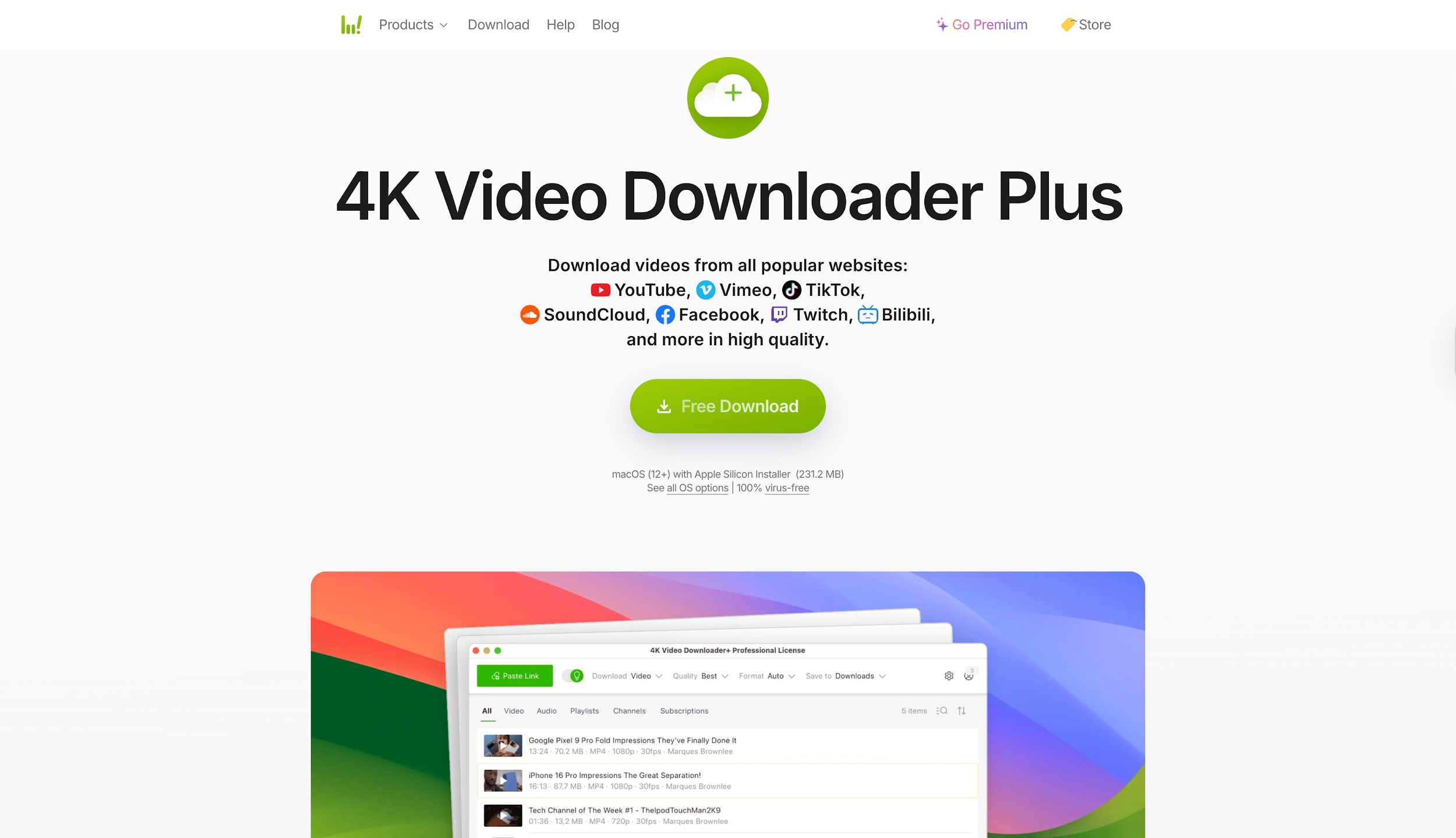
If your primary goal is to download YouTube video as WMV in the highest possible quality without editing, 4K Video Downloader+ is a powerhouse. It excels at parsing complex YouTube links, including private playlists, "Watch Later" lists, and entire channels. While it primarily supports MP4 and MKV, it also includes conversion features to ensure compatibility with other formats. Its "Smart Mode" is a standout, letting you set your preferred format and quality once and apply it to all future downloads automatically, for a streamlined workflow.
Key Features:
- Smart Mode for one-click downloads.
- Downloads 3D and 360-degree videos.
- In-app proxy setup to bypass geo-restrictions.
Pros:
- Exceptional reliability with playlists.
- Extracts subtitles automatically.
- Clean, no-nonsense interface.
Cons:
- Direct WMV output is sometimes hidden in settings.
- Daily download limits on the free plan.
Best For:
Archiving playlists and channels in high quality.
Best Online YouTube to WMV Converter (No Installation)
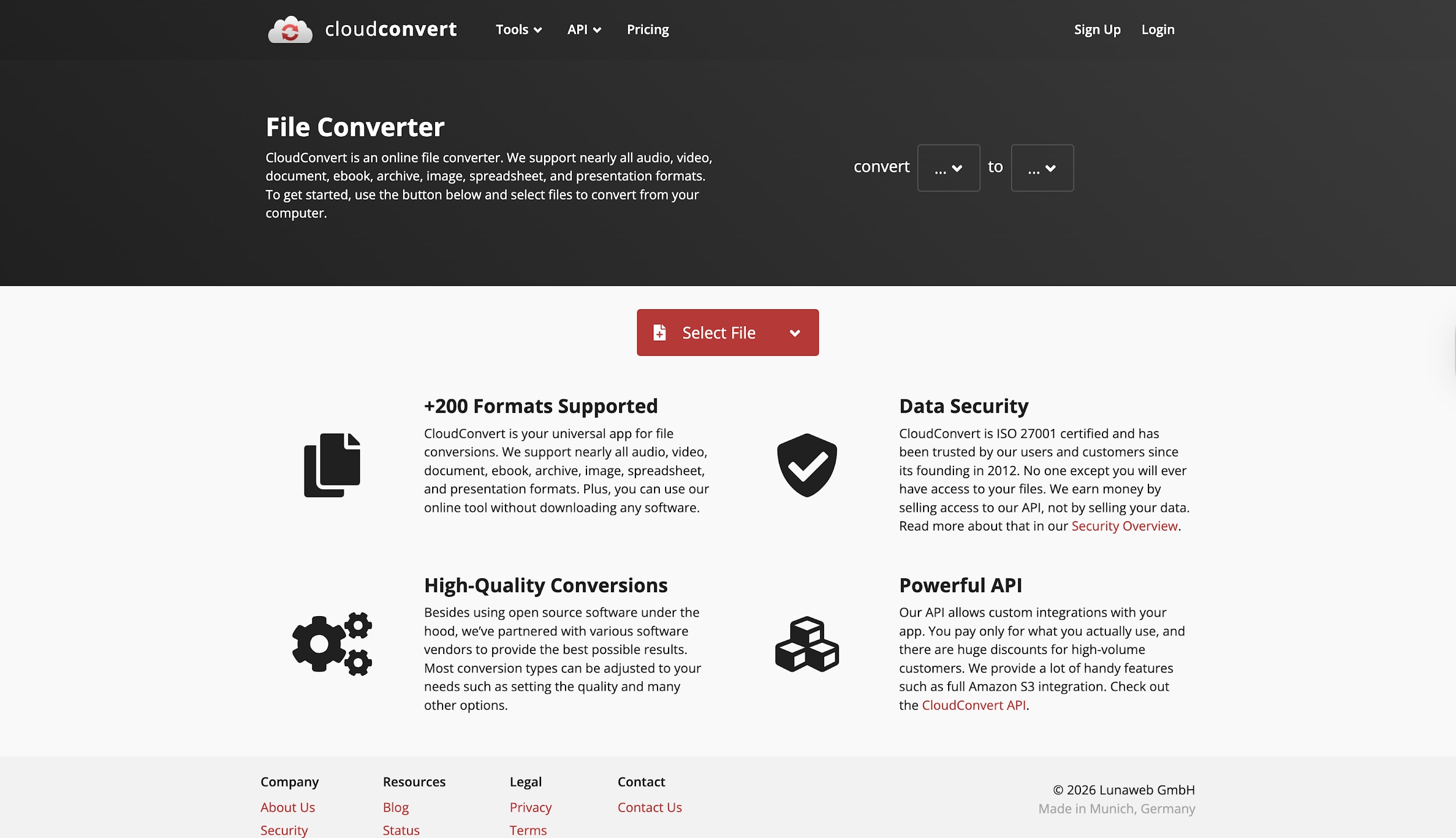
5.CloudConvert
CloudConvert sets the standard for YouTube to WMV online tools, offering a clean, professional experience free from the spammy ads that plague this category. While it requires you to upload a file (or use a Google Drive link) rather than downloading directly from YouTube, its conversion engine is unmatched in the browser space. It gives advanced users granular control over technical specs, allowing you to tweak video bitrates, audio codecs, and aspect ratios before hitting convert, ensuring your WMV file is perfectly optimized.
Key Features:
- Support for 200+ file formats.
- High-security data protection (ISO 27001).
- Powerful API for automation.
Pros:
- No ads or malware risks.
- Excellent control over video settings.
- Integrates with Google Drive/Dropbox.
Cons:
- Cannot download directly from YouTube URLs.
- 25 daily conversion limit for free users.
Best For:
Professional-quality conversions from cloud storage.
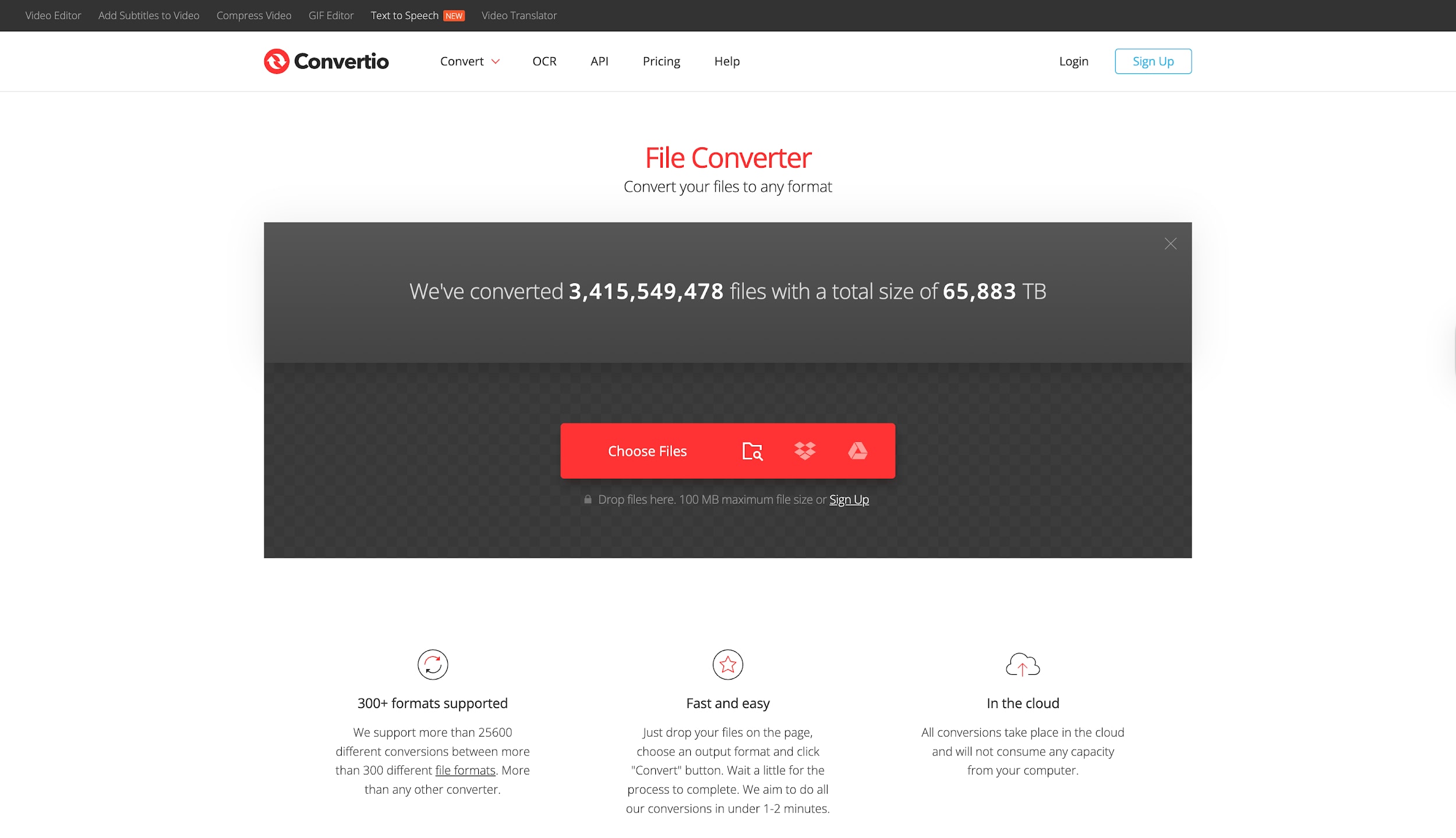
6. Convertio
Convertio is a fan-favorite for users who need to convert YouTube MP4 to WMV online quickly without installing software. Its standout feature is its usability; the interface is large, drag-and-drop-friendly, and works flawlessly in mobile browsers. Like CloudConvert, it functions as a file converter rather than a downloader, meaning you need the source file first. However, its speed and broad format support make it an essential bookmark for anyone needing to swap formats on the fly, whether on a Chromebook or a tablet.
Key Features:
- Connects to Dropbox and Google Drive.
- Custom settings for video orientation and quality.
- Browser-based; works on all OS.
Pros:
- Beautiful, easy-to-use interface.
- Fast processing for small files.
- No account registration is required.
Cons:
- Strict 100MB file size limit for free users.
- Requires uploading the file first.
Best For:
Quick, user-friendly file conversions on any device.
Best YouTube to WMV Converter Chrome Extension
7. Internet Download Manager (IDM) Integration Module
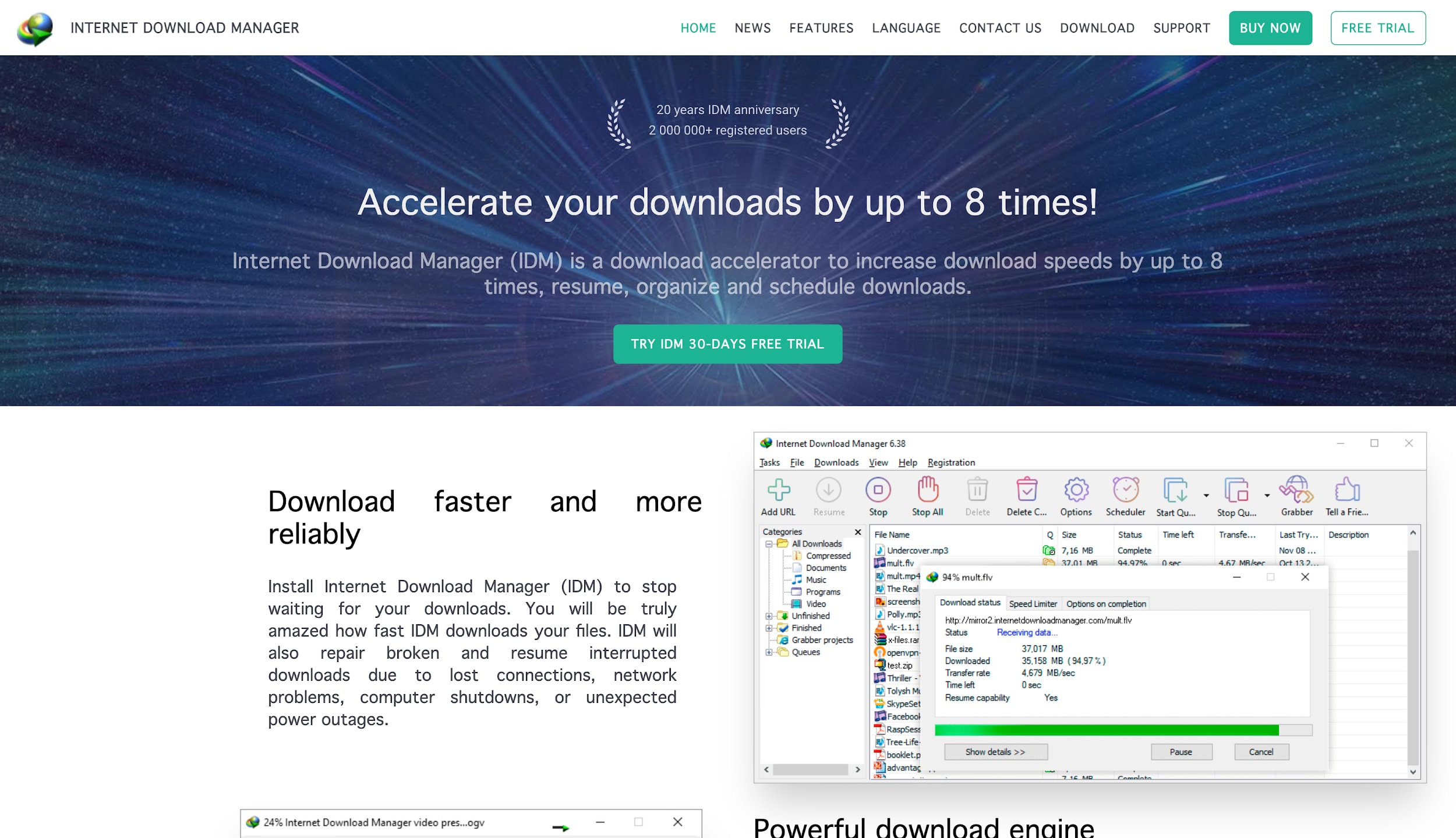
While technically a browser module for the desktop software, the IDM Integration Extension is the gold standard for users who want to download YouTube to WMV (or compatible formats) directly from the video player. Once installed, a "Download This Video" panel appears automatically over any YouTube video. It accelerates download speeds by up to 5 times by segmenting files dynamically. While it primarily fetches the source stream (often MP4/MKV), it integrates seamlessly with IDM's scheduler and converter tools to organize your library efficiently.
Key Features:
- Appears automatically on YouTube, Vimeo, and others.
- Uses dynamic segmentation for max bandwidth.
- Restarts broken downloads instantly.
Pros:
- The fastest download speeds available.
- Works on almost every site, not just YouTube.
- incredibly stable and malware-free.
Cons:
- Requires the paid IDM desktop software (a free trial is available).
- Doesn't convert to WMV inside the browser panel (requires post-download action).
Best For:
High-speed downloading and seamless browser integration on Windows.
8. Addoncrop
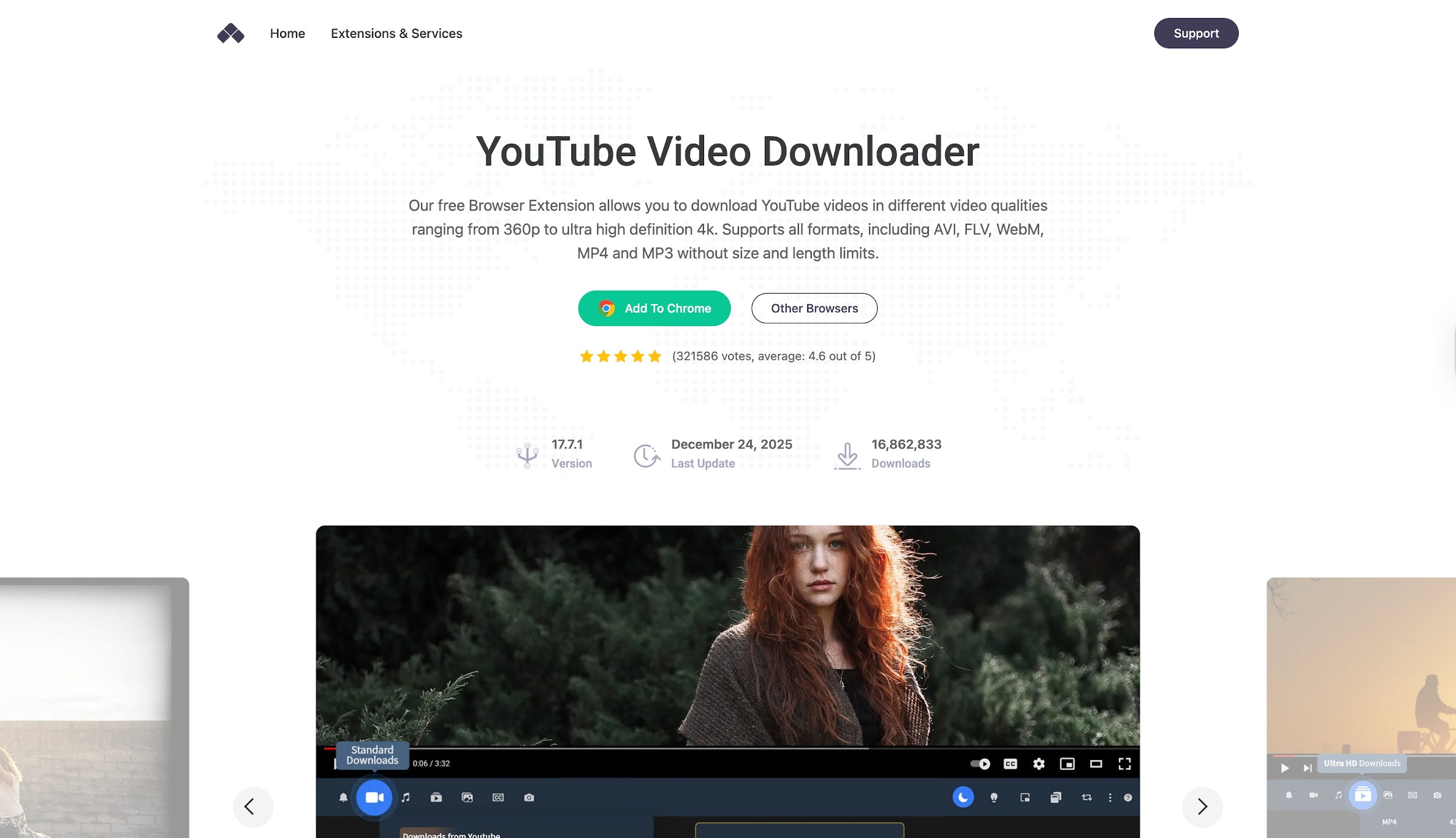
For users who want the convenience of a "Download" button right under the video player, Addoncrop is the best YouTube converter MP4 to WMV extension. Since the Chrome Web Store restricts YouTube downloaders, Addoncrop uses a clever "CrossPilot" bridge to function safely. It detects the video being played and offers multiple quality and format options instantly. It eliminates the need to copy-paste links entirely, streamlining the workflow for users who frequently archive content while browsing.
Key Features:
- Native "Download" button on YouTube UI.
- Cinema Mode and Dark Theme support.
- One-click audio extraction.
Pros:
- Unmatched convenience.
- Supports 4K and 60fps downloads.
- Highly customizable interface.
Cons:
- Installation requires an external bridge (CrossPilot).
- WMV usually requires a secondary click in its menu.
Best For:
Seamless integration directly into the YouTube player.
Best YouTube to WMV Converter Mobile app
9. Video Format Factory
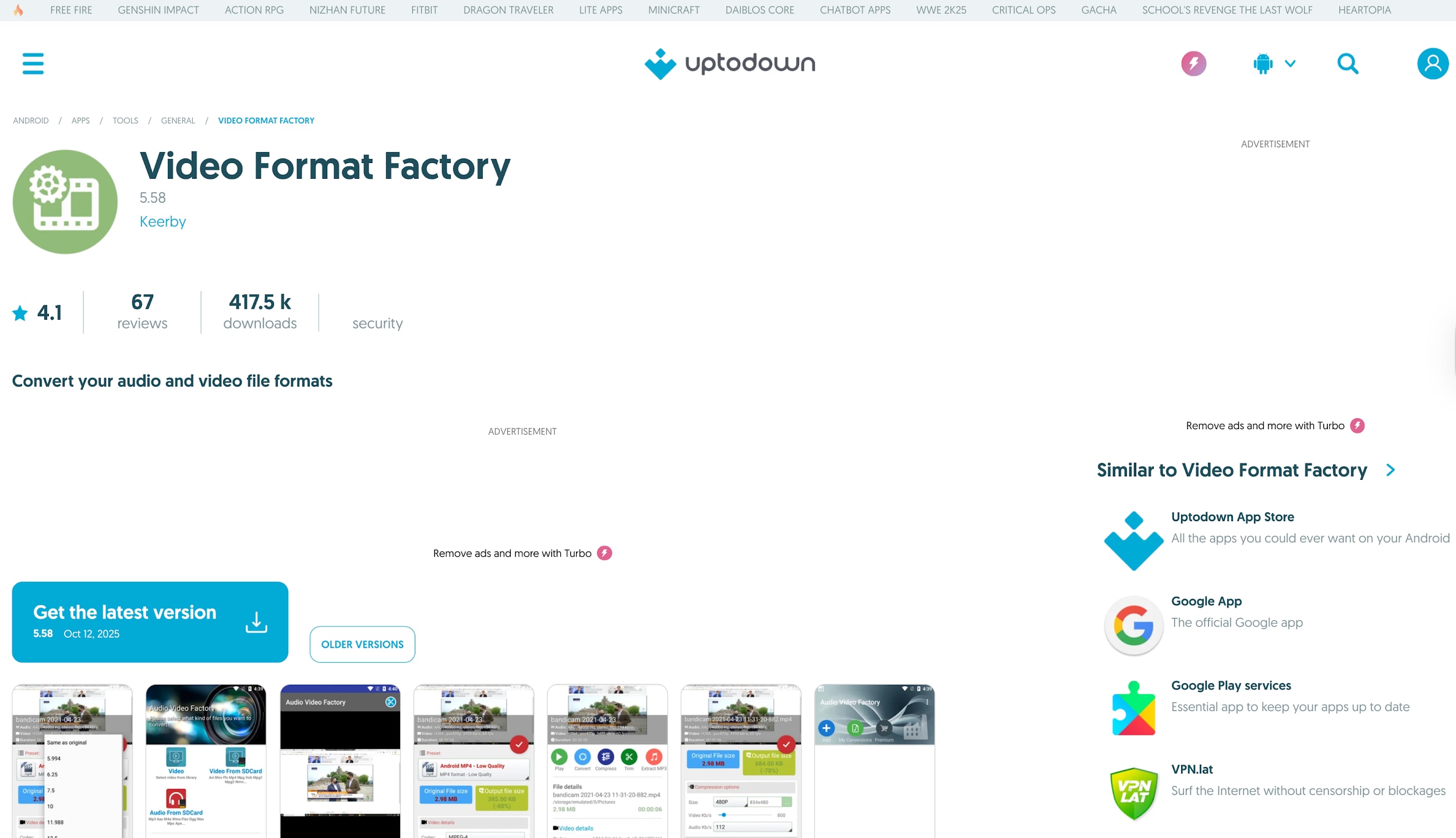
Video Format Factory is a powerhouse app for users who need total control over their files. It serves as a robust YouTube video converter MP4 to WMV utility for files you've saved to your device. Unlike simpler apps, it gives you deep access to FFmpeg settings, allowing you to tweak codecs, aspect ratios, and bitrates. It includes a specific preset for WMV, making it easy to prepare videos for legacy Windows presentations directly from your phone. It also supports batch processing, saving you time when converting multiple clips.
Key Features:
- Convert to WMV, AVI, FLV, and more.
- Split, trim, and extract audio options.
- Process entire folders of video at once.
Pros:
highly customizable output settings.
Efficient compression to save storage space.
Supports converting SD to HD.
Cons:
The interface is functional but looks dated.
The free version has ads and some lockouts on high-quality presets.
Best For:
Advanced format conversion and file compression on Android.
10.Video Converter, Compressor
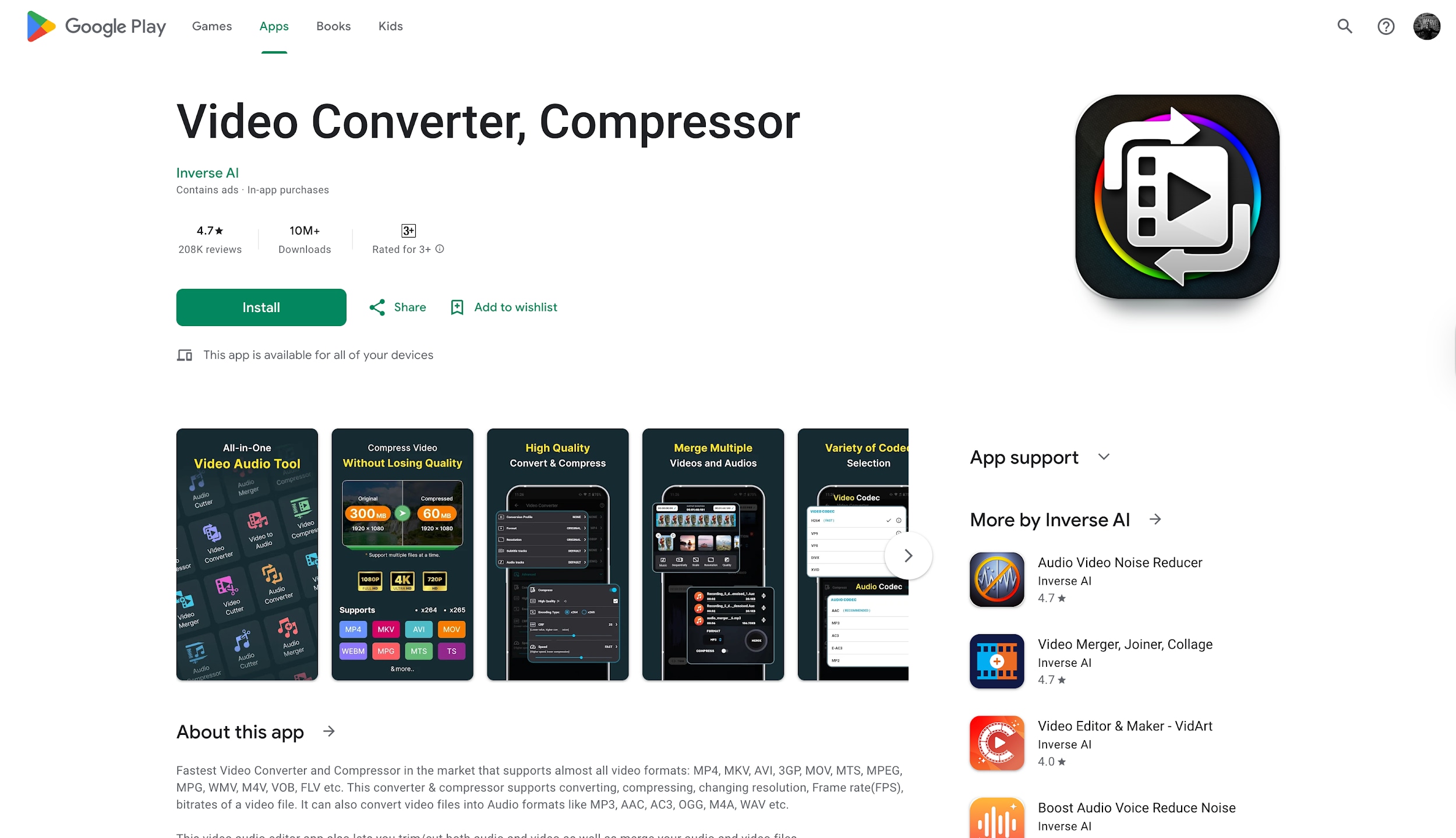
When you need to convert YouTube video to WMV on a mobile device, this app by Inverse.AI is the top-rated solution on the Google Play Store. It is perfect for situations where you have saved a video to your phone but need to send it to a Windows user or a legacy system. The app is surprisingly powerful, offering features like batch compression, audio bitrate adjustment, and basic editing, all optimized for mobile processors to prevent your battery from draining instantly during conversion.
Key Features:
- Supports virtually all formats (AVI, MKV, WMV).
- Batch processing for multiple files.
- Customizable resolution and framerate.
Pros:
- Excellent performance on Android.
- Clean, material design interface.
- Keeps original file metadata.
Cons:
- The free version contains ads.
- Large 4K files can take time to process.
Best For:
Converting video files directly on Android devices.
Part 3. Quick Comparison Table on MP4 to WMV YouTube Video Converters
To help you decide which YouTube to WMV converter free or paid tool suits you, here is a quick snapshot:
| Tool | Supported OS | Supported Export Format | Free or Paid | Watermark? | Ads? |
| Wondershare UniConverter | Win / Mac | WMV, MP4, MP3, +1000 more | Paid (Free Trial) | No (in paid) | No |
| Any Video Converter (AVC) | Win / Mac | WMV, MP4, AVI, etc. | Free / Paid | No | Yes (Upsells) |
| HitPaw Video Converter | Win / Mac | WMV, MP4, MOV, etc. | Paid (Free Trial) | No (in paid) | No |
| 4K Video Downloader+ | Win / Mac / Linux | MP4, MKV (WMV via settings) | Freemium | No | Yes (in free) |
| CloudConvert | Web (Online) | WMV, AVI, MP4, etc. | Free (Limits) | No | No |
| Convertio | Web (Online) | WMV, MP4, DIVX, etc. | Free (Limits) | No | Yes |
| IDM Integration Module | Windows | MP4, MKV, FLV (WMV via tool) | Paid (Free Trial) | No | No |
| Addoncrop | Chrome Extension | MP4, FLV, WebM, MP3 | Free | No | No |
| Video Format Factory | Android | WMV, AVI, FLV, MP4 | Freemium | No | Yes |
| Video Converter, Compressor | Android | WMV, MP4, MKV, AVI | Freemium | No | Yes |
Part 4. Advanced Tips: Get the Best WMV Quality from YouTube Videos
Converting a compressed YouTube video to WMV can sometimes result in quality loss if settings aren't managed correctly. Since WMV is a container that uses Windows Media Video codecs, understanding how to tweak these settings is key to professional results.
Bitrate & Resolution Settings
When you convert YouTube video to WMV, the most critical factor is the bitrate. YouTube compresses videos heavily. If you convert a 1080p YouTube video (approx. 8Mbps) to a WMV with a bitrate of 2Mbps, it will look blocky and pixelated.
Expert Tip: Always match or slightly exceed the source bitrate. For 1080p, aim for a bitrate of 8,000–10,000 kbps. For 4K, aim for 35,000–45,000 kbps. In tools like UniConverter, use the "Same as source" setting to avoid manual errors.
Audio Codec Tips (YouTube Converter MP3 to WMV)
WMV files typically use WMA (Windows Media Audio) codecs. However, YouTube uses AAC. When converting, ensure your sample rate is set to 44,100 Hz or 48,000 Hz.
Expert Tip: If you are archiving music videos, choose the WMA 10 Pro codec if your software supports it. It offers superior audio fidelity compared to standard WMA, preserving the dynamic range of the original YouTube audio track.
How to Reduce WMV File Size Without Losing Clarity
WMV is an older format, and sometimes files can be large. To reduce size:
Use Variable Bitrate (VBR): Instead of Constant Bitrate (CBR), select VBR. This allocates more data to complex action scenes and less to static scenes, optimizing file size.
Lower the Frame Rate: If you are converting a tutorial or a vlog where 60fps isn't necessary, lowering it to 30fps can slash your file size by nearly 50% without affecting visual clarity on static shots.
Part 5. Common Problems When Converting YouTube to WMV (And Fixes)
Even with the best YouTube to WMV tools, issues can crop up. Here is how to troubleshoot the most common annoyances.
Audio Out of Sync
This is the most frequent complaint. It usually happens when the frame rate of the source video (e.g., variable frame rate from a smartphone upload to YouTube) conflicts with the fixed frame rate of the WMV container.
Fix: Use a converter likeUniConverter that has an "Auto-Sync" feature. Alternatively, manually set the output frame rate to a standard 30fps or 60fps rather than "Auto" to force synchronization.
WMV Not Playing on Windows
It sounds ironic, but sometimes WMV files don't play on Windows 10 or 11. This is often because the file was encoded with a legacy codec (like WMV7 or WMV8) that modern Media Player lacks by default, or conversely, a VC-1 codec that older systems can't handle.
Fix: Install theK-Lite Codec Pack or use VLC Media Player, which plays everything. If you must use Windows Media Player, re-convert the file using the WMV9 or VC-1 standard profile.
Failed Downloads from YouTube
YouTube frequently updates its algorithm to break downloaders. If your YouTube converter MP4 to WMV tool suddenly stops working or throws an "Analysis Failed" error:
Fix: Check for software updates. Desktop tools like UniConverter update their download core weekly to stay ahead of YouTube's changes. Online tools often lag behind. Clearing your browser cache or switching to a dedicated desktop downloader usually resolves this.
Conclusion
We have explored the landscape of YouTube to WMV conversion, from browser-based quick fixes to professional desktop suites. Whether you need to simply convert YouTube to WMV online for a one-time task or a powerful engine to archive entire playlists, the choice depends on your specific needs for quality and speed.
However, for those who value reliability, speed, and pristine quality, Wondershare UniConverter stands out as the superior choice. It eliminates the frustration of failed downloads and out-of-sync audio, providing a seamless all-in-one solution for downloading, editing, and converting.Try Wondershare UniConverter today and experience the difference in your video library.
FAQs
-
1. Is it legal to download and convert YouTube videos to WMV?
Downloading videos generally violates YouTube’s Terms of Service unless you have a YouTube Premium subscription or explicit permission from the content owner. Converting your own uploads or public-domain videos for personal use is often considered a gray area and may fall under fair use in some jurisdictions. -
2. Why is the WMV format still used?
WMV remains relevant in corporate and enterprise environments that rely on legacy Windows systems, PowerPoint presentations, and Outlook email attachments, where MP4 support may be inconsistent or require additional codecs. -
3. Can I convert YouTube to WMV on my iPhone?
Yes, but not directly through Safari. You typically need a file management app like Documents by Readdle to access an online converter, or transfer the video to a desktop for conversion. Apple’s ecosystem generally favors MP4 or MOV formats. -
4. Which is better: MP4 or WMV?
MP4 offers broader compatibility across devices such as phones, TVs, and web platforms. WMV is optimized for Windows systems. MP4 is better for cross-platform sharing, while WMV is safer for older PowerPoint presentations on Windows PCs. -
5. How do I remove the black bars after converting YouTube to WMV?
Black bars appear when the aspect ratio does not match, such as converting a 16:9 video to a 4:3 WMV. Use a tool like UniConverter to crop the video or adjust the aspect ratio during conversion so it matches the source video.

