


Looking to save your favorite YouTube videos in high quality? Converting YouTube to MP4 1080P is the perfect way to enjoy crisp, clear videos offline—anytime, anywhere. Whether you’re using a phone, tablet, or computer, MP4 format ensures smooth playback on all devices without losing quality.
In this guide, we’ll show you the easiest and fastest ways to convert YouTube videos to MP4 1080P safely and efficiently. No tech skills required—just a few simple steps and you’re ready to go. Keep reading to learn how to download and enjoy HD YouTube videos effortlessly on any platform.
In this article
- Why Convert YouTube Videos to 1080p MP4
- Is it legal and ethical to convert YouTube videos to MP4?
- What’s the easiest browser-based way to convert YouTube to 1080p MP4?
- How can you convert YouTube to 1080p MP4 online?
- What’s the best desktop way to convert YouTube to 1080p MP4?
- Can you convert videos to 1080p MP4 on Android or iPhone?
- Conclusion
- FAQs
Quick Guide: Best YouTube to MP4 1080P Method by Use Case
Part 1: Why Convert YouTube Videos to 1080p MP4?
Converting YouTube videos to 1080p MP4 offers several practical benefits:
Offline Viewing: Enjoy videos without an internet connection during flights, commutes, or areas with poor connectivity. This ensures you can watch your favorite content anytime, anywhere, without interruptions.
Archiving Important Content: Save tutorials, lectures, and educational videos for future reference or study. It also helps build a personal library of resources you can revisit anytime.
Using Clips for Creative Projects: Incorporate video clips into personal or professional projects—always ensure proper permissions to respect copyright. This allows creators to enhance presentations, videos, or social media content safely and legally.
What Do 1080p and 60fps Mean for Your Video?
1080p (Resolution): Also known as Full HD, 1080p delivers sharp, clear visuals, making videos crisp and enjoyable on larger screens. It also improves the overall viewing experience, especially for detailed or text-heavy content.
60fps (Frame Rate): A higher frame rate ensures smooth, fluid motion, ideal for fast-action content like gaming videos, sports highlights, or dynamic tutorials. This makes videos appear more lifelike and reduces motion blur for better clarity.
Part 2: Is it legal and ethical to convert YouTube videos to MP4?
When converting YouTube videos, respecting copyright and fair use is essential:
Respect Copyright and Fair Use: Only download videos that you have the right to—your own content, videos with explicit permission, or those falling under fair use. Following this guideline helps you stay on the right side of the law. It also ensures that creators’ rights are honored, supporting a fair digital ecosystem.
Avoid Redistributing Copyrighted Content: Never share or upload copyrighted videos without permission, as this can lead to legal issues and account penalties. Being cautious ensures your projects remain safe and ethical. By avoiding redistribution, you prevent potential financial and legal consequences while respecting original creators.
Build Trust and Responsibility: Practicing ethical downloading not only protects you legally but also demonstrates integrity and respect for creators’ work. It promotes a responsible online environment for everyone. Maintaining this approach can also enhance your reputation among peers and online communities as a trustworthy content user.
Part 3: What’s the easiest browser-based way to convert YouTube to 1080p MP4?
If you're looking for an easy and browser‑based way to handle video conversions, the UniConverter Chrome extension is a great pick. You simply add the extension to your Chrome browser and it helps convert media files to MP4 format without heavy desktop installations. It’s ideal for those who prefer a quick, lightweight solution and don’t want to install full software suites. Plus, the interface is user-friendly, making it perfect for both beginners and experienced users who want fast, hassle-free conversions.
Key Features of Wondershare Uniconverter
- Comprehensive Video Archiving – Save videos, shorts, live streams, and podcasts directly from YouTube and other supported sites with just one link.
- Batch Channel and Playlist Process– Process entire YouTube channels or playlists at once, with automatic detection and smart organization into folders.
- Auto-Subscription Mode – Subscribe to channels or playlists to automatically detect and download new uploads as soon as they appear.
- High-Quality & Speed Optimization – Preserve original quality or customize resolution, bitrate, and subtitles while ensuring fast, stable downloads.
- Smart Detection & Filtering – The system automatically skips unavailable or private content and organizes downloaded files by source and type.
- Cross-Platform Access – Use UniConverter’s downloader through its intuitive desktop interface or web integration, making it easy to manage downloads anywhere.
Simple Steps to Convert a YouTube Video to 1080p MP4
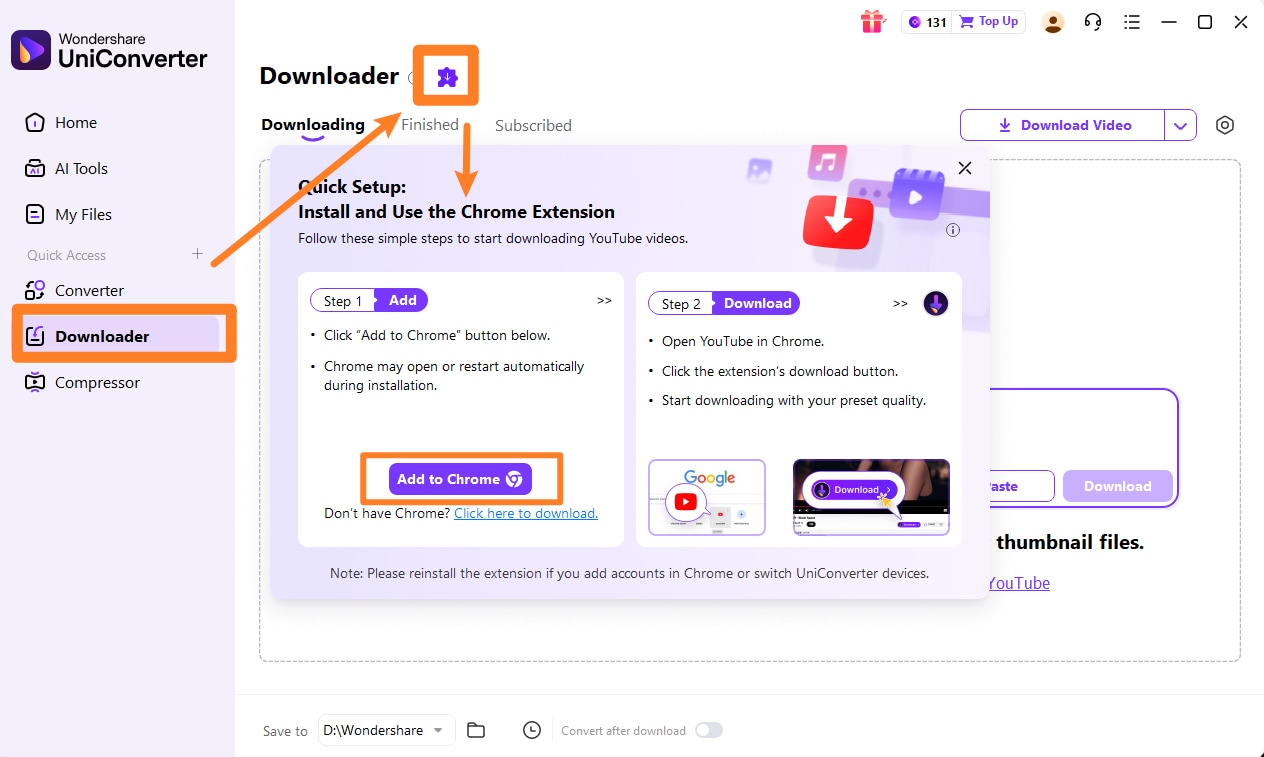
Step 1: Install UniConverter
Visit UniConverter official website to download UniConverter to desktop first, and reach to acquire its chrome extension. Compared to online unknown resources, this can be one of the safest choice. Once installed, the extension icon will appear in your toolbar for easy access anytime.
Step 2: Open the YouTube Video
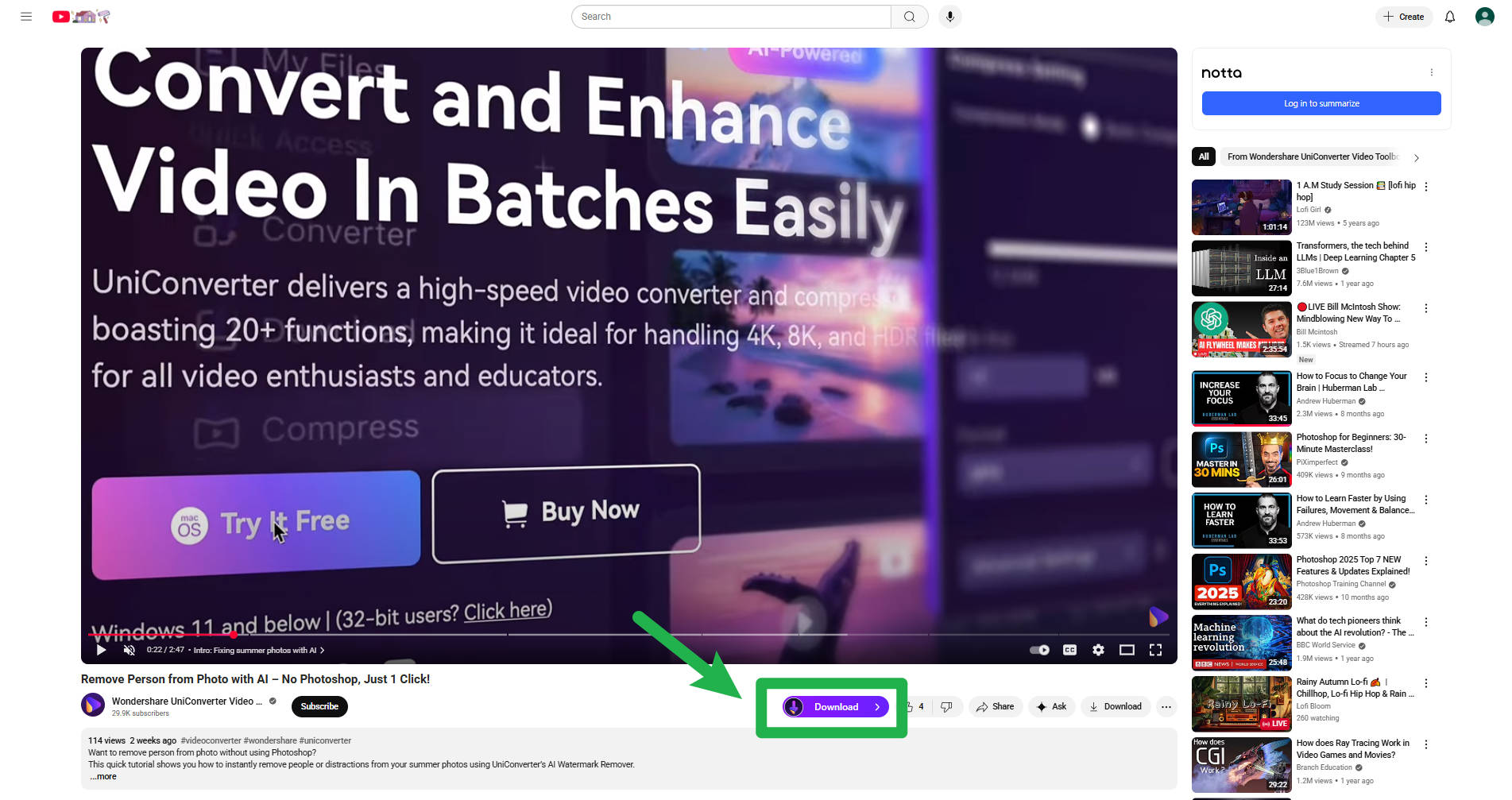
Navigate to the YouTube video you want to convert. Make sure you have the right to download it. This ensures you comply with copyright laws and respect the creator’s content.
Step 3: Launch the Extension
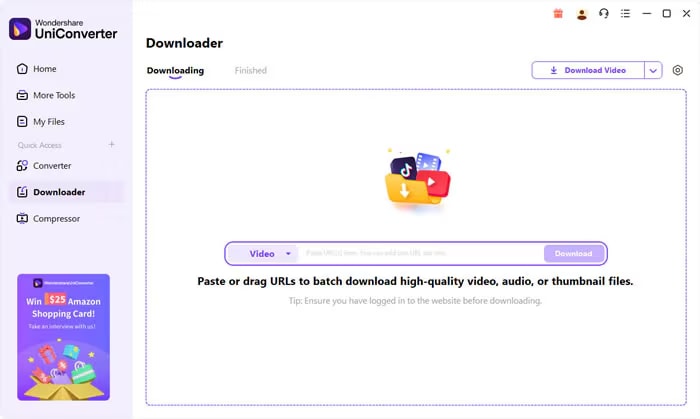
Click the UniConverter icon in the Chrome toolbar and paste the YouTube URL into the input field. The extension will quickly fetch the video details for you to proceed.
Step 4: Choose Format and Resolution
Select MP4 as the output format and choose 1080p resolution (if available). You can also adjust additional settings like video quality or trimming if needed. Click Convert and wait for the process to finish. Once done, download the MP4 file to your device. Your video is now ready for offline viewing or editing in high-quality Full HD.
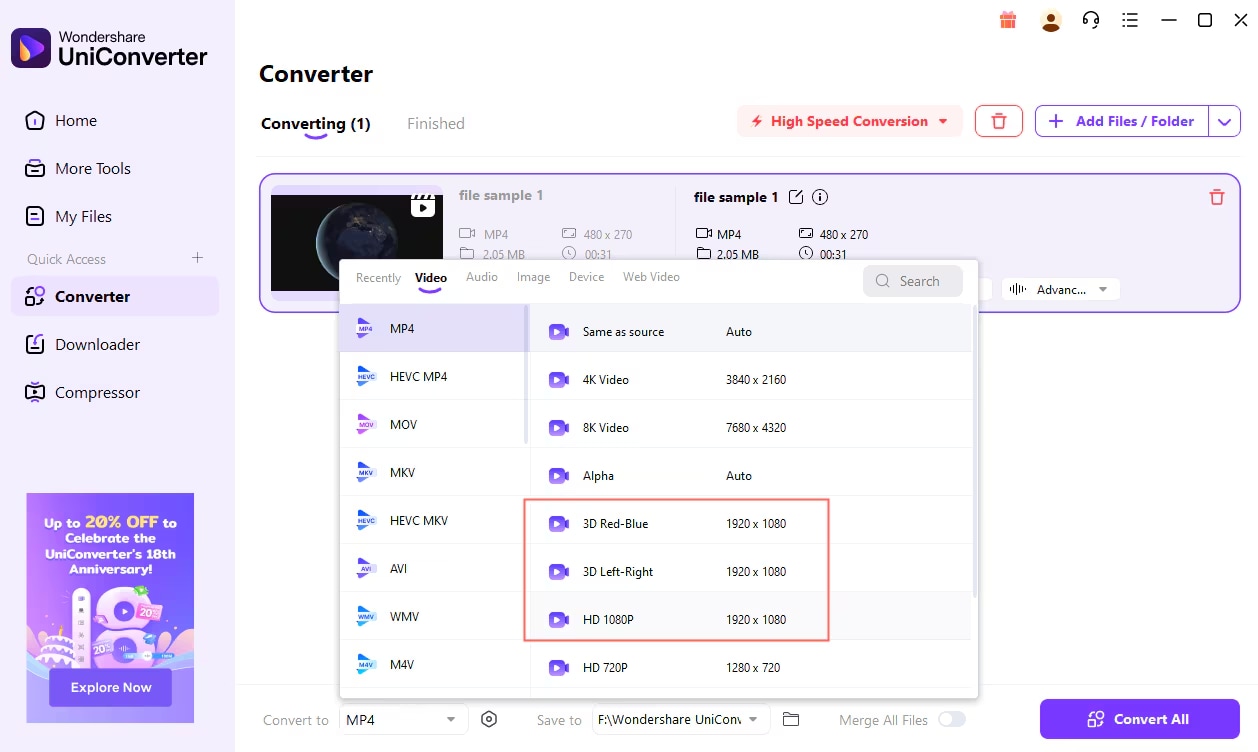

Easy to Use YouTube to MP4 1080P Converter
Part 4: How can you convert YouTube to 1080p MP4 online?
If you’re looking for a quick and hassle-free way to download YouTube videos in high-definition 1080P MP4 format, Y2Mate is one of the most accessible online tools. This browser-based converter allows you to save videos without installing any software, making it ideal for users on the go or those who want a lightweight solution. It supports multiple video resolutions and audio formats, provides fast download speeds, and works on both desktop and mobile devices. With a clean, intuitive interface, even beginners can navigate it easily. Y2Mate ensures that the conversion process is straightforward, requiring just a few clicks to go from YouTube link to high-quality MP4 download.
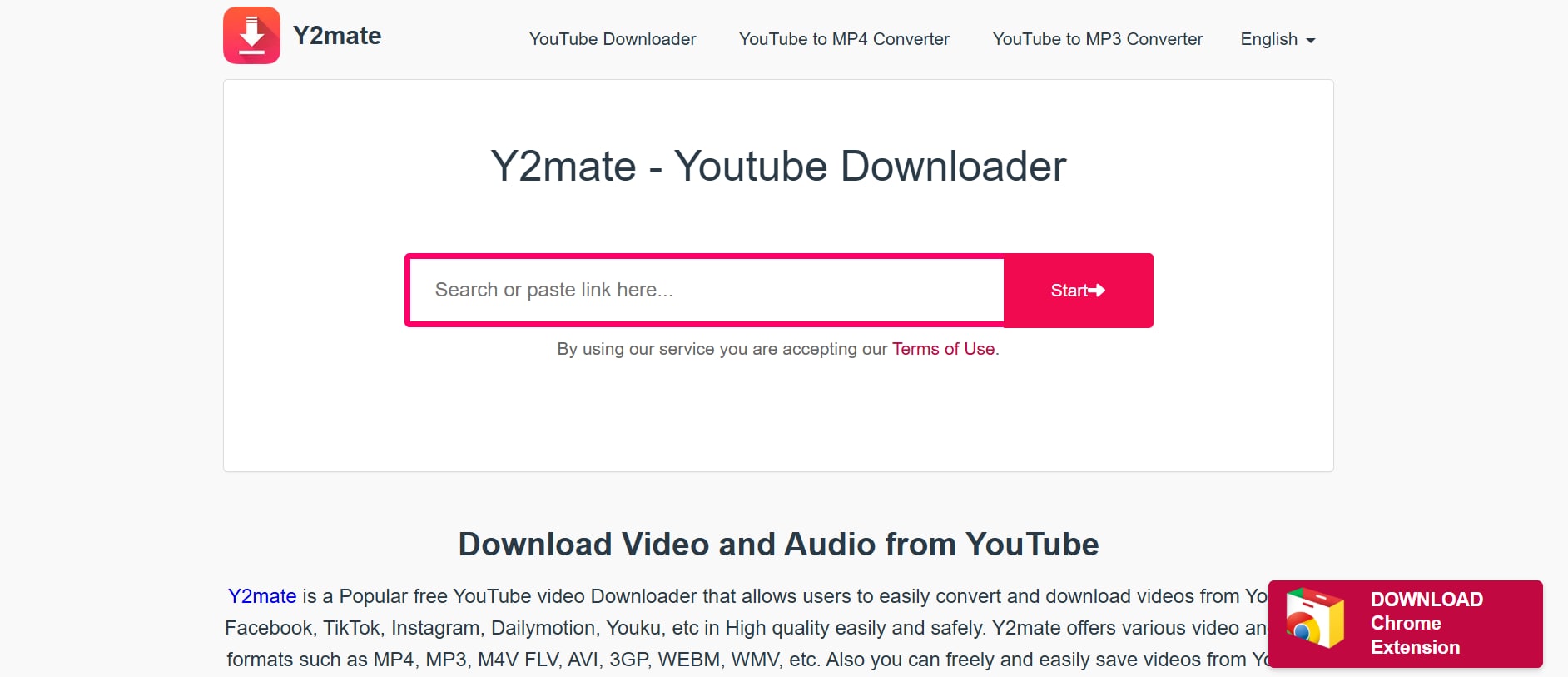
Key Features of Y2Mate
- Supports video downloads in multiple resolutions up to 1080P.
- Converts videos to MP4, MP3, and other popular formats.
- Works directly in your browser—no installation required.
- Compatible with Windows, Mac, Android, and iOS devices.
- Allows batch downloads for multiple videos at once.
- Fast processing and download speeds.
- Offers optional subtitle downloads if available on YouTube.
Simple Steps to Convert YouTube to 1080P MP4
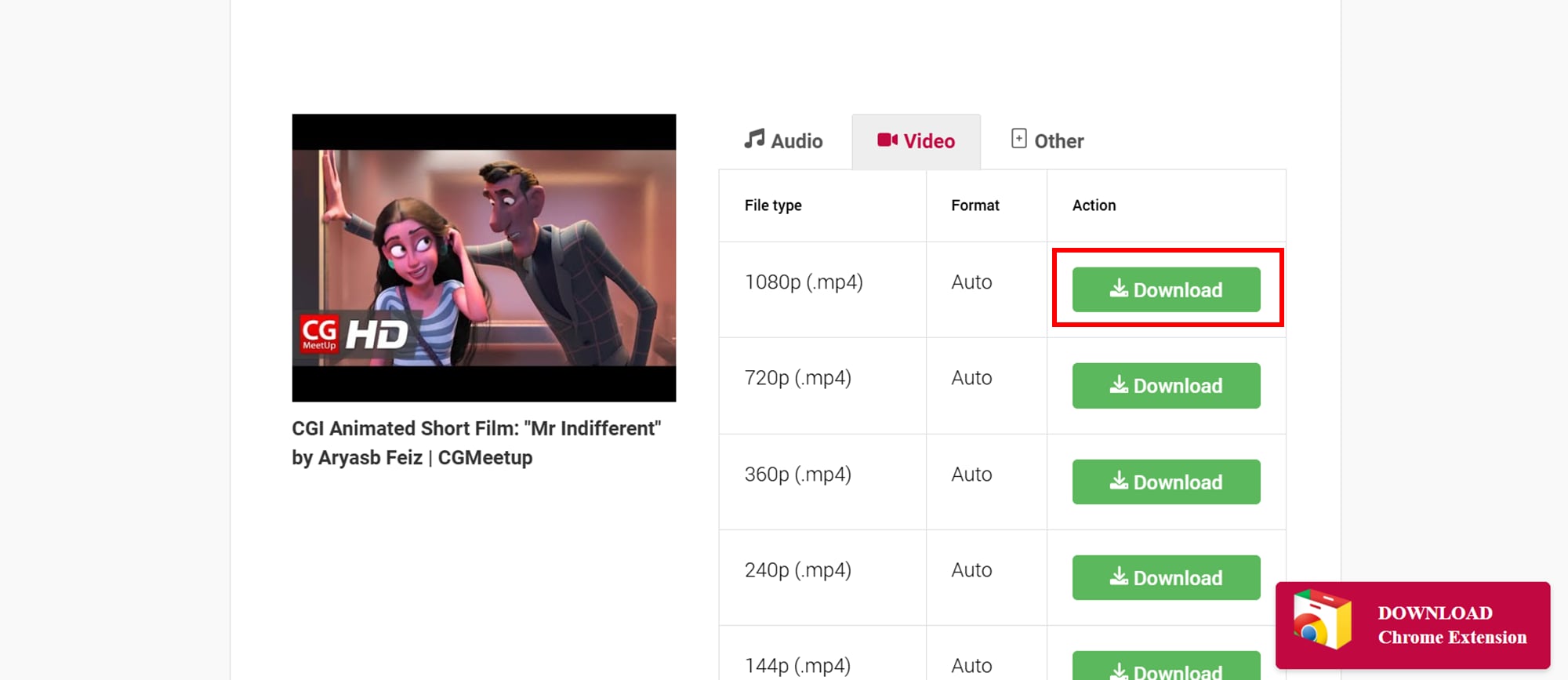
Step 1: Copy and Paste Video URL
Go to the YouTube video you want, copy its URL, and open Y2Mate in your browser. Paste the link into the input box on the homepage.
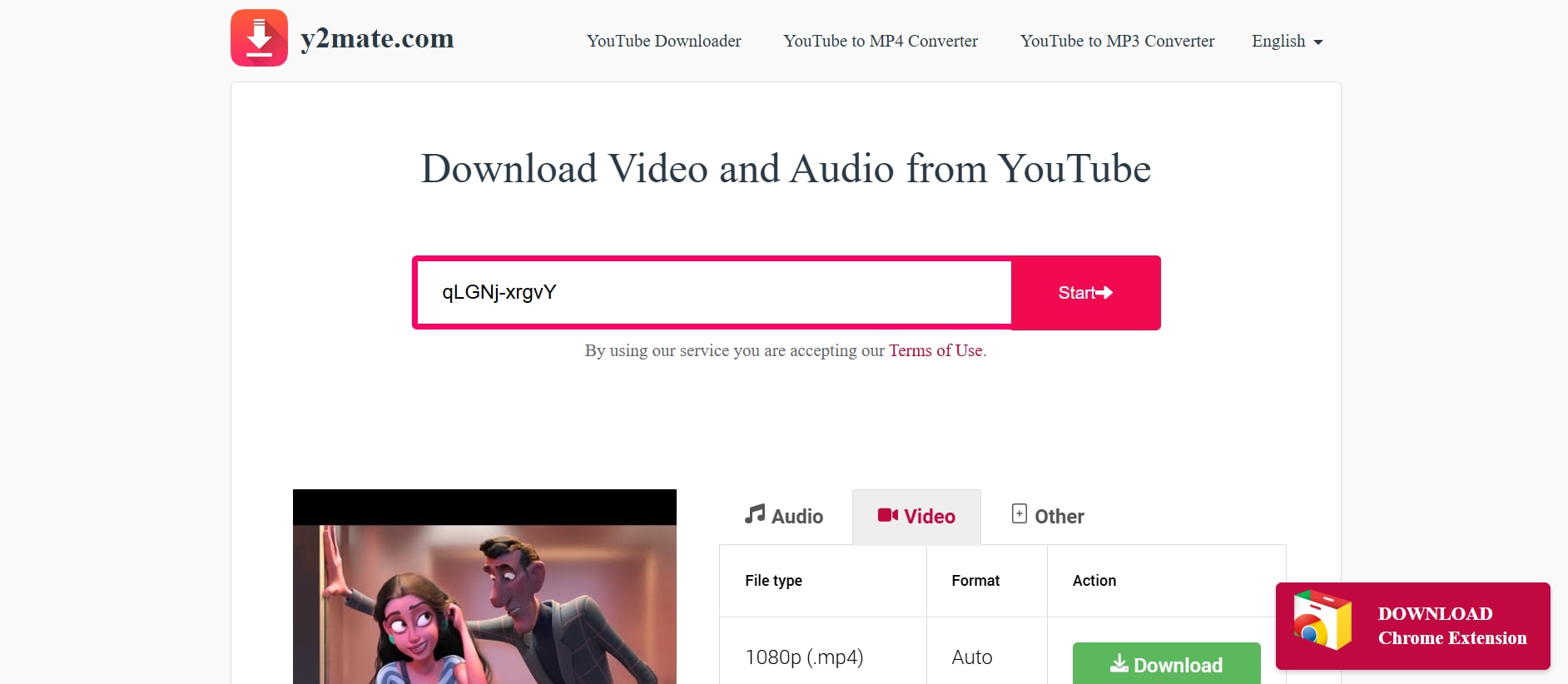
Step 2: Select Format and Resolution
Choose MP4 as the format and select 1080P from the available resolution options.
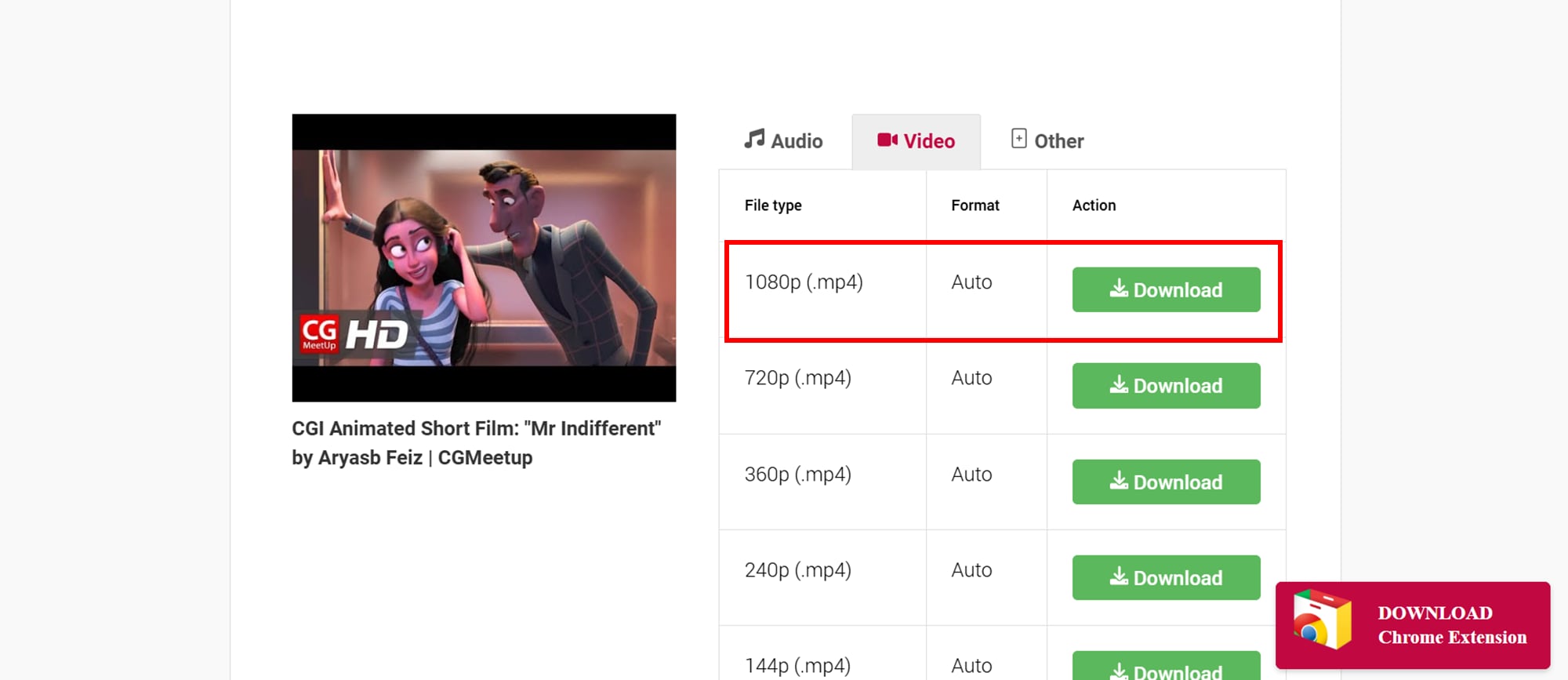
Step 3: Download the Video
Click Start or Download and wait for the conversion to complete. Once ready, click the final download link to save the video to your device.
Part 5: What’s the best desktop way to convert YouTube to 1080p MP4?
For a reliable and high-speed YouTube to MP4 conversion, Wondershare UniConverter is one of the best desktop solutions. UniConverter provides a safe, ad-free environment and supports downloading mp4 videos from url in 1080P and even higher resolutions. With its intuitive interface, it allows users to convert, compress, and manage videos efficiently. Unlike online tools, UniConverter ensures privacy and avoids potential risks from pop-up ads or unsafe links, making it ideal for frequent users or professional workflows.

Key Features of Uniconverter Desktop
- Download YouTube videos in 1080P, 2K, 4K, and 8K.
- Convert videos to MP4, MOV, AVI, MKV, and more formats.
- Built-in video editor for trimming, cropping, and adding effects.
- Supports batch downloads and conversions.
- Compress videos without losing quality.
- High-speed downloads using advanced acceleration technology.
- Safe and offline operation—no internet pop-ups or ads.
Simple Steps to Convert YouTube to 1080P MP4 with UniConverter
Step 1: Install UniConverter and Copy Video URL
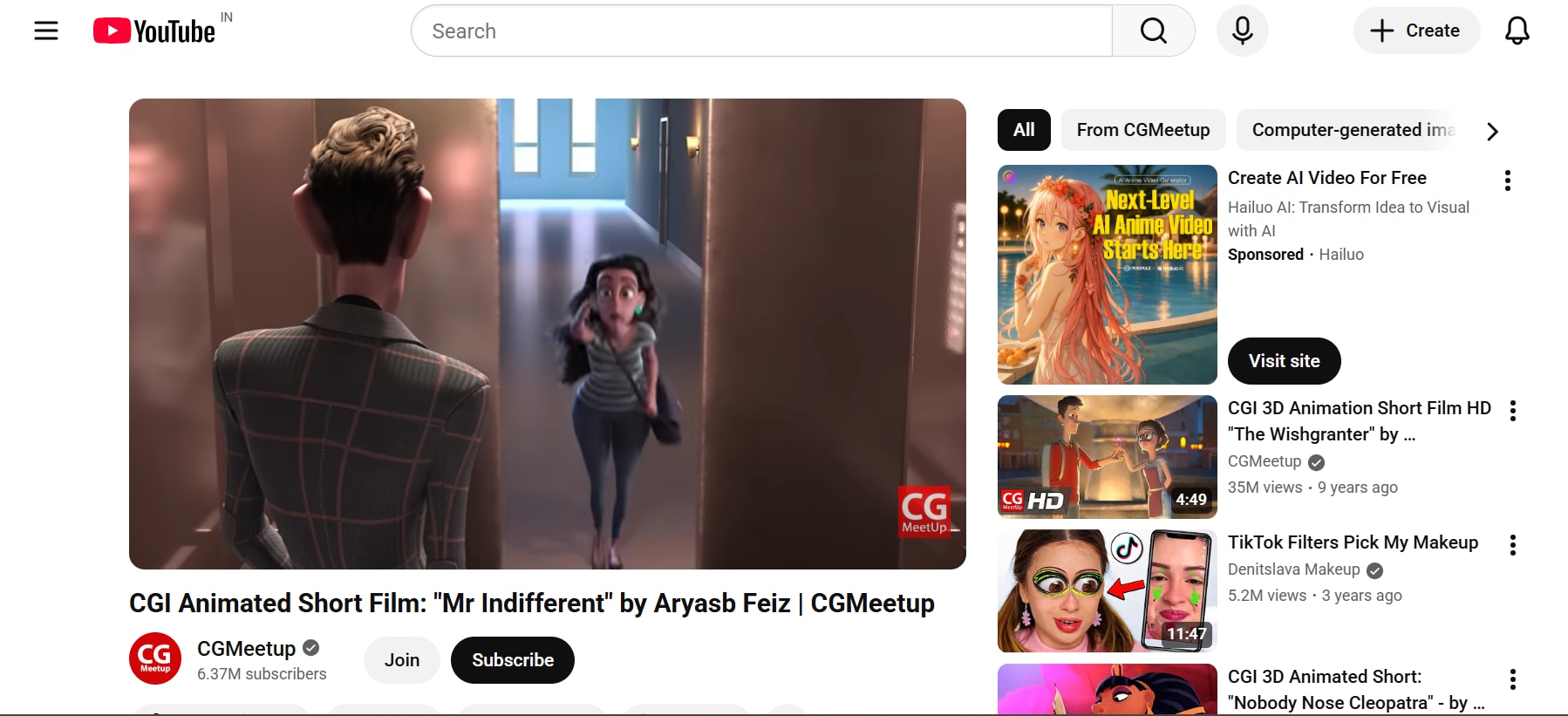
Download and install Wondershare UniConverter on your computer. Launch the program, then go to YouTube and copy the URL of the video you want to download. Make sure the URL is correct to avoid errors during download.
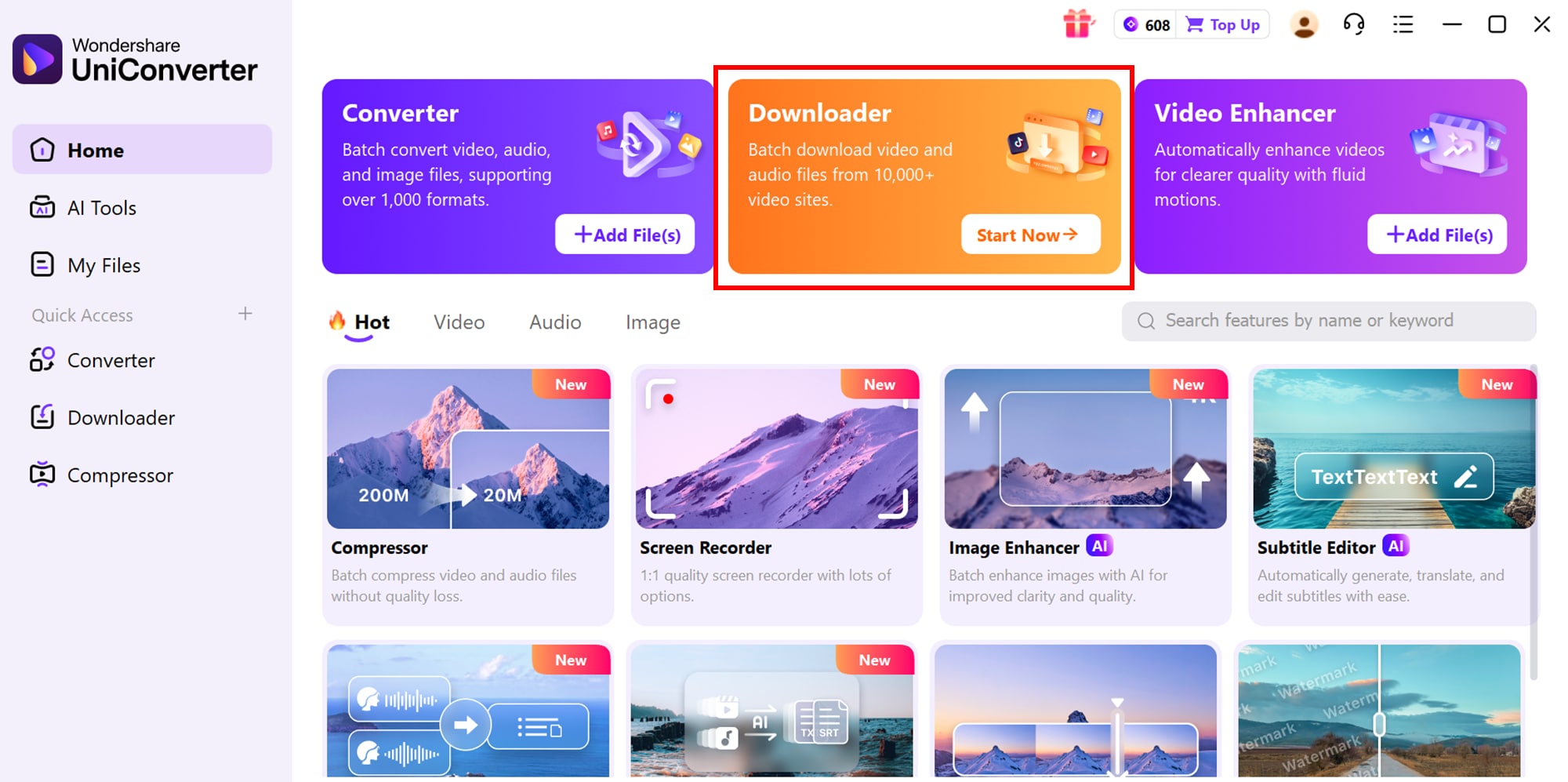
Step 2: Open Downloader and Paste UR
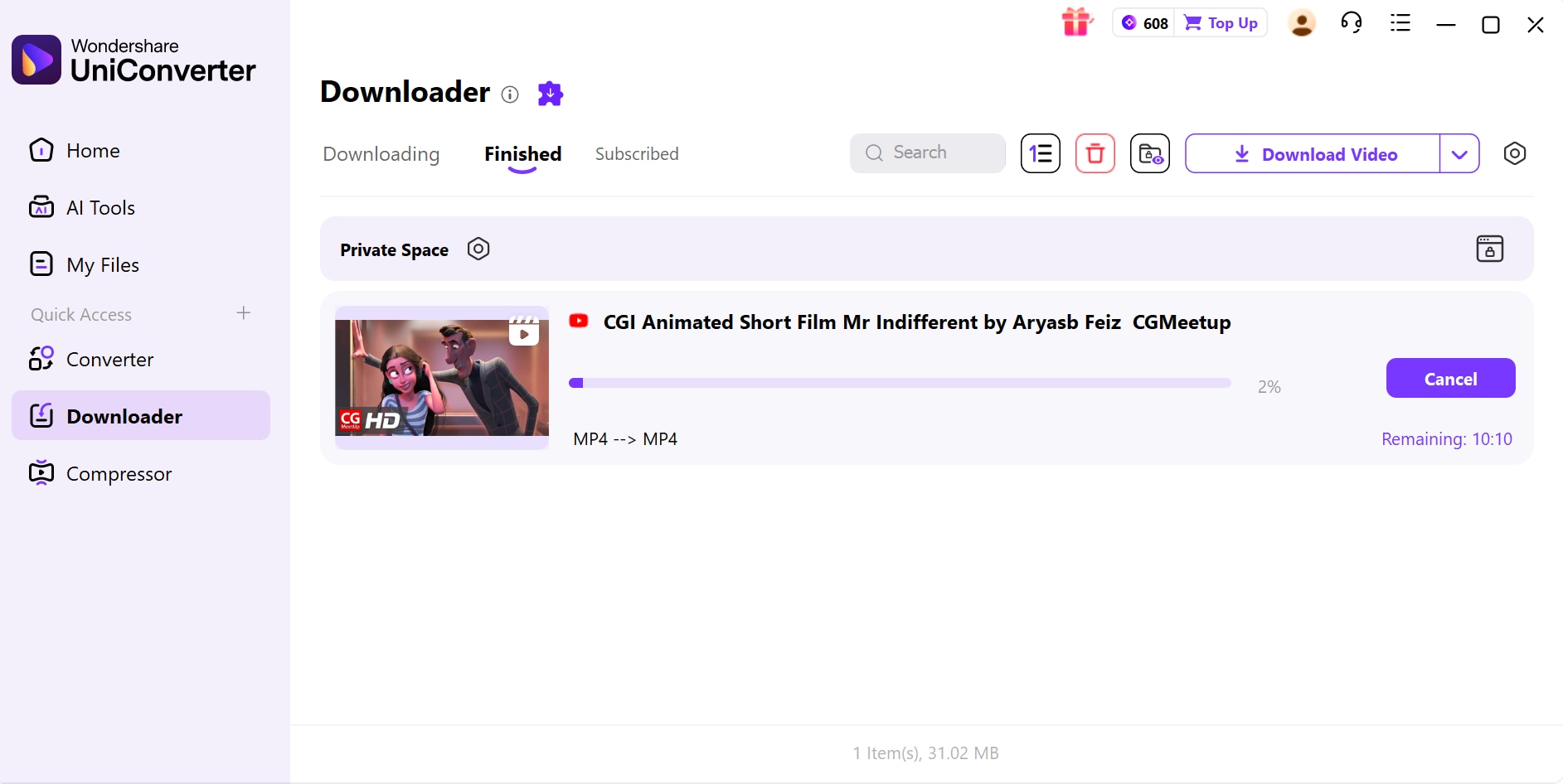
In UniConverter, navigate to the “Downloader” tab and click + Paste URL to load the video into the program. The software will automatically detect the video and prepare it for conversion.
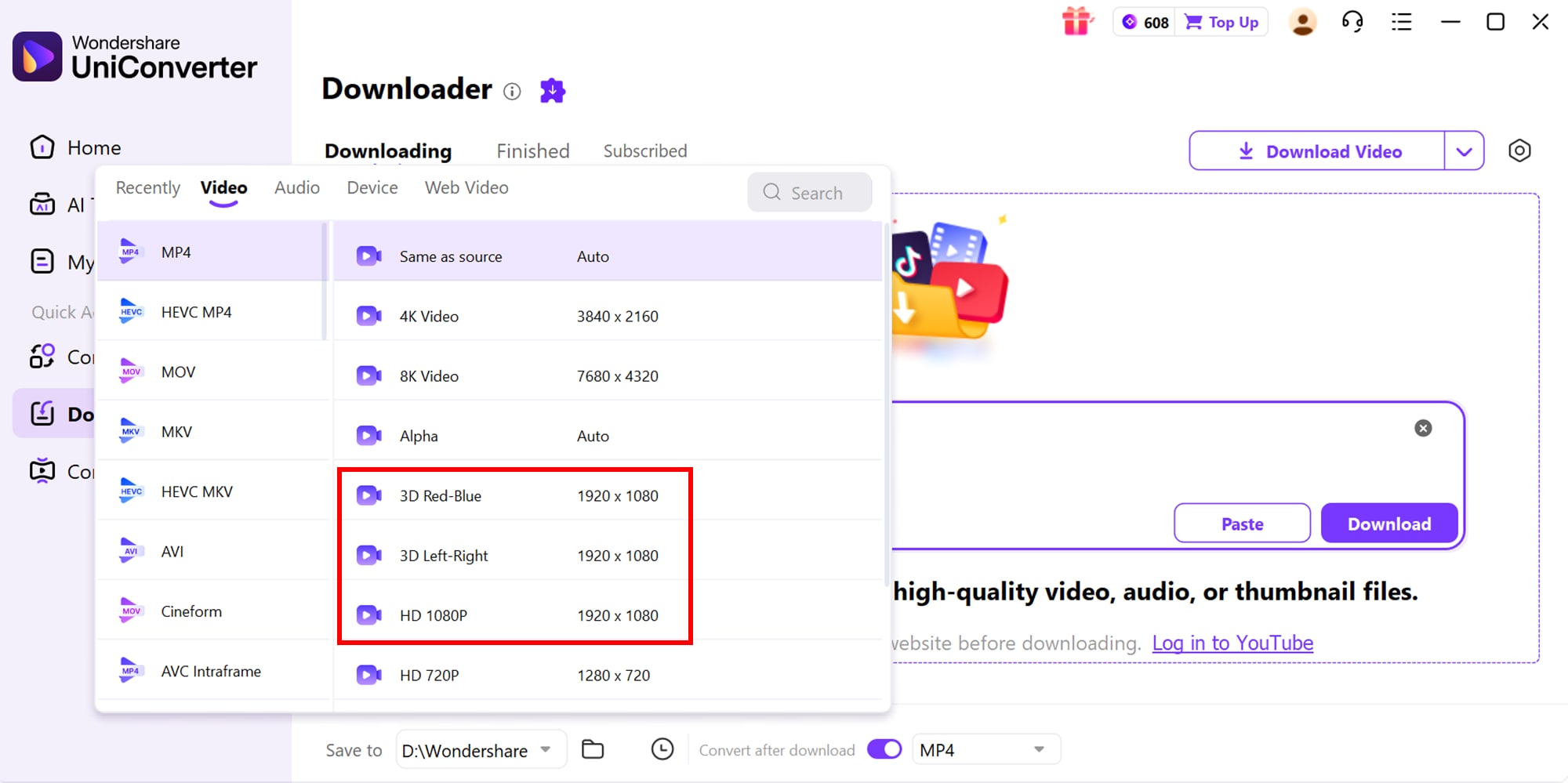
Step 3: Choose Format and Resolution
Select MP4 as the output format and choose 1080P resolution from the available options. You can also adjust other settings like file size or quality if needed.
Step 4: Download and Access Video
Click Download to start the process. Once finished, go to the “Finished” tab to view and play your 1080P MP4 video. You can now move or share the video file as required.
Part 6: Can you convert videos to 1080p MP4 on Android or iPhone?
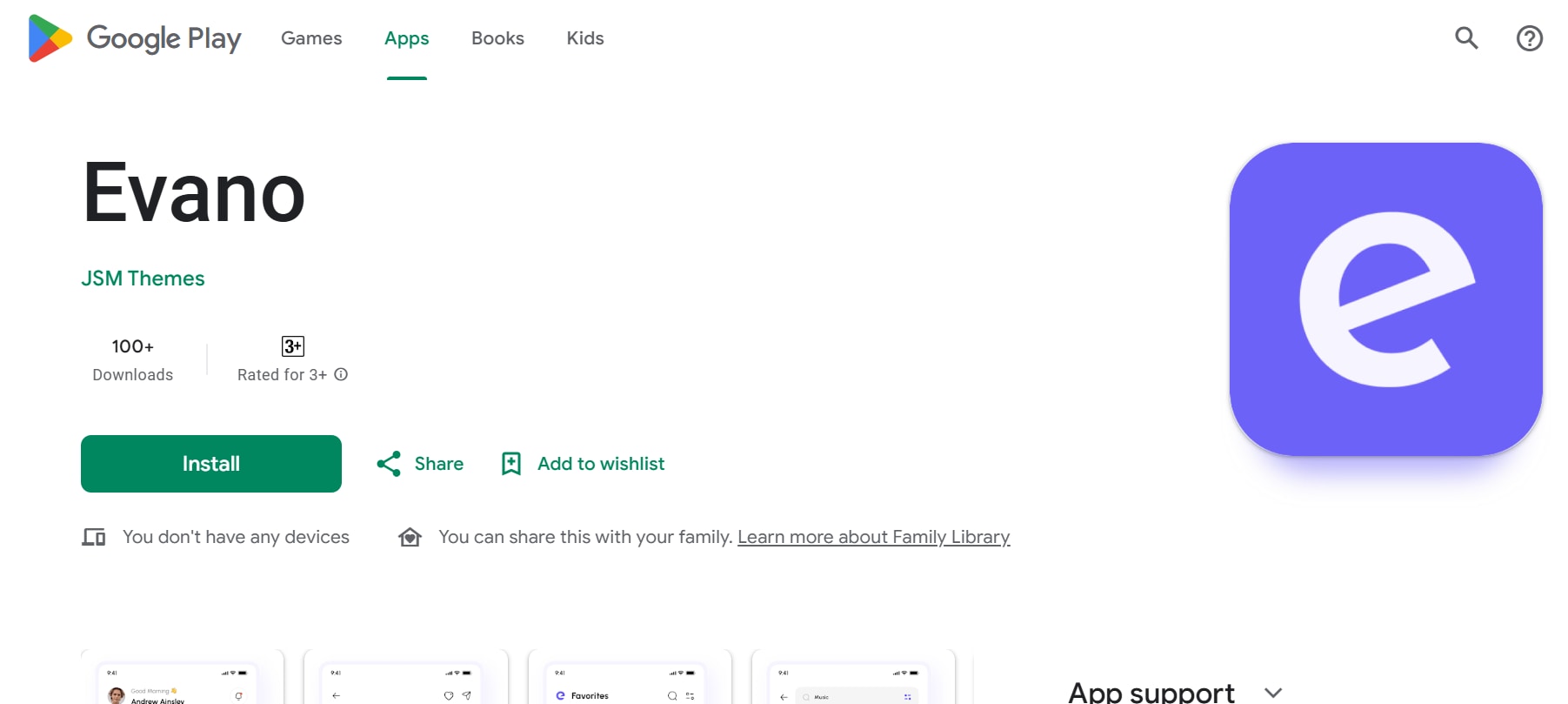
Evano is a versatile mobile app available for both Android and iOS that allows users to convert, compress, and manage video files in high quality. It’s ideal for creators who need to convert their own videos into 1080P MP4 format for sharing, editing, or storage. The app supports a variety of video formats and ensures fast, smooth conversions without compromising quality. With an intuitive interface, users can manage multiple files, trim or merge videos, and optimize them for social media or presentations. Evano is perfect for anyone who wants a reliable, mobile-friendly video conversion tool.
Key Features Evano App
- Convert videos to MP4, MOV, AVI, MKV, and more.
- Export videos in high resolution up to 1080P.
- Compress large video files without losing quality.
- Trim, merge, or edit videos within the app.
- Batch conversion for multiple videos at once.
- Supports Android and iOS devices.
- User-friendly interface with fast processing.
Simple Steps to Convert Videos to 1080P MP4 with Evano
Step 1: Install and Launch Evano
Download the Evano app from Google Play Store or Apple App Store and open it.
Step 2: Select Video
Choose the video you want to convert from your device storage.
Step 3: Choose Output Format
Select MP4 as the output format and set resolution to 1080P.
Step 4: Edit if Needed
Trim, merge, or adjust settings as needed using the in-app tools.
Step 5: Start Conversion
Tap “Convert” and wait for the process to complete.
Step 6: Access Converted Video
Once finished, open your converted 1080P MP4 video from the app’s output folder or device gallery.
Conclusion
Converting youtube videos to 1080P MP4 has never been easier, thanks to the variety of tools available for desktop, mobile, and online use. While online converters offer quick accessibility, desktop software like Wondershare UniConverter provides unmatched speed, safety, and advanced features, including batch conversion, video editing, and support for multiple formats.
By choosing the right tool for your needs—whether for efficiency, safety, or portability—you can ensure smooth, high-quality 1080P MP4 conversions while protecting your files and workflow.
FAQs
-
1. Can I convert videos from platforms other than YouTube using mobile apps?
Yes! Many mobile apps, including Evano, support video conversion from sources like Vimeo, Instagram, and personal recordings. Always ensure you have the rights to the content before converting. This flexibility allows creators to manage multiple sources of content in one app. -
2. Will converting a video to 1080P MP4 affect its original quality?
If the source video is already high resolution, a proper converter will preserve most of the quality. Low-resolution videos will not magically increase in quality when converted to 1080P, but the format will be compatible with high-definition devices. Choosing the right converter ensures minimal loss in clarity during the process. -
3. Are there any risks to using online video converters?
Some online converters may have pop-ups, ads, or potential malware risks. It’s essential to use trusted websites, avoid suspicious links, and ensure your device’s security software is up to date. Being cautious can protect your personal data and prevent unwanted software installations. -
4. Which software is best for professional-level video conversion and editing?
Wondershare UniConverter is an excellent choice for professional use. It allows batch conversions, high-speed processing, advanced editing, and supports multiple formats—all in a secure desktop environment. Its wide range of features makes it suitable for both beginners and experienced video editors. -
5. Can I edit or trim videos while converting them on mobile apps?
Yes, apps like Evano allow basic editing functions such as trimming, merging, or adjusting resolution during the conversion process. This makes it convenient to prepare videos for social media or presentations without needing a separate editor. These built-in tools save time and reduce the need for additional apps.

