


Struggling to play your favorite YouTube or MP4 videos on devices that only support AMV format? Many users face compatibility issues when trying to watch or share videos on portable media players. This guide solves that problem by explaining what AMV format is, why it’s useful, and how to convert videos easily.
Whether you’re worried about video quality loss, legal concerns, or managing multiple files, this step-by-step guide covers everything—from the best conversion tools of 2025 to batch processing tips—so you can enjoy your videos hassle-free on any AMV-compatible device.
In this article
Part 1: What is AMV format, and why would you convert videos to it?
AMV (Actions Media Video) is a specialized video format designed for low-resolution, portable media devices. Typically, AMV videos range from 96x96 to 160x120 resolution, making them compatible with S1 MP3 players and various Chinese portable media players. Despite the smaller resolution, AMV files are highly efficient, offering ultra-compressed file sizes that are perfect for devices with limited memory. This compression allows users to store more videos on compact storage devices without sacrificing playability.
Why do people still convert videos to AMV?
Mentioned below are the reasons why convert to AMV:
Actions Media Video Format Specifications
AMV (Actions Media Video) is specifically designed for low-resolution video playback on portable devices. The format generally supports resolutions from 96x96 up to 160x120 pixels, which may seem small compared to modern HD standards, but it’s perfectly optimized for compact screens. This resolution ensures smooth playback even on devices with limited processing power, reducing lag and buffering issues while maintaining acceptable visual clarity for personal viewing.
Target Devices
AMV files are widely compatible with S1 MP3 players and various Chinese portable media players, which are popular for their affordability and portability. These devices often cannot handle standard formats like MP4 or AVI efficiently due to hardware constraints. AMV format ensures that videos play seamlessly on these devices, providing a reliable media experience without requiring expensive or high-end gadgets.
Storage Benefits
One of the key advantages of AMV is its ultra-compressed file size. The smaller resolution and efficient encoding allow users to store more videos on devices with limited memory, making it ideal for users who want to carry multiple movies, music videos, or short clips on compact portable players. This compression balances storage efficiency with acceptable playback quality, ensuring users don’t have to compromise on quantity.
Offline Viewing Advantages
AMV format enables offline playback, meaning videos can be watched anytime, anywhere without an internet connection. This is particularly useful for travelers, commuters, or users in areas with limited connectivity, as they can enjoy their favorite content on portable devices without worrying about buffering or streaming issues. Offline accessibility makes AMV a practical choice for on-the-go entertainment.
Part 2: What should you know before converting YouTube videos to AMV?
Converting YouTube videos to AMV can be useful for offline viewing or portable playback, but it’s essential to follow legal and ethical guidelines to avoid potential issues. Like below are the key considerations:
YouTube Terms of Service Compliance
Always ensure that your actions comply with YouTube’s Terms of Service. Downloading videos directly from YouTube without permission may violate their policies. Using third-party tools responsibly helps you enjoy content legally without risking your account or facing penalties.
Personal Use vs Redistribution Guidelines
Converting videos for personal viewing on portable devices is generally acceptable. However, sharing, selling, or redistributing these converted videos can infringe copyright laws and may result in legal consequences. Keeping conversions strictly for personal use ensures you remain within legal boundaries.
Copyright Awareness and Fair Use Principles
Be aware of copyright laws when converting videos. Some content may fall under fair use (e.g., educational purposes, commentary, or review), but using copyrighted material commercially or publicly without permission is illegal. Understanding the difference between fair use and infringement protects you from legal trouble.
Safe Downloading Practices and Security Measures
Use reliable and secure conversion tools to avoid malware or phishing threats. Avoid suspicious websites or apps that promise downloads for free but compromise your system. Always keep antivirus software updated and download files from trusted sources to ensure safety.

Easy to Use AMV Video Converter
Part 3: Best 5 YouTube to AMV Conversion Tools 2025
1. Wondershare UniConverter
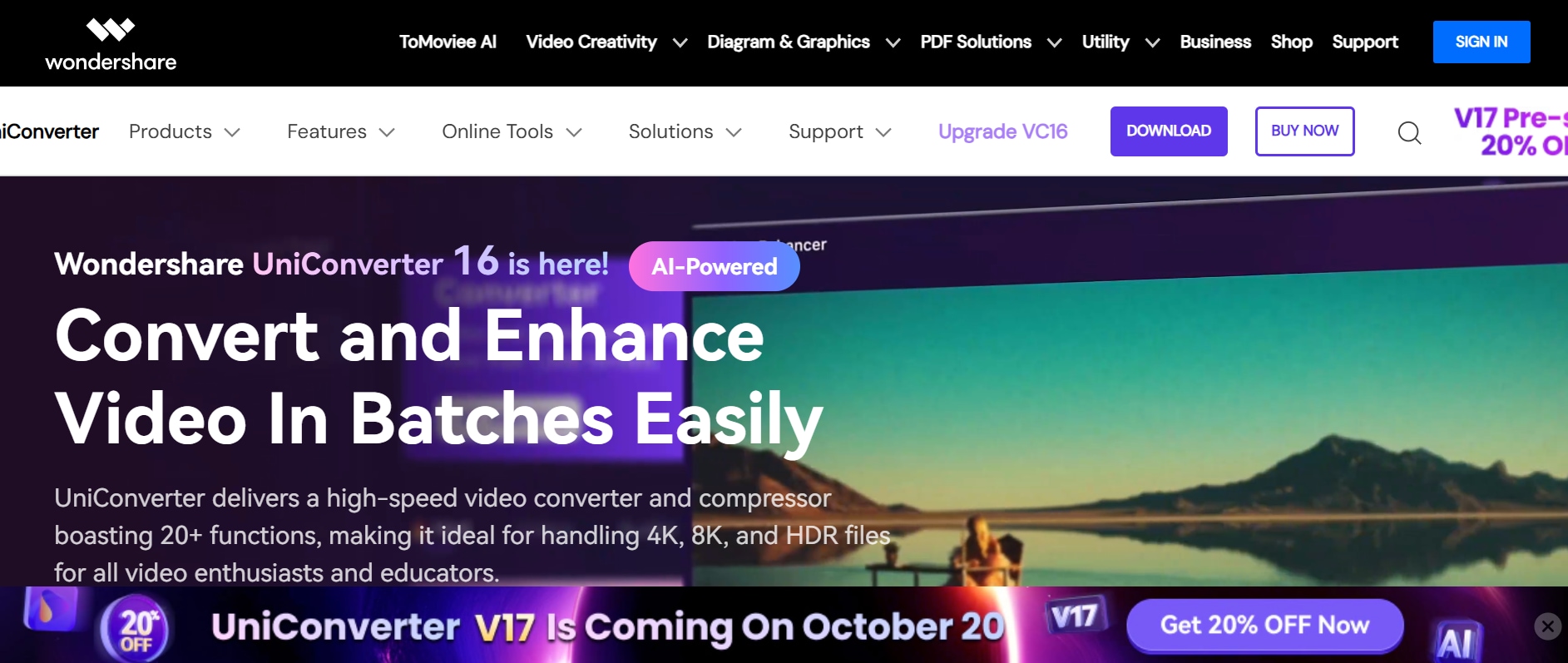
Wondershare UniConverter is an all-in-one video conversion tool for Windows and macOS, offering support for AMV format along with over 1,000 video formats. It allows users to download YouTube videos, convert them to AMV, and batch process multiple files at lossless quality. Its intuitive interface, AI-assisted features, and high-speed conversion make it ideal for both beginners and professionals. The tool also provides built-in editing options and device presets for portable media players. Users can trim, crop, and add subtitles before conversion to customize their videos. Its GPU acceleration ensures fast processing even for large files, saving time without compromising quality.
Pros:
- High-speed conversion with GPU acceleration
- Batch conversion support for multiple videos
- Built-in video editor and device presets
- Supports a wide range of video formats
- Maintains original video quality
- Easy-to-use interface for beginners
- Subtitle addition and video trimming features
Cons:
- Paid plans required for full features
- Desktop software with limited online tool pages
Product Type: Desktop Application (Windows, macOS)
2. Any Video Converter (AVC)
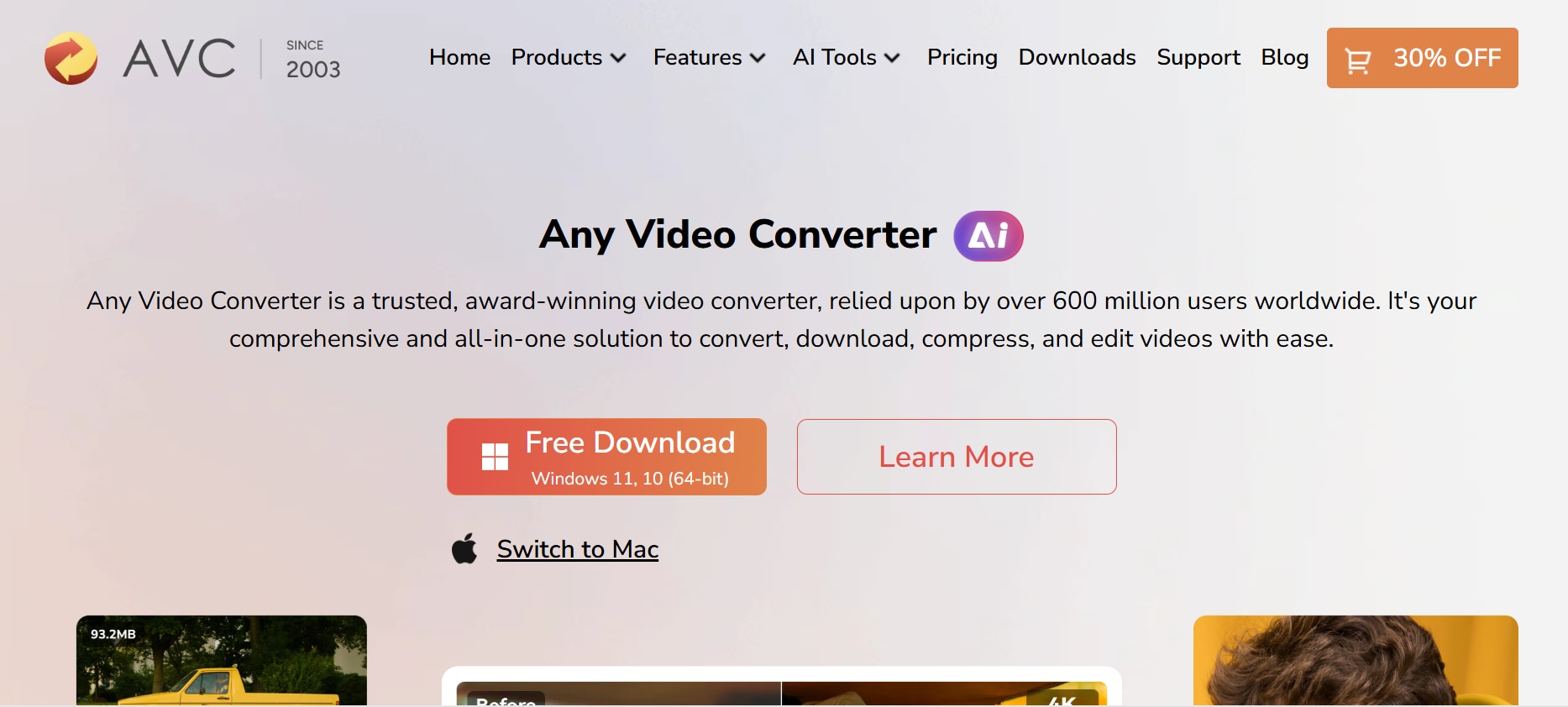
Any Video Converter (AVC) is a versatile desktop tool that allows users to download, convert, and edit YouTube videos into AMV and other formats. It is compatible with Windows and macOS, and provides device-specific presets for portable media players. AVC is known for its fast conversion speed and ability to handle batch processing without compromising video quality. It also lets users adjust video parameters like resolution, bitrate, and frame rate for optimal playback. With its built-in editor, you can enhance videos with effects, watermarks, or subtitles before converting.
Pros:
- Supports multiple video formats including AMV
- Batch conversion for multiple files
- Device-specific presets for portable players
- Built-in basic video editing tools
- High-speed conversion with minimal quality loss
- Adjustable video parameters
- Easy-to-use interface
Cons:
- Advanced features require paid version
- Desktop-only software
Product Type: Desktop Application (Windows, macOS)
3. Freemake Video Converter
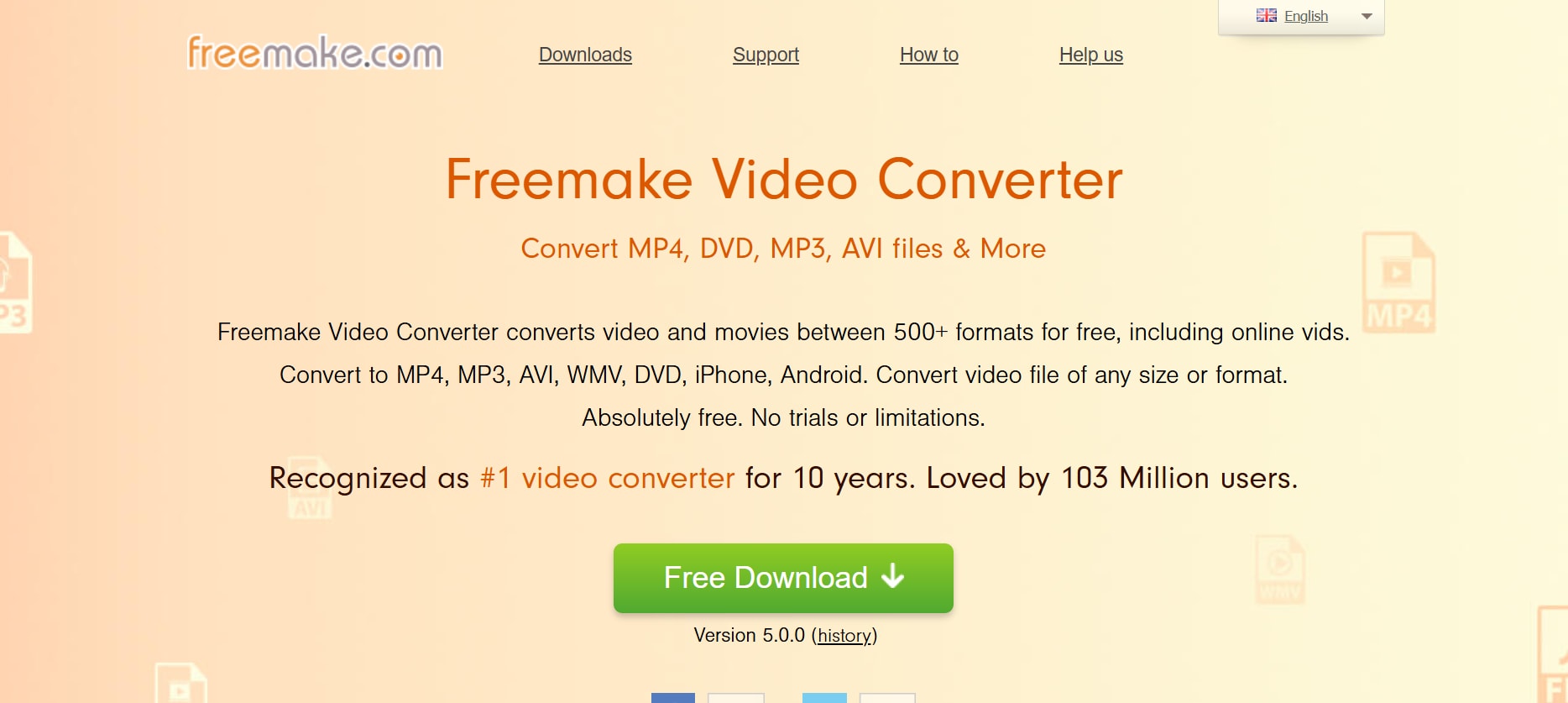
Freemake Video Converter is a Windows-based video conversion tool that supports converting YouTube and MP4 videos into AMV format. It provides an intuitive interface for beginners, along with options for batch conversion and video editing. Freemake also supports direct downloads from online platforms, making it convenient for users who want portable video files quickly. Users can merge multiple videos into one file or split videos into segments for easier viewing. The software also offers basic customization like adjusting aspect ratios and adding subtitles to match device specifications.
Pros:
- User-friendly interface
- Supports multiple formats including AMV
- Batch video conversion
- Basic editing tools included
- Direct online video download feature
- Merge and split video functionality
- Subtitle addition support
Cons:
- Watermark added in free version
- Windows only
Product Type: Desktop Application (Windows)
4. iFun Video Converter
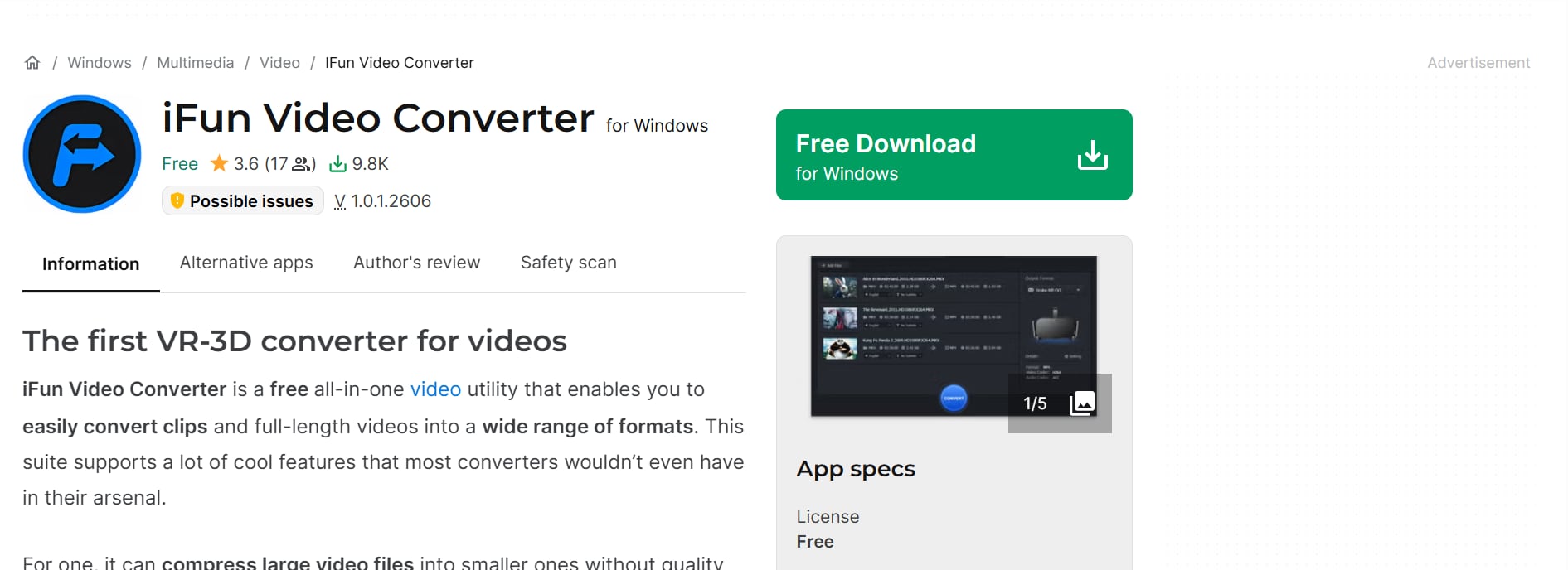
iFun Video Converter is a lightweight desktop program for Windows that supports YouTube downloads and conversion to AMV format. It’s designed for fast conversions and works well with portable media devices. iFun Video Converter also includes basic video editing tools and supports multiple formats for flexibility. The software provides easy-to-use presets for different devices, making it beginner-friendly. Users can also adjust resolution, bitrate, and audio settings to ensure videos play smoothly on any media player.
Pros:
- Lightweight and fast
- Supports AMV and other formats
- Simple and easy-to-use interface
- Basic video editing features
- Device-specific presets for easy conversion
- Adjustable video and audio settings
Cons:
- Limited advanced editing options
- Windows only
Product Type: Desktop Application (Windows)
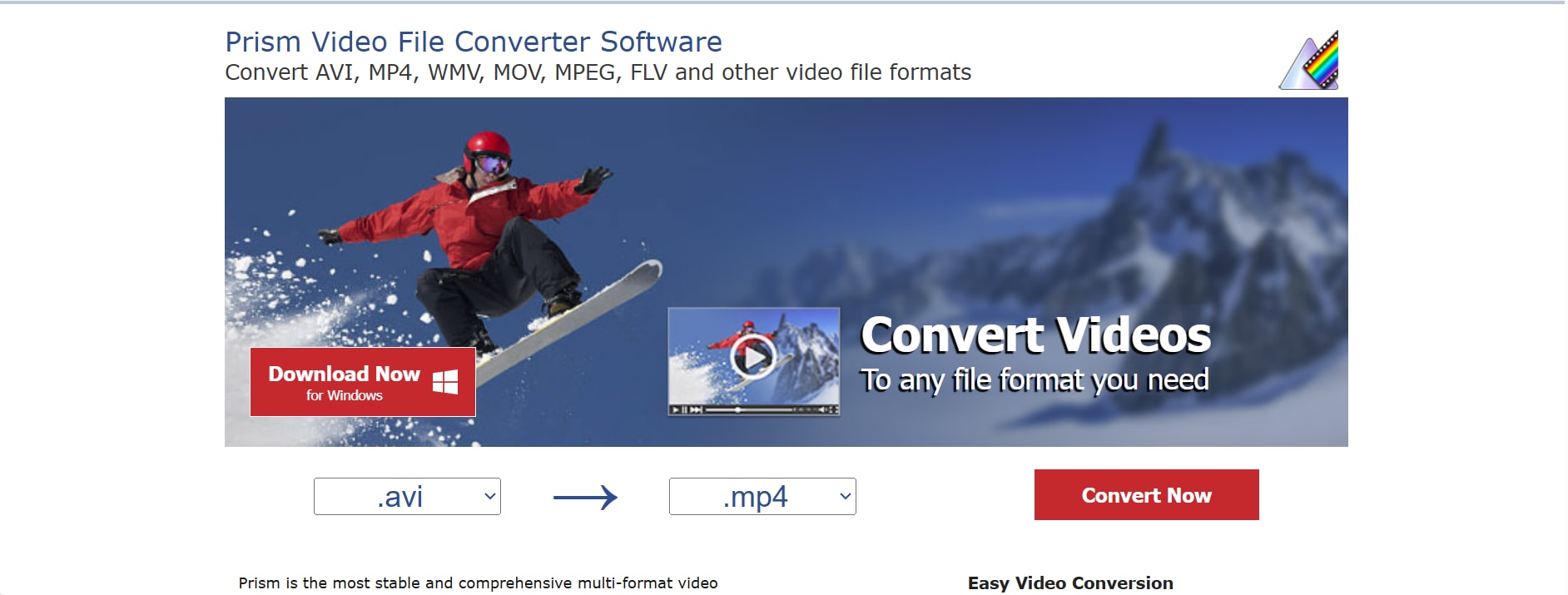
5. Prism Video Converter
Prism Video Converter by NCH Software is a versatile video converter for Windows and macOS that supports AMV conversion. It offers batch processing, device presets, and maintains high video quality during conversion. Prism is suitable for both beginners and professionals who need a reliable tool for offline and portable video playback. The program also allows users to compress videos for storage efficiency while retaining clarity. With drag-and-drop functionality and an intuitive interface, converting videos is quick and straightforward even for first-time users.
Pros:
- Supports a wide range of formats including AMV
- Batch processing capabilities
- Device-specific presets for portable media players
- Maintains high-quality video output
- Easy drag-and-drop functionality
- Compression without quality loss
- Works on both Windows and macOS
Cons:
- Free version limited in features
- Desktop-only software
Product Type: Desktop Application (Windows, macOS)
Easy to Use AMV Video Converter
Part 4: How can you batch convert videos to AMV with better quality control?
Follow the below mentioned steps to batch convert AMV files at lossless quality:
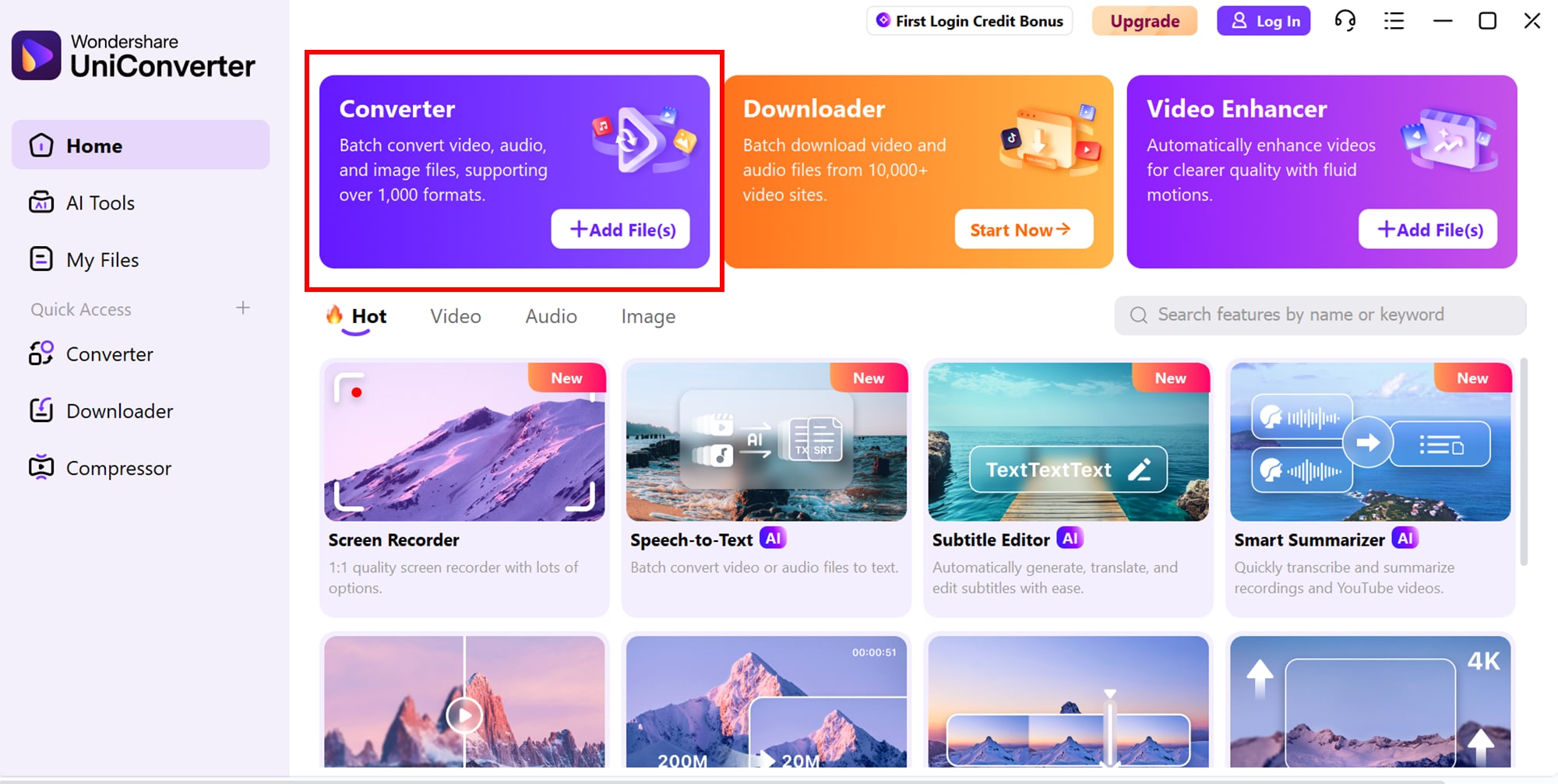
Step 1: Access Converter
Open the converter tool through your desktop or web application interface. It provides a clean, intuitive dashboard for quick navigation and format selection. Users can also access advanced settings for batch processing or customized conversions easily.
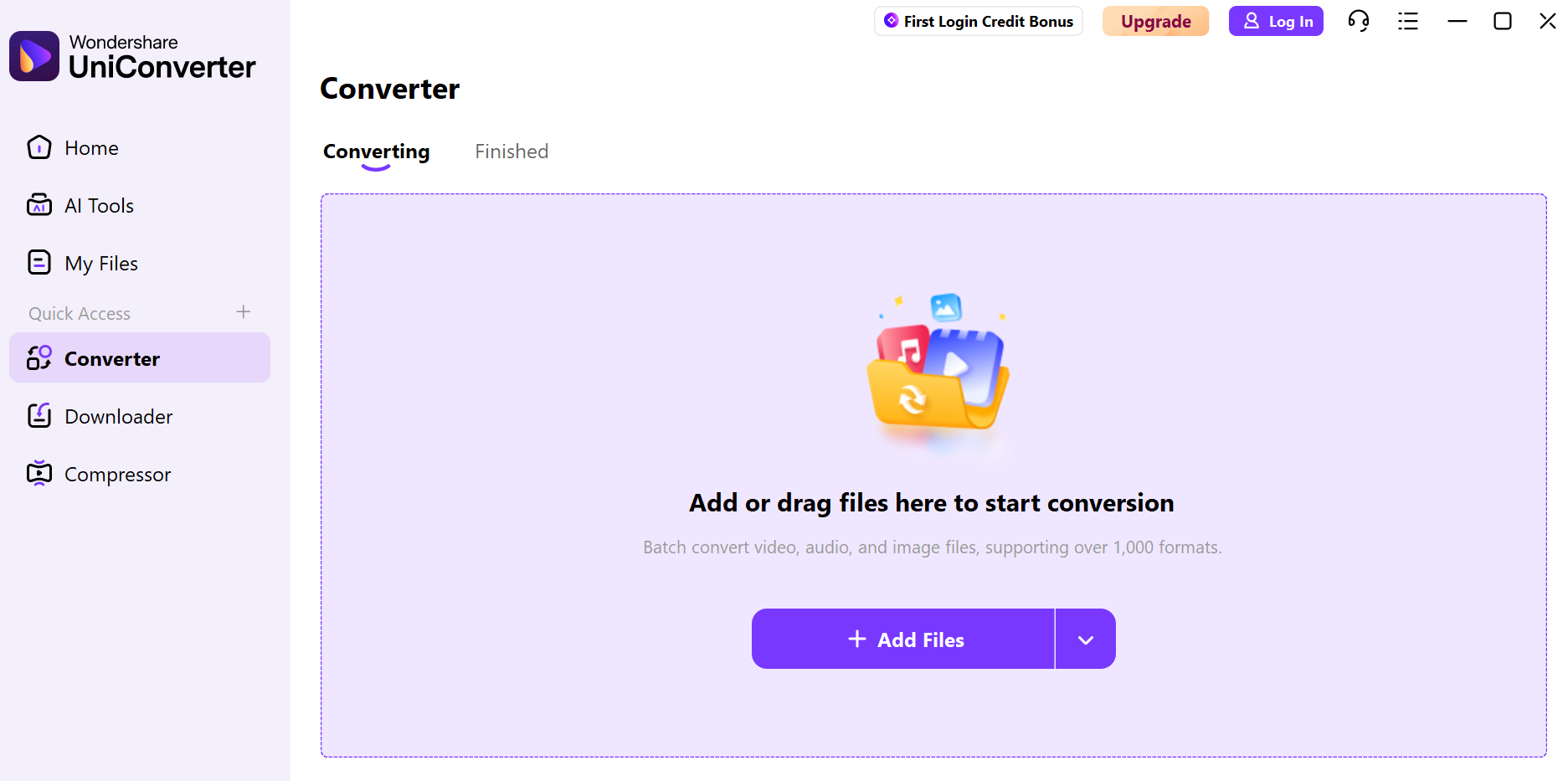
Step 2: Upload Multiple Files
You can drag and drop several videos at once or use the “Add Files” button for a more organized upload. The batch upload feature saves time by allowing you to queue multiple clips simultaneously. It supports various video formats, making it easy to work with content from different sources.
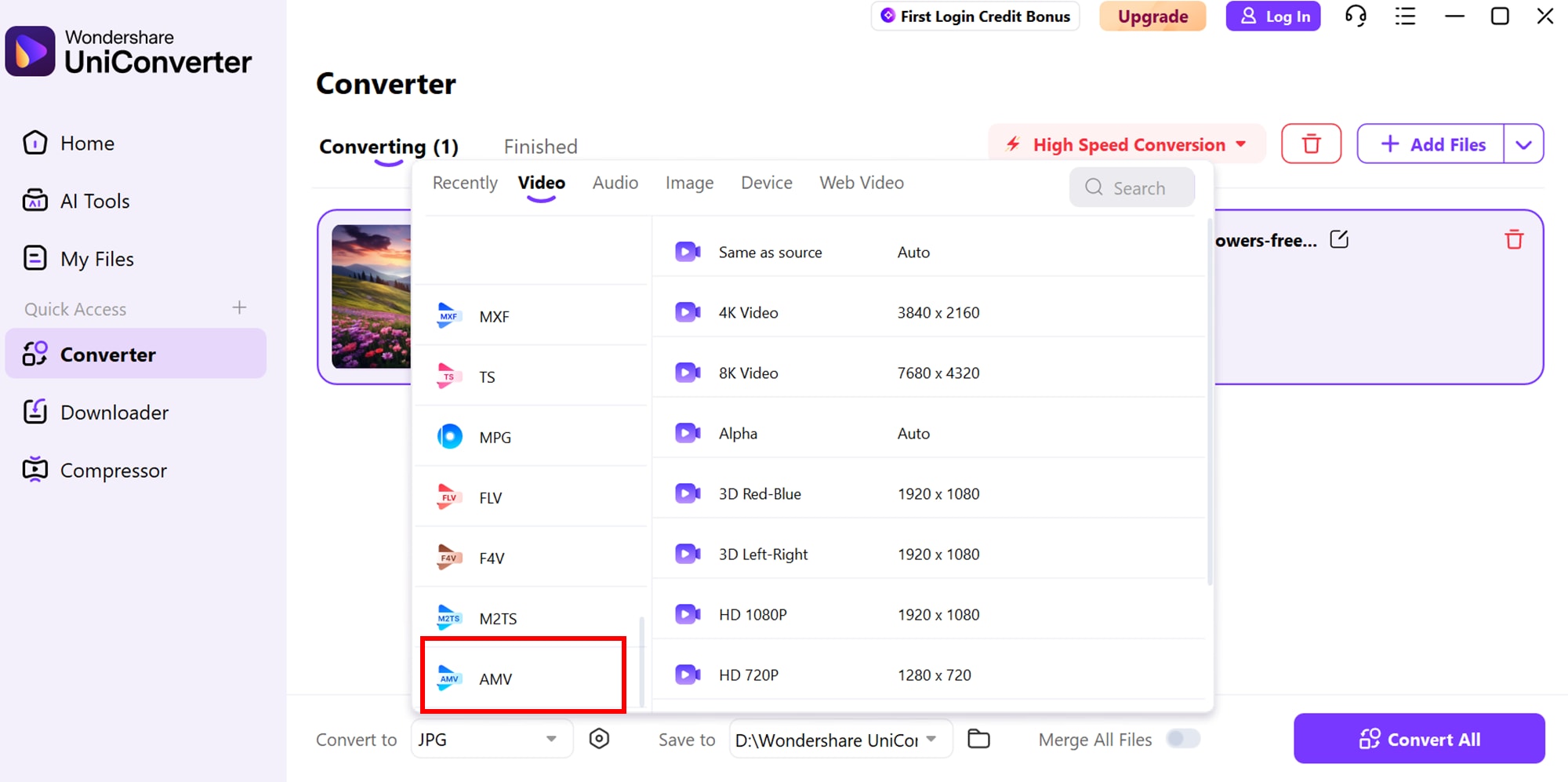
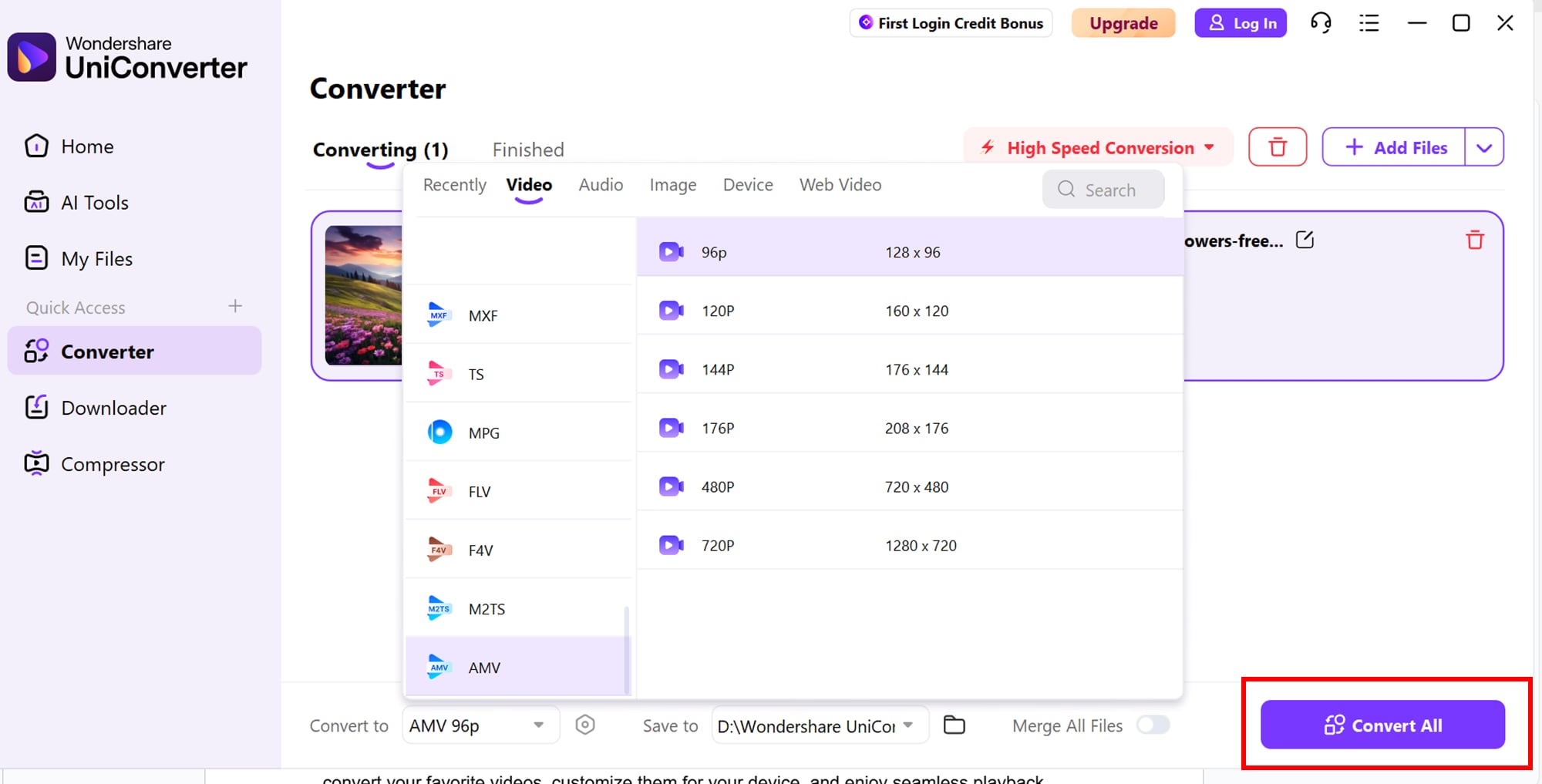
Step 3: Choose AMV Format
Once uploaded, select the AMV format from the available output list to ensure compatibility with portable media players. You can adjust quality settings, resolution, and compression options before finalizing. This step ensures your videos are optimized for smooth playback without compromising visual clarity.
Step 4: Convert All Files
Click the Convert All button to process your files in one go. The tool automatically applies your chosen settings to every video, ensuring consistency across outputs. Once conversion is complete, you can download or directly share the AMV files to your device or platform of choice.
Conclusion
Converting YouTube and MP4 videos to AMV format has never been easier thanks to modern video conversion tools. Whether you need offline playback, efficient storage, or compatibility with portable devices, these tools simplify the process while maintaining quality. With the right tool, converting videos to AMV is quick, safe, and convenient, making it ideal for both beginners and experienced users.
FAQs
-
1. Can I convert videos to AMV on my smartphone?
Yes, some lightweight mobile apps support AMV conversion, but most tools are optimized for desktops due to processing requirements. For smartphones, cloud-based or web converters are usually more practical. -
2. What is the best way to maintain video quality while converting to AMV?
To preserve quality, use a tool that supports lossless conversion and bitrate adjustments. Desktop applications like allow you to control resolution, frame rate, and audio settings to ensure minimal quality loss during conversion. -
3. Are there free tools for converting YouTube videos to AMV?
Yes, there are free tools like Freemake Video Converter or iFun Video Converter that offer basic conversion features. However, free versions may have limitations such as watermarks, restricted file size, or slower processing speed. -
4. Can I batch convert multiple YouTube videos to AMV at once?
Absolutely. Many desktop tools like Prism Video Converter or Any Video Converter allow batch processing, letting you convert multiple files simultaneously and saving considerable time. -
5. Is it legal to convert YouTube videos to AMV format?
Converting videos for personal use is generally considered acceptable, but redistributing or sharing copyrighted content without permission is illegal. Always respect copyright laws and YouTube’s Terms of Service to avoid legal issues.

