

If Twitter videos are not playing on your phone or computer, you are not alone. Many users run into the same issue when videos keep buffering, show a black screen, fail to load, or display an error such as “media could not be played.”
In most cases, the problem is caused by a weak internet connection, app glitches, outdated browsers, corrupted cache, playback settings, or temporary platform issues. The good news is that you can usually fix it in a few minutes.
So let's walk through everything about the Twitter video not playing issue: why it happens, 10 practical fixes, device-specific solutions for iPhone, Android, and browsers, plus what to do if a downloaded Twitter video still will not play.
In this Article
- Part 1: Why Is Twitter Video Not Playing
- Part 2: 10 Fixes for Twitter Videos Not Playing
- Part 3: How to Fix Twitter Video Not Playing on iPhone
- Part 4: How to Fix Twitter Video Not Playing on Android
- Part 5: How to Fix Twitter Video Not Playing in a Browser
- Part 6: How to Fix Specific Twitter Playback Problems
- Part 7: What If a Downloaded Twitter Video Still Won’t Play?
- Part 8: Use UniConverter If the Downloaded Video Still Won’t Play
- Part 9: How to Prevent Twitter Videos From Not Playing Again
- Conclusion
- FAQs
Part 1: Why Is Twitter Video Not Playing
Before trying the fixes, it helps to understand what may be causing the problem. Twitter video playback depends on several things working properly at the same time, including your internet connection, device performance, app version, browser settings, and Twitter’s own servers. If any one of these fails, videos may stop loading or playing correctly.
1. Weak or unstable internet connection: A poor internet connection is one of the most common reasons Twitter videos do not play. Since videos need to load data continuously, even a short drop in network quality can interrupt playback. This often results in endless buffering, videos not loading at all, playback stopping halfway, or low video quality.
2. Temporary app or browser glitches: Sometimes the issue is not your network but the Twitter app or browser itself. Temporary bugs, memory overload, or incomplete page loading can all interfere with video playback. A simple refresh, restart, or reopening of the app can often solve this type of problem.
3. Outdated Twitter app or browser version: Using an outdated version of the Twitter/X app or your browser may lead to compatibility issues. Social media platforms frequently update how media is loaded and displayed, and older software versions may not work well with newer video playback requirements.
4. Corrupted cache and cookies: Cache files and cookies are designed to improve loading speed, but over time they can become outdated or corrupted. When that happens, Twitter may try to load broken temporary files instead of fresh content, which can prevent videos from playing normally.
5. Data saver or autoplay settings: Twitter/X has built-in settings that affect video playback, including autoplay and data-saving options. Your phone may also have system-level settings like Low Data Mode or Data Saver turned on. These restrictions can limit when videos are allowed to load, especially on mobile data.
6. VPN, proxy, or browser extension conflicts: VPNs, proxies, and browser extensions can sometimes interfere with Twitter media playback. Ad blockers, privacy tools, or script-blocking extensions may stop the video player from loading properly. On restricted work or school networks, media content may also be partially blocked.
7. Twitter/X server-side issues: Sometimes the problem is simply on Twitter’s side. If the platform is having an outage, server issue, or content delivery problem, videos may fail for many users at once. In this case, even a perfectly working device may not be able to play Twitter videos.
Part 2: 10 Fixes for Twitter Videos Not Playing
If Twitter videos are not playing, go through the following fixes one by one. It is best to start with the simplest methods before moving to more advanced troubleshooting.
1. Check your internet connection first: Always begin by checking your network. A weak or unstable connection can stop Twitter videos from loading properly, even if the rest of the app appears normal. Try switching between Wi-Fi and mobile data, testing another app or website with video playback, restarting your router, moving closer to the Wi-Fi source, or running a speed test if your network seems unusually slow.
2. Refresh Twitter or reopen the app: If your internet seems fine, the next step is to refresh Twitter or restart the app. If you are using Twitter in a browser, refresh the page, close the tab and reopen it, or sign out and sign back in if needed. If you are using the app, close it completely, remove it from recent apps, reopen it, and try loading the same video again.
3. Clear browser cache and cookies: If Twitter videos are not playing in Chrome, Safari, Edge, or Firefox, clearing the browser cache and cookies is one of the most effective fixes. Browsers store temporary files to help pages load faster, but corrupted files can interfere with media playback.
4. Clear the Twitter app cache: On Android devices, clearing the Twitter app cache is often very helpful. The app stores temporary files to improve speed, but if those files become corrupted, video playback may stop working properly.
5. Update the Twitter/X app or your browser: Running outdated software is another common reason Twitter videos fail to play. Make sure you update the Twitter/X app, your browser, and your phone’s operating system if necessary.
6. Restart your device: Restarting your device may sound simple, but it can solve many hidden issues. Phones and computers sometimes run into memory conflicts, background process errors, or temporary playback glitches that only disappear after a restart.
7. Check autoplay, media, and data saver settings: If Twitter loads normally but videos do not start, your settings may be restricting playback. Within Twitter/X, review autoplay settings, data usage preferences, and whether videos are allowed on mobile data and Wi-Fi.
8. Disable VPN, proxy, or browser extensions: If the problem persists, try disabling VPNs, proxies, or browser extensions. These tools can interfere with the way Twitter loads scripts and video files. A useful test on desktop is to open Twitter in Incognito or Private Mode.
9. Check whether Twitter/X is down: Sometimes Twitter/X itself is experiencing technical problems. If the platform is down or unstable, media playback may fail for many users at the same time. In that case, local troubleshooting may not help much, and the best option is usually to wait and try again later.
10. Reinstall the Twitter/X app: If nothing else works and the problem mainly affects the app, reinstalling Twitter can be a strong final step. Reinstalling the app can help by replacing corrupted files, resetting damaged internal settings, and restoring a clean app environment.
| Fix | Best Use Case |
| Check Internet Connection | Videos keep buffering, load slowly, or fail across multiple apps and websites |
| Refresh Twitter or Reopen the App | Temporary loading glitches or stuck sessions inside the app or browser |
| Clear Browser Cache and Cookies | Twitter videos fail only in Chrome, Safari, Edge, or Firefox |
| Clear Twitter App Cache | Android playback issues caused by corrupted temporary files |
| Update App or Browser | Playback errors related to outdated software or compatibility issues |
| Restart Device | Black screens, freezing, or inconsistent playback behavior |
| Check Data Saver and Autoplay Settings | Videos do not start even though the app and feed load normally |
| Disable VPN or Extensions | Playback works on one network or browser but not another |
| Check Twitter/X Status | Videos fail across all devices and other users report similar issues |
| Reinstall the App | Persistent app-only problems after trying all other basic fixes |
Part 3: How to Fix Twitter Video Not Playing on iPhone
If you are using Twitter on an iPhone, the issue may come from iOS settings, app restrictions, or a buggy app version. Here are some iPhone-specific fixes worth trying.
Update iOS and the Twitter app: Start by updating both iOS and the Twitter/X app. Even if the app itself seems to work, outdated software can still create playback issues for media.
Turn off Low Data Mode: Low Data Mode can reduce background network usage and interfere with streaming video. Open Settings > Wi-Fi, tap the info icon next to your network, and turn off Low Data Mode. If you mainly use mobile data, check your cellular settings as well.
Disable VPN on iPhone: If you use a VPN, turn it off temporarily and test Twitter again. Some VPN servers slow media delivery or cause playback instability.
Check Screen Time or restriction settings: If the iPhone is managed by work, school, or parental controls, content restrictions may affect playback behavior. Review your Screen Time settings or installed management profiles if relevant.
Reinstall the app: Since iPhone does not provide a direct cache-clearing option for most apps, reinstalling Twitter is often the best fix for persistent app-level problems.
Part 4: How to Fix Twitter Video Not Playing on Android
Android gives users more direct control over app storage and background behavior, which can make troubleshooting easier.
Clear Twitter cache: This is one of the best Android-specific fixes because corrupted cache files are a common source of playback problems.
Force stop the app: Go to Settings > Apps > Twitter/X > Force Stop. Then reopen the app and try the video again. This can clear temporary process errors.
Check Data Saver and background restrictions: Android devices often have system-level settings that limit data usage and background activity. If Twitter is being restricted, videos may not load as expected.
Update Android System WebView: Some in-app media functions depend on Android System WebView. If it is outdated, playback issues may appear in apps like Twitter.
Reinstall the Twitter app: If clearing cache and updating the app do not help, reinstalling Twitter gives you a clean reset.
Part 5: How to Fix Twitter Video Not Playing in a Browser
When Twitter videos fail in a browser, the problem is usually related to stored data, browser settings, or extension conflicts.
Clear cache and cookies: This should be your first browser fix because outdated or broken temporary files often interfere with Twitter’s video player.
Disable extensions: Extensions such as ad blockers and anti-tracking tools may block media scripts. Turn them off one by one or test Twitter in a private window.
Make sure JavaScript is enabled: Twitter relies heavily on JavaScript. If JavaScript is disabled, videos and other interactive features may fail to load.
Try another browser: Testing Twitter in another browser is one of the fastest ways to narrow down the cause. If videos work in one browser but not another, the problem is likely browser-specific.
Check hardware acceleration: Hardware acceleration can improve performance, but on some systems it may cause rendering issues. If you see a black screen or flickering player, disabling hardware acceleration may help.
Part 6: How to Fix Specific Twitter Playback Problems
Not every playback issue looks the same. Some users see a black screen, while others deal with constant buffering or a loading error. Here is how to approach the most common symptoms.
Twitter video not loading: If the video never begins loading, check your network, refresh the page or app, clear cache, disable VPN or extensions, and try another device or browser.
Twitter video buffering all the time: If the video keeps pausing to buffer, switch to a faster network, pause other downloads or streams, restart your router, turn off VPN, and compare Wi-Fi versus mobile data.
Twitter video black screen: If the player opens but only shows black, update the app or browser, clear cache, restart the device, test another browser, and disable hardware acceleration.
“Twitter media could not be played”: This error can appear when the app or browser is outdated, the network is unstable, the video fails to load correctly, extensions block required scripts, or Twitter is experiencing a temporary server issue.
Part 7: What If a Downloaded Twitter Video Still Won’t Play?
Sometimes the issue is no longer with Twitter itself. You may have downloaded a Twitter video successfully, but the file still does not open, freezes during playback, or plays with a black screen. In these cases, the problem may be with the video file rather than the app, browser, or internet connection.
A downloaded video may fail because:
- the file is incomplete
- the format is not fully compatible with your device
- the video is damaged during download or transfer
- your media player does not support the encoding properly
If that happens, you can try downloading the file again, opening it in another media player, converting it to a more compatible format, or reprocessing the file for smoother playback.
Part 8: Use UniConverter If the Downloaded Video Still Won’t Play
If Twitter videos still do not play after downloading, the issue may no longer be related to the app, browser, or internet connection. In some cases, the downloaded file itself may be incomplete, damaged, or saved in a format that does not work well with your current device or media player. When that happens, basic fixes such as refreshing the page or clearing cache will not help much, because the problem is in the video file rather than Twitter.
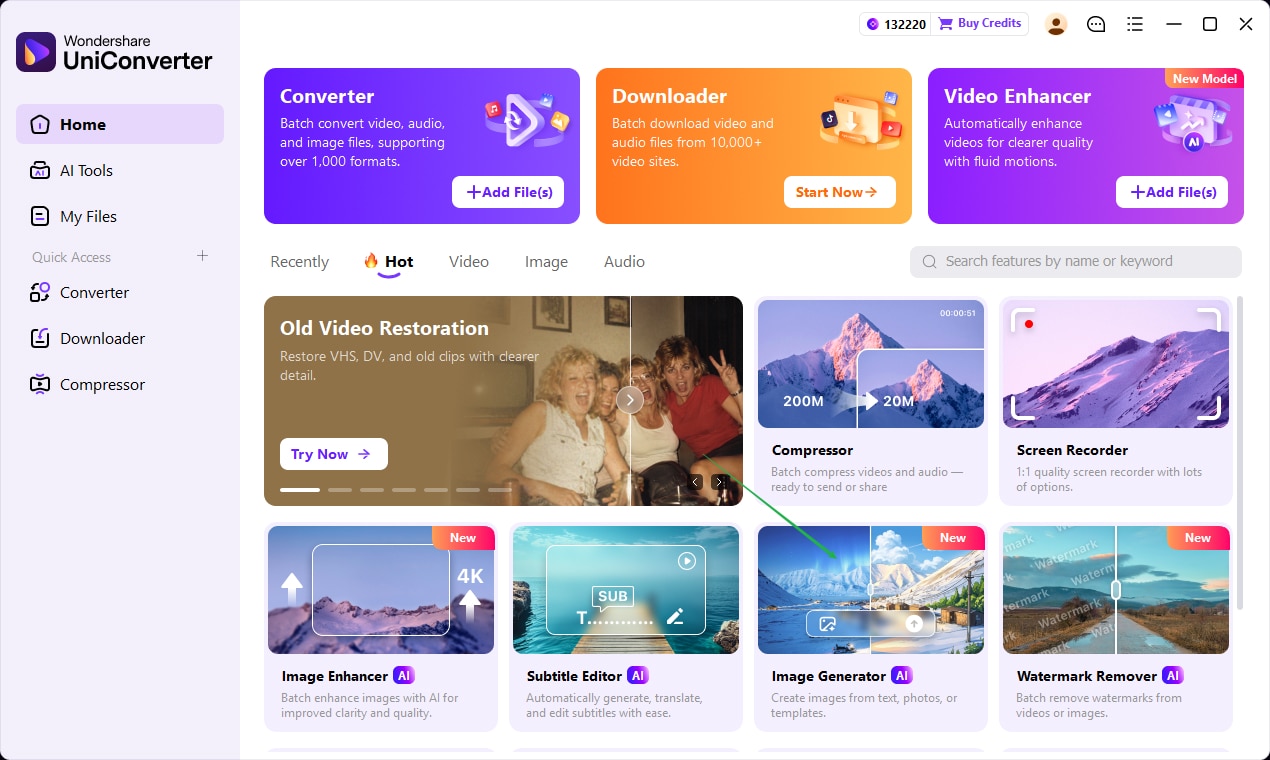
In this situation, converting the video to a more widely supported format can be a practical solution. Wondershare UniConverter makes it easier to convert downloaded Twitter videos to formats like MP4, which are commonly supported on Windows, Mac, iPhone, Android, and most mainstream media players. This can be especially helpful if the video opens with a black screen, freezes during playback, has no sound, or simply cannot be played normally after download. If the issue is caused by file compatibility, using UniConverter may improve playback and make the video easier to watch across different devices.

Convert Downloaded Twitter Videos for Better Playback

Part 9: How to Prevent Twitter Videos From Not Playing Again
Once the problem is fixed, there are a few simple habits that can reduce the chance of it happening again.
Keep the app and browser updated: Software updates often include important bug fixes, security improvements, and playback optimizations.
Clear cache periodically: If you use Twitter often, temporary files can build up over time and eventually interfere with performance.
Avoid unstable networks: Weak public Wi-Fi and overloaded hotspots are common causes of buffering and failed playback.
Be careful with VPNs and extensions: Only keep the tools you actually need, especially if you notice media issues in certain browsers or networks.
Maintain enough device storage and memory: Low storage or too many background apps can slow down performance and indirectly affect media playback.
Conclusion
The Twitter video not playing issue is usually caused by unstable internet, corrupted cache, outdated software, restrictive settings, or temporary app and browser glitches. The fastest fixes are to check your connection, refresh Twitter, clear cache, update the app or browser, and restart your device.
If those steps do not work, move on to device-specific troubleshooting for iPhone, Android, or browser playback. And if a downloaded Twitter video still cannot be played, the issue may be with the file itself rather than Twitter. In that case, converting the file to a more compatible format with Wondershare UniConverter may help restore smoother playback.
Start with the simplest fixes first, test them one by one, and you will usually get Twitter videos working again without too much trouble.

