

You have a YouTube track queued up and want to save it as an MP3, but the phone or laptop in your hand right now decides how that download actually plays out. A download button that works cleanly on Windows can dump you into a media player screen on an iPhone instead.
This guide will walk you through detailed steps for each device to use Y2Mate MP3 download. One note before you start: only download content you own that is in the public domain or that carries a license permitting it. Copyrighted music without permission is a different situation, covered later in the article.
Before we dive into the detailed guide, here's a quick overview of what you need to know about Y2Mate MP3 download.
| Question | Quick Answer |
| Does Y2Mate work on Android? | ✅ |
| Does Y2Mate work on an iPhone? | ✅ |
| Does Y2Mate work on Windows & Mac? | ✅ |
| Is Y2Mate free to use? | ✅ |
| Does Y2Mate require Installation? | ❌ |
| Does Y2Mate require an account? | ❌ |
| Y2Mate’s maximum MP3 quality | Up to 320 kbps (depends on the mirror) |
| Biggest drawback of Y2Mate | Pop-ups, fake download buttons, and mirror site variations |
In this Article
- Part 1: How We Tested Y2Mate MP3 Download
- Part 2: How Do You Download an MP3 from Y2Mate on Any Device
- Part 3: How Do You Choose the Right MP3 Quality on Y2Mate
- Part 4: How Do You Avoid Ads, Pop-ups, and Fake Downloads on Y2Mate
- Part 5: How to Download YouTube MP3s Without Pop-Ups
- Part 6: Which Download Tool is Best for Your Needs: Y2Mate vs. UniConverter
- Conclusion
- FAQs
Part 1: How We Tested Y2Mate MP3 Download
We tested Y2Mate MP3 download across Windows, Mac, Android, and iPhone to evaluate its ease of use, download reliability, audio quality, and overall user experience. Rather than relying on feature lists, we assessed how the tool performs in real-world download scenarios.
Our Testing Criteria
| Evaluation Area | What We Tested | Why It Matters |
| Device Compatibility | Windows, Mac, Android, and iPhone download experience | Confirms whether the workflow changes across devices. |
| Ease of Use | Number of steps required to complete a download | Shows whether first-time users can use the tool without confusion. |
| Download Reliability | Processing different YouTube video links | Evaluates whether downloads complete successfully. |
| Audio Quality | Available MP3 bitrate options and playback quality | Helps determine whether the downloaded file meets listening expectations. |
| Safety | Ads, pop-ups, redirects, and notification prompts | Identifies potential security risks during the download process. |
| Overall Value | Comparison with Wondershare UniConverter | Determines which solution is better for occasional versus regular downloads. |
What We Found
Y2Mate MP3 download works well for downloading individual YouTube videos on all major devices without requiring an account or installation. However, the experience varies between mirror sites, with some displaying intrusive advertisements and misleading download buttons. For occasional downloads, it remains convenient, while users who prioritize consistency and security may prefer dedicated desktop software.
Part 2: How Do You Download an MP3 from Y2Mate on Any Device
You can download an MP3 from Y2Mate on any device by pasting a YouTube link into the converter, selecting MP3 as your format, and saving the final results. The core steps stay the same everywhere, but how your device handles that final save differs enough to trip people up, especially on an iPhone.
The universal flow looks like this:
- Copy the YouTube video's URL from the address bar or the Share menu.
- Open a Y2Mate site that you trust and have used before.
- Paste the link into the input box and let it process.
- Select MP3 as your output format.
- Save the file using your browser's download function.
That last step is where devices diverge. The sections below cover what to expect in each one.
How Do You Download an MP3 from Y2Mate on Mac & Windows
On Mac and Windows, downloading an MP3 from Y2Mate works like any standard browser download. When you click the download link, your browser saves the file to its default Downloads folder. Here is the step-by-step guide to using Y2Mate YouTube download:
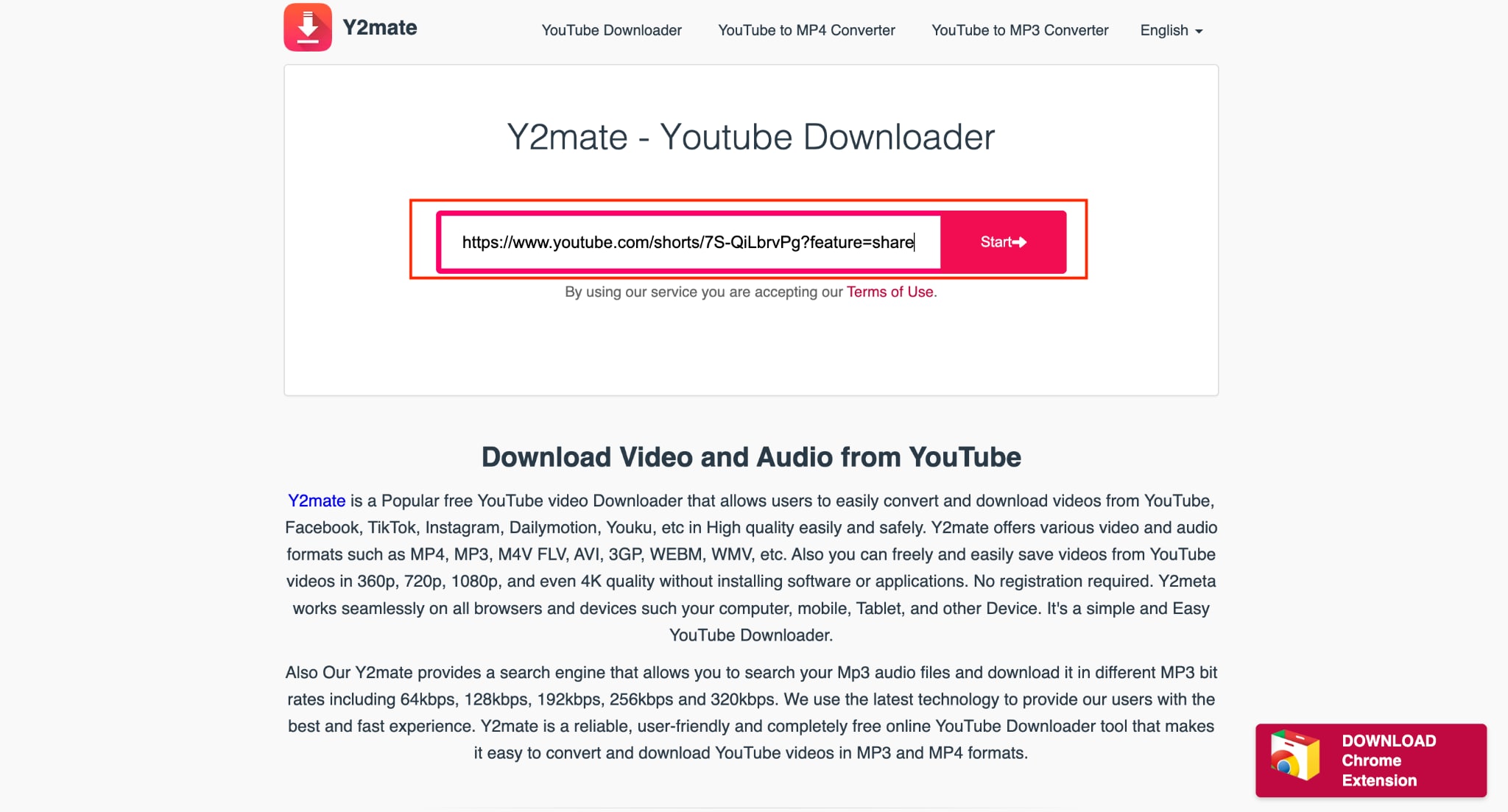
Step 1: Paste the YouTube video link you copied into the search bar and click Search.
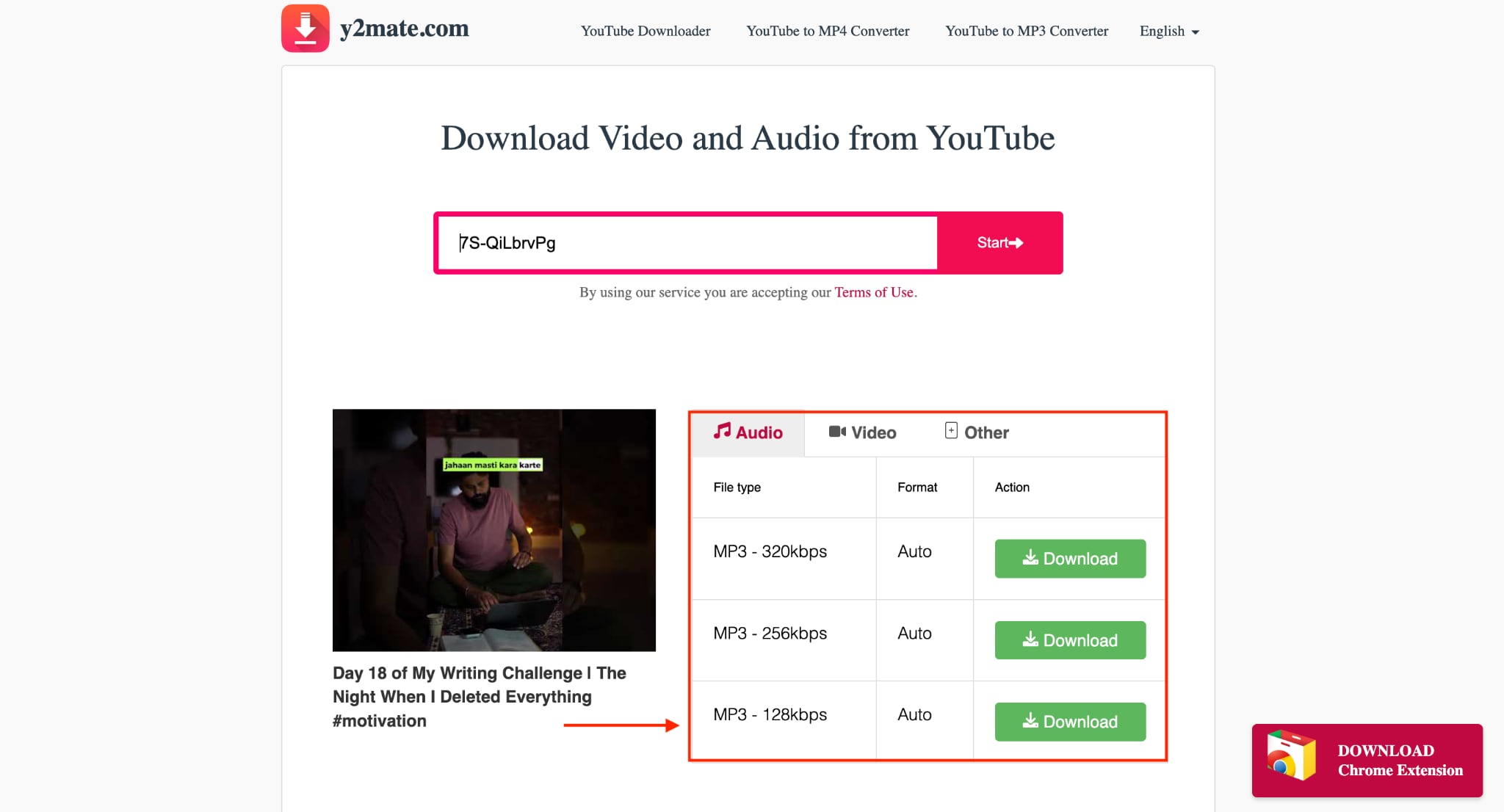
Step 2: Choose the format and click Download.
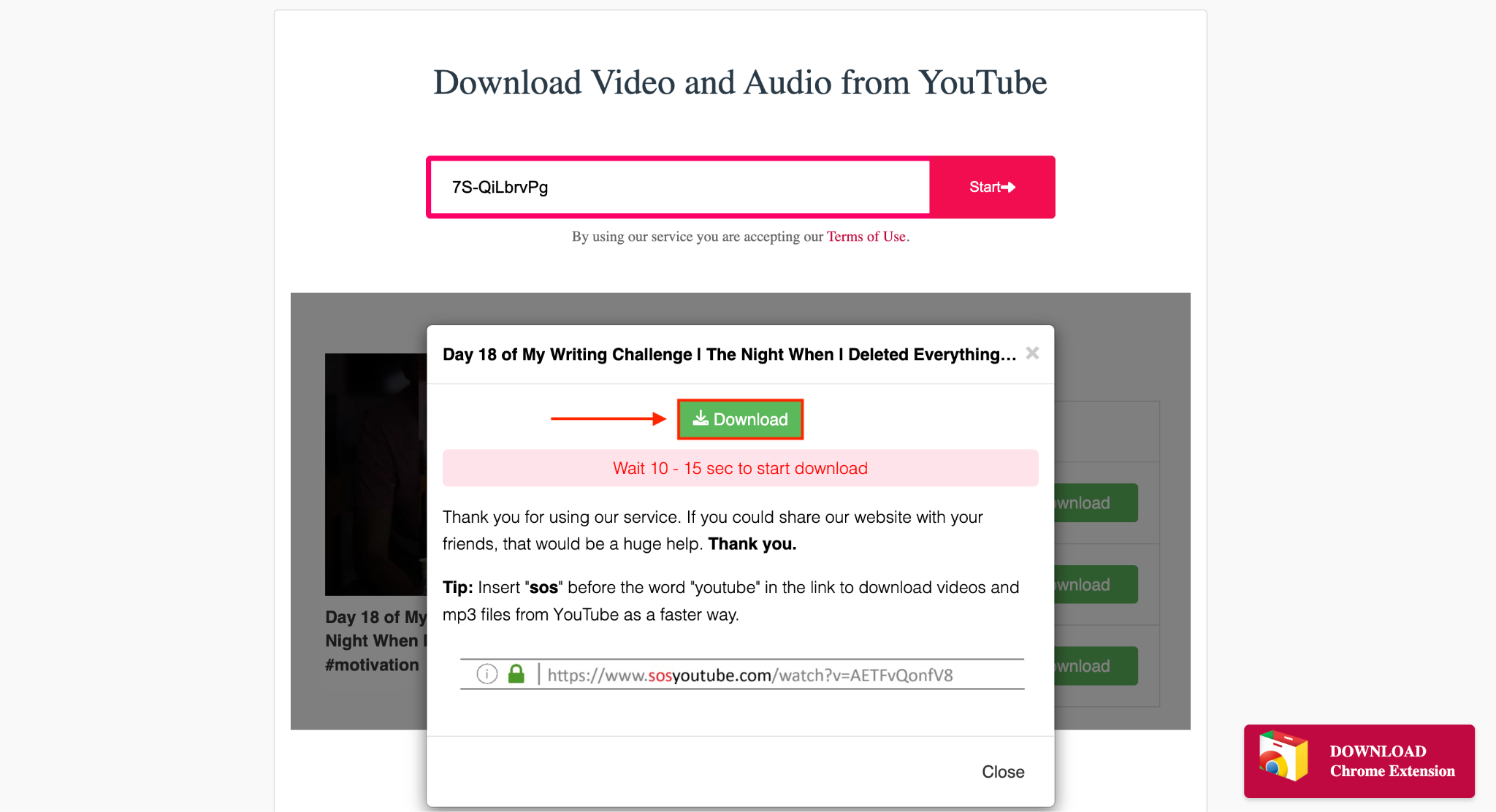
Step 3: A pop-up will appear. Click Download, and the MP3 will be saved on your device.
If the download doesn't start, check whether your browser blocked a pop-up, since that's the most common reason a Windows or Mac download stalls on these sites.
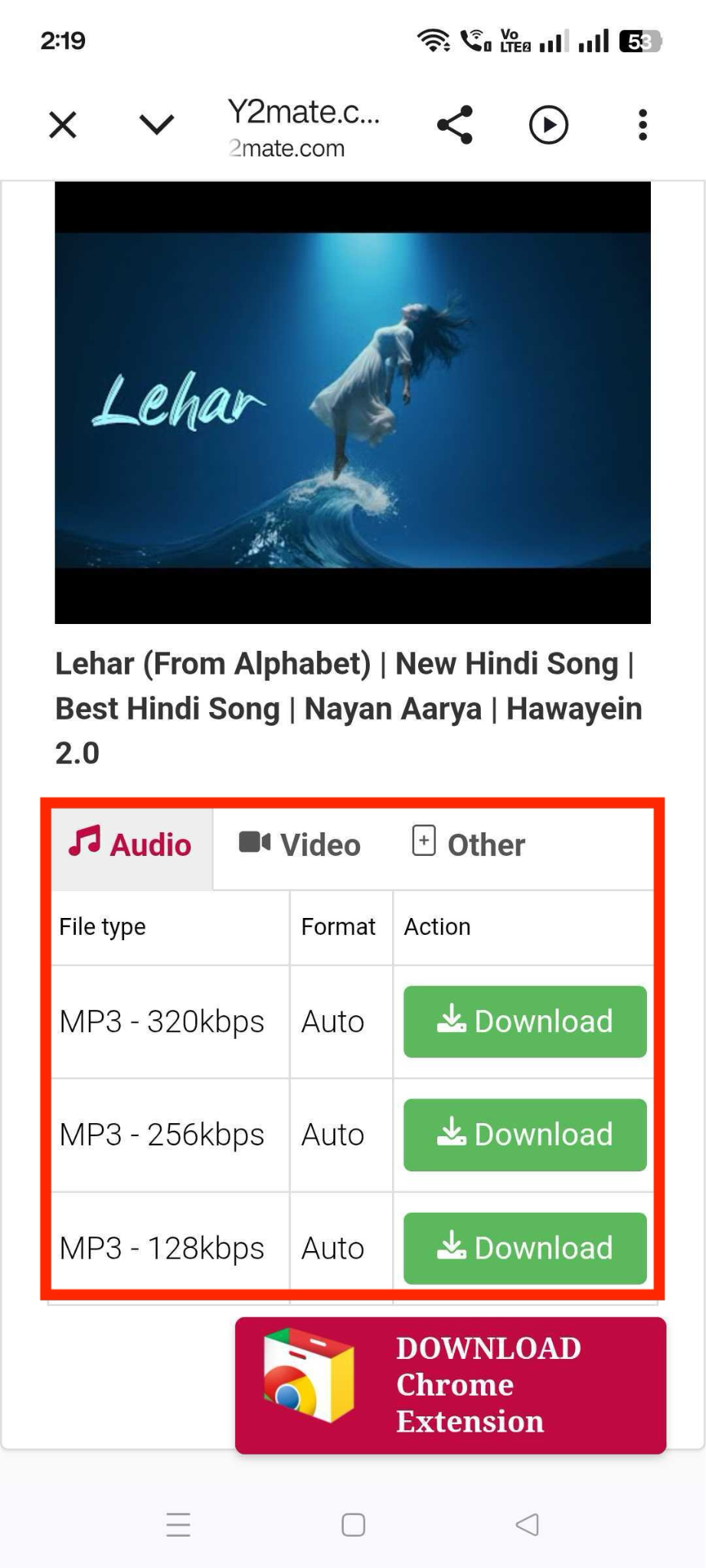
How Do You Download an MP3 from Y2Mate on Android Devices
On Android, downloading an MP3 from Y2Mate saves the file directly to your device's Downloads folder through your browser, and you can open it from there using any file manager or media player app. Here is how it works:
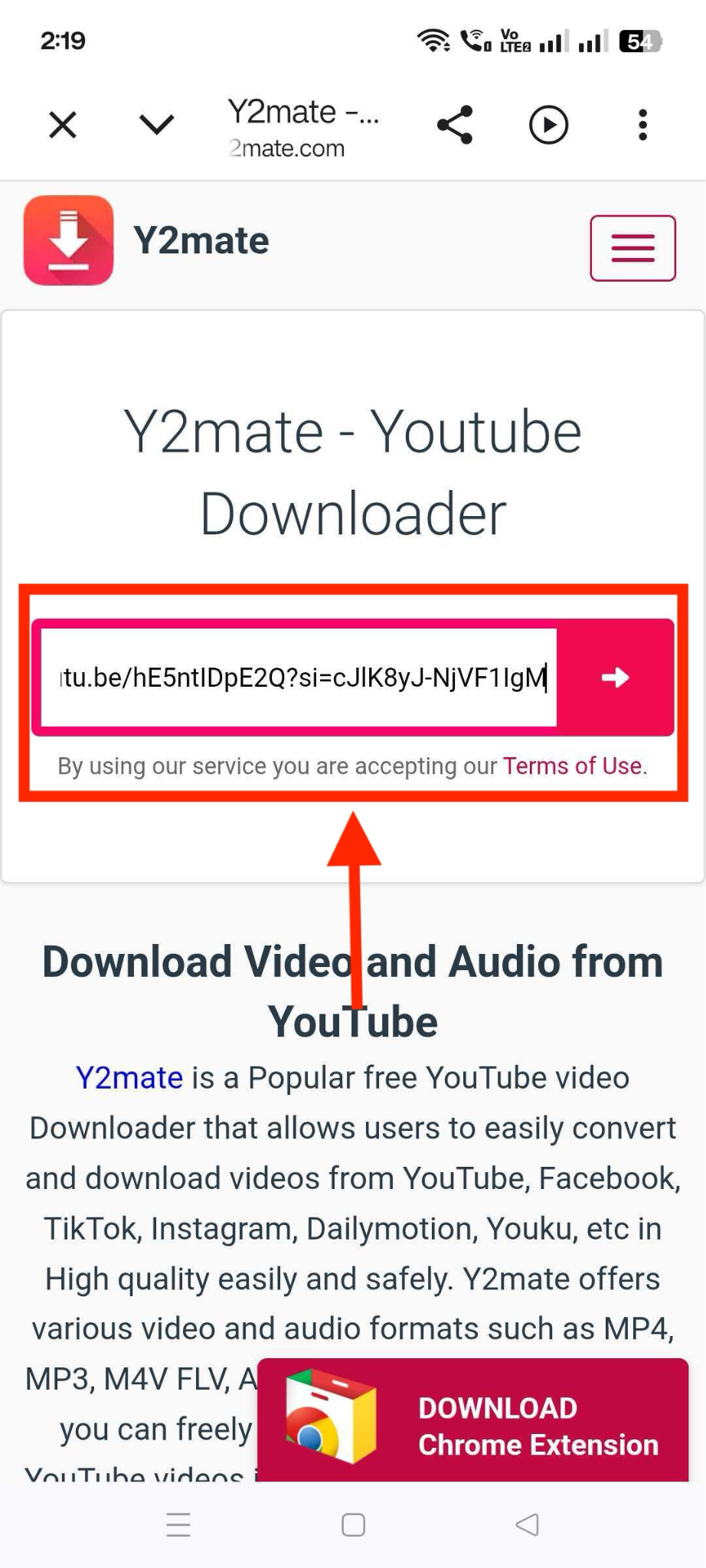
Step 1: Open Chrome or your default browser and go to a Y2Mate site. Paste the YouTube link and click search.
Step 2: Choose the format and click the Download button.
How Do You Download an MP3 from Y2Mate on an iPhone?
On iPhone, the process is largely the same as on Android: open a Y2Mate website in Safari or another browser, paste the YouTube video URL, select MP3, and tap Download. Depending on your iOS version and browser settings, the file may be saved to the Files app or your browser's download manager instead of opening automatically. If the download doesn't start, you may need to confirm the download prompt or manually choose a save location.
Part 3: How Do You Choose the Right MP3 Quality on Y2Mate
You choose the right MP3 quality on Y2Mate by matching the bitrate to what you are using the file for: 128 kbps for casual listening, 192 kbps for everyday music, and 320 kbps when audio fidelity actually matters. Here's what each option gets you:
| Bitrate | Best For | Typical File Size (4 min song) |
| 128 kbps | Podcasts | 3-4 MB |
| 192 kbps | Everyday listening | 5-6 MB |
| 256 kbps | Music lovers | 7-8 MB |
| 320 kbps | Archiving / professional use | 9-10 MB |
Remember that the final audio quality also depends on the original YouTube upload. Selecting a higher bitrate cannot improve audio that was already compressed in the source video.
Part 4: How Do You Avoid Ads, Pop-ups, and Fake Downloads on Y2Mate
You avoid ads, pop-ups, and fake downloads on Y2Mate by identifying the real download button before you click anything, closing unexpected tabs immediately, and never granting notification permissions. Most of the risk on these sites comes from the ad network around the converter, not the conversion function itself. Here are the practical steps that cut down your exposure:
Identify the real button first: Legitimate download links usually match the file name or format you selected. Buttons with generic labels like "Download Now" in flashing colors or oversized styling are almost always ads.
Close pop-up tabs immediately: If a new tab opens after you click something, close it without interacting with it. Don't scroll, don't tap "close," just close the whole tab.
Decline notification prompts: If a site asks permission to send notifications, tap Decline. Granting this later turns into a steady stream of ad spam.
Use an ad blocker: A browser extension that blocks ads removes a large share of the deceptive buttons before you ever see them.
Check the file after downloading: Confirm the extension matches what you selected (.mp3, not .exe or .apk) before opening anything.
Run periodic malware scans: If you use ad-heavy converter sites regularly, scan your device on a schedule rather than waiting for something to look wrong.
Part 5: How to Download YouTube MP3s Without Pop-Ups
You download YouTube MP3s without pop-up ads by using dedicated downloader software instead of a browser-based converter, since installed apps do not rely on ad networks to generate revenue. Wondershare UniConverter is one option built this way, with a verified official source and a clean ad-free desktop interface.

All-in-One Multimedia Processing Tool

What UniConverter offers for MP3 downloads:
Downloads and converts audio from YouTube and thousands of other sites
Batch downloading, so you can queue multiple tracks instead of converting one at a time
No ads or pop-ups, since it's paid software rather than an ad-supported free site
Works on both Windows and Mac
Includes basic audio editing, like trimming a track down to a specific section
Offers a free trial before you commit to a paid plan
How to Download a YouTube MP3 with UniConverter:
Follow these simple and safe steps to convert your YouTube video on a desktop:
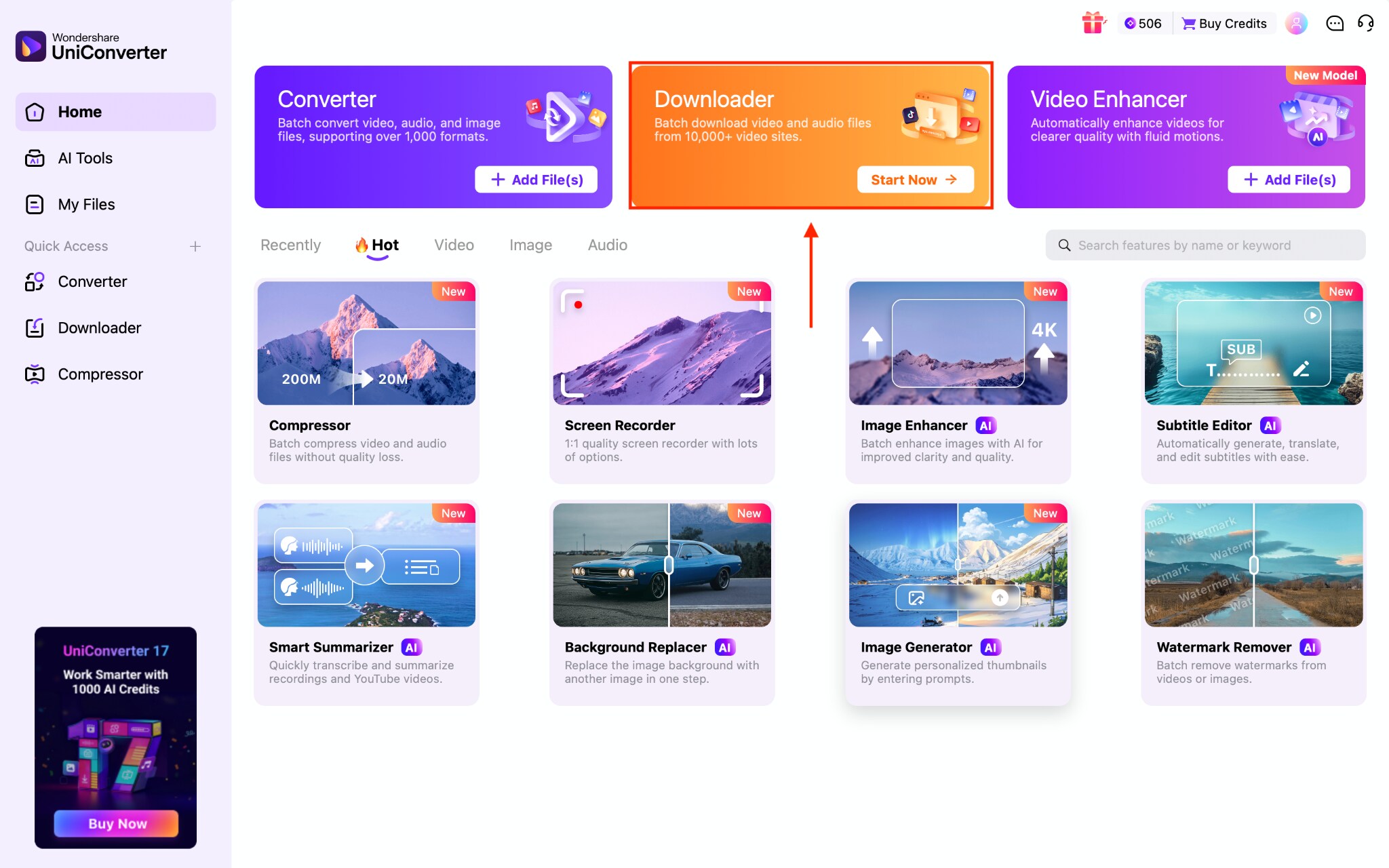
Step 1: On the Wondershare UniConverter dashboard, tap "Downloader."
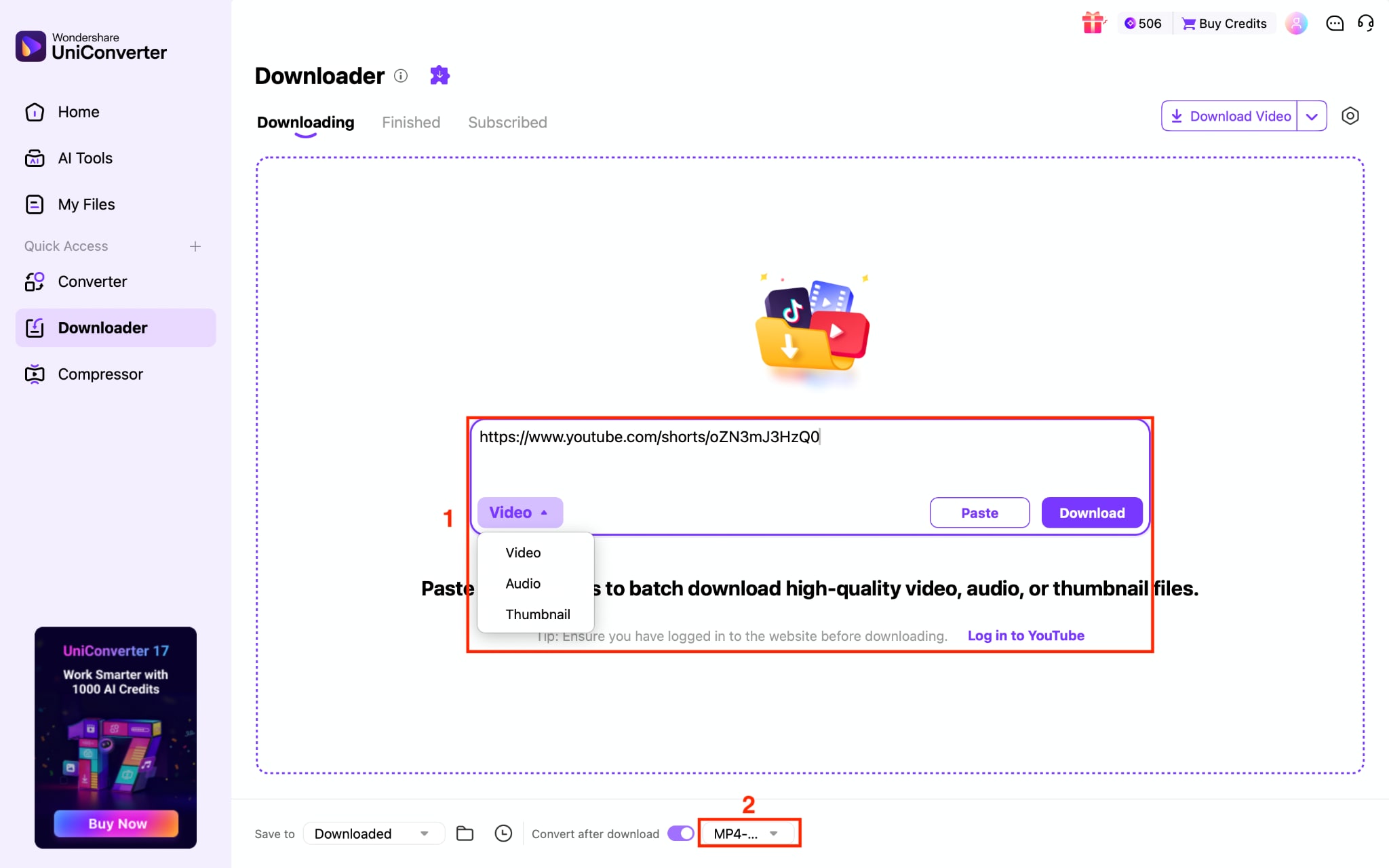
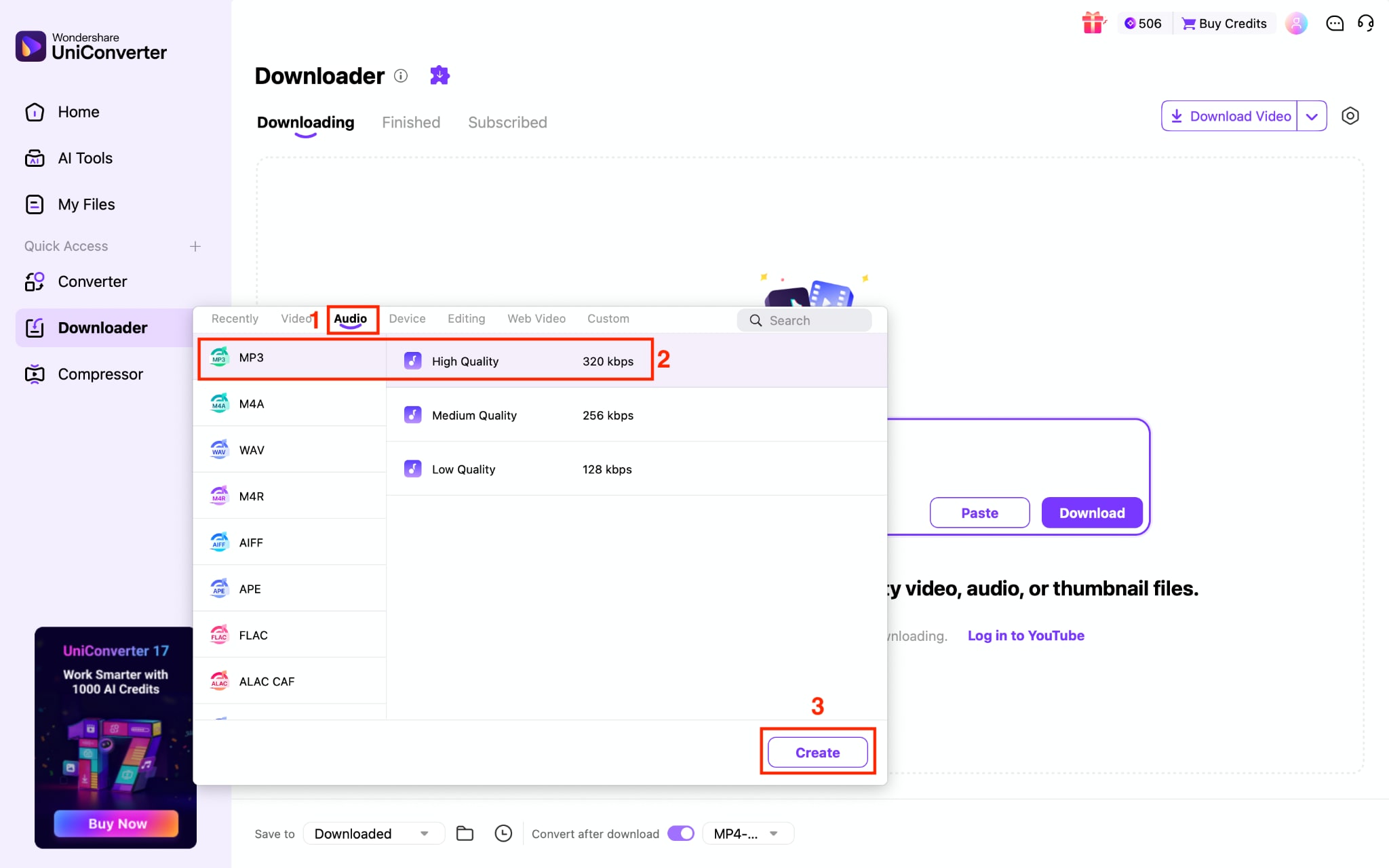
Step 2: Paste the link and enable conversion after the download button is located at the bottom. So you can choose the output format.
Step 3: Navigate to Audio, choose the MP3 format, and click the "Create" button.
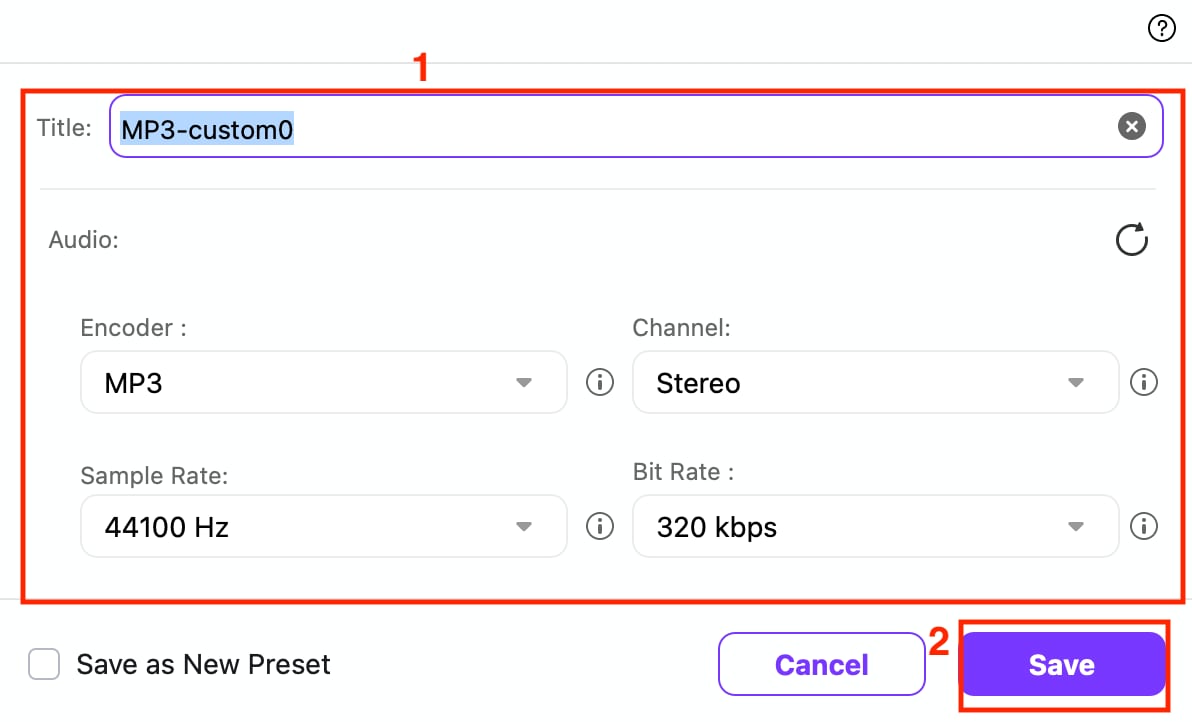
Step 4: When you click "Create," a pop-up lets you create a title, adjust the sample rate and bit rate, and, once done, click "Save."
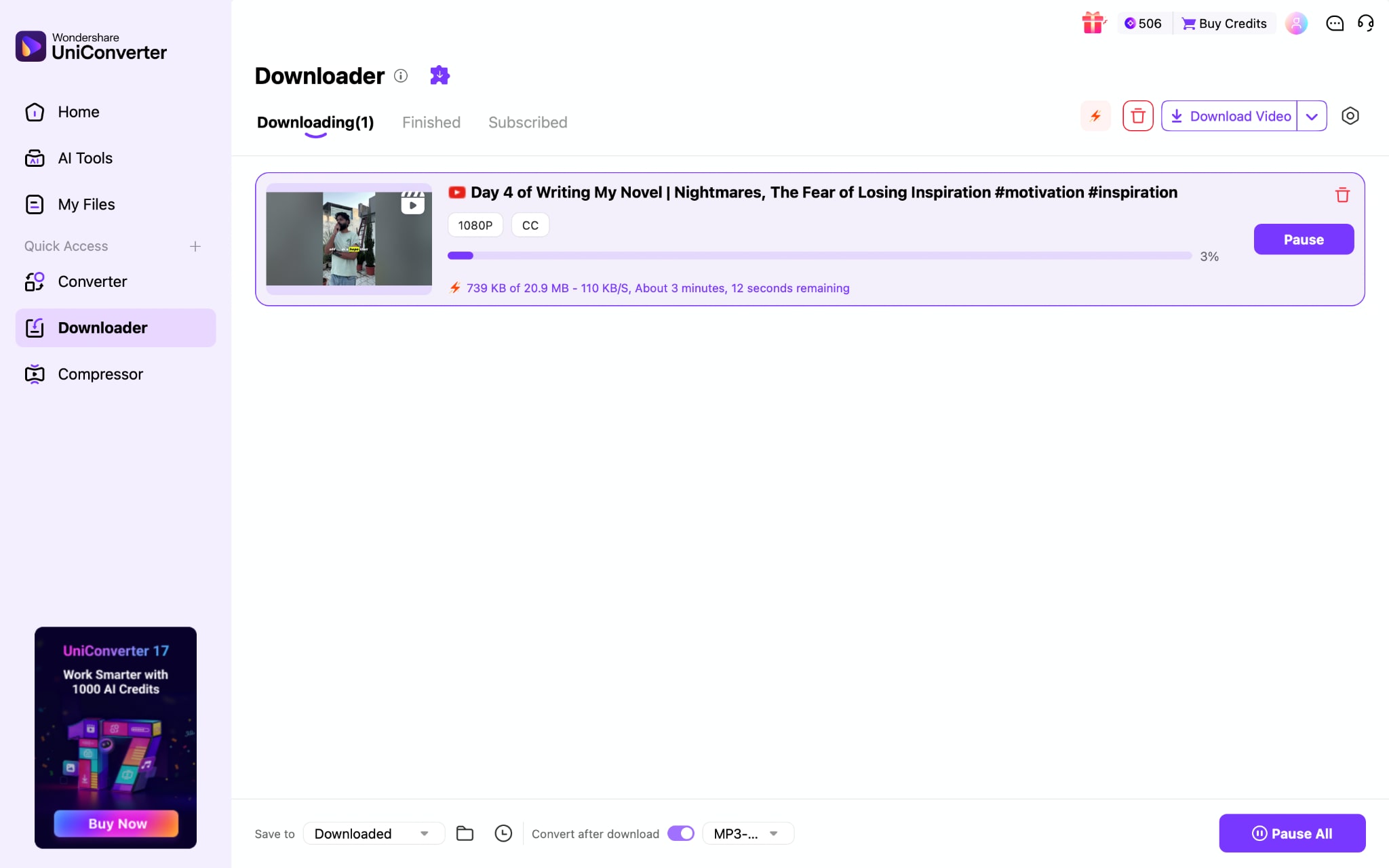
Step 5: Once done, click the "Download" button to start the download.
Part 6: Which Download Tool is Best for Your Needs: Y2Mate vs. UniConverter
Y2Mate MP3 download is best suited for users who need quick, occasional MP3 conversions without installing software. Users who download media regularly may benefit more from dedicated desktop software.
| User Type | Recommended Option | Why |
| Casual listeners | Y2Mate | Fast browser-based conversion without installation. |
| Android users | Y2Mate | Downloads are handled directly through the browser. |
| iPhone users | Y2Mate | Works through Safari, though downloads require the Files app. |
| Frequent downloaders | Wondershare UniConverter | Offers batch downloads and a more consistent experience. |
| Content creators | Wondershare UniConverter | Includes editing tools alongside downloading features. |
| Security-conscious users | Wondershare UniConverter | Eliminates browser ads, redirects, and fake download buttons. |
Conclusion
Y2Mate MP3 download works differently depending on whether you are on Windows, Mac, Android, or iPhone, and iOS in particular takes an extra step to get a real file instead of a media player preview. Add in the ad networks running around most mirror sites, and the process asks for more caution than it should for something this simple.
If you're converting your own content or material you are licensed to use, following the device-specific steps above gets you there. If you would rather remove the guesswork and pop-ups altogether, installing software like Wondershare UniConverter lets you get the same MP3 without the detour.

