

Recording lectures helps students understand lessons even after class ends. It lets them listen again when something feels confusing in a lecture. Many students miss details during class, and notes alone are not enough. A lecture recorder captures clear audio, making revision easier later.
So, choosing the right recorder also saves time and reduces study stress. Most lecture recorder apps are simple and easy to use. This guide shows helpful features, real benefits, and tips to choose wisely.
Best Lecture Recorder
In this article
- Part 1. What Is a Lecture Recorder and Why Students Need One
- Part 2. Types of Lecture Recorders: Apps vs Physical Devices
- Part 3. Best Lecture Recorder Apps for Students in 2026
- Part 4. Best Physical Voice Recorders for Lectures
- Part 5. Best Way to Record Lectures: Essential Tips for Students
- Part 6. Is It Legal to Record Lectures? Student Permission Guide
- Conclusion
Part 1. What Is a Lecture Recorder and Why Students Need One
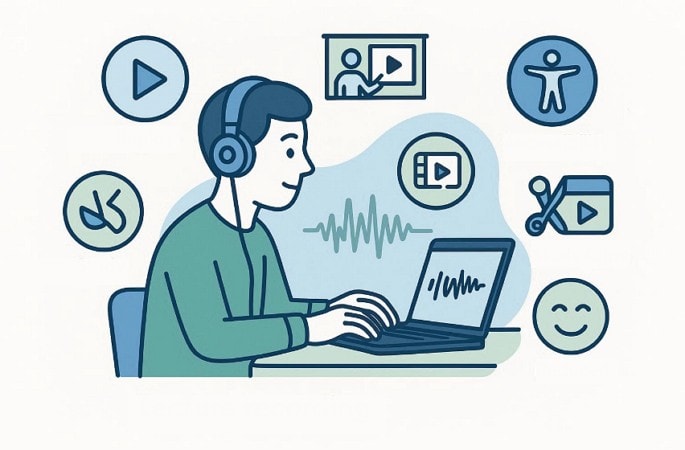
A lecture recorder is a tool that records spoken lessons for later listening. It helps students review classes, catch missed points, and study. The best lecture recorder saves clear audio and supports learning anywhere without stress. Moreover, students use it during school, college, and online courses to stay focused. Below are the key advantages that explain why students rely on lecture recorders:
- Easy Review: Students can replay lectures later to understand hard topics. Listening again helps memory and builds confidence in students before exams.
- Full Capture: Lecture recorders save every explanation shared in class. This helps students avoid missing ideas and better understand lessons.
- Better Access: Recorded lectures help students with focus, hearing, or language problems. They can learn at their own pace using headphones or speakers.
- Study Materials: Students can cut long recordings into short review clips. These clips provide summaries and quick exam reviews to improve understanding.
- Lower Stress: Recording lectures removes the pressure to write everything fast. Students feel calm knowing they can listen again later if they miss any point.
Part 2. Types of Lecture Recorders: Apps vs Physical Devices
Students today can choose from different tools to record lectures. Each option fits different study habits, class lengths, and learning needs. An audio recorder for lectures can be as simple or as advanced as required. Below is an easy comparison of the three most common lecture recorder types.
Smartphone Apps
Most students already carry a phone to every class. Lecture recording apps use the phone to capture class audio. Students can start recording with one tap before the lecture begins. Moreover, many apps are free and work well for short daily classes. Some apps also remove background noise or create short notes. That said, phone alerts and low battery can still disturb longer recordings.
Physical Voice Recorders
Some students prefer a separate device made only for recording sound. Physical voice recorders focus fully on audio without phone distractions. They last many hours and suit long lectures or full study days. These devices stay quiet and stable during exams or crowded halls. Also, students must remember to carry them and charge them. Further, they do not offer text notes or smart features.
Desktop and Multi-Platform Tools
Online classes and laptop learning need a different recording option. Desktop tools record lectures on computers or tablets for easy study. They work well for video classes and recorded presentations. Some tools also turn speech into text for easy review later. One example is UniConverter, which combines recording and editing features. Overall, these tools need to be set up before class and need access to a computer.
With the basics covered, review the table below for quick comparison:
| Features | Smartphone Apps | Physical Recorders | Desktop/Multi-Platform Tools |
| Ease of Use | Very easy | Easy | Moderate |
| Battery Life | Short to medium | Long | Depends on the device |
| Audio Quality | Good | Very good | Good to very good |
| Extra Features | AI notes, free apps | Recording only | Recording + transcription |
| Portability | Always available | Extra device | Laptop required |
| Best Use Case | Daily classes | Long lectures | Online learning |
Part 3. Best Lecture Recorder Apps for Students in 2026
Students today need tools that record lessons clearly and support better study habits. The apps below help with classroom recording, audio capture, and note creation:
| App | Recording | Transcription | Platform | Best Use |
| UniConverter | Audio + Screen | Yes | Windows / Mac | Full lectures |
| Otter.ai | Audio | Real-time | Web / Mobile | Live classes |
| MeetGeek | Audio-join | AI summaries | Web & Mobile | Online learning |
| Notability | Audio + Notes | No | iPad/Mac | Visual learning |
| OneNote | Audio + Notes | No | Multi-platform | Free option |
| Rev | Audio | Paid add-on | Mobile | High audio quality |
| Evernote | Audio | Search-based | Multi-platform | Organized notes |
1. UniConverter – Best All-in-One Recording & Transcription Tool
Many students join online classes every day with slides and teacher talks. Students need a lecture recorder that saves both sound and screen clearly. A lecture recorder helps students save full lessons without missing details. Thus, UniConverter records teacher voices, slides, and shared screens during classes.
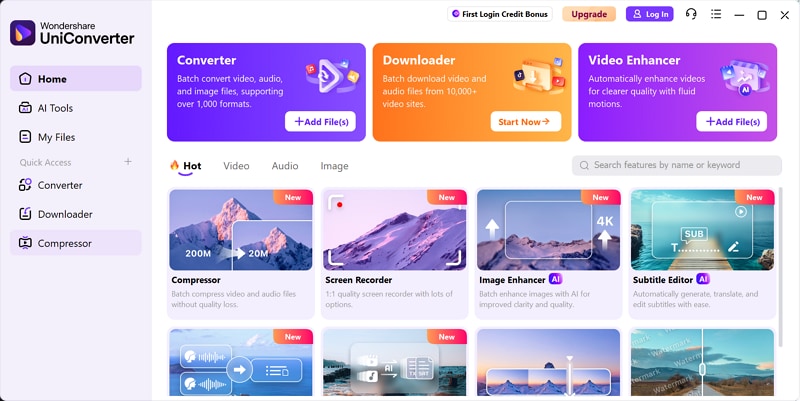
This helps students listen carefully instead of rushing to write notes. The tool also turns spoken lessons into written text for study later. Students can read notes, search topics, and revise lessons easily. This makes exam preparation calmer and more comfortable for students.
Best Lecture Recorder
Key Features
- Screen Recording: Records lecture screens with clear sound for online and offline classes.
- Audio Recording: Captures the teacher's voice clearly during classroom or online lecture sessions.
- Speech to Text: Turns recorded lectures into readable text for faster study and exam review, supporting recognizing .
- Smart Summarizer: Turns videos or audios you recorded into summaries in one click.
- Format Support: Saves recordings in MP3, WAV, and M4A formats for easy sharing.
- Visual Capture: Records slides and presentations shown during lectures for better understanding.
- Offline Recording: Allows lecture recording without internet during travel, power cuts, or campus issues.
- Cross Platform: Works on both Windows and Mac computers for everyday student use.
Pricing: Freemium
Best For: Students needing lecture recording and transcription together for online visual classes.
Why It Stands Out: Unlike mobile apps, UniConverter offers desktop-level recording with built-in transcription. This helps students turn full lectures into searchable study notes, making revision faster.
2. Otter.ai – Best for Real-Time Transcription
Otter.ai helps students capture spoken lessons while classes happen live online. Many learners need the best app for recording lectures when teachers speak quickly. This tool turns speech into text, helping students follow lectures clearly. Moreover, students review points later to revise later for the exam.
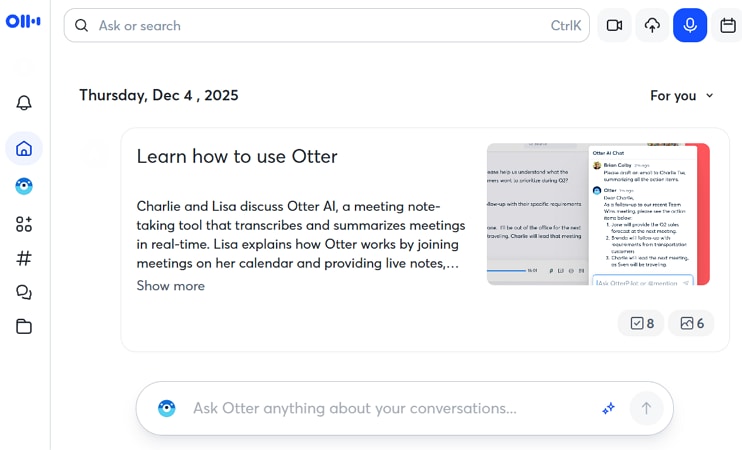
Key Features
- Provides real-time transcription during online lectures and classroom discussions
- Identifies speakers automatically during group classes and shared sessions
- Syncs recordings with searchable text notes for quick user review.
Pricing: Free plan available, Pro starts from $16.99/month.
Best For: Students attending live online classes with multiple speakers daily
3. MeetGeek – Best for AI Lecture Summaries
Online classes often move fast, making it hard to track every detail. Many students search for ai lecture recorder when classes happen on video platforms. This tool joins sessions, records discussions, and prepares short summaries afterward. Instead of replaying long recordings, learners can review key points and stay organized during busy academic schedules.
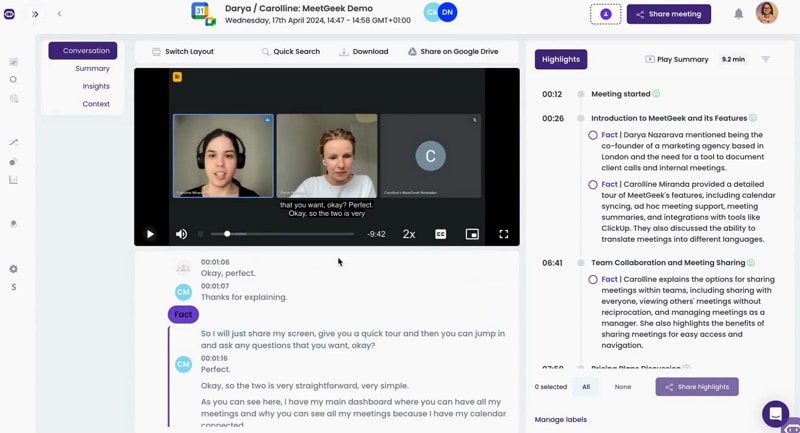
Key Features
- Automatically joins scheduled online lectures without manual recording steps for ease.
- Creates short AI summaries highlighting main discussion points for students.
- Stores recordings in a searchable online knowledge space for students' learning.
Pricing: Free tier available, paid plans start from $19/month.
Best For: Students attending online lectures needing automatic summaries.
4. Notability – Best for iPad Users
Some students learn better when writing and listening together during class. For them, using an audio recorder for lectures that works with handwriting feels natural. This app links recorded sound with notes and drawings on the screen. Learners can tap written points to replay explanations, helping them revise topics faster before exams and understand complex ideas.
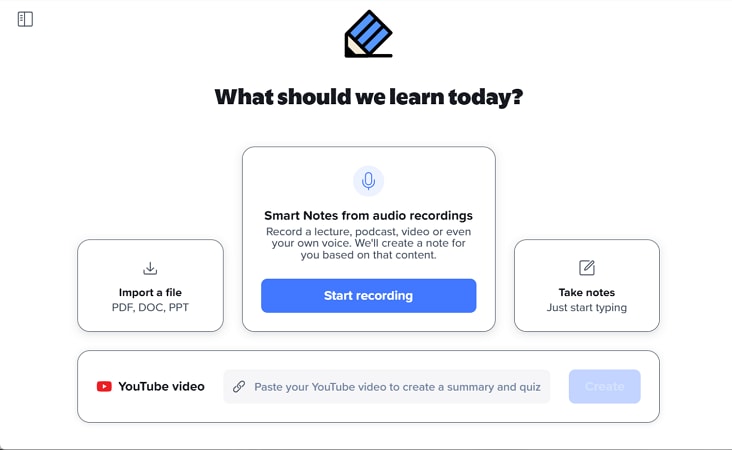
Key Features
- Syncs recorded audio with handwritten notes for easier topic recall later for students.
- Supports Apple Pencil for diagrams, equations, and visual explanations during class lessons.
- Allows replaying audio by tapping specific written notes later for quick review.
Pricing: Subscription costs about $14.99/year.
Best For: iPad students who learn better through writing and visuals.
5. Microsoft OneNote – Best Free Option
Managing notes and recordings together helps students study with less stress. Many learners choose the best app for recording lectures when budgets are limited. This tool records audio beside typed or handwritten notes, keeping everything in one place. Students can organize subjects easily and review lessons later without paying for extra software or learning complicated workflows.
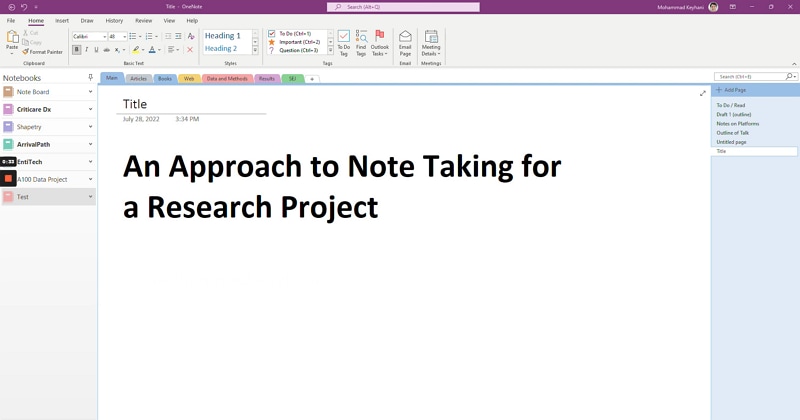
Key Features
- Records lecture audio alongside typed or handwritten notes easily during classes daily.
- Syncs note across devices using students' Microsoft accounts automatically for easy access.
- Organizes subjects using notebook sections and pages for simple study planning needs.
Pricing: Free with a Microsoft account or student email.
Best For: Students wanting free lecture recording with organized notes
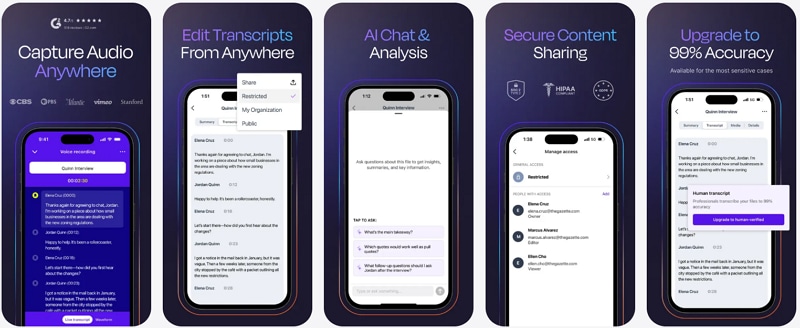
6. Rev Voice Recorder (Android/iOS)– Best for Audio Quality
Clear sound matters when reviewing long lectures later. Students who need a reliable voice recorder for lectures often prefer tools focused only on audio quality. This recorder captures clean sound and stores files locally on the device. Learners keep full control over their recordings while avoiding distractions, cloud uploads, or account requirements during study sessions.
Key Features
- Records high-quality audio with minimal background noise interference during class sessions.
- Stores files locally for privacy and personal control over user access.
- Offers optional paid transcription when text notes are needed for study use.
Pricing: Recorder is free, transcription costs $1.99 per minute.
Best For: Students who value privacy and clear lecture audio.
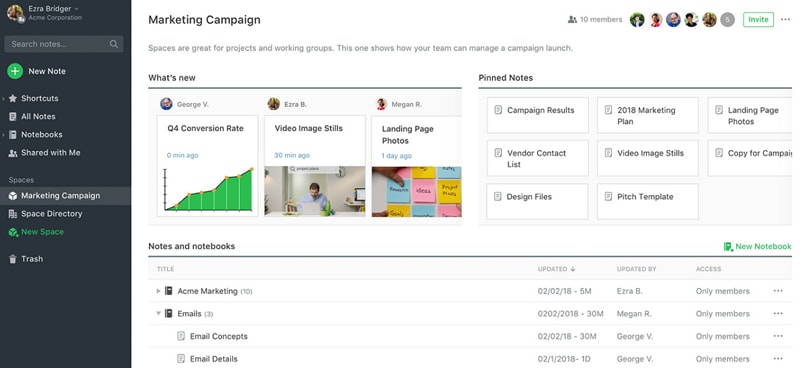
7. Evernote – Best for Organization
Students juggling many subjects need structure more than extra features. Finding the best lecture recorder for students also means keeping notes easy to search later. This platform saves audio notes with text, tags, and folders. Learners can track ideas over time, search topics, and build organized study libraries across devices.
Key Features
- Saves audio notes alongside text notes for complete lesson records every class.
- Allows searching keywords inside notes and audio titles for fast study review.
- Syncs note across phones, tablets, and computers for easy access everywhere students.
Pricing: Free plan limited, paid plans start from $14.99/month.
Best For: Students managing many subjects and long-term study notes.
Part 4. Best Physical Voice Recorders for Lectures
Many students still prefer using a physical voice recorder for lectures. A voice recorder for lecture works without apps, internet, or phone notifications. These devices focus only on sound, which helps during long class sessions. They also offer long battery life and clear recording quality. So, below are four trusted options students use for different learning needs:
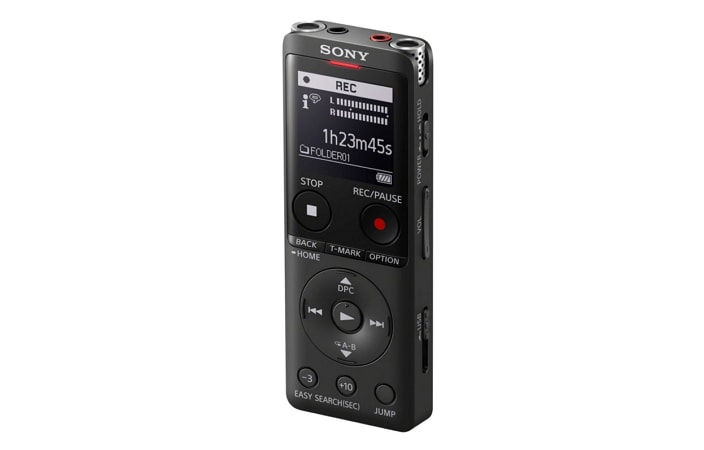
1. Sony ICD-UX570 – Professional Student Choice
Large lecture halls need recorders with strong distance voice pickup. This model records in LPCM and WAV for clear lecture sound. Its battery lasts over 39 hours without frequent charging needs. Lightweight design makes it easy to carry between classes for students daily.
Pricing: $100 to $150
Best For: Large lecture halls and long classroom sessions.
Tip: Transfer recordings to UniConverter for automatic transcription and easier study review.
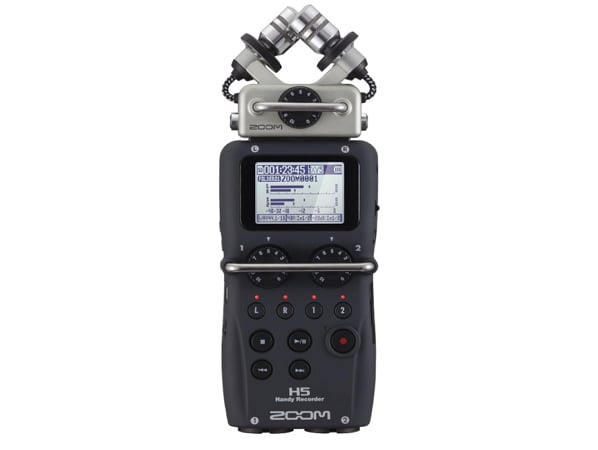
2. Zoom H5 – Premium Audio Quality
Some students need higher sound control for detailed lecture recording tasks. This device is often considered the best voice recorder for lectures by advanced users. It includes interchangeable microphones and XLR inputs for flexible audio recording. The recorder captures clear, professional sound for lectures and presentations easily
Pricing: $280+
Best For: Good choice for music students and advanced audio users.
3. Plaud Note – AI-Powered Physical Device
Some learners want a physical recording with added smart features. This voice recorder for lectures measures only 0.12 inches thick. It offers 65 GB of storage and a long recording time. Moreover, its AI features assist with summaries through a paid subscription.
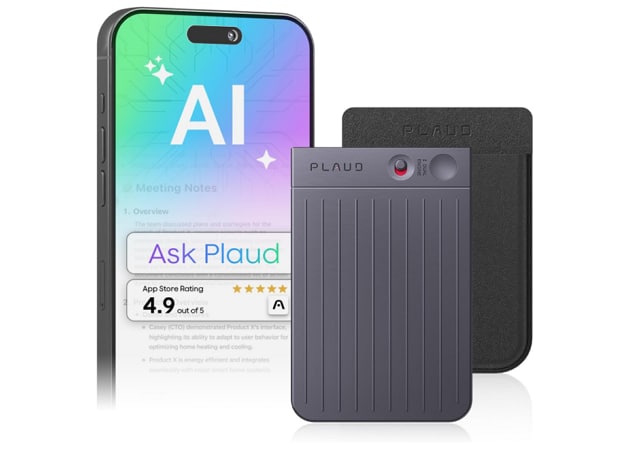
Pricing: $150+
Best For: Students who want physical recording plus AI assistance.
4. Budget Options Under $50
Not every student can afford expensive recording devices for daily classes. Basic Sony and EVISTR models offer simple lecture recording for study notes. These devices record MP3 audio with easy button controls for beginners. They suit short lectures and basic study needs without a complex setup.
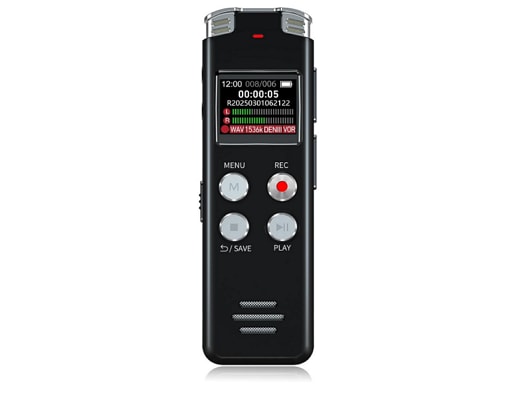
Price: Under $50
Best For: Suits budget-conscious students who need lecture-recording tools.
Notes: Pair budget recorders with UniConverter for low-cost professional transcription.
Part 5. Best Way to Record Lectures: Essential Tips for Students
Recording lectures helps students understand lessons better and study with confidence. The best way to record lectures for students is more than pressing a record button. So, students should plan ahead, choose the right tools, and review recordings later. The tips below help students turn lectures into useful study notes:
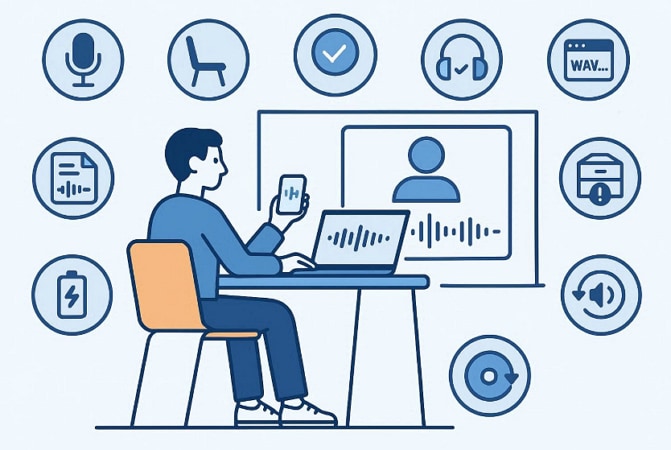
1. Choose the Right Tool
Start by selecting a recording tool that matches your study environment. Mobile apps work well for quick recording during short daily classroom sessions. For desktop learning and transcription, UniConverter provides better control and features. It records audio, captures screens, and converts spoken lectures into readable text.
Best Lecture Recorder
2. Sit in the Best Position
Audio quality improves greatly depending on where you sit during lectures. Try sitting near the front or center area of the classroom. This position reduces background noise and captures the teacher's voice more clearly. In large halls, using an external microphone often produces better results.
3. Always Test Before Recording
Never start the recording without first checking the sound quality. Try to record two to three minutes before the lecture starts. Play the test recording to confirm volume levels and voice clarity. This step prevents discovering audio problems after the lecture finishes.
4. Use Clear File Naming
Good file organization saves time during revision and exam preparation for students. Use clear file names with dates, subjects, and topics included for recordings. This helps students find recordings fast before exams or assignments begin.
5. Manage Storage Space
Lecture recordings slowly consume storage space over weeks and months. One hour of audio usually requires around thirty to sixty megabytes. Back up important files using cloud storage or external hard drives. Delete old recordings after exams to free storage space safely.
6. Follow a Simple Transcript Workflow
Transcription turns recorded lectures into useful written study material. First, record the lecture using any recording device available. Next, import the audio file into UniConverter for further processing. Then, use the voice-to-text feature to generate readable study notes. At last, edit the text and highlight important points for revision later.
7. Prepare Battery in Advance
Recording stops when the device battery runs out during long lecture sessions. Charge your phone or recorder before class to avoid lost recordings. Carry a portable power bank for extended lectures and full study days. This step prevents losing important lecture sections during unexpected power loss.
8. Adjust Speed During Review
Normal play speed can consume too much revision time for students. Review recordings at 1.5-2x the speed. UniConverter supports playback speed changes to help students review lectures better. This approach saves time while keeping understanding strong during exam preparation.
9. Convert Audio Formats for Storage
WAV files use more storage space than needed for routine lecture recordings. So, convert WAV to MP3 using UniConverter to reduce file size today. This change keeps audio clear and preserves storage space across devices.
10. Review Your Lectures
Do not rely on replaying recorded lectures alone again and again. Create flashcard summaries or short notes from the lecture transcription for exam success. Active review improves memory and supports stronger exam performance over time.
Part 6. Is It Legal to Record Lectures? Student Permission Guide
Many students record lectures so they can study them again later. Recording lectures helps students understand lessons well after the class. Rules for recording lectures vary by school. So, students should ask teachers before recording any lecture in class.
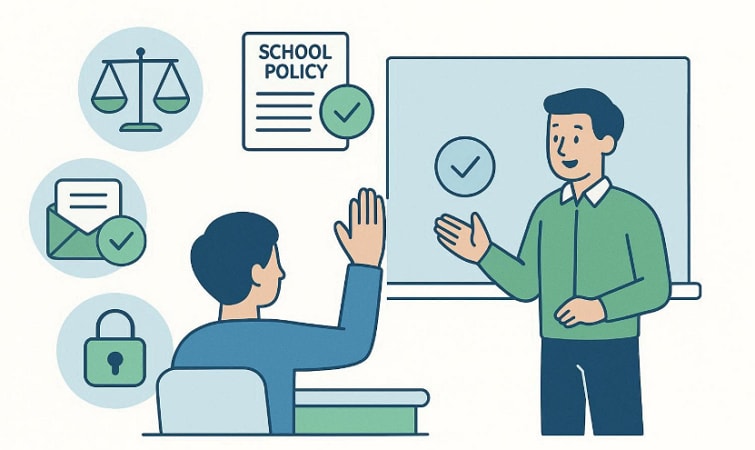
Recording Laws Explained
Some places allow recording when one person agrees in advance. Students can record lectures if they take part in them. Other places need everyone to agree before the recording starts. Recording without permission can cause serious problems in those places. Thus, students should check local laws before recording any lecture there for study notes.
School and Teacher Rules
Schools often set their own rules for lecture recording classes. Many schools allow recording only for students' personal study. Some teachers ask students to request permission first before class . Other classes do not permit recording during in-class discussions. Students should consult the course guides or get permission from their teachers.
How to Ask Permission
- Send a short email explaining that you record lectures for personal study use.
- Ask the teacher before class starts instead of recording without notice.
- Mention recordings stay private and support exam preparation only.
- Request approval during office hours for a clear and respectful discussion.
Disability Support for Students
Some students need recordings due to learning challenges during classes. Schools often support these needs through the student service offices. So, recording helps these students follow lessons and take notes. That said, students must keep those recordings for only personal use.
Sharing Warnings
- Do not share lecture recordings without the teacher's permission at any time.
- Sharing recordings online can break school rules and cause serious trouble.
- Keep UniConverter recordings private for personal study and exam preparation purposes.
- Use recordings for review notes, not sharing with classmates or the public.
Conclusion
To conclude, recording lectures helps students listen again and understand lessons more easily. Choosing the right lecture recorder helps students’ study calmly and stay organized. This guide shared tools, tips, rules, and simple ways to record lectures. For students needing recording with transcription, UniConverter is the best choice.
Frequently Asked Questions about Lecture Recorder
-
What is the best free lecture recorder app?
Free lecture recorder apps record audio easily for short classes and reviews. They work well for students who need simple tools without payment today. UniConverter adds screen recording and transcription for students needing more feature-rich tools. -
Can I transcribe existing lecture recordings?
Students can transcribe saved lecture recordings using transcription tools easily after class. Uploading old audio files turns spoken lessons into clear written notes. UniConverter helps convert existing recordings into text for better study use later. -
Can I record lectures without the professor's permission?
Recording lectures without permission depends on school rules, local laws, and policies. Some schools allow personal recordings only for private study purposes by students. Students should always ask teachers before recording lectures in class sessions. -
How much storage do I need for lecture recordings?
Storage needs depend on lecture length, audio quality, and recording format used. One hour of audio usually uses thirty to sixty megabytes of storage. Compressing files or converting formats helps students save storage space on devices. -
Do lecture recorder apps work offline?
Many lecture recorder apps work offline after installation on devices for students. Offline recording helps students capture lectures without internet access during class sessions. The Internet may be needed later for transcription cloud sync features and uploads. -
What audio format is best for lecture recordings?
MP3 is the best audio format for lecture recordings for daily use by students. It saves storage space while keeping sound clear enough for study use. UniConverter helps convert audio formats easily when needed for lectures and storage. -
Can AI transcribe lectures in different languages?
AI lecture transcription tools can convert lectures into text in many languages today. This helps international students understand lessons taught in other languages more easily. UniConverter supports many languages for lecture transcription using AI tools today. -
How to convert video lectures to text transcripts?
Students can convert video lectures into text using transcription tools for study. Clear audio inside videos improves the accuracy of text transcripts during lecture recordings. UniConverter lets students upload videos and generate readable study transcripts.

