


FreeConvert Video Compressor is one of the tools people often find first when they need to reduce video file size quickly without downloading desktop software. On the surface, it solves a simple problem: upload a video, compress it online, and download a smaller file. For light tasks, that convenience is appealing. But once larger files, repeated workflows, or extra video needs enter the picture, an online-only tool may no longer feel like the best fit.
This review looks at what FreeConvert Video Compressor does well, where it starts to feel limited, and how it compares with UniConverter for users who want more than a one-time browser-based solution. Rather than treating all compression tools as interchangeable, this article focuses on how the tool performs in practical situations such as shrinking files for email, preparing uploads, or managing ongoing content workflows.
What Is FreeConvert Video Compressor?
FreeConvert Video Compressor is an online video compressor designed to reduce file size through a web browser. Instead of installing software, users upload a video file, choose compression preferences, let the platform process the video, and then download the compressed result.
The main reason people search for tools like this is convenience. Many users are not looking for a full editing suite. They simply want to compress video online, make an upload easier, or reduce the size of a file before sharing it. In that context, the tool is positioned as a practical shortcut rather than a complete media workflow platform.
Typical use cases include:
- compressing a video before sending it by email
- reducing file size for web uploads
- making videos easier to share on chat or social platforms
- saving storage space on a local device
- shrinking screen recordings or presentations before distribution
That said, there is a difference between a tool that can compress a file and one that fits a broader workflow. FreeConvert Video Compressor is built around lightweight convenience. It is not necessarily designed for heavier recurring tasks, which is where alternative solutions begin to matter.
How to Use FreeConvert Video Compressor
One of the main strengths of FreeConvert is that the process is easy to understand. Even users with no editing or encoding background can usually figure it out in a few minutes. The workflow is simple, which is exactly why many people prefer an online video size reducer in the first place.
Step 1: Upload Your Video
The first step is choosing a local file and uploading it to the platform. For short clips and standard-resolution files, this is generally straightforward. However, upload time becomes more noticeable when the file is long, high-resolution, or simply too large for a quick browser-based task.
This is one reason users searching “compress large video files” sometimes end up looking for a desktop alternative instead. Uploading can easily become the slowest part of the process.
Step 2: Adjust Compression Settings
After the file is uploaded, the tool typically allows some control over how the video should be compressed. Depending on the options available, users may be able to adjust compression level, target size, resolution, or related output preferences.
This part matters because compression always involves tradeoffs. A smaller file is easier to upload, store, or share, but pushing the settings too far may reduce visual quality more than expected. For users trying to compress video without losing quality, the best results usually come from balanced settings rather than aggressive size reduction.
Step 3: Compress and Download
Once the settings are in place, the platform processes the video and prepares a downloadable output file. For one-off tasks, this can feel efficient enough. But if you repeat this sequence often, the upload-process-download cycle becomes less attractive compared with a local desktop workflow.
Quick tip: If your goal is to reduce video file size while keeping the result usable for business, training, or client-facing content, choose moderate compression settings first. The smallest possible file is not always the best outcome.
Key Features of FreeConvert Video Compressor
FreeConvert Video Compressor is not trying to be a full media ecosystem. Its value comes from accessibility and ease of use. For users who want a quick online video compressor rather than a complex application, several features stand out.
Browser-Based Compression
The biggest selling point is that it works through a browser. There is no installation step, no app setup, and no need to learn a desktop interface. That makes it especially attractive for users working on shared devices, temporary machines, or environments where software installation is not convenient.
Beginner-Friendly Workflow
The overall process is simple enough for users who have never handled video compression before. This matters because many people searching for a tool are not media professionals. They just want to make a file smaller fast enough to meet a practical requirement.
Some Control Over Compression
Very basic web compressors often give users almost no say in the output. A more flexible tool is better because it allows a degree of control over file size and quality. That added flexibility helps when the goal is not just to shrink a file, but to keep it looking acceptable after compression.
Support for Common File Types
Most users need to work with common formats such as MP4 or MOV, especially when preparing content for sharing or playback across devices. Broad support for standard formats helps an online compressor remain useful for routine tasks, even if it is not tailored for specialized production work.
Useful for Occasional Tasks
For someone who only needs to compress a file now and then, FreeConvert can feel like a convenient solution. The problem appears when occasional use turns into regular workflow. At that point, convenience begins to compete with efficiency.

Pros and Cons of FreeConvert Video Compressor
Before choosing an online video compressor, it helps to look beyond convenience and consider how the tool performs in real-world usage.
- Easy to access directly from a browser
- No desktop software installation required
- Simple enough for beginners to use quickly
- Works well for occasional compression of small or medium files
- Helpful for email sharing, web uploads, and lightweight storage management
- Offers a more flexible experience than extremely basic one-click web compressors
- Upload and download time can slow the overall process
- Less practical for large files or high-resolution videos
- Not ideal for frequent or repeated compression tasks
- Batch-oriented workflows are less efficient in a browser-based setup
- Compression is only one part of the job for many users with broader media needs
- Some users may not want to upload sensitive internal videos to an online platform
Limitations of FreeConvert Video Compressor
A tool can be useful and still have clear boundaries. That is the case here. The main limitations are not about whether FreeConvert can reduce file size. They are about whether it remains practical when the workload becomes larger, more frequent, or more connected to other video tasks.
Internet Dependency Affects the Whole Workflow
Any online compressor depends on network quality. That means total task time includes file upload, cloud-side processing, and output download. For a short file, this may not be a problem. For larger projects, it adds friction that desktop-based compression avoids.
This is especially relevant for users who are trying to compress video for work, marketing, training, or client sharing. In those scenarios, speed and predictability often matter just as much as the final file size.
Large Files Are Less Comfortable to Handle
Long screen recordings, webinars, high-resolution footage, tutorial videos, and presentation files all place more pressure on an online workflow. Even if the tool can technically process the video, it may not feel efficient enough for day-to-day use.
That is why search intent often shifts from “compress video online” to “best video compressor alternative” once users encounter heavier file-handling needs.
Repeated Use Can Feel Inefficient
If compression is something you do every week or every day, you eventually notice the cost of repeated uploads and downloads. What feels convenient once can feel repetitive very quickly. This is where browser-based simplicity starts to lose ground to desktop efficiency.
Narrower Scope Than Many Users Need
Compression is often just one step in a broader process. After shrinking a file, users may still need to convert formats, edit subtitles, record the screen, extract audio, or prepare content for different platforms. An online tool dedicated mainly to compression does not solve that wider workflow problem.
For users with light needs, this may not matter. For users managing content regularly, it becomes a meaningful limitation.
FreeConvert Video Compressor vs UniConverter
When users compare FreeConvert with UniConverter, the question is not simply which tool is “better.” The real question is which workflow fits the job better. One is designed around quick browser-based compression. The other is designed as a broader desktop toolkit for handling video more consistently.
| Feature | FreeConvert Video Compressor | UniConverter |
|---|---|---|
| Tool Type | Online video compressor | Desktop video toolkit |
| Main Function | Compress video files online | Compress, convert, record, download, and edit videos |
| File Handling | Better for quick small or medium files | Better for large files and frequent video tasks |
| Batch Compression | Limited | Supported |
| Internet Dependency | Required | Not required after installation |
| Speed and Stability | Depends on upload speed and browser performance | More stable for repeated or heavy tasks |
| Output Control | Basic to moderate compression settings | More flexible control over format, size, and quality |
| Extra Features | Mainly video compression | Video conversion, subtitle tools, screen recorder, downloader, and enhancer |
| Best For | Users who want a quick online compression tool | Users who need a broader all-in-one video workflow |
The comparison makes the distinction clear. FreeConvert Video Compressor is useful for quick, occasional tasks where installation feels unnecessary. UniConverter becomes more relevant when compression is not the whole story and users need a more stable, repeatable workflow with connected tools.
Why UniConverter Is a Better Alternative for Some Users
UniConverter is not simply another way to compress files. It becomes a better alternative when users need compression as part of a broader set of video tasks rather than as an isolated action.

How to Compress Videos in UniConverter
Step 1: Open the Compressor and add your video
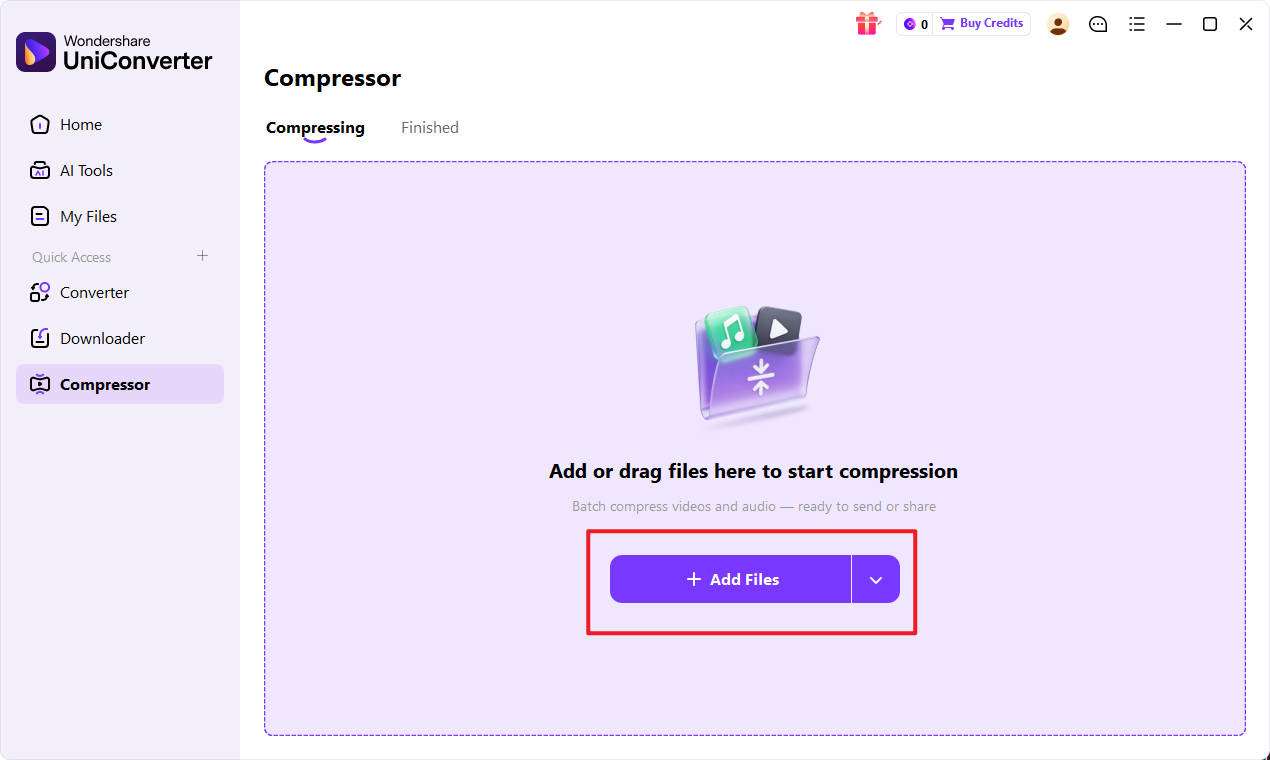
Launch Wondershare UniConverter and go to the Compressor tool on the main interface. Click + Add Files to upload the video you want to compress, or drag and drop it directly into the workspace. If needed, you can also import multiple files for batch compression.
Step 2: Adjust the compression settings
Click the settings icon to customize the output. You can change the file size, resolution, bitrate, and format based on your needs. Use the preview option to check the result first, so you can find a better balance between file size and video quality.
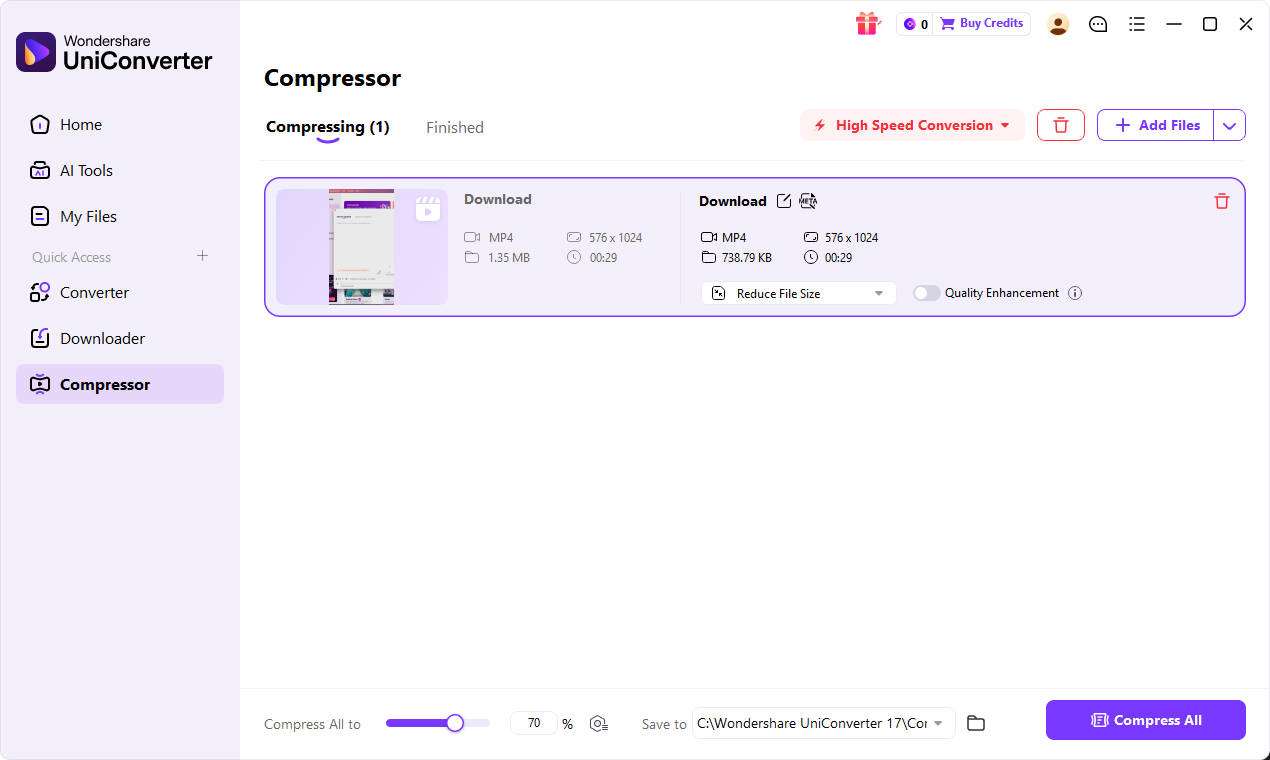
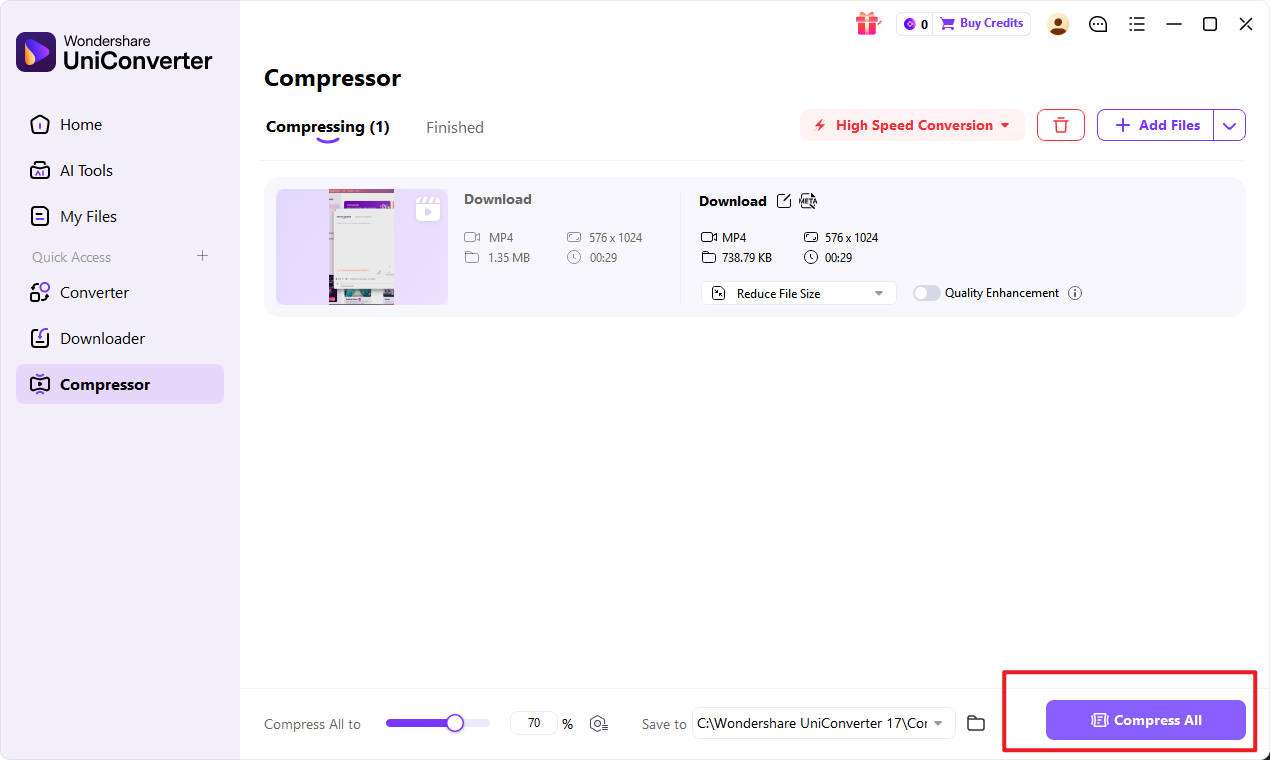
Step 3: Start compression and save the new file
Choose the destination folder using the File Location option at the bottom of the interface. Then click Compress to process one file or Compress All to handle multiple videos at once. After the task is complete, open the output folder to access your smaller video file for easier upload, sharing, or storage.
More Than Just Video Compression
In real-world content work, reducing file size is often tied to other needs. A user may compress a file and then need to convert it for device compatibility, prepare subtitles, extract audio, or record additional footage. Handling all of that across separate tools can slow the workflow down. A broader platform reduces that fragmentation.
Better for Frequent Use
If you are compressing videos regularly, a desktop workflow usually becomes more practical than a web-based one. Local processing avoids the repeated upload-download loop, which is especially useful for larger files, routine workloads, and batch-style tasks.
More Suitable for Broader Video Workflows
Users in marketing, education, training, internal communications, and content creation often work across multiple video-related tasks in the same project. They may need compression, format conversion, subtitles, basic editing, screen recording, or other utilities in one place. That is where UniConverter stands out more clearly as an all-in-one video toolkit instead of a single-purpose online compressor.
Final Verdict
FreeConvert Video Compressor is a convenient solution for light, occasional, browser-based compression. It is easy to access, simple to use, and useful when the goal is just to make a video smaller for sharing, uploading, or saving space. For one-off tasks, that may be all many users need.
FreeConvert Video Compressor starts to feel less efficient when file sizes grow, workflows repeat, or related video tasks become part of the job. If you want a more practical long-term option for larger files, recurring media work, and connected tools such as conversion, subtitles, recording, and enhancement, UniConverter is the stronger alternative.

