


WebM is one of the most efficient and web-optimized video formats. It offers high-quality playback, smaller file sizes, and smooth compatibility with all major browsers. Many social media creators, web developers, and content editors prefer converting their YouTube to WebM for faster loading times and easier embedding on websites.
Compared to formats like MP4 or AVI, WebM maintains quality without bloating file sizes, making it ideal for online publishing and resharing. WebM files use VP9 or AV1 video codecs and Opus audio, making them lighter and more browser-friendly compared to MP4.
If you have been looking for a quick, reliable way to convert YouTube videos to high-quality WebM, this guide will help. In this comprehensive guide, you will learn how to convert YouTube to WebM safely and how Wondershare UniConverter simplifies the process, offering a secure, fast, and high-quality solution that makes it one of the best YouTube to WebM converters for both beginners and professionals.
YouTube to WebM Converter
In this article
- Part 1: WebM Format Explained: What Is the WebM Format?
- Part 2: Why Convert YouTube to WebM?
- Part 3: Best YouTube to WebM Converter Online and on PC
- Part 4: Bonus Tip: Convert YouTube to WebM 4K in Batch from Playlists
- Part 5: How to Embed WebM Videos on a Website (HTML5 Guide)?
- Part 6: Is Converting YouTube to WebM Legal?
- FAQs About Converting YouTube to WebM
- Conclusion
Part 1: WebM Format Explained: What Is the WebM Format?
The WebM format is an open, royalty-free video format developed by Google for the web in 2010. It is a web-first container that uses the VP8, VP9, and WebM codec family to squeeze high visual quality into smaller files.
Before you look at technical differences and learn how to convert YouTube to WebM, remember that WebM targets the web, while many legacy formats aim for general compatibility. That difference changes how you host, deliver, and embed videos on modern pages. Here’s a detailed comparison between WebM vs. MP4 and other most-used formats:
| Format | Developer | Codec Type | File Size | Browser Support | Best Use Case |
| WebM | VP8/VP9 | Small | Excellent (All major browsers) | Web playback, embedding | |
| MP4 | ISO | H.264/H.265 | Medium | Excellent | Universal compatibility |
| MOV | Apple | H.264/ProRes | Large | Moderate | Editing on Apple devices |
| AVI | Microsoft | MPEG-4/DivX | Very Large | Limited | Legacy playback |
| MKV | Open Source | Multiple | Large | Good | High-quality offline storage |
If you want videos that perform well online without sacrificing quality, this WebM format explained guide helps you understand that WebM is your ideal bet, as it prioritizes fast playback, efficient compression, and open-source freedom.
Advantages of Using WebM Format for Social Media
If you want to convert YouTube to high-quality WebM, you choose a format that considers bandwidth, modern browsers, and responsive delivery first. WebM gives you high-resolution output while keeping file sizes and load times low. You can use WebM when you need HTML5 compatibility and fast playback, without the licensing complexity.
Some of the handy advantages you get when you use WebM are:
- Smaller File Sizes With Strong Quality: VP8 and VP9 provide efficient compression so you keep sharp images while lowering bitrate.
- Native HTML5 Compatibility: Most updated browsers can play WebM without plugins, so you can embed and stream directly in modern web pages.
- Superior Compression for Web Delivery: The VP8, VP9, and WebM codec family compresses frames more intelligently, which matters for long videos and 4K content.
- Better for Responsive Sites and Mobile: Smaller files reduce buffering on slow connections and save on bandwidth costs.
- Handles HD and 4K Well: With the right converters, you can convert videos from YouTube to WebM in HD or 4K while preserving visual fidelity.
Part 2: Why Convert YouTube to WebM?
If you want videos that load fast and still look sharp, converting your files into WebM gives you a strong advantage. When you convert YouTube to high-quality WebM, you reduce file size without sacrificing clarity, which helps your content perform better online. You can even export to YouTube to WebM 4K for clean, ultra-HD visuals that stay lightweight for websites, blogs, or professional projects.
Common Use Cases for WebM:
- Web Embedding: WebM works smoothly in HTML5 players and loads faster on websites.
- Smaller File Size: Once the conversion is done, you will realize that you can keep high visual quality while significantly reducing storage and bandwidth.
- 4K Streaming: Such web formats are generally ideal when you need ultra-HD output without heavy compression artifacts.
- Open-Source Advantage: WebM is free, transparent, and not restricted by licensing limitations.
Why WebM is Ideal for Web Developers and Creators:
- Works natively on all major browsers without additional plugins.
- Provides better compression efficiency for fast delivery on modern websites.
- Helps maintain smooth playback across devices, even on slower networks.
- Supports VP8 and VP9 codecs that keep visuals crisp while staying lightweight.
- Reduces server load, making it easier to host multiple videos without performance issues.
Important Legal Notes Regarding Converting YouTube Videos:
- Always convert videos that you own or have permission to use.
- Avoid converting copyrighted material unless it is specifically allowed by the rights holder.
- Use WebM conversions strictly for personal or authorized use to stay compliant with YouTube’s policies.
Part 3: Best YouTube to WebM Converter Online and on PC
If you want to convert YouTube to high-quality WebM, without losing quality, the right tool makes all the difference. Many users look for YouTube to WebM with no watermark options, or need YouTube to WebM 4K resolution conversions for publishing and editing. There are basically two reliable methods for fast speed, safety, and high-quality video conversion.
Convert YouTube to WebM with Wondershare UniConverter
When you want full control over quality, speed, and output, Wondershare UniConverter is your ideal choice. It's widely considered one of the best YouTube to WebM converters, with 4K support and even 8K conversion capabilities. The software maintains original quality while letting you trim, compress, and edit before exporting.
YouTube to WebM Converter
With UniConverter, you can convert YouTube videos to 4K WebM in a few clicks, without watermarks or browser limitations. Here’s how to do that:
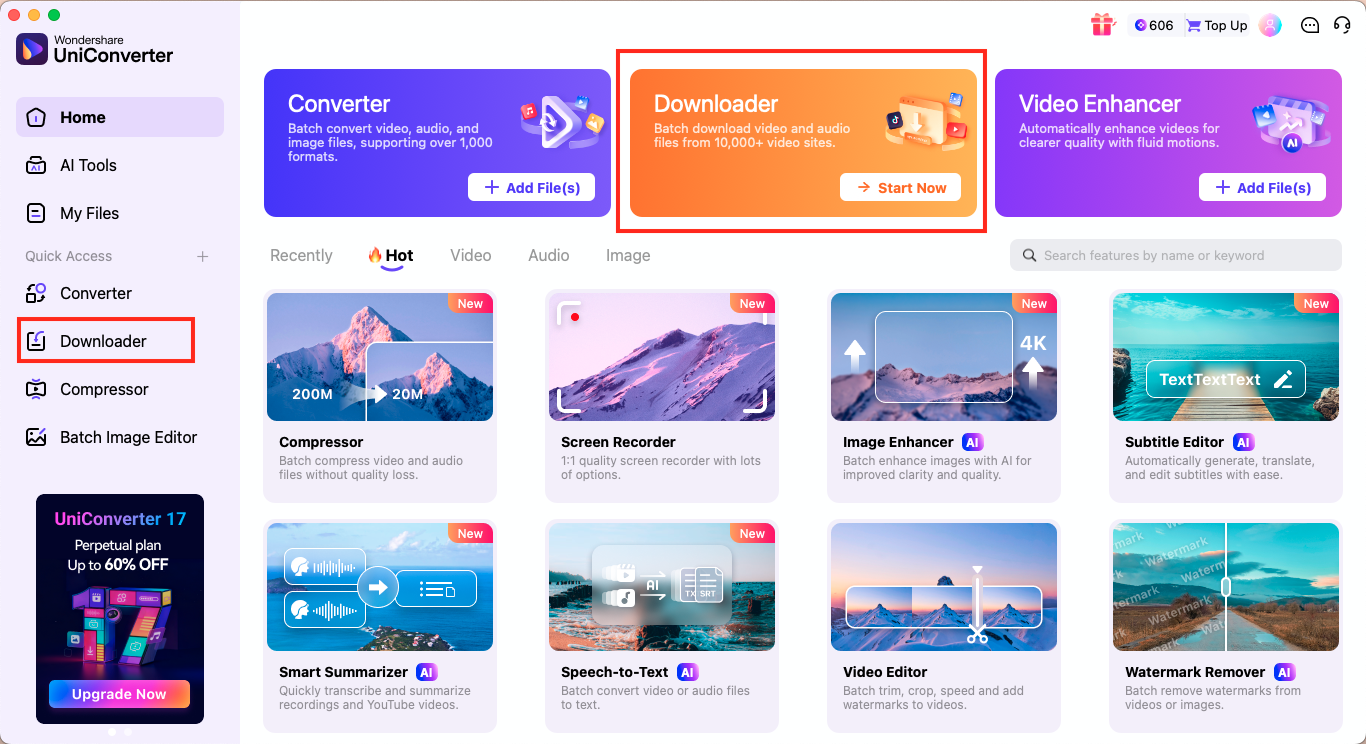
Step 1: Launch Wondershare UniConverter on your desktop. From the top menu or left sidebar under Quick Access, click on the Downloader section.
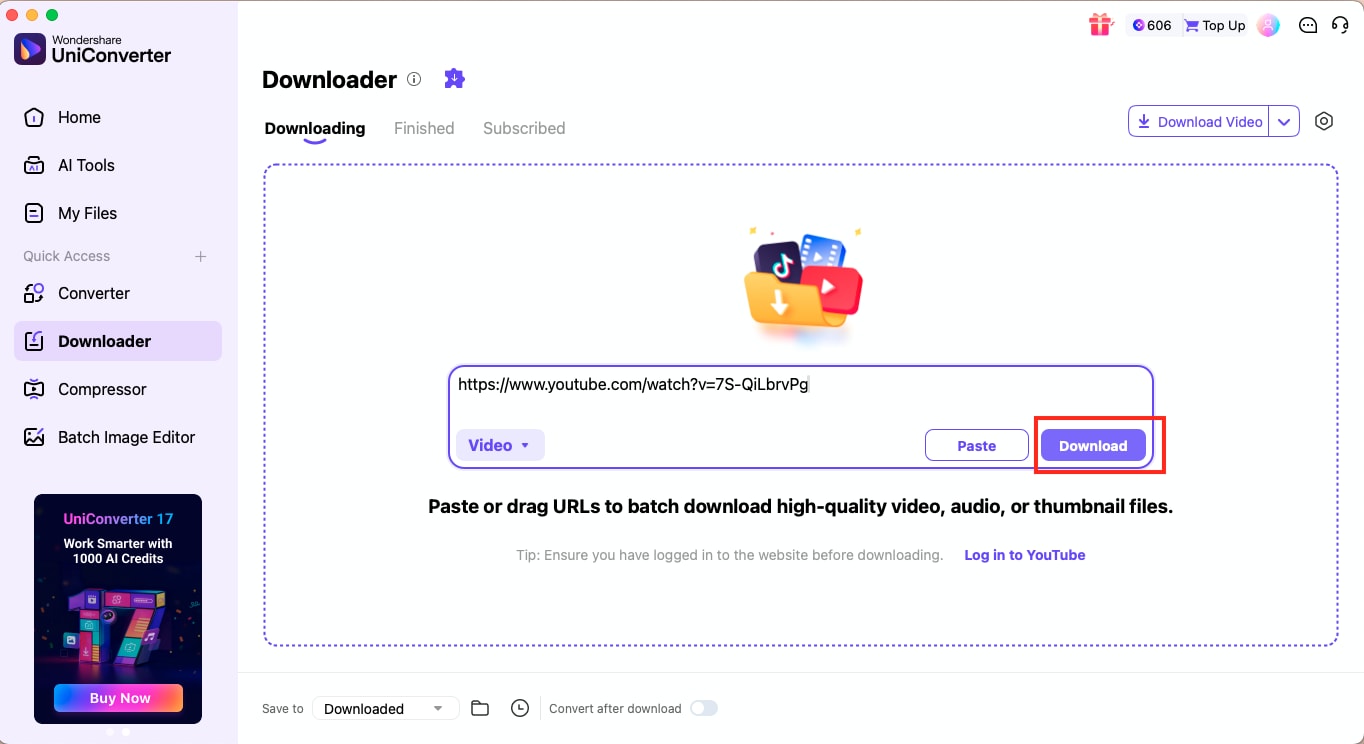
Step 2: Paste the copied YouTube video URL inside the Downloader input box and click on the Download button.
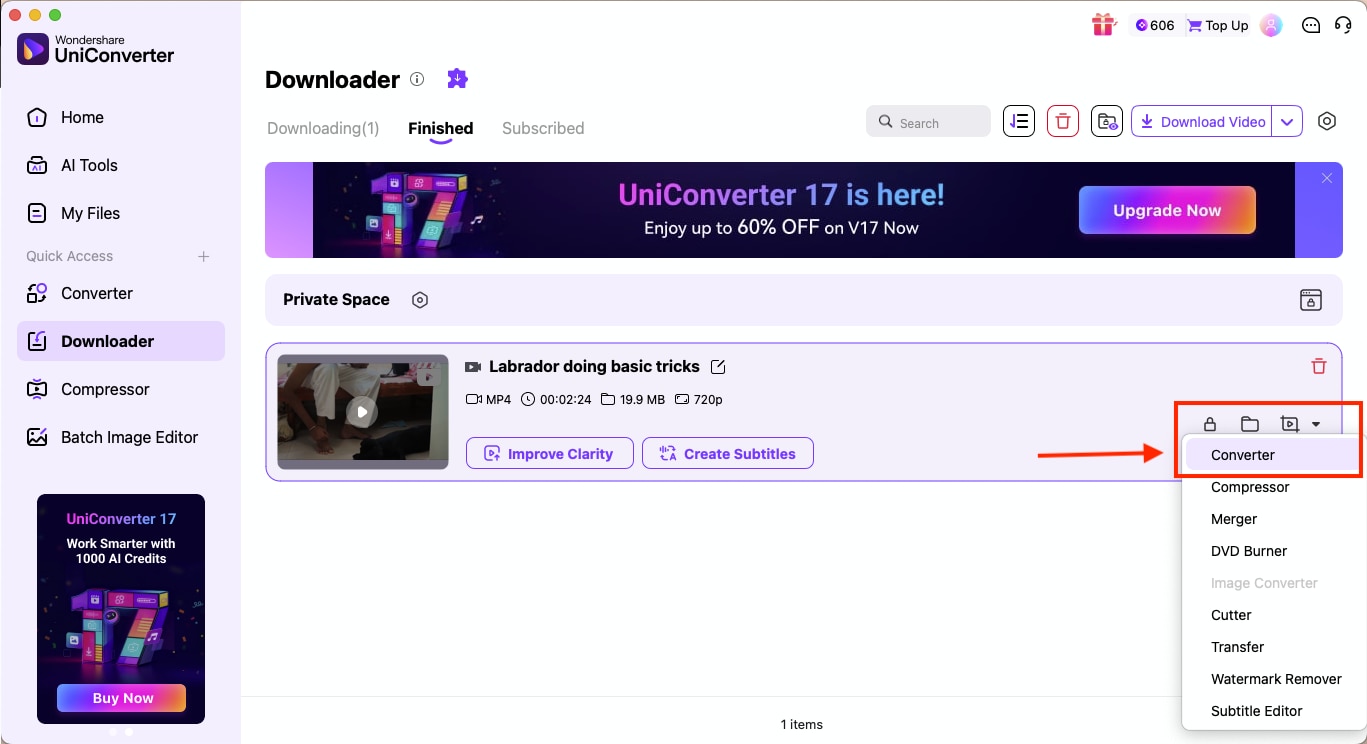
Step 3: Once the video passes verification, UniConverter will automatically start downloading it. When the process completes, go to the Finished section to find the downloaded YouTube video in MP4 format. From here, click the options icon next to the video preview to open other settings, then click Converter.
Step 4: In the Converter section, click the output format menu next to your video, then choose WebM. Now click Convert All to start the conversion.
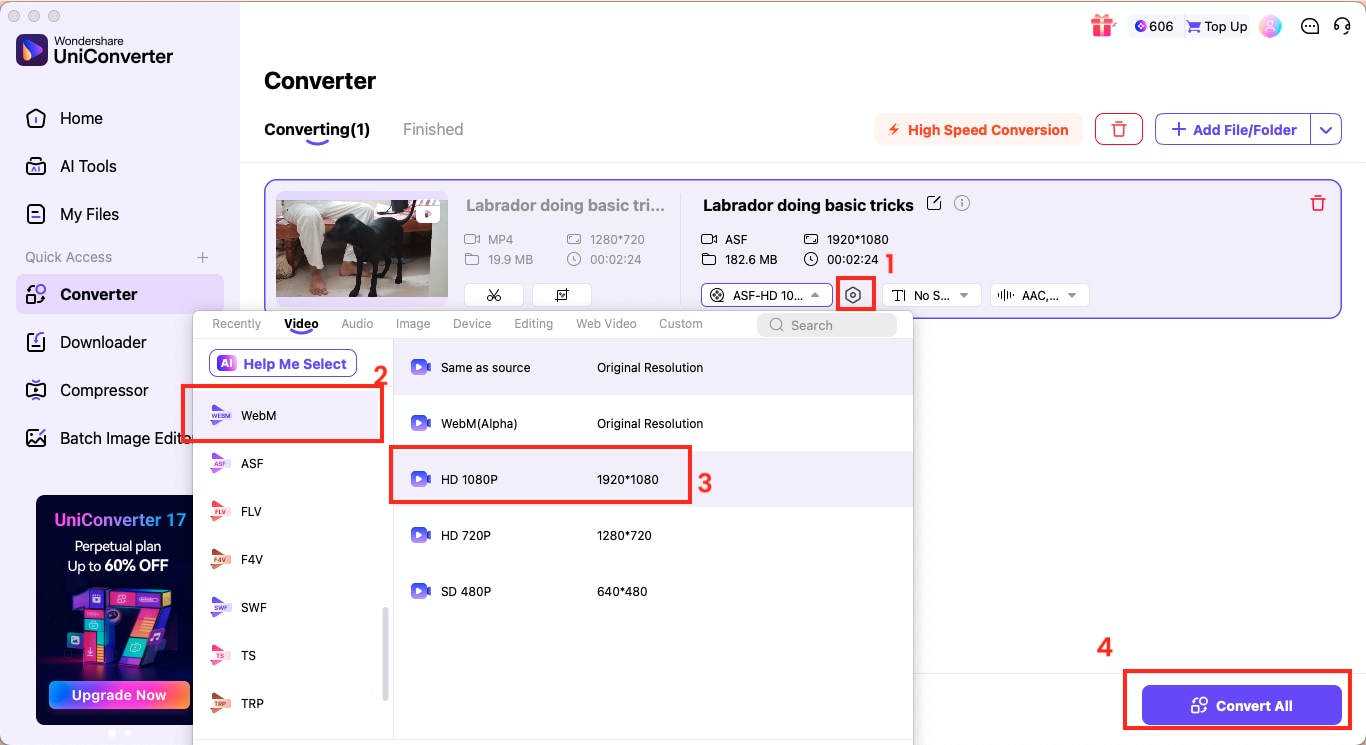
Note: Before downloading, make sure the video does not violate any YouTube copyright restrictions or any legal issues related to YouTube to WebM conversions.
UniConverter will process the video quickly, while ensuring the output keeps the same clarity and resolution as the source. This is the most efficient and professional way to convert YouTube to WebM 4K or higher, without dealing with browser limitations or watermarks.
Why Choose Wondershare UniConverter for YouTube to WebM Conversion?
Wondershare UniConverter is an all-in-one video toolkit built for creators, editors, and web developers who value quality and speed. From downloading entire playlists to exporting in ultra-HD, this YouTube to WebM converter gives you every control you need for a smooth, high-quality conversion experience.
Key Benefits of Using UniConverter:
- 4K and 8K Support: You can easily convert YouTube videos into crisp, high-resolution WebM files without losing clarity.
- Playlist or Subscribed Channel Download: It lets you save complete YouTube playlists or even subscribed channel videos in one go.
- No Watermark: As a subscribed user, you can remove the watermark from videos to get professional-quality output suitable for editing, publishing, or embedding.
- Batch Conversion: You can easily convert multiple YouTube videos to WebM at once and save valuable time.
- High-Speed Processing: UniConverter’s optimized engine ensures lightning-fast downloads and conversions without quality drops.
If you are ready to experience the difference between video formats, download Wondershare UniConverter today and convert YouTube to WebM in seconds.
YouTube to WebM Converter Free Online Tools (Alternative)
If you just want to convert a few YouTube videos for free, several free online YouTube to WebM converter tools can get the job done. These platforms let you convert YouTube videos to WebM with no watermark directly in your browser, making them a good alternative for quick edits or short clips.
While these free YouTube downloader WebM sites can output high-quality 1080p videos, most have limits on file size, download speed, or custom settings.

Disclaimer: Always ensure that the YouTube videos you convert are either copyright-free or that you are the rightful owner of the content. This helps you stay compliant with YouTube’s terms and avoid any potential legal issues during conversion.
Here are a few free online YouTube to WebM converters that you can use:
FreeConvert
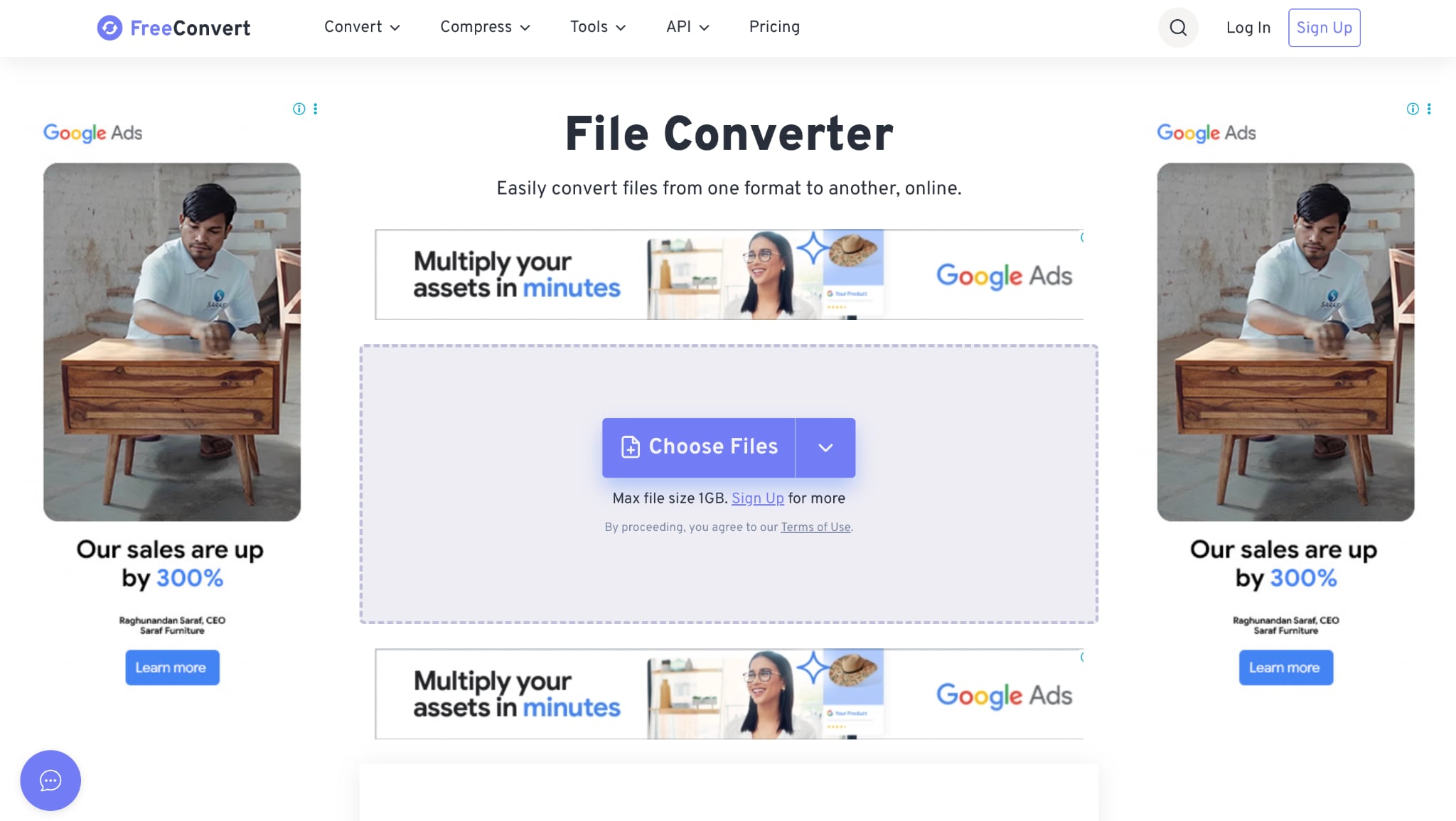
FreeConvert is a popular browser-based platform that lets you convert MP4, MOV, and other formats to WebM for free. It supports multiple file types, which makes it a simple choice for quick conversions. You can convert files up to 1 GB without creating an account, which further makes it a good option for those who want to convert short or medium-length videos from YouTube to WebM without installing software.
How to Use FreeConvert to Convert MP4 to WebM
Follow these simple steps to convert MP4 to WebM online:
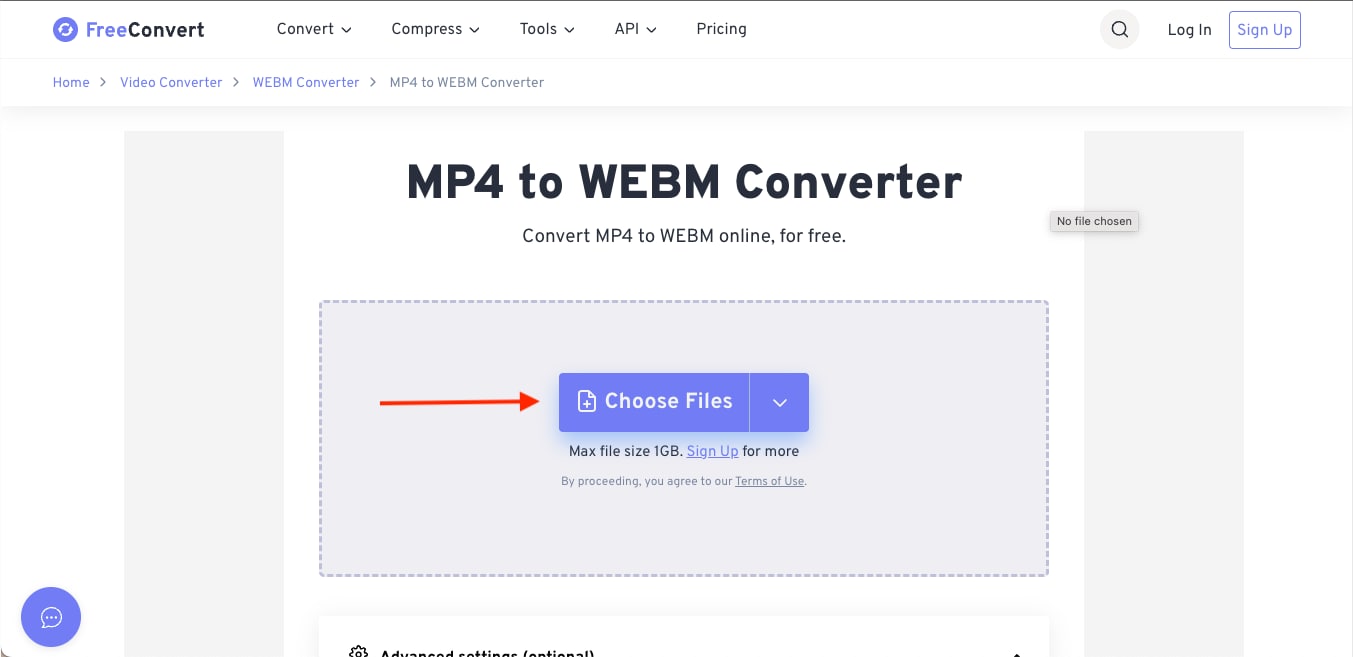
Step 1: Visit FreeConvert’s MP4 to WebM Converter and click Choose Files. You can upload your downloaded YouTube MP4 file directly from your device.
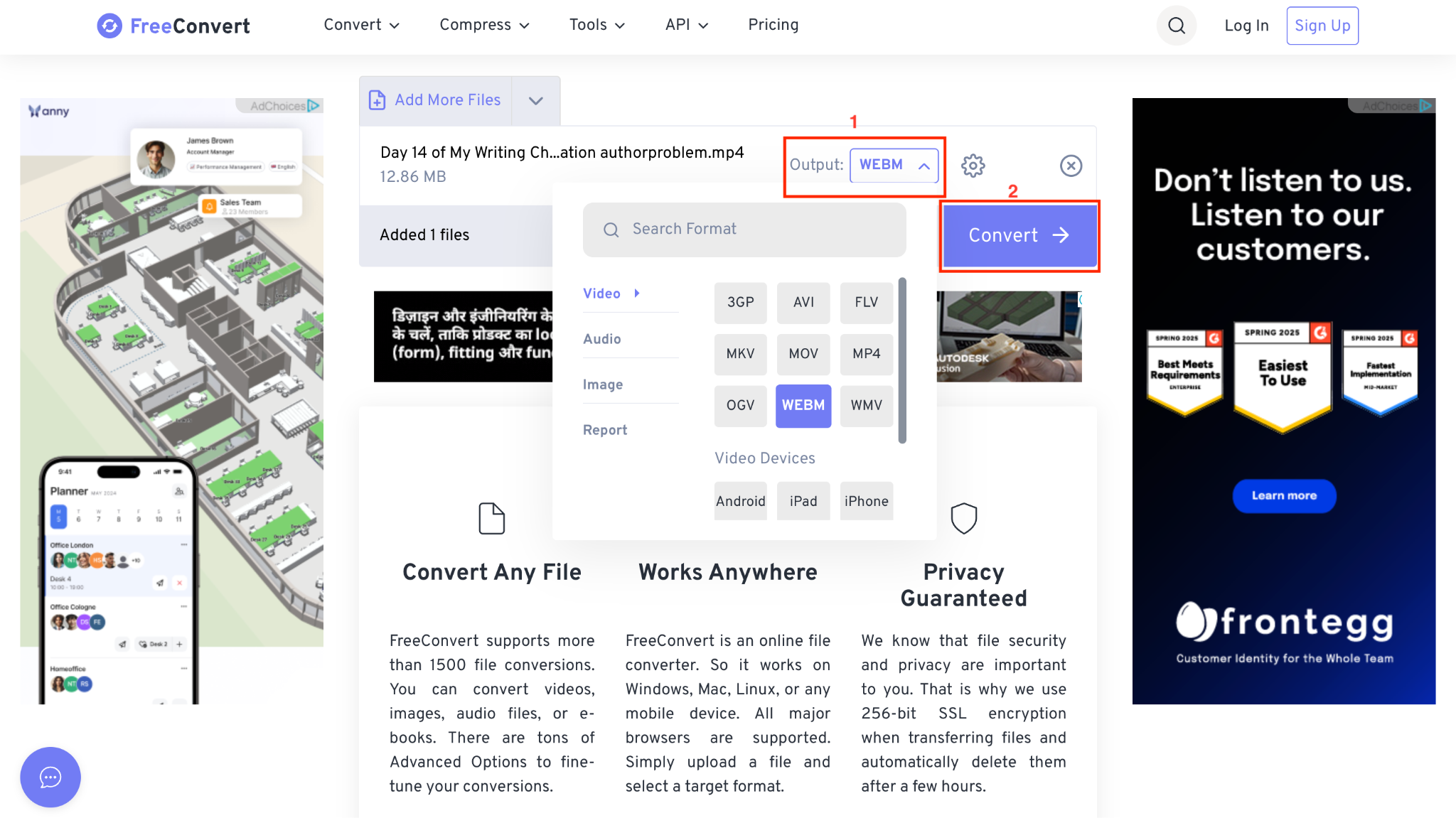
Step 2: Once uploaded, check the Output section on the right and select WebM from the video format list. Click the Convert button to begin the process.
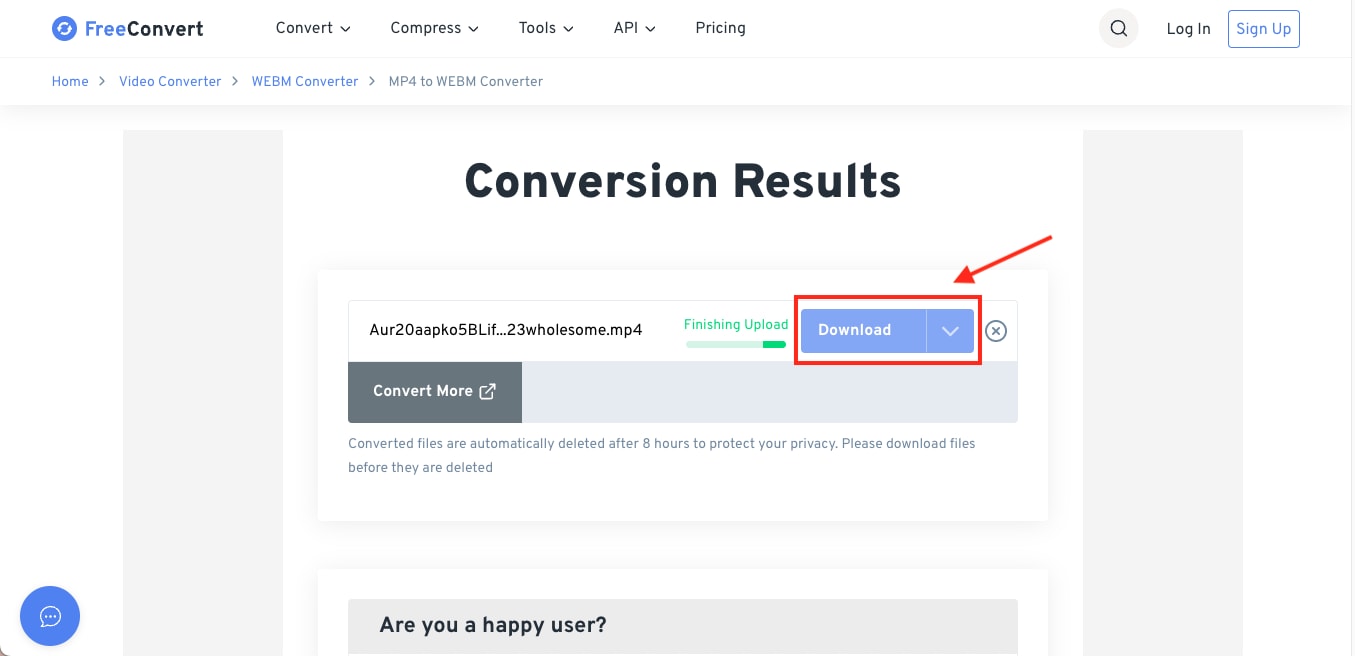
Step 3: The platform will automatically start uploading and converting your file. When the conversion finishes, click Download to save your new WebM file.
CloudConvert
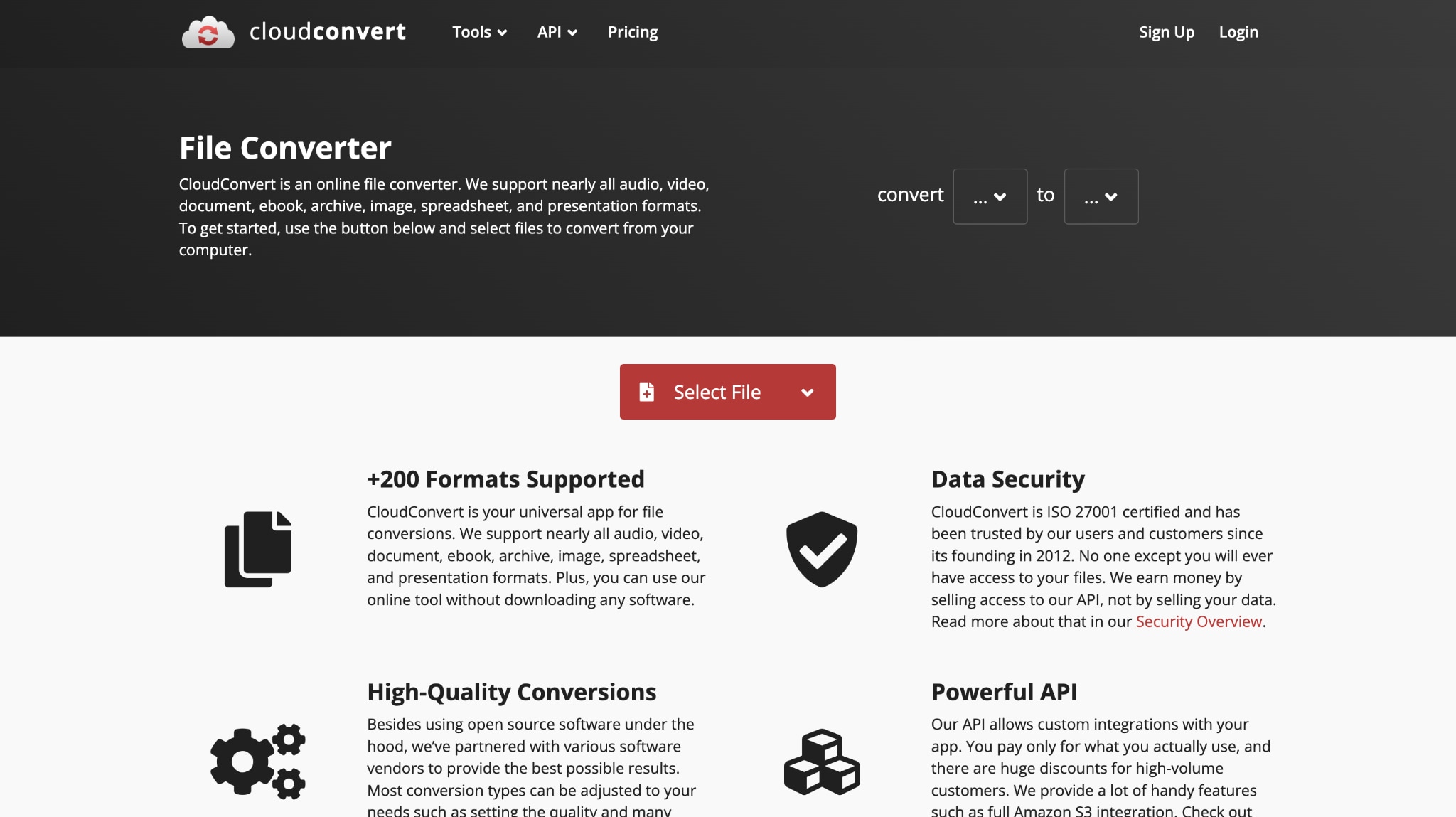
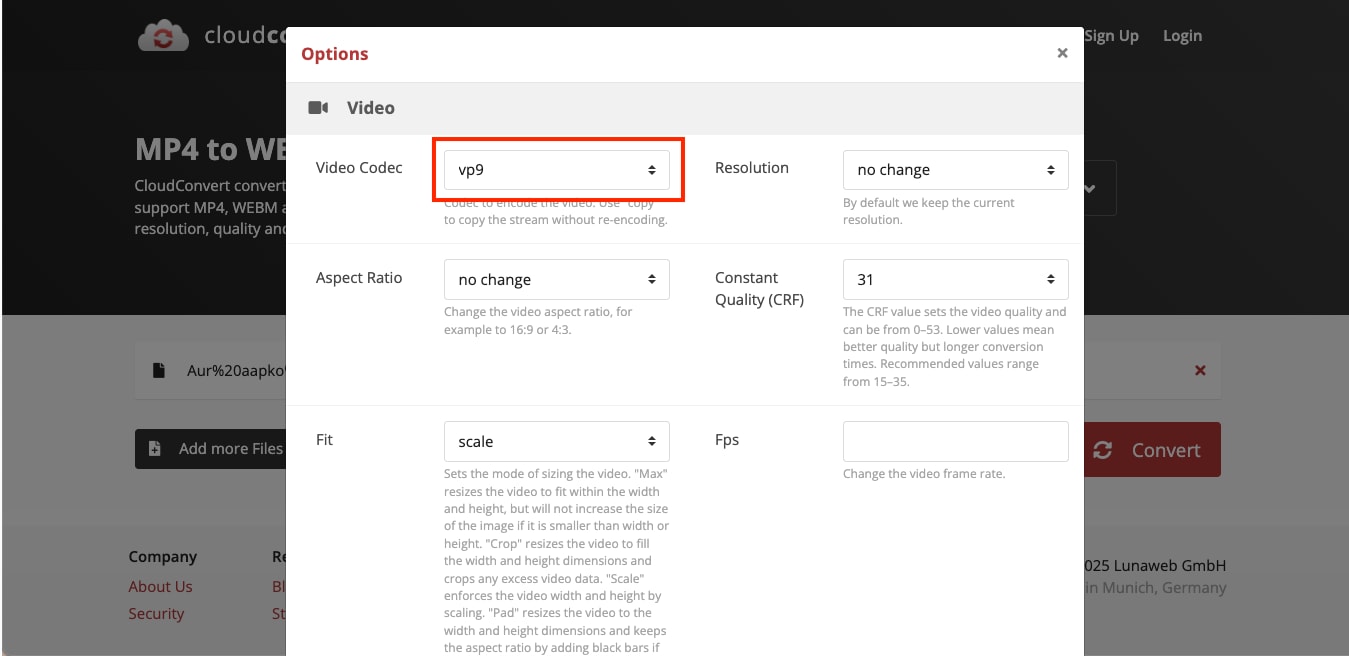
CloudConvert is one of the most versatile platforms for video conversion and works ideally well as a YouTube to WebM converter online free tool. It supports hundreds of file types, including MP4, AVI, and WebM, and lets you fine-tune every detail before conversion. You can control the VP9 codec, resolution, and quality to ensure your converted WebM file looks professional and web-ready.
How to Use CloudConvert to Convert MP4 to WebM
Follow these steps to use the YouTube to WebM converter online for free:
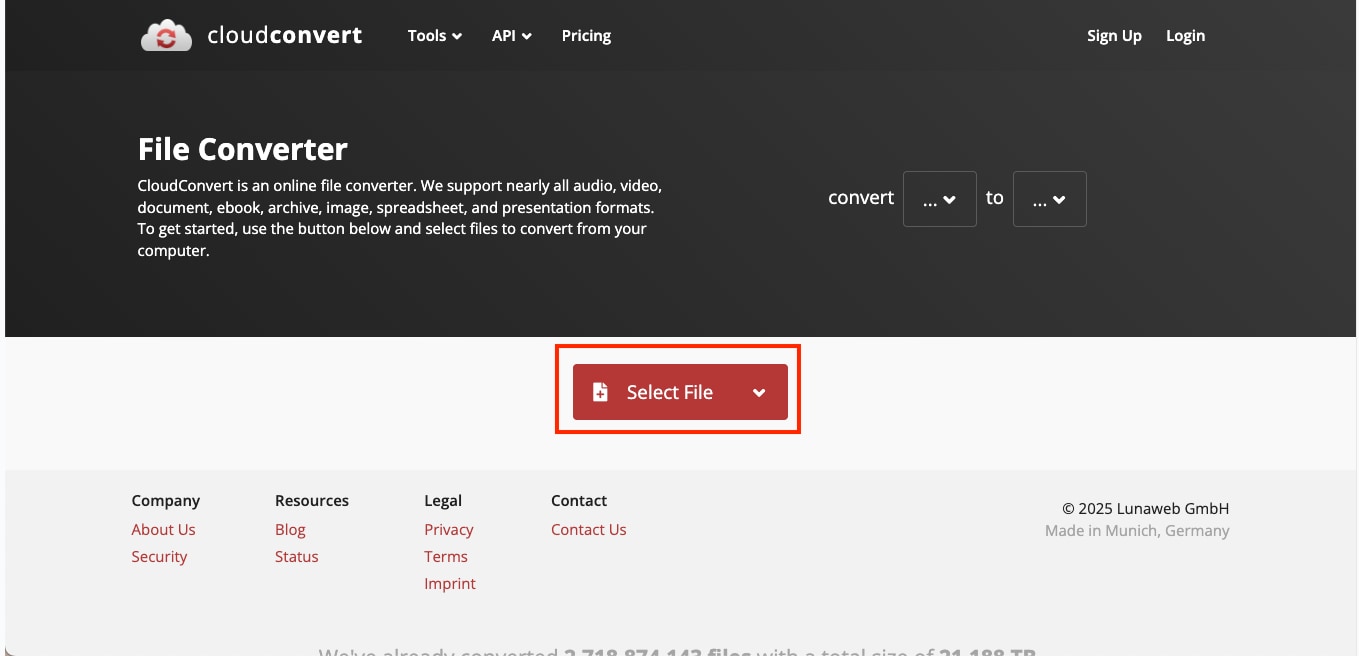
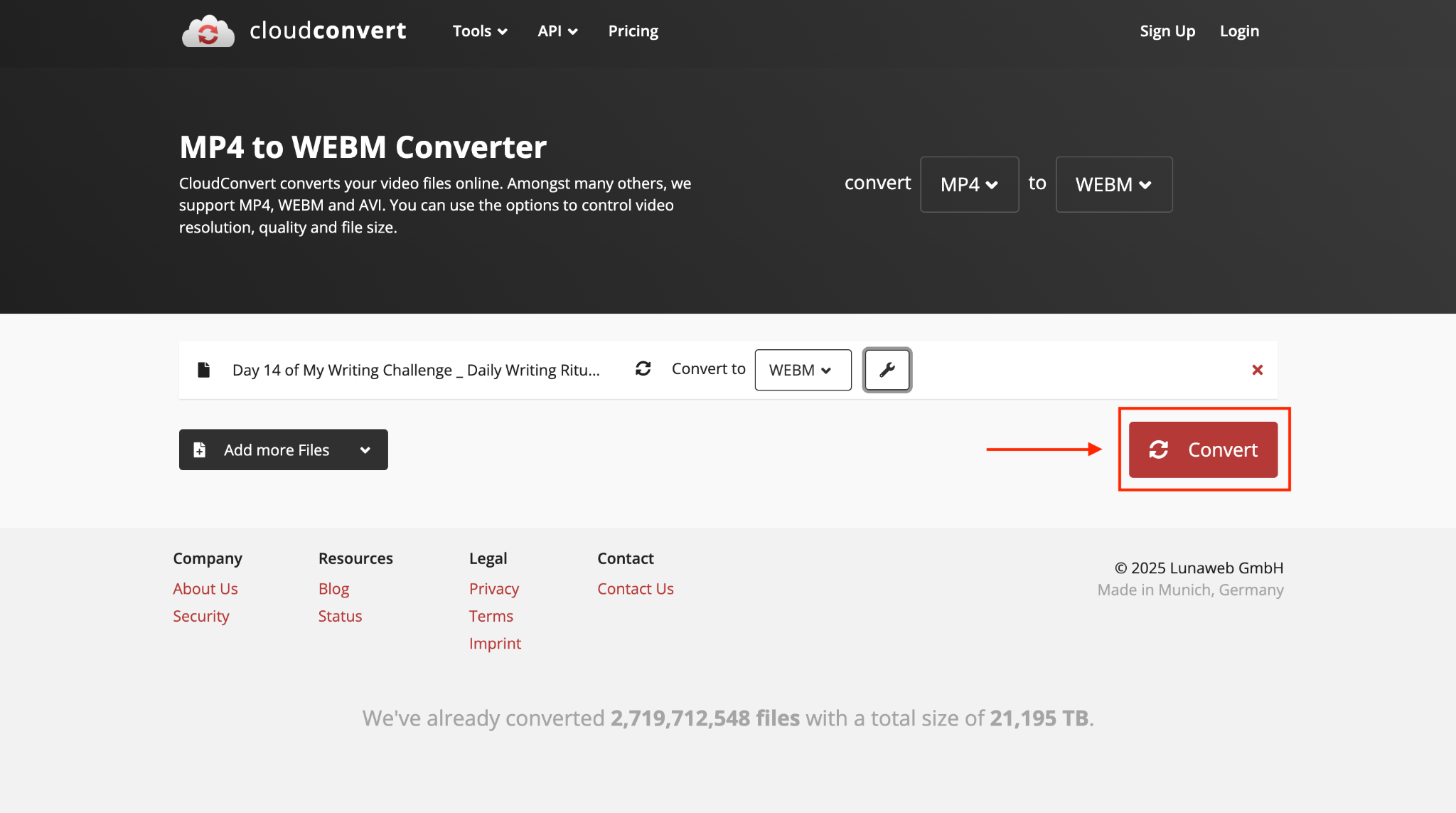
Step 1: Go to CloudConvert’s MP4 to WebM Converter and click Select File to upload your downloaded YouTube video.
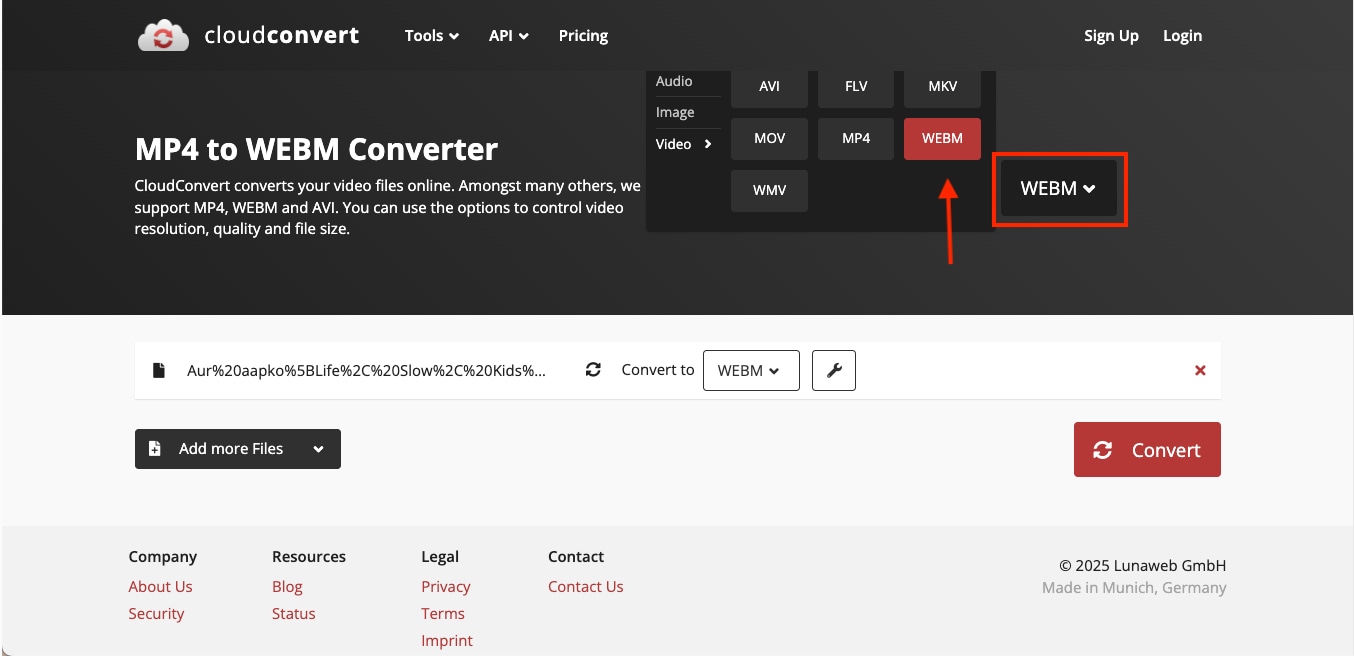
Step 2: Choose Convert to WebM from the dropdown menu beside your uploaded file.
Step 3: Click on the settings (wrench) icon to open advanced options. Here, you can customize the video codec (choose VP9), resolution, and quality to suit your needs.
Step 4: Once the settings are finalized, click Convert to start processing. After conversion, preview or download your WebM video by clicking Download.
Part 4: Bonus Tip: Convert YouTube to WebM 4K in Batch from Playlists
If you want your converted videos to look sharp across devices, always aim for WebM 4K resolution during export. The difference in clarity becomes noticeable, especially when you upload or embed videos on websites. You can also switch to YouTube WebM high-quality 1080p when you need smaller file sizes without compromising much detail.
As mentioned, Wondershare UniConverter gives you full control over advanced settings, so you can adjust quality, compression, and audio preferences exactly the way you want.
Here are some of the highly recommended settings for getting the best WebM output after conversion:
- Video Codec: Please always choose VP9 for reliable, high-quality compression or AV1 for newer, more efficient encoding.
- Resolution: You can choose 4K for ultra-HD clarity, or stick with 1080p for a balanced file size and quality.
- Bitrate: If the converter allows, try adjusting it between 8,000–12,000 kbps for crisp, smooth playback.
- Frame Rate: Try keeping the frame rate consistent with the source to maintain motion accuracy.
- Batch Conversion: Use UniConverter’s batch mode to process entire playlists or multiple YouTube files simultaneously.
These settings help you create the ideal blend of sharp visuals, smaller file sizes, and professional-grade sound, which would make your YouTube to WebM high-quality 1080p conversions efficient and ready for web publishing.
Tips for 4K or Batch Conversions
When you convert multiple HD videos or export them in 4K, a few smart adjustments can save time and maintain consistent quality. Use these quick tips to make your YouTube to WebM conversions faster and smoother.
- Close other heavy applications before starting large conversions to free up system memory.
- Enable High-Speed Conversion mode in UniConverter for faster 4K or multi-file processing.
- Keep your VP9 codec selected for efficient compression without quality loss.
- For batch conversions, organize all downloaded YouTube files into a single folder before importing them.
- Always double-check the output resolution and folder path before running the batch.
- Use hardware acceleration (if available) to shorten conversion time for 4K WebM exports.
Get High-Quality Batch WebM Outputs from YouTube Playlist Without Watermark
If you want smooth playback and crystal-clear visuals, converting your videos to the WebM format for HTML5 video is the best choice. It keeps your files light for web use while preserving high quality, even when you go ahead with the 4K resolution. Wondershare UniConverter lets you batch-save and convert entire YouTube playlists into WebM quickly, without adding any watermark to the final video.
(Disclaimer: Our tool is intended for personal use only. Users are solely responsible for using this tool to save videos or audios, including compliance with platform's terms of service and copyright laws and regulations. We are not liable for any consequences resulting from users' violation of any laws or infringement of others' rights.)
YouTube to WebM Converter
Balance Between File Size and Quality
When you convert YouTube videos to WebM, striking the right balance between file size and visual quality is essential. A smaller file loads faster on websites, while a higher quality ensures better viewing experiences. Use the table below to understand how different resolutions affect storage and playback.
| Resolution | Approx. File Size (5-Minute Video) | Visual Quality | Best For |
| 480p (SD) | ~40–60 MB | Basic | Quick previews, low-bandwidth uploads |
| 720p (HD) | ~80–120 MB | Good | Regular YouTube videos, personal use |
| 1080p (Full HD) | ~150–250 MB | Excellent | Streaming, professional content |
| 2160p (4K) | ~400–600 MB | Ultra-clear | High-end editing, large displays |
| 4320p (8K) | ~900 MB+ | Exceptional | Archival footage, advanced production |
Part 5: How to Embed WebM Videos on a Website (HTML5 Guide)?
If you want your videos to load faster and play smoothly online, using WebM for HTML5 video is an ideal solution. This lightweight, open-source format delivers high-quality visuals without putting stress on your website’s bandwidth.
You can easily embed browser-compatible WebM videos using a simple HTML5 <video> tag, which works across modern browsers like Chrome, Firefox, Edge, and Opera.
HTML5 Code Example
<video controls width="640" height="360">
<source src="video-file.webm" type="video/webm">
<source src="video-file.mp4" type="video/mp4">
Your browser does not support the video tag.
</video>
Browser Compatibility and Fallback Options
Some of the most common fallback options are:
- Most modern browsers support the WebM format natively.
- Always include an MP4 fallback to ensure playback on older browsers or devices that don’t support WebM.
- Use multiple <source> lines in the same tag so the browser automatically selects the compatible format.
Why WebM Improves Website Performance?
Here’s why WebM would improve the website performance in the long run:
- Faster Loading: The WebM format reduces file size, allowing pages to load videos quickly.
- Optimized Compression: WebM uses efficient VP8 and VP9 codecs for sharp visuals at lower bitrates.
- Web-Friendly Playback: Since WebM is browser compatible, it runs smoothly without extra plugins or extensions.
- Better SEO Impact: Faster video playback improves page engagement and overall user experience.
Part 6: Is Converting YouTube to WebM Legal?
Before you start downloading and converting, it’s important to understand the legal issues of YouTube to WebM conversions. YouTube’s content policies are strict, and while tools allow you to download or batch convert playlists, using them irresponsibly can violate the platform’s terms. Always ensure your conversions comply with copyright laws and are for personal or authorized use only.
YouTube’s Terms of Service: Everything That You Need to Know:
- You cannot download or convert copyrighted videos unless the creator has given permission.
- You can only download content for personal, offline viewing when the creator or YouTube provides a download option.
- Avoid any redistribution, re-uploading, or commercial use of downloaded content.
- Always check if the video is licensed under Creative Commons or labeled as free-to-use before converting.
What you Should Avoid When Downloading YouTube Videos:
- Downloading or converting pirated or copyrighted content without explicit permission.
- Sharing converted videos publicly or using them in monetized projects.
DISCLAIMER: YouTube only permits downloading when you have the rights to the content or when the video is released under licenses like Creative Commons Attribution (CC BY). Downloading for redistribution, re-uploading, or commercial use violates YouTube’s Terms of Service
If you need to convert videos safely, use trusted software like Wondershare UniConverter. It provides a malware-free, secure environment for personal conversions and helps you batch convert YouTube playlists to WebM without risking your data or device security.
FAQs About Converting YouTube to WebM
1. How do I convert YouTube to WebM?
You can easily convert YouTube videos to WebM by using Wondershare UniConverter. Copy the YouTube video link, then paste it into the download option and select your desired output settings, such as resolution, codec, and audio quality.
2. Does YouTube allow WebM?
Yes, YouTube supports uploading videos in the WebM format, which is optimized for HTML5 playback and uses the efficient VP8 or VP9 codecs. While you can upload and stream WebM files directly, downloading or converting YouTube videos into this format is allowed only for personal use and non-copyrighted content.
3. Is WebM better than MP4?
WebM is better suited for online and HTML5 use, while MP4 remains a more universal format. WebM files are smaller and load faster, which makes them ideal for websites and embedded videos. However, MP4 offers broader device and editing software compatibility.
4. What are the disadvantages of WebM?
While WebM provides impressive compression and web performance, it has a few downsides. Some older devices and video editors do not fully support it, and it might require re-encoding for offline playback. Additionally, processing YouTube to WebM 4K resolution files can take longer compared to MP4 conversions.
5. Which video format is best for the web?
For web use, both MP4 and WebM are great choices, but MP4 with the H.264 codec is considered the most universal format. It offers excellent quality, broad compatibility, and easy playback across browsers and devices.
Conclusion
The WebM format stands out for its efficiency, smaller file sizes, and flawless browser compatibility. It’s the ideal choice for creators, developers, and anyone who wants smooth, high-quality video playback on the web. With the right tool, you can easily convert YouTube to WebM in 1080P or 4K, batch-process playlists, and enjoy watermark-free output that’s optimized for online use.
Start using Wondershare UniConverter to simplify your video workflow today. It’s fast, secure, and designed for both beginners and professionals who want full control over quality and speed. For stable WebM exports in VP9, UniConverter gives you full control over bitrate, resolution, and audio settings.
Use UniConverter to convert YouTube videos to WebM with stable performance and precise control over codec settings.

