
Want to keep a video from a friend’s WhatsApp Status? Status updates disappear from view after 24 hours, so save an authorized copy while it is still available. The right WhatsApp Status download method depends on your device and whether you need a local file or simply want to share the update.

In this article
How to Download WhatsApp Status Videos on Android
On some Android phones, a viewed Status video is temporarily available in a hidden WhatsApp folder. You can use a file manager to copy it elsewhere. This method depends on your phone, file manager, Android version, and WhatsApp version; the folder or video may not be accessible.

If a WhatsApp Status looks blurry after uploading, especially when music is added, learn why WhatsApp Status becomes blurry with music and how to troubleshoot it .
- View the video. Open WhatsApp, tap Updates, and play the Status you have permission to save.
- Open your file manager. Look for an app called Files, File Manager, or My Files.
- Show hidden files. In the file manager’s settings, turn on Show hidden files or a similarly named option.
- Find the folder. Starting in internal storage, check
Android/media/com.whatsapp/WhatsApp/Media/.Statuses. The dot beforeStatusesis part of the name. - Copy the video. Touch and hold the relevant file, choose Copy, and paste it into a normal folder such as Movies or DCIM.
- Play your copy. Open the video from its new location to make sure it saved successfully.
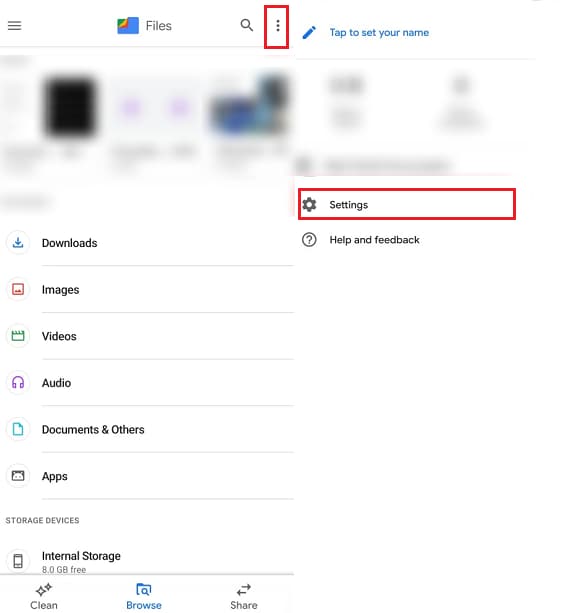

Why copy it? The file inside .Statuses is temporary. A separate copy in a normal folder is easier to keep and find. The cached file may already be compressed, so ask for the original if quality matters.
How to Download WhatsApp Status Videos on iPhone
Save someone else’s Status with Screen Recording
iPhone’s built-in Screen Recording captures what appears on the screen. It creates a recording rather than extracting the original video, so the picture, sound, and quality may differ.

- Find the Status. Open WhatsApp and locate the video. Ask the person who posted it for permission.
- Open Control Center. Swipe down from the top-right corner on an iPhone with Face ID, or swipe up from the bottom on an iPhone with a Home button.
- Start recording. Tap the Screen Recording control and wait for the countdown. If it is missing, add it to Control Center.
- Play the video. Return to WhatsApp and play the Status from the beginning.
- Stop recording. Tap the red recording indicator and stop, or use the Screen Recording control in Control Center.
- Trim and check. Open the recording in Photos, tap Edit, and drag the ends of the timeline. Save the result, then play it to check the picture and sound.
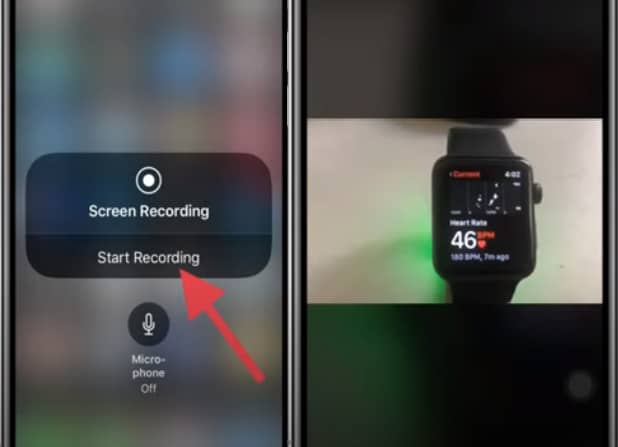
Sound tip: Make a short test recording first. Turning on the microphone captures microphone input; it does not guarantee capture of the Status’s original audio. Some apps or content may limit recording. If sound matters, ask the sender for the original.
Save your own Status video
First check Photos for the original video you selected when creating your Status. If you added music, text, or other edits inside WhatsApp, the original file may not include them. Open your own Status and check for a save option if your current version offers one. Otherwise, screen recording is a fallback while the Status remains available.
How to Save WhatsApp Status Videos to Your Gallery
| Phone | Where to find the result | How to check |
|---|---|---|
| Android | The folder you chose, such as Movies or DCIM; the video may also appear in Gallery. | Open the copied file in the file manager and play it. Allow Gallery time to refresh. |
| iPhone | Photos, including the Screen Recordings media type. | Play the recording and check the beginning, end, and audio. |
Can You Download WhatsApp Status Without an App?
Yes. Your phone’s file manager may work on Android, and iPhone has built-in Screen Recording. Neither method requires installing a separate WhatsApp Status Saver app. A third-party saver may offer an easier browsing interface, but it can request file access or show ads, and it cannot be assumed to recover unavailable videos. Check permissions and never share your WhatsApp verification code or link your account to an untrusted service.
If you only want to repost, check whether WhatsApp offers reshare: WhatsApp says this is available when the poster allows resharing or mentions you. Resharing is different from saving a video to your phone.
Common Problems When Downloading WhatsApp Status Videos

The Status video is not in File Manager
View the Status first, enable hidden files, and check Android/media rather than assuming it is under Android/data. The folder may be missing, restricted, or empty on your device. Ask the sender for the file if the method fails.
Hidden files are not visible
Look in the file manager’s settings for Show hidden files or Show hidden system files. The name varies by app. If necessary, try your phone manufacturer’s file manager.
The video disappeared after 24 hours
Check whether you already copied or recorded it. If not, ask the person who posted it to send the video. Do not rely on a temporary cache as a backup.
The video is not in Gallery
On Android, verify the copied file in Movies or DCIM and allow the Gallery app time to refresh. On iPhone, check Photos and the Screen Recordings collection. Open the file to confirm it plays.
The screen recording has no sound
Confirm the Status itself has sound, make a short test recording, and check it in Photos. Microphone audio is separate from the original media audio. If the sound cannot be captured, request the original from the sender.
Have a Video Link? Download Supported Videos with UniConverter
If the clip you want is also available through a supported video page, and you have permission to save it, Wondershare UniConverter’s Downloader can help you download that separate video link on a Windows PC or Mac. You can then convert or compress the saved file if needed.
Important: This link-based workflow is for supported sources. It is not a way to access or download a contact’s private WhatsApp Status. For a Status, use the phone methods above or ask the sender for the original.
- Copy the video link. Open a supported, authorized video page and copy its individual URL. A WhatsApp Status is not a supported link just because it plays in WhatsApp.
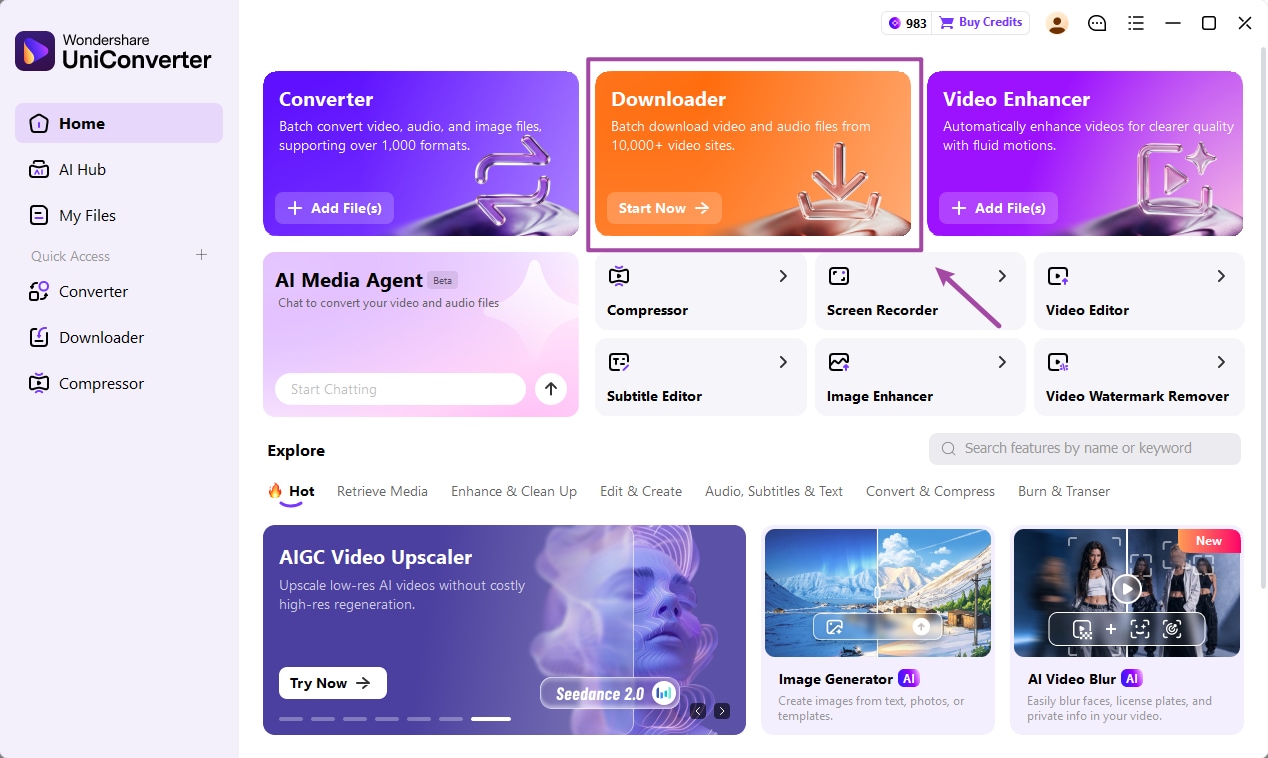
- Open Downloader. Launch UniConverter on your computer and select Downloader from Home or the navigation menu.
- Paste the URL and download. Paste the link into the input field, keep the video option selected, choose a destination if needed, and click Download. Available choices vary by source and product version.
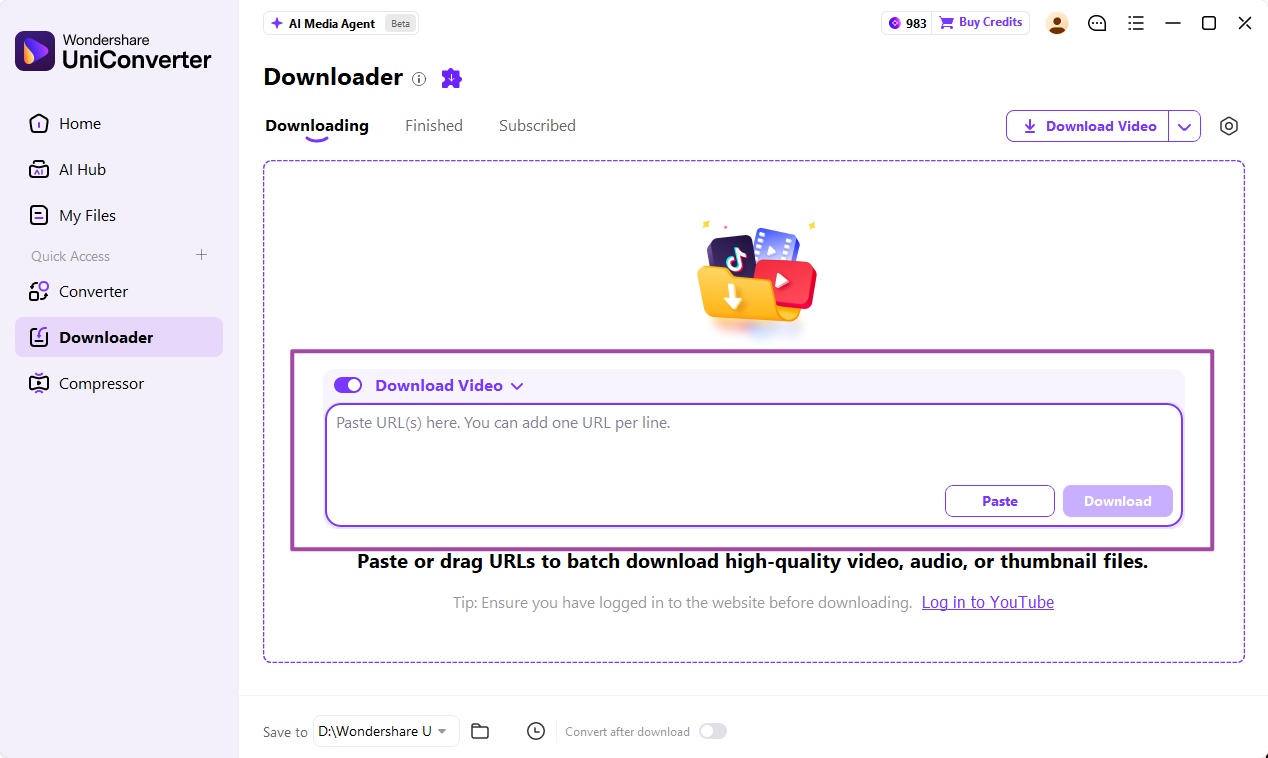
- Check the result. Monitor the task under Downloading, then find the completed file under Finished. Play it and check the sound, duration, and picture.
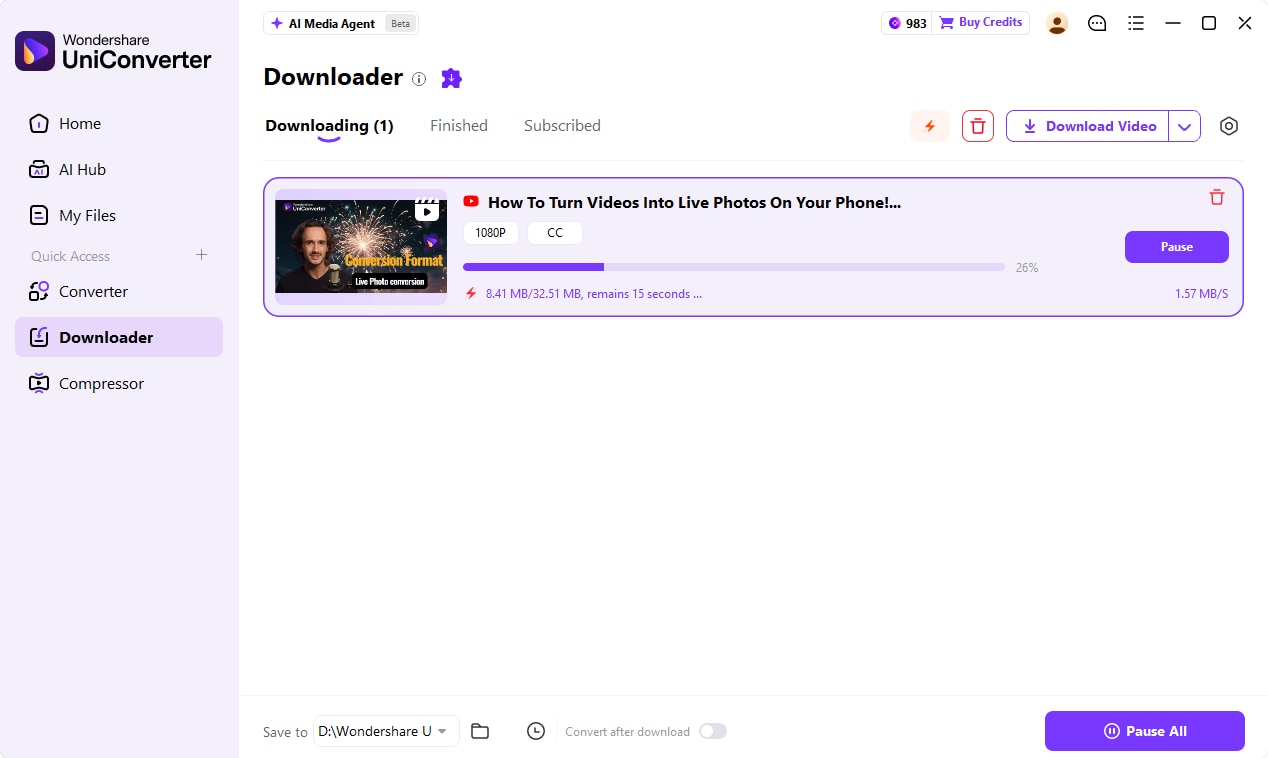
For a video you already saved from your phone, transfer the file to your computer and use UniConverter to convert its format or compress it. Keep the original copy: compression can affect quality.
Download Wondershare UniConverter for Desktop
Free Download for Windows Free Download for Mac
Windows and Mac desktop app. Download options and source support vary.
Learn more about downloading supported videos from a link.
UniConverter Downloader is installed desktop software. Source support and download options vary. It does not bypass private access, disabled downloads, or DRM.
Related guides: If you are saving an eligible video from a different platform, see our ShareChat video downloader guide. To prepare your own clip for a Status, learn how to trim a video for WhatsApp Status.
Frequently Asked Questions
-
How do I download someone’s WhatsApp Status video?
With permission, try copying the viewed file from the hidden Status folder on Android or recording your screen on iPhone. For the original, ask the person to send it.
-
Where are downloaded WhatsApp Status videos saved?
On Android, look in the regular folder you chose when copying the file. On iPhone, screen recordings are saved in Photos.
-
Can I download a WhatsApp Status without an app?
Yes. Try the phone’s file manager on Android or the built-in Screen Recording control on iPhone. Android file access varies by device.
-
Why can’t I find the .Statuses folder?
Enable hidden files, view the Status, and check the path under Android/media. The folder or file may not be accessible with your version or file manager.
-
Can I save an expired Status video?
If you saved a copy earlier, check your chosen folder or Photos. Otherwise, ask the sender for the video; a temporary cache is not a dependable recovery method.
-
Can I share a saved Status video?
Ask the creator for permission before saving or sharing and respect their privacy and rights. WhatsApp may offer resharing when the poster permits it or mentions you.