


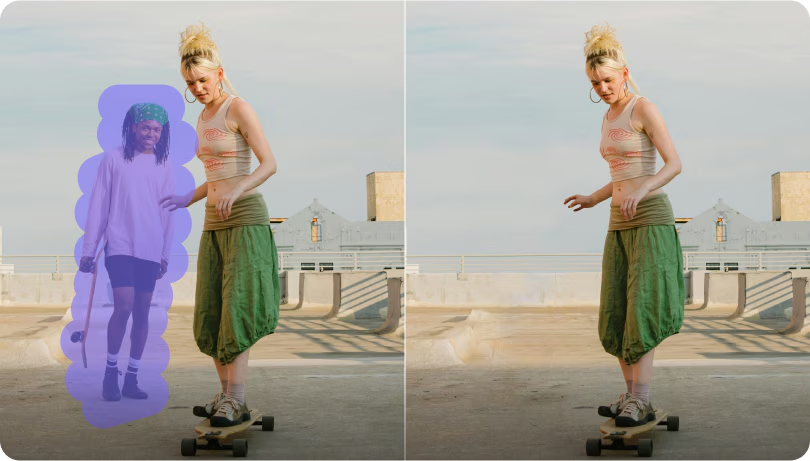
You frame the perfect shot, press record, and capture a memorable moment. Later, you review the footage and spot a stray coffee cup or a photobomber ruining the scene. In the past, fixing this required expensive software and hours of tedious masking. Today, intelligent editing tools handle the heavy lifting for you. This guide explores the most reliable platforms to remove unwanted objects from video online and offline. Whether you are a professional editor or a casual creator, you will discover efficient ways to clean your footage quickly. We will also show you how to remove objects from video online free without hassle.
Table of Contents
Part 1: Why Remove Unwanted Objects from Video?
Cleaning your footage offers significant advantages beyond basic aesthetics. Removing distractions provides clear psychological, operational, and algorithmic value for your media.

Viewer Focus & Professionalism
Clean footage directs the viewer's eyes exactly where you want them. When you erase background distractions, your central message becomes much clearer. This focused approach highlights your professionalism.
Brand Consistency
Cluttered backgrounds can easily dilute your brand identity. Clean, polished visuals show that you care about quality control. Consistent visual standards help build trust with your audience over time.
Maximizing Viewer Retention
Visual distractions often cause viewers to click away. Keeping the frame focused helps maintain attention and boosts your overall watch time. Higher watch time signals to algorithms that your content is valuable.
Cost & Time Savings
Reshooting a compromised video is expensive and time-consuming. You can salvage your existing footage in minutes using modern software tools. This efficiency keeps your production schedule on track and under budget.
Legal & Privacy Compliance
Sometimes you accidentally record faces, addresses, or license plates without permission. Erasing these elements helps you avoid legal issues. It ensures you respect public privacy while sharing your content safely.
Part 2: Comparison of the Top 10 Object Removal Tools
Use this scannable table to find an immediate recommendation based on your current profession, platform preference, and budget.
| Tool Name | Platform | Best For | Unique Key Feature | Starting Price |
| UniConverter | Mac/Win | Video Enthusiasts & Educators | High-speed batch processing | Freemium |
| Wondershare Filmora | Mac/Win | Freelance Marketers | Intuitive drag-and-drop masking | Freemium |
| Adobe Premiere Pro | Mac/Win | Professional VFX Artists | Advanced motion tracking algorithms | $22.99/month |
| VSDC Free Video Editor | Win | Budget-Conscious Creators | Non-linear layer overlays | Free |
| Fotor Video Object Remover | Web | Casual Creators & Marketers | Secure auto-deleting cloud processing | Freemium |
| Media.io AniEraser | Web | Social Media Managers | Cross-platform brush tool | Freemium |
| RunwayML | Web | AI Technology Enthusiasts | Generative cloud inpainting | $15.00/month |
| CapCut | iOS/Android | Mobile Vloggers & TikTokers | Seamless social platform integration | Freemium |
| Picsart | iOS/Android | Casual Social Media Users | Quick touch-up tools | Freemium |
| Videoleap | iOS/Android | Mobile Content Creators | Easy mobile layer masking | Freemium |

All-in-One Multimedia Processing Tool

Part 3: Top 10 Tools to Remove Unwanted Objects from Video Online & Offline
Here is a detailed breakdown of the best tools available for cleaning your footage. Each platform offers unique workflows suited for different editing environments.
Desktop Software for Mac & Windows
Wondershare UniConverter provides an advanced AI video object remover to erase people, logos, and watermarks quickly. It offers both a robust offline desktop application and a fast web-based tool for maximum flexibility. An upcoming update introduces upgraded video erasure capabilities, focusing on advanced dynamic moving object removal with zero background tearing. Finally, its AI video enhancer easily upgrades your final export quality.
Filmora provides a reliable balance between advanced features and an approachable layout. Freelance marketers use it to mask out distractions quickly. Its intelligent tracking allows you to select an item once and let the software follow it through the scene.

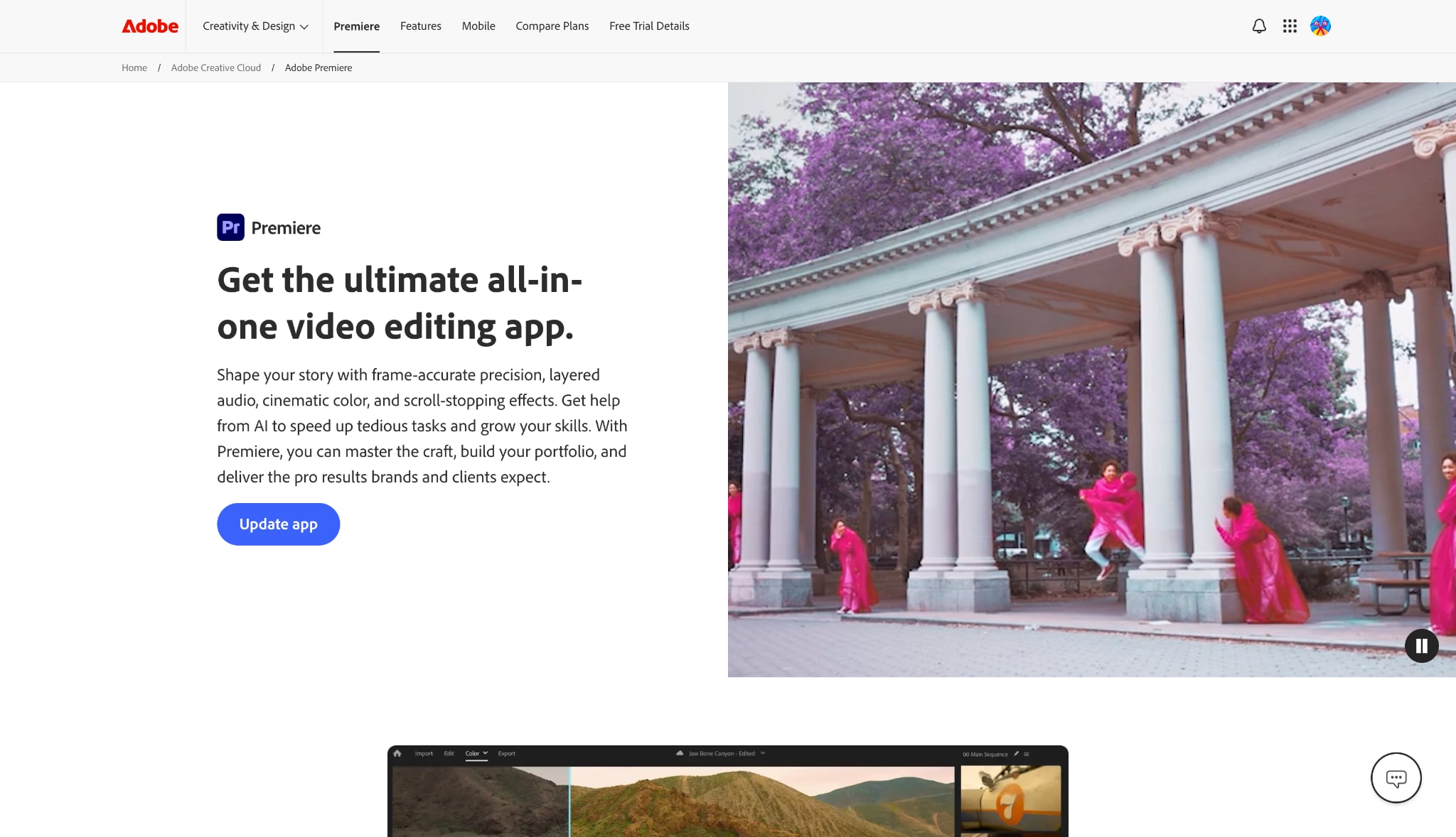
Premiere Pro remains the industry standard for professional VFX artists and filmmakers. It offers granular control over every frame of your footage. Using its robust masking and tracking features, you can remove complex elements from highly detailed backgrounds.
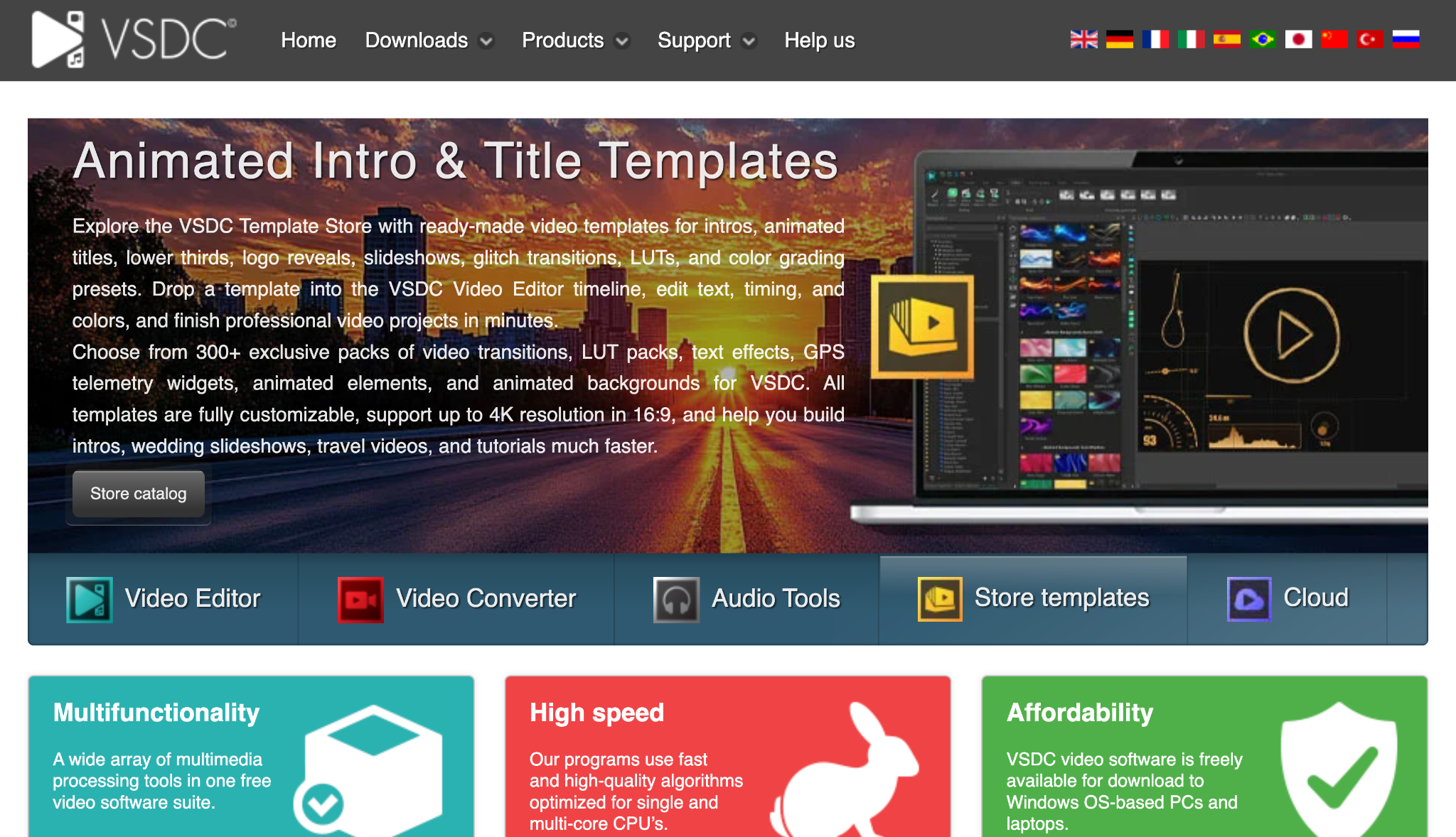
VSDC is a highly capable non-linear editor tailored strictly for Windows users. It offers a surprisingly robust set of features for software that does not cost anything. You can use its masking tools to blur or hide unwanted background elements efficiently.
Online Tools (Browser-Based)
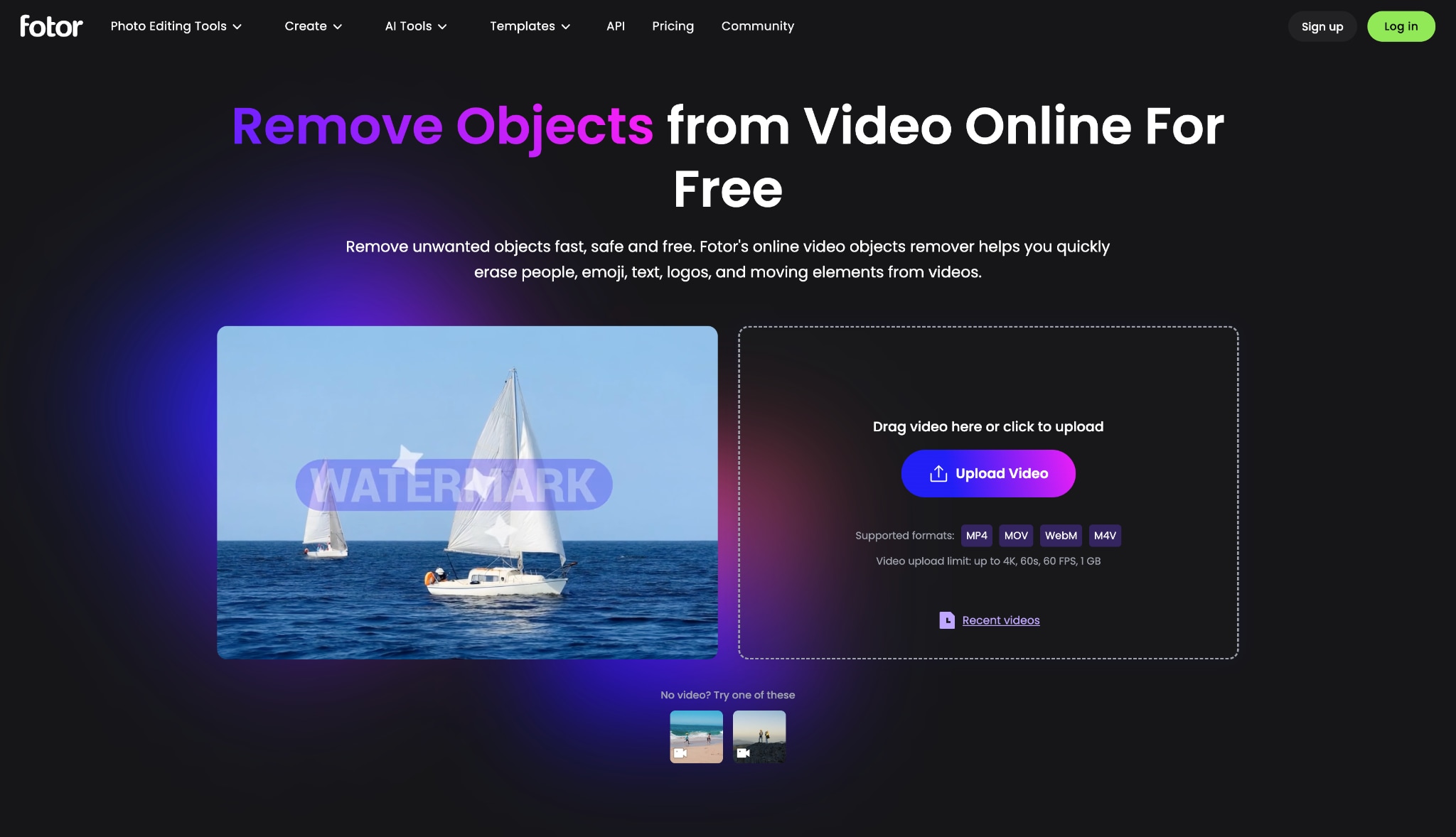
Fotor is a versatile browser-based photo and video editor that makes it incredibly simple to clean up your footage. It is highly helpful when you need a quick fix without installing software. If you are looking for a fast way to erase distractions, this web app delivers reliable, secure cloud processing powered by artificial intelligence.
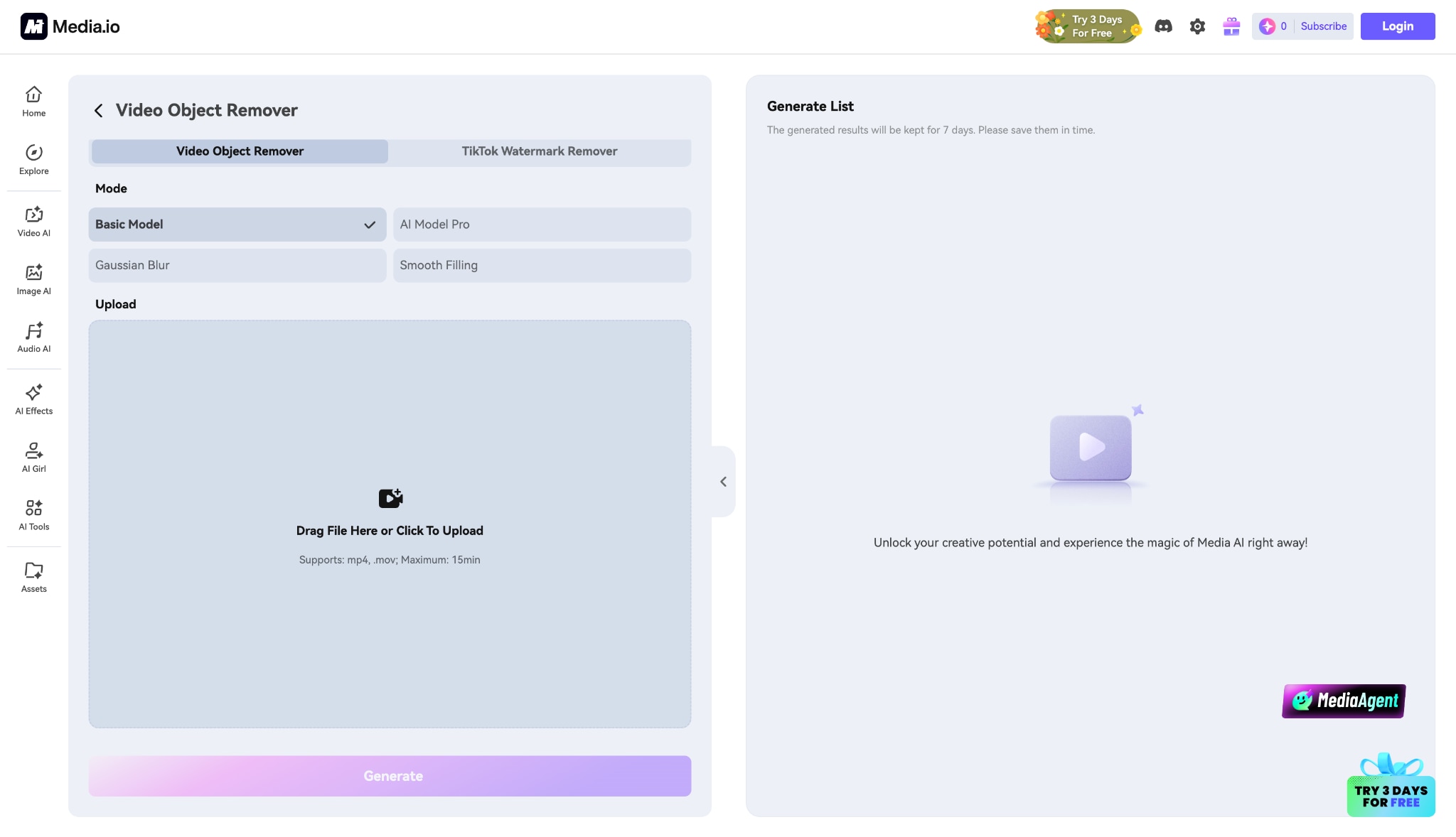
AniEraser uses cloud-based intelligence to delete items seamlessly from your clips. Social media managers prefer it for its cross-platform usability. You simply paint over the item, and the server processes the removal while matching the surrounding pixels.
7. RunwayML
RunwayML brings professional-grade generative technology directly to your browser. It features a powerful cloud inpainting tool designed for technology enthusiasts. You can brush over complex moving items, and the system dynamically rebuilds the background behind them.

Mobile Apps (iOS & Android)
8. CapCut
CapCut is a dominant force among mobile vloggers. It integrates directly with major social platforms for quick publishing. You can use its masking and overlay tools to hide annoying background elements directly from your smartphone before posting.
9. Picsart
Picsart started as an image editor but now includes robust mobile video tools. It is ideal for casual social media users looking to touch up short clips. The healing brush tool allows you to wipe away small blemishes or background clutter easily.
10. Videoleap
Videoleap offers layer-based editing that feels remarkably close to desktop software. Mobile content creators use it to mask out specific areas of their footage. You can stack clean background layers over unwanted items to create a flawless final scene.

Part 4: Bonus: How to Remove Object from Video with UniConverter Online
You can clean your footage easily using UniConverter. Follow these three simple steps to achieve a polished result using the intelligent online tool.
Step 1: Upload Your Video File
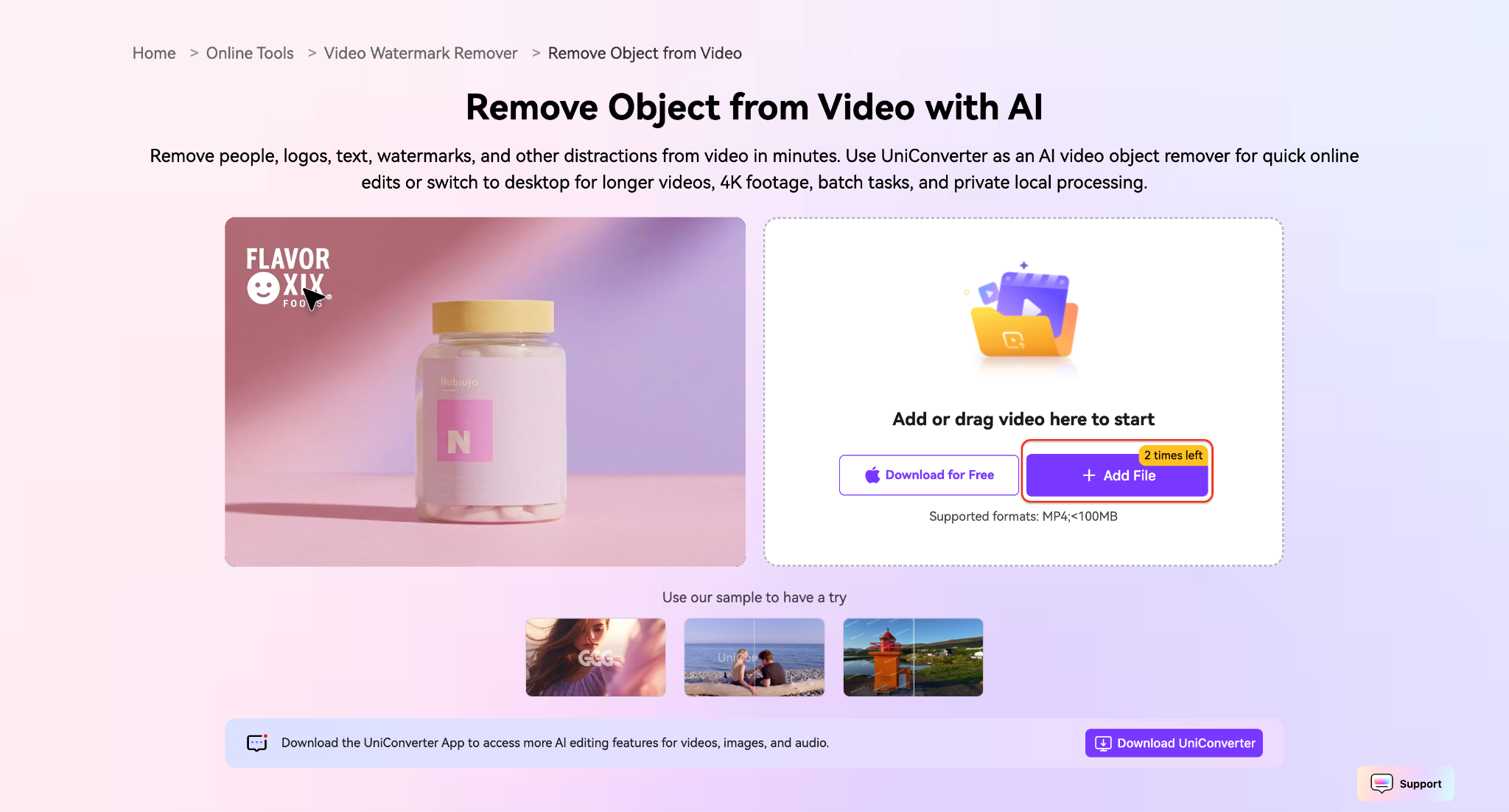
Open the UniConverter web tool and click the highlighted "Add File" button. You can also easily drag your video clip directly into the designated upload area. The system will then securely prepare your media file for the editing process.
Step 2: Mask the Object and Process
Use the brush tool to carefully highlight the unwanted elements on your screen. Once you finish masking, click the "Watermark Removal" button to begin processing. The intelligent system will immediately analyze your footage to rebuild the background.
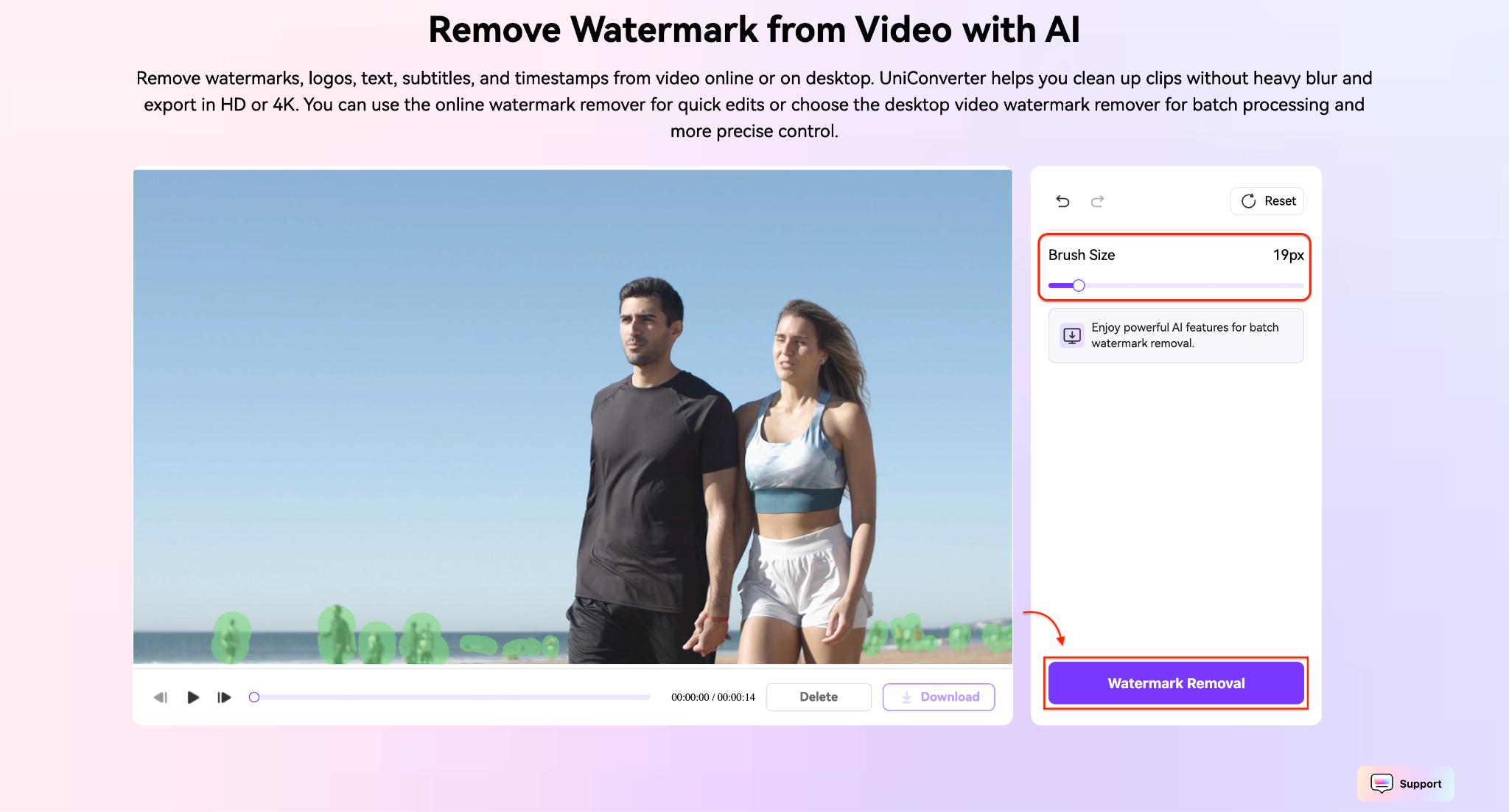
Pro Tip: Keep your brush stroke barely larger than the object to help the software sample cleaner surrounding pixels.
Step 3: Preview and Download
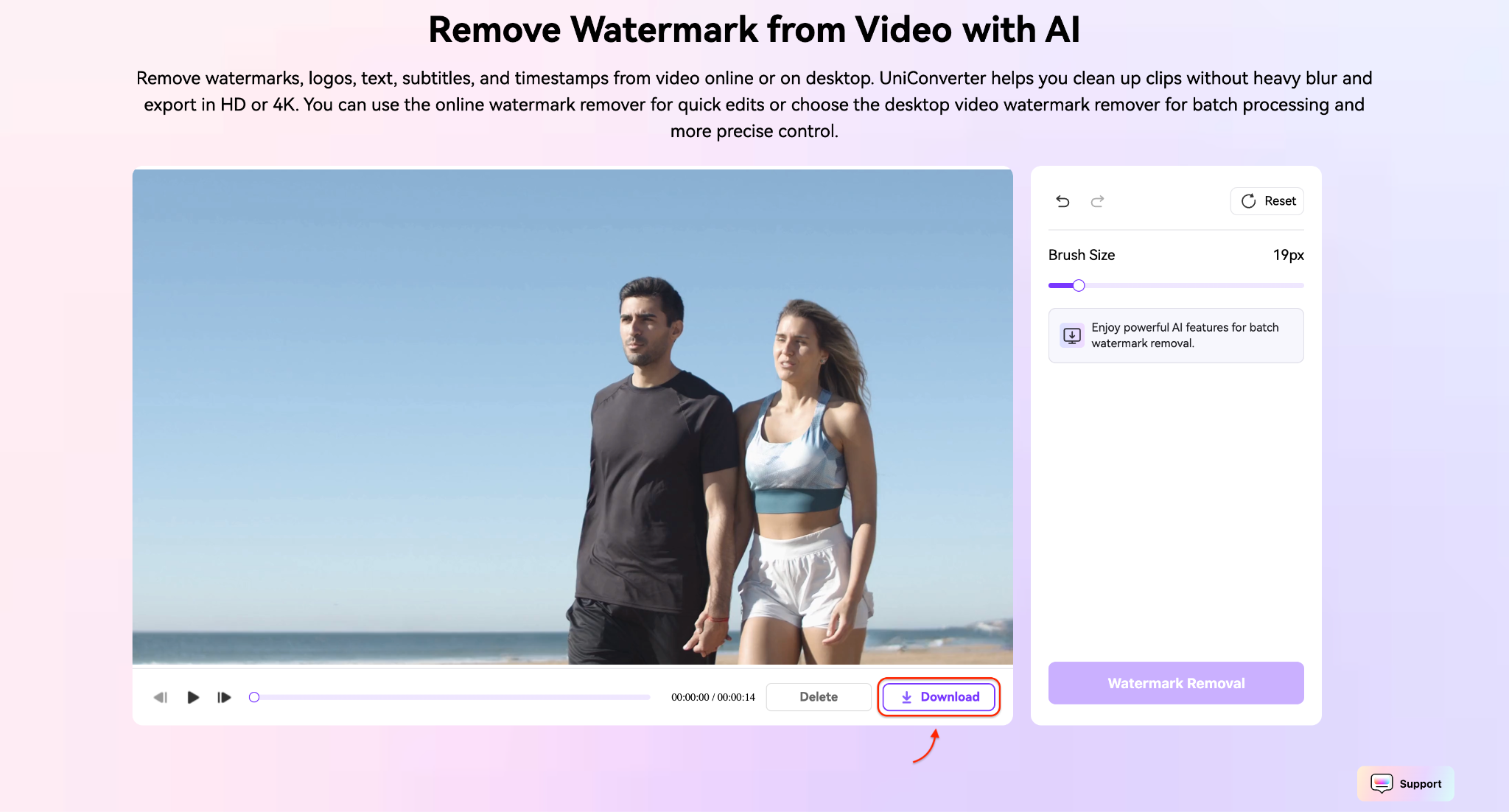
Review the final clip to ensure the rebuilt background looks completely natural. You will see that the original visual distractions are now completely erased. Simply click the highlighted "Download" button to save the clean video to your local device.
Part 5: Common Use Cases: What Can You Erase Using AI?
Understanding what you can successfully delete helps set realistic expectations for your editing process. Here are the most common physical items creators erase from their frames.

Photobombers & Random Passersby
Public travel vlogs often suffer from strangers walking into the frame. Modern tools can rebuild the hidden scenery—like a beach or a street—behind people walking through your shot.
Platform Watermarks & Logos
Many creators need to clear TikTok or Reels stamps from their clips. Removing these watermarks allows the video to be repurposed on other platforms without facing algorithmic reach penalties.
Distracting Background Clutter
Static eyesores ruin the composition of a beautiful shot. You can easily erase power lines, overflowing trash cans, or stray coffee cups to keep the viewer focused on the main subject.
Hardcoded Subtitles
Sometimes you need to apply fresh, localized language captions to an older file. Intelligent tools can delete embedded text overlays, providing a clean slate for your new translation.
Production Equipment
Accidents happen on set. You can smoothly patch out accidental boom mics dipping into the frame, safety wire rigs, or distracting tripod reflections caught in a window.
Part 6: Pro Tips for Seamless Video Object Removal
Achieving a flawless, artifact-free result requires a bit of technique. Use these advanced strategies to ensure your edits look completely natural.
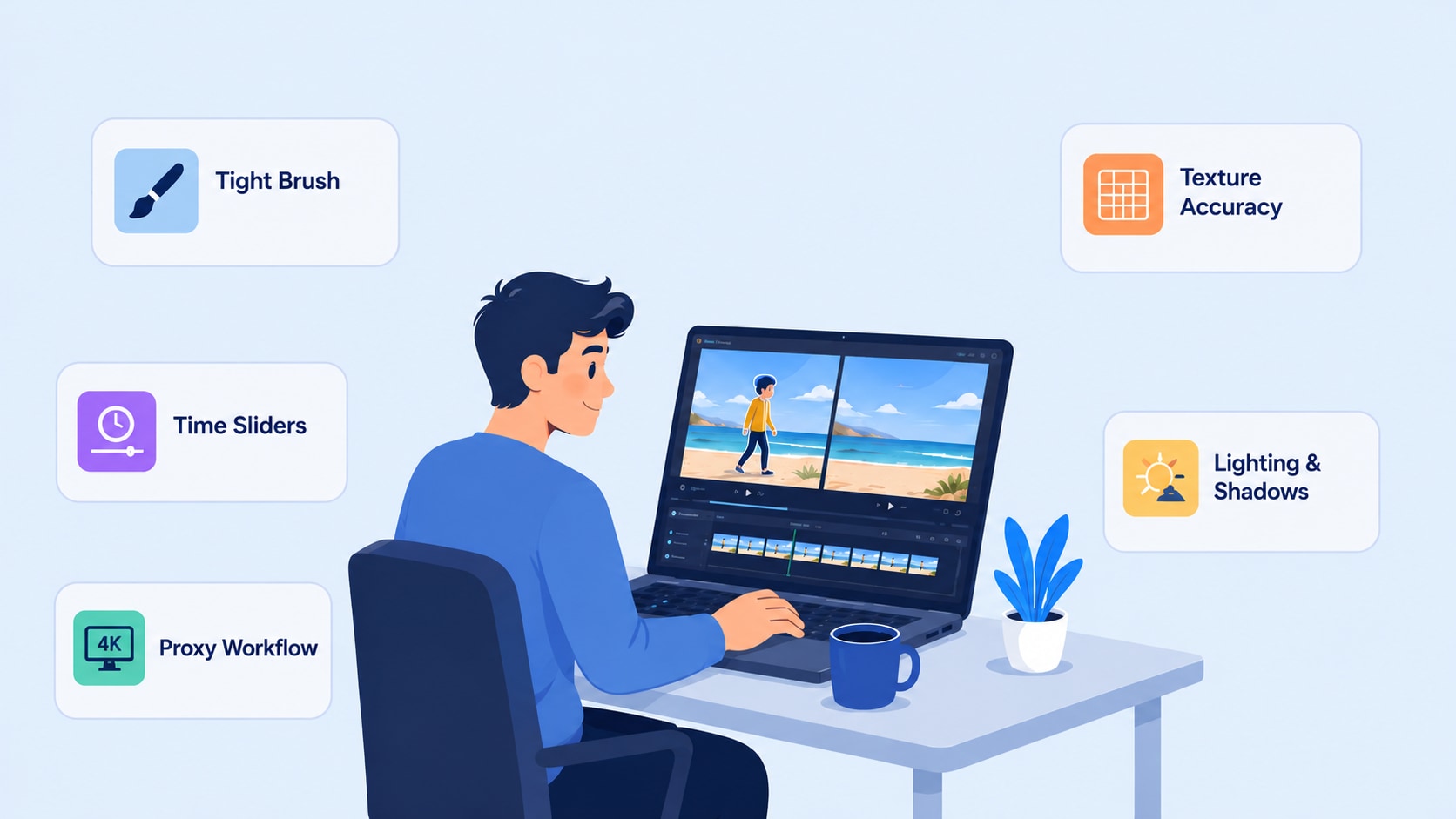
Keep Your Selection Brush Tight: Always keep the brush barely larger than the object. This gives the software more clean, original pixels to sample from when rebuilding the background.
Leverage Time Sliders for Motion: Target specific timestamps in your timeline. This prevents the system from unnecessarily processing frames where the object isn't actually present.
Process Heavy Footage Offline: Route massive 4K or 8K files through desktop software like UniConverter rather than web browsers. This helps you avoid unwanted file compression and upload errors.
Target Complex Textures with Multiple Passes: Do not use one giant brush stroke over tricky backgrounds like brick walls or ocean waves. Erase large items in small sections to maintain texture accuracy.
Optimize Lighting & Cast Shadows: Always remember to highlight both the object and the shadow it casts on the ground. Leaving a disconnected shadow behind makes the edit look highly unnatural.
Part 7: Conclusion
Intelligent editing has officially eliminated manual masking fatigue for creators. You no longer have to scrap great footage just because a stray element entered the frame. By choosing the right platform, you can salvage your clips and maintain a professional visual standard. If you are handling large 4K files and need a robust desktop solution, download UniConverter today. For those needing a fast, lightweight web fix, try UniConverter Online to effortlessly remove unwanted objects from video online. Take control of your footage, clear out the clutter, and remove objects from video online free to keep your audience completely focused on your story.

