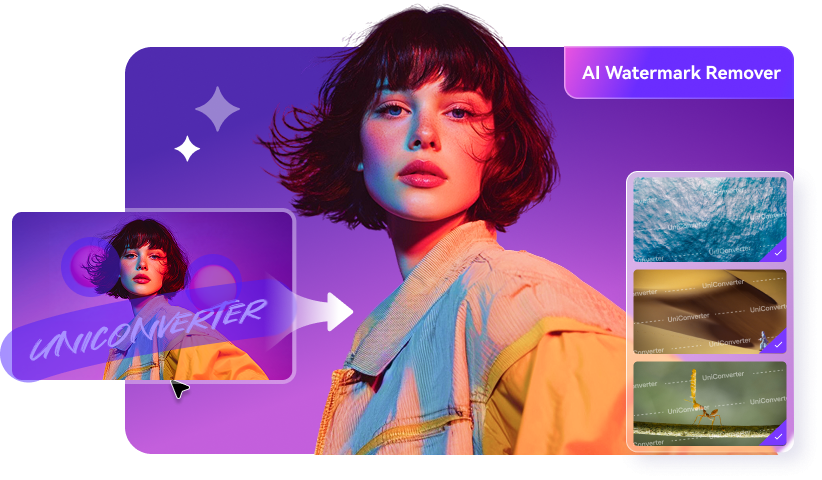
Remove People, Logos, Text, and Unwanted Objects from Video
UniConverter lets you remove unwanted objects from video, including passersby, logos, text overlays, subtitles, watermarks, date stamps, stickers, and background clutter. Mark the area you want to erase, and AI uses surrounding visual information to fill the selected region. For moving people, vehicles, logos, or stickers, the desktop Remove Object mode can track the target across frames.
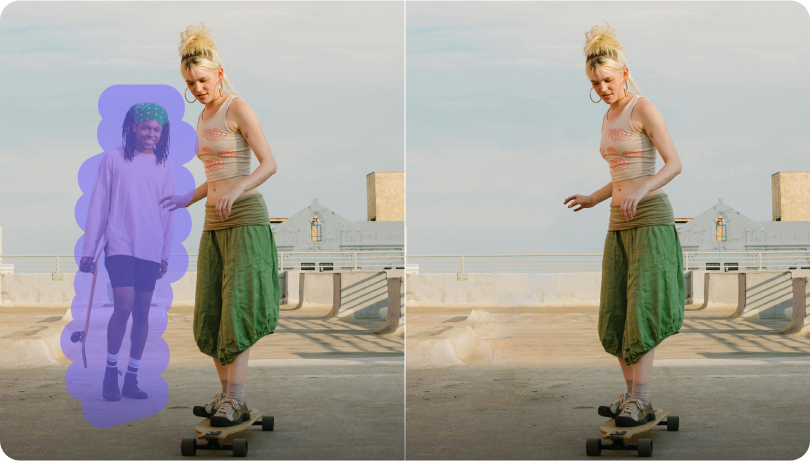
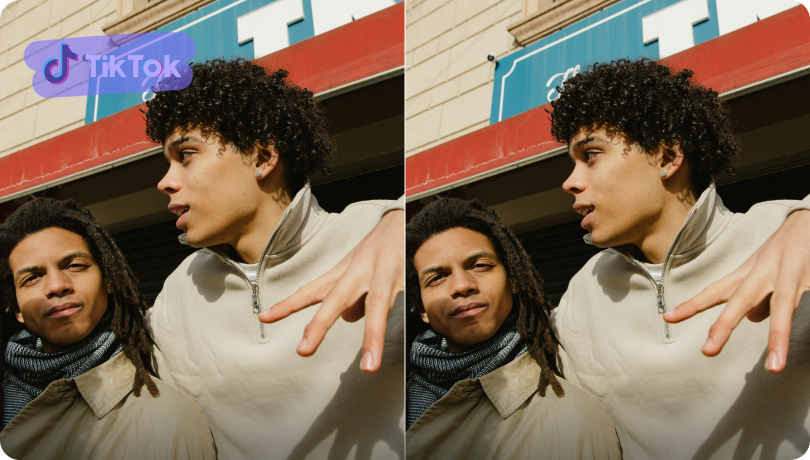
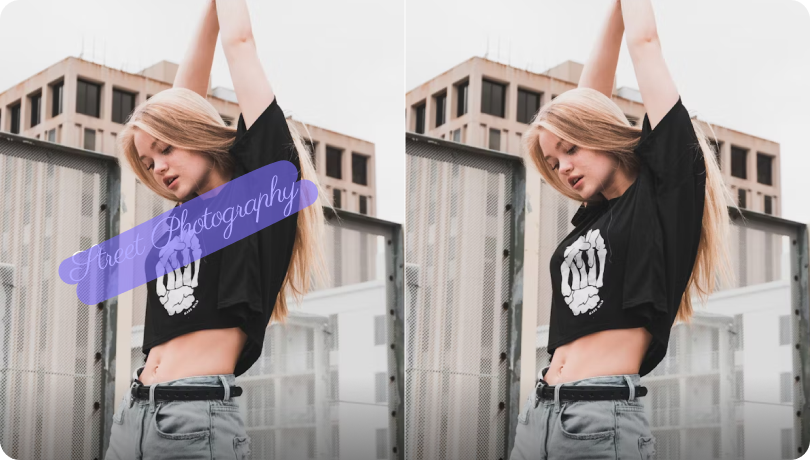



People
Logo
Text
Watermark
Object
Sticker
Free Online AI Video Object Remover vs. UniConverter Desktop
Choose the workflow that fits your task. Remove unwanted objects online for a quick browser-based edit, or use UniConverter Desktop for more demanding video cleanup.
Free Online AI Video Object Remover
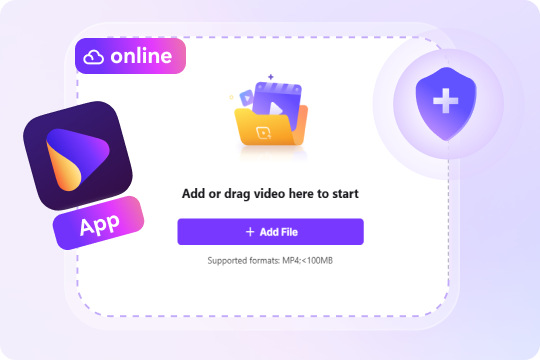
Remove an object from an MP4 video under 100MB directly in your browser. The online tool is free, requires no registration or login, exports without a watermark, and processes one video at a time.
Desktop AI Video Object Remover
Use UniConverter Desktop for 4K video with no file size limit. Import up to 20 videos, remove fixed or moving objects, choose from four removal modes, preview about 5 seconds, and process footage locally for greater privacy.
Online vs. Desktop Comparison
| Feature |
Free Online AI Video Object Remover
Best for quick fixes
|
UniConverter Desktop AI Object Remover
Best for complex editing workflows
|
|---|---|---|
| Best for | Quick removal from one MP4 video | Batch, 4K, moving objects, and complex scenes |
| File size | Under 100MB | No file size limit |
| Format support | MP4 | AVI, MP4, MPG, MPEG, 3GP, WMV, ASF, RMVB, MOV, FLV, M4V, MKV, MTS, TS |
| Access and export | Free; no registration, login, or export watermark | Install the desktop app to use advanced removal features |
| Batch processing | No; one video at a time | Yes; import up to 20 videos |
| Object type | Unwanted objects in a single video | Fixed regions and tracked moving objects |
| Removal modes | Online AI workflow | Ultra AI, Advanced AI, Basic AI, Gaussian Blur |
| Video quality and privacy | Browser upload; MP4 under 100MB | 4K support and private local processing |
| Preview and model limits | Export after online processing | 5-second preview; Ultra AI supports up to 1080p, 3 minutes, and 60fps |
How to Remove Object from Video with AI in 3 Steps
Follow the steps below to remove unwanted objects online free or with UniConverter Desktop.

Step 1. Upload Your Video
Open the free online video object remover and upload one MP4 file under 100MB. No software installation, registration, or login is required.

Step 2. Select the Object to Remove
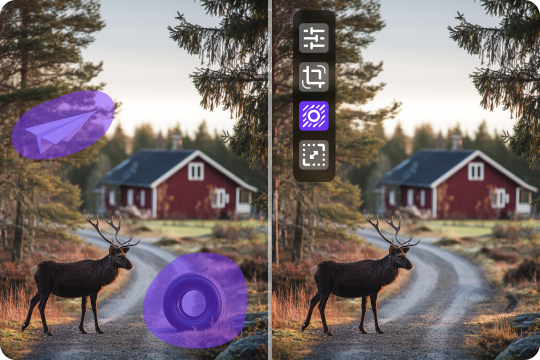
Mark the unwanted person, logo, text, watermark, sticker, or other object in the frame, then start the AI removal process.

Step 3. Export the Video
After processing, export the edited MP4 without an added watermark. The online workflow is free and handles one video at a time.
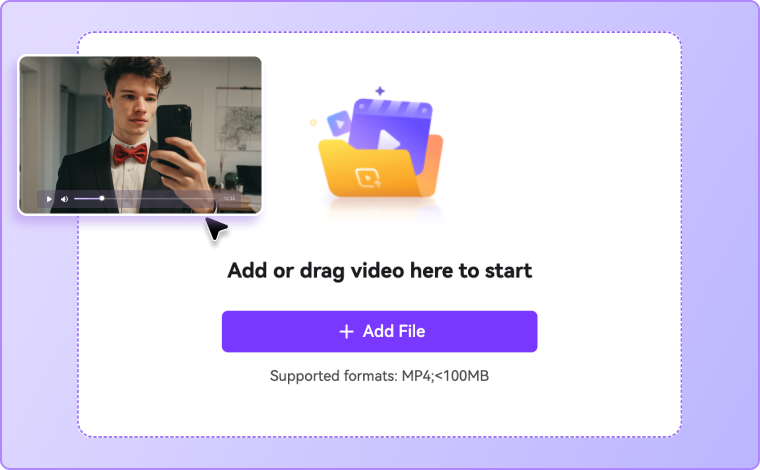
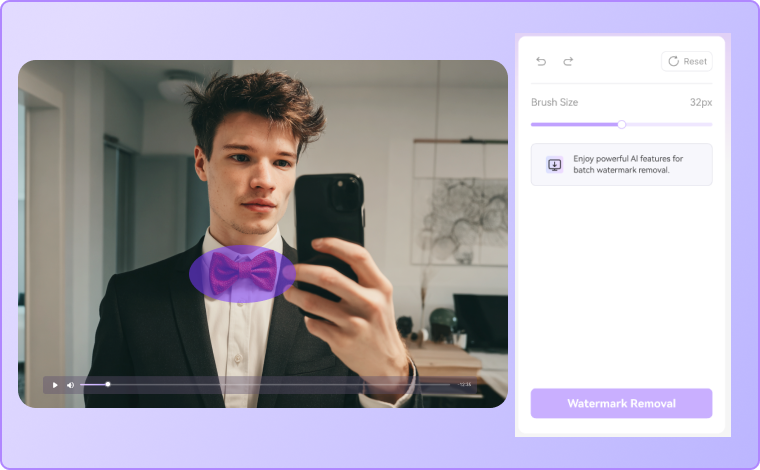
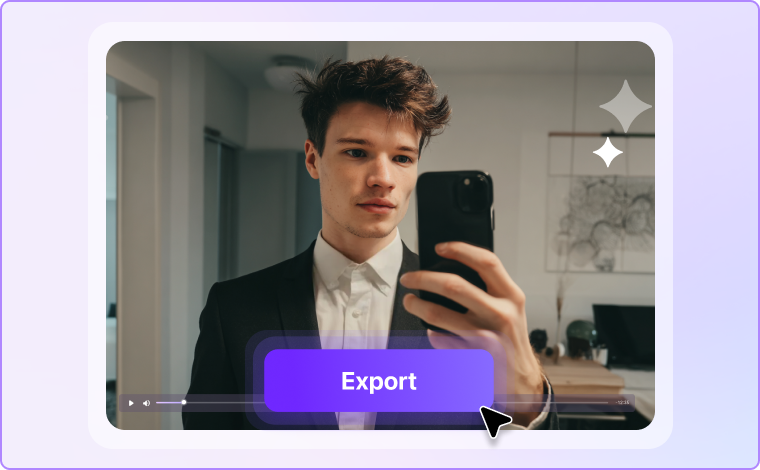
Step 1. Import Your Video
Launch UniConverter, open Watermark Remover, and import up to 20 videos. Desktop supports 4K, has no file size limit, and accepts AVI, MP4, MPG, MPEG, 3GP, WMV, ASF, RMVB, MOV, FLV, M4V, MKV, MTS, and TS.
Step 2. Select a Removal Workflow and AI Mode
Use Remove Watermark for fixed logos, subtitles, or static objects, or Remove Object to track a moving target. For fixed areas, choose Ultra AI, Advanced AI, Basic AI, or Gaussian Blur based on scene complexity and output needs.
Step 3. Preview and Export
Use Preview (5s) to check removal coverage, background filling, stability, and subject details. Exit Preview to adjust the selection or model, then choose Remove & Export when the result is ready.
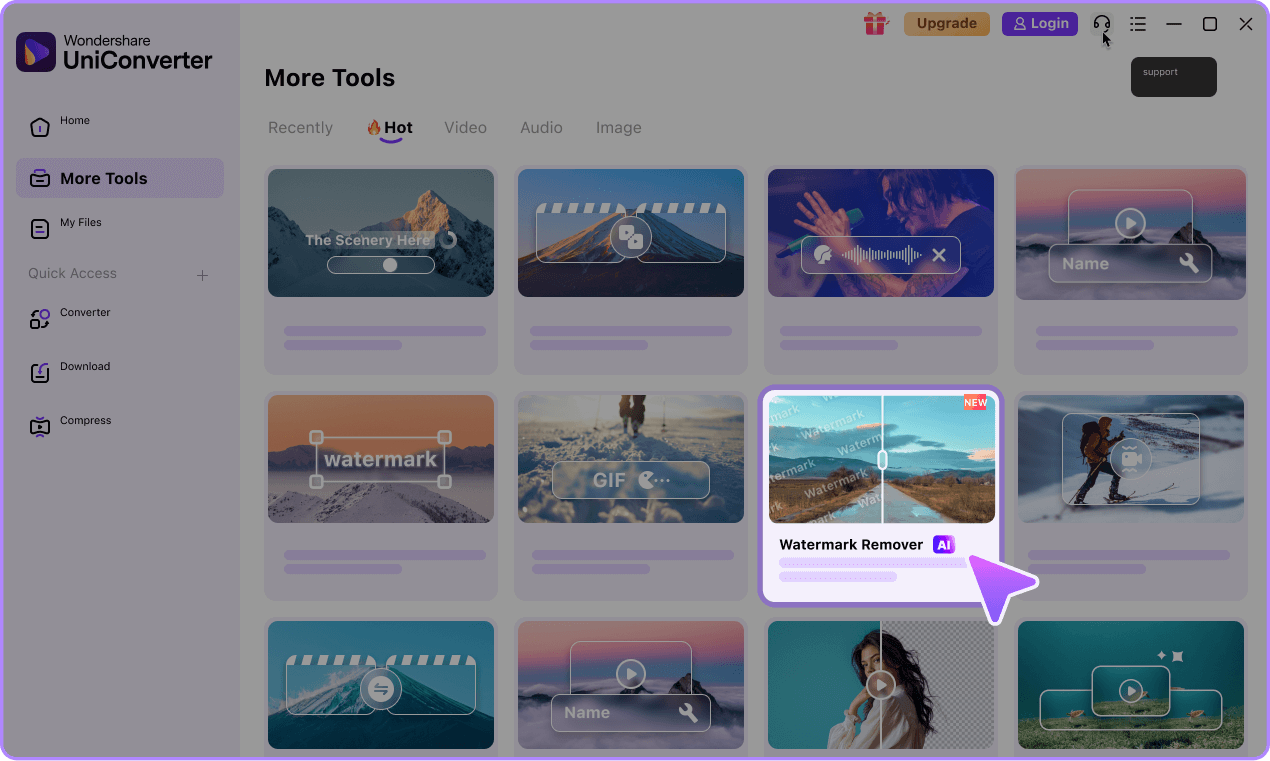

Why UniConverter Is a Better AI Video Object Remover
AI Object Removal with Natural Background Filling
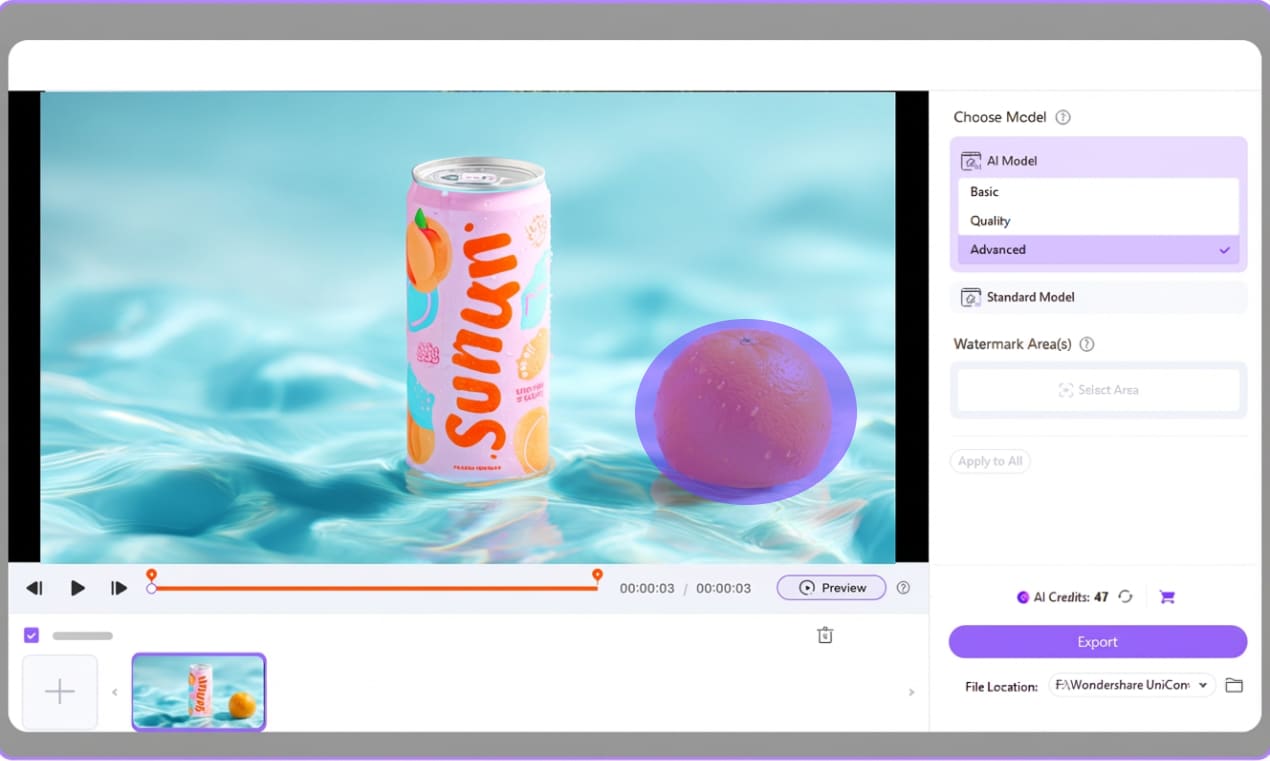
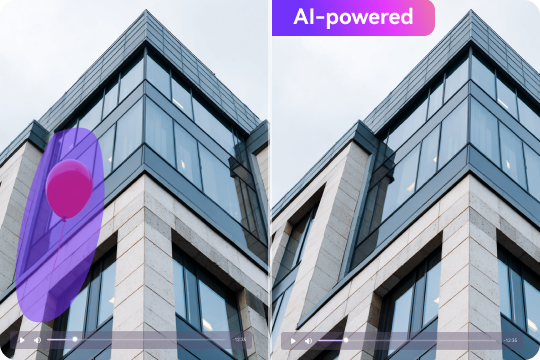
UniConverter AI removal modes use surrounding visual information to generate content for the selected area instead of relying only on blur. Choose Basic AI for small objects and simple backgrounds, Advanced AI for more complex areas, Ultra AI for quality-focused generative removal, or Gaussian Blur when fast concealment is the priority.
AI Video Object Remover for People and Moving Distractions
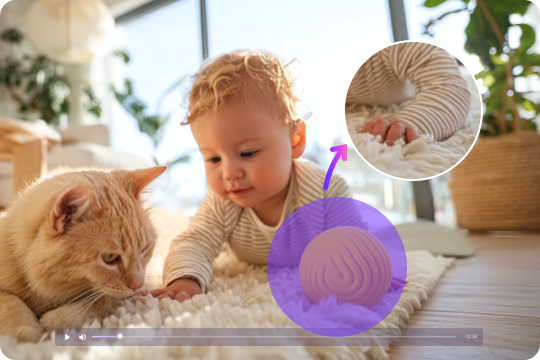
Use the desktop Remove Object workflow to select a moving person, vehicle, logo, subtitle, sticker, or other target. Dynamic tracking follows the selected object as its position changes, reducing the need to adjust the removal area frame by frame.
Batch Processing for Repeated Video Cleanup
The free online object remover processes one video at a time. For repeated cleanup, UniConverter Desktop can import up to 20 videos in one batch, helping ecommerce teams, educators, marketers, and creators handle logos, text, watermarks, or unwanted objects across multiple files.

Four Removal Modes for Different Scenes
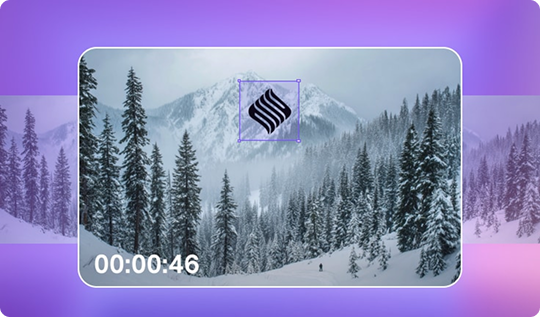
Choose Basic AI for a small watermark on a simple background, Advanced AI for a larger or more complex region, Ultra AI for quality-focused generative filling and temporal stability, or Gaussian Blur for fast coverage. Ultra AI supports videos up to 1080p, 3 minutes, and 60fps; desktop support for 4K is available through the broader workflow and other applicable modes.
Preview Before Export with Private Local Processing
The online tool uploads one MP4 file for browser processing. UniConverter Desktop handles video locally for greater privacy and lets you preview about 5 seconds before full export. Use Preview to check whether the object is fully removed, the generated background looks natural, and important subjects remain intact.
More Than a Video Object Remover
UniConverter does more than remove objects from video online or on desktop. You can also convert formats, compress large files, enhance quality, edit clips, and prepare exports for different platforms. That means you can clean your footage and continue the rest of your media workflow in one place instead of moving between several tools.
Use Cases to Remove Unwanted Objects from Video
Explore common ways to remove object from video for travel, ecommerce, social media, tutorials, and marketing. UniConverter helps you clean up distractions, improve visual focus, and repurpose footage more efficiently across different content workflows.

Remove People from Travel Videos and Outdoor Footage
Travel clips often capture strangers, passersby, vehicles, or random objects that distract from the main view. UniConverter helps you remove people from video scenes so landmarks, landscapes, and personal moments stay in focus. This is especially useful for vloggers, travelers, and casual creators who want cleaner memories without reshooting footage or spending too much time on manual frame-by-frame editing.

Remove Logos, Text, and Overlays from Social Media Videos
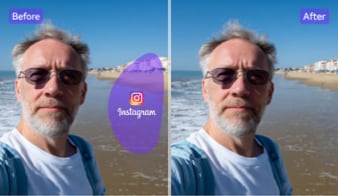
Social clips often include platform logos, subtitles, repost labels, stickers, or old campaign text. With UniConverter, you can remove object from video online or on desktop to clean these elements before reusing your content on another channel. This helps creators and social teams keep videos more consistent across platforms while updating old assets for new posts, ads, or branded content. For downloaded short-form content with platform marks, try our TikTok watermark remover or Instagram watermark remover workflows.

Clean Product Demos by Removing Props, Reflections, and Background Clutter
Product videos should keep attention on the item, not on wires, stands, reflections, or stray objects in the frame. UniConverter works as a practical video object remover for ecommerce teams and content creators who need cleaner product presentations. By removing clutter from the background or foreground, you can make product demos look more polished and easier for customers to follow.

Remove Unwanted Elements from Tutorials and Online Course Videos
Tutorials and course videos often contain old labels, timestamps, subtitles, or accidental objects that make lessons look outdated. UniConverter helps you remove unwanted objects from video footage so your teaching content stays clean and easier to watch. This is useful for educators, trainers, and internal teams who want to refresh existing learning videos instead of recording the same lesson again.

Update Marketing Videos by Removing Outdated Text and Scene Distractions
Marketing teams often need to reuse video assets after prices, slogans, dates, or campaign details change. UniConverter helps you erase object from video scenes that include outdated text, logos, props, or distracting background elements. This gives you a faster way to refresh promotional content for seasonal campaigns, landing pages, ads, and product launches while keeping the original video footage usable.

Edit Personal Videos by Removing Strangers and Unwanted Distractions
Personal footage can include strangers in the background, random objects in the room, or other details you do not want to keep. UniConverter helps you remove something from video clips without making the process too technical. It is a simple option for family memories, party videos, and casual recordings when you want the focus to stay on the people and moments that matter most.
FAQs about Removing Objects from Video
Can I remove an object from video online for free?
Can AI remove moving objects from video?
Does UniConverter only blur the object?
Can I remove logos, text, subtitles, and watermarks?
Can I batch remove objects from multiple videos?
Is there a file size or video length limit?
Does the online tool require registration or add a watermark?
Is it legal to remove objects or watermarks from a video?
More Than an Object Remover from Video






Start Removing Unwanted Objects from Video Your Way
Try the free online AI video object remover for a quick edit, or download UniConverter Desktop for batch video cleanup, 4K support, advanced AI removal, and private local processing.