
Quick Navigation: Fix Blurry TikTok Videos
Why TikTok Videos Lose Detail
Re-encoding can discard detail. TikTok processes video for delivery; Clipchamp describes recompression as a reason a clear upload can look softer. Lossy encoding saves data by approximating picture information, so fine texture lost during a previous export cannot be recovered by another encode. TikTok does not document enough here to verify that every upload is processed identically.
Motion and texture compete for a limited bitrate. A static background can be represented using information from neighboring frames; moving faces, hair, noise and small text require more data to preserve. If a complex scene has too little bitrate, edges may smear or block rather than the whole frame losing detail equally. The outcome depends on the encoder and scene.
Color detail can be reduced separately from brightness. In 4:2:0 chroma subsampling, four neighboring pixels share one sample for each color-difference component while retaining individual brightness samples. Thin colored text or edges can appear less precise; strong sharpening may make pre-existing artifacts more noticeable. This explains a general video-encoding tradeoff, not proof of a particular TikTok file’s chroma format. See MDN’s video concepts guide.
Where Does the Blur Start?
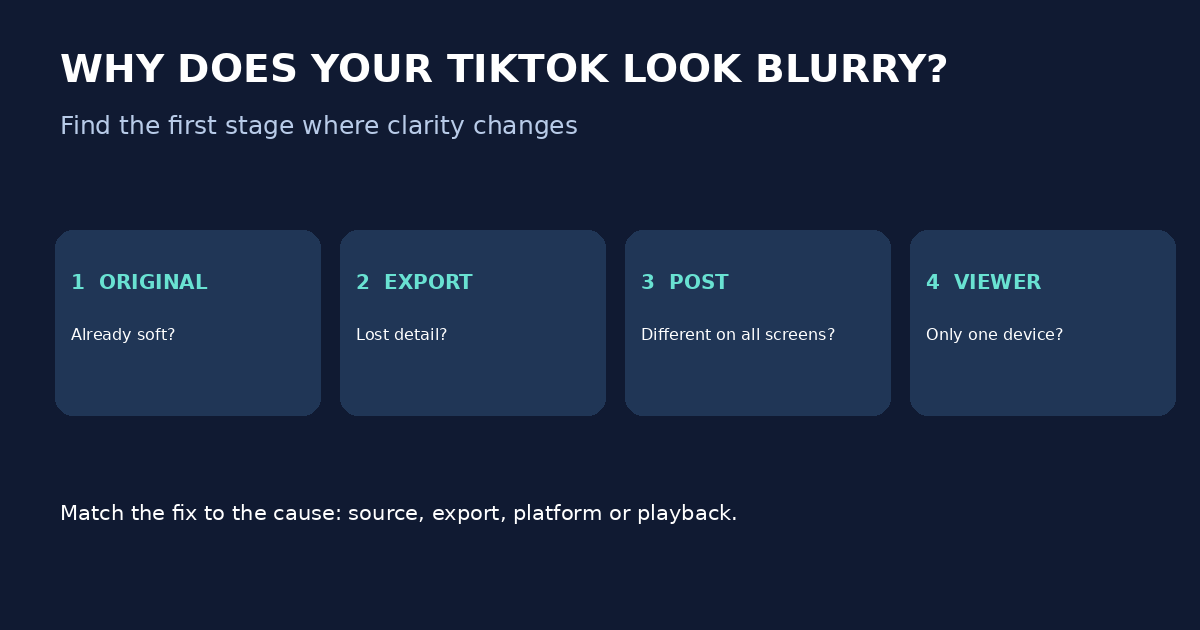
A video passes through several stages before it reaches a viewer. A soft source stays soft in later copies; an export can introduce additional loss, and the posted version can look different because of processing or playback. Start with the same detailed moment, such as a face or small text, at a similar display size.
| What you see | Likely stage | How to verify | Next action |
|---|---|---|---|
| Camera-roll original is soft | Recording or source | Play the original locally | Use a sharper source or test enhancement |
| Original clear; exported file soft | Editing/export | Compare local files at the same scene | Return to the original project and re-export |
| Export clear; post soft on multiple devices | Upload or platform processing | Compare on another device and network | Check available quality settings and test a fresh upload |
| Post clear elsewhere, soft on one phone | Playback or app | Switch connection and compare the same post | Check playback settings and app health |
| Only a dark or fast scene is poor | Scene complexity or source | Compare the same frames in the original and export | Improve the source or adjust export; retest |
| Clear at first; blurry hours later | Playback conditions or app state may have changed | Recheck the same post on two devices, first on the same network, then on different networks | Check Data Saver and available playback quality before reposting |
| Blurry immediately after posting | Upload processing or playback are possible | Wait a few minutes, then compare the same post on another device | If still soft, compare the original and export; no fixed processing time is guaranteed |
These checks narrow the cause; they do not reveal TikTok’s internal encoding settings or prove that one setting caused the change.
Fix a Blurry Export Before Upload
Start with the earliest available original and export a test copy. These values are Clipchamp’s suggested starting points, not TikTok-mandated organic-post limits or a guarantee of playback quality.
| Setting | Starting point |
|---|---|
| Frame | 1080 × 1920, 9:16 vertical |
| Video | H.264 in MP4; High Profile if available |
| Frame rate | 30 fps; retain 60 fps when the source was recorded at 60 fps |
| Target video bitrate | 8–12 Mbps at 30 fps; 10–15 Mbps at 60 fps |
| Audio | AAC, 44.1 kHz, 128–192 kbps |
| Color | SDR Rec.709 as a starting point; convert HDR correctly when needed |
| Upload connection | Clipchamp suggests at least 10 Mbps upload speed as a rule of thumb, not a TikTok requirement |
- Return to the original project. Avoid repeatedly saved or shared copies.
- Apply settings your editor supports. Keep the source frame rate where practical; use the table as a starting point rather than a promise of improved quality.
- Play the exported file locally. Compare faces, movement and small text with the original at a similar size; if detail is lost here, adjust the export before uploading.
Increasing dimensions alone does not recreate lost detail. See how to make a video clearer for source-specific options.
Fix TikTok Video Quality After Upload
If the saved export is clear but the post looks soft on several screens, test one change at a time. Platform processing is one possible explanation; an unstable connection alone does not establish that the uploaded file was recompressed more heavily.
- Open the final posting screen and look under available upload or advanced options for a high-quality upload control. Enable it if present and check its state each time you post; the label and whether it persists can vary.
- If a new post is blurry immediately, wait a few minutes and check again before deleting it. A delay may resolve a temporary processing or playback issue, but there is no verified universal processing time.
- Use a stable connection and upload the original export as a new test. Avoid deleting a published post until you have compared the test and decided what to keep.
- View the same scene on a second device and connection after the post is available. If it is clear there, follow the playback branch below.
- If both devices still show a soft result, compare a short test exported from the original project using the settings above. Keep the original file for future edits.
Clipchamp describes a high-quality upload option and a Data Saver setting in its TikTok troubleshooting guide; the current interface may differ.
Fix Blurry TikTok Playback on One Device
- Open the same post on another device or connection. If it is clear there, focus on the affected viewer’s setup.
- Switch between a reliable Wi-Fi network and mobile data and replay the same section.
- On the affected phone, look for Profile → ☰ → Settings and privacy → Data → Data Saver, then turn it off if available. Check any Video quality control as well. Menu names and availability differ by app version and device. The upload-quality control and a viewer’s playback settings serve different purposes.
- Update and restart TikTok. If the issue remains, follow TikTok’s troubleshooting steps for clearing cache and reporting a problem. Clearing cache is an app troubleshooting step, not a way to restore detail in an uploaded file.
Enhance a Blurry Source Video with UniConverter
If the camera-roll original is already mildly soft or low-resolution, the desktop UniConverter AI Video Enhancer can help you test a clearer-looking version before upload. Use the earliest available source and compare the preview for unnatural edges, faces and text. The following workflow follows the official Windows guide for UniConverter 18.
Quick List: How to Make a Blurry TikTok Source Clearer
- Open Video Enhancer.
- Add the original clip and select Quality Enhancement.
- Preview the result at a suitable output resolution.
- Compare, export and review the saved file.
-
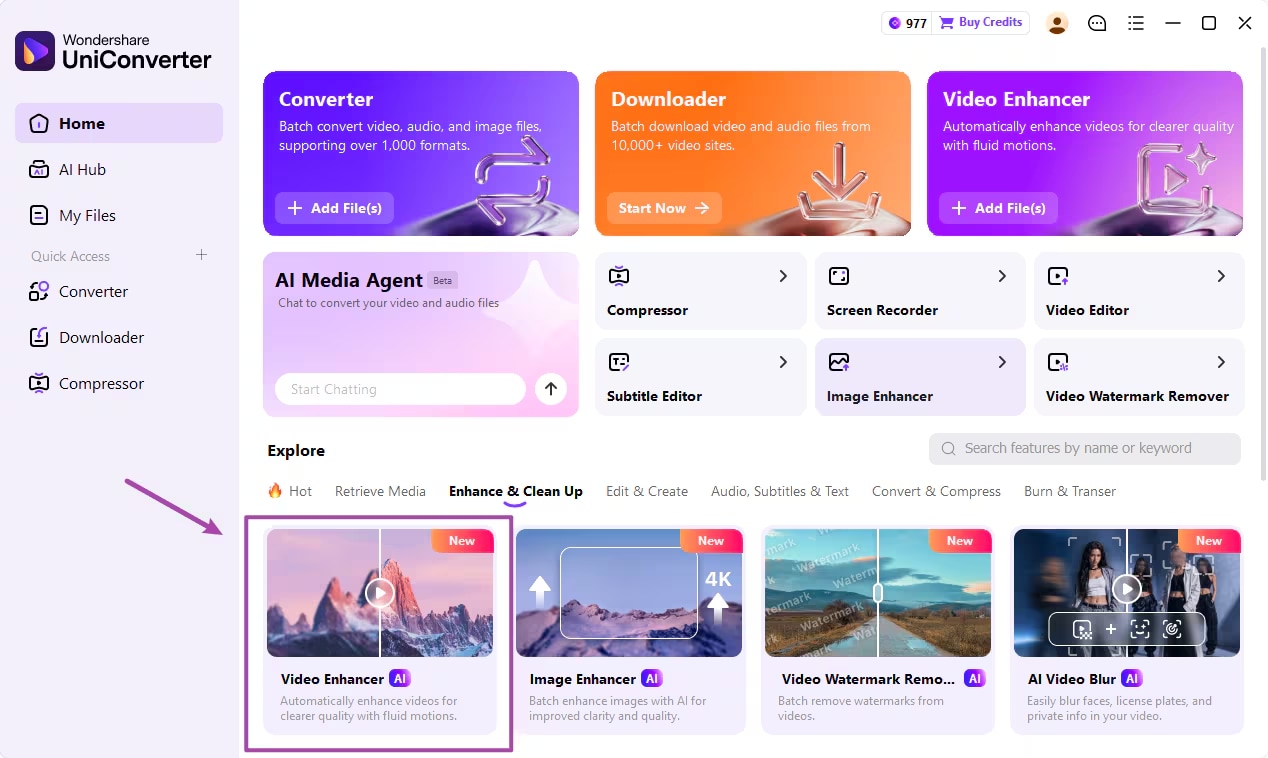
On the UniConverter 18 Home screen, select Video Enhancer under Enhance & Clean Up. -
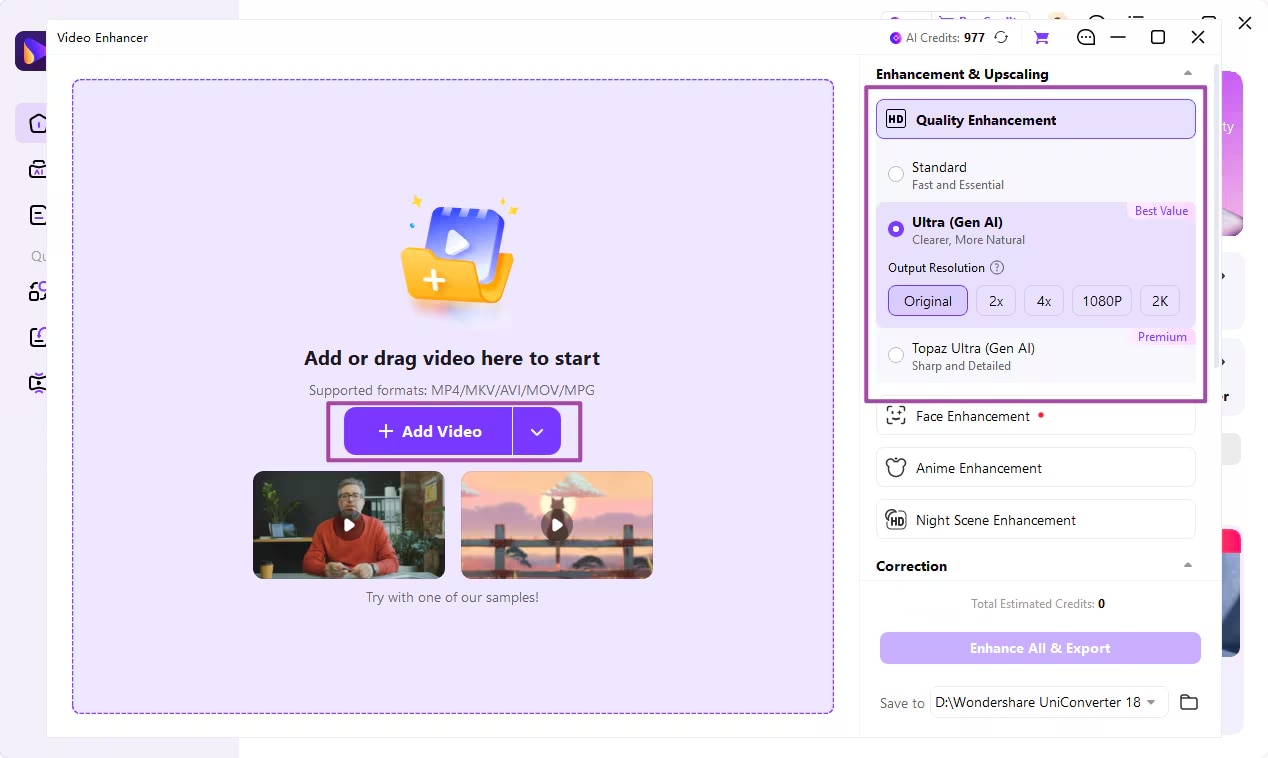
Choose Quality Enhancement and Ultra (Gen AI), then add the original video. -
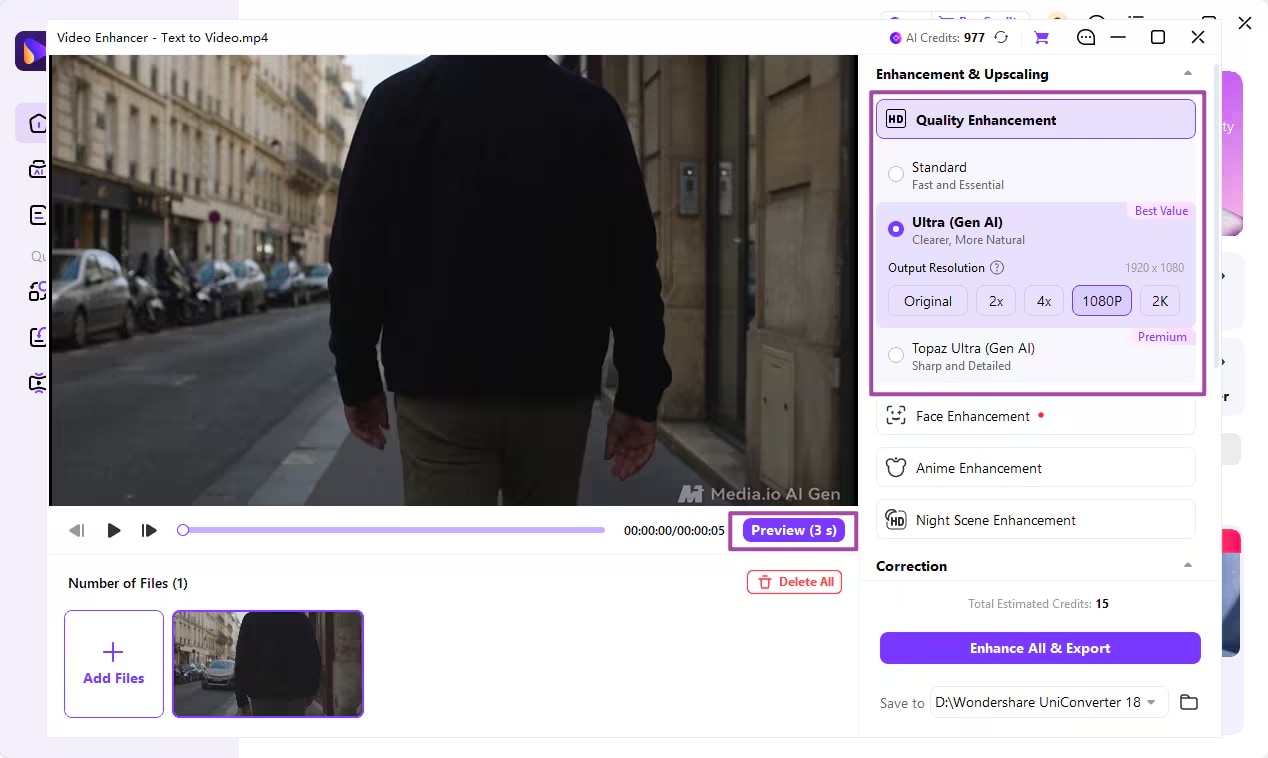
Select an output resolution and use Preview (3 s) to inspect the result before export. -
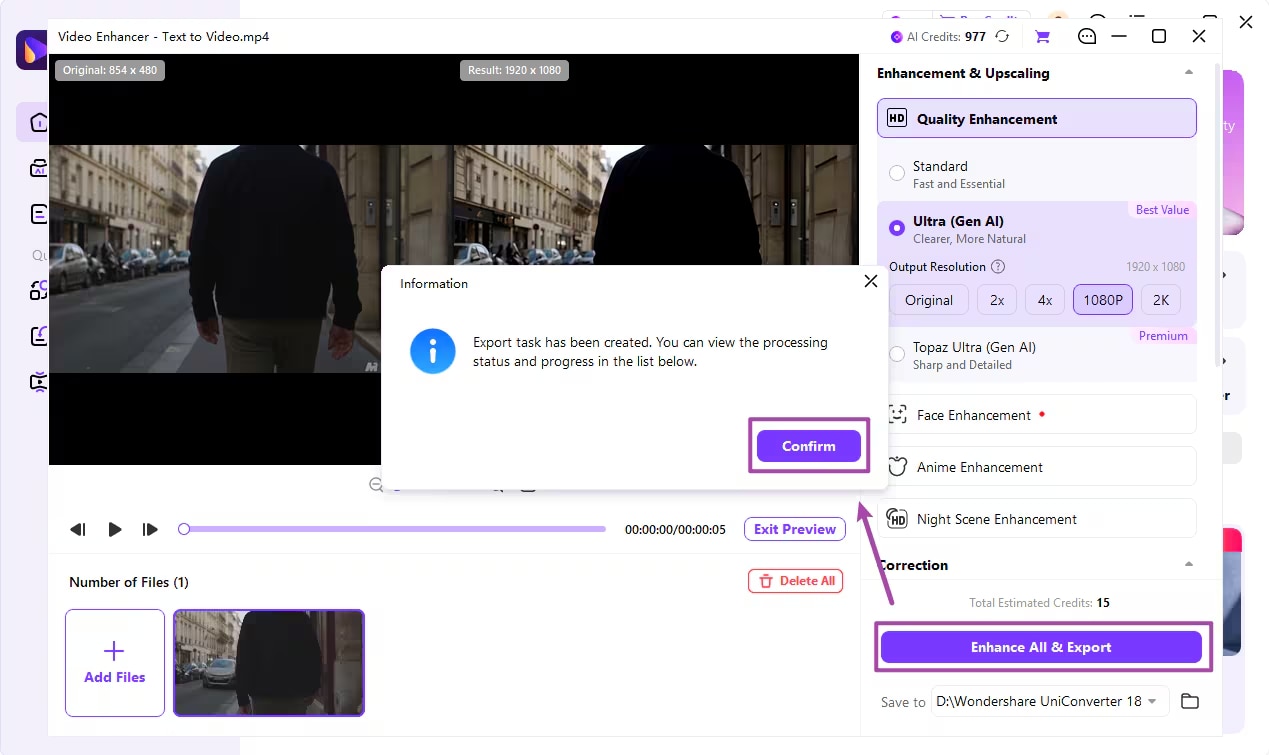
Choose Save to and select Enhance All & Export; confirm the task and check the completed file.
Enhancement can increase perceived clarity or output dimensions, but it cannot guarantee recovery of details absent from the recording. Review the available credits and export conditions in the app before processing.
On a phone? Visit this page on a Windows or Mac computer to install the desktop app. The pictured workflow is Windows-specific.
For more source-specific options, explore ways to unblur a video.
When Video Enhancement Is Not the Right Fix
If your local original and export are clear, start with upload and playback checks. Enhancing them will not repair a viewer’s connection or change the copy already posted. If the original is severely out of focus or motion-smeared, use a sharper recording or reshoot when possible: AI cannot verify missing real-world detail. If only the export is affected, return to the original project and change its export settings first.
Decision point: Stop changing settings once the same post is clear on another device: troubleshoot that viewer’s playback. If the local export is the first soft version, return to the project. If the original itself is unusably out of focus, choose a sharper source or reshoot before investing time in enhancement.
Frequently Asked Questions
-
Why are my TikTok videos blurry after uploading?
If the original and export are clear but the posted video looks soft on multiple devices, platform processing is a possible cause. Compare the same scene on another connection and try a new upload from the original export before attributing the problem to one setting.
-
Why is my TikTok blurry only on my phone?
If the same post is clear on another device and connection, investigate playback on the first phone: switch networks, check any available Data Saver setting, update TikTok and restart the app.
-
Why does my TikTok video look blurry before posting?
Compare the camera-roll original with the exported file. If both are soft, the source may be out of focus, low resolution or noisy; if only the export is soft, revisit your editor’s export settings.
-
Does 1080p automatically fix blurry TikTok videos?
No. A 1080p export creates a larger frame but cannot recover detail missing from a severely out-of-focus source. Use a clearer original or test enhancement on mildly soft footage.
-
Can I fix a blurry TikTok without reposting?
If only playback is affected, switching networks or checking the app may help without reposting. If the uploaded version itself is soft on multiple devices, use a cleaner source and test a new upload; an enhancer cannot change the existing post.
-
Why is my TikTok blurry?
Your TikTok can look blurry because the original recording is soft, the export lost detail, the uploaded video was processed, or the viewer is seeing lower-quality playback. Compare the same scene in the original, export and post on another device to identify the first change.
-
Why do my TikTok videos get blurry a few hours after posting?
Playback conditions, network or app settings may have changed, but the timing alone does not identify the cause. Recheck the same post on another device, first on the same network and then on a different connection. Inspect Data Saver and any video-quality option before reposting.
-
Does uploading in 4K or enabling high-quality uploads fix blur?
No. A 4K file or a high-quality upload option cannot restore detail missing from the original, and neither guarantees a particular playback resolution. Compare a clean 1080p export with the source and test the available upload setting.