


Screen recording has become essential for gamers, educators, content creators, and professionals who want to capture tutorials, presentations, or gameplay with ease. While XRecorder is widely known as a powerful mobile screen recording app, many users are now searching for ways to use xrecorder pc for a larger screen experience and better control. However, since there is no official desktop version available, confusion often arises about how to run it on Windows systems. This guide is designed to simplify everything you need to know about how to use XRecorder for PC.
From understanding its features and limitations to setting it up through an emulator and exploring better desktop alternatives, this article provides clear, practical solutions. Whether you're a beginner or an experienced creator, you'll find the right approach to record your screen efficiently on Windows.
In this article
Part 1: What Is XRecorder and What are its Features?
XRecorder is a popular Android screen recording application developed by InShot Inc. It is designed to help users record high-quality screen videos without requiring root access. The app is widely used by gamers, YouTubers, educators, and social media creators who want an easy way to capture mobile gameplay, tutorials, live streams, or video calls.
Key Features of XRecorder
1. High-Quality Screen Recording
XRecorder supports recording up to 1080p at 60fps, producing smooth and clear videos for gameplay, tutorials, and app demos. Users can adjust resolution, bitrate, and frame rate to balance video quality and file size based on device performance.
2. Internal & External Audio Recording
The app allows recording internal audio, microphone audio, or both, making it ideal for commentary, tutorials, and gameplay reactions. Easy audio settings help ensure clear and engaging sound in recordings.
3. Facecam Overlay
XRecorder lets users record their front camera while capturing the screen, perfect for reaction videos and instructional content. The facecam window can be resized and repositioned for flexible video layouts.
4. No Watermark (Free Version)
Unlike many free screen recorders, XRecorder does not add a watermark, allowing users to publish clean, professional-looking videos without branding overlays.
5. Built-in Video Editor
The app includes simple editing tools such as trim, cut, speed adjustment, music, and text, enabling quick edits without needing additional editing software.
Overall, XRecorder is a feature-rich and user-friendly mobile screen recorder designed for Android devices. However, since it is not officially available for Windows, users looking for an xrecorder pc solution must rely on alternative methods or desktop screen recording software, which we will explore in the next sections.
Part 2: Does XRecorder Have an Official PC Version?
If you’re looking to use XRecorder on a PC, you may quickly notice that there isn’t a native desktop version available. That’s because XRecorder was originally built with mobile devices in mind. Understanding how the app is designed will help explain why it currently works best on smartphones rather than computers.Understanding its platform limitations helps clarify why a native desktop version is not currently available. The following points explain the key reasons behind this.
Why XRecorder Doesn’t Have a Native PC Version
Mobile-First Design: XRecorder is built specifically for mobile platforms like Android, with features optimized for smartphone hardware, touch controls, and mobile operating systems.
Mobile-Optimized Performance: Its recording engine, interface, and performance settings are designed for mobile chipsets and screen resolutions, not desktop environments.
No Official Desktop Version: The developers have not announced any native Windows or macOS application for XRecorder.
Focus on Mobile Development: The development team continues to prioritize improving mobile performance and expanding Android device compatibility.
Emulator or Alternatives Needed: To use XRecorder on a PC, users typically rely on Android emulators or choose dedicated PC screen recording software.
Part 3: How to Use XRecorder on PC (Step-by-Step)
Since XRecorder does not offer an official Windows version, you'll need to use an Android emulator to run it on your PC. Below is a simple step-by-step guide to set up xrecorder pc on Windows.
Step-by-step Guide to Set up Xrecorder PC on Windows
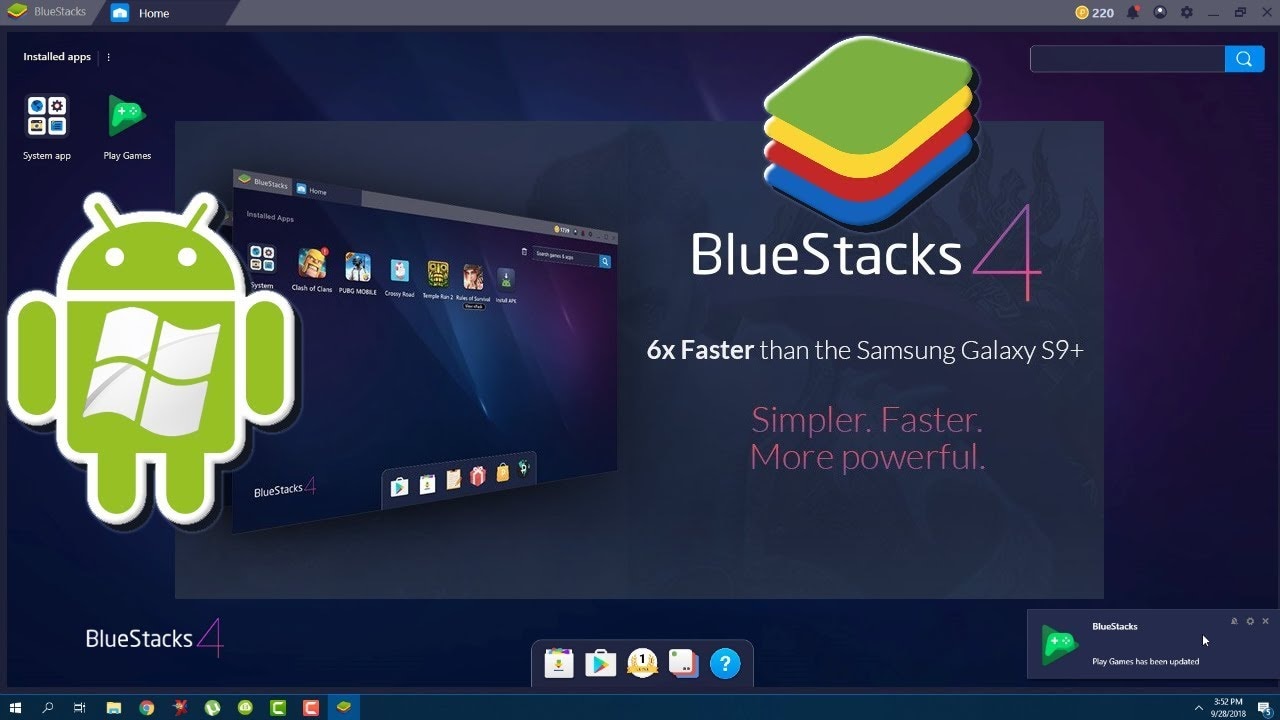
Step 1: Download and Install an Android Emulator
First, download a reliable Android emulator such as BlueStacks or LDPlayer from their official website. Install the emulator just like any other Windows program. Make sure your PC meets the minimum system requirements for smooth performance. Once installed, launch the emulator and complete the basic setup process.
Step 2: Sign in to Google Play Store
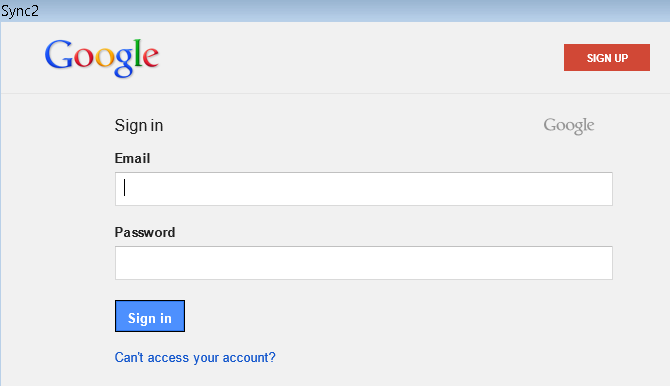
After opening the emulator, log in using your Google account. This is necessary to access the Google Play Store. Once signed in, open the Play Store app within the emulator interface.
Step 3: Install XRecorder
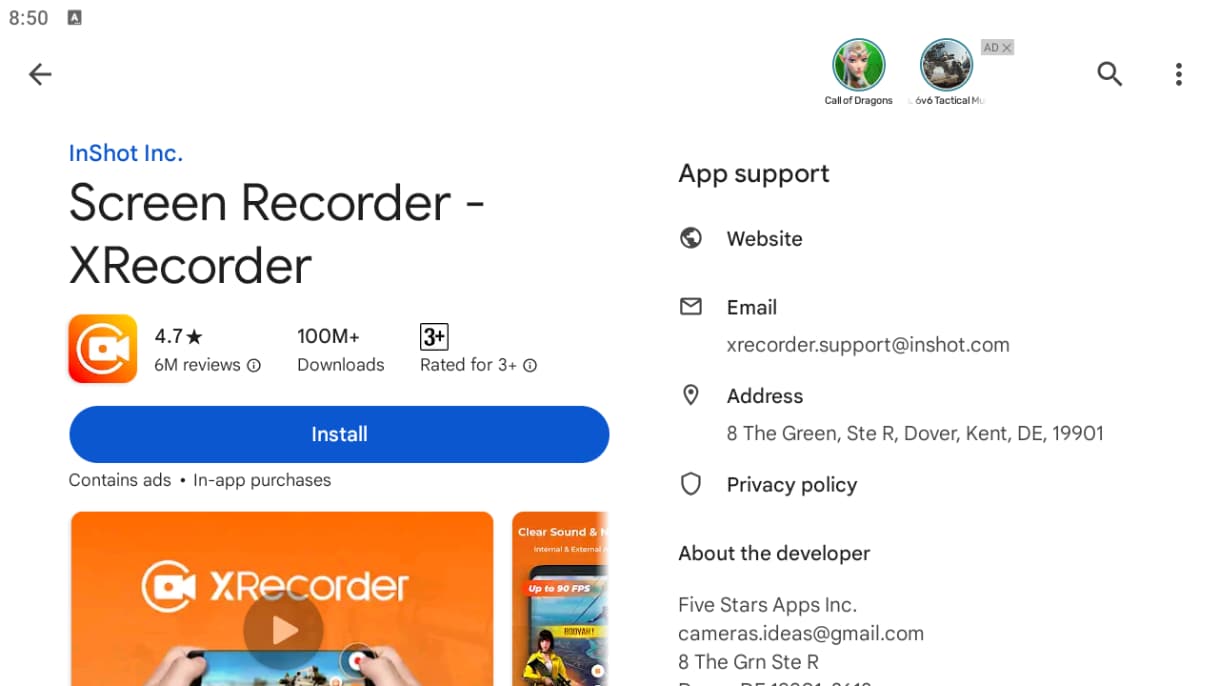
Search for "XRecorder" in the Play Store search bar. Locate the official app and click Install. Wait for the installation process to complete. The app icon will appear on the emulator's home screen once installed.
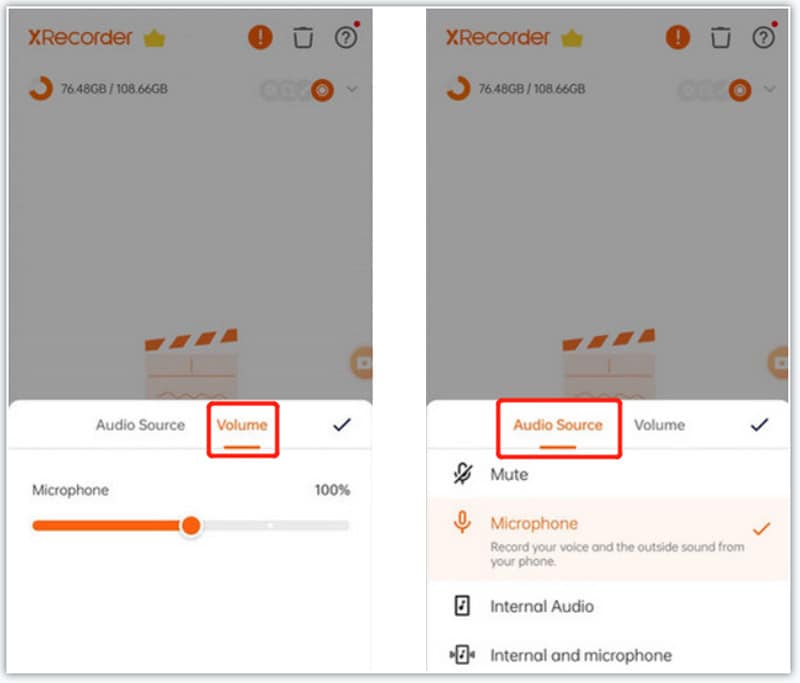
Step 4: Adjust Recording Settings
Open XRecorder inside the emulator. Go to the settings menu to configure resolution, frame rate, bitrate, and audio options according to your needs. For better quality, select 1080p resolution and 60fps if your PC can handle it. Adjust audio settings to enable microphone or internal sound recording.
Step 5: Start Recording
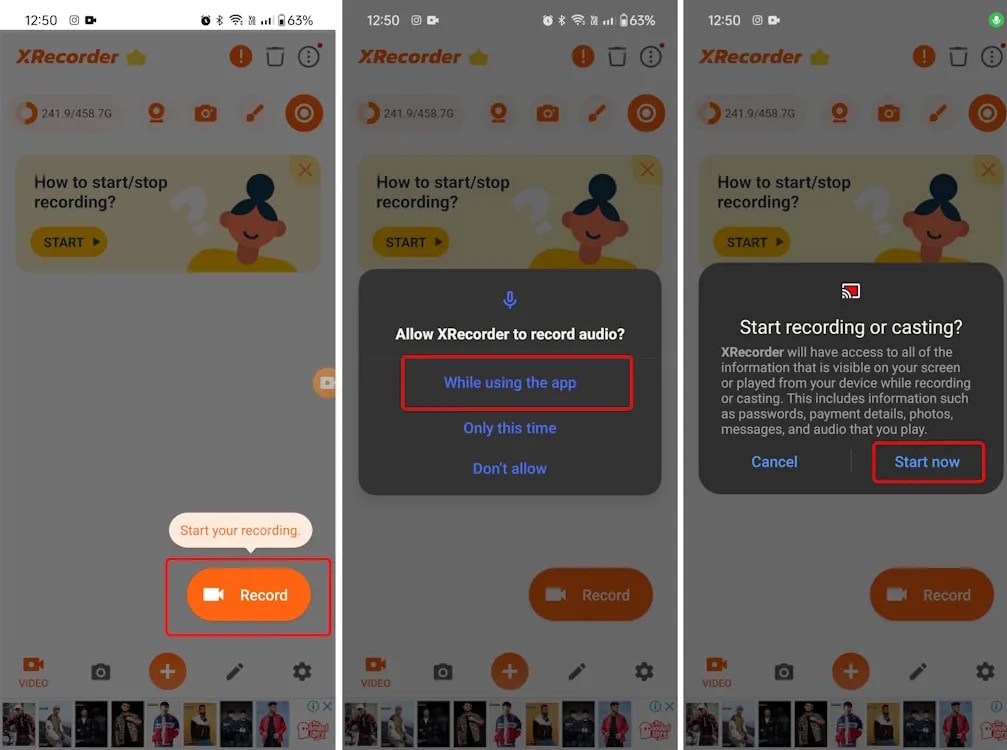
Open the app or game you want to record inside the emulator. Tap the floating XRecorder icon and press the Record button. The app will begin capturing the emulator screen. You can pause or stop the recording anytime using the floating controls.
Step 6: Save and Export the Video
Once you stop recording, the video will be saved inside the emulator's storage. You can transfer the file to your PC using the emulator's file manager or export/share option. After exporting, you can edit or upload the video as needed.
Important Tips for Better Performance
- Enable virtualization (VT-x/AMD-V) in your BIOS for smoother emulator performance.
- Close unnecessary background applications to reduce lag.
- Allocate sufficient RAM and CPU cores to the emulator in its settings.
By following these steps, you can successfully use XRecorder on a Windows PC through an emulator. However, performance may vary depending on your system specifications, which we'll discuss in the next section.
Pros & Cons of Running XRecorder on PC
XRecorder can be used on Windows through an emulator, and this xrecorder pc setup offers several advantages along with a few limitations.
Pros
- Better Visual Experience: Provides a larger screen for clearer viewing and easier monitoring.
- Flexible Control: Enables keyboard and mouse control instead of touch navigation.
- Battery Saving: Reduces battery drain and overheating on your mobile device.
- Easy File Management: Makes file transfer, video management, and sharing easier on a PC.
- Custom Recording Features: Supports adjustable resolution, frame rate, and facecam recording.
Cons
- Emulator Required: Needs an emulator because there is no official PC version.
- High Resource Usage: Consumes significant CPU and RAM, which may cause lag or instability.
Part 4: 5 Best Screen Recorder Alternatives for PC
If you want a smoother and more professional experience than running XRecorder via an emulator, these native Windows screen recorders provide better stability, higher performance, and advanced features.
1. Wondershare UniConverter
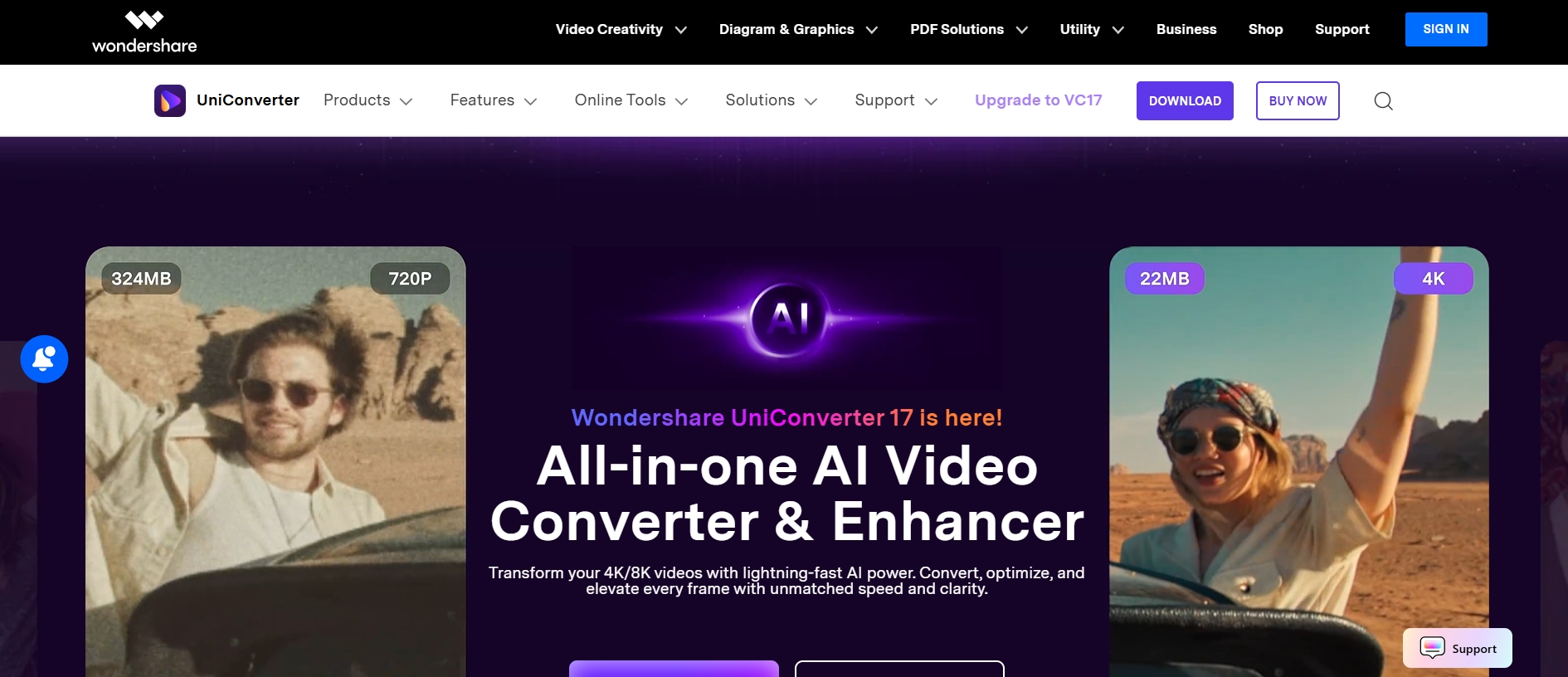
Wondershare UniConverter is a comprehensive video toolkit that combines screen recorder, video conversion, compression, and editing in one platform. It is designed for content creators, educators, business professionals, and marketers who need more than just basic recording. The software supports high-quality screen capture with customizable recording areas and recording webcam overlay. It also support 4k 120 fps game screen recording without latency on Windows system. Unlike emulator-based setups, it runs natively on Windows, ensuring smoother and more stable performance. Users can record system audio and microphone simultaneously without complicated configurations. It also allows quick editing and format conversion after recording, saving time in post-production. With its intuitive interface, both beginners and professionals can use it comfortably. Overall, it serves as a complete media solution rather than just a screen recorder.
Features
- Full-screen and custom screen recording
- Webcam and screen recording simultaneously
- System audio and microphone recording
- Built-in video editor and compressor
- Supports HD and 4K recording
- Multiple export format options
Pros
- Native Windows support with smooth performance
- All-in-one tool with editing and conversion
- High-quality output with minimal lag
- User-friendly interface
- No emulator required
Cons
- Advanced features require paid version
- Larger installation size compared to basic tools

Powerful XRecorder Alternative for PC
2. OBS Studio
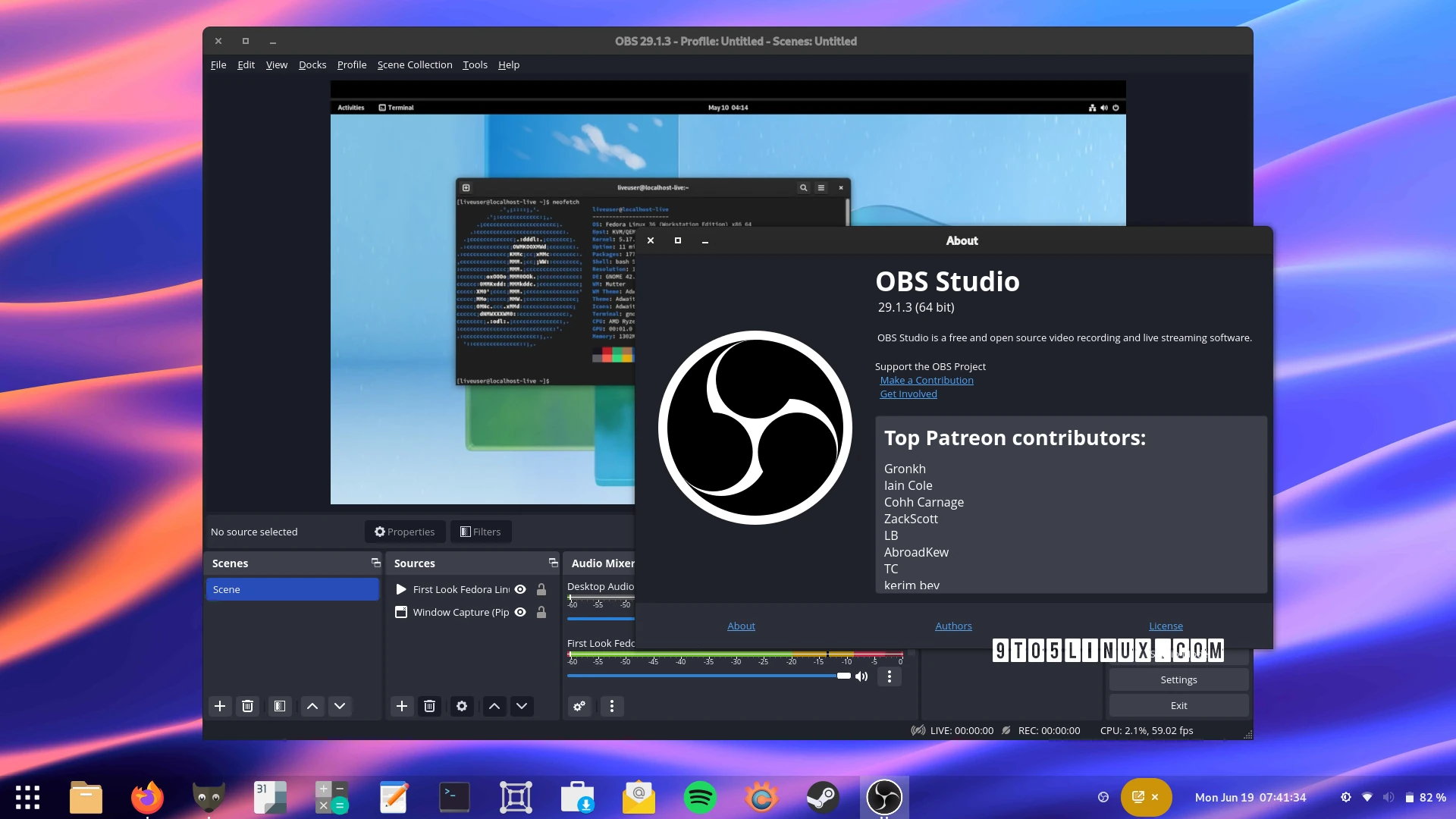
OBS Studio is a free and open-source screen recording and live streaming software widely used by gamers and professional streamers. It offers powerful real-time video and audio capture capabilities. The software allows users to create multiple scenes and switch between them seamlessly. It supports high-quality recording with customizable bitrate and resolution settings. OBS is especially popular for streaming on platforms like YouTube and Twitch. Despite being free, it delivers professional-level performance. However, the interface can be overwhelming for beginners at first. With practice, it becomes a highly flexible and powerful tool.
Features
- High-performance video and audio capture
- Live streaming support
- Scene and source customization
- Advanced audio mixing
Pros
- Completely free and open-source
- Highly customizable settings
- Ideal for gaming and streaming
- Supports high-quality recording with advanced bitrate control
- Allows multiple scenes and source switching
- Built-in audio mixer with noise suppression and filters
- Compatible with popular streaming platforms
- Lightweight installation with strong performance optimization
- Supports plugins for extended functionality
Cons
- Steep learning curve
- No built-in advanced editor
3. Bandicam
Bandicam is a lightweight and highly efficient Windows screen recorder designed for capturing high-quality gameplay, desktop activity, and instructional content. It is especially popular among gamers because it can record high-frame-rate videos with minimal performance impact. The software supports 4K UHD recording and advanced compression technology that keeps file sizes smaller without losing clarity. Users can record full screen, selected regions, or specific applications easily. It also offers webcam overlay support, making it suitable for reaction and commentary videos. Real-time drawing tools help enhance tutorials and presentations. Bandicam includes scheduled recording and customizable hotkeys for better workflow control. Its simple interface makes it accessible for beginners while still offering advanced settings for experienced users.
Features
- 4K UHD video recording at high frame rates
- High compression technology to reduce file size
- Full screen, window, or custom region capture
- Webcam overlay support
- Real-time drawing and annotation tools
- Scheduled recording and auto start/stop
- Gameplay mode optimized for DirectX/OpenGL
- Customizable hotkeys
Pros
- Optimized for gaming with minimal lag
- Lightweight and efficient on mid-range PCs
- Excellent video quality with strong compression
- Flexible recording modes
- Webcam support for commentary videos
- Real-time drawing improves tutorials
- Easy-to-use interface
- Custom hotkeys improve productivity
Cons
- Free version includes watermark
- Limited built-in editing tools
5. ShareX
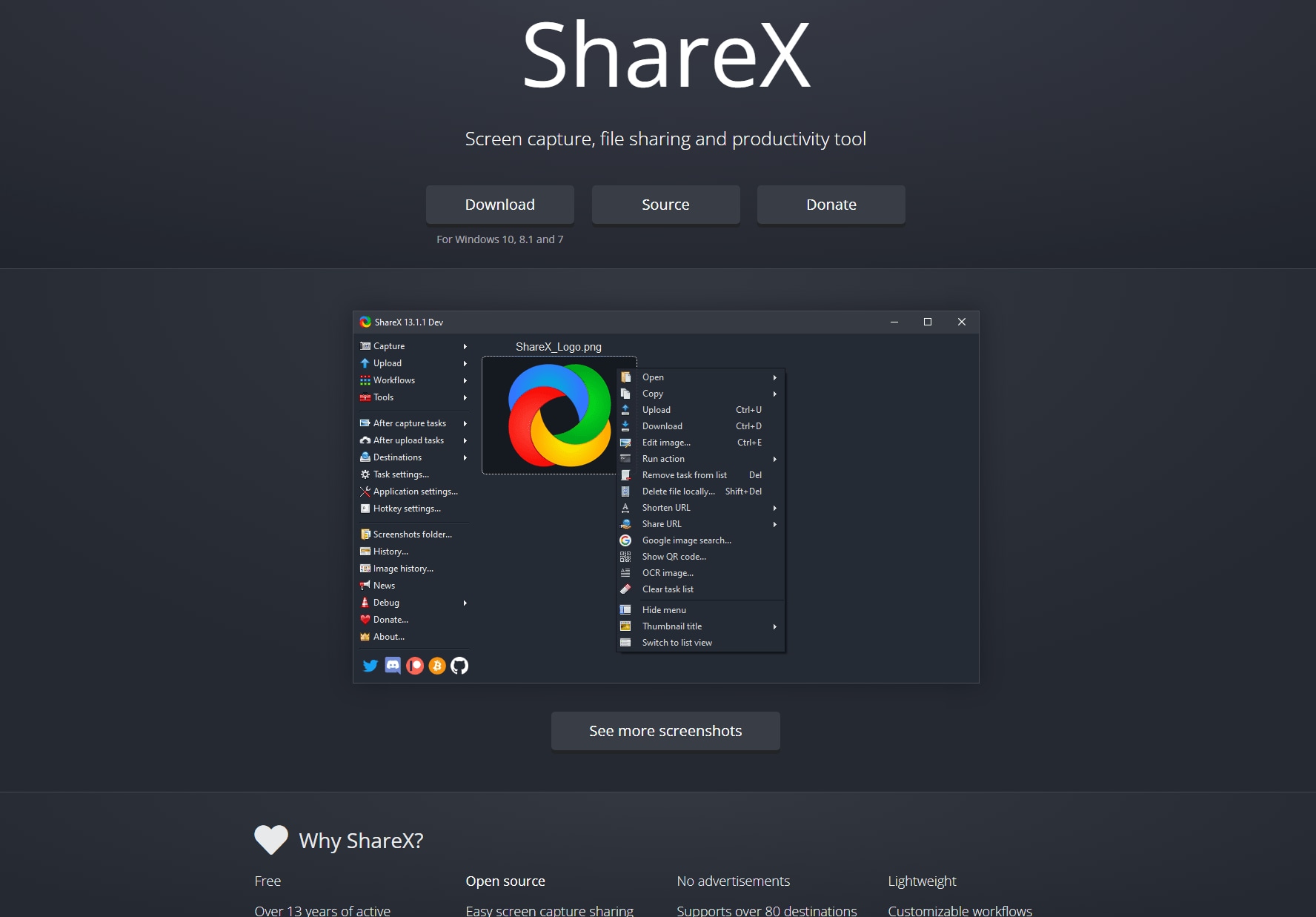
ShareX is a powerful open-source screen capture and recording tool for Windows users who prefer customization and automation. It supports full-screen, window, and custom region capture along with GIF creation. The software is widely appreciated for its workflow automation features that allow automatic uploading to cloud platforms or servers. It also includes advanced tools like color pickers, rulers, and on-screen annotations. ShareX is lightweight and consumes minimal system resources. Although the interface may feel technical for beginners, it offers deep customization for advanced users. It is particularly useful for quick recordings and screenshot-based tasks. Overall, ShareX is a strong free alternative for users who value flexibility.
Features
- Screen recording and GIF creation
- Full screen, window, and region capture
- Workflow automation
- Screenshot annotation tools
- Direct cloud upload options
- Scrolling capture support
Pros
- Completely free and open-source
- Lightweight and resource-efficient
- Highly customizable
- Supports automated uploads
- Ideal for quick screen captures
- Includes advanced productivity tools
Cons
- Interface may feel complex for beginners
- Limited built-in video editing features
Part 5. How to Easily Record Screen with Alternative for PC
Steps Guide on Using UniConverter to Record Screen on PC
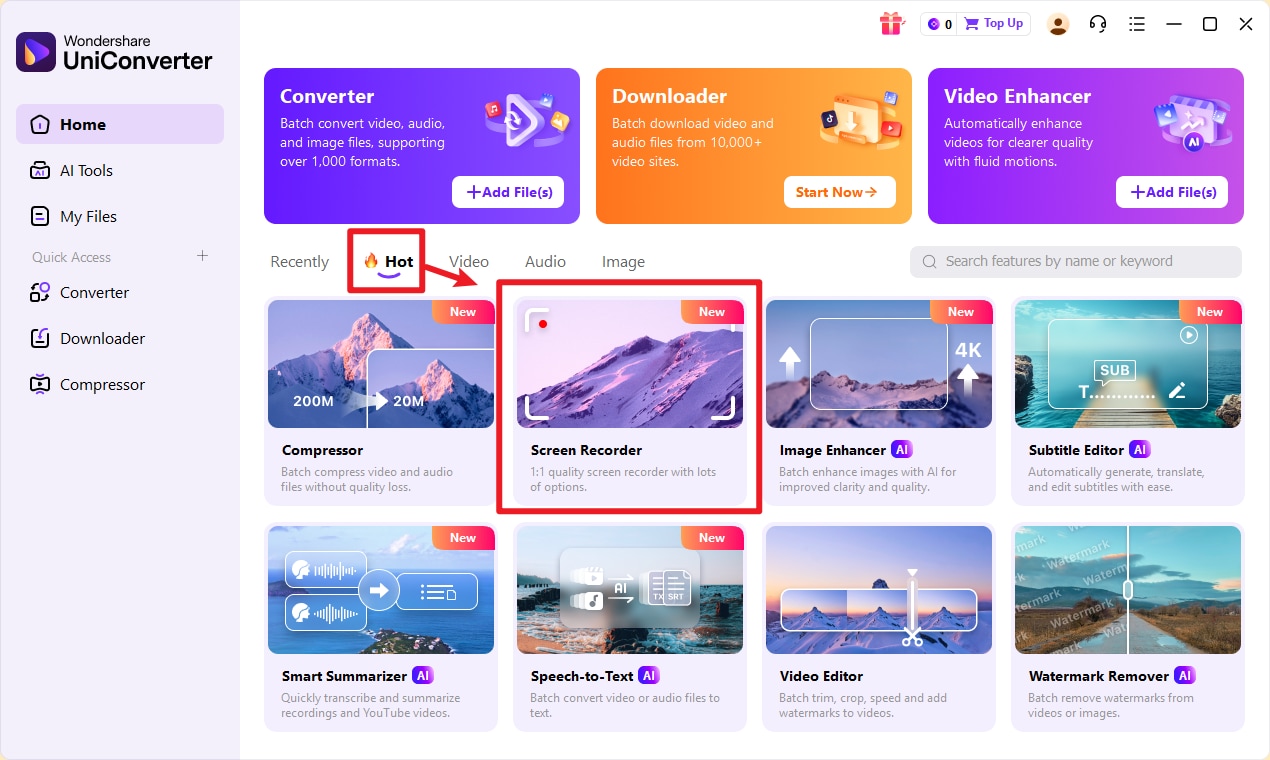
Step 1: Open Wondershare UniConverter
Launch Wondershare UniConverter on your computer and go to the Screen Recorder tool from the main interface.
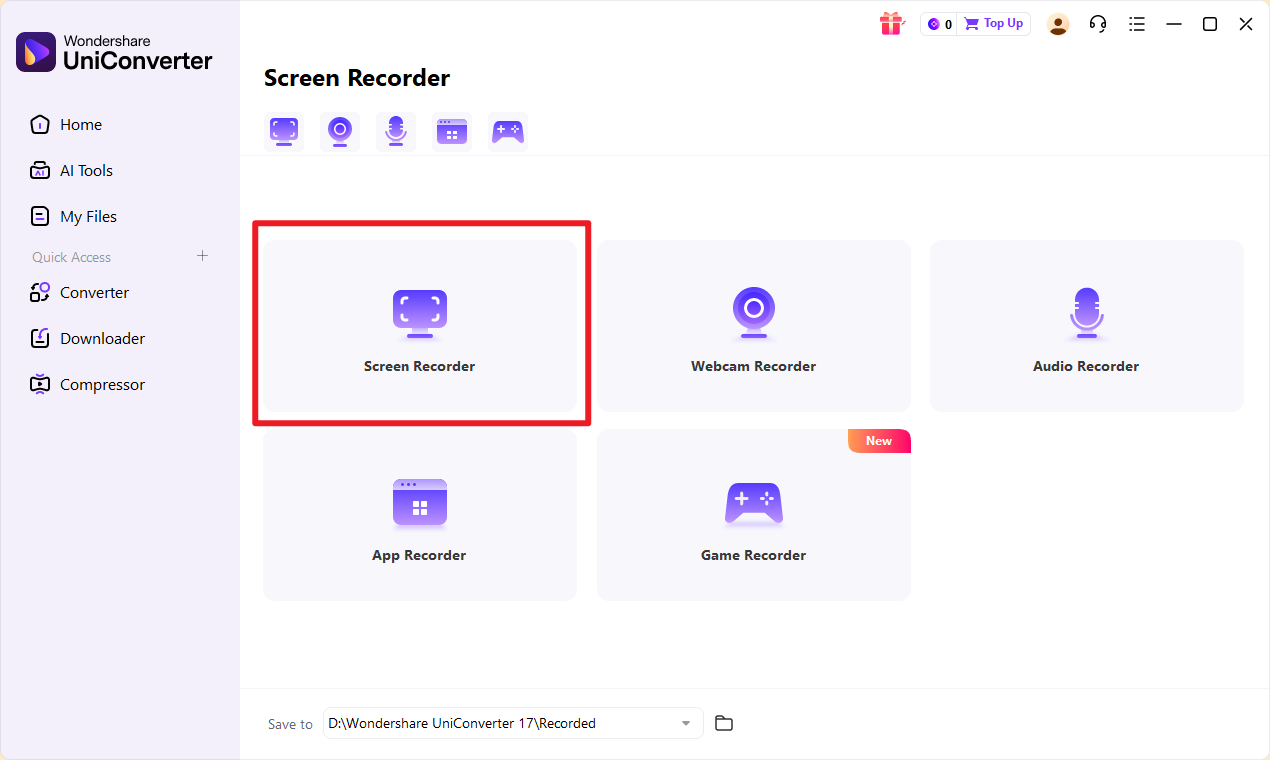
Step 2: Select Screen Recorder
Click Screen Recorder, then choose the Record Screen option to start setting up your recording.
Step 3: Choose Recording Area
Drag the frame to select the area of the screen you want to record. You can record the full screen or a custom region.
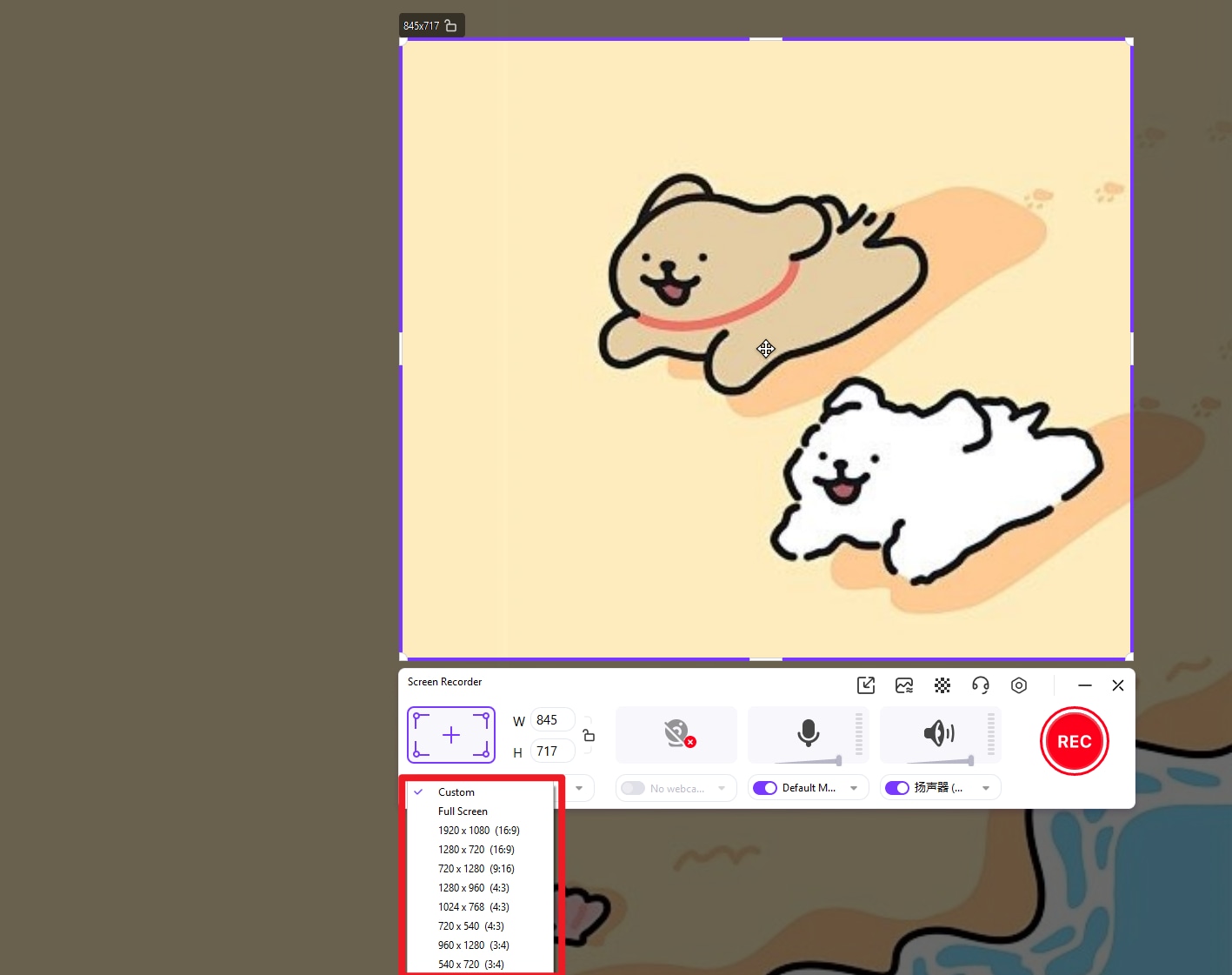
Step 4: Adjust Recording Settings
Turn on system audio, microphone, or webcam if needed. You can also adjust the frame rate and recording preferences.
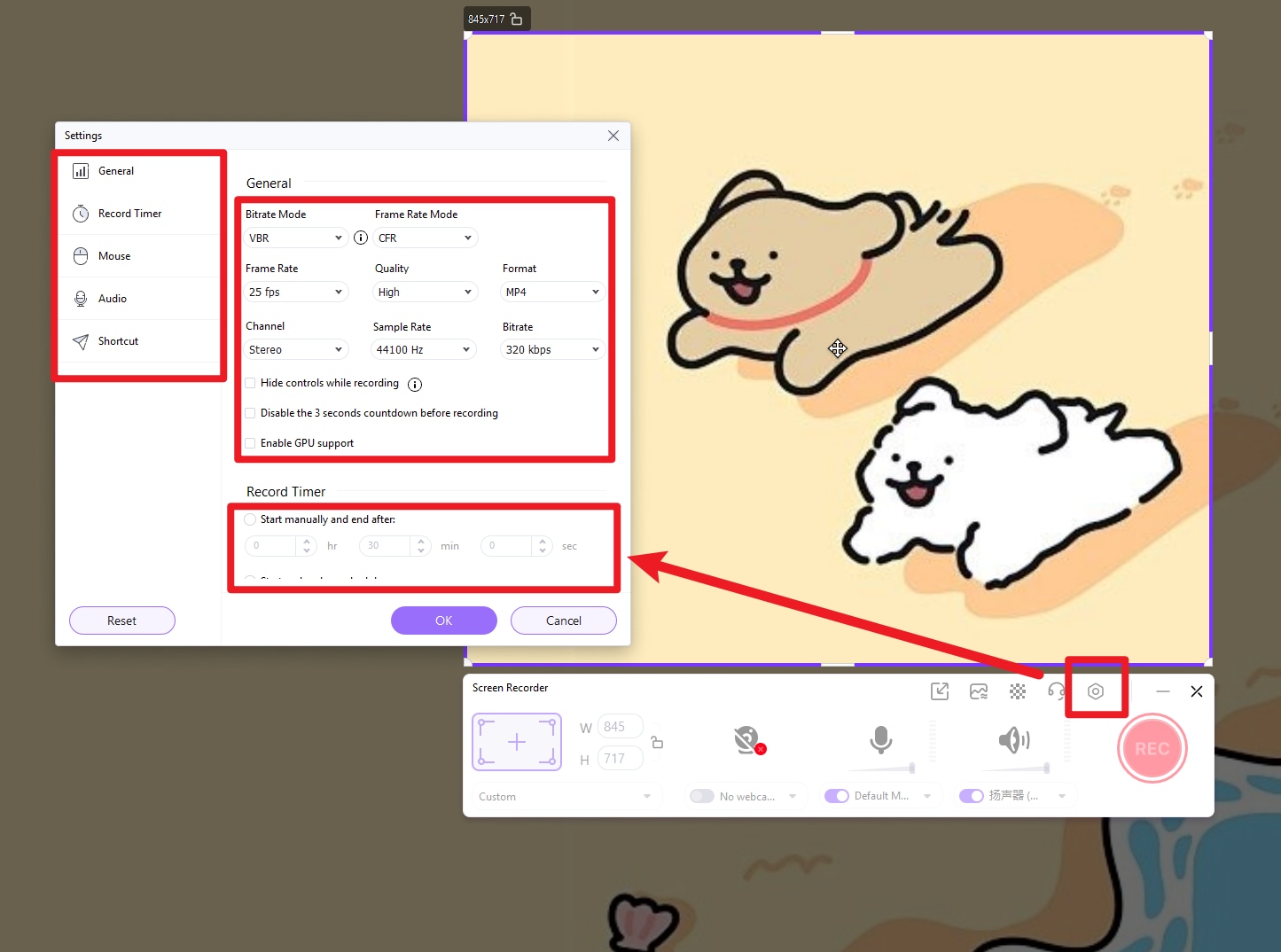
Step 5: Start Recording
Click the REC button to begin recording. UniConverter will give a short countdown before the recording starts.
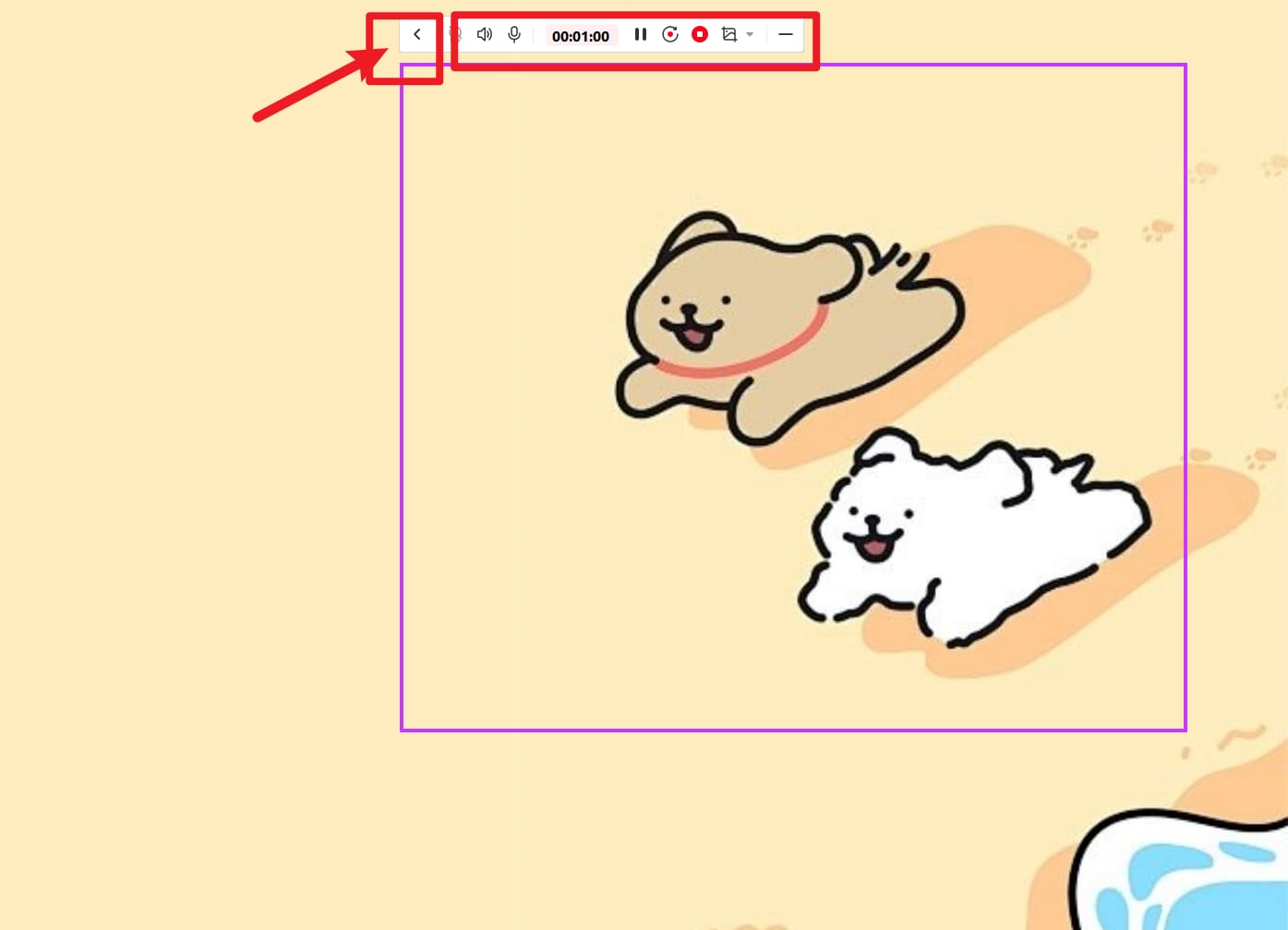
Step 6: Stop and Save the Recording
Click the Stop button when you finish. The recorded video will automatically be saved to your selected folder.
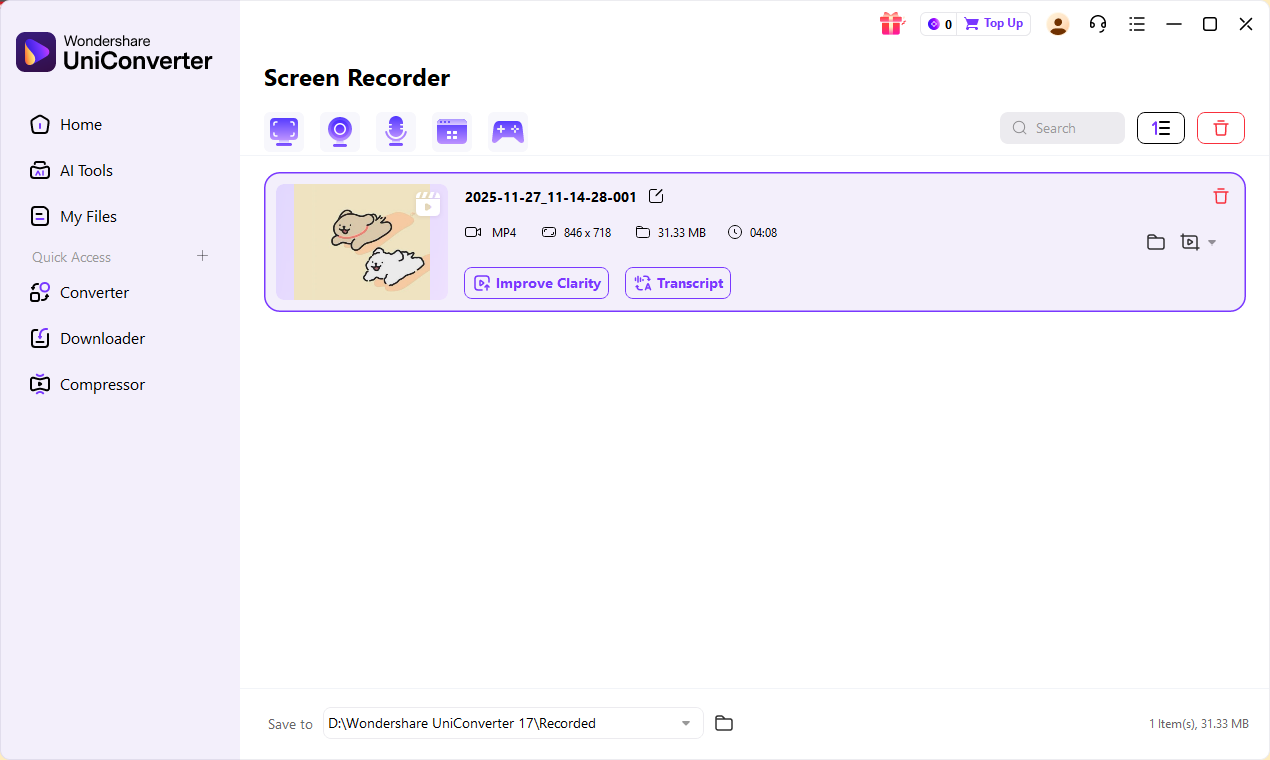
Conclusion
Running XRecorder for PC through an emulator is possible, but it is not the most stable or efficient long-term solution. While the xrecorder pc workaround allows users to record mobile apps and gameplay on a larger screen, it requires extra setup and may consume high system resources. Performance can vary depending on your PC and emulator configuration. For smoother recording and better reliability, native Windows screen recorders are a more practical choice. Wondershare UniConverter stands out as a powerful all-in-one option with built-in recording, editing, and conversion tools. Overall, dedicated PC software offers a more professional and seamless recording experience.
FAQs
-
1. Can I use XRecorder on a PC without an emulator?
No. XRecorder does not provide an official Windows or macOS version. To run it on a computer, you need to install an Android emulator because the app is designed only for Android devices. -
2. Is it safe to run XRecorder on a PC using an emulator?
Yes, it is generally safe if you download both the emulator and the XRecorder app from official sources. However, performance and stability may vary depending on your computer’s hardware and system configuration. -
3. Why does XRecorder lag on my PC?
Lag usually occurs because Android emulators require significant CPU and RAM resources. If your system has limited memory or virtualization is disabled, performance may drop. Closing background programs and allocating more RAM to the emulator can improve performance. -
4. What is the best alternative to XRecorder for Windows?
If you prefer a native PC solution, tools like Wondershare UniConverter provide built-in screen recording with webcam capture and editing features, allowing you to record videos without relying on an Android emulator. -
5. Can I record internal audio while using XRecorder on PC?
Internal audio recording may work in certain Android emulators, but it is not always consistent. Audio synchronization issues can occur depending on the emulator and system configuration. Native PC screen recorders typically offer more reliable internal audio capture.

