

Recording lectures helps students understand lessons again after class ends. Many students miss key points during lectures and need notes later. Lecture recording apps change spoken lessons into written study notes. This helps students save time and feel less pressure during exam preparation.
In 2026, students want tools that turn audio into notes without effort. The best apps record lectures and create notes that students can read. So, using a "lecture recorder to notes" helps students study anytime. This guide shows how these apps support learning and make studying easier.
Best Lecture Recording to Notes App
In this article
- Part 1. Why You Need a Lecture Recorder for Notes Solution
- Part 2. How Does Lecture Recording to Notes Technology Work?
- Part 3. 10 Best Apps That Record Lectures and Take Notes for You (2026 Tested)
- Part 4. How to Record a Lecture and Take Notes: Step-by-Step Guide
- Part 5. Legal and Privacy Concerns: Can You Record Lectures?
- FAQs about Voice Recorder for Taking Notes
Part 1. Why You Need a Lecture Recorder for Notes Solution
Many students try to listen and write notes at the same time. This creates a heavy mental load for the students during class. The brain struggles to process speech while writing at the same time. As a result, students miss ideas and points while writing. So, research on learning shows people remember less when multitasking this way. Studies suggest students keep more information when they review recorded lessons later.
Benefits of a Lecture Recorder for Notes
The following benefits explain why students choose a voice recorder for note-taking:
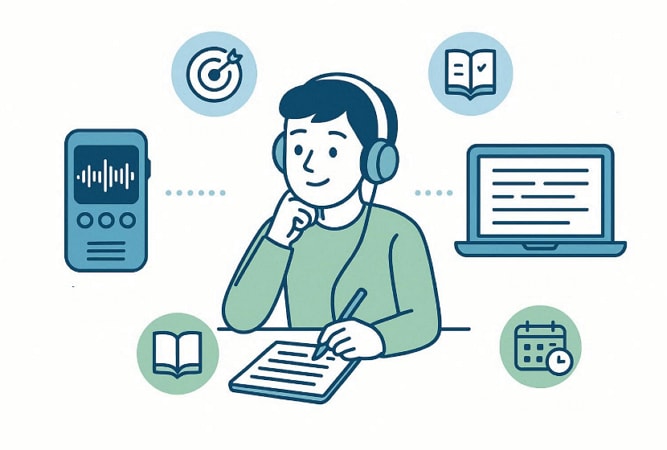
- Focus Support: Recording lectures lets students focus on listening instead of writing notes. This reduces mental load and improves understanding during fast-moving classes.
- Accurate Review: Students replay recordings to catch missed points and confirm lesson details. This supports better exam preparation and stronger recall over time results.
- Learning Access: Recordings help students with learning needs review lessons at their own pace. This supports fair access to education across different learning needs groups.
- Flexible Study: Students study recorded lectures anytime around jobs, family, and busy schedules. This flexibility helps balance class responsibilities and personal commitments better daily.
Part 2. How Does Lecture Recording to Notes Technology Work?
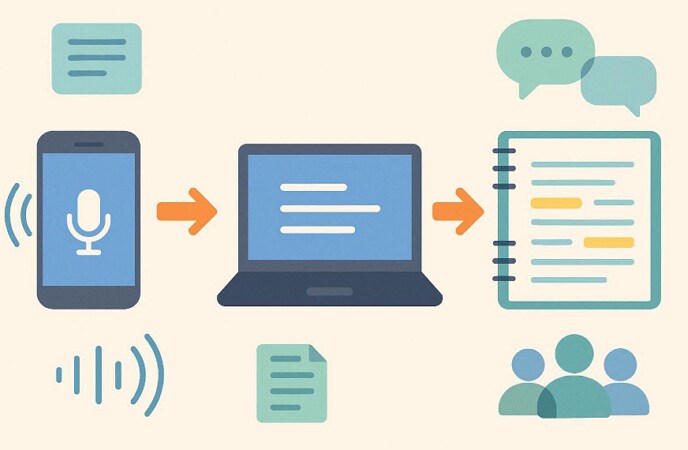
Lecture recording to notes technology follows a clear and simple flow. It changes spoken lectures into written notes that students can study later. The system works step by step, using audio recording and AI tools. Review the points below to understand lecture recording to notes technology:
Step 1. First, the system records lecture audio using a phone, laptop, or recording device. Clear sound quality improves results by reducing noise and missed words.
Step 2. After that, AI listens to the audio and converts spoken words into written text. This process uses ASR technology and measures accuracy using WER values.
Step 3. Next, the system removes extra words and understands the meaning using AI tools. NLP helps identify key topics and important explanations from lectures.
Step 4. Lastly, AI organizes systems, removes extra words, and understands meaning using AI tools. Real-time tools work during class, while post-processing improves note accuracy.
What Affects Transcription Accuracy?
Many students ask online why lecture transcriptions sometimes contain mistakes. The following common factors affect how accurately speech turns into text:
- Background Noise: Loud sounds from people, fans, or halls confuse transcription tools and reduce text accuracy.
- Accents: Strong accents cause AI to mishear words during fast lectures or technical explanations.
- Technical Terms: New subject words, formulas, or names may not exist, causing transcription errors.
- Audio Quality: Low volume, poor microphones, or distance reduces clarity and transcription accuracy.
- Multiple Speakers: Overlapping voices make it difficult for AI to identify speakers correctly.
Part 3. 10 Best Apps That Record Lectures and Take Notes for You (2026 Tested)
Students want tools that record lectures, create notes, and reduce study pressure. An app that records lectures and takes notes for you helps to focus better. The tools below record audio, turn speech into text, and support exam preparation:
Quick Comparison Table: Key Features at a Glance
Let’s have a look at the table below to choose the tool that fits your study needs:
| Tool | Price | Free Plan Limits | Transcription Accuracy | AI Summaries | Flashcards | Real-Time Recording | Platform Support | Storage Limits |
| Otter.ai | Free/$16.99/mo | Limited minutes/month | High | Basic | No | Live | Web, iOS, Android | Limited on free |
| UniConverter | Free trial | Trial limits | High | Yes | No | No | Windows, macOS | Local storage |
| Knowt | Free/$7.99/mo | Feature caps | Medium (file upload) | Yes | Yes | No | Web, Mobile | Cloud based |
| MeetGeek | Free/$19/mo | Limited recordings | High for online meetings | Yes | No | Auto | Web, iOS, Android | Limited free |
| Notability | Free/$14.99/yr | Some features locked | Manual sync | No | No | No | iPadOS, iOS, macOS | Device storage |
| Coconote | Free/$10/mo | Flashcard limits | Depends on text input | Yes | Yes | No | Web, iOS, Android | Cloud based |
| ScreenApp | Free | Short recordings | Medium | No | No | No | Web | Very limited |
| Plaud Note | ~$159 device | Device only | Very High Audio | Cloud | No | No | Device + Web | Cloud dependent |
| VocaNote | Free/$8/mo | Daily limits | Medium | No | No | Yes | iOS, Android | Limited free |
| Sembly AI | Free/$15/mo | Minutes cap | High for videos | Yes | No | No | Web, Windows, macOS | Limited free |
1. Otter.ai– Best for Real-Time Transcription
Best For: Students needing live transcription during fast online lectures.
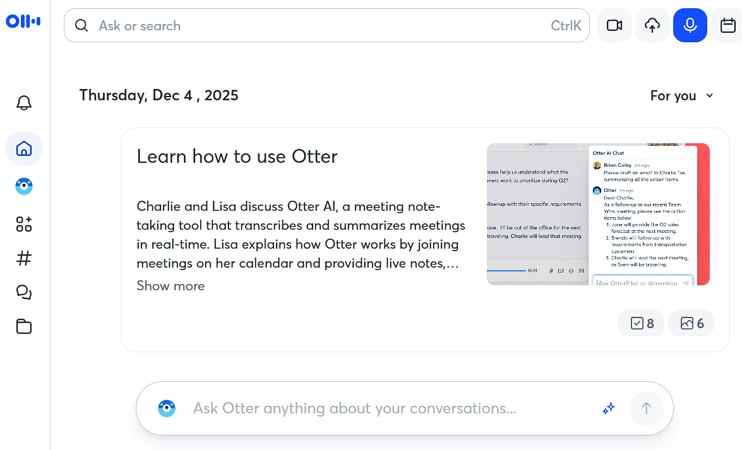
Students turn spoken lectures into written notes easily with Otter.ai. It records voices and shows text while the class continues live. Students who need a lecture recorder to notes free option often start here. The tool works well for fast lectures and group discussions online.
Key Features
- Provides real-time speech-to-text transcription during live lectures for the ease of students.
- Allow users to save searchable notes with timestamps for easy review later.
- Identifies different speakers automatically during group class discussions, delivering accuracy.
Pricing: Free plan available, Pro plan starts from $16.99/month.
Platforms: Web, iOS, Android.
Unique Selling Point: Live transcription appears instantly while lectures continue without pause.
2. UniConverter– Best for Recording + Transcription
Best For: Students needing combined screen recording, speaker-aware transcription, and organized lecture notes.
Many students attend online and offline classes filled with slide explanations and fast discussions. Writing notes while listening often feels stressful and confusing during long lecture sessions. A desktop lecture recorder reduces this pressure by handling recording tasks automatically. This approach helps students focus on understanding concepts instead of rushing to write everything teachers explain during class.
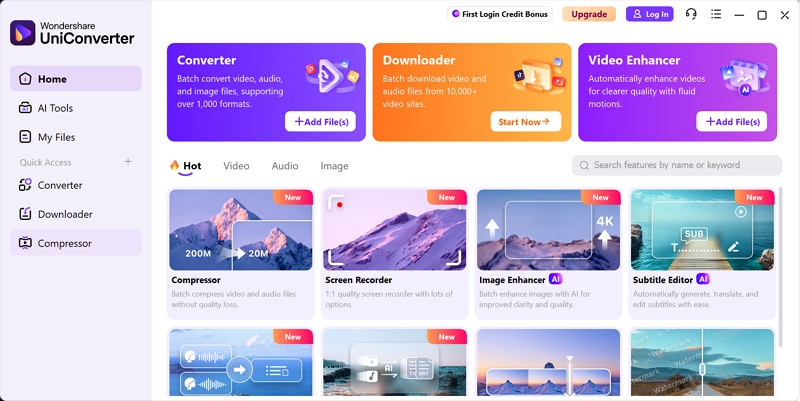
Moreover, UniConverter offers a smooth workflow that lets students record lecture to notes in one process. It captures screens, slides, and voices, then converts speech into text using speaker-distinguishing transcription. Students can use the Smart Summarizer to create short lecture summaries from recordings. This workflow helps learners review key points faster, search topics, and prepare confidently for exams after class.
Best Lecture Recording to Notes App
Key Features
- Screen Recording: Captures lecture slides and screen video with audio for later study review.
- Audio Capture: Records the teacher's voice clearly during online classes and offline classroom sessions.
- Speech-to-Text: Converts recorded lecture speech into readable text notes for exam revision.
- Format Support: Saves recorded audio and video files in MP3 and WAV formats easily.
Pricing
Freemium
Platforms: Windows, Mac
Unique Selling Point: Full desktop recording with screen, audio, and transcription in one tool.
3. Knowt– Best AI Study Tools Integration
Best For: Students who want notes, summaries, and flashcards from lectures.
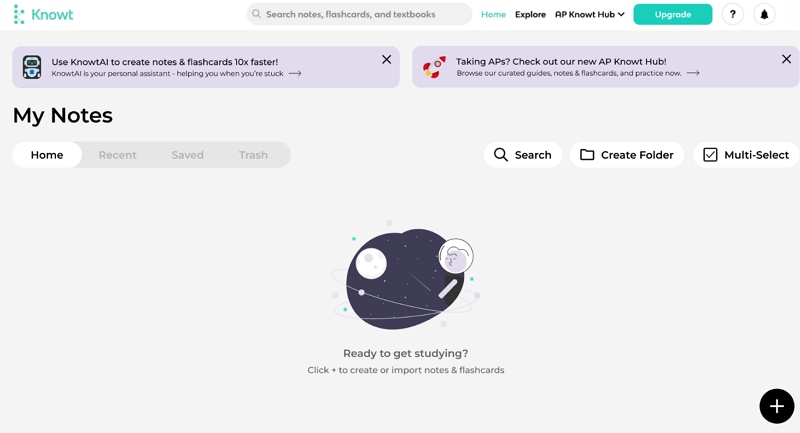
Knowt helps students turn lectures into study tools instead of long notes. It works as an AI lecture note taker that creates summaries and flashcards. Students upload lecture audio or notes and get ready-to-study material fast. This saves time and supports more effective revision before the exams.
Key Features
- Creates AI summaries from uploaded lecture notes and recordings to use later.
- Allow users to build automatically generated flashcards for quick exam review.
- Organizes topics into clear study sections for easy review for the students.
4. MeetGeek– Best for Online Lectures
Best For: Students attending frequent online lectures on Zoom or Teams platforms.
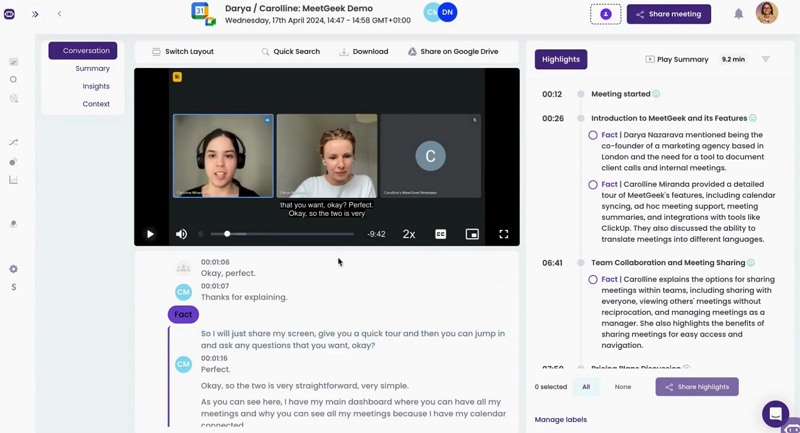
Online lectures often move fast and leave students with missing notes. MeetGeek helps students stay organized by recording online classes automatically. It joins meetings, saves discussions, and prepares summaries for later review. Students who want to record lectures to notes without manual steps find it helpful. This tool suits learners attending Zoom or Teams classes every day.
Key Features
- Automatically joins online lectures and records audio without manual setup required.
- Creates short AI summaries highlighting important discussion points after lectures end.
- Stores recordings in searchable folders for easy review and organization.
Pricing: Free tier available, paid plans start from $19/month.
Platforms: Web, iOS, Android.
Unique Selling Point: Automatically records online lectures and creates summaries without user effort.
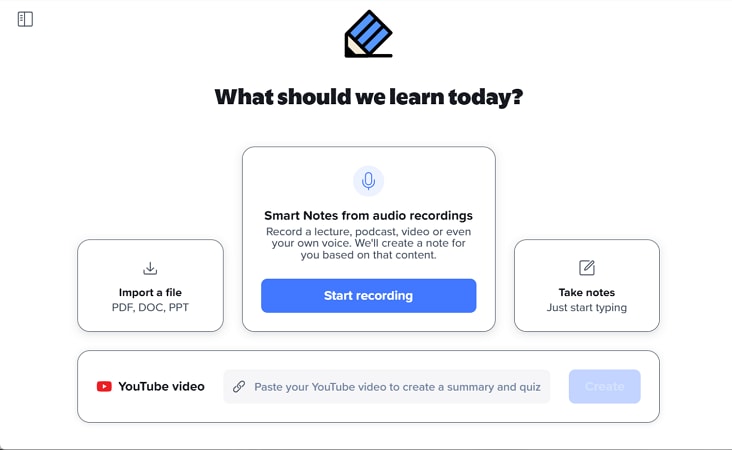
5. Notability– Best for iPad Users
Best For: iPad users who prefer handwritten notes with synced lecture audio.
Many iPad students enjoy writing notes while listening carefully during class. Notability supports this learning style using smooth handwriting tools and audio sync. It feels natural for Apple Pencil users who enjoy digital notebooks. The app saves lessons clearly for later study sessions. This makes it useful as a lecture recorder to notes solution.
Key Features
- Handwriting recognition with smooth Apple Pencil support and organized digital notebooks.
- Audio playback is linked to timestamps for accurate lesson review later.
- Offers PDF import and export tools for structured academic document workflows.
Pricing: Free tier available; subscription starts from $14.99/year
Platforms: iPadOS, iOS, macOS.
Unique Selling Point: Tap handwritten notes to replay exact audio moments.
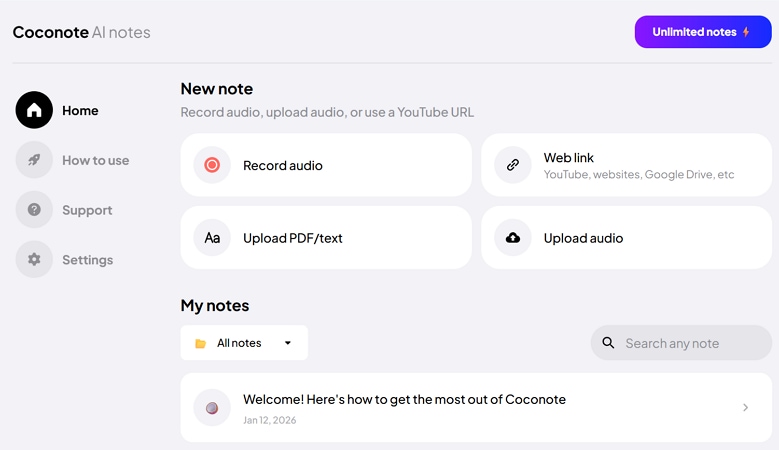
6. Coconote– Best for Flashcard Generation
Best For: Students who revise using flashcards and short memory prompts.
Some learners remember faster using short questions and repeated recall. That is why Coconote focuses on breaking lessons into small study units. It helps students revise without rereading their full notes again. Moreover, the interface feels simple and focused on memory practice. This supports efficient lecture recording to notes for quick revision.
Key Features
- Automatic flashcard creation from uploaded notes and lecture transcripts.
- Topic tagging system for quick revision and spaced repetition practice.
- Exportable flashcards compatible with common digital study platforms.
Pricing: Free plan; paid plans start from $10/month
Platforms: Web, iOS, Android
Unique Selling Point: Turns notes into ready-to-study flashcards automatically.
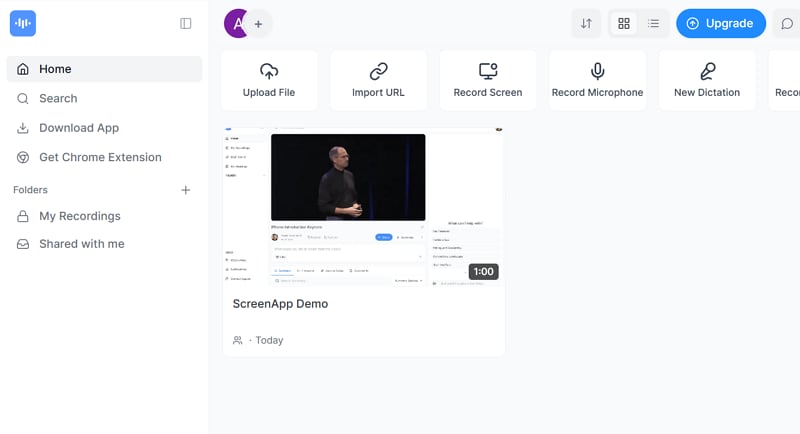
7. ScreenApp– Best Free Option
Best For: Students needing basic recording without paid subscriptions.
Many students want a simple tool without paying monthly fees. To address this, ScreenApp offers basic recording features that work directly online. It avoids complicated setups and installs for quick access for students. Students can capture lessons with ease when tools are limited. This makes it helpful to record lecture to notes freely.
Key Features
- Browser-based screen and audio recording with no software installation required.
- Provides quick sharing links for saved recordings after class sessions.
- Allows basic transcript generation for reviewing recorded lesson content.
Pricing: Free
Platforms: Web
Unique Selling Point: No-cost lecture recording directly from the browser
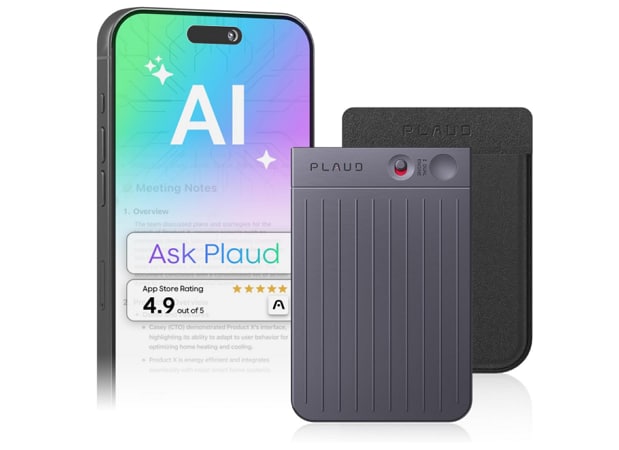
8. Plaud Note– Best Dedicated Hardware Recorder
Best For: Users wanting a physical device for high-quality lecture recording.
Some of the learners still prefer hardware instead of apps during busy classes. Thus, Plaud Note is a small device made only for recording. It reduces distractions from phones, notifications, and other unrelated digital interruptions. So, students focus while lectures are recorded without missing details. Later notes improve through an AI lecture note taker workflow process.
Key Features
- Dedicated noise-reduced microphone hardware ensures clear classroom recordings during long lecture sessions
- Automatic upload to the cloud enables transcription and organized lecture note processing workflows
- Long battery life supports full-day academic schedules without frequent charging interruptions.
Pricing: Around $159
Platforms: Hardware device with web and mobile access
Unique Selling Point: Distraction-free physical recorder with AI processing.
9. VocaNote (Android/iOS)– Best Mobile-First Experience
Best For: Students who record lectures on a smartphone.
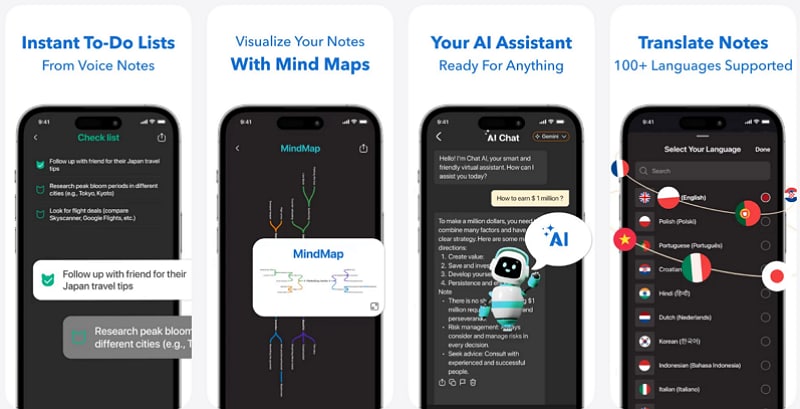
Mobile-focused students often need fast tools on their phones daily. VocaNote is designed around quick recording and review for students today. The app feels lightweight and easy to use daily for learners. It suits learners moving between classes during busy academic days. This supports live transcription lectures on the go for students everywhere.
Key Features
- One-tap mobile recording optimized for quick lecture capture during busy class sessions.
- Real-time transcription provides immediate text access during live lectures.
- Cloud sync allows you to access notes across multiple devices seamlessly.
Pricing: Free tier; premium around $8/month
Platforms: iOS, Android
Unique Selling Point: Designed specifically for fast mobile lecture capture.
10. Sembly AI– Best for Video Lecture Analysis
Best For: Students reviewing recorded video lectures and online classes.
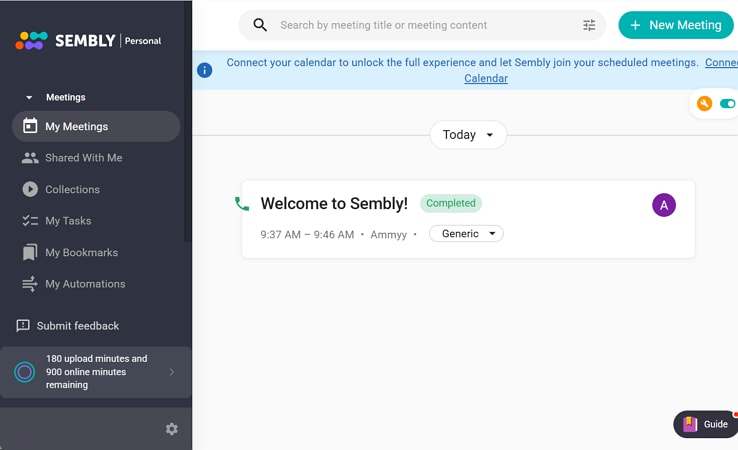
Online classes often produce long videos that feel difficult to review. So, Sembly AI focuses on analyzing recorded video content for students. It highlights important discussion points for students during review sessions. This saves time during exam preparation weeks for busy learners everywhere. It works well as a lecture recorder to notes for video content.
Key Features
- Video and audio analysis enable automatic key point detection across recorded lecture content
- Structured summaries separate topics, speakers, and discussion segments for organized academic review
- Searchable transcripts link directly to exact video timestamps for precise content navigation
Pricing: Free plan; paid plans start from $15/month
Platforms: Web, Windows, macOS.
Unique Selling Point: Deep analysis of long video lectures into clear notes.
Part 4. How to Record a Lecture and Take Notes: Step-by-Step Guide
Learning how to record lectures and take notes helps students stay focused and stress-free. This practical guide explains the full workflow, from pre-class setup to post-class review. So, you can follow the following steps using any recorder for note-taking:
Before Class: Setup and Preparation
Getting ready before class helps recordings work well, and notes stay accurate.
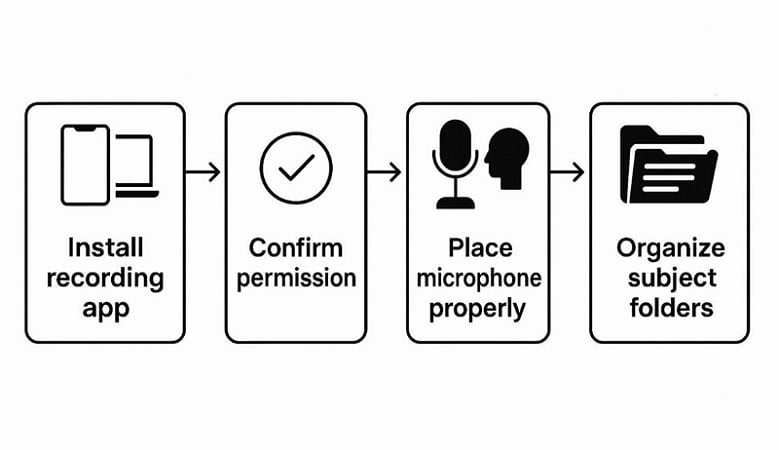
1. First, install the UniConverter lecture recording tool and complete an account setup before class. To avoid technical issues later, make sure all required tools are prepared in advance.
Step 1. Install UniConverter to Proceed
To start, download and install UniConverter on your device so recording and processing features are available.
Step 2. Log in to Your Account
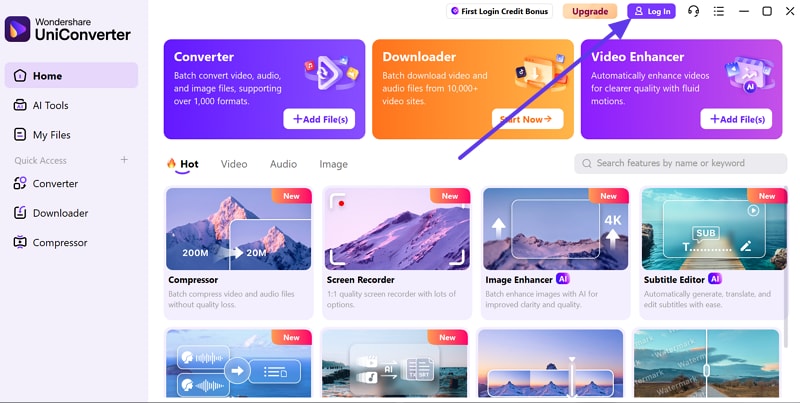
After downloading, open UniConverter after installation and click “Sign in” at the top-right corner of the main interface. Enter your registered email and password to access the screen recorder and AI tools before the lecture begins.
2. Next, confirm recording permissions and get consent under FERPA academic privacy guidelines.
3. Then, position the microphone close to the speaker to improve audio capture quality.
4. Finally, create subject folders to organize recordings and notes before class begins.
During Class: Recording Best Practices
Smart recording habits during class help capture lectures without distraction. So adhere to the points below for better understanding:
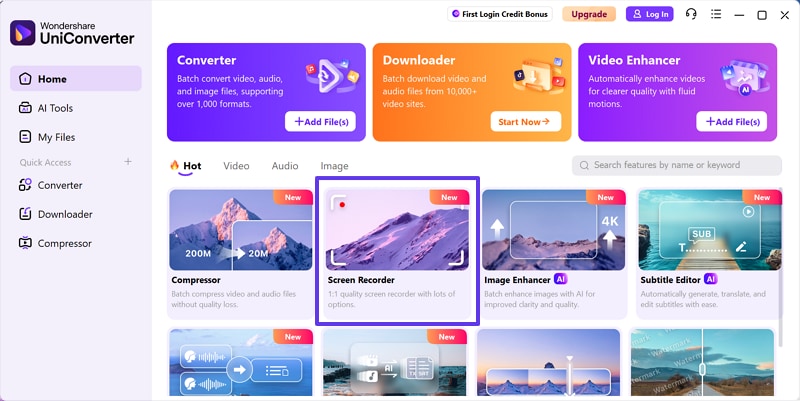
1. Start the recording process early so no important lecture content gets missed.The Screen Recorder feature in UniConverter captures lecture audio, slides, and explanations simultaneously. This makes it ideal for classroom note-taking without interrupting learning focus.
Step 1. Access the Screen Recorder Feature
Upon launching UniConverter, go to “Home,” and click “Screen Recorder” from the feature panel.
Step 2. Select Audio Recorder Mode
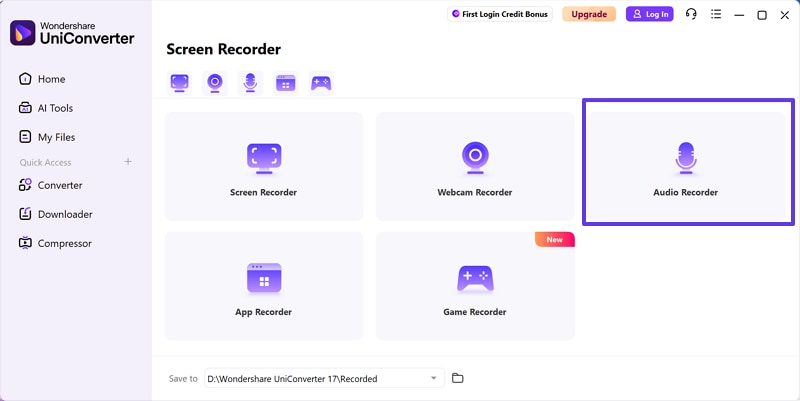
Now, in the “Screen Recorder” window, choose “Audio Recorder” to capture lecture voice clearly.
Step 3. Start Audio Recording Process
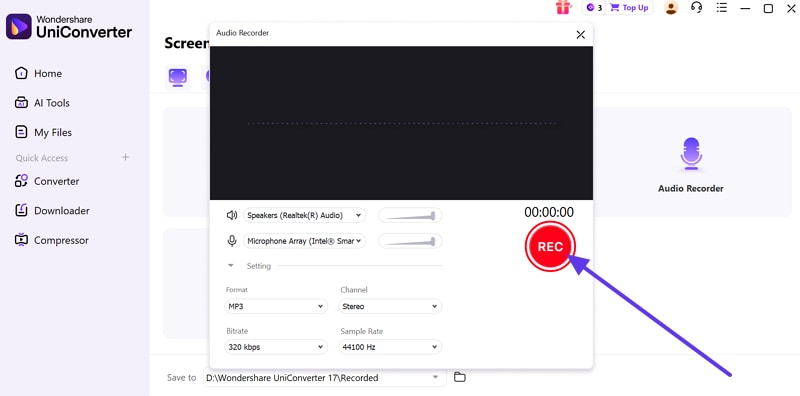
Here, select the audio input sources, adjust settings if needed, then click “REC” to begin recording the lecture audio.
2. Add clear timestamps to key explanations to speed up later review.
3. Focus on listening carefully and write only short notes for support.
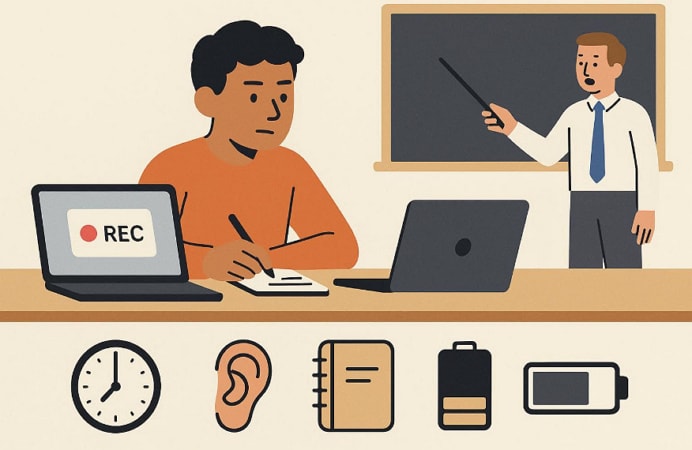
4. Regularly check battery levels and available storage during the lecture session.
After Class: From Recording to Study Notes
Post-class processing turns raw recordings into clear and useful study materials. To understand this, let’s walk through the stepwise workflow below:
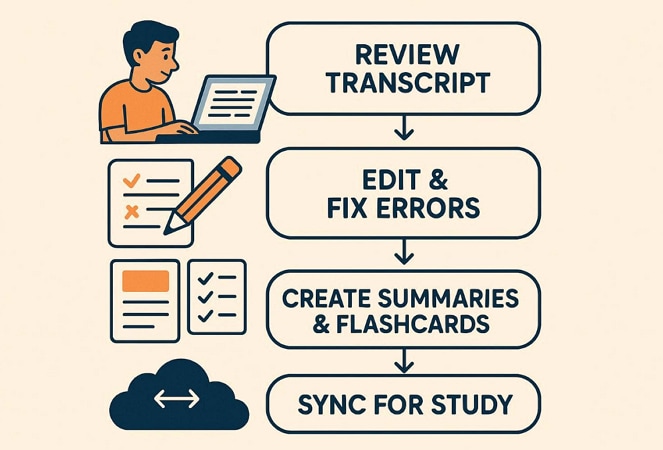
1. First, review AI-generated transcripts to understand the full lecture with ease.
2. Next, fix transcription mistakes and improve the structure to make studying easier.
3. Then, create summaries or flashcards using UniConverter AI video summary tools. This makes it easier to turn spoken explanations into usable academic material.
Step 1. Access AI Tools for Smart Summarizer Feature
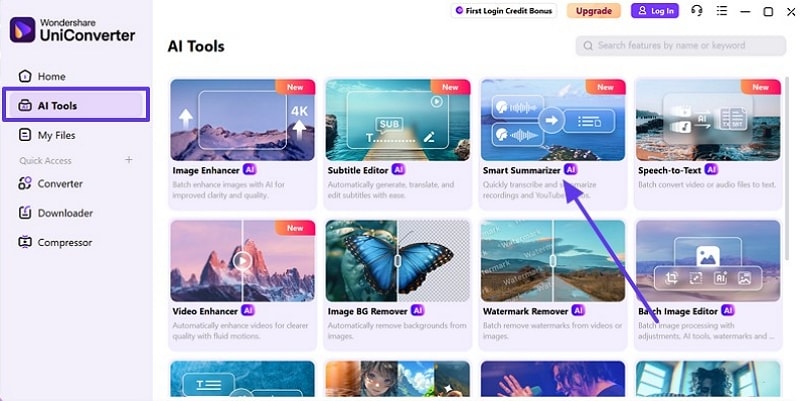
Firstly, navigate to the “AI Tools” from the left sidebar to choose the “Smart Summarizer” from the available options. The tool accepts common audio and video formats used for lecture capture.
Step 2. Load the Lecture Recording to Proceed
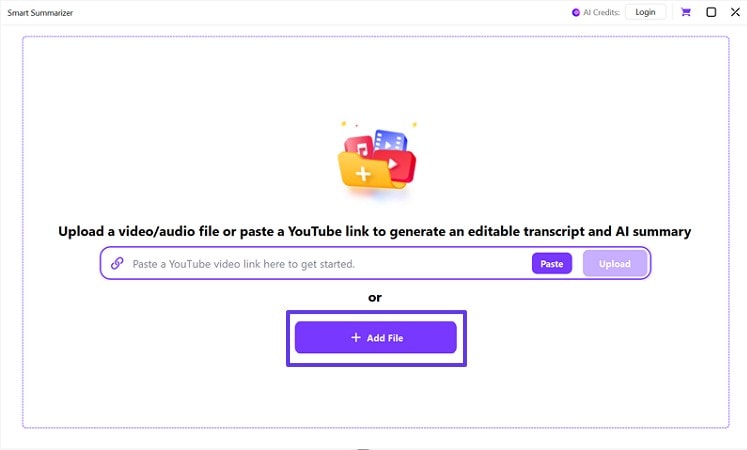
In the Smart Summarizer window, upload your lecture recording by clicking “Add File.”
Step 3. Select the Summary Preset
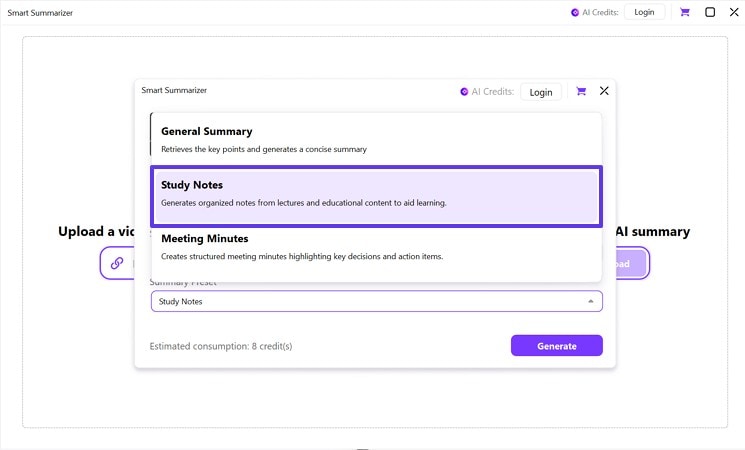
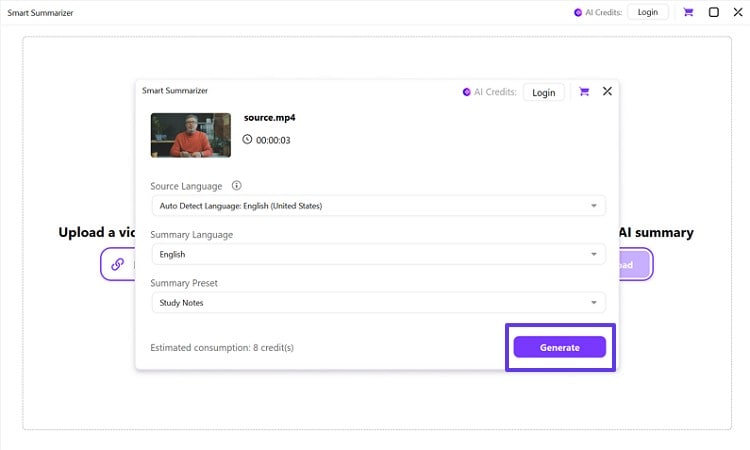
After the file loads, click the “Summary Preset” option and choose the “Study Notes” from the list.
Step 4. Confirm Processing Settings and Generate Notes
Lastly, verify the “Source Language” and choose the preferred “Summary Language” to match your study or revision requirements. After that, click the “Generate” button to start processing the study notes.
4. Finally, sync notes with Notion, Anki, or Quizlet for organized revision.
Part 5. Legal and Privacy Concerns: Can You Record Lectures?
Many students worry about lecture recording privacy and legal concerns, so let’s review them:
Understanding FERPA and Recording Laws
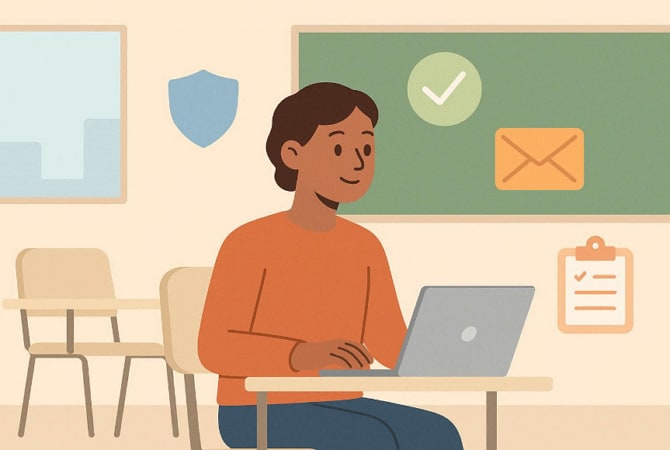
FERPA protects student records and stops sharing without clear permission. Also, recording laws vary by state, with some allowing 1% consent. Other states also need permission from everyone in the conversation. Universities often have their own lecture recording rules as well. So, international students should check local laws because rules vary everywhere.
How to Get Permission to Record
- Getting permission early reduces problems and builds trust with professors.
- Use polite email templates clearly explaining why lecture recording helps.
- Students with disabilities can request recording support through accommodation offices.
- Address the professor's concerns by explaining personal study use and privacy.
- If recording is denied, ask for slides, notes, or summaries.
Note: Always check local laws and university policies before recording classes.
Conclusion
To conclude, lecture recording-to-notes tools help students study calmly and avoid missing key ideas. Thus, different platforms suit different learning styles and class formats. Mobile apps support quick capture, while AI tools help with summaries and revision. For students wanting a reliable recording and post-class processing, UniConverter is the most balanced lecture recorder to notes solution for 2026.

