

TubeMate is a popular app for downloading videos from YouTube and other platforms. However, the issue of TubeMate not working can be frustrating, especially when you’re in a hurry to download videos. The issue can arise from outdated or unsupported apps, download restrictions, corrupted app data, and more.
This article walks you through these issues and how to fix them to get back to your normal downloading routine. Whether you’re a beginner or a regular user, this step-by-step guide doesn’t demand any technical skills, so let’s get into it.
In this Article
Part 1. Why Is TubeMate Not Working on My Phone Right Now?
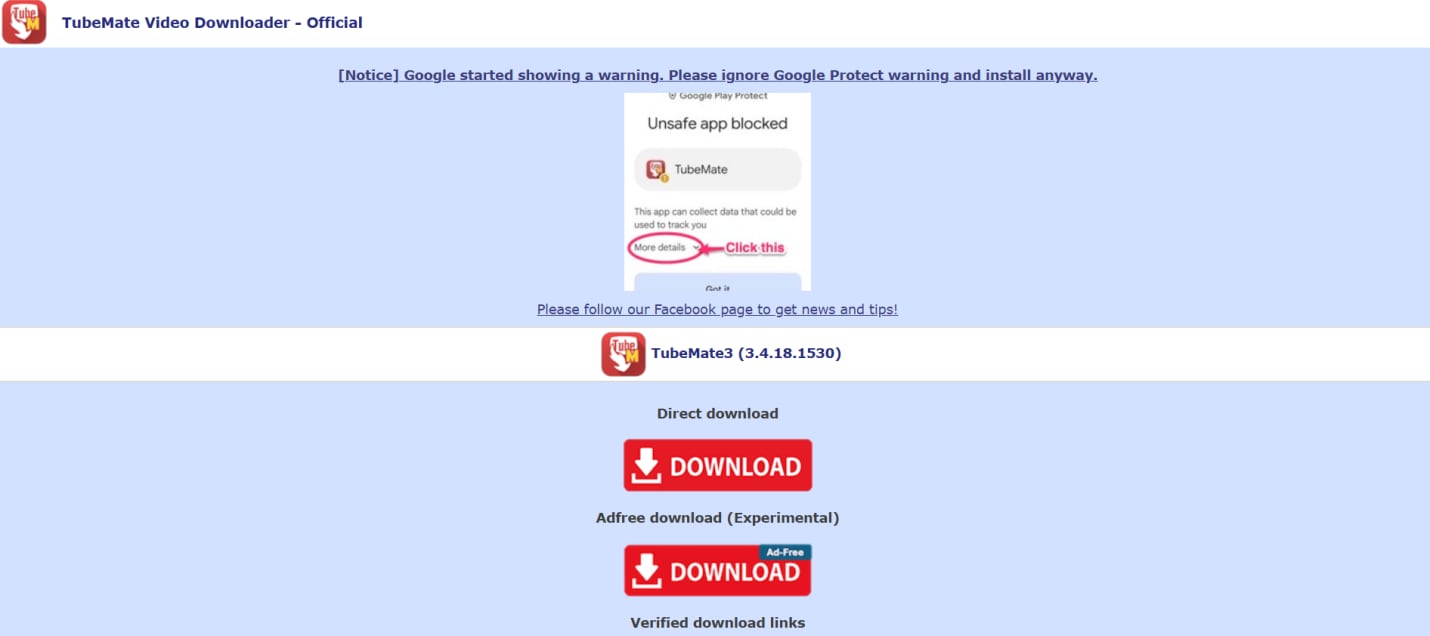
When users say “TubeMate not working,” they usually mean they can’t download videos, as they’re stuck on “parsing” or “post-processing.” Furthermore, TubeMate often only downloads the audio, and the app may close or crash, or a black screen appears when opened. This forces users to seek updated APKs or alternatives to download YouTube videos.
Part 2. What Are the Most Common Reasons For TubeMate Not Working?
When you download videos with TubeMate, common reasons it may stop working include an outdated app, OS restrictions, and more. These are detailed as follows:
Outdated TubeMate App: TubeMate isn’t available on Google Play, and users may download the outdated app from a third-party website. Developers often release updates to improve performance, fix bugs, and add new features, so you might miss out on them and end up with app crashes, parsing errors, and more.
Android Restrictions: Google restricts apps from bypassing the Play Store’s mechanisms to download media, especially from YouTube. TubeMate isn’t available on the Google Play Store, and Play Protect may flag it as potentially harmful or dangerous and prevent its installation or operation. Not only Play Protect, but new Android OS updates may also restrict older versions of apps that don’t align with new system requirements.
Storage Permissions Disabled: Newer Android OS versions impose strict storage access rules, and you must grant specific permissions to third-party apps such as TubeMate. If not, you may encounter error messages such as “EACCES (Permission Denied)” when attempting to start a download.
Background Download Restrictions: Another possible reason TubeMate is not working is that Android's background download restrictions are enabled. As a result, Android OS automatically kills background applications to manage battery life or when it requires more memory. This can interrupt TubeMate’s download operations.
YouTube Changes: YouTube frequently updates its policies or website/app structure, which can prevent apps like TubeMate from accessing and parsing video data. As a result, you’ll get a parsing or downloading error on TubeMate.
Corrupted Cache/App Data: Over time, TubeMate stores temporary data that can become corrupted, causing the app to crash or freeze. In such situations, clearing the cache or app data is helpful.
APK Source Issues: TubeMate APKs downloaded from unofficial sources may contain malware or viruses and may not receive automatic updates. It leaves the app vulnerable to compatibility issues and security exploits when switching platforms or upgrading to a new operating system.
Internet/VPN/DNS Conflicts: Slow internet connections or conflicts with VPN or DNS can affect the app’s performance. It’s thereby recommended to avoid using VPNs unless necessary.
Part 3. How Can I Fix TubeMate Not Working Issues Like Download Failed, Not Installing, or Crashing?
A slow internet connection can also cause the TubeMate not working error, so verify that first. If that’s the case, wait a while for the normal speed to restore. Or if the issue persists, move on to the following fixes:
Restart Phone: Restarting your Android phone can fix many temporary problems, including a black screen, paused downloads, or TubeMate suddenly crashing. Hold the power button for a few seconds, then click Restart. Wait a few seconds before opening TubeMate after the device restarts.
Clear Cache/Data: If the TubeMate app crashes or freezes frequently, it may be due to temporary data that has corrupted over time and requires immediate removal. To do that, head over to “Settings > Apps > TubeMate,” tap the “Storage” option, followed by Clear Cache and Data. Now restart TubeMate; it should be operating optimally.
Enable Permissions: TubeMate cannot download videos unless you grant the required storage permissions. To do that, head over to your phone’s Settings > Apps > TubeMate > Permissions, and toggle the Storage permission to “Allow.”
Disable Battery Optimization: Battery optimization settings can prevent TubeMate from downloading videos. To disable that, go to your phone’s Settings > TubeMate > Battery, and choose “Unrestricted/Don’t Optimize.” This way, TubeMate will run freely in the background and download the videos.
Reinstall Safely: If none of the above methods work, TubeMate itself might be corrupted. Uninstalling and reinstalling TubeMate from the official website may be an effective fix.
Update Android WebView/Chrome: TubeMate uses Android WebView and Google Chrome to display web content, so updating them via the Play Store may also resolve the issue.
Use the Stable APK Version: One of the most common reasons TubeMate is not working is that the app is outdated or a modded version. It’s recommended to uninstall it and download a stable version from TubeMate’s official website or a reliable third-party website.
Part 4. What Are the Best Alternatives When TubeMate Not Working?
If none of the aforementioned troubleshooting methods could fix the TubeMate not working issue, it’s time to switch to a reliable downloader. One that’s easy to use, supports multiple formats, delivers decent download speeds, and offers good value for money. Based on this criterion, the tools are divided into three categories: online sites, desktop suites, and mobile applications.
Online Video Downloaders (Fast, No Install)
Online video downloaders are websites where you paste a link to download videos; they are among the most convenient TubeMate alternatives. However, most of these are filled with ads and can pose risks of adware and malware.
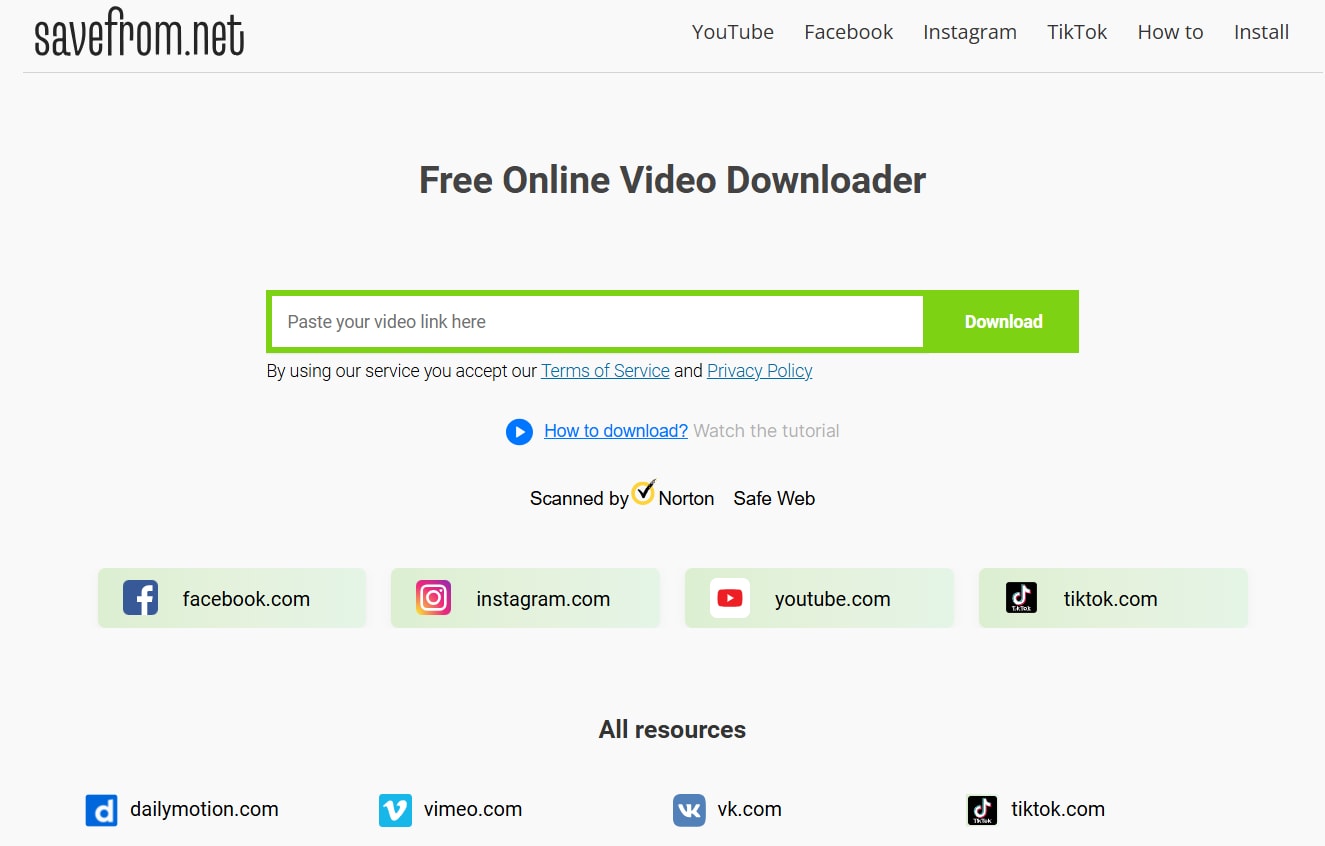
SaveFrom is an online video downloader and a TubeMate alternative that supports downloads from over 10 websites, including YouTube, Dailymotion, Facebook, Instagram, TikTok, Vimeo, and more. Like most online downloaders, SaveFrom has a copy-and-paste interface, is free to use, and allows unlimited video downloads. Moreover, it supports video downloads in MP4 and WEBM formats, alongside audio in MP3, M4A, or OPUS.
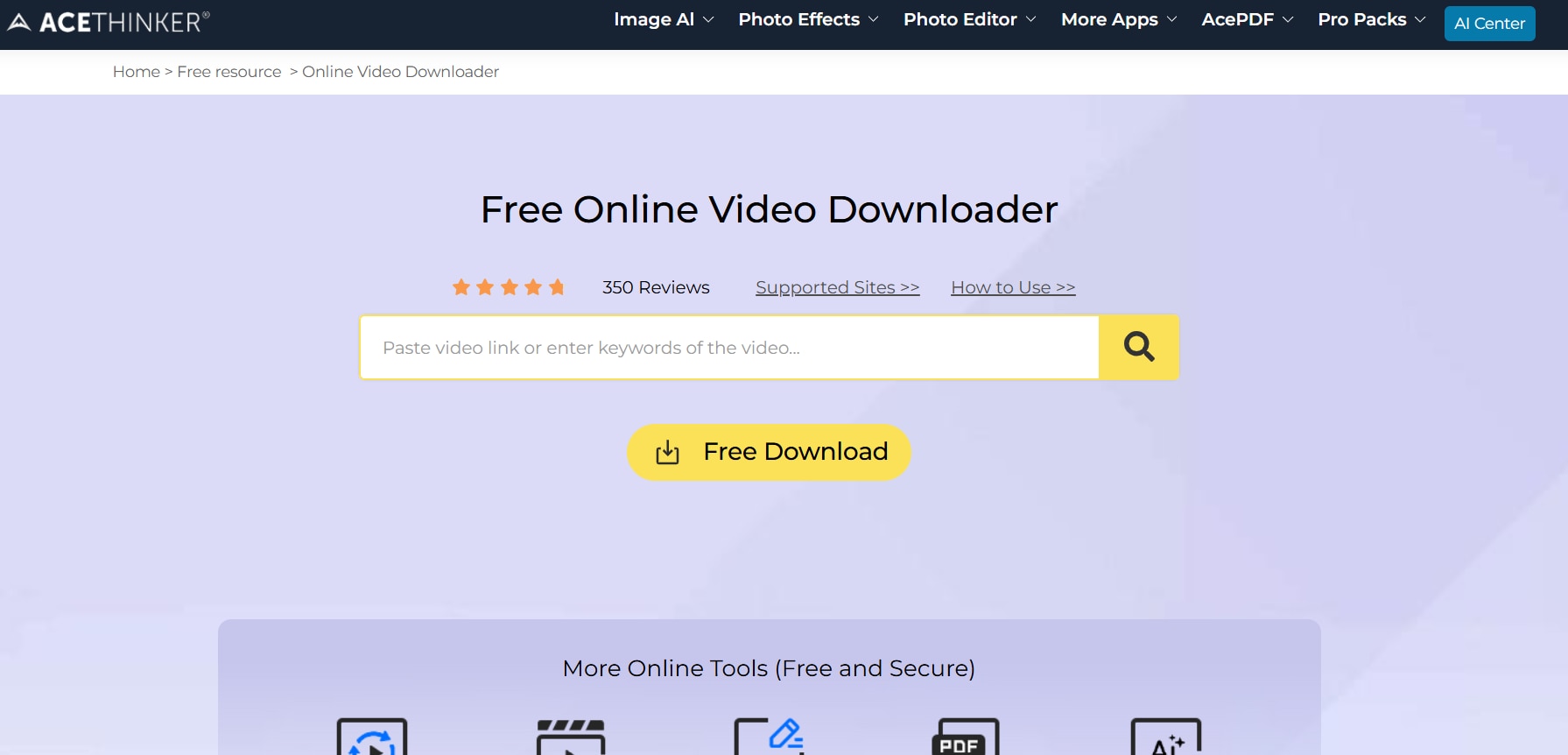
Acethinker, unlike SaveFrom, is more than just a downloading platform. There are many multimedia and productivity tools like screen recording, PDF editing, video conversion, and iOS data management. This way, you can handle multiple tasks without switching tools.
Moreover, regarding downloads, there’s support for over 1000 file formats, and you can download 8K videos from YouTube, Vimeo, and TikTok. This way, you get flexibility and top-tier video quality, without any compromises; something that’s not typical with online downloaders.
Desktop Downloaders (Most Stable, Best Quality Control)
Unlike online downloaders, desktop apps are stable and the most reliable way to download videos. These are updated regularly and don’t carry the risks of websites or APKs.

Wondershare UniConverter is an all-in-one video toolkit and a professional TubeMate alternative that lets you convert video, compress video, edit, and more. It supports downloads from YouTube and 10,000+ websites, multiple formats (MP4, MKV, AVI, MP3, WMV, and more), and high resolutions up to 8K. The best part of Wondershare UniConverter is its batch download feature, which lets you grab an entire playlist in one go, along with the subtitles.
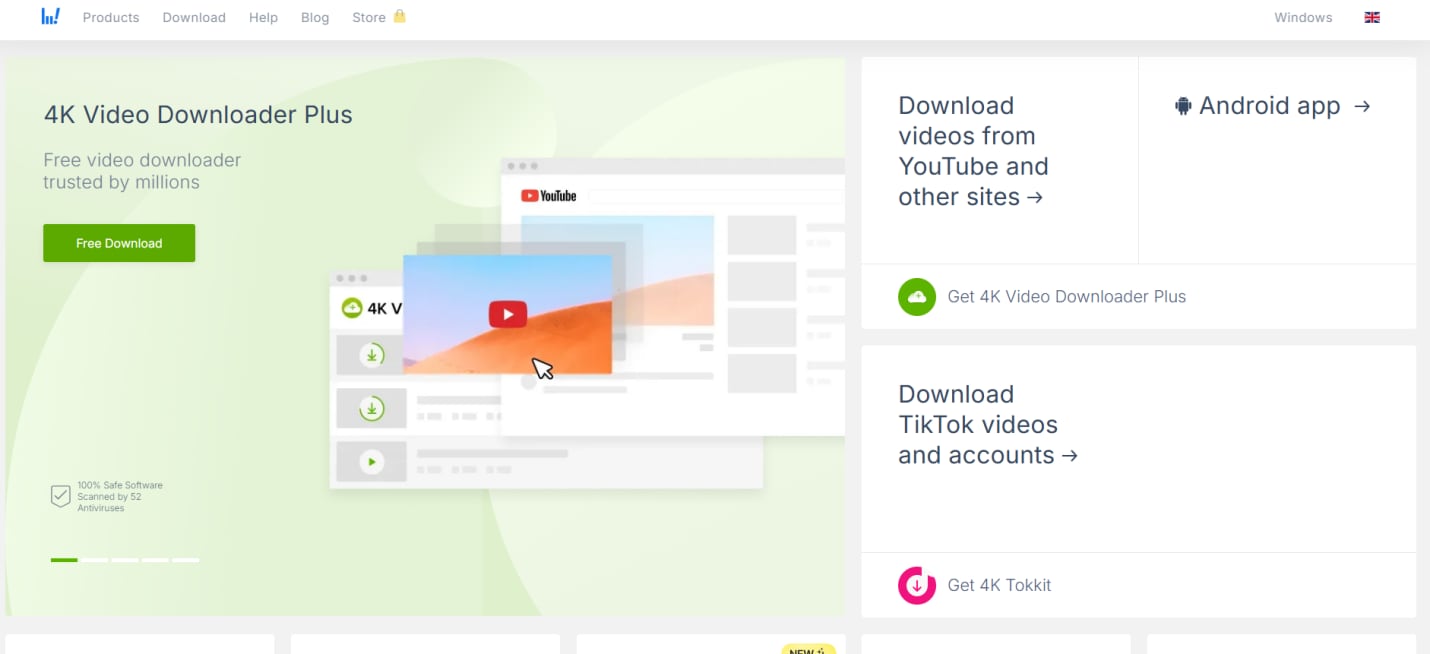
4K Video Downloader lets you download videos, playlists, and entire channels from YouTube, Facebook, Vimeo, and TikTok. Its highlight features include support for Windows, Linux, and macOS, a free plan, and high-resolution downloads. Provided your internet speed is decent, you can download up to 8K videos. However, unlike UniConverter, it isn’t overloaded with features, and its free trial has limitations.
Mobile Alternatives
There aren’t many reliable video downloading apps available on Google PlayStore, so these are the best mobile TubeMate alternatives you can try out:
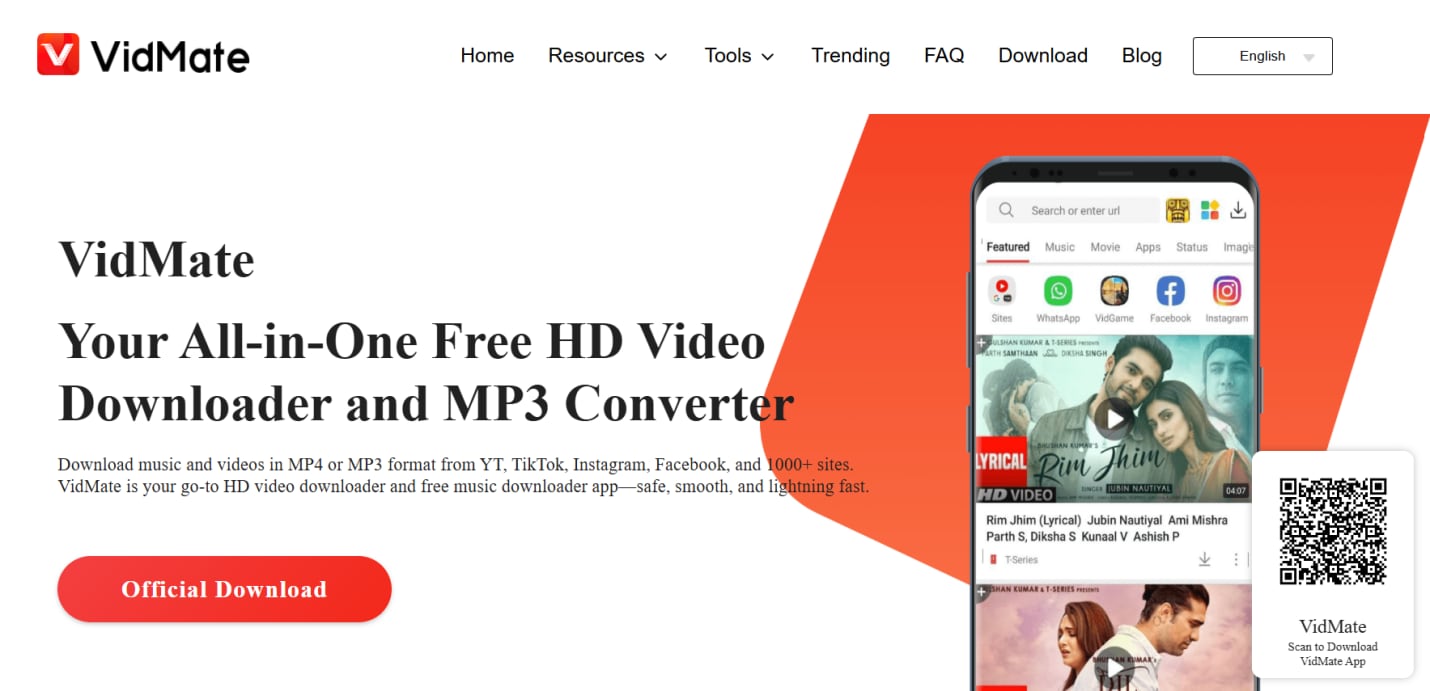
VidMate is a video downloader app that works as an online downloader and on Android phones, and supports downloads from YouTube, Facebook, Instagram, TikTok, and 1000+ websites without compromising on the quality. This provides the flexibility to save high-quality videos for offline viewing, while its simple interface makes downloading simple even for beginners. Moreover, although it doesn’t support batch downloads, its built-in technology ensures your downloads don’t take long.
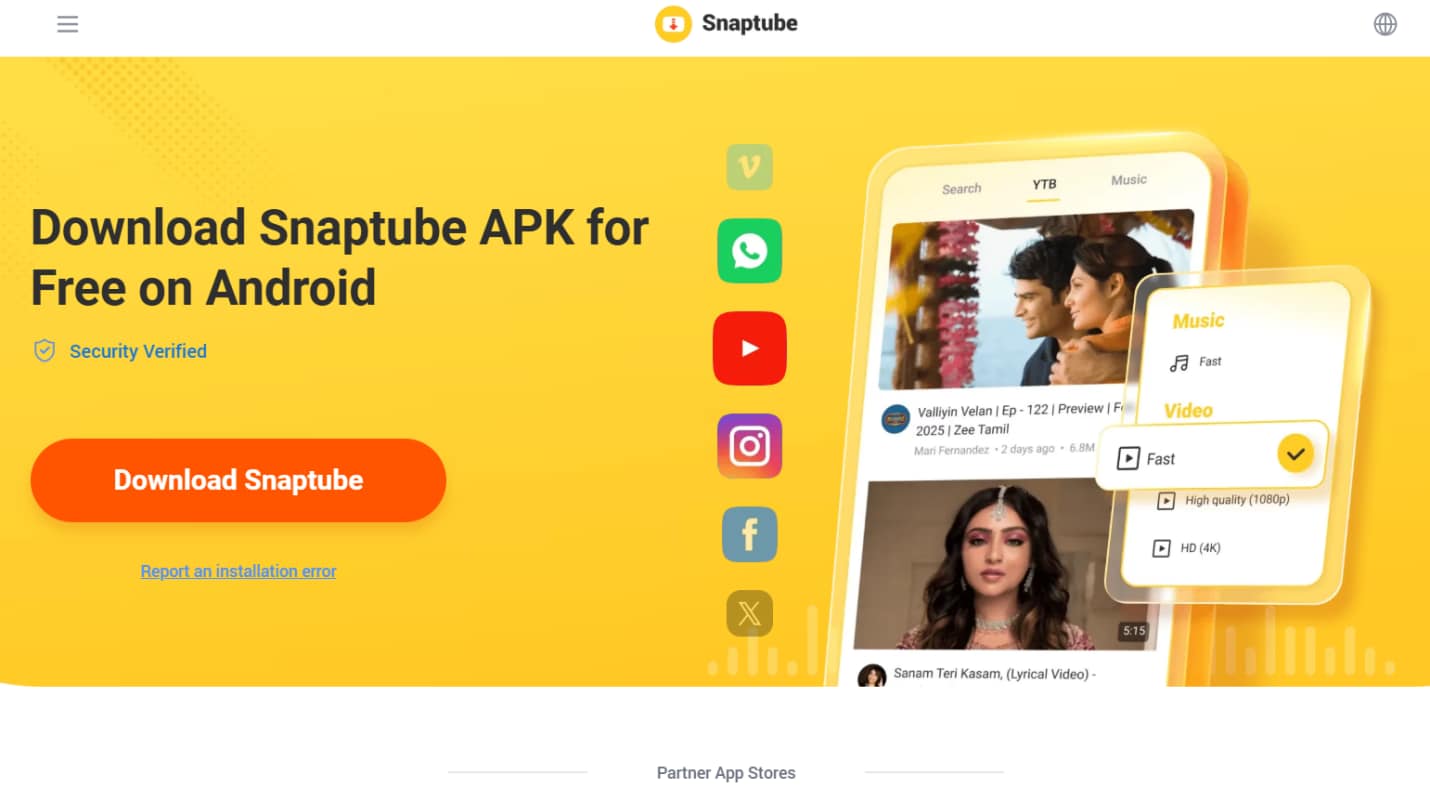
Snaptube is very similar to VidMate and shares similar risks, including sideloading from its official website and the presence of ads. However, the positives include a simple interface and support for downloads from popular platforms such as YouTube, Facebook, and TikTok. Also, its flexible format options and fast speeds are suitable for users who want quick downloads without compromising quality.
Part 5. How to Download Videos Safely Using UniConverter on Desktop (TubeMate Alternative)
If the "TubeMate not working” error persists even after trying out the fixes, it’s time to switch to a different downloader. Desktop apps are the safest and most reliable way to download videos, and Wondershare UniConverter stands out for its video conversion and editing features. This Windows- and macOS-based downloader offers a free trial, if you want to try its offerings before committing. Here are the steps you can follow:

All-in-One Multimedia Processing Tool

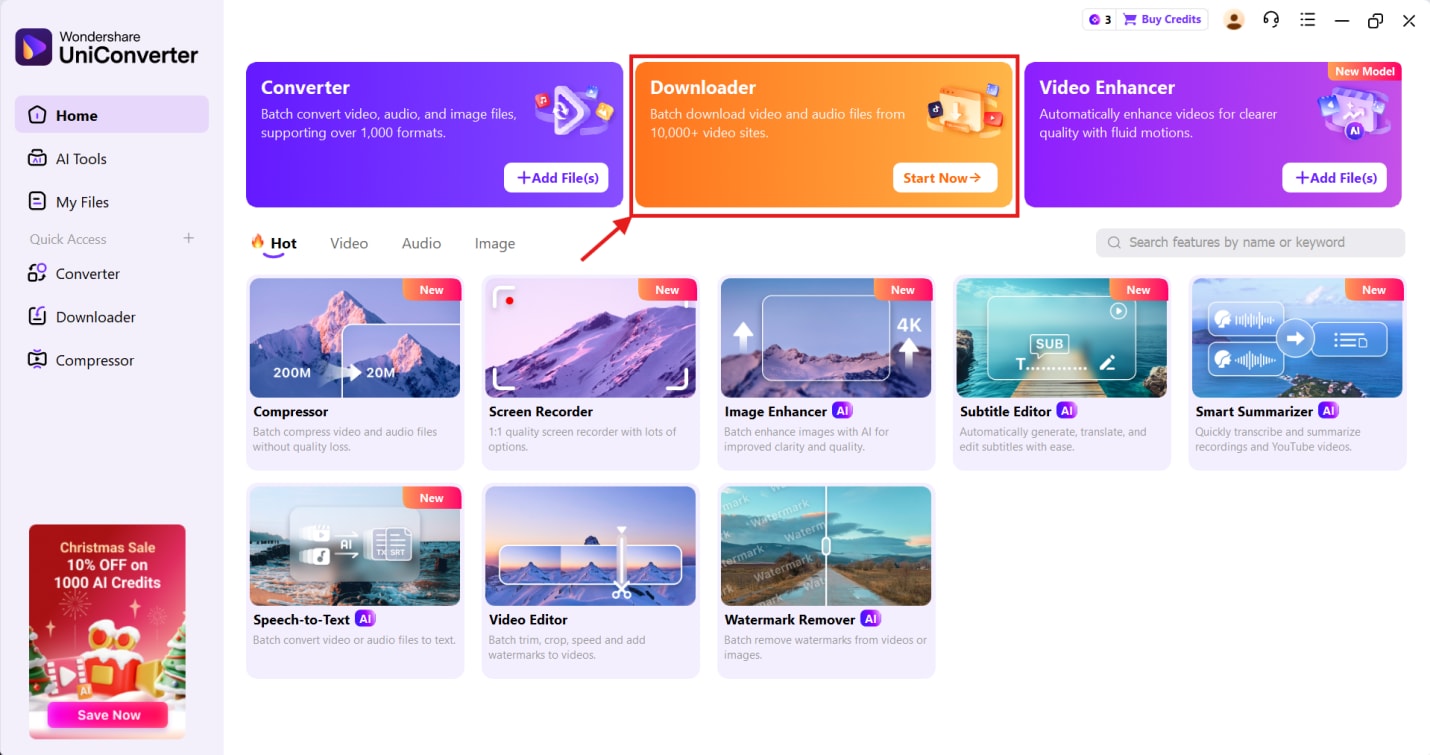
Step 1: Launch Wondershare UniConverter on your desktop and go to the “Downloader” option at the top.
Step 2: Paste the YouTube video URLs in the input space, select Audio/Video from the dropdown menu, and click “Download.” UniConverter also supports batch downloads, allowing you to paste multiple links at once.
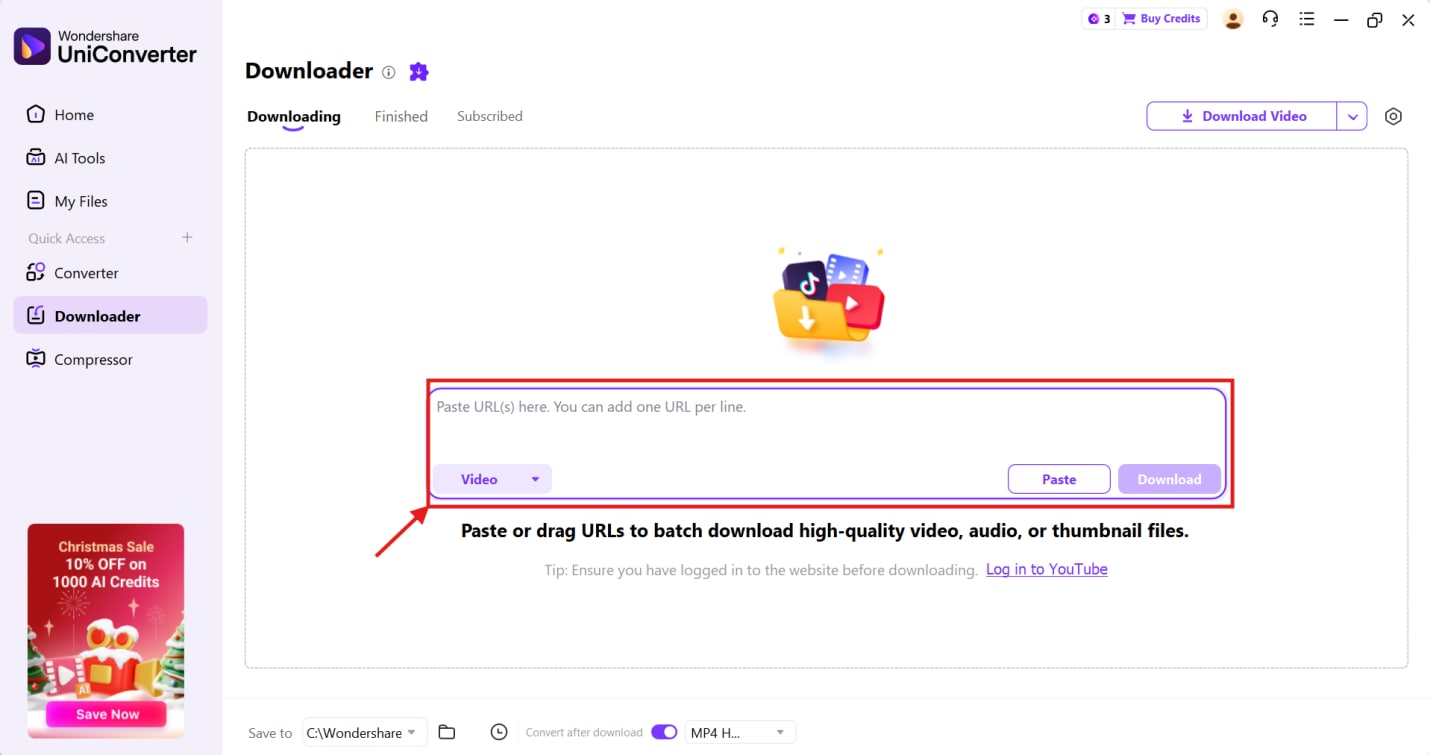
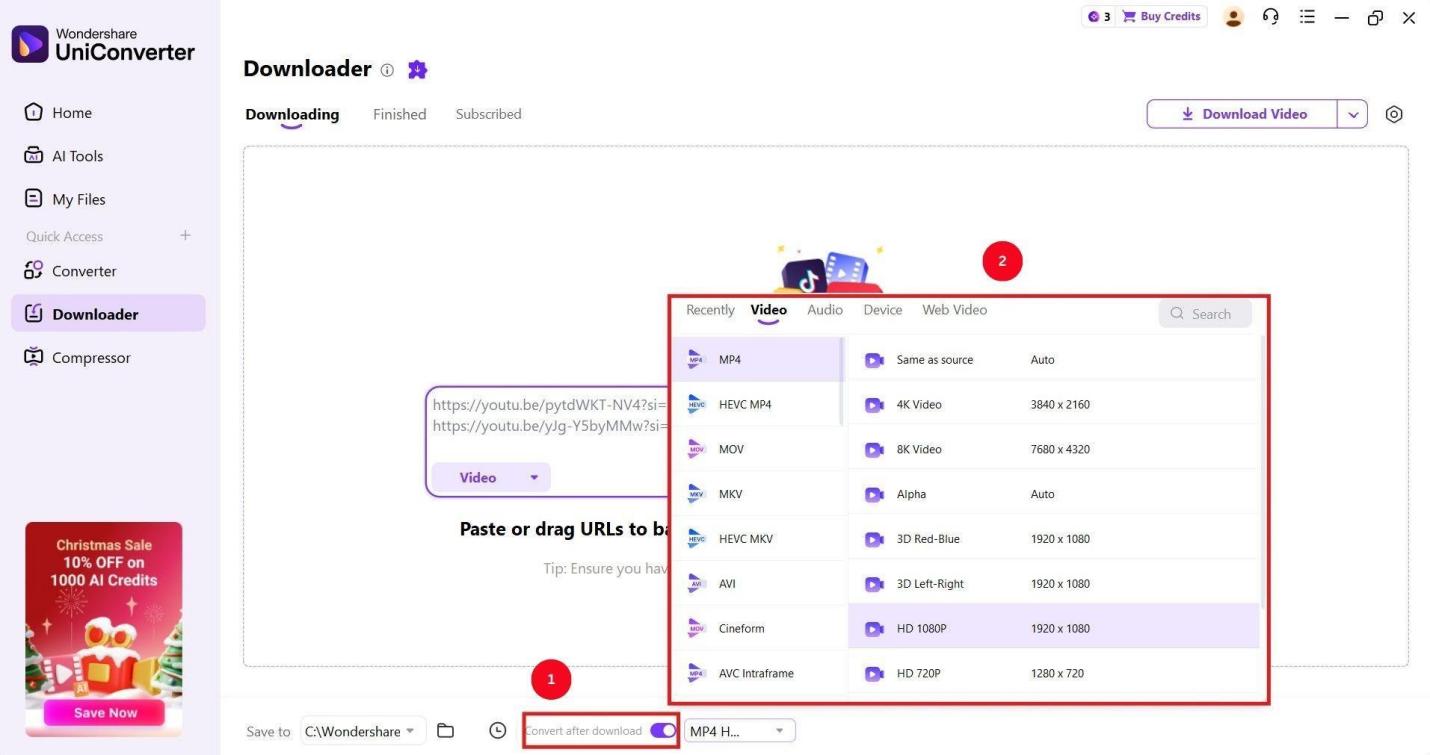
Step 3: If you want to upscale the video quality or just download the audio, toggle the “Convert after download” option. Then, click the dropdown menu next to it and select the audio and video formats.
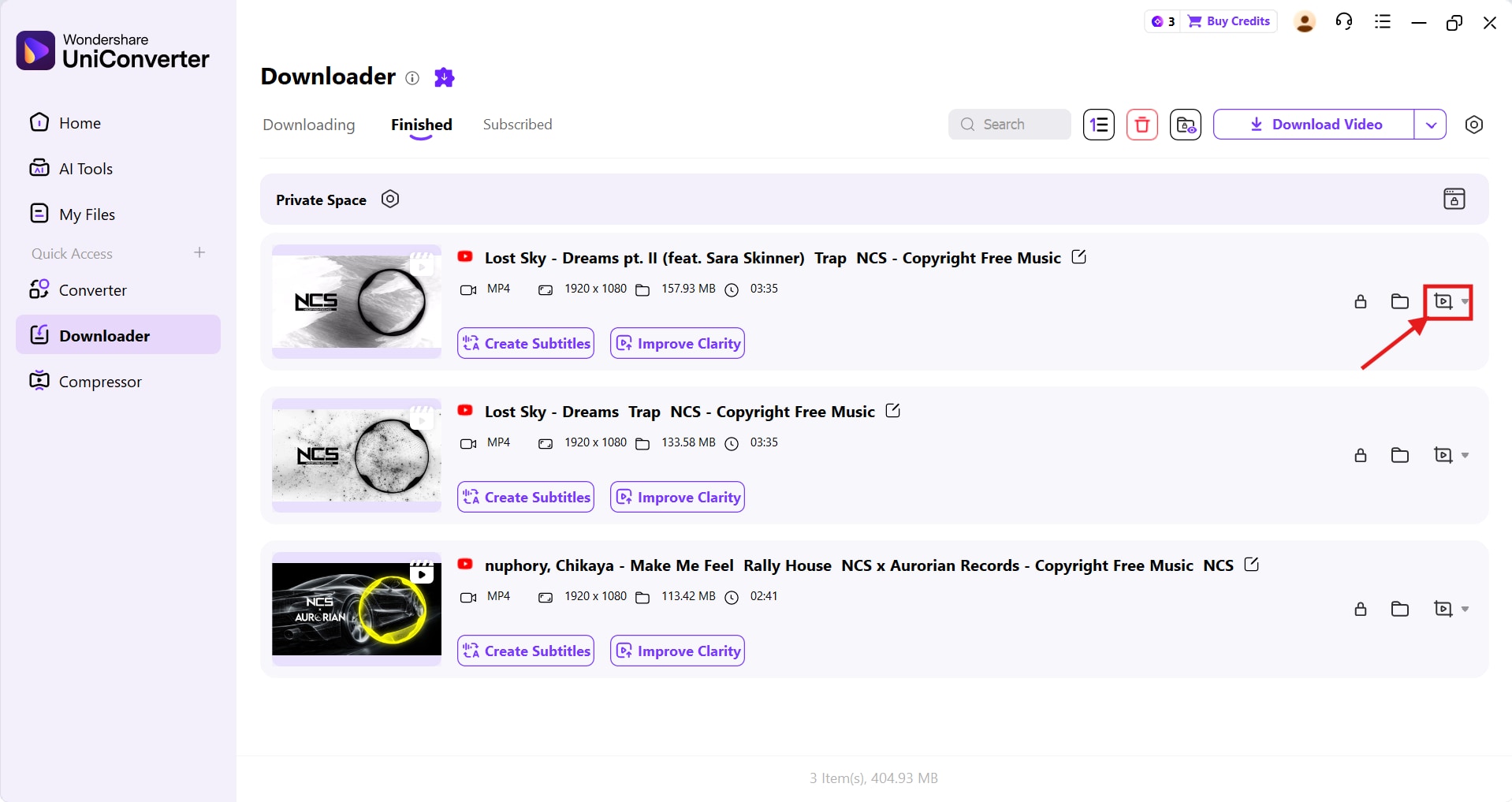
Step 4: You’ll be directed to the “Finished” tab, where you can click the “cut” icon to convert, compress, cut, or merge the media file.
Part 6. What Tips Prevent TubeMate Not Working Issues and Keep Downloads Smooth?
TubeMate is a popular app for downloading videos, and most issues are resolved by using a stable internet connection, freeing up storage space, avoiding random websites, and using device-friendly video settings. These are detailed as follows:
☆Use a stable Wi-Fi connection: Not to mention, any browser-based downloader requires a reliable internet connection. Otherwise, you’ll encounter the parsing error, downloading issues, and similar problems on TubeMate. Check your internet before trying out the available fixes.
☆Keep Storage Space Free: If your device is running low on storage, TubeMate is bound to fail. The files may not download properly, and the app may crash during download. It’s crucial to free up space by deleting unwanted videos and photos, uninstalling unused apps, and clearing app caches.
☆Avoid Random APK Sites: Download TubeMate only from the official website or a reputable source. APKs from random websites may contain malware and adware, putting your device security and personal information at risk.
☆Use Device-Friendly Video Settings: In some cases, your built-in video player may not support videos downloaded with TubeMate. The reason is an unsupported format or audio codec. When downloading, set the video to a format the player supports, or convert it later with a reliable app.
☆Disclaimer/Note: Although the provided fixes may help resolve the TubeMate not working issue, the app itself isn’t safe. It may be infected with viruses, spyware, malware, and adware, compromising your device’s security. Also, only download videos that you’re allowed to do so. Saving a copy for personal use is accepted, but don’t re-upload, distribute, or monetize the copyrighted content.
Conclusion
TubeMate not working is indeed a frustrating issue, but it is easily fixable. Try re-downloading or updating the app, or clear the app cache. Also, ensure there’s a stable internet connection and enough storage space. If it still doesn’t help, it’s better to switch to a reliable downloader.
While online sites and mobile apps are convenient, they are unreliable and can pose security risks. The best solution is to use a professional and secure desktop application. Wondershare UniConverter stands out as a superior alternative to TubeMate and other downloaders, supports video conversions, editing, and more. Try Wondershare UniConverter today to avoid future download issues!

