


Have you ever tuned into a live stream or podcast and noticed how crystal-clear the audio makes the experience ten times better? In today’s digital-first world, high-quality audio isn’t just a bonus—it’s a game changer for creators, professionals, and learners alike. With 2025 bringing smarter, simpler tools, streaming audio recorders have become essential for capturing everything from business meetings to music sessions with ease.
Here we selected 10 most easy to use streaming audio recorders for streaming audio recording and summarize a detailed comparison table. Keep on reading and choose the right one means balancing usability, performance, and features that fit your needs.
In this article
Part 1: Elements to Evaluate an Easy to Use Streaming Audio Recorder
When choosing a streaming audio recorder, the goal is to balance simplicity with efficiency. A truly easy-to-use tool should let you start recording instantly, without requiring technical expertise. Below are the core elements that define whether a recorder is user-friendly and worth adopting.
One-click recording
The best streaming audio recorders offer a single-click recording feature, eliminating complicated setup steps. Users can begin capturing audio instantly without navigating multiple menus. This makes it especially useful for beginners, students, or professionals who need quick results. The fewer the barriers to recording, the more reliable the software feels. Simplicity is the foundation of accessibility.
Automatic source detection
Advanced tools can automatically detect whether audio is coming from a browser tab, specific app, or system sound. This saves users from the frustration of configuring inputs manually. It ensures no audio is missed, even when switching between programs or media sources. For podcasters or streamers, this automation is a huge productivity booster. Smart detection means less effort and better consistency.
Intuitive interface
A clean, uncluttered interface ensures that users aren’t overwhelmed with unnecessary buttons or technical jargon. Visual cues, large icons, and simple menus create a smooth workflow. This design approach is crucial for users who are new to audio recording. A recorder with intuitive navigation reduces mistakes and accelerates learning. Good design equals better user confidence.
Built-in editing (basic)
Even the simplest streaming audio recorders should include trimming tools to cut unwanted silences or errors. This allows users to polish recordings quickly without needing a separate editor. Lightweight editing ensures recordings are ready for immediate sharing or publishing. It saves both time and effort for content creators. Having these essentials built-in turns a recorder into a complete solution.
Direct saving in common formats
A recorder should allow users to save directly into universal formats like MP3 or WAV without extra conversion steps. This guarantees compatibility across devices, editing tools, and sharing platforms. By cutting out complex configurations, it streamlines the process for everyone. Quick saving means recordings can be used instantly in professional or casual settings. Supporting common formats also ensures longevity and accessibility.

Super Easy to Use Streaming Audio Recorder
Part 2: 10 Most Easy to Use Streaming Audio Recorder
1. UniConverter
Wondershare UniConverter is an all-in-one media solution built for fast and reliable video conversion, editing, downloading, and compression. It supports over 1,000 video and audio formats, including 4K and 8K, while delivering up to 130× faster conversion speeds with GPU acceleration. Beyond just format conversion, it includes an AI Lab for advanced features like noise removal, subtitle translation, and voice modulation. Users can also burn DVDs, record screens, and enhance video quality with AI-powered adjustments. Its clean interface organizes tools into categories, making it easy for both beginners and professionals to navigate. With cross-platform support and batch processing, UniConverter is a versatile choice for creators, educators, and businesses. A free version is available with limitations, while premium plans unlock full features and AI credits.
Platform & Pricing: Windows, Mac | Free trial with recording limits; Paid plans start from $39.99/year.
Ease of Use Rating: Beginner-Friendly
Steps to record audio using Uniconverter
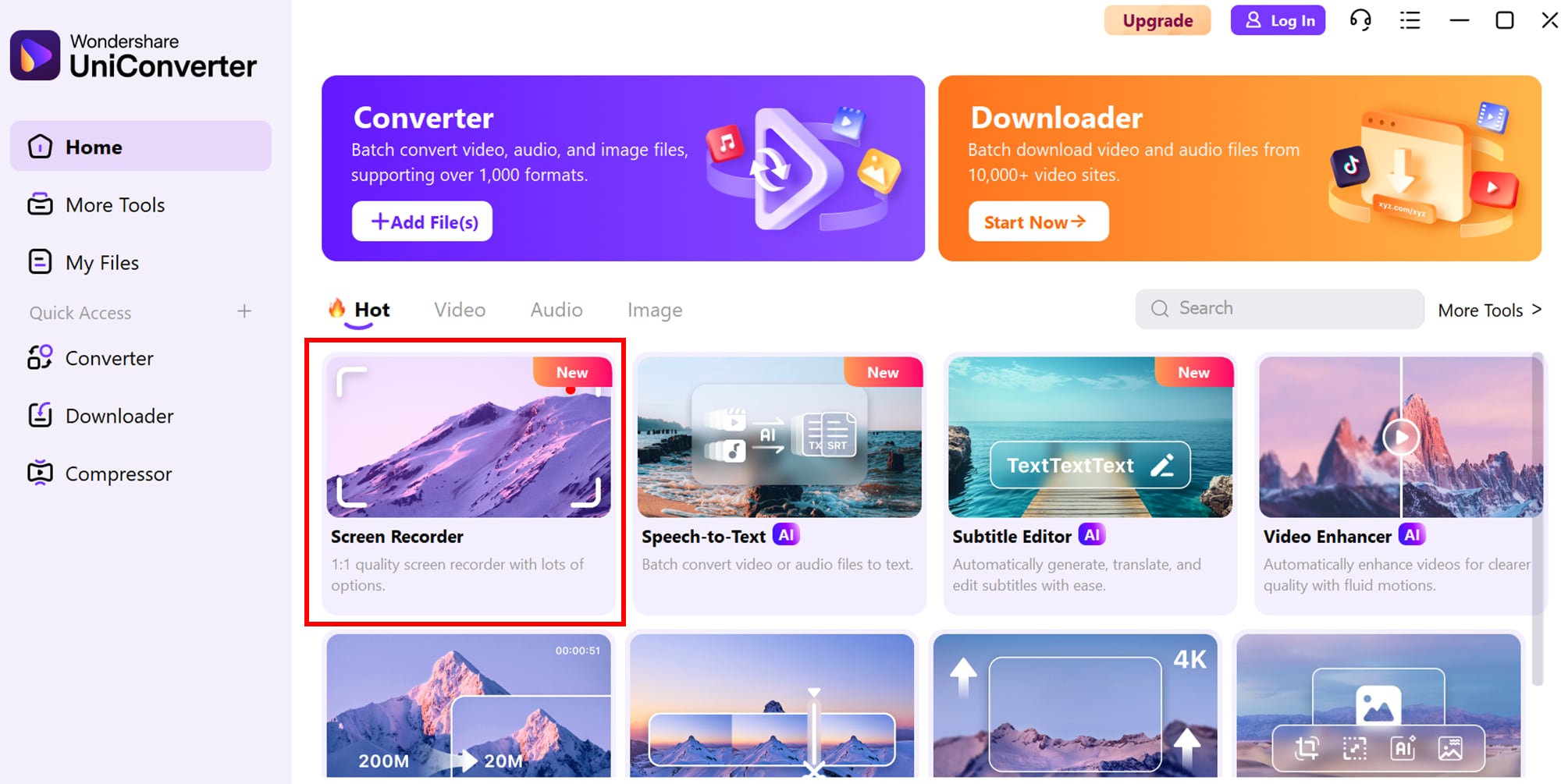
Step 1: Launch the audio recorder
Download, install, and open Wondershare UniConverter on your PC. From the left-hand panel, select Screen Recorder and then click on the Audio Recorder option. You can also tap the Audio Recorder icon in the middle of the screen. This will instantly activate the recording function.
Step 2: Adjust your recording settings
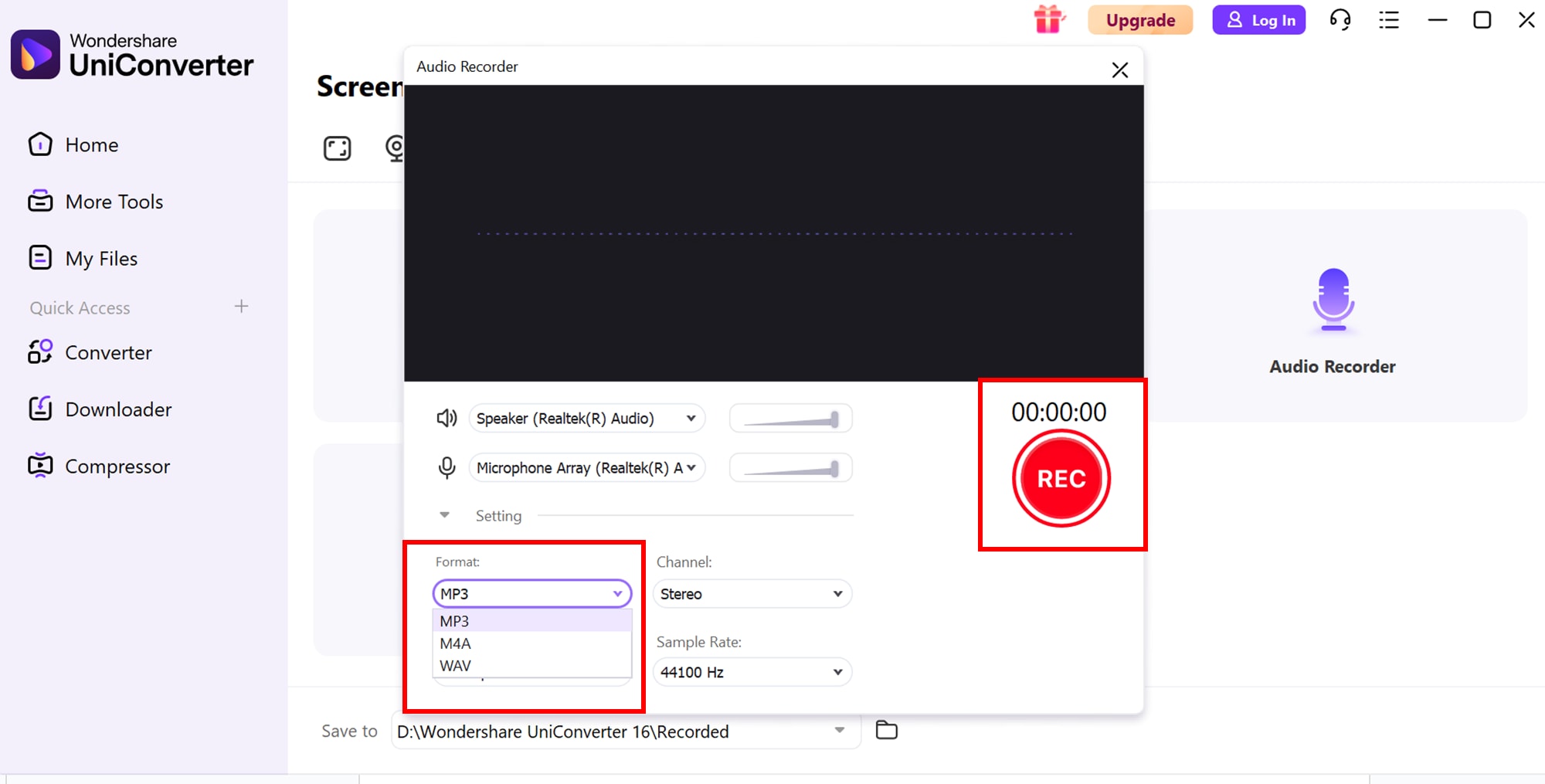
Choose your preferred output device (speaker or headphones) from the Speaker menu. Then, select your input source—either your computer’s internal microphone or an external mic by clicking on the Microphone menu. From the Format list, pick your desired audio format (MP3, WAV, or M4A). If you want complete silence, simply mute the Speaker or Microphone using their icons.
Step 3: Start and stop recording with ease
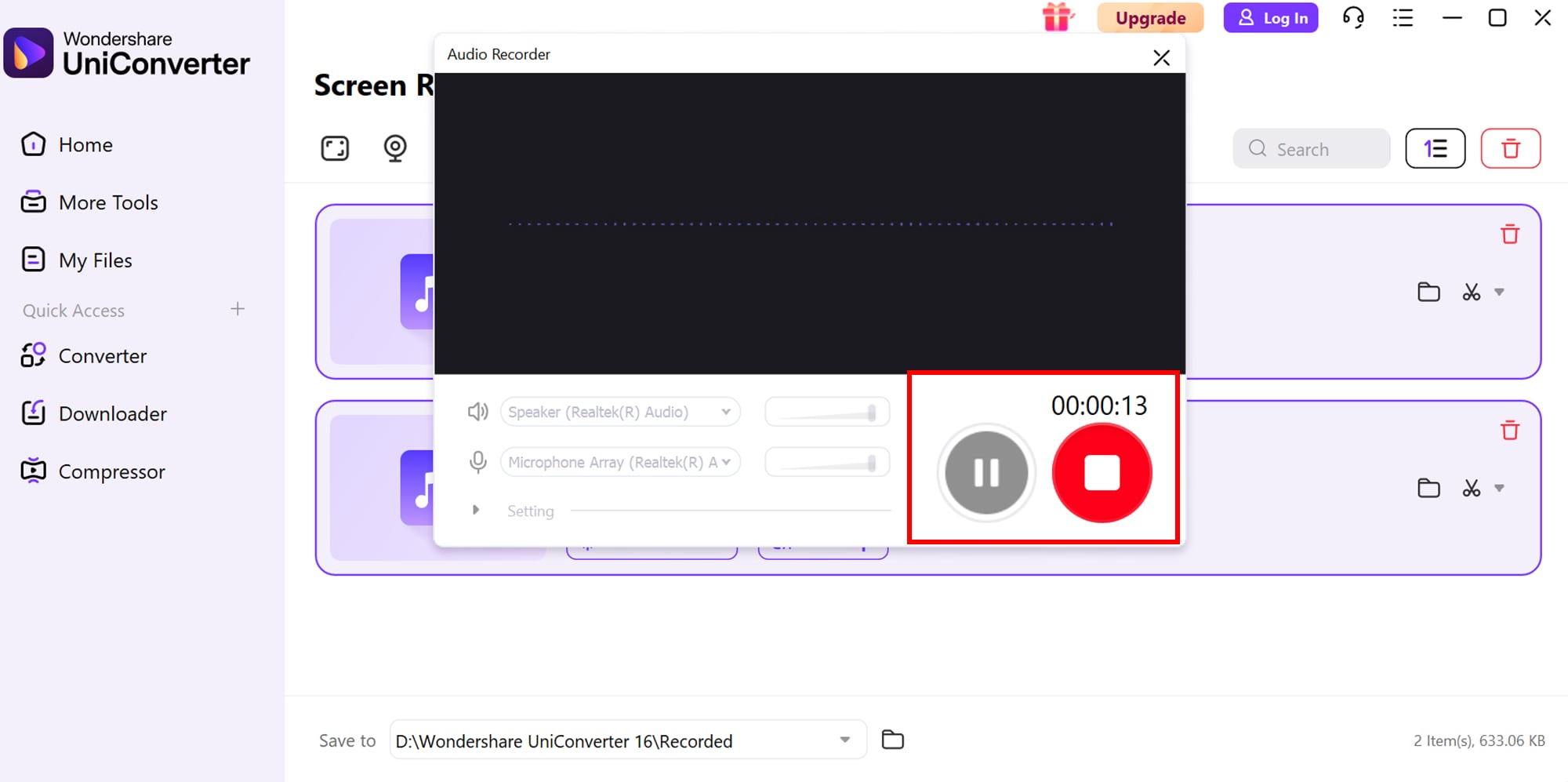
Click the REC button to begin recording audio on your PC. Once you’re satisfied, hit the Stop button to end the session and close the Audio Recorder window. To instantly review your work, press the Open button and preview the recorded file.
Platform & Pricing: Desktop (Windows/Mac), Free with limitations / Paid (subscription or perpetual license)
Ease of Use Rating: 4.6/5
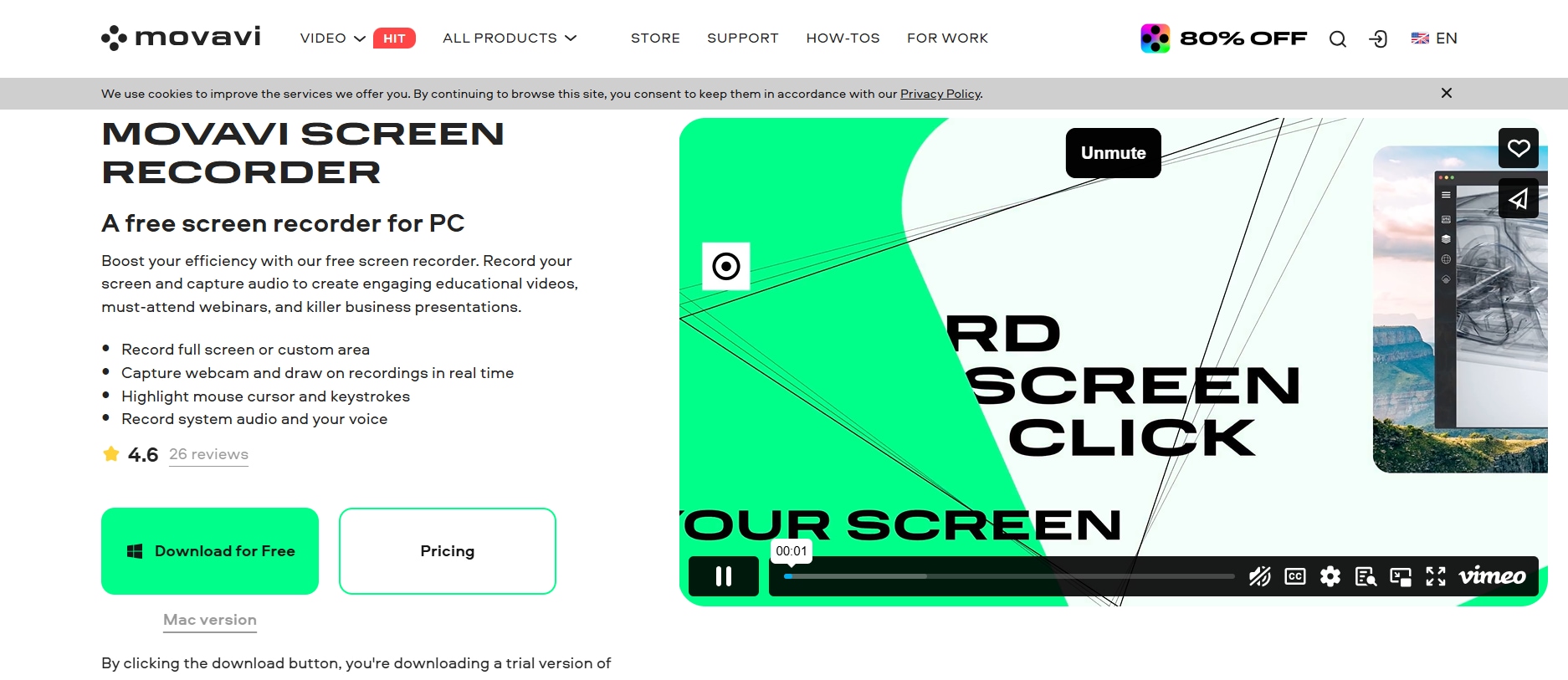
2. Movavi Screen Recorder
Movavi Screen Recorder remains one of the most beginner-friendly audio capture tools in 2025. Designed for both casual users and professionals, it allows you to capture streaming audio with a simple one-click interface. The recorder features a clean dashboard, a countdown timer, and automatic export options. Its ability to record in multiple audio formats such as MP3 and WAV makes it versatile. The software also includes trimming tools, letting you edit your clips without using a separate editor. Whether you are recording podcasts, live streams, or online lectures, Movavi offers a seamless experience. In 2025, Movavi has further optimized performance, ensuring smooth recordings even during long sessions.
Platform & Pricing: Windows, Mac | Free trial with limited features; Paid plans start around $42/year.
Ease of Use Rating: Beginner-Friendly
Platform & Pricing: Desktop (Windows, Mac, Linux) / Free (basic) + Paid (lifetime license or subscription)Ease of Use Rating: 4.7/5
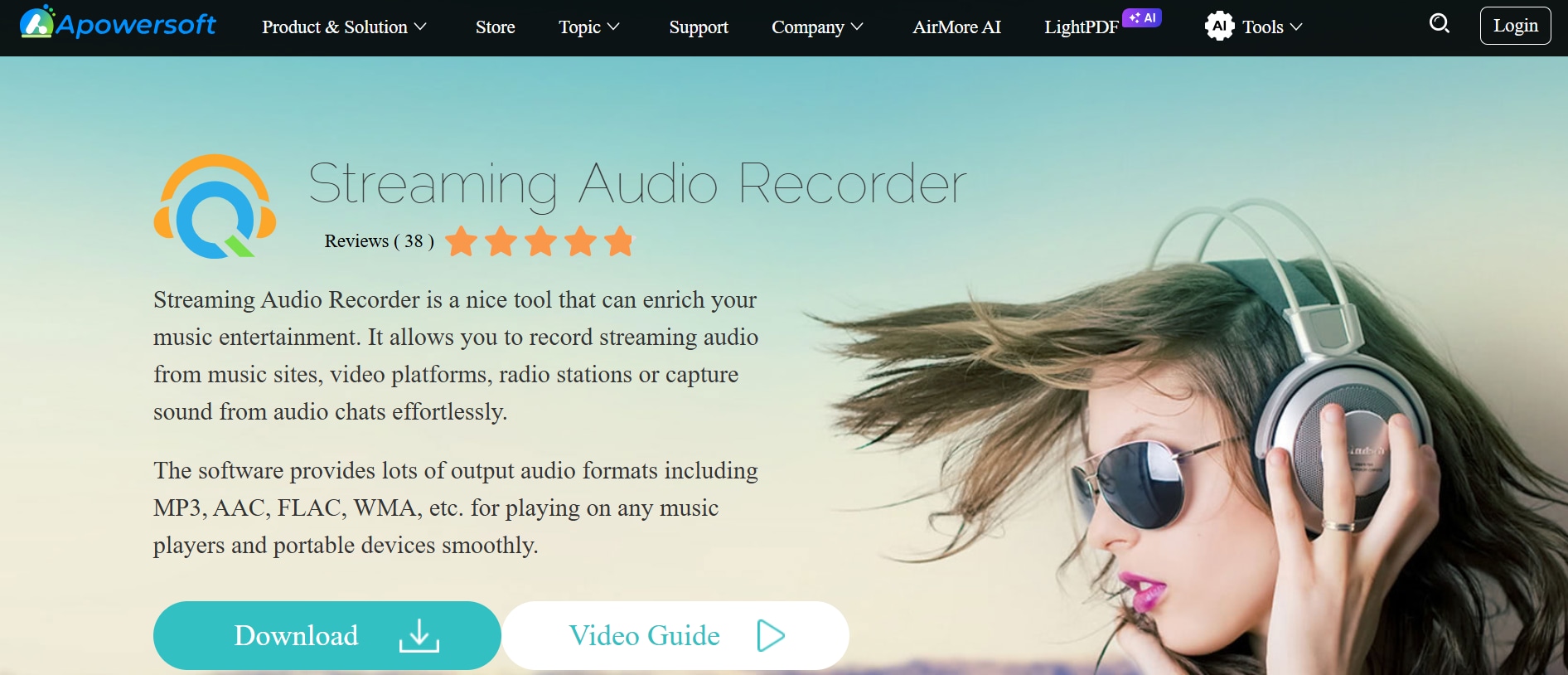
3. Apowersoft Streaming Audio Recorder
Apowersoft Streaming Audio Recorder is a versatile and user-friendly tool designed for capturing any sound playing on your computer. It supports a wide range of sources including system audio, microphones, and even online streams. With its sleek interface, beginners can quickly get started, while advanced users benefit from customization options like scheduling and auto-split recording. The software also features a built-in audio editor, making it easy to trim or merge recordings without external tools. Export options are abundant, covering formats like MP3, WAV, WMA, OGG, and FLAC. It also includes ID3 tag editing to organize your music files better. In 2025, Apowersoft continues to be a go-to solution for users who want high-quality recording paired with flexible management features.
Platform & Pricing: Windows, Mac | Free trial available; Full version starts at $39.95/year.
Ease of Use Rating: Beginner-Friendly
4. Sidify Music Converter
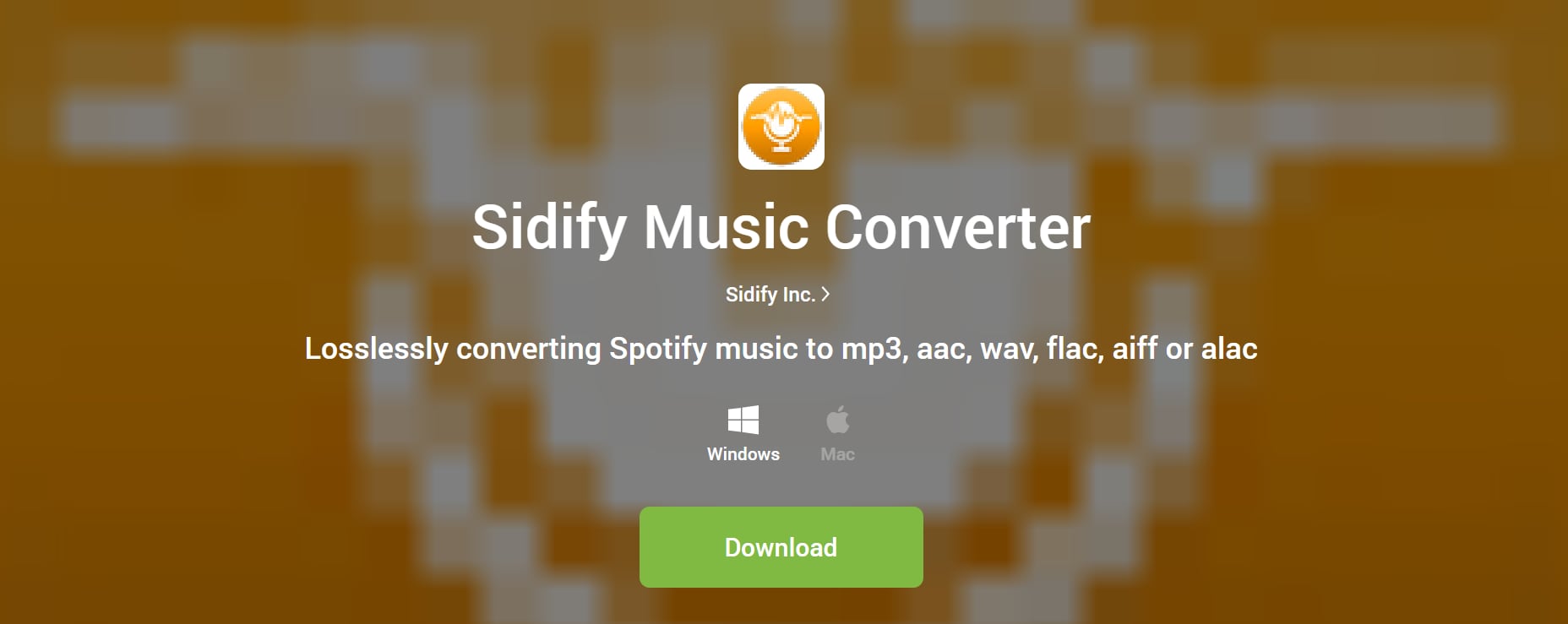
Sidify Music Converter is a powerful streaming audio recorder tailored specifically for music lovers who want to save their favorite tracks from platforms like Spotify, Apple Music, and Amazon Music. Unlike traditional recorders, Sidify works by capturing high-quality audio while preserving original ID3 tags such as song title, artist, and album. The tool ensures output quality up to 320kbps, making it ideal for audiophiles who want crisp sound. Its straightforward interface allows even beginners to convert playlists or albums in just a few clicks. Supported export formats include MP3, AAC, FLAC, and WAV, offering flexibility for playback on different devices. Sidify also integrates batch conversion, enabling users to record multiple tracks simultaneously. In 2025, it remains one of the most trusted tools for music archiving and offline playback.
Platform & Pricing: Windows, Mac | Free trial with conversion limits; Subscription starts at $14.95/month.
Ease of Use Rating: Beginner-Friendly
Super Easy to Use Streaming Audio Recorder
5. SoundTap Streaming Audio Recorder
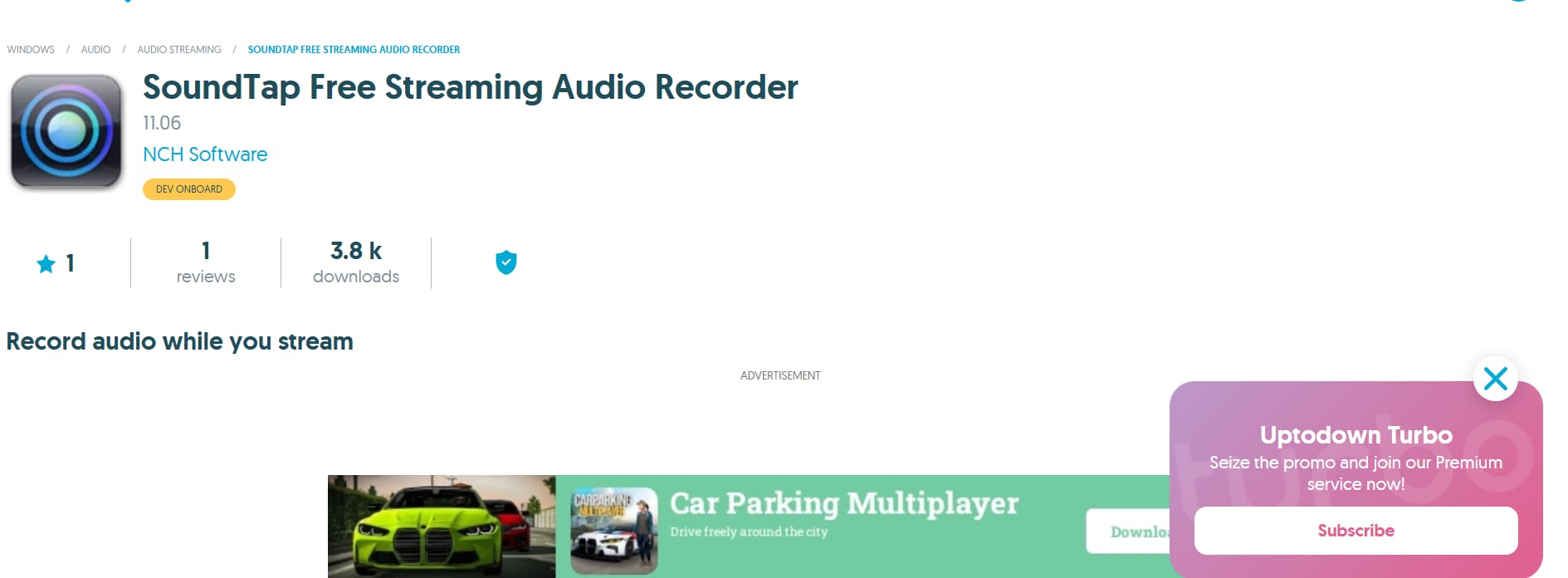
SoundTap Streaming Audio Recorder by NCH Software is a reliable solution for capturing any streaming audio playing through your computer. It works at the system level, ensuring that recordings are made with high fidelity and minimal loss in sound quality. The tool is capable of recording from multiple sources, including online radio, music services, VoIP calls, and even conferences. It saves files in MP3 or WAV, making it compatible with most players and editing software. A unique feature of SoundTap is its ability to record audio streams directly from VoIP applications such as Skype, making it ideal for interviews or business meetings. With its lightweight design, it runs smoothly without burdening your system. In 2025, it continues to be a trusted choice for users who want consistent performance and professional-grade audio capture.
Platform & Pricing: Windows, Mac | Free version with limited features; Paid license from $50 (one-time).
Ease of Use Rating: Moderate
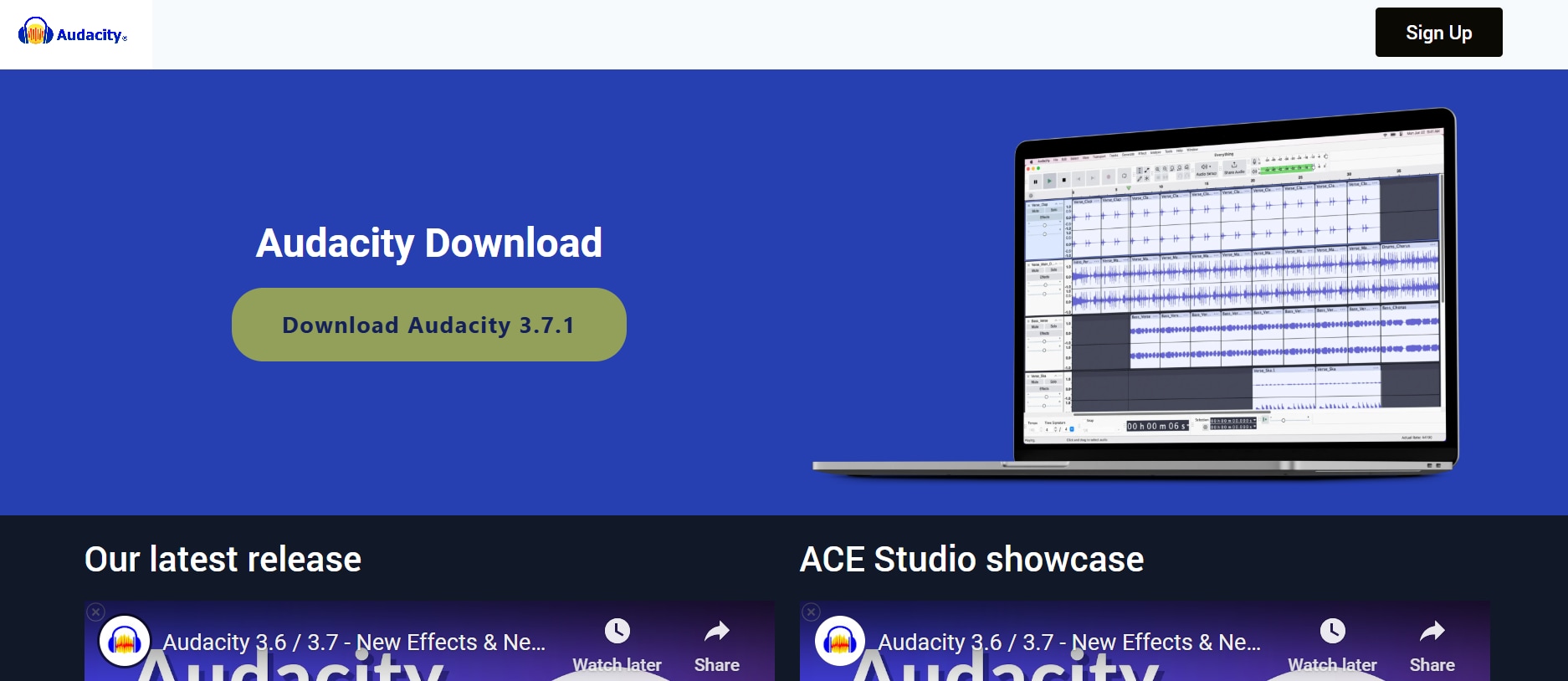
6. Audacity
Audacity is one of the most well-known and widely used free audio recording and editing tools, available across Windows, Mac, and Linux. Although it’s primarily recognized as an editor, it also functions as a reliable streaming audio recorder when configured correctly with system audio. Users benefit from its robust open-source design, which includes multi-track recording, real-time monitoring, and a wide array of plug-ins. Its support for numerous formats such as WAV, MP3, FLAC, and OGG ensures flexibility for different projects. Unlike many lightweight recorders, Audacity offers deep editing features like noise reduction, equalization, and effects, making it popular among podcasters and musicians. While the interface may look dated, the community support and constant updates make it a reliable choice in 2025. For those willing to invest a bit of time learning, Audacity delivers professional-level results without a price tag.
Platform & Pricing: Windows, Mac | Free trial with limits; Full version from $29.95/month.
Ease of Use Rating: Beginner-Friendly
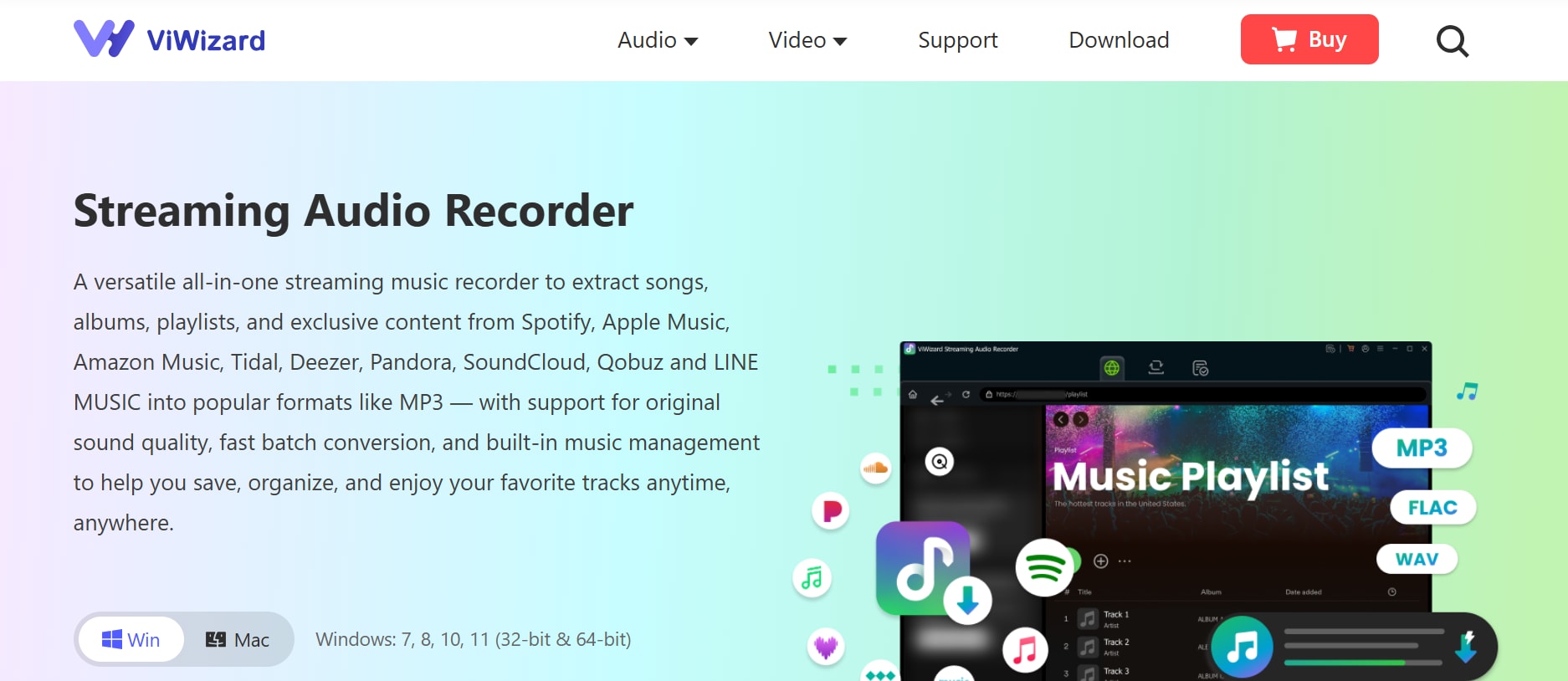
7. ViWizard Streaming Audio Recorder
ViWizard Streaming Audio Recorder is a specialized tool designed for capturing high-quality audio from various streaming platforms, online radio, and system sounds. It excels at recording lossless audio while preserving key details like song titles and metadata for music tracks. The recorder supports over 6,000 streaming services, including Spotify, Pandora, and Apple Music, making it one of the most versatile solutions in 2025. Export options include MP3, AAC, WAV, FLAC, and M4A, ensuring compatibility with most devices. Its simple interface allows beginners to start recording instantly, while advanced users can benefit from features like scheduled recording and ID3 tag editing. With batch recording support, ViWizard makes it easy to capture entire playlists or long sessions seamlessly. For users who value quality and efficiency, it provides an excellent balance of power and ease of use.
Platform & Pricing: Windows, Mac | Free trial with limits; Full version from $29.95/month.
Ease of Use Rating: Beginner-Friendly
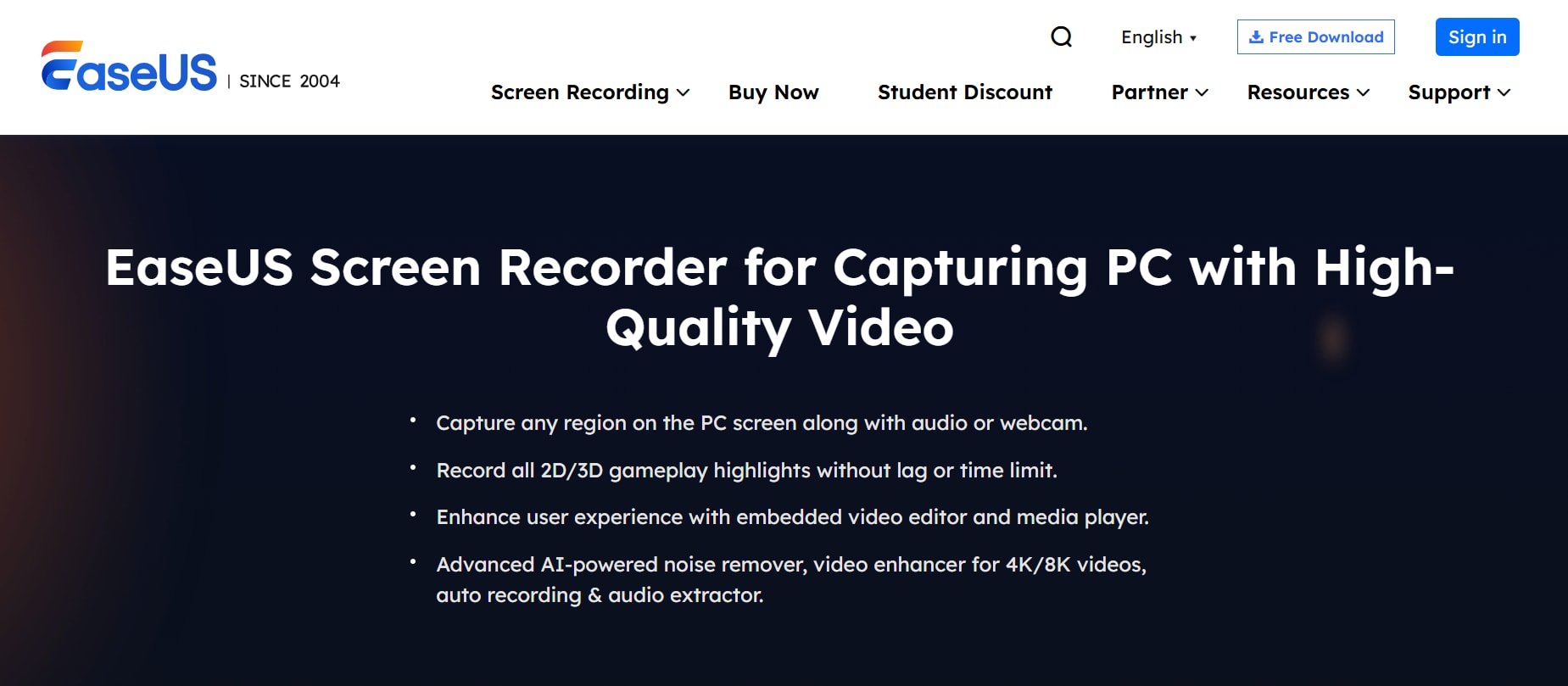
8. EaseUS RecExperts
EaseUS RecExperts is a versatile screen and audio recorder that has become a go-to solution for beginners and professionals in 2025. It enables users to capture streaming audio from system sounds, microphones, or both at the same time with just a few clicks. The software supports recording in multiple formats such as MP3, AAC, OGG, and WAV, making it flexible for editing and playback on different devices. What sets RecExperts apart is its advanced scheduling feature, allowing you to automate recordings for webinars, radio, or live streams. It also offers built-in noise reduction to ensure clean and professional-quality output. Users can trim, cut, and manage audio directly inside the software without external tools. With its balance of ease of use and advanced features, EaseUS RecExperts is a reliable tool for creators, students, and professionals alike.
Platform & Pricing: Windows, Mac | Free trial with time/watermark limits; Paid plans from $19.95/month.
Ease of Use Rating: Beginner-Friendly
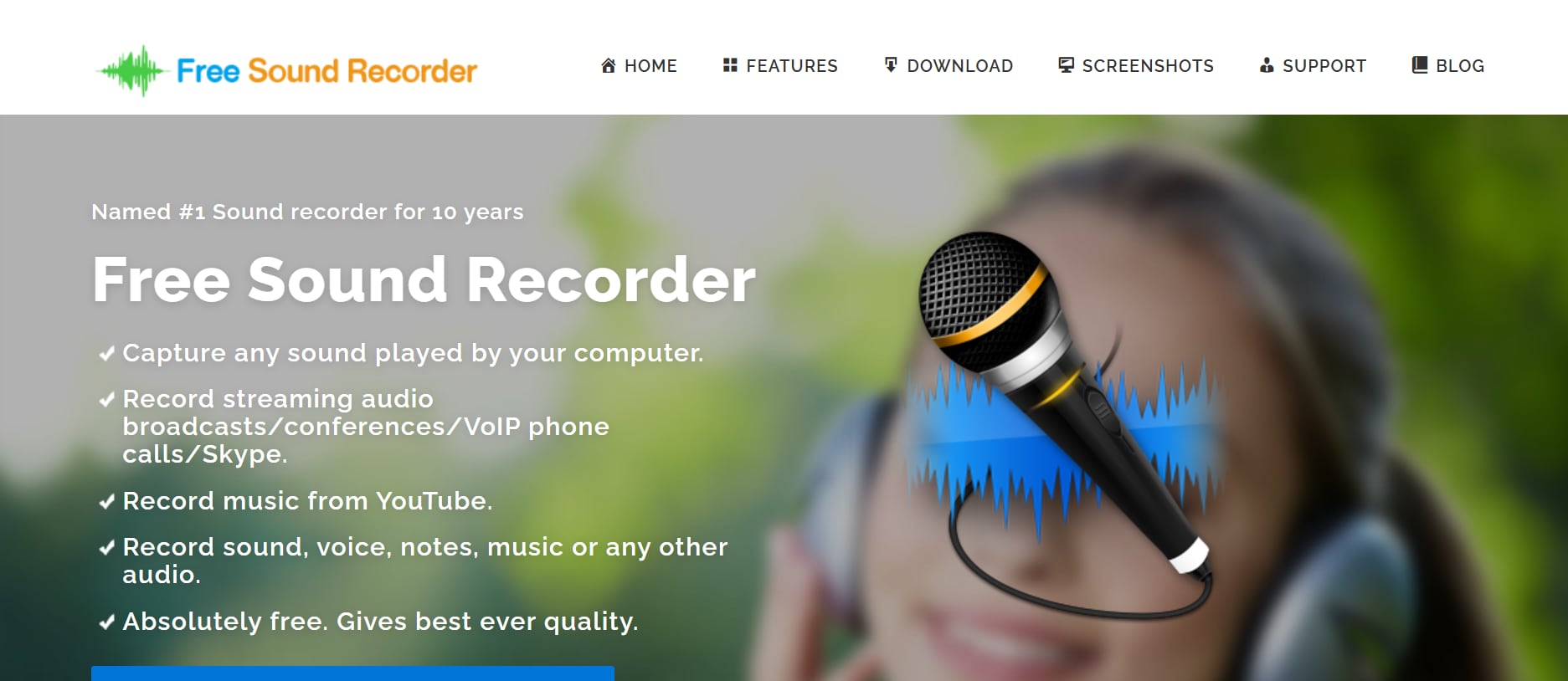
9. Free Sound Recorder
Free Sound Recorder is a lightweight yet powerful tool designed to capture streaming audio, system sounds, and microphone input without hassle. Its biggest advantage is being completely free while still offering support for popular output formats like MP3, WAV, and WMA. The software comes with a straightforward interface that makes it accessible even for first-time users. It also includes a built-in audio editor, enabling trimming, cutting, and enhancing recordings directly. Another useful feature is its automatic recording scheduler, which helps capture online radio or live streams even when you’re away from your computer. Users can also benefit from the automatic gain control and noise suppression tools that improve recording quality. In 2025, Free Sound Recorder continues to be a dependable choice for users seeking a cost-free yet efficient solution.
Platform & Pricing: Windows, Mac | 100% Free.
Ease of Use Rating: Beginner-Friendly
10. Chrome Audio Capture
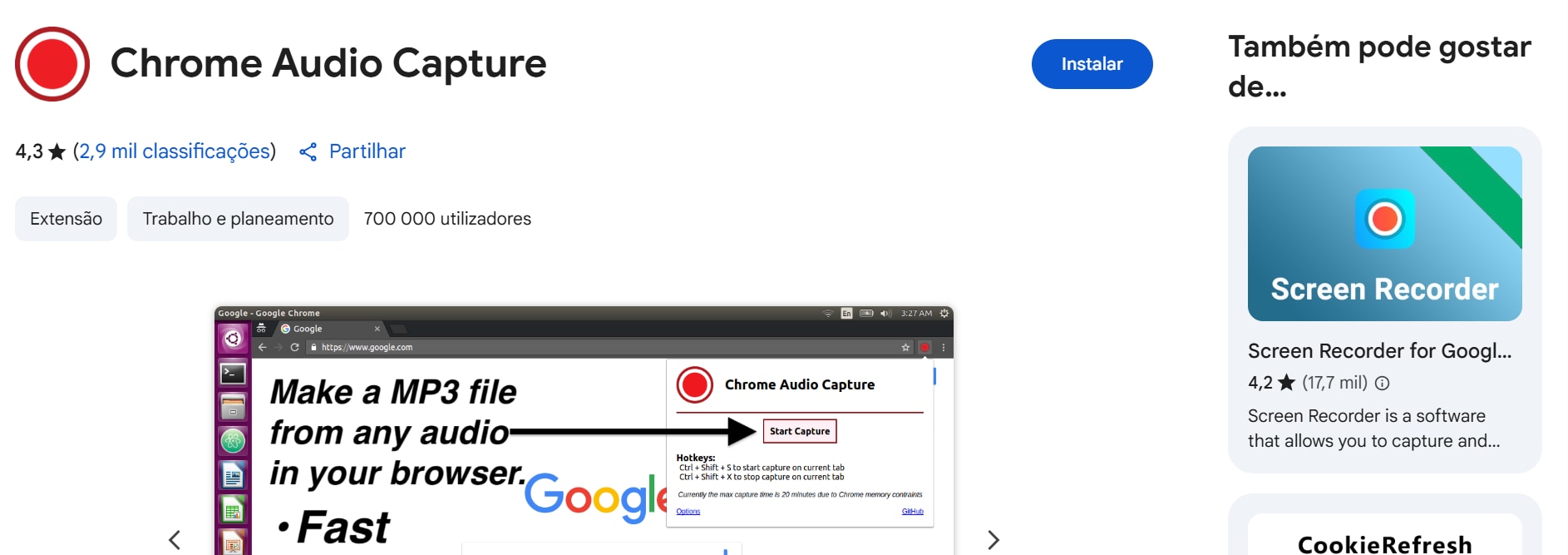
Chrome Audio Capture is a lightweight browser extension built specifically for recording audio directly from Chrome tabs. It’s perfect for users who want to capture music, podcasts, online lectures, or any other audio stream without installing heavy desktop software. The extension works seamlessly in the background, allowing you to record multiple tabs at once with just a click. Once recording is finished, the audio can be saved in MP3 or WAV format for easy playback or editing. Its interface is minimal, making it a favorite among beginners who want a no-fuss solution. The tool also offers hotkey support for starting and stopping recordings instantly, adding to its convenience. In 2025, it remains one of the most practical options for browser-based audio capture.
Platform & Pricing: Chrome Extension | Completely Free.
Ease of Use Rating: Beginner-Friendly
Super Easy to Use Streaming Audio Recorder
Part 3: Quick Comparison Table of Best 10 Audio Recorder
| Tool Name | Ease of Use | Supported Device | Export Audio Format Support | Customizable Options |
| UniConverter (Wondershare) | Excellent | Windows, Mac | MP3, WAV, AAC, FLAC, OGG, M4A | Yes — batch conversion, trim, merge, compress, subtitles |
| Movavi Screen Recorder | Very Good | Windows, Mac, Linux | MP3, M4A, OGG | Limited — choose quality, extract audio, playlists |
| Apowersoft Streaming Audio Recorder | Good | Windows, Mac, Linux | MP3, AAC | Limited — basic format selection, no editing |
| Sidify Music Converter | Good | Web-based (all devices) | MP3, WAV, AAC, OGG | Limited — bitrate & format selection only |
| SoundTap Streaming Audio Recorder | Very Good | Windows, Mac | MP3, WAV, WMA, AAC, FLAC, OGG | Yes — batch convert, compress, adjust resolution |
| Audacity | Excellent | Windows, Mac | MP3, WAV, AAC, FLAC, OGG, M4A | Yes — trim, crop, compress, subtitles, batch processing |
| ViWizard Streaming Audio Recorder | Good | Windows only | MP3, WAV, WMA, AAC, OGG | Yes — cut, join, rip audio, burn to CD |
| EaseUS RecExperts | Very Good | Windows, Mac | MP3, WAV, AAC, FLAC, OGG, M4A | Yes — batch conversion, editing, filters, effects |
| Free Sound Recorder | Excellent | Windows, Mac | MP3, WAV, AAC, FLAC, OGG, M4A | Yes — editing, subtitles, compress, 3D effects |
| Chrome Audio Capture | Very Good | Windows, Mac, Linux | MP3, AAC, AC3, FLAC | Yes — advanced encoding, filters, presets, subtitles |
Part 4: Pro Tips for Perfect Audio Recordings
If you want crisp, professional-quality recordings, a few smart habits can make all the difference. These tips help beginners avoid common mistakes and capture audio that sounds polished and reliable.
Tip 1: Silence notifications
Before hitting record, disable system alerts, app pop-ups, and email pings. Even a tiny "ding" can ruin a clean track, forcing you to start over. This simple step keeps your recording distraction-free from start to finish.
Tip 2: Check your levels
Do a quick 10-second test recording and monitor the input levels. Aim for strong volume without touching the red zone, which signals distortion and clipping. Testing beforehand saves you from unpleasant surprises during playback.
Tip 3: Pause, don’t stop
If you need a break, pause the source instead of stopping the recorder. This ensures you get one continuous file instead of multiple fragments that are harder to edit. It also keeps your workflow smoother when working with longer audio.
Tip 4: Record a little extra
Always start recording two seconds before the audio begins and let it run two seconds after. This buffer makes trimming smoother during post-editing. Having that extra space helps in creating seamless fades and transitions.
Tip 5: Use headphones for monitoring
Plug in headphones while recording so you can detect background noise, mic interference, or audio imbalance in real time and fix issues instantly. Active monitoring helps you avoid re-recording sessions later.
Tip 6: Choose the right format
Record in WAV for lossless quality if you plan to edit heavily, or MP3 if you just need a lightweight, shareable file. Picking the right format upfront saves conversion hassles later. It also ensures the recording meets the needs of your project.
Tip 7: Control your environment
Minimize external sounds by recording in a quiet room, closing windows, and turning off fans or AC units. Small adjustments can drastically reduce background noise. Creating a controlled environment gives your recordings a more professional edge.
Conclusion
Capturing high-quality audio doesn’t have to be complicated. With the right recorder, proper setup, and a few pro tips, even beginners can produce recordings that sound clean and professional. From silencing notifications to choosing the best file format, small practices can make a huge difference in the final output. For those who want an all-in-one solution that goes beyond recording, UniConverter is a top choice. It not only records audio seamlessly but also supports a wide range of export formats, advanced editing, batch conversion, and compression—making it a powerful companion for both casual users and professionals.
Super Easy to Use Streaming Audio Recorder
FAQ
-
1. What is the best format to record audio in for editing?
WAV is the best choice for editing since it’s lossless and retains full quality. If storage space is a concern or you need to share quickly, MP3 is more convenient. Using the right format ensures smoother editing and fewer compromises in sound quality. -
2. Can I record streaming audio directly from my browser?
Yes, several Chrome extensions allow direct tab or system audio recording. Tools like Chrome Audio Capture make it quick and easy without installing heavy software. This approach is ideal for beginners who want a simple solution without complex setups. -
3. How can I improve the sound quality of my recordings?
Choose a quiet environment, monitor with headphones, and test your audio levels before recording. Avoid background apps that create noise or cause performance drops. A little preparation before recording saves time and prevents re-recording later. -
4. Is there a tool that lets me both record and convert audio easily?
Yes, some tools offer both audio recording and powerful conversion features. They support MP3, WAV, FLAC, and more while also providing editing and compression options. This makes them complete solutions for users who want flexibility and efficiency in one tool. -
5. Do free audio recorders have time limits?
Some free recorders limit recording duration due to browser memory or feature restrictions. Always check the tool’s limitations before starting long sessions. Planning ahead helps avoid missing important parts of your recording.

