


Converting YouTube videos to M4A has become a go-to method for users who want to enjoy high-quality audio. Whether it's for saving lectures or songs, users explore YouTube to M4A converters to enjoy better sound quality, smaller file sizes, and greater device accessibility.
In this guide, we’ll cover the best free, online converters available in 2025 to convert Youtube to M4A. Let’s explore the fastest and safest ways for convenient audio conversion within the article.
YouTube to M4A Converter
In this article
- Part 1. What is an M4A file and When is it better than MP3?
- Part 2. Comparison Table — The Best YouTube to M4A Converters in 2025
- Part 3. How to convert a video file to M4A online for free
- Part 4. Convert YouTube Videos to M4A on Desktop
- Part 5. How to convert videos to M4A on iPhone and Android
- Part 6. Optimize Audio Quality for M4A Output
- Part 7. Legal and Safety Considerations
- FAQs about Youtube to M4A Conversion
Part 1. What is an M4A file and When is it better than MP3?
Before choosing a YouTube to M4A converter, it is important to be aware of the format. Furthermore, you also need to learn why M4A is beneficial as a format, for which you need to focus on this section:
What makes M4A a good format for music, podcasts, and voice audio?
M4A is a digital audio format known for its efficient compression and high sound quality. It was developed by Apple and is encoded with AAC, enabling superior audio fidelity at smaller file sizes. M4A can also use ALAC for lossless compression, which helps preserve audio details. The foremost advantage of this format is its wide support across Apple devices and other media players.
M4A vs MP3: which format sounds better at the same bitrate?
M4A files typically offer better audio quality and higher fidelity than MP3, especially at the same bitrate. However, users are still confused between M4A and MP3 formats, so have a look at the following comparison table:
How We Tested YouTube to M4A Converters
We tested tools for converting YouTube videos to M4A format, focusing on audio quality and efficiency.
| Features | M4A (AAC) | MP3 |
| Sound Quality | Higher fidelity at the same bitrate | Lower fidelity at the same bitrate |
| Compression | More efficient (AAC codec) | Older, less efficient (MP3 codec) |
| File Size | Often smaller in the same quality | Smaller, but of lower quality |
| Compatibility | Best with Apple devices, many modern players | Nearly universal across all devices |
When Should You Use M4A Files?
You also need to understand where M4A holds efficiency as a progressive format. Provided next are some prolific use cases one should look at when converting a YouTube video to M4A format:
- Podcasts: M4A is a top choice for podcasters seeking crisp audio at manageable file sizes while speeding up the distribution.
- Background Music: Ideal for streaming and quick playback, it delivers excellent sound quality across various videos.
- Voice Recordings: Its advanced compression preserves clarity in voice memos and call recordings, making these files easy to share and archive.
- Ringtones: Ringtones and notification sounds in M4A format sound clearer and take up less storage than older formats.
Thanks to its broader compatibility, M4A is ideal for professional editing and workflow, as editors can trim, enhance, and export M4A files. So if you also value compact, high-quality sound, M4A is your best choice.
Part 2. Comparison Table — The Best YouTube to M4A Converters in 2025
To help you decide, here’s a quick comparison highlighting the best YouTube video to M4A converters under a set of parameters:
Quick Guide: Best YouTube to M4A Converter by Audio Workflow
| Features | Wondershare UniConverter | UniConverter Online | 9Convert | YTMP3 | YTP.RIP | VLC Media Player | EaseUS Video Downloader | 4K Video Downloader | AudioCleaner.ai |
| Platform | Windows/Mac | Web | Web | Web | Web | Windows/Mac/Linux | Windows | Windows/Mac/Linux | Web |
| Free/Paid | Paid (trial limited | Free (limit), Paid | Free | Free | Free | Free | Free (limit), Paid | Free (limit), Paid | Free |
| Batch Convert | Yes | No | No | No | No | Yes | Yes | Yes | Yes |
| Audio Quality | Adjustable | Limited | Limited | 128/320 kbps | 320 kbps max | Custom | 128/256/320 kbps | Adjustable | High (320kbps max) |
| Playlist Support | Yes | No | Yes | No | No | Yes | Yes | Yes | Yes |
| Conversion Speed | Fast | Fast | Fast | Fast | Fast | Medium | Fast | Fast | Fast |
| Ads / Safety | Some ads | No ads, safe | May have ads | May have ads | May have ads | Ad-free, safe | No ads, safe | No ads/secure | No ads/secure |
| Output Format | M4A/MP3/etc | M4A/other | M4A/MP3/etc. | MP3/MP4 | M4A | M4A/others | M4A/MP3/WAV | M4A/MP3/others | M4A/MP3 |
| Extra Feature | Edit, trim, AI, subtitles. | Video/image conv., Enhance, Watermark removal | - | - | - | Media player | Downloader + Organizer | Subtitle, proxy | Noise remover |
| Best For | Power-packed users, batch edit | Basic, quick online solution | Simple browser use | Quick, Basic MP3 | Quick Web M4A | Free conversion | Batch downloading | Playlists, flexibility | Clean audio |
Which Youtube M4A Converter Should You Choose?
Although there are many options available, choosing the right YouTube to M4A converter is associated to user needs. Following is a tracked discussion explaining when should a user use M4A files for their operations:
- High-Quality Batch Conversions: If you value speed, advanced quality controls, and batch processing, opt for a desktop tool like UniConverter.
- Simple, Free Online Conversions: For quick, hassle-free conversions, consider using online converters like UniConverter or 9Convert.
- Entire Playlist Downloads: In case of downloading entire playlists, go for an advanced solution like a desktop YouTube to M4A Converter, UniConverter, which offers this facility.
YouTube to M4A Converter
Part 3.How to convert a video file to M4A online for free
If you’re looking for a quick and hassle-free way to convert YouTube to M4A online, explore the following reliable tools:
1. UniConverter Online Converter
Suppose you are working on a documentary and find a relatable YouTube video, but you only need the audio. If you want to extract audio specifically, we recommend using UniConverter Online Converter. This tool lets you convert your video and audio files into various formats, including M4A, MP4, and much more.
Users simply insert their desired file into the interface and choose the desired format to start the conversion.
How to Convert YouTube to M4A With UniConverter Online Converter
Now, if you want to use this online YouTube to M4A converter, read the following step-by-step guide below:
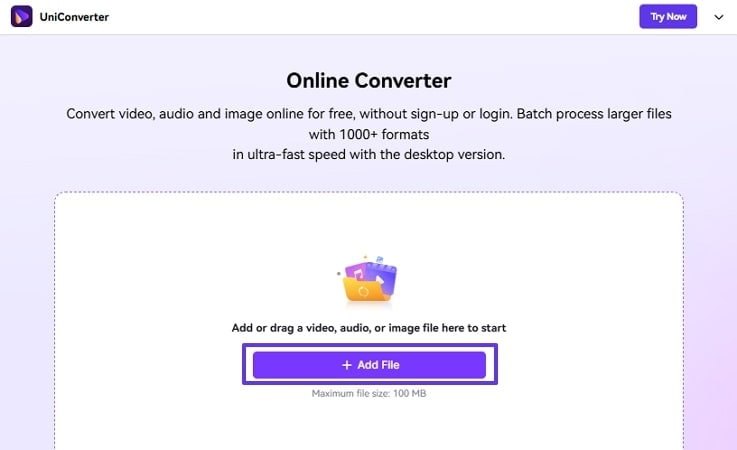
Step 1. Click the +Add File Button to Insert Files
Tap on the “+ Add File” button to import the Youtube video from the device folder.
Step 2. Choose the File Format and Hit the Convert Button
Click on the “Format” tab, choose the “Audio” menu, and select the “M4A” format. Afterwards, hit the “Convert” button to initiate the process.
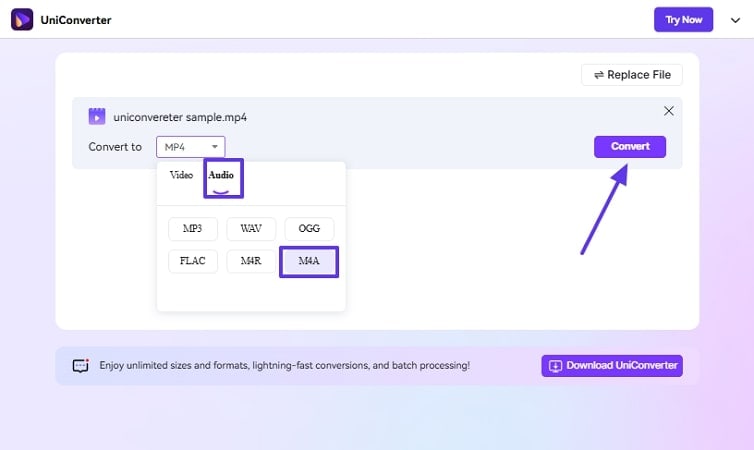
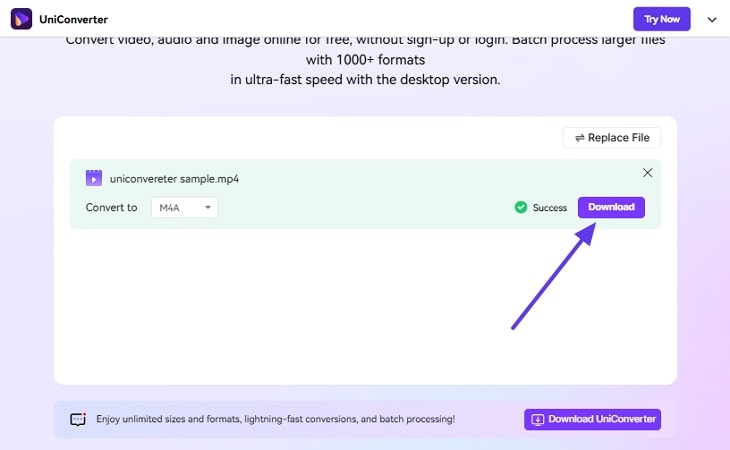
Step 3. Tap the Download Button To Render It
Finally, the M4A file is converted which can be exported using the "Download" button.
2. 9Convert
This free online YouTube-to-M4A converter lets you search for the desired YouTube video and download it. It allows you to convert YouTube videos to multiple formats, including M4A, MP4, MP3, 3GP, and WebM. Furthermore, it provides significant support for 100+ other video sites and social networks.
Guide to Use 9Convert Tool For Converting YouTube to M4A
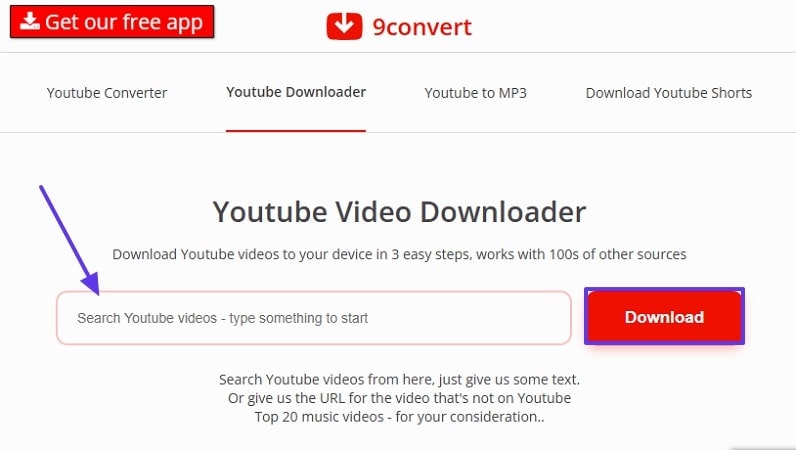
Step 1. Access the tool, write the genre or name of the YouTube video, and hit the "Download" button.
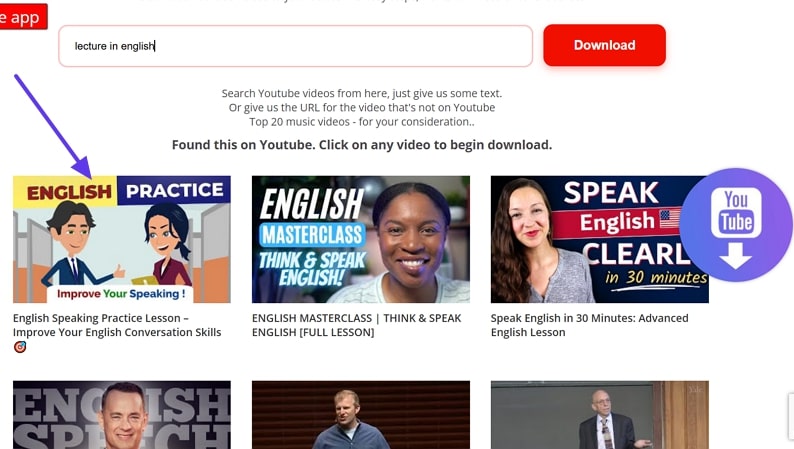
Step 2. Navigate to the desired video and click it to start downloading it automatically to the device.
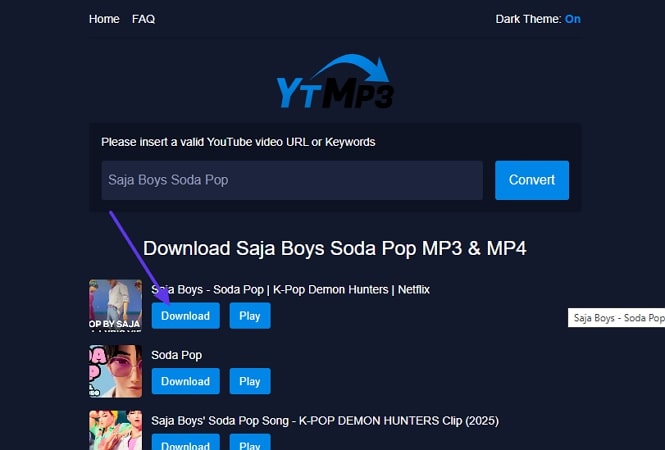
3. YTMP3
It provides an intuitive interface for downloading your YouTube videos in various formats. This tool requires no login credentials and is entirely free, making it easier for users. YTMP3, an online YouTube-to-M4A converter, generates 320 kbps output with excellent clarity. It can handle files up to 2 hours long.
Expert Guide To Use YTMP3 YouTube to M4A Conversion
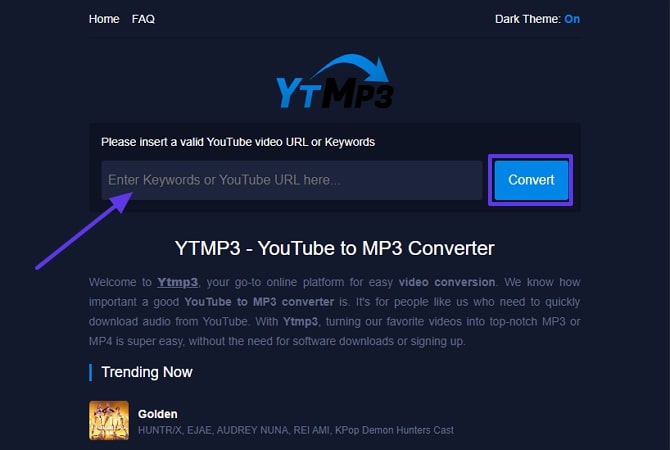
Step 1. Launch the tool, enter the YouTube URL or video name, and hit the "Convert" button.
Step 2. Click the "Download" button to save the file to the device's folder.
4. YTP.RIP
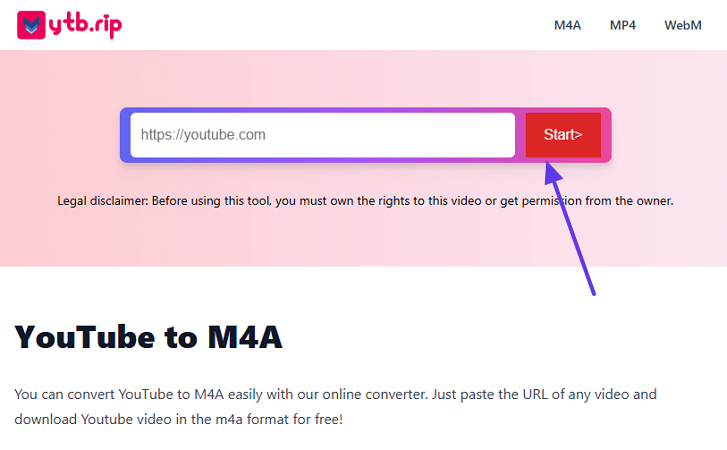
This tool lets you convert YouTube to M4A online by simply pasting the video URL. After searching for the video, it provides various file formats for you to choose from. YTP.RIP can generate high-quality M4A audio files up to 320 kbps.
Guide To Use YTP.RIP Online For YouTube to M4A
Step 1. Paste the video URL in the search bar and hit the "Start" button.
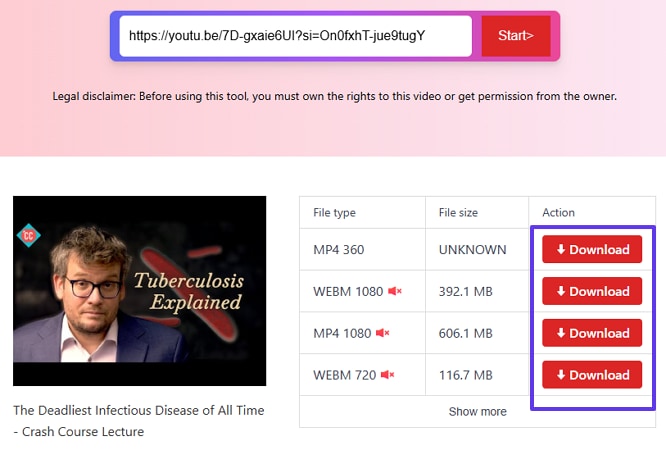
Step 2. Choose the desired file format, then click the Download button next to it.
Part 4. How to Convert YouTube Videos to M4A on Desktop
Besides the online tool, if you want to opt for a more reliable and professional YouTube video to M4A converter, read the following:
1. Wondershare UniConverter
Imagine you are a freelance editor tasked with producing podcast episodes and highlight reels for your clients. Your client sends you a list of inspiring YouTube videos and requests high-quality audio clips in M4A format for their ongoing projects. In this situation, we recommend using UniConverter, which offers an advanced downloader.
This tool comes with a built-in downloader, which also lets you convert your video into the desired output format. Furthermore, it allows users to save entire YouTube playlists in one go, making it an ideal option.
(Disclaimer: Our tool is intended for personal use only. Users are solely responsible for using this tool to save videos or audios, including compliance with platform's terms of service and copyright laws and regulations. We are not liable for any consequences resulting from users' violation of any laws or infringement of others' rights.)
YouTube to M4A Converter
Key Features
- Format Support: UniConverter provides a vast support for numerous file formats for Video, Audio, Device, and Web, providing broader compatibility.
- Batch Processing: You can insert multiple links at once to download and convert various YouTube videos simultaneously.
- Watermark Remover: One can easily remove the watermarks from their videos to get a cleaner and professional look.
- All-In-One Multimedia Processing: You can efficiently process video/audio/image files without effort.
Guide To Use UniConverter for YouTube to M4A Conversion
To convert YouTube to M4A format, if you want to use this tool, read the following guide:
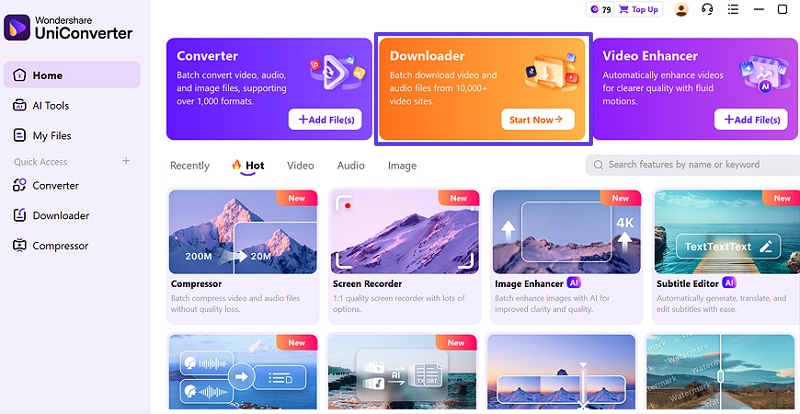
Step 1. Access the Tool and Click the Downloader
Upon entering the tool, click on the "Start Now" button on the "Downloader" tab.
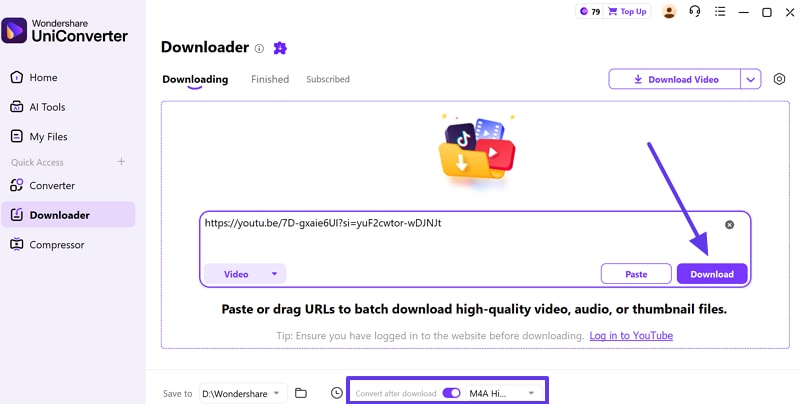
Step 2. Paste the Video URL and Hit the Download Button
Enter the video URL, choose the file format to M4A, and hit the “Download” button.
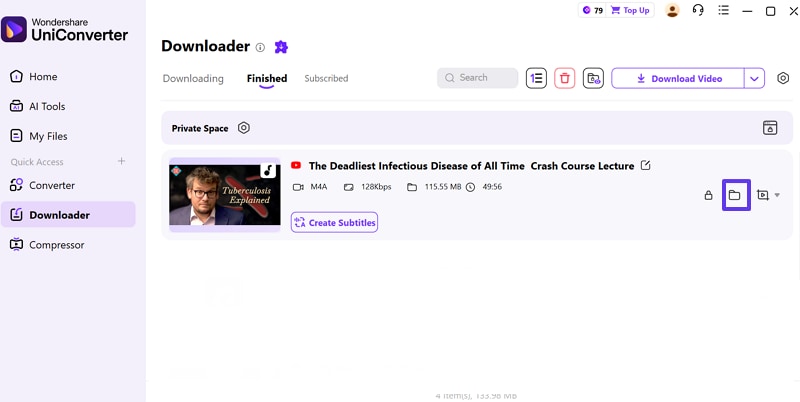
Step 3. Locate the Downloaded Outcome
Now the file is automatically saved, tap on the “File” icon to locate it on the device.
2. VLC Media Player
It is free and open-source software available for Windows, macOS, and Linux, with no registration required. Being a versatile YouTube video to M4A converter, it supports a wide range of other file formats. It is capable of processing multiple files in one session to save time.
Procedural Guide To Convert YouTube to M4A With VLC Media Player
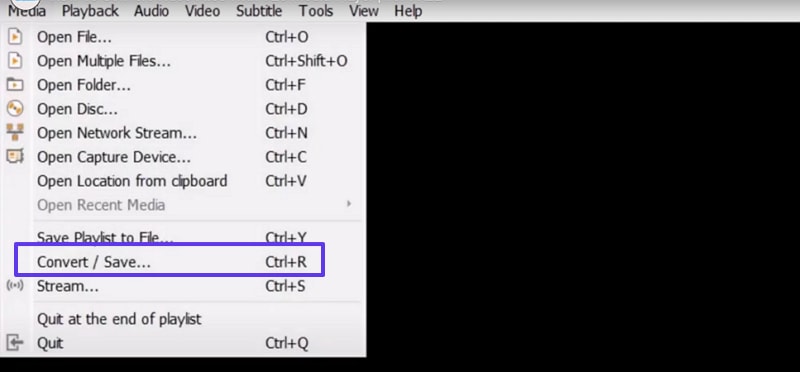
Step 1. Access the VLC Media Player, click “Media” menu, and hit the “Convert/Save” button to insert the targeted video.
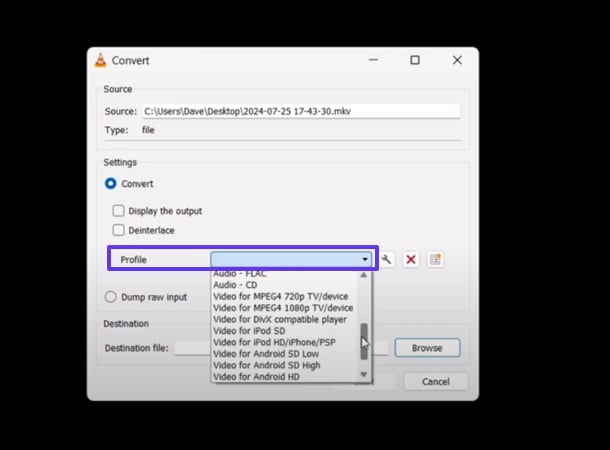
Step 2. Here, choose the target format and hit the "OK" button to start the conversion process.
3. EaseUS Video Downloader
It has the ability to extract audio directly from YouTube and other online videos. This tool efficiently supports all common formats like MP3 and WAV with quality up to 320kbps. Furthermore, it provides an intuitive interface for beginners to extract audio with ease.
Detailed Guide to Use EaseUS Video Downloader
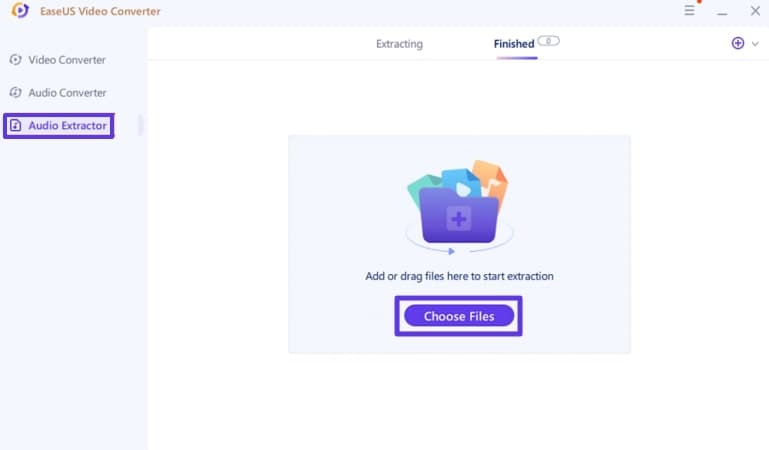
Step 1. After entering the tool, click on the "Audio Extractor" and hit "Choose Files" to insert a file.
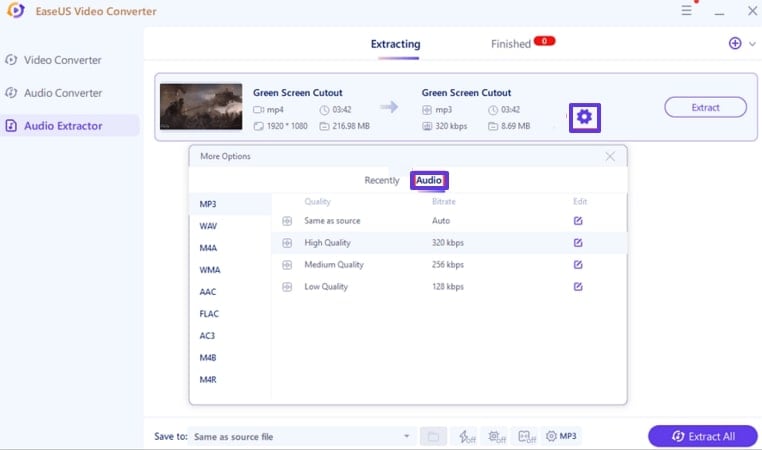
Step 2. Now, choose the desired format and hit the "Export All" button to save it to the device.
4. 4K Downloader
This YouTube to M4A converter desktop tool can download entire playlists and even YouTube subtitles. Furthermore, it is capable of supporting up to 500 URLs at once to save extra manual effort.
Detailed Stepwise Guide To Use 4K Downloader
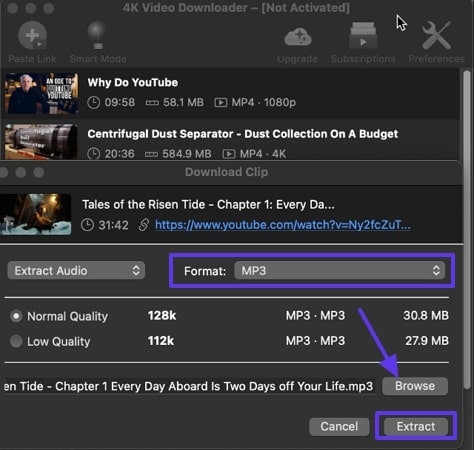
Instructions. Upon entering the tool, insert the video URL, choose the format, and hit the “Extract” button to save the audio.
Part 5. How to convert videos to M4A on iPhone and Android
Now, if you prefer converting on the go, then explore the following methods to download YouTube audio as M4A mobile:
Method 1. Using an Online Youtube to M4A Converter Site Via Mobile Browser
One can instantly opt for an online web tool like Audiocleaner.ai from a mobile browser to convert the YouTube videos. Plus, you don't have to download any app on your mobile phone, which saves storage.
Detailed Stepwise Guide To Use Audiocleaner.ai
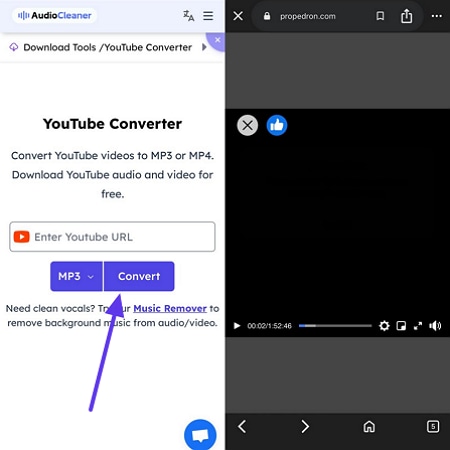
Instructions. Go to your mobile browser and access the tool's website. Afterwards, paste the desired link and it will download the audio file to your device directly.
Method 2. Syncing M4A files via UniConverter + iTunes
Another method is you can use your UniConverter on your desktop and then use Airdrop or iTunes to transfer your files to your iPhone. On the other hand, connect your Android phone with a USB to transfer M4A files.
Tips. M4A files are natively supported by iPhone and other Android phones, so you don't need to convert again after downloading. Furthermore, it offers high sound quality and a smaller size, saving space without losing fidelity, making it ideal for low-storage phones.
Part 6. Optimize Audio Quality for M4A Output
Once you’ve chosen your YouTube to M4A high-quality converter, the next step is to ensure the best possible sound, so have a look below:
- Bitrate and Sample Rate: Bitrate defines the amount of audio data processed per second, while sample rate is the number of audio samples per second.
- Recommended Settings: For more YouTube conversion, AAC 256kbps or ALAC lossless is ideal for everyday music and podcast listening, offering great fidelity.
- Source Quality: The quality of your exported M4A is always limited by the original YouTube video’s audio track.
Part 7. Legal and Safety Considerations
While using YouTube to M4A converters can be convenient, it's essential to stay aware of the legal boundaries and online safety risks.
- Legality of Converting: Converting YouTube videos to M4A is generally considered legal for personal, non-commercial use, but don't re-upload.
- Unsafe Sites: Many free converters are plagued by ads, redirects, or may even deliver malware or unwanted software, so be aware.
- Safety and Compliance: Opt for platforms like Wondershare UniConverter, which are 100% safe when downloaded from the official website, containing no malware and offering data privacy.
Conclusion
Summing up, in this article, we have listed down efficient tools to convert YouTube to M4A effortlessly. Among all these options, Wondershare UniConverter stands out for its powerful features, enabling you to convert YouTube video to M4A from video files or urls. Try this efficient tool and start your first YouTube to M4A conversion today.

