


Let’s face it - laggy YouTube can turn a quick video break into a frustrating experience. And it can feel very confusing if you don’t know the cause. Is it your internet connection, your device, YouTube’s servers, or something else entirely?
Many users find themselves asking, “Why is YouTube laggy?”, but the answer is not straightforward because different reasons can cause laggy YouTube videos.
To help you out, we’ve explained the common causes of laggy YouTube videos and the best solutions to fix them without requiring technical skills in this article. Keep reading!
- Internet connection issues are the most common reason, especially unstable Wi-Fi, low bandwidth, or network congestion.
- Video quality settings that exceed your device or connection capability can lead to buffering and stuttering.
- On desktops, browser-related problems such as outdated versions, extensions, or cache overload often affect playback.
- Device limitations, app bugs, or interference from VPNs and DNS settings can further worsen streaming performance.
- When streaming remains unreliable, saving videos for offline viewing can help. Wondershare UniConverter works as a YouTube video saver, allowing smooth playback without buffering caused by real-time streaming.
In this article
Cause 1: Internet Connection Issues (Most Common Cause)
Internet connection issues are a common cause of laggy YouTube videos. And it could be as a result of the following;
Slow Internet Speed
YouTube requires different minimum speeds depending on video quality:
720p (HD): ~5 Mbps
1080p (Full HD): ~10 Mbps
4K (Ultra HD): 20–25 Mbps
So, if your internet speed drops below these levels, videos may buffer, downgrade quality, or lag frequently.
Unstable Wi-Fi Signal
Also, a weak Wi-Fi caused by a long distance from the router, thick walls, or interference from other electronics can lead to inconsistent speeds and interruptions.
Network Congestion
When multiple devices stream videos, play games, or download files on the same network, bandwidth gets shared, often causing YouTube to lag.
Fixes
Fix 1: Switch to an Ethernet
Switching to a wired Ethernet connection is one of the most effective fixes you can try when YouTube is laggy, because it provides a more stable, faster, and reliable link than WiFi.
Fix 2: Replace Router
If you’re using an outdated router, replacing it can significantly improve your YouTube performance.
Most outdated routers struggle with the modern streaming demands and handle multiple devices. So, it’s advisable to upgrade to a router that supports Wi-Fi 5 or Wi-Fi 6, which offers faster speeds, better range, and improved device handling.
Fix 3: Download YouTube Video Offline
If the above fixes do not resolve the problem, download the YouTube videos offline using Wondershare Uniconverter.
Tools like Uniconverter allow you to download online videos with high video resolution up to 4k quality. Thanks to its simple user interface, you can easily navigate its features and download as many videos as you want offline without compromising their original quality.
Also, this tool supports different video formats, which means you can convert YouTube videos to MP4 or other different formats and watch them on any device losslessly. Audio extraction of YouTube video can also easily be realised with UniConverter.
Key Features
Download a large volume of YouTube videos within a few clicks using batch download.
Upscale videos to 4k/8k resolution using the built-in video enhancer.
Compress multiple videos while preserving their quality with an advanced batch compressor.
Create summaries for videos in 145+ languages.
How to use UniConverter to Download YouTube Videos
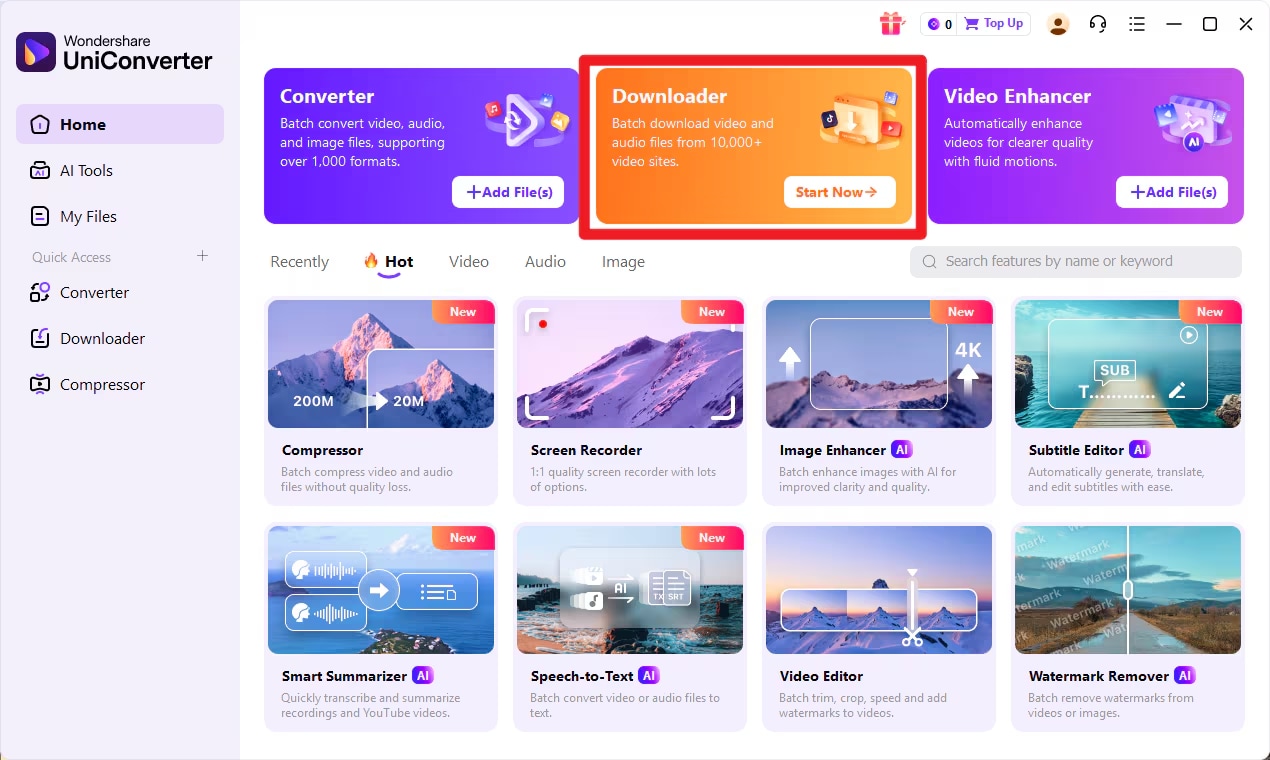
Step 1: Run the “Uniconverter” software on your Mac or PC and select “Downloader.”
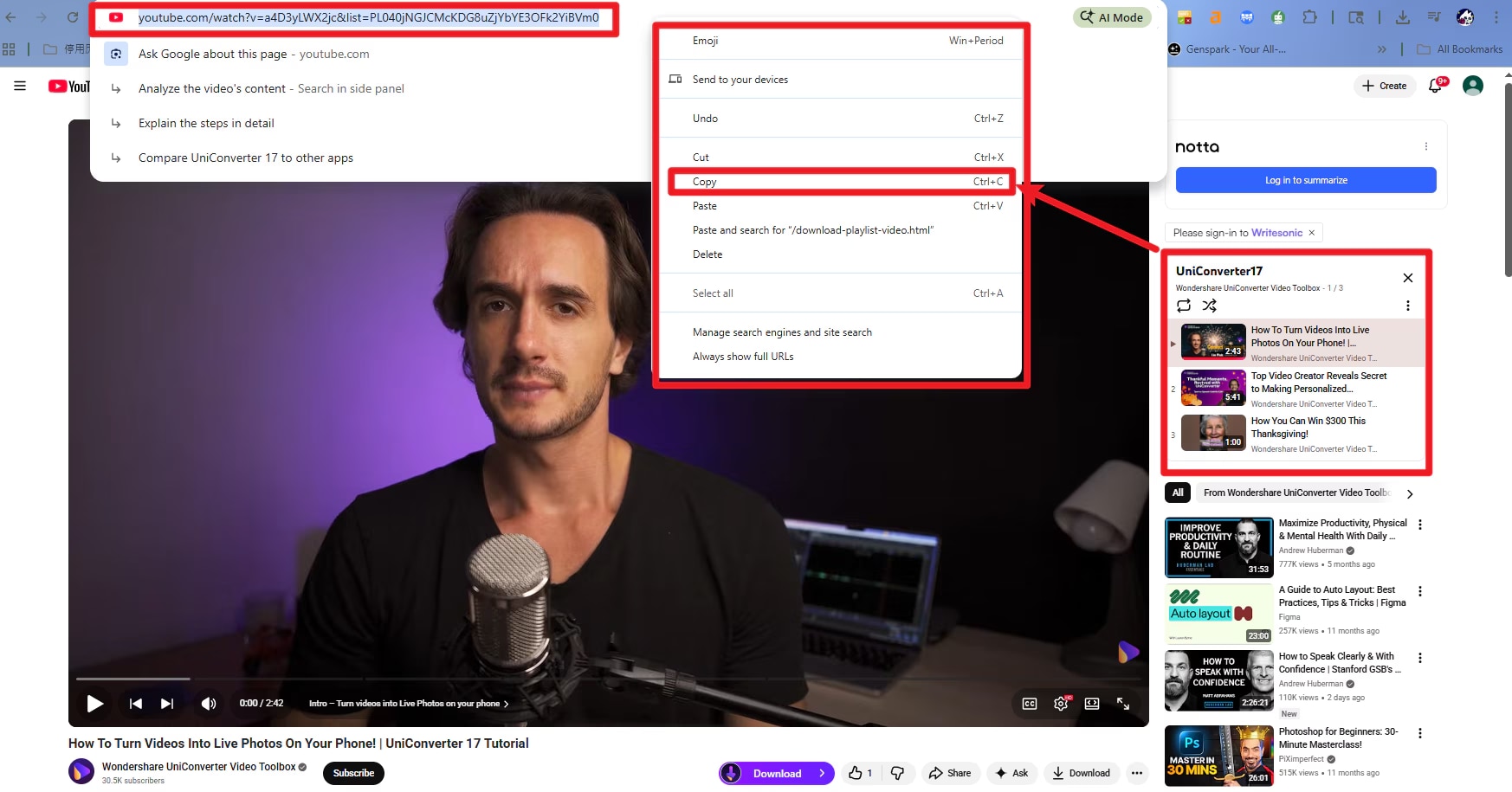
Step 2: Open your browser and copy the “URL” of the YouTube video you want to download offline.
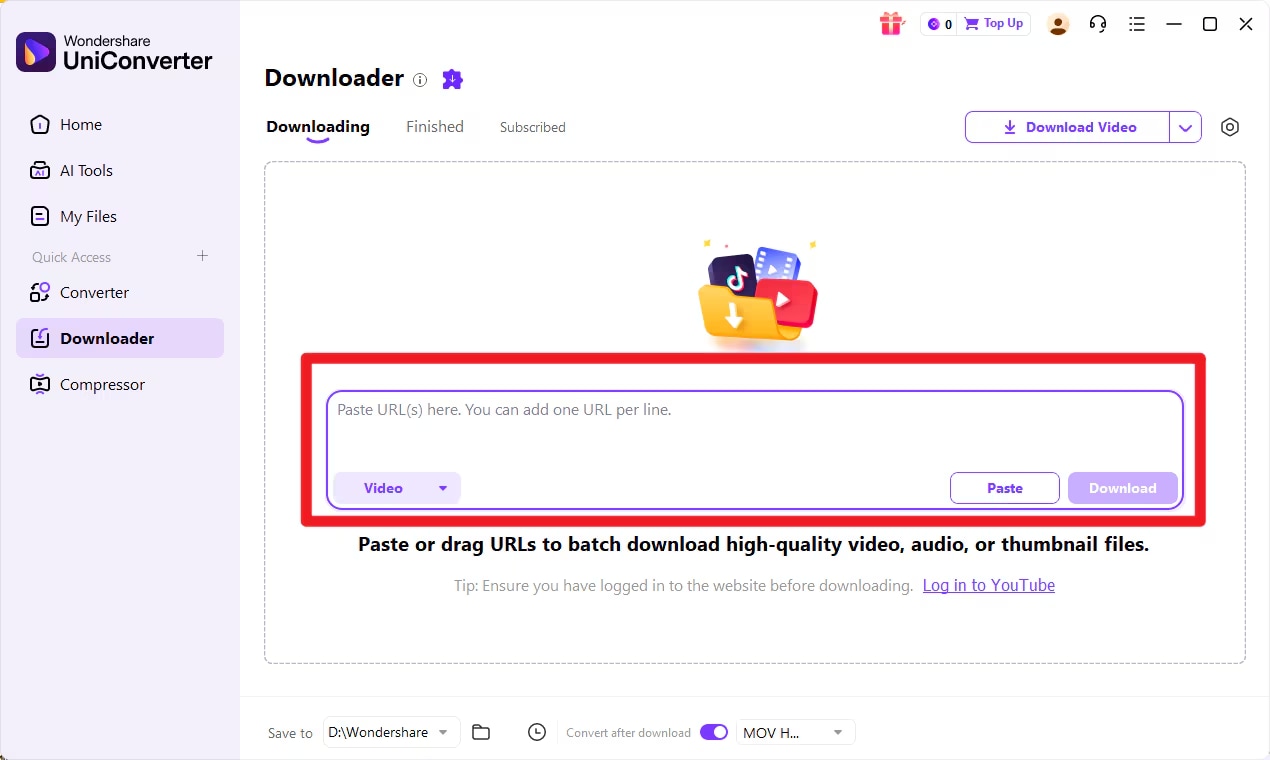
Step 3: Go back to “UniConverter” and paste the copied URL into the action box.
Step 4: Click the “Download” button to start downloading the video.
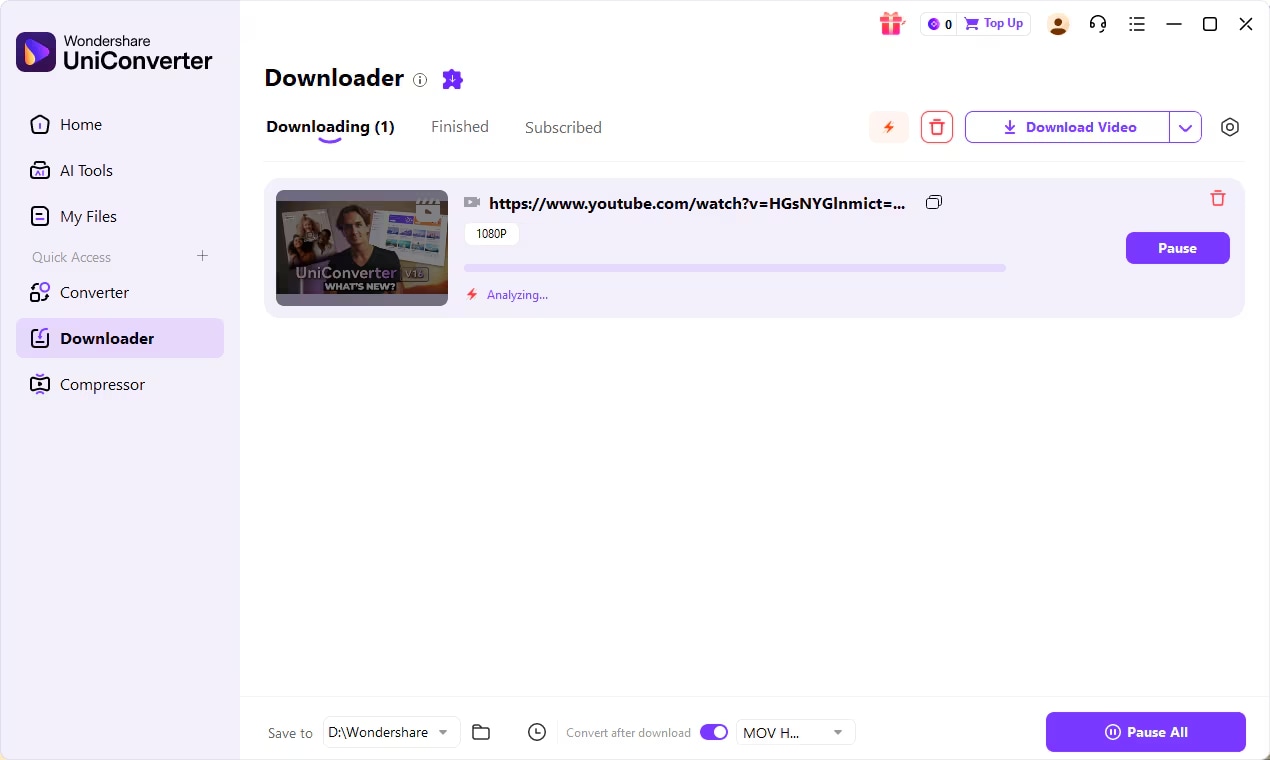
Step 5: Once the download is complete, navigate to the “Finished” tab and save the video to your local files.
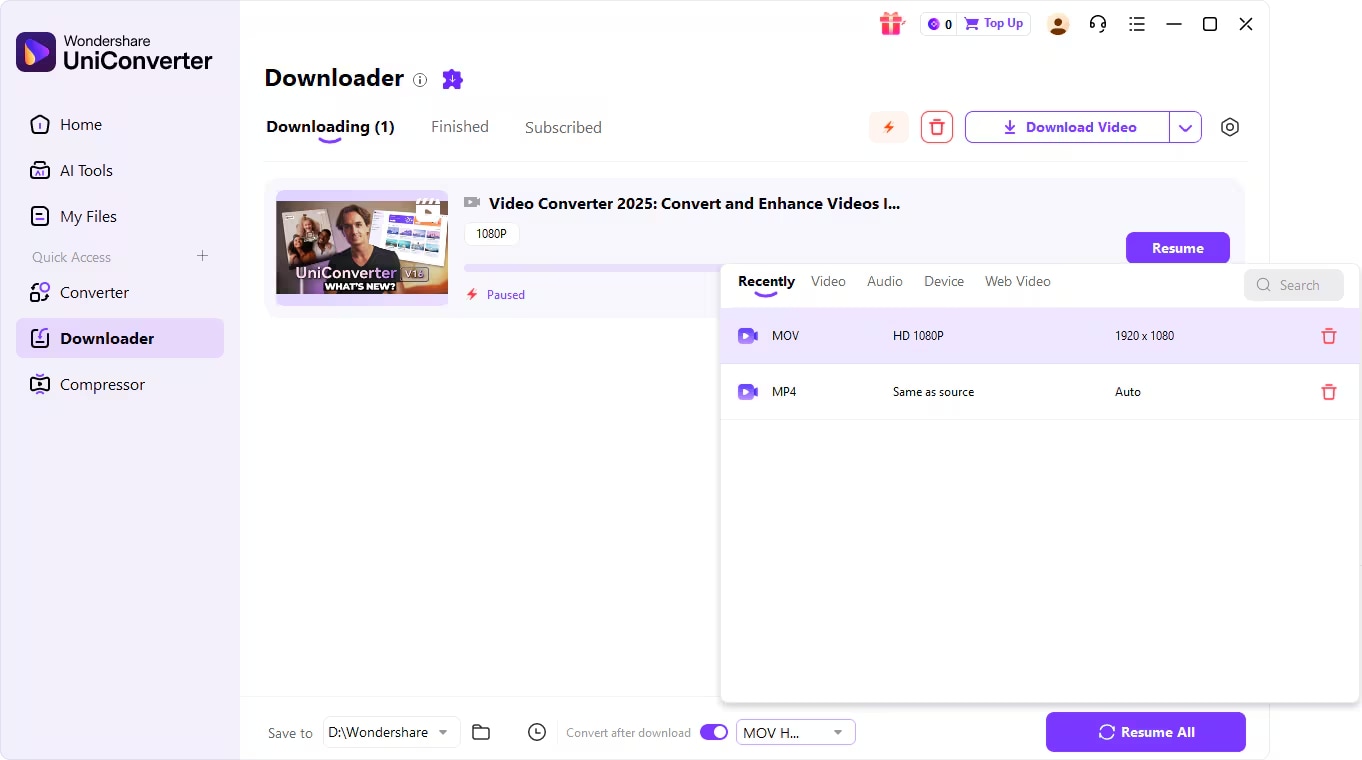

Save YouTube Videos to Avoid Buffering & Freezes
Cause 2: Video Quality & Playback Settings Problems
In several cases, the YouTube video quality and playback settings can overload your device or network, leading to lag, buffering, or frame drops.
Auto Quality Selecting High Resolution
YouTube’s Auto Quality feature is designed to auto-adjust video resolution based on internet speed, but the truth is, it doesn't always work perfectly. Sometimes, Auto locks onto a higher resolution like 1440p or 4K even when your connection or device can’t sustain it. And this usually causes frequent buffering and playback stutters.
Fix: Manual Resolution
We recommend changing your YouTube video settings from “Auto” to 720p or 1080p. Here is how;
Step 1: Click on the “gear” icon at the bottom left of the “Video” screen and select “Quality.”
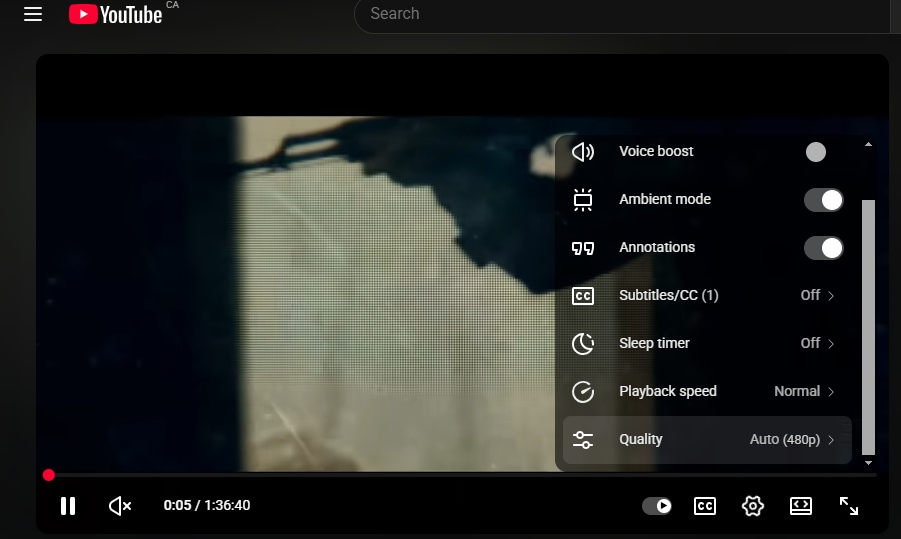
Step 2: Change the video quality from “Auto” to a preferred video resolution.
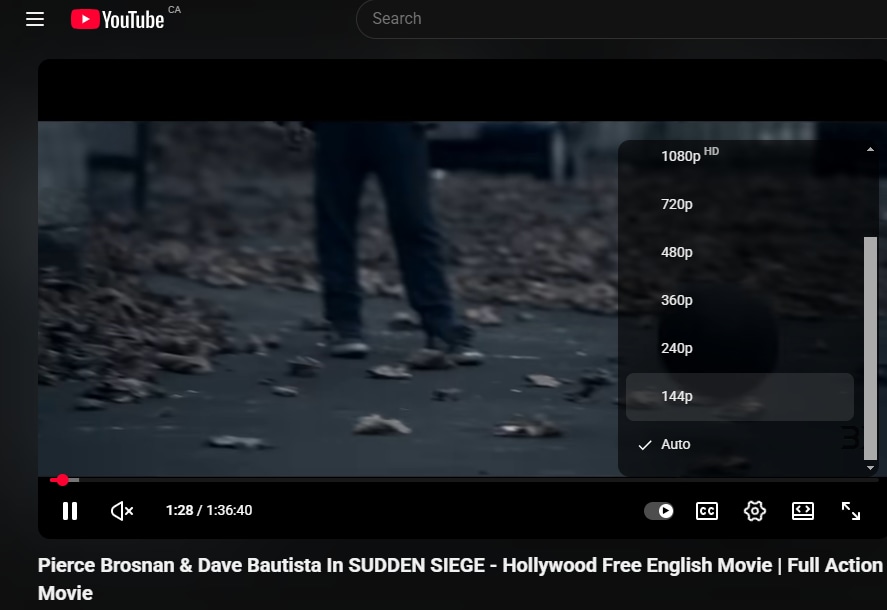
4K / HDR / 60FPS Overload
High-end formats such as 4K, HDR, and 60FPS demand significantly more processing power and bandwidth. And unfortunately, many devices (especially older phones, laptops, or smart TVs) have hardware decoding limits, which can cause YouTube videos to lag even on fast internet.
Fix: The best way to fix laggy YouTube in this type of situation is to downgrade the resolution, turn off HDR, or switch from 60FPS to standard playback. These changes reduce processing load and usually result in much smoother YouTube performance.
Cause 3: Browser-Related Issues (Desktop Users)
If you’re watching YouTube on your desktop, the browser might be the problem.
Browser problems are a major reason YouTube lags on Chrome and other browsers. Even with fast internet, browser overload or misconfigured settings can cause stuttering, dropped frames, and constant buffering.
If you’re experiencing YouTube buffering in your browser, the causes below are among the most common.
Too Many Tabs or Extensions
Opening too many tabs simultaneously puts heavy pressure on your system’s RAM and CPU, especially if those tabs include video streams, web apps, or social media sites.
When system resources are stretched thin, YouTube playback suffers first. And browser extensions that actively scan or modify web content in real time, like ad blockers, VPNs, password managers, and script injectors, can make this worse.
Fix:
Close unused tabs when watching YouTube
Disable or remove unused extensions (You can use built-in tools like Chrome Task Manager (Shift + Esc) to identify resource-heavy tabs and extensions.
Temporarily pause ad blockers to test performance
Restart your browser after clearing background processes
Hardware Acceleration Conflicts
Hardware acceleration is a feature that allows your browser to offload video decoding to your GPU, improving performance. However, on some systems (especially the ones with outdated drivers), this feature can cause stuttering, screen tearing, or buffering issues.
Fix: Turn Off Hardware Acceleration
Step 1: Go to your browser’s “Settings.”
Step 2: Click on “Systems” from the left tab.
Step 3: Turn “Off” the toggle next to “Use graphics/hardware acceleration when available.”
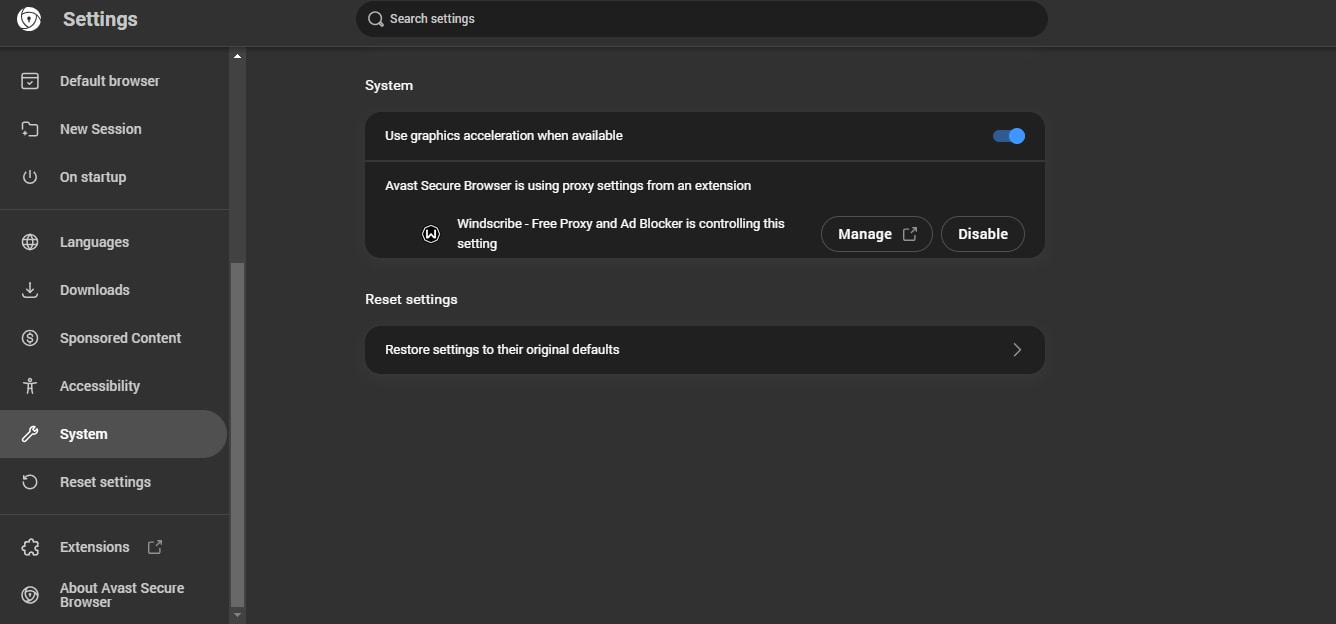
Cause 4: Device Performance Limitations
Sometimes, your device’s performance may be the real bottleneck for laggy YouTube videos. Here is why;
High CPU or RAM Usage
When your CPU or RAM is heavily used, YouTube may struggle to decode and render video smoothly. Background apps like browsers with many tabs, video editors, games, cloud sync tools, or antivirus scans can consume large amounts of system resources, leading to sudden frame drops, stuttering, and lag during playback.
Also, thermal throttling (when your laptop overheats and automatically reduces performance to prevent damage). This leads to sudden frame drops, stuttering, and lag during playback.
Fix:
Close unnecessary background applications, restart your system, and ensure proper ventilation. Cleaning dust from fans and using a cooling pad can also help reduce thermal throttling (when the laptop overheats and automatically reduces performance to prevent damage)
Older or Low-End Hardware
Another reason your device’s performance may be limited is low-end hardware. Older or budget devices often struggle with YouTube’s modern video formats, such as VP9 and AV1, which require more processing power when hardware decoding isn’t supported. When playback falls back to software decoding, CPU usage spikes, causing lag even at 1080p.
Fix:Lower the video quality to 720p or 1080p. You can also force YouTube to use H.264, a less demanding codec, by using browser extensions like h264ify (on Chrome/Firefox). H.264 is widely supported by older hardware and typically delivers much smoother playback on low-end systems.
Cause 5: App Problems (Mobile Phones & Smart TVs)
If YouTube runs smoothly in a browser but lags on your phone or television, the issue is often app-related. YouTube app lagging and YouTube buffering on TV are common problems caused by outdated software, corrupted cache files, or hardware limitations.
Outdated YouTube App
An outdated YouTube app can create compatibility issues with newer video formats, ads, or backend updates. This can result in slow loading, freezing, or sudden buffering, even on a strong internet connection.
Fix:Update the YouTube app from the App Store or Google Play. On smart TVs, check the TV’s app store or system update menu to ensure both the app and TV firmware are current.
App Cache or Storage Problems
On Android devices, cached data can become bloated or corrupted over time, leading to poor performance and lag.
Fix:
Step 1: Open the “Settings” app on your phone and select “Apps.”
Step 2: Select the “YouTube” app.
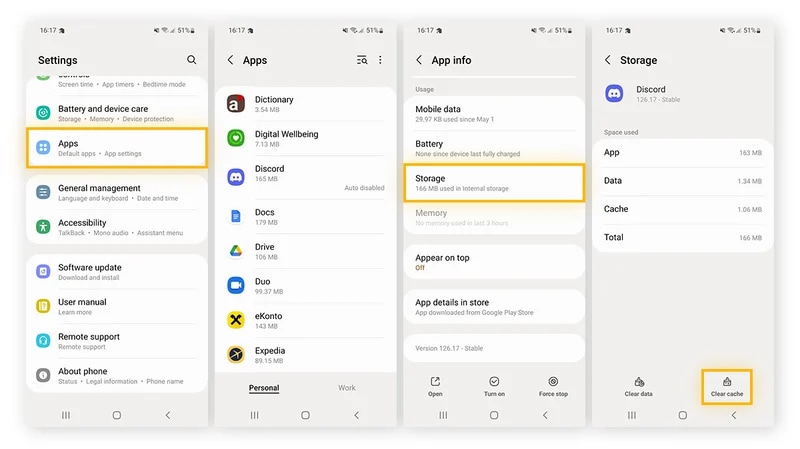
Step 3: Tap on “Storage” and select “Clear Cache” to clear the cached data.
Weak Smart TV Hardware
If your Smart TV has a weak processor and low RAM, it may struggle to handle high-definition, high-bitrate video decoding. And this would cause YouTube videos to lag.
Fix:
The best way to fix the issue in this type of situation is to lower the YouTube video quality or use an external streaming device like Chromecast, Fire TV Stick, or Apple TV for a smoother playback.
Cause 6: VPN, DNS, and Network Interference
If none of the above fixes resolved the laggy YouTube issue, then the problem might be a result of hidden network layers like VPNs and DNS settings. Many users experiencing YouTube slow with VPN or YouTube buffering DNS issues don’t realize how much routing and resolution affect video delivery.
VPN Throttling or Poor Routing
VPNs reroute your traffic through encrypted servers, which can interfere with how YouTube delivers content.
YouTube uses Content Delivery Networks (CDNs) to stream videos from the closest possible server. And when a VPN is active, it may detect your location incorrectly and route video data from a distant or congested server.
Fix:Disable the VPN and test YouTube playback. If performance improves, switch to a VPN server closer to your physical location or choose a VPN optimized for streaming. Premium VPNs typically offer better routing and less congestion. Avoid overcrowded or free VPN servers, as they often cause buffering and lag.
DNS Resolution Delays
DNS (Domain Name System) servers translate website names into IP addresses. However, a slow or unreliable DNS resolution can delay how quickly YouTube connects to video servers, leading to buffering or long load times - even when download speeds are high.
Fix:
We recommend switching to faster public DNS providers such as Google DNS (8.8.8.8 / 8.8.4.4) or Cloudflare DNS (1.1.1.1 / 1.0.0.1). These services are faster, more reliable, and often improve YouTube loading and playback stability. After changing DNS settings, restart your device and router for the best results.
Conclusion
Laggy YouTube videos can be frustrating, but they don’t have to ruin your experience. In this article, we’ve explored the most common causes of YouTube lag and shared practical solutions to help you find why the YouTube videos laggy and fix the problem quickly. In most cases, a few simple adjustments to your network, device, or settings are all it takes to restore smooth playback.
If you want to completely avoid buffering in the future, downloading videos for offline viewing can be a reliable alternative. Using trusted software like Wondershare UniConverter allows you to save YouTube videos directly to your computer and enjoy smooth, uninterrupted playback anytime without relying on internet stability.
FAQs
-
1. How can I make YouTube run more smoothly?
To make YouTube run more smoothly, lower the video quality to 720p or 1080p instead of using Auto or 4K. Use a wired Ethernet connection or move closer to your Wi-Fi router. Close unnecessary browser tabs and background apps, update your browser or YouTube app, and disable heavy extensions like VPNs or aggressive ad blockers. -
2. Why is YouTube lagging even when I have fast internet?
Even with fast internet, YouTube can lag due to device limitations, outdated browsers, unstable Wi-Fi, or background apps consuming resources. YouTube’s Auto quality may also select a resolution your device or GPU cannot handle smoothly. -
3. Why are YouTube videos laggy at night?
YouTube often lags at night because of network congestion. During peak hours, many users stream, game, or download content simultaneously, reducing available bandwidth. ISPs may also throttle speeds. Lowering video quality, using a wired connection, or watching downloaded videos offline can help. -
4. Does video quality affect YouTube lag?
Yes. Higher resolutions like 1440p or 4K require more bandwidth and stronger hardware decoding. If your internet speed or device performance cannot keep up, videos may buffer, stutter, or drop frames. -
5. Can YouTube lag be caused by server-side issues?
Yes. YouTube lag can sometimes be caused by server or CDN issues, especially during peak traffic, regional outages, or major live events. This can result in buffering or reduced quality even when your internet and device are functioning properly.

