

Many people use EzMP3 to save audio quickly from online videos. Before trying any tool, you should understand safety, limits, and everyday risks. This review explains what the service does and where problems may appear. It also checks whether the experience feels useful for regular users today.
Moreover, we will look at privacy concerns, pop-ups, speed, and overall reliability, too. You will also see simple warning signs that people often ignore online. By the end, you can decide if it matches your needs. That makes your choice clearer, smarter, and less risky in 2026.
Reliable YouTube to MP3 Converter
In this article
- Part 1. What Is EzMP3?
- Part 2. How to Use EzMP3 to Convert YouTube to MP3
- Part 3. Is EzMP3 Safe and Legit?
- Part 4. The Truth About EzMP3's 320kbps Audio Quality
- Part 5. EzMP3 Domain History and How to Avoid Fake Clone Sites
- Part 6. EzMP3 Not Working? Here's What to Do
- Part 7. Best EzMP3 Alternatives for YouTube to MP3 Conversion
- FAQs about EzMP3
Part 1. What Is EzMP3?
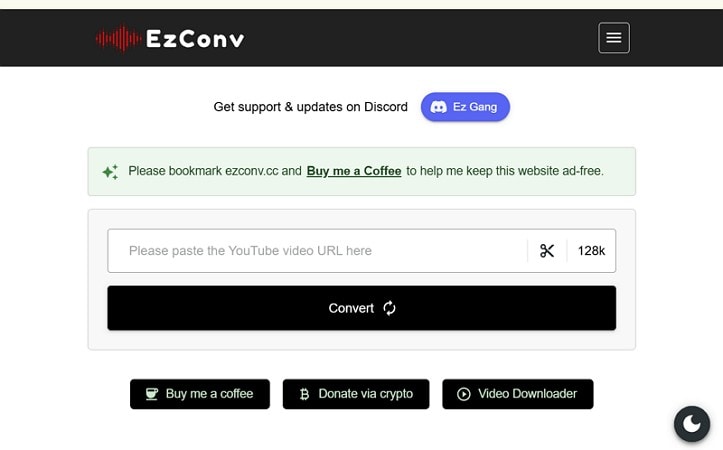
EzMP3 is a free, online YouTube to MP3 converter with no installation or account sign-up requirement. The service first appeared on ezmp3.cc and now commonly runs through ezconv.cc, with ezmp3.nu also active. It focuses on quick single-file conversions, simple controls, and basic trimming for casual users across devices using modern desktop and mobile browsers today.
Key Features of EzMP3 Converter
- Quality Options: Choose MP3 bitrate levels from 64 kbps to 320 kbps before converting each video.
- Trim Audio: Cut start and end points before export for shorter clips, highlights, or clean snippets.
- MP4 Support: Use the linked EzMP4 downloader for video downloads when audio-only output is not enough.
- Browser Compatibility: Works across desktop and mobile browsers, with reported support for 12-hour videos on devices.
EzMP3 Pros and Cons
| Pros | Cons |
| Completely free to use | No batch downloads |
| No registration required | Limited outputs; MP3 here, MP4 via separate tool |
| No software installation | Frequent domain changes confuse users |
| Clean, ad-free interface | Server stability can be inconsistent |
| Built-in trimming feature | No lyrics or metadata tools saved |

Reliable YouTube to MP3 Converter
Part 2. How to Use EzMP3 to Convert YouTube to MP3
Use the current working site ezconv.cc and check the address bar carefully before downloading anything. The official page says it is ad-free, browser-based, and includes trim plus audio quality options. Moreover, it lists its own conversion steps on the page, which makes verification easier. Now follow the steps below for “YouTube to MP3 EzMP3”:
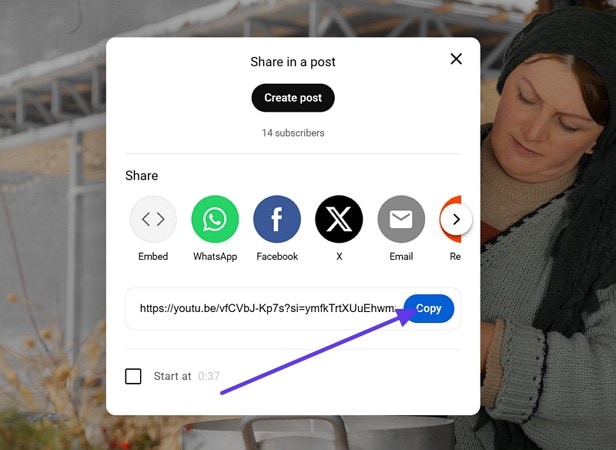
Step 1. Start by accessing the YouTube video you want, then press “Copy” beside the link under the share.
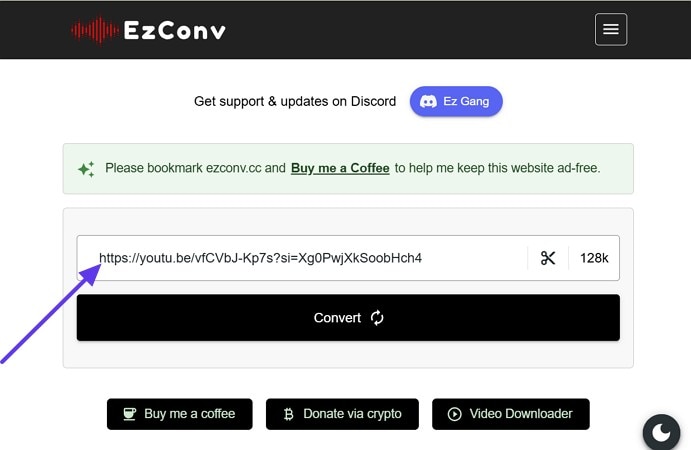
Step 2. After that, visit “ezconv.cc” and confirm the site address before pasting anything. Next, paste the copied “YouTube URL” into the field at the top.
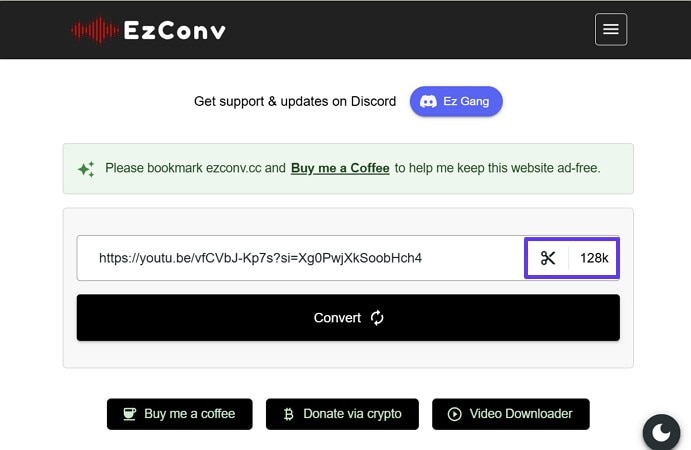
Step 3. Later, choose the preferred “Bitrate” from the quality sector, then use the “Scissors” icon if you want only part of the audio.
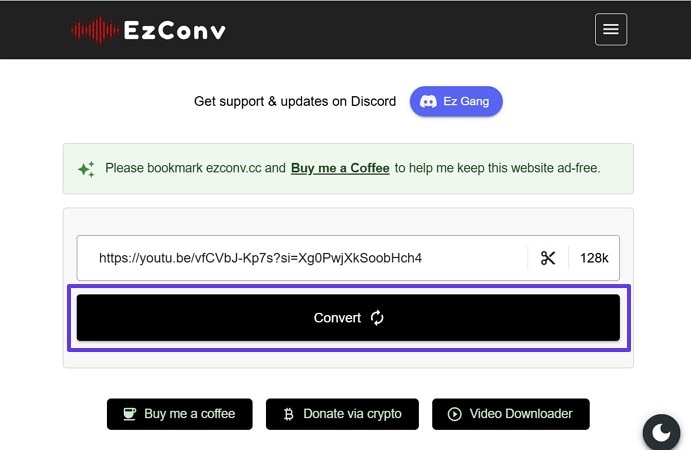
Step 4. Now, choose the “Convert” button and wait while the tool processes the video.
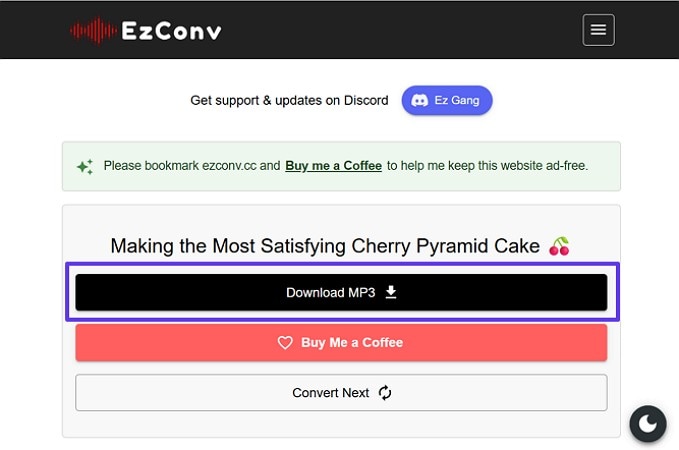
Step 5. After the conversion finishes, click the “Download MP3” option to save the file.
Part 3. Is EzMP3 Safe and Legit?
EzMP3 is generally safe for casual use on its official domain, but users should stay careful. Most positive feedback highlights a clean, simple experience, while negative reports often involve clone sites, redirects, or suspicious prompts. Trustpilot ratings can look strong, yet ScamAdviser may score them low because automated risk signals and domain history affect results differently across reviews and scans.
Is EzMP3 Safe to Use?
EzMP3 is usually safe for casual use on the official domain, but safety depends on where you land and what you click. The tool itself is often described as simple and mostly ad-light, while clone sites create most problems. Fake copies may show pop-ups, push spam, or misleading download buttons that look real. To understand the risks clearly, focus on these three safety areas below:
Ad and Malware Risk
The biggest risk is not always EzMP3 itself. The bigger risk is copycat sites using similar names and layouts. These clones may push fake downloads, browser alerts, or suspicious files. Always check the domain before using it, and avoid anything that asks you to install extra software.
Data Privacy
A useful safety point is that EzMP3 does not require a login or account creation. That reduces personal data exposure. However, it still processes your request online, which means the video URL is sent to its servers during conversion. That is normal for web converters, but users should still be aware.
Human Verification Prompts
Be careful with CAPTCHA or “verify you are human” steps. Some pages use these to trigger push notification requests. If a site asks you to click Allow to continue, close the tab immediately.
Is EzMP3 Legal to Use?
EzMP3 operates in a legal gray area, and rules vary by country. While personal, non-commercial downloading may be tolerated in some places, it can violate YouTube’s Terms of Service and local copyright laws elsewhere. If you are asking, “Is EzMP3 safe?” legally, check your local regulations first before using it.
What Do EzMP3 Users Say on Reddit?
Based on EzMP3 Reddit discussions, user sentiment is mixed but mostly practical. Many users in r/ezmp3cc describe EzMP3 as simple, clean, and easy to use, especially because it often works without heavy ads or confusing steps. These comments usually focus on convenience and quick MP3 downloads.
At the same time, safety concerns appear in other threads, especially in “r/computerviruses” and “r/Advice.” Most warnings are not about the official site itself, but about clone domains that trick users into clicking fake downloads or suspicious prompts. Some users also panic after visiting the wrong domain, such as ezmp3.lat.
Paraphrased Reddit Feedback
One user described the official version as smooth and ad-light when used correctly.
Another user warned that clone sites cause most of the safety fears.
Practical Takeaway: Reddit users generally view the official EzMP3 domain as more trustworthy, but they strongly advise checking the URL before downloading anything.
Part 4. The Truth About EzMP3's 320kbps Audio Quality
This section is important because 320kbps sounds premium, and many users assume it always means better sound. In reality, the bitrate label can be misleading if the original audio source was already compressed before conversion.
EzMP3 may export a file at 320kbps, but that label reflects the output setting, not the original YouTube audio quality. This means a “320kbps” file can still be limited by a lower-quality source.
Why the 320kbps Label Can be Confusing
EzMP3 can offer a 320kbps MP3 output option, but that number usually describes the final exported file, not the original YouTube audio stream quality. As a result, a file may show 320kbps while still carrying the quality limits of a lower-bitrate source.
The Frequency Cutoff Test
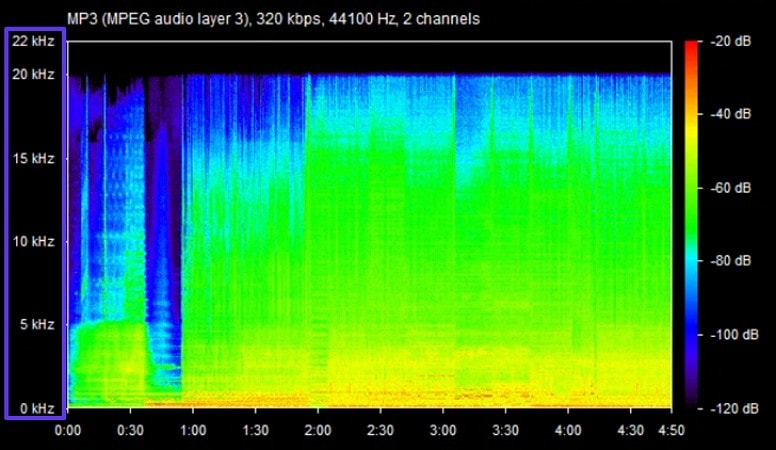
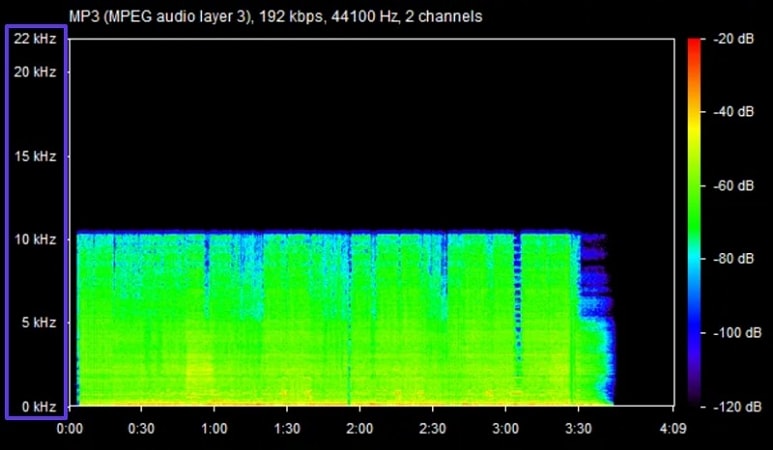
The frequency cutoff test is the easiest visual check for everyday users comparing claimed 320kbps files. A true high-quality file often shows audio content extending near 20 kHz, while an upscaled or transcoded file may show a sharp cutoff around 16 kHz.
That horizontal cutoff line usually signals source limits before conversion. Still, this test is not final, because recording and mastering choices can naturally reduce high frequencies in practice.
How to Verify EzMP3 Files Using Spek
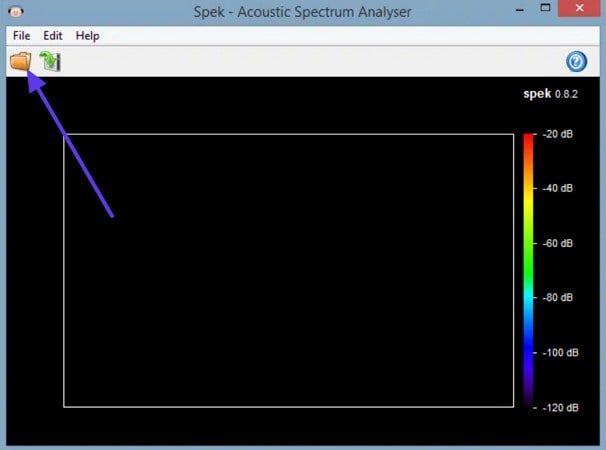
Spek is a free spectrogram analyzer that lets you inspect MP3 files visually. It is simple to use and great for checking whether a “320kbps” file looks like true high-bitrate audio or an upscaled conversion. So, adhere to the steps below to test the EzMP3 cc file in Spek:
Step 1. Upon accessing the Spek, pick the “Open” icon in the top-left corner to import your Ez MP3 download.
Step 2. Once the file loads, confirm the header shows “320 kbps,” look at the left frequency scale up to “22 kHz.” A stronger file often shows visible energy extending closer to 20 kHz, which suggests more high-frequency detail is present.
Step 3. Afterwards, open a lower bitrate MP3, then compare the top range of the graph. Lower-quality files often show less high-frequency detail and may be cut off earlier. If both files look similar at the top, your “320kbps” file may be transcoded from a limited source.
Part 5. EzMP3 Domain History and How to Avoid Fake Clone Sites
EzMP3 changes domains often because converter sites face constant takedown pressure. Copyright complaints, DMCA notices, and regional ISP blocks can break access suddenly. When a domain gets blocked or removed, operators migrate to stay reachable.
Why EzMP3 Keep Changing Domains
Domain changes are common for converter sites, especially during sudden takedowns. These reasons explain why EzMP3 shifts domains, even when demand stays high:
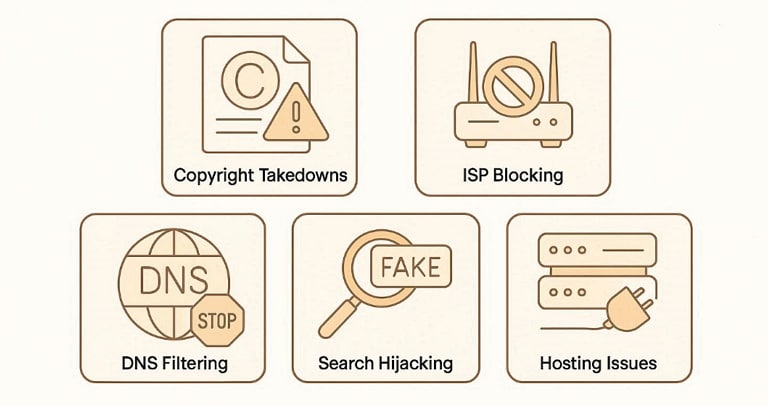
- Copyright Takedowns: DMCA complaints can trigger removals, suspending domains without warning quickly. Operators migrate fast to keep the service reachable worldwide.
- ISP Blocking: Some internet providers block converter domains at the network level. Pages fail to load, even when servers are running normally.
- DNS Filtering: DNS filters can redirect requests or block resolution completely. Switching domains bypasses filters, restoring access for many users.
- Search Hijacking: Clone sites exploit domain changes by buying similar URLs quickly. They mimic design elements, then lure users into unsafe redirects.
- Hosting Issues: Hosting providers may terminate service after policy violations or abuse. A new domain often comes with new hosting and infrastructure.
Known Legitimate Domain Trail
The commonly referenced domain trail moves in a clear sequence over time. It is often listed as ezmp3.cc, then ezmp3.lat, then ezconv.cc for access. Moreover, users later reported ezmp3.nu, and then ezmp3.link as another move.
How Clone Sites Trick Users
Clone sites copy layouts, buttons, and colors to look identical quickly. They use near-matching URLs, often changing only one character or extension. Many clones also push aggressive ads, redirects, or fake download buttons.
Three Practical Ways To Confirm The Real Site
Fake clones look convincing, so a quick verification routine prevents risky clicks. So, use these checks before downloading anything or trusting a new domain.
- Ko-fi Link: Check for the Ko-fi donation link on the homepage first. Legitimate pages often include it, while many clones omit it.
- SSL Check: Click the padlock icon and confirm HTTPS is active always. Verify the certificate matches the domain, then leave if mismatched.
- Community Crosscheck: Confirm the current domain through EzMP3 reddit community discussions first. For that purpose, check r/ezmp3cc posts, then compare the listed working URL carefully.
Part 6. EzMP3 Not Working? Here's What to Do
If EzMP3 is not working, the problem is usually not your device. In most cases, the issue comes from temporary server problems, domain changes, browser cache conflicts, or video restrictions. This happens often with browser-based converters, especially when traffic spikes or a domain gets blocked in some regions.
Most Common Reasons EzMP3 Stops Working
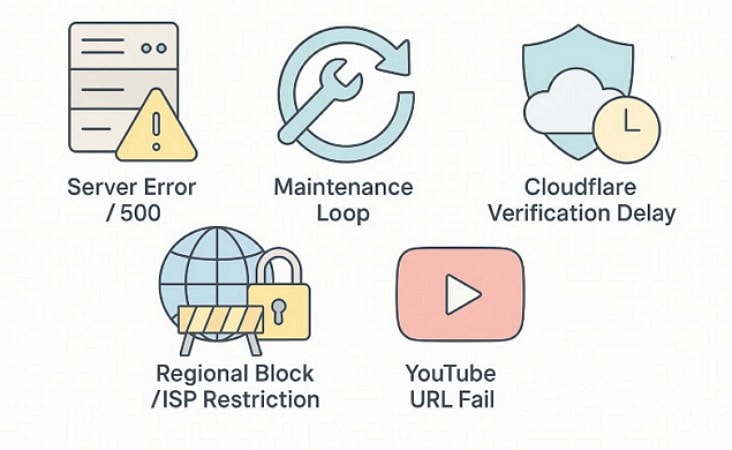
When EzMP3 stops working, the problem usually comes from a few common issues. So, checking the following reasons first can save time and help you find a quick fix faster:
- Site Down or 500 Error: Sometimes the site loads partially, then shows a 500 error or fails during conversion. This usually means the server is overloaded, unstable, or temporarily broken.
- “Servers Under Maintenance” Loop: You may keep seeing a maintenance message and never reach the converter page. This often happens during backend updates, domain migration, or service interruptions.
- Cloudflare Verification Delay: Some users get stuck on a Cloudflare checking/verification screen for too long. This can happen because of browser extensions, script blocking, slow connection checks, or temporary site-side protection issues.
- Regional Blocks or ISP Restriction: In some countries or networks, converter domains may load slowly, fail completely, or behave inconsistently. ISPs or local filtering systems can block access to certain domains.
- YouTube Video URL Itself Fails: Some videos do not convert even when the site works. This often happens with: age-restricted videos, region-locked videos, and private or removed videos.
Quick Fixes to Try First
Once you know the likely cause, start with the simple fixes below first. These quick checks solve many EzMP3 problems without extra troubleshooting steps:
- Switch Domain: If one domain fails, try another active EzMP3/EzConv domain you already verified as legitimate. Domain switching is common in this category, so one version may work while another is temporarily down.
- Refresh Cache: Use Ctrl + F5 on Windows to force a fresh reload of the page. Cached files can keep loading an old, broken version, especially after domain updates or maintenance periods.
- Change Browser: Open the same site in another browser, for example, Chrome, Edge, or Firefox. This helps rule out browser-specific issues, extension conflicts, or blocked scripts.
- Test URL: If one link fails, try another public video first. Regional, age-restricted, or copyrighted videos often fail even when EzMP3 is working normally.
- Retry Later: If the problem is a server error or maintenance loop, retry after some time. Browser-based converters often recover after traffic drops or backend fixes are completed.
Note: EzMP3 works for simple conversions, but long-term use is often unreliable. For consistent results, expect failures and verify the correct domain.
Part 7. Best EzMP3 Alternatives for YouTube to MP3 Conversion
If you need more reliability, better quality control, or batch features, the following EzMP3 alternatives may fit your workflow better
EzMP3 vs. Alternatives — Comparison Table
Before selecting an EzMP3 alternative, review the table below for a quick feature breakdown:
| Tool | Platform | Audio Quality | Batch Download | Ad-Free | Price | Safety |
| EzMP3 | Web-based | Basic to good (source-dependent) | No | Usually yes / minimal ads | Free | Moderate (site availability and reliability can vary) |
| UniConverter | Desktop (Windows/Mac) | High, with bitrate/audio controls | Yes | Yes | Freemium | Higher (official software, stable desktop workflow) |
| YTMP3 | Web-based | Basic to good (single-file use) | No | No / varies by site version | Free | Moderate to low (ads/pop-ups may appear) |
| MP3Juice | Web-based | Varies (depends on source/search result) | No | No / varies | Free | Moderate to low (search-based results need extra caution) |
| CnvMP3 | Web-based | Good for casual use (source-dependent) | No | Yes (ad-free, donation-based) | Free (donation-supported) | Moderate (cleaner experience, but still browser-based limits) |
Wondershare UniConverter — Best Desktop Alternative to EzMP3
EzMP3 works for quick single-file conversions, but many users need more control. When you want reliable, high-quality audio output for repeated tasks, a desktop tool becomes the better choice. UniConverter is built for that need, especially when browser tools feel limited, unstable, or inconsistent during regular use.
Moreover, UniConverter is a desktop media processing tool for more than just YouTube to MP3 tasks. It supports batch video-to-audio conversion, broad format conversion, and consistent output quality without ads or server downtime. That makes it a stronger option for users who want stable performance and better workflow control every time.
Reliable YouTube to MP3 Converter
Key Features
- Quality Control: Adjust bitrate and audio settings to maintain clearer, more consistent audio output quality.
- Media Toolkit: Manage conversion, compression, and format changes inside one desktop tool for efficiency.
- Preset Profiles: Use ready-made audio presets for faster setup and cleaner export settings every time.
Step-by-Step Guide to Using UniConverter as YouTube to MP3 EzMP3
With key features in mind, let's walk through the steps below to use UniConverter as a replacement for the EzMP3 converter:
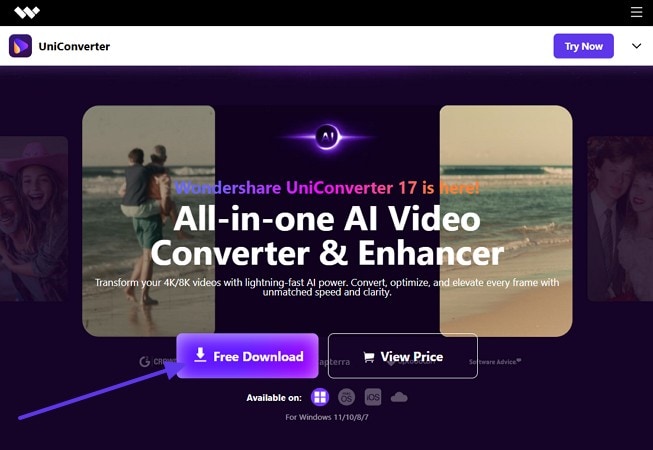
Step 1. Download and Install UniConverter to Proceed
First, press the “Free Download” button to download, then install UniConverter on your Windows or Mac computer. After that, launch the software to begin the conversion process.
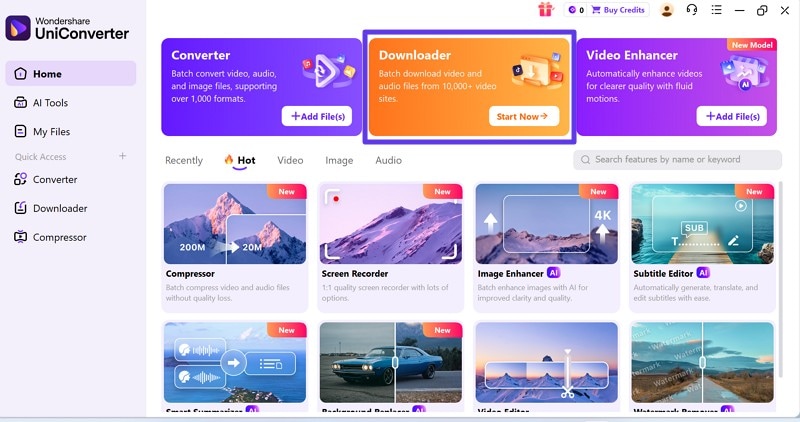
Step 2. Access the Downloader Feature
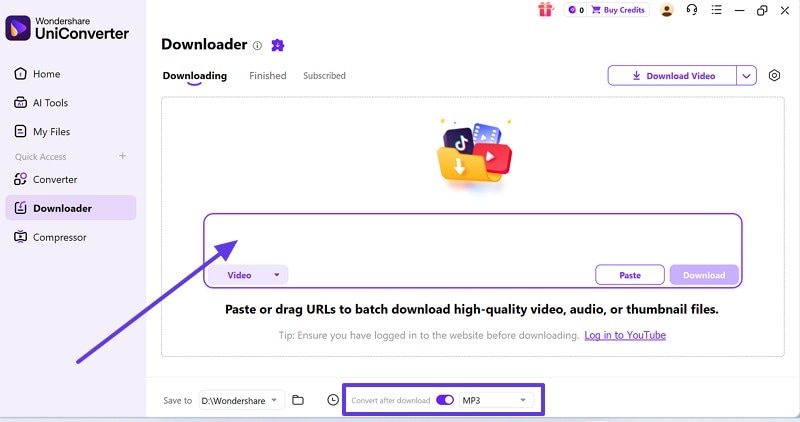
Now, navigate to the “Downloader” feature on the main interface to proceed with conversion.
Step 3. Paste the URL into UniConverter Downloader
Next, paste the “YouTube URL” in the prompt box and pick “MP3” in the Convert after download field.
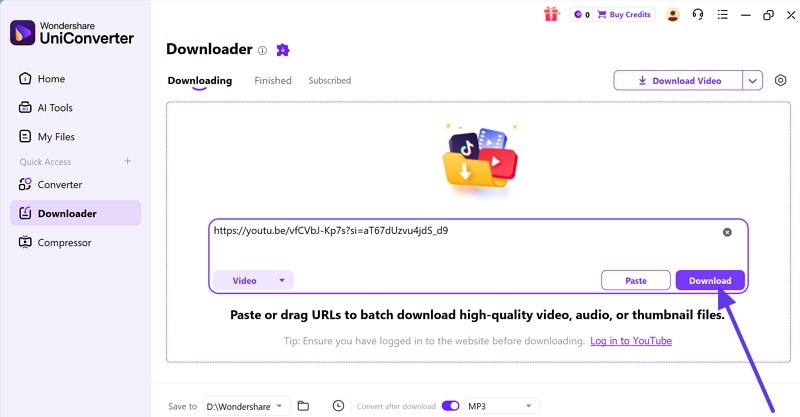
Step 4. Afterwards, press the “Download” button to complete the conversion with ease.
Try UniConverter Free to download and convert YouTube videos to MP3 with better stability, format control, and consistent desktop performance.
Free Online Alternatives to EzMP3
For users who prefer web-based converters, the following few free EzMP3 alternatives can handle quick audio downloads:
1. YTMP3
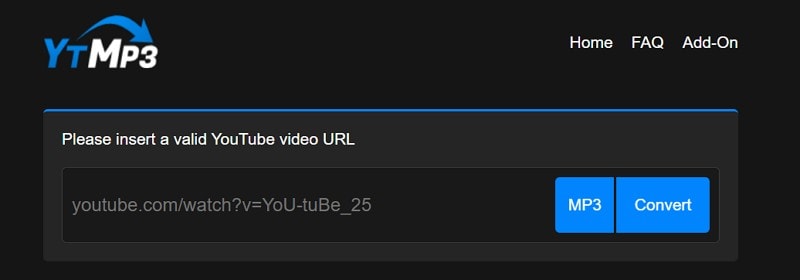
For quick conversions, YTMP3 suits users seeking yt to MP3 EZMP3 alternatives. Its stripped interface processes single files quickly without extra settings, confusing beginners. Moreover, occasional download tasks feel easier when the page stays focused and responsive.
2. MP3Juice
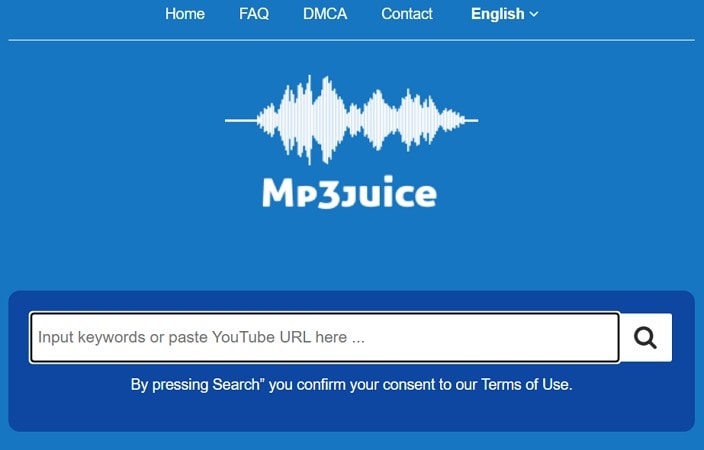
Unlike URL-only tools, MP3Juice improves EzMP3 to MP3 comparisons through search. Users can enter song names directly when exact links are unavailable. That search flexibility saves time across phones, tablets, and shared computers.
3. CnvMP3
Meanwhile, CnvMP3 appeals to users wanting cleaner EzMP3 player alternatives online. Its ad-free donation model reduces distractions during repeated conversions and testing. The lightweight interface feels calmer for people avoiding pop-ups and clutter.
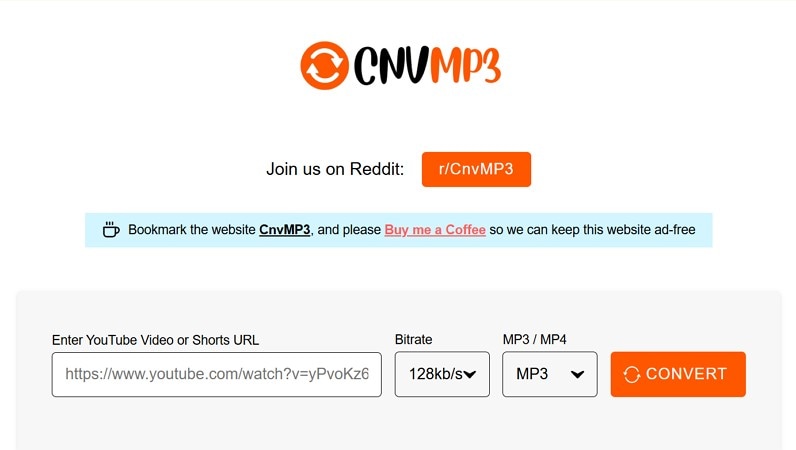
Note: All online converters share EzMP3 limitations, including downtime, failures, and speed fluctuations. Furthermore, output quality and reliability can also vary depending on source links.
Conclusion
To conclude, this EzMP3 review shows that quick downloads stay convenient for occasional users today. However, reliability problems, clone risks, and quality limits still matter significantly online. You should verify domains carefully before converting anything through browser-based tools online. For regular use, longer files, and better control, UniConverter remains a smarter choice for everyday conversions.

