


VLC Media Player, an open-source multimedia player, can do much more than just play videos. You can download with VLC for offline viewing. However, there’s a catch. Although using VLC for downloads can be convenient, it comes with update issues, Lua script errors, and format limitations.
This guide walks you through downloading YouTube videos with VLC. You’ll also learn the fixes to try out when VLC doesn’t work, and the alternatives you can try out.
Top Video Downloader
In this article
- Part 1: Can You Download with VLC Media Player in 2026?
- Part 2: What VLC Media Player Allows and What It Doesn’t
- Part 3: How to Download YouTube Videos with VLC Media Player
- Part 4: VLC YouTube Download Not Working? Try These Fixes
- Part 5: Legal and Policy Considerations for Downloading YouTube Videos
- Part 6: 5 Alternatives to VLC Player to Download YouTube Videos
- FAQs about VLC Player Download YouTube
Part 1: Can You Download with VLC Media Player in 2026?
Yes, you can download YouTube videos using VLC Media Player. However, the download method is fundamentally different from dedicated download tools or common browser extensions.
Traditional download tools typically capture the CDN addresses of YouTube videos, whereas VLC captures the real-time stream data by simulating playback behavior. This way, changes to YouTube’s front-end code won’t affect VLC YouTube downloads and ensure better stability and compatibility.
Part 2: What VLC Media Player Allows and What It Doesn't
VLC media player is primarily a media player and includes advanced functionality for streaming, recording, and saving content from the internet. You can also use VLC to convert between file formats. Here’s a brief on VLC Media Player’s capabilities:
- Download/Save Network Streams: VLC can open network streams to download and save videos to your computer from many streaming sites, including YouTube.
- Save YouTube Videos: Stream the video in VLC, open the “Codec Information” tool to find the video's direct file location, and use your browser to save it to your local storage.
- Record Live Streams: When streaming videos from YouTube and other platforms, you can use VLC’s built-in record button to record the content.
- Convert Files: When VLC extracts videos from the network stream, you can use the “Convert” button to convert the video file into your desired formats.
Although VLC Media Player is versatile in terms of functionalities, it has certain limitations.
- No Native Download Button: Although you can use VLC to download YouTube videos, there is no native download button, unlike browser extensions or third-party downloaders. The download process involves copying the video URL and converting files.
- Limited Support for Encrypted Content: VLC media player is unable to capture files protected by heavy Digital Rights Management (DRM) or, in some cases, with age restrictions.
- YouTube Download Failures: YouTube often makes infrastructure changes that can break VLC's Network Stream method. This often causes video download errors, especially with high-quality videos.
Part 3: How to Download YouTube Videos with VLC Media Player
Method 1: Download YouTube Video Using VLC on Windows & Mac
Before downloading a YouTube video, ensure you have the latest version of VLC installed. Now that you’re prepared, here’s how to download YouTube videos with VLC media player on your Windows and Mac:

Top Video Downloader
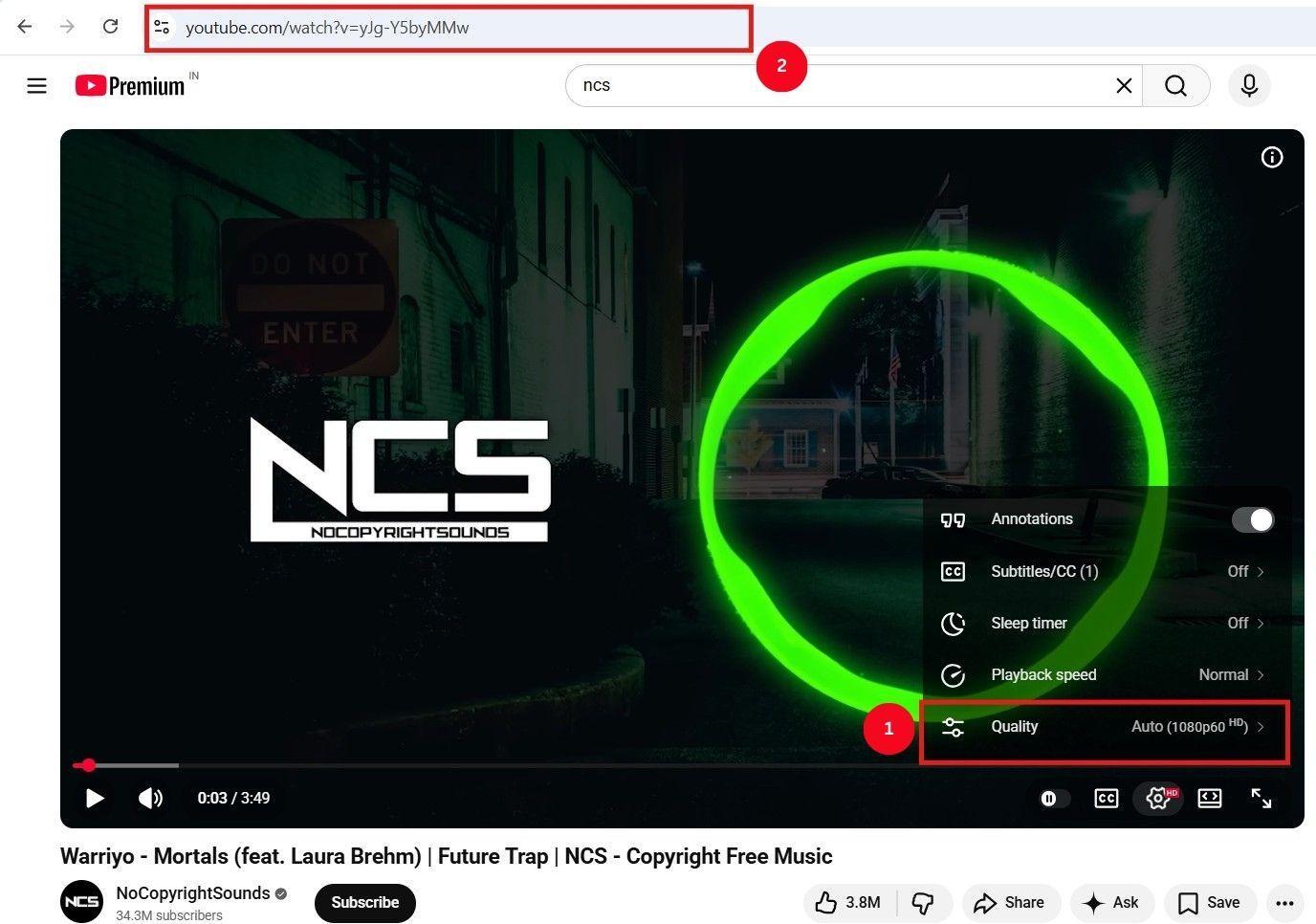
Step 1: Open YouTube and play the video you want to download. Then, set the video quality and copy the link from the address bar.
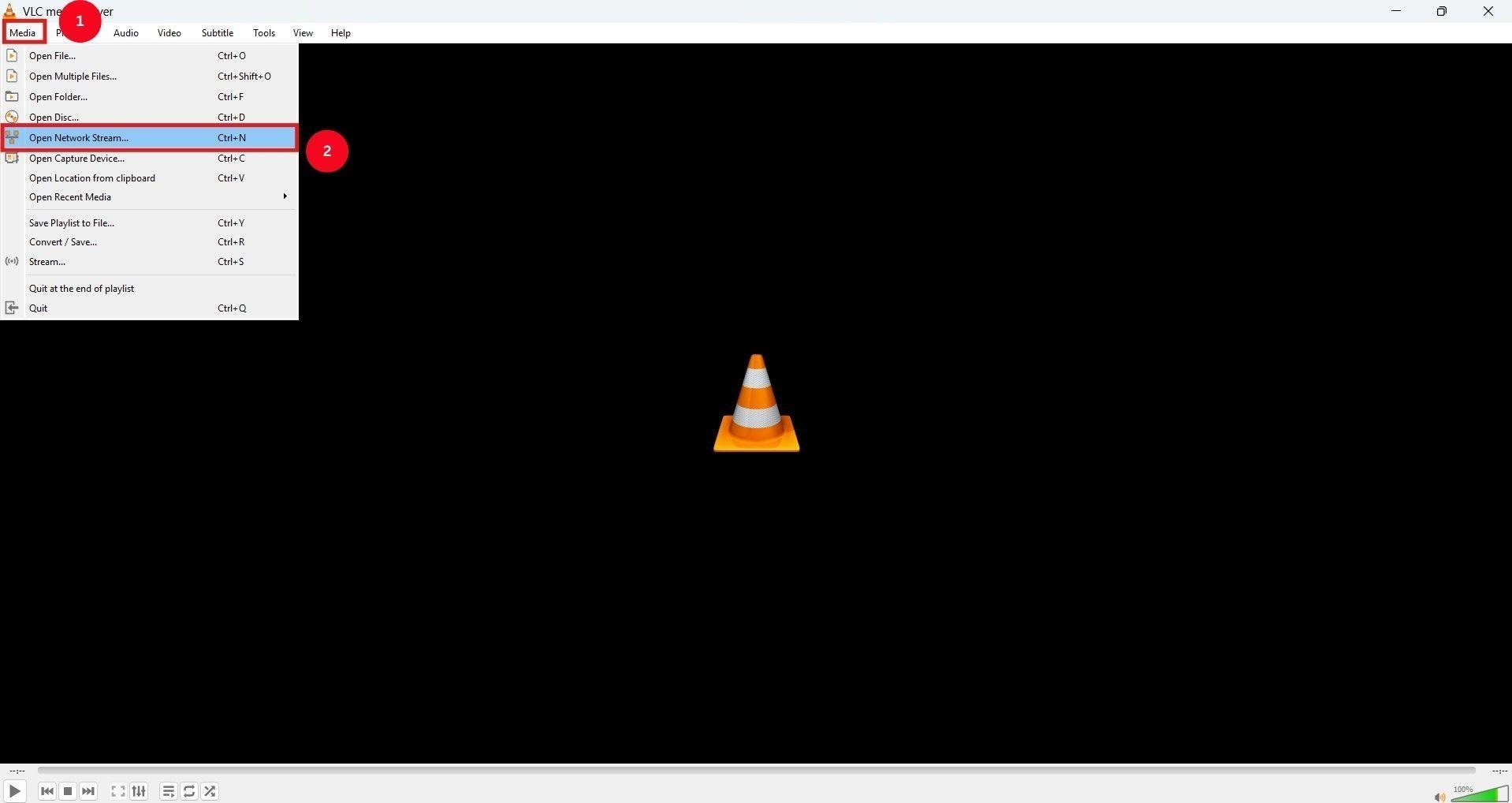
Step 2: Launch the VLC media player on your Windows or Mac, and select “Media > Open Network Stream.” Alternatively, you can use Ctrl+N for quicker access.
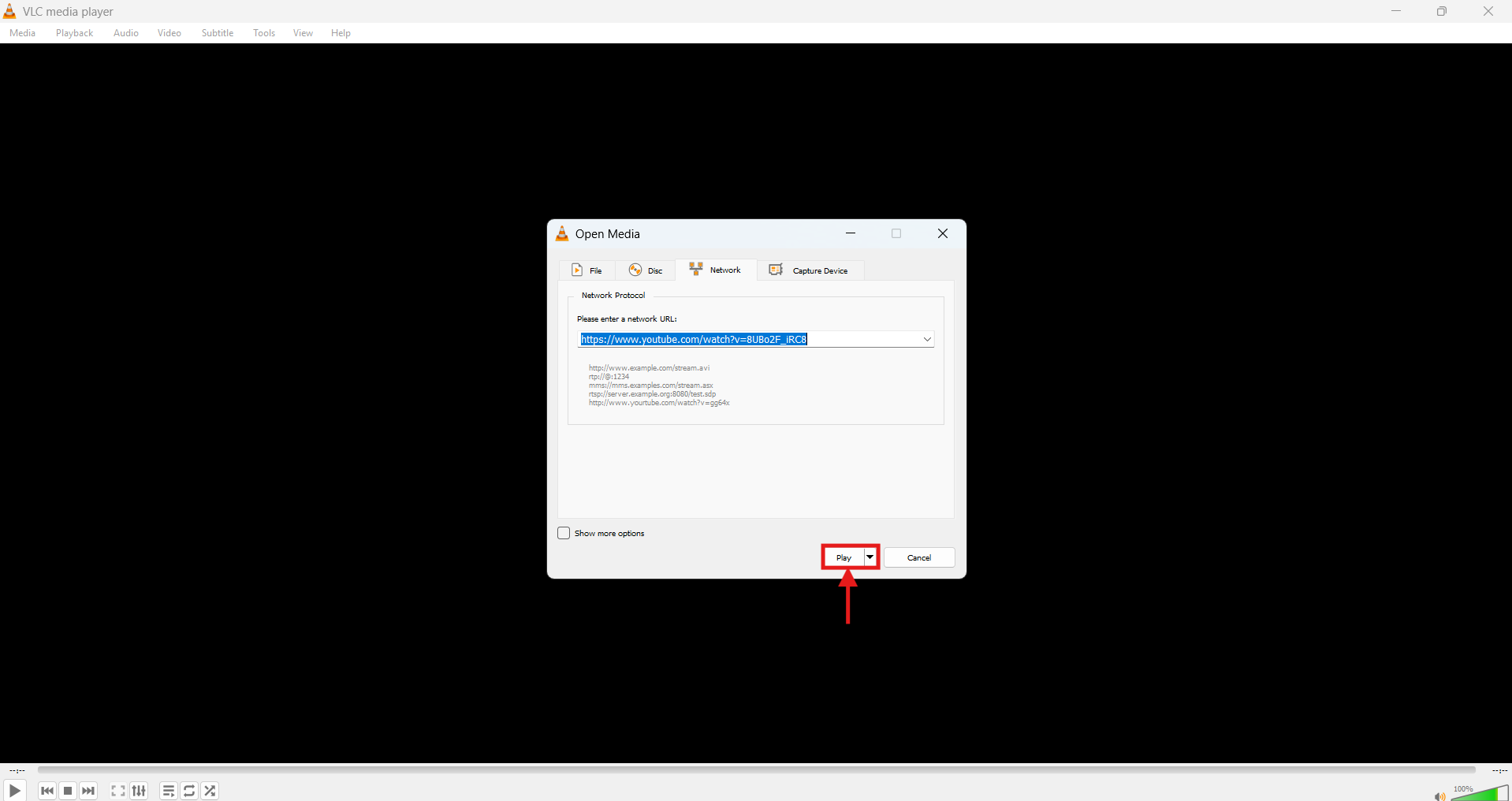
Step 3: On the window that opens up, paste your copied YouTube link and press “Play.” Your YouTube video will start streaming on the player instantly.
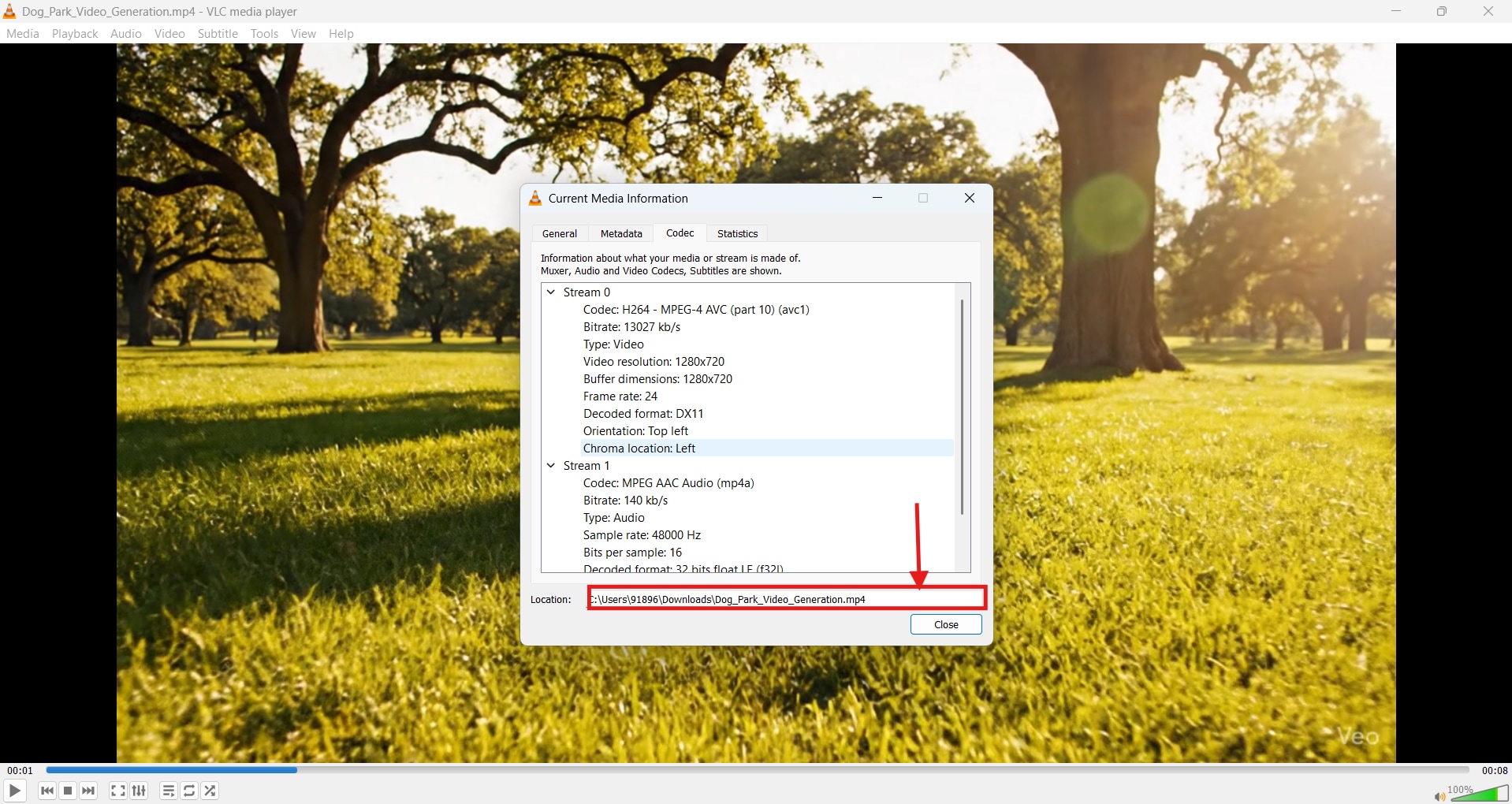
Step 4: Now, navigate to “Tools > Codec Information” or simply press Ctrl + J (Command + J on Mac). This will bring all the technical information for the video you’re playing.
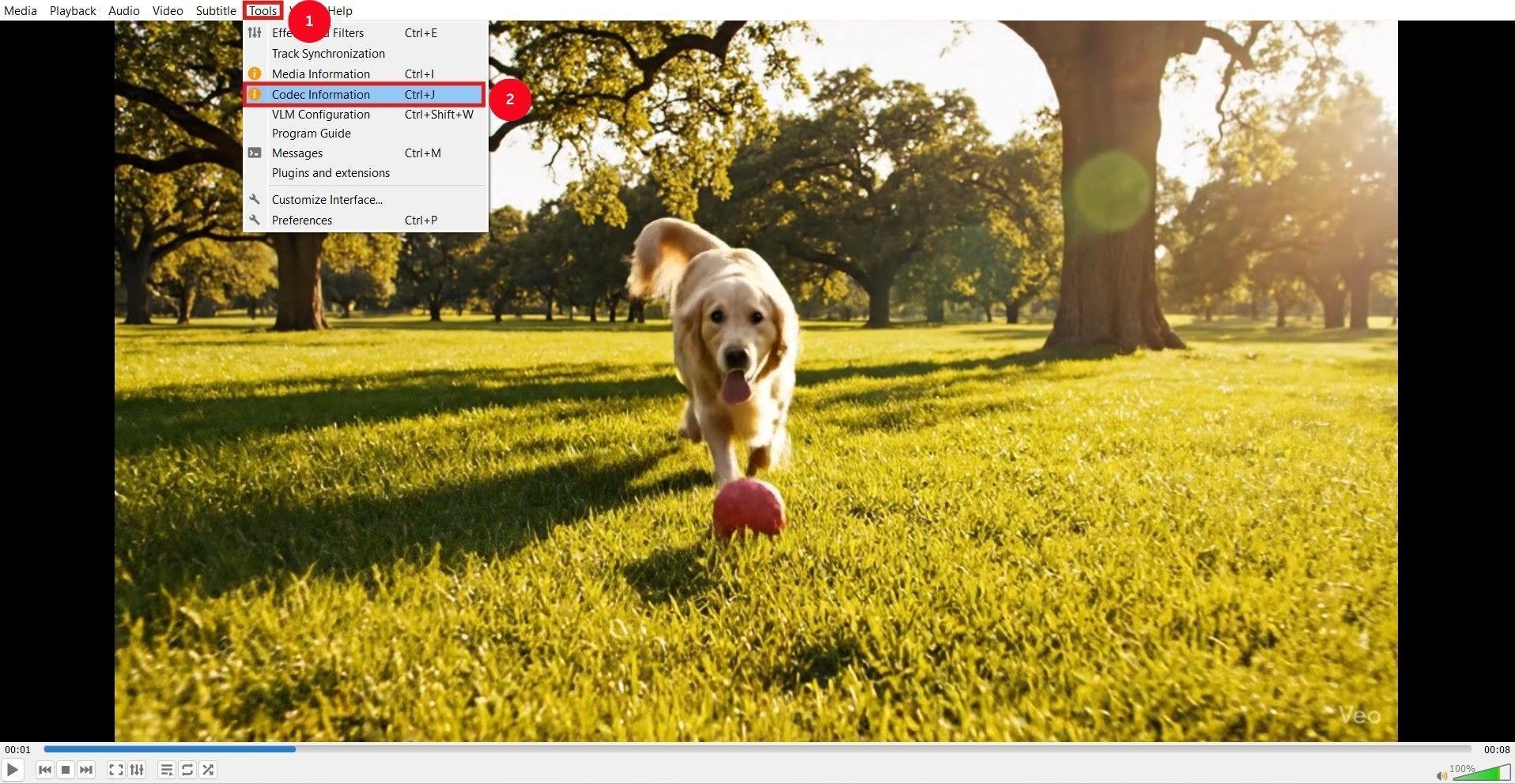
Step 5: Find the “Location” label at the bottom of the window and copy the available URL.
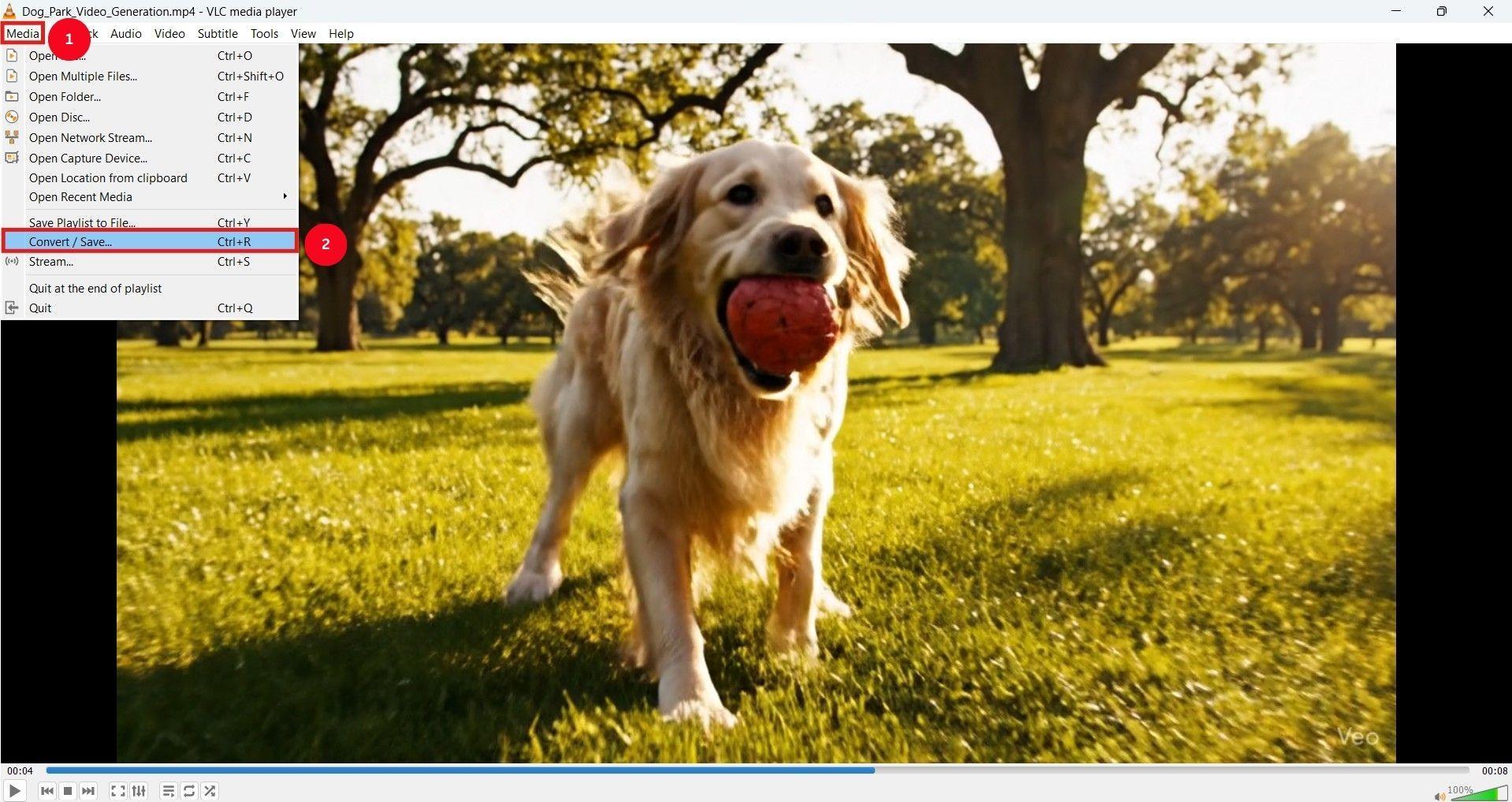
Step 6: Go to the Media option in the menu bar, then select Convert/Save.
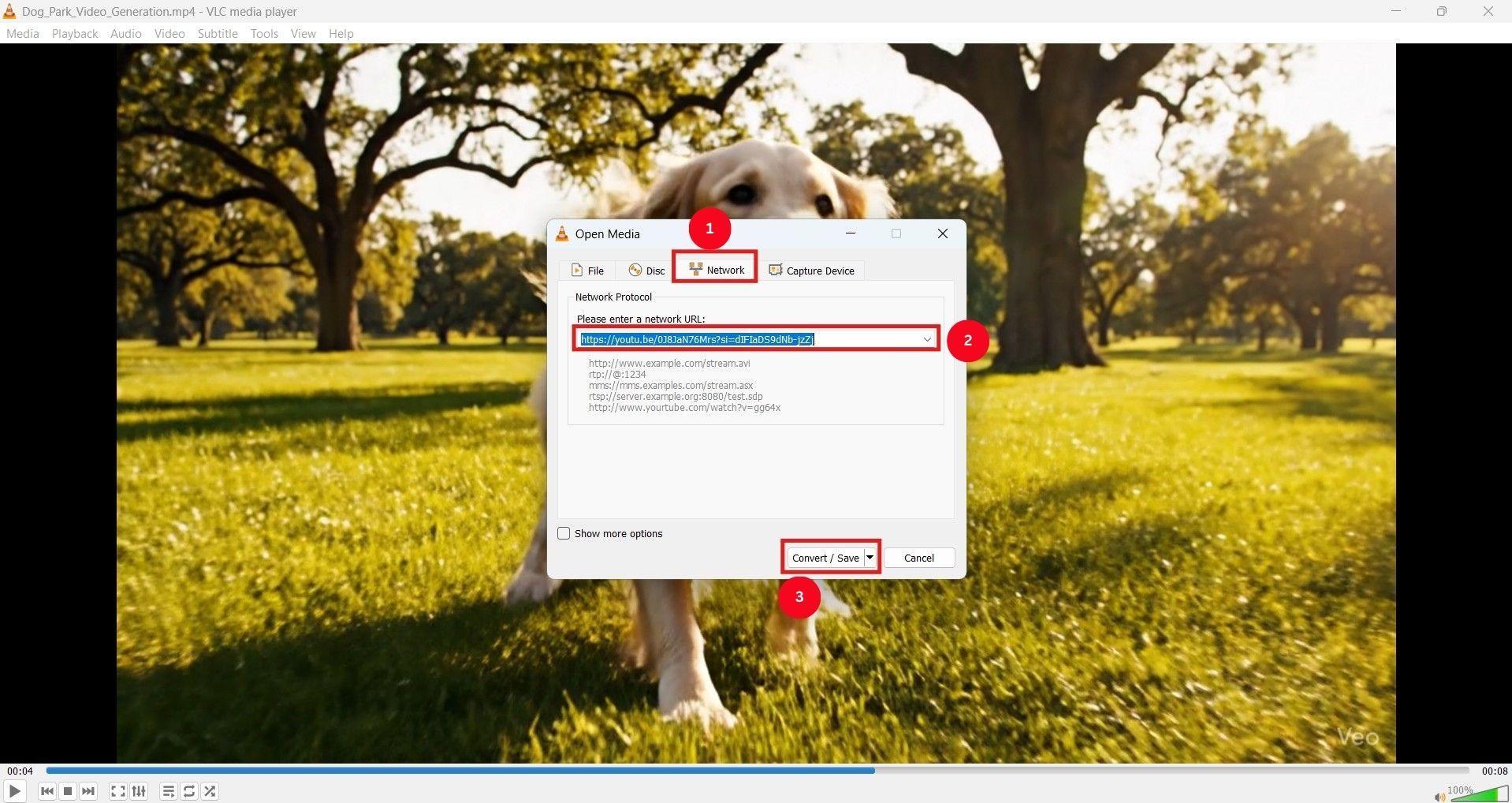
Step 7: Now, switch to the “Network” tab, paste the location link, and click “Convert/Save.”
Step 7: Select the format and location, then click Start. Your YouTube video should start downloading almost immediately.
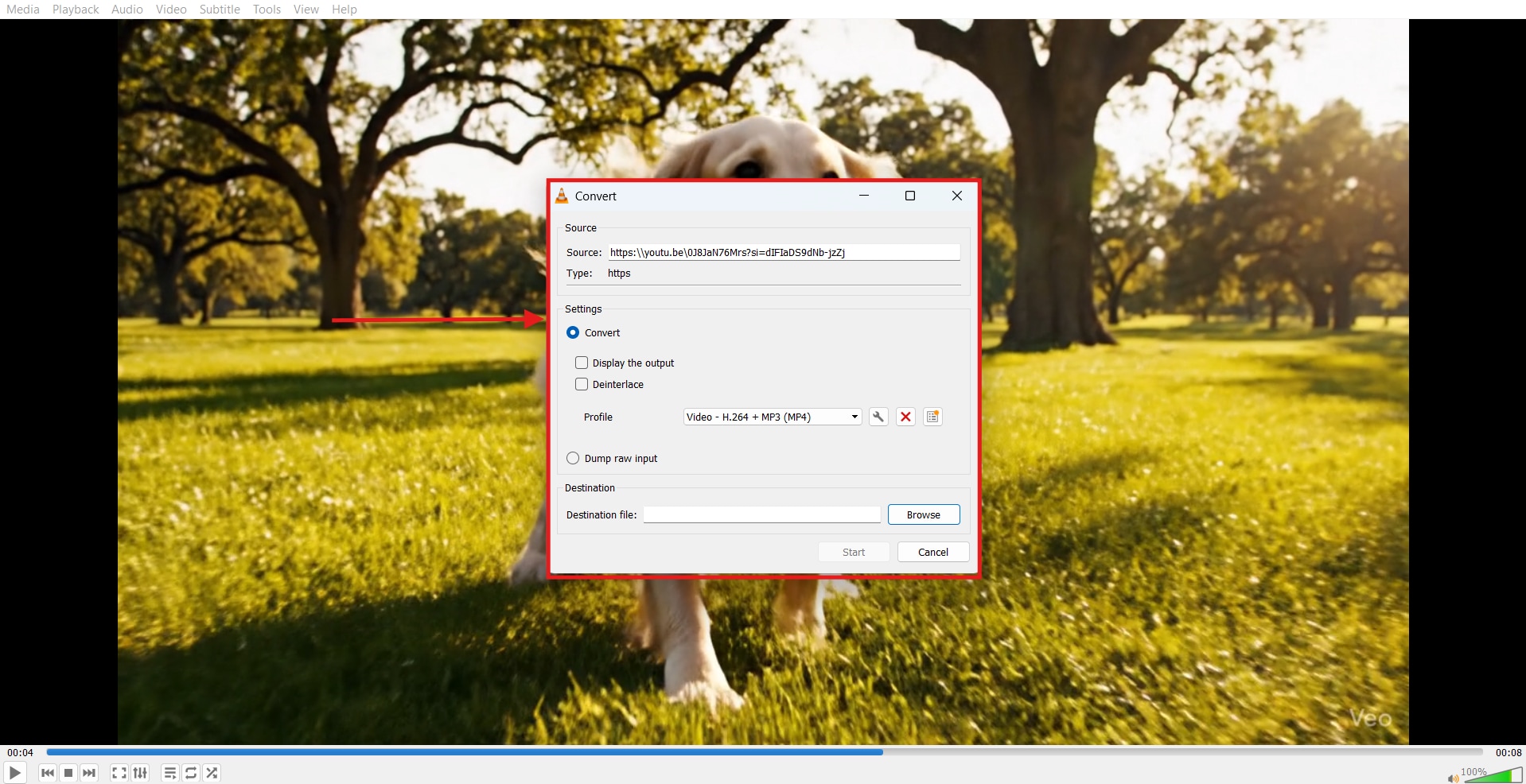
Method 2: Extracting the Direct Stream URL via VLC
You can also use VLC’s streaming feature to download a YouTube video and watch it offline whenever you want. Follow the steps in order:
Step 1: Open the YouTube video you want to download, select the desired quality, and copy its URL from the address bar.
Step 2: On the VLC media player, click “Media” from the top menu bar, followed by “Open Network Stream.”
Step 3: In the pop-up window that appears, paste the URL, click the down arrow next to the “Play” button, and select “Stream” from the dropdown menu.
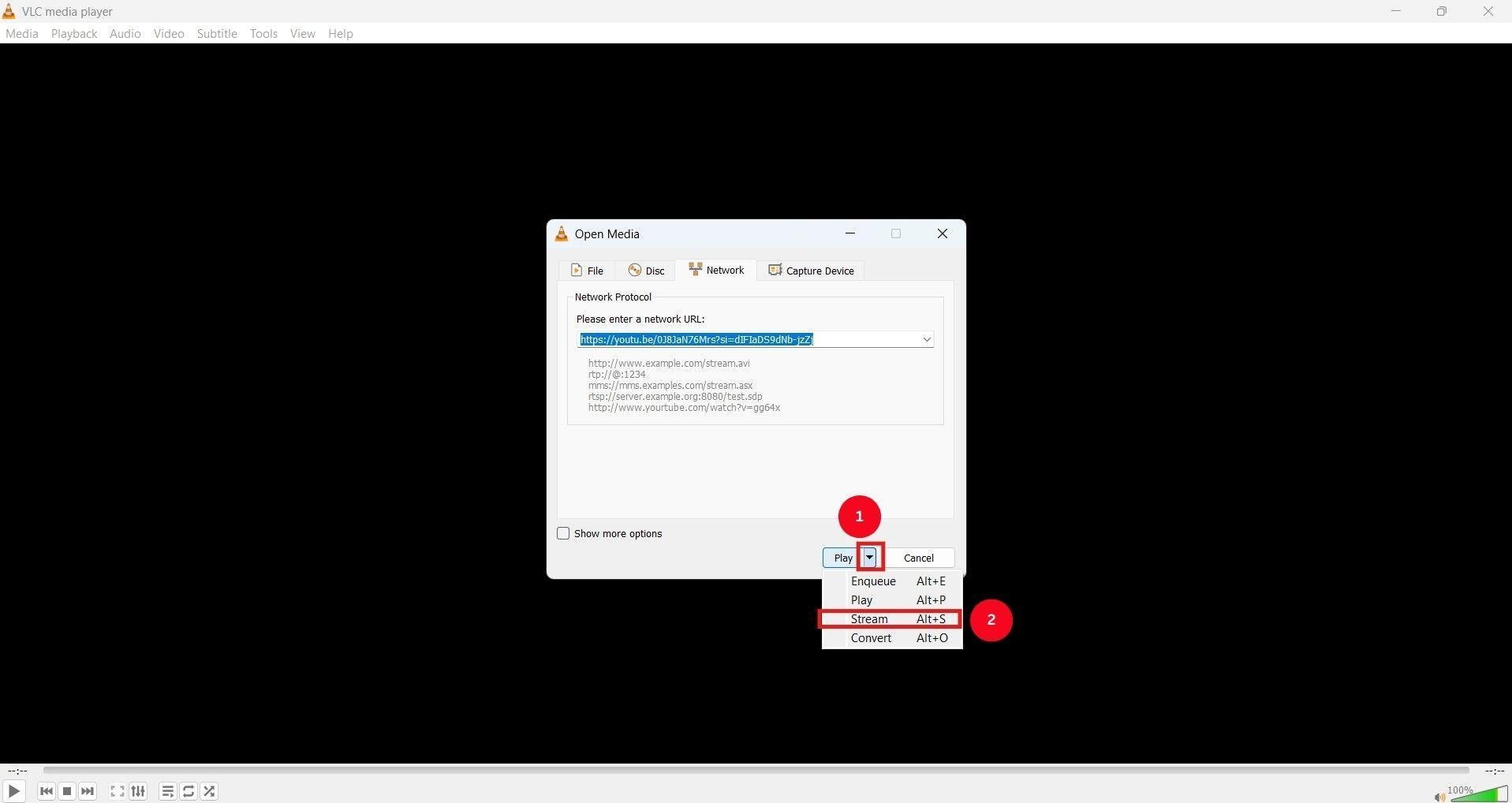
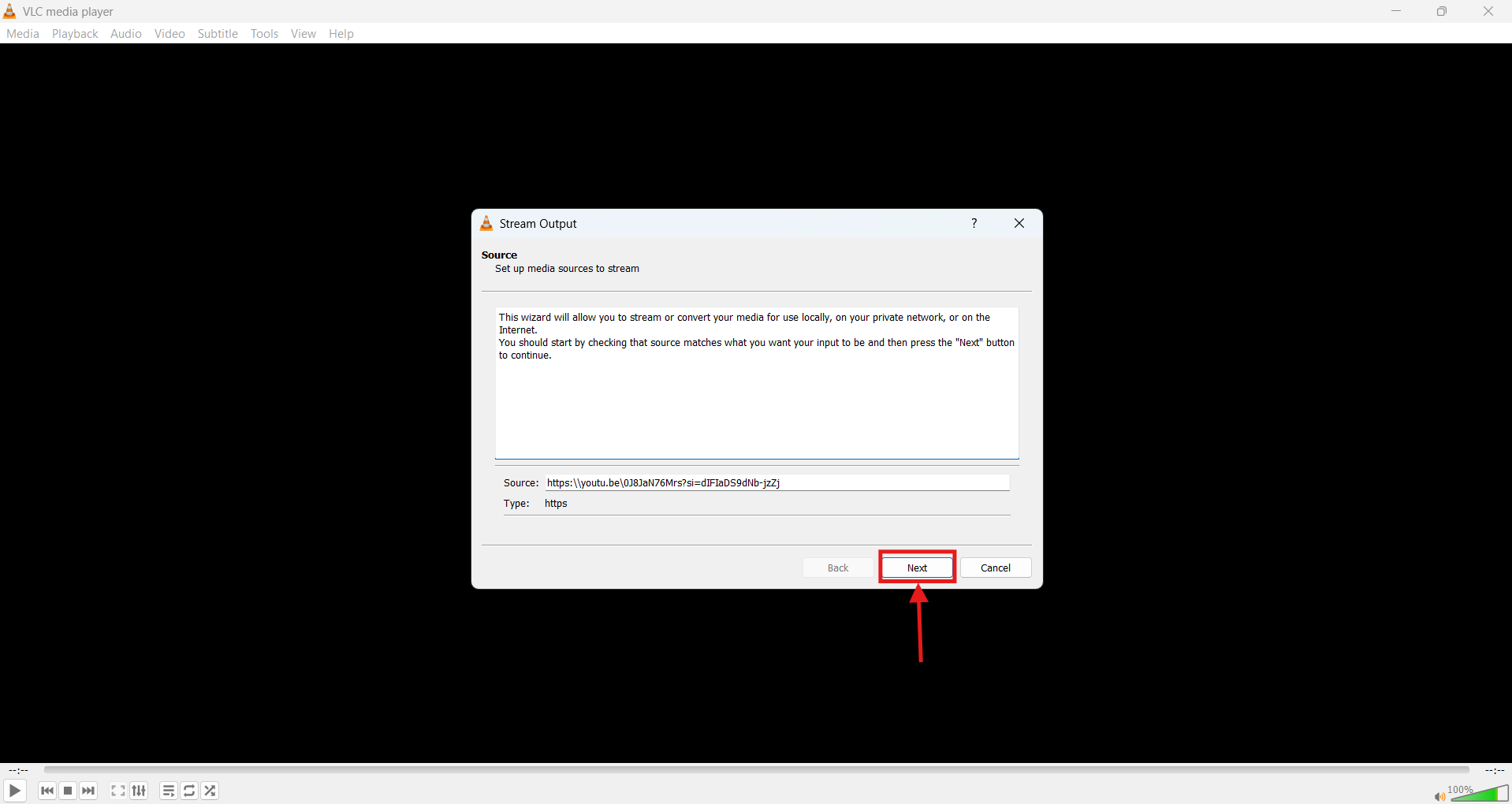
Step 4: Keep clicking “Next” on the pop-up windows until the “Option Setup” window appears.
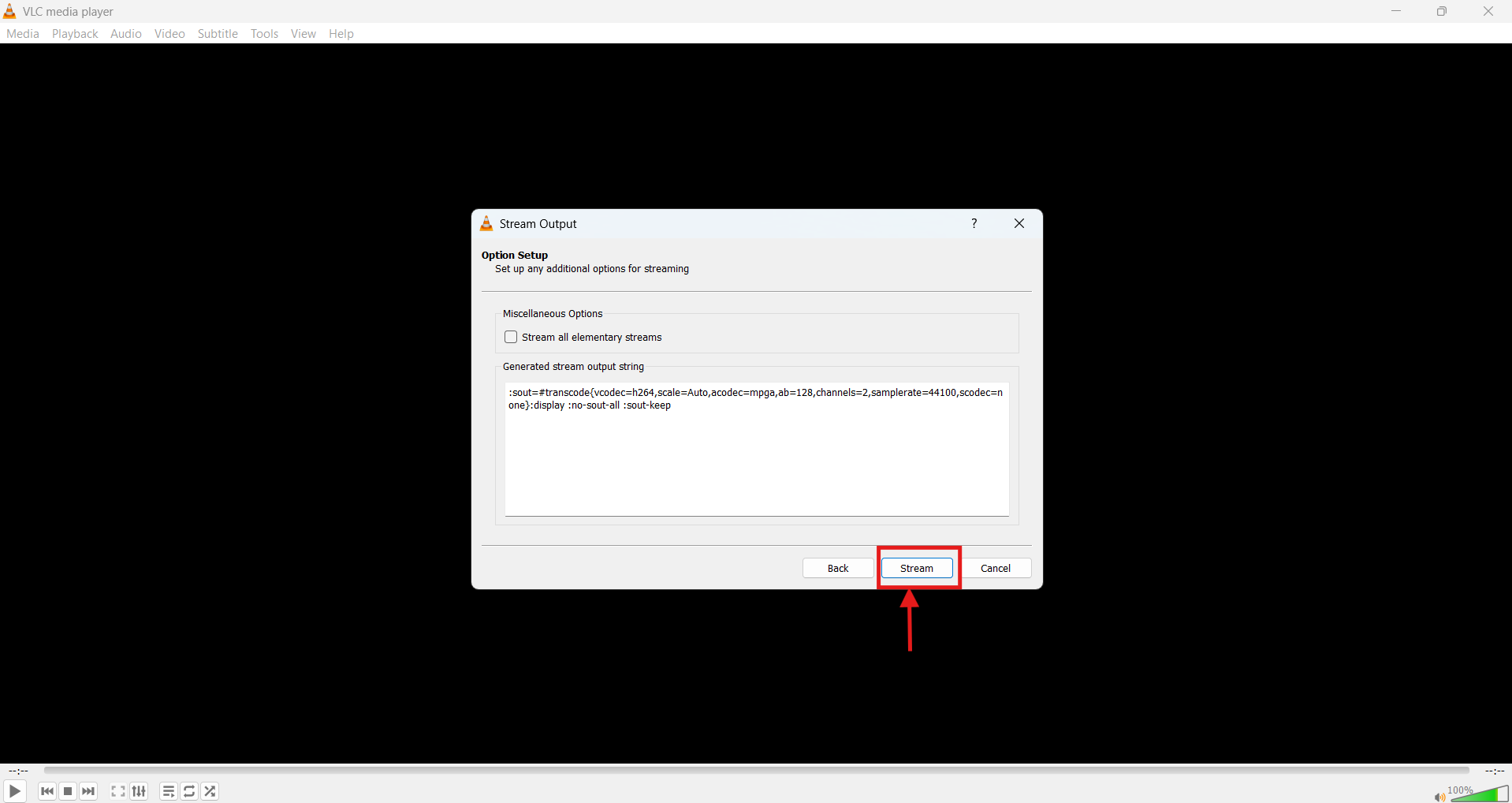
Step 5: In the window that appears, click “Stream,” and wait a few moments for VLC to stream the YouTube video.
Part 4: VLC YouTube Download Not Working? Try These Fixes
Solution 1: Update VLC to the Latest Version
As YouTube continues to update its infrastructure to prevent third-party tools from downloading videos, an outdated version of VLC may be unable to stream them. The simplest solution is to update VLC Media Player to download YouTube videos worry-free.
Step 1: Launch VLC media player on your computer, open “Help” and select “Check for Updates.”
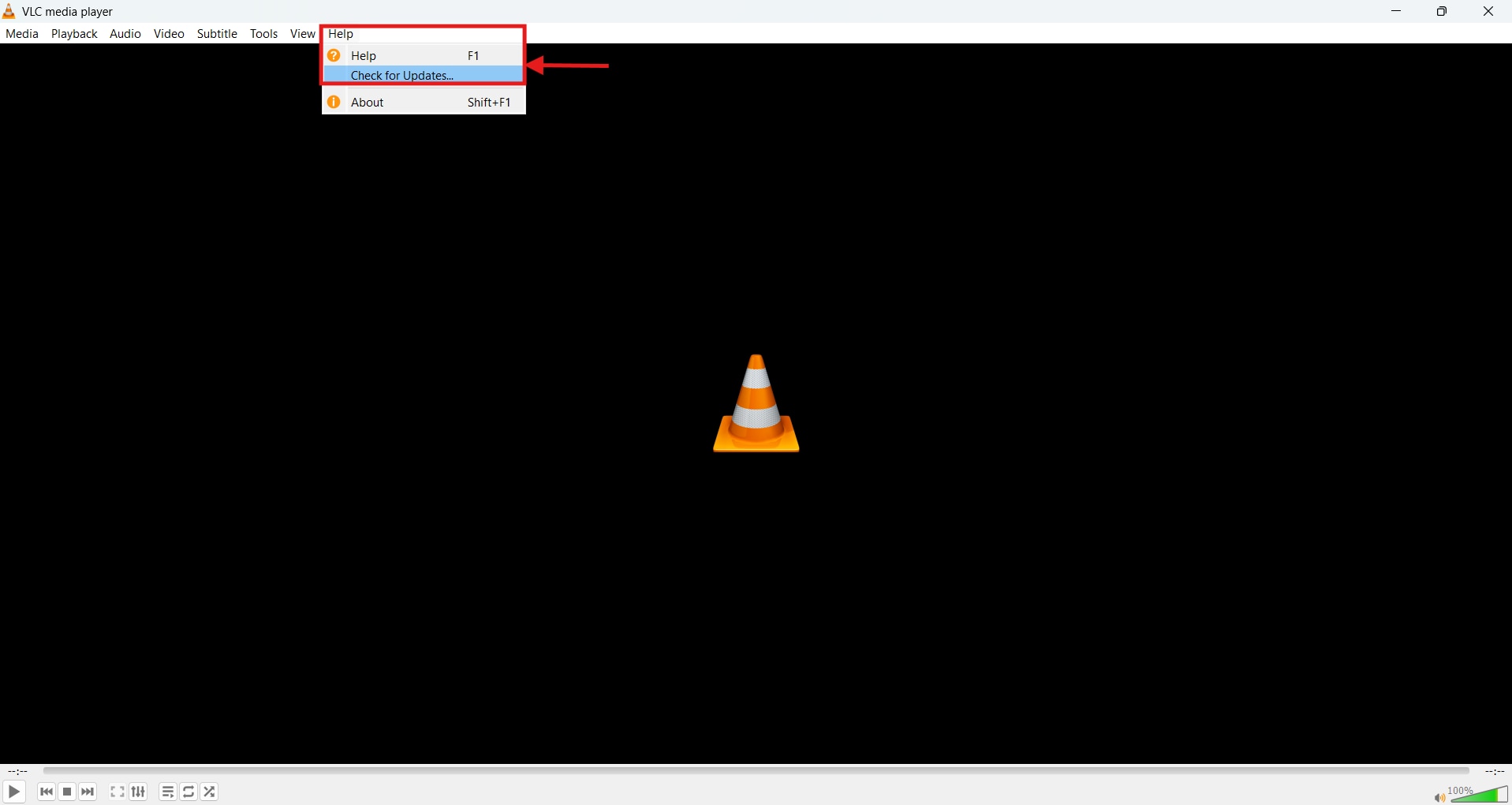
Step 2: If a new version is available, select “Yes” to download and install the media player on your computer.
Solution 2: Replace the YouTube Lua Script
The youtube.lua file in VLC is a precompiled Lua script that extracts video download links. However, if youtube.lua links are corrupted or expired, VLC Media Player won’t be able to download YouTube videos. Here are the steps to replace the youtube.lua script:
Step 1: Access VLC Media Player’s official website, click the down arrow associated with the code, and download the youtube.lua file on your computer.
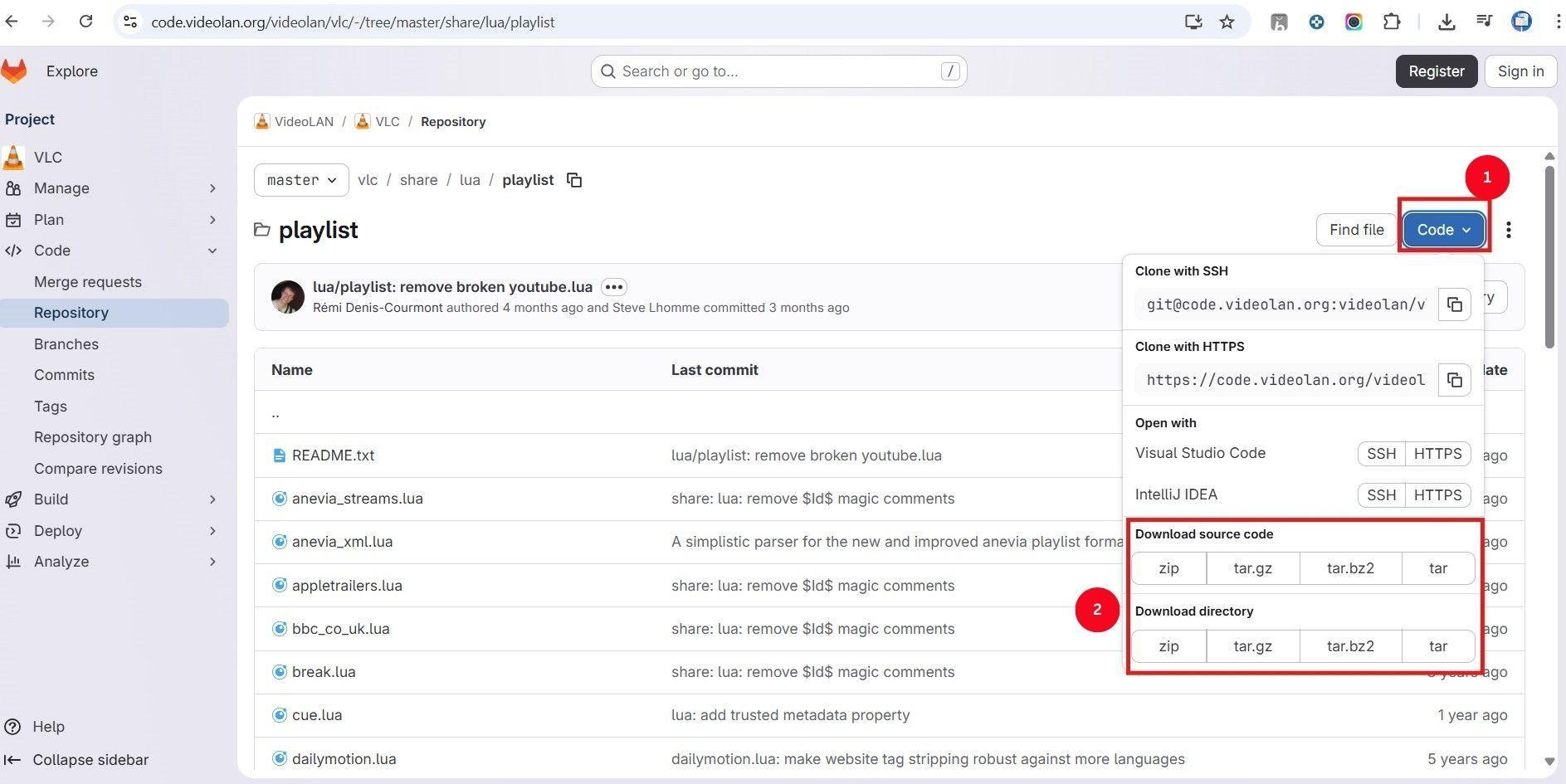
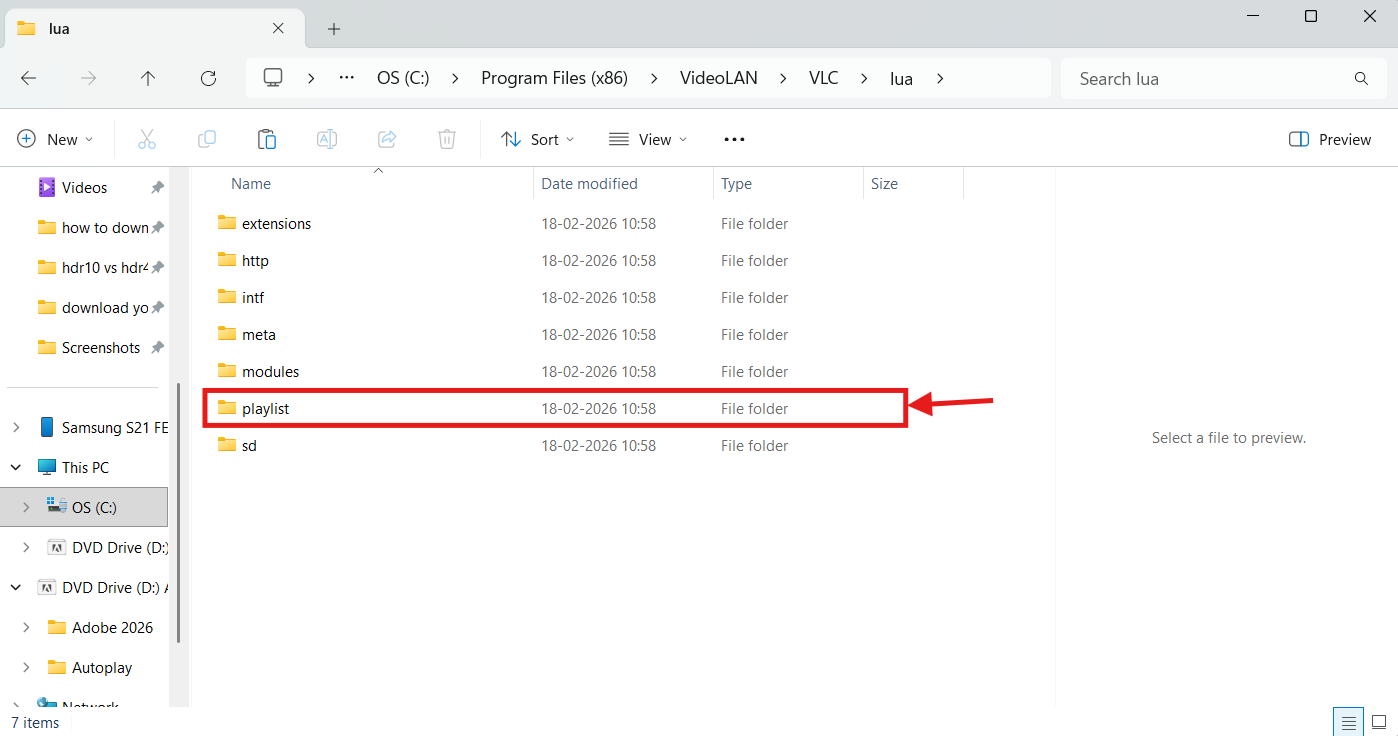
Step 2: Depending on your device type, open the lua folder in one of the following paths:
32-bit Windows: C:\Program Files\VideoLAN\lua\playlist
64-bit Windows: C:\Program Files(x86)\VideoLAN\VLC\lua\playlist
MacOS:/Applications/VLC.app/Contents/MacOS/share/lua/playlist
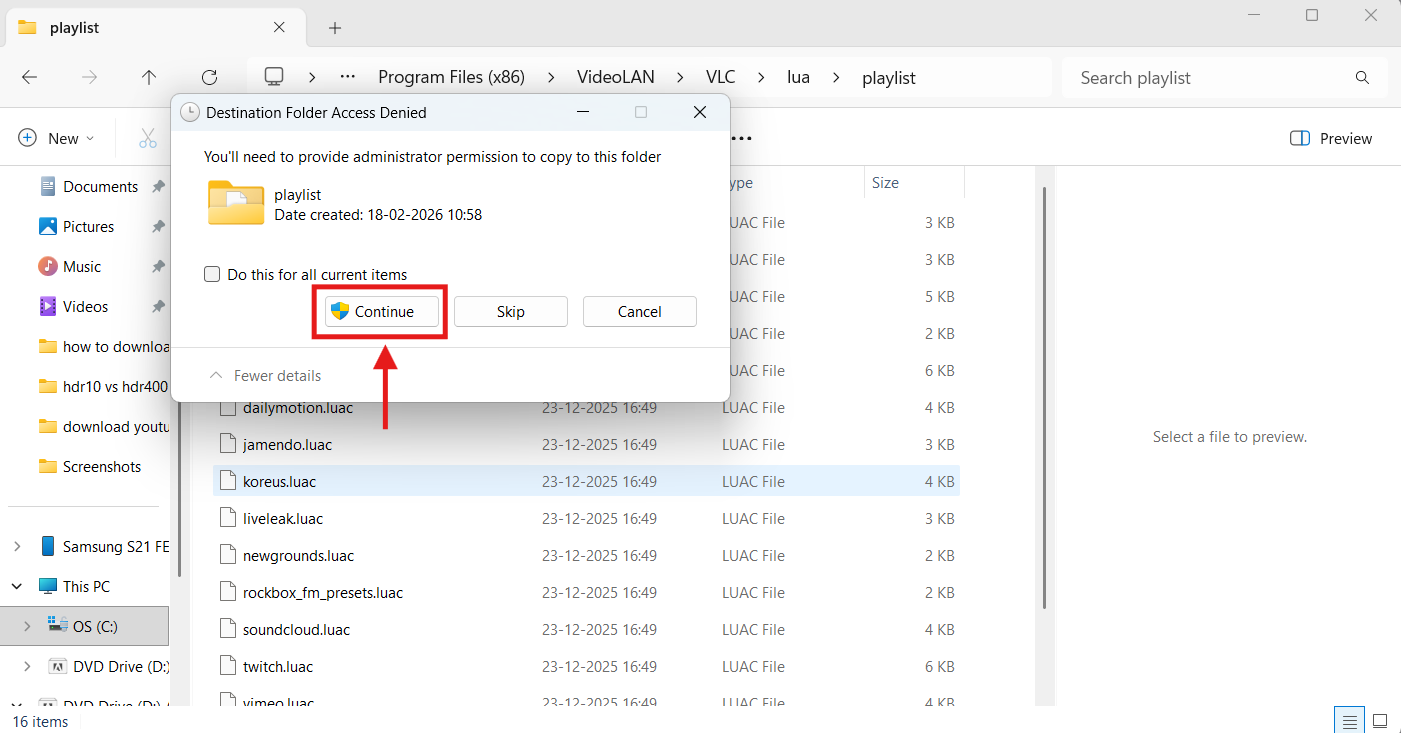
Step 3: Copy and paste the new youtube.lua, and click on “Continue” to replace it with the outdated lua file.
Step 4: Restart VLC media player, then extract the YouTube URL from the Network Stream panel again.
Solution 3: Disable Cookies Forwarding
Disabling cookie forwarding is another fix that may resolve the YouTube VLC download issue, as it removes an unnecessary variable from the pipeline. The process can be convenient, but it’s crucial to back up and safeguard the files before you get started.
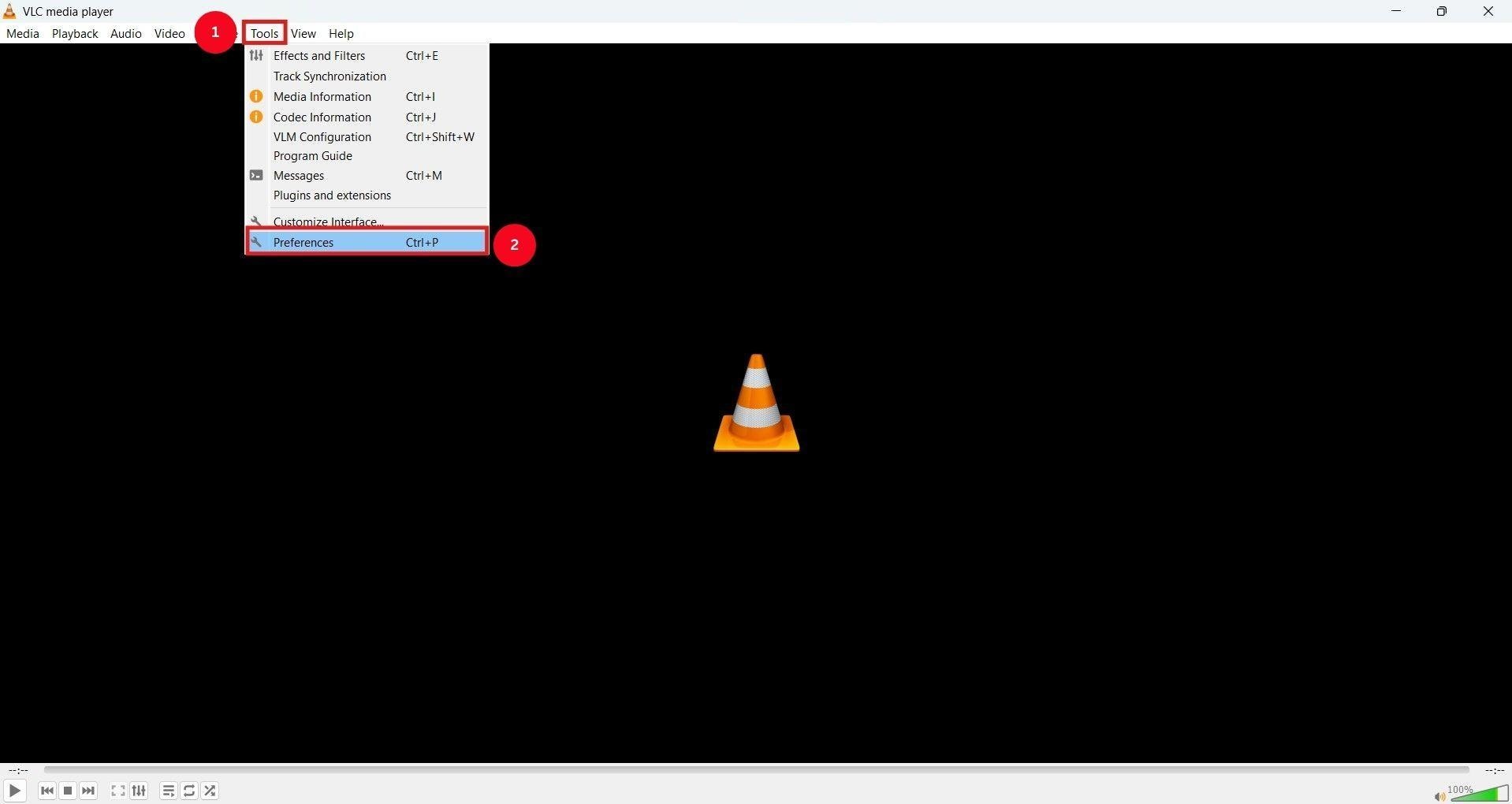
Step 1: On the VLC media player, click “Tools” from the top menu ribbon, followed by “Preferences” from the dropdown menu.
Step 2: Select the “All” option in Show Settings at the bottom-left corner, and click “Input/Codecs > Access Modules > HTTPS.”
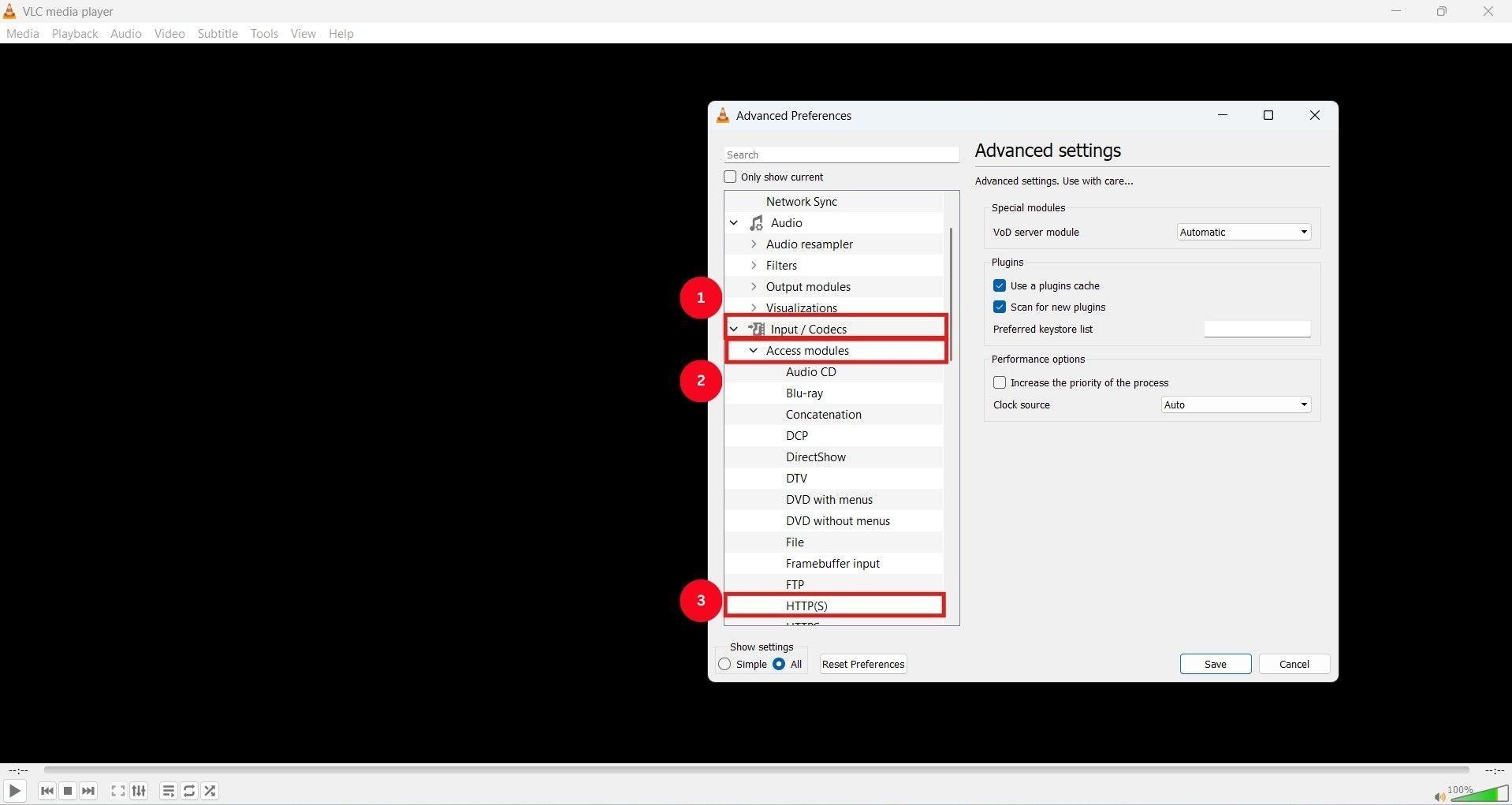
Step 3: Unselect “Cookies Forwarding” and click on “Save” to save the changes.
Solution 4: Disable Hardware-Accelerated Decoding
If cookies forwarding doesn’t resolve the VLC YouTube download issue, try disabling hardware-accelerated decoding. This might fix any driver issues, stability problems, or unsupported codecs.
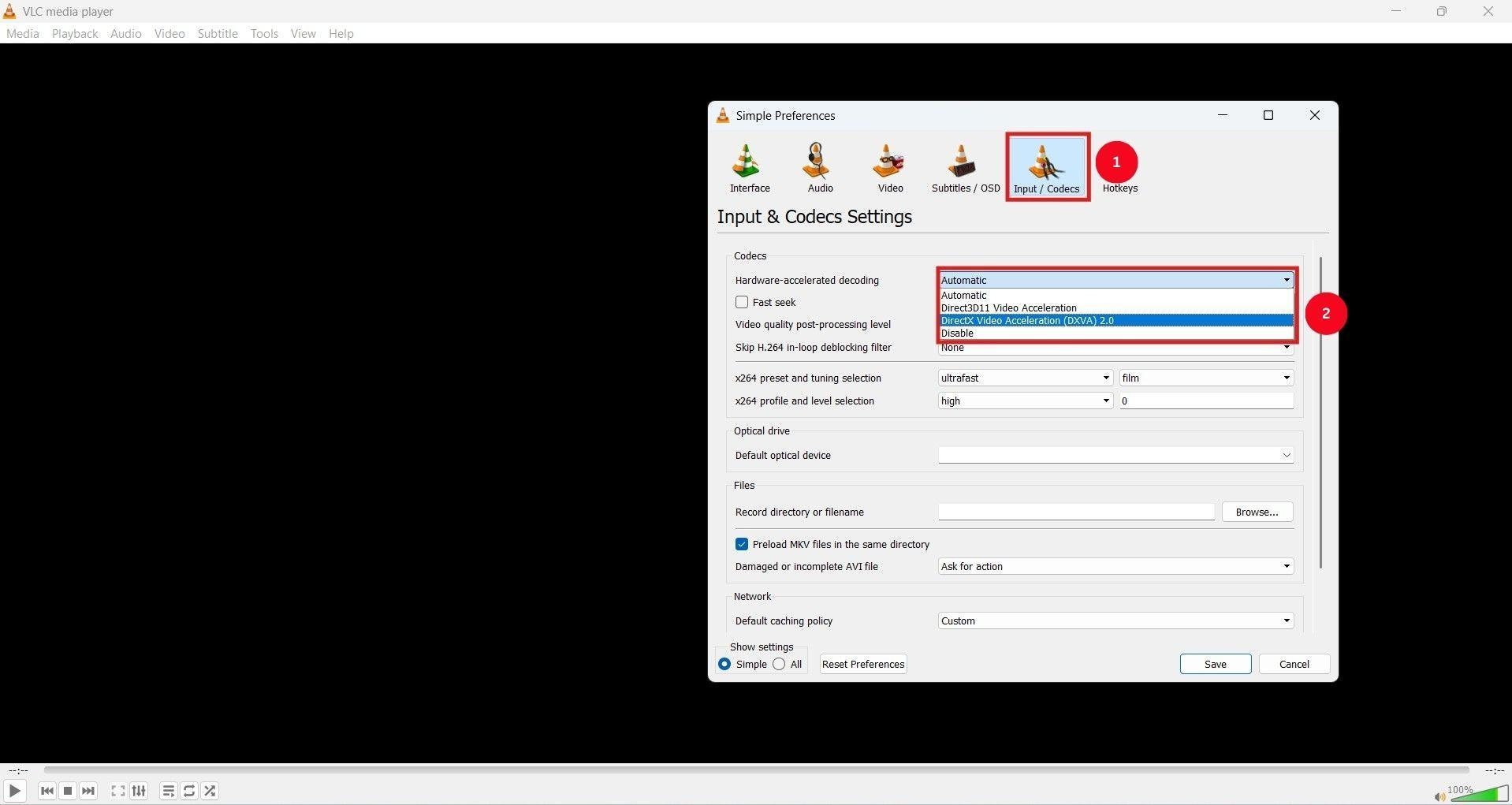
Step 1: In VLC Media Player, go to Tools > Preferences.
Step 2: Select the “Input/Codecs” tab, click “Hardware-accelerated decoding” and select one from the dropdown menu. Then, click on “Save.”
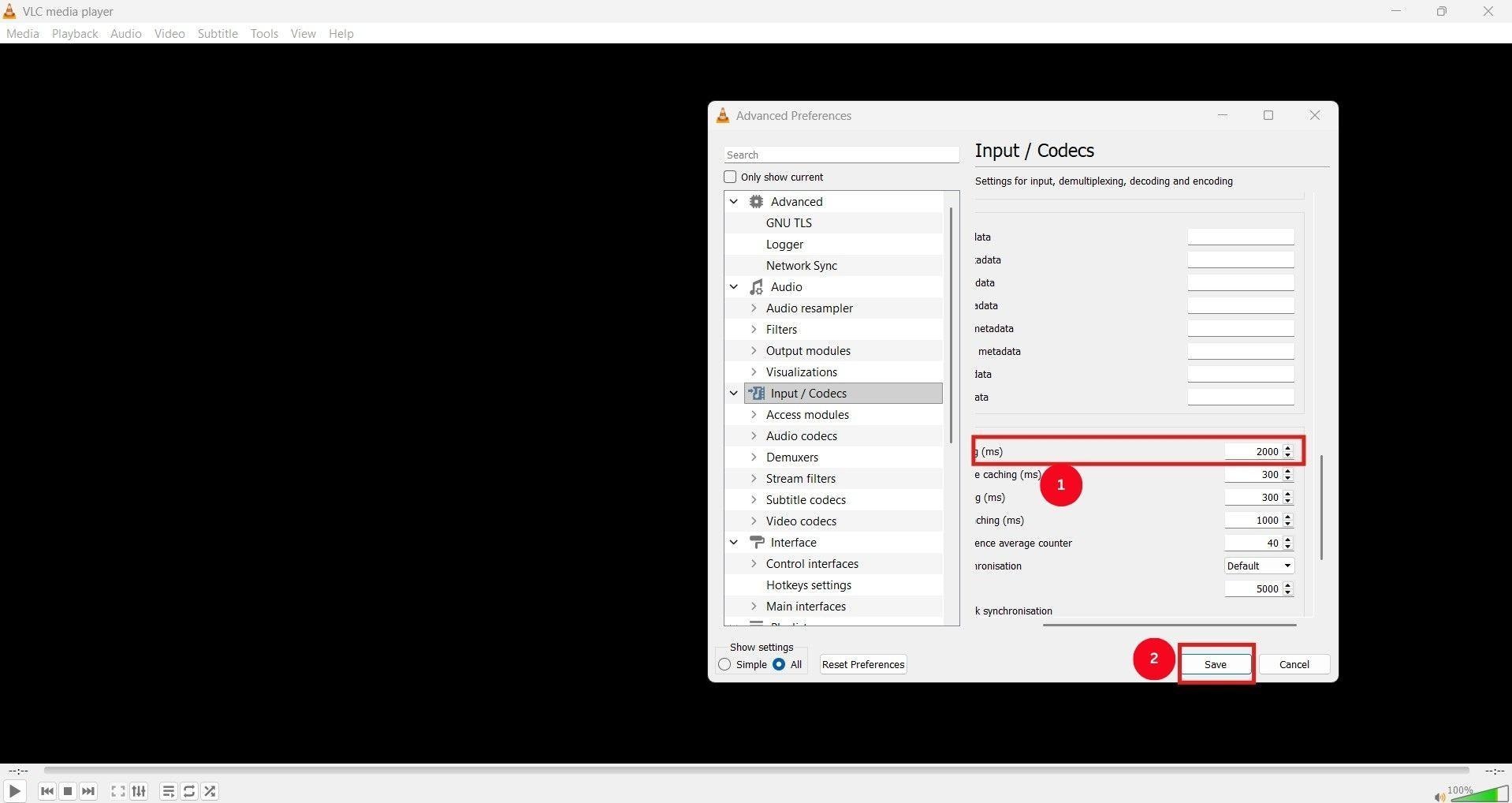
Solution 5: Adjust File Caching Value
The file caching value in VLC represents the amount of memory allocated for caching files to process multimedia files. Often, a lower caching value can create an issue when you try to download YouTube, so here are some steps to adjust the caching value:
Step 1: Go to Tools > Preferences in VLC Media Player.
Step 2: Select “All” from the “Show Settings” option and go to Input/Codecs > Advanced > File Caching (ms).
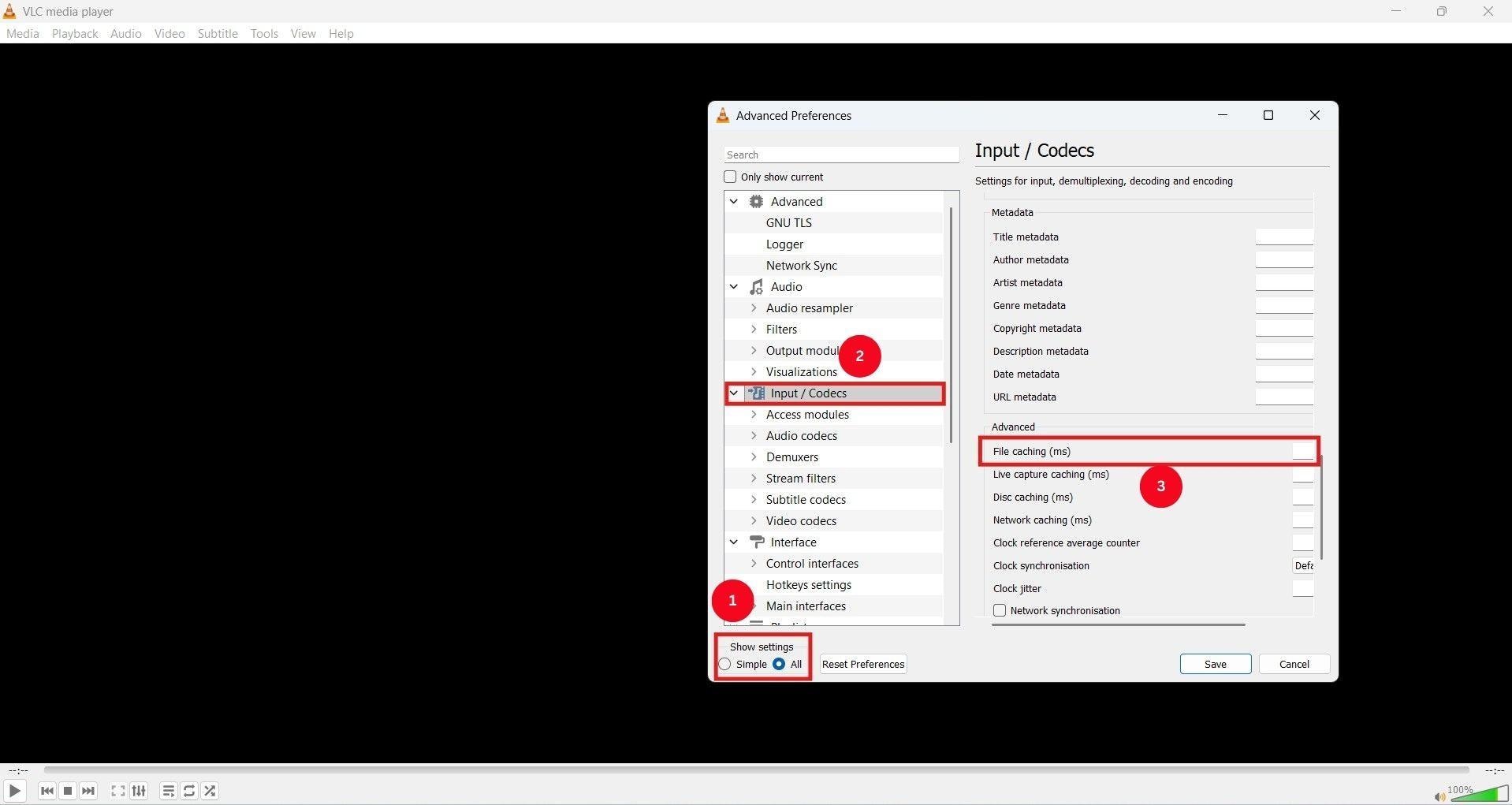
Step 3: Increase the File Caching value to 2000, click “Save,” and restart the media player to verify that downloads are working. If not, you can readjust the value and try again.
Solution 6: Temporarily Disable Firewall/Antivirus
In some cases, a firewall or antivirus software may block VLC from fetching the YouTube URLs. So, you can try disabling the antivirus and firewall.
If you have a Windows computer, here are the steps to follow:
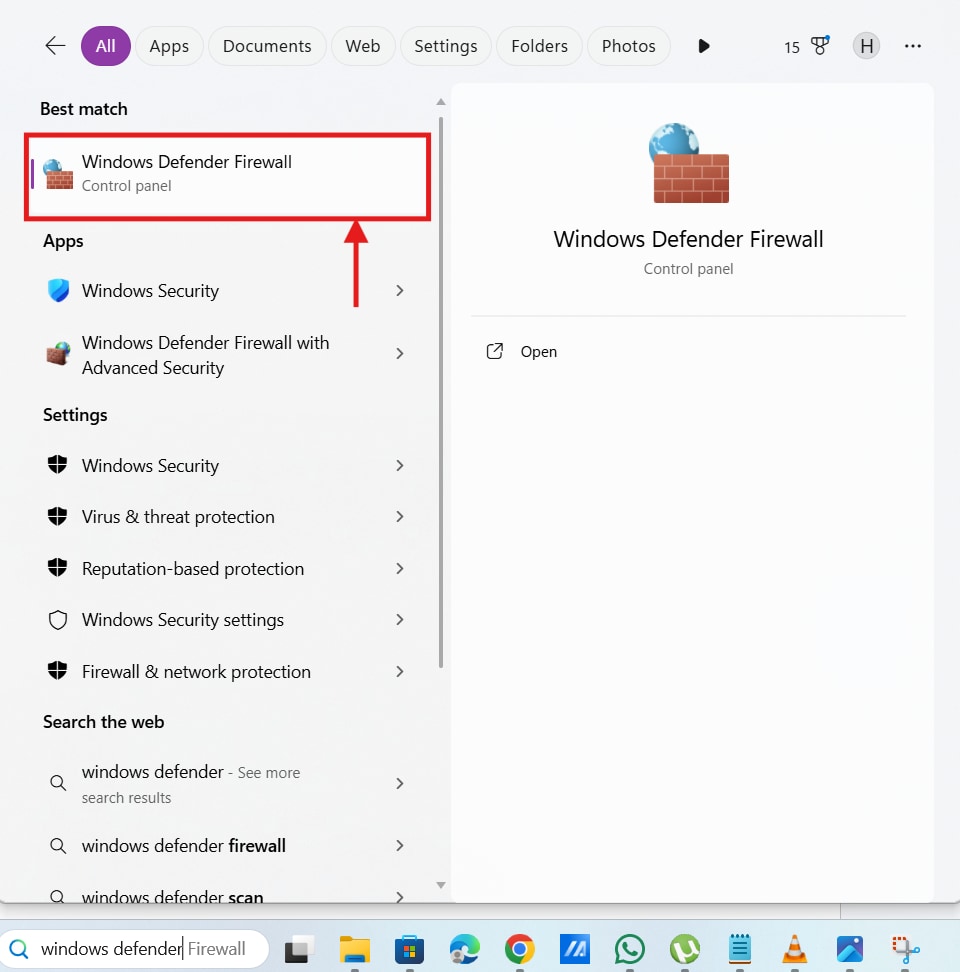
Step 1: In the Windows search bar, search for and open Windows Defender Firewall.
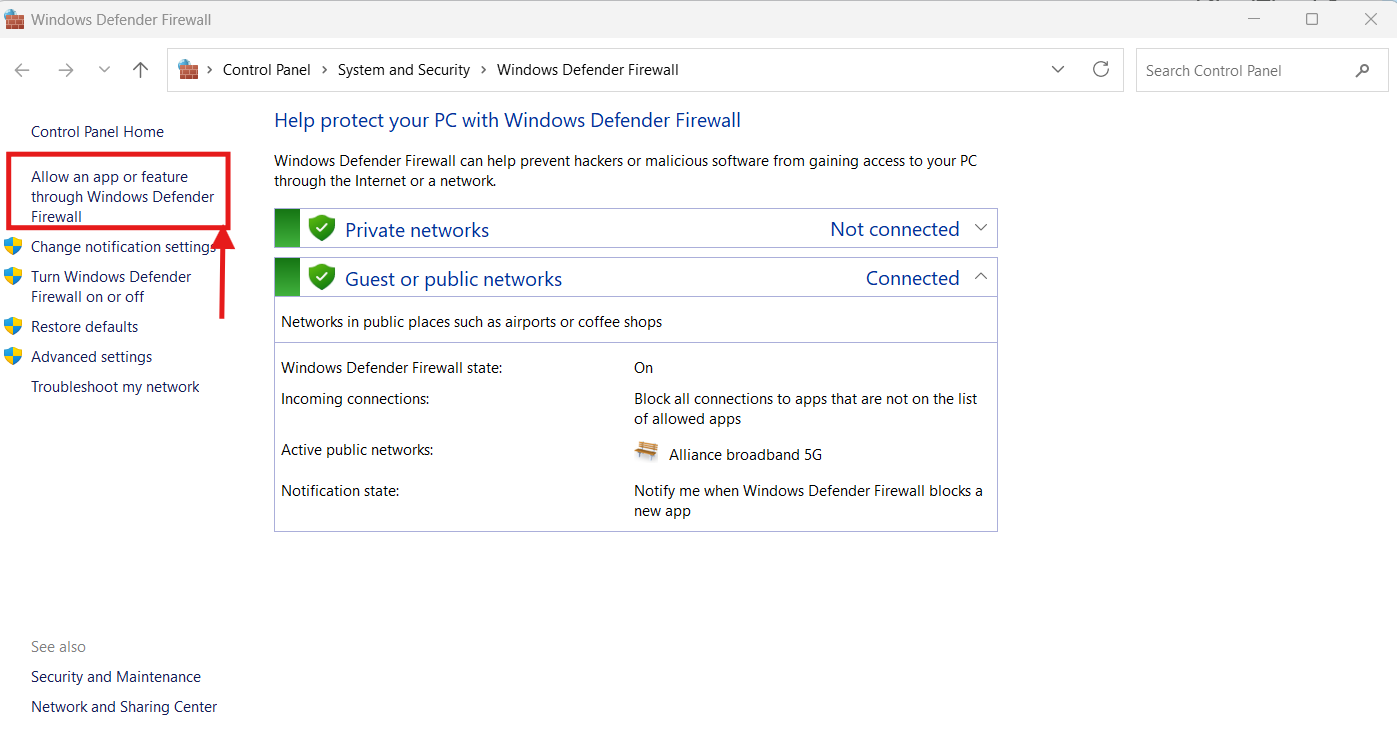
Step 2: Now, click “Allow an app or feature through Windows Defender Firewall.”
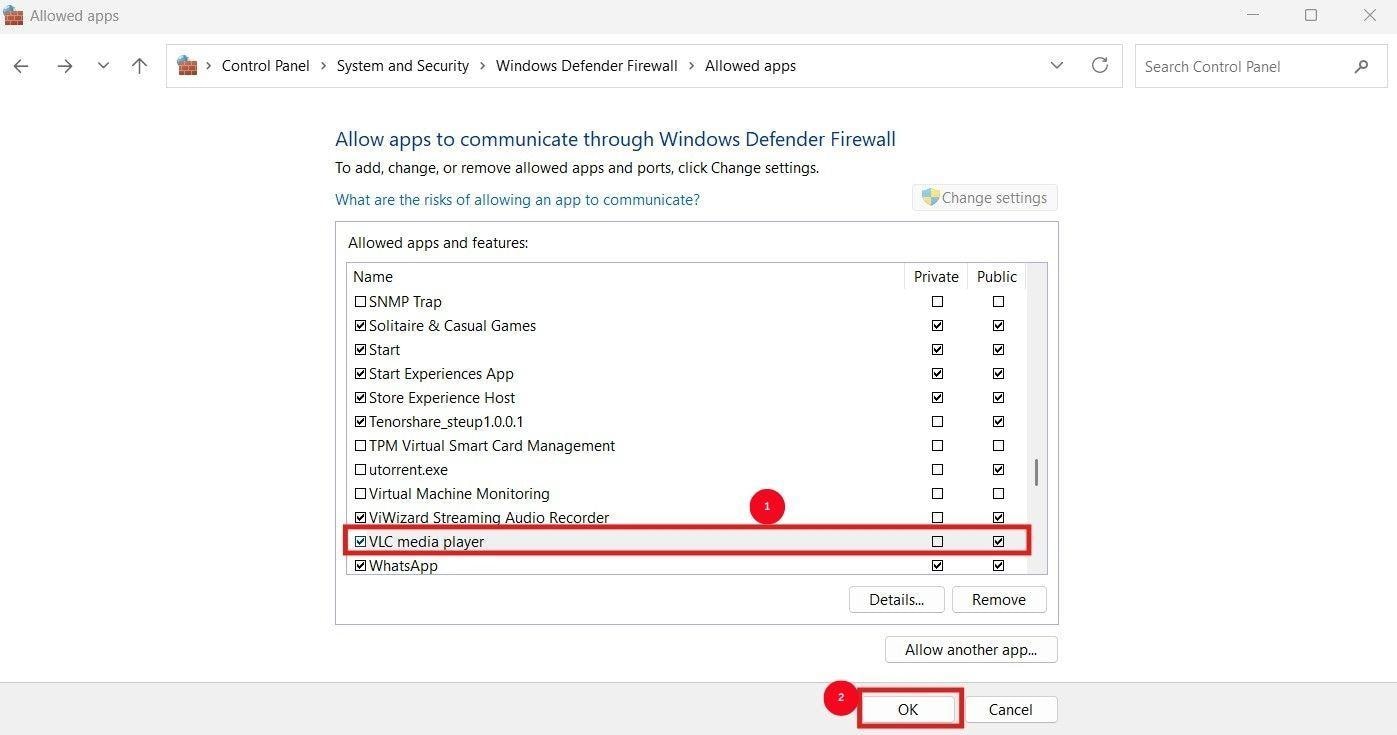
Step 3: Uncheck the options in VLC Media Player and click “ok.”
Meanwhile, for a Mac, follow the steps in order:
Step 1: Open the Apple menu and go to System Settings > Network.
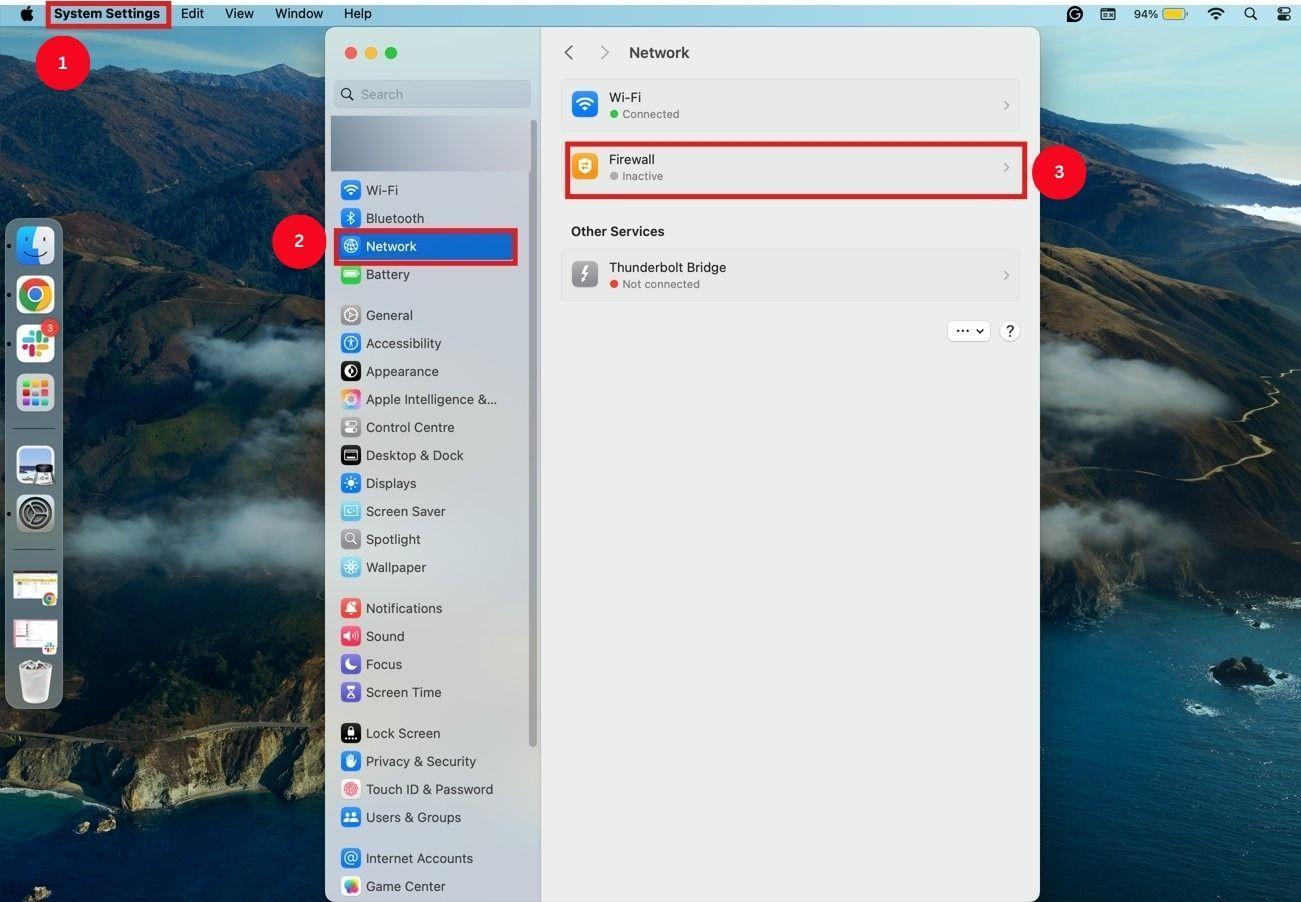
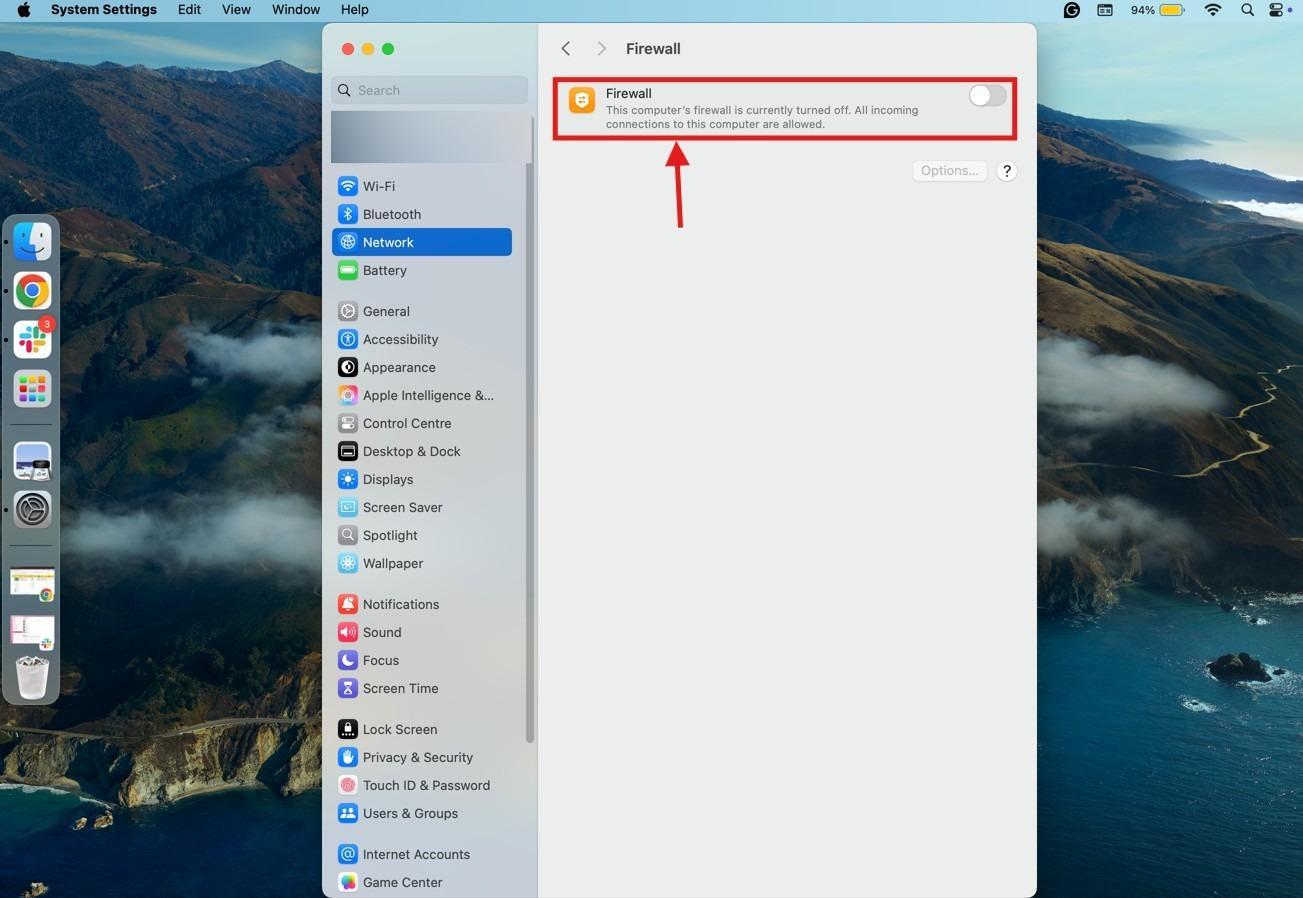
Step 2: Click “Firewall,” then switch it off and save the change.
Solution 7: Use VLC's Screen Recording Feature
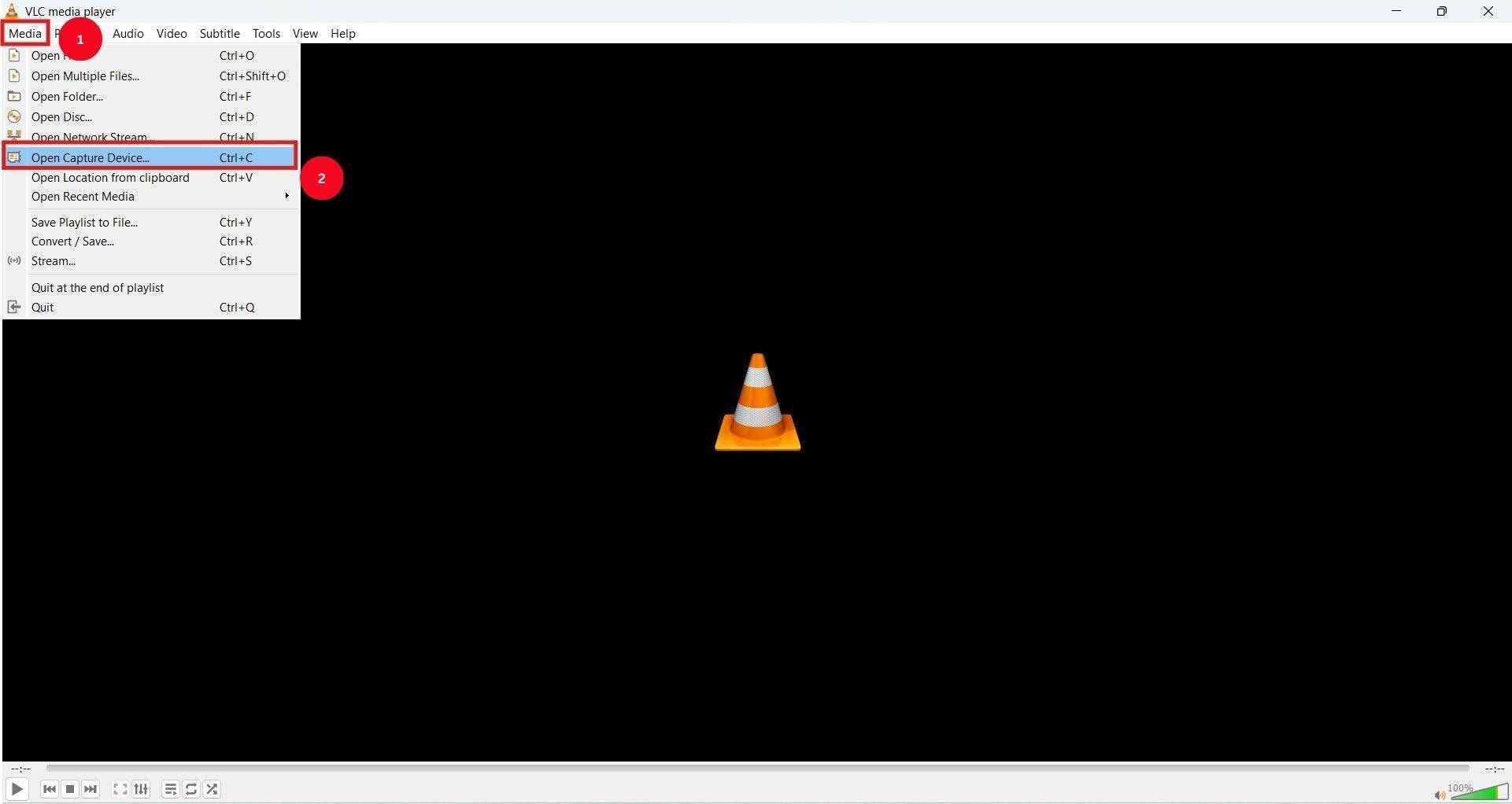
If none of the aforementioned methods resolve VLC's YouTube download issues, you can use its screen-recording feature. After all, the aim here is to save the YouTube video for offline viewing, so follow the steps:
Step 1: On the VLC menu ribbon, click “Media > Open Capture Device.”
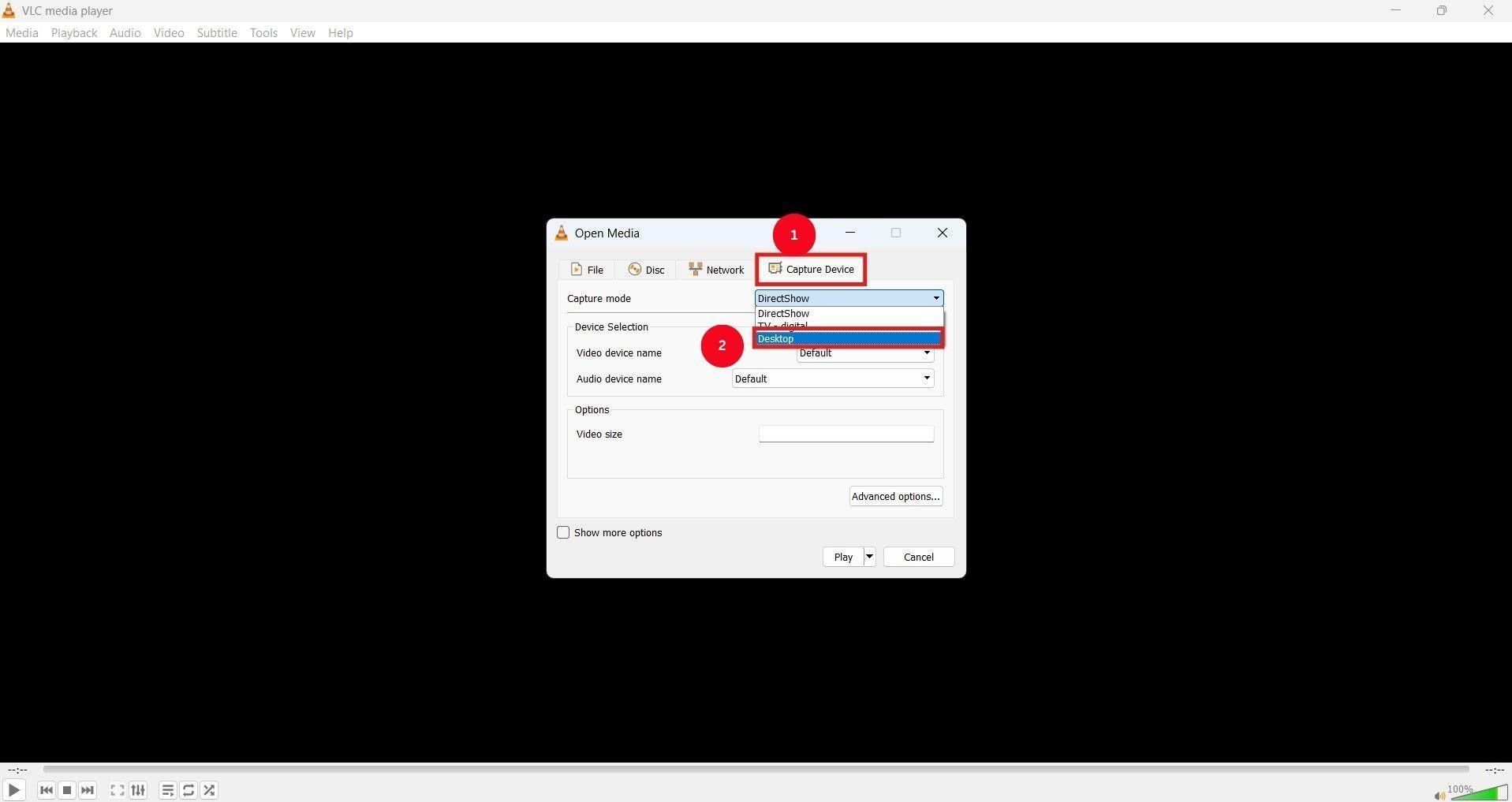
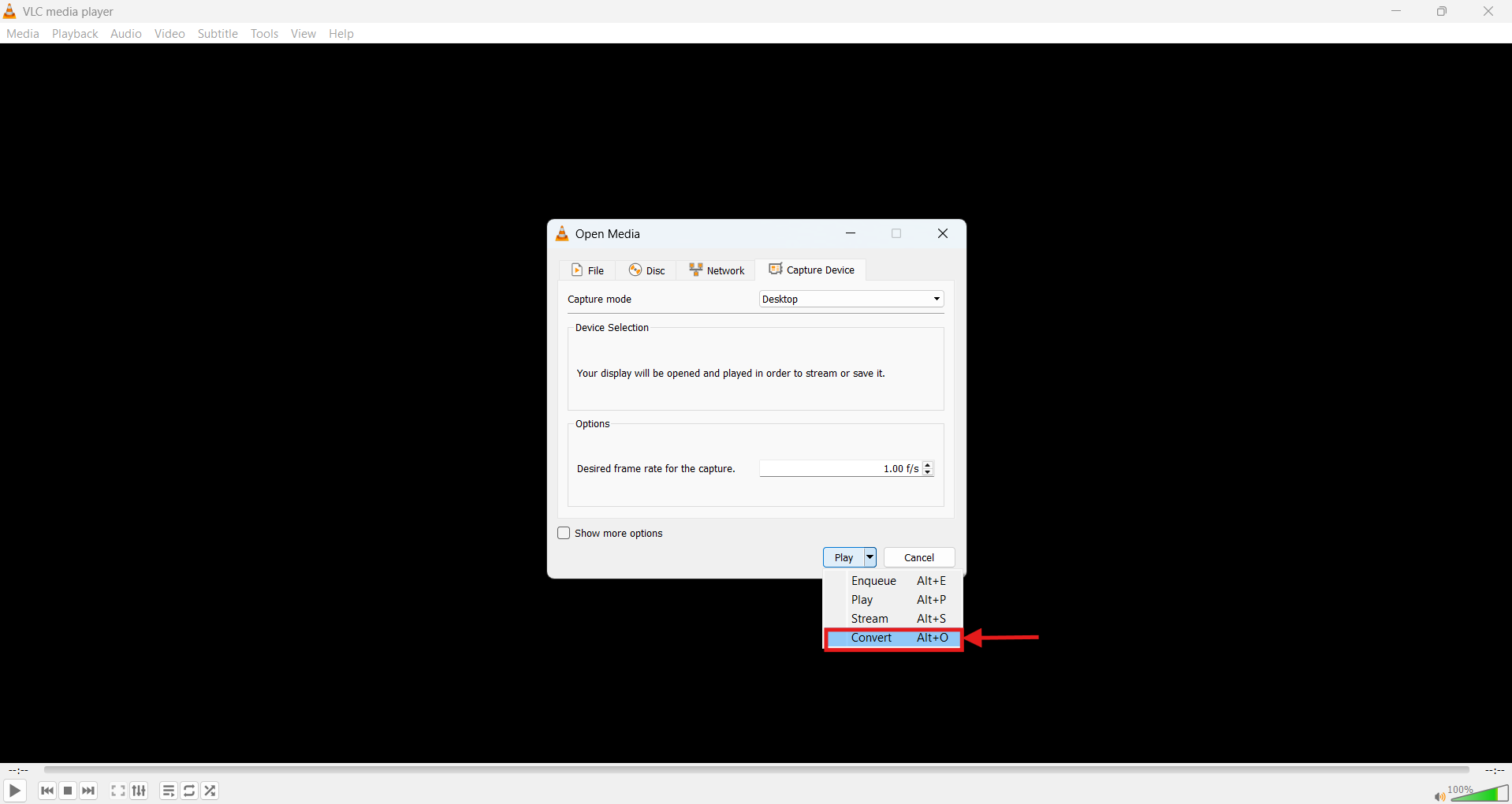
Step 2: Set the “Capture Mode” to “Desktop,” and input the desired frame rate for capture.
Step 3: Click the dropdown menu associated with “Play” and click the “Convert” option.
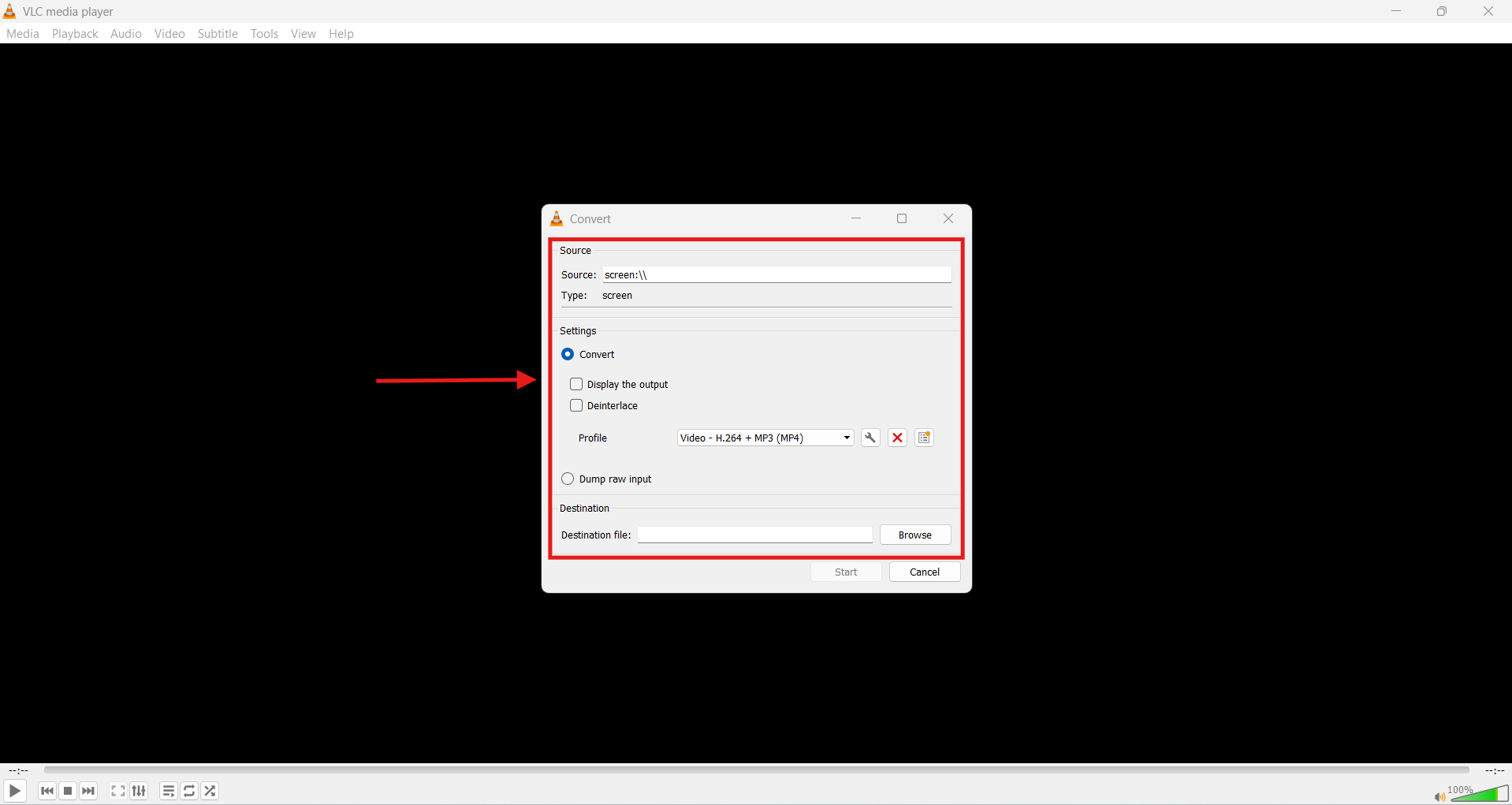
Step 4: In the new pop-up menu, set the file name, location, and output format.
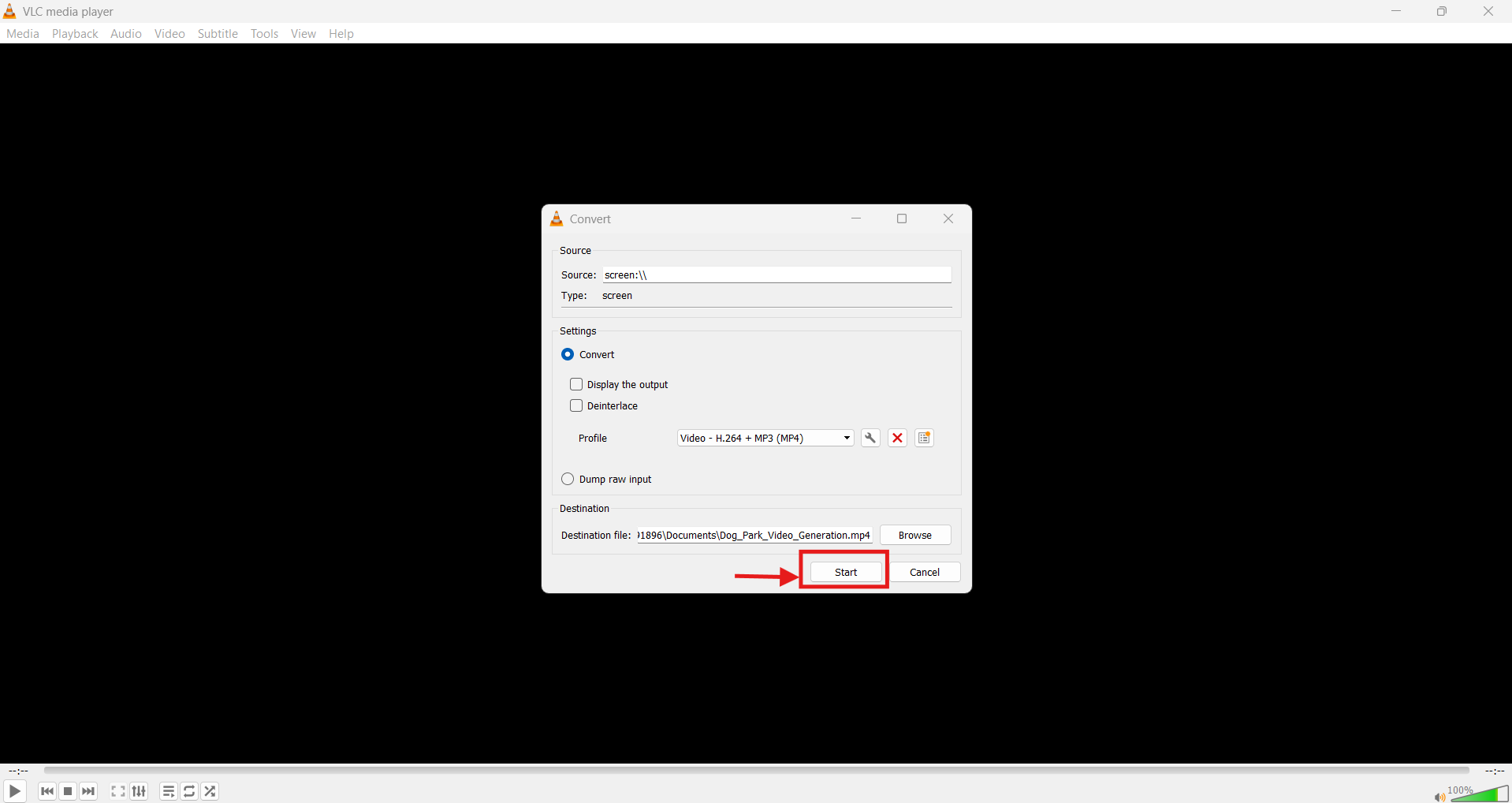
Step 5: Click “Start,” play the YouTube video in your browser in full-screen mode, and let VLC record it.
Part 5: Legal and Policy Considerations for Downloading YouTube Videos
Although VLC media player provides a convenient way to download YouTube videos, you must keep a few legal and YouTube policies in mind.
Personal Use vs. Redistribution: Downloaded YouTube videos must be used only for personal purposes. Re-uploading the video and monetizing someone else’s content constitutes copyright infringement. This can potentially lead to account suspension and even a ban.
YouTube Terms of Service: YouTube’s Terms of Service restrict the use of any unauthorized downloaders or services. YouTube clearly states that users must not access content outside YouTube’s embedded player, playback interface, or officially designated channels.
Part 6: 5 Alternatives to VLC Player to Download YouTube Videos
How to Download YouTube Videos on PC & Mac
Desktop-based YouTube downloaders are more stable and reliable, with minimal or no ads, and offer additional features such as bulk downloads. Here are the best desktop-based alternatives you can try out:
1. Wondershare UniConverter
Wondershare UniConverter is a top alternative to VLC for downloading YouTube videos, with the ability to convert and edit videos. It supports downloads up to 8K resolution and allows you to upscale a video with minimal effort. Further, there’s a batch download support that lets you save multiple videos at once, a feature missing in VLC media player.
UniConverter also has a built-in subtitle generator, vocal remover, video summarizer, and more. This way, you can create a professional video in no time without switching to other editors or converters.
Note: We resolutely oppose all forms of copyright-infringing downloads. This tutorial is only for downloading videos/audio materials of your own or that are allowed to save for offline use.
Top Video Downloader
Key Features
- Wondershare UniConverter can download videos at up to 8K resolution and supports multiple file formats, including AVI, MKV, MP4, and MOV.
- The video compressor can compress a video without compromising its quality.
- UniConverter’s video editor can crop, trim, and cut videos with a single click.
How to Download Your Own YouTube Videos Using Wondershare UniConverter
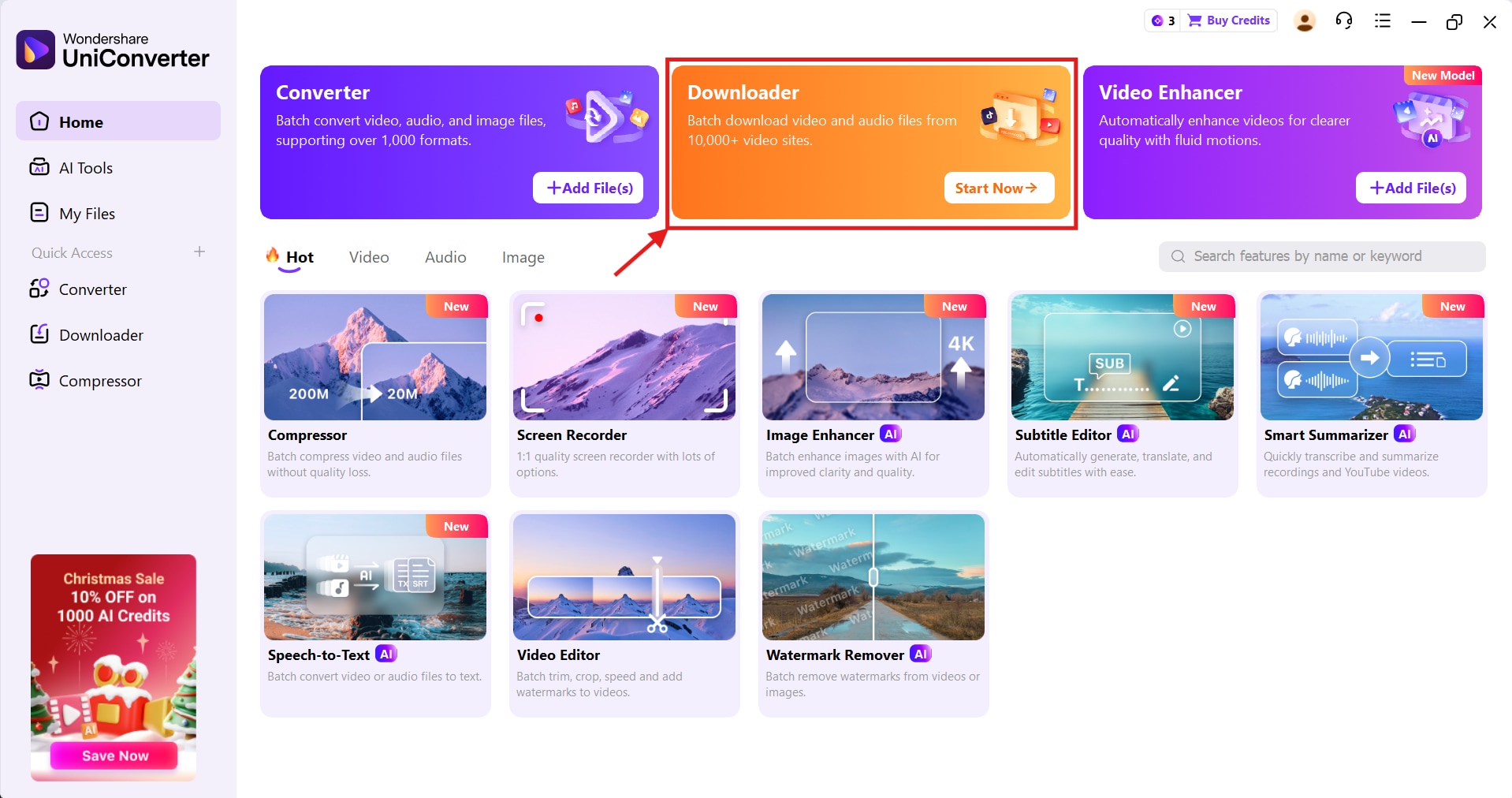
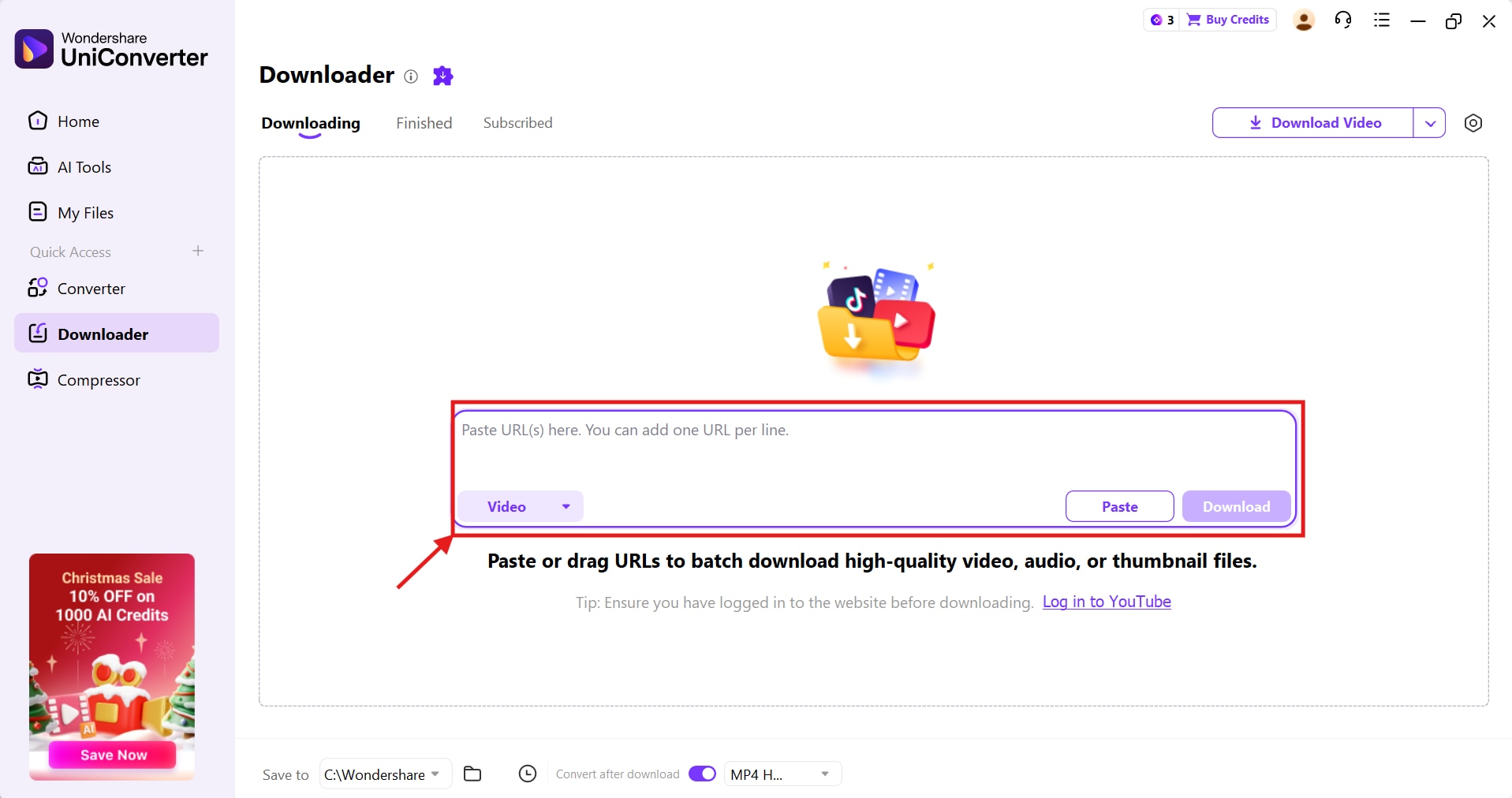
Step 1: Launch Wondershare UniConverter on your device and select the “Downloader” option in the Quick Access menu bar.
Step 2: Paste the YouTube video URL into the input field. UniConverter supports bulk downloads, so you can paste multiple URLs at once.
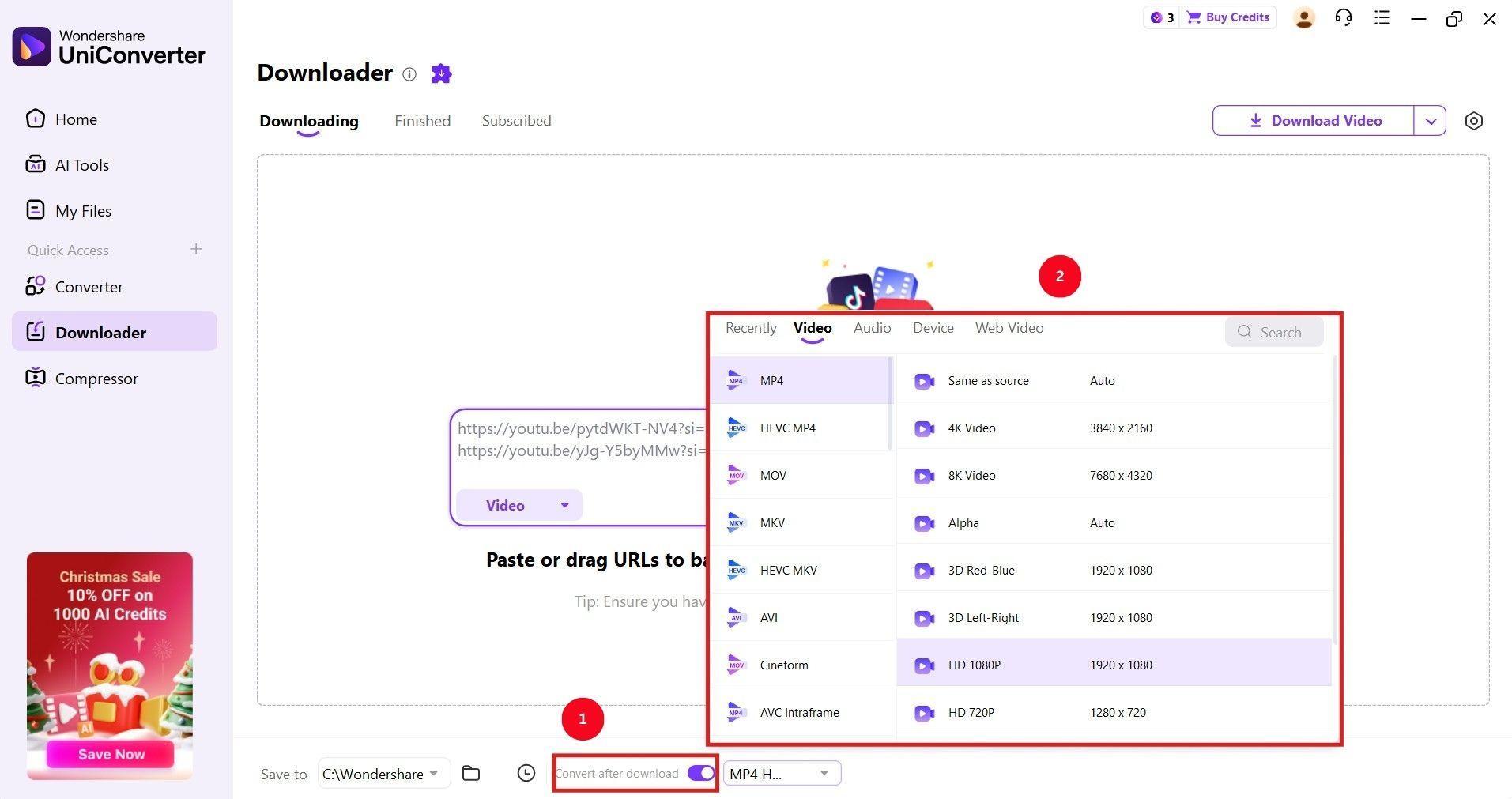
Step 3: Toggle the “Convert after Download” option and click the dropdown menu to select the audio and video formats.
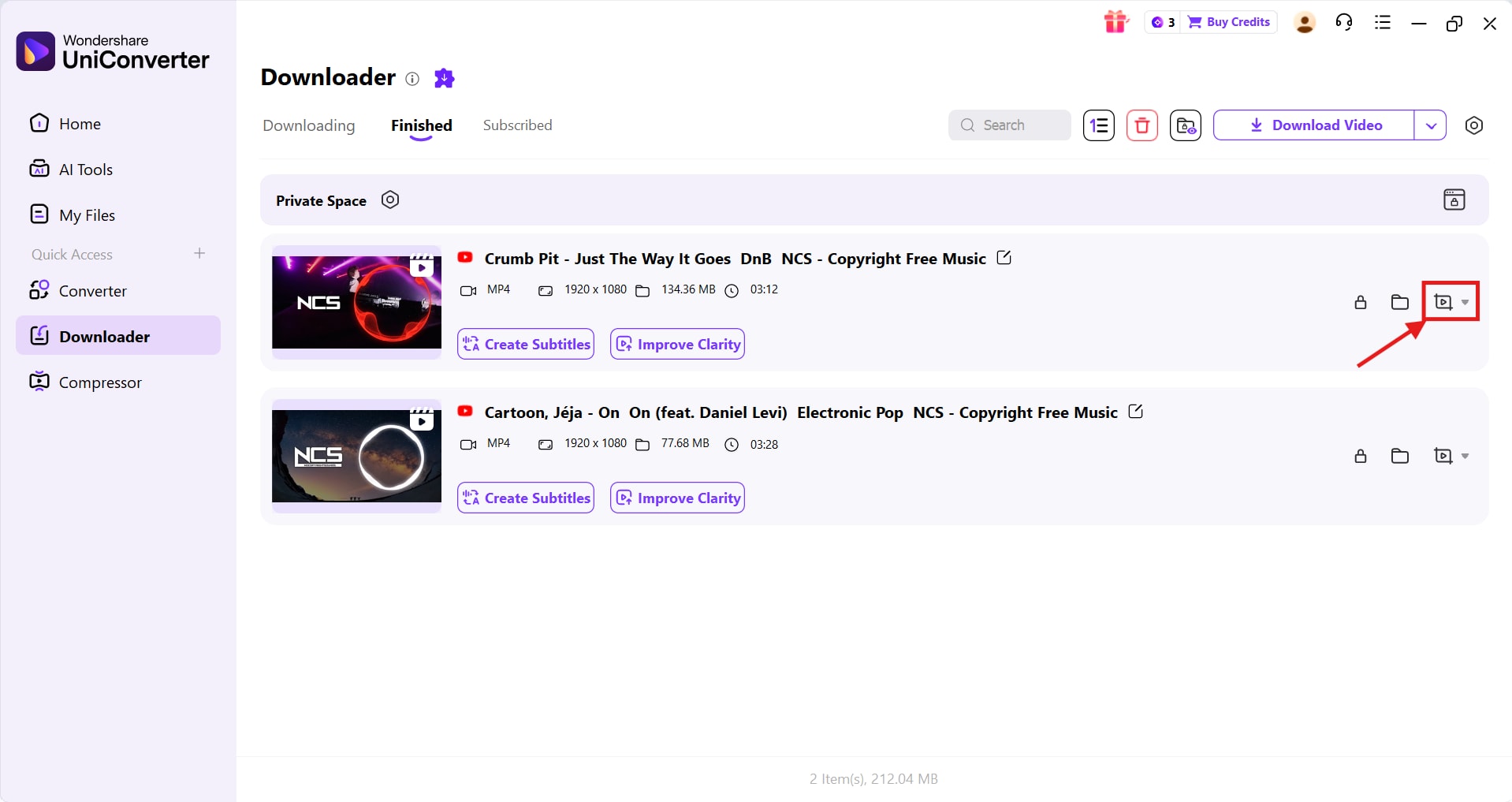
Step 4: Click the “Download” option, and UniConverter redirects you to the “Finished” tab. Here, click the “cut” icon to cut, convert, compress, or merge the media file.
2. 4K Downloader
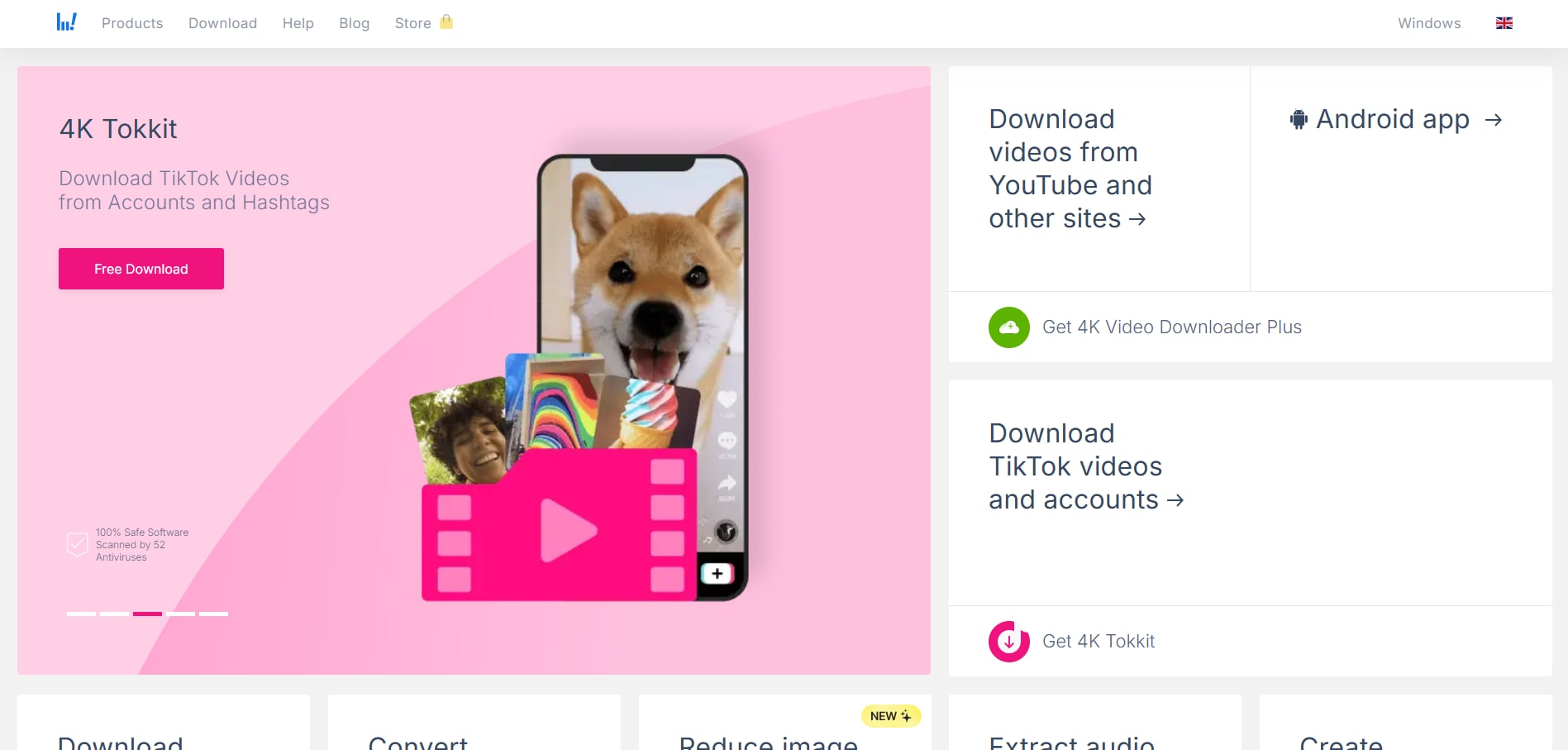
4K Downloader is yet another desktop-based downloader that supports downloads on multiple platforms like TikTok, YouTube, and Instagram. The simple, lightweight design, paired with features such as subtitle downloads, smart mode, and proxy setup, makes 4K Downloader a solid choice for both casual users and creators.
How to Download YouTube Videos Using 4K Downloader
Here are the steps to download YouTube Videos Using 4K Downloader:
Step 1: Play the YouTube video you want to download and copy the link from the address bar.
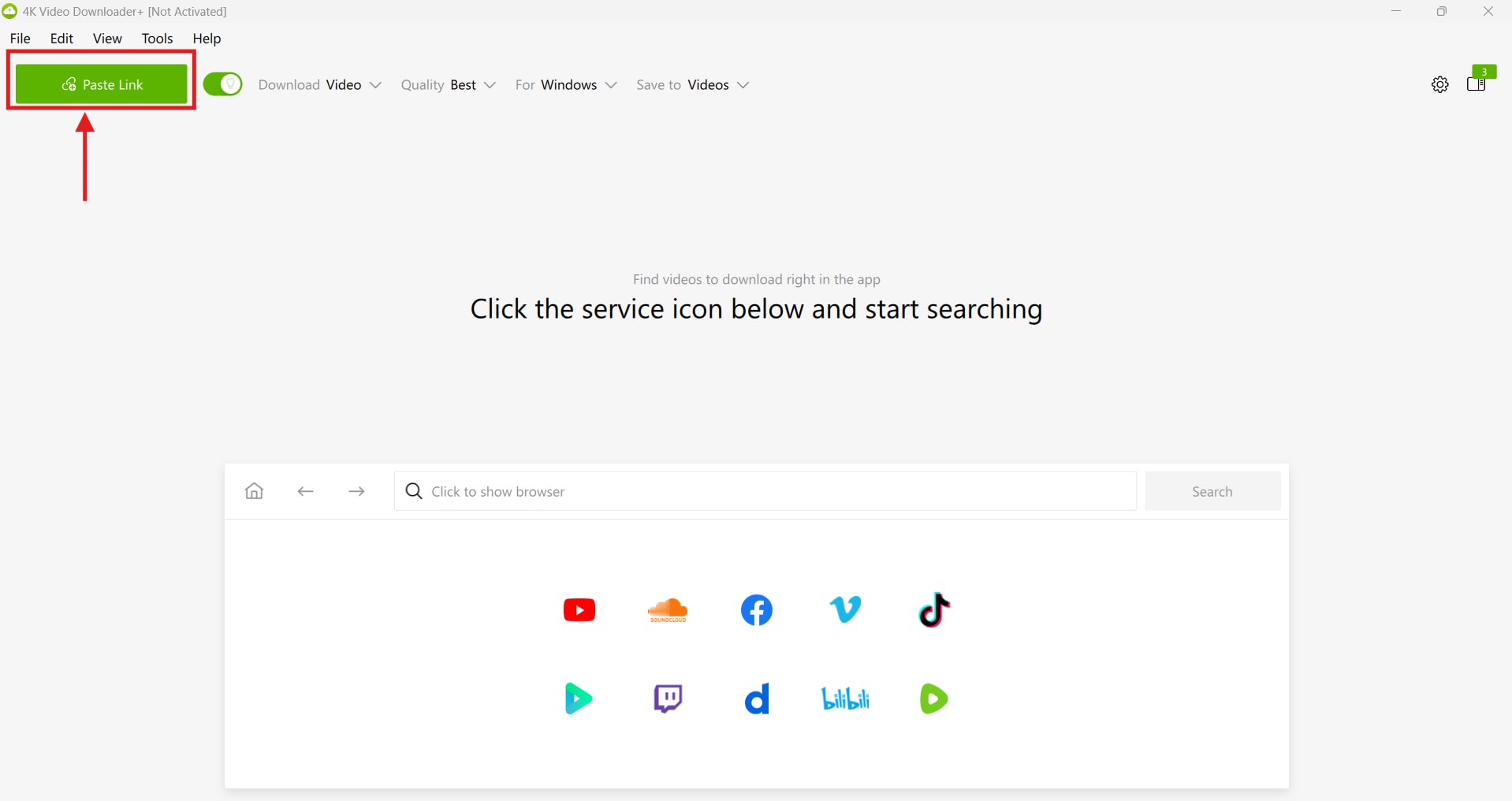
Step 2: Launch 4K Downloader on your desktop and click on “Paste Link.” 4K Downloader will process the video and automatically save it in your local storage.
How to Download YouTube Videos Online
Compared to desktop downloaders, online YouTube downloaders offer a straightforward way to download your favorite videos. These are the best options to try out:
3. Y2Mate
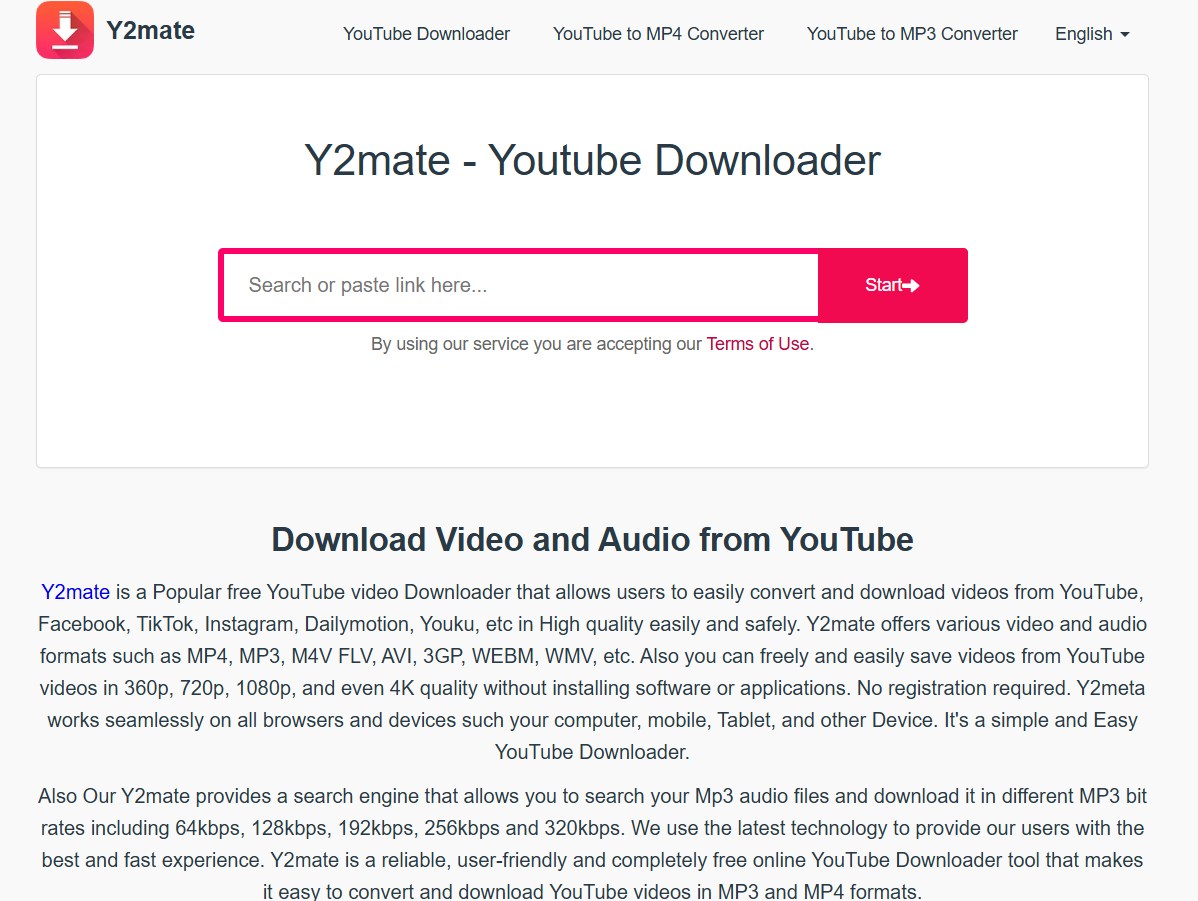
Y2Mate is a popular online downloader and converter that lets you download video and audio files from YouTube, Facebook, and other platforms. There’s support for multiple formats (MP4, MP3, M4V, and WMV), and resolutions ranging from 360p to 4K. Moreover, the downloads are fast, but poses potential security risks from malware and intrusive ads.
How to Download YouTube Videos Using Y2Mate
It’s pretty straightforward to download YouTube videos using Y2Mate, and here are the steps:
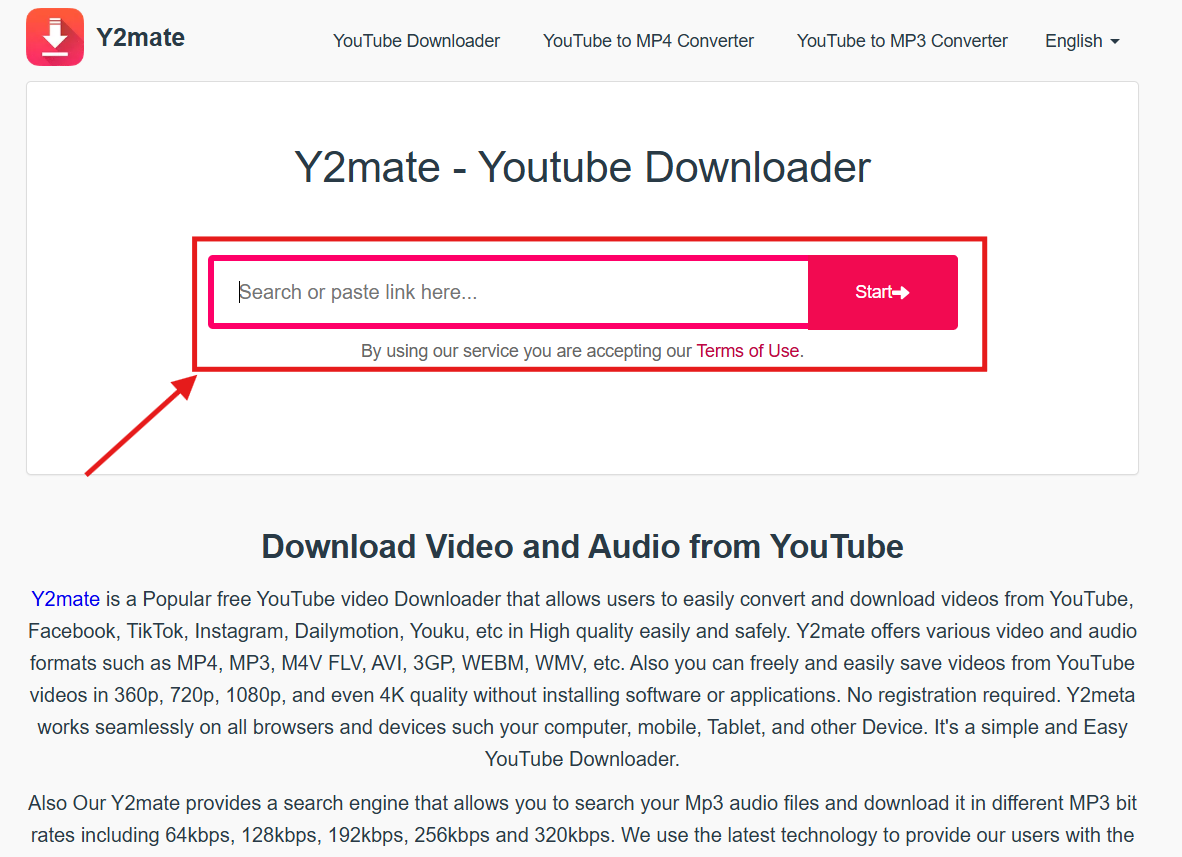
Step 1: Open Y2Mate on your preferred browser, paste the YouTube URL in the blank input box, and click “Start.”
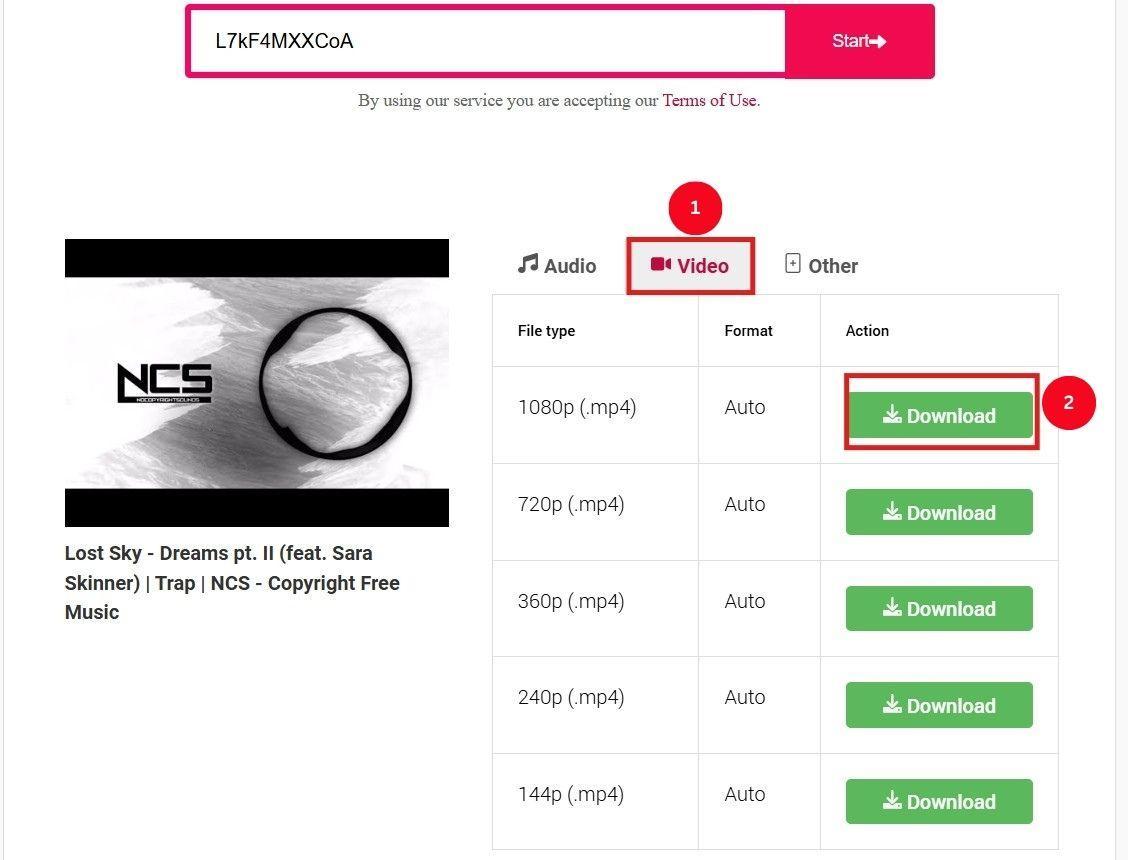
Step 2: Click the “Video” tab to select from the available quality options and click the “Download” button.
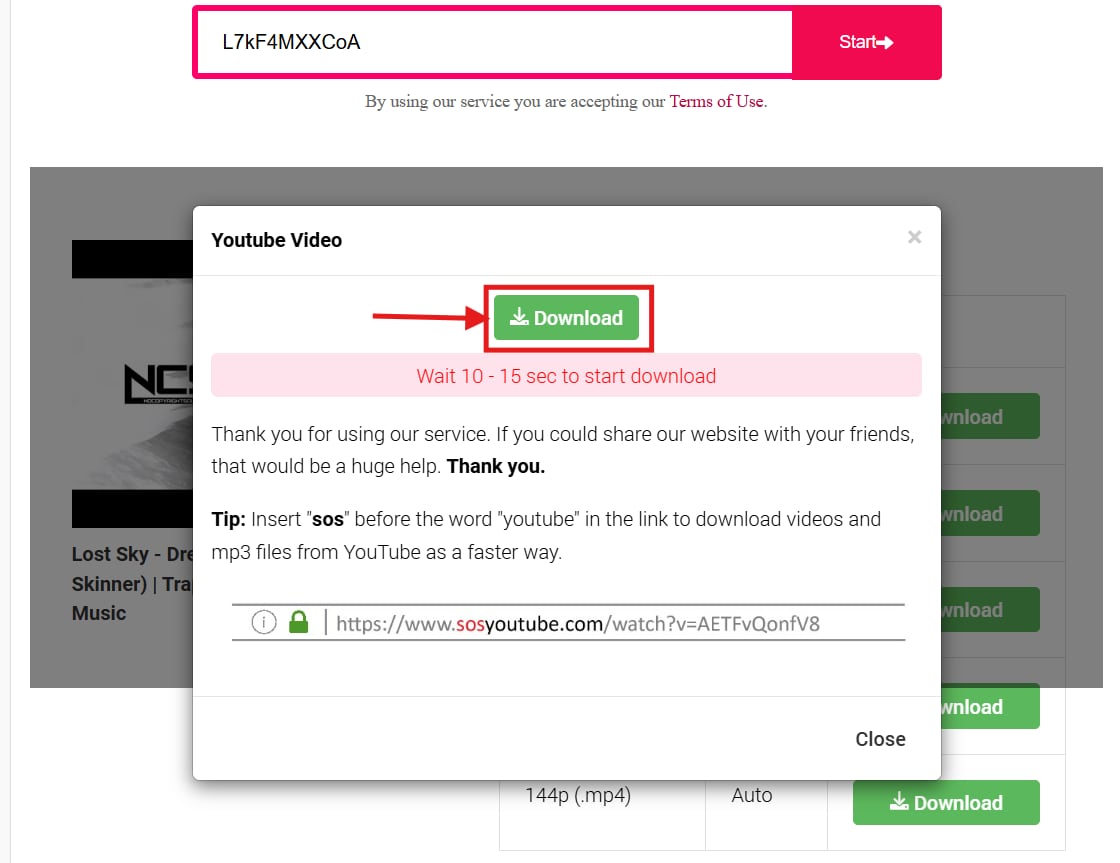
Step 3: Now, click the “Download” button in the pop-up window to save the YouTube video to your device.
4. AceThinker
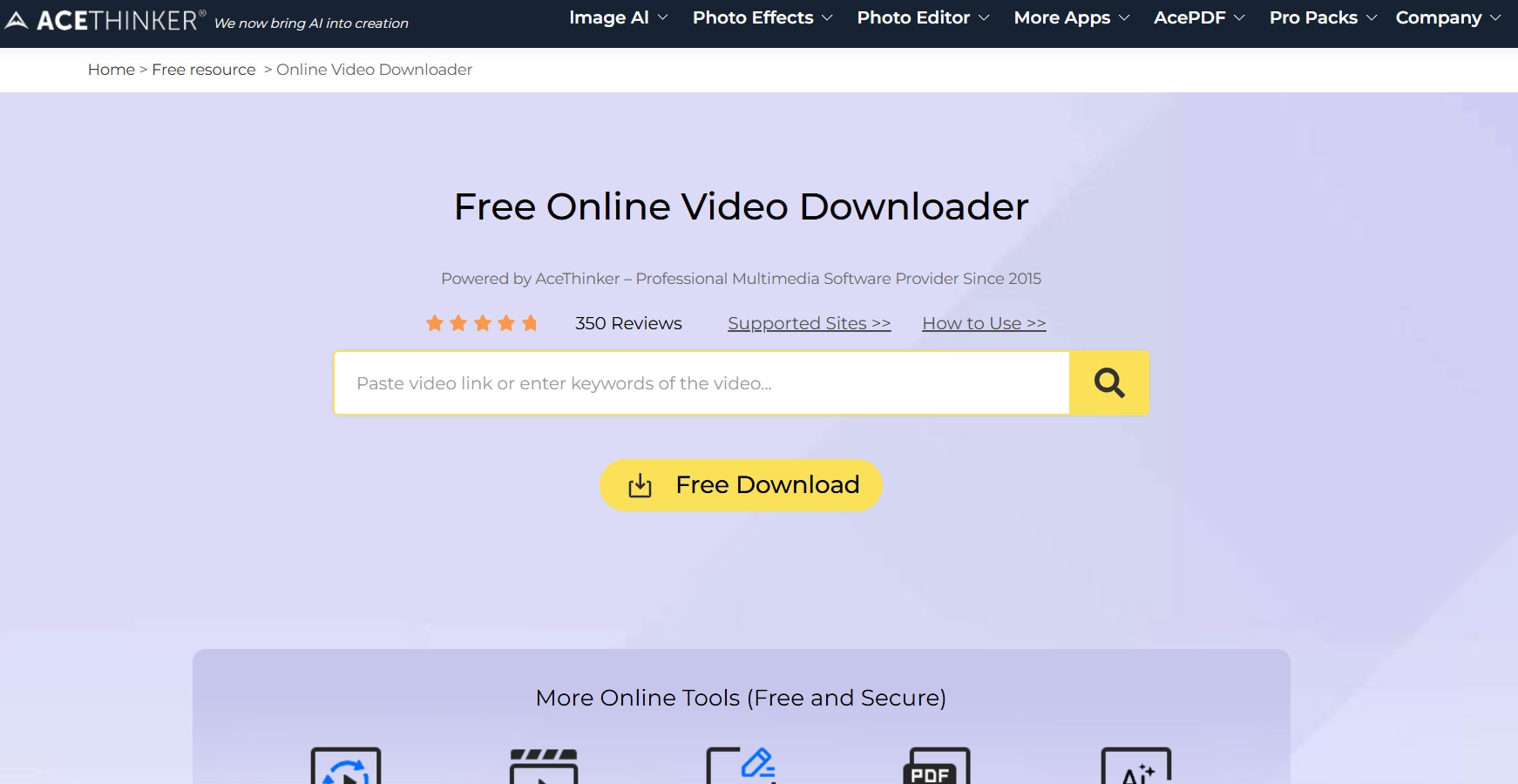
AceThinker is a similar online YouTube downloader with a copy-and-paste download interface and supports up to 4K, high-quality video downloads. There is no lag when using AceThinker for downloads, making it suitable for users who need quick offline access to videos.
Unlike Y2Mate, AceThinker supports batch downloads, but is only accessible with its premium subscription.
How to Download YouTube Videos Using AceThinker
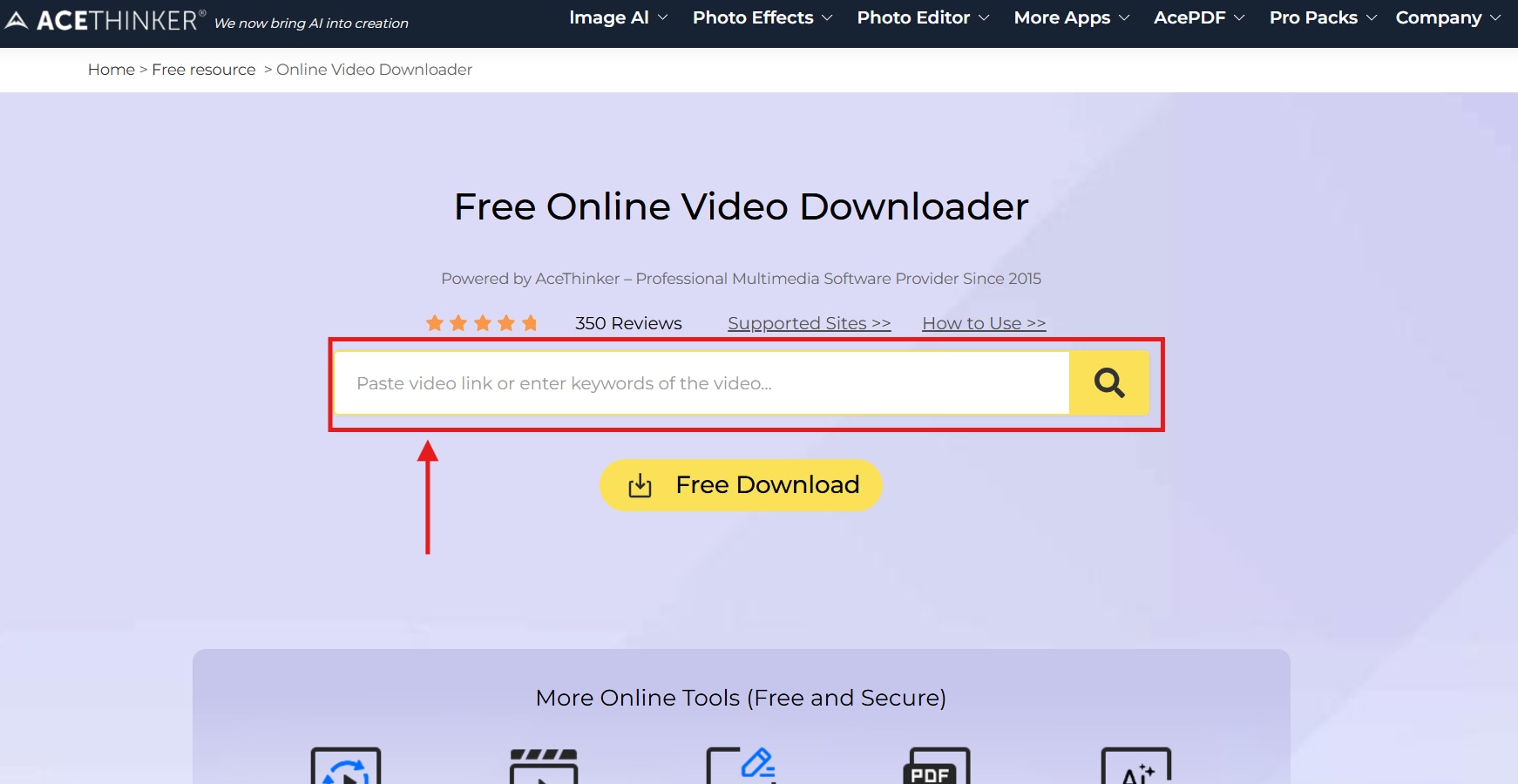
Step 1: Access AceThinker on your browser, paste the YouTube video URL in the blank input space, and click on the “Search” icon.
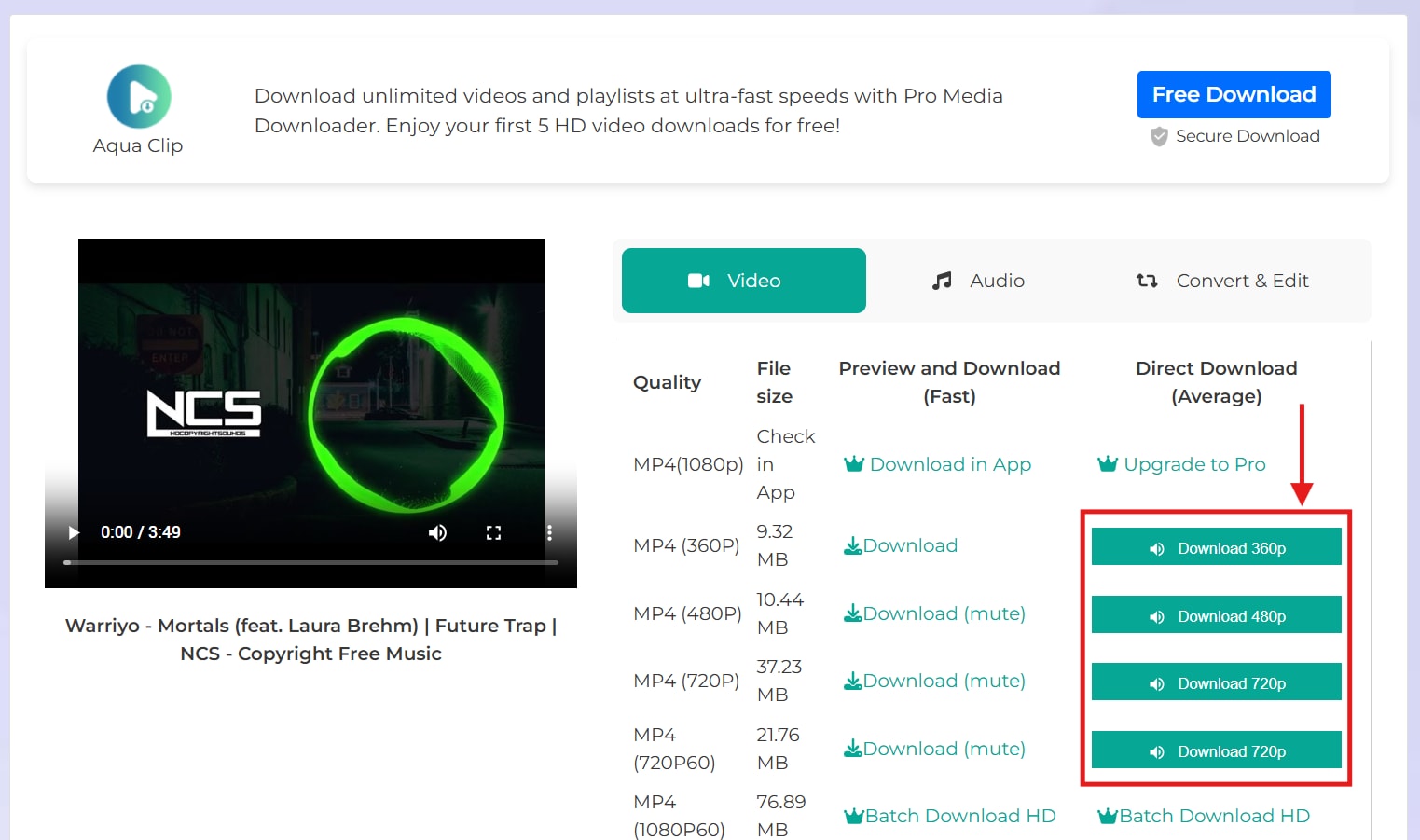
Step 2: Click the “Download” icon for the video format and resolution you want, such as “Download 720p” or “Download 480p.” The video will be saved on your device for offline viewing.
How to Download YouTube Videos on Mobile
5. Total Video Downloader
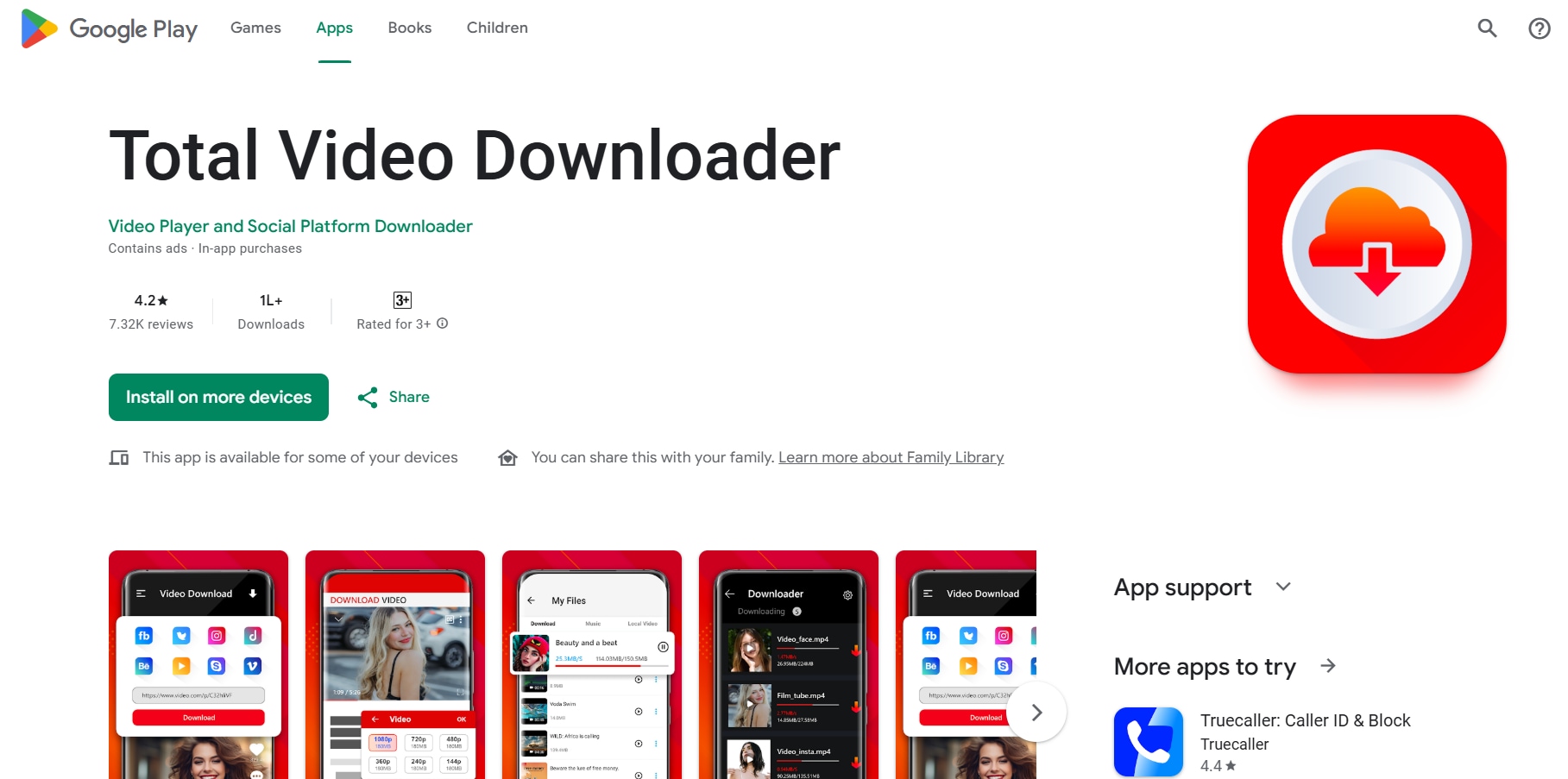
Online downloaders can be a reliable way to download videos, but they are often filled with intrusive pop-up ads. Here, mobile-based downloaders like Total Video Downloader can be reliable.
Total Video Downloader, unlike many apps, has a built-in browser that supports pause/resume and background downloads, and lets you choose the save location. This makes the downloader reliable for downloading your favorite YouTube videos.
How to Download YouTube Videos Using Total Video Downloader
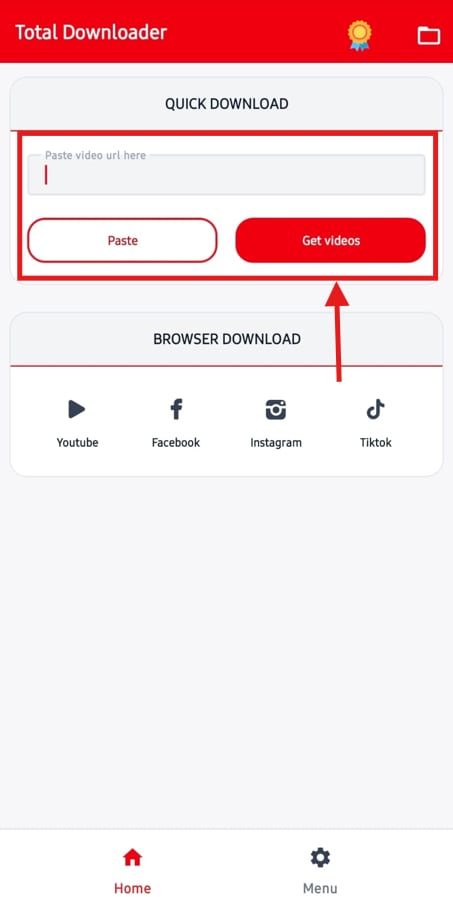
Step 1: Launch Total Video Downloader on your Android device and paste the URL into the input field. Then, tap “Get Videos.”
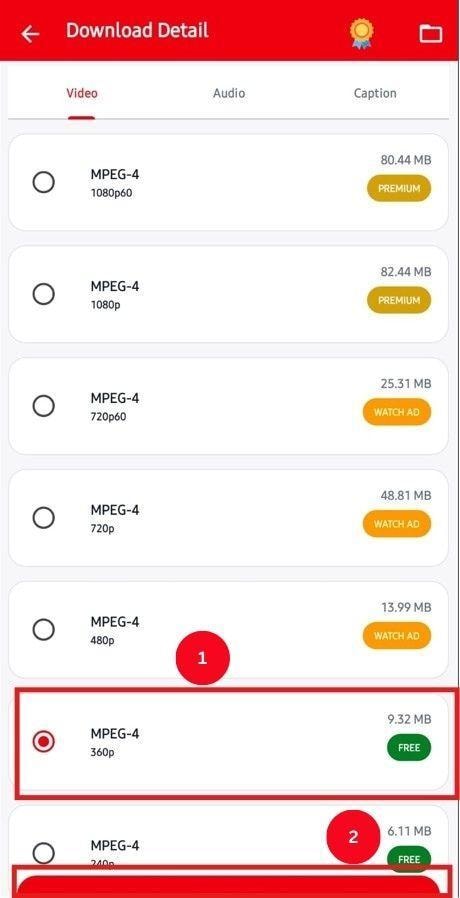
Step 2: As Total Video Downloader extracts the video, select your desired format and resolution, and tap “Save File.” The downloader will save the file in your local storage.
Now that you have an idea about the VLC YouTube download alternatives, here’s their tabular comparison:
| Tools | Platform | Best For | Supported Formats | Quality Options |
| Wondershare UniConverter | Desktop | All-in-one video downloading, converting, and editing in high quality | MP4, MKV, MOV, AVI, WAV, FLAC | 4K/8K, 1080p, 720p, 480p, and more |
| 4K Video Downloader | Desktop | Downloading high-resolution videos (4K/8K) from YouTube and other platforms | MP4, MKV, FLV, 3GP | 4K/8K, 1080p, 720p, and more |
| Y2Mate | Online | Quick browser-based video downloads without installing software | MP4, MP3, M4V, FLV, AVI, 3GP, WEBM | 4K/8K, 1080p, 720p, and more |
| AceThinker | Online | Simple online video downloads from multiple sites with format options | MP4, AVI, MKV, MOV | 1080p, 720p, and more |
| Total Video Downloader | Mobile | Downloading and managing videos directly on smartphones | MP4, WebM, MOV, AVI, and M4V | Up to 1080p downloads |
Top Video Downloader
FAQs about VLC Player Download YouTube
Why can't VLC download YouTube videos anymore?
VLC cannot download YouTube videos as YouTube frequently updates its platform that breaks the outdated youtube.lua script VLC uses to parse the URL. You can visit the official VLC website to download the latest script and replace the outdated one.
Can I download YouTube videos in HD or 4K with VLC?
No, VLC can be a decent platform for saving YouTube videos, but it typically limits downloads to lower resolutions and struggles with HD/4K downloads. It’s recommended to use reliable downloaders, such as Wondershare UniConverter, to download high-quality videos.
Is downloading YouTube videos with VLC safe?
Yes, downloading YouTube videos with VLC is safe, as it has no built-in malware and is filled with ads. However, frequent updates to YouTube’s infrastructure can cause VLC Media Player downloads to fail.
How do I download YouTube playlists with VLC?
VLC is typically designed for streaming and lets you download individual videos from playlists, but it doesn’t support bulk downloads. You can use reliable downloaders, such as Wondershare UniConverter, to download multiple videos at once.
Why does VLC say "Your input can't be opened" for YouTube?
VLC says “your input can’t be opened for YouTube,” because the outdated youtube.lua playlist parser script fails to handle the recent changes in YouTube’s infrastructure. Replace the outdated lua script with the new one or use a reliable YouTube video downloader like Wondershare UniConverter.
Can I download YouTube audio only with VLC?
Yes, you can download YouTube audio only with VLC. You can use VLC Media Player's “Convert/Save” feature to extract and save YouTube audio in MP3, OGG, or FLAC format.
What video format does VLC download YouTube videos in?
VLC typically downloads YouTube videos in MP4 format, but it can also handle other formats, including MKV, AVI, and WebM. You should choose a desktop app like Wondershare UniConverter if you need flexibility in video output formats.
Can VLC download age-restricted or private YouTube videos?
No, VLC often fails to download age-restricted or private YouTube videos. The reason is its inability to authenticate the user’s account needed to bypass these restrictions.
Conclusion
Knowing how to download YouTube videos with VLC can help eliminate buffering and save your favorite videos for offline viewing. In case the VLC YouTube downloads don’t work, you can try the fixes like updating the VLC to the latest version, replacing the youtube.lua script, disable cookies forwarding, or adjust file caching value.
If none of the fixes work, or you want a simple yet reliable way to download YouTube videos, consider Wondershare UniConverter. The interface is simple, supports bulk downloads, and lets you compress or edit videos. Try Wondershare UniConverter to enjoy uninterrupted YouTube video playback.

