


A team meeting on Discord ends with important ideas, but later, no one remembers the exact details. Situations like this make recording conversations extremely useful. Many gamers, podcasters, and remote teams rely on Discord for communication, making it important to learn how to record Discord calls.
Recording calls helps capture key discussions, interviews, or gaming moments for future reference. Fortunately, several tools and built-in methods make the process simple and efficient. This guide explains practical steps, helpful tools, and tips to ensure clear audio and smooth recordings whenever you need to save an important Discord conversation.
In this article
- Record Discord Calls: What You Need to Know
- Record Audio in Discord Safely and Legally - 6 Ethical Considerations To Know
- How to Record Discord Calls on Desktop - Simple Steps
- How to Record Discord Calls on Mobile Devices - On Go Solution
- Try 6 Pro Tips for High‑Quality Discord Call Recordings
- Conclusion
- Frequently Asked Questions
Part 1. Record Discord Calls: What You Need to Know
Discord does not include a built-in feature for recording conversations, which is why many users rely on third-party tools known as Discord call recorders. These tools capture audio from voice chats, private calls, or group discussions. Learning how to record a Discord call helps gamers, teams, and creators save important conversations. This also helps in maintaining clear sound quality and organized recordings for later use.
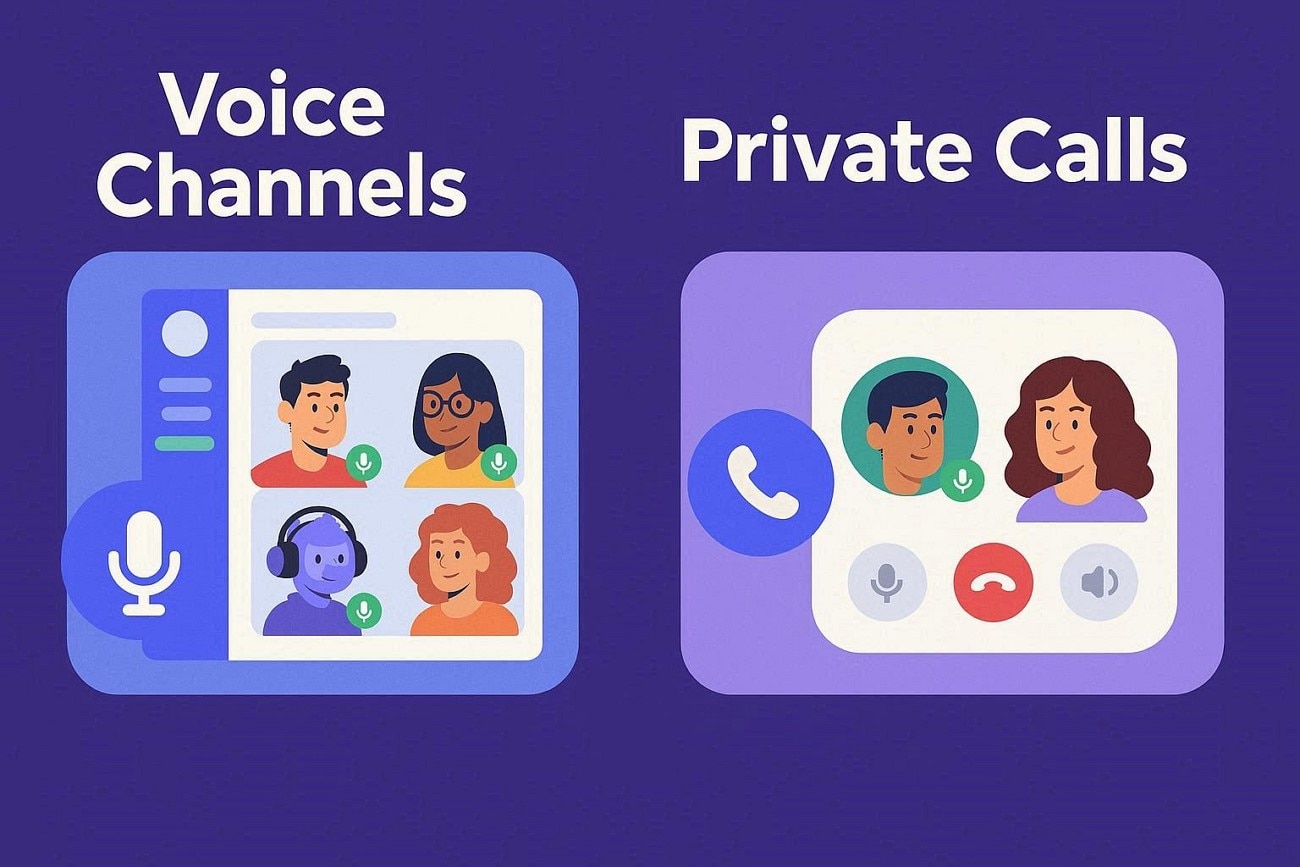
Differences Between Recording Voice Channels vs Private Calls
Voice Channels (Servers)
Voice channels are group spaces inside Discord servers where multiple participants can join and leave freely. Recording here often captures several speakers at once, making it useful for community discussions, gaming sessions, podcasts, or team meetings. These channels allow real-time interaction, so everyone can respond instantly, creating a dynamic conversation. Additionally, background sounds or game audio can be included, giving recordings a more immersive and authentic feel.
Private Calls (DM Calls)
Private calls occur between two users or within small direct-message groups. Recordings are usually more focused and personal, often used for interviews. It is also used for one-on-one discussions or collaborative work conversations. These calls provide clearer audio since fewer participants reduce background noise and overlap. Additionally, private calls offer more control over consent and privacy, making them ideal for sensitive or confidential conversations.
Part 2. Record Audio in Discord Safely and Legally - 6 Ethical Considerations To Know
Before starting a Discord record session, it is important to understand the ethical and legal responsibilities involved. Following a few basic guidelines helps ensure recordings remain respectful, transparent, and compliant with regulations:
User Consent: Always inform all participants before recording a call. Getting clear permission ensures transparency and helps avoid misunderstandings.
Privacy Protection: Discord conversations may include personal or sensitive information. Respecting user privacy prevents misuse or unauthorized sharing of recorded content.
Purpose Transparency: Clearly explain why the recording is being made before the conversation begins. This helps participants feel comfortable and understand how the recording will be used.
Local Recording Laws: Recording laws vary by country and region. Some areas require consent from everyone in the conversation, while others allow one-party consent.
Secure Storage: Store recorded files in a secure location to prevent unauthorized access. Using protected folders or cloud storage can help keep recordings safe.
Responsible Sharing: Only share the recording with people who have permission to access it. Limiting distribution helps maintain trust and protects participant privacy.
Part 3. How to Record Discord Calls on Desktop - Simple Steps
With the help of dedicated recording software, users can easily record Discord call sessions for meetings. The following methods explain how to record Discord calls on a desktop quickly and efficiently:
1. Use a PC Screen/Audio Recorder
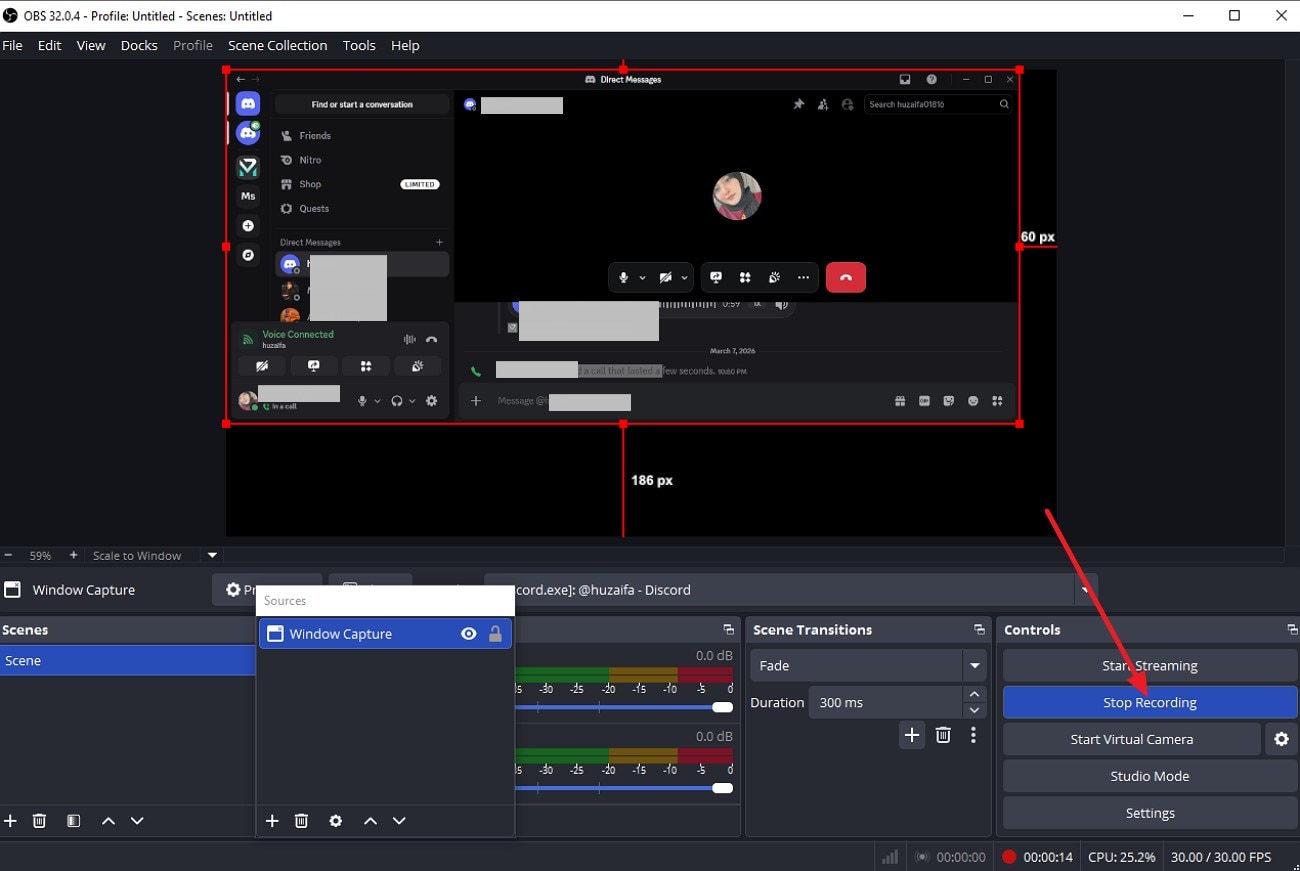
Using a PC screen recorder such as OBS Studio is a reliable way to capture Discord conversations. The software can record both system audio and microphone input, allowing users to save clear voice chats from calls or servers. With flexible audio settings, it is widely used for capturing gaming sessions and online discussions. To learn how to record a call on Discord using OBS Studio, read the steps provided below:
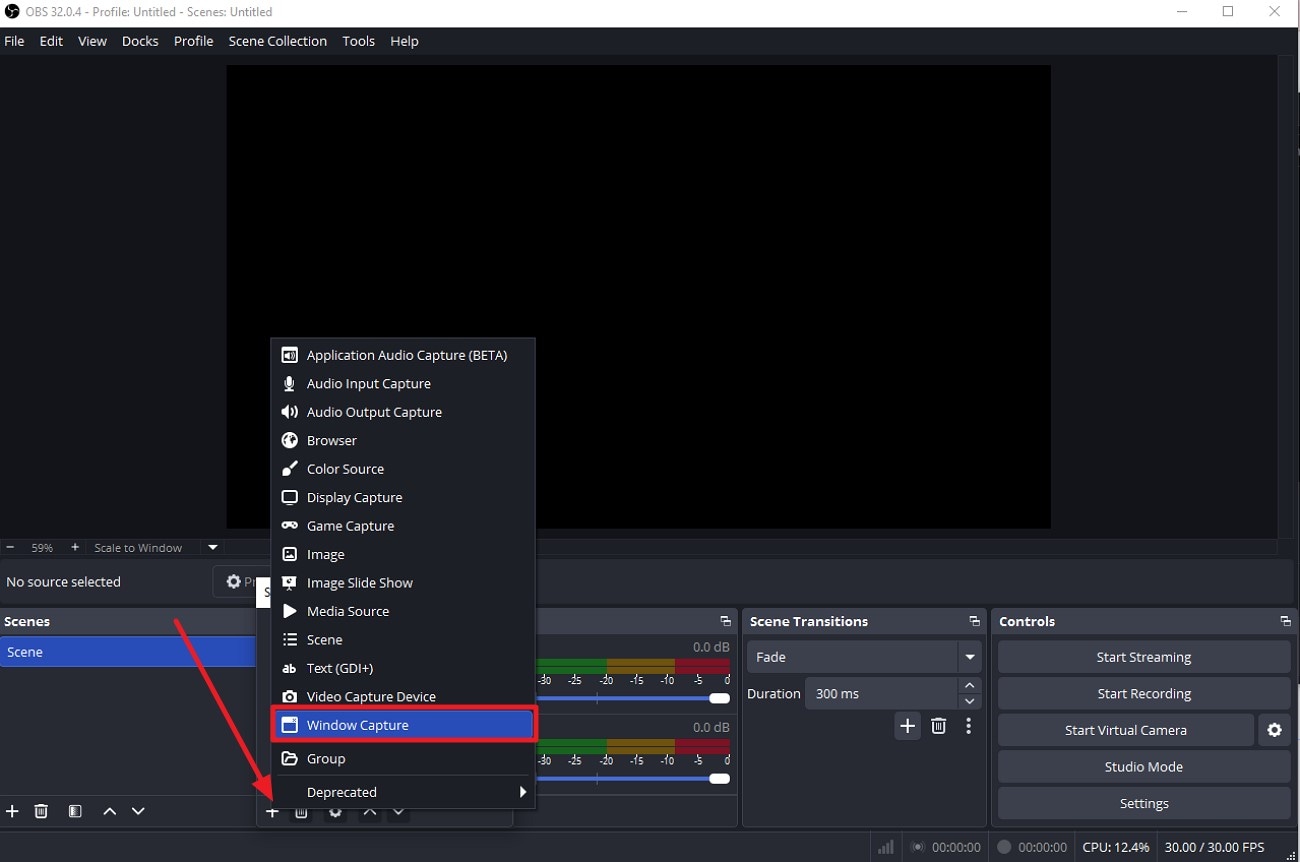
Step 1. Start your Discord call, then launch OBS on your device and click the "+" icon under the "Source" option. Next, select the "Window Capture" option from the expanded list.
Step 2. In the following window, configure the settings and press the "OK" button. Click the "Start Recording" tab to begin the recording process.
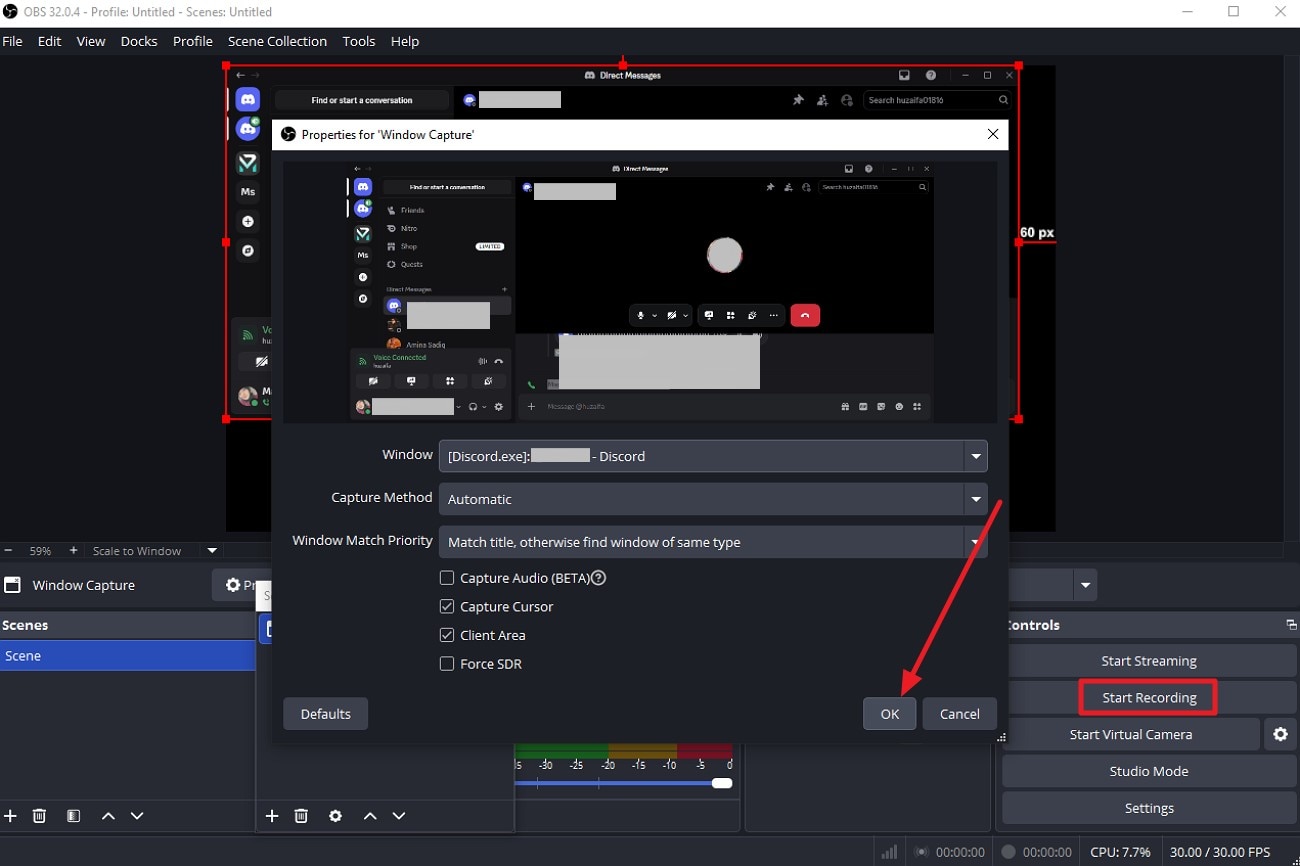
Step 3. Once the recording is completed, press the "Stop Recording" option to complete the process.
Key Features
Users get multiple capturing options such as text, image, Windows, and more.
It lets you create different scenes and switch between them easily during recording.
This tool allows you to record Discord calls with volume adjustment and noise filtering options.
2. Use a Discord Recording Bot
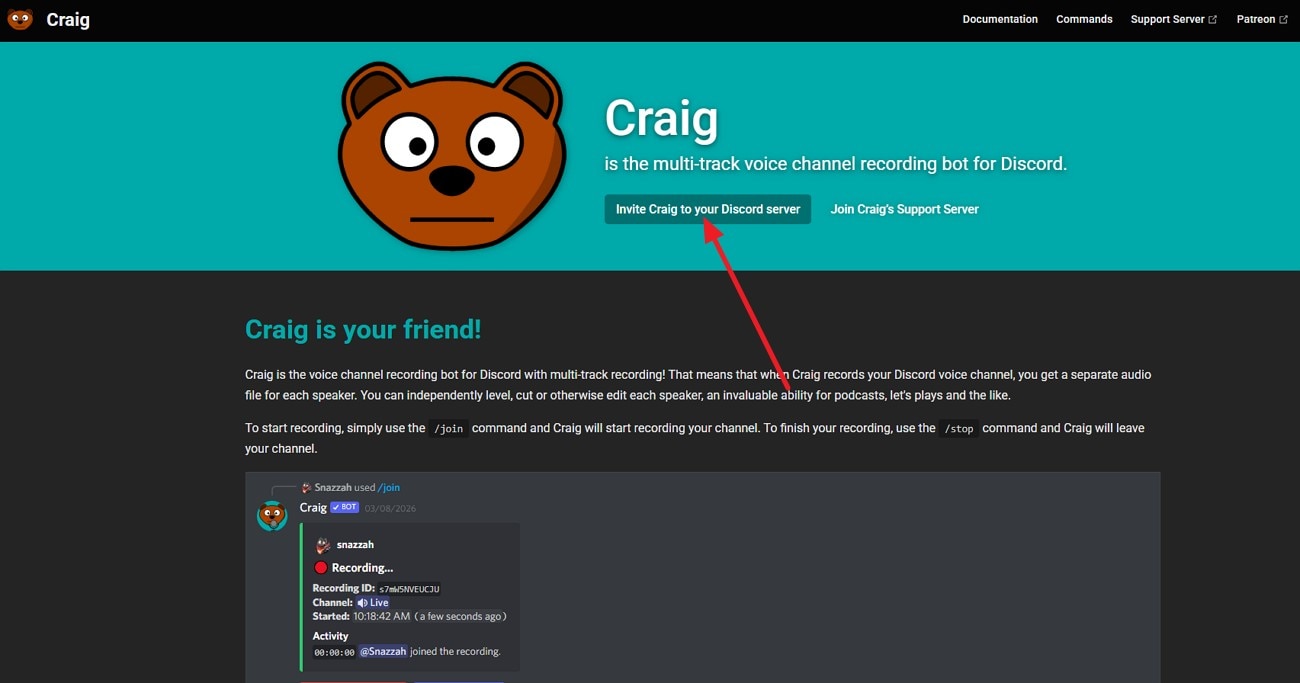
Using a Discord recording bot is a simple way to capture voice conversations on a server. The bot joins a voice channel and automatically records the discussion. This method works well for podcasts, meetings, and group chats. Most bots also save recordings online, making it easy to download or share them later. To learn how to record audio in a Discord server with a bot, read the steps mentioned below:
Step 1. First, go to your browser and search for Craig bot. Next, press the "Invite to your Discord Server" option to add the bot to your server.
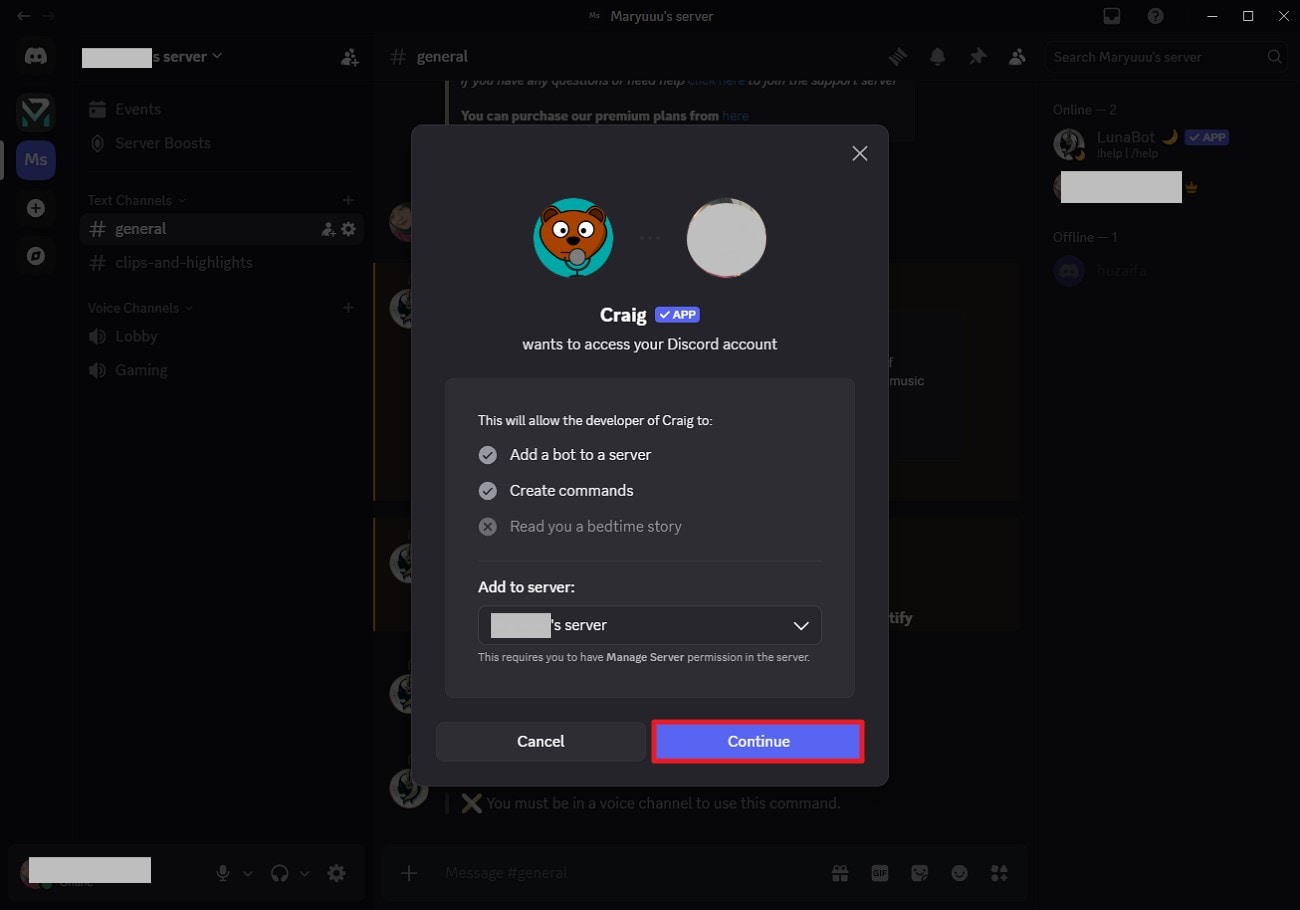
Step 2. In the following interface, confirm the invite and press "Continue" to let the bot join the server.
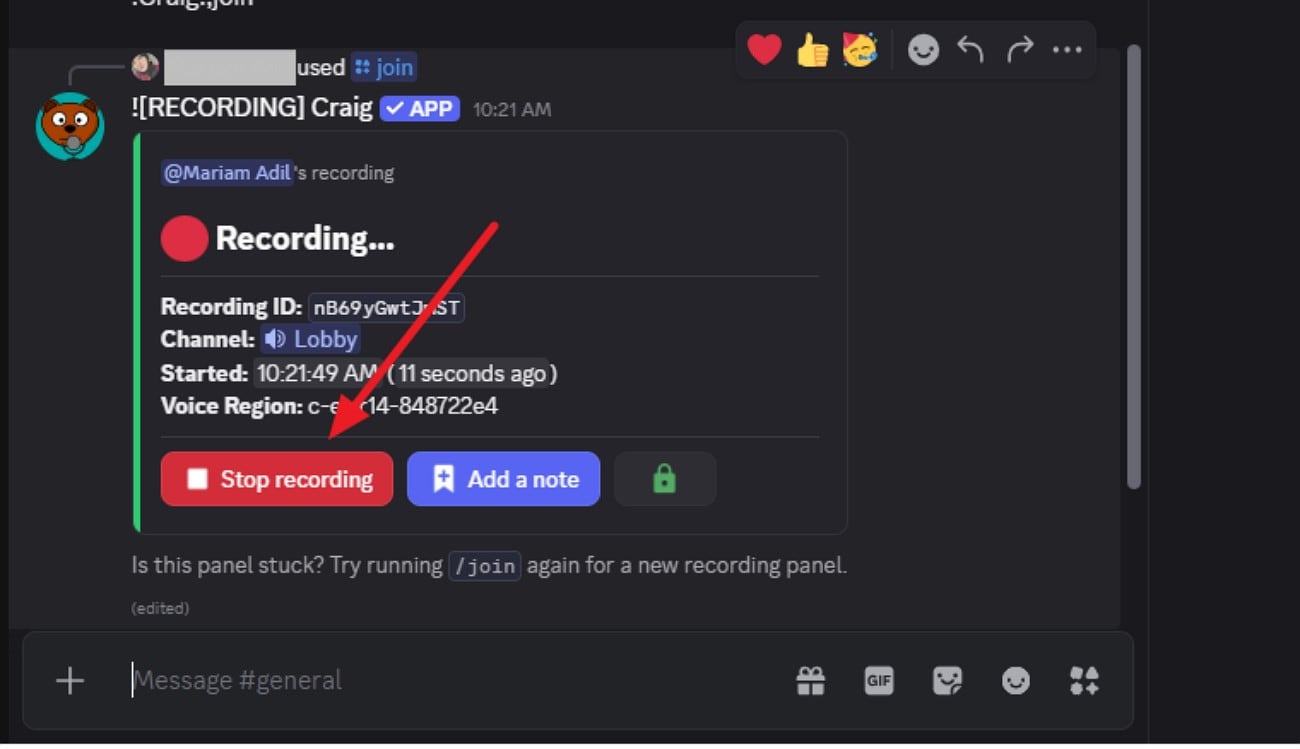
Step 3. Once the bot has joined the server, enter this command in your server: "/join channel [channel name]" and press the Enter key.
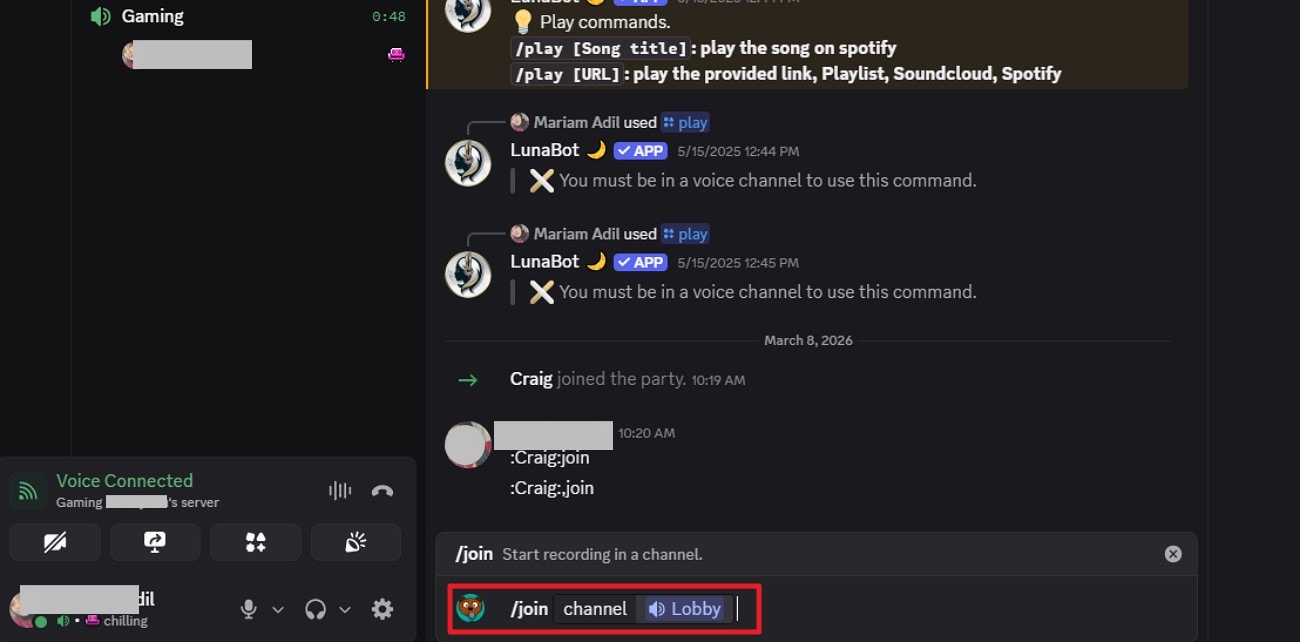
Step 4. The bot will begin the recording instantly. Once the recording is completed, press the "Stop Recording" button to terminate the process.
Key Features
Records audio from multiple participants in the same voice channel.
Recordings can often be exported in formats like MP3 or WAV.
The call recordings can be accessed and downloaded from a web dashboard or link.
3. Use Built‑in OS Game/Screen Capture (Windows / macOS)
Using built-in screen capture tools on Windows or macOS is another simple option to record Discord conversations. Features like the Windows Game Bar or macOS screen recording allow users to capture system audio while recording the screen. Although not designed as a dedicated Discord voice recorder, these tools can still record voice chats effectively. To learn how to use the built-in recorder of both devices, read the steps mentioned below:
Record On Windows
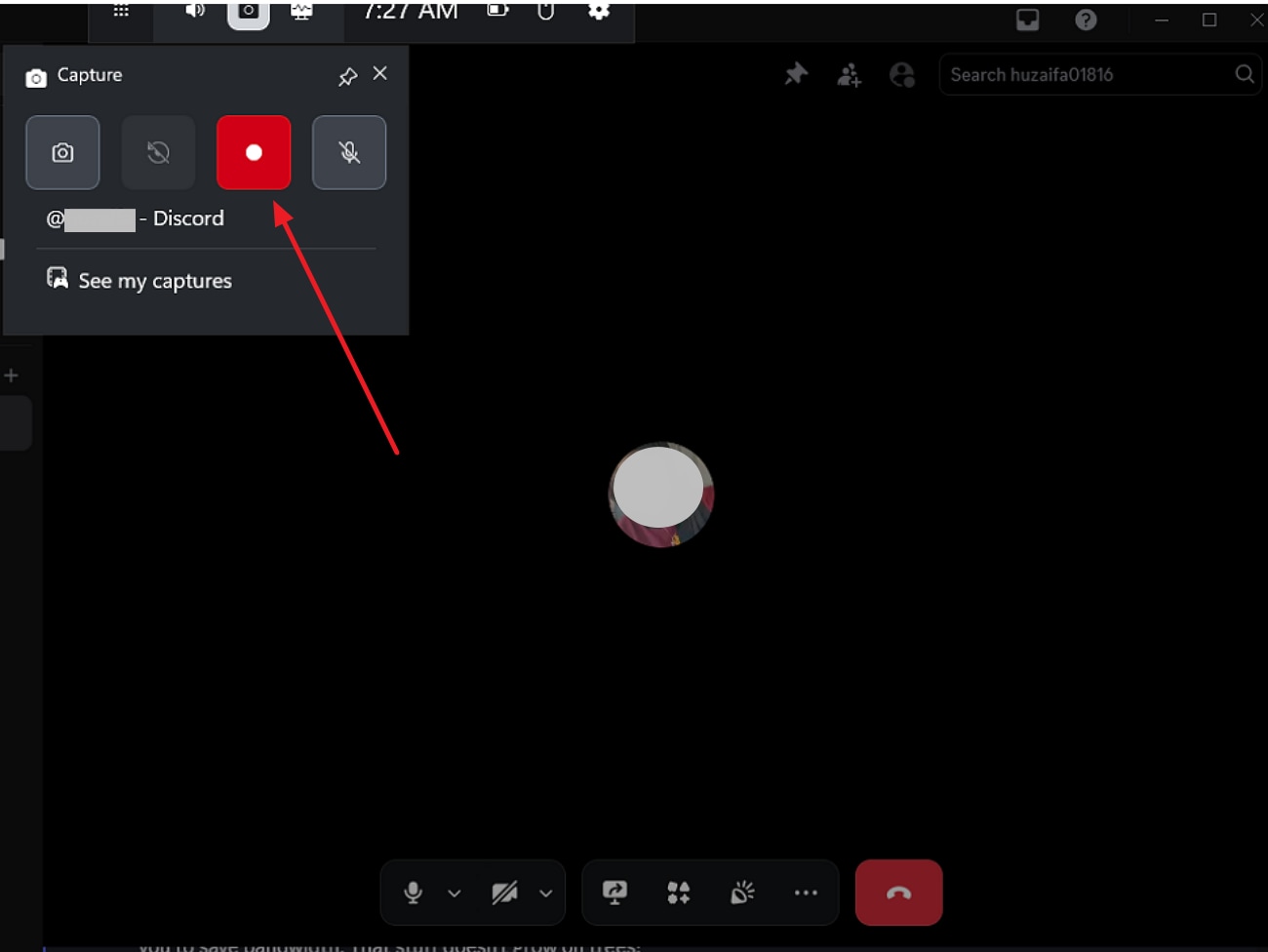
Step 1. Begin by connecting the call, then enter the "Windows + G" key on your keyboard to launch the Game bar recorder. Click on the "Capture" icon and then the "Start Recording" option on the floating toolbar to begin recording.
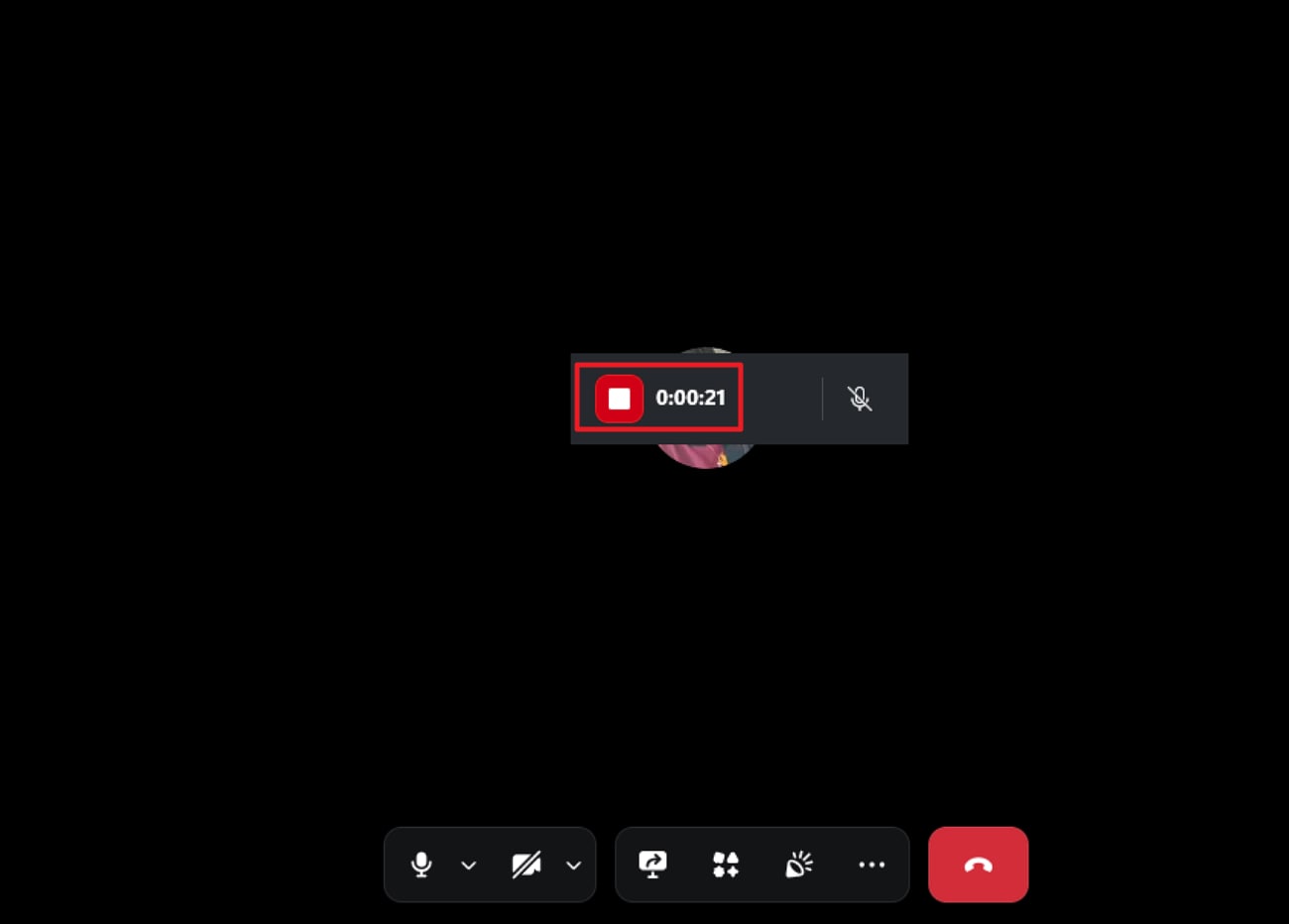
Step 2. After the call is completed, press the "Stop" icon to discontinue recording and save it automatically to your device's storage.
Record on Mac
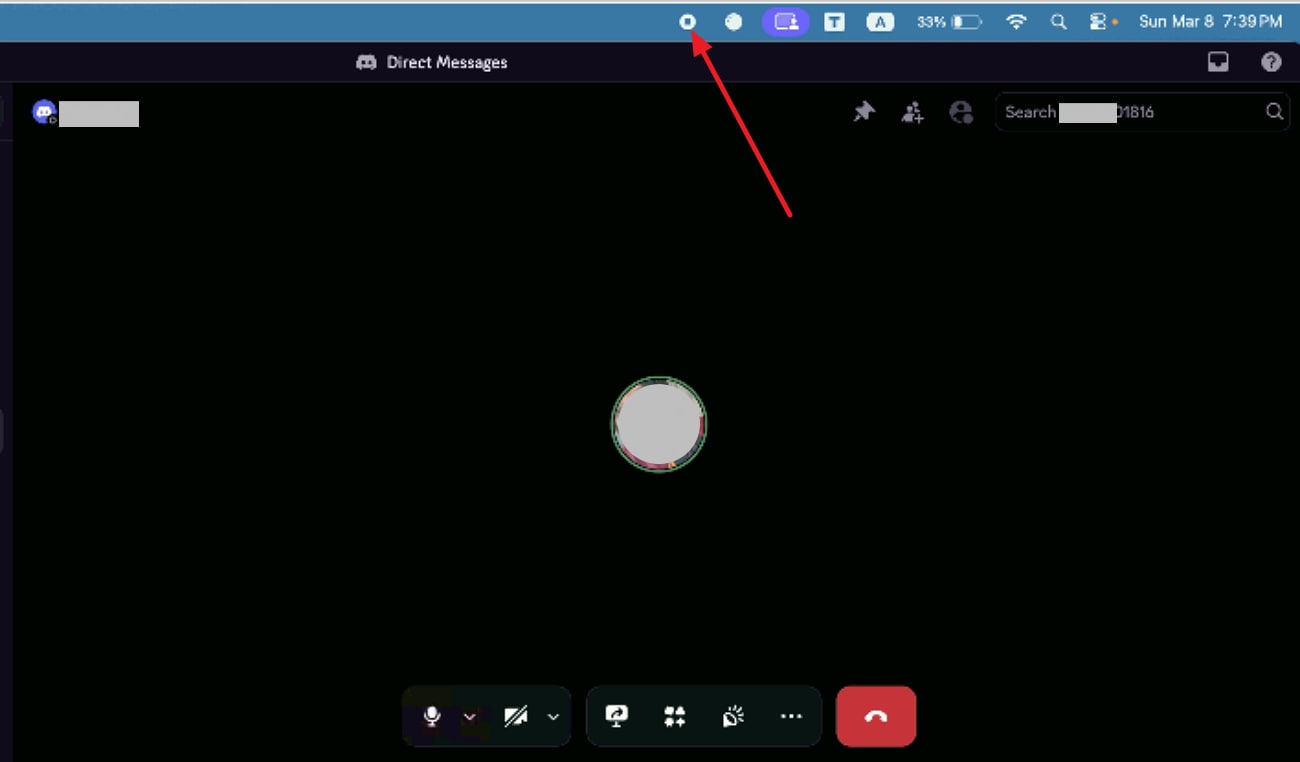
Step 1. Press Command + Shift + 5 to open the Screenshot toolbar on macOS after starting the call. From there, choose whether to record the full screen or only a selected area. After adjusting the settings, click the "Record" button to begin capturing the screen.
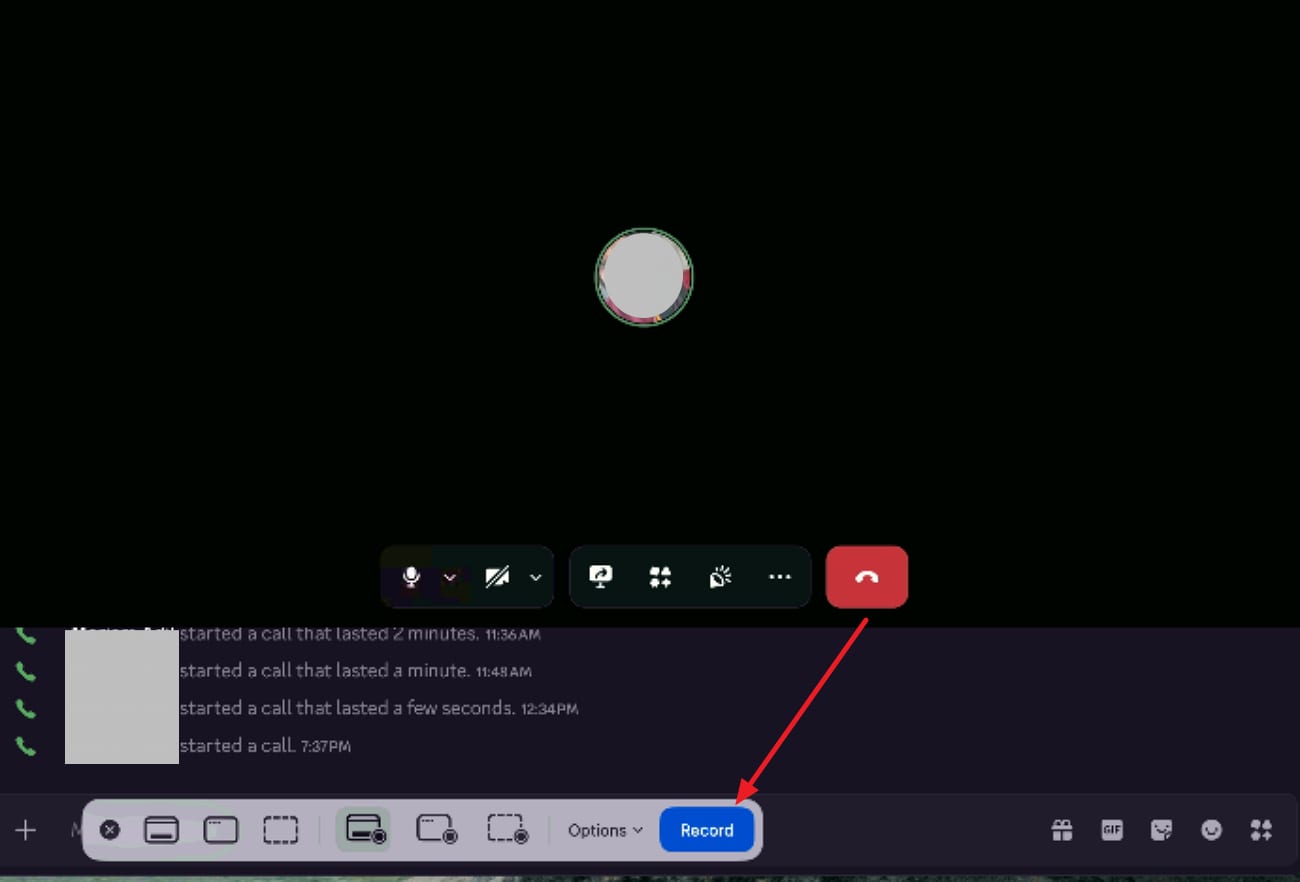
Step 2. After the Discord record voice process is completed, press the "Stop" icon at the taskbar located at the top to abort the process.
Key Features
Users can record a custom portion of the screen for more focused videos.
These tools are built into the operating system, so no additional software is required.
Recordings can be saved in standard formats such as MP4 or MOV for easy use.
4. Use Third‑Party Desktop Screen Recorders - UniConverter [Safest Choice]
For users looking for a reliable and user-friendly solution, UniConverter is one of the safest choices for recording Discord calls on a desktop. Unlike free or complex tools, UniConverter provides a smooth, all-in-one platform for capturing high-quality audio and video. It works on both Windows and macOS, making it accessible for a wide range of users.
As a desktop screen recorder, UniConverter allows you to record your Discord voice chats along with system audio and microphone. Additionally, the tool offers customizable recording settings, letting you adjust frame rates and resolution with automatic noise reduction. With its intuitive interface, secure storage options, and reliable performance, UniConverter ensures that recording Discord calls is both safe and hassle-free. It can also serve as a Window 4K clarity 120 fps smooth game recorder.
Key Features Offered By UniConverter
Picture‑in‑Picture Mode: The tool can overlay webcam video on the screen recording.
Real‑time Annotations: Users can add text, shapes, and drawings while recording to highlight important points.
Automatic Noise Reduction: Background noise can be minimized automatically, producing clearer audio recordings.
Multiple Export Formats: Recordings can be saved in popular formats such as MP4, AVI, and FLV for versatile use.
Steps for Recording a Discord Call With UniConverter
Having learned about this Discord voice recorder in detail, let us have a look at how to use this tool in the section below:
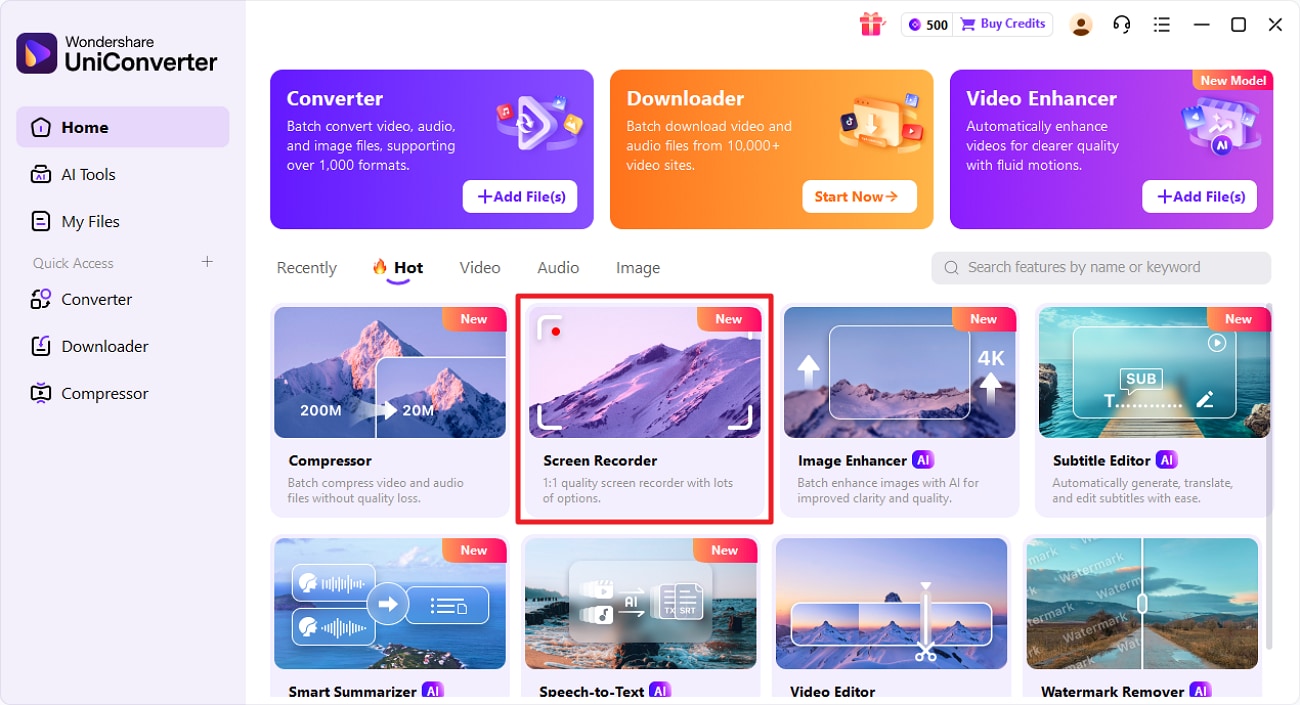
Step 1. Select UniConverter Screen Recorder
To begin, dial the voice call on Discord and launch UniConverter on your device. Next, choose the "Screen Recorder" option from the homepage by clicking on it.
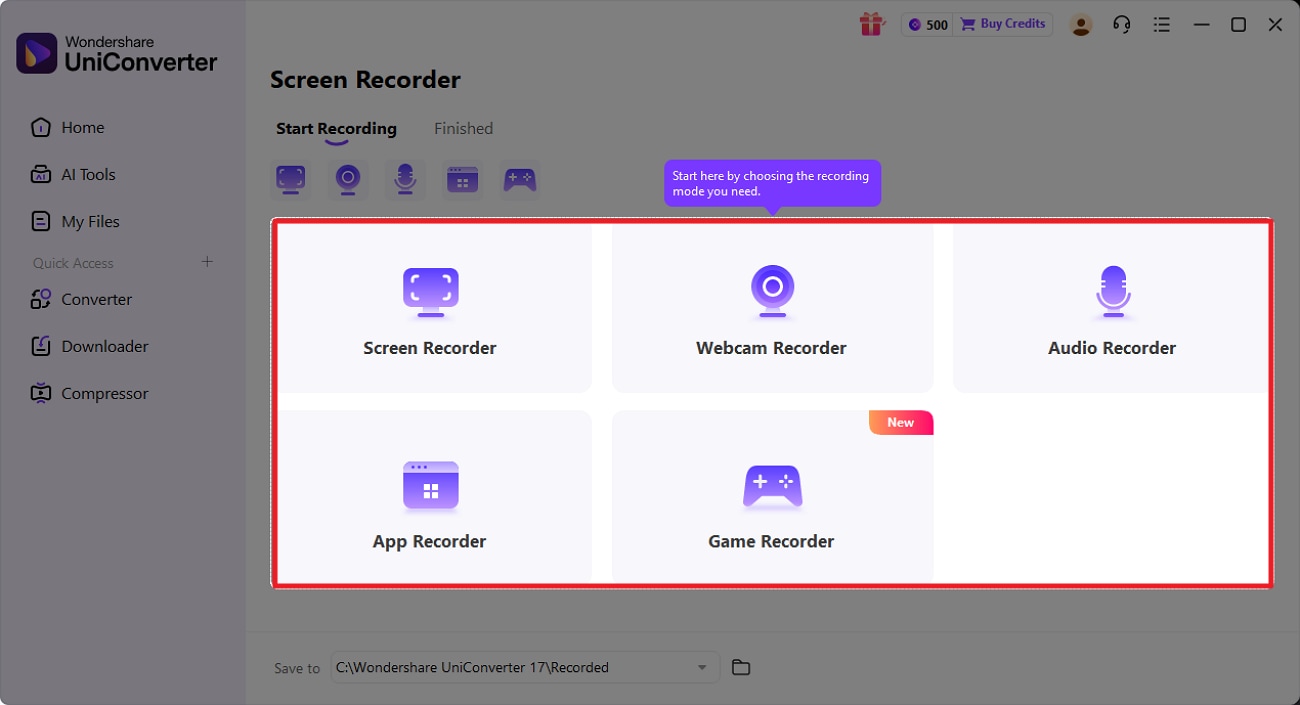
Step 2. Choose Recording Option
In the following interface, choose the recording option, such as "Screen Recorder" or "Audio", to proceed.
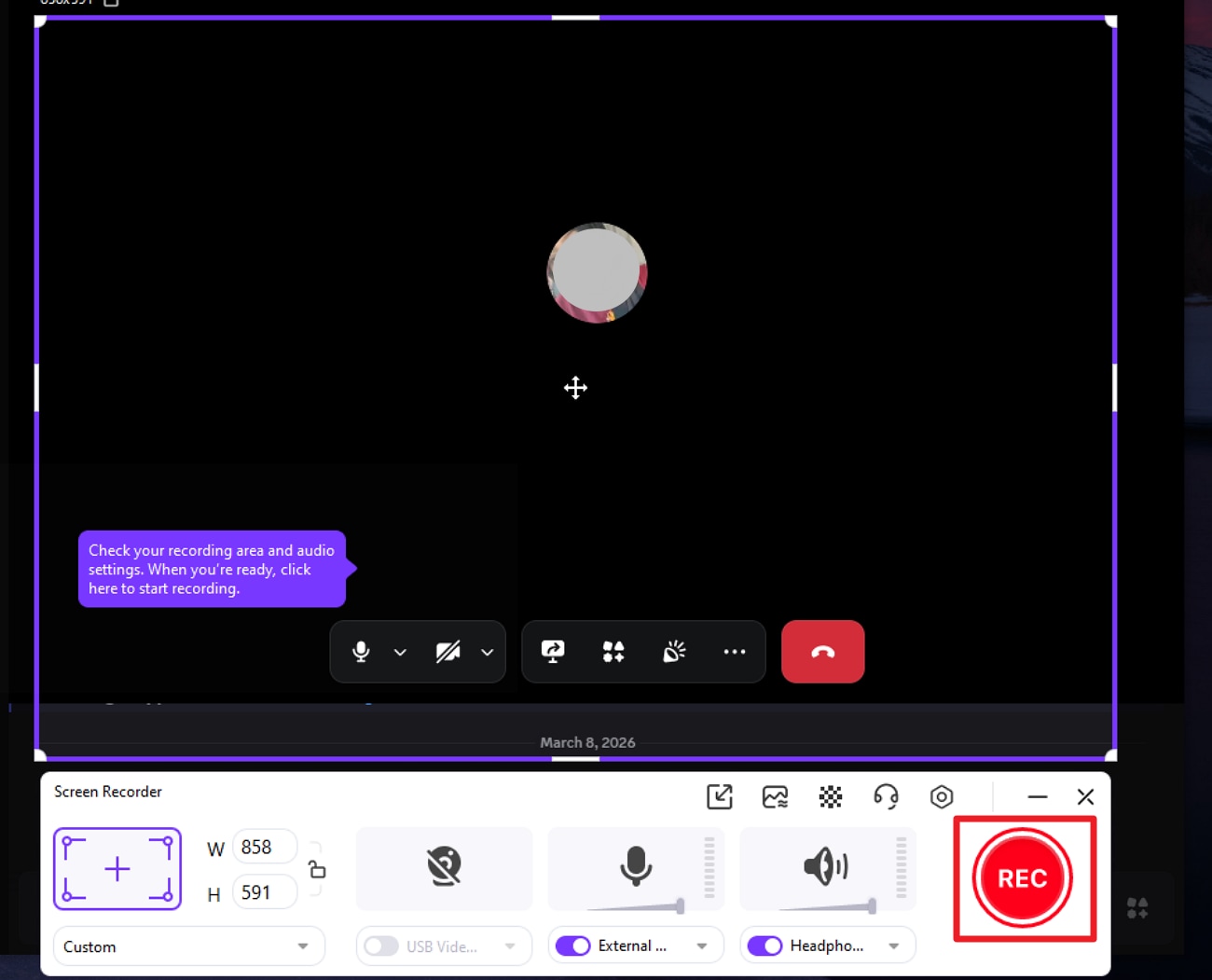
Step 3. Start Recording Audio
Now, configure the recording settings from the toolbar at the bottom and press the "Rec" button to begin the recording process.
Step 4. Stop Discord Call Recording
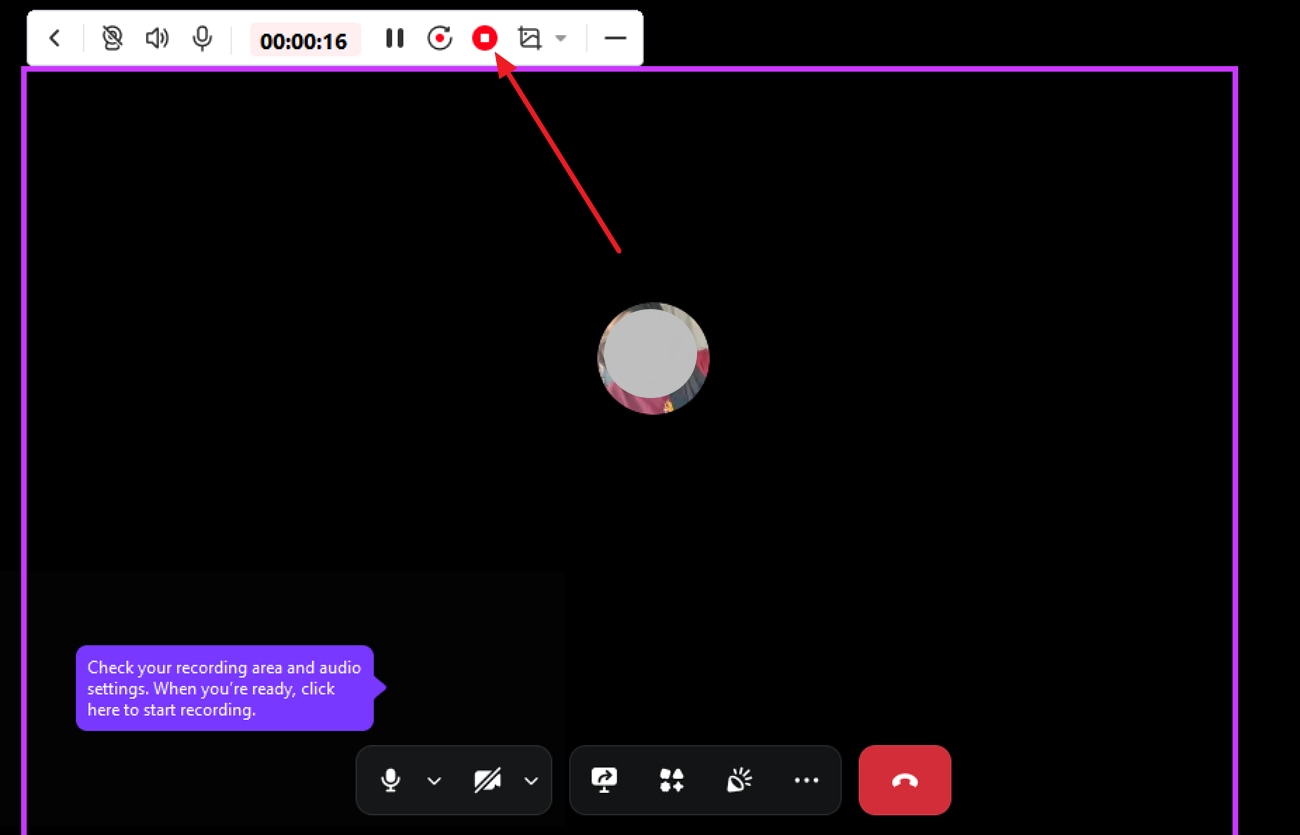
Once the call is completed, press the "Stop" icon located at the floating toolbar at the top.
Step 5. Review Finished Recording
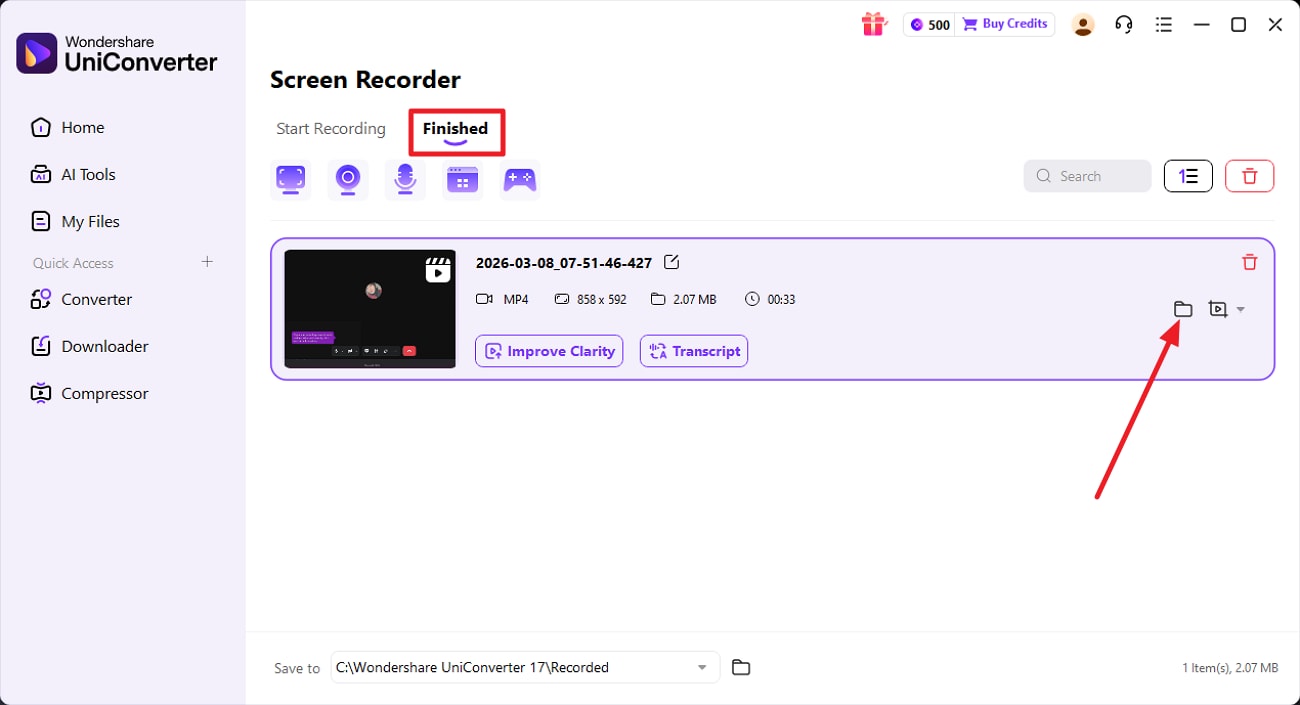
When the recording is completed, access it in the "Finished" tab of the tool. To access it within your system, press the "Folder" icon located within the interface.

High-Quality Discord Call Recorder with Full Control
5. Use Online Call Recorder
Using an online call recorder is a quick and convenient way to audio-record Discord conversations without installing software. Websites like Online Voice Recorder and Desktop Call Recorder allow users to capture voice chats directly from Discord. These tools are ideal for short meetings and interviews, providing easy access and downloadable recordings. Follow the steps mentioned below to learn how to record an audio call on Discord using an online recorder:
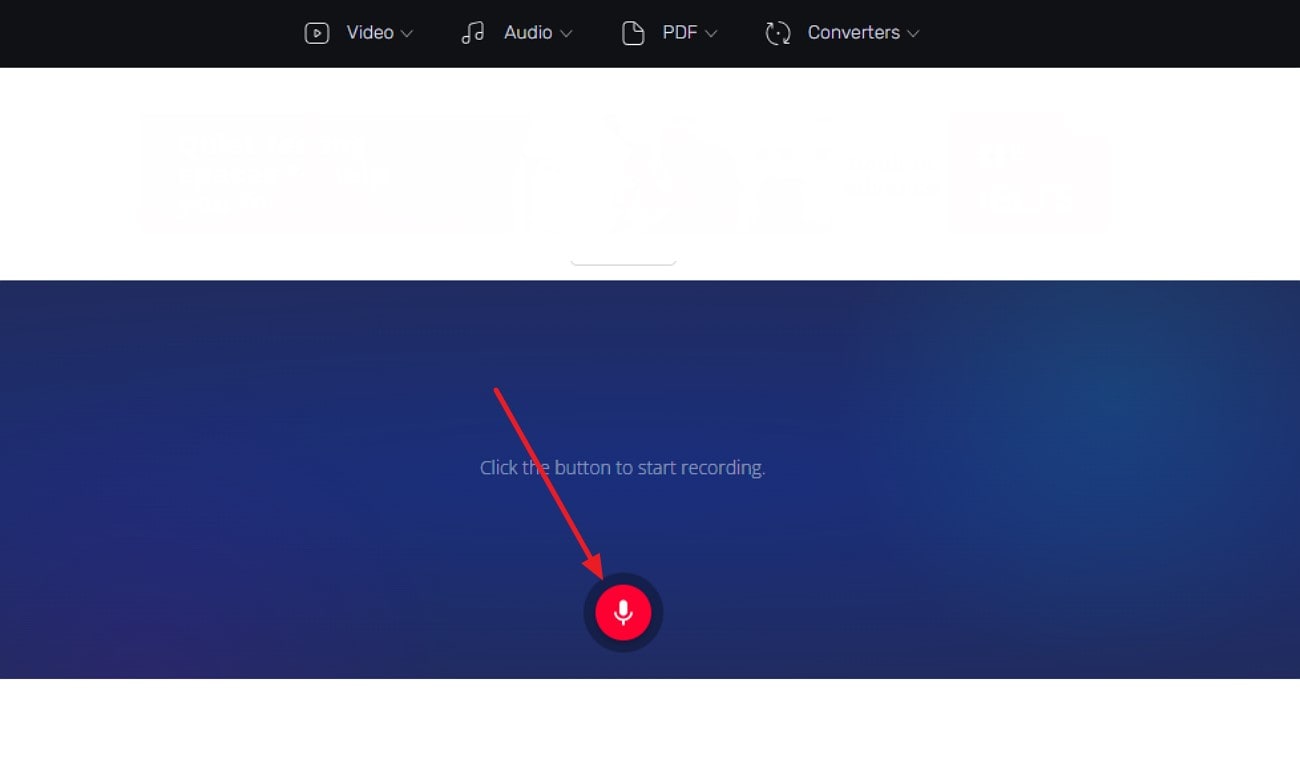
Step 1. Connect to the call and access the online recorder on your web browser. Now, press the "Microphone" icon to begin the recording.
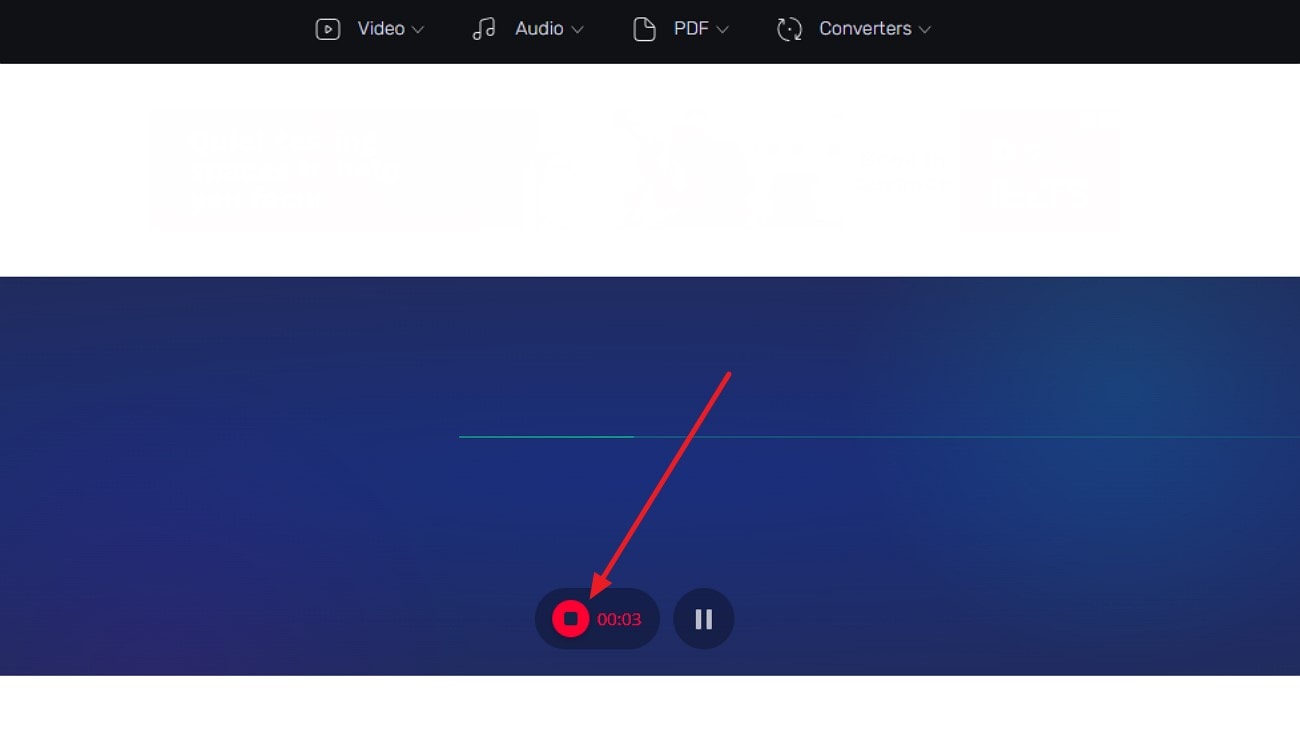
Step 2. After the recording is completed, press the "Stop" icon to abort the process.
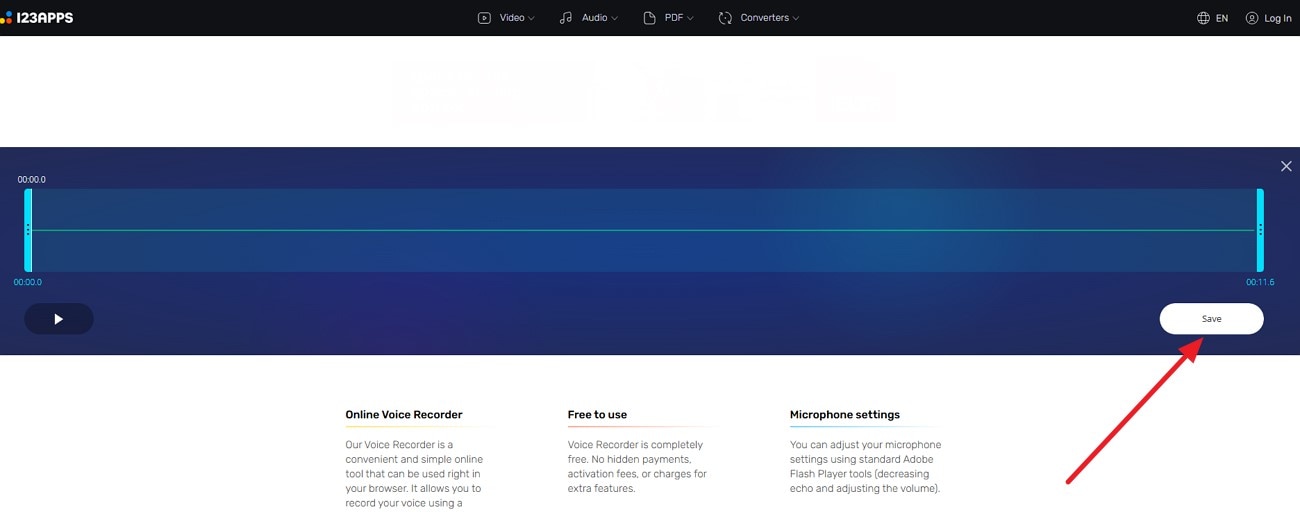
Step 3. Now, preview the recorded audio and press the "Save" button to successfully download the result to your device.
Key Features
The tool automatically trims silence at the beginning and end of recordings.
After recording, you can crop the audio to keep only the parts you need.
Users can pause and restart the recording from where they left off without starting the process from the beginning.
Part 4. How to Record Discord Calls on Mobile Devices - On Go Solution
After you have explored how to record Discord audio on your desktop, let us move to the methods for recording Discord calls on your smartphone:
Use Mobile Screen Recording
Using mobile screen recording is a convenient way to audio-record Discord calls directly on your smartphone. This method is ideal for on-the-go recording of gaming sessions, meetings, or casual chats. It requires no additional apps and allows easy saving and sharing of your recordings. Read the instructions provided below to learn how to capture an audio call on Discord using the built-in audio recorder of your phone:
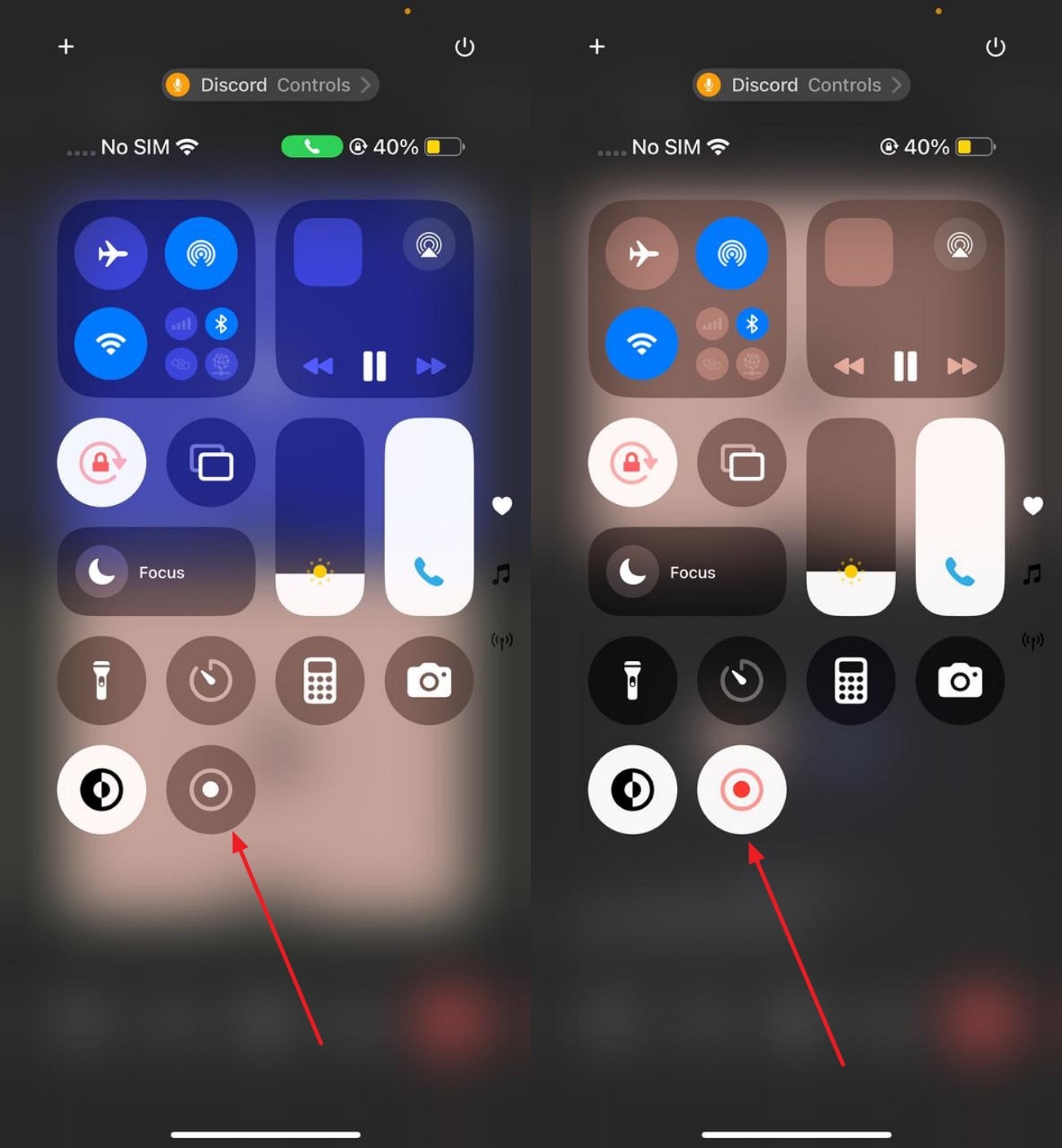
Instructions: Once the call is connected, swipe down to access the Control Center. Tap the "Screen Recording" button to begin recording. Once the call ends, swipe again and press the same "Screen Recording" icon to abort the process.
Key Features
Recordings are saved in high resolution, providing clear video quality.
All recordings are automatically stored in the Photos app for easy access.
The utility respects silent mode, avoiding unnecessary system alerts in recordings.
Record On Another Device Near Your Phone
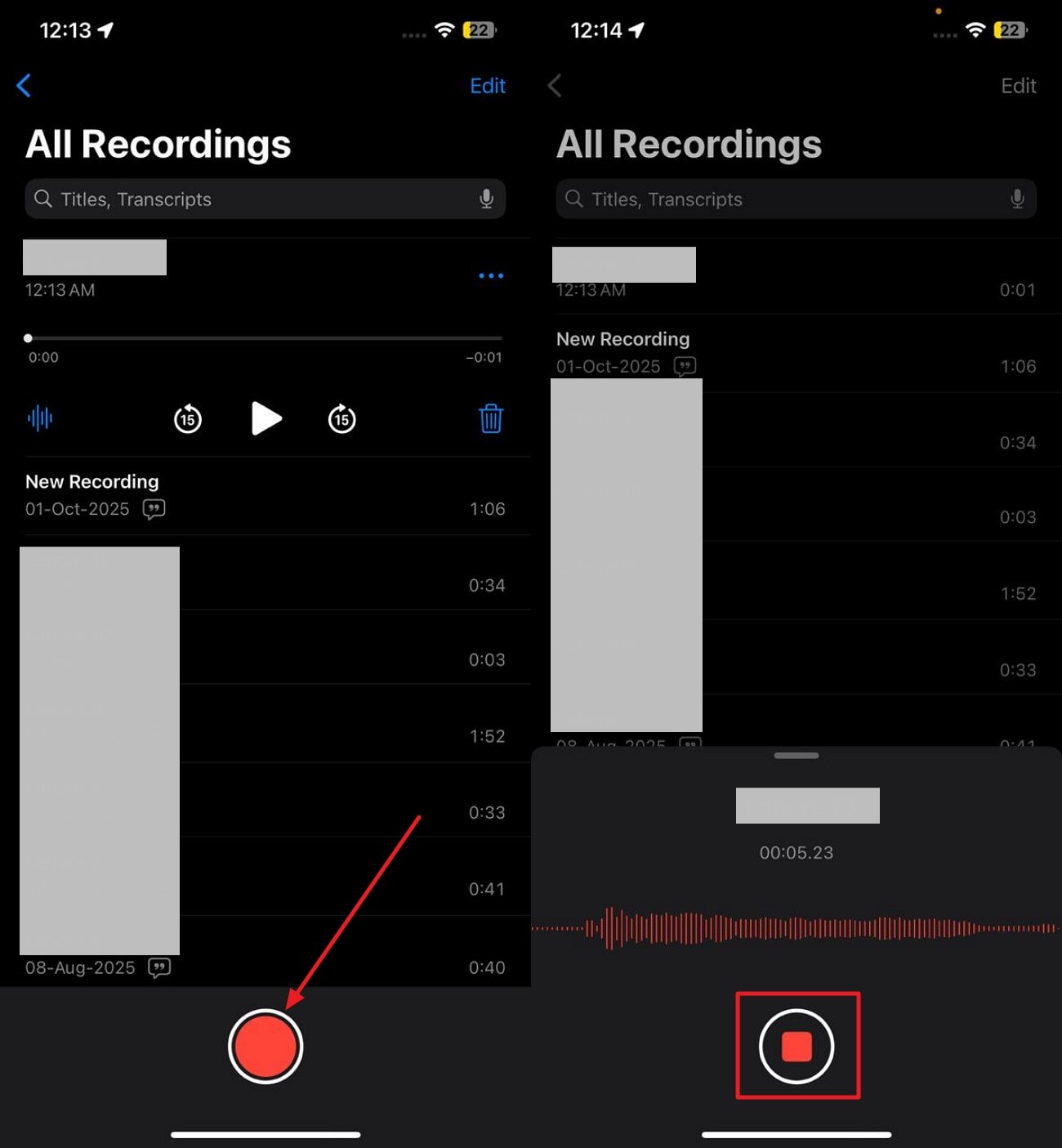
Another simple way to capture a Discord conversation is to record a Discord call using a separate device near your phone. This method requires no software or technical setup. By placing a second phone, tablet, or recorder close to the speaker, you can capture both voices clearly. It is a quick and accessible solution for casual calls or situations where built-in recording isn't available. Follow the instructions to learn how to do it:
Instructions. Start by selecting a second smartphone to record the conversation. Position the device close to the phone or speaker that is playing the Discord call, ensuring it is near enough to capture clear audio without distortion. Open the recording app on the second device and begin recording before the call starts or as soon as it begins.
Key Features
Compatible with smartphones, tablets, or dedicated voice recorders.
Save recordings locally or transfer them to other devices.
An independent device ensures recording is not affected by phone performance.
Use a Third‑party Screen‑Recording App
Using a third-party screen-recording app like V Recorder is an effective way to capture Discord calls on mobile. This app acts as a voice recorder for Discord, recording both system audio and your microphone. It offers high-quality video and audio, easy controls, and flexible storage options. This makes it ideal for gaming sessions, meetings, or podcasts directly from your smartphone. Here is how you can record an audio call using this app:
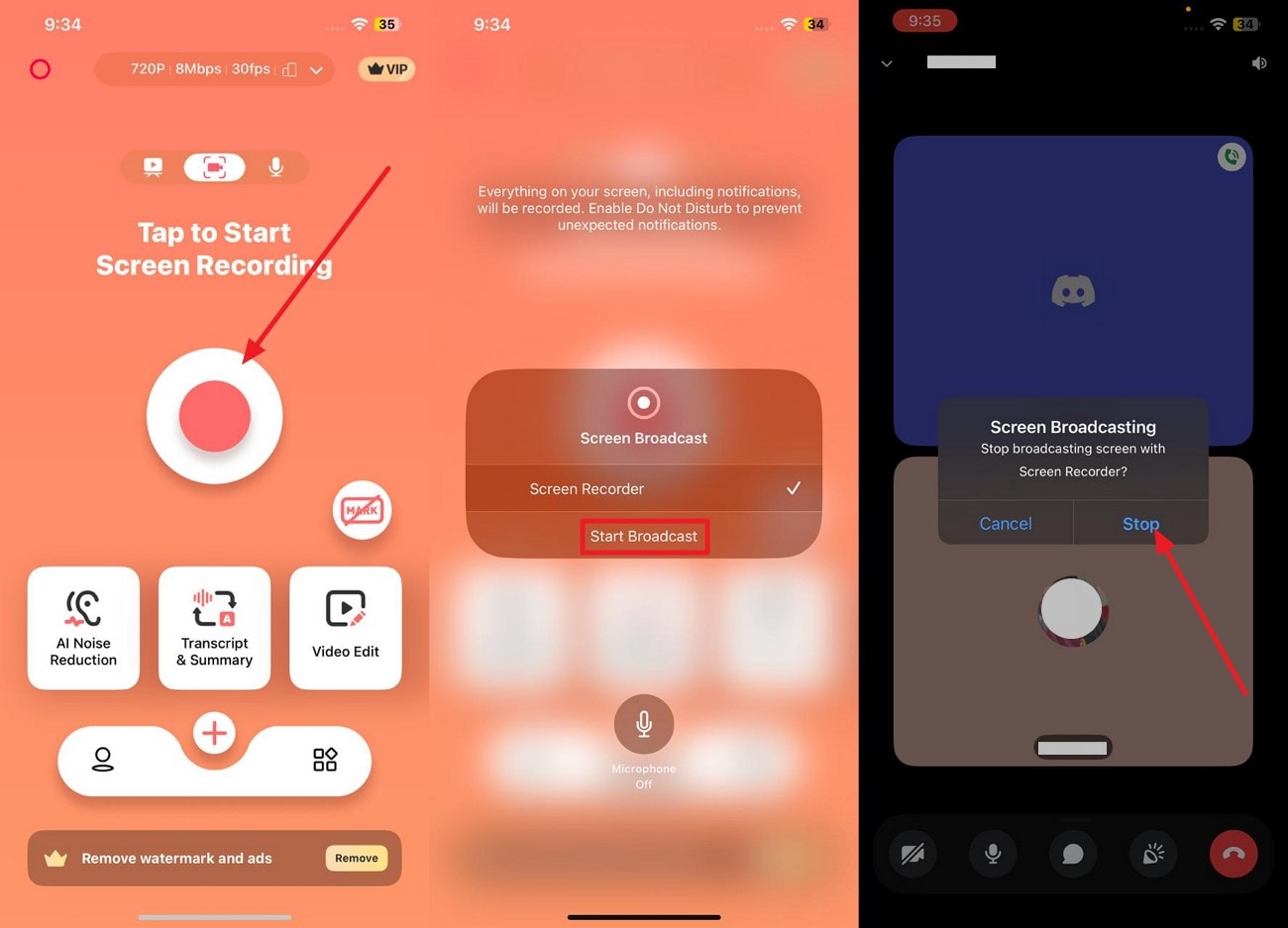
Instructions. Open the app and press the "Round" button to start recording. In the dialogue box, click the "Start broadcast" to begin. Now, head to Discord and start talking on the call. Once the call is complete, swipe down and press the "Stop" option to stop recording.
Key Features
It supports high-quality 4K screen and video recording, letting you capture sharp visuals too.
The app includes AI noise reduction to remove background sounds and improve audio clarity.
The app offers a built-in video editor with tools like trimming, filters, and transitions.
Part 5. Try 6 Pro Tips for High‑Quality Discord Call Recordings
If you want the best results, knowing how to record Discord calls properly can make a huge difference. Here are six professional tips to improve audio quality and overall recording experience:
Use a Dedicated Microphone: A quality microphone captures your voice clearly and reduces background noise. Avoid relying solely on built-in laptop or phone microphones for better clarity.
Record in a Quiet Environment: Background noise can ruin an otherwise perfect recording. Choose a quiet room or use noise-canceling equipment to minimize distractions.
Adjust Discord Audio Settings: Lower or normalize in-app sound levels to prevent clipping or distortion. Proper volume settings ensure all participants' voices are balanced in the recording.
Use a Reliable Recording Tool: Whether it's OBS Studio, UniConverter, or a Discord bot, choose a tool known for stability and quality. Reliable software reduces the risk of crashes or corrupted files.
Test Before the Call: Perform a short test recording to check audio levels and device setup. This helps identify issues early and ensures a smooth main recording session.
Monitor Storage and System Performance: Ensure your device has enough free space and minimal background tasks running. Low storage or high CPU usage can cause lag, dropped audio, or failed recordings.
Conclusion
To sum it up, this article provided a detailed guide on how to record Discord calls using various methods. Desktop software, mobile screen recording, online tools, and even another device can all work, but each has its limitations. For the most reliable and high-quality results, UniConverter is highly recommended. It offers an easy-to-use interface and supports multiple formats for a smoother recording experience.
Frequently Asked Questions
-
Can I record Discord calls without installing any software?
Yes, you can use online voice recorders or mobile screen recording. These methods work but usually offer lower audio quality than desktop tools like UniConverter. -
Is it legal to record Discord calls?
Recording is legal only if all participants give consent. Always inform everyone before starting to avoid privacy or legal issues. -
What is the best tool to record high-quality Discord calls?
UniConverter is highly recommended for clear audio and professional-quality recordings. It also supports multiple formats and easy editing features. -
How can I save recordings in multiple formats?
Built-in or online recorders often support only one or two formats. However, UniConverter allows saving recordings as MP4, AVI, MOV, and more for easy editing or sharing.

