Wondering how to make the lion-headed boss you've seen in AI Reels? You don't need to start with a complicated script. Choose a Sheru Bhai AI photo prompt below, create a character you like, and turn that still image into a short scene with Media.io. We've included separate photo and motion prompts so you can copy the part you need.
In this article
What Is the Sheru Bhai AI Video Trend?
Sheru Bhai is a fictional AI lion-boss character who appears in short comedy videos. He often wears a smart suit, sunglasses, and gold jewelry, and acts like a billionaire who can buy anything. A popular setup puts him in an auction against another animal boss: each bid gets bigger and sillier until Sheru wins.
Other versions show a dramatic entrance or a photo with the lion. There isn't one verified original prompt for the whole trend, so the prompts below are original starting points you can adapt for your own Sheru Bhai-style character.
Sheru Bhai AI Photo Prompts to Copy
Start with a still image. The first prompt makes a reusable character; the others give you a ready-made scene. Open a prompt, copy it, and change the details in brackets. Results vary by model, so generate a few versions and save the one whose face and outfit you like best.
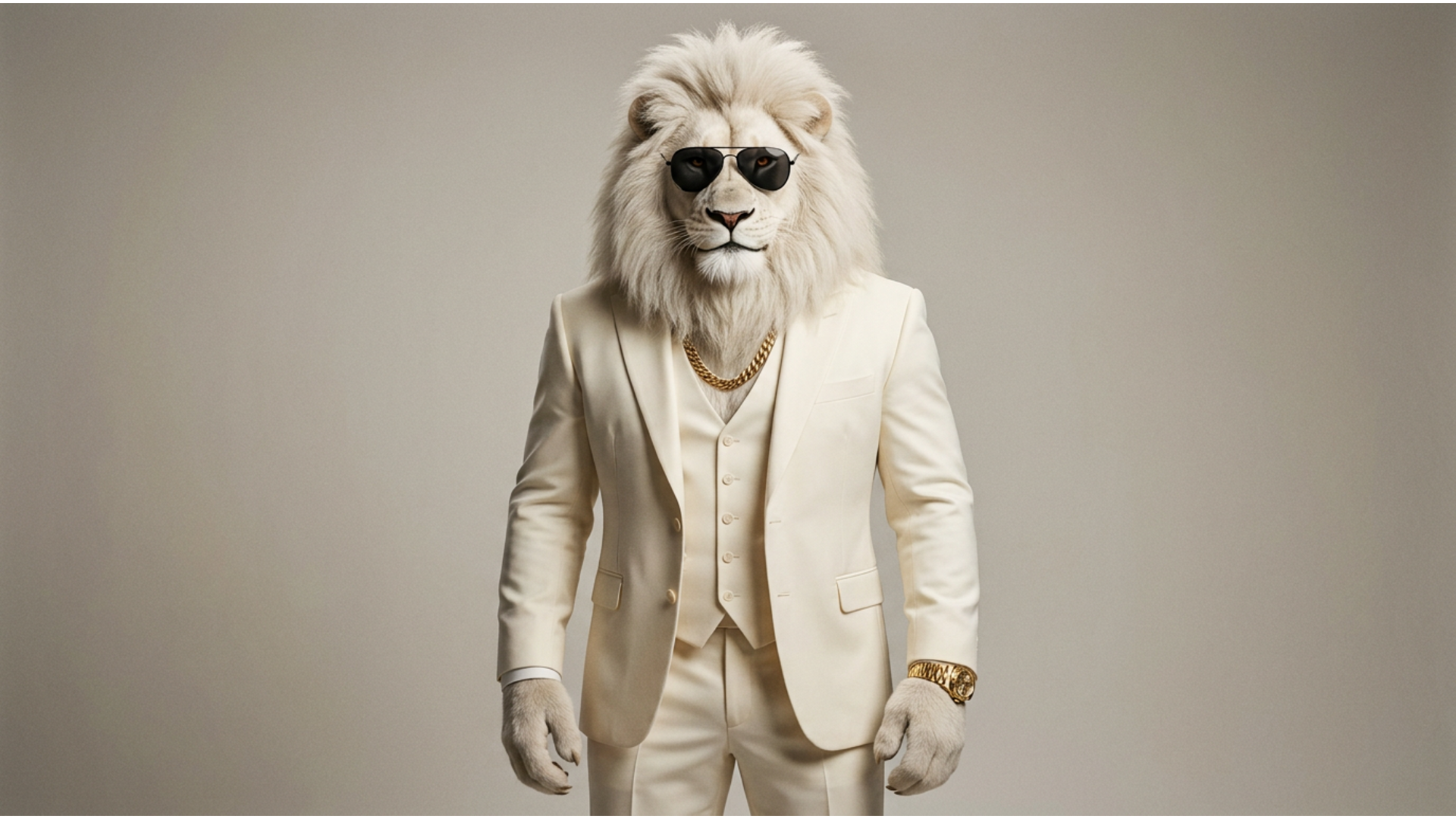
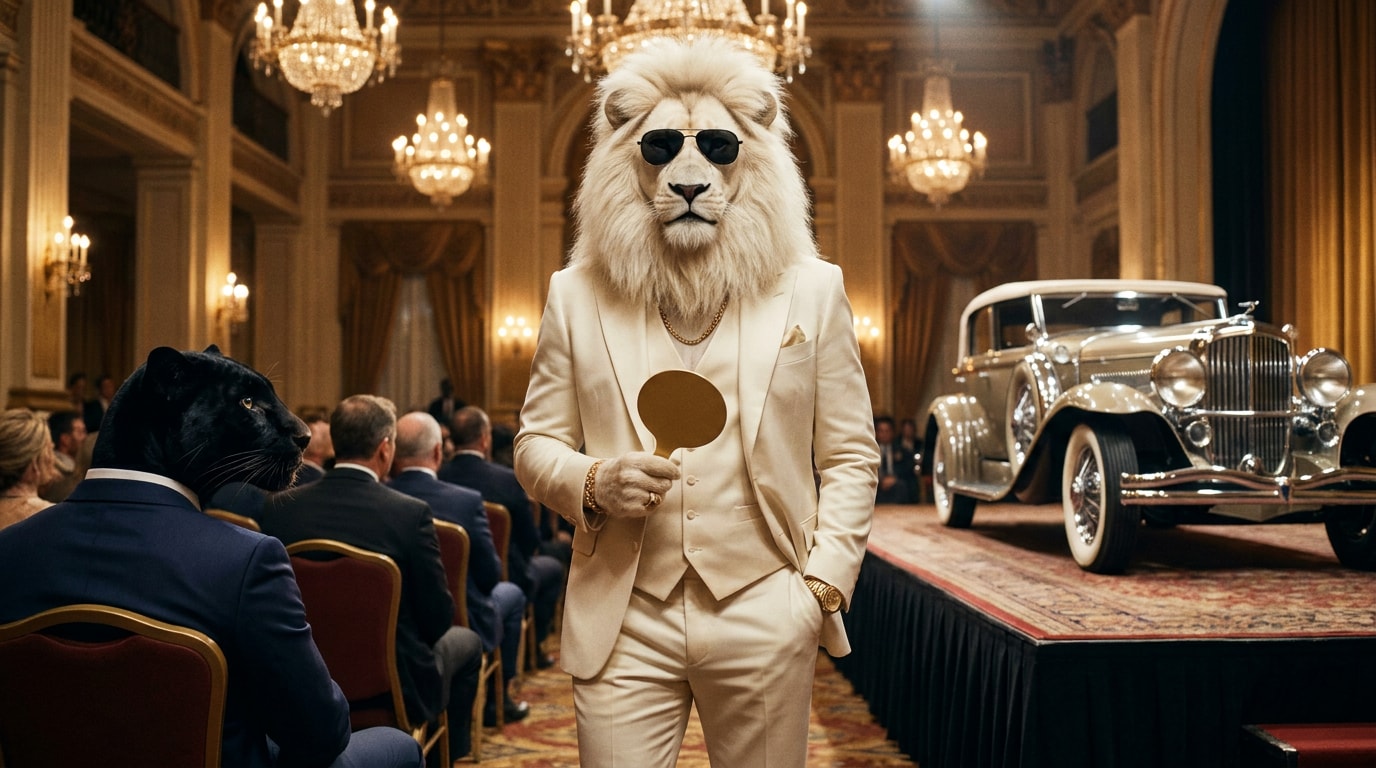
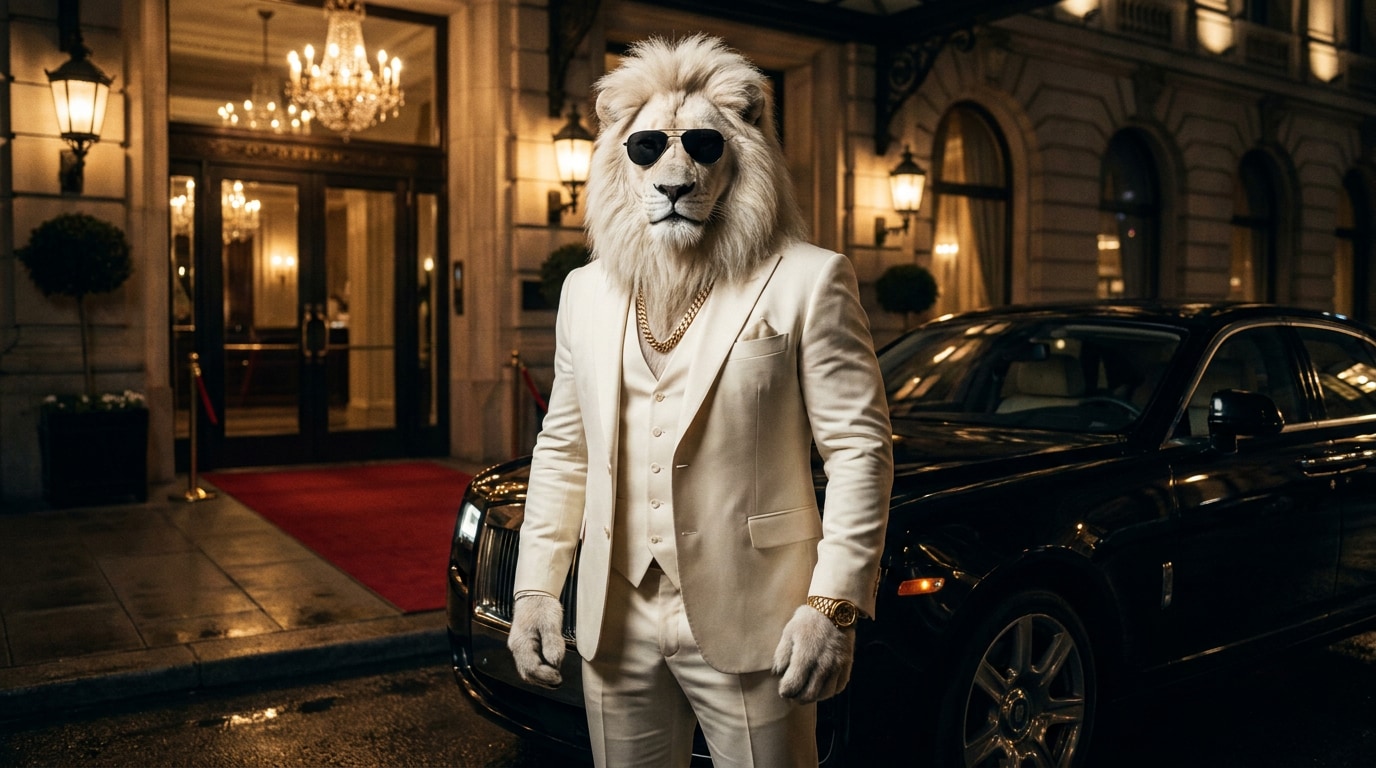
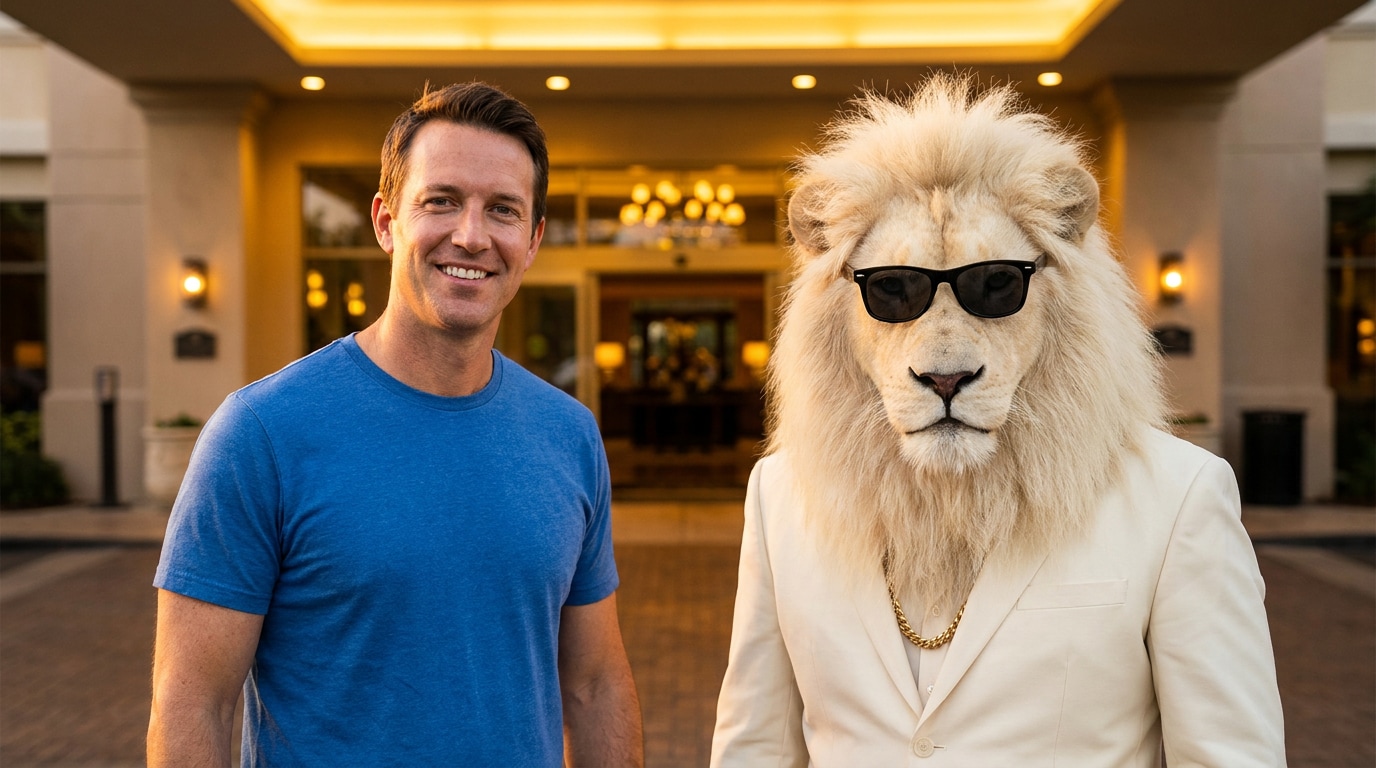
Using your own photo? Choose UniConverter's desktop image-to-image workflow for a reference portrait. Use a photo you have permission to upload, and check the generated face before sharing. An AI model may change facial details.
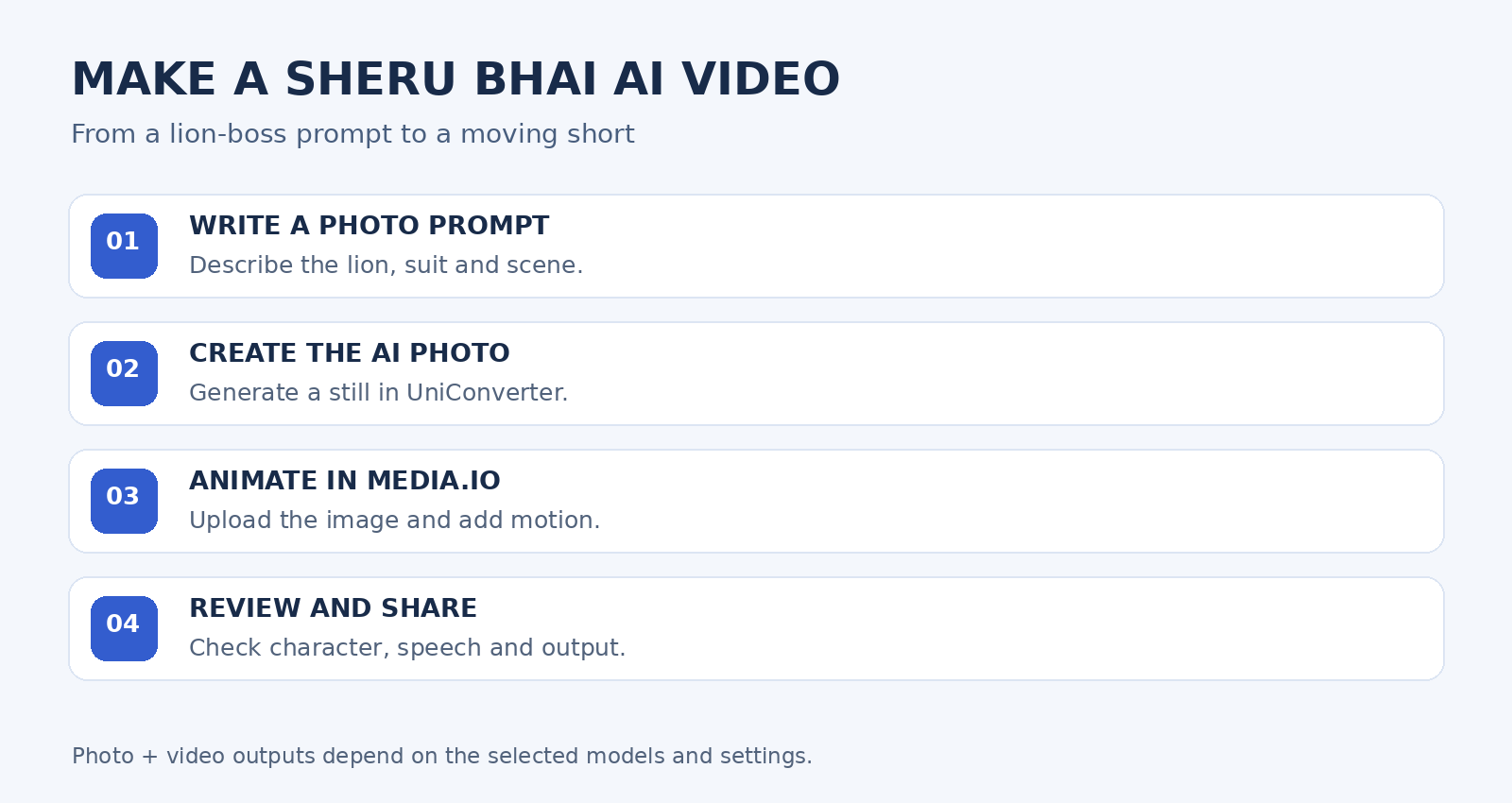
Quick List: How to Make a Sheru Bhai AI Video
How to Make a Sheru Bhai AI Photo with UniConverter
UniConverter's Image Generator turns a written description into an image. For this workflow, create the lion first and use the resulting still as the starting frame for your video. The desktop app also supports reference-guided image creation when you want to try a photo with Sheru.
Create your Sheru Bhai character with UniConverter
Write the lion's appearance, suit, and setting once, then refine the image before animating it.
- Open Image Generator. Launch UniConverter on your computer. From Home, choose the Image category and open Image Generator.
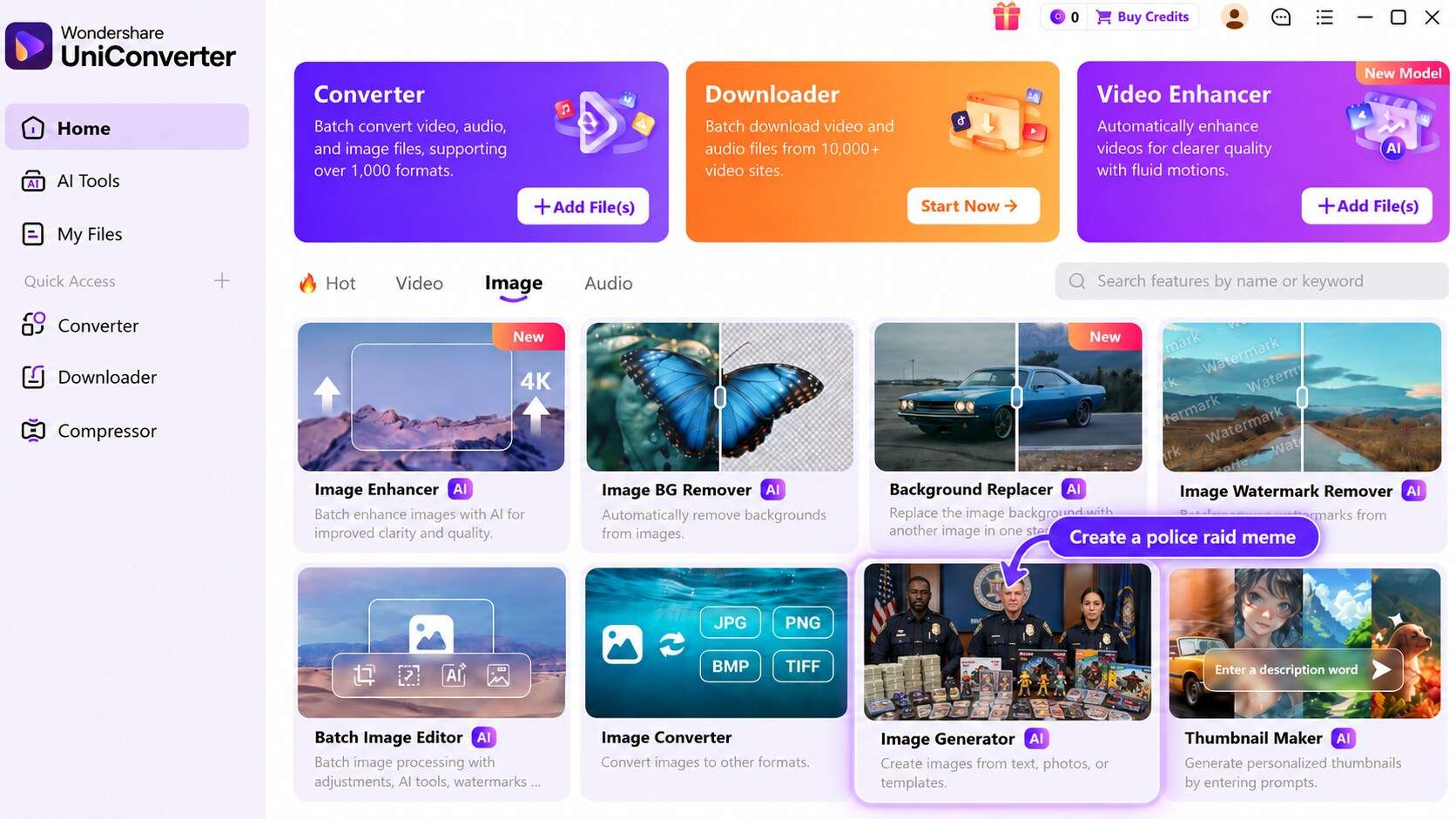
- Enter a photo prompt. Copy the character or auction prompt above into the description field. For a text-only character, leave the reference-image area empty. To try a photo with Sheru, add your portrait using the desktop reference workflow.
- Choose available settings and generate. Select an available model and a vertical aspect ratio if offered. Generate the image and review the lion's mane, suit, hands, and background. If a detail changes, specify it more clearly and generate again.
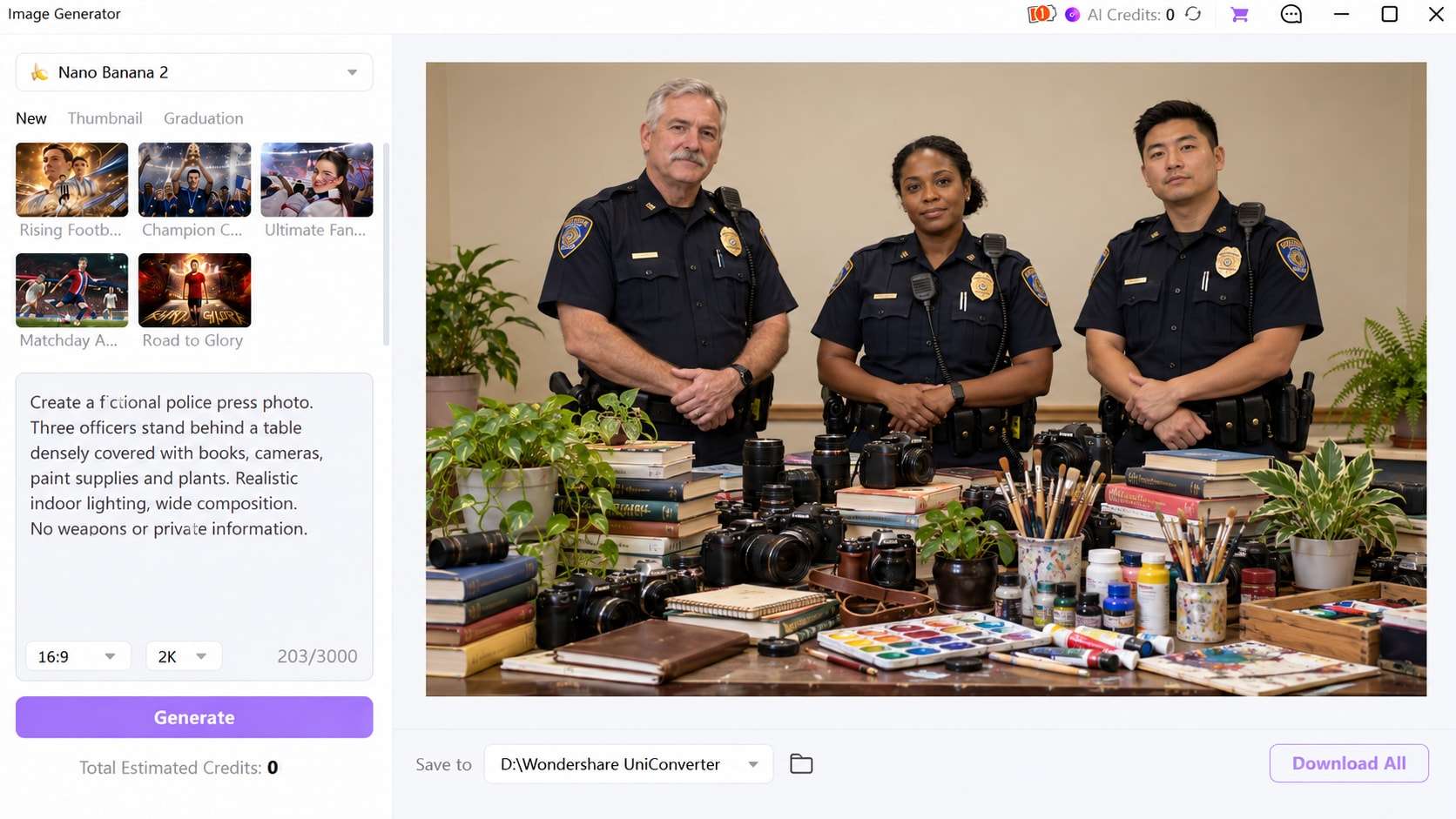
- Save your preferred image. Export the result you want to animate. Keep the same image for related scenes to give the video model a consistent visual starting point.
Want to experiment with another look? See our guide to image-to-image AI generators for ways to create variations from a reference image. For a quick text-only route, use the online AI Image Generator.
For more animal-inspired creations, see how to make AI animal fusion videos and explore animal photo prompt ideas.
Sheru Bhai AI Video Prompts for Reels
Now give your still image movement. Upload the matching image and paste one of the prompts below into an image-to-video tool. Describe what should move rather than asking the model to redesign the lion. If a scene is too busy, generate shorter shots separately.
For a two-part story: Generate the auction shot first. Then use a matching image or a supported continuation/keyframe feature for the next shot. A prompt alone cannot guarantee a seamless cut, so compare the last frame of part one with the start of part two. Short, separate clips are easier to revise than a crowded scene.
Quick List: Turn a Sheru Bhai Photo into an AI Video
- Open Media.io Image to Video and upload the lion image.
- Paste a motion prompt that matches the image.
- Choose available settings, generate, preview, and save.
How to Make a Sheru Bhai AI Video with Media.io
Once you have your image, Media.io Image to Video lets you upload it and describe the action. A still image defines the look; the video prompt adds movement and camera direction.
- Open Image to Video. Visit Media.io's Image to Video page and upload your Sheru Bhai image. Pick the auction image for the auction prompt or the car image for the entrance prompt.
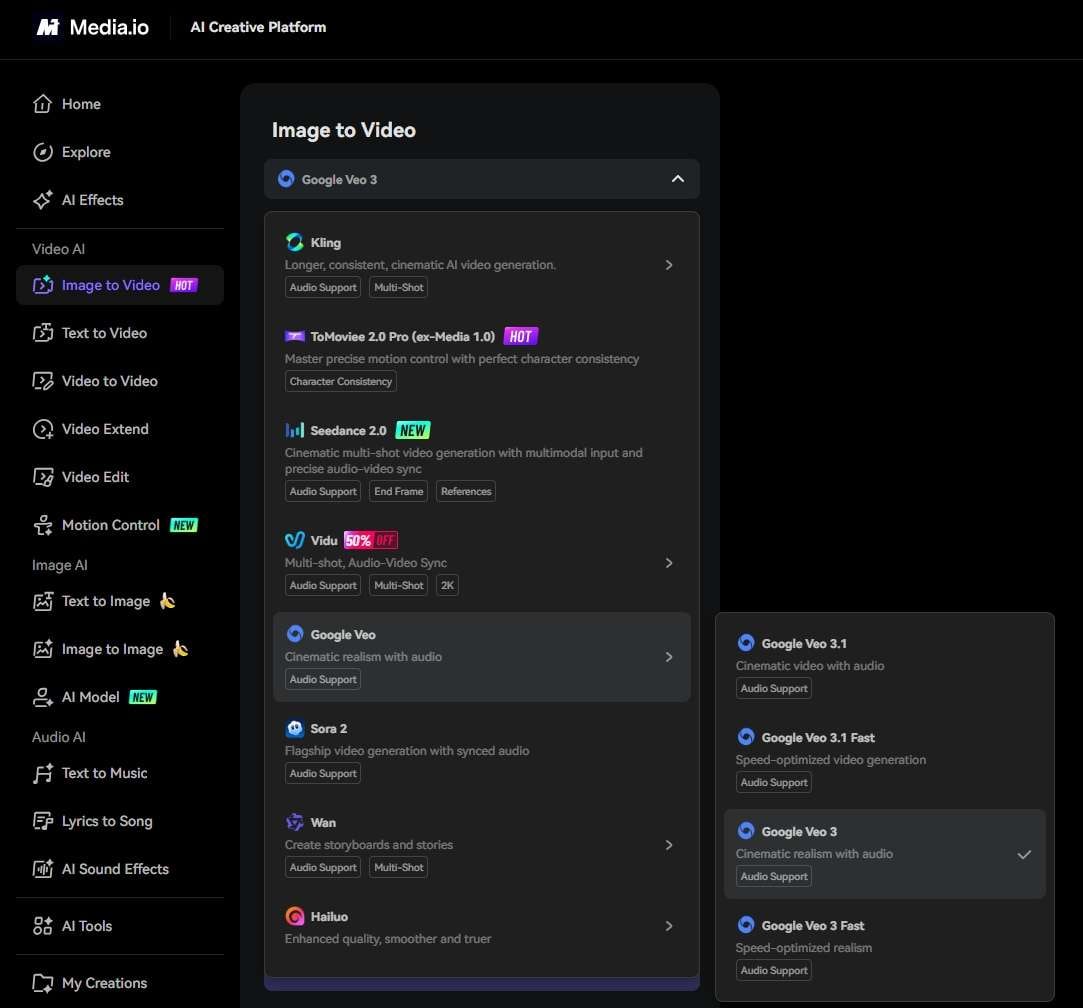
- Add the motion prompt. Copy a video prompt from above into the prompt field. Adjust the action and camera movement to fit your image. If your image has only one character, start with a single-character entrance rather than asking the model to invent a complex crowd.
- Choose the available output options. Select a vertical format and a suitable duration if your chosen model offers them. Model availability, credits, and audio options can change; review them on the generation screen.
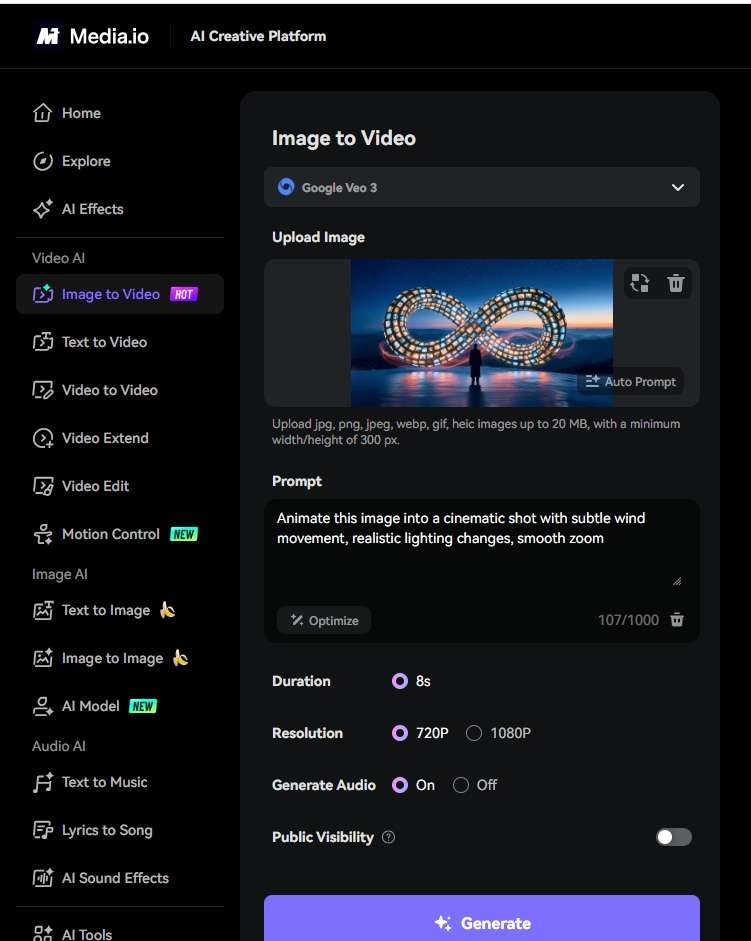
- Generate and review. Click Generate, then preview the lion's appearance, motion, and camera work. If speech is available and requested, check who speaks and whether the words are clear. Save the result when you're happy with it.
Make a Sheru Bhai Video with Media.io
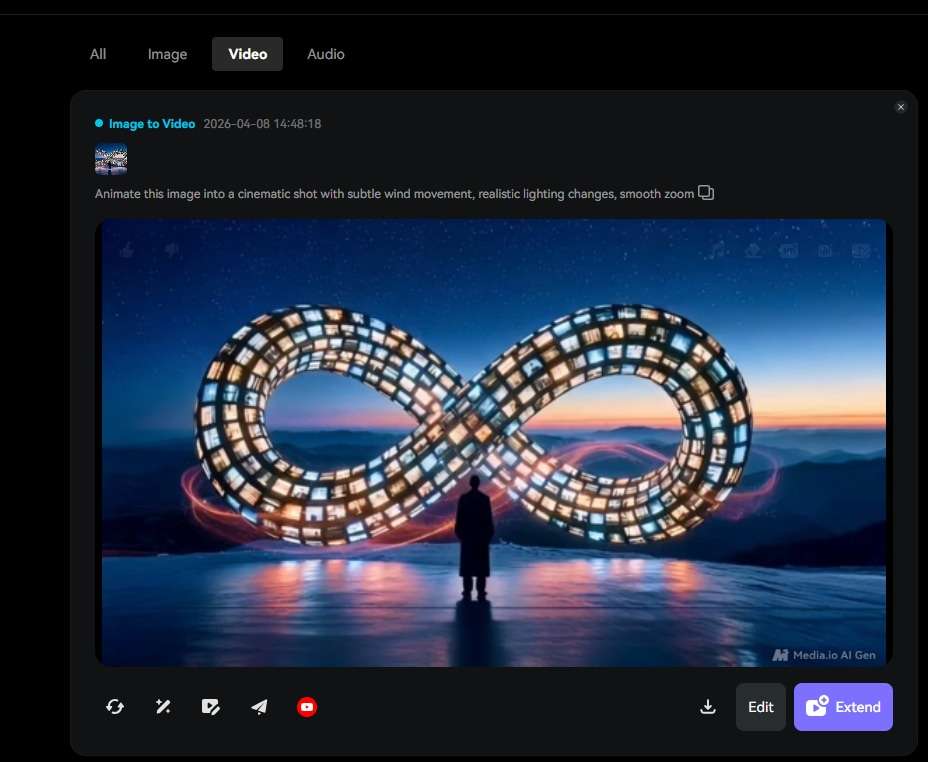
If you need a different output format or a smaller file afterward, try UniConverter's video compressor. For a soft or low-resolution result, the AI Video Enhancer may help, although it cannot fix every generation error.
For more animation ideas, see our guide to AI image-to-video tools or learn how to make a dancing animal video.
Fix Common Sheru Bhai AI Video Problems
| Problem | What to try |
|---|---|
| Sheru looks different between shots | Reuse your saved character image; repeat the mane, suit, sunglasses and jewelry descriptions. Keep scenes simple. |
| The video changes the pose or background | Use a starting image closer to the desired scene and request one action at a time. |
| Dialogue is missing or unclear | Check whether the chosen model supports audio. Use short lines; if speech is unavailable or wrong, add your own voice or captions in an editor. |
| The rival speaks Sheru's line | Specify the speaker before each short line, or generate separate shots and add dialogue afterward. |
| The second scene doesn't match | Match the final pose, location and lighting; use a keyframe or continuation feature if available. Regenerate only the shot that fails. |
| The video looks soft or is too large | Start from the best image available; try enhancement for softness or compression for file size, and compare the export before sharing. |
FAQs About Sheru Bhai AI Videos
-
Sheru Bhai AI video kaise banaye?
Create a Sheru Bhai-style lion image in UniConverter using a photo prompt, then upload it to Media.io Image to Video. Add a motion prompt, generate the clip, and review the character and speech before sharing.
-
Which Sheru Bhai AI video prompt should I use for an auction?
Use the auction prompt in this guide with an image of the lion boss in an auction hall. It describes a rival raising a paddle, Sheru responding, audience reactions, and a camera push. Keep dialogue short and check whether your selected model supports speech.
-
How can I keep Sheru Bhai looking the same in every scene?
Save your preferred lion image and reuse it as a visual reference where the video tool supports references. Repeat the same mane, suit, sunglasses, and jewelry details, and generate shorter scenes. Consistency is not guaranteed, so compare each result.
-
Can I make a Sheru Bhai AI photo with my own picture?
Yes. In UniConverter desktop, use a portrait you have permission to upload in the reference-image workflow, then describe a photo with a white lion boss. Review the generated likeness because facial features can change.
-
Can I make a Sheru Bhai AI video for free?
Some tools provide free access or limited trial credits, but availability, model choices, and export conditions vary. Check the current price, credit balance, and terms on UniConverter and Media.io before generating.
-
Can Sheru Bhai speak Hindi or Urdu in an AI video?
Some video models can generate speech or audio. Check whether your chosen Media.io model offers audio, use a short line, and review pronunciation and lip-sync. If the result is silent or inaccurate, add a voiceover and captions afterward.
-
Who created the original Sheru Bhai prompt?
No single original prompt for the wider Sheru Bhai trend has been independently verified. The prompts in this guide are original examples inspired by the lion-boss format.