


If you are thinking of learning how to rip a DVD, you’re not alone. Whether you want to back up your favorite movies, convert DVDs into digital files, or transfer content across devices, ripping a DVD makes it easy to store and access your media anytime. In simple terms, ripping a DVD means extracting the video and audio from the disc and saving it as a digital file on your computer.
This guide will show you the best tools and step-by-step methods to rip a DVD and convert it to MP4 for smooth playback on Windows, Mac, and mobile devices. Plus, learn about common issues you might encounter and how to troubleshoot them.
In this article
Part 1. What Does “Rip a DVD” Mean?
Ripping a DVD means extracting the video, audio, and other content from a disc and saving it as a digital file like MP4, MKV, or AVI. Unlike copying a DVD, which makes an exact duplicate of the disc, ripping creates a standalone file you can play on your computer, phone, or tablet.
Many people rip DVDs to back up media for easier access. Keep in mind that DVD ripping may have legal restrictions in some countries, especially for copy-protected discs, so always follow local copyright laws.
Is It Legal to Rip a DVD?
In many countries, ripping a DVD for personal use may be allowed, especially if you own the disc. However, things become more complicated when the DVD is protected by copy protection (also known as DRM). In regions like the United States, circumventing copy protection can violate laws such as the DMCA, even if the purpose is personal backup.
Here are some key points to keep in mind:
- Personal Use vs. Distribution: Ripping for private use is sometimes tolerated, but sharing or distributing the ripped files is usually illegal.
- Copy-Protected DVDs: Bypassing encryption (like CSS protection) may be restricted or prohibited in certain countries.
- Regional Laws Vary: Some countries allow private copying, while others strictly limit or ban DVD ripping altogether.
- Commercial DVDs vs. Homemade DVDs: Ripping your own recorded DVDs is generally safer from a legal standpoint than ripping commercial movies.
To stay on the safe side, always check your local copyright laws before ripping a DVD and avoid using ripped content for commercial or public purposes.
Part 2. How to Rip a DVD with Top Tools in 2026
With tools like Wondershare UniConverter, HandBrake, VLC Media Player, Windows Media Player, and WinX DVD Ripper, you can rip your DVD with speed and flexibility.
Wondershare UniConverter: All-in-One Converter
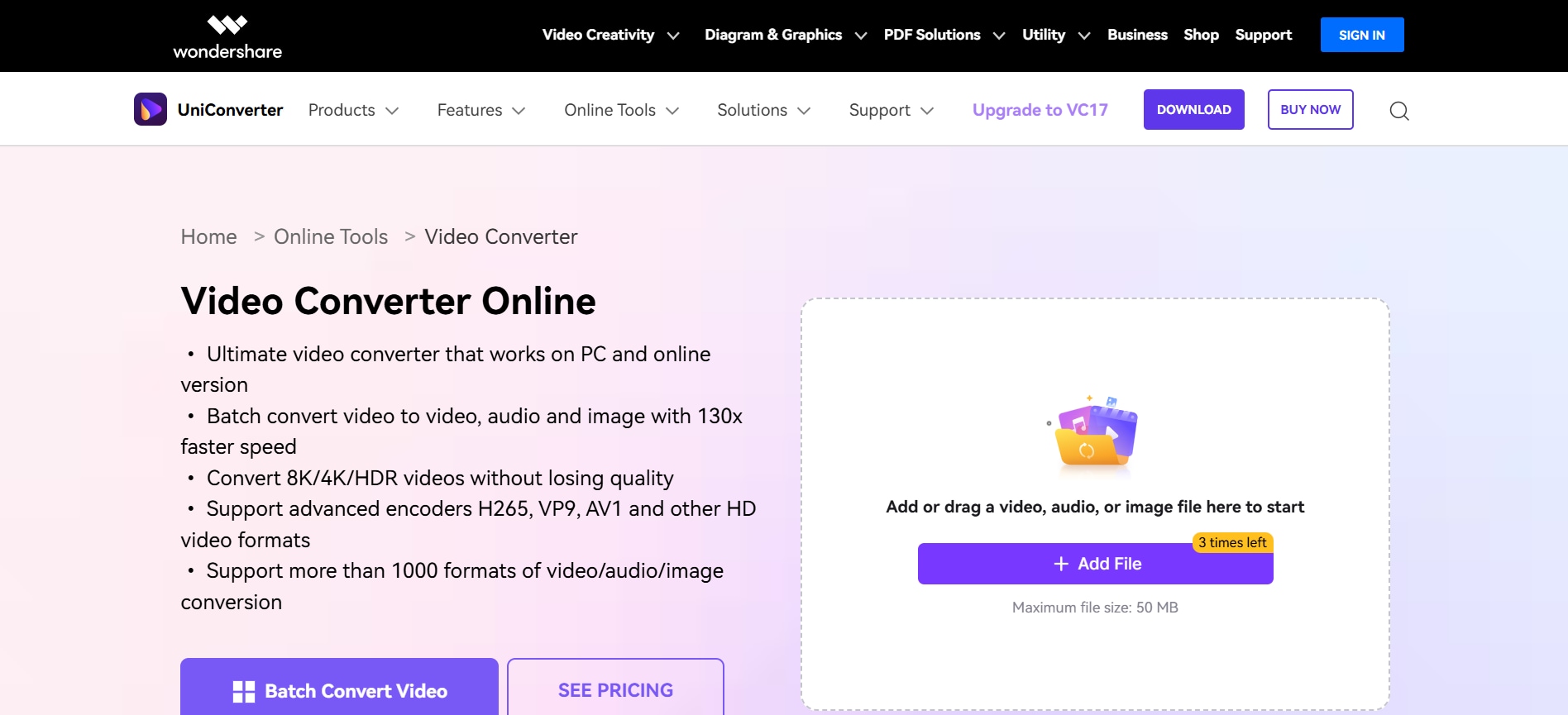
Wondershare UniConverter makes it easy to manage and convert your media files. It offers fast, reliable tools for compressing, editing, and converting videos, including DVDs. If you want to know how to convert a DVD to an MP4 file, UniConverter provides a simple step-by-step workflow that preserves video quality, supports multiple formats, and lets you handle large files or batch conversions efficiently. Apart from MP4, UniConverter also support DVD ripping to AVI, MPG and dozens of other common or less seen video formats.
Key Features
Wondershare UniConverter supports batch processing and 1000+ formats, such as MP4, WebM, OGV, VOB, ASF, DV, TS, 3GP, and more.
- With the video trimmer tool, you can trim your videos into short highlights for repurposing on social media.
- The video background remover tool helps you remove or modify the background in your video as per your requirements.
- You can use a free voice changer to modify the voice in your video files to change the whole perspective.

High-Quality DVD Ripper Without Quality Loss
HandBrake
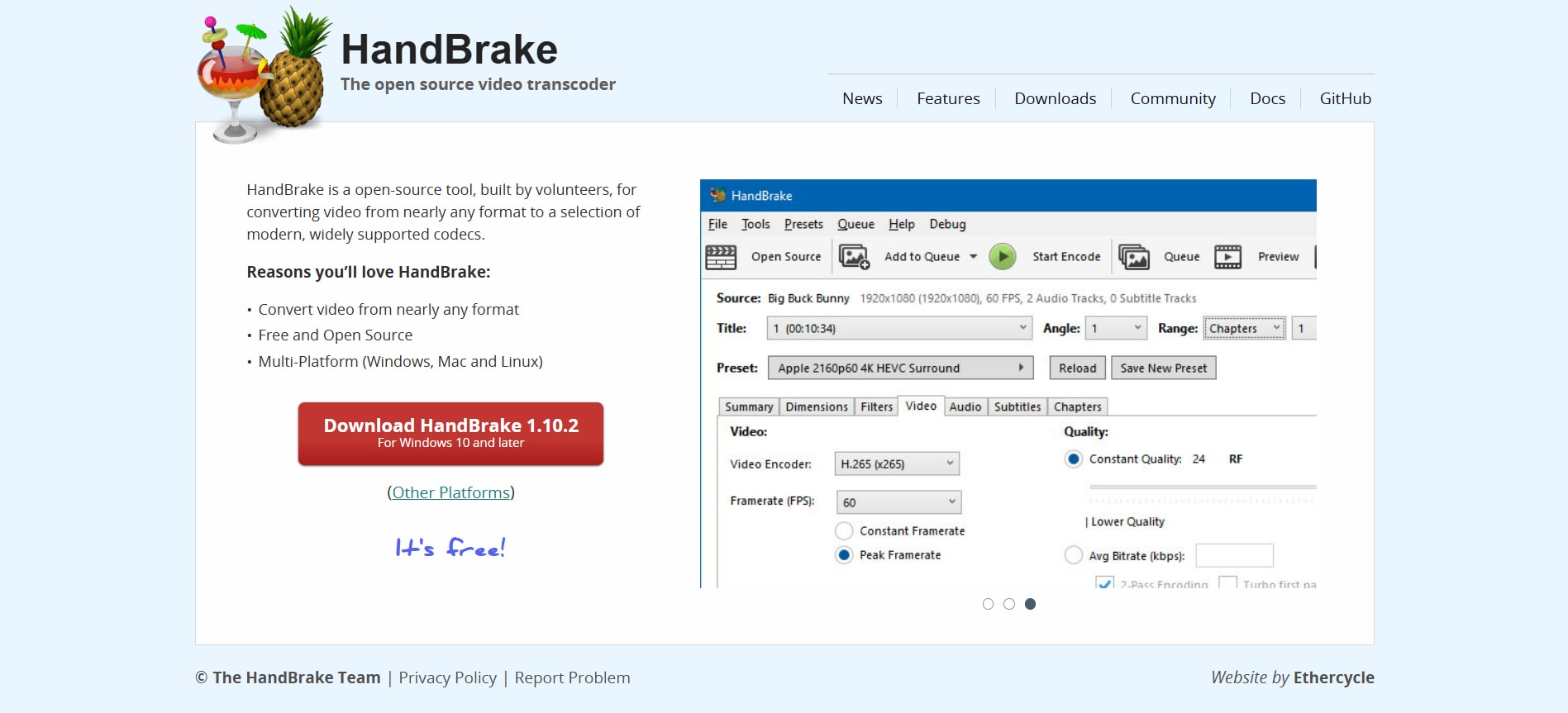
HandBrake is a free, open-source video transcoder that lets you convert multimedia files and DVDs into a variety of formats. With built-in device presets and advanced encoding options, it makes video conversion simple and flexible. HandBrake supports MP4, MKV, and WebM output, multiple video and audio codecs, and hardware-accelerated encoding for faster performance.
Key Features
Supports multiple formats like MP4, MKV, and WebM output.
Advanced encoding presets for different file formats.
Allows you to choose different video files with subtitle extraction functionality.
VLC Media Player
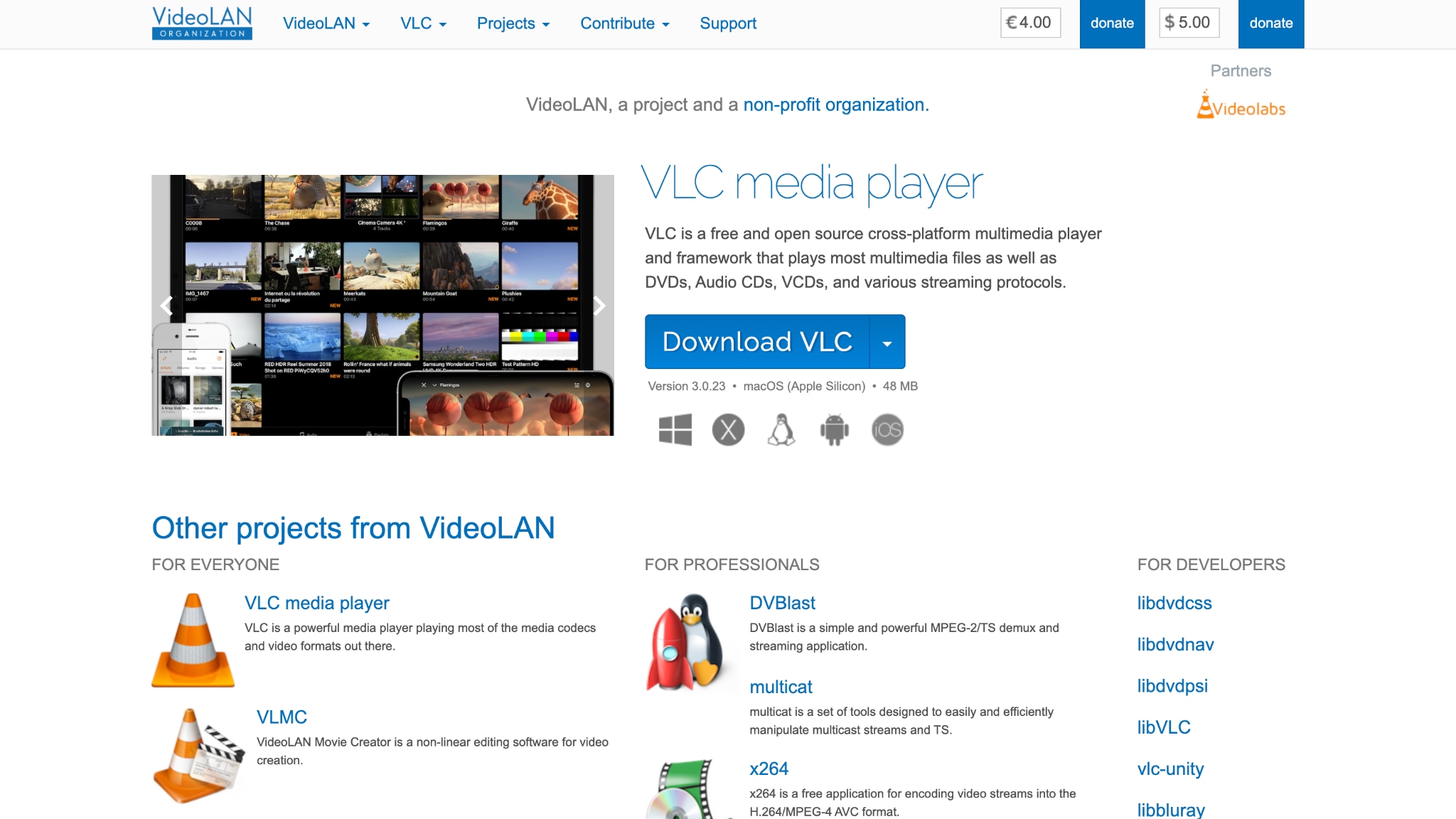
VLC Media Player is a free, open-source multimedia tool that plays almost any video or audio format, including DVDs, Audio CDs, and streaming content. Beyond playback, it includes a simple convert/save feature that allows you to rip DVD content into digital formats like MP4. While it works best for non-protected DVDs, VLC is a reliable choice for quickly extracting media without installing extra software.
Key Features
VLC works smoothly on Windows, macOS, Linux, Android, iOS, Windows Phone, and Apple TV.
Supports conversion to MP4, MOV, and other commonly used formats.
Automated quick extraction of media files.
MakeMKV
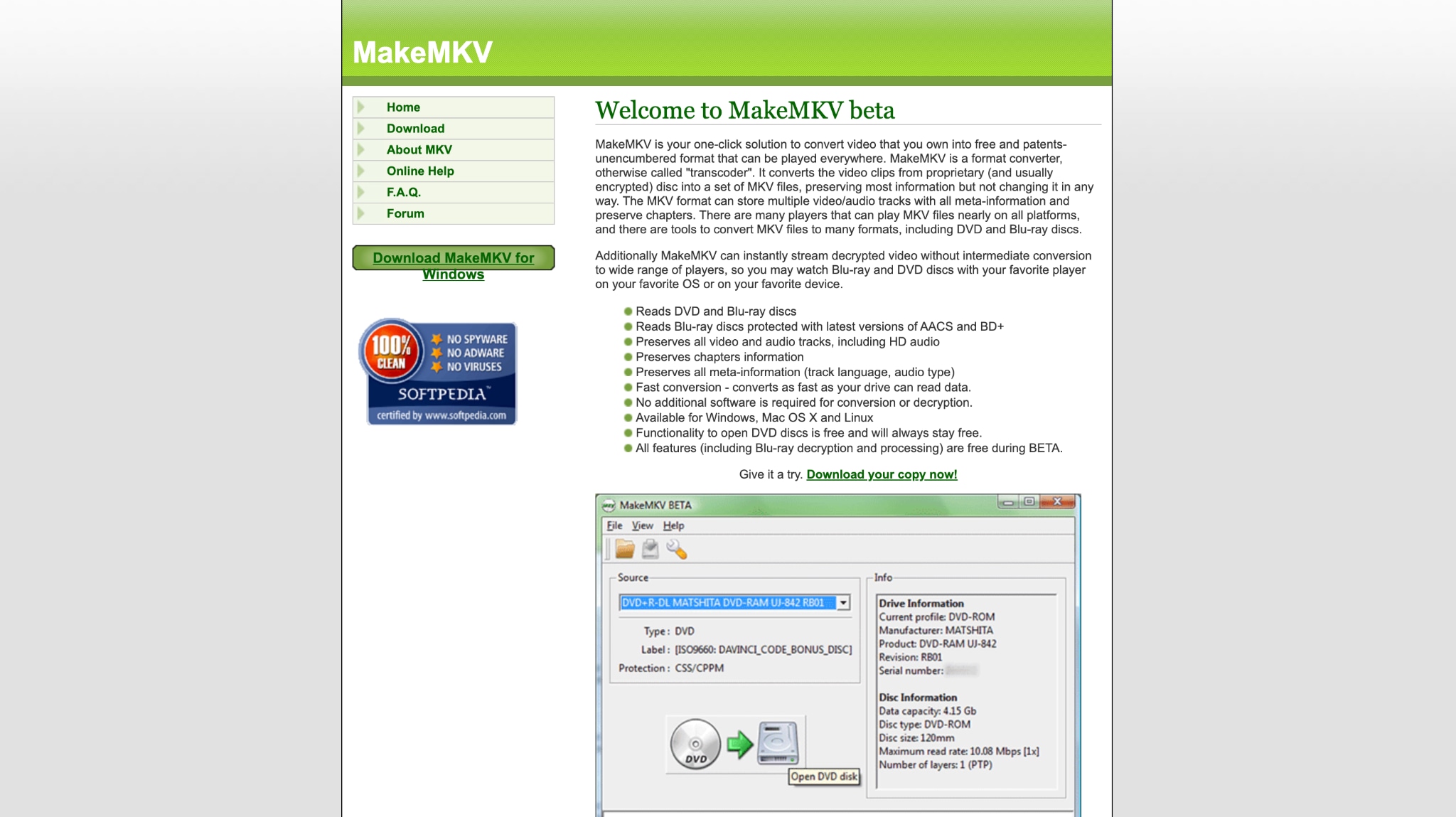
MakeMKV is a simple tool designed specifically for ripping DVDs and Blu‑ray discs into high‑quality digital files. If you’re asking, “how do I rip a DVD,” this software makes the process straightforward. MakeMKV scans your disc, lets you select the main movie or specific titles, and saves everything into a single MKV file while keeping the original video, audio tracks, subtitles, and chapter information intact. Since it does not compress or re‑encode the content, the output quality remains the same as the original disc.
Key Features
Reads and decrypts many commercial DVDs and Blu‑ray discs
Preserves original video, multiple audio tracks, subtitles, and chapters
Works on Windows, macOS, and Linux
WinXDVD
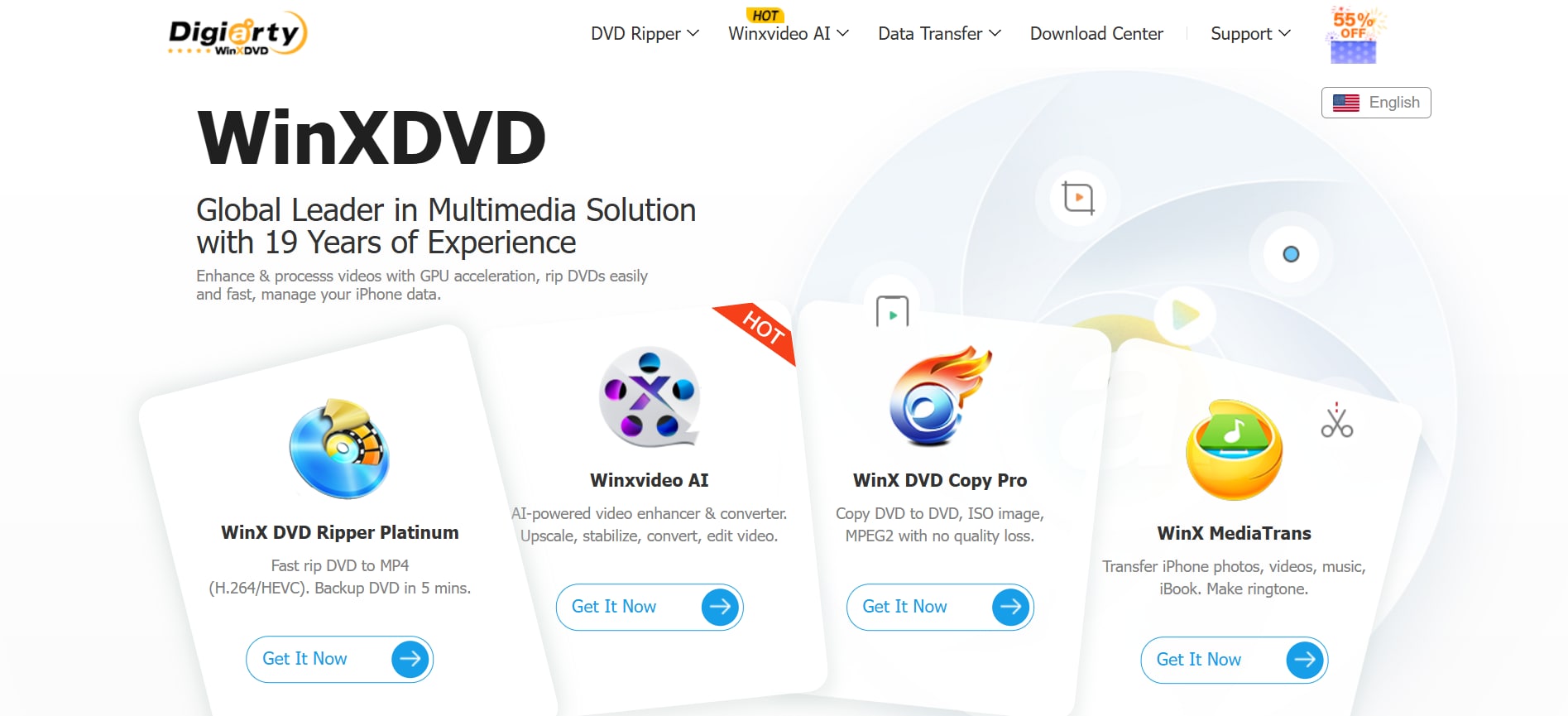
If you are wondering how to rip a DVD, WinXDVD offers a straightforward solution that supports both homemade and copy‑protected discs. It converts DVDs to popular formats like MP4, MOV, and HEVC while maintaining high video quality and fast processing speeds through hardware acceleration. With support for ISO images and DVD folders, it is a practical choice for anyone who wants to store, edit, or watch DVD content on modern devices without relying on a physical disc drive.
Key Features
Supports different formats like MP4, AVI, WMV, and MOV.
Built-in decryption support for many protected DVDs.
Allows you to clone a DVD to an ISO image.
Part 3. How to Convert a DVD to MP4 with Wondershare UniConverter?
With its powerful conversion engine and built-in DVD tools, Wondershare UniConverter simplifies what used to be a complicated process. Instead of dealing with multiple programs or technical settings, you can handle everything—from loading the DVD to choosing output formats—within a single, user-friendly interface. Follow the steps below to learn how to convert a DVD to MP4 using Wondershare UniConverter.
Steps Guide to Use UniConverter to Rip DVD
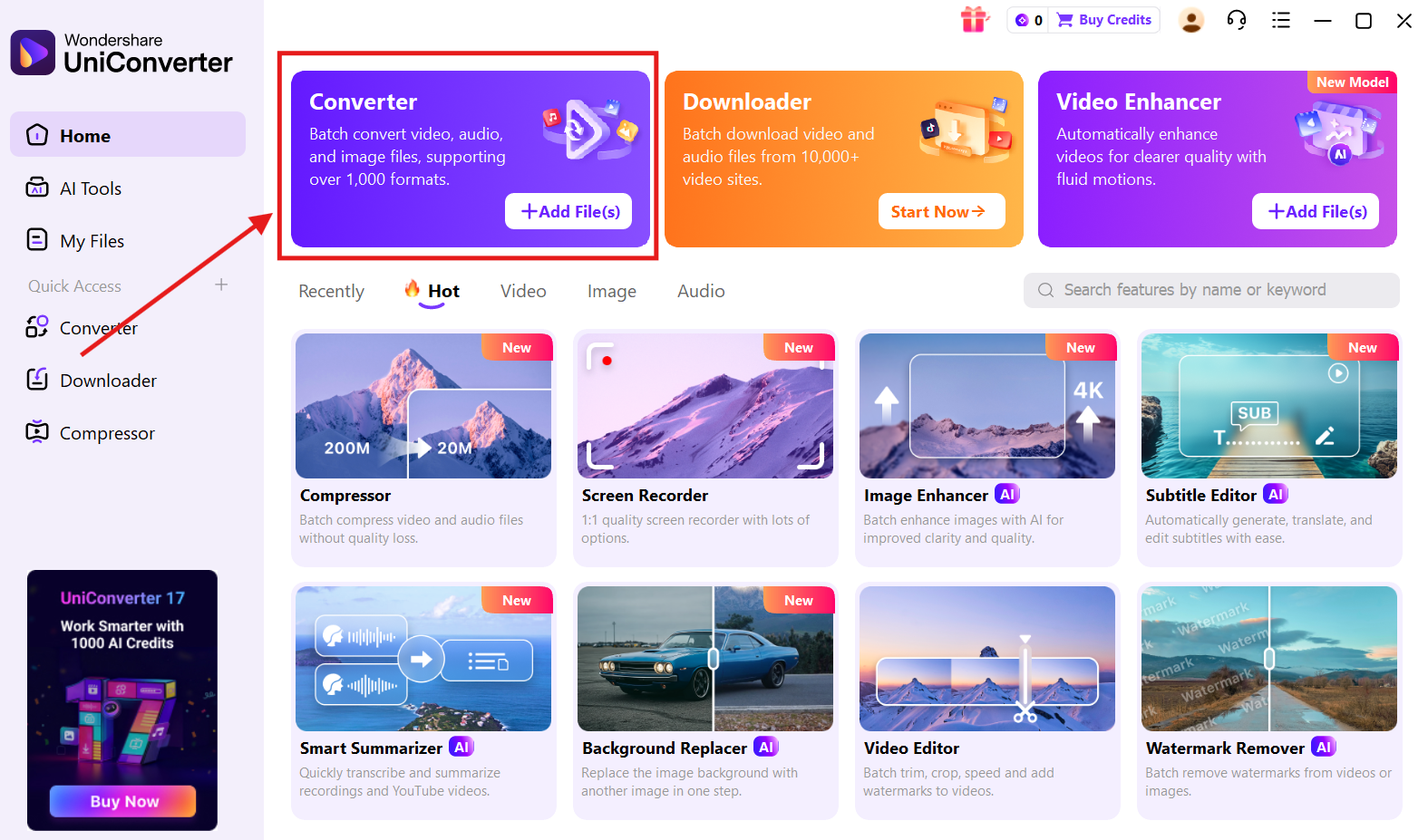
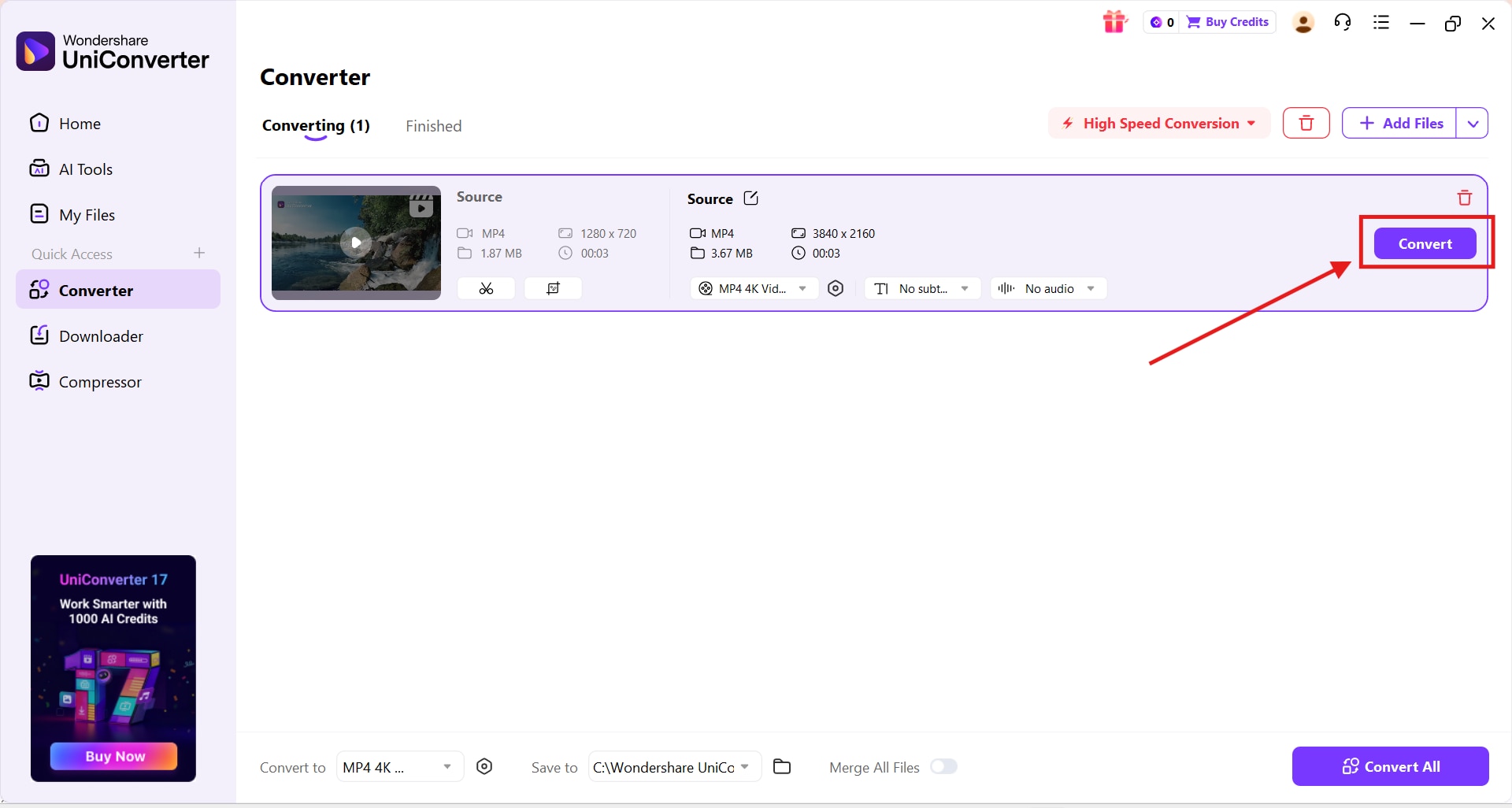
Step 1. Choose Converter
On the Wondershare UniConverter dashboard, click the “Converter” option.
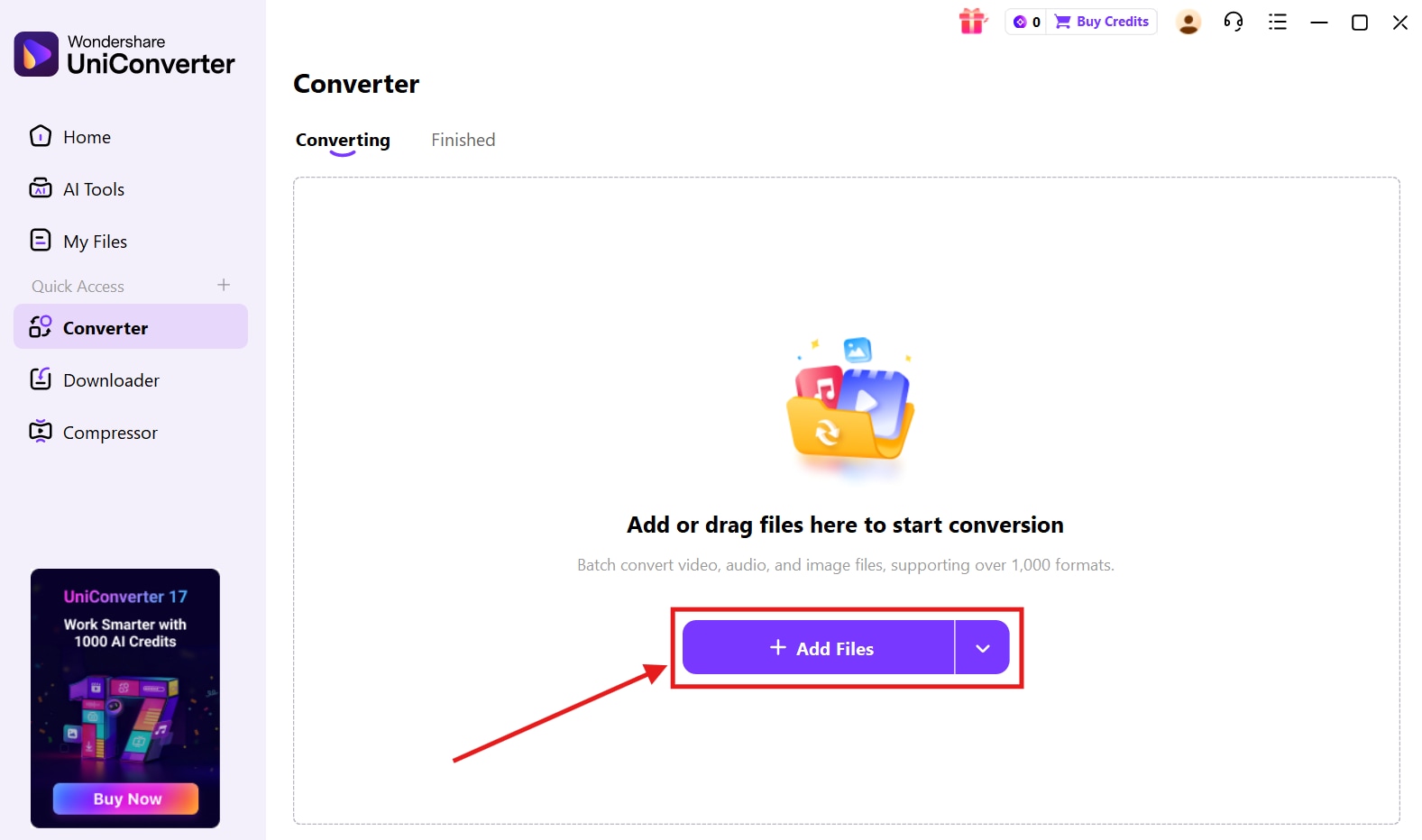
Step 2.Add Files
Click on the “Add Files” button to upload the video file you want to convert.
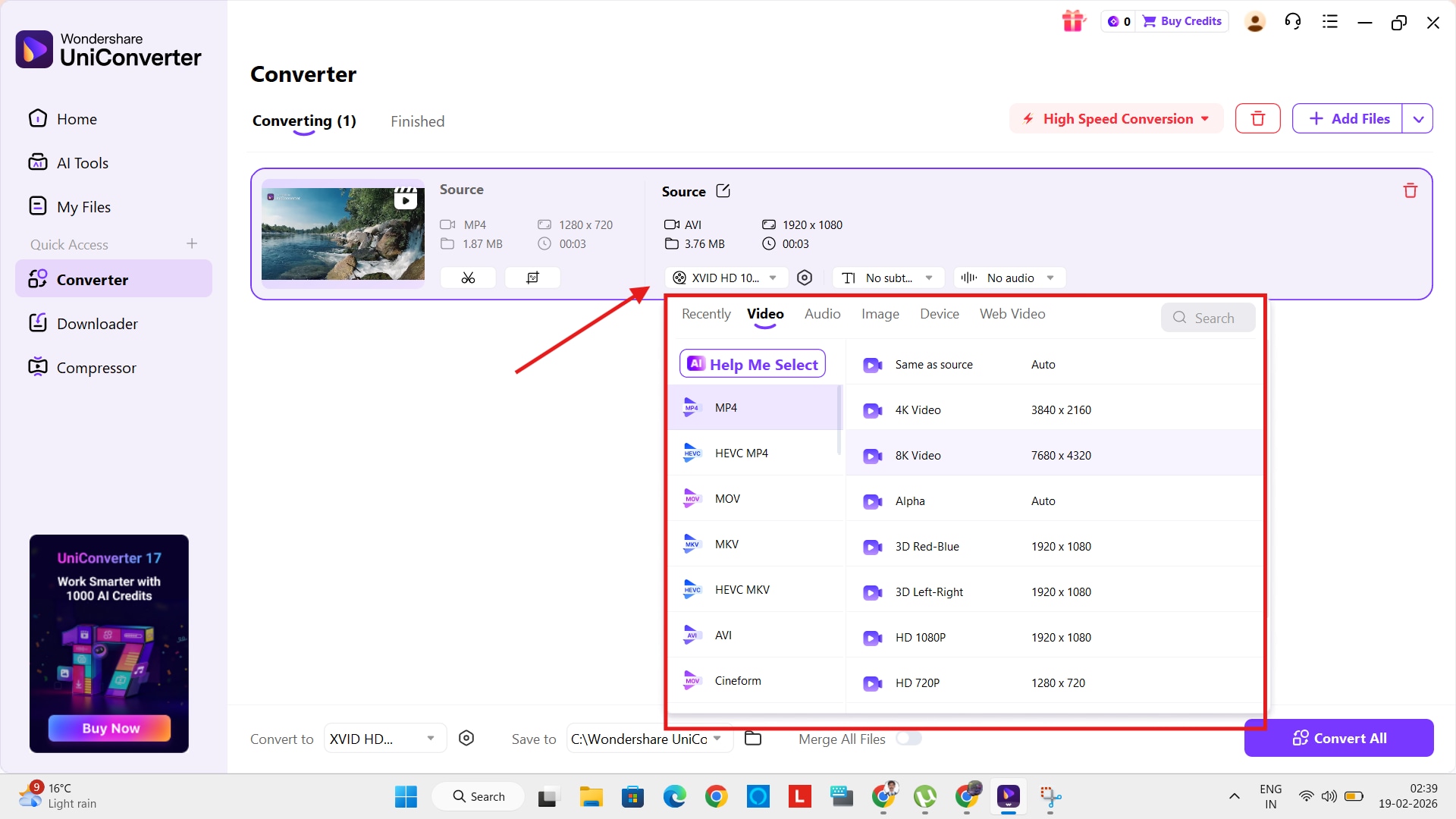
Step 3. Choose Export Format
Click the video format drop-down menu and choose a MP4 format.
Step 4. Convert Videos
Once done, click the “Convert” button to save the video.
Part 4. Best Output Formats for DVD Ripping
The best output format when ripping a DVD depends on how you plan to use the file and the device you want to play it on. Once you understand how to extract DVD content properly, choosing the right format ensures better compatibility, quality, and storage efficiency.
Common Export Formats of Ripped DVD Videos
Here are the most common formats you can choose from:
MP4: MP4 is the most common and popular format for DVD ripping and is suitable for everyday use. This format is suitable for a smaller file size with good compression and ideal for streaming and sharing.
MKV: Use the MKV format when you want to preserve the original DVD structure and media file quality. MKV format is also suitable for extracting audio and subtitle tracks while keeping the rest of the DVD content intact.
MOV: Apple's native format, MOV, is suitable for detailed, advanced editing in Final Cut Pro and other professional suites. MOV works seamlessly on Mac and iOS devices.
Part 5. Troubleshooting & Common DVD Ripping Problems
Learning how to rip DVD content is usually straightforward, but the process does not always go as planned. You may encounter issues such as the DVD drive not being detected, unusually slow ripping speeds, copy protection errors, or audio and video sync problems after conversion. Understanding these common problems can help you identify the cause quickly and apply the right fix before restarting the ripping process.
Problems Commonly Seen During DVD Ripping
No DVD Drive Detected
This error occurs when your computer fails to detect the inserted disc, which is usually a hardware issue. This happens when the drive isn't connected properly, the drivers aren't installed properly, or the system fails to mount the disc at all. This could happen when the DVD is damaged or unreadable, or the disc spins without noise.
Slow Ripping Speeds
Slow ripping speeds often happen when the DVD drives are old and cause excessive noise. This happens when the DVDs are damaged due to excessive use and wear, making the driver’s potential well below the average limit. You may also experience slow ripping speeds when other external storage devices, such as USB drives, are connected to your system, creating a bottleneck on read speeds.
Copy-Protected DVDs
Commercial DVDs are generally copy-protected to prevent misuse of media content. When you use suspicious or unreliable DVD ripping tools, they do not remove copy protection natively, resulting in distortion of the media files.
Audio or Video Errors After Ripping
Out-of-sync DVD ripping occurs when the default audio track is incorrect, or the ripping tool misinterprets the DVD's audio codec. To resolve this issue, you should convert audio files to compatible formats such as AAC or MP3 to eliminate timing mismatches with video files.
System Overload
Ripping DVDs is a resource-intensive task, and older devices may struggle, leading to software crashes or system overload. You should disable unnecessary background applications to give the ripping process higher CPU priority, or use hardware acceleration options to improve stability and performance.
Conclusion
Learning how to rip a DVD allows you to convert physical discs into digital files for easier storage and playback on devices like computers, tablets, and smartphones. By choosing the right format and understanding common issues such as slow ripping, copy protection, and format compatibility, you can ensure a smooth and high-quality conversion experience.
With Wondershare UniConverter, you can safely convert DVD files to MP4, MOV, MKV, and other formats, and edit, trim, or extract audio files separately as needed. Start using UniConverter today and enjoy your favorite movies anytime, anywhere on any device.
FAQs
-
1. How to rip a DVD on a Mac?
First, check whether your Mac has a built-in optical drive. If not, connect an external USB DVD drive. Insert the disc and use DVD ripping software compatible with macOS. Select the main movie title, choose an output format such as MP4 or MKV, and start the conversion. Note that macOS does not provide native DVD ripping support, so third-party tools are required for most discs. -
2. Can I rip DVDs to mobile devices like an iPhone or Android?
Yes. Convert the DVD to MP4 using H.264 for broad compatibility or H.265 for smaller file sizes. For iPhone, ensure the resolution and codec are supported by iOS, then transfer via AirDrop, Finder sync, or cloud storage. For Android, you can transfer files directly via USB or cloud services. Always test playback before deleting the original disc. -
3. Why is ripping a DVD slow?
Slow ripping can be caused by older DVD drives, scratched or damaged discs, strong encryption requiring extra processing, or high output settings such as upscaling. Background applications using system resources can also slow down the process. Closing unnecessary programs and enabling hardware acceleration can improve speed. -
4. Do I need special software to rip copy-protected DVDs?
Yes. Many commercial DVDs use encryption that basic tools cannot handle. You need software with built-in decryption support to process legally owned discs. Always ensure your usage complies with copyright laws in your region. -
5. What is the best format to rip a DVD for long-term storage?
For archiving, MKV is often preferred because it preserves original video, audio tracks, and subtitles with minimal quality loss. For wider compatibility, MP4 with H.264 is a reliable option. H.265 (HEVC) provides better compression and smaller file sizes but requires newer devices for smooth playback.

