

Ever wished your low-res videos could look sharper, smoother, and more cinematic—without spending hours editing or money on expensive software? You're not alone. Blurry footage and pixelated clips are common headaches for creators, marketers, and even casual users.
Thankfully, modern video upscaler free tools powered by AI can instantly boost quality and clarity in just a few clicks. Whether you're enhancing old footage, upgrading YouTube content, or batch-processing video projects, we've curated the best free upscalers for 2026. Plus, we'll show you how to use UniConverter for fast, offline AI video enhancement—no steep learning curve required.
Quick Answer: What Is the Best Free AI Video Upscaler in 2026?
If you want the best free AI video upscaler in 2026, the right tool depends on your workflow. Video2X is best for users who want a free video upscaler download with offline batch processing. UnblurImage.AI and Free AI Video Upscaler are better for users who want a 4K video upscaler free no sign up option in the browser. GStory.ai is a solid choice for polished online enhancement, while IMGUpscaler is useful for quickly improving low-resolution clips. If you need a more stable offline workflow with better privacy and batch support, Wondershare UniConverter is the strongest upgrade path.
Table of Contents
Part 1. Top 5 Free AI Tools to Upscale Video or Image Quality Online
Whether you're a content creator, filmmaker, or casual user looking to breathe new life into low-resolution media, using a video upscaler free tool powered by AI can be game-changing. The internet now offers several free AI video upscaler options that combine advanced upscaling with simple workflows—perfect for enhancing clarity, reducing noise, and boosting overall video resolution at no cost.
Below are five top-tier free upscaler tools we've evaluated based on UI, performance, features, and simplicity of steps.
1. Video2X
Video2X is a go-to open-source tool for those looking to upscale video for free without compromising on quality. Built on Waifu2x and other deep learning libraries, it handles image sequence upscaling and converts them back into videos—ideal for animations, anime, and gaming clips.
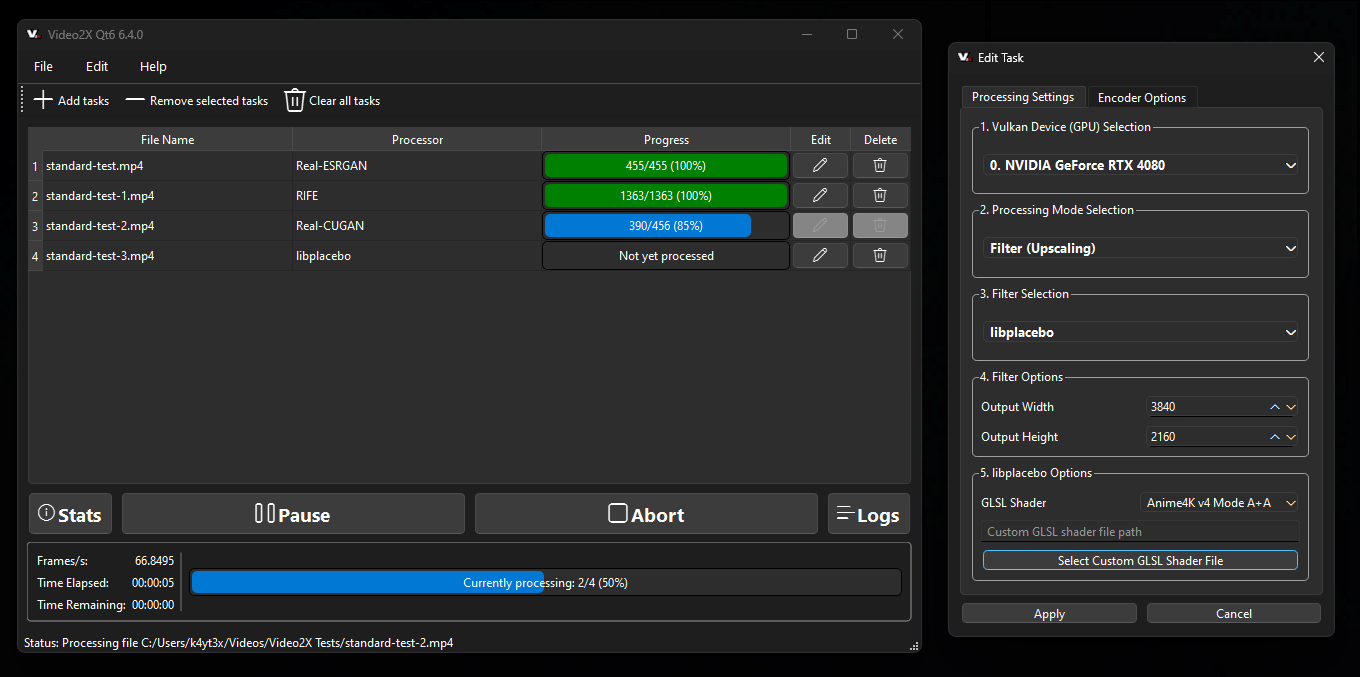
Key Features:
- 100% free AI video upscaler with an active developer community.
- Upscales images, GIFs, and videos, especially suited for anime and game footage.
- Allows high-resolution export, including Full HD and 4K options.
- Supports batch video upscale free via command-line scripting.
- Leverages proven AI models for clean, sharp enhancement without artifacts.
How to Use Video2X:
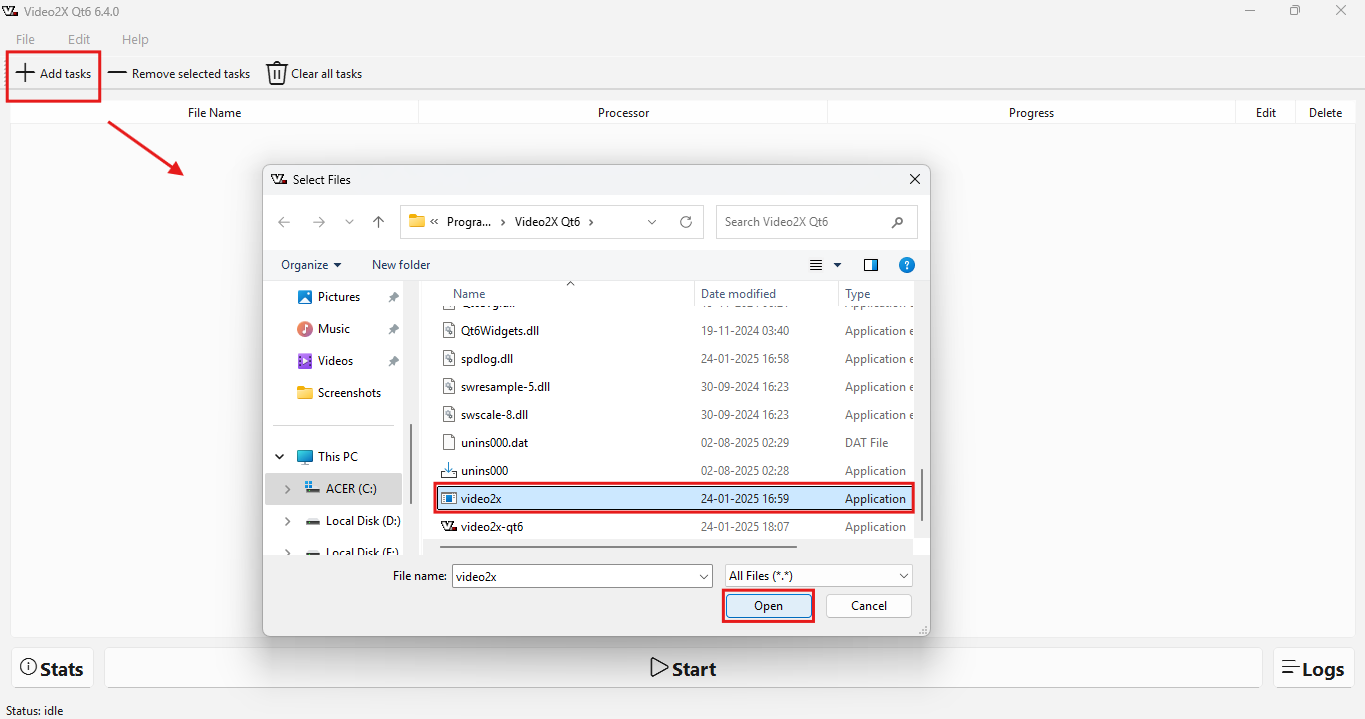
Step 1. Drag and Drop the Video
Visit the official Video2X website and download the latest software package. Then, drag and drop your file and tap on +Add tasks if no pop up is shown. Choose the video 2x option and then click Open.
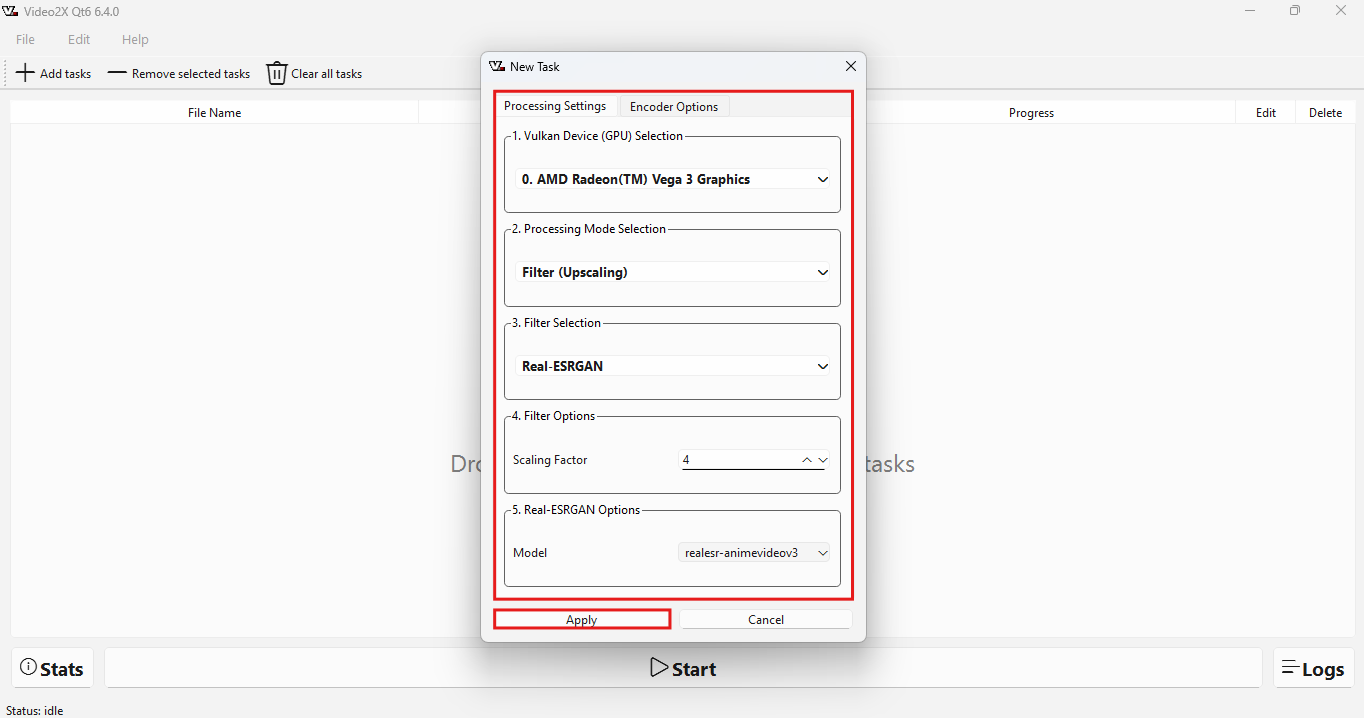
Step 2. Apply Upscaling to your Video
Step 3. Start Upscaling
2. GStory.ai
GStory.ai is a browser-based AI video upscaler designed to effortlessly enhance video resolution, clarity, and color in just one click—no editing skills required. This tool uses advanced machine learning to reduce noise, sharpen details, and upscale footage to 4K, delivering professional quality for everything from family memories to social media clips. Creators benefit from instant, watermark-free exports, batch processing, and a streamlined online workflow, making GStory.ai a smart choice for fast, high-quality video enhancement.
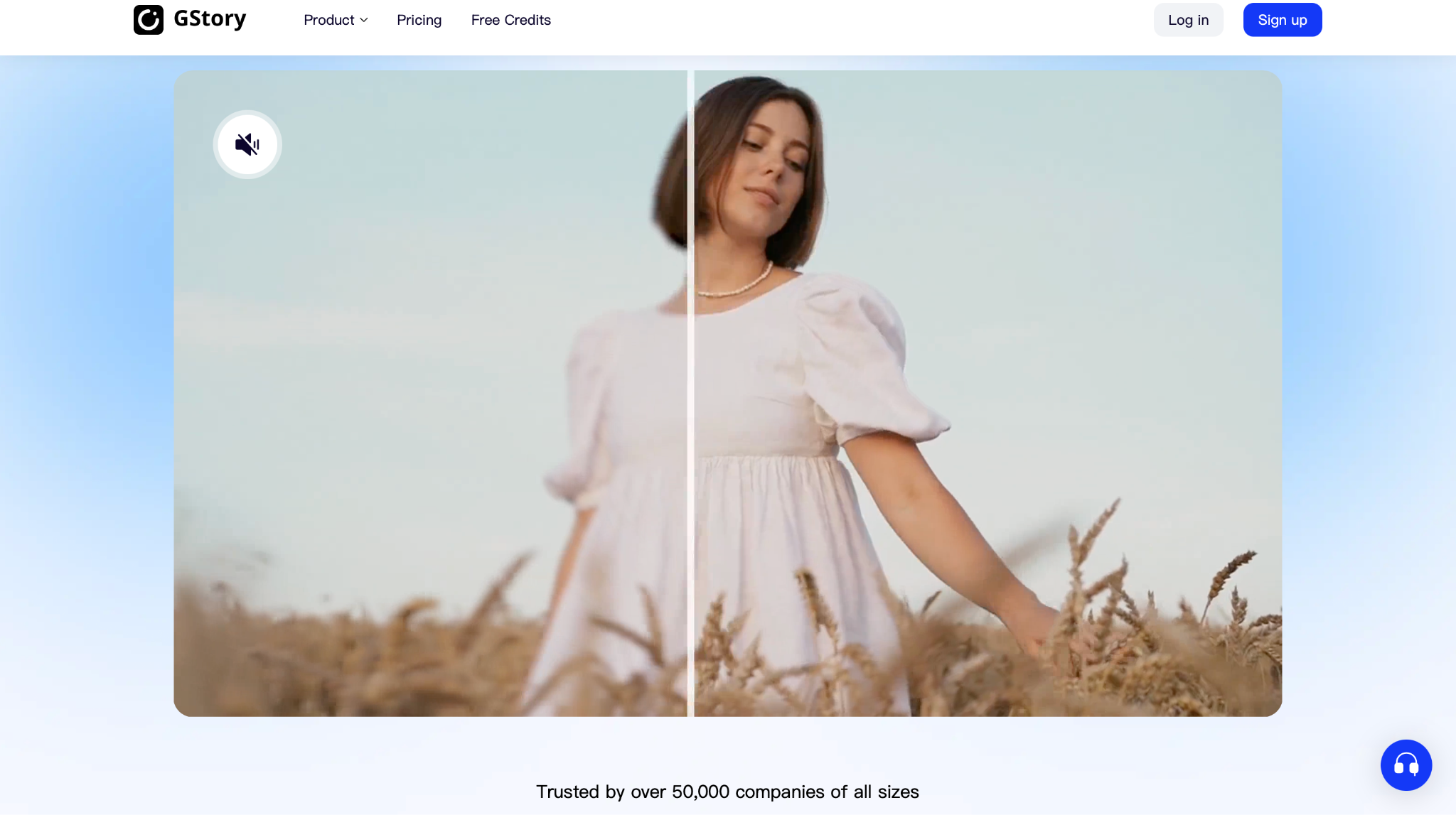
Key Features:
- Process videos entirely in your browser without downloads.
- AI sharpens faces, boosts clarity, and improves lighting and detail.
- Upscale clips up to 500 MB or 10 minutes, which is more generous than most free tools.
- Upload MP4, MOV, and other standard video formats.
- Clean, professional output even on the free plan.
How to Use GStory.ai:
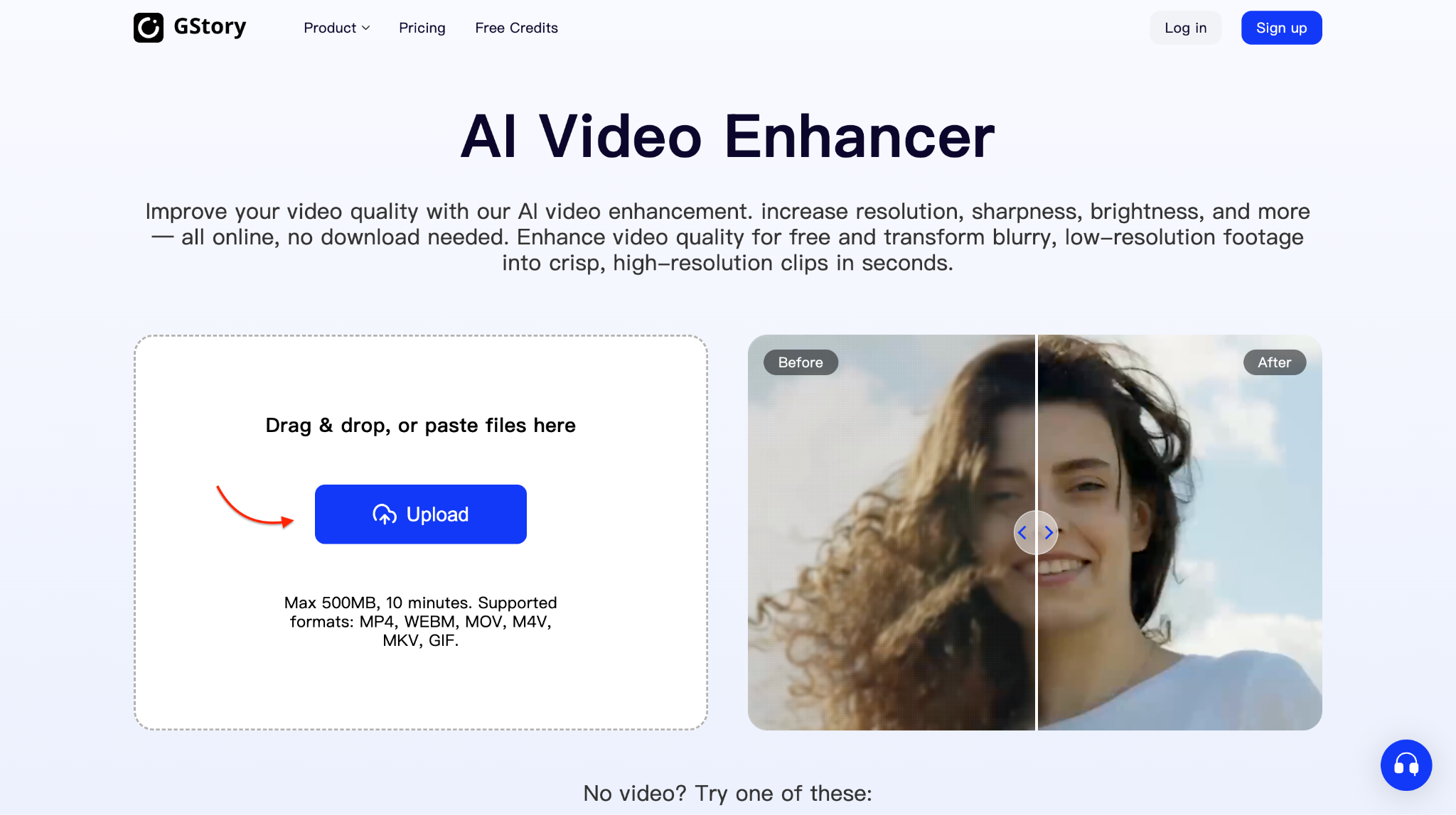
Step 1. Upload Your Video
Visit the GStory.ai video enhancer website and click "Upload" to add your video. You can drag and drop files directly into the browser— no software needed, only sign up is required.
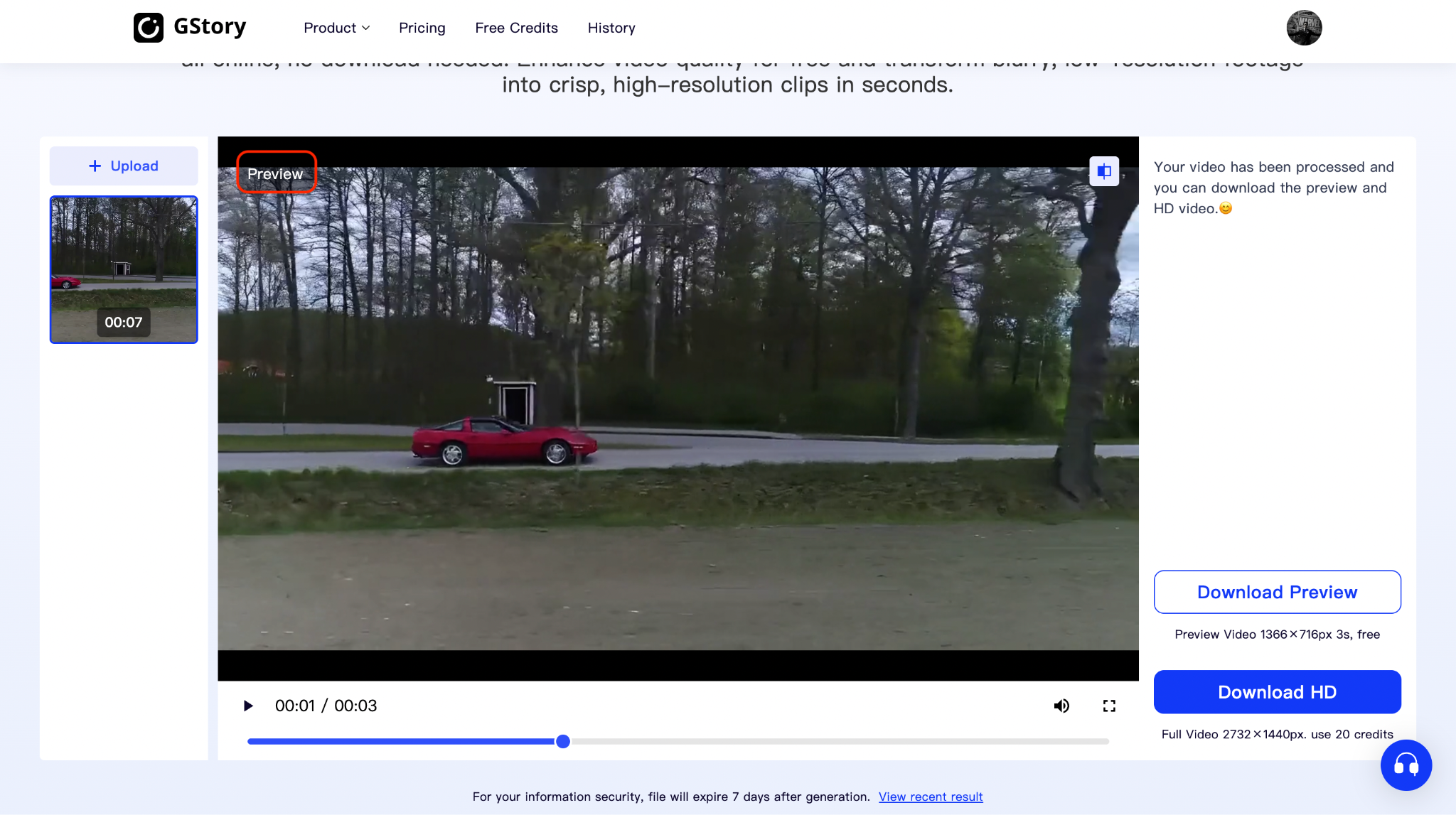
Step 2. Preview Your Enhanced Video
Once the video is loaded, the AI automatically improves clarity, sharpens faces, and adjusts color and brightness for optimal results. And it will open a preview of 3 seconds for your video.
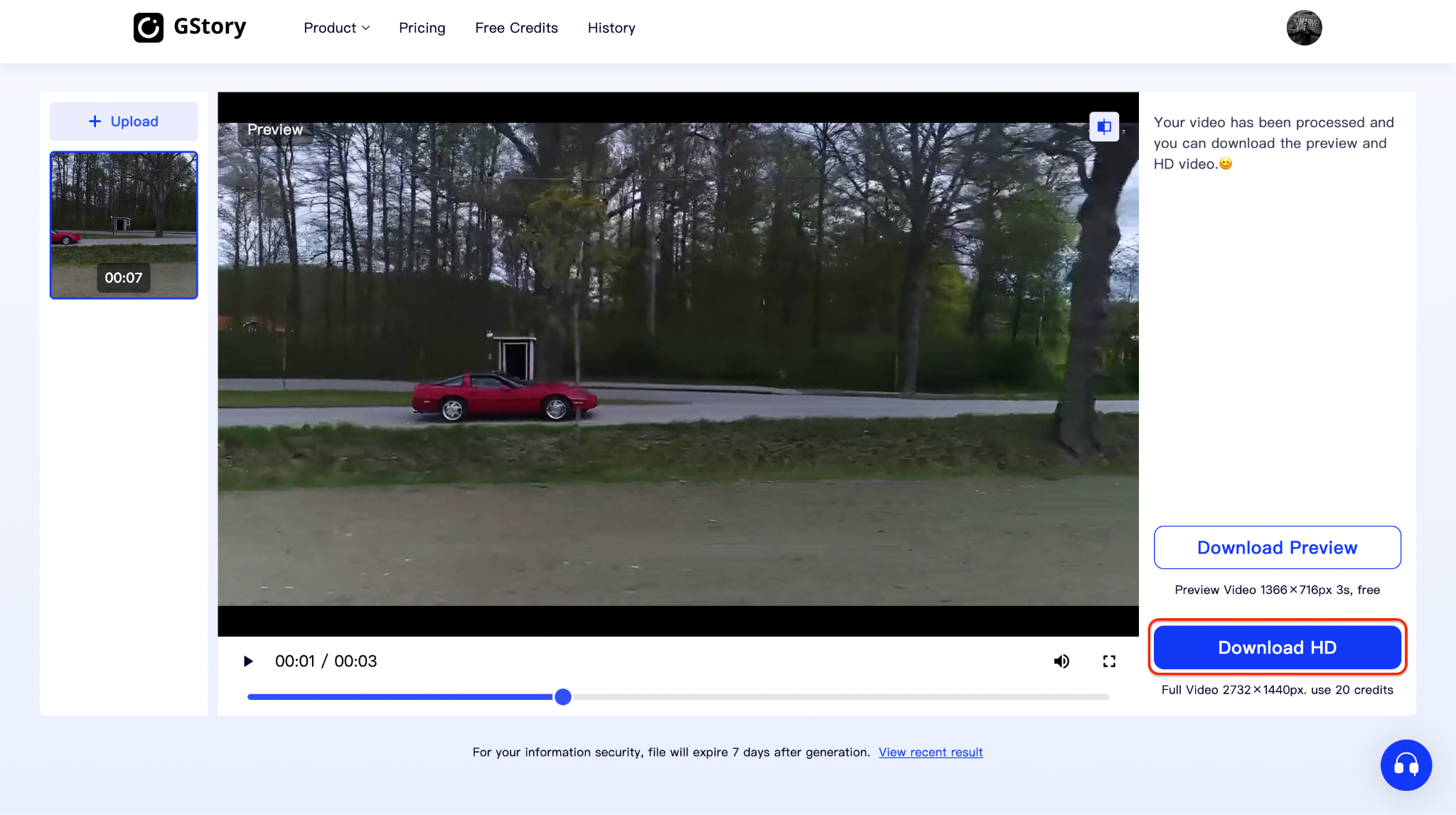
Step 3. Download in HD
After it finishes, download the enhanced version from the output panel by clicking the Download HD, and you're done—no watermark, no hidden charges (credits are required).
3. UnblurImage.AI
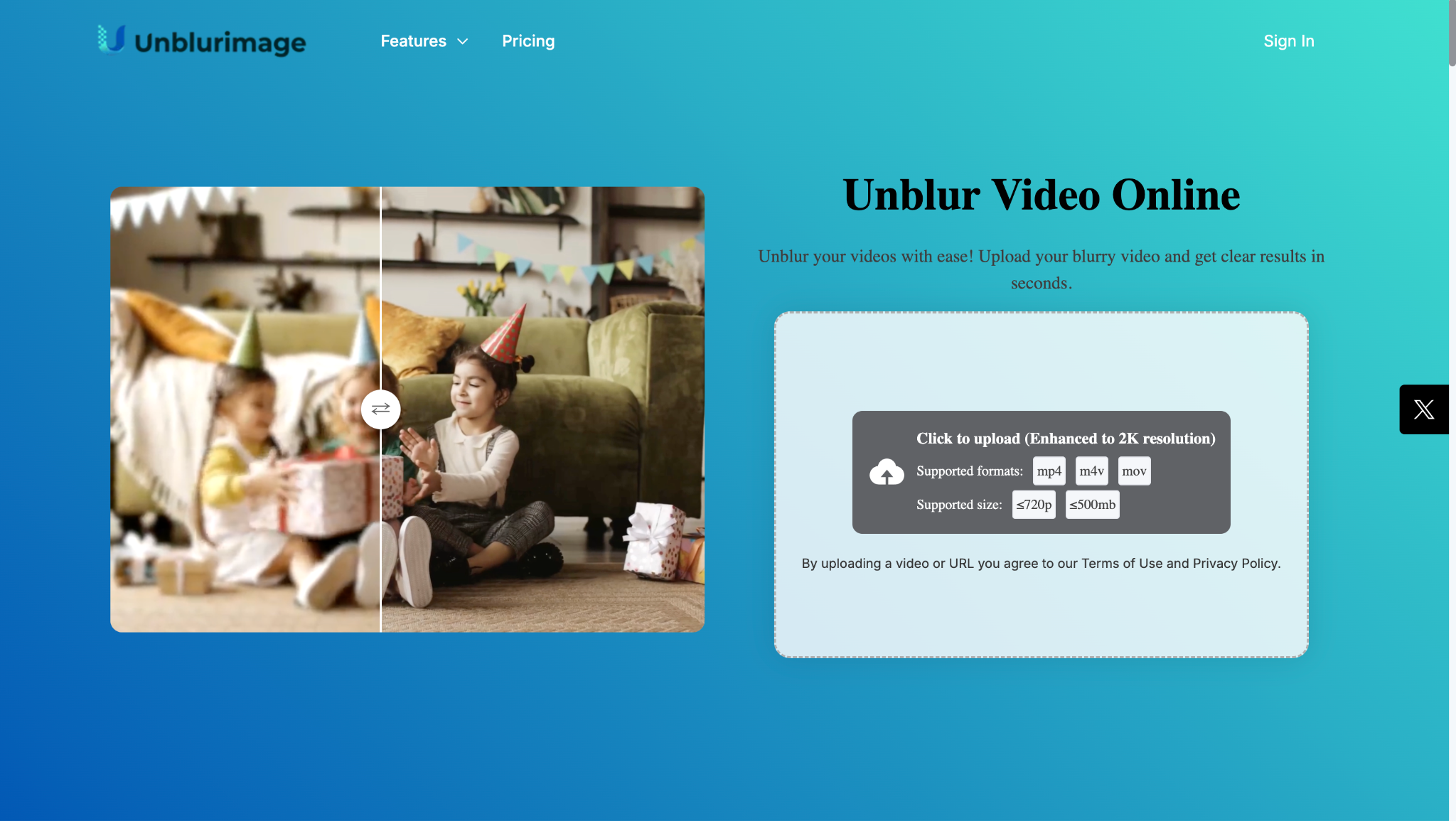
UnblurImage.AI isn't just for photos—it also offers a robust online solution to unblur videos with AI. Whether you're dealing with low-res clips, fuzzy screen recordings, or vintage footage, this tool sharpens frames in seconds. It acts as a free AI upscale solution for video, restoring clarity and improving definition without needing downloads or complex editing software—perfect for anyone needing fast, high-quality results straight from the browser.
Key Features:
- Automatically enhances blurry video frames using advanced AI models
- Offers free AI upscale options to boost video resolution and clarity
- Works entirely online—no software installation or account required
- Supports major video formats like MP4, MOV, and AVI
- One-click upload and processing with fast output generation
How to Use UnblurImage:
Step 1: Upload Your Blurry Video
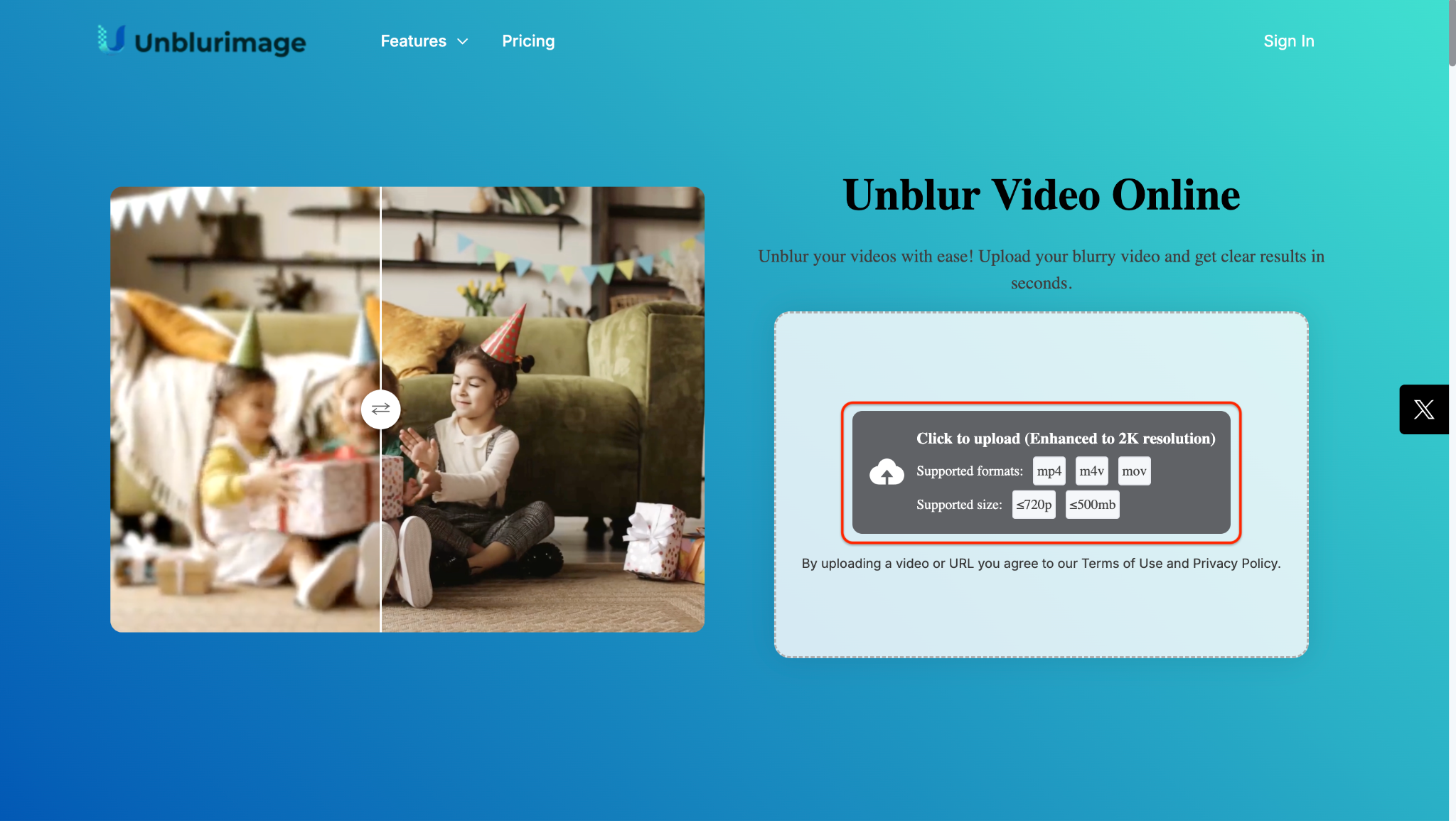
Visit the UnblurImage.AI homepage and click the upload area marked "Click to upload." Select your blurry video file (MP4, M4V, or MOV) under 720p and 500MB. The tool automatically prepares it for enhancement up to 2K resolution—no sign-up required.
Step 2: Choose Enhancement Type
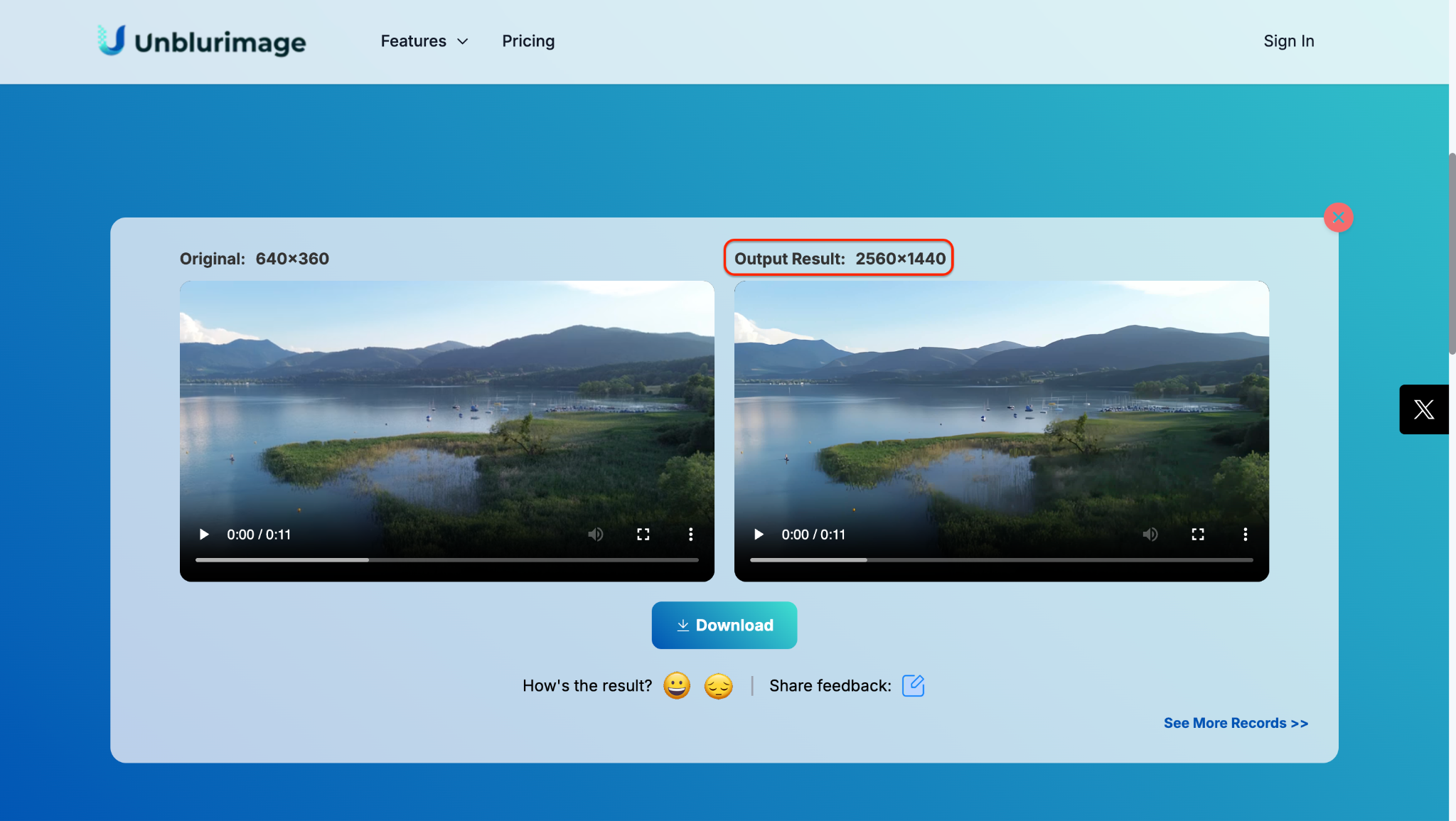
After uploading, the tool processes your file and displays both the original and enhanced previews. Select an enhancement level (like "Unblur") to boost resolution and clarity—elevating quality from 640×360 to 2560×1440 automatically using AI-powered upscaling.
Step 3: Download the Enhanced Video
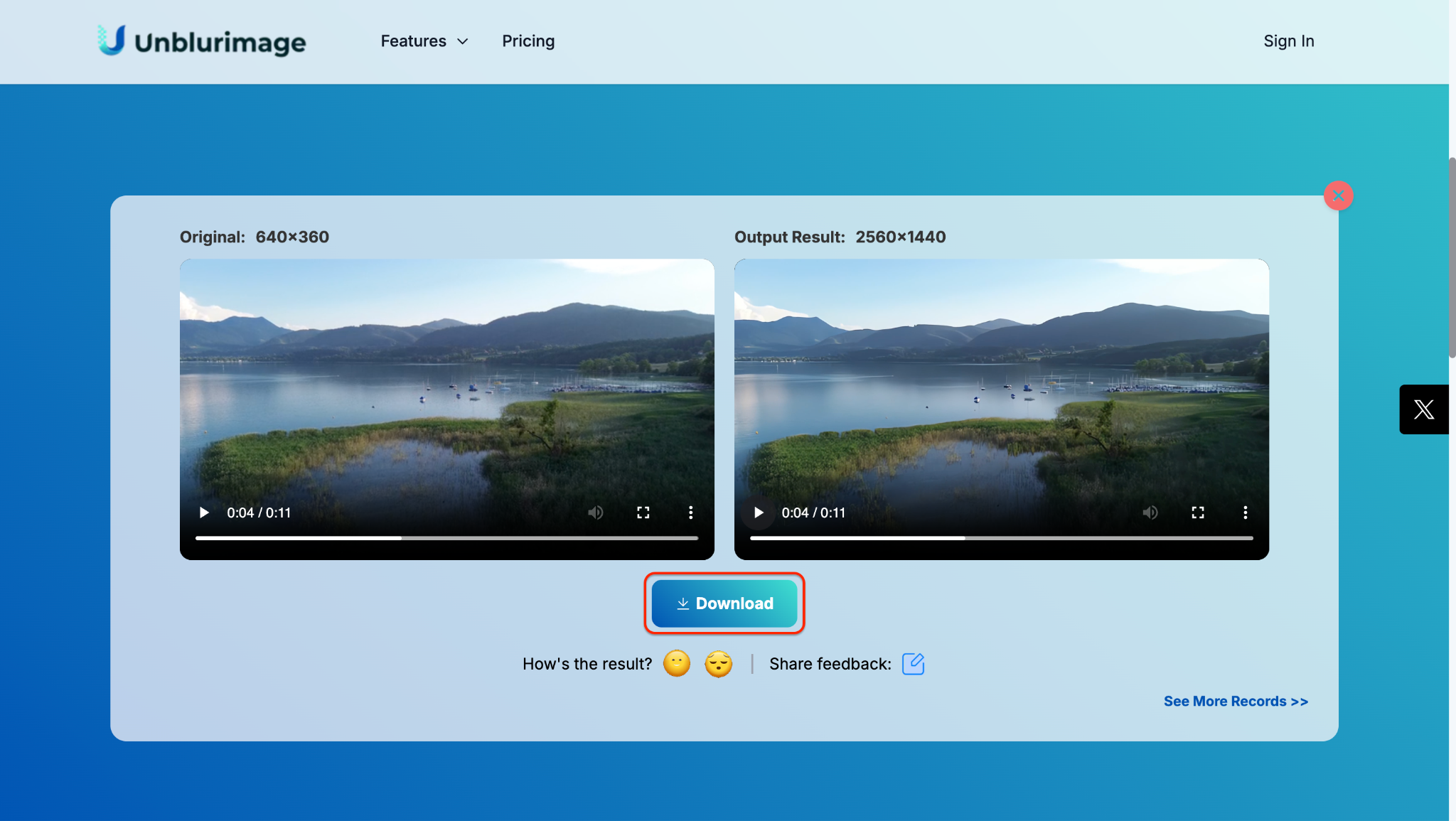
Once the preview shows a sharper output at 2560×1440, hit the blue Download button below the video. Powered by free upscale AI, your enhanced video will begin downloading instantly—ready to use without any watermark or quality loss.
4. IMGUpscaler
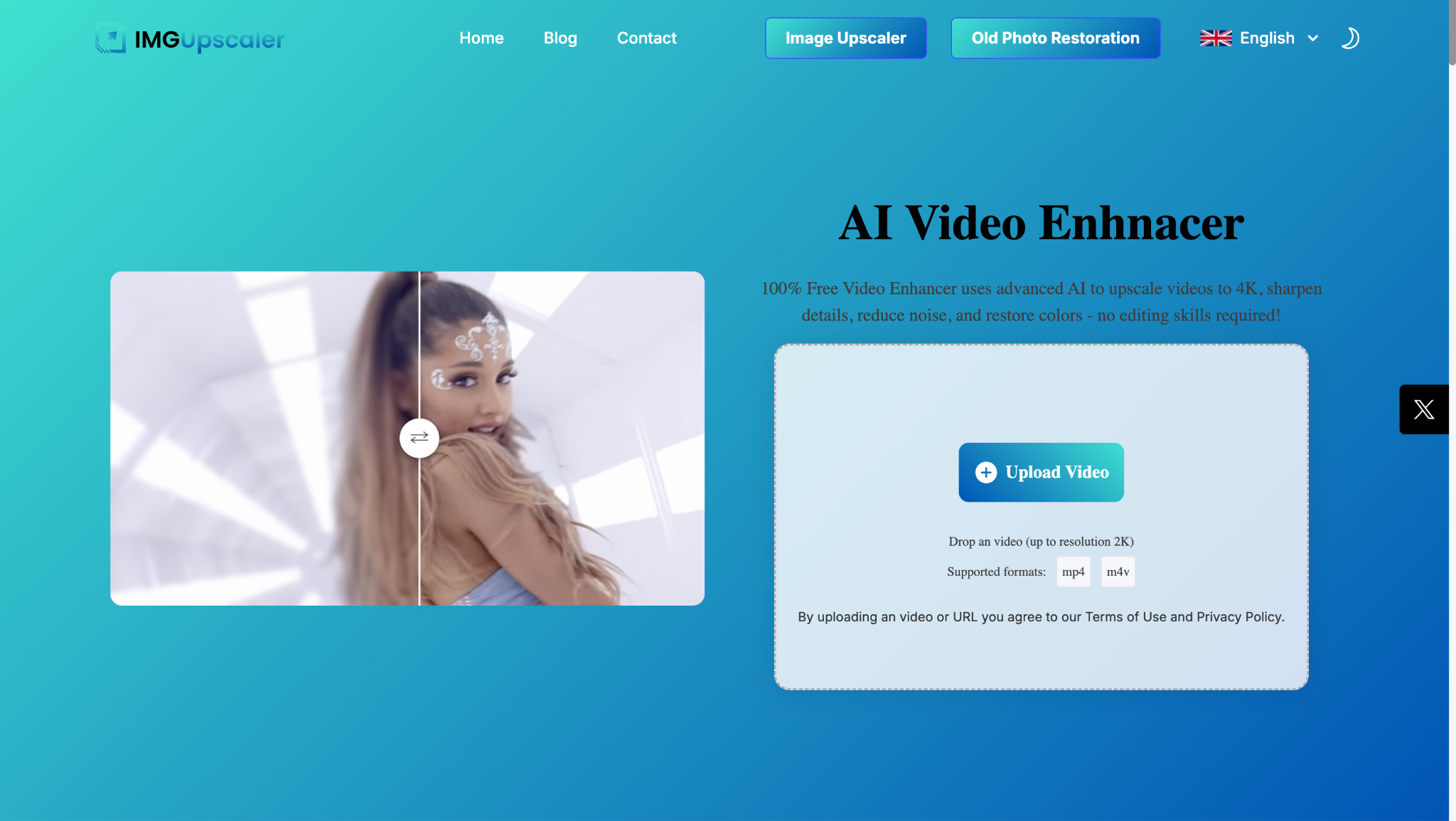
IMGUpscaler stands out as a browser-based, free AI video enhancer that lets you upscale and enhance video resolution online with ease. It's a handy tool for improving low-quality footage, restoring clarity, and boosting sharpness in just a few clicks—perfect for creators working with low-res video content.
Key Features:
- Enhances video resolution up to 4× using AI-driven frame analysis for smoother playback and sharper visuals.
- Works entirely online, with no need to download software—just upload your video and upscale in your browser.
- Supports standard video formats like MP4, making it convenient for YouTube clips, social media videos, and personal footage.
- Optimized for low-resolution content, helping restore details in blurry, compressed, or pixelated videos.
- Offers a free version with limited usage, allowing you to test the video upscaling quality before opting for premium upgrades.
How to Use IMGUpscaler:
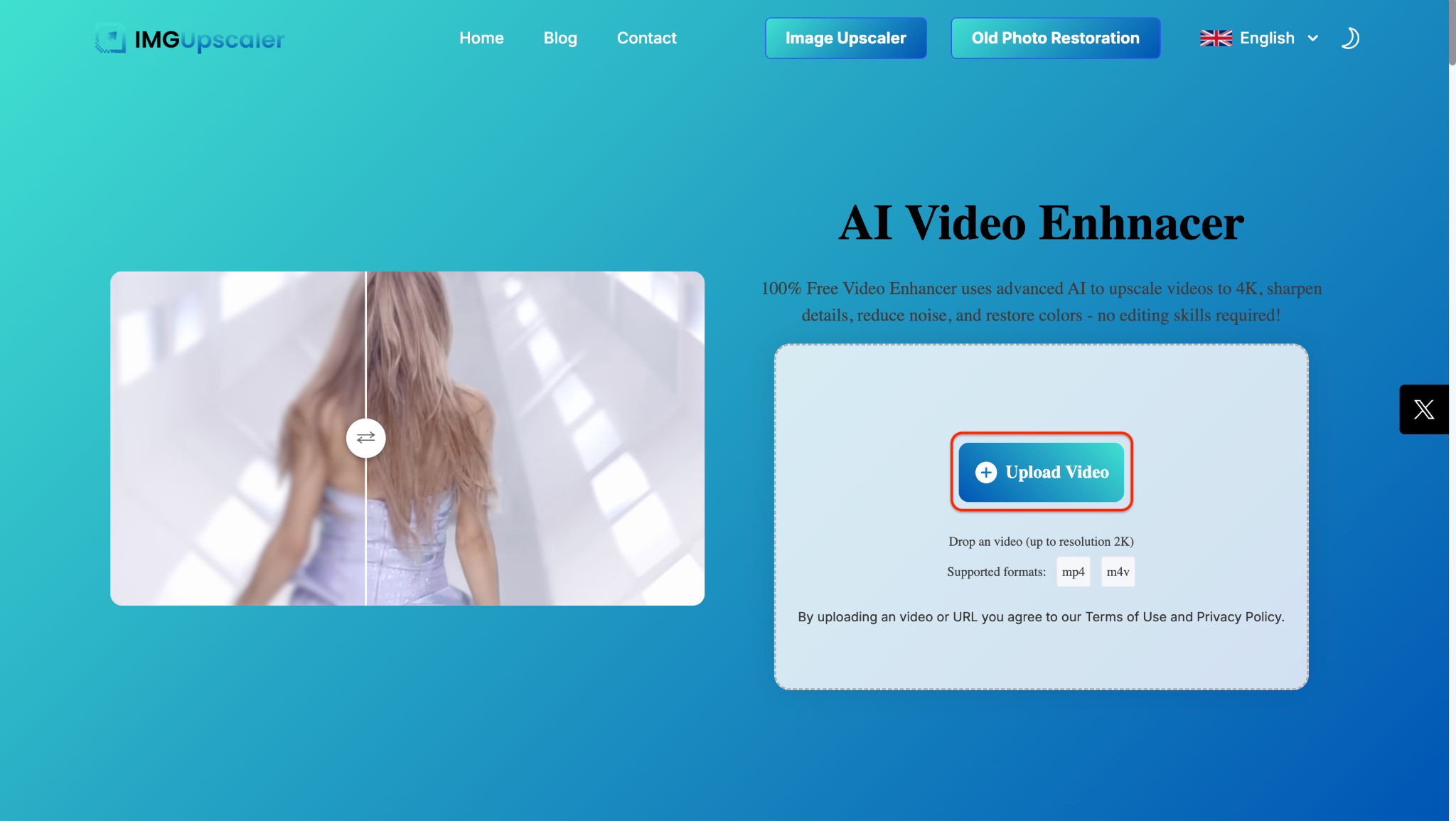
Step 1: Upload Your Video File
Go to the IMGUpscaler Video Enhancer page and click the "Upload Video" button. You can drag and drop your file or select it manually—supported formats include MP4 and M4V (up to 2K resolution). This free upscale tool works directly in your browser, no editing skills or installations required.
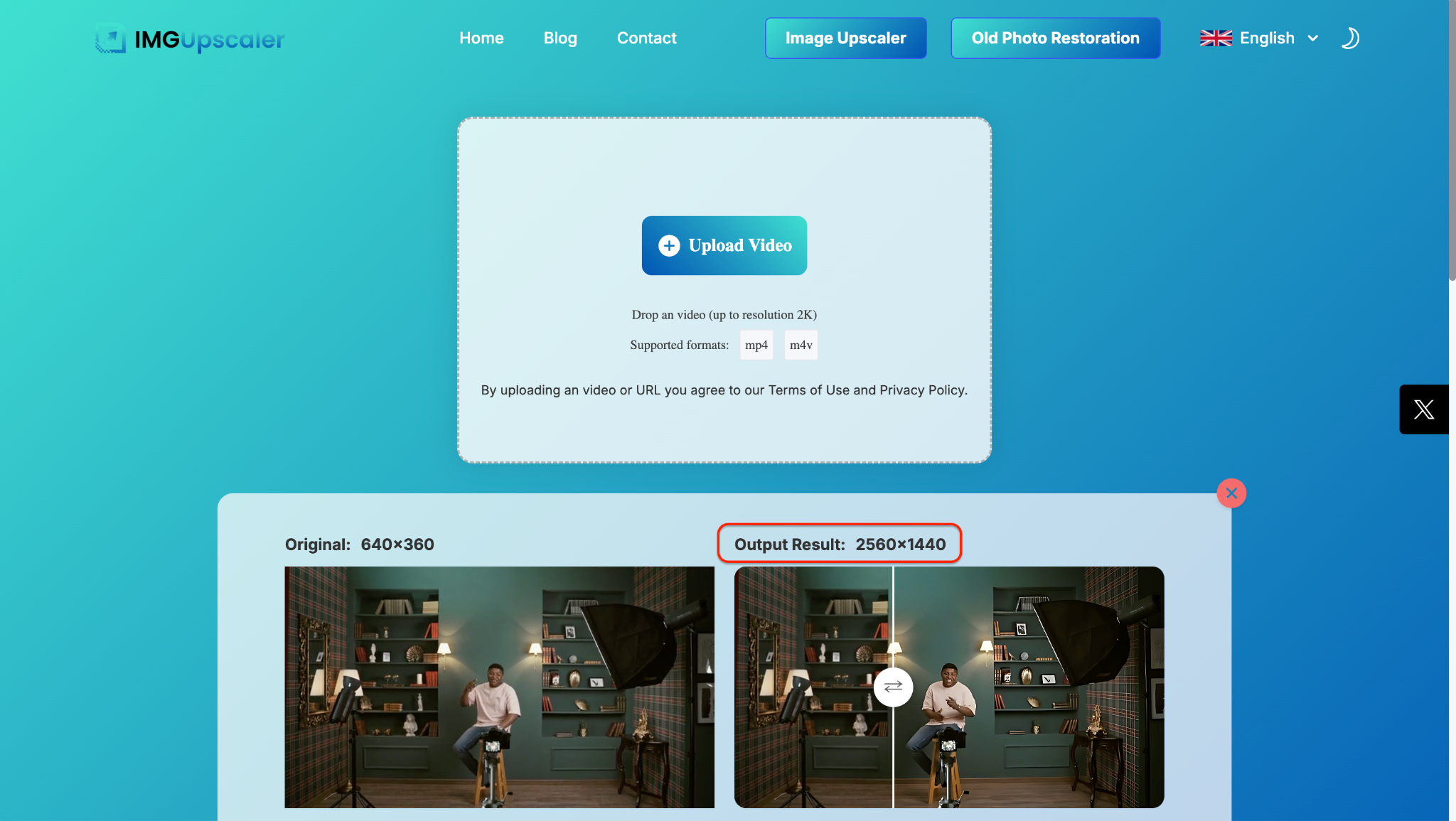
Step 2: AI Upscaling Begins
Once your video is uploaded, the AI engine kicks in automatically. It analyzes every frame and begins enhancing resolution—up to 4×, depending on the original quality. You'll see side-by-side comparisons like 640×360 to 2560×1440, showcasing the sharpness, lighting correction, and motion clarity improvements. It's a simple way to apply AI upscale free to videos without complex editing tools.
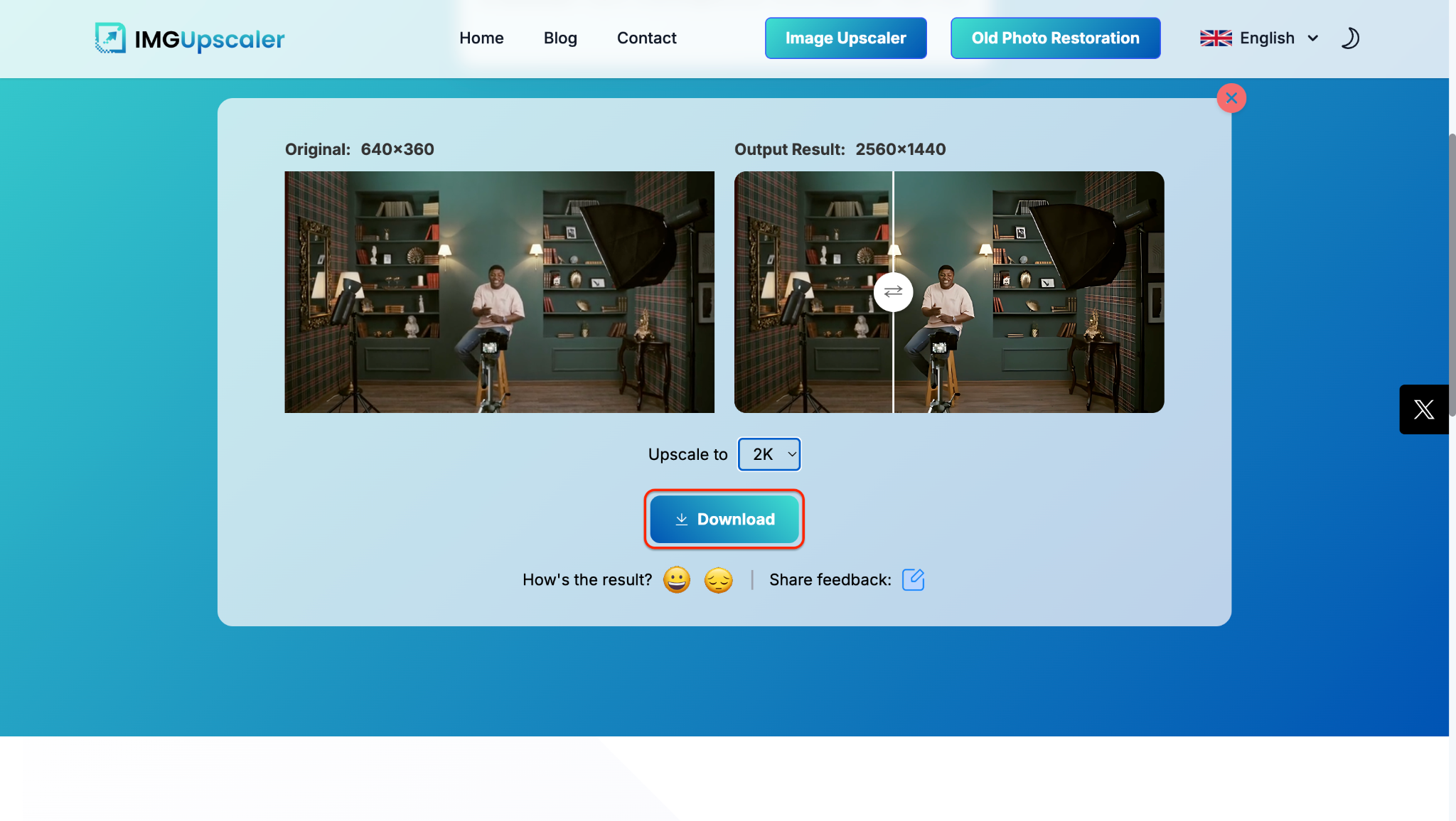
Step 3: Download the Upscaled Video
Once the upscaling is done, hit the Download button below the comparison preview. You'll get the enhanced video in your selected resolution—like 2K or even 4K. This final step wraps up the AI upscale free process with a single click, delivering sharper, cleaner results without needing premium software.
5. Free AI Video Upscaler
Free AI Video Upscaler is designed to upscale video resolution online using powerful neural networks. It supports various formats and enhances video clarity, sharpness, and detail without watermarks. Perfect for creators and editors, it delivers fast, high-quality results with just a few clicks. With free video upscale support, users can transform low-res footage into HD or even 4K effortlessly—no downloads or subscriptions needed.

Key Features:
- Uses AI to upscale videos with enhanced clarity, sharpness, and detail without adding noise.
- Offers 2× and 4× upscaling options for transforming low-resolution videos into HD or 4K.
- 100% free to use online with no sign-up, installation, or payment required.
- Supports MP4 format, compatible with most mobile and camera-recorded video files.
- Outputs videos without watermarks, ensuring clean and professional-quality results.
How to Use Free AI Video Upscaler:
Step 1: Upload Your Video
Go to the Free AI Video Upscaler site. Click the "Choose a video file" button to upload your clip directly to the browser. This upscaler AI free tool doesn't require sign-ups or installation—just drag and drop your MP4 video to get started.

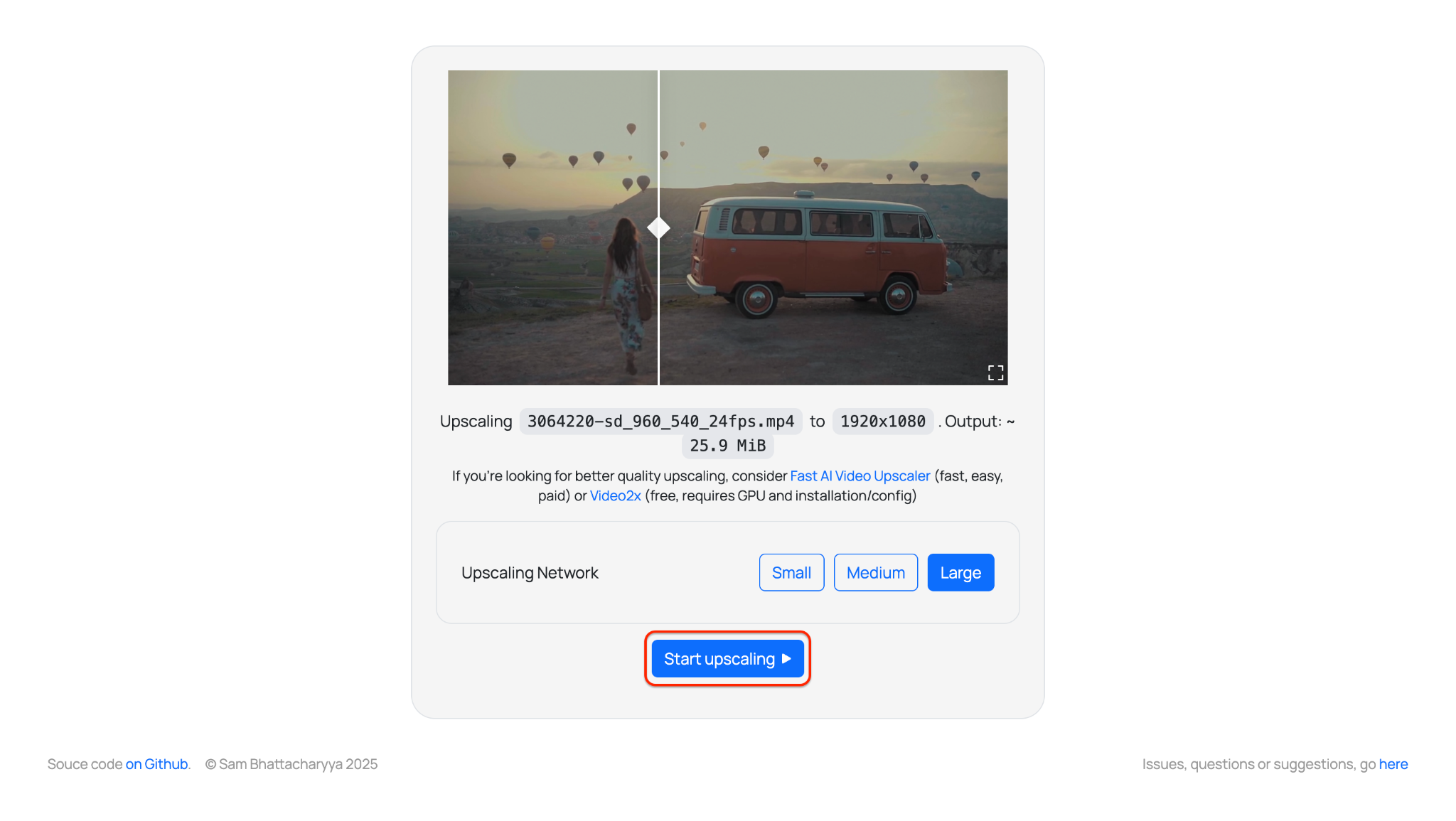
Step 2: Select Settings and Start Upscaling
After uploading your video, choose the upscaling level—Small, Medium, or Large—based on the clarity you need. Then click the "Start upscaling" button to begin processing. The tool uses smart defaults optimized for general enhancement, offering a quick and efficient free AI upscale experience with no downloads or software setup.
Step 3: Preview and Download Your Upscaled Video
Once the upscaling is complete, preview the before-and-after result using the comparison slider. Click the "Download" button to save your enhanced file instantly. This AI video upscaler free tool ensures clean, watermark-free exports—ready for sharing, editing, or publishing.

Part 2. Detailed Comparison of Free AI Video Upscalers
If you're comparing the best free AI video upscaler tools in 2026, the table below focuses on what users care about most: sign-up requirements, watermark limits, batch processing, ease of use, output quality, and whether each tool is better for quick browser tasks or long-term video workflows.
| Tool | Type | Sign-Up Required | Watermark-Free | Batch Processing | Max Output / Upscale | Best Strength | Main Limitation | Best For |
| Video2X | Offline download | No | Yes | Yes | Up to 4K+ | Free offline batch upscaling | Not beginner-friendly | Power users, anime, gaming clips, batch jobs |
| GStory.ai | Online | Yes | Mostly yes | No | Up to 4K | Polished browser experience | Credits and sign-in required | Creators who want fast online enhancement |
| UnblurImage.AI | Online | No | Yes | No | Up to 2K | No-sign-up convenience | Limited processing depth | Quick fixes for blurry short videos |
| IMGUpscaler | Online | No | Yes | No | Up to 4× | Easy AI sharpening for low-res footage | Free usage limits | Users searching for imgupscaler video enhancement |
| Free AI Video Upscaler | Online | No | Yes | No | 2× / 4× upscale | Simple 4K video upscaler free no sign up workflow | Fewer advanced controls | Casual users who want fast browser-based results |
Looking for the best free AI video upscaler? Here's a quick breakdown to help you choose the right one based on your workflow.
If you're working on multiple files or prefer offline tools, Video2X is a clear winner. It's completely ad-free, supports batch processing via command-line, and works on Windows and Linux—ideal for power users or tech-savvy creators.
Prefer something simpler and browser-based? GStory.ai offers a clean UI with low ad density, though it does require sign-in and doesn't allow batch jobs. UnblurImage.AI is even more frictionless—no sign-in, no ads, and it works instantly in your browser. It's perfect for quick fixes and one-off projects.
IMGUpscaler sits somewhere in the middle. While it's easy to use and doesn't require an account, the moderate ads can be a drawback. Still, it's a solid option for restoring detail to low-res clips.
Finally, the Free AI Video Upscaler tool offers a balanced, no-sign-in experience across all browsers with low-to-moderate ads—great for casual users who want fast results without installations.
Pro Tip: Need batch upscaling? Go with Video2X. Want no-hassle browser tools? Try UnblurImage.AI or GStory.ai.
Best Free AI Video Upscalers by Use Case
If you're not sure which tool to choose, this quick-use guide highlights the best option for different video upscaling needs.
Best For
Best free video upscaler download: Video2X
Best 4K video upscaler free no sign up option: Free AI Video Upscaler
Best for quick no-sign-up fixes: UnblurImage.AI
Best polished browser experience: GStory.ai
Best for low-resolution detail recovery: IMGUpscaler
How to Choose
Choose Video2X if batch processing matters most.
Choose Free AI Video Upscaler or UnblurImage.AI if you want a fast browser-based workflow.
Choose GStory.ai if you care more about interface polish and one-click enhancement.
Part 3. Cost-Effective Choice: How to Upscale Videos with UniConverter
Looking to upscale videos without compromising quality—or your privacy? While free AI upscalers like Video2X offers solid results, Wondershare UniConverter takes things up a notch. It provides a reliable, privacy-focused, and network-stable solution that blends high-performance AI video upscaling with a smooth batch workflow.
Whether you're enhancing old footage, upscaling low-resolution social clips, or preparing crisp content for YouTube, UniConverter is one of the best free video upscalers with premium-grade enhancements packed into a single platform.
Why Choose UniConverter Over Other Free Video Upscalers?
What truly sets UniConverter apart in the crowded field of free AI upscalers is its consistency and versatility:
Upscale up to 4K resolution: Whether you're starting with a 480p video or HD footage, UniConverter lets you enhance clarity and detail up to crisp 4K—ideal for modern displays and streaming platforms.
AI-powered video enhancement: Built-in AI tools automatically restore details, correct brightness, reduce blur, and eliminate noise. No manual editing required—just more brilliant results in seconds.
Complete offline access: Unlike online tools, UniConverter runs 100% offline. That means no uploads, no compression losses, and no privacy concerns—a must for client or confidential projects.
Batch processing made easy: Upscale multiple videos in one go. Whether you're cleaning up a folder of old footage or prepping social media content, batch mode saves hours.
Free trial available: Curious to try it out? UniConverter offers a free trial so you can test its AI upscaling features before committing. It's a great way to experience what a premium tool can provide beyond the best free AI upscaler alternatives.
Pro tip: If you're ready to move beyond the limitations of browser-based tools and want complete control without sacrificing quality, UniConverter is a wise investment that pays off with every project.
When to Use UniConverter as a Video AI Upscaler
Still wondering when to use a free AI upscale tool like UniConverter? Here are some practical use cases:
- Upscale old SD footage to HD for re-uploads or archival.
- Improve resolution of video clips sourced from mobile devices or CCTV.
- Convert 720p to 1080p or 4K for web publishing or film projects.
- Clean up animated or low-res YouTube videos using powerful AI-driven enhancement.
- In short, if you're looking to upscale video AI free and get a tool that can handle both batch jobs and single files, UniConverter should be your go-to.
Step-by-Step: How to Batch Upscale Videos Using UniConverter
Let's walk through how you can use UniConverter to upscale videos for free with its built-in AI enhancer. The process is intuitive, fast, and beginner-friendly—even if you're new to AI upscaling video free tools.
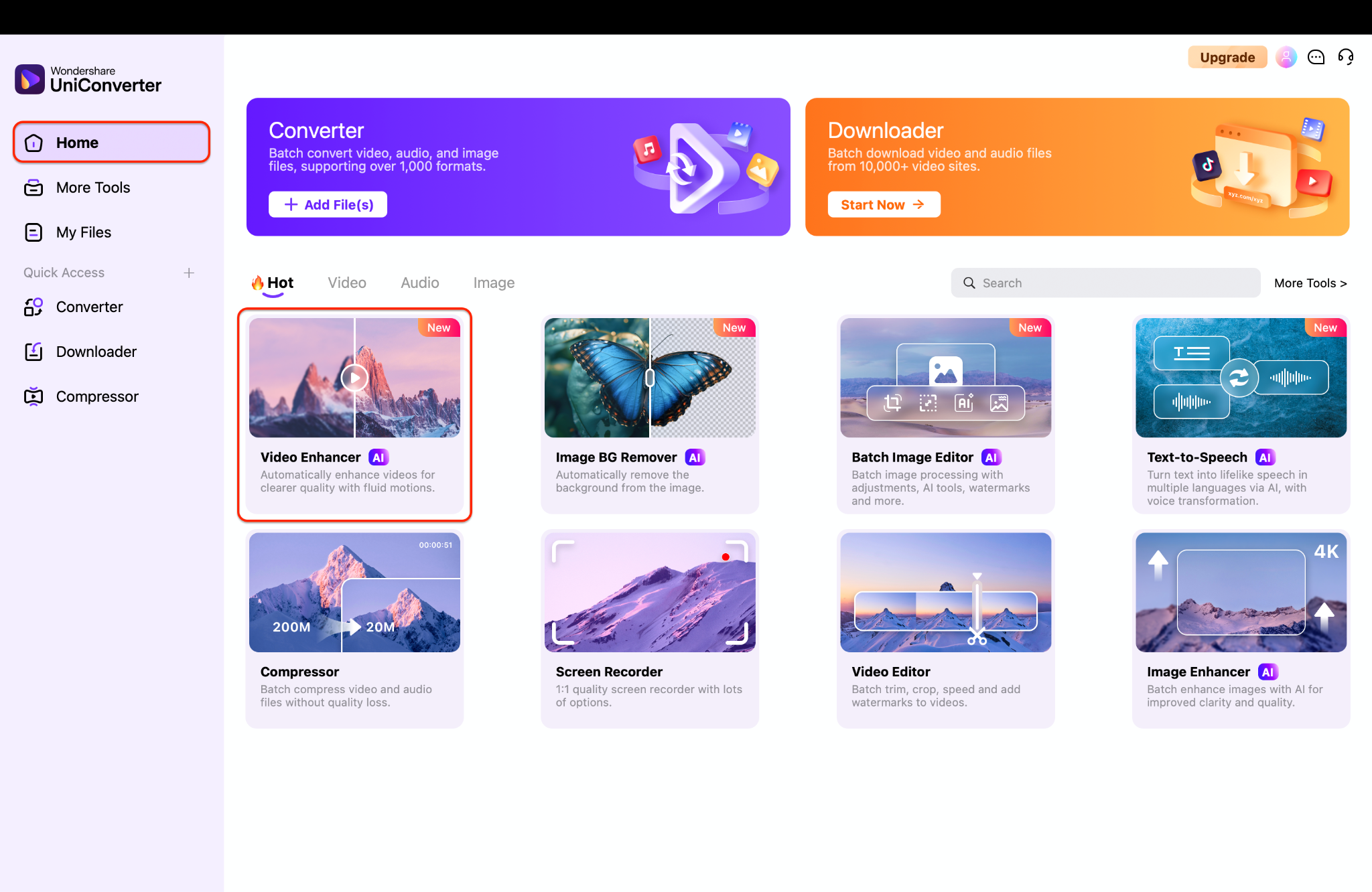
Step 1: Launch UniConverter and Access the Video Enhancer
Download and install Wondershare UniConverter from its official site. After launching, stay on the "Home" tab on the main screen and select Video Enhancer. This tool lets you upscale video free in trial mode, perfect for testing its AI upscaling capabilities without a subscription.
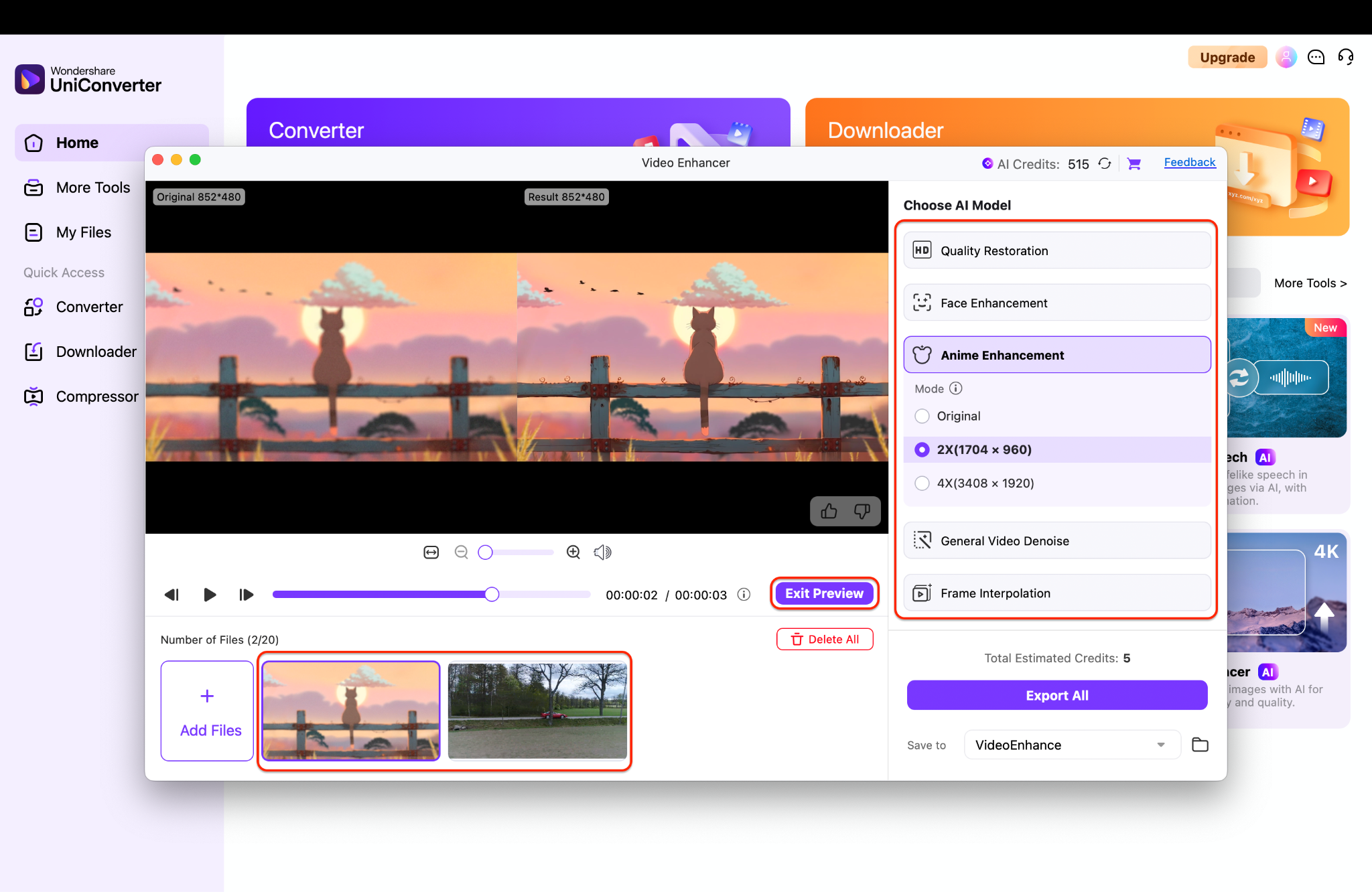
Step 2: Add and Configure Your Videos
Click "+ Add Files" to upload videos—UniConverter supports all major formats like MP4, MOV, MKV, and AVI for batch processing. Choose your upscaling preferences such as 2x or 4x, enable Animation Enhancement, and you can also apply for optional features like Face Enhancement or Quality Restoration. The AI engine makes this a powerful yet beginner-friendly AI video upscaler.
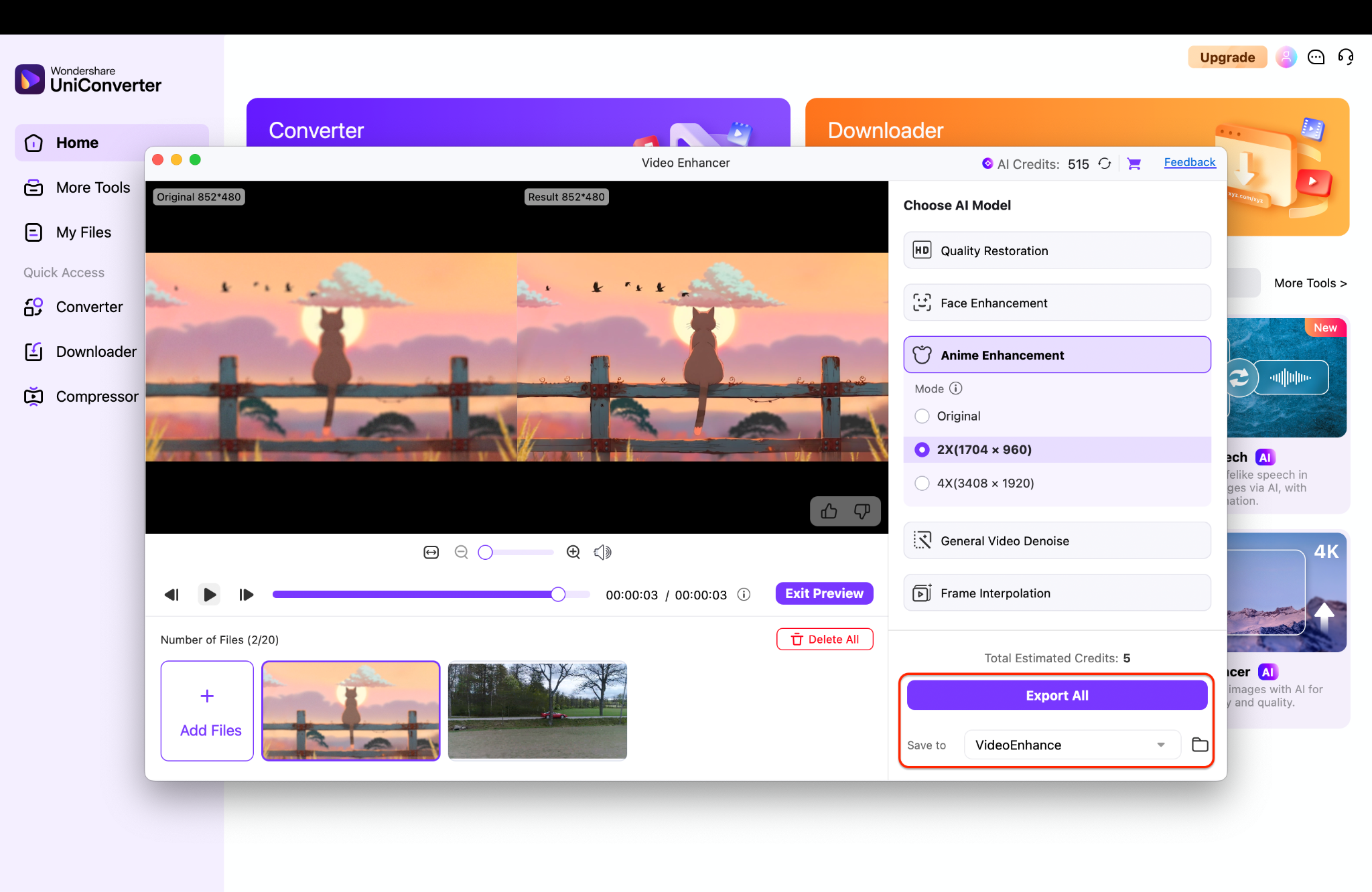
Step 3: Preview and Export Upscaled Videos
Once satisfied with the side by side preview, pick an output folder, and hit "Export All." You'll see a progress bar tracking real-time processing. Within minutes, you'll have sharp, high-quality videos—making UniConverter a top pick among the best video upscaler tools available today.
It's a top-tier option for anyone looking to easy to use batch video upscaler, whether you're a content creator, teacher, business owner, or hobbyist. Give the trial a spin, and you'll quickly see why it's the best upscaler worth keeping on your desktop.

Easy to Use AI Video Upscaler
Free vs Paid: Which One Should You Choose?
If you only need quick enhancement for one or two clips, a free AI video upscaler is often enough. But if you want better stability, batch processing, and more consistent output quality, a paid or desktop tool may be a better long-term choice.
Free Tools
Great for quick browser-based enhancement
Usually no upfront payment
Best for casual users and one-off tasks
Paid or Desktop Tools
Better for batch processing and larger projects
More stable output and stronger file control
Best for repeat editing, privacy, and professional use
Final Thought
Whether you're restoring anime footage, sharpening mobile videos, or enhancing old clips, AI video upscalers are reshaping how we bring low-res content back to life. From browser-based tools like GStory.ai, UnblurImage.AI, and IMGUpscaler, to open-source solutions like Video2X, each tool offers unique strengths—be it quick web access, no watermark downloads, or smart AI-based sharpening.
But if you're looking for a more robust, all-in-one solution with batch processing, offline access, and up to 4K AI enhancement, Wondershare UniConverter Video Enhancer is a standout choice. It combines ease of use with advanced AI video enhancement, letting you upscale multiple videos with just a few clicks—no editing experience needed. Plus, its free trial enables you to explore core features before upgrading.
Ready to see the difference? Try UniConverter today and experience AI-powered upscaling that's fast, reliable, and tailored to your workflow.

