


In today's content-driven world, blurry or low-resolution videos can seriously impact the viewer's experience. Whether you're a creator, editor, or casual user, learning how to unblur video is essential to improving quality and engagement. Thankfully, a range of modern tools—spanning desktop software, mobile apps, online platforms, and browser extensions—make it possible to enhance clarity with just a few steps.
From AI-powered solutions to free Chrome extensions, this guide walks you through the best ways to unblur video on any device. Ready to sharpen your footage and upgrade your content? Let's explore your best options.
Table of Contents
Part 1. How to Easily Batch Upscale Any Videos to 4x on PC
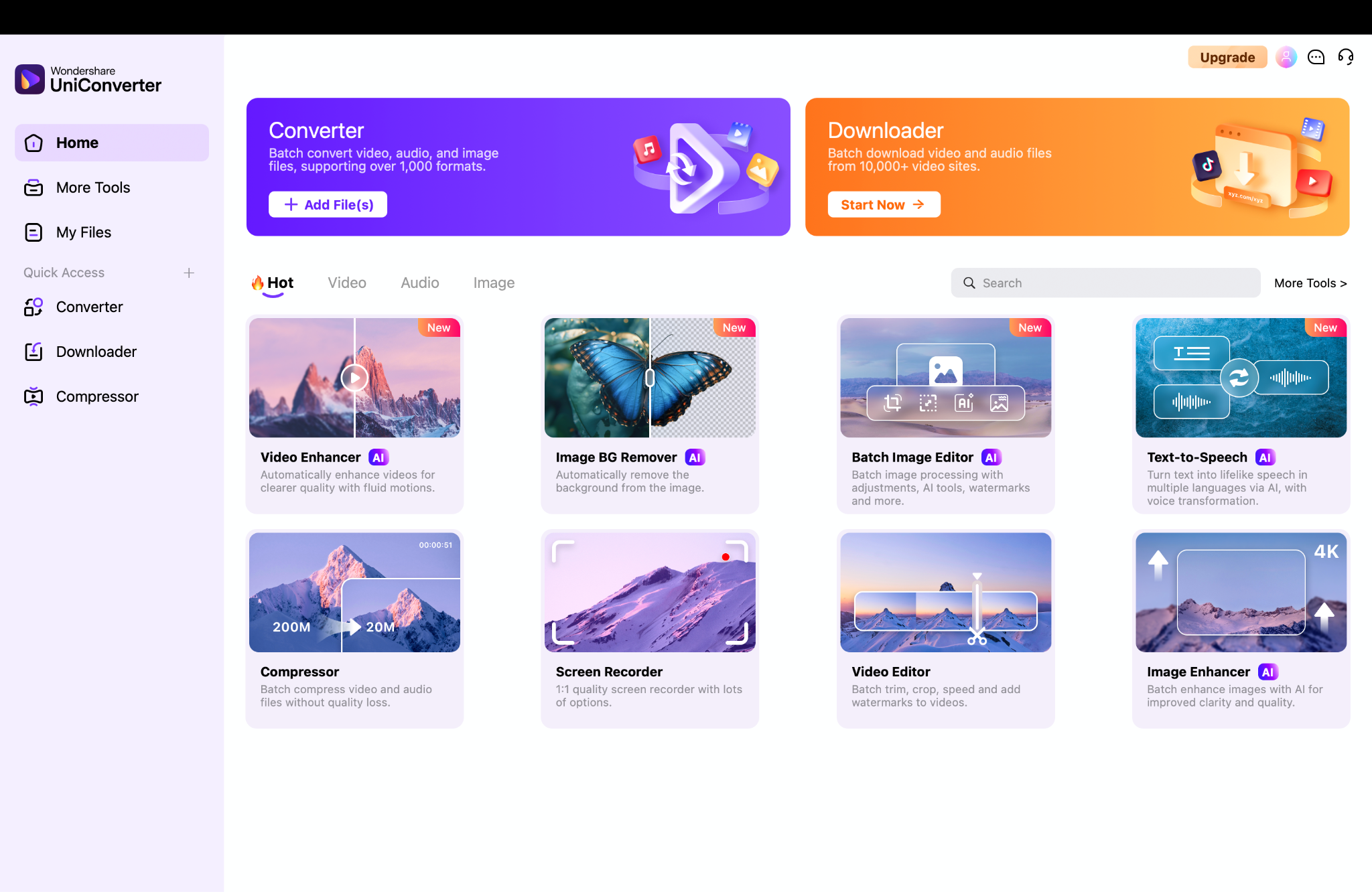
It's ideal for users who want to unblur a video without needing complicated editing software. With just a few clicks, UniConverter applies intelligent resolution enhancement, which works great for vlogs, archived footage, and smartphone clips. As a reliable video unblur solution, it also supports noise reduction, color enhancement, and format conversion for various file formats, including MP4, MKV, AVI, and more.
UniConverter stands out when compared to other limited online free unblur video tools. Unlike browser-based solutions, it offers stable performance even on large or multiple files. It's also more accurate and efficient than most free online AI platforms for removing video blurs.
For Apple users curious about how to unblur videos on iPhone, UniConverter is a desktop-only tool. Still, its output is iPhone-compatible—upscale your clips and transfer them easily. No matter your device, UniConverter provides a streamlined experience for anyone seeking to unblur videos at scale with professional results.
Key Features:
- AI-powered video upscaling engine supports 2x, 4x, and even 8K enhancement.
- Works as a video unblur tool by improving clarity and reducing grain.
- Allows batch upscaling for multiple videos simultaneously.
- Supports 1,000+ file formats with custom export presets.
- Available on both Windows and macOS with GPU acceleration for faster rendering.
Simple Steps to Upscale Videos with UniConverter:
Step 1: Install and Launch UniConverter
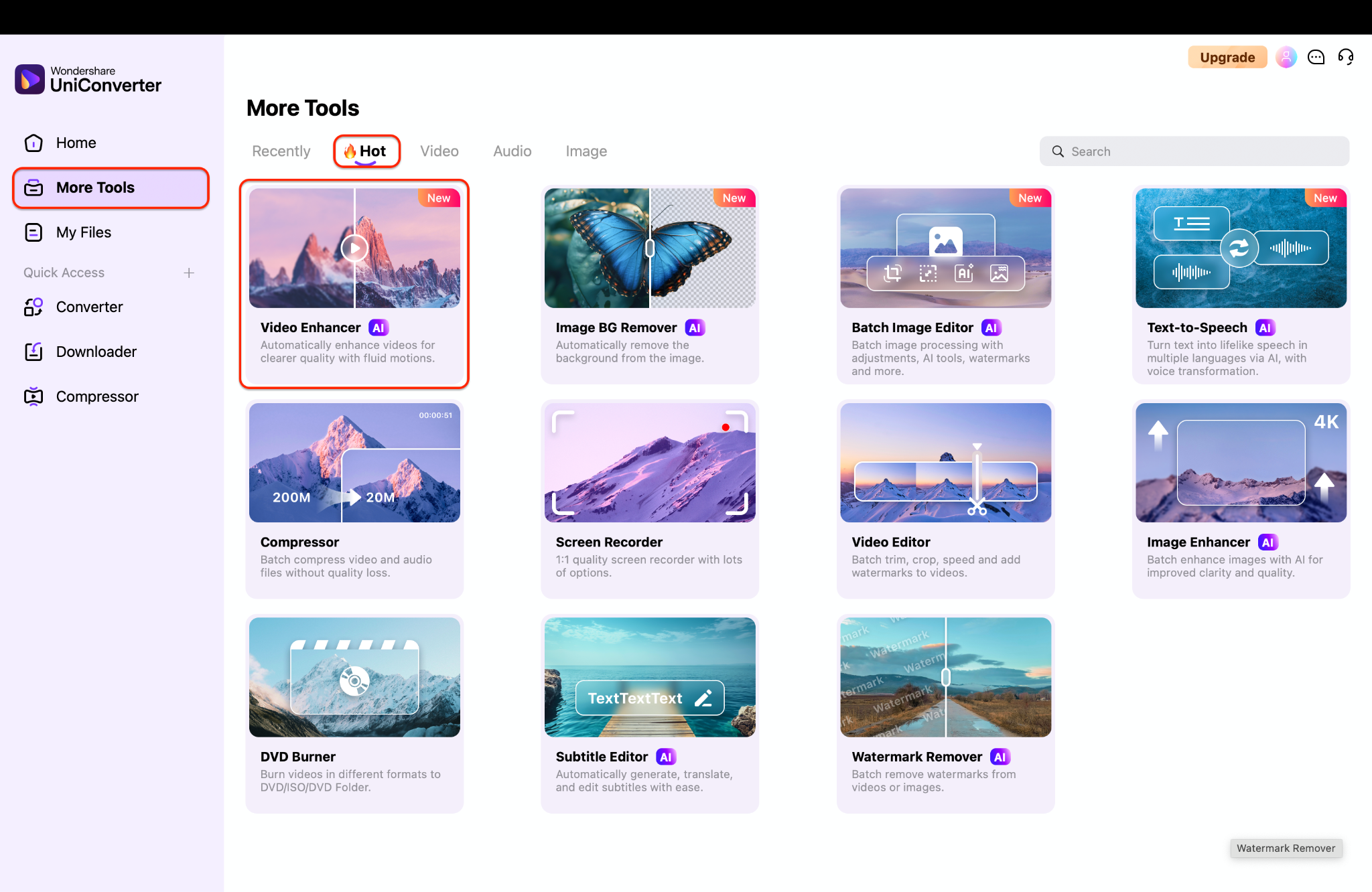
Step 2: Add Videos and Enable 4x AI Upscaling
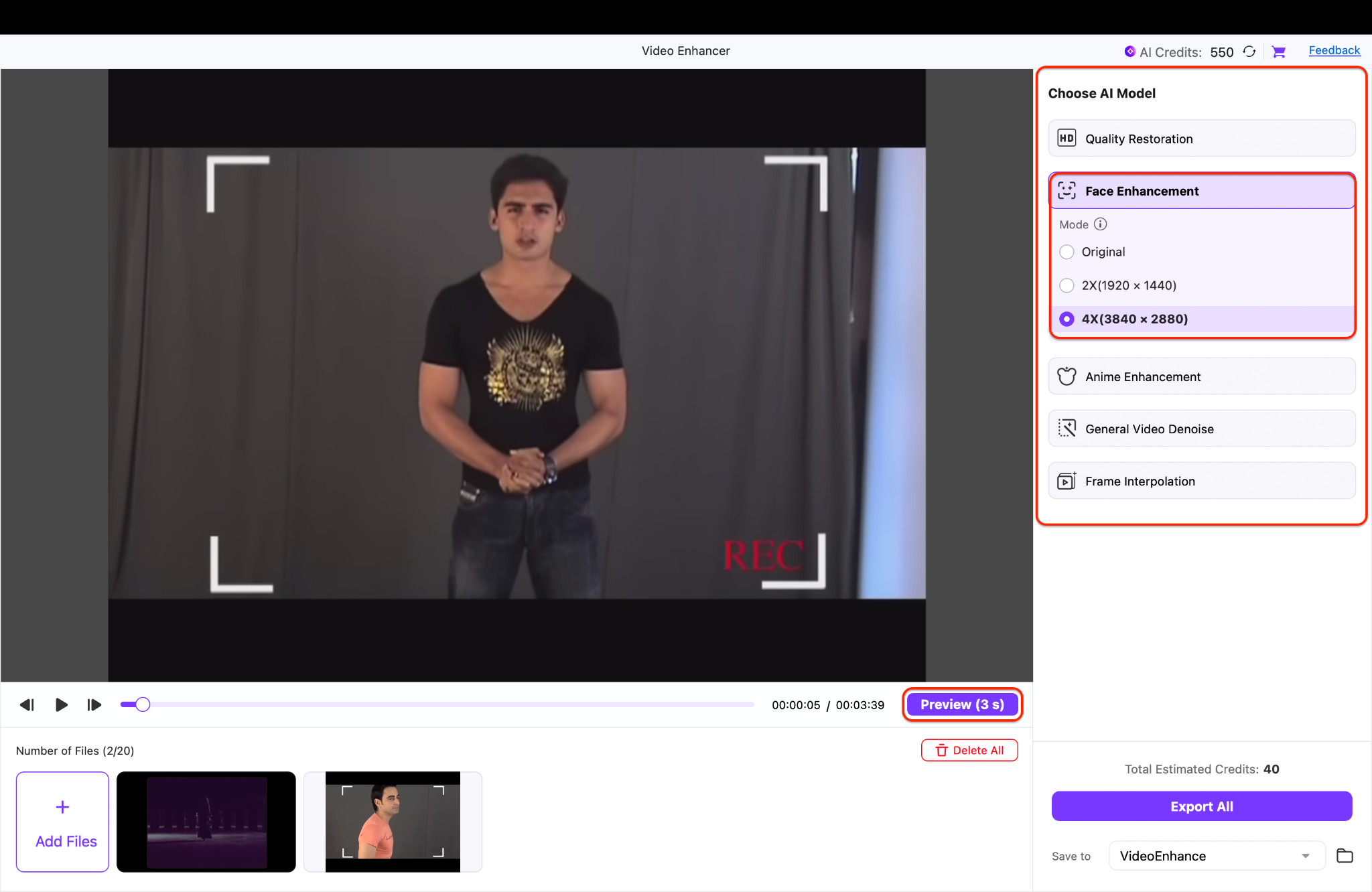
Step 3: Choose Output Format and Start Batch Processing
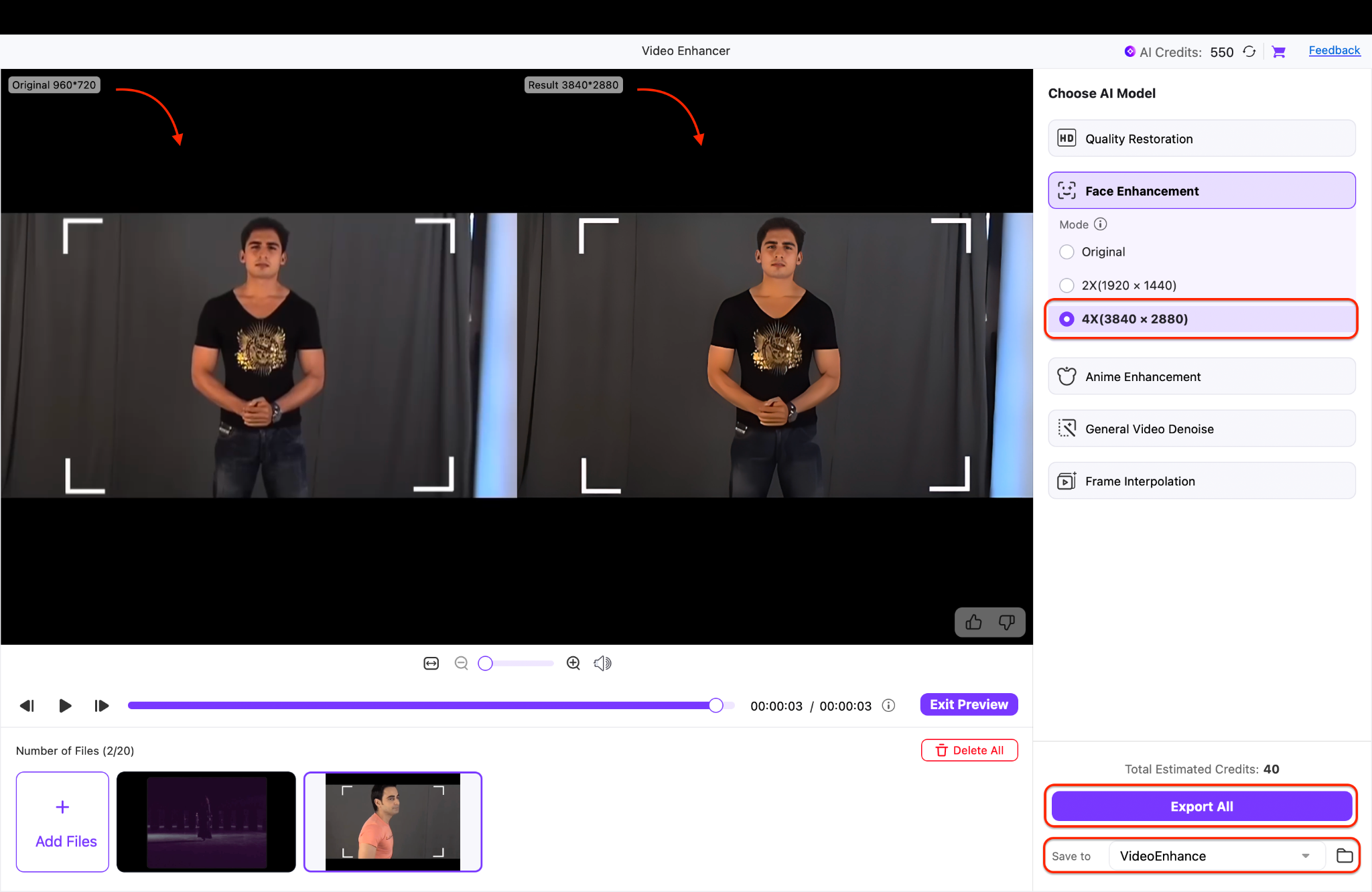

Easy to Use Batch Video Unbluring Tool
Part 2. How to Unblur Video with Online Tool
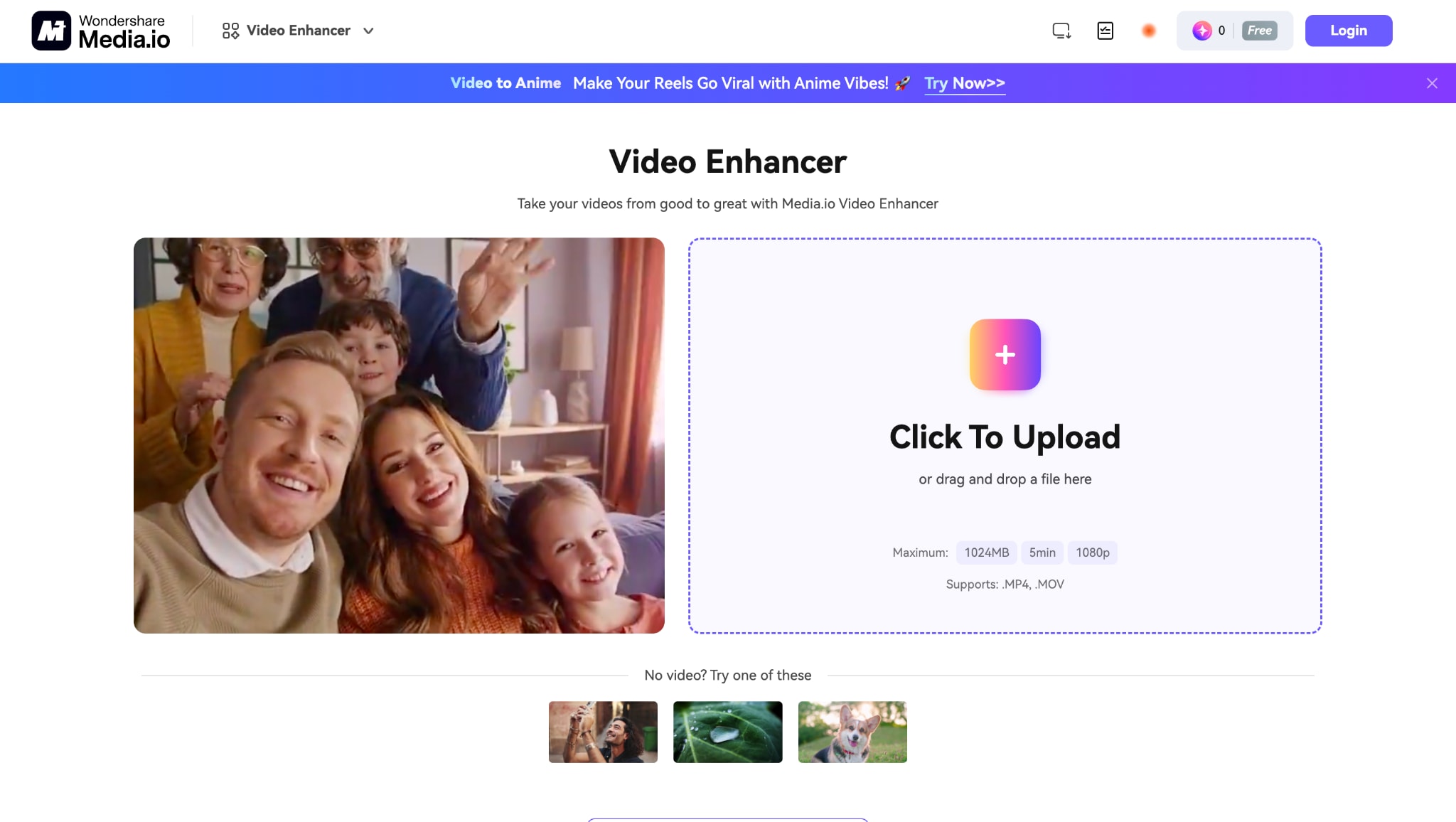
Wondering how to unblur a video or make your clips look more professional? Media.io's AI unblur video engine uses intelligent processing to restore lost details and upscale resolution in just a few clicks. The platform supports a variety of formats and works across devices, including mobile, making it a versatile choice for students, marketers, or hobbyists.
It's also a great option if you're figuring better ways to unblur videos on iPhone, as the tool runs smoothly in Safari or Chrome without requiring an app installation. Compared to limited editors or manual filters, this unblur video online free AI enhancer offers better accuracy and faster processing times.
You're fixing old clips or cleaning up blurry screen recordings. This video unblur platform makes high-quality enhancement accessible to everyone. Simply upload, let the AI do the work, and download your sharpened result—no software or experience required.
Key Features:
- AI-based unblur video engine for sharpening and improving clarity
- Works as a video unblur solution with no download or installation required
- Supports multiple formats like MP4, MOV, AVI, and more
- Cloud-based tool for access on desktop or mobile
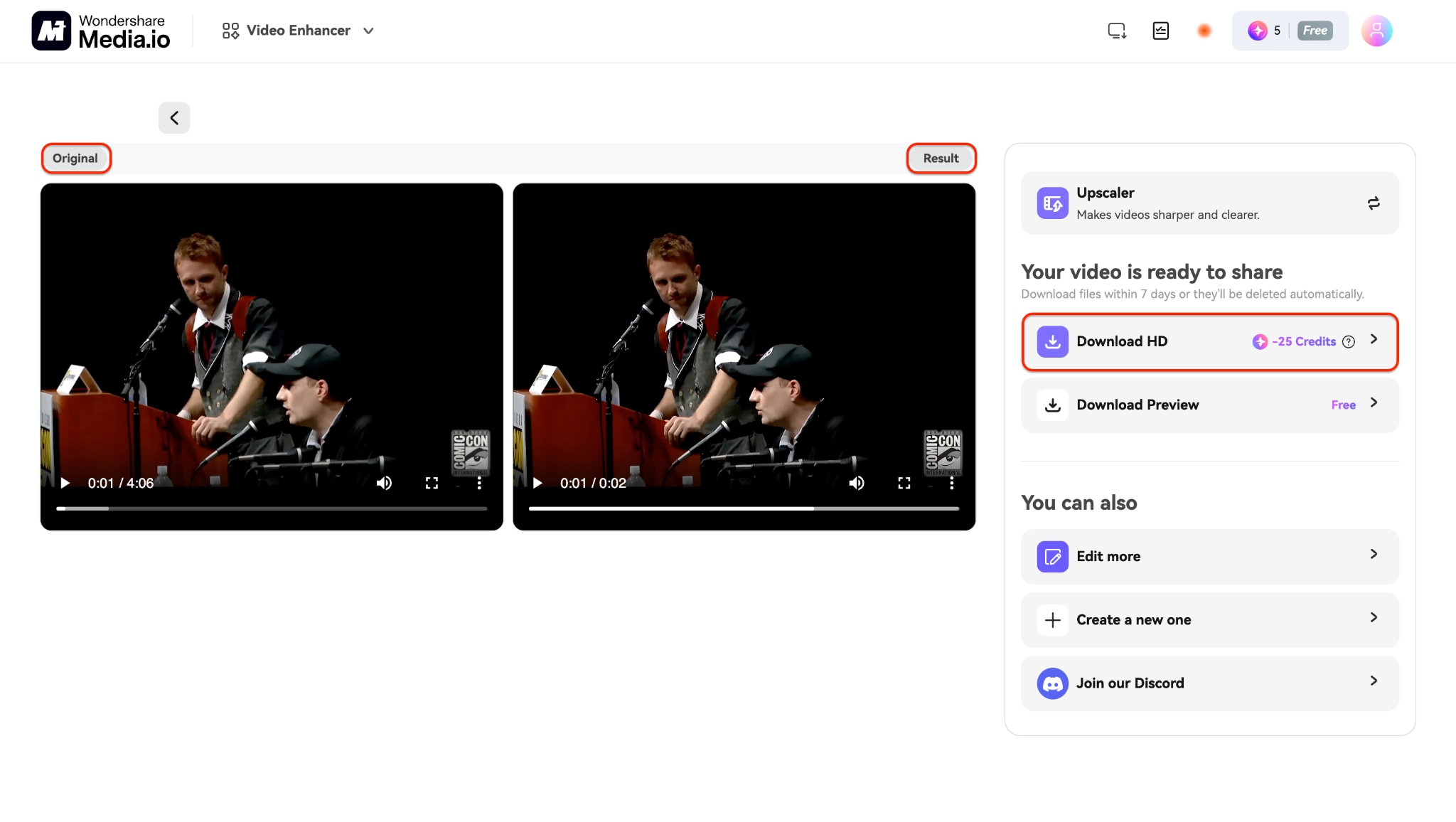
- Real-time preview for before-and-after comparison
Simple Steps to Unblur Video Online with Media.io:
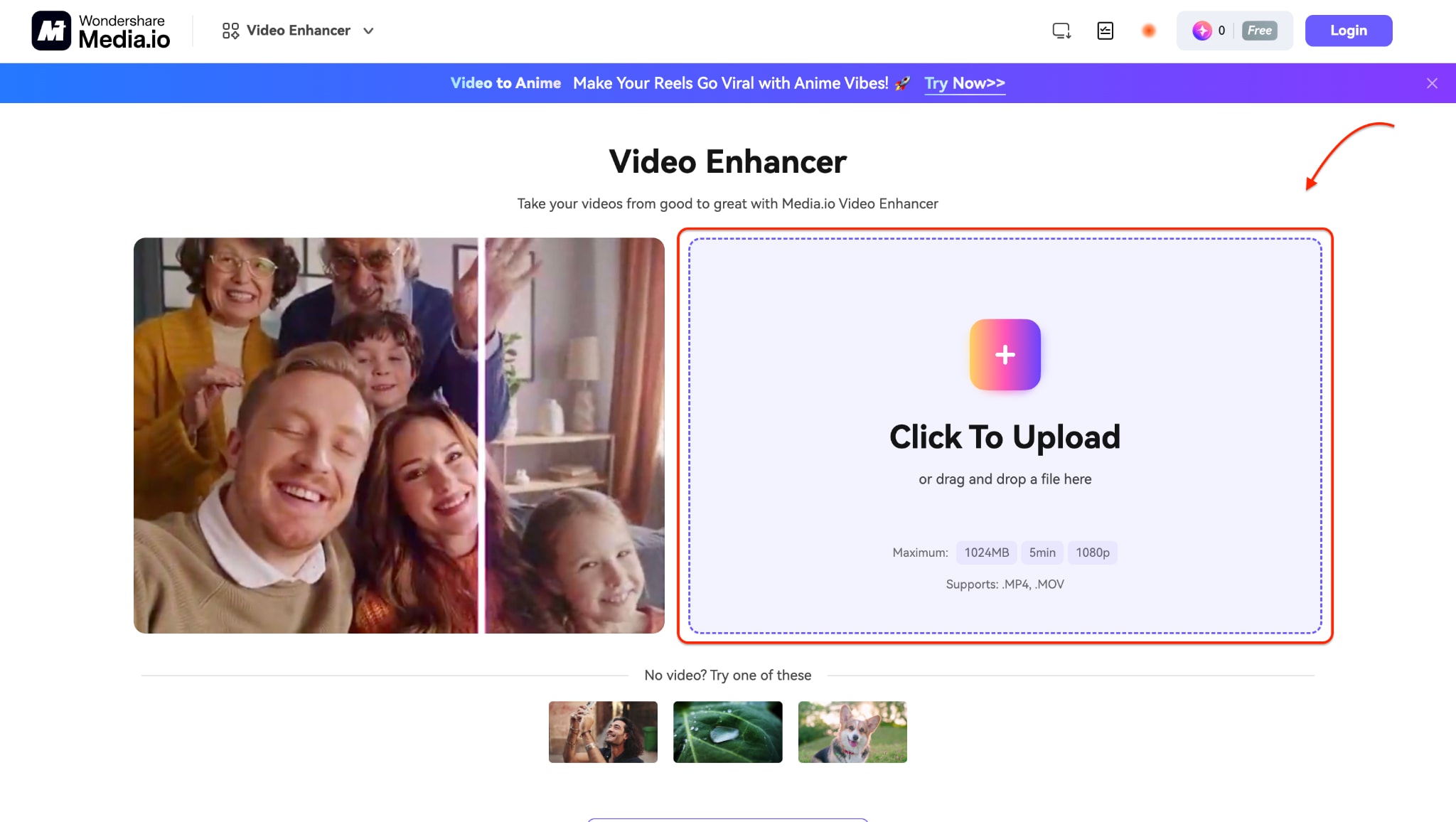
Step 1: Upload Your Blurry Video
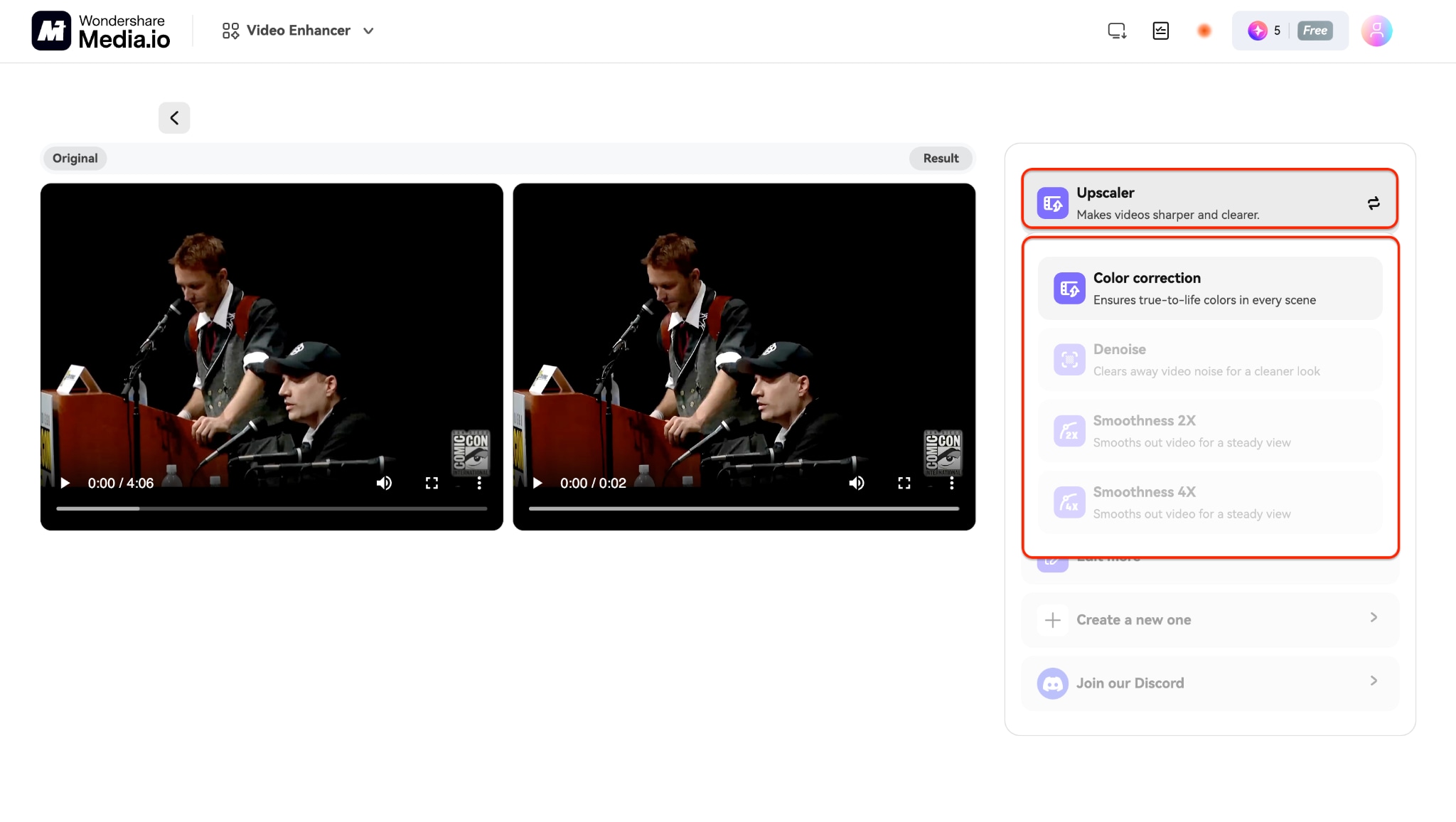
Step 2: Choose and Apply Upscaler
Step 3: Download the Clear Version in HD
Part 3. How to Upscale Video on iPhone/Android
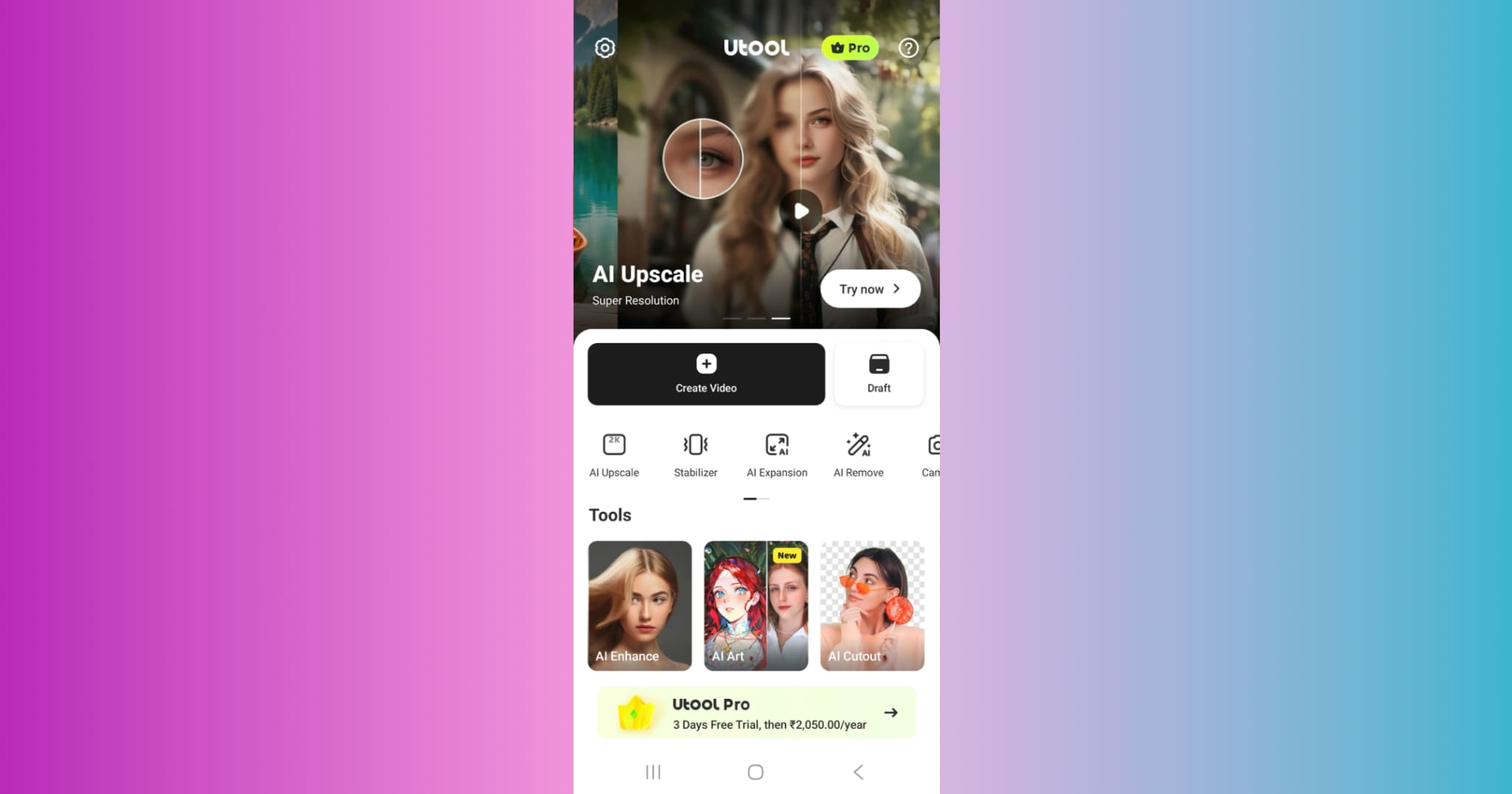
For those wondering how to unblur a video on an Android device, this app offers a straightforward and user-friendly interface that guides you through the enhancement process. It's beneficial when you're editing on the go and don't have access to a desktop. The app also supports a wide variety of video formats, so you don't need to worry about compatibility issues when uploading footage from different devices.
Beyond basic upscaling, the app also serves as a video unblur solution with intelligent AI optimization, making it easy for users to fix low-resolution or blurry content. It's not an ideal choice for those looking to unblur videos on iPhone. For that, you can opt for Chrome extensions like Enhancer for YouTube, which can be used for both casual and professional purposes.
Key Features:
- AI-powered upscaling engine for HD and 4K enhancement
- Supports multiple formats, including MP4, MOV, and AVI
- Real-time preview of enhanced video before saving
- Built-in tools for video unblur, stabilization, and lighting adjustments
- Works seamlessly offline after initial installation
Simple Steps to Upscale & Unblur Videos on Android
Step 1: Install and Upload Your Video
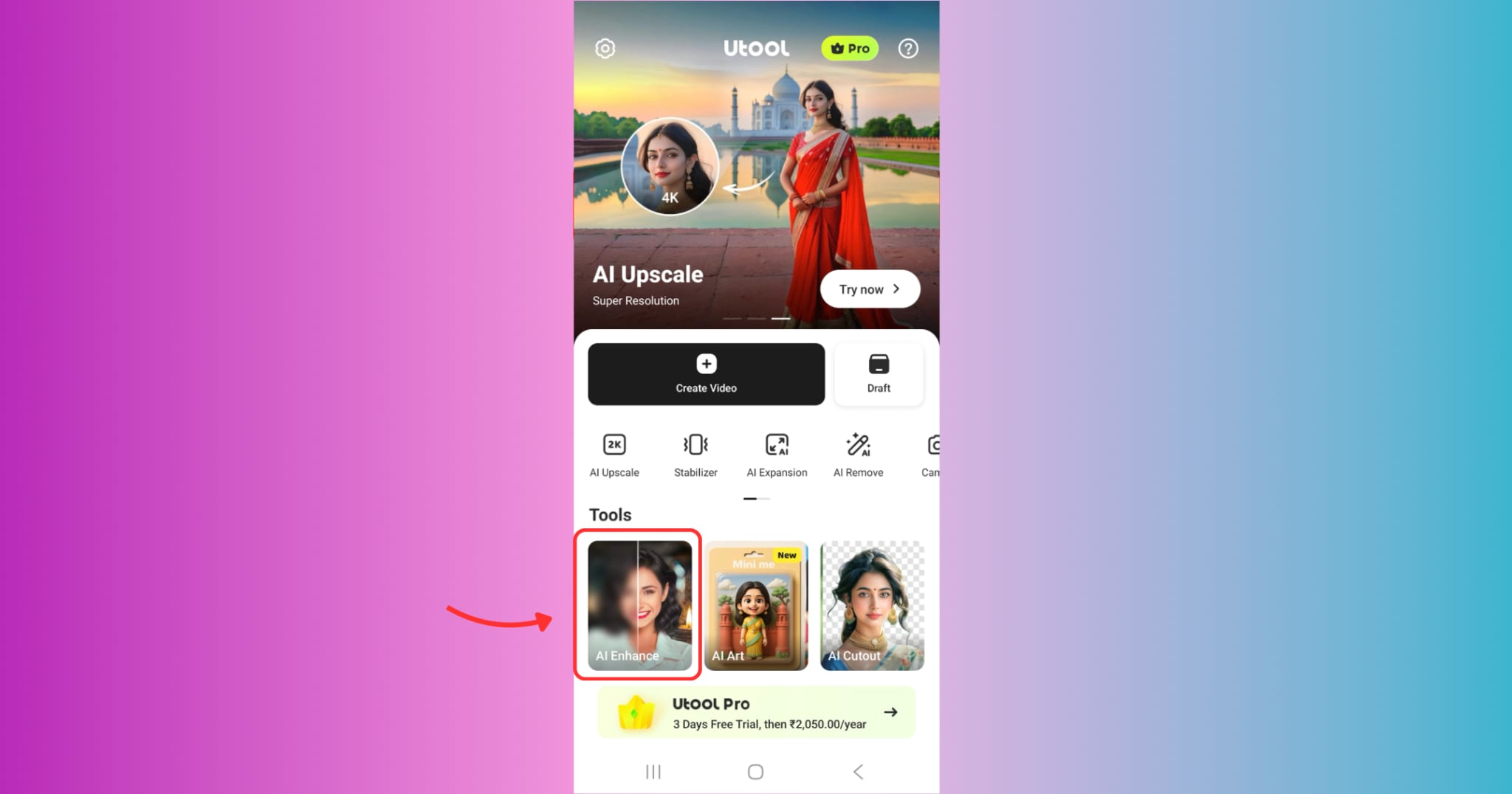
Step 2: Select and Adjust with Enhancement Options
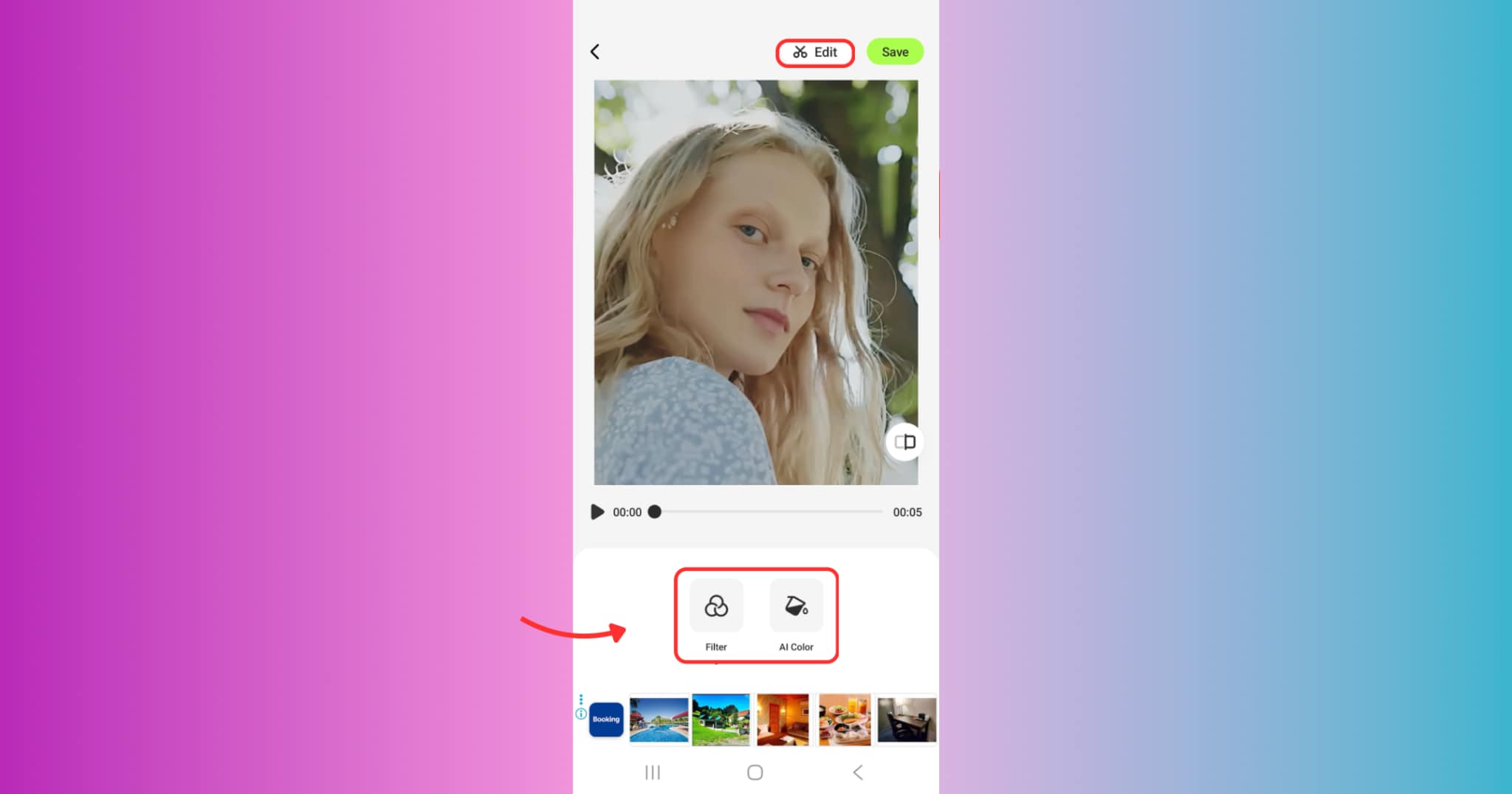
Step 3: Preview and Export the Enhanced Video
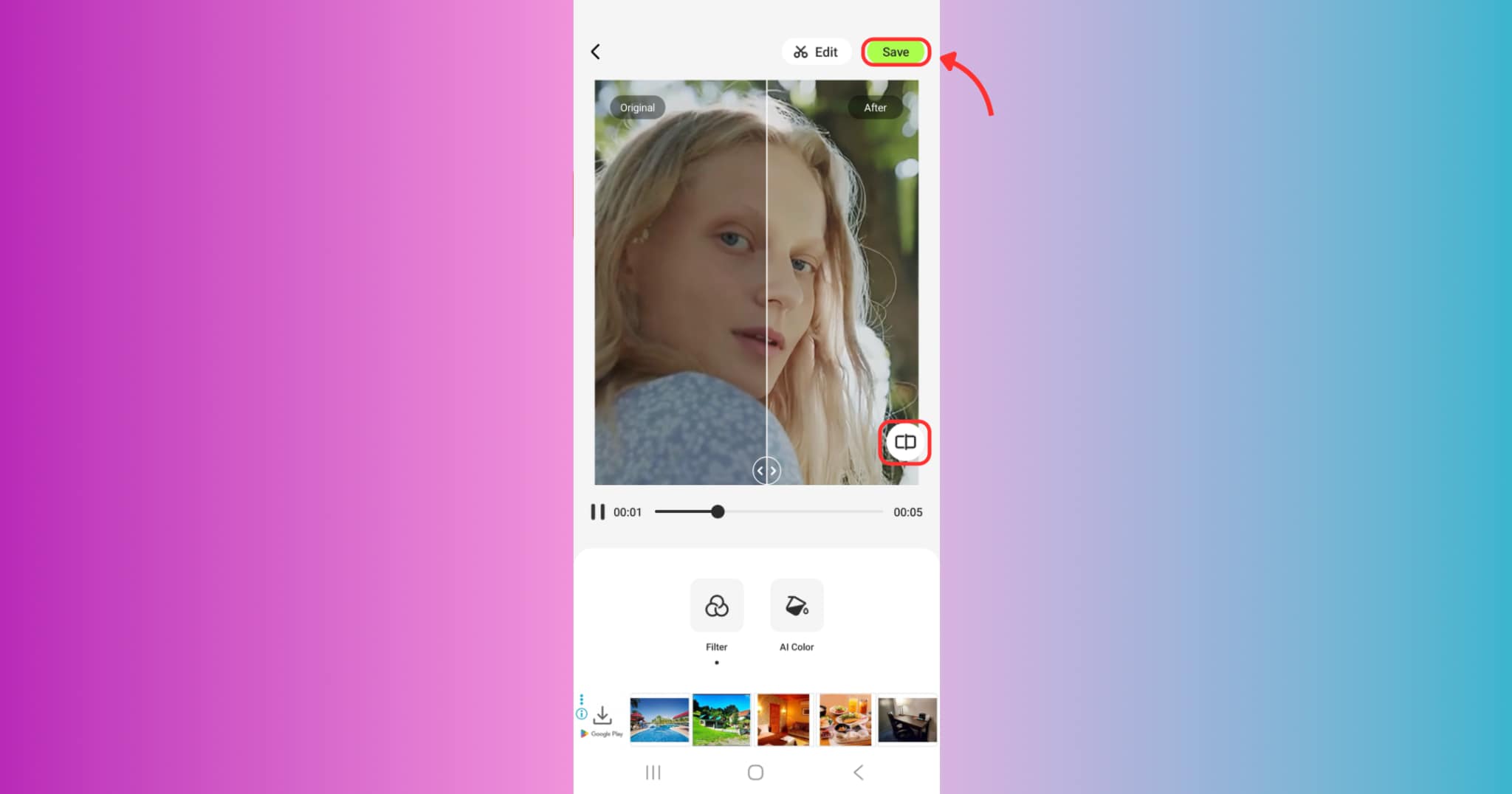
Part 4. How to Upscale Video with Chrome Extension
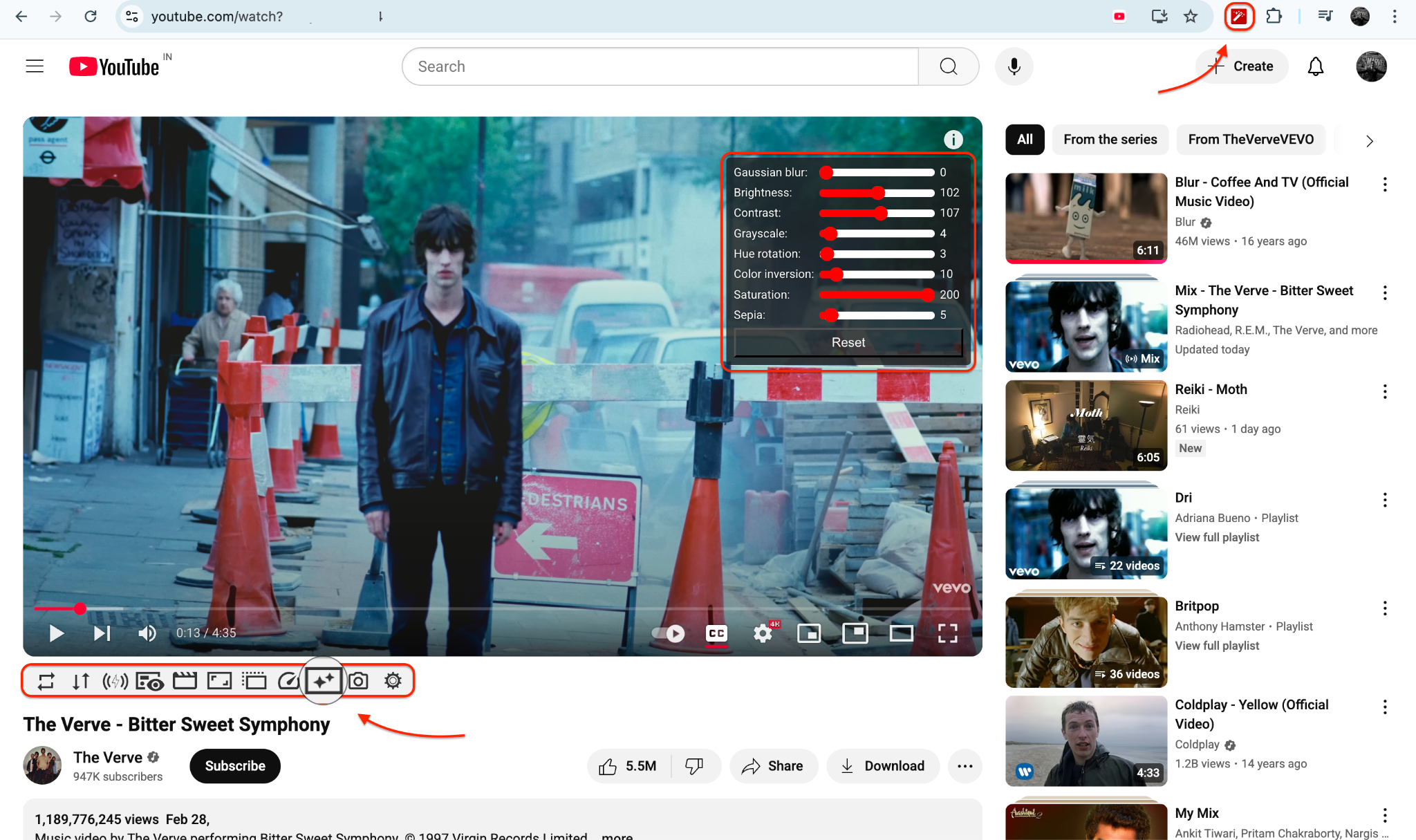
These Chrome extensions work exceptionally well for users who want to learn how to unblur a video without needing high-end video editing tools. With just one click, you can apply enhancements that make your content more straightforward to view. It's beneficial when you're watching older or poorly compressed videos online and want to simulate AI unblur video clarity in real-time.
Many users who are finding better ways to unblur a video on iPhone can test improvements using Chrome extensions before switching to mobile apps. This makes the experience versatile for both desktop and mobile workflows.
If you're specifically seeking free online unblur video solutions or trying to fix videos without re-editing them from scratch, these browser-based tools are your best bet. While they won't replace professional AI tools entirely, they offer a lightweight way to instantly enhance visual quality—perfect for educators, students, and casual viewers alike.
Key Features:
- Real-time upscaling without leaving your browser
- Support for YouTube and embedded video sources
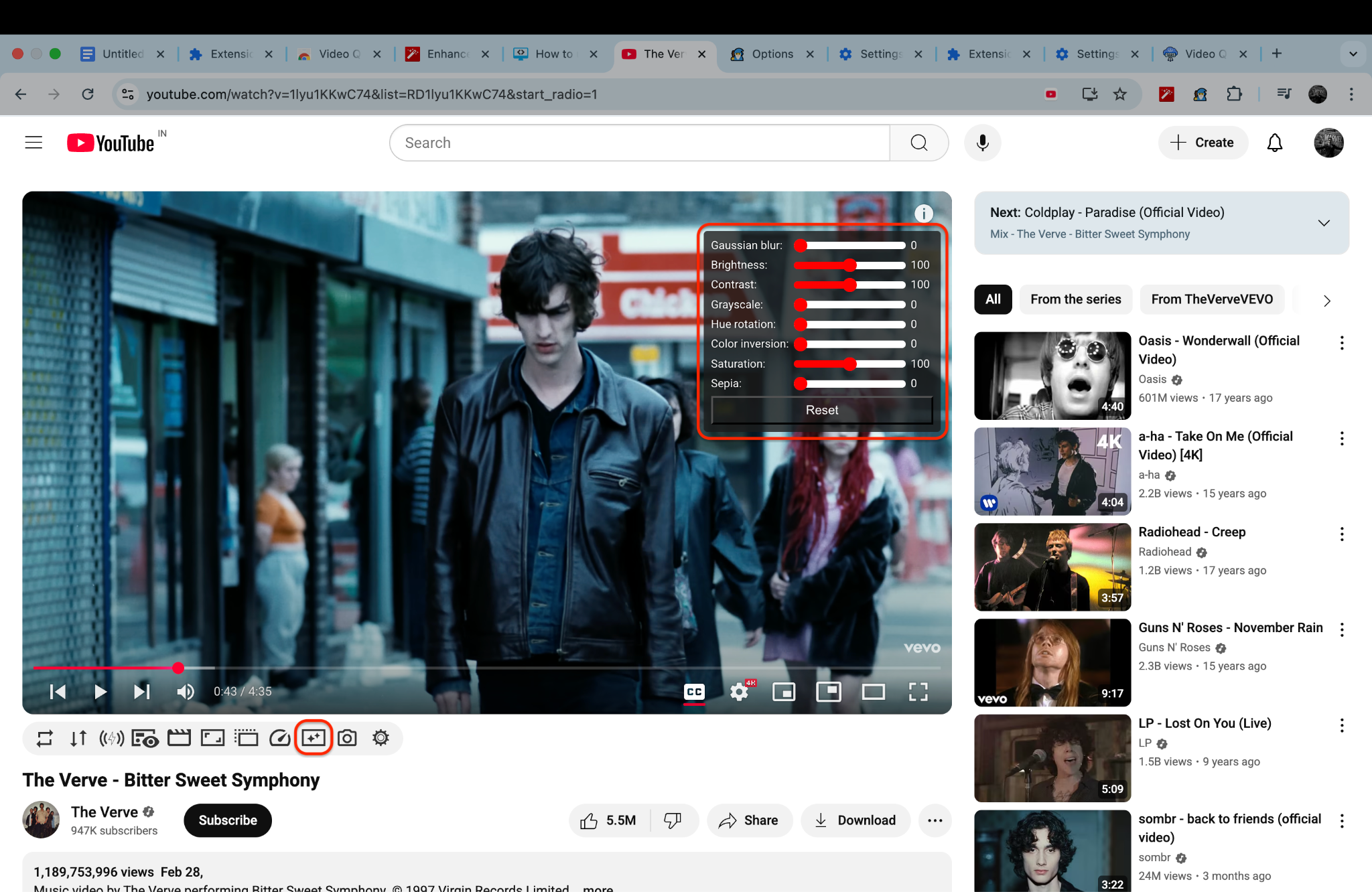
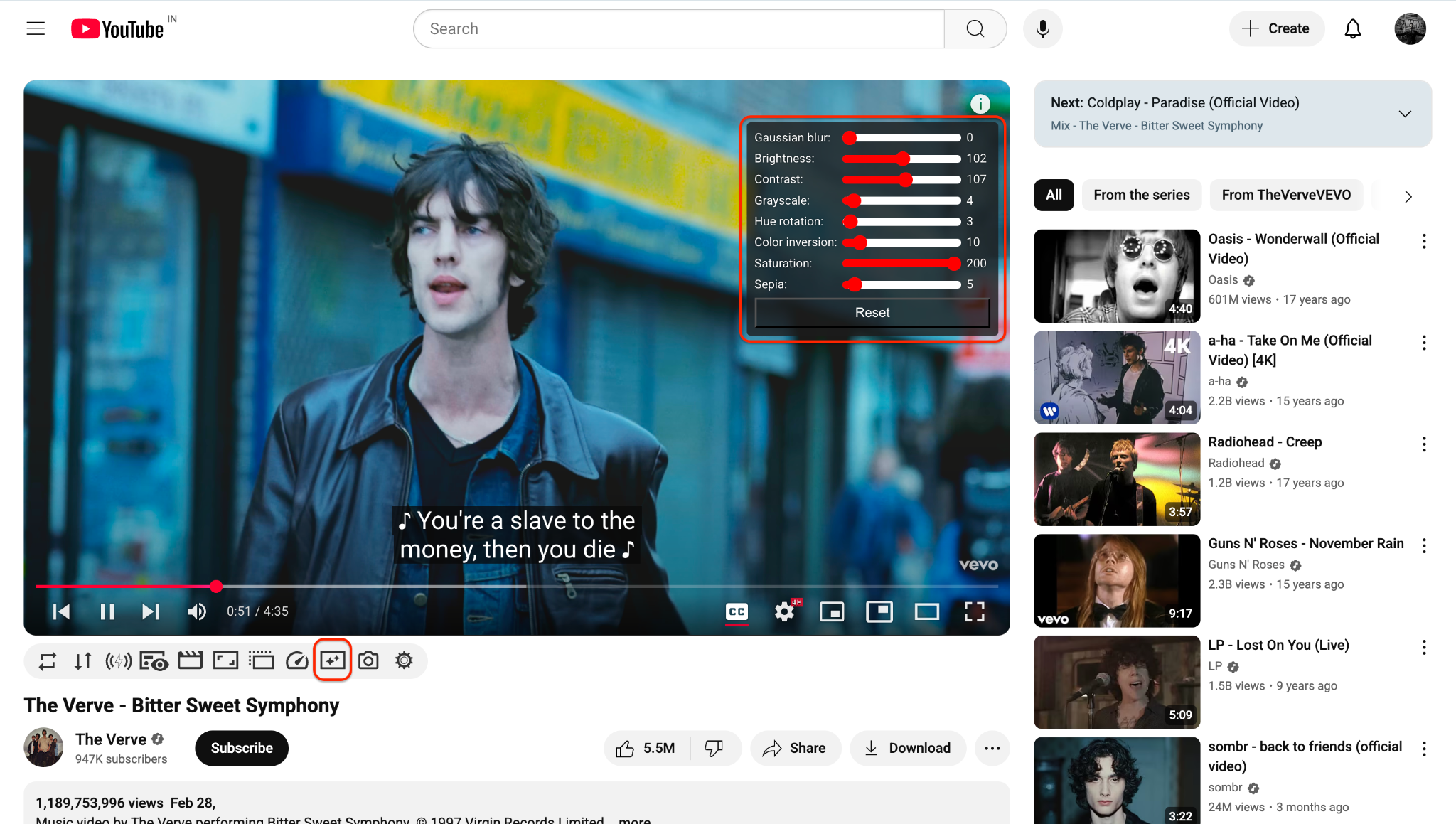
- Advanced controls: sharpness, contrast, blur reduction
- Enables video unblur functions while streaming
- Light and fast—no account or extra tools needed
Simple Steps to Upscale and Unblur Videos in Chrome
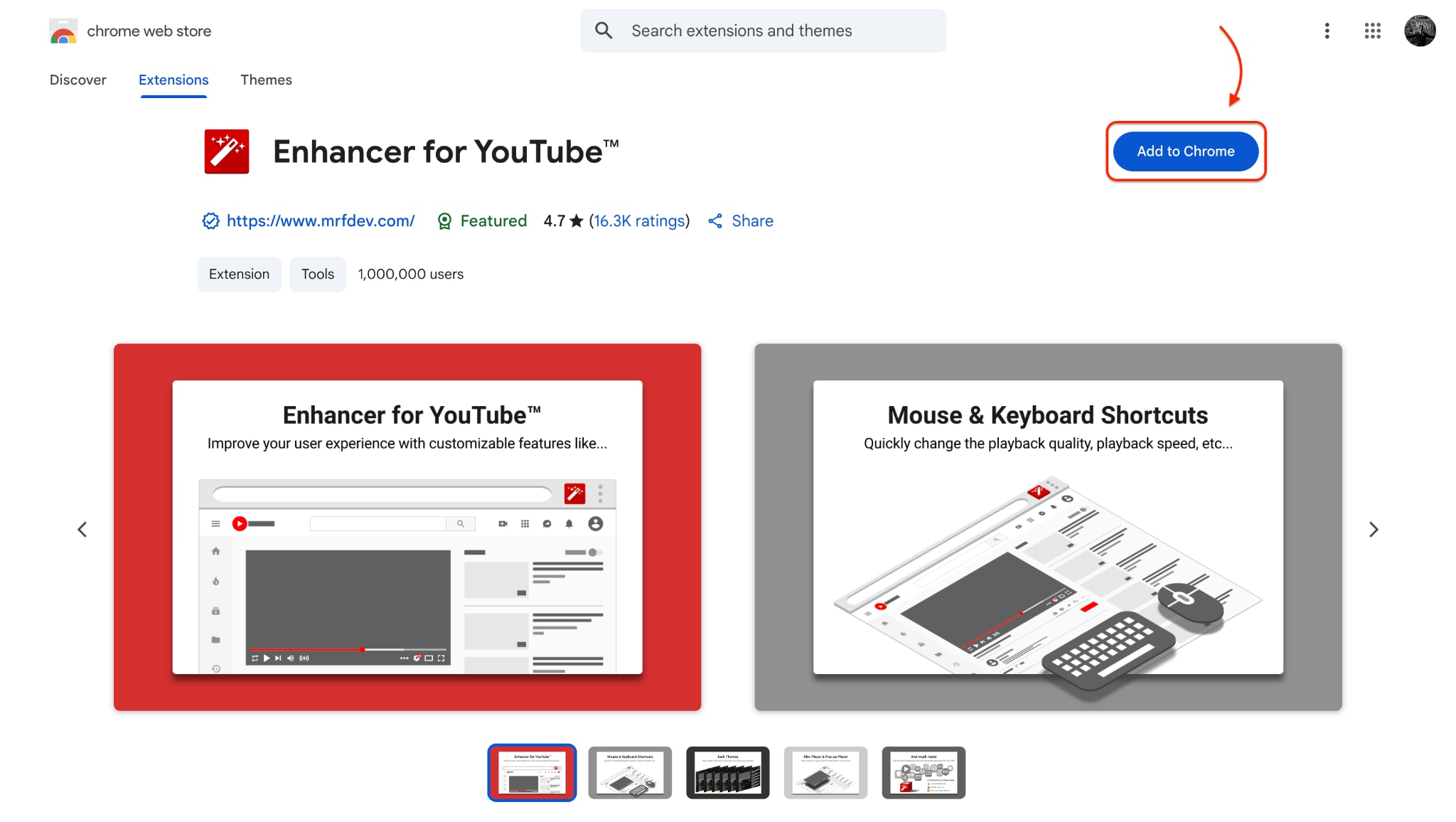
Step 1: Install the Chrome Extension
Step 2: Launch a Video and Activate the Controls
Step 3: Adjust the Video Quality in Real Time
Final Thoughts
Unblurring and upscaling videos doesn't have to be complicated. Whether you're working from a PC, mobile phone, or browser, you now have reliable tools to improve the quality of your footage.While online tools are quick and accessible, software like UniConverter stands out with its comprehensive features, precision control, and support for AI-based upscaling and conversion.
Ready to give your videos the clarity they deserve? Download UniConverter now and start enhancing your content with just a few clicks!
FAQs
Easy to Use Batch Video Unbluring Tool
-
1. What’s the easiest way to upscale and unblur videos on PC?
The easiest and most reliable method is using Wondershare UniConverter, which offers AI-powered video enhancement, format conversion, and batch processing tools. -
2. Can I use UniConverter to fix blurry footage?
Yes, UniConverter includes an AI unblur video tool designed to sharpen footage, reduce motion blur, and restore clarity in low-resolution videos. -
3. How do I unblur videos on mobile?
You can use apps like AI Video Enhancer – Upscale App on Android or iOS to unblur video online free and upscale resolution in a few taps—perfect for editing content on the go. -
4. Is there a way to enhance videos in Chrome without installing software?
Yes, extensions like Enhancer for YouTube or YouTube Video Enhancer allow you to adjust contrast, sharpness, and resolution directly in your browser—ideal for instantly trying out how to unblur a video. -
5. Does UniConverter support multiple video formats and editing tools?
Absolutely. UniConverter supports over 1,000 video formats and comes with built-in tools for editing, trimming, AI enhancement, and video unblur functions—all within a single interface.

