


Lightroom is one of the most powerful photo editing tools, but it comes with a steep learning curve, Adobe Lightroom price, and heavy system requirements that slow down workflow. For photographers who want speed, simplicity, or budget-friendly options, these hurdles can be frustrating. Thankfully, more than one Lightroom free alternative delivers professional-grade editing without the complexity or cost.
In this guide, we explore the best desktop, online, and mobile tools, highlighting their key features, strengths, and weaknesses. You will also learn practical ways to batch edit, enhance, and convert photos efficiently across platforms. By the end, you will know which Lightroom alternative fits your workflow and editing needs.
- Why Alternatives Matter: Lightroom can be expensive and complex, making free alternatives attractive for faster and simpler workflows.
- Tool Variety: Desktop, online, and mobile editors offer different levels of control, from advanced RAW editing to quick social media adjustments.
- Best Use Cases: Tools like Darktable and RawTherapee suit professionals, while Snapseed and Pixlr are ideal for quick edits.
- Efficient Solution: Wondershare UniConverter streamlines batch enhancement, conversion, and AI-based image improvement in one workflow.
In this article
Part 1: Lightroom Alternatives: Quick Comparison Table
Not every photographer needs the same tools; the right editor depends on your platform, budget, and workflow. The table below cuts through the noise by laying out each Lightroom free alternative's pricing, platform support, RAW capabilities, and ideal use case side by side, so you can make an informed choice at a glance.
| Tool | Platform | RAW Support | Free Version | Best For |
| Darktable | Windows, macOS, Linux | Yes, 400+ camera formats | ✅ Fully free, no limits | Hobbyists & power users who want a full Lightroom replacement at zero cost |
| RawTherapee | Windows, macOS, Linux | Yes, Pentax Pixel Shift, Canon Dual-Pixel, X-Trans, Foveon & more | ✅ Fully free, no limits | Technical photographers who need maximum RAW processing depth |
| Capture One | Windows, macOS | Yes, 550+ cameras | ❌ 30-day free trial only | Professional studio and commercial photographers |
| Luminar Neo | Windows, macOS (mobile with Cross-Device plan) | Yes | ❌ 7-day free trial only | Photographers who want AI-assisted, fast professional results |
| Photopea | Any web browser | Yes, RAW import is supported | ✅ Fully functional free tier | Quick edits without installation; Photoshop-style tools in a browser |
| Pixlr | Browser, iOS, Android, Desktop | Limited | ✅ Free tier (with ads & limits) | Social media creators need fast, AI-powered online editing |
| Fotor | Browser, Windows, macOS, iOS, Android | ❌ | ✅ Free tier (limited features & credits) | Batch editing, collage creation, and social media content |
| Snapseed | iOS, Android | Yes, RAW/DNG files | ✅ Fully free, no ads, no watermarks | On-the-go editing; best free mobile photo editor overall |
| VSCO | iOS, Android, Web | Yes, RAW on iOS (paid tiers) | ✅ Free Starter plan | Social media creators and photographers want film-inspired presets |
| Polarr | iOS, Android, Windows, macOS | Limited (JPEG-focused in most tiers) | ✅ Free tier with limited daily exports | AI-powered mobile editing with custom presets and batch tools |
Part 2: 4 Best Desktop Alternatives to Lightroom
Desktop photo editors offer full control over RAW files, layers, and advanced color grading, making them the ideal free alternatives to Lightroom for serious photographers who work on Windows, macOS, or Linux.
1. Darktable
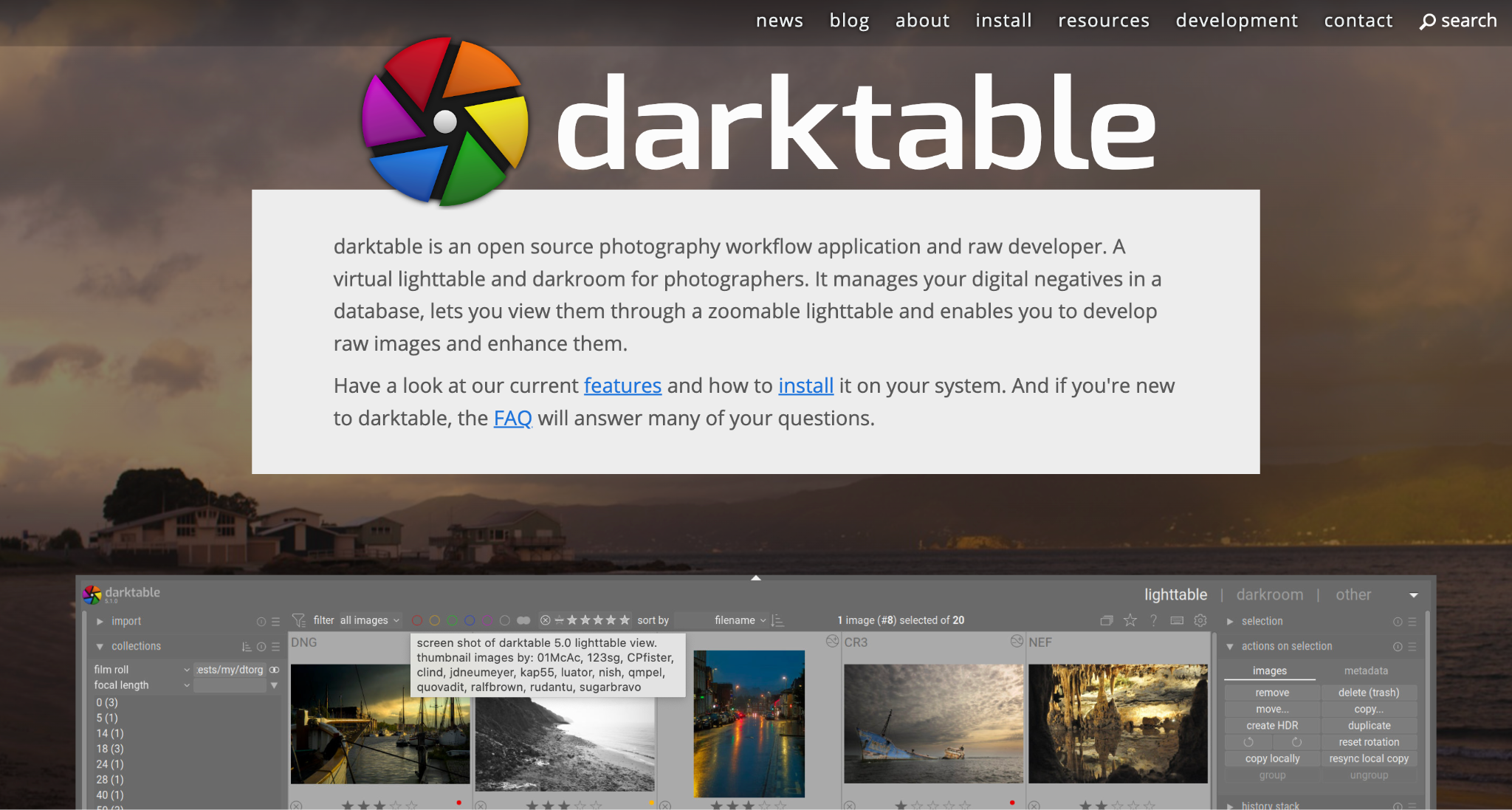
If you are looking for the closest open-source alternative to Lightroom, Darktable is one of them. It is a RAW photo editor and workflow manager that covers the full pipeline from import and organization to non-destructive editing and export. It runs on Windows, macOS, and Linux. Darktable's editing workspace, called the Darkroom, is modular. Every adjustment (exposure, color balance, tone curve, sharpening, noise reduction) exists as a separate, toggleable module.
Key Features
Non-destructive editing with a modular, fully customizable interface
Parametric and drawn masks for precise local adjustments
Supports 400+ camera RAW formats
2. RawTherapee
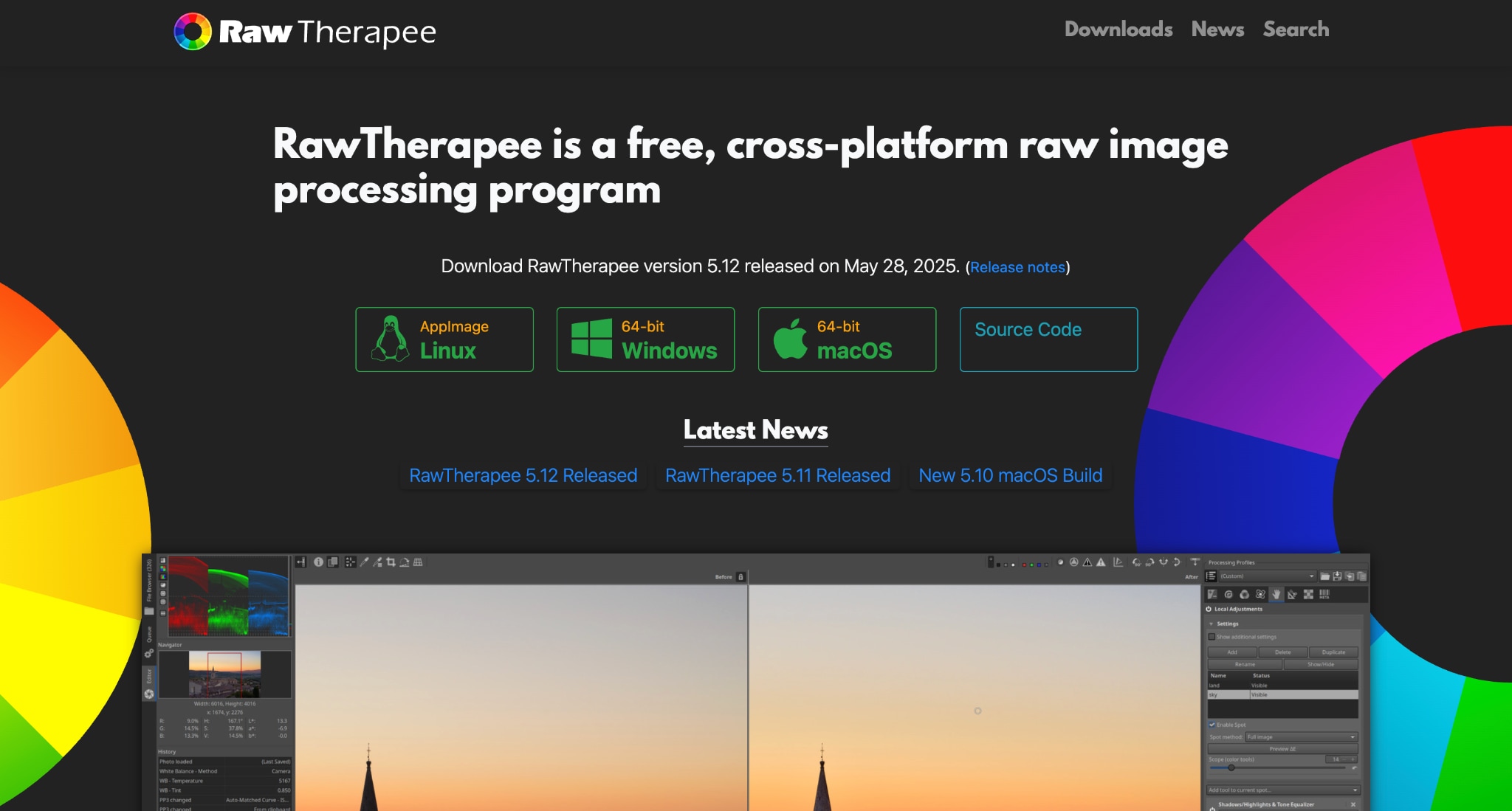
RawTherapee is a pure RAW processing engine and an ideal open-source alternative to Lightroom. RawTherapee focuses almost entirely on the development side: taking a RAW file and giving you maximum technical control over its processing. RawTherapee offers more demosaicing algorithms than any other editor, free or paid. It supports AMaZE, LMMSE, IGV, and several others, each suited to different sensor types and noise profiles. The sharpening options are equally deep, with capture sharpening, post-resize sharpening, and edge-preserving detail enhancement all available as separate, tunable processes.
Key Features
Advanced demosaicing with multiple algorithm options
Deep sharpening controls (capture, post-resize, edge-preserving)
Non-destructive editing with sidecar files
3. Capture one
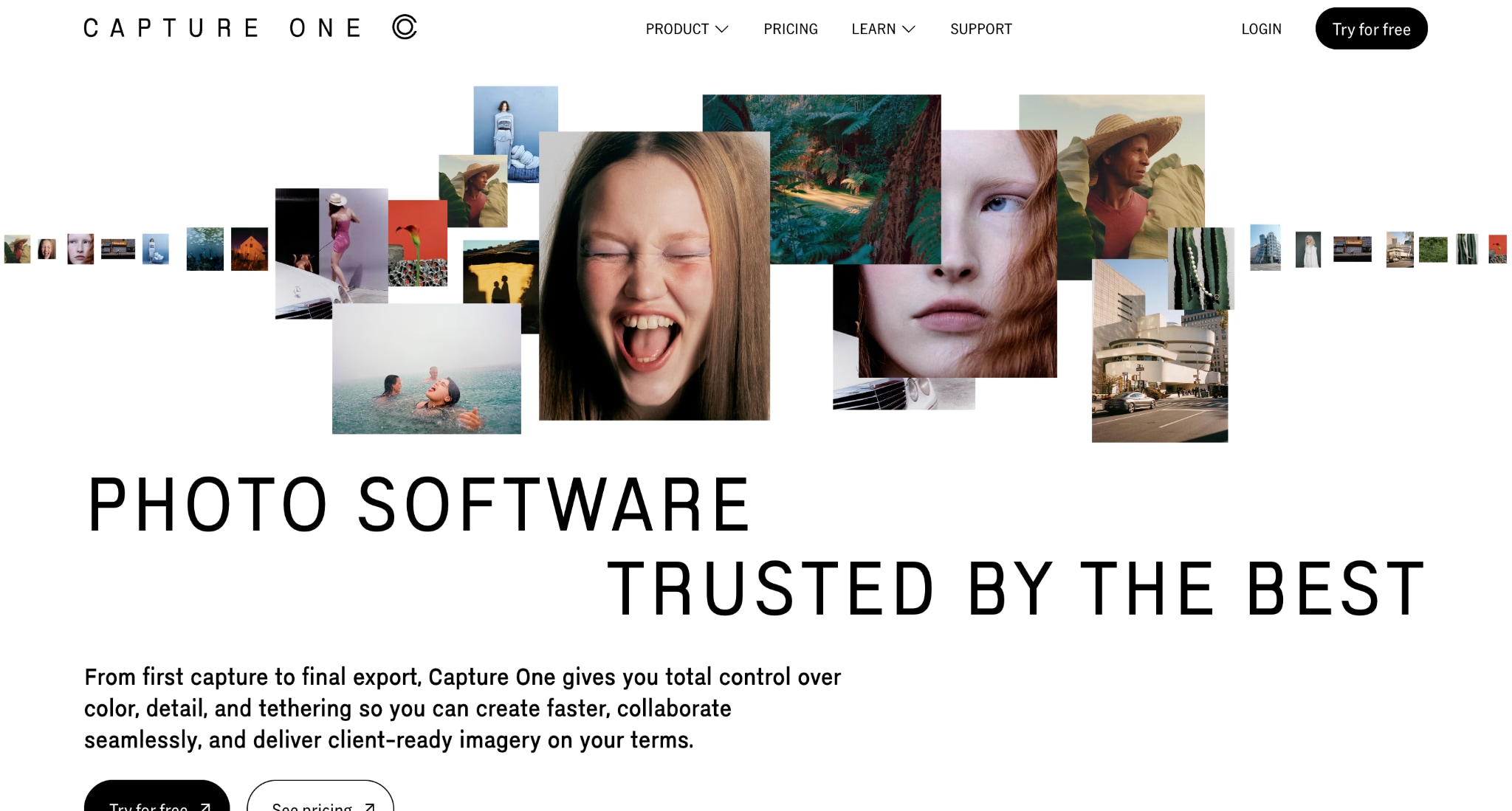
Capture One is a Lightroom alternative. It works as a professional's reach when Lightroom's color science and tethering capabilities are not enough. The editing interface is highly customizable. You can build your own workspace layouts, rearrange tools, and create task-specific configurations. The color editor tool, which allows you to select and adjust individual color ranges with surgical precision, is considered best-in-class by most professionals who have used both Capture One and Lightroom.
Key Features
Industry-leading color science and RAW rendering
Highly customizable workspace and tool layout
Precise color editor for individual color range adjustments
4. Skylum
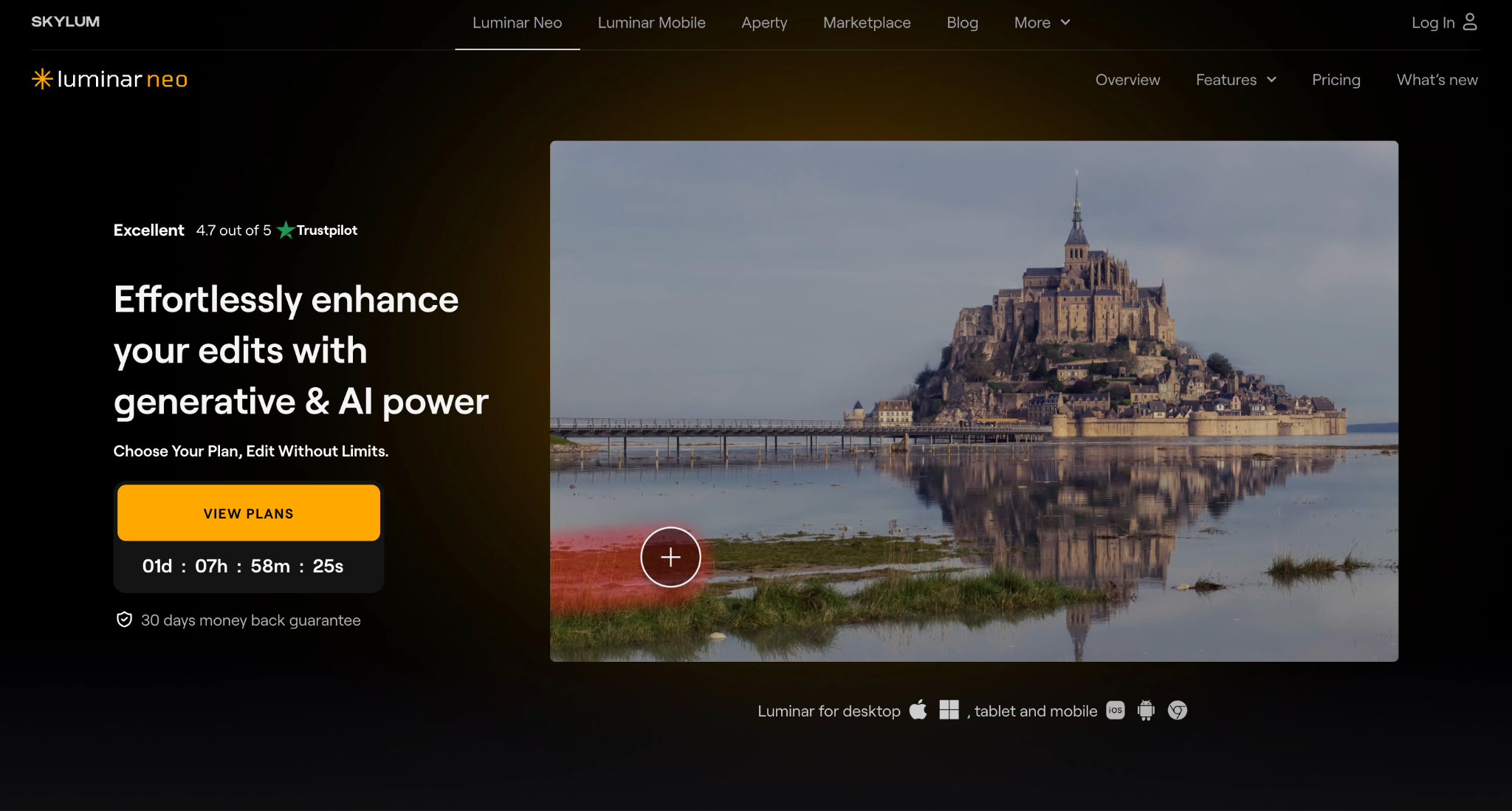
Luminar Neo, developed by Skylum, is an alternative to Lightroom. Where Darktable and Capture One emphasize manual control, Luminar Neo leans heavily into AI-powered automation. Sky replacement, portrait relighting, skin retouching, noise reduction, dust removal, and background enhancement are all handled by AI models that produce usable results with a single click. This makes Luminar Neo ideal for photographers who want polished results quickly without spending time on granular adjustments.
Key Features
AI-powered sky replacement, relighting, and portrait enhancement
One-click Enhance AI for automatic exposure and color adjustments
Layers, masks, and LUT support for manual control when needed
Part 3: 3 Best Online Alternatives to Lightroom
Browser-based tools provide fast, accessible editing without installations. These online solutions include 3 Lightroom alternatives for Linux, serving as practical, free tools for quick adjustments and social media-ready images.
1. Photopea
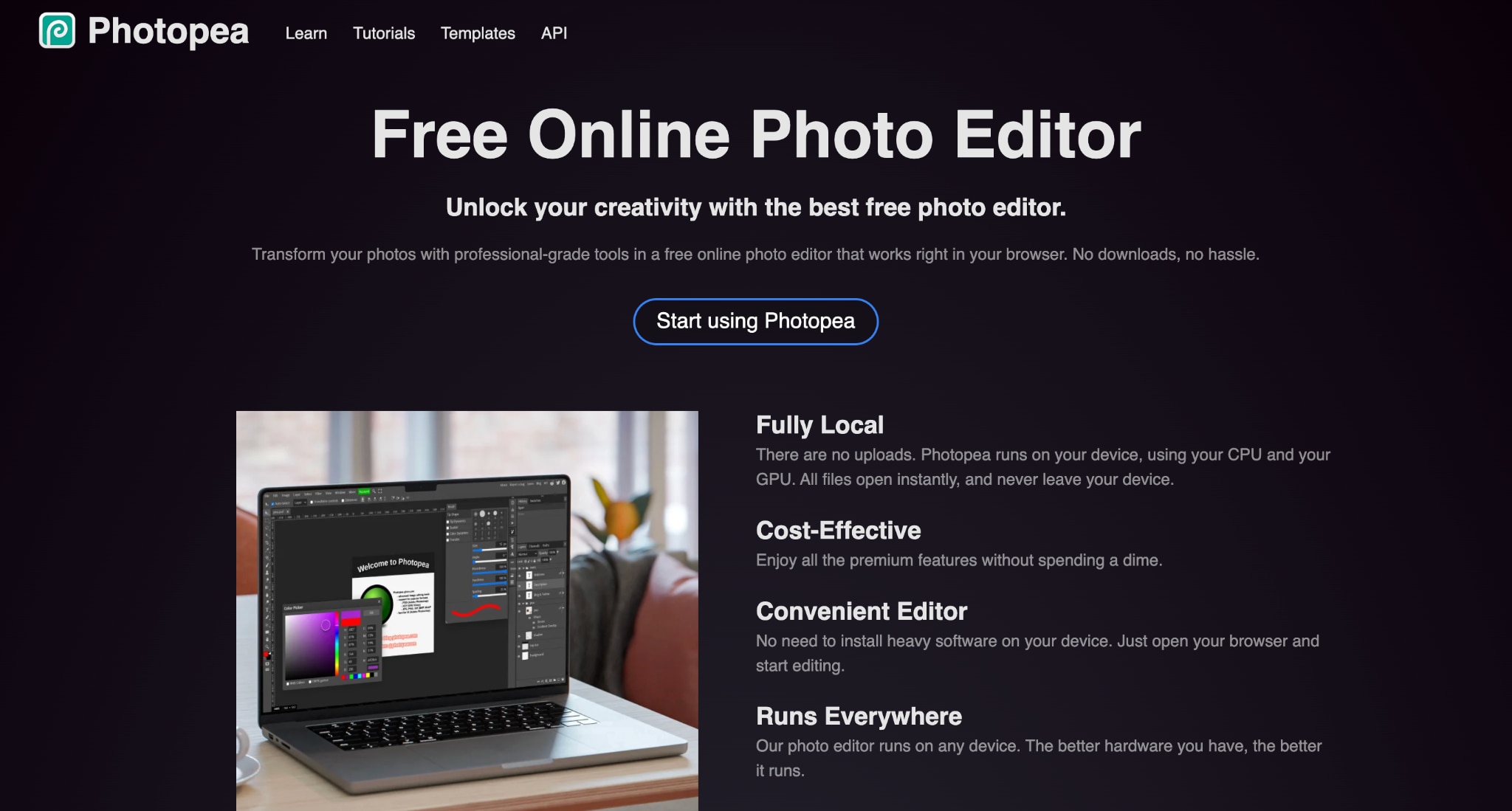
Photopea is a free Adobe Lightroom alternative that looks and functions remarkably like Photoshop. It runs entirely in your browser with no installation, no account required, and no file uploads to external servers. Photopea also reads PSD files, supports layers and masks, and can even import Lightroom XMP presets, making it a viable option for photographers who need to make quick edits on a machine without desktop software.
Key Features
Opens RAW, PSD, XD, and Sketch files
Layers, masks, curves, and HSL adjustments
Imports Lightroom XMP presets
2. Pixlr
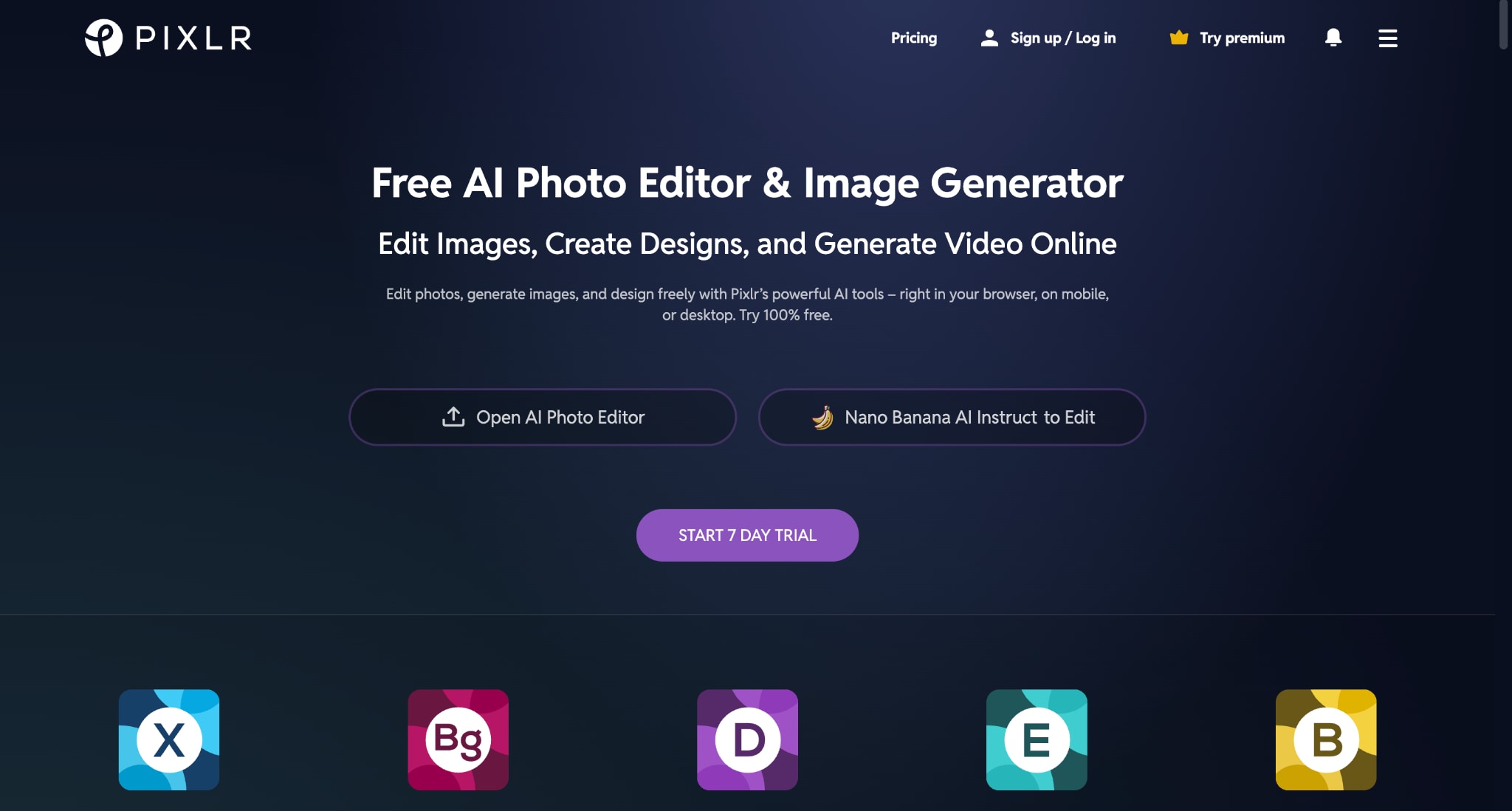
Pixlr X for quick, straightforward edits, and Pixlr E for more advanced work with layers, selections, and adjustment tools. Both are accessible through a web browser without any installation. One-click AI enhancements, background removal, and a large template library make it easy to create polished images for Instagram, blog posts, or marketing materials. Pixlr, a Lightroom equivalent, Linux editing tools cover the basics (exposure, color, contrast, sharpening, filters) without the depth of a dedicated RAW processor.
Key Features
Two editor tiers: Pixlr X (quick edits) and Pixlr E (advanced)
AI-powered background removal and one-click enhancements
Template library for social media content
3. Fotor
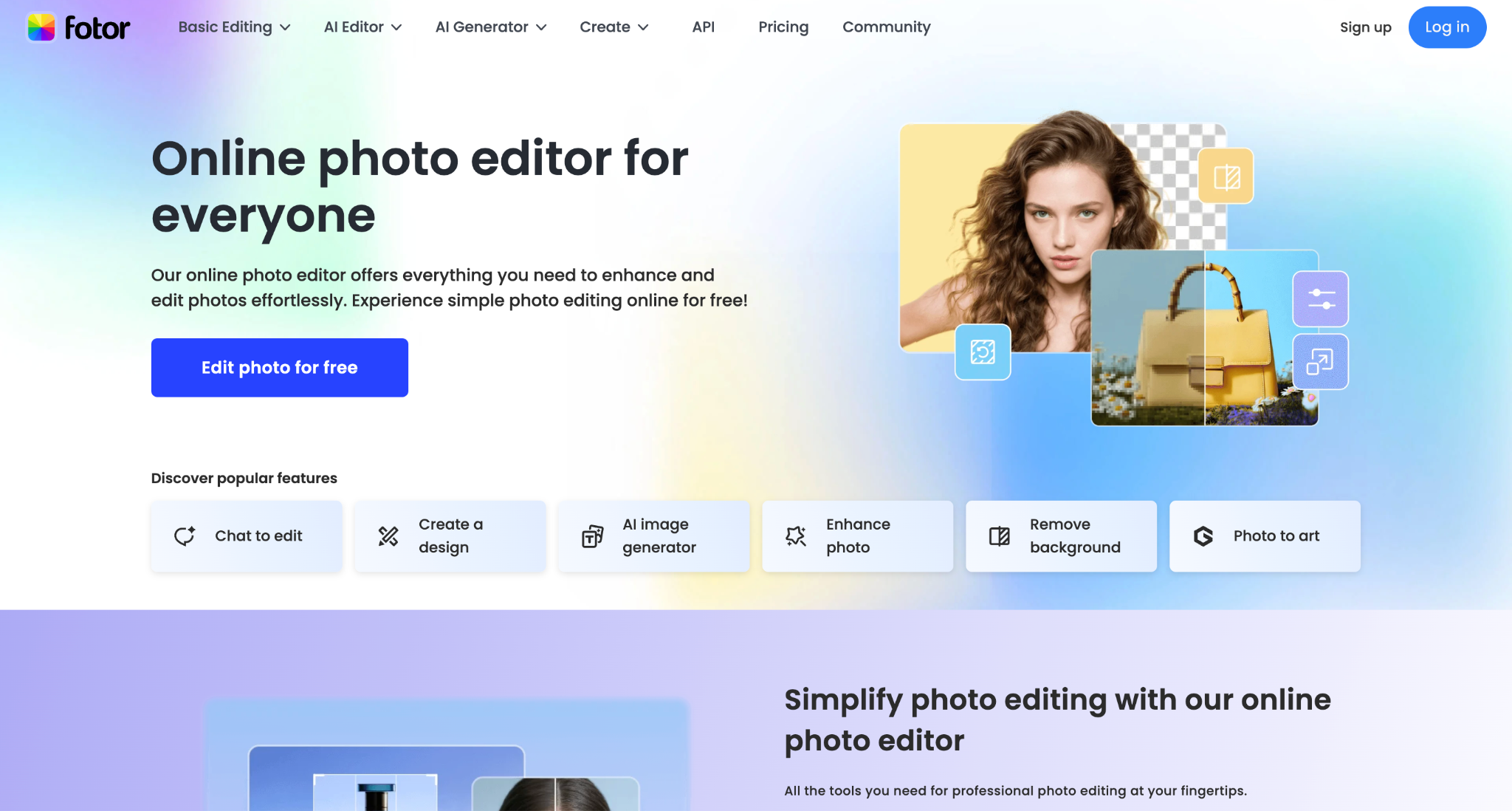
Fotor is a Linux alternative to Lightroom that occupies a middle ground between a simple photo editor and a lightweight design tool. It offers batch processing, HDR effects, a collage maker, and a template-based design suite alongside its core photo editing features. Fotor's batch editing capability is its standout feature for photographers. You can apply the same adjustments, filters, or resizing parameters across multiple images at once, which is useful for processing event photos, product shots, or social media content in volume.
Key Features
Batch editing for processing multiple images at once
HDR effect tool for merging exposures
Collage maker and design template library
Part 4: 3 Best Mobile Alternatives to Lightroom
Mobile apps bring professional editing to your fingertips, with RAW support, selective adjustments, and presets, making them a convenient free Lightroom alternative for on-the-go editing.
1. Snapseed
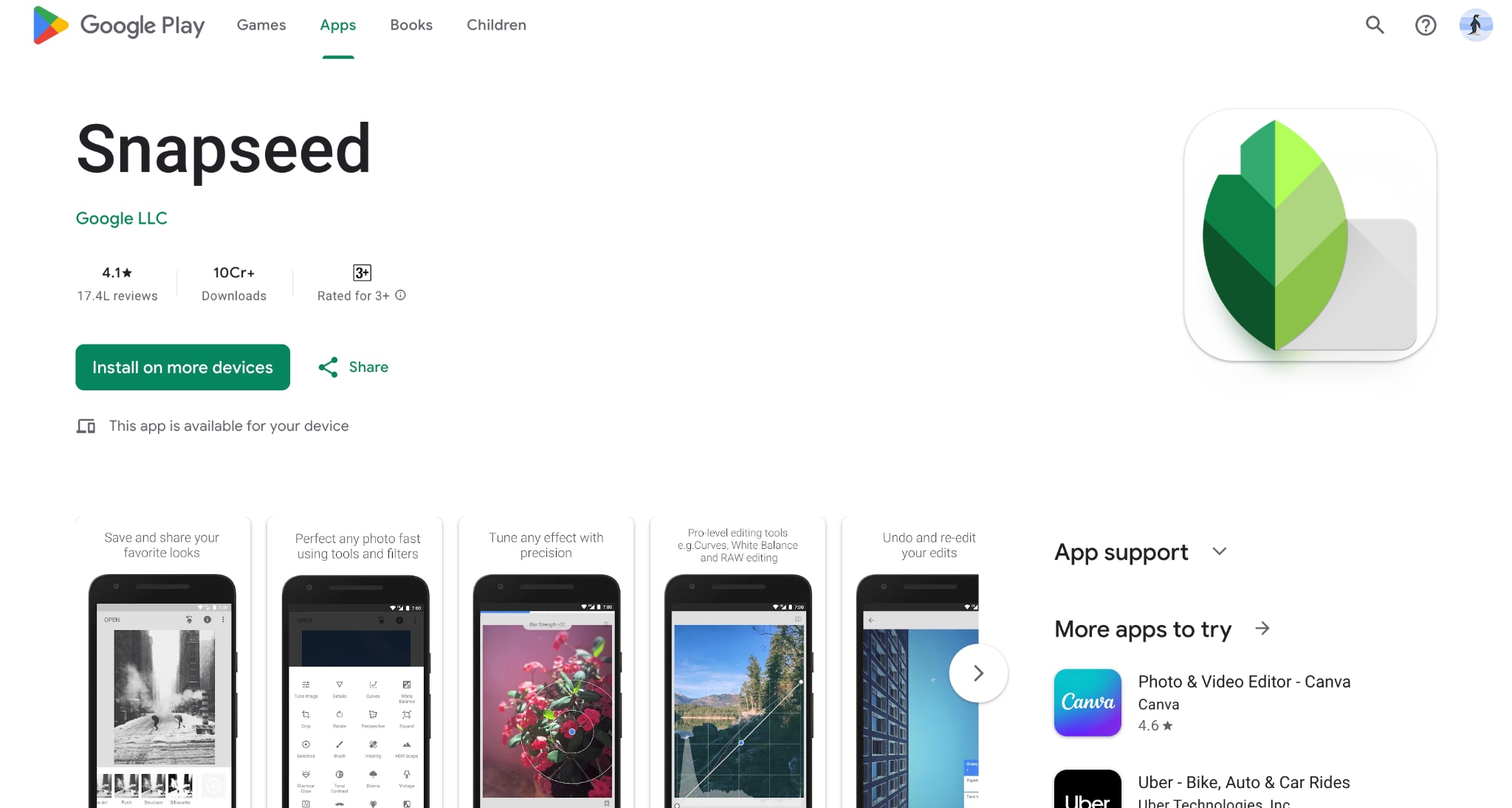
Snapseed is Google's mobile photo editor, and it is arguably the best free photo editing app available on any platform. It offers 29 tools and filters, non-destructive editing with a full edit history, selective adjustments using brush and gradient tools, and RAW file support. All of this is available at no cost, with no ads, watermarks, or in-app purchases. The Tune Image, Curves, White Balance, and Detail tools cover the same core adjustments you would make in Lightroom's Develop module.
Key Features
29 editing tools and filters with non-destructive editing
Selective adjustments with brush and control points
Full edit history with the ability to modify any previous step
2. VSCO
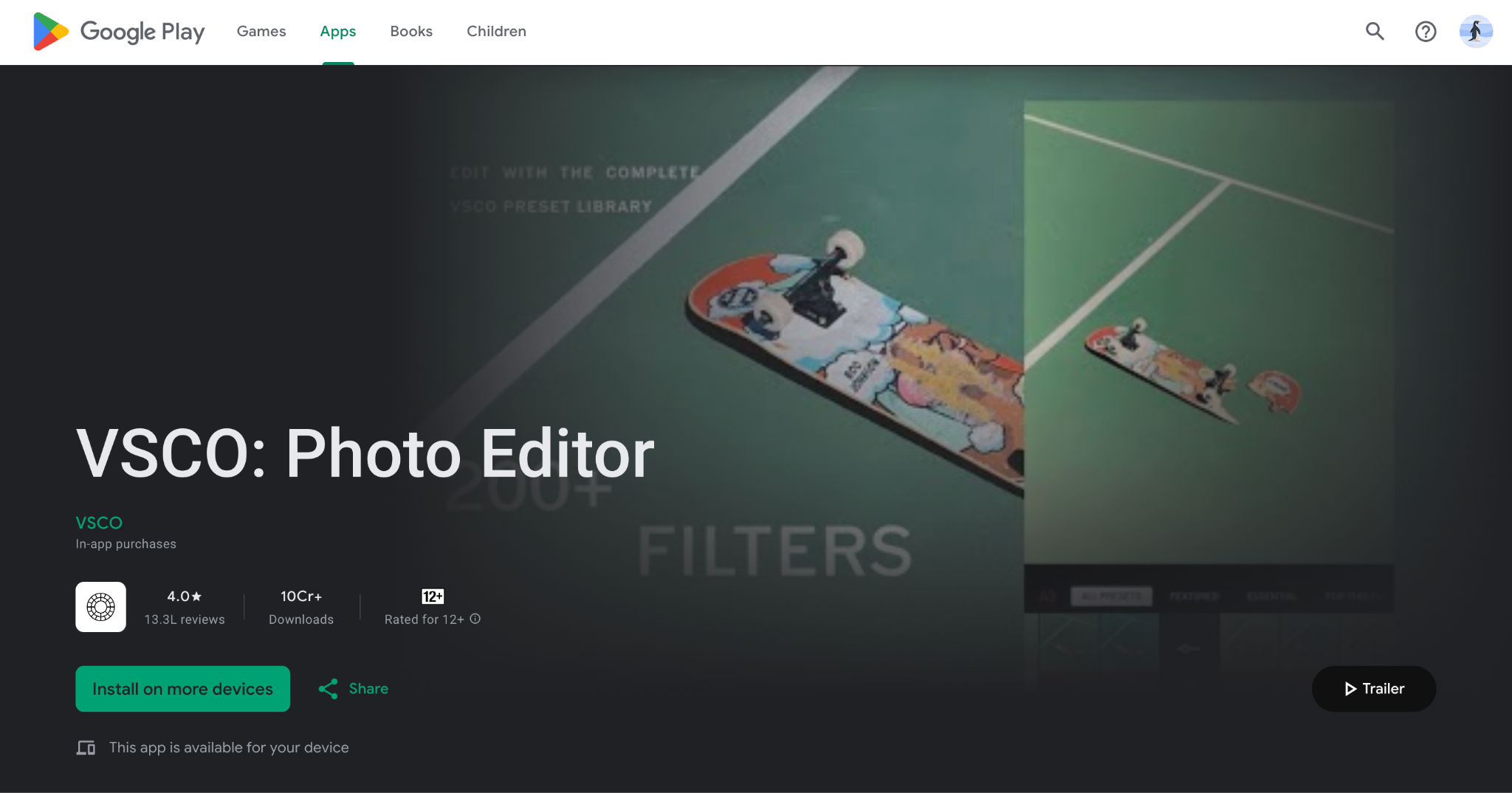
VSCO is an Adobe Lightroom free alternative. Its film emulation filters, designed to replicate the look of classic analog film stocks like Kodak Portra, Fuji Pro, and Ilford HP5, are widely considered the best in mobile editing. Many photographers who use Lightroom on desktop keep VSCO on their phone specifically for its preset quality. Beyond presets, VSCO offers standard editing tools for exposure, contrast, color temperature, tint, saturation, HSL, grain, fade, and vignette. The editing interface is clean and focused, built for speed rather than exhaustive control.
Key Features
Industry-leading film emulation presets (200+ with Pro)
Clean, focused editing interface
HSL adjustments, grain, fade, and vignette controls
3. Polarr
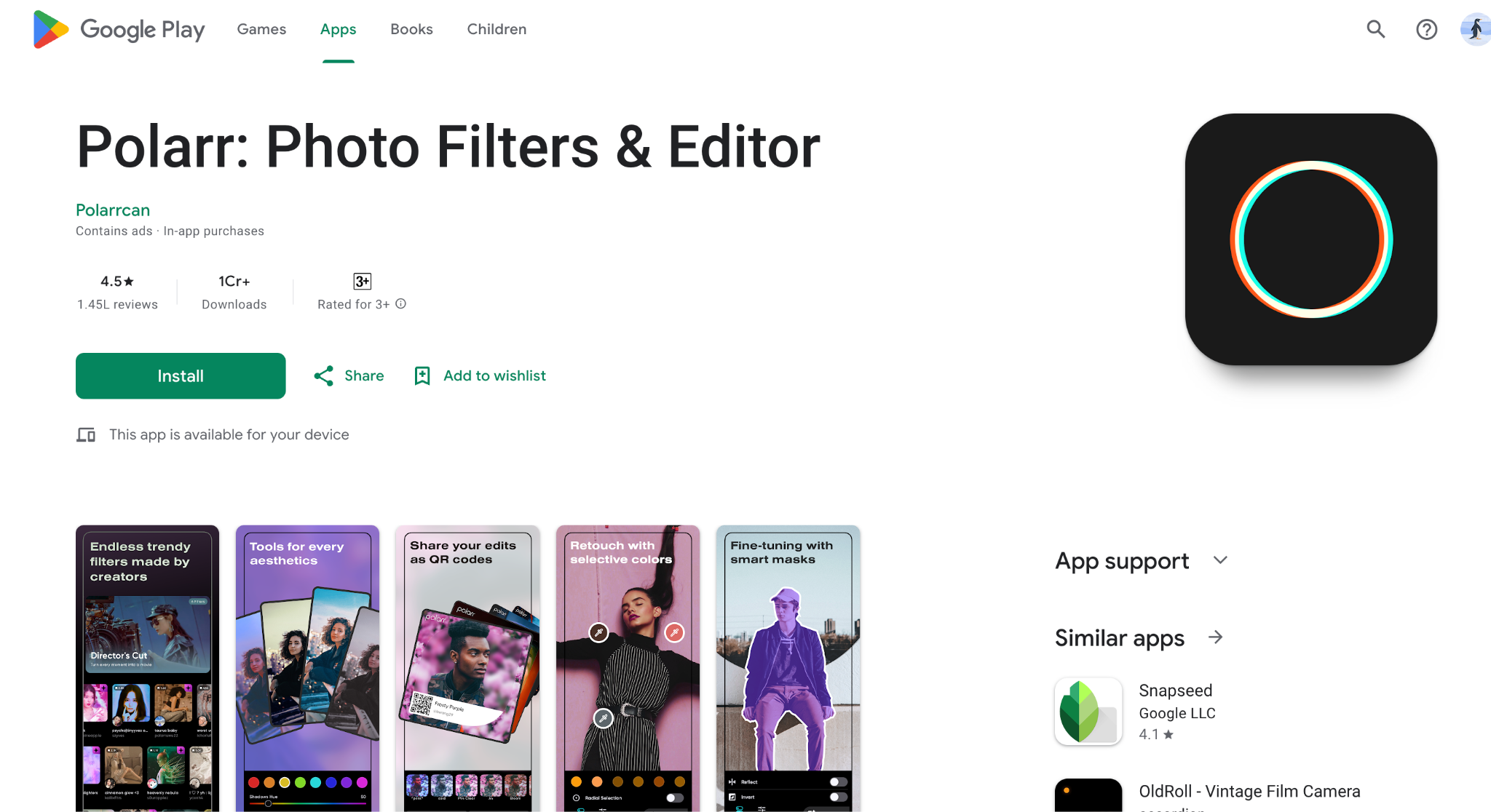
Polarr is a versatile mobile photo editor and a Lightroom free alternative that combines powerful RAW editing, advanced filters, and layer-based adjustments. It works on both iOS and Android and offers professional-grade tools that let you fine-tune exposure, color, and tone with precision. Polarr also supports custom presets, making it easy to apply consistent edits across multiple photos. Its AI-powered auto-enhance and batch editing features speed up workflows, while advanced tools like gradient masks, overlays, and curves give photographers granular control when needed.
Key Features
RAW photo editing with non-destructive workflow
AI-powered auto-enhance and batch editing
Layer-based adjustments, masks, and gradient tools
Part 5: How to Choose the Right Lightroom Alternative
The right free Lightroom alternative depends entirely on what you actually use Lightroom for. Not every photographer needs every feature, and the best tool is the one that fits your specific workflow without forcing you to pay for capabilities you will never touch.
For Hobbyists: If you are a casual editor, start with Snapseed on mobile or Darktable on desktop. Both are completely free, and Snapseed in particular is intuitive enough to produce good results within minutes of your first session.
For Social Media Creators: Pixlr or VSCO will serve you well. Both are optimized for quick edits and output formats suited to Instagram, TikTok, and similar platforms. VSCO's presets, in particular, give you a consistent aesthetic across your feed with minimal effort.
For Professionals: If you are a professional photographer, Capture One offers the best color science and tethered shooting for studio work. Luminar Neo is a strong choice if you want AI-assisted speed without sacrificing too much manual control.
Online Users: If you need to edit on the go without installing anything, Photopea handles RAW files and Lightroom presets in a browser tab. It is the most capable no-install option available.
Budget Friendly: If you are trying to avoid recurring subscriptions and reduce the Adobe Photoshop Lightroom cost, these free tools, such as Darktable (desktop), Photopea (browser), and Snapseed (mobile), provide more than enough power for most workflows.
Part 6: How to Batch Enhance & Convert Photos Without Lightroom [PC & Mac]?
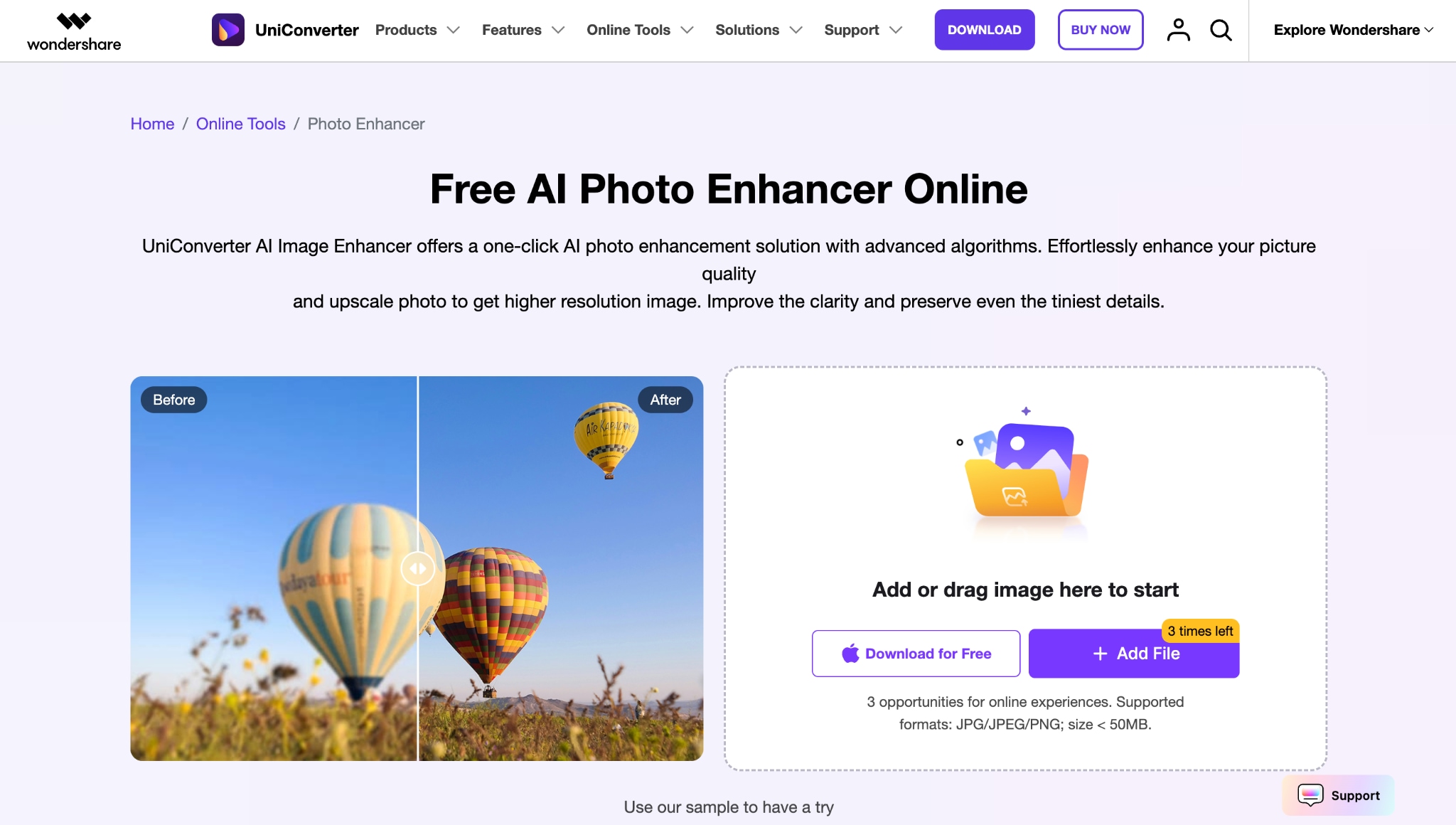
Wondershare UniConverter offers a powerful free Lightroom alternative for photographers who need fast, professional photo enhancement without complex software. Its AI Image Enhancer automatically improves resolution, sharpness, and color, while batch processing lets you enhance and export multiple photos in one go. Whether restoring old photos, denoising images, or upscaling for HD and 4K output, UniConverter streamlines workflows and saves hours of manual editing. This makes it an ideal solution for social media, e-commerce, real estate, or any large-volume photography project.
How to Use Wondershare UniConverter to Enhance Photos/Videos for Professional Use
Follow the step-by-step guide below to get professional-grade results:
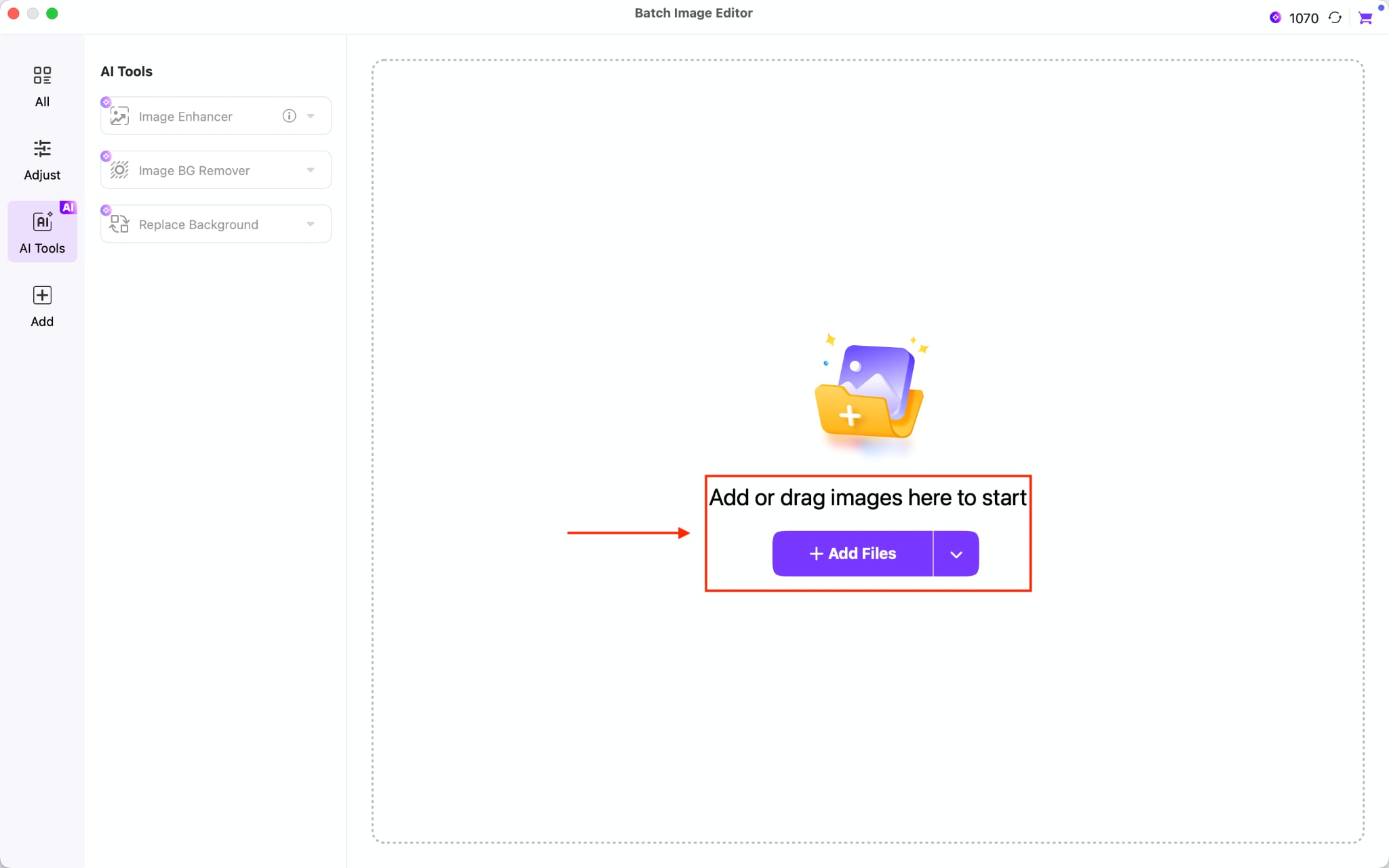
Step 1: On the Wondershare UniConverter dashboard, navigate to the Image section and choose "Image Enhancer."
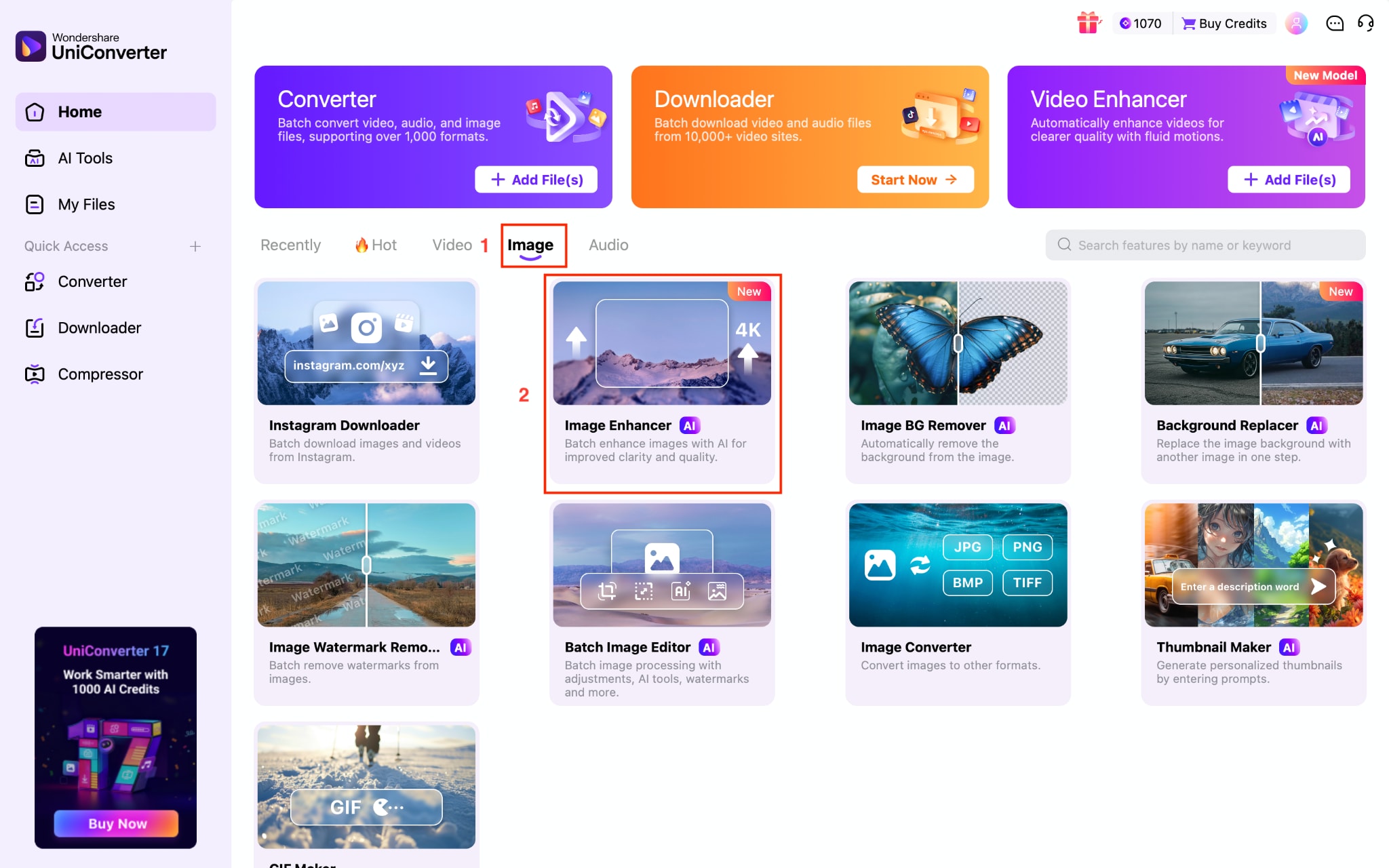
Step 2: Click on the “Add Files” button to upload images.
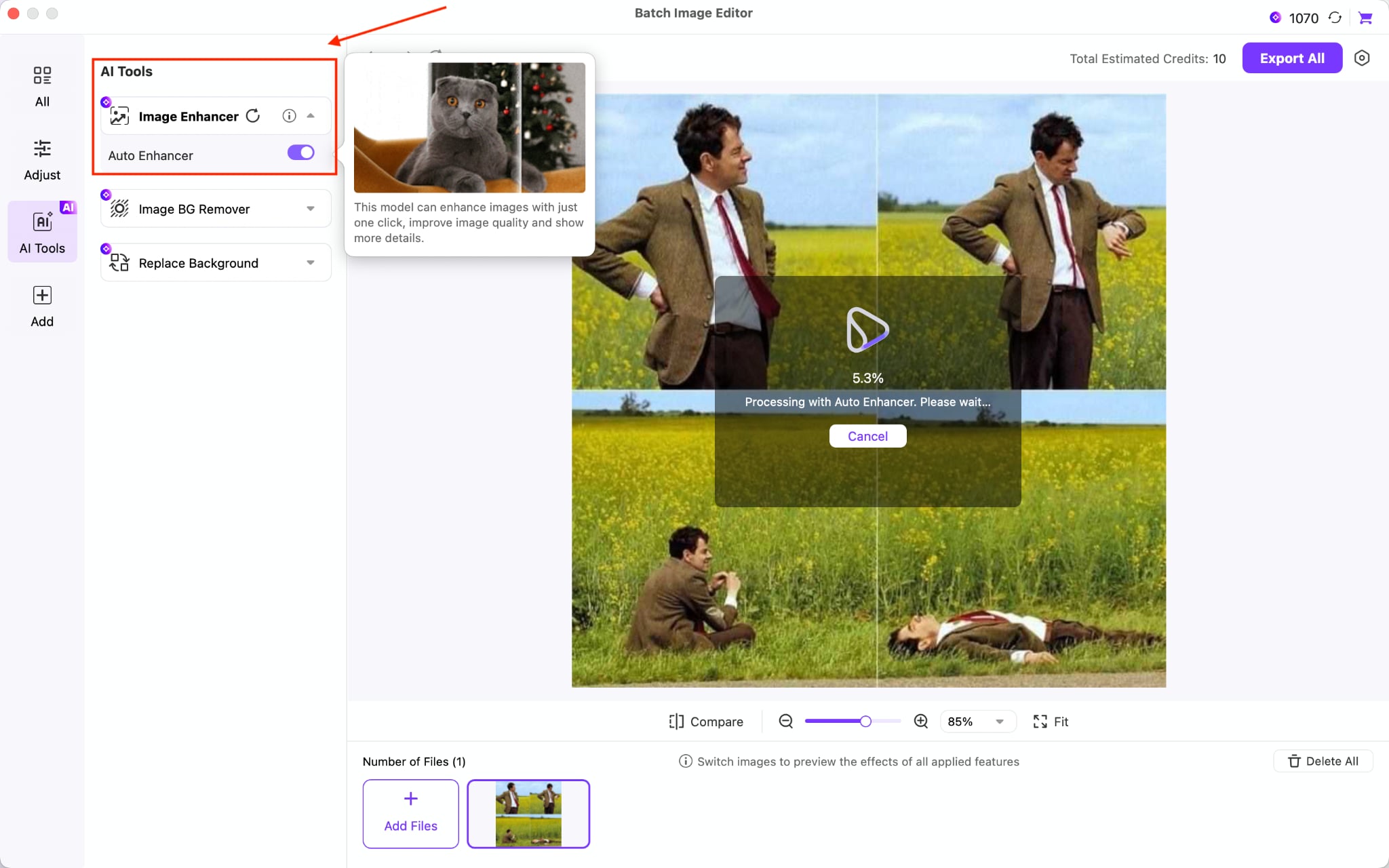
Step 3: Click Image Enhancer, then enable Auto Enhancer to automatically improve image quality. You can also remove the image's background or replace it with a new one.

AI-Powered Lightroom Alternative for Smarter Editing
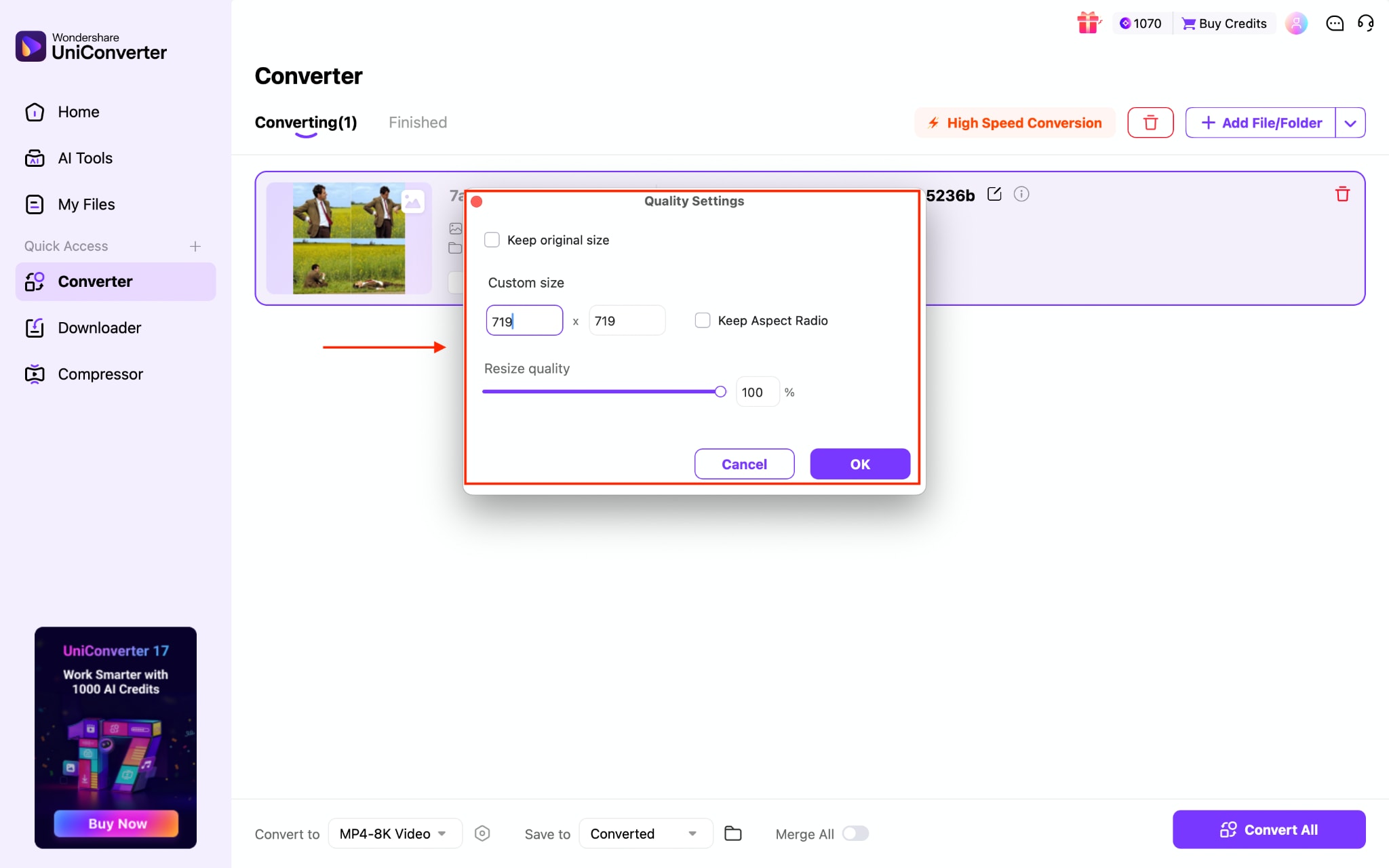
If you want to convert and enhance the quality manually by choosing the highest quality and adjusting other image settings, follow these steps:
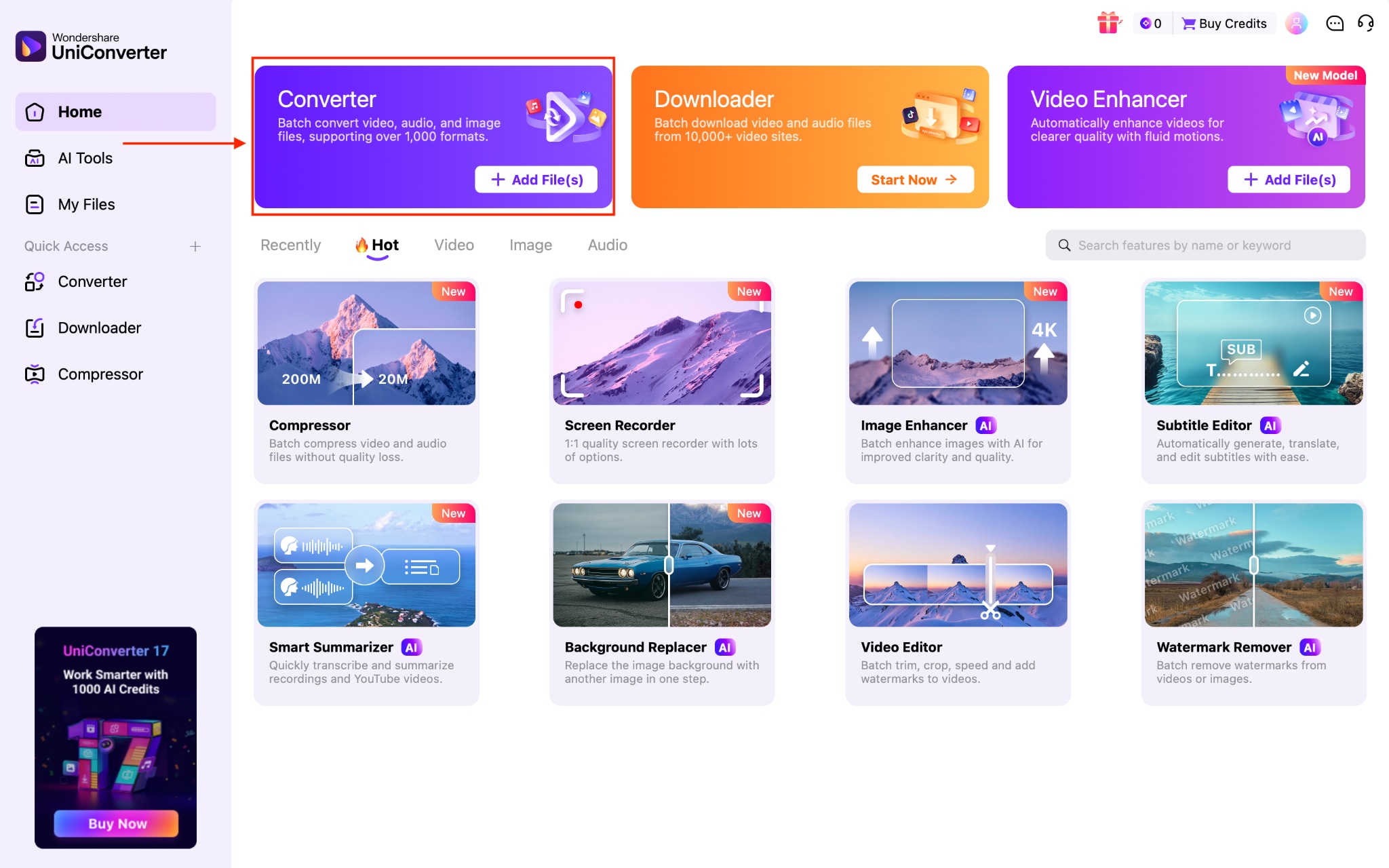
Step 1: Navigate to Converter and upload your photos.
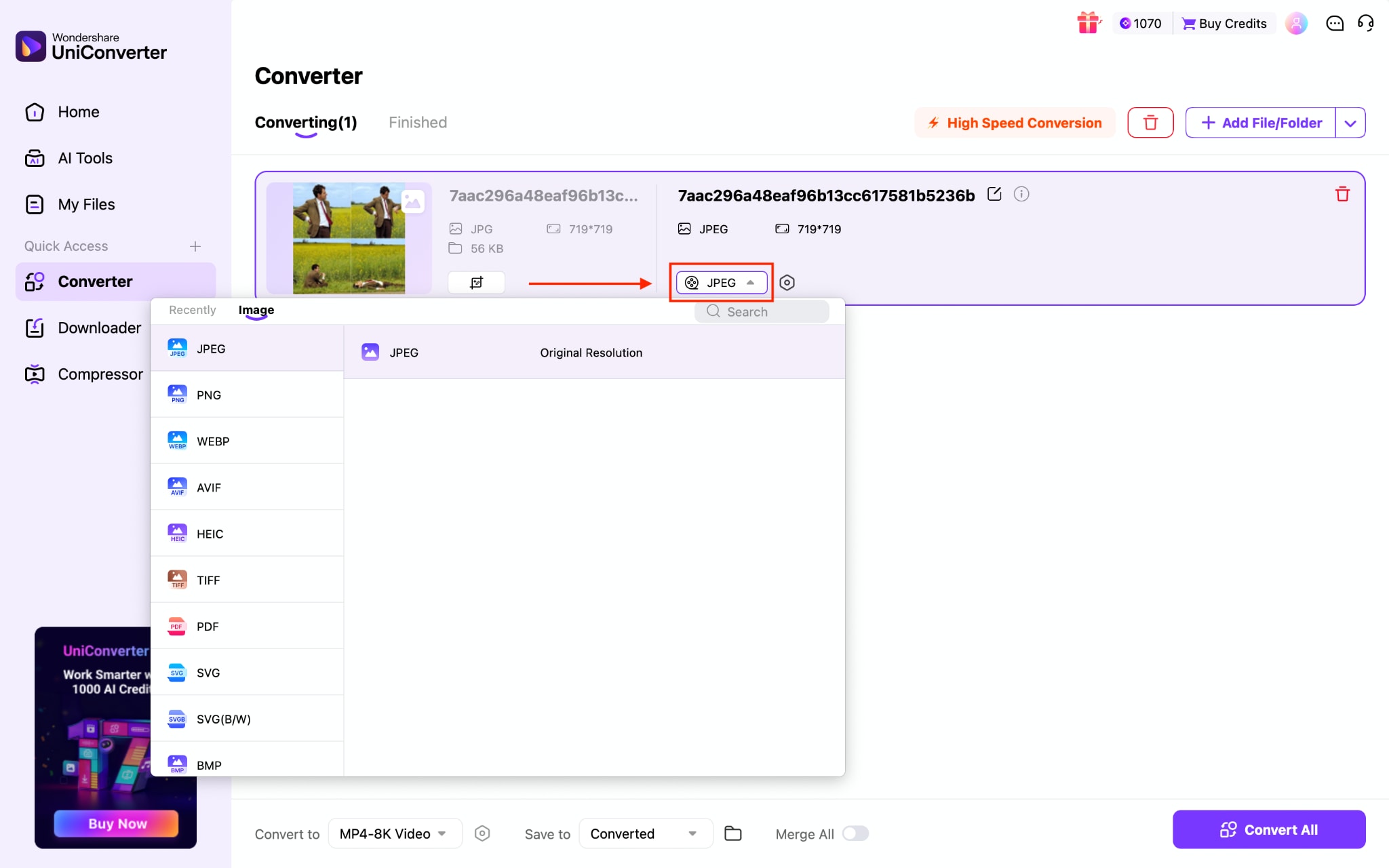
Step 2: Click Format, then choose the option that suits you best.
Step 3: Open the Tab settings icon and manually adjust the image quality.
Conclusion
Editing photos doesn't have to be expensive or complicated, thanks to reliable free Lightroom alternatives that deliver professional results on desktop, online, and mobile platforms. Darktable, Snapseed, and Polarr provide advanced controls, while Photopea and Pixlr make quick browser edits seamless.
For photographers managing large batches of low-resolution images, Wondershare UniConverter takes efficiency to the next level with AI-powered enhancements, upscaling, and color correction. Upgrade your workflow today and see how UniConverter can instantly improve image quality, save time, and help you produce stunning, print-ready, or web-ready photos with just a few clicks.
FAQs
1. What is the best lightroom free alternative for editing RAW photos?
Darktable is widely considered the best lightroom free alternative for desktop RAW editing. It supports 400+ camera RAW formats, offers non-destructive editing, and includes parametric masks for selective adjustments. On mobile, Snapseed handles DNG files with control-point selective editing at no cost. If you need a browser-based free photo editor that reads RAW and imports Lightroom XMP presets, Photopea is the most capable no-install option available.
2. Which lightroom alternative supports selective editing and masking?
Selective editing and masking are essential for adjusting specific areas of a photo without affecting the entire image. Among free photo editors, Darktable offers both parametric and drawn masks for precise local adjustments. Snapseed provides control-point selective editing on mobile, which is comparable to Lightroom's adjustment brush. For browser users, Photopea supports layers and masks that allow region-specific edits, though it lacks a dedicated catalog system.
3. How can I batch process photos without paying for a Lightroom subscription?
Several free photo editors support batch processing as a Lightroom alternative. Fotor allows you to apply the same adjustments, filters, or resizing parameters across multiple images at once from your browser. On desktop, Darktable supports export queues for sequential processing. For AI-powered batch enhancement including upscaling, denoising, and color correction, Wondershare UniConverter processes multiple images in one workflow without manual editing.
4. Can I use these lightroom alternatives online without downloading software?
Yes, three of the lightroom alternatives in this guide run entirely in your browser. Photopea handles RAW files, layers, and even imports Lightroom presets without installation. Pixlr offers two editor tiers — Pixlr X for quick edits and Pixlr E for advanced work — both accessible from any browser. Fotor provides batch editing and HDR effects online, though its free tier adds watermarks to design exports. None of these require account signup for basic use.
5. What is the best free mobile photo editor as a Lightroom alternative in 2026?
Snapseed remains the strongest free mobile photo editor and a direct Lightroom alternative for on-the-go editing. It offers 29 tools including curves, white balance, and selective adjustments with full edit history — all without ads or watermarks. Polarr adds RAW support, AI auto-enhance, and batch editing for photographers who need more automation. VSCO focuses on film emulation presets with a clean interface, though full features require a subscription at $59.99/year.

