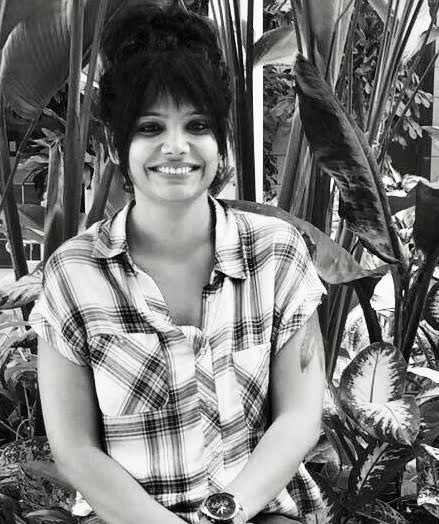
Does it often happen that you try to take a perfect selfie and notice that there is a break out, uneven skin tone, dull skin, poor lighting which totally ruins the perfect shot? It used to take hours of retouching while editing images for social media posts or just for personal usage. But now, thanks to advanced AI powered editing tools that retouch images in an incredible precise manner.
Whether you're editing for your brand, managing client portraits, or retouching casual snapshots, this guide provides clear, device-friendly steps to help you achieve polished, professional-looking outcomes.
In this article
Part 1: Use Cases When Face Retoucher Can Help
AI face retouching tools are designed to enhance facial features while preserving a natural look. These tools are especially useful in scenarios where quick, consistent, and high-quality edits are needed. Let’s explore six practical use cases:
Automatic skin smoothing
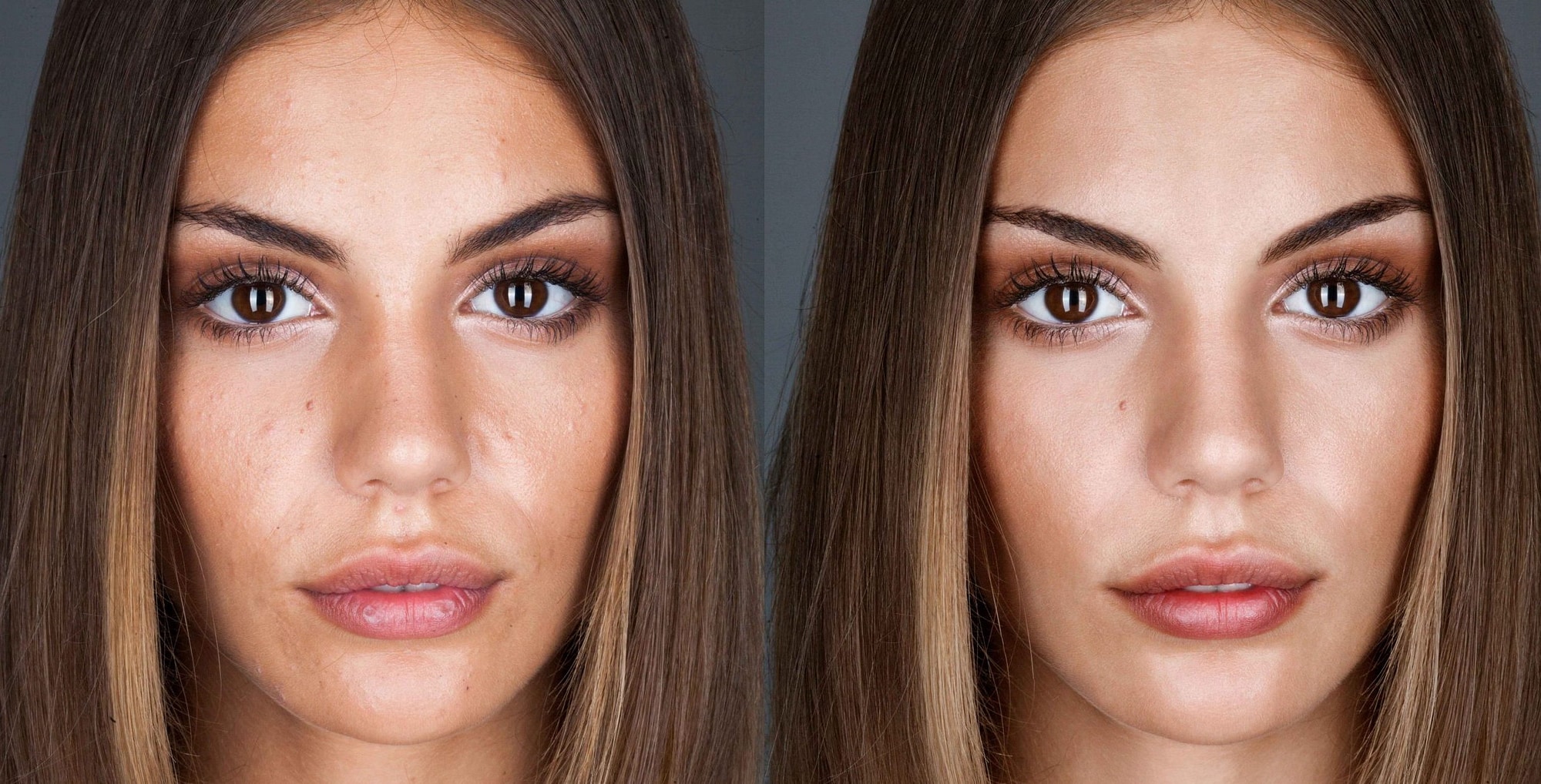
Uneven textures and harsh lighting can easily throw off a good photo. That’s where automatic skin smoothing comes in—it softens rough patches and delivers a polished, airbrushed effect within seconds. Most tools rely on smart skin detection to smooth out imperfections while maintaining natural facial features.
Blemish and acne removal
When breakouts strike, retouching can be a hassle—unless you're using an AI-based solution. These tools can spot acne, blackheads, and pimples with impressive precision, then clean them up instantly without disturbing the skin around them. Just one click is often enough.
Skin tone and color balance
Discolored patches or flat lighting can make even great shots look off. AI tone-balancing tools help restore natural warmth and even out color variations across the face. This is especially useful in group photos or selfies taken under mixed lighting. While many platforms offer one-tap correction, most also include manual sliders for those who want a more customized result.
Facial structure enhancement
Subtle tweaks to jawlines, cheekbones, or even smiles can dramatically improve the balance of a portrait. Modern face editors use landmark detection to make these adjustments without distorting the face. The results are typically light-handed, making the face look more symmetrical and refined.
Dark circle and wrinkle removal
Tired eyes and fine lines often show up more under bright lighting or high-res cameras. AI-powered editors can soften or reduce these signs of fatigue while keeping the final image natural. Some apps apply selective edits using layer-based systems for more precision.
Batch processing for multiple portraits
If you're handling dozens of portraits—whether for an event, store catalog, or client shoot—batch editing is a massive time-saver. Tools like UniConverter make it easy to apply the same retouch settings across a group of images, cutting hours off your post-production. You can set your preferences once and apply consistent edits to everything from wedding albums to school portraits. It’s a reliable solution for creators who value both quality and efficiency.

Easy to Use Batch Face Retoucher Tool
Part 2: How to Batch Retouch Faces with UniConverter on PC
If you need a quick and dependable way to retouch multiple portraits at once, Wondershare UniConverter is a top-tier desktop choice in 2025. It blends smart AI-powered face enhancement with efficient batch processing, making it easy to smooth skin and remove blemishes across dozens of images with just a few clicks. Whether you're editing selfies, group photos, or even scanned vintage portraits, the built-in Image Enhancer handles it all with minimal effort. And for tougher skin issues—like deep blemishes or marks that resemble watermarks—the Watermark Remover tool offers more targeted and effective results.

Key Features of UniConverter Image Enhancer:
- Batch face enhancer with automated AI smoothing and tone correction
- Multiple enhancement modes including Face Enhancer, Color Correction, and Image Upscaler
- Old photo restore and colorize options for vintage portraits
- Preview and compare edits before export
- Fast batch export in high-resolution image formats
Step-by-Step Guide to Batch Retouch Faces
Step 1: Open the AI Image Enhancer
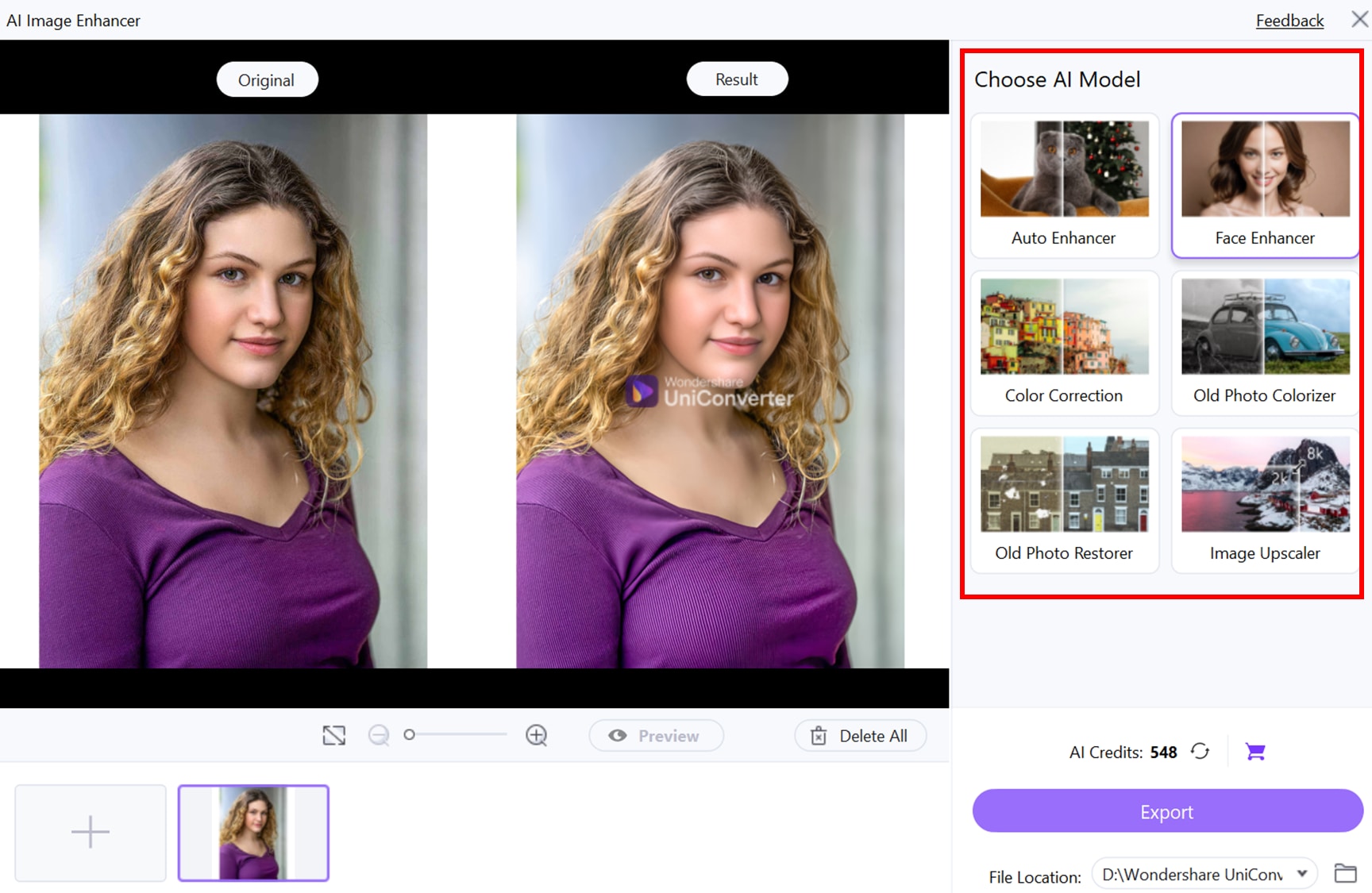
Start by launching Wondershare UniConverter on your PC and head over to the Toolbox section. Select AI Image Enhancer to open the editing dashboard. This feature is built for a range of needs—from facial retouching and color correction to upscale improvements—using smart AI technology. It works just as well for single portraits as it does for editing multiple images in one session.
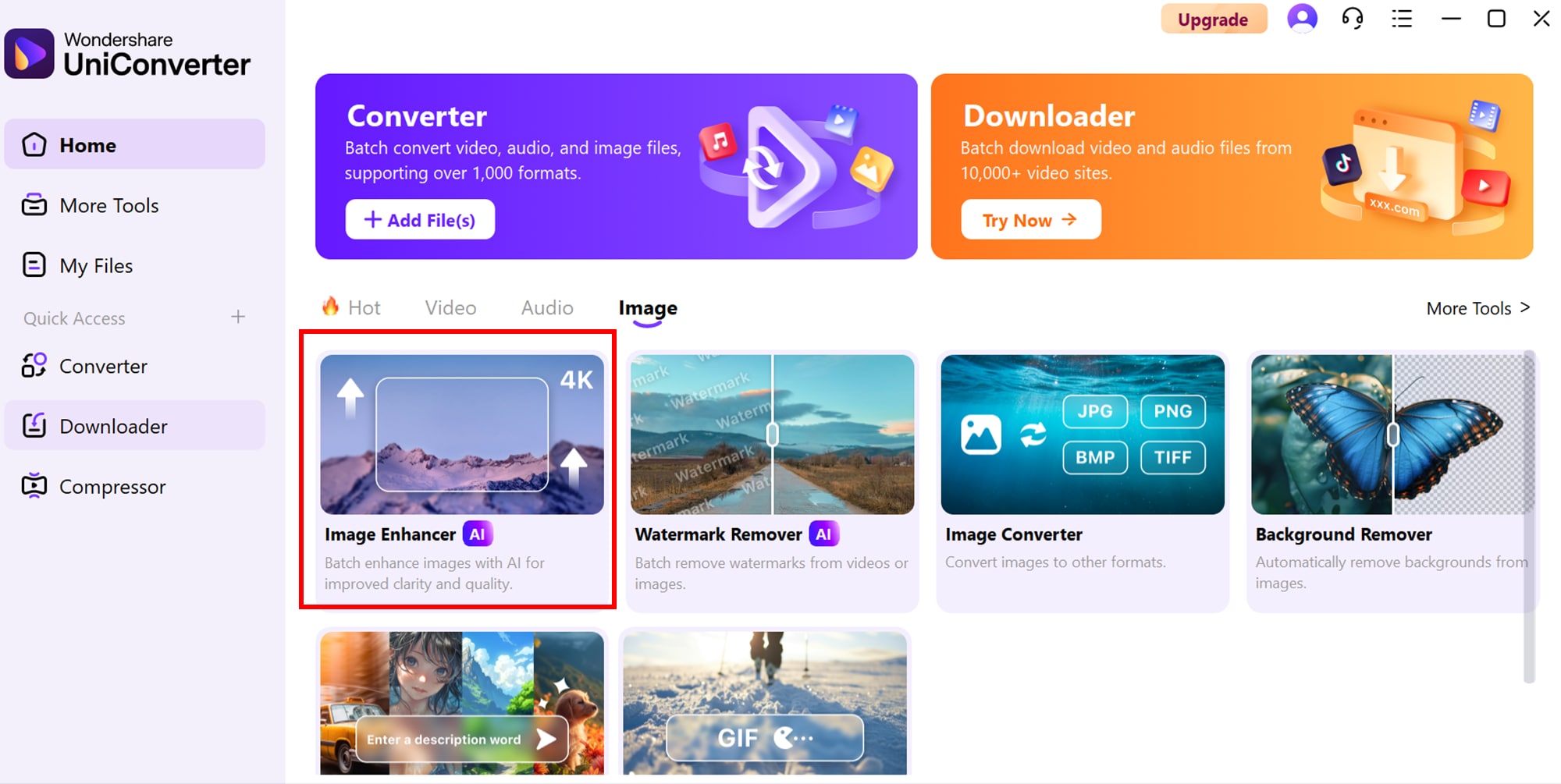
Step 2: Add your photos
Click Add Images and choose the photos you’d like to enhance. From the list of enhancement options, select Face Enhancer to automatically smooth out skin, even out tone, and clear up blemishes. You’ll also find modes like:
- Auto Enhancer – A quick fix for overall photo improvements
- Color Correction – Ideal for reviving dull or washed-out shots
- Old Photo Restore – Repairs creases and damage in aged images
- Image Upscaler – Increases resolution without distortion
Once you select your preferred mode, UniConverter begins applying smart adjustments. You can check the preview for each photo to see how the enhancements affect skin clarity, color, and detail.
Step 3: Save your enhanced portraits
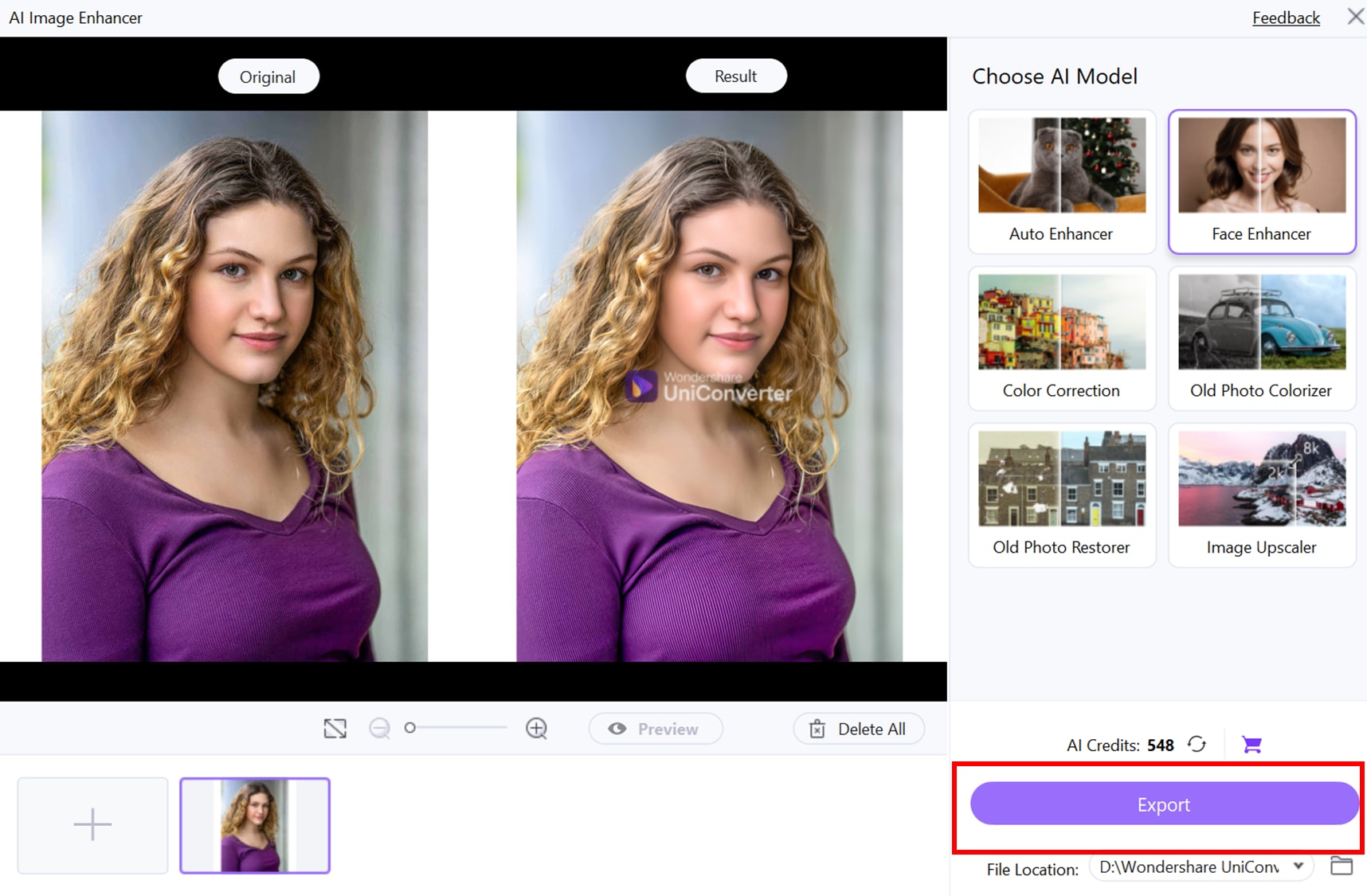
After the enhancements are done, use the Preview button to compare the updated version with the original. If you're happy with the outcome, click Export to save the edited photos. The tool also supports batch export, which means you can process and save multiple portraits at once—all while preserving their original resolution and quality. The results are clean, consistent, and ready for use.
Bonus Tip: For users with heavy facial marks, scars, or watermark-like skin issues, try the Watermark Remover tool in UniConverter's toolbox for advanced cleanup.
Part 3: How to Retouch Face With AI with Canva Online
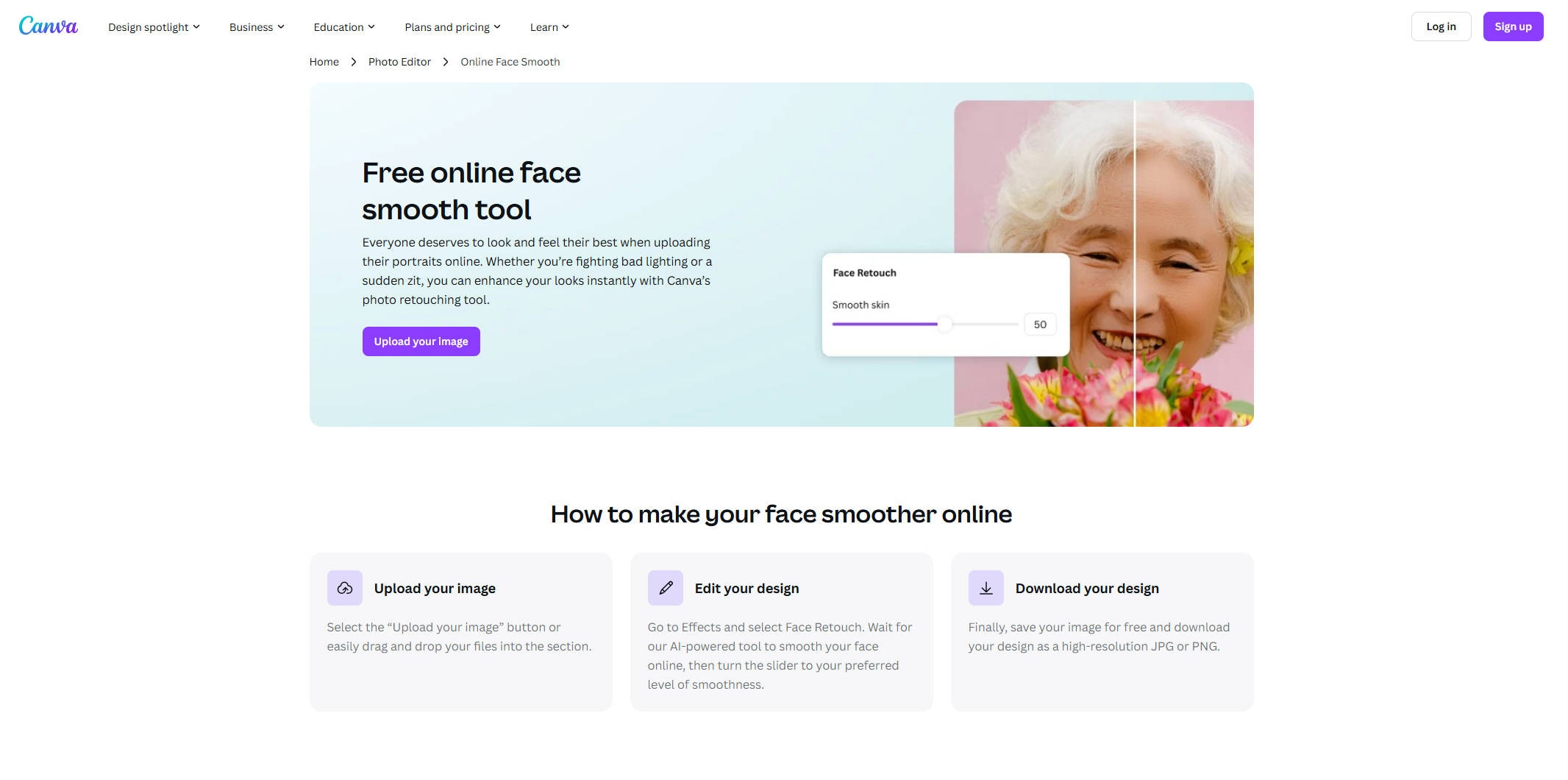
In 2025, Canva has become more than just a go-to design platform, it’s a practical choice for anyone looking to enhance portraits online with ease. Its browser-based photo editing tools eliminate the need for extra downloads, making the process smooth and accessible. Whether you’re smoothing skin, erasing blemishes, or adding a soft glow, everything can be done in one clean, easy-to-use interface. The editing workflow is quick, straightforward, and ideal for achieving natural-looking results in minutes.
Key Features of Canva AI Face Retouch:
- AI Auto Enhance for one-click lighting and clarity correction
- Background Remover to isolate subjects for focused editing
- Face Retouch Tool to smooth skin and improve facial brightness
- Manual sliders for brightness, contrast, and blur control
- All-in-one online workflow, no app installation required
Step-by-Step Guide to AI Face Retouch in Canva
Step 1: Upload your photo to Canva
Go to Canva, log in, and start a new project or open the photo editor directly. From the left-hand menu, click the Uploads tab to add the portrait you want to enhance. Once your photo is in, simply drag it onto your canvas so you can begin editing right away.
Step 2: Use smart retouching tools
Click on the image and hit Edit Photo in the top menu. Start with Auto Enhance—it quickly improves brightness, contrast, and skin tone in one click. If you want a more detailed touch-up, go for Face Retouch, which smooths skin without losing facial detail. You can also manually adjust things like vibrance, blur, or exposure to match your style.
Step 3: Tweak and download
Need to clean up the background? Use Background Remover to keep the focus on the face. Canva also gives you Feather and Erase tools to soften edges and polish the cutout. Add a soft glow, subtle vignette, or tweak the contrast to bring depth to your final image. Once everything looks just right, click Share > Download, choose your format (PNG or JPG), and save it.
Bonus Tip: For a creative touch, try Canva’s Glow or Duotone effects. Glow adds a dreamy light ring around the subject, while Duotone offers bold color layers for a stylized, eye-catching look—perfect for portraits you plan to share on social media.
Part 4: AI Face Retouching Mobile App
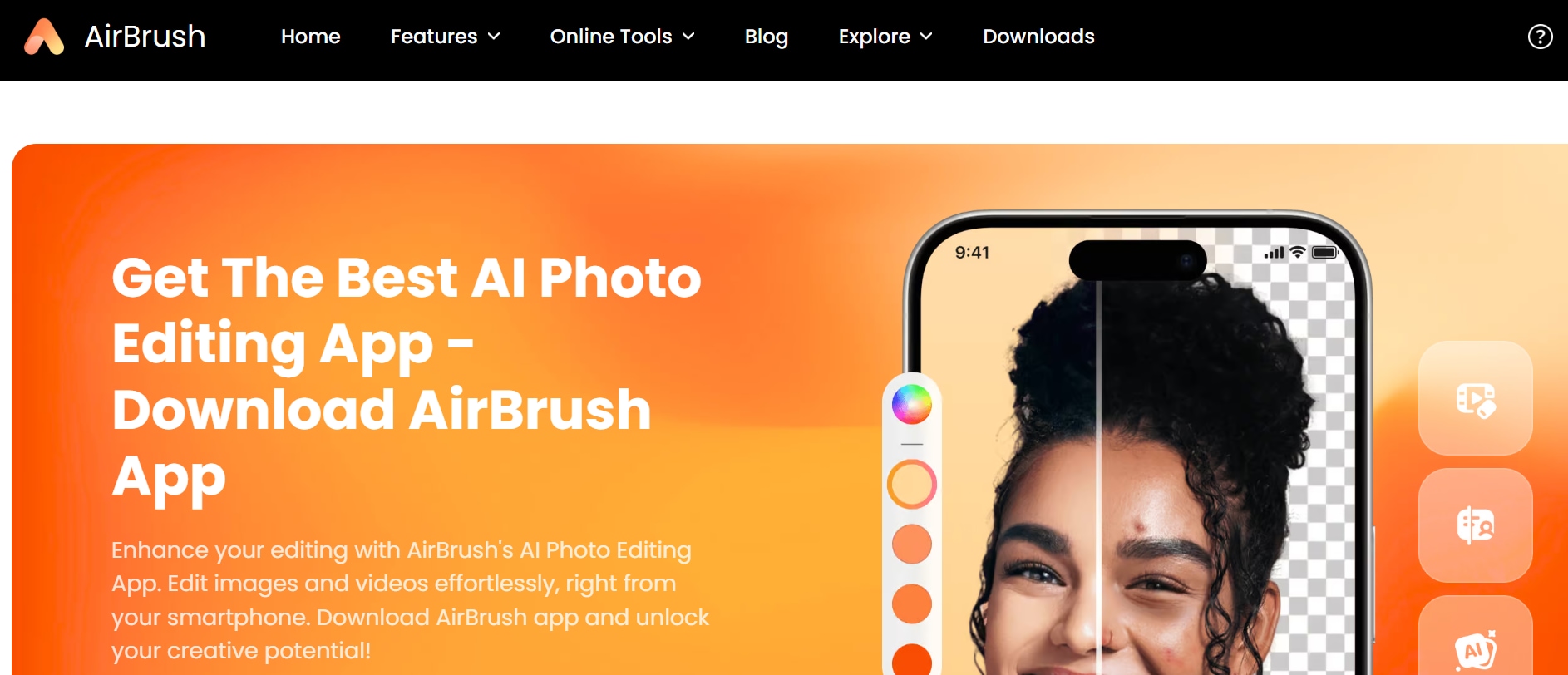
If you need a fast and reliable way to retouch faces on your phone, face retoucher apps like AirBrush offer an excellent solution in 2025. Built with casual users, creators, and influencers in mind, these mobile tools use smart facial recognition to smooth skin, clear blemishes, and subtly enhance features in seconds. The interface is simple to navigate, and you can see edits in real time, making it easy to get polished results without any editing experience. With just a few taps, your portraits are ready to share.
Key Features of AirBrush (2025 version):
- Auto Retouch for instant skin smoothing and brightness adjustment
- Blemish remover that clears acne, dark spots, and skin marks
- Facial reshaping tools for jawline, nose, and smile refinement
- Makeup filters with AI-assisted blush, contour, and lipstick effects
- HD Export for saving high-resolution retouched portraits
How to Retouch Faces Using the AirBrush App in 3 Easy Steps
Step 1: Import your photo
Launch the AirBrush app on your Android or iPhone. You can either snap a fresh selfie or select one from your phone’s gallery. As soon as the image loads, the app automatically recognizes facial features to guide your editing process.
Step 2: Use Auto Retouch and remove blemishes
Tap the Retouch option, then hit Auto to quickly smooth out skin and brighten the face. For specific touch-ups, use the Blemish tool to clear acne, dark marks, or scars—just tap and it’s gone. You can adjust the strength using sliders to keep the results soft and natural.
Step 3: Fine-tune and export
Explore tools like Smooth, Whiten, or Reshape if you want to refine specific areas. When everything looks good, tap Save to download your photo in high resolution or post it straight to your social feed.
Bonus Tip: Head over to the Makeup tab for finishing touches—try features like blush, contour, or lipstick. These AI-powered filters blend well with your original look and add a polished touch, ideal for both professional profiles and everyday posts.
Easy to Use Batch Face Retoucher Tool
Part 5: How to Retouch Face with Photoshop Retouch Panel
For editors who need precision and full control, Delicious Retouch 4 remains one of the top Photoshop extensions for portrait retouching in 2025. This face retoucher brings together high-end editing tools in a streamlined panel that’s easy to use, yet powerful enough for commercial beauty work. Whether you're smoothing skin or reshaping facial features, the face retoucher is designed to speed up detailed tasks without sacrificing quality.
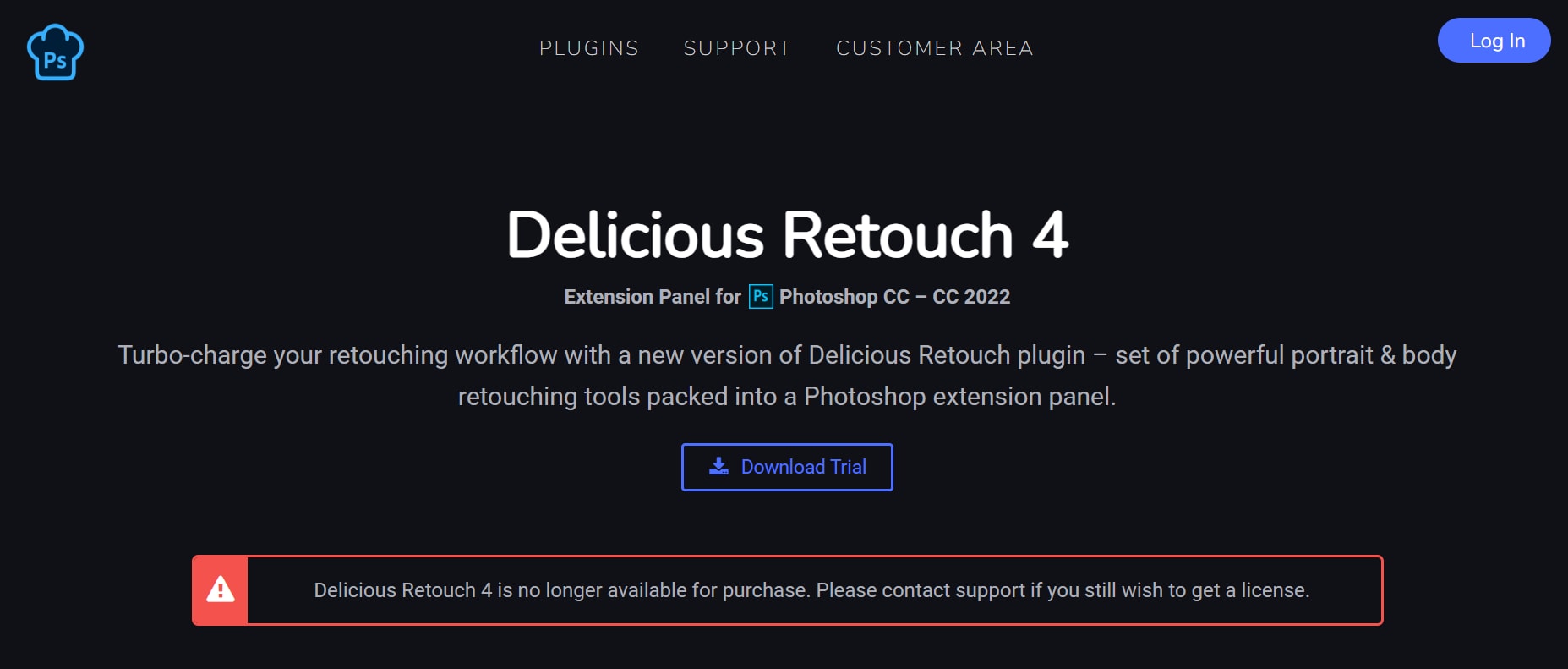
Key Features of Delicious Retouch 4:
- One-click skin retouching that preserves natural skin texture
- Built-in Frequency Separation, Dodge & Burn, and Healing tools
- AI-assisted Skin Tone Match and Face Sculpt for balanced results
- Non-destructive editing with layered workflows
- Custom settings for different skin tones and lighting conditions
How to Retouch Faces with Delicious Retouch 4 in 3 Easy Steps
Step 1: Set up the panel and prep your photo
Once you’ve installed Delicious Retouch 4, open it in Photoshop by navigating to Window > Extensions (Legacy). Load your portrait and duplicate the original layer to keep your edits non-destructive. The panel lets you instantly generate layers like Frequency Separation, Light Fix, and Skin Tone Match—a solid base to begin your touch-up process.
Step 2: Smooth skin and clear blemishes
Use tools like Magic Retouch or DR Smooth+ to clean up skin while preserving natural texture and pores. To target acne, spots, or facial marks, the Blemish Fix tool offers accurate healing without needing to manually clone or paint over imperfections.
Step 3: Sculpt facial features and polish the look
For finishing touches, balance shadows and highlights using Dodge & Burn. You can also enhance the face subtly using tools like Face Sculpt or Eye Enhancer, which help sharpen key features without over-editing. When everything looks right, export the final version in high resolution.
Bonus Tip: Apply DR Smooth+ at about 40–50% opacity to give the skin a soft, natural glow. It keeps your portrait looking clean and professional without the plastic, overly airbrushed effect—ideal for beauty, fashion, or editorial work.
Part 6: Conclusion
Face retouchers in 2025 has become smoother and smarter, thanks to AI-driven tools that work effortlessly across desktop apps, mobile devices, and web platforms. Whether you're tweaking casual selfies in Canva or producing refined, professional edits with Photoshop and Delicious Retouch 4, there’s something for everyone—regardless of experience level. These face retouchers save valuable time while maintaining the skin’s natural texture and fine facial details. Among them, Wondershare UniConverter stands out for its easy-to-use AI Image Enhancer, making batch photo edits fast, accurate, and studio-ready—without the complexity.
Easy to Use Batch Face Retoucher Tool
FAQs
-
1. What’s the simplest way to retouch multiple faces on a PC?
One of the easiest and most effective face retouchers to batch-edit portraits on a PC is by using Image Enhancer. It uses AI to automatically detect faces, smooth skin, fix tones, and apply uniform edits across several images at once—making it especially useful for creators and photographers who work with large image sets. -
2. Can UniConverter handle deep blemishes or visible facial scars?
Yes, it can. For tougher marks like acne scars or watermark-like blemishes, offers targeted retouching. Paired with the Face Enhancer mode, it delivers natural-looking improvements even on skin with more serious imperfections. -
3. Which mobile app is best for quick face touch-ups?
AirBrush continues to be a favorite in 2025 for fast, on-the-go retouching. The app includes features like auto-smoothing, spot removal, reshaping tools, and light makeup filters—ideal for getting clean, polished selfies with just a few taps. -
4. Is it possible to retouch portraits online without installing anything?
Definitely. Canva’s browser-based photo editor now comes with smart tools like Auto Enhance, Face Retouch, and Background Remover. It’s fully web-based, which makes it perfect for quick edits and simple face improvements without downloading extra software. -
5. Is Photoshop still the top choice for pro-level face editing?
For detailed, high-quality results, it still is. When used with add-ons like Delicious Retouch 4, Photoshop gives professionals full control over every element of the face—texture, tone, lighting, and structure—while supporting a non-destructive workflow for precise, clean edits.