

Thus, choosing the right tools depends on your editing needs. That said, beginners usually prefer quick solutions with very simple controls. Meanwhile, experienced users may choose advanced tools for precise watermark removal. This guide walks you through practical and effective removal methods. By the end, your Veo videos will look clean and professional.
In this article
- Part 1. How Does The Veo Watermark Appear: Legal Complications
- Part 2. Veo Watermark Remover Tools | Basic Details to Know
- Part 3. Step-by-Step Guide to Remove Veo Watermark Safely
- Part 4. Try the 2 Best Desktop Software for Removing Veo Watermark Quickly
- Part 5. Which Veo Watermark Remover Serves The Best Purpose?
- Part 6. Tips and Tricks to Avoid Veo Watermark in Future Videos
- Conclusion
- FAQ
Key Takeaways
[Watermark Challenges] Veo watermarks vary in type (logo, full-screen, transparent), often affecting visual clarity and requiring different removal methods.
[Legal & Compliance Risks] Removing watermarks may lead to policy violations, copyright issues, or loss of trust in commercial content.
[Tool Options] Tools like EzRemove, Magic Eraser, Media.io, and Adobe Premiere Pro offer varying levels of removal control and accuracy.
[Efficient Solution] Wondershare UniConverter enables precise, batch watermark removal with minimal quality loss and better workflow control.
Part 1. How Does The Veo Watermark Appear: Legal Complications
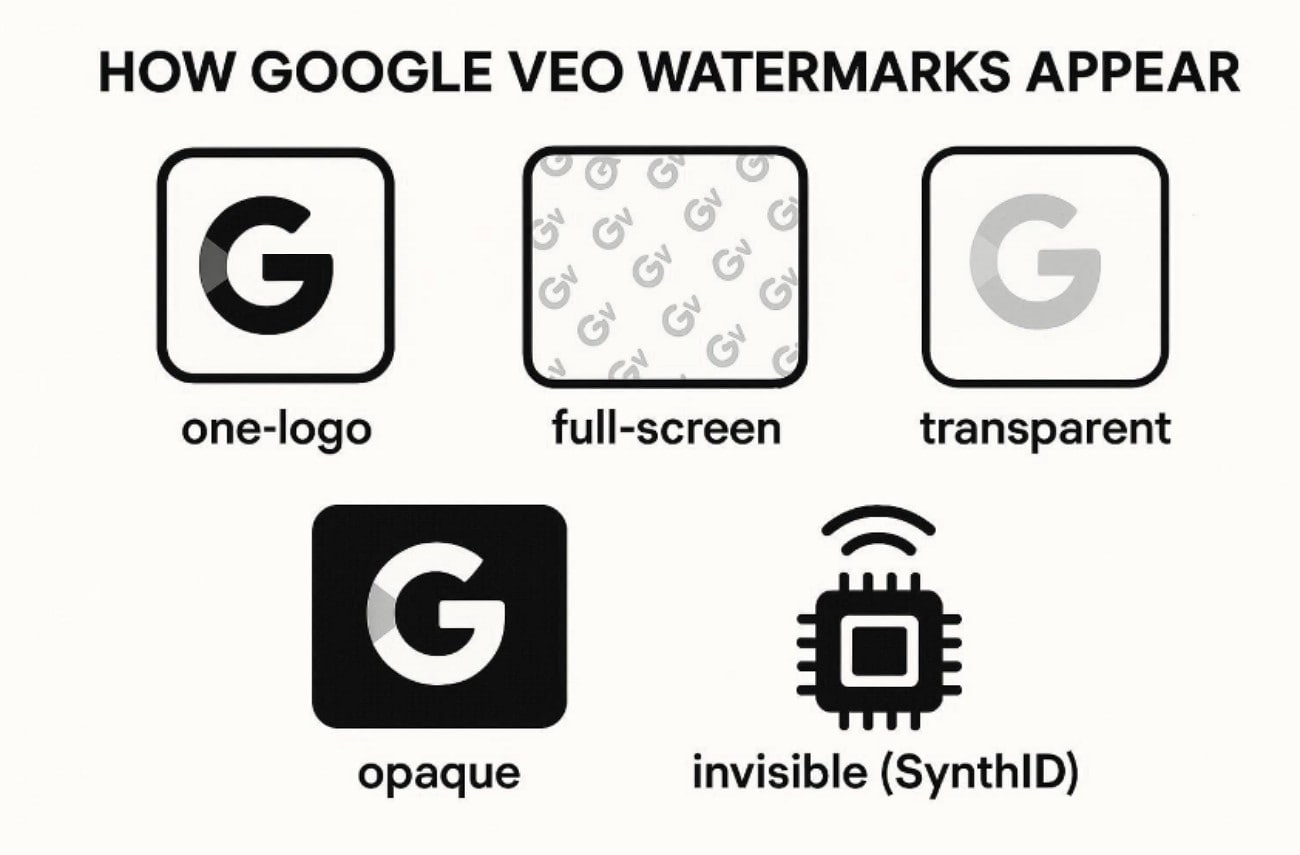
Before choosing any remover tool, you must know what kind of Veo watermark you have. Google can add a watermark in different styles, like one logo or full-screen, and with different transparency levels, such as transparent or opaque. Stronger watermarks usually need stronger tools, and removing them can create legal issues.
One-Logo Watermark
A single Veo logo appears in one corner during video playback. This watermark stays small and does not cover important visual elements. It looks light, subtle, and easy to overlook during casual viewing. Since placement remains limited, users often try simple editing tools first. So, cropping or reframing may reduce visibility, but does not always fully remove it.
Full-Screen Watermark
The full-screen watermark spreads across the video frame instead of staying localized. This version appears larger, repeated, or more dominant across important visual areas. It becomes harder to ignore and affects overall viewing clarity significantly. Users usually require advanced editing tools to handle stronger overlay interference. Thus, masking, frame reconstruction, or regeneration often becomes necessary for proper cleanup.
Transparent Watermark
A transparent watermark appears faint and allows background visuals to remain visible. Its see-through nature makes detection harder during fast scrolling or playback. The watermark may only become noticeable on darker or high-contrast scenes. Users often assume removal will be simple due to the lighter appearance. However, cleanup tools sometimes struggle because the watermark blends into video details.
Opaque Watermark
This watermark appears solid and clearly visible on top of the content. It blocks underlying visual details and draws immediate viewer attention consistently. This bold appearance makes it difficult to ignore or naturally hide. Users must rely on stronger tools to rebuild hidden visual areas. Basic cropping fails because important parts remain covered by the solid overlay.
Invisible Watermark
An invisible watermark exists inside video data rather than visible screen layers. SynthID embeds hidden identification signals directly into the video structure during generation. Viewers cannot see or detect this watermark during normal playback sessions. Even after visible cleanup, hidden signals may still remain detectable. This ensures traceability and strengthens origin verification beyond simple visual watermark removal.
Why This Becomes a Legal Complication
After you understand how the Veo watermark appears, you must think about legal compliance. Watermarks act like disclosure labels, so removing them can create policy problems.

Disclosure Risk: Watermark removal can mislead viewers about the AI origin in commercial content.
Advertising Compliance Risk: Paid ads may require clear AI disclosure, and removal increases scrutiny.
Platform Policy Risk: Platforms may restrict reach or monetization if disclosure signals disappear.
Contract and Client Risk: Brands may reject work if watermark removal breaks publishing requirements.
Traceability Risk: Invisible markers like SynthID can still identify AI origin after edits.
Copyright and DMCA Risk: Removing identifiers may trigger legal claims under local copyright frameworks.
Reputation Risk: Audiences may lose trust if they feel the creator concealed AI involvement.
Part 2. Veo Watermark Remover Tools | Basic Details to Know
Now that you understand how Veo watermarks appear, you can choose a Veo watermark remover that fits your watermark type and skill level. The table below compares online vs offline tools for removing the Veo watermark:
| Aspects | Online Tools | Offline Tools |
| Best for | Quick edits, beginners, simple watermark cleanup | Higher control, longer projects, detailed edits |
| Speed | Fast for short clips, depending on the internet and servers | Faster for large files if your PC is strong |
| Quality control | Limited export settings and fewer fine-tuning options | Better control over bitrate, codec, and resolution |
| Success on subtle marks | Sometimes works, but it can blur moving details | Better results with frame tools and tracking features |
| Success with strong marks | Often struggles with bold or wide watermarks | Stronger tools handle masking and frame cleanup better |
| Privacy | Requires uploading content to a website | Video stays on your device and local storage |
| File size limits | Common limits on length, size, or daily usage | Usually no limits besides your device storage |
| Cost | Often free; watermarks on exports are common | Often paid; free trials may have export limits |
| Learning curve | Low, simple interface | Medium to high, more settings and manual steps |
| Editing features | Basic removal, trim, crop, and simple enhancement | Advanced masking, tracking, stabilization, and re-render tools |
Part 3. Step-by-Step Guide to Remove Veo Watermark Safely
To start with the methods, we'll first review the online solutions that can help remove Veo watermark from videos. Let's explore the following online tools to remove the Veo watermark with ease:
1. UniConverter Online
This is an AI-based online tool that removes logos, text marks, and stamps from images. It supports popular formats, including JPG, PNG, BMP, and WebP for wide compatibility. The workflow stays simple: upload your image, highlight the watermark area, and process it using automated cleanup.
Moreover, UniConverter Online watermark remover uses smart reconstruction to replace the selected watermark region naturally. It analyzes surrounding pixels and fills the area to match nearby textures and colors. Furthermore, the tool fits quick marketing edits, product images, and social graphics where clean visuals matter. For broader use cases, you can also use it as a sticker remover to clean unwanted stikers,or blemish remover to beautify your headshots, or

Key Features
Brush Precision: Offers controllable brush selection to target only watermark pixels, avoiding unnecessary background damage.
Preview Control: Lets you inspect results before exporting, reducing rework and wasted processing time.
Edge Handling: Improves complex edges like hair or patterns, minimizing halos after watermark removal.
Guide to Remove Watermark with UniConverter Online
Adhere to the steps below to remove Veo watermark with UniConverter Online:
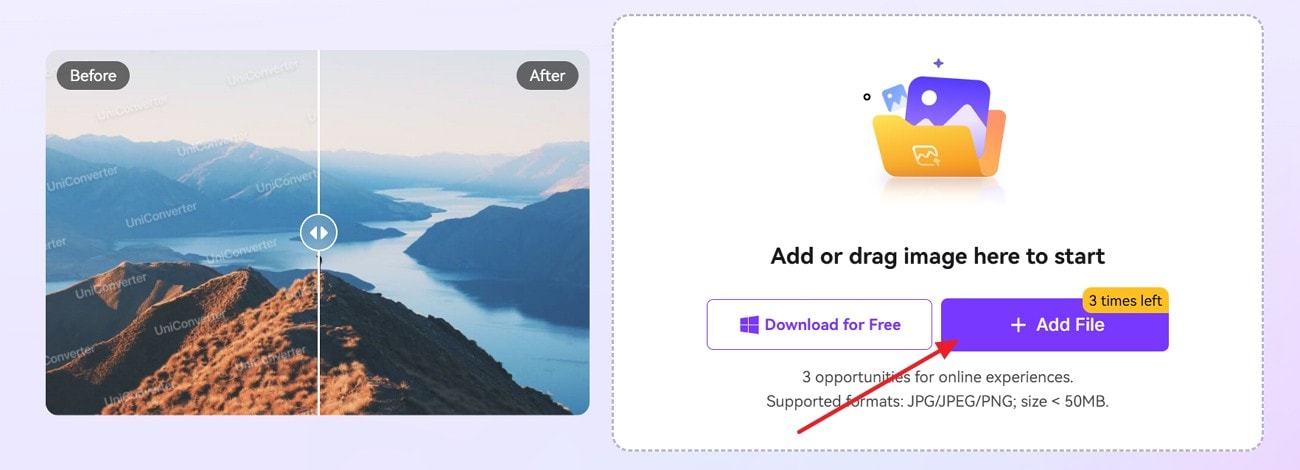
Step 1. Upload the Watermarked Image File
Firstly, click "Add File" on the UniConverter Online page, then upload your image to start.
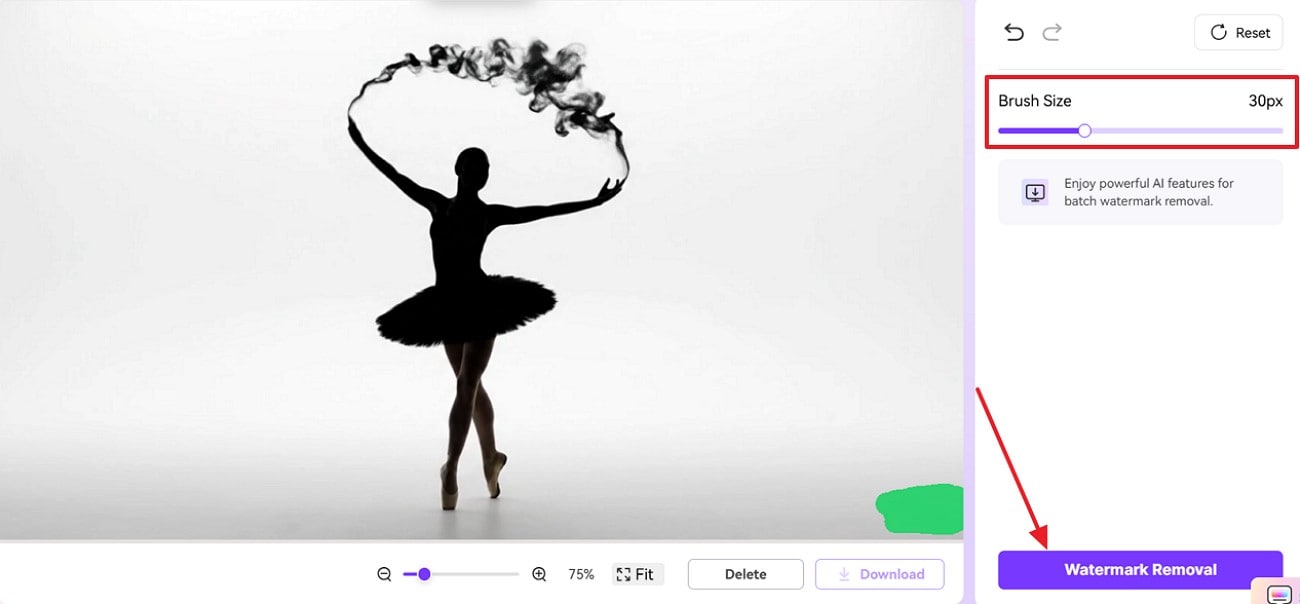
Step 2. Configure Brush Size and Apply Selection Mask
Next, adjust the "Brush Size" slider, paint over the watermark area, then press the "Watermark Removal" button.
Step 3. Download the Watermark-Free Output Image
After processing completes, review the preview and click "Download" to save the final image.
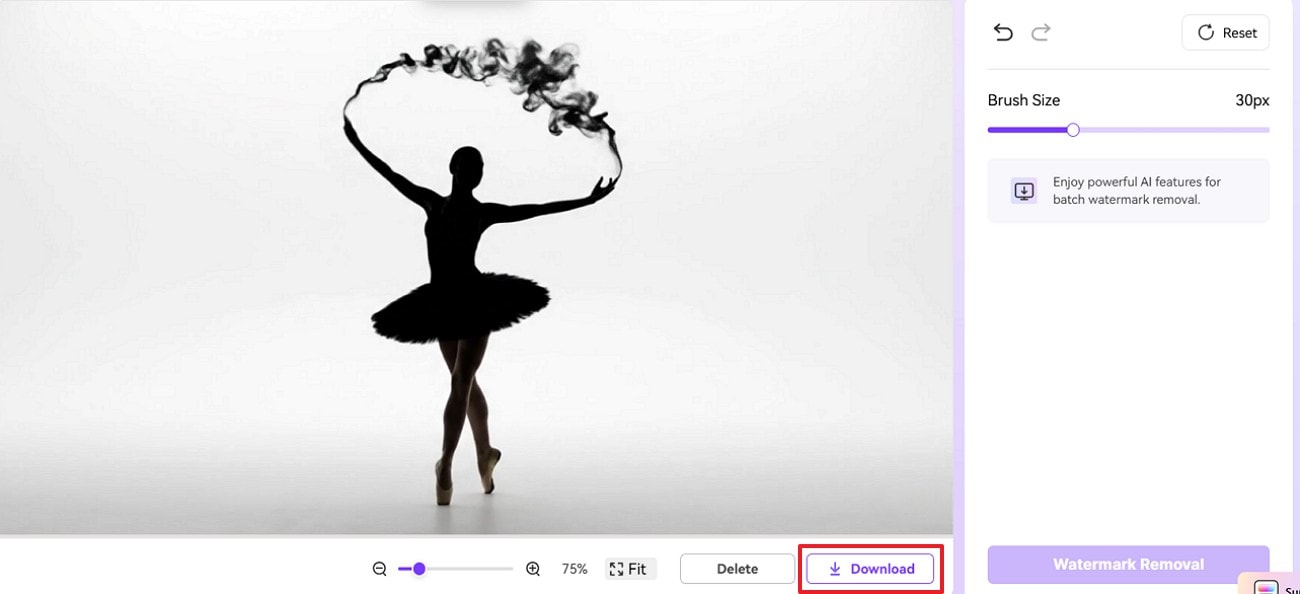

High-Quality Veo Watermark Remover Without Artifacts
2. EzRemove
EzRemove Video Watermark Remover is a browser-based AI tool designed to remove logos, text overlays, and stamps from video files efficiently. Moreover, it supports MP4 and M4V formats, handles videos up to 500MB, and preserves HD and 4K quality. Many creators use it when dealing with a Veo3 watermark and need clean footage quickly. Now, follow the steps mentioned below to try the EzRemove tool:
Step 1. Upon accessing the tool, choose the "Upload Video" button to add your video to proceed.
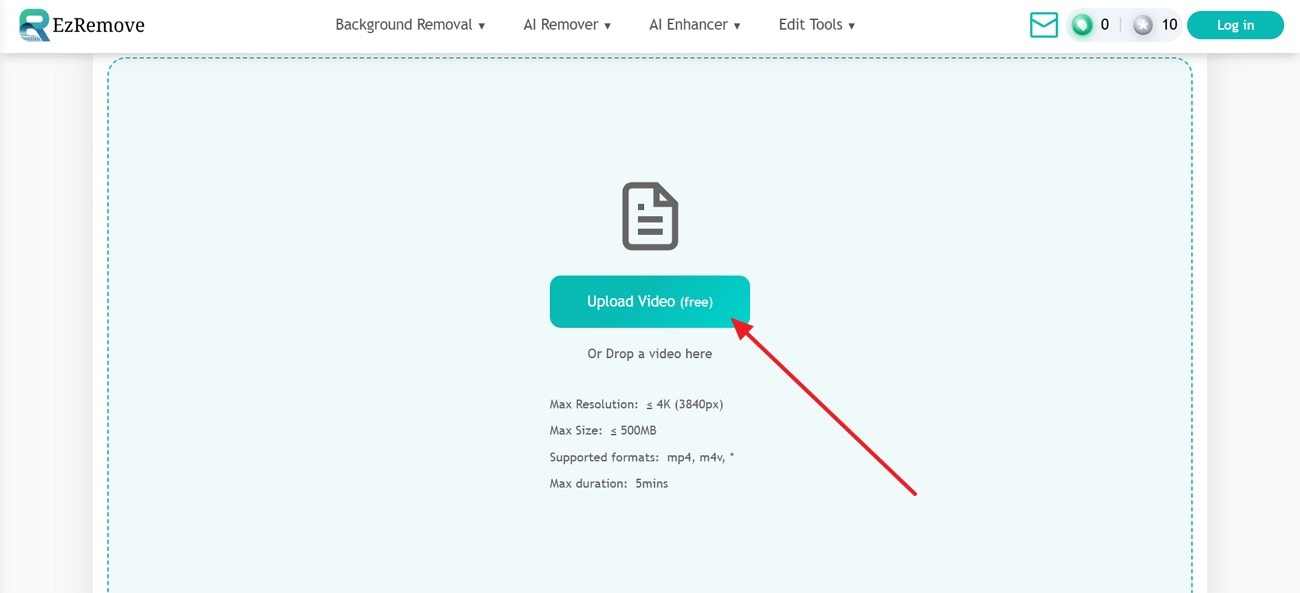
Step 2. Next, choose the way to mark the watermark from the top left corner, then click on "Remove Watermark" to start removing.
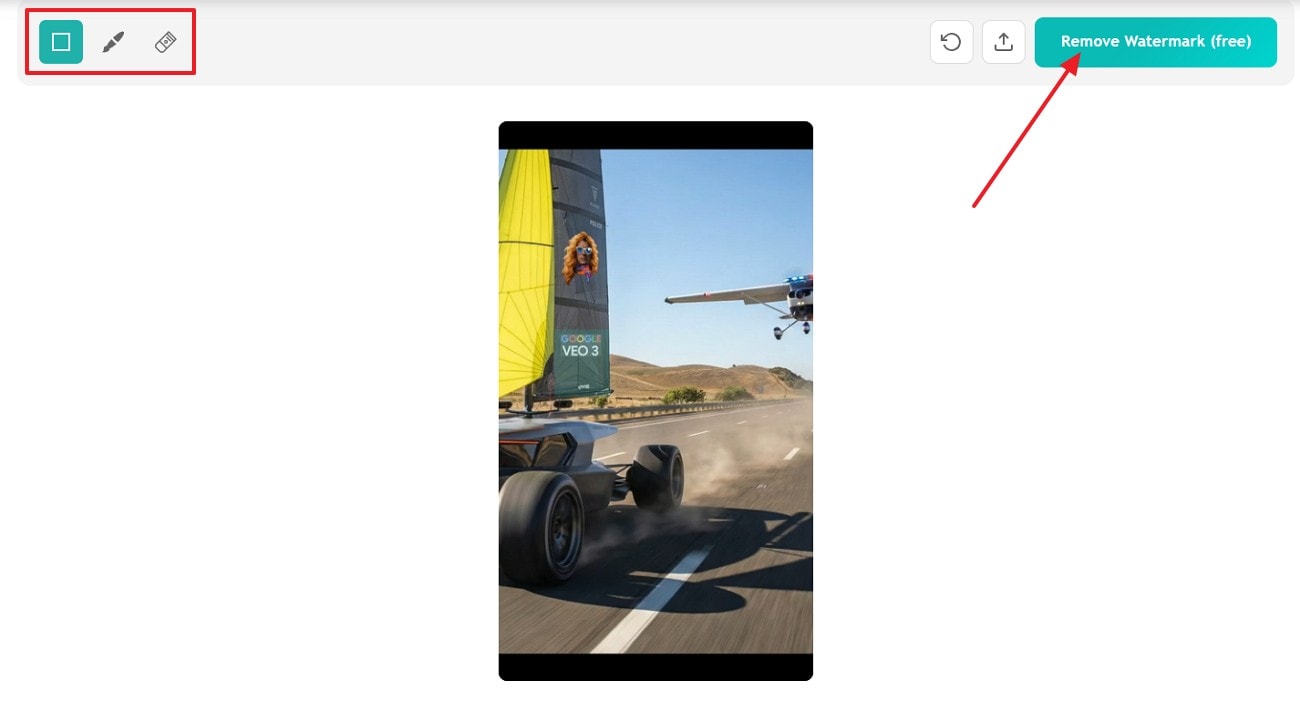
Step 3. At last, pick the "Save" icon to render the watermark-free video to your device.
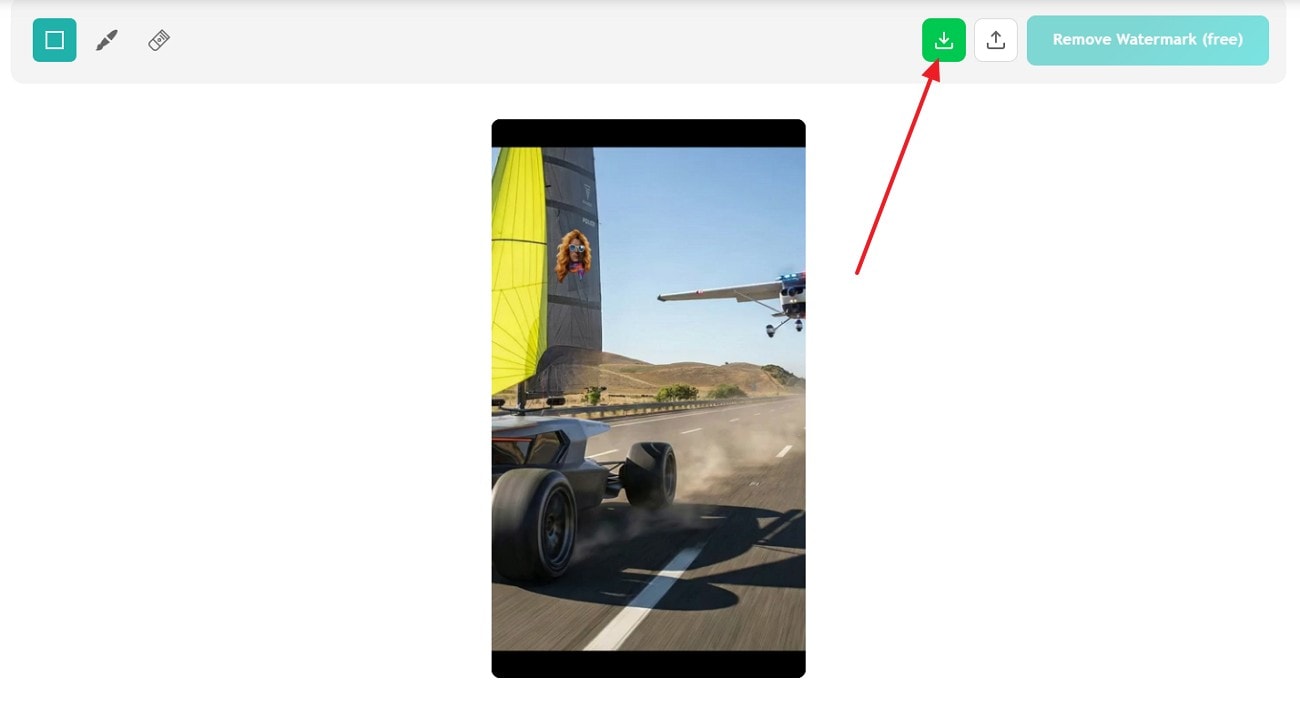
Limitations
- Only accepts MP4 and M4V video formats.
- It restricts uploads to a maximum size of 500MB per file.
- Limits processing to videos that are under 5 minutes long.
3. Magic Eraser
AI cleanup for watermarked videos becomes easier with Magic Eraser's online remover. Moreover, it is built to erase logos, subtitles, timestamps, and overlay text using automated reconstruction. It supports major formats like MP4, MOV, and M4V without forcing reconversion, making it a practical Veo watermark remover for quick publishing workflows. Adhere to the stepwise guide below to know how it works:
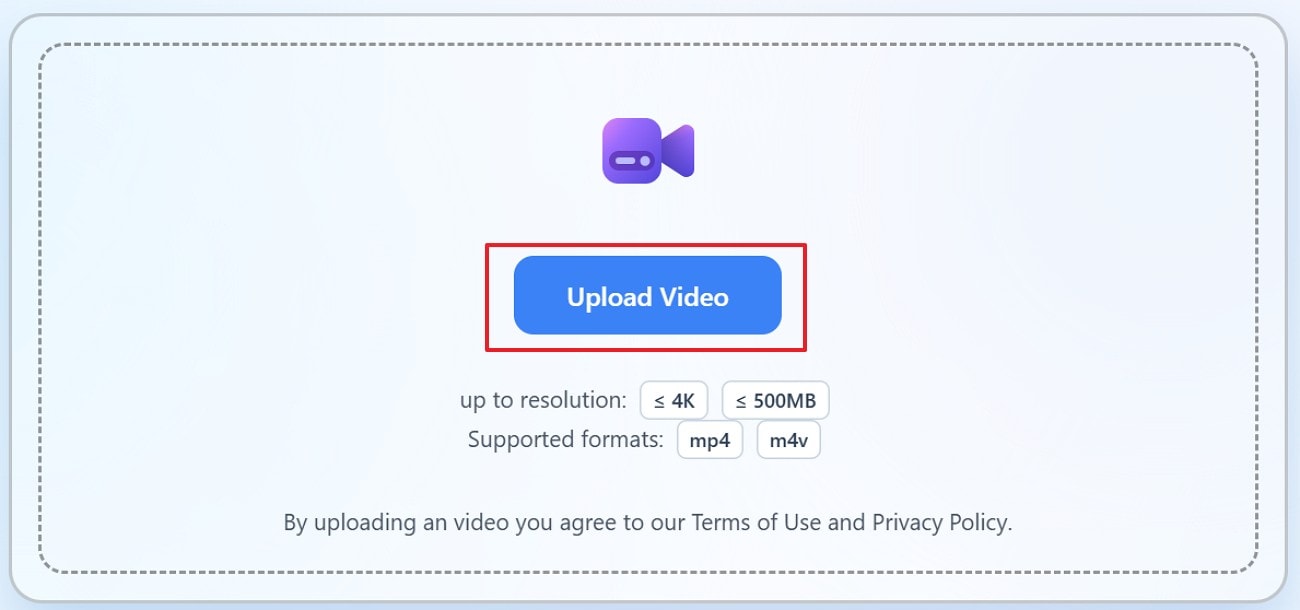
Step 1. Start by adding your video to the Magic Eraser by selecting the "Upload Video" option.
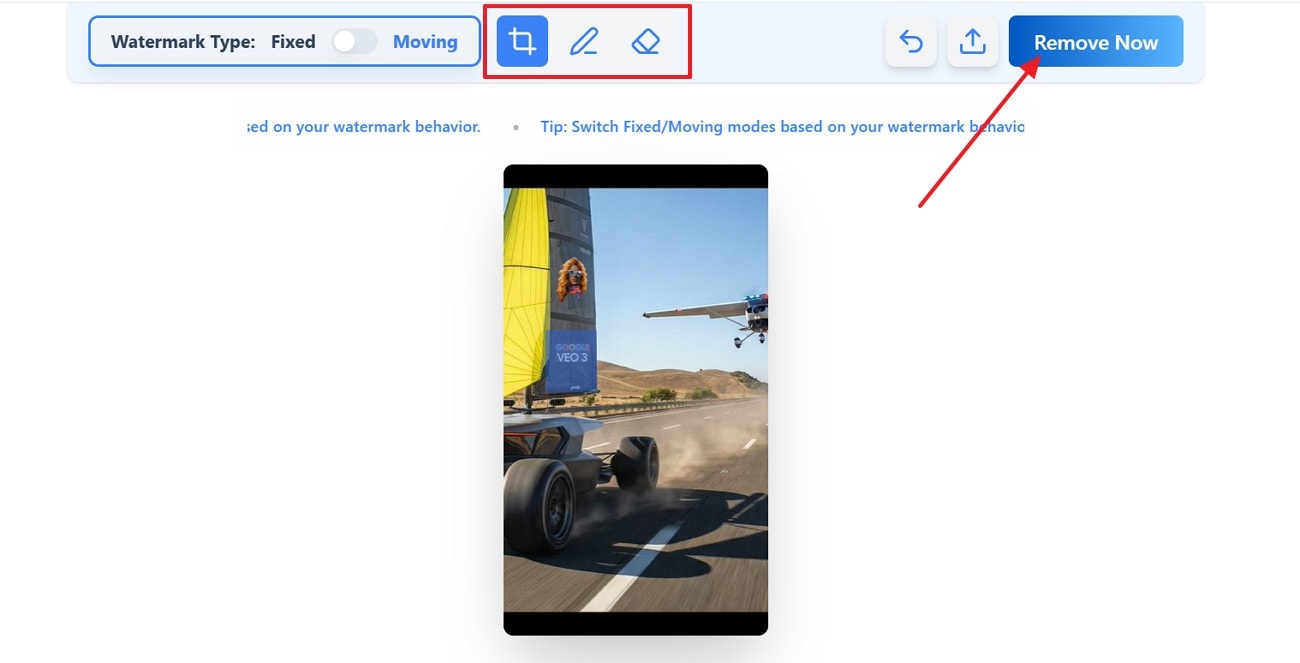
Step 2. Next, choose the watermark type from "Fixed" or "Moving," then pick a tool to select the watermark and press "Remove Now" to proceed.
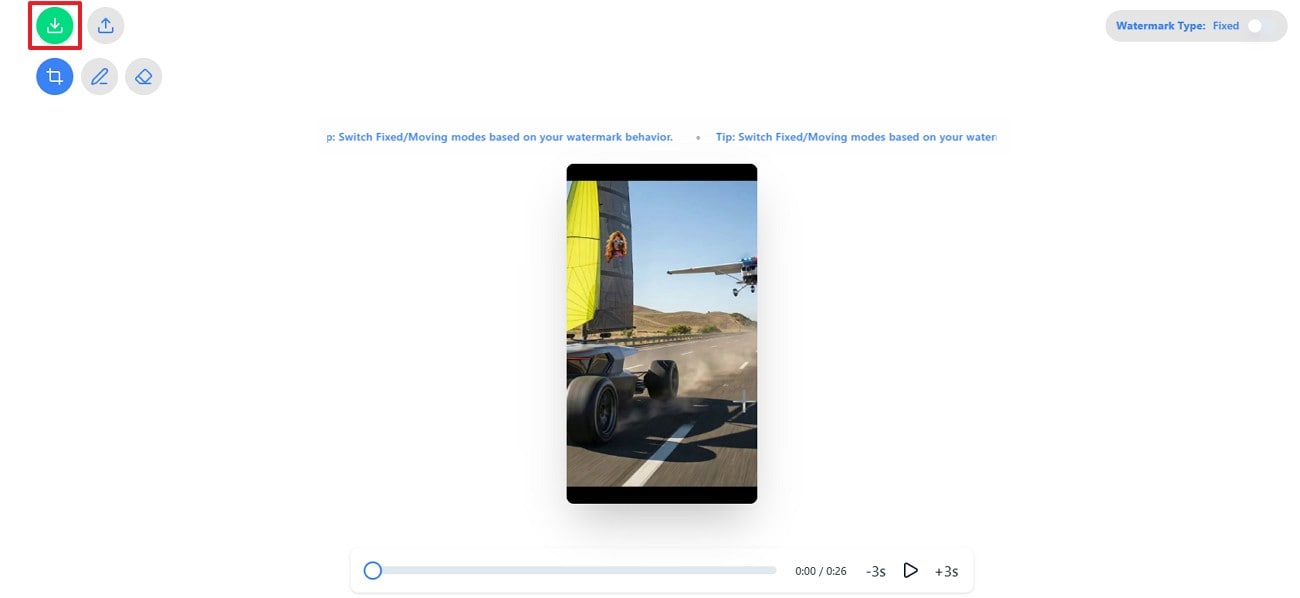
Step 3. Lastly, click the "Download" icon and save the video to your device.
Limitations
- Complex motion scenes can reduce removal accuracy.
- AI removal may blur details near the watermark area.
- Output quality may drop after heavy watermark reconstruction.
4. WatermarkRemover.io
Browser-based AI cleanup is what this WatermarkRemover.io service focuses on, helping remove logo, timestamp, and text overlays. Users just need to upload their clip, and the AI detects marked watermark regions automatically. Moreover, it reconstructs missing pixels frame-by-frame, keeping motion and edges consistent overall. To use it for removing the Google VEO watermark, stick to the guide below:
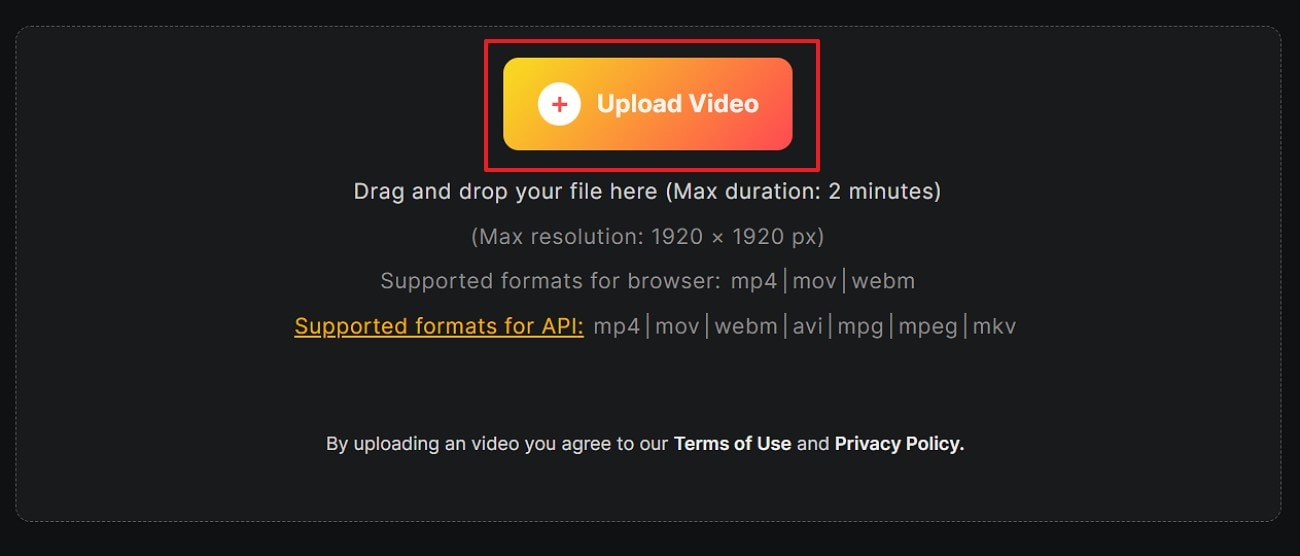
Step 1. First, click "Upload Video" on the homepage, or drag-and-drop your clip into the upload area.
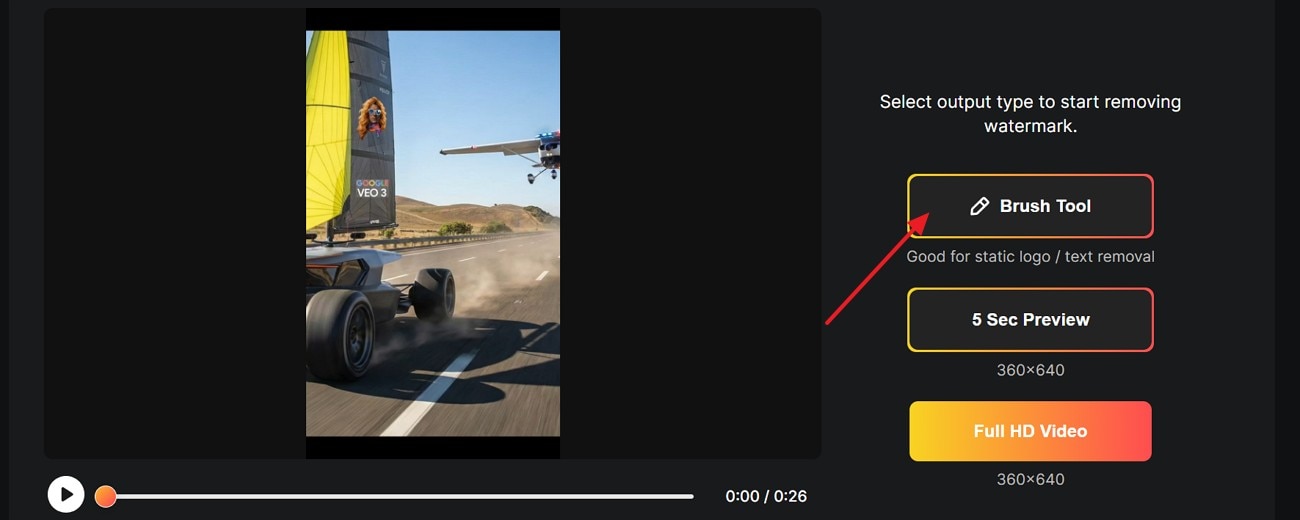
Step 2. Afterwards, on the editor screen, choose "Brush Tool" for static logo or text removal. Then select "5 Sec Preview" to test results first or choose "Full HD Video" to process the full clip.
Limitations
- Watermarks covering faces may cause distorted facial features.
- Transparent watermarks can leave faint shadow outlines behind.
- High-bitrate exports may require paid plan access.
5. ReelMoney
ReelMoney is designed to remove Veo watermarks from videos quickly. It allows users to process 10 videos daily without sign-in, or twenty with a free account included. Moreover, it supports portrait and landscape clips, covering Veo outputs from version 3.1. Next, follow the stepwise guide below to upload, process, and download your result:
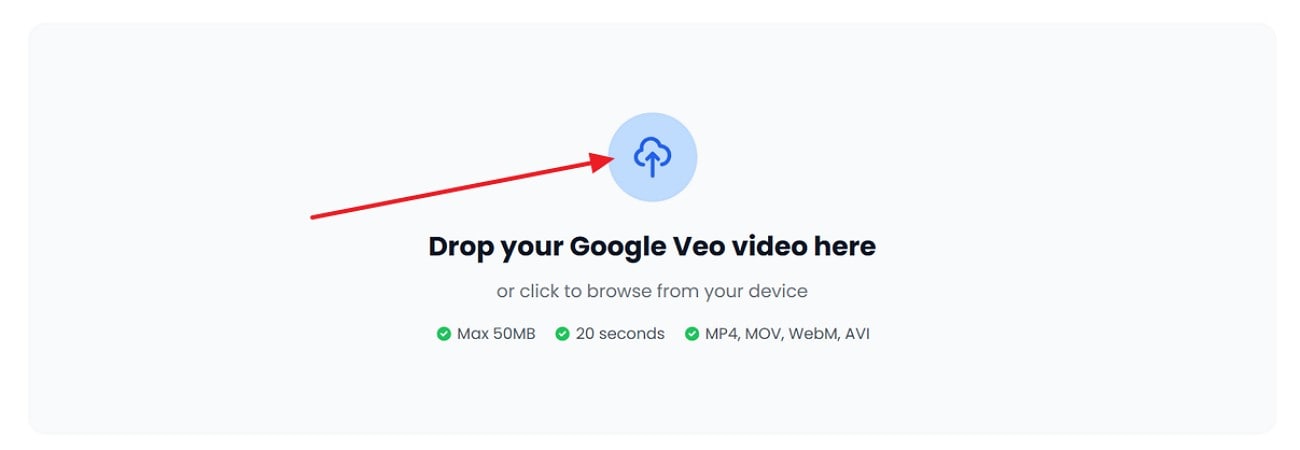
Step 1. Here, choose the "Upload" icon to upload your Veo watermark video from your device.
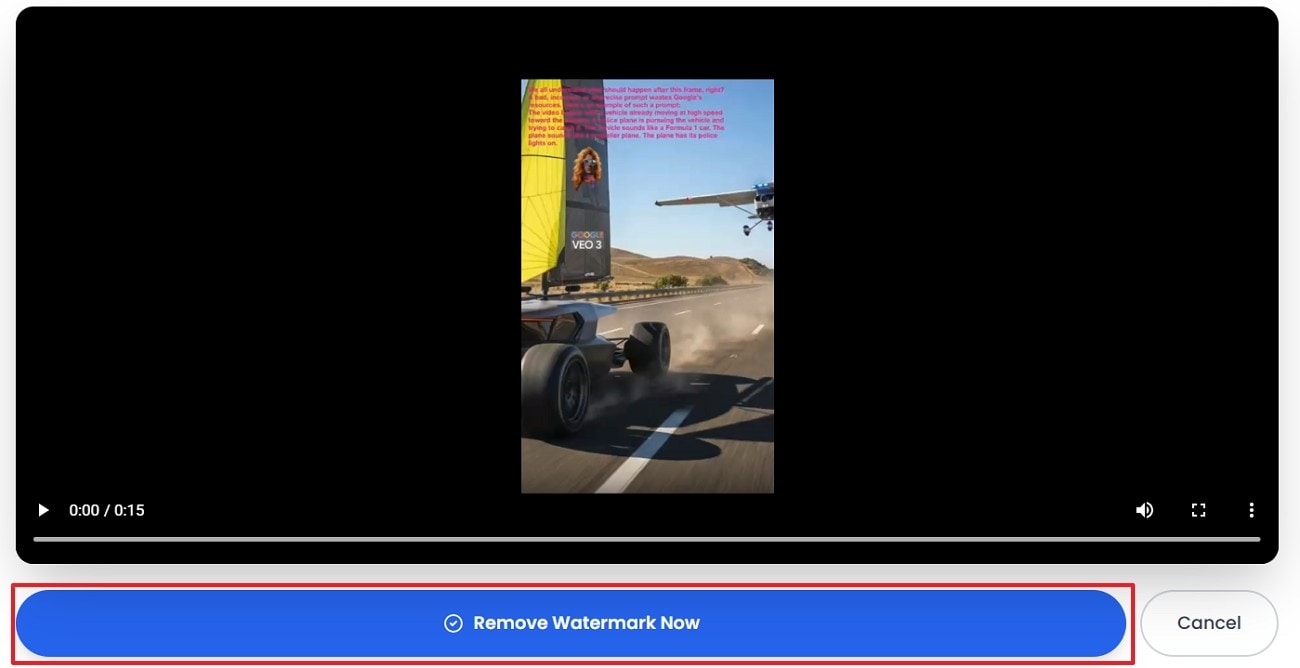
Step 2. Once you upload, click the "Remove Watermark Now" button to proceed.
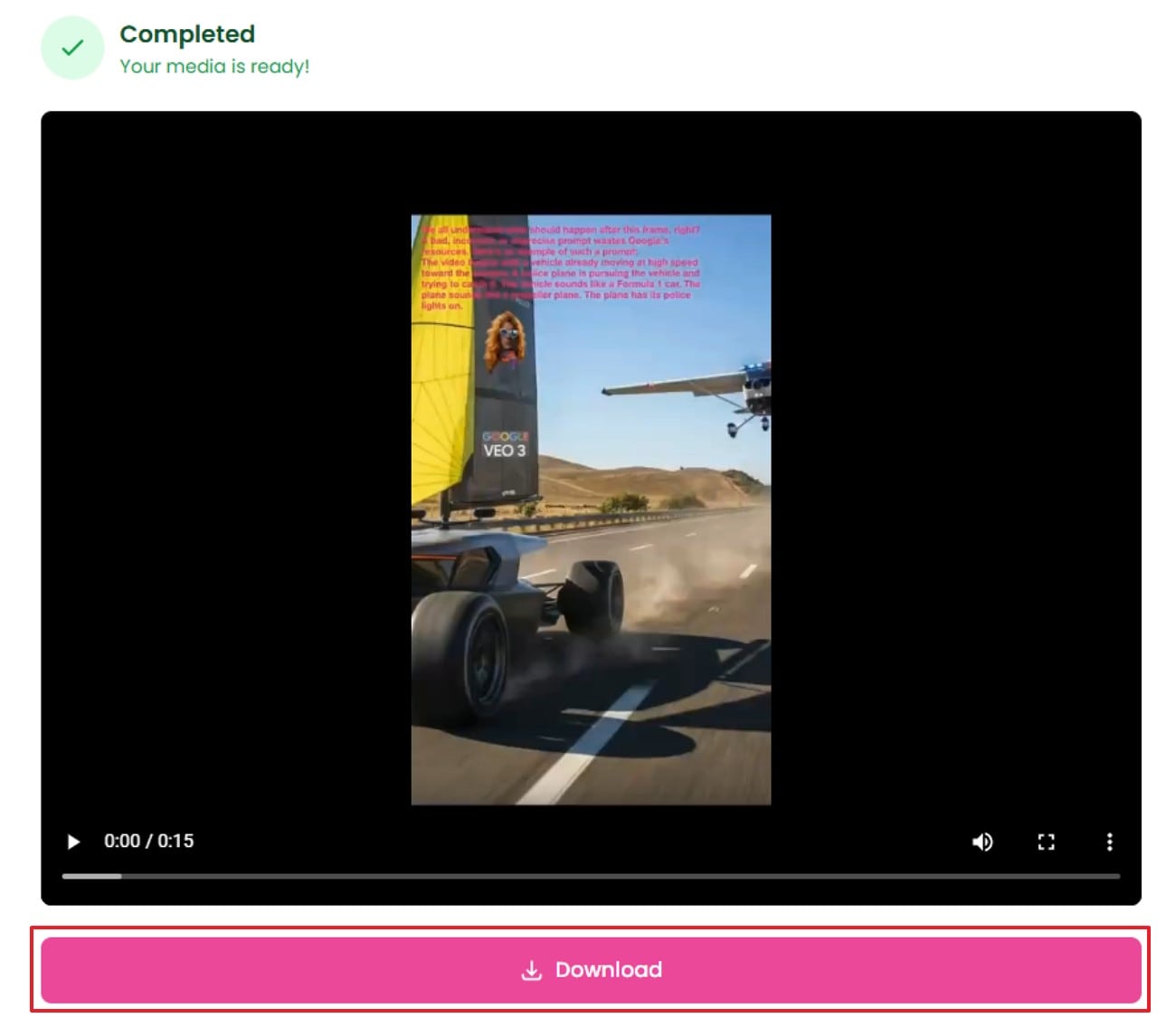
Step 3. Once completed, click the "Download" button to save it to your device.
Limitations
- Portrait clips may show edge artifacts near watermark zones.
- Fast camera motion can cause flicker after removal.
- Fine text details may smear in reconstructed frames.
6. Media.io
This tool offers a watermark remover inside an online editor suite. Its AI smart detection identifies marked areas and rebuilds frames cleanly. In addition, you can trim, resize, add subtitles, stickers, and background music easily. This helps when a Veo watermark disrupts repurposed marketing clips online. Next, follow the stepwise guide below to run removal with ease:
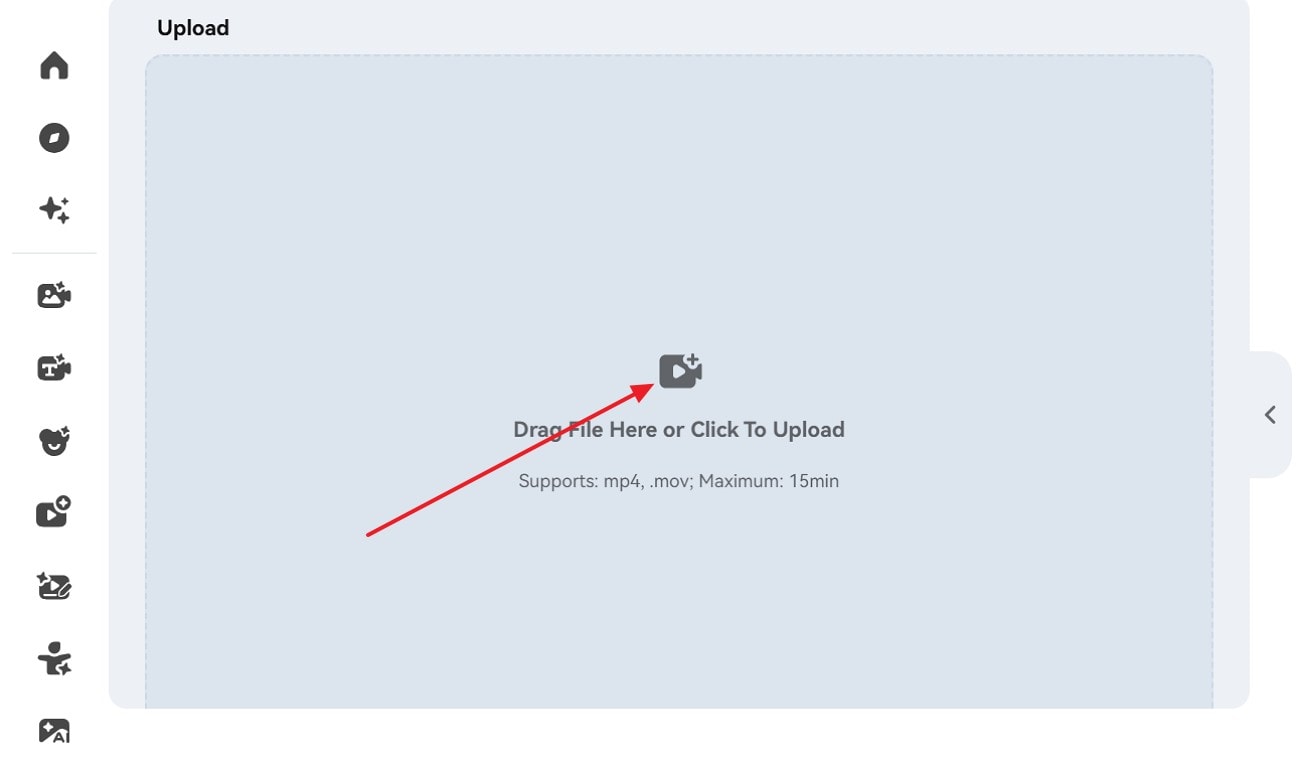
Step 1. Upon accessing the tool, drag your file into the upload box or click the "Upload" icon to import it.
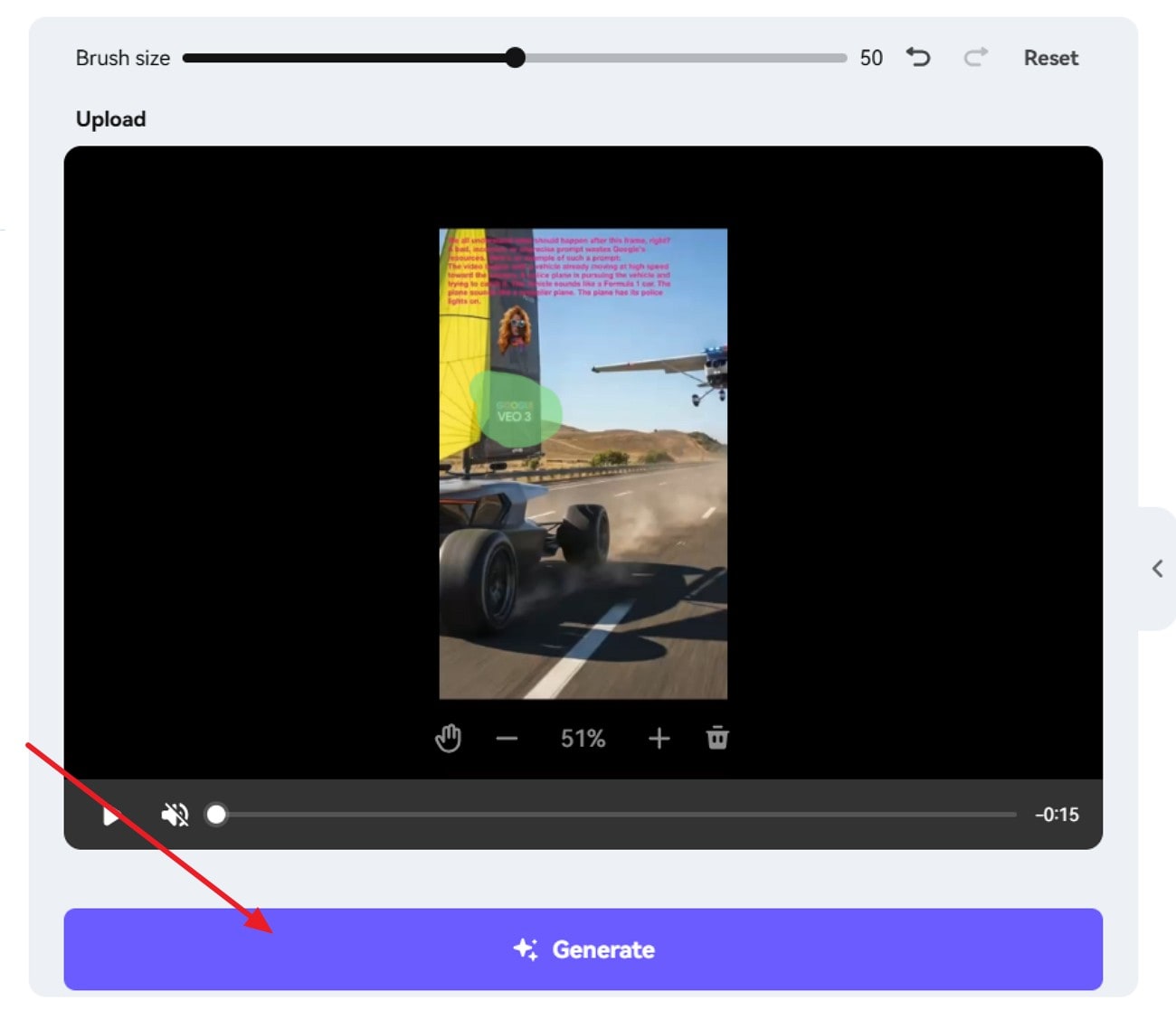
Step 2. Next, adjust the "Brush size" slider, then brush over the watermark region on the preview. After selection is complete, click "Generate" to process the video and remove the watermark.
Limitations
- Browser crashes can interrupt uploads and discard progress.
- Watermark edges may leave halos on textured backgrounds.
- Audio may desync slightly after heavy frame reconstruction.
Part 4. Try the 2 Best Desktop Software for Removing Veo Watermark Quickly
As you have tested online tools, switch to desktop software for faster processing, stronger control, and cleaner Veo watermark removal. This part features 2 of the best options that helps remove Veo watermarks easily.
1. Wondershare UniConverter
UniConverter is an easy-to-use watermark remover that helps you clean up videos and images in just a few clicks. Remove logos, text, dates, or remove unwanted stamps from images while keeping quality intact. Fast, accurate, and beginner-friendly, it is ideal for creating polished, professional-looking content for work, study, or personal projects.
For advanced cleanup, it provides time-based removal so you can target only specific scenes. It also supports batch processing, helping you apply identical settings across many files faster. Moreover, Wondershare promotes "no quality loss" output, which matters for HD and 4K exports. This workflow is helpful when a Google Veo watermark appears on draft clips.
Key Features
Template Presets: Saves reusable watermark layouts, ensuring identical placement across future exports automatically.
Multi-Layer Support: Handles multiple watermarks simultaneously, including images and text with independent controls.
Frame Preview Panel: Previews watermark impact before exporting, helping avoid cropped logos and misalignment.
Step-by-Step Guide to Remove Veo Watermark with UniConverter Desktop
With its key features in mind, lets dive into the guide below to try this software:
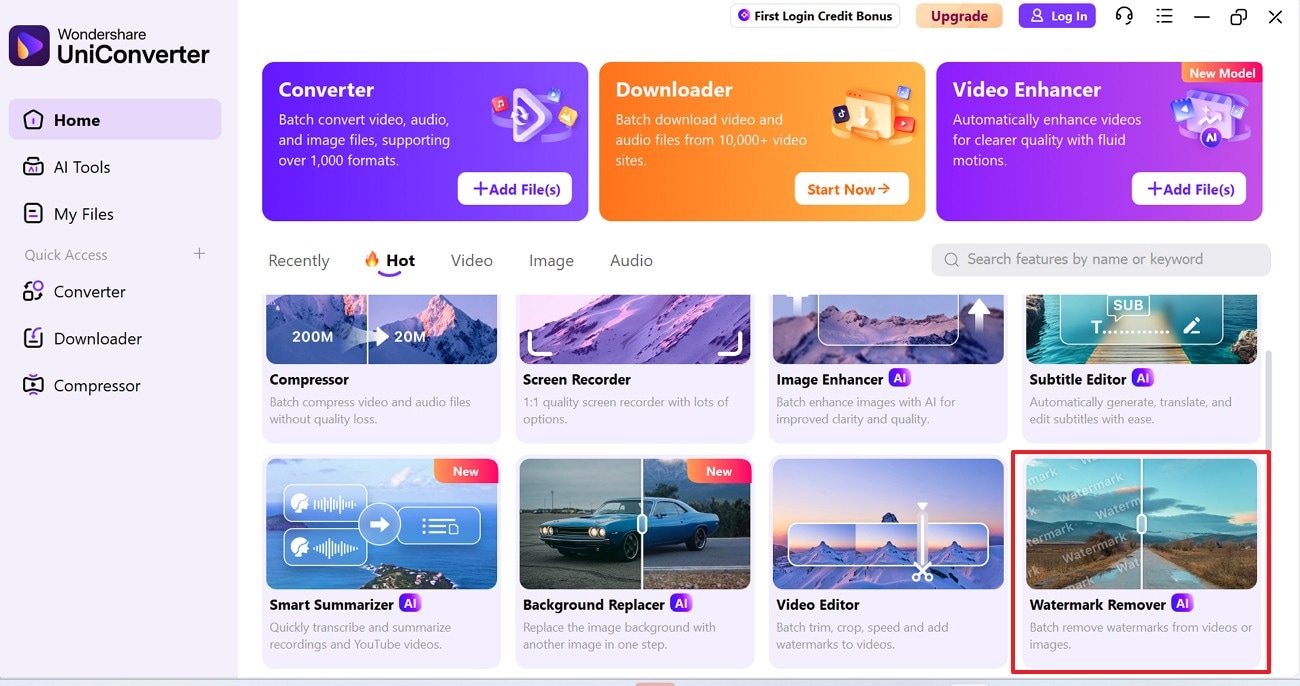
Step 1. Access the Watermark Remover Feature
Upon entering the tool, navigate to the "Watermark Remover" feature under the "Hot" tab to continue.
Step 2. Import the Watermark Video to Proceed
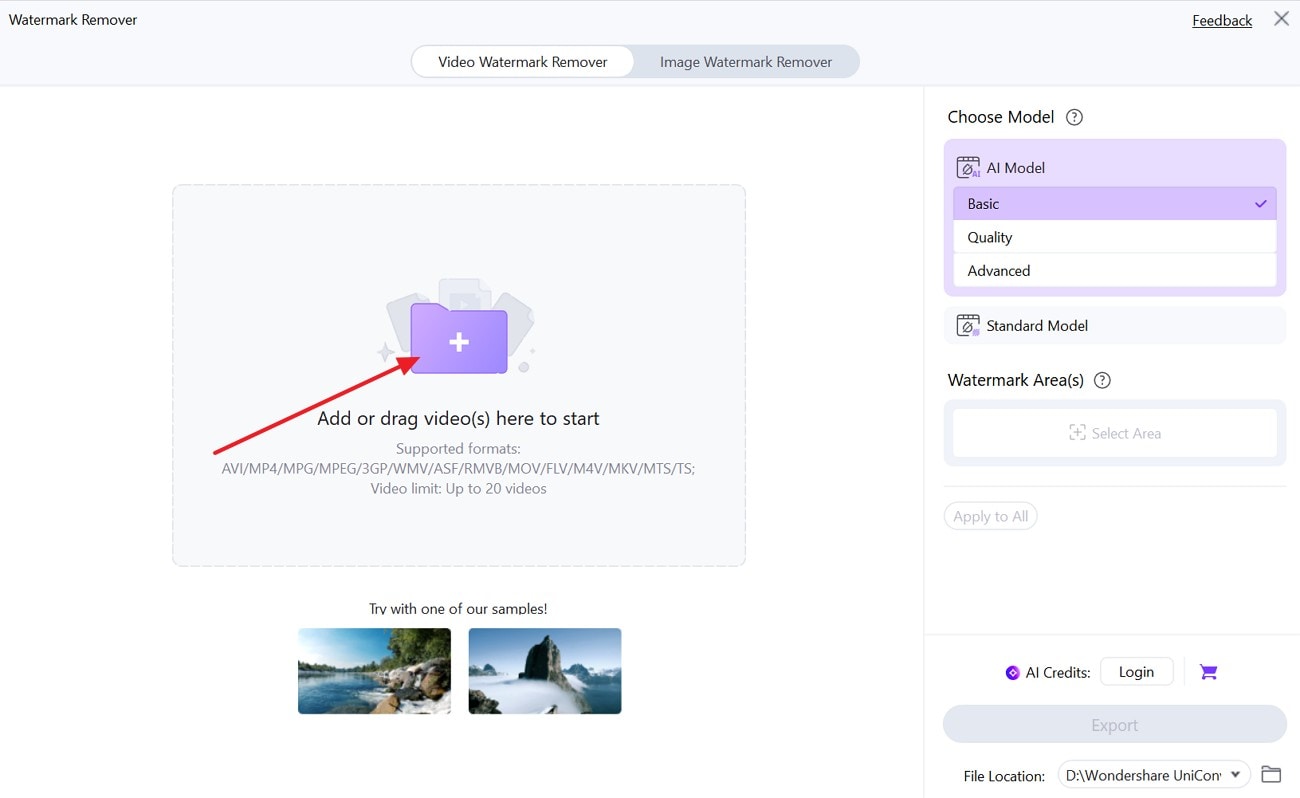
Next, click the "Plus" icon to upload videos or drag and drop the file into the window.
Step 3. Mark the Watermark Area
Now, select the "AI Mode" and then use the "Select Area" to highlight the watermark precisely. After that, pick the "Preview" button to see the changes.
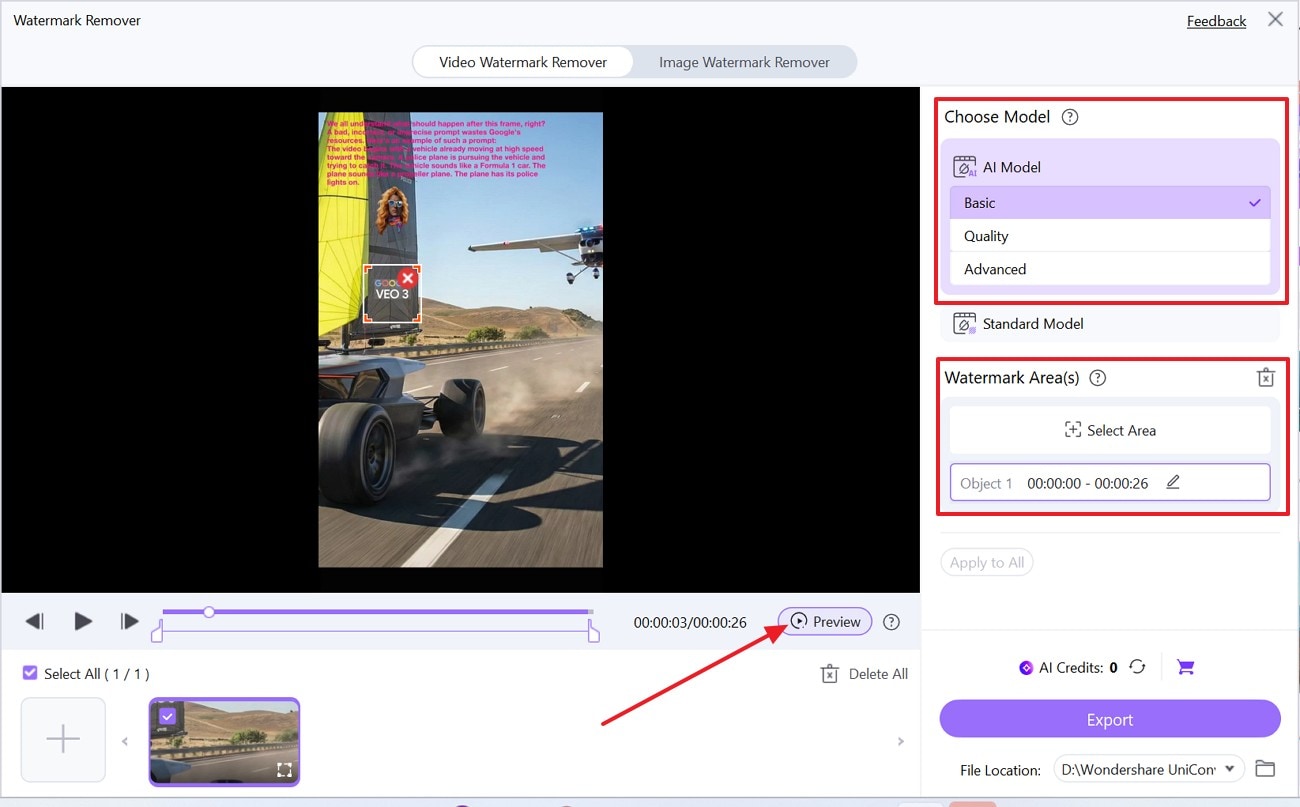
Step 4. Save the Output to Your Device
Once you check the results, hit the "Export" button to save the watermark-free video to your device.
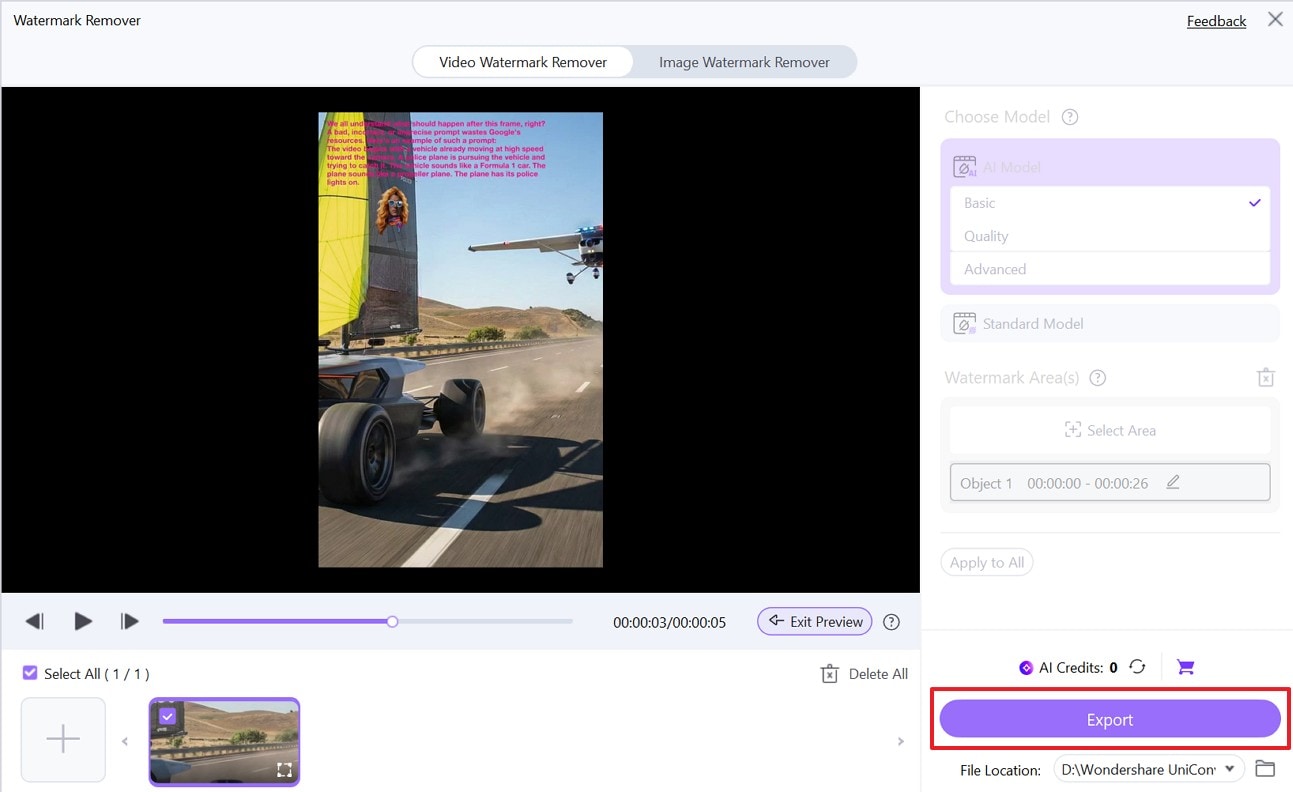
2. Adobe Premiere Pro
Designed for professional timeline editing with precise masking, tracking, and key framing controls. These features help editors rebuild frames, blur overlays, or cover marks using replacement layers. It is often used to remove the Veo watermark from branded drafts when online tools fail. Now, follow the stepwise guide below to use Adobe Premiere Pro:
Step 1. First, select the clip on the timeline, then open "Effect Controls." After that, expand "Opacity" and choose the "Mask Tool," then draw a mask over the watermark area.
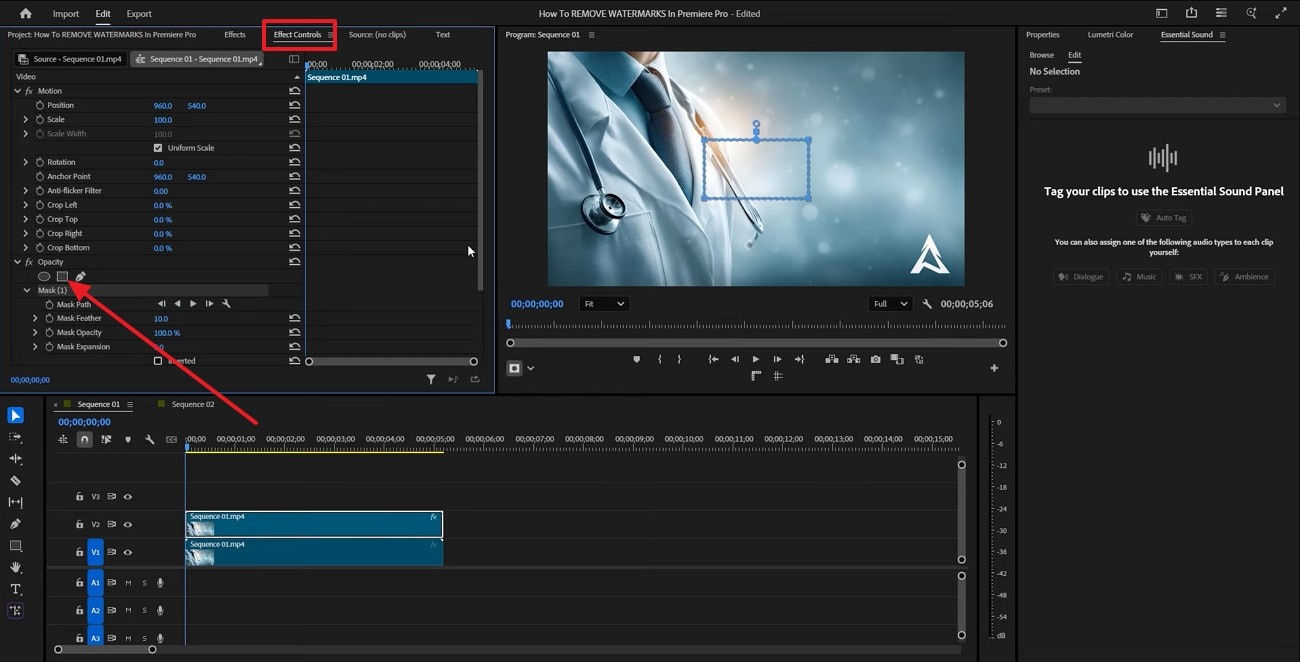
Step 2. In "Effect Controls," adjust "Position" to shift the masked area away from the watermark. Then increase "Mask Feather" (and keep Mask Opacity at 100%) to blend the edges smoothly.
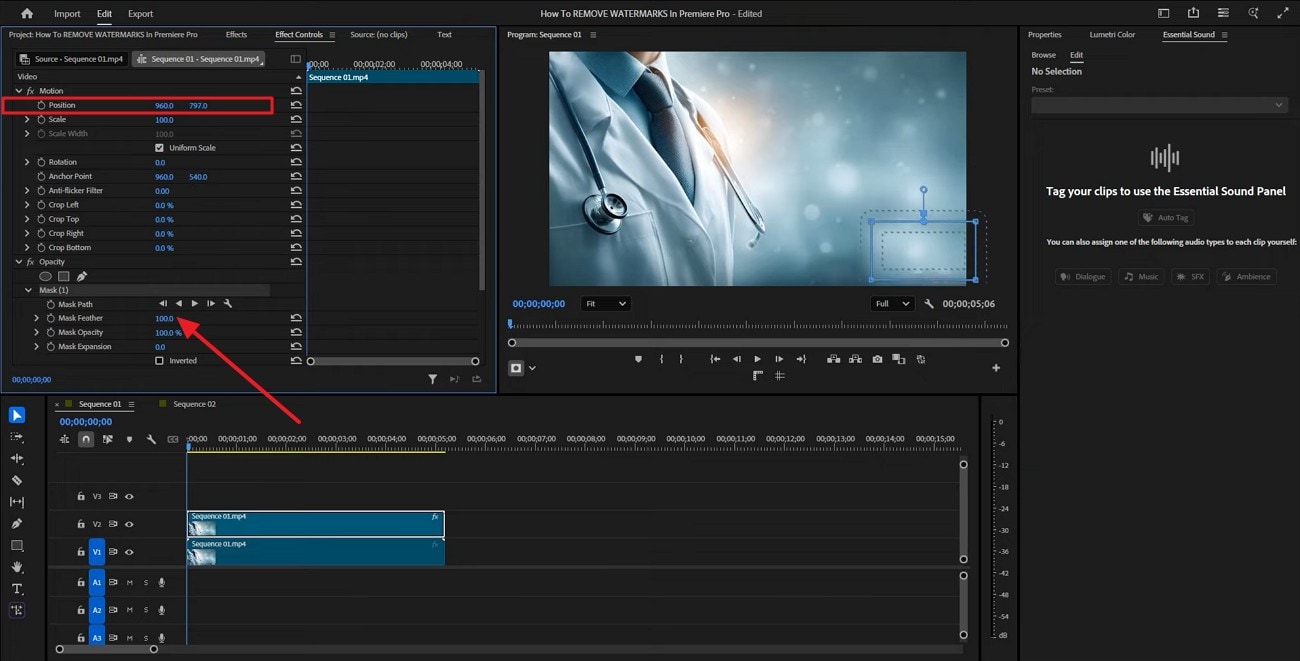
Limitations
- Steep learning curve for masking, tracking, and keyframing workflows.
- High hardware demands for smooth playback and fast exports.
- Subscription pricing increases the long-term cost for casual users.
Part 5. Which Veo Watermark Remover Serves The Best Purpose?
Now that you have reviewed every option, the table below compares each Veo watermark remover overall to help you choose the best fit:
| Tool | Type | Best For | Formats | Key Advantage | Limitation |
| UniConverter Online | Image (Online) | Product photos, social images, quick graphics | JPG, PNG, BMP, WebP | Brush selection + clean edge handling | Not for video watermarks |
| EzRemove | Video (Online) | Short MP4 clips, fast fixes | MP4, M4V | Keeps HD/4K quality for quick edits | 500MB and 5-minute limit |
| Magic Eraser | Video (Online) | Overlays like subtitles, timestamps | MP4, MOV, M4V | No forced reconversion workflow | Motion scenes reduce accuracy |
| WatermarkRemover.io | Video (Online) | General watermark cleanup on many formats | MP4, MOV, AVI, MKV, WEBM, MPEG | Frame-by-frame reconstruction output | Faces may distort after removal |
| ReelMoney | Video (Online) | Veo-focused removal, quick daily runs | Veo outputs (focus), portrait, and landscape | Designed around Veo watermark cases | Daily limits and possible flicker |
| Media.io | Video (Online Suite) | Removal + editing in one workspace | Varies by upload | Extra tools like trim, resize, and subtitles | Possible halos and audio desync |
| UniConverter Desktop | Video/Image (Desktop) | Batch jobs, time-based removal, and higher control | Depends on imports | Batch + time targeting inside one app | Needs to be installed and stronger PC |
| Adobe Premiere Pro | Video (Desktop Pro) | Hard cases needing masking and tracking | Wide professional support | Highest control and precision | Steep learning curve and subscription |
Part 6. Tips and Tricks to Avoid Veo Watermark in Future Videos
Instead of relying on a Veo watermark remover, prevent watermarks during creation and export by following these tips:

Plan Tier: Review your plan level, since some tiers reduce visible watermarking today slightly. Confirm export options inside the generator before rendering final client videos always.
Safe Margins: Leave safe margins so corner marks never cover key subjects on screen. Frame your shots wider, then crop for platforms without losing content later.
Original Footage: Use original footage for final edits, and reserve AI for drafts only. This keeps deliverables clean and avoids watermark policies across platforms later too.
Preview Pass: Generate a short preview first, then check watermark placement frame-by-frame very carefully. If marks appear, adjust prompts, framing, or regenerate before final export again.
Brand Overlay: Add your own branding overlay early, so platform marks feel less distracting. Consistent templates also improve cohesion when you publish across multiple channels weekly.
Conclusion
Veo watermarks can influence viewing, especially in repurposed reels and client drafts. Online Veo watermark removers work for short clips, but limits and artifacts often appear. Desktop editors give better masking control when you remove the Veo watermark cleanly. Check disclosure rules, keep originals, and preview exports before publishing commercially always. For consistent quality and faster workflows, finish your edits with UniConverter.
Frequently Asked Questions
-
Is it legal to remove Veo watermarks from generated videos?
Removing visible watermarks can violate platform terms and mislead viewers about AI origin. For ads or clients, disclose AI use and follow local laws carefully always. -
Which is better, online tools or desktop software for watermark removal?
Online tools are faster for short clips, but results vary with motion often. Desktop software offers masking and tracking control, producing cleaner exports for professionals consistently. -
Why do some removers leave blur, halos, or flicker after removal?
AI reconstruction struggles when watermarks overlap faces, textures, or fast camera movement frames. Use previews, adjust selection areas, and try desktop masking for improved continuity. -
How can I reduce Veo watermarks in future videos?
Frame wider with safe margins, and generate test previews before final exports always. Keep original masters, and choose the right plan settings for publishing requirements early.

