


Removing a sticker from an image can feel intimidating when you are just starting out. However, it is one of the simplest photo-editing tasks once you understand the basics. Users simply need the right tools and clear approaches to make the procedure quick and stress-free.
For your ease, we have provided a detailed guide on how to remove sticker from photo using efficient tools in this article. Furthermore, you will be introduced to efficient tips and tricks for removing a sticker from an image.
In this article
- How to Remove a Sticker from a Photo Quickly Without Advanced Tools
- Remove Sticker from Photo Online Free: Top Websites and Tools
- Remove Stickers from Photos on iPhone: Step-by-Step Guide
- Quick Guide to Remove Instagram Stickers from Others’ Pictures (Android)
- Comparing the Top Methods to Remove a Sticker from an Image
- Sticker Remove from Photo: Best Practices for Clean Editing
- Conclusion
- FAQs
Part 1. How to Remove a Sticker from a Photo Quickly Without Advanced Tools
To know how to remove Snapchat stickers from someone else's picture with advanced tools, have a look at the following section:
1. UniConverter - Best Option
Suppose you just took a fun group photo at a friend’s birthday, but someone added a giant laughing emoji. Now, you want to reuse that same picture for your Instagram profile, but the sticker is ruining it. In this situation, we recommend using UniConverter, which includes a specific “Watermark Remover.” This tool lets you remove stickers from both images and videos, making it a one-stop solution. As extended use cases, you can remover watermarks from TikTok, Instagram for better recreation effect, and also use it to remove photo flaws like removing red eyes or blemish from photos, etc.

UniConverter also allows you to choose the desired file location by clicking on the “File Location.” Users can even scale the brush size big or small as per their watermark requirements. Furthermore, it offers a batch-processing system that processes multiple files simultaneously.
Complete Walkthrough: Using UniConverter Effectively
Upon examining the key features of UniConverter, let’s dive into its step-by-step guide below to remove sticker from photo:
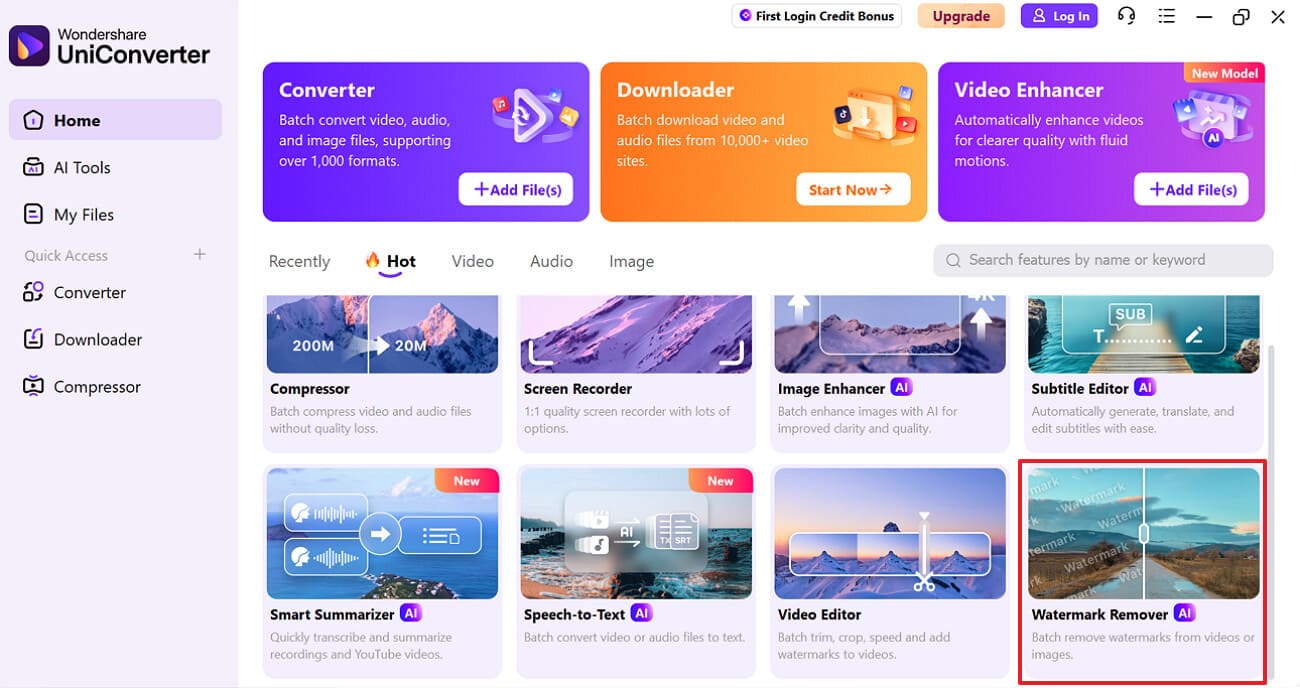
Step 1. Access the Watermark Remover Feature in UniConverter
As you open UniConverter, select the “Watermark Remover” feature to open its interface.
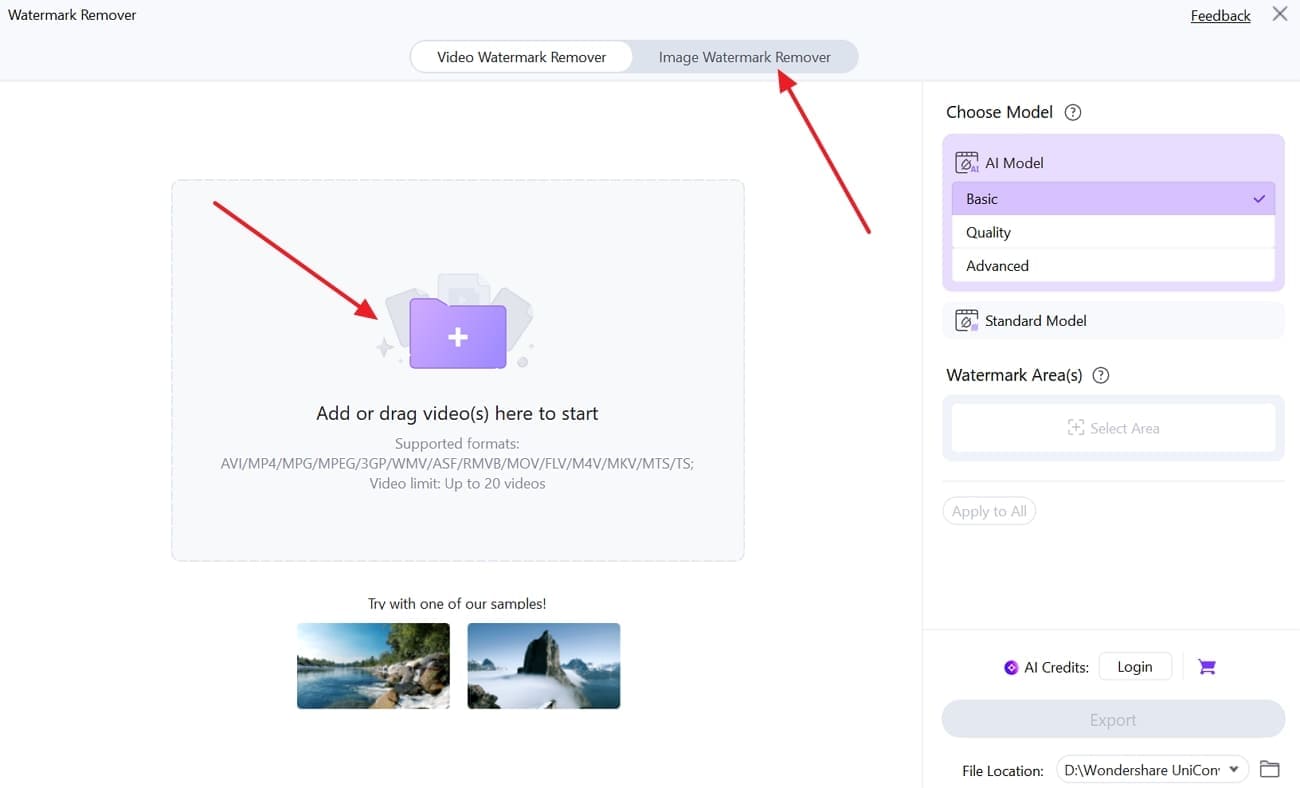
Step 2. Choose the Image Watermark Remover button
After that, click the "Image Watermark Remover" button to select the desired image from your device.
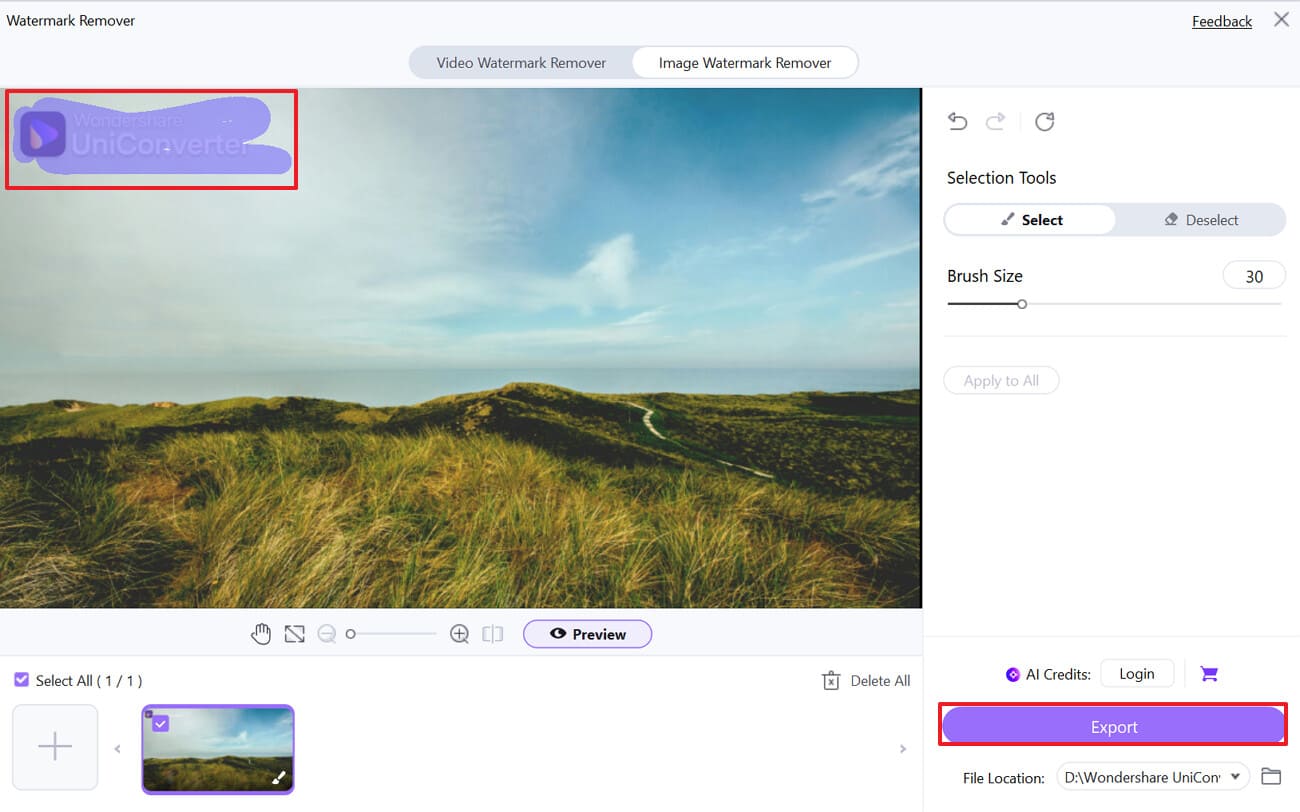
Step 3. Select Desired Watermark Area and Export Images
Lastly, click on the desired area you want to remove the watermark from. Then select the “Export” button to save it to the device's folder.
Key Features
UniConverter preserves the original quality of images while removing stickers.
It supports a wide range of image formats, including JPG, PNG, and more.
This tool gives the option to preview it before exporting it to another device.

Remove Stickers from Images Without Blurring
2. Photoshop
Being one of the famous desktop tools, it offers a "Content Aware" feature that lets you remove anything. It analyzes surrounding pixels and automatically fills the targeted area with matching texture. Furthermore, its newer version also lets you preview the outcome to adjust the fill settings and control the output. Overall, it's a non-destructive feature as everything is done in the duplicate layer.
Structured Step-by-Step Instructions for Removing Stickers With Photoshop
After getting aware of the extensive features of the Photoshop photo sticker remover, have a look at its detailed step-by-step guide below:
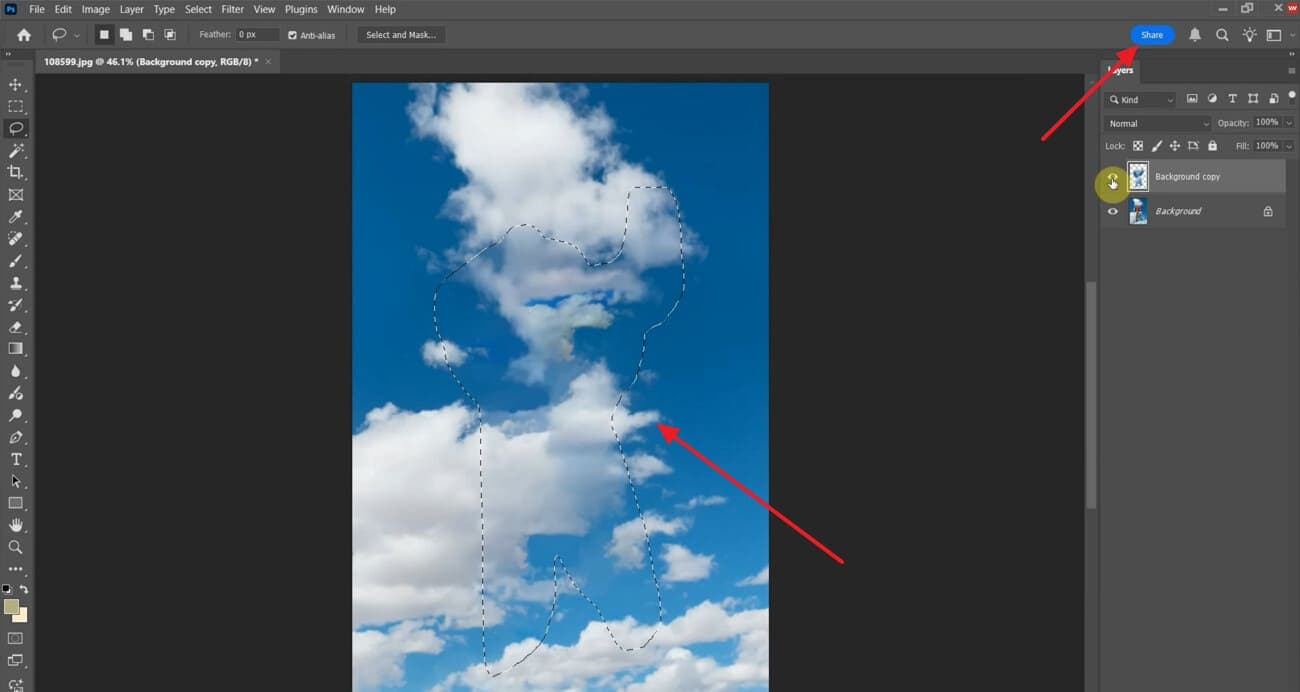
Step 1. While the tool is running, click the “New File” button, then select the desired image to open in Photoshop.
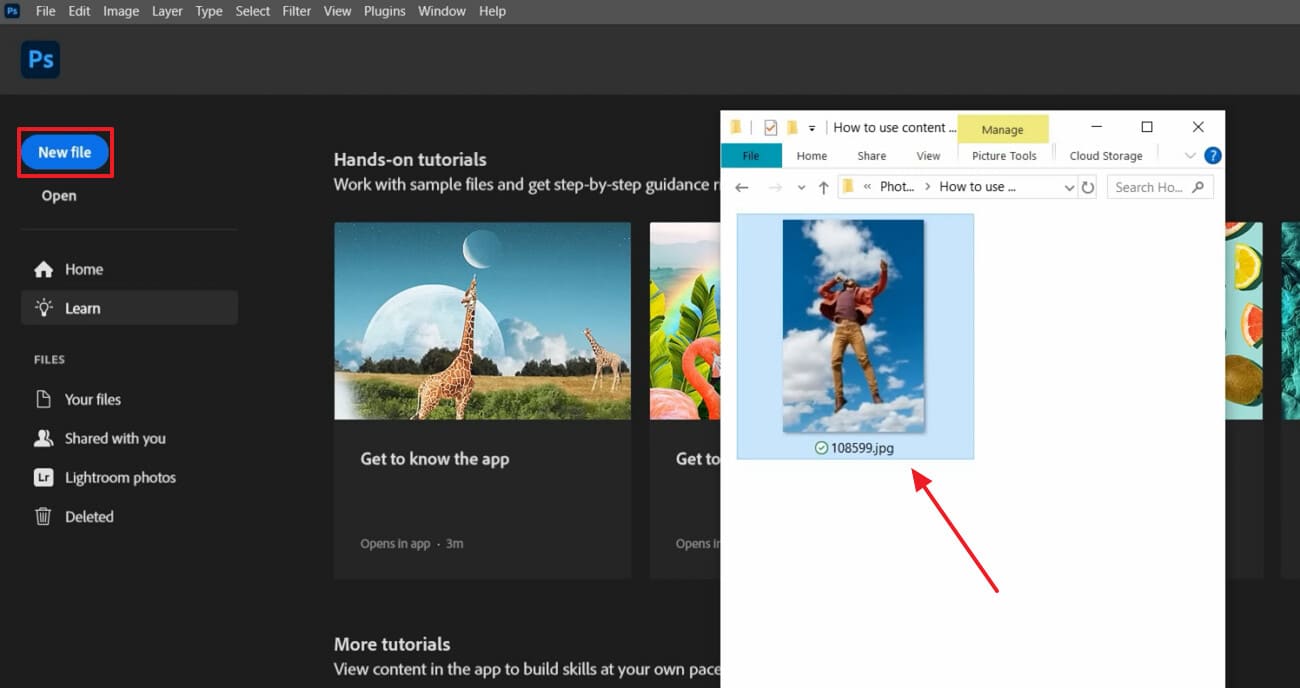
Step 2. As you open the image, choose the “Selection” tool icon and select the “Lasso Tool” from the options.
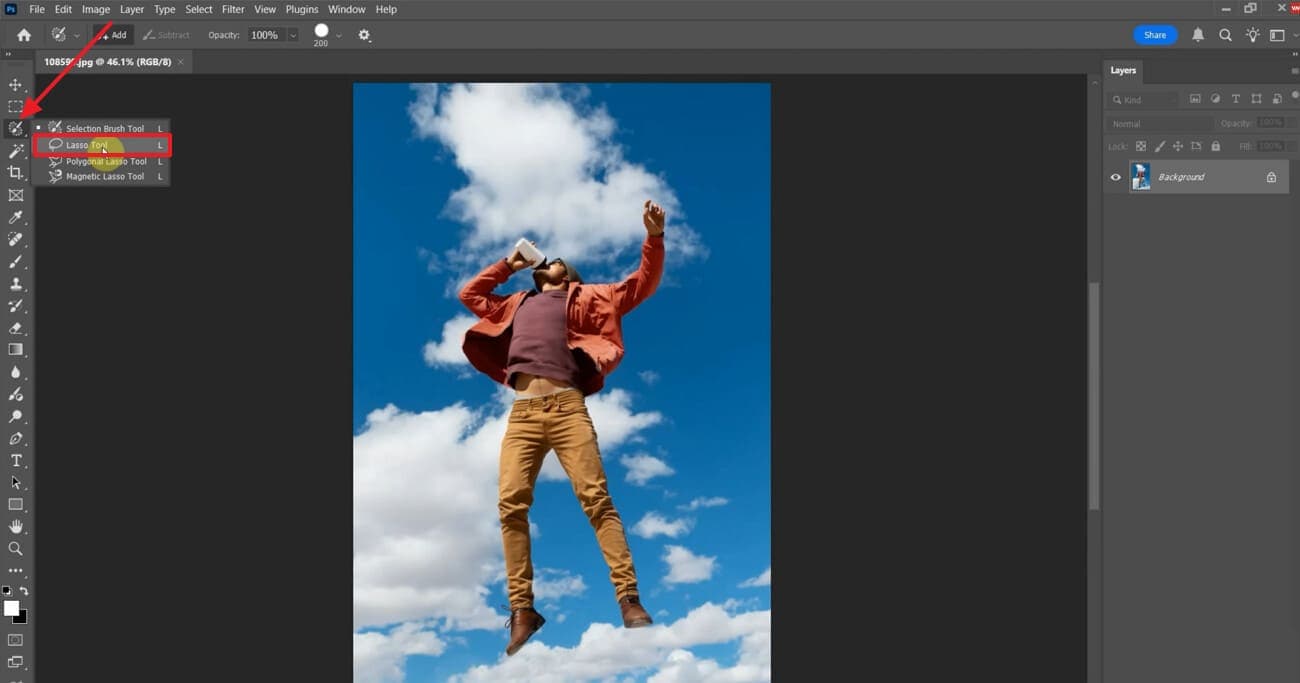
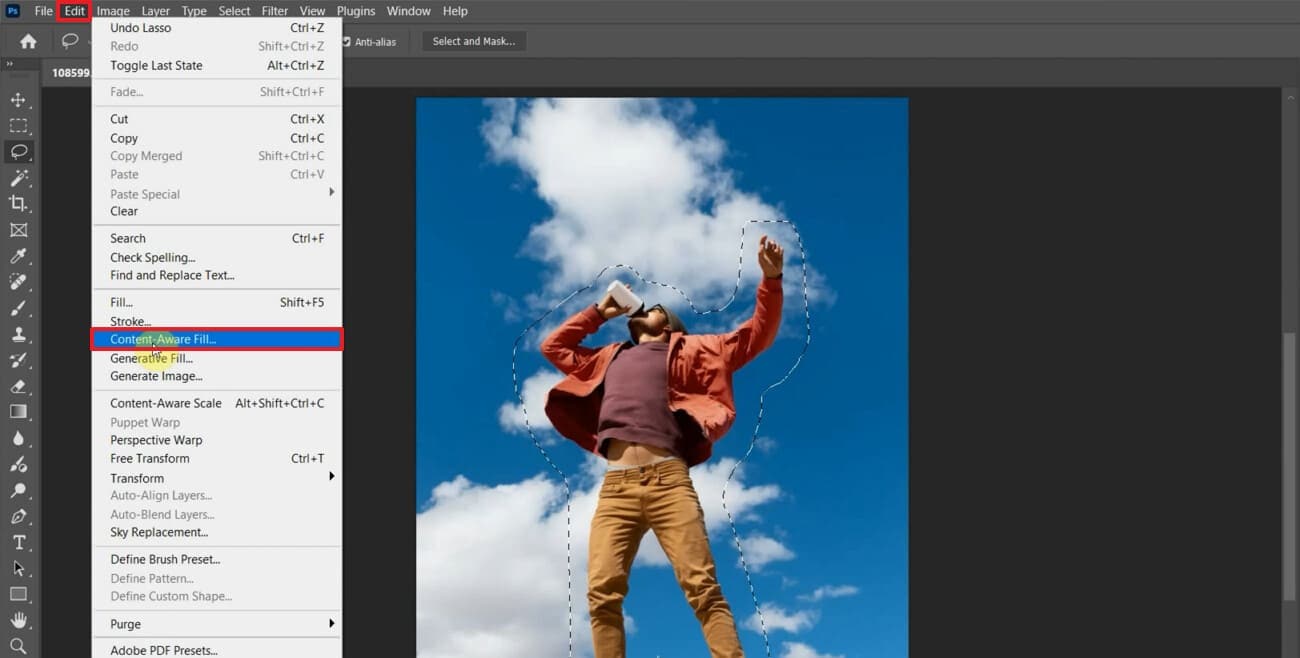
Step 3. Now select the desired targeted area using the Lasso tool. Following this, choose the “Edit” menu and select the “Content Aware Fill” option.
Step 4. Here, select the “Color Adaptation” to “Very High,” choose “Output” to “New layer,” and click the “OK” button.
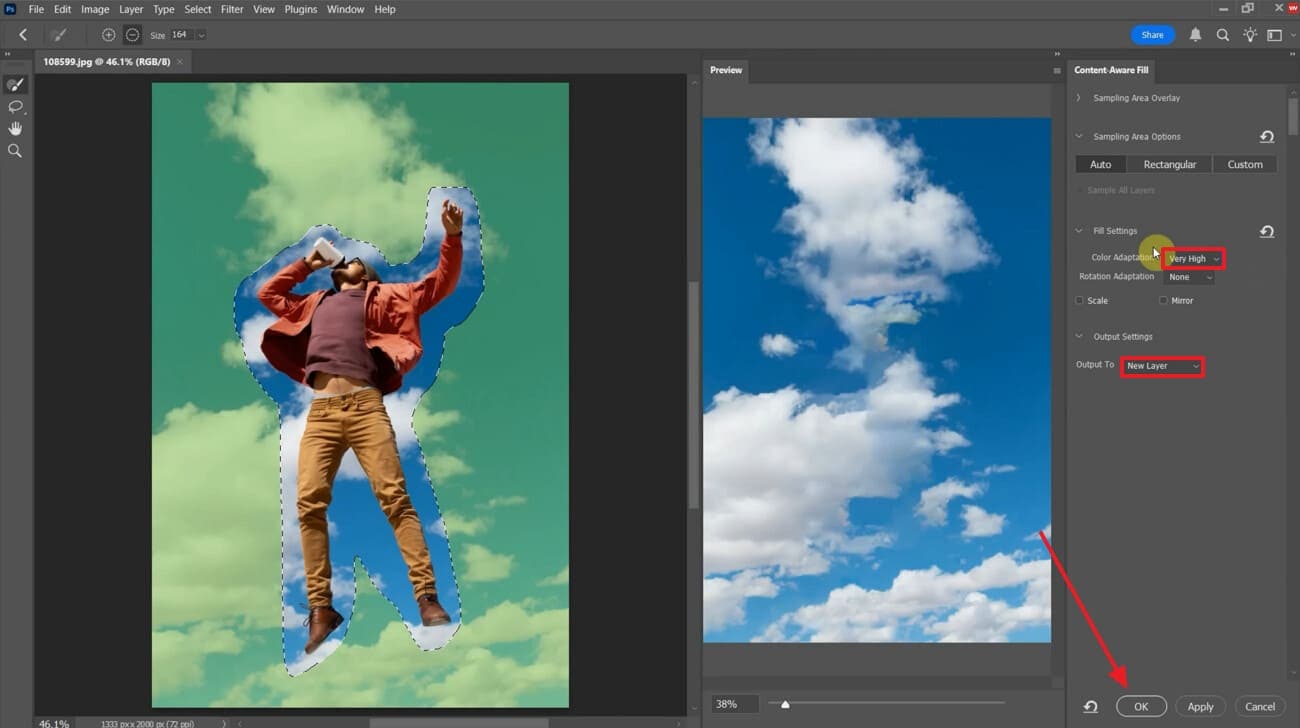
Step 5. As the targeted element is removed, hit the “Share” Button to use the cleaned image.
Part 2. Remove Sticker from Photo Online Free: Top Websites and Tools
Besides desktop tools, you can also remove photo stickers using the following online tools:
1. UniConverter Online Emoji Remover
It combines manual selection with AI-filling to remove emojis, stickers, and overlays. This tool maintains the original resolution and clarity after removal, using advanced restoration algorithms. Users can change the brush size by choosing the desired number. It also provides other features like background remover, making it an ideal solution.
An Extensive Guide to Utilize UniConverter Online Emoji Remover
Now, let’s move to its detailed guide below to remove stickers from photos online free:
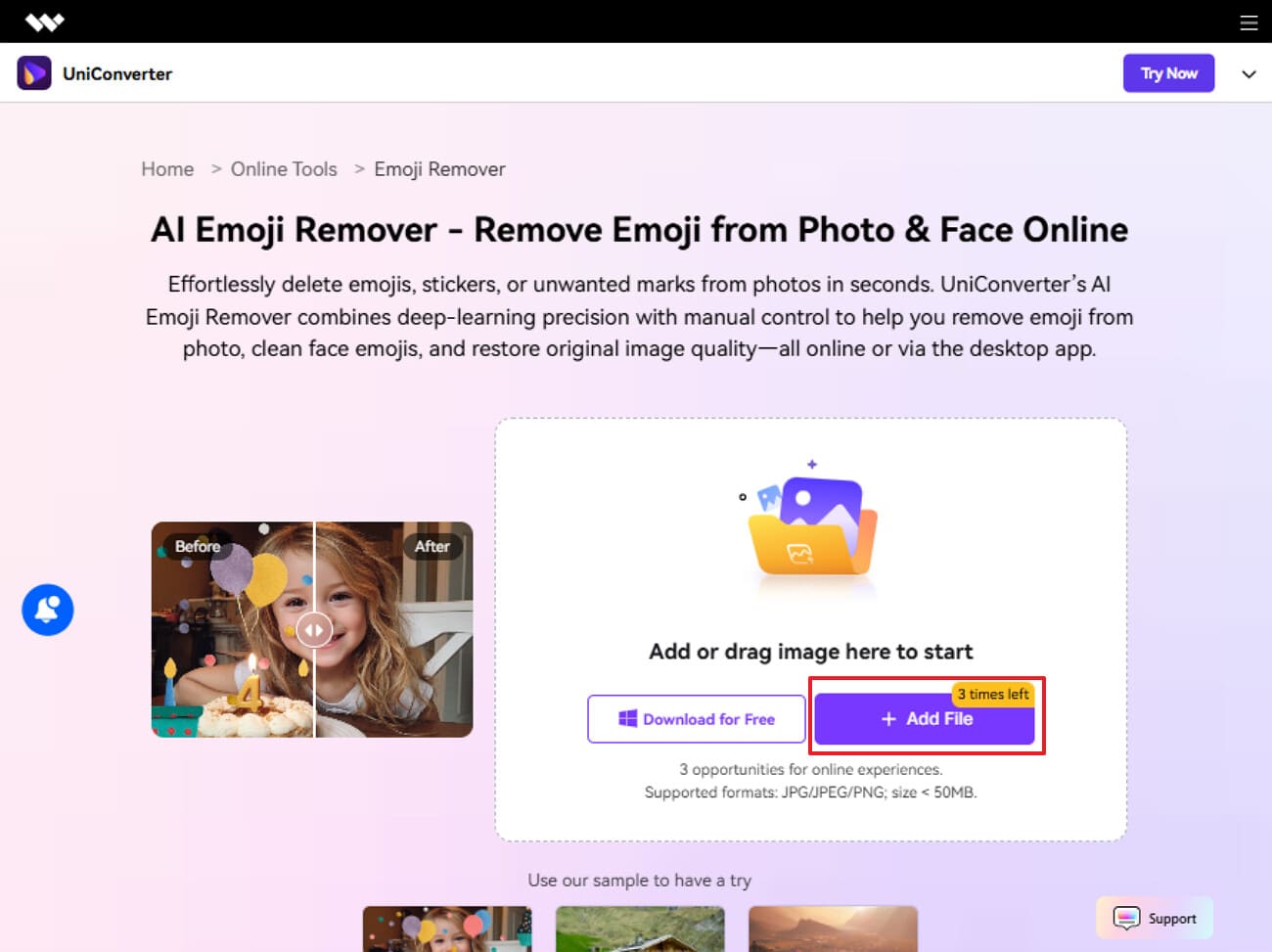
Step 1. Select +Add File Button to Insert Images
With the tool running, click the "+Add File" button to import the images you want to edit.
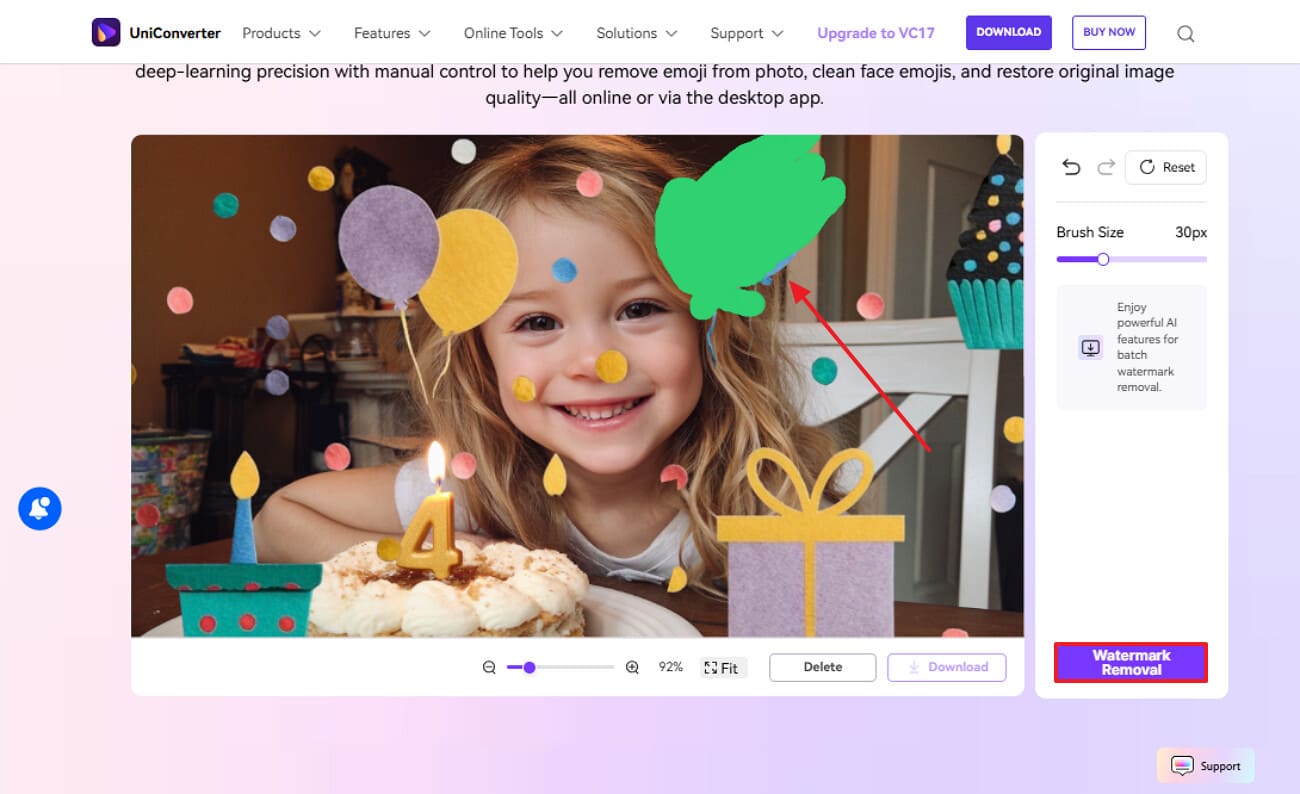
Step 2. Specify the Targeted Area and Choose the Watermark Removal Button
After that, use the “Brush” tool to remove the desired sticker and click the “Watermark Removal” button.
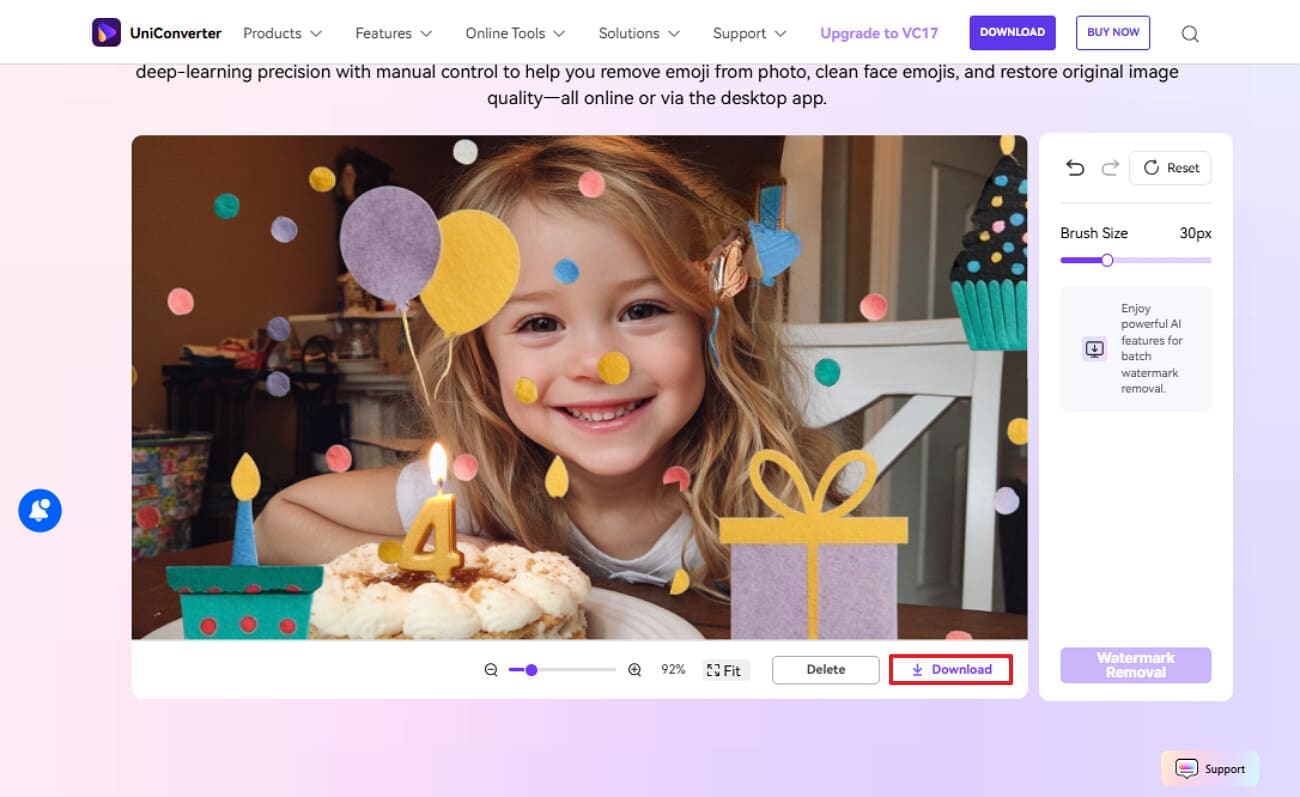
Step 3. Download the Edited Images to the Device Folder
At the end, select the “Download” button to render the edited file to the device folder instantly.
2. InsMind
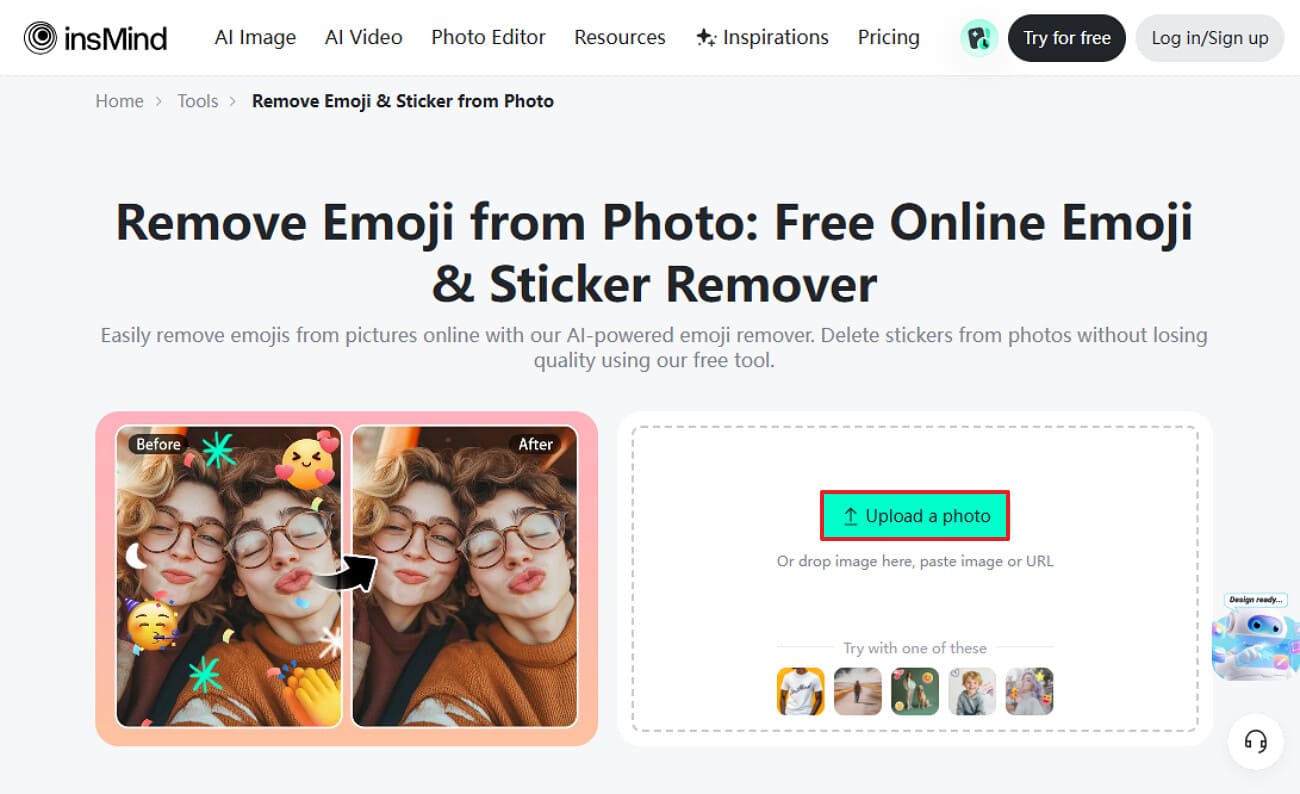
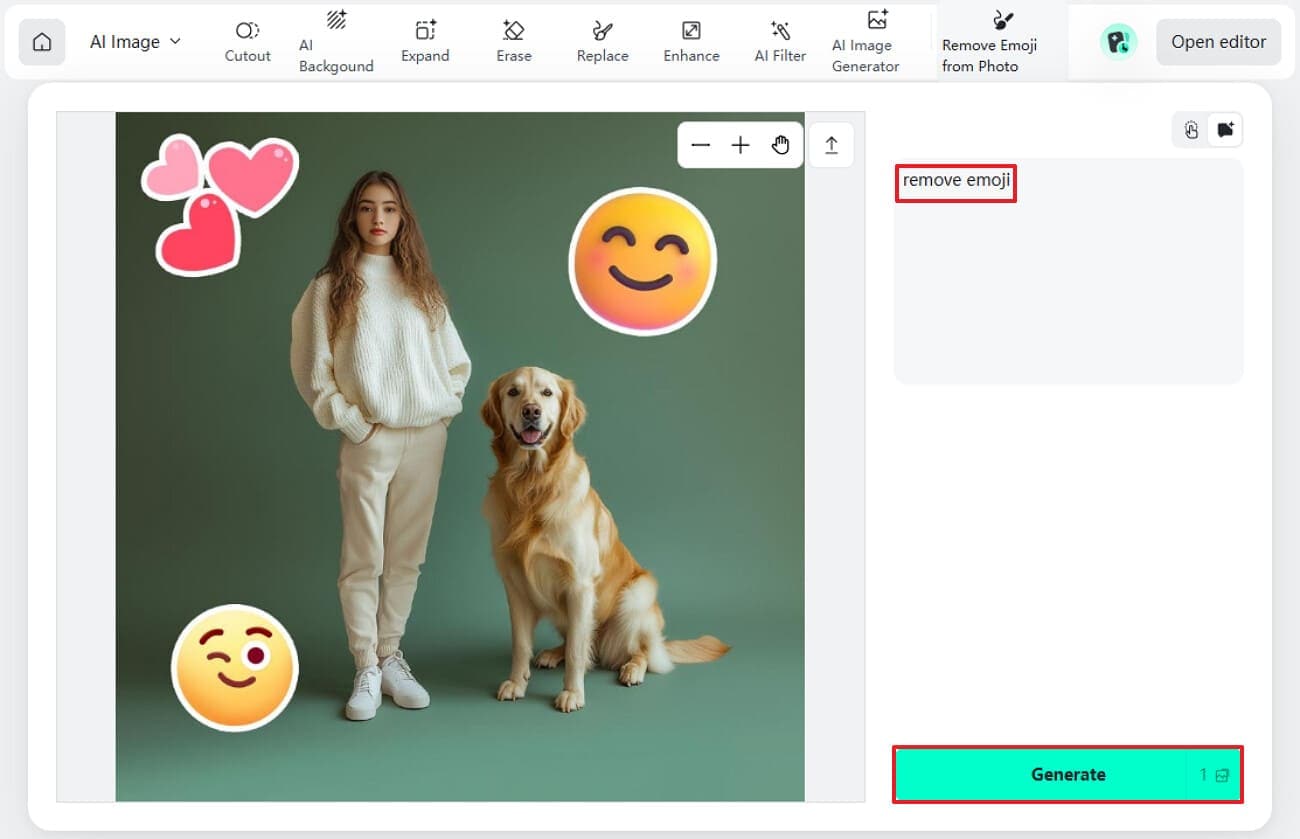
Powered by AI, insMind removes multiple stickers by simply entering the text prompt “Remove stickers.” This sticker remover produces smooth images and ensures natural effects after removal. Users can also use its Eraser feature to remove the desired sticker manually. Furthermore, if the image is underwhelming, then users can also enhance those images.
In-Depth Instructions for Using insMind To Remove Stickers from Image
Now that the tool’s basics are clear, let’s walk through the procedure step-by-step to remove the extra stickers:
Step 1. After accessing the tool, click the “Upload a Photo” button to upload the respective image.
Step 2. Next, enter the "Remove Emoji" prompt and hit the "Generate" button. At this point, you can also click on the "Erase" option to manually remove the desired sticker from the image.
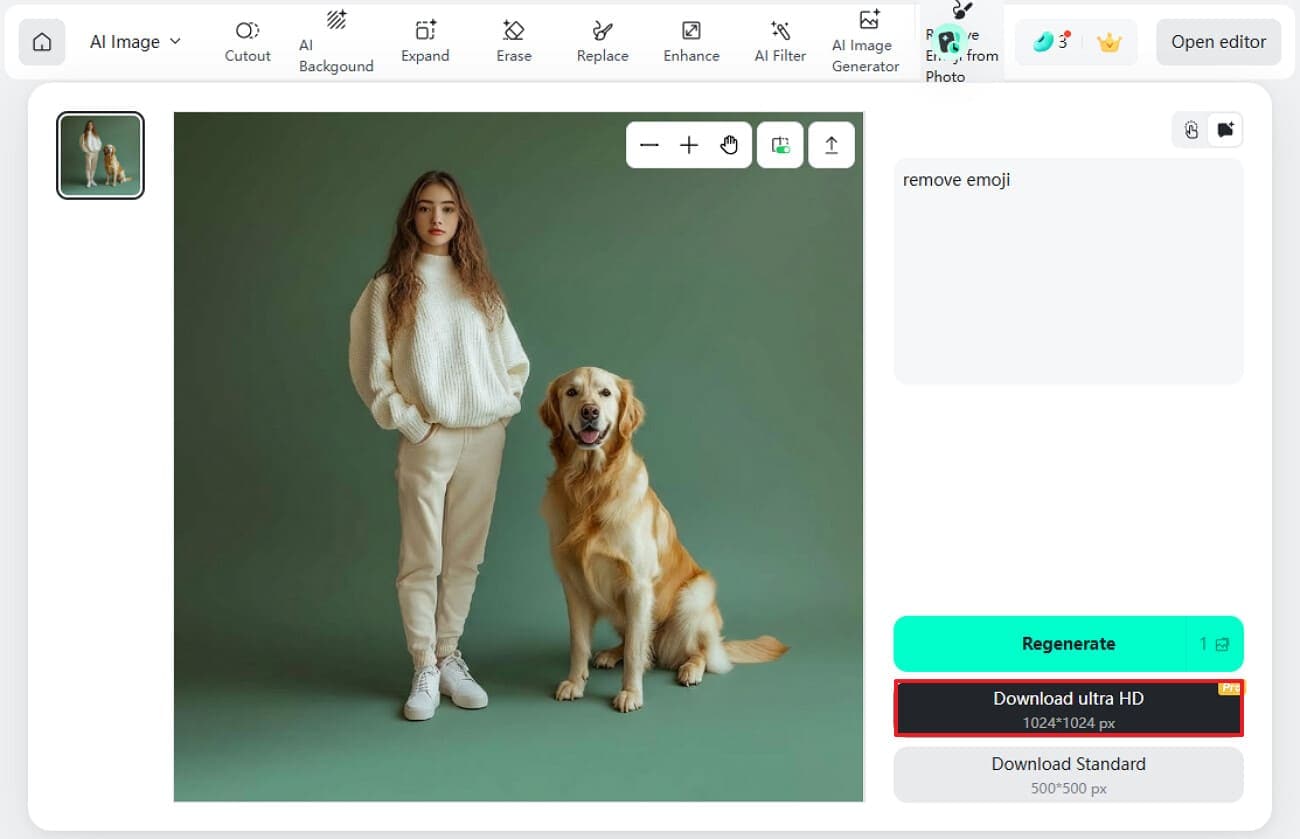
Step 3. Finally, the desired sticker has been removed, hit the "Download Ultra HD" button to save the image.
3. Aiease Object Remover
To remove unwanted stickers, you can use these tools to delete unwanted areas, achieving professional images. It can remove stickers from photos online for free by simply uploading an image. This tool uses advanced AI to detect stickers and separate the image into three layers. Furthermore, it restores photos to a clean, natural-looking state while preserving original resolution. Overall, it is capable of removing without leaving a trace.
Complete Walkthrough: How to Use This Aiease Object Remover
To help you get started smoothly, here’s a step-by-step breakdown of how this photo sticker remover tool works:
Step 1. Upon launching the tool, click the “Upload Image” button to select the target image from your device.
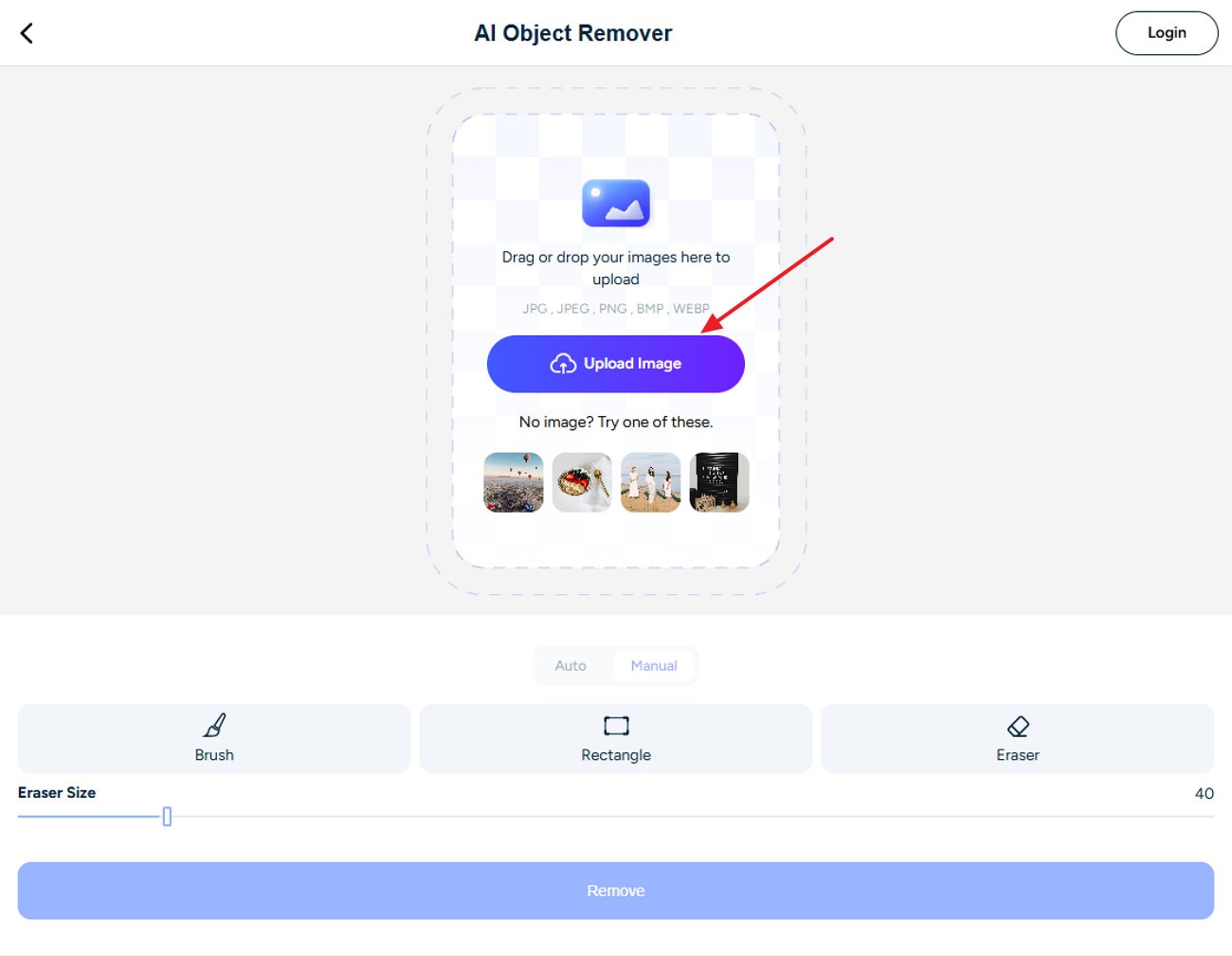
Step 2. Now, click on the “Brush” option, then specify the targeted area and select the “Remove” button.
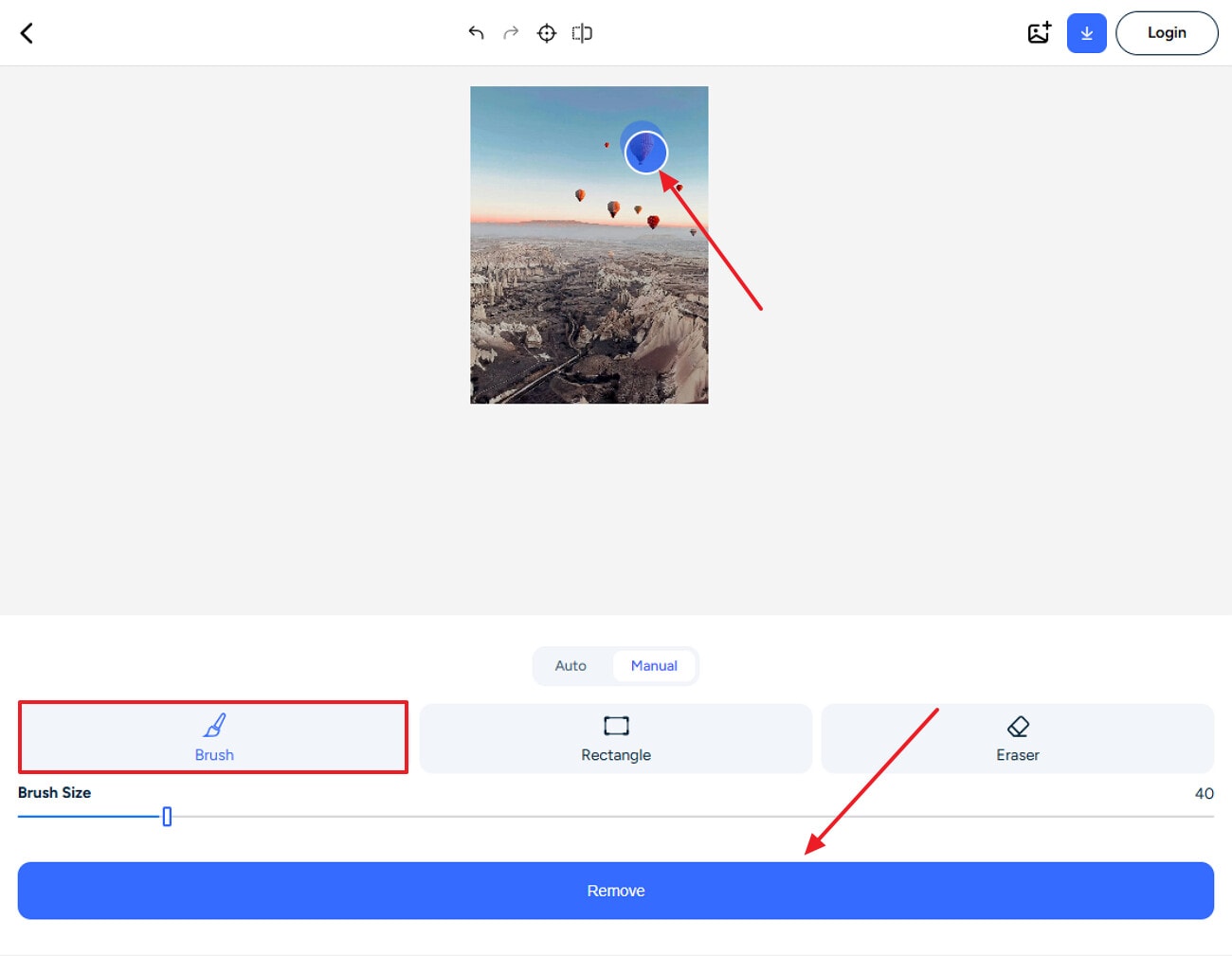
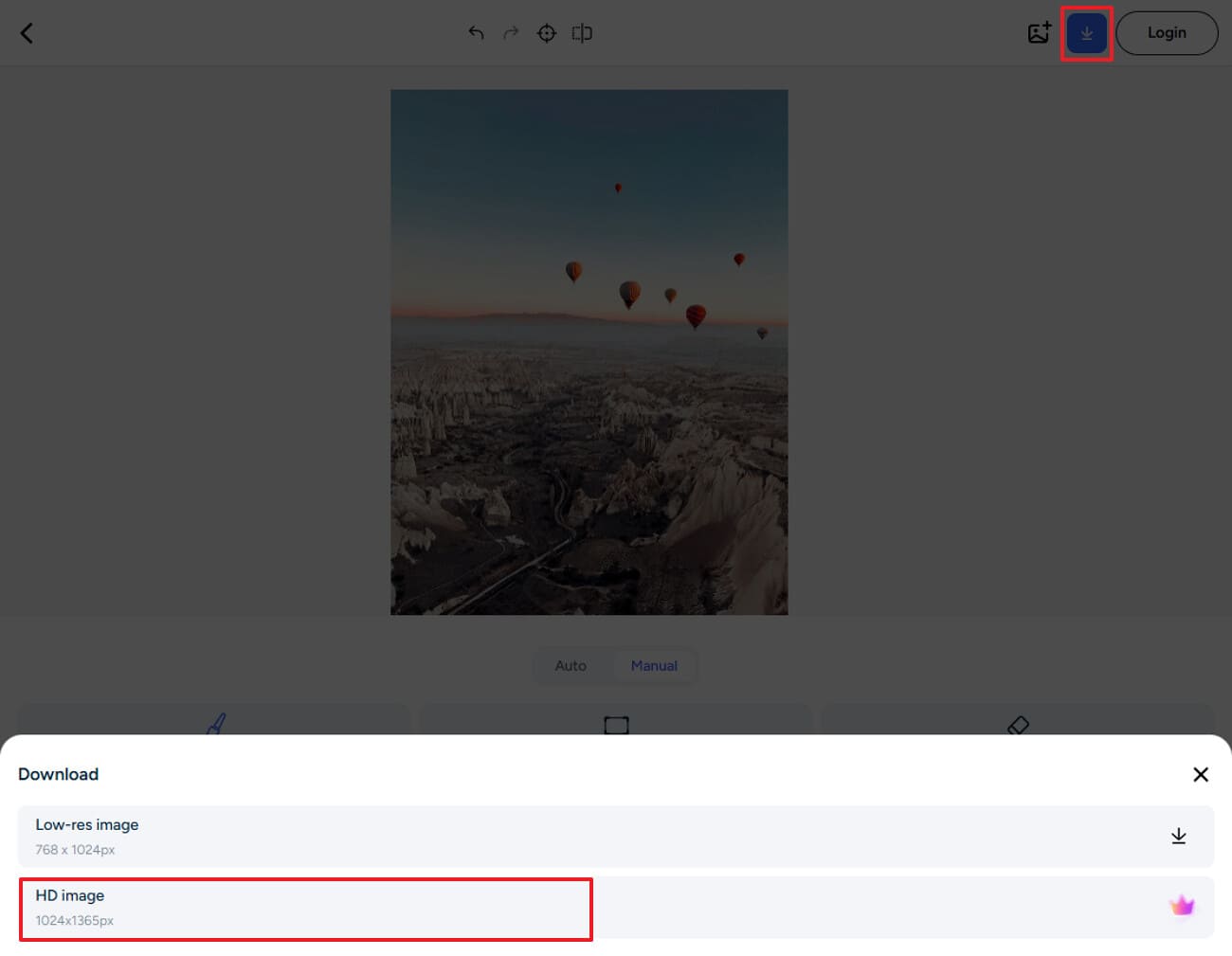
Step 3. Lastly, select the “Download” icon, then click “HD image” to download it to the desired folder.
4. LightPDF Sticker-Remover
LightPDF sticker remover removes unwanted stickers and emojis in seconds, leaving a clean image. It preserves original details, lighting, and clarity, so edited images look like a natural picture. Furthermore, this tool is specifically tailored for social posts, product photos, and eCommerce listings. Users have full control over choosing the desired tools and their size.
Detailed Guide on How to Remove Stickers With LightPDF
To know how to remove sticker from photo online, have a look at the following detailed guide:
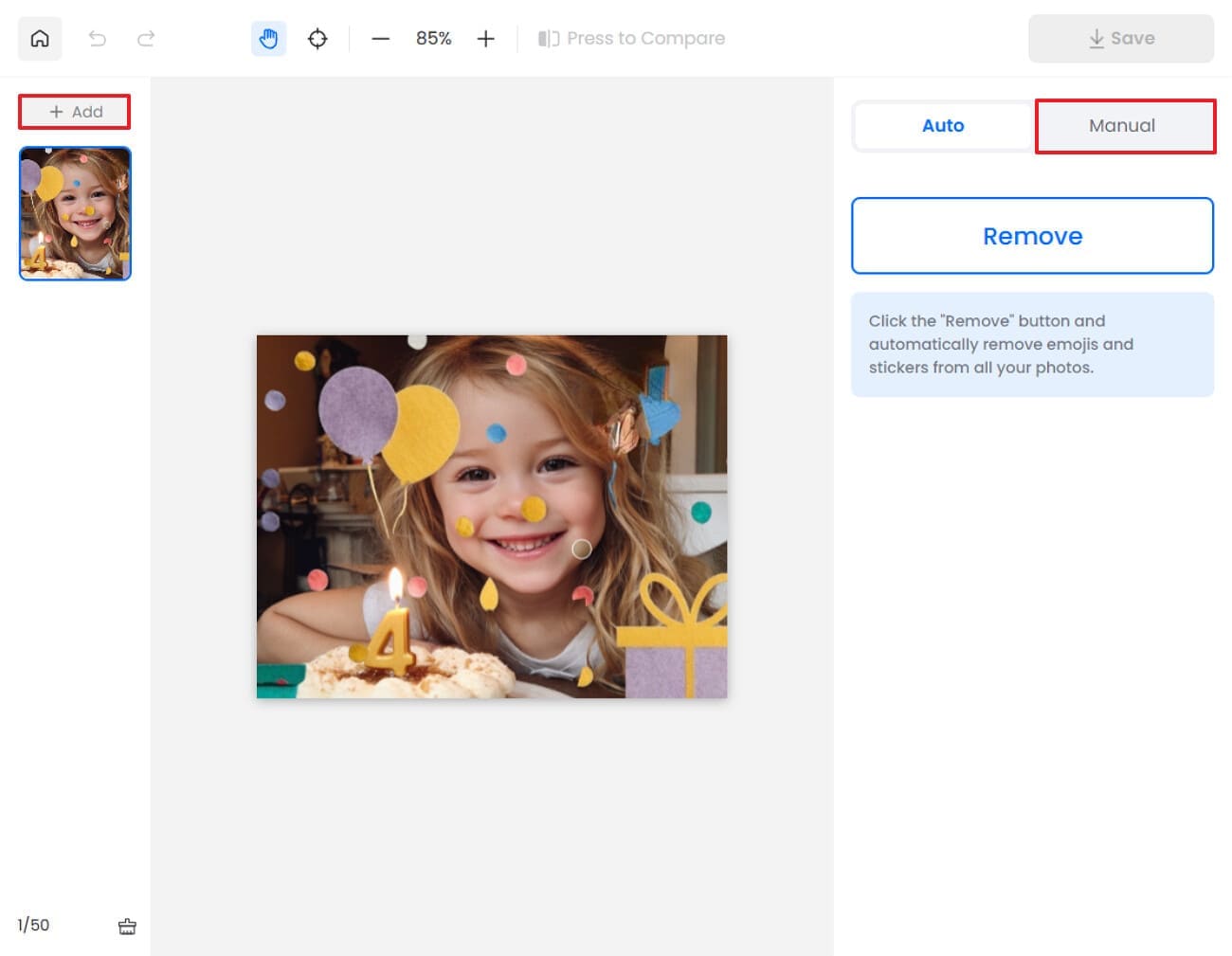
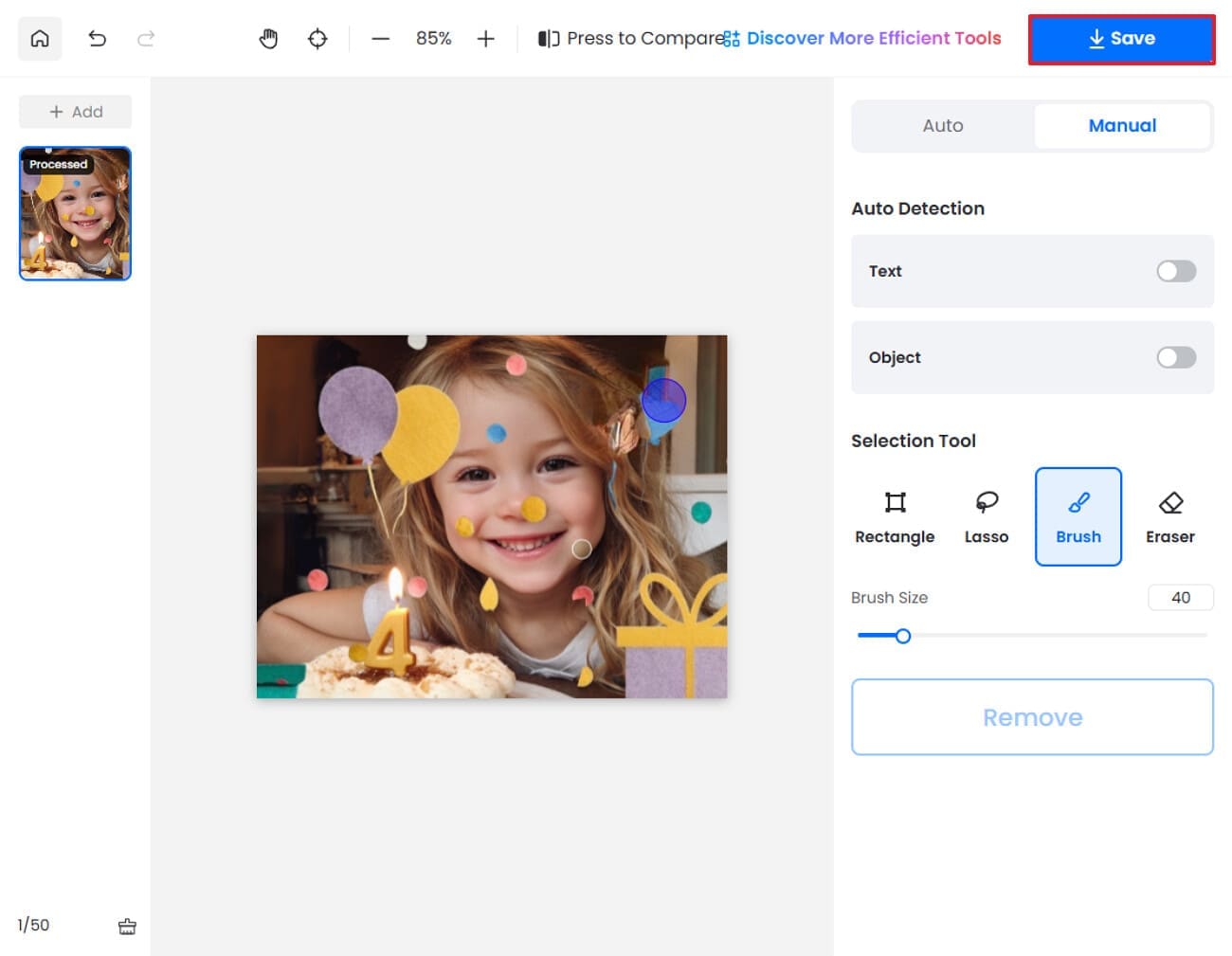
Step 1. Upon accessing the tool, click on the “+Add” button to insert the desired image and hit the "Manual" mode.
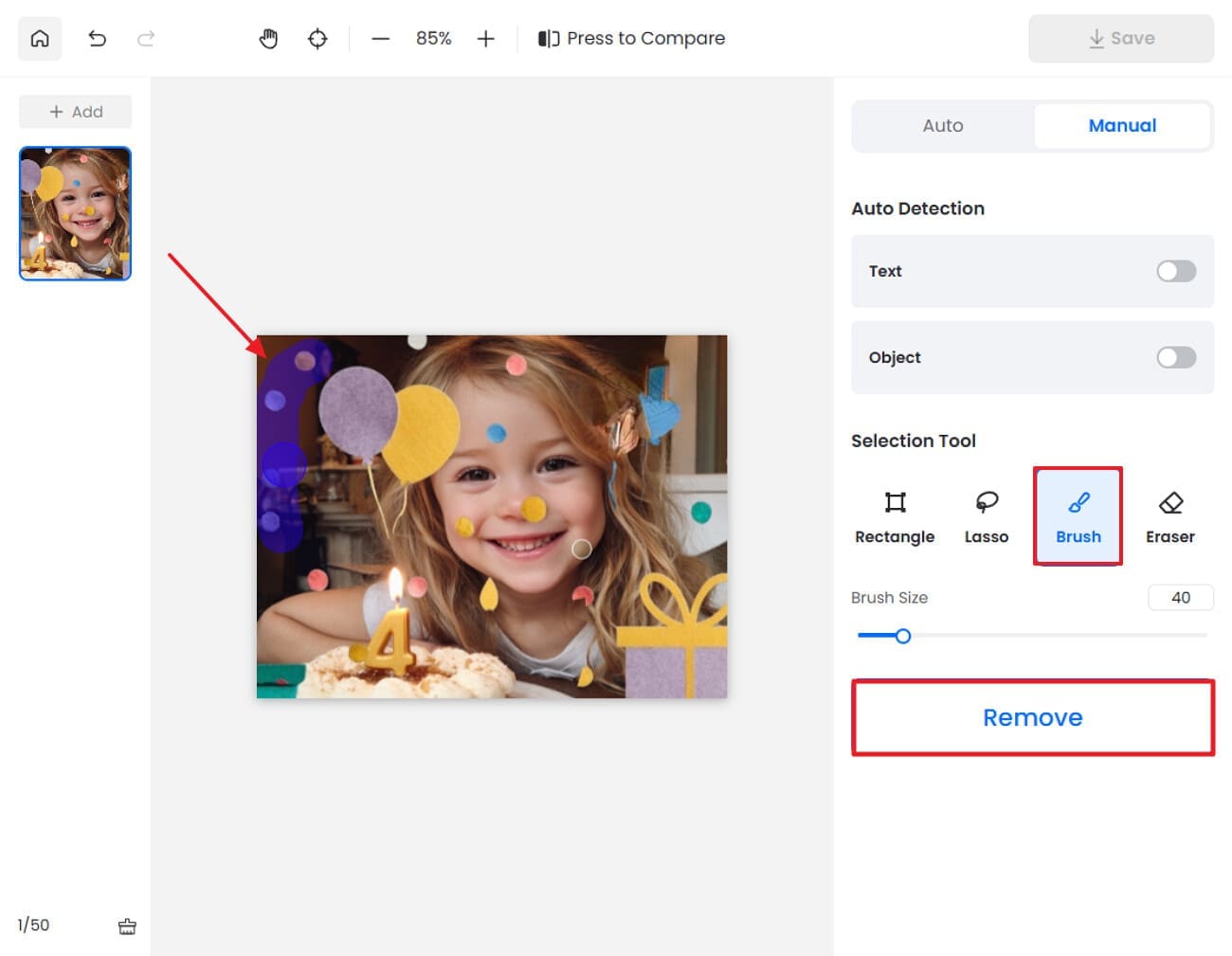
Step 2. Following this, choose the “Brush” icon, select the desired stickers from the image, and hit the “Remove” button.
Step 3. Finally, the sticker-less image is ready, hit the “Save” button to render the outcome to the device folder.
5. Kaze
It uses cutting-edge AI to remove stickers and labels cleanly, delivering professional-grade results. This sticker background remover tool lets you paste 20 images at once, making it a quick solution. Moreover, it focuses on “stunning quality” and “best quality” removal, so edited images look sharp. The foremost part is that it can work with all major image formats, so you can upload different file types without conversion.
In-Depth Instructions for Using the Kaze Sticker Remover Effectively
With the overview covered, let’s move to its detailed stepwise guide to nullify stickers effortlessly:
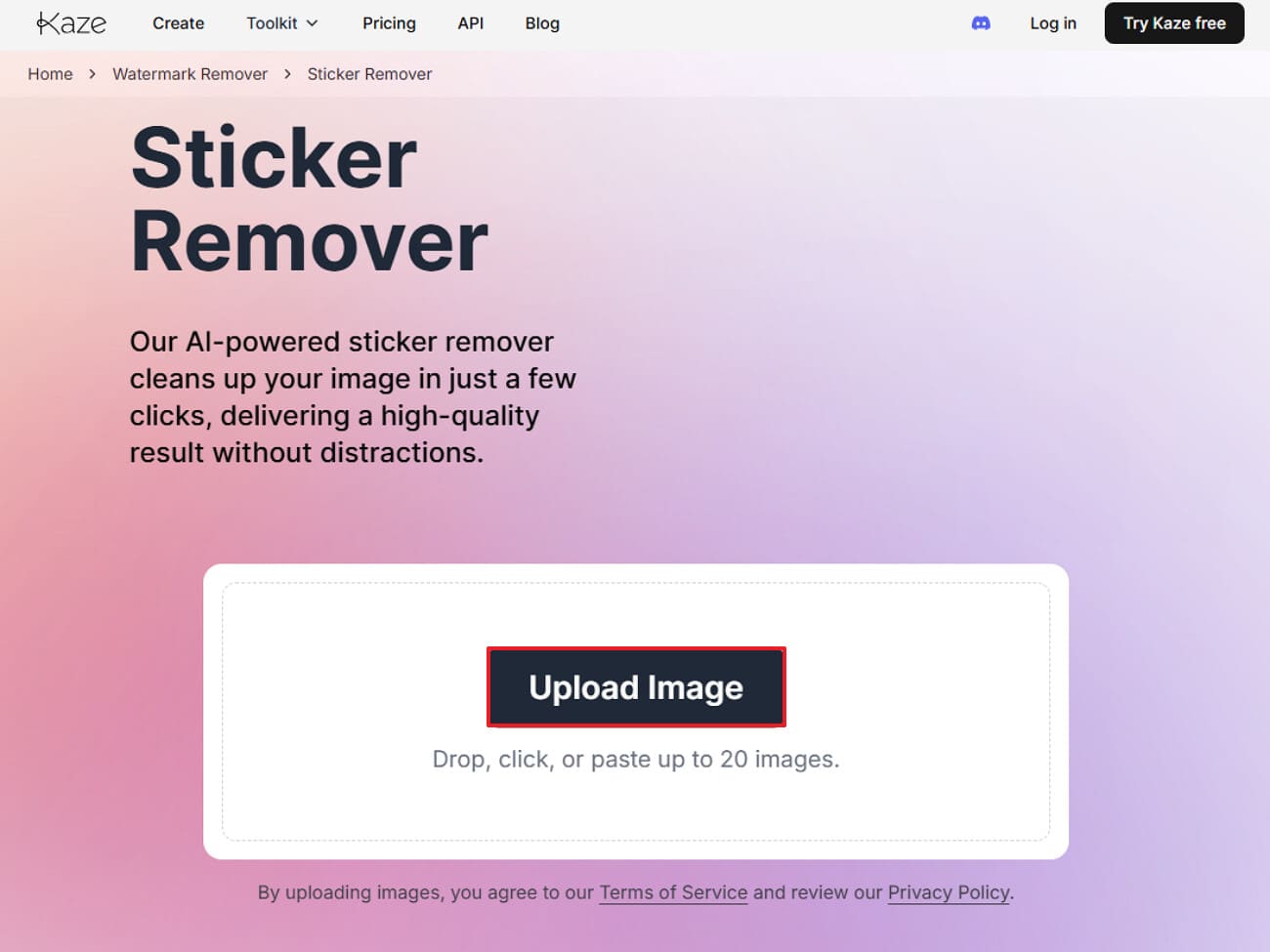
Step 1. Initiate by clicking on the “Upload Image” button to enter the desired image here.
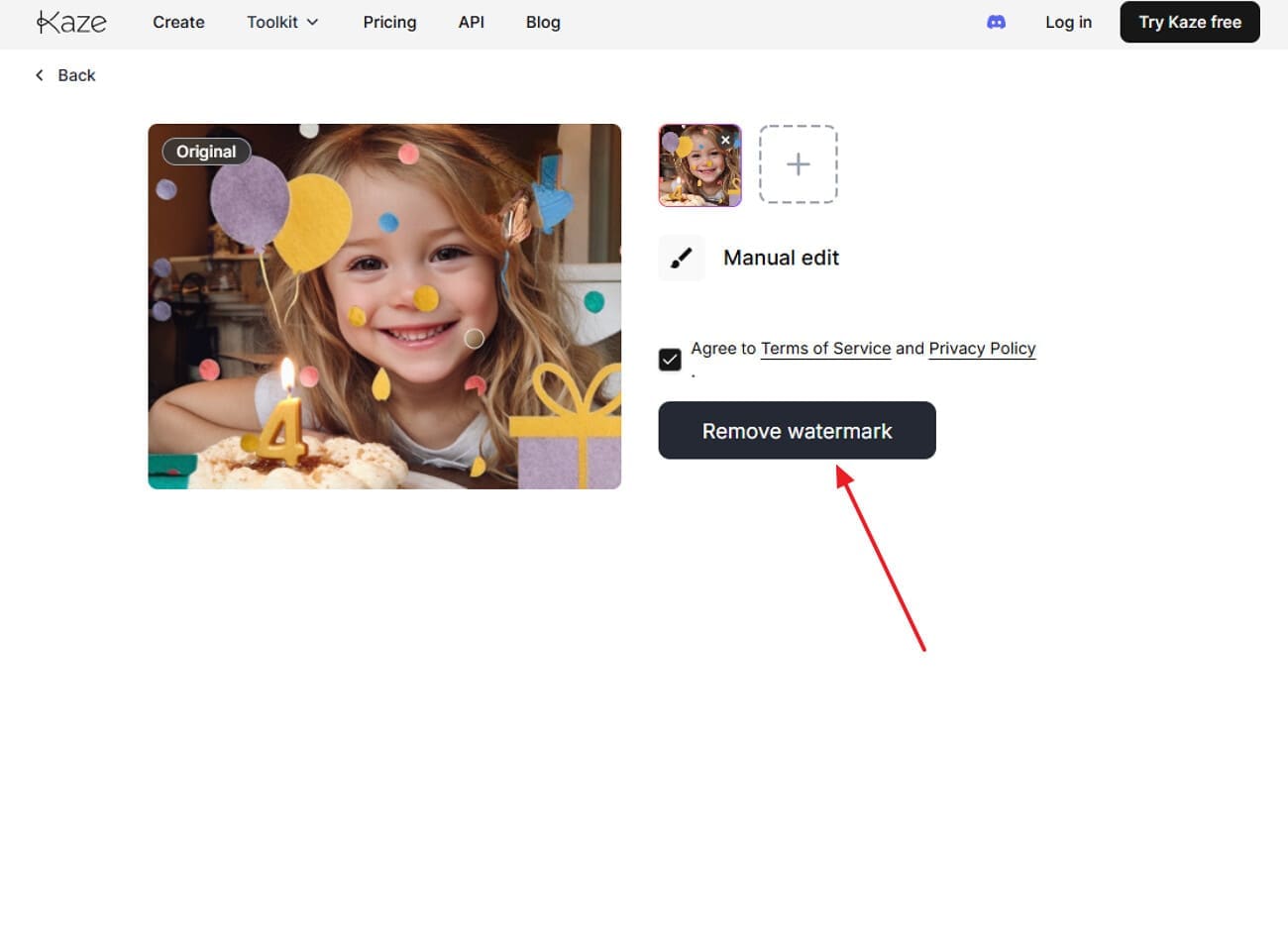
Step 2. Afterwards, select the “Remove Watermark” button to remove the stickers from the images.
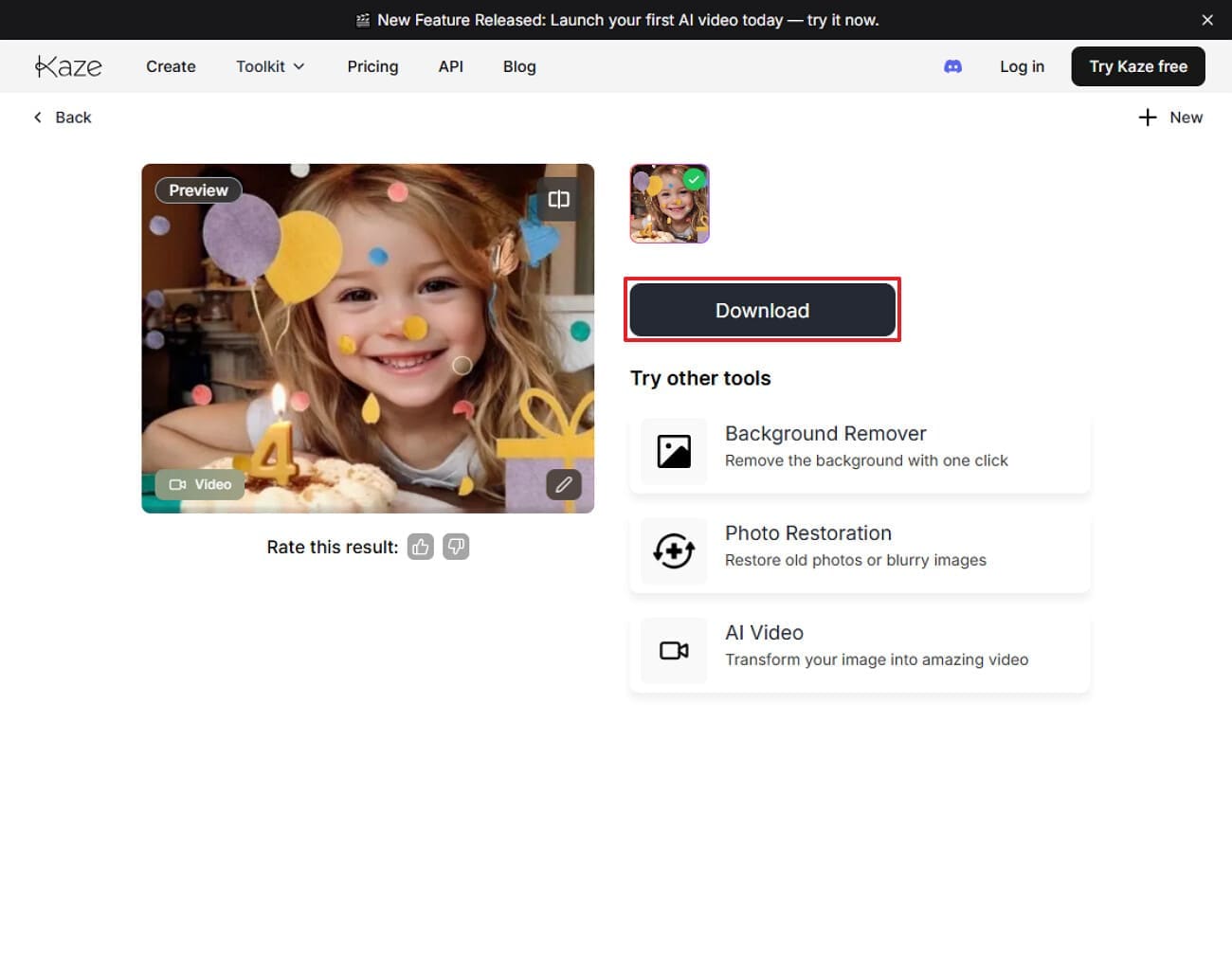
Step 3. Lastly, hit the “Download” button to export the edited image for further usage.
Part 3. Remove Stickers from Photos on iPhone: Step-by-Step Guide
Users can easily remove excessive stickers by using the built-in Photos app. In it, you simply use its editing feature to remove photo sticker. It restores the original image rather than “guessing” the background like AI tools do. This is considered one of the quickest methods to edit images on an iPhone rather than depending on a PC.
Detailed Instructions to Use the iPhone Built-in Method
To help you get started smoothly, here’s a step-by-step breakdown of how this method works:
Step 1. Open the image in the “Photos” app and choose the “Adjustment” icon placed below. Afterwards, click the “Edit” icon, tap the targeted stickers, and select the “Delete” option.
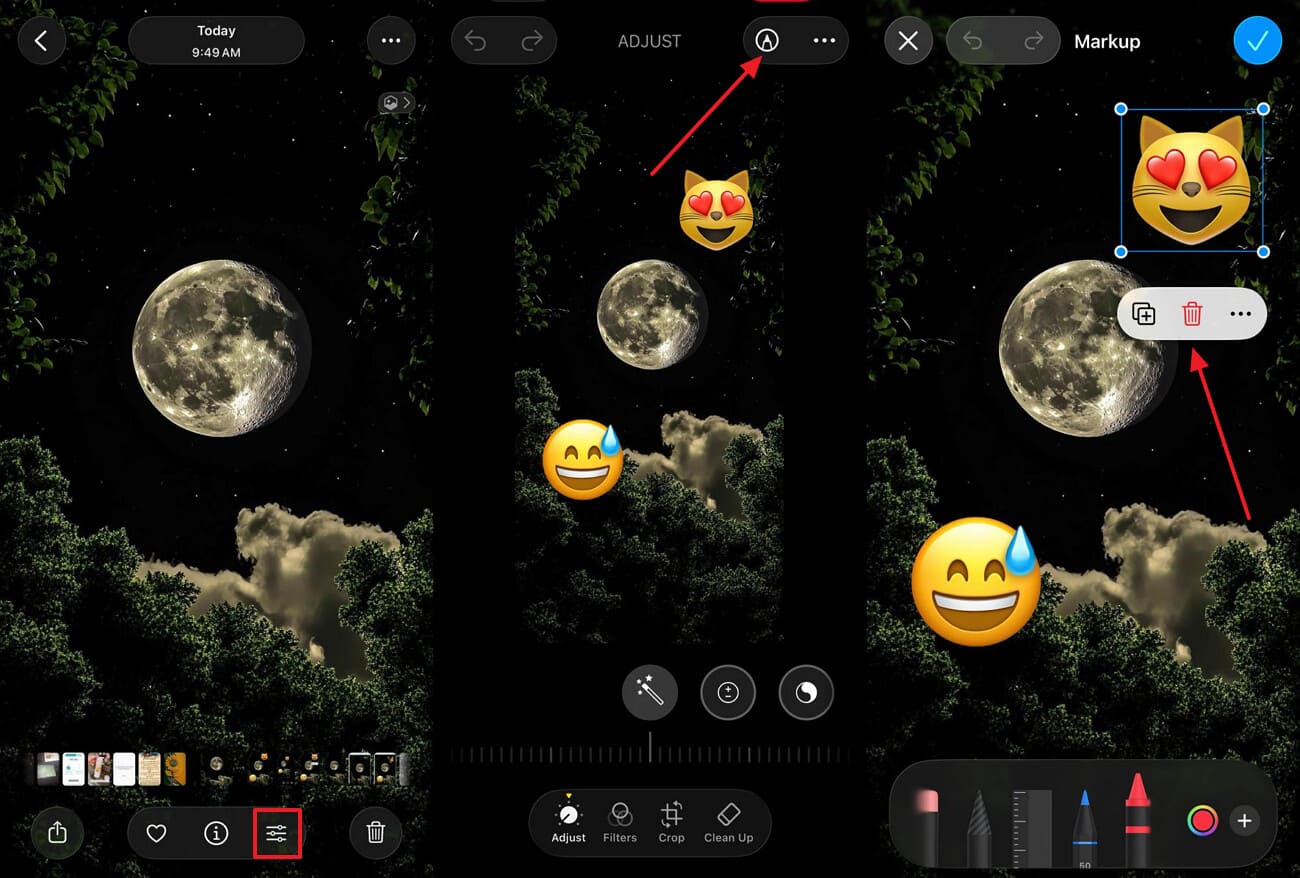
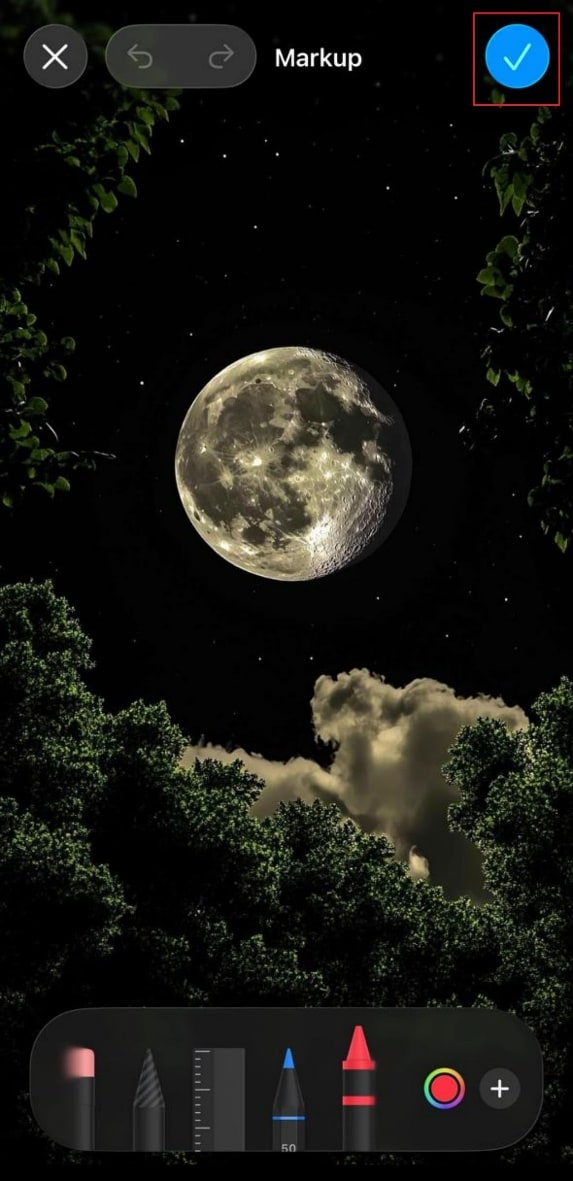
Step 2. Lastly, tap the “Checkmark” icon in the top-right corner to save the changes.
Part 4. Quick Guide to Remove Instagram Stickers from Others’ Pictures [On Android]
If you are an Android user and want to remove a photo sticker, then this section will cater to you:
1. Snapseed
This fully featured app provides 29+ tools, including the Healing brush to remove stickers instantly. Snapseed supports both JPG and RAW, so you can easily edit high-quality images. Furthermore, it also provides the “Selective and Brush” tool so you can adjust exposure, color, or detail only in specific areas. The foremost part is that you can revisit its history to edit the rest of the image later when needed.
How to Remove Stickers from Images: Complete Guide
Now that you are aware of what to expect from this tool, let’s move on to its detailed guide below:
Step 1. As you open the tool, click on the "+" icon to insert the image. Following this, choose the "Tools" option and select the "Healing Brush" icon. Then, tap on the desired area to remove the sticker from the image.
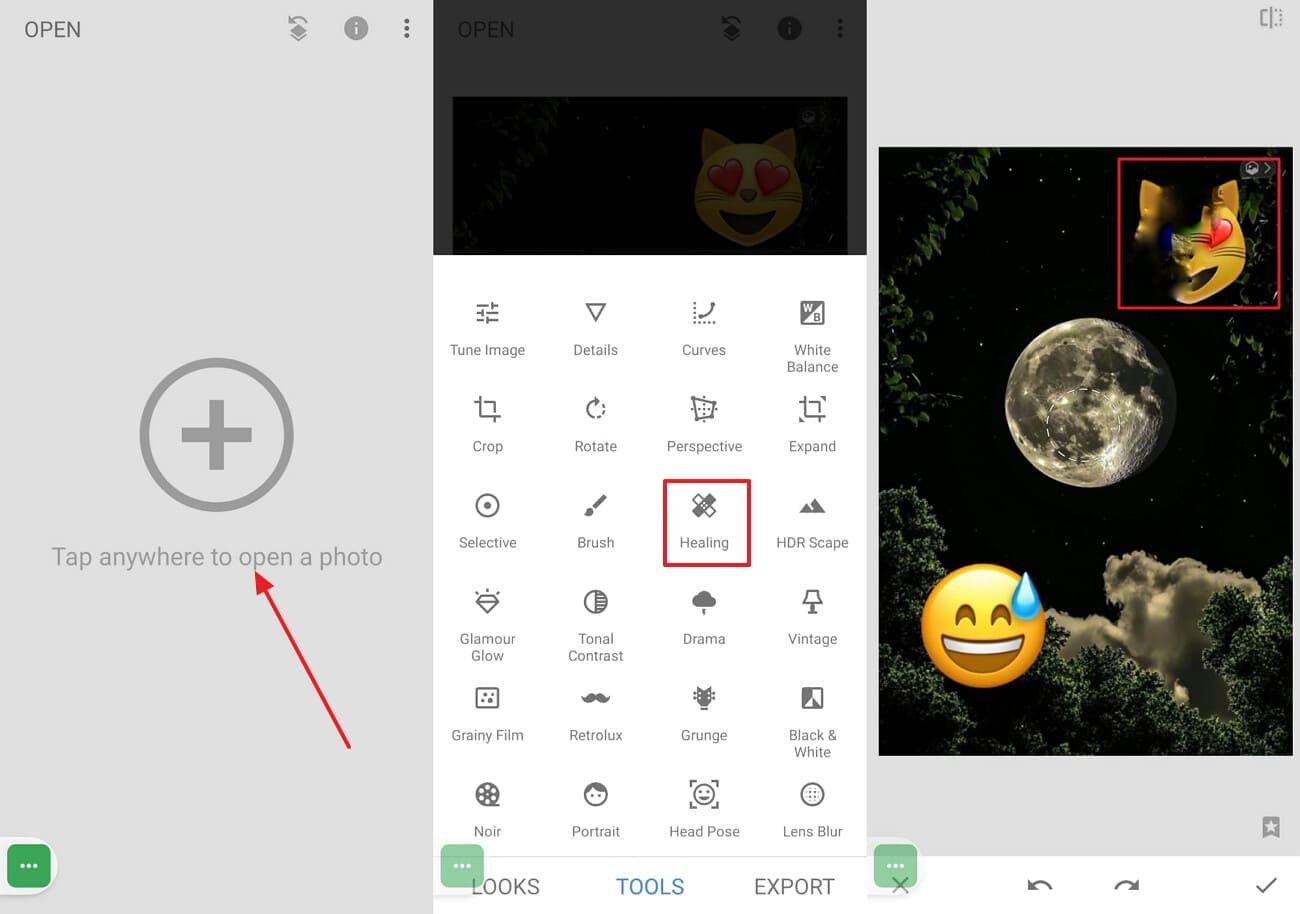
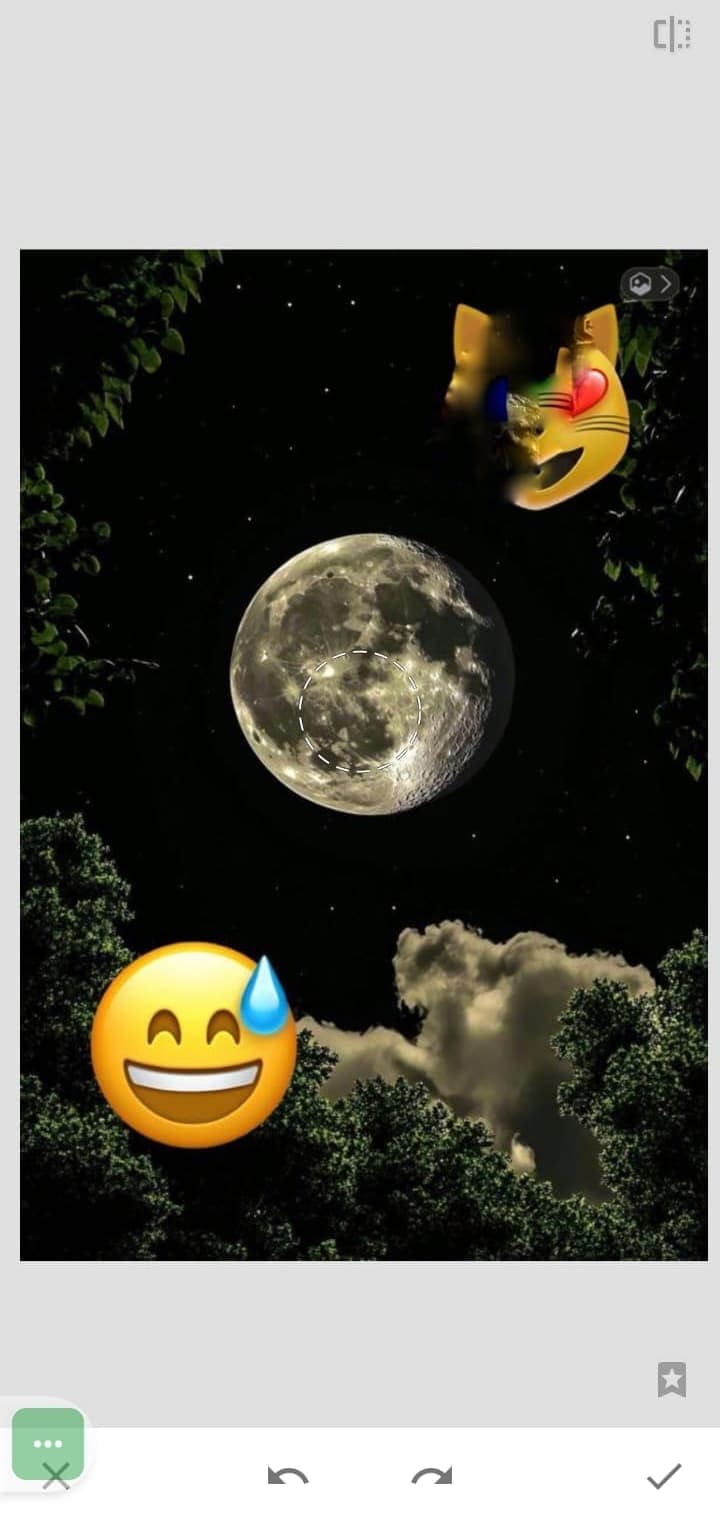
Step 2. Finally, your image is sticker-free, so hit the "Tick" icon to apply changes. Afterwards, click the “Export” option, then choose "Save" to render it to the device.
2. SnapEdit
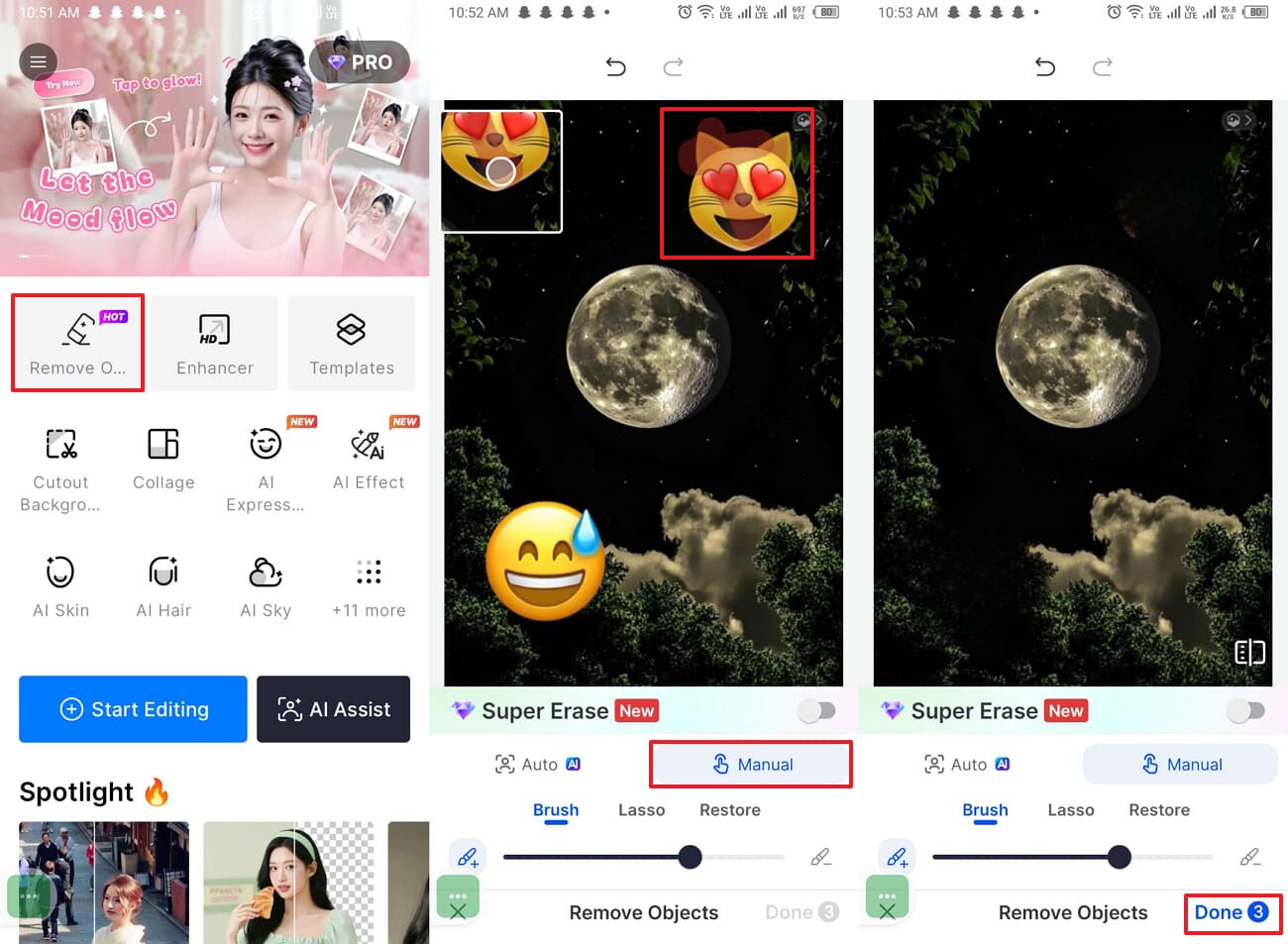
This photo sticker remover tool automatically detects and erases unwanted objects, stickers, and labels with a single touch. It offers both an AI and a manual method to nullify the unwanted elements. Moreover, users can opt for the "Super Erase" feature in the Pro plan to remove complex distractions more effectively. The main feature is that it AI image analysis, so the removed areas are refilled with natural-looking details.
Step-by-Step Instructions to Remove Stickers from Images
Here, we have provided a quick stepwise guide to remove stickers using the SnapEdit app:
Instructions. Upon entering the app, choose the “Object Remover” option from the main page. Then, choose the “Manual” option and highlight the targeted areas. After removing the stickers, hit the “Done” button to save the cleaned image.
3. PhotoDirector
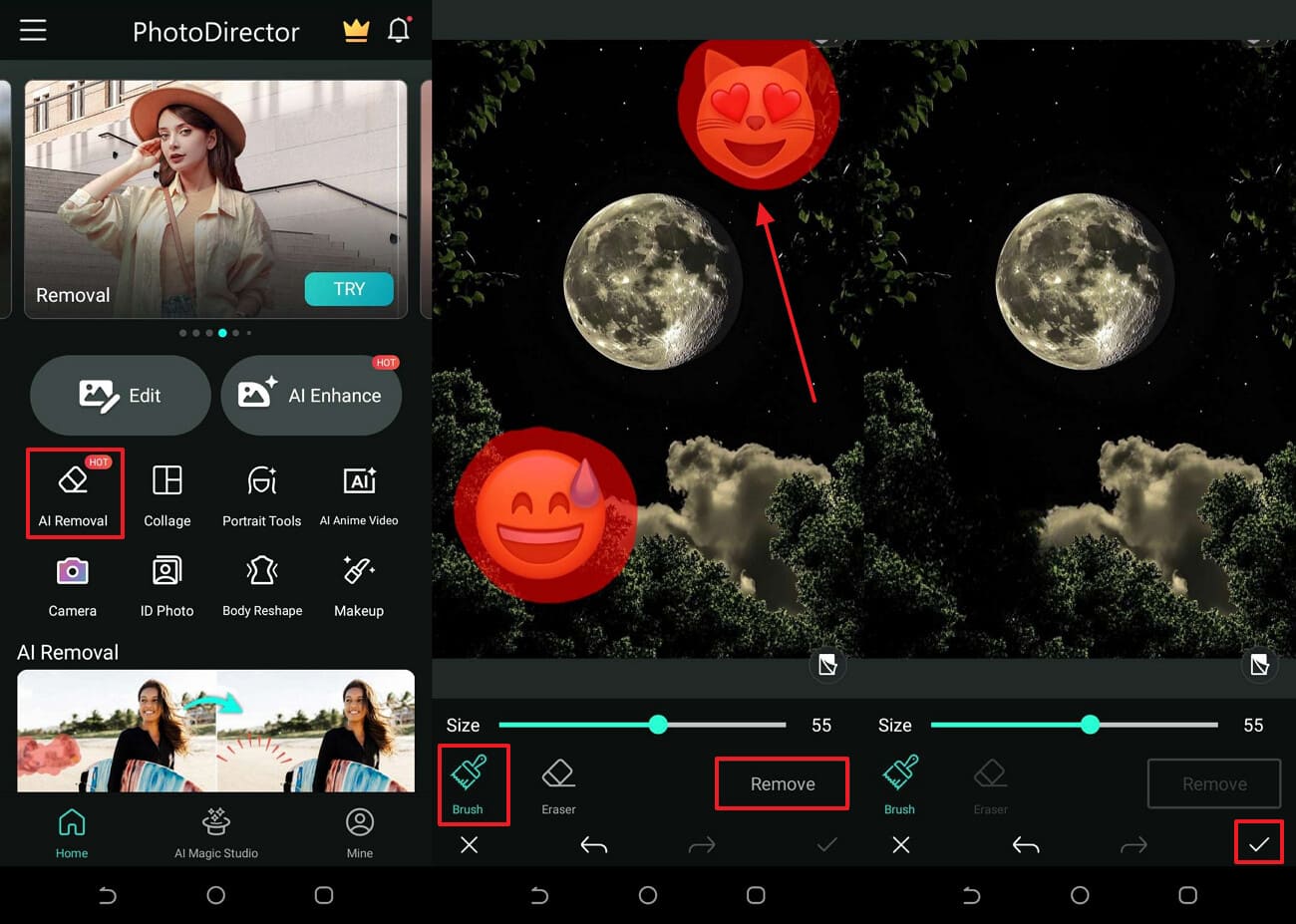
It uses AI technology to remove unwanted elements like stickers, people, and other unwanted clutter. Users simply choose its Brush features and scroll over the targeted areas to nullify them. Furthermore, it also offers an AI-enhanced feature to make the image more visually appealing. One can also opt for the AI Expand feature to make the image easily adjustable in the targeted social media canvas.
Beginner’s Guide to Removing Stickers from Photos
After covering the key features of PhotoDirector, let's dive into its detailed step-by-step guide to remove sticker from an image:
Instructions. First, click the “AI Removal” feature and select the desired image. After this, choose the “Brush” icon and tap the stickers to remove them. Lastly, select the “Remove” button, then tap the “Tick” icon to save the image.
4. Picsart
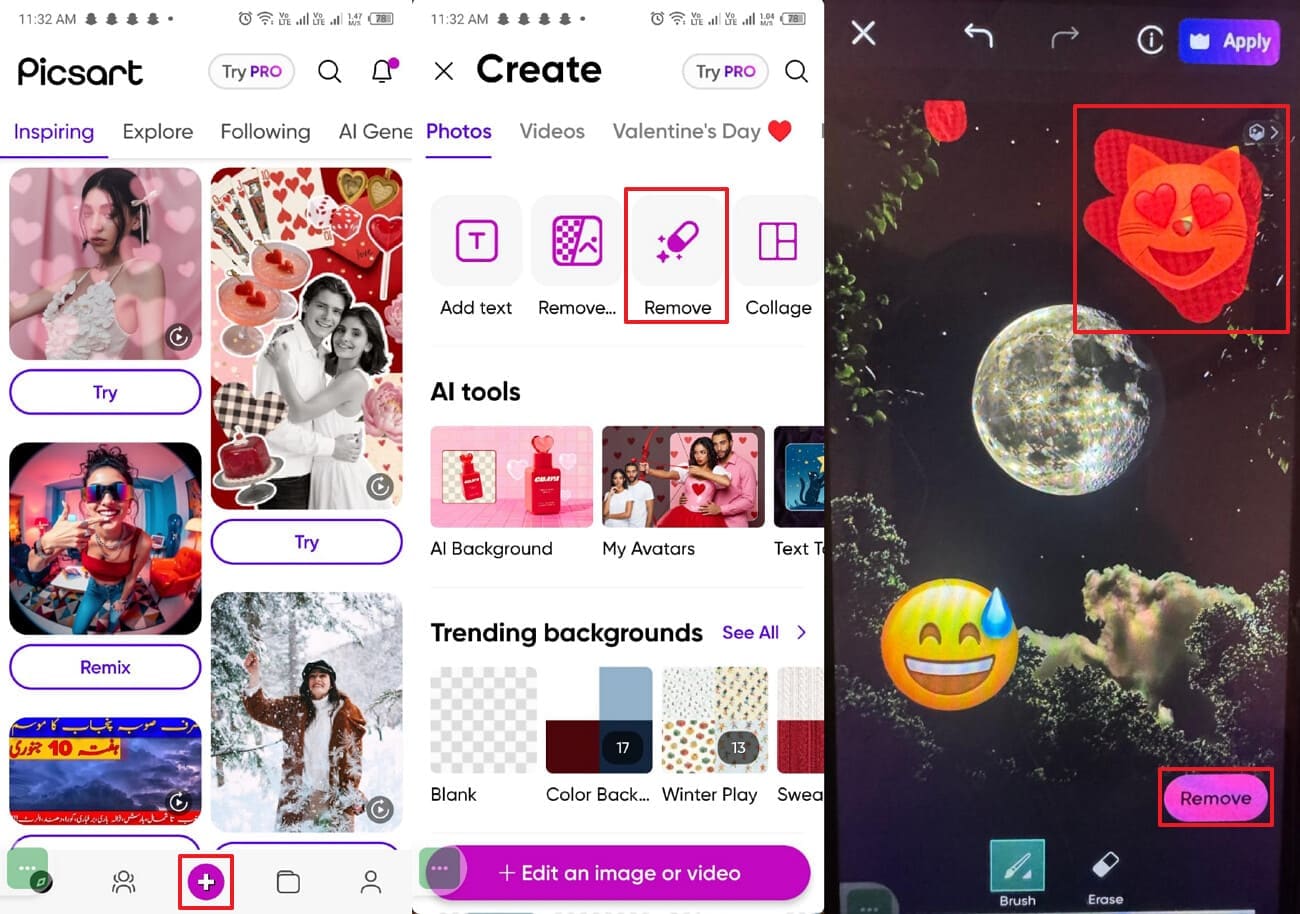
This efficient app includes various tools to remove unwanted objects and stickers. Users can also swap their backgrounds and adjust or replace elements using AI segmentation. While removing objects, you can also opt for retouch tools to manually fix areas and duplicate textures. Moreover, it provides filters, effects, collages, and drawing tools so you can fully redesign images.
Practical Steps for Clean Sticker Removal Using Picsart
To know how to remove Snapchat stickers from someone else's picture, go through the following detailed guide:
Instructions. As you access Picsart app, select the “+” icon on the main screen and choose the “Remove” feature. After that, click the “Brush” icon to select targeted areas, and hit the “Remove” button to apply the changes.
Part 5. Comparing the Top Methods to Remove a Sticker from an Image
After exploring how to remove Instagram stickers from someone else's picture, let’s have a quick breakdown for better understanding:
| Tools | Platform | Difficulty | Key Removal Feature | Batch | Best For |
| UniConverter (Best Option) | Desktop | Easy | Watermark remover | Yes | Bulk, pro edits |
| Photoshop | Desktop | Hard | Content-aware fill | Limited | Pixel‑perfect work |
| UniConverter Online | Web | Easy | AI emoji eraser | No | Quick single fixes |
| insMind | Web | Easy | One‑click emoji erase | No | Simple auto cleanup |
| Aiease Object Remover | Web | Easy | AI sticker detector | No | Faces, products |
| LightPDF Sticker-Remover | Web | Easy | AI sticker control | Yes (paid) | Social, business use |
| Kaze | Web | Easy | AI sticker remover | Yes | Fast batch online |
| iPhone Photos app | iOS | Very Easy | Native sticker delete | No | Stickers you added |
| Snapseed | Android | Medium | Healing brush tool | No | Free manual edits |
| SnapEdit | Android / Web | Easy | AI object eraser | Limited | Quick AI cleanup |
| PhotoDirector | Android / Desktop | Medium | AI object removal | Limited | Creators, AI suite |
| Picsart | Android / Web | Medium | AI removal tool | No | Creative, social edits |
Part 6. Sticker Remove from Photo: Best Practices for Clean Editing
Now that you understand the available tools, let’s look at the best practices to remove stickers cleanly without damaging image quality:
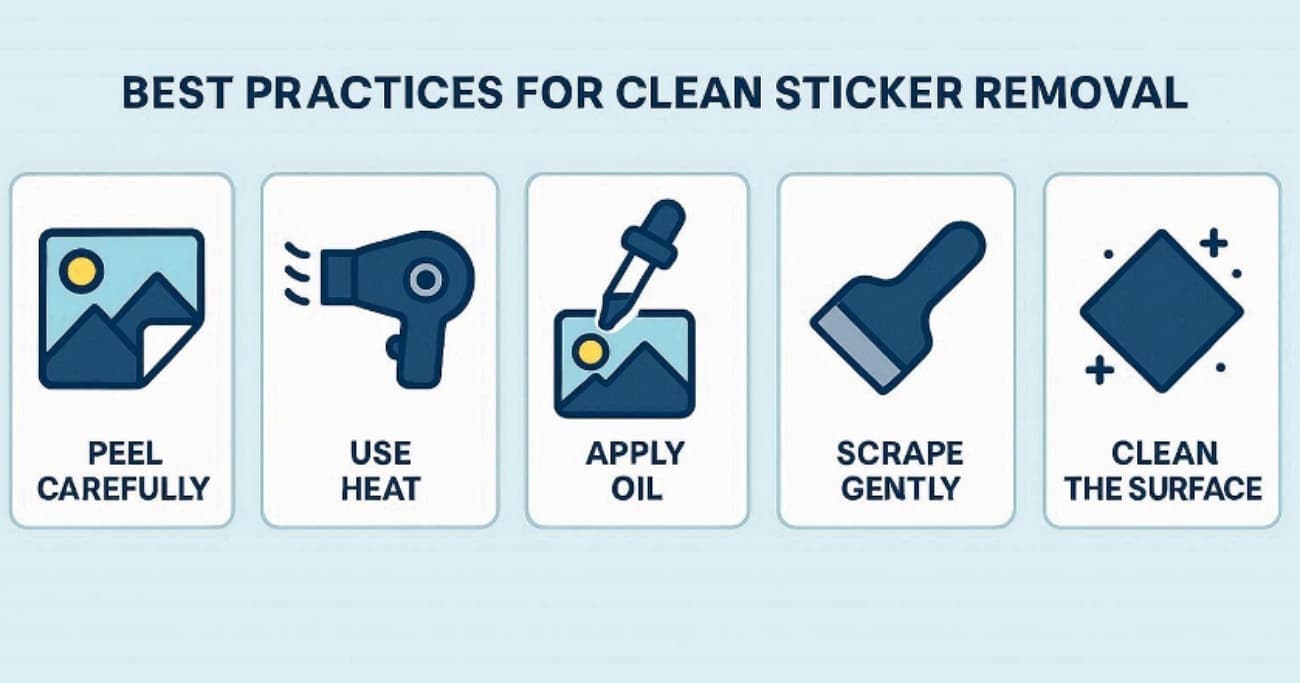
Protect Your Original Image: Always duplicate your photo before editing so you can revert to the original. This safety step gives you freedom to experiment without fear of ruining the image.
Use High-Resolution Photos: Use higher-resolution images with more detail to make sticker removal smoother. This extra detail helps tools blend the edited area more naturally with the background.
Zoom In for Precision: Zooming in lets you see the sticker’s edges clearly and avoid accidental erasing. It also helps you make more controlled strokes with your editing tools.
Choose the Right Brush Size: Use a brush size that roughly matches the width of the area you’re fixing. A brush that's too large can damage nearby details, while one that's too small slows the process.
Stay Inside the Sticker Edge: Keep your selection or brush slightly inside the sticker, rather than overlapping it. It reduces the risk of warping or deleting parts of the surrounding images.
Conclusion
In summary, users can easily remove stickers from photo with efficient tools. In this article, we have covered various tools, including desktop, web, and mobile apps. Among these tools, we recommend UniConverter, which lets you easily remove stickers. The foremost part is users can easily access this tool from both online and desktop.
FAQs
-
1. What does “removing a sticker from an image” actually mean?
It means erasing a visible sticker, emoji, or graphic from a photo and intelligently filling the area it covered. The goal is to recreate a natural-looking background where the sticker originally appeared. -
2. Can I remove a sticker without ruining the background?
Yes. By zooming in, working carefully, and using tools such as AI object removers or healing brushes, you can often restore the background so it looks smooth and undamaged. -
3. Do I need professional software like Photoshop to do this?
No. Many free apps and online tools include object remover features. Tools like UniConverter also allow you to remove stickers easily without damaging the original image. -
4. What’s the easiest method for complete beginners?
The easiest approach is using beginner-friendly tools like UniConverter, which provide a streamlined, guided process. It works as a simple one-step solution for users with little or no editing experience.

