


Picsart watermarks can distract viewers and reduce trust in shared content online. Creators often notice them after exporting videos or images for social posting. However, removing watermarks can be tricky, especially on moving video frames. This guide explains why they appear and what options exist today. You will learn how to remove Picsart watermarks with realistic quality expectations, and also listed recommended Picsart watermark remover for you as reference.
Moreover, we will cover common scenarios, formats, and limitations for beginners. The article also highlights legal considerations and when permission is important. Therefore, you can choose the right tool confidently before editing your final files.
In this article
- Challenges of Removing Picsart Watermark from Videos and Images
- Online Fast and Easy Picsart Watermark Removal Tools You Can Try
- Desktop Picsart Watermark Remover Tools [Stable & Efficient Choice]
- Quick Overview: The Best Picsart Watermark Remover Tool for Images and Videos
- 5 Tips to Keep Your Picsart Creations Watermark-Free
- Conclusion
- FAQ
Key Takeaways
[Editing Challenges] Picsart watermarks are hard to remove cleanly due to motion, textures, and frame consistency issues.
[Quality Risks] Removal can cause blur, artifacts, or flickering, especially in complex or compressed videos.
[Tool Options] Tools like WatermarkRemover.io, VisualGPT, PicWish, Photoshop, and GIMP provide varying control and results.
[Efficient Solution] Wondershare UniConverter offers AI-powered removal, batch processing, and high-quality export for consistent results.
Part 1. Challenges of Removing Picsart Watermark from Videos and Images
Before using any method to remove watermark Picsart, understand these common challenges first:
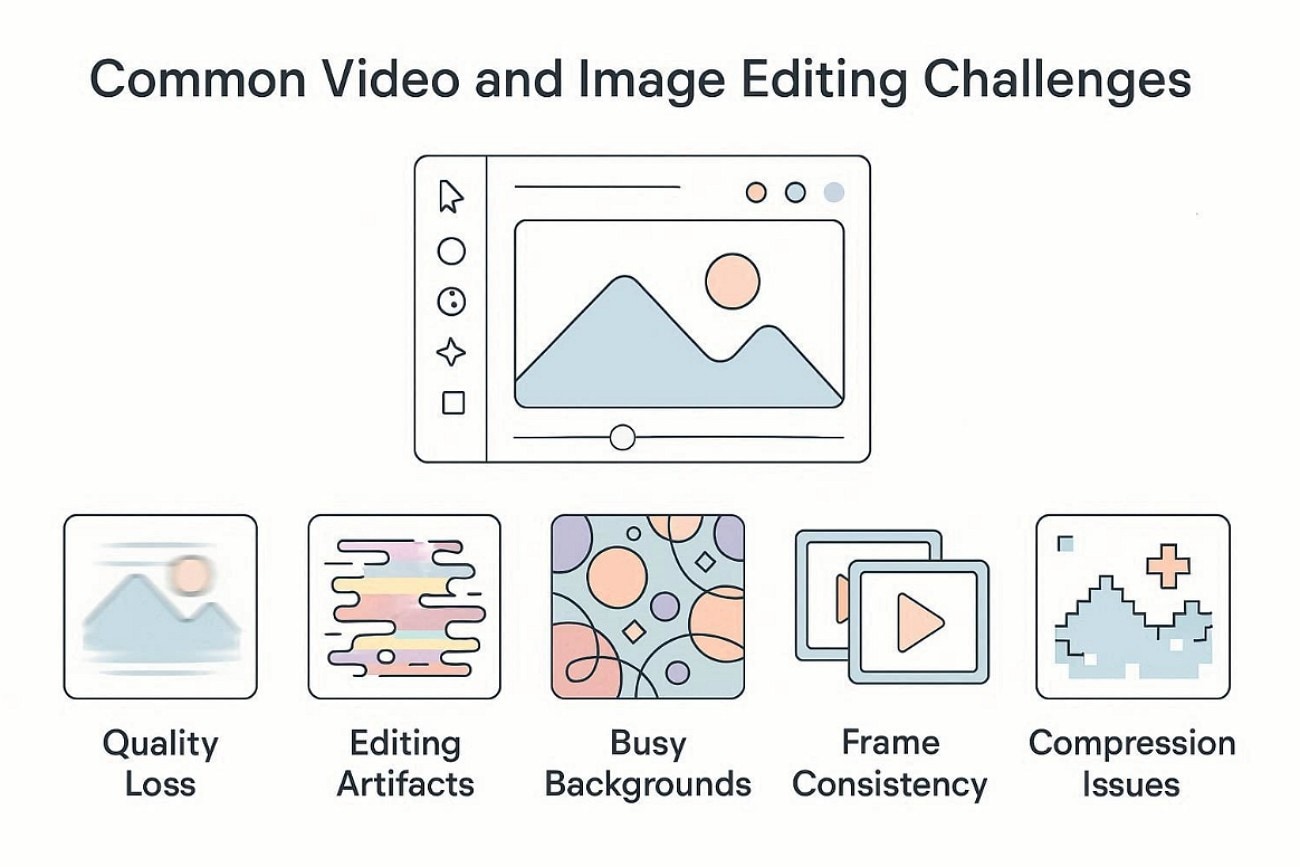
Quality Loss: Watermark removal often softens sharp details, especially in high-motion video scenes. Fine textures blur easily, making edits look less professional and clean.
Editing Artifacts: Removal can leave smudges, ghost outlines, or patchy pixels around watermark areas. These artifacts become obvious after exporting or viewing on bigger screens.
Busy Backgrounds: Patterns, hair, and gradients make blending difficult, so edits appear uneven. Background details rarely match perfectly, creating visible inconsistencies in images.
Frame Consistency: Videos require consistent editing across frames, or the removed area flickers. Flickering distracts viewers and quickly exposes the edited section during playback.
Compression Issues: Exported files contain compression blocks that spread around the edited region. This makes clean blending harder, especially in low-bitrate video outputs.
Part 2. Online Fast and Easy Picsart Watermark Removal Tools You Can Try
Online tools remain a popular choice among users, especially when it comes to watermark removal. This part intends to bring some of the best Picsart watermark removal options across online platforms. Let's explore the following easy Picsart watermark removal tools:
1. UniConverter Online
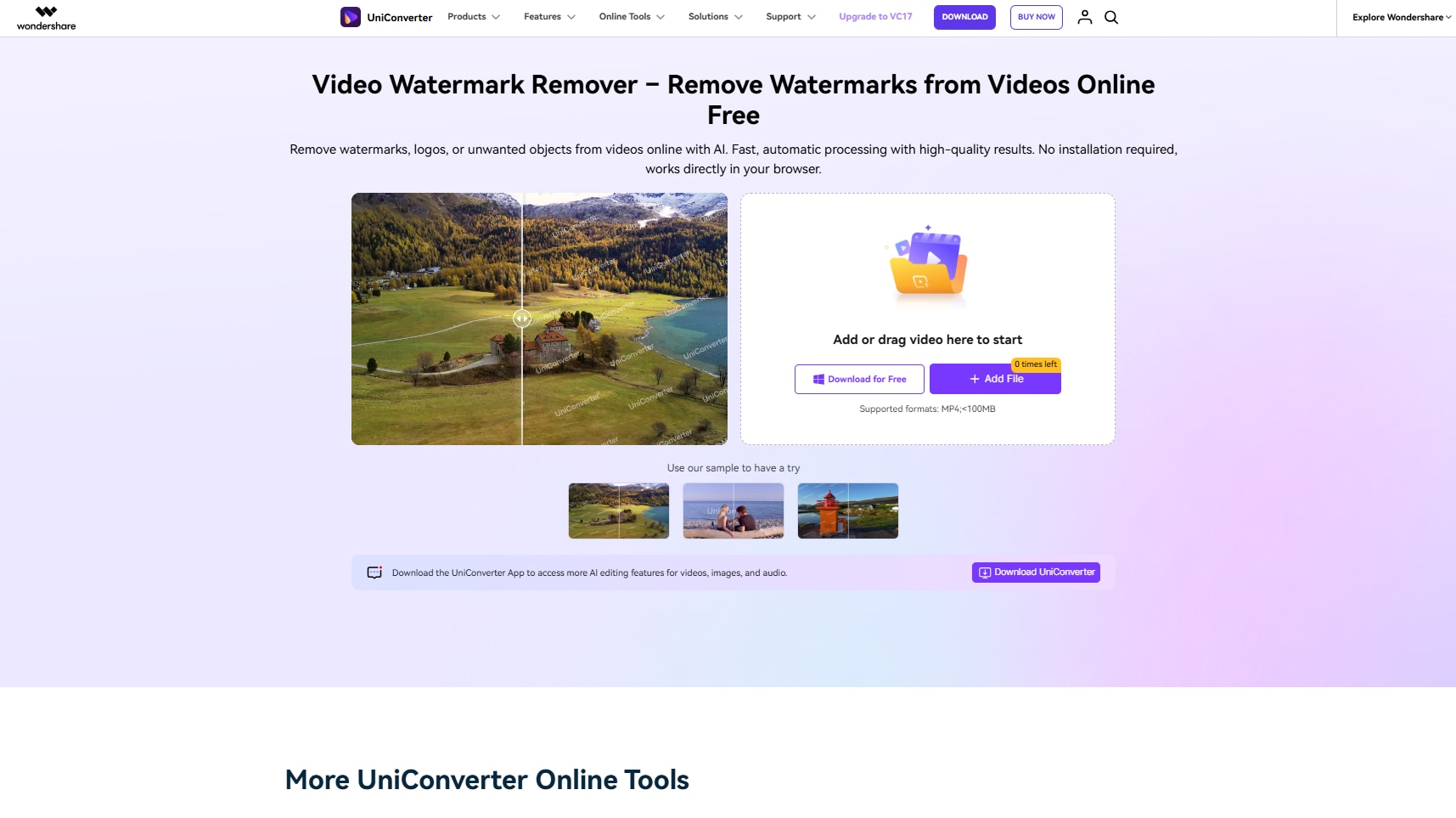
UniConverter's online Image Watermark Remover is built for quick, clean image touch-ups when a logo or text distracts from the main visual. It focuses on removing unwanted marks while keeping details sharp and edges natural. If you need a simple option that feels lightweight and accessible, UniConverter Online fits well for everyday edits and content refresh tasks. It can esily erase watermarks from different platforms, like TikTok watermarks or Instagram. On top of that, it can also be used as object removers, such as sticker removers and blemish removers, to help with cleaning and restore a better visual for your photos.
What makes it useful is the balance between speed and quality without feeling overly technical. It supports common image formats such as JPG, PNG, WebP, and BMP, and aims to maintain original clarity after cleanup. For creators hunting for a "reliable watermark remover Picsart," it is a practical pick for polished visuals across social posts and listings.
Key Features
Batch Cleanup: Desktop version processes up to 100 images together, ideal for catalogs and deliverables.
Precision Control: Selection tools target hair, patterns, and textures, reducing halos and keeping edges natural.
High Resolution: Keeps image resolution strong after removal, supporting crisp product shots and social graphics.
Guide to Remove Picsart Watermark with UniConverter Online
Adhere to the steps below to try UniConverter online for Picsart watermark removal:
Step 1. Load Your Image in UniConverter Online
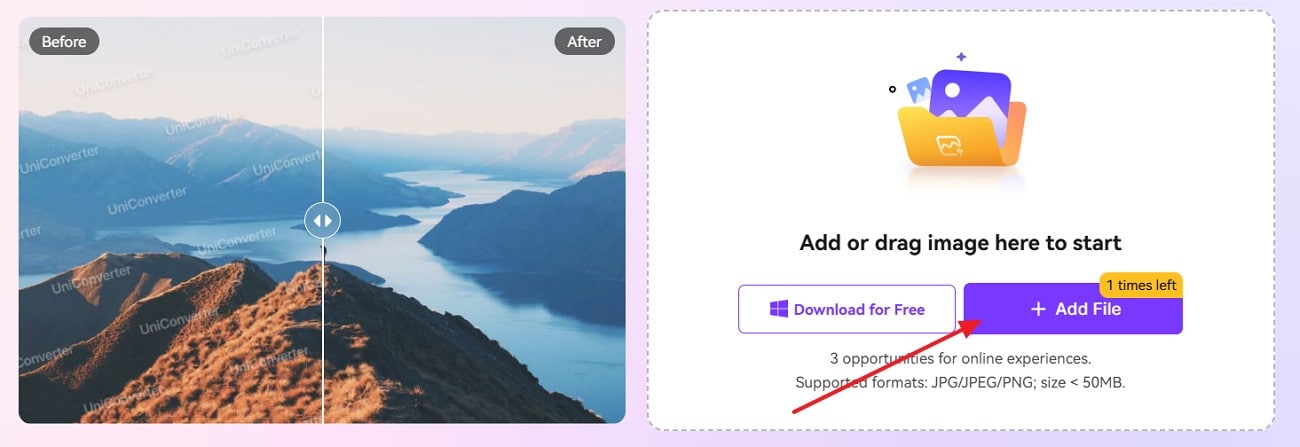
First, select the "Add File" option to upload your Picsart watermark images from your device to start.
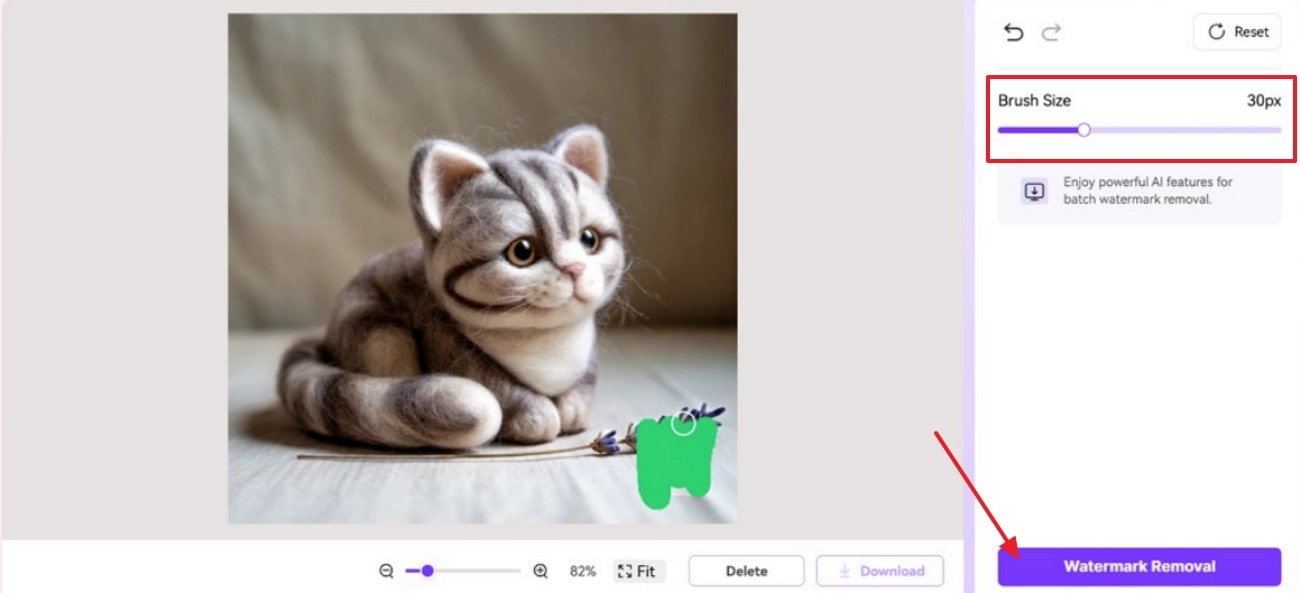
Step 2. Select the Brush Size to Proceed
Next, set the "Brush Size" slider and brush over the watermark area to press the "Remove Watermark" button to start processing.
Step 3. Download the Final Image
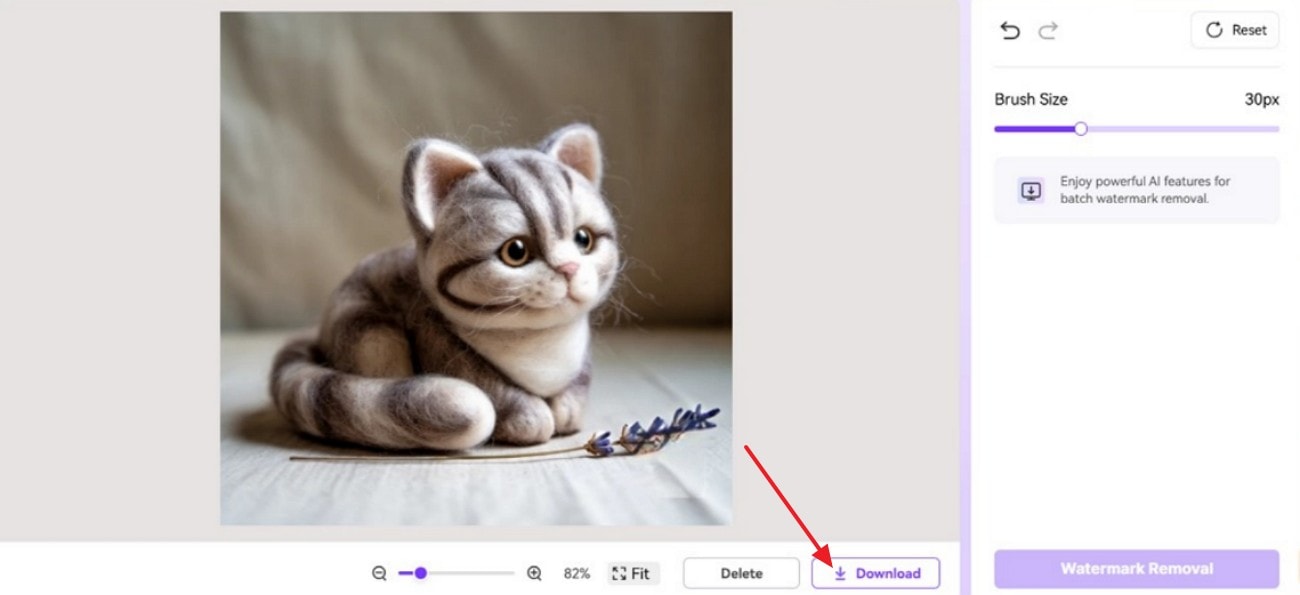
Lastly, preview the results and hit the "Download" button to save it to your device with ease.
2. WatermarkRemover.io
Powered by AI, this online remover helps clean unwanted marks from visual content with minimal effort. WatermarkRemover.io is useful when you want clearer frames for short clips, promos, or repurposed edits. If you need a quick Picsart watermark remover without installing software, it's a solid pick. Now, follow the step-by-step guide below for the best results:
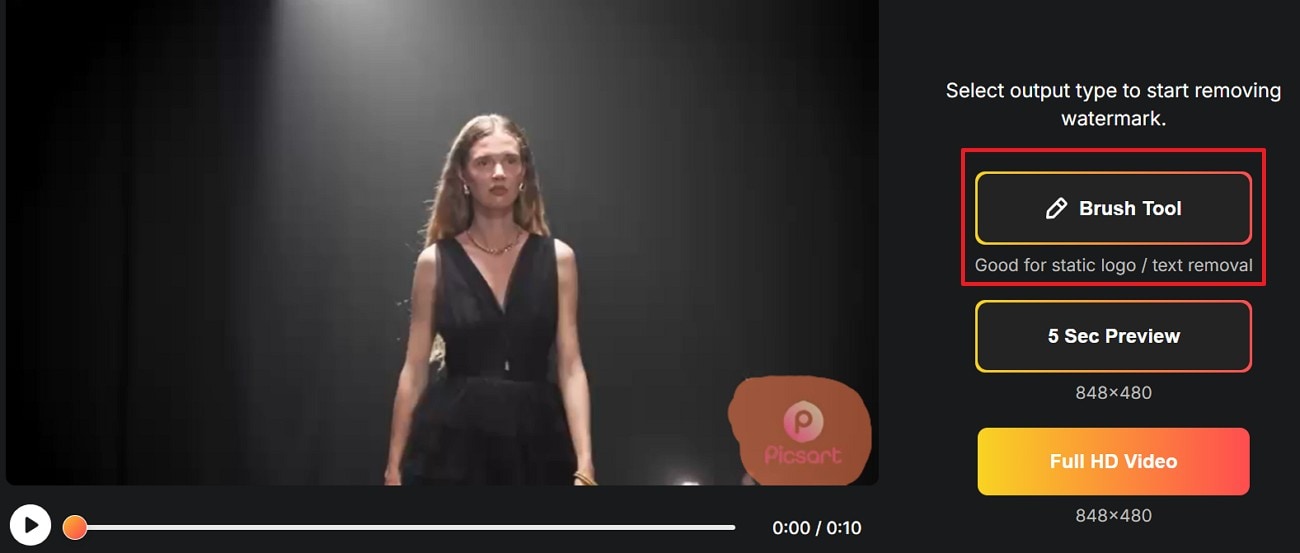
Step 1. Start by choosing the "+Upload" button to add your watermark video to WatermarkRemover.io to proceed.

Step 2. After that, pick the "Brush Tool" and mark the watermark area, and select the "Full HD Video" option to render watermark-free video to your device
Limitations
- Watermarks reappear when scenes change or lighting shifts.
- Blurry patches appear on textures and moving frames.
- Large uploads may fail due to size limits.
- Processing speed can be slow during peak traffic times.
3. Picsart
This online editor also helps remove unwanted objects and distractions from photos using its smart selection tools. It's useful for cleaning backgrounds, deleting small logos, or fixing cluttered product shots before publishing. Picsart's interface stays beginner-friendly yet still gives enough control for natural-looking touch-ups. Stick to the step-by-step guide below to use it effectively:
Step 1. First, click "Upload image" and select the photo you want to edit.

Step 2. Next, adjust the 'Brush Size" slider, mark the unwanted area, then click "Remove."

Step 3. Finally, press the "Download" button to save the cleaned image to your device.

Limitations
- Struggles with hair, patterns, and complex textured backgrounds.
- Large removals may create smudges and unrealistic patches.
- Low-resolution images produce patchy, weak removal quality.
- Limited fine-tuning controls for detailed professional edits.
4. VisualGPT.io
This AI-based remover aims to rebuild pixels under a watermark, not just blur it. It suits creators who want cleaner thumbnails, product shots, or social visuals without heavy editing software. If you are searching for how to get rid of the Picsart watermark, VisualGPT.io offers a quick, restoration-style approach. To try this tool, follow the steps below to use it:
Step 1. To begin, choose the "Upload Image" button and add your photo; you can also drag and drop your image as well to proceed.

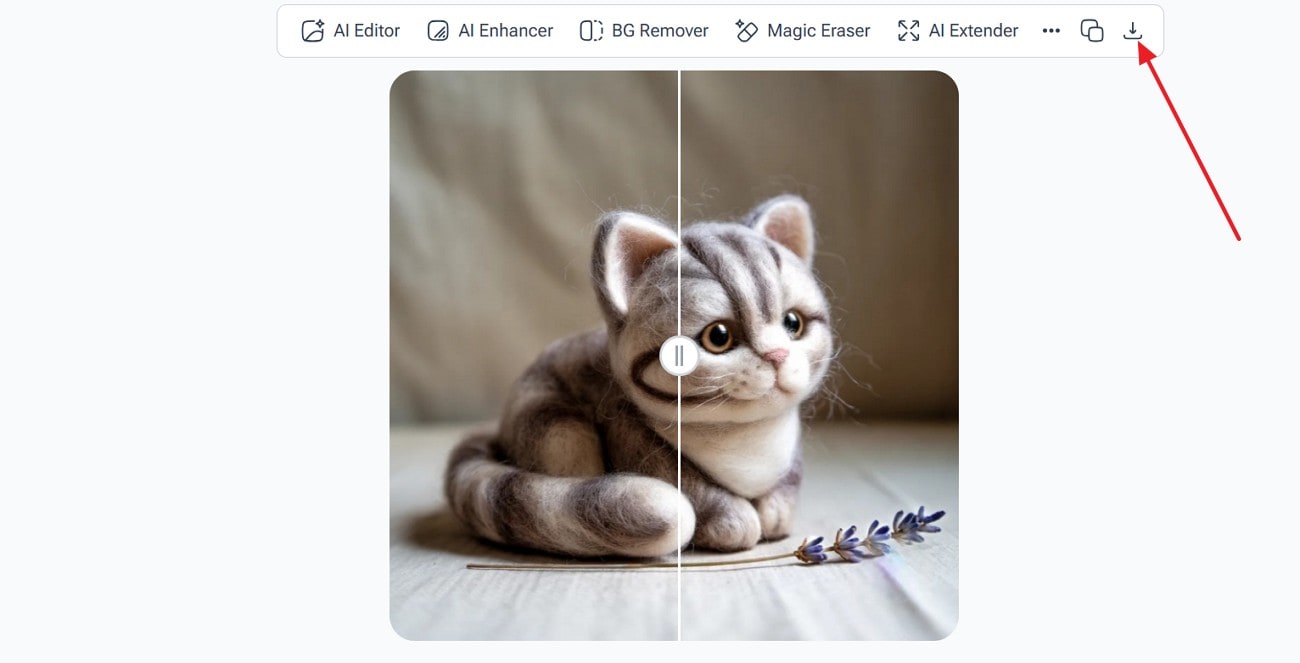
Step 2. Then, preview the before/after results and click the "Download" icon in the top-right corner.
Limitations
- Standard mode may miss faint, semi-transparent watermark traces.
- Limited manual selection makes targeted fixes harder on tricky spots.
- Free use can include restrictions like credits or locked features.
- Output may look over-smoothed, losing fine details or grain.
5. PicWish
When a watermark sits right on the subject, this AI remover tries to "heal" the scene instead of just covering it. PicWish is aimed at quick cleanup for social posts, thumbnails, and product images, with minimal effort. If you want to "remove the watermark Picsart" traces on photos, it is worth testing. Now, follow the step-by-step guide below to try this tool:
Step 1. Start by selecting "Upload Images," then add the photo you want cleaned.

Step 2. Afterwards, keep "Watermark" selected, then click "Remove" to run auto removal.
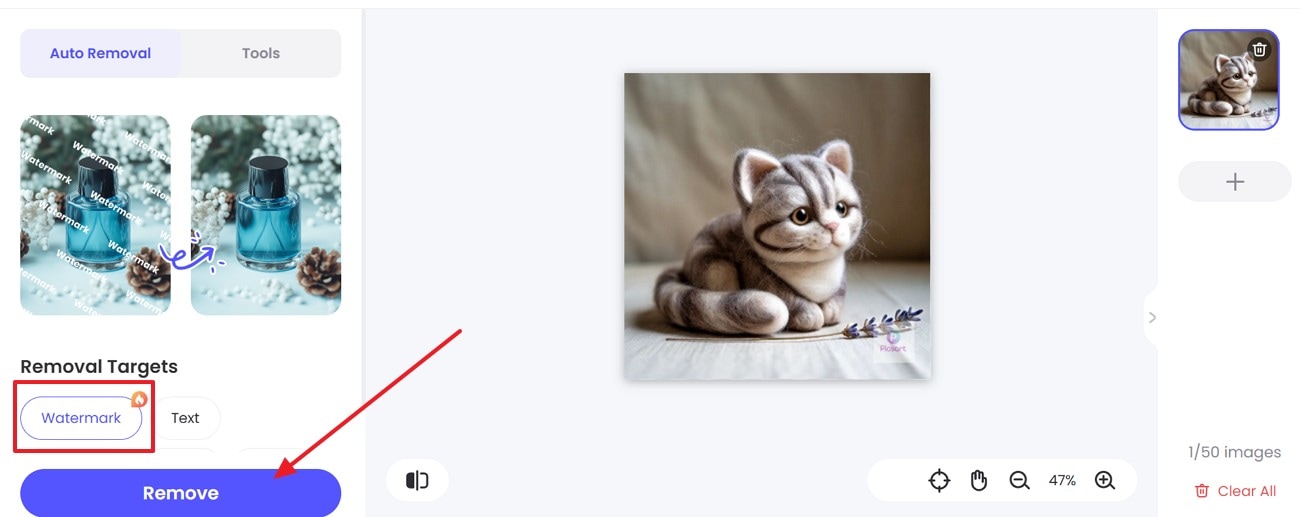
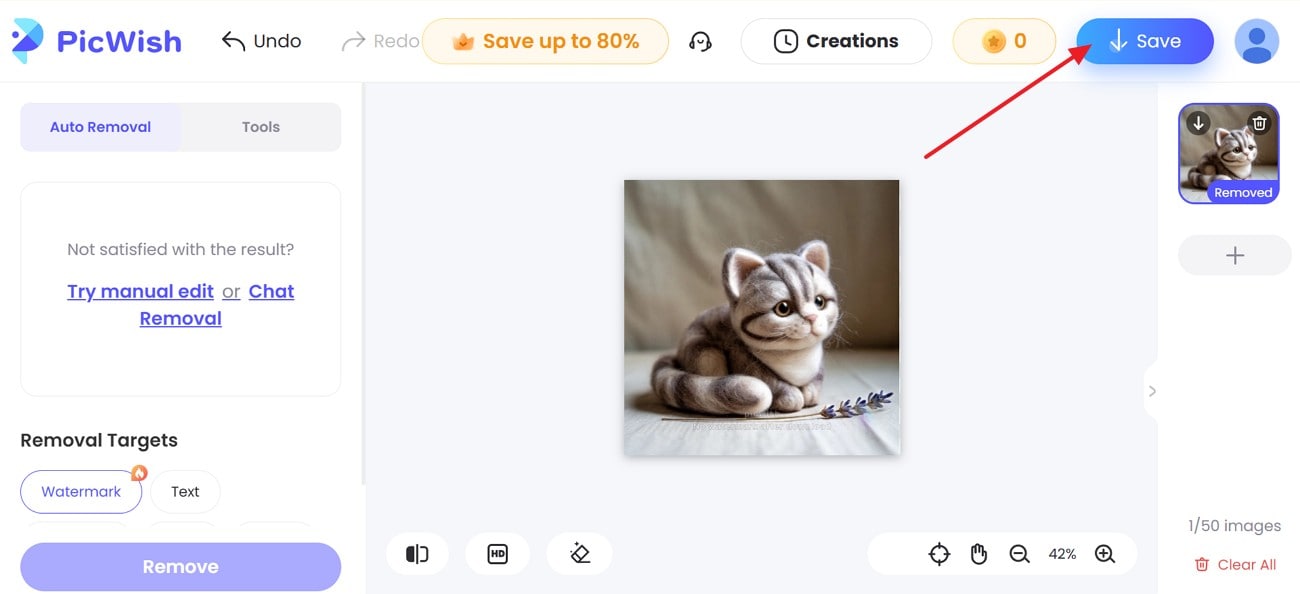
Step 3. At last, pick the "Save" button at the top right corner to export the edited image.
Limitations
- Cannot fully remove thick, large, or overlapping watermark layers.
- Automatic removal may affect nearby subject edges or fine outlines.
- Results are inconsistent on images with shadows or gradient backgrounds.
- Limited export format options compared to professional editing software.
Part 3. Desktop Picsart Watermark Remover Tools [Stable & Efficient Choice]
When online tools feel limited, the following desktop Picsart watermark remover solutions offer stronger, more precise cleanup. This part brings some of the top desktop options that can help you clean your Picsart watermarks professionally.
1. UniConverter Desktop
Sometimes, browser tools hit limits when watermarks overlap details or complex textures. That is where desktop solutions like UniConverter feel more capable and controlled. Instead of quick masking, they focus on deeper cleanup and higher export quality. If you are serious about learning how to remove the Picsart watermark cleanly, desktop software gives more consistent, professional-looking visual results. Compared to online version, desktop version enbales video watermark removing, like removing watermarks from videos generated by AI video generators like Sora watermarks, Gemini watermarks, etc
Moreover, UniConverter fits creators working with videos, thumbnails, and product visuals regularly. It combines watermark removal with video editing, format conversion, and enhancement tools in one workspace. This makes it easier to clean, refine, and export content without switching programs.

Key Features
AI Enhancement: Improves visual quality while removing watermarks from low-resolution or compressed files.
Custom Export: Lets you choose resolution, bitrate, and format before saving the final output.
Wide Compatibility: Works smoothly on Windows and macOS for flexible editing workflows.
Ultimate Guide to Remove Picsart Watermark with UniConverter Desktop
Let's walk through the steps below to remove the Picsart watermark with UniConverter:
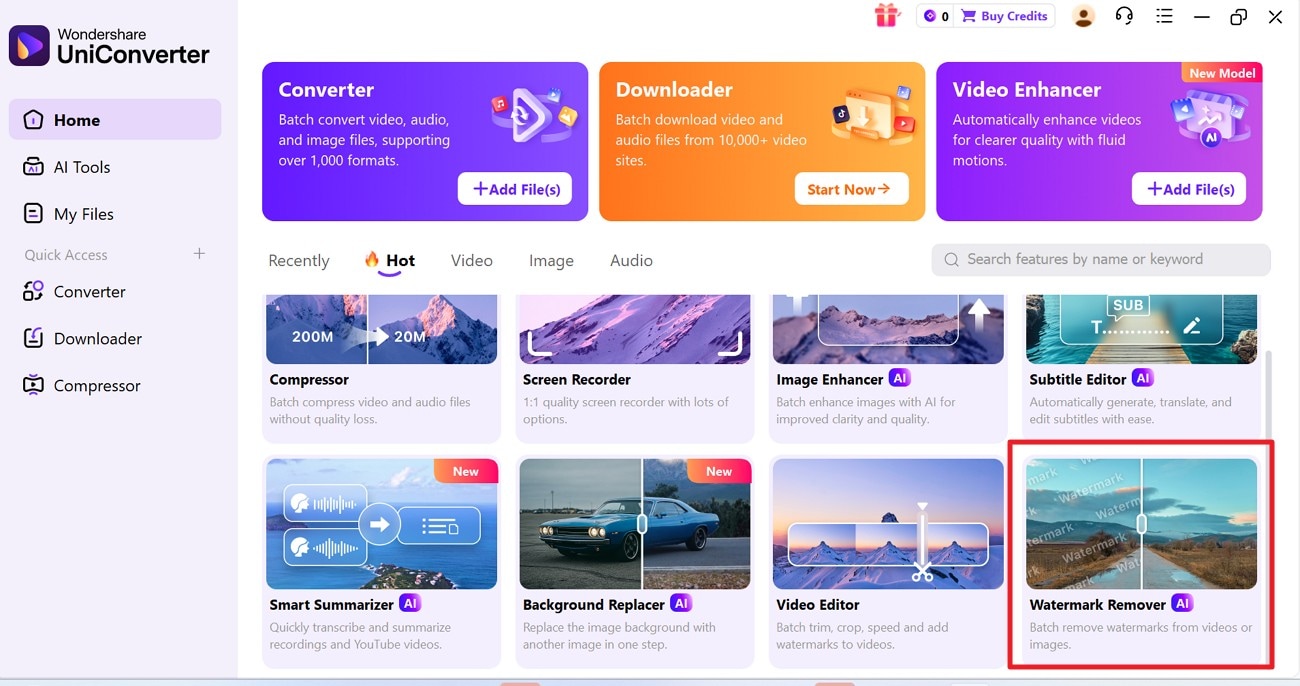
Step 1. Access Watermark Remover Feature
First, open UniConverter, go to "Home," and click "Watermark Remover" from the tools panel.
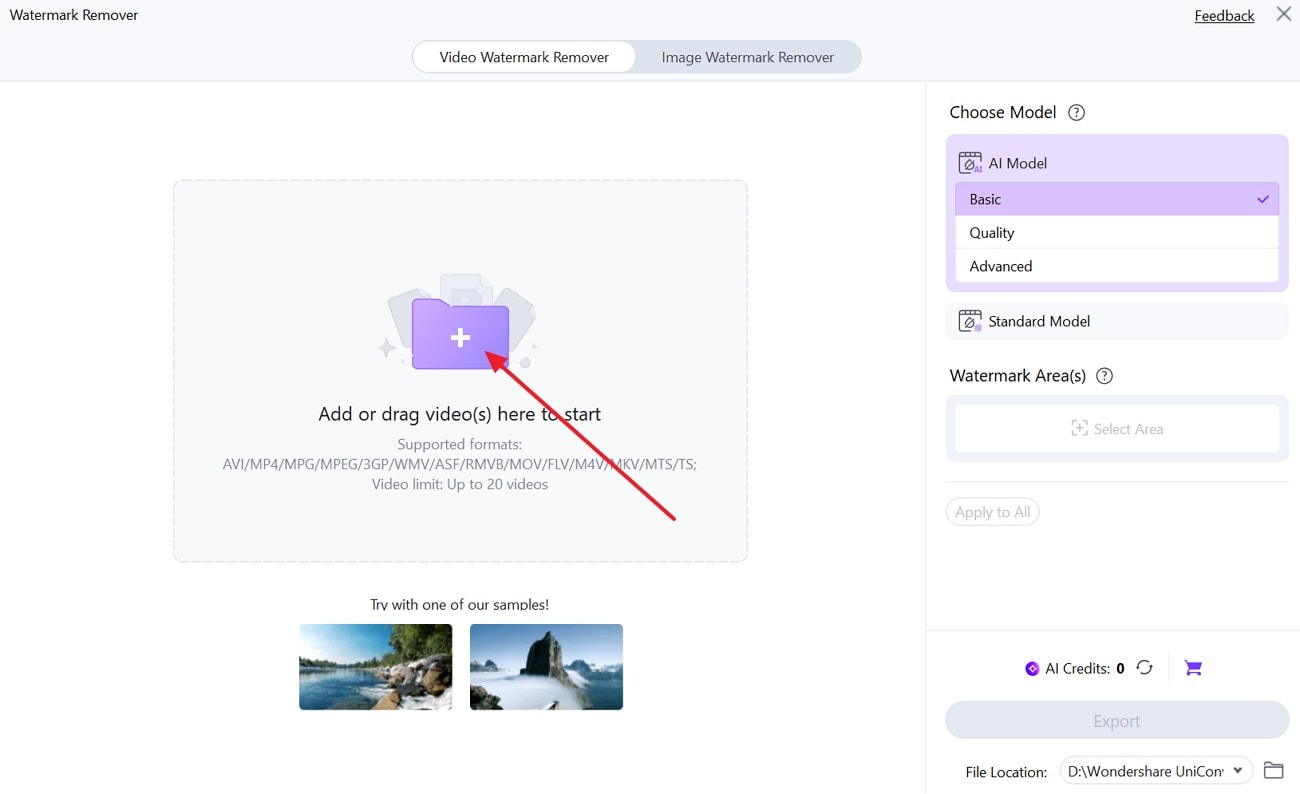
Step 2. Import Target Video File in Watermark Remover
Now, press the "Plus" icon and select your video to load it into the remover workspace.
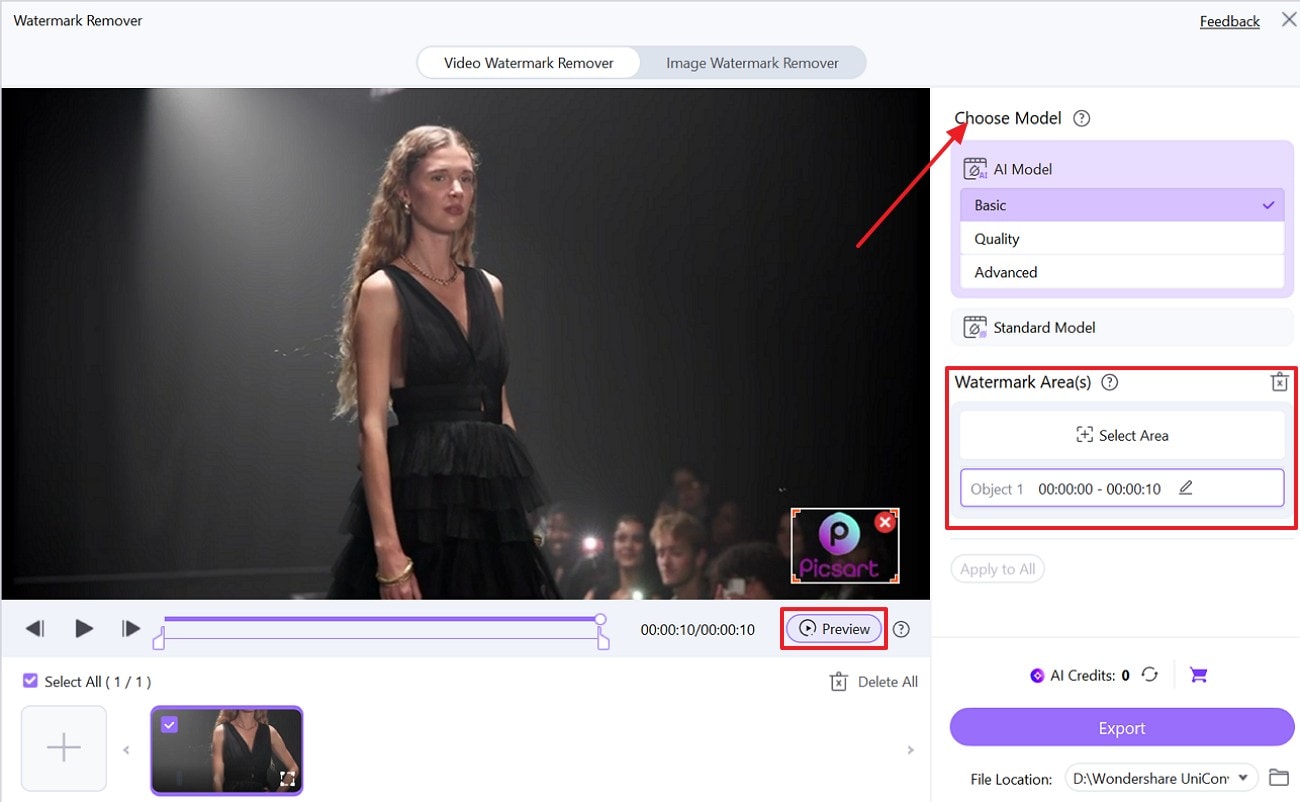
Step 3. Select AI Model and Area to Proceed
Then, choose the "AI Model", click "Select Area," highlight the watermark, and choose "Preview" to proceed.
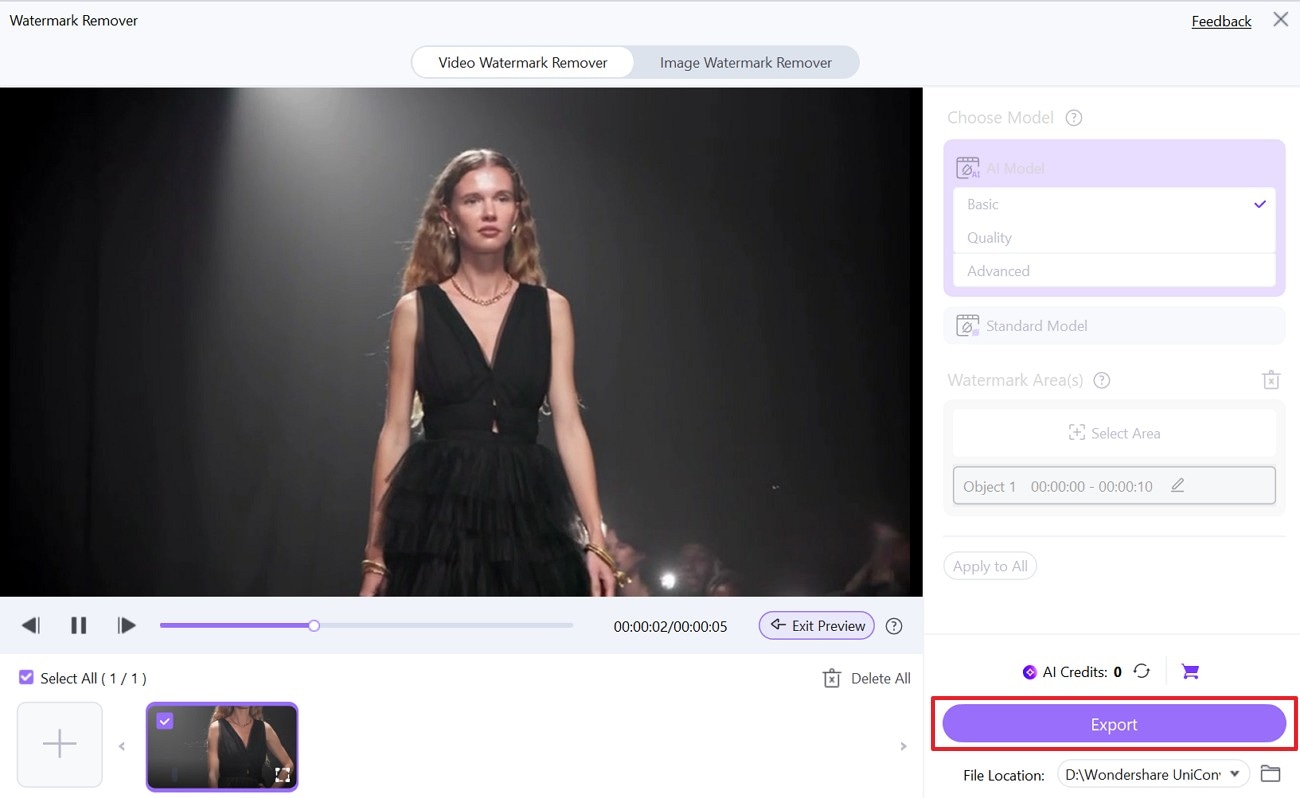
Step 4. Export Cleaned Video Output
Finally, press "Export" to save the watermark-free video to your selected file location.

Easy Picsart Watermark Remover with One-Click Cleanup
2. Adobe Photoshop
This desktop editor gives creators deep control over precise image cleanup tasks. It allows careful removal of unwanted marks while preserving the original background quality. Furthermore, advanced retouching tools help rebuild details instead of simply blurring watermark areas. This approach produces cleaner and more realistic editing results with ease. Adhere to the step-by-step guide below to remove watermarks properly using Photoshop:
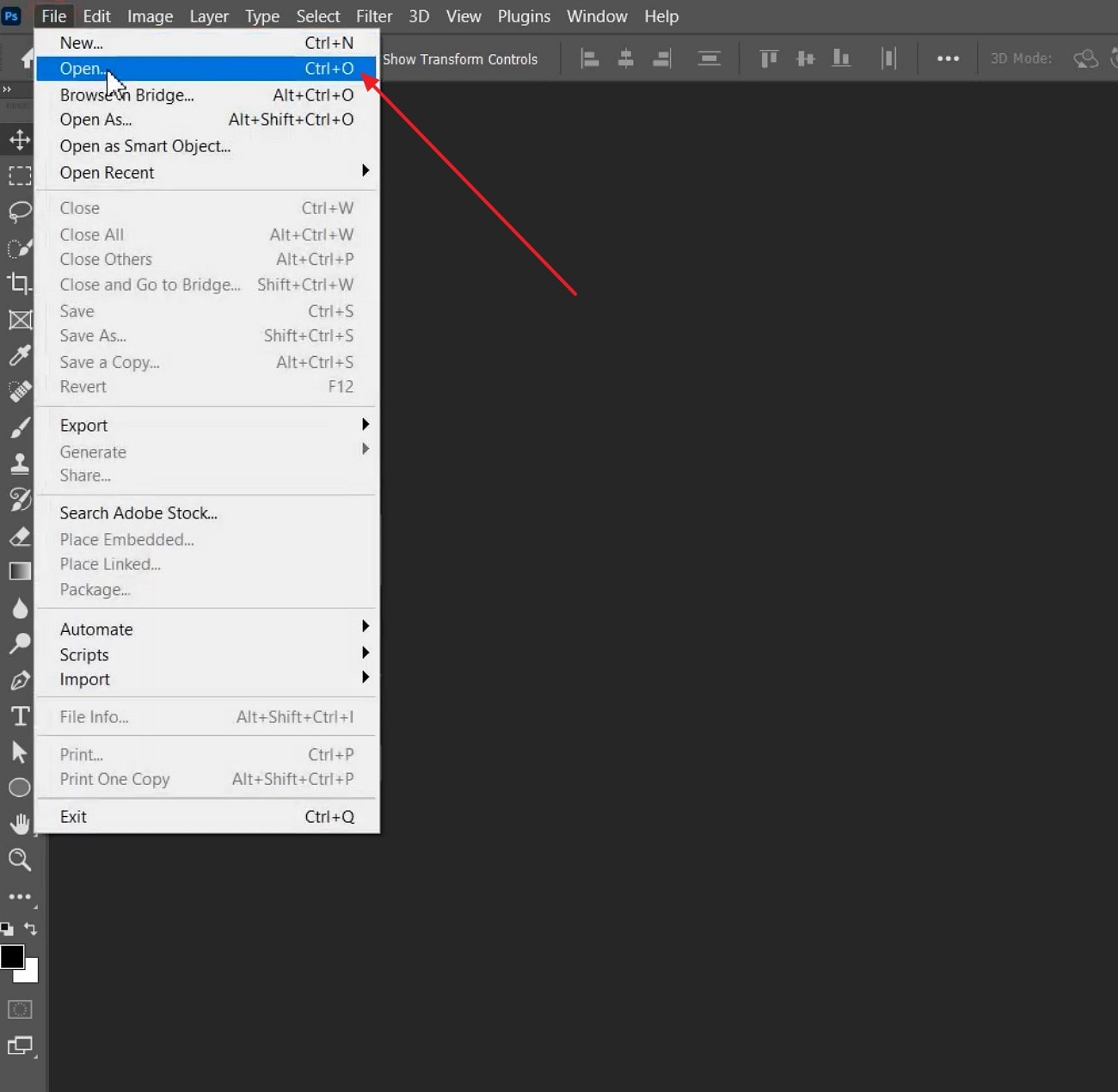
Step 1. Start by locating the "File" option, then select "Open," and import your watermarked image into Photoshop.
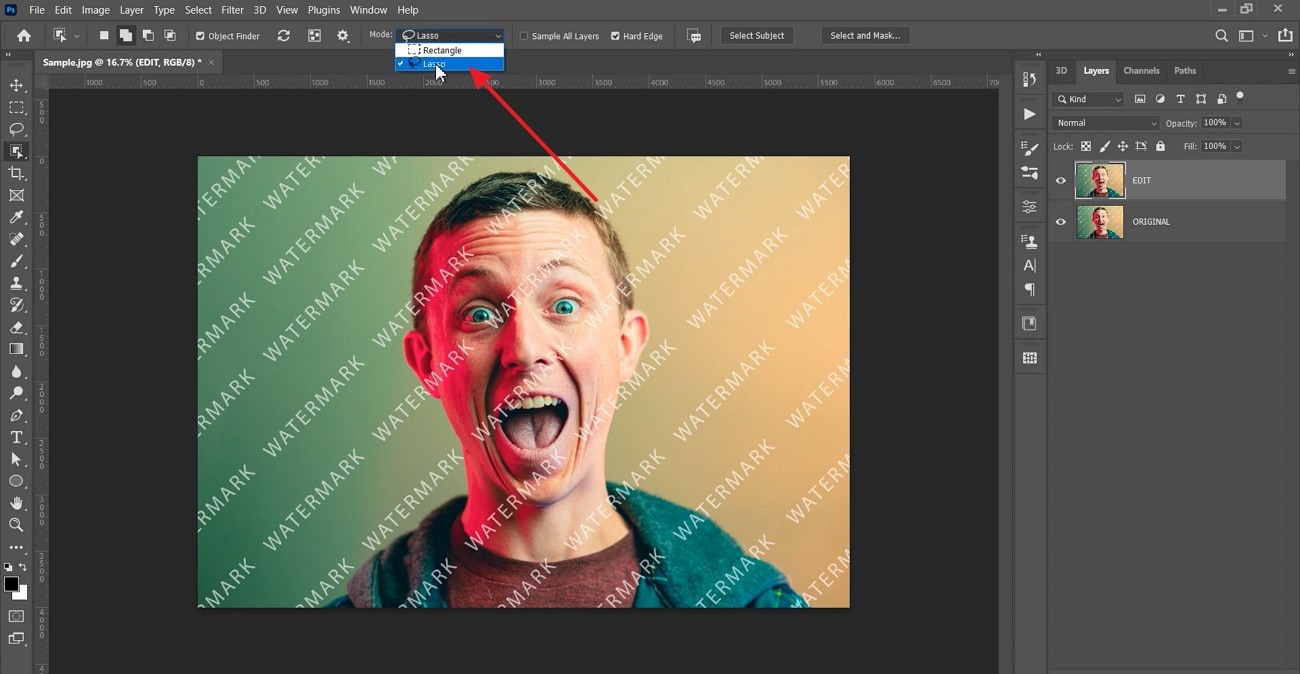
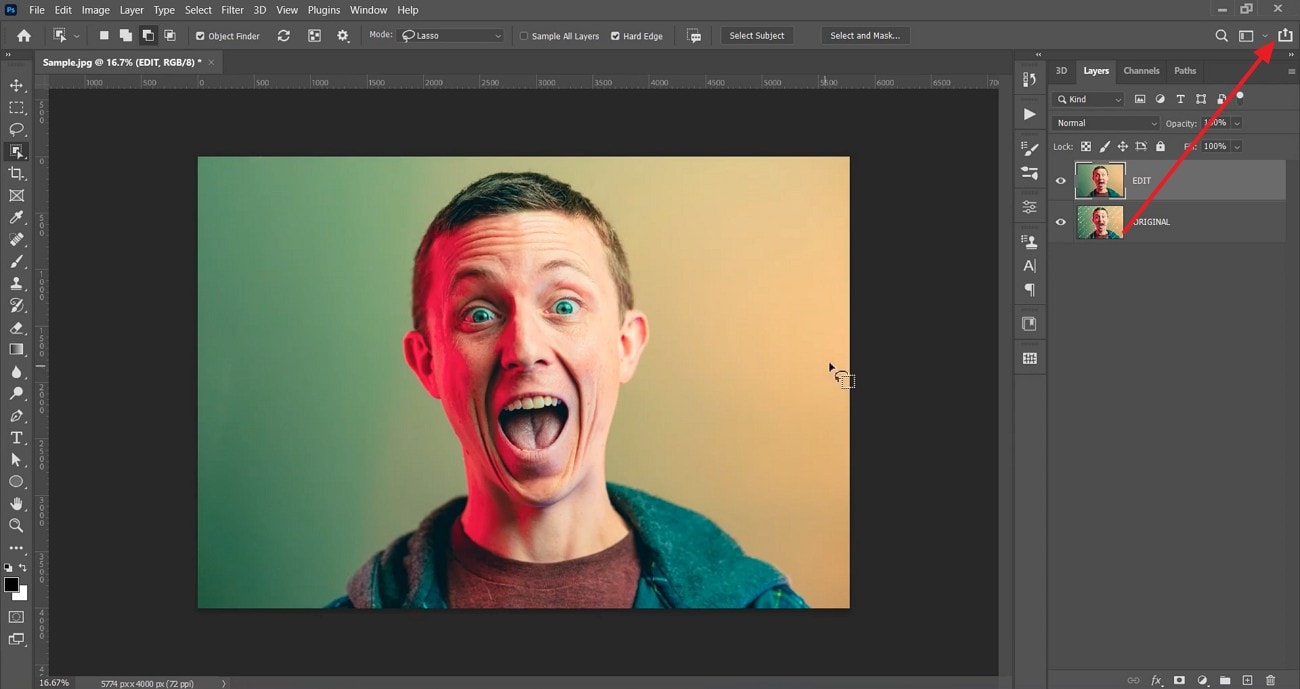
Step 2. Next, click the "Object Selection Tool" from the left toolbar to begin selecting the watermark.
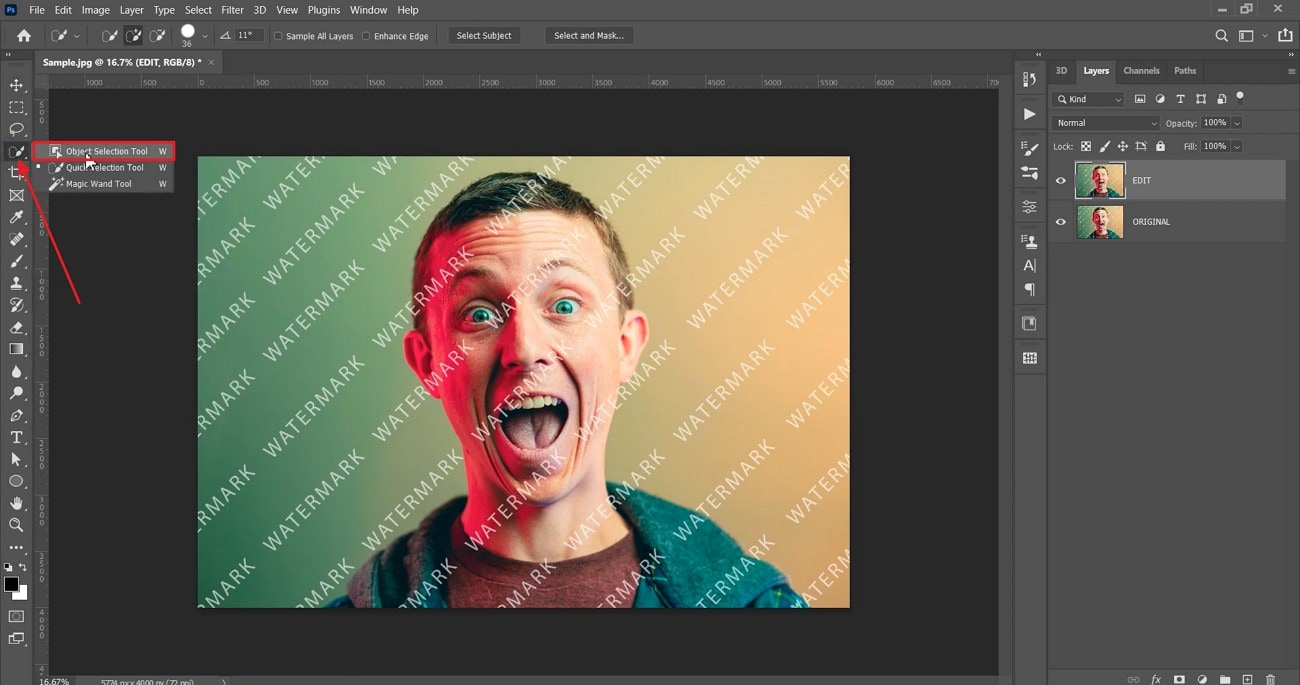
Step 3. Then, change the mode to "Lasso" from the top options bar for precise selection control. After that, carefully draw around the watermark area to create an active selection outline.
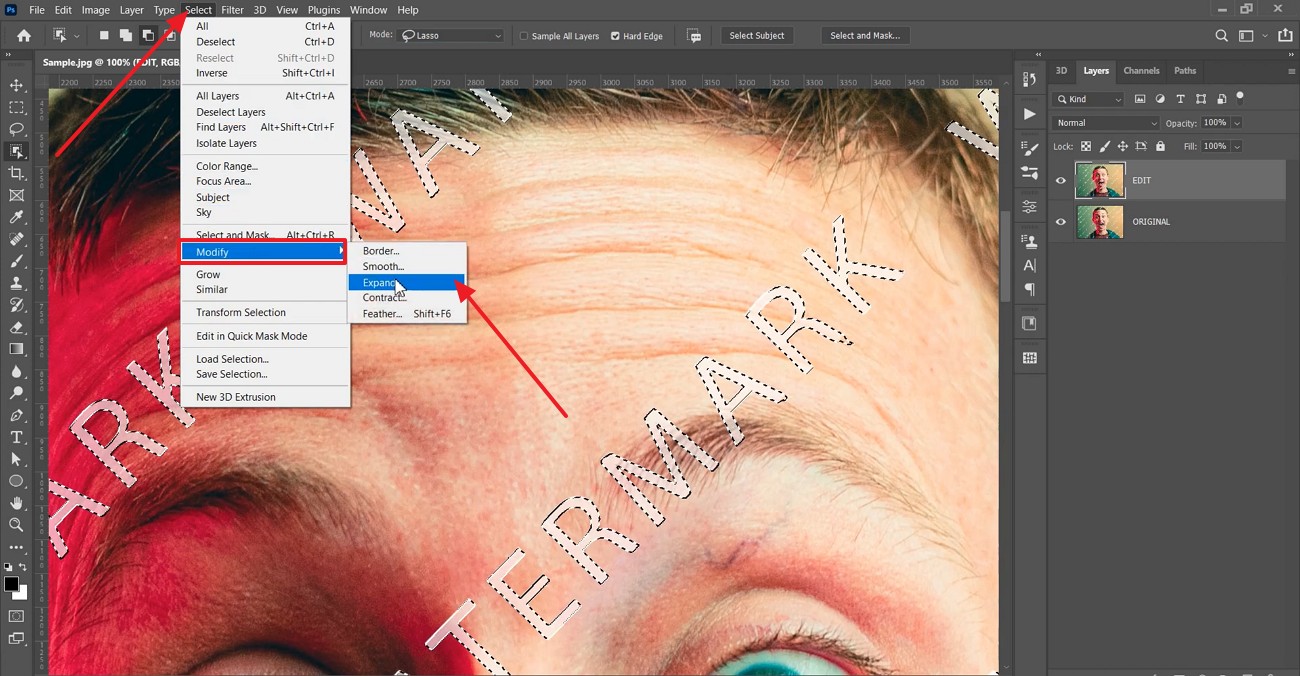
Step 4. Now, click the "Select" option, choose "Modify," then press "Expand" to include the watermark edges fully.
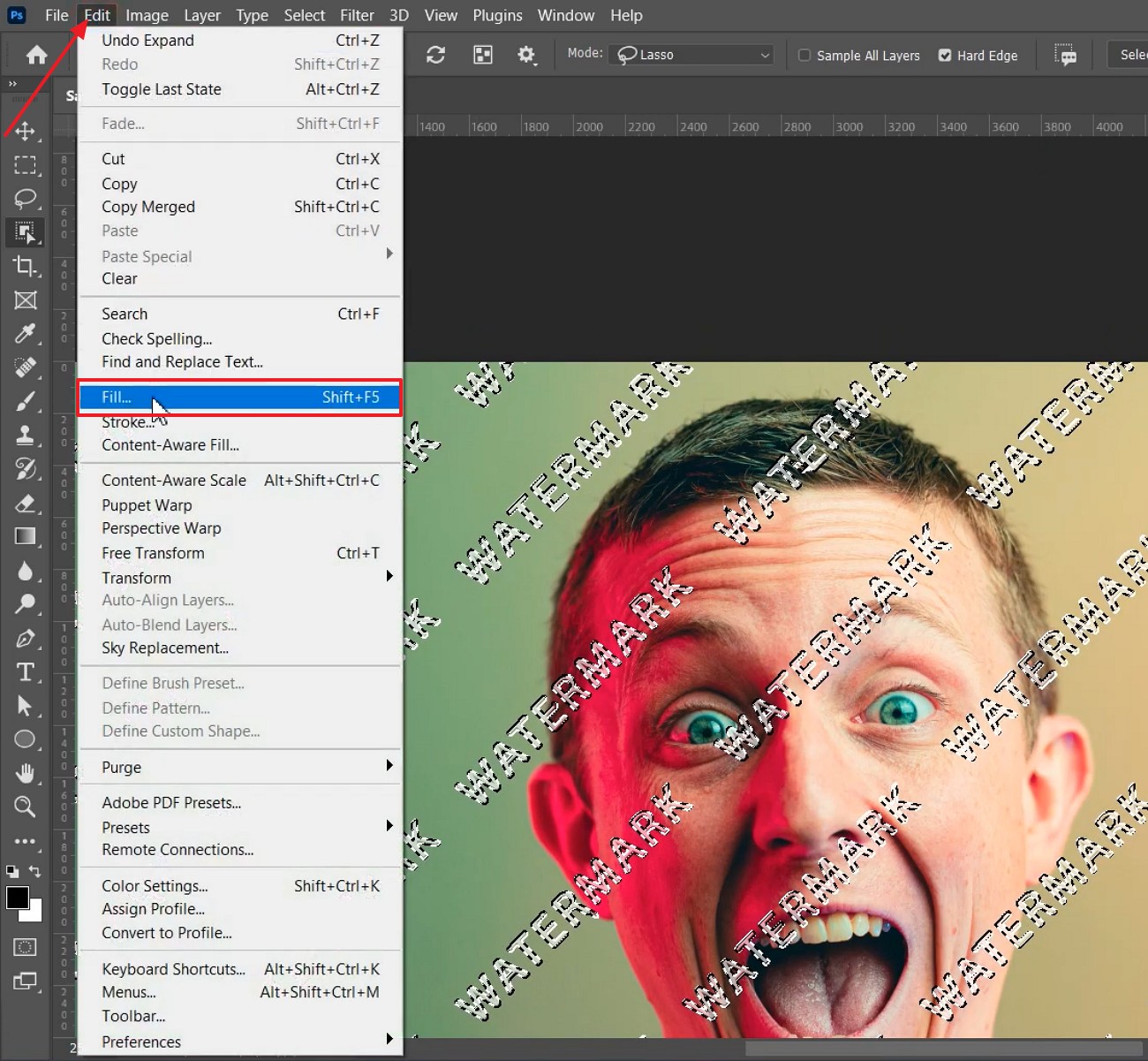
Step 5. Here, navigate to the "Edit" option and pick the "Fill" option from the drop-down menu.
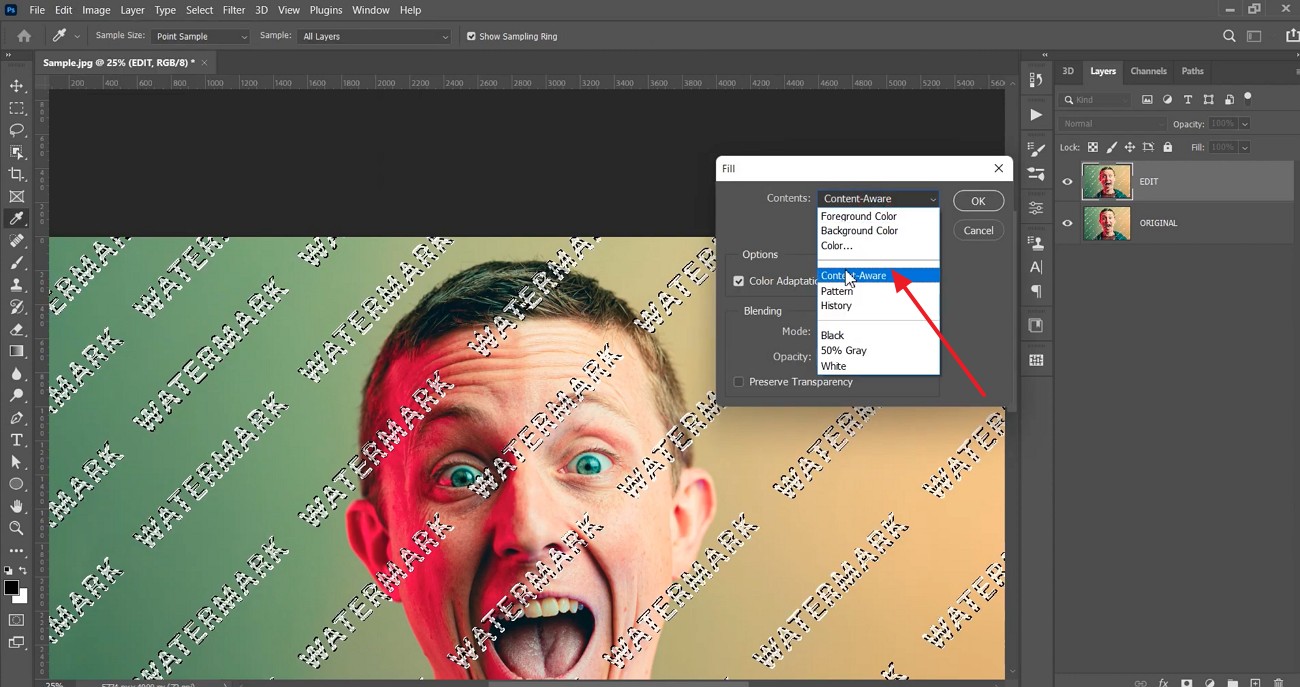
Step 6. In the "Fill" dialog box, choose "Content-Aware" from Contents, and hit "OK" to remove the watermark.
Step 7. Finally, review the cleaned image and select the "Export" icon in the top-right corner, then choose your preferred format and save the cleaned image.
Limitations
- Requires paid subscription; no permanent free version available.
- Steep learning curve for beginners without prior editing experience.
- High system requirements; older computers may run it slowly.
- Manual editing needed; automatic watermark removal tools are limited.
3. GIMP
GIMP is a free, open-source desktop editor that offers powerful tools for detailed image cleanup work. It includes cloning, healing, and layer-based editing features for precise corrections. Many creators use it when they need full manual control to remove the Picsart watermark marks carefully. Now, follow the step-by-step guide below to perform the watermark removal process:
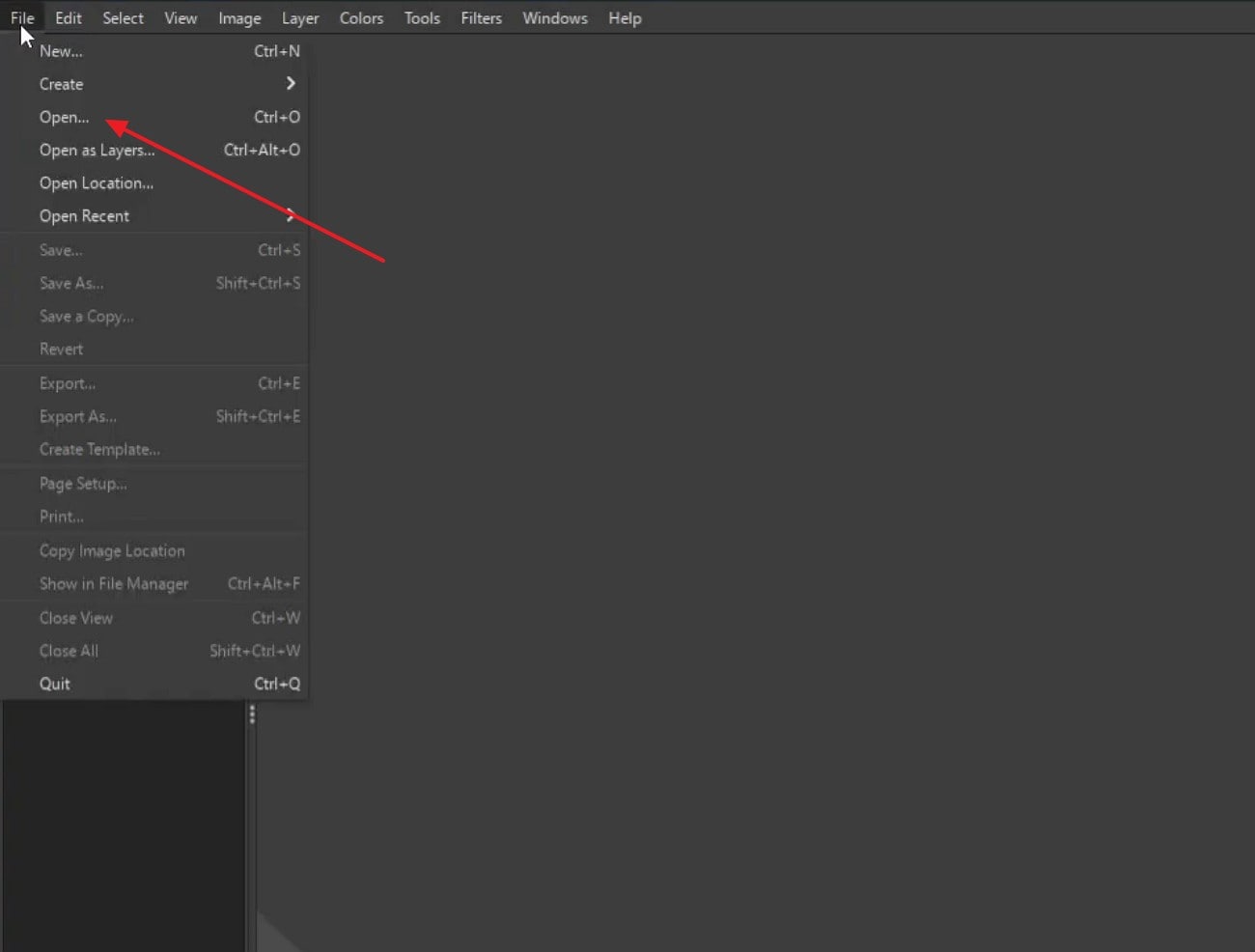
Step 1. To start, choose the "File" option to further select the "Open" button to add your image with watermark to proceed.
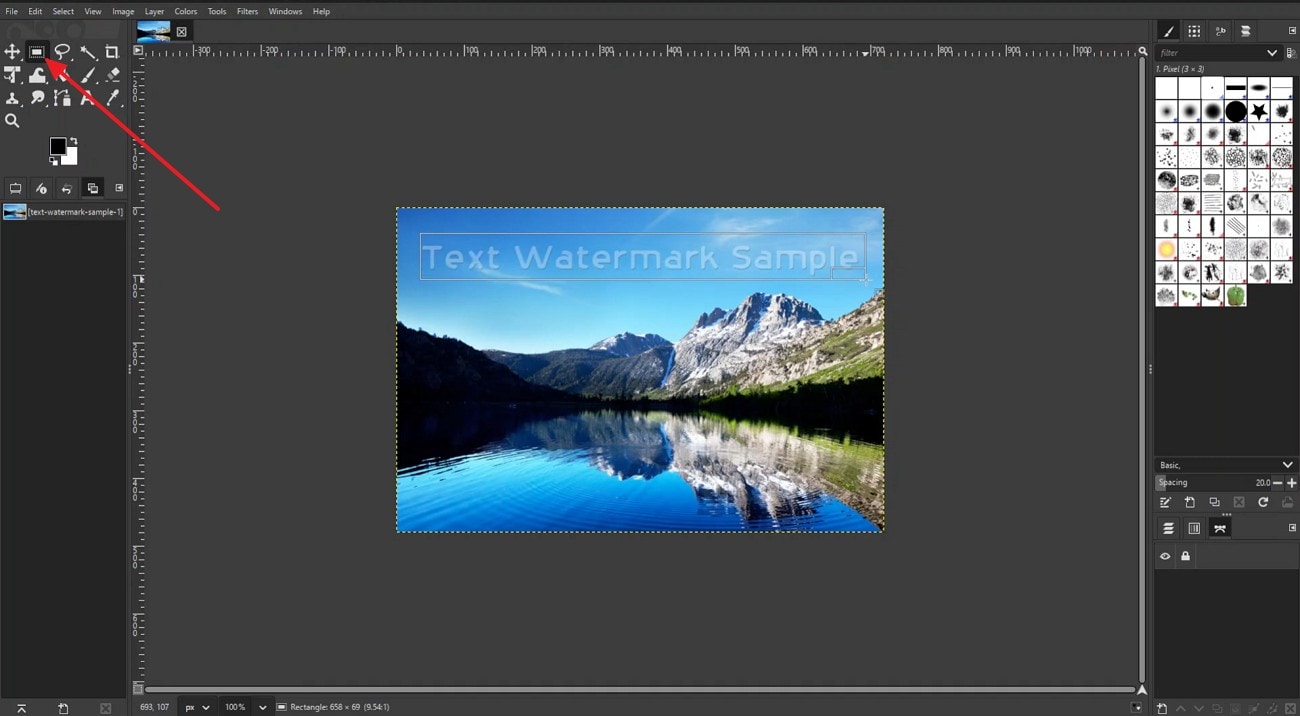
Step 2. Here, locate the "Selection Tool" and mark the watermark area to continue.
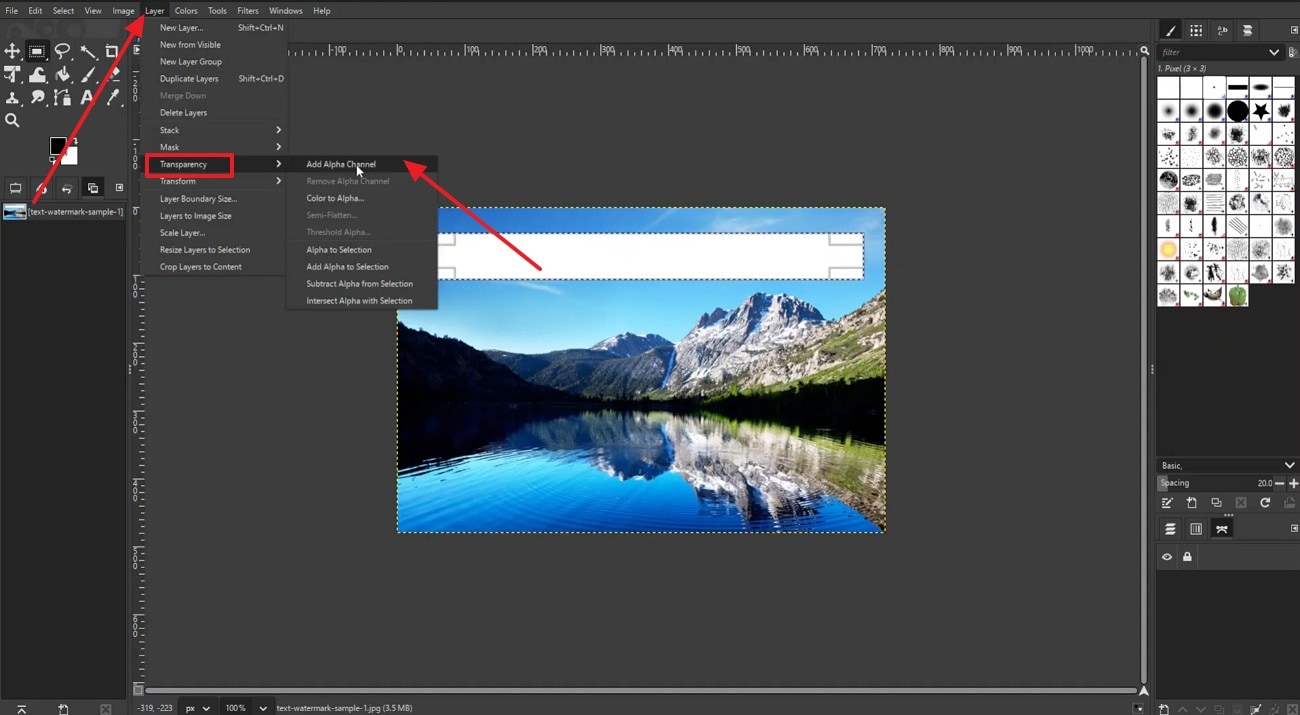
Step 3. Next, click "Layer", choose "Transparency" from the list, then select "Add Alpha Channel" to enable editing.
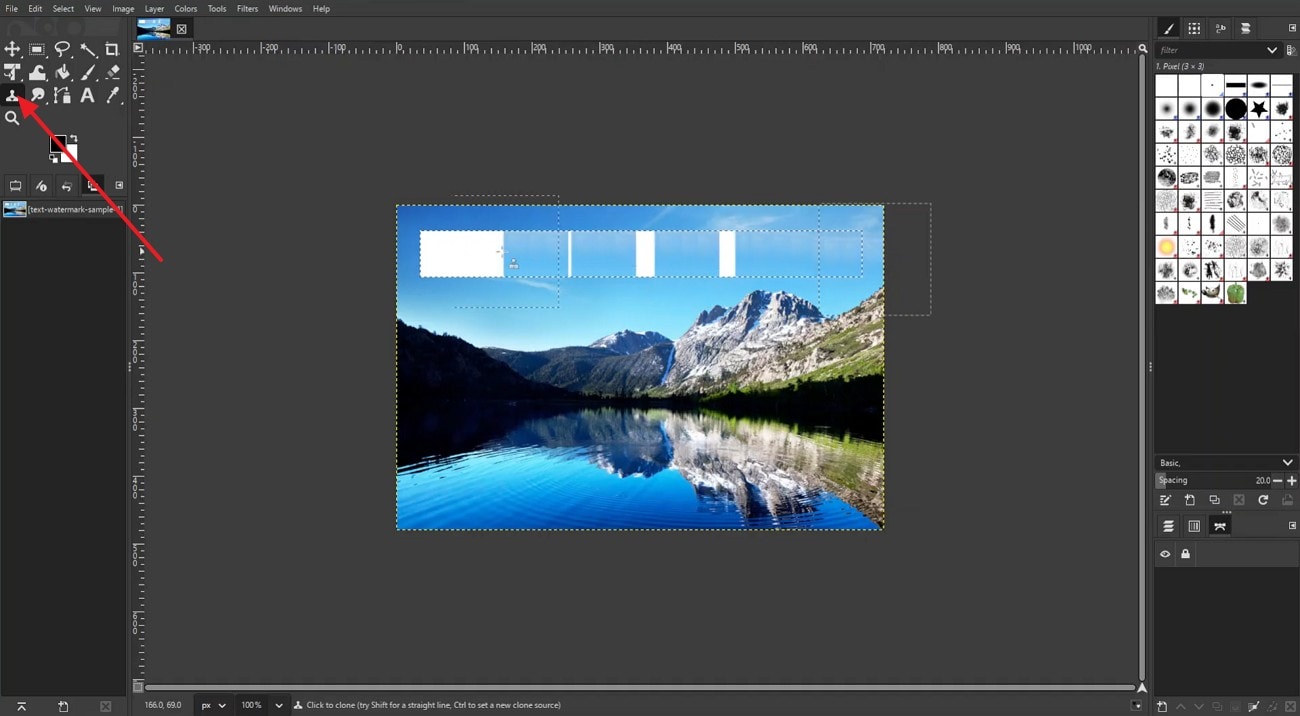
Step 4. Afterwards, pick the "Clone Tool" from the left toolbar and hold "Ctrl", then click a clean area, and paint over the watermark area.
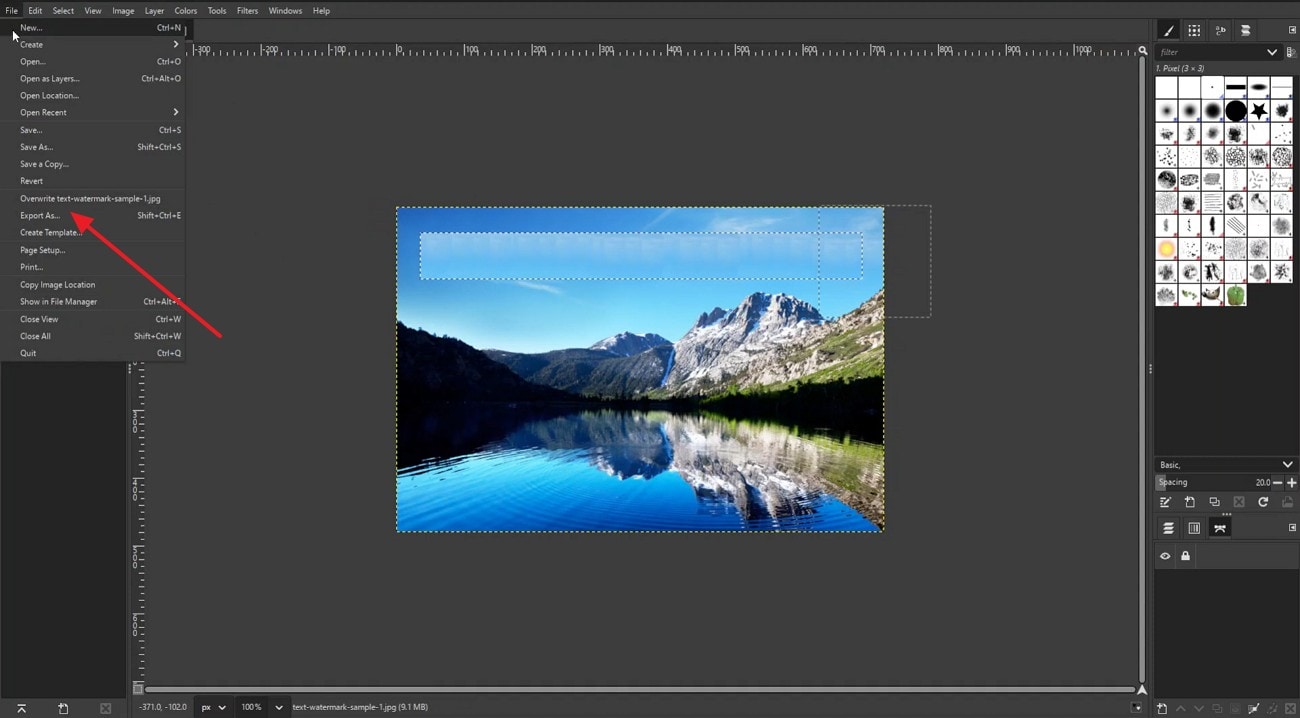
Step 5. Lastly, press the "File" option to further choose "Export As" from the drop-down list and save the edited image.
Limitations
- Interface feels outdated compared to modern professional editing software tools.
- Fewer automated features, require more time for complex editing tasks.
- Precision editing can be difficult without advanced retouching experience.
- Limited support for some advanced industry-standard file formats.
Part 4. Quick Overview: The Best Picsart Watermark Remover Tool for Images and Videos
After reviewing these tools, the comparison below simplifies your Picsart watermark remover selection:
| Tools | Type | Best For | Key Strength | Limitation |
| UniConverter Online | Online | Quick image cleanup and social media visuals | Clean removal with strong image quality preservation | Needs manual brushing for precise removal |
| WatermarkRemover.io | Online | Fast AI removal for images and short videos | Fully automatic AI removal with minimal manual effort | Blurry patches and inconsistent results on moving textures |
| Picsart | Online | Basic photo editing and small watermark cleanup | Beginner-friendly interface with simple brush removal tools | Struggles with complex textures and detailed backgrounds |
| VisualGPT.io | Online | AI restoration for thumbnails and product images | Rebuilds pixels instead of just blurring watermark areas | Limited manual control and may oversmooth details |
| PicWish | Online | Quick cleanup for social media and product photos | Automatic healing removes the watermark with minimal input | Results are inconsistent on shadows and gradient backgrounds |
| UniConverter Desktop | Desktop | Professional image and video watermark removal | High precision, AI enhancement, and professional export options | Requires installation |
| Adobe Photoshop | Desktop | Advanced professional watermark removal work | Content-aware fill gives highly realistic and precise results | Paid software with a steep learning curve |
| GIMP | Desktop | Free manual watermark removal with full control | Completely free and powerful cloning and editing tools | Manual process takes time and requires editing skills |
Part 5. 5 Tips to Keep Your Picsart Creations Watermark-Free
To avoid needing a Picsart watermark remover later, follow these simple habits:
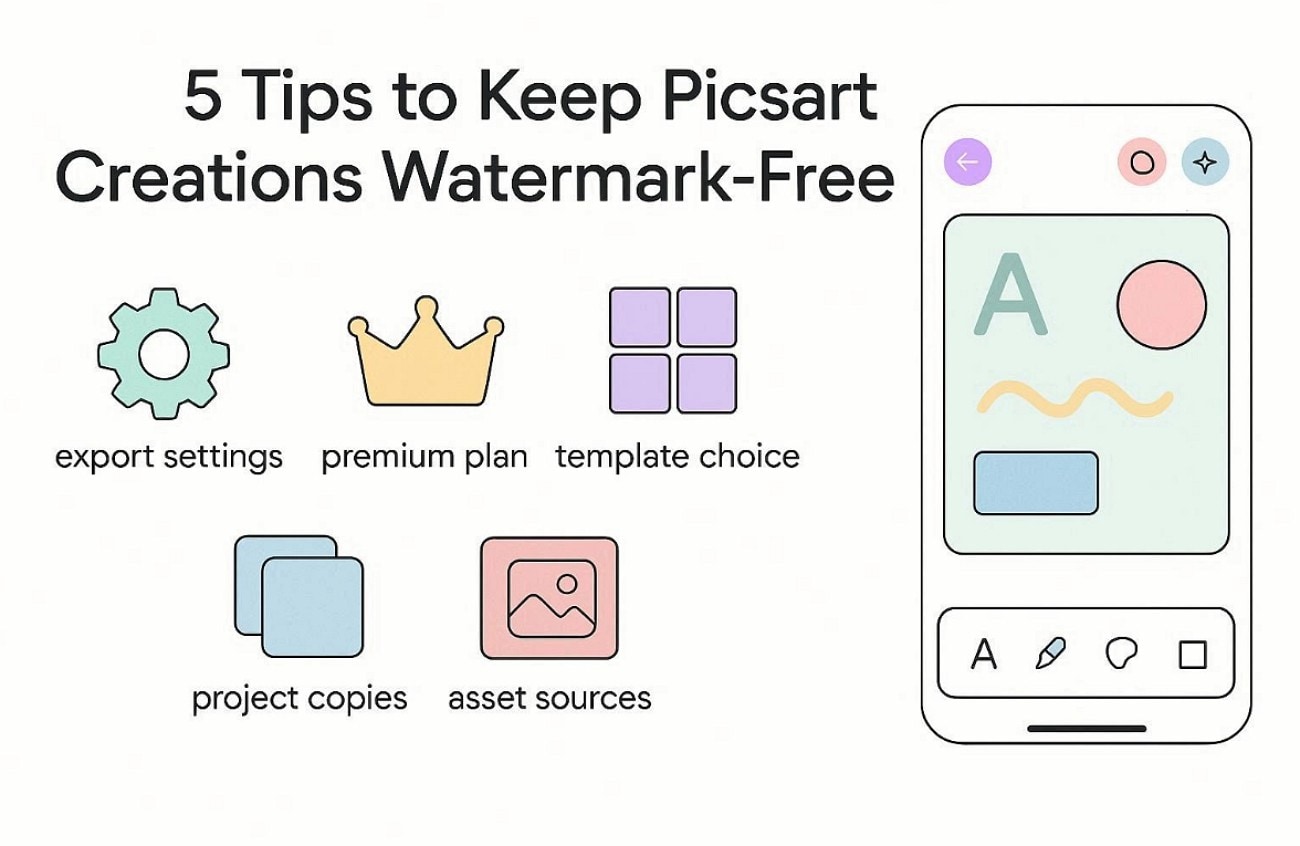
Export Settings: Check export settings to avoid watermark options being enabled in the app ever. Choose the correct resolution and format before saving your final project today.
Premium Plan: Use a licensed plan, so downloads stay clean for client work always. Review subscription status monthly to prevent surprise marks on exports again.
Template Choice: Pick free-use templates to reduce watermark risk in your designs right away. Avoid restricted stickers or fonts that trigger branding marks on output files.
Project Copies: Save a clean master copy before adding effects that may watermark exports. Duplicate versions for experiments, keeping originals untouched for future edits and revisions.
Asset Sources: Use your own media assets to avoid third-party watermarks when sharing. Track asset licenses in notes, so you can prove usage rights easily.
Conclusion
To conclude, removing watermarks requires patience, realistic expectations, and careful tool selection today. This guide explained how to remove the Picsart watermark from images and videos safely. Online Picsart watermark remover help with quick fixes, while desktop software delivers stronger precision results. Always review output quality before sharing edited visuals publicly or commercially. For the best balance between speed, accuracy, and professional exports, UniConverter remains highly recommended.
Frequently Asked Questions
-
Can Picsart watermarks be removed without reducing image quality?
Yes, but results depend on tool precision and background complexity during the removal process. Advanced tools rebuild pixels better, while basic tools may leave visible artifacts. -
Is it legal to remove the Picsart watermark from images and videos?
It depends on the ownership and usage rights of the original Picsart exported content. Removing watermarks without permission may violate terms or copyright protection policies. -
Which tool works best for removing the Picsart watermark from videos?
Desktop tools handle motion frames better than simple online watermark removal tools. UniConverter provides consistent video cleanup with better export quality and control. -
Why does watermark removal sometimes leave blurry or smudged areas?
Watermarks cover original pixels, so tools must rebuild missing visual information carefully. Complex textures, patterns, and motion increase the chances of imperfect reconstruction results.

