A TNAFlix downloader search is mainly task-driven: paste a video-page URL, save a usable file, find it, and fix failures. Start with UniConverter for desktop queue control, an online tool for a one-off public link, or a browser extension for the active watch page.
In this article
How to Download TNAFlix Videos with Wondershare UniConverter
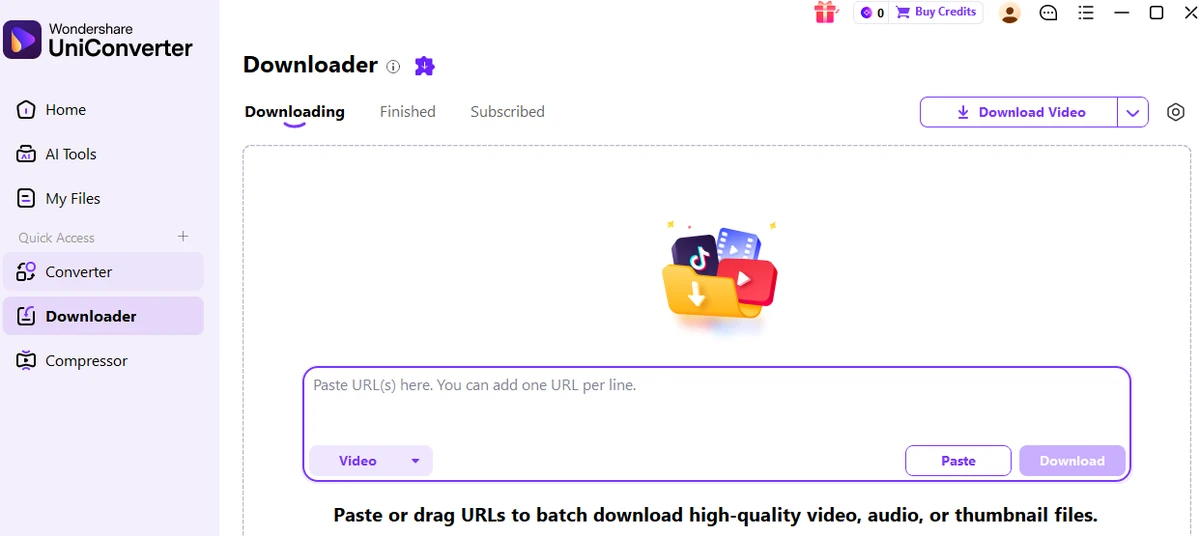
Wondershare UniConverter Downloader is the primary desktop method when you want queue control instead of a one-link web form. Add URL tasks, monitor them in Downloading, and collect completed files from Finished. See the Batch Video Downloader page and current Downloader guide for the documented workflow.

A Desktop TNAFlix Download Workflow Built Around Tasks
- Multiple URL tasks: Windows V17 accepts one URL per line for authorized batch work.
- Controlled concurrency: up to 10 simultaneous downloads can run; this is not a ten-URL queue limit.
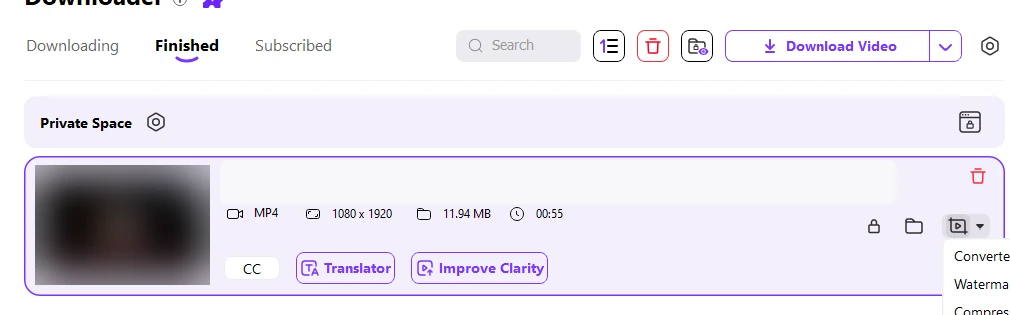
- Clear task states: Downloading shows active jobs; Finished holds completed files.
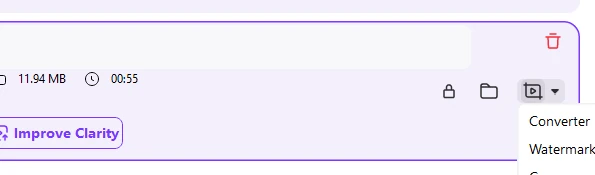
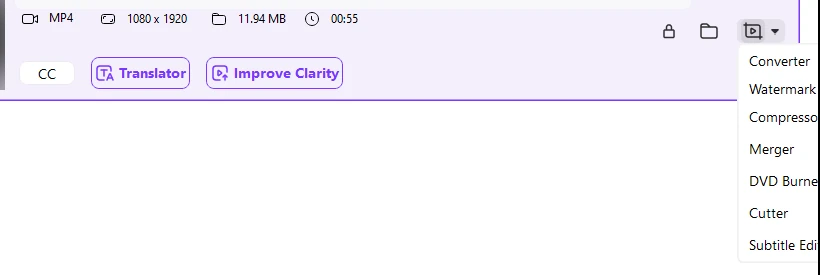
- Post-download workflow: use Converter or Compressor after saving when format or size needs change.
Windows vs. Mac: the screenshots below are Windows V17. The current Mac guide also documents URL paste, Download, Save to, and Finished, although the layout can differ.
Step 1. Open Downloader
Launch UniConverter and open Downloader. On Windows, select it from the left-side workspace navigation. On Mac, open Downloader from the main UniConverter interface.
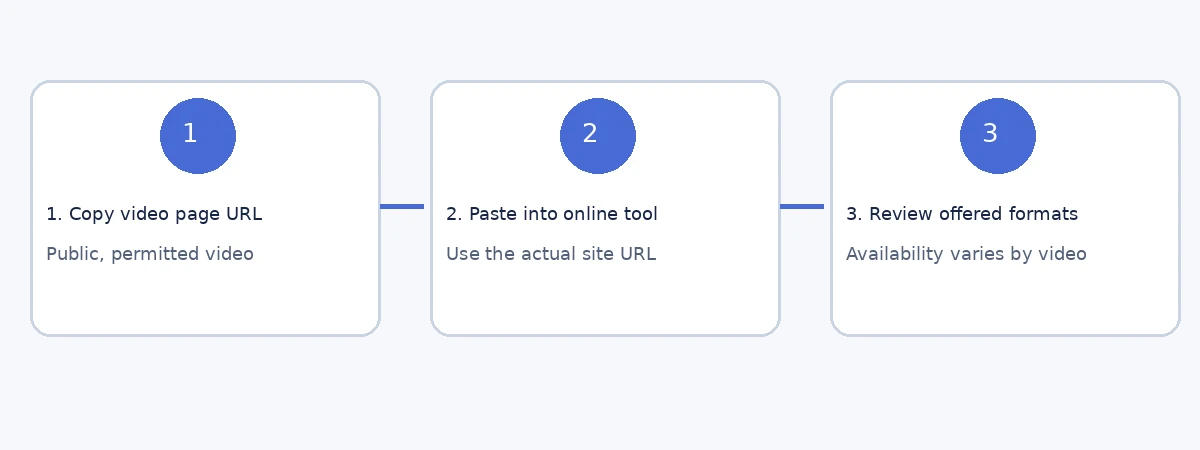
Step 2. Copy the individual TNAFlix video-page URL
Copy the complete address of the public video page you are permitted to save. Use the individual watch page, not the homepage, a listing page, or a partial share string.
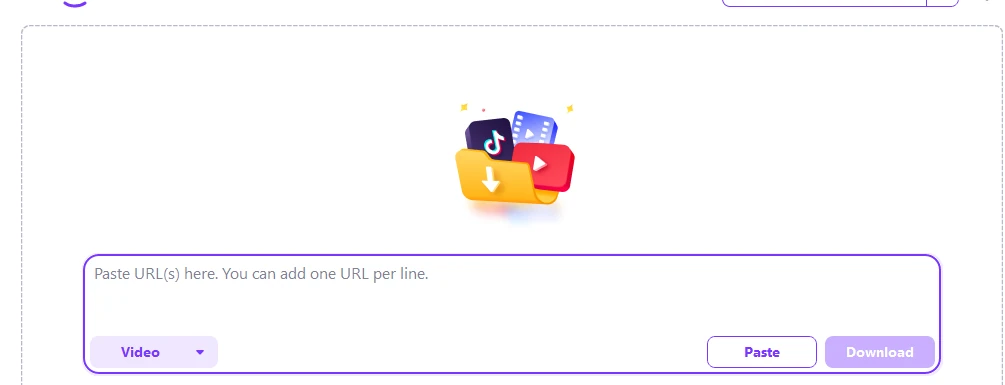
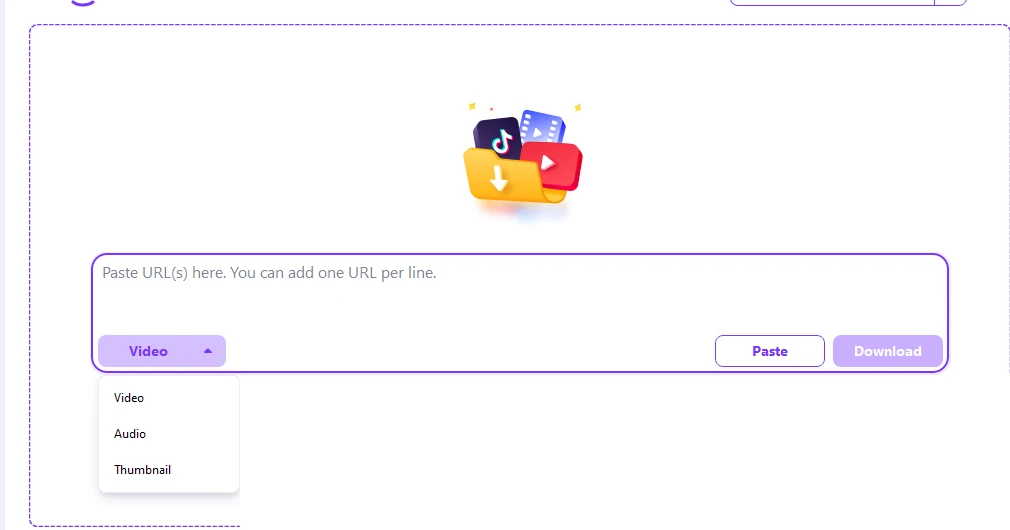
Step 3. Paste the URL and choose the media task
Paste the link into the URL box. In the Windows V17 interface, the field explicitly allows one URL per line. Choose Video for the video task; other media types are separate download tasks, not promises about the final video container.
Step 4. Start the task, review the available options, and manage progress
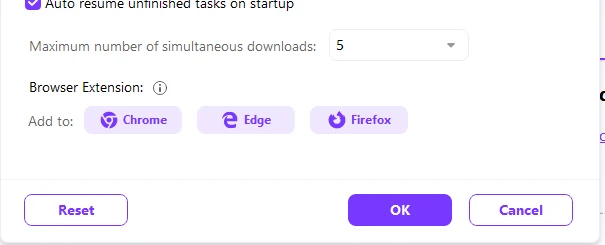
Use Download to submit the URL. UniConverter analyzes the page; choose only the media options it actually exposes. Monitor multiple links in Downloading and pause or resume tasks as needed. Windows V17 allows up to 10 simultaneous downloads. The download preferences guide covers related quality and task settings.
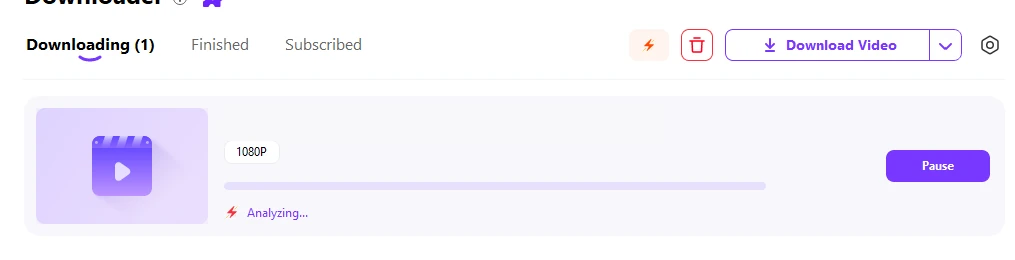
Step 5. Find the file in Finished
When the task completes, open Finished. Use the folder/file-location control or the Save to folder you selected to locate the local video. Before moving on, open the file and confirm that it plays through the expected duration and is the video you intended to save.
TNAFlix Downloader Online: Two No-Install Options
For one public video and no desktop installation, an online TNAFlix downloader is the shortest route. These are independent services, so use only the formats returned for the page you submit.
Option 1. NSFWDL TNAFlix Downloader
NSFWDL has a dedicated TNAFlix page for public video URLs. In October 2026 it states that free use needs no account and has a nominal file limit of about 500 MB; available qualities still depend on the page.
- Copy the complete public TNAFlix video-page URL.
- Paste it into the Video page URL field and choose Find formats.
- Select one of the available qualities and start the download. If no usable option appears, move to another method instead of trying to extract restricted source URLs manually.
Option 2. Locoloader
Locoloader's TNAFlix guide documents a browser workflow for public, no-login content and shows MP4 choices when extraction succeeds. Exact resolutions depend on the result.
- Copy the individual TNAFlix video link.
- Paste it into Locoloader's TNAFlix input field and wait for the download buttons to appear.
- Use the download option the page returns. The guide specifically documents using Save Link As from the result link when needed.
Alternative single-link form: TubeOffline's TNAFlix page also provides a dedicated video-URL form. Paste an individual watch-page link, review its conversion choices, and save the returned file if the source permits it. It is an optional fallback, not a verified download-success benchmark.
Online tools suit one-off links. For several authorized videos, a persistent Downloading/Finished queue is easier to monitor.
Use a TNAFlix Video Downloader Browser Extension
A browser extension keeps the workflow on the active watch page. The developer-maintained TNAFlix Video Downloader publisher page lists several desktop browsers, while Safari and mobile browsers are outside its supported list.
- Install the current desktop-browser build from the publisher's product page.
- Open a TNAFlix video page that you are already allowed to view and save.
- Start playback if detection needs the active media source, then open the extension panel.
- Choose from the quality options actually detected and save the local file.
The developer describes a limited trial and license-gated continued use; consult the current publisher page for the exact allowance. Detection still depends on the active page, and the extension does not unlock media you cannot already access.
Which TNAFlix Download Method Should You Choose?
| Method | Device | Install? | Best for | Main condition |
| Wondershare UniConverter Downloader | Windows / macOS desktop | Yes | Multiple URL tasks, progress management, Finished file location, post-download processing | Use an individual authorized video-page URL and the media choices the source provides |
| NSFWDL | Desktop or mobile browser | No | Quick one-off public links | Current free page states a nominal ~500 MB file limit; quality varies by source |
| Locoloader | Desktop or mobile browser | No | Simple public-link extraction with MP4 choices when available | Public content only; no login-required content |
| TNAFlix Video Downloader extension | Supported desktop browsers | Browser extension | Repeated saves from an active watch page | Detection depends on the active page; publisher does not list Safari/mobile browsers |
TNAFlix Download Not Working? Match the Symptom to the Fix
If the download finished but the file seems missing, start with the saved-file controls before retrying the whole task.
| What you see | Likely cause | What to do |
| The downloader rejects the link immediately | You copied a homepage, category/listing page, or incomplete address | Copy the complete individual public video-page URL, not a surrounding listing page. |
| The page opens but no media option is detected | The source changed, the page has not initialized, or the selected tool does not detect that page | Confirm the public page plays normally. For an extension, start playback and retry. For a URL tool, switch methods rather than extracting hidden stream addresses. |
| The video is deleted or unavailable | The source itself no longer provides a usable public page | There is no download-side fix. Use another authorized video that is available; removed, private, restricted, or protected content is outside this guide. |
| The transfer stops partway through | Network interruption, temporary source failure, or a browser-tool limit | In UniConverter, use the task pause/resume controls and retry when the connection is stable. In an online tool, return to the result page and retry an available option. |
| You cannot find the downloaded file | The save folder is different from the one you expected | In UniConverter, open Finished and the file-location control, or check Save to. For browser methods, open the browser's Downloads list or the save dialog destination. |
| The file downloads but will not play correctly | The saved container/codec is not supported by the target player, or the transfer is incomplete | First confirm the file duration and size look complete. If the file is intact, convert the local copy to a compatible format with UniConverter Converter. |
TNAFlix to MP4 or a Smaller File: Process the Downloaded Video Afterward
A downloader can only work with the media choices available from the source. If your completed local file needs MP4 for a device or app, open UniConverter Converter, add the saved file, choose an appropriate MP4 output profile, and convert it. If the problem is file size rather than compatibility, use Compressor after the download is complete. This keeps the download step and the conversion/compression step technically separate.
Related Download Guides
For other public video services, see our guides to ThisVid downloads, Eporner downloads, and Sendvid downloads. Different sites have different link patterns and available controls; do not transfer their tool settings directly to TNAFlix.
FAQ about TNAFlix Downloading
-
How do I download videos from TNAFlix?
Copy the individual public video-page URL and add it to a compatible downloader. UniConverter adds desktop queue management and a Finished list for completed files. -
Can I download TNAFlix videos on Windows and Mac?
UniConverter Downloader is available for Windows and macOS. This page shows real Windows V17 screens; the macOS guide documents a comparable URL-based workflow, but platform-specific compatibility records are separate. -
Is there an online TNAFlix downloader?
Yes. NSFWDL and Locoloader currently publish dedicated workflows for public TNAFlix video pages. Use the limits and formats shown on the live result page. -
Can I download multiple TNAFlix videos?
Yes, for supported URLs. Windows V17 can manage multiple URL tasks and run up to 10 simultaneous downloads; that is not a ten-URL queue limit. -
What video quality can I download from TNAFlix?
Quality depends on what the individual page exposes and the downloader detects. Choose from the options shown for your link instead of assuming a fixed resolution. -
Why is my TNAFlix download not working?
Use the individual public video page, let it load, and retry detection or switch methods. Removed, restricted, or protected content is outside this guide. -
Where are my downloaded TNAFlix videos saved?
In UniConverter, use Finished or the selected Save to folder. Browser tools normally use the configured Downloads folder unless a save dialog appears.
Conclusion
For one authorized public TNAFlix video, an online tool or desktop extension can be enough. For multiple links, clearer progress control, and an easier path to the finished file, Wondershare UniConverter Downloader is the more complete workflow: add the video-page URLs, manage the queue, open the result from Finished, then convert or compress the local file only when the next device or sharing task requires it.