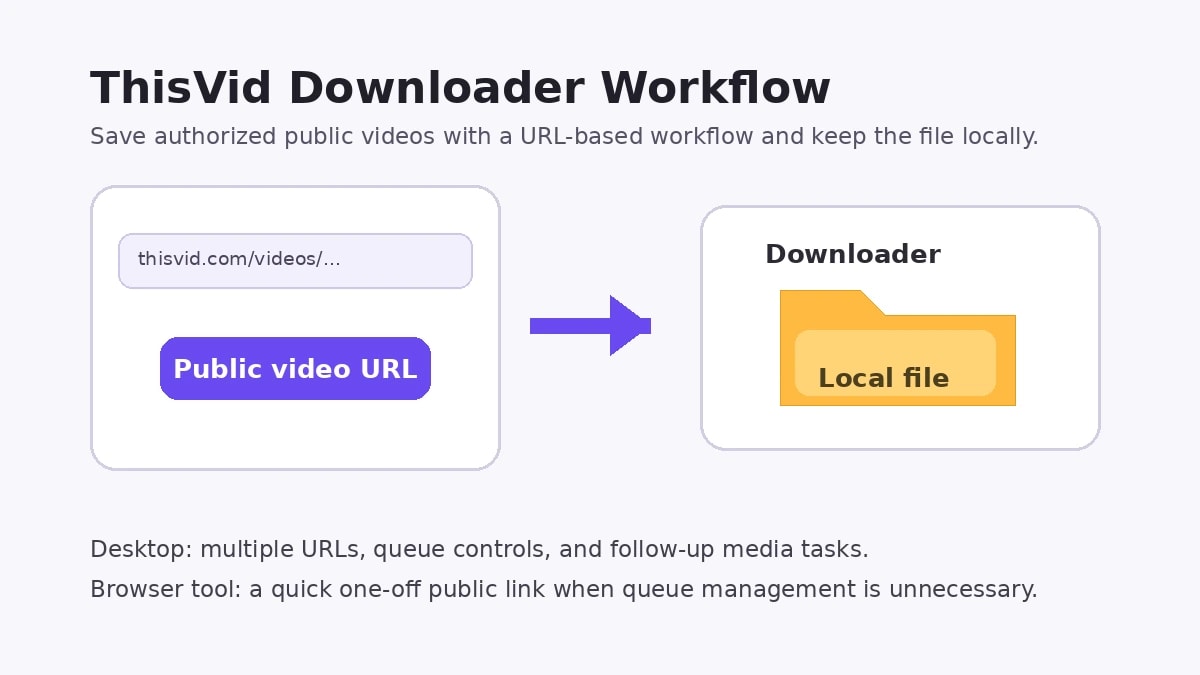
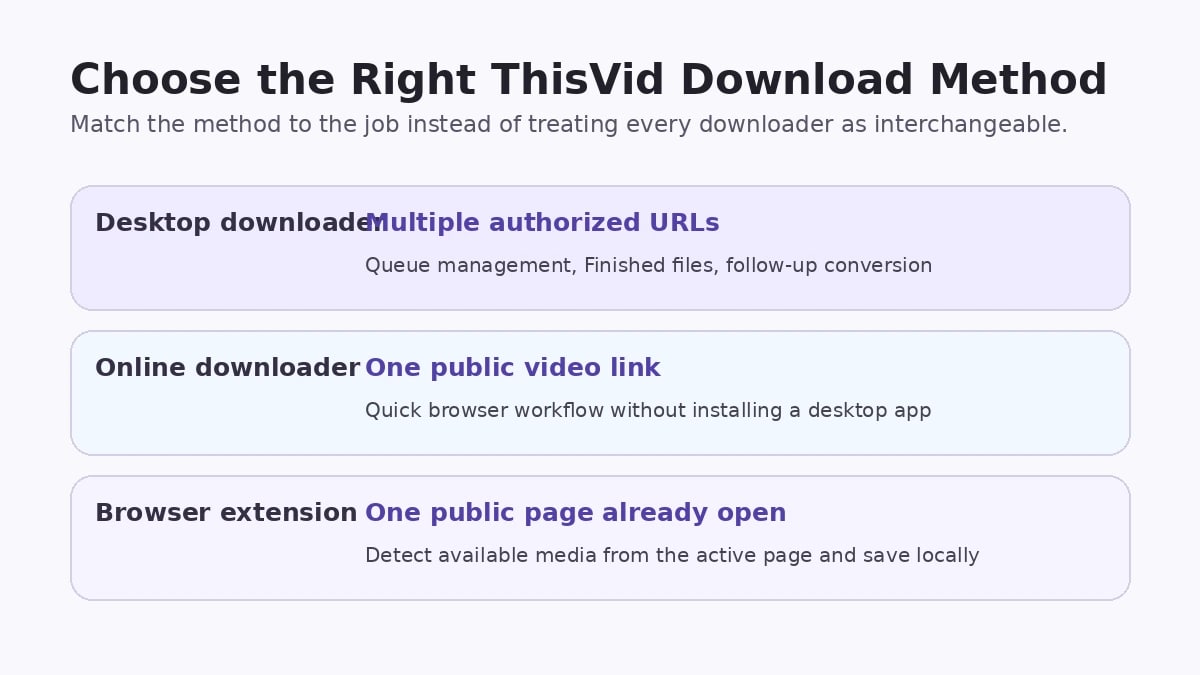
ThisVid is a user-uploaded video platform, so people searching for a ThisVid downloader usually want an immediate answer: which URL should they copy, which tool can handle it, and where does the finished file go? This guide focuses on public video pages that you are allowed to save. It compares a managed desktop workflow, a current online tool, and a dedicated browser extension without using access-restriction or DRM bypasses.
In this article
Part 1. How to Download ThisVid Videos with Wondershare UniConverter
Wondershare UniConverter Downloader supports downloading public ThisVid videos from their URLs on Windows and Mac. For more than one clip, its desktop workspace lets you paste multiple URLs, check active tasks under Downloading, and access completed items in Finished. Download Preferences can run up to 10 simultaneous downloads; additional URLs can remain in the managed queue. Afterward, a local file can continue into UniConverter's conversion or compression workflow instead of being re-uploaded to another service.
Download ThisVid Videos and Manage Multiple URLs in One Place
How to Download ThisVid Videos with UniConverter: 5 Steps
Step 1. Launch UniConverter and open Downloader.
Install and open UniConverter on Windows or Mac. Select Downloader from the workspace navigation. This is the URL download module, not the Converter for local files.
Step 2. Copy the ThisVid video URL.
Open the individual public video watch page in your browser and copy its address. Use the video page rather than a profile, category, or tag listing.
Step 3. Paste the URL and select Video.
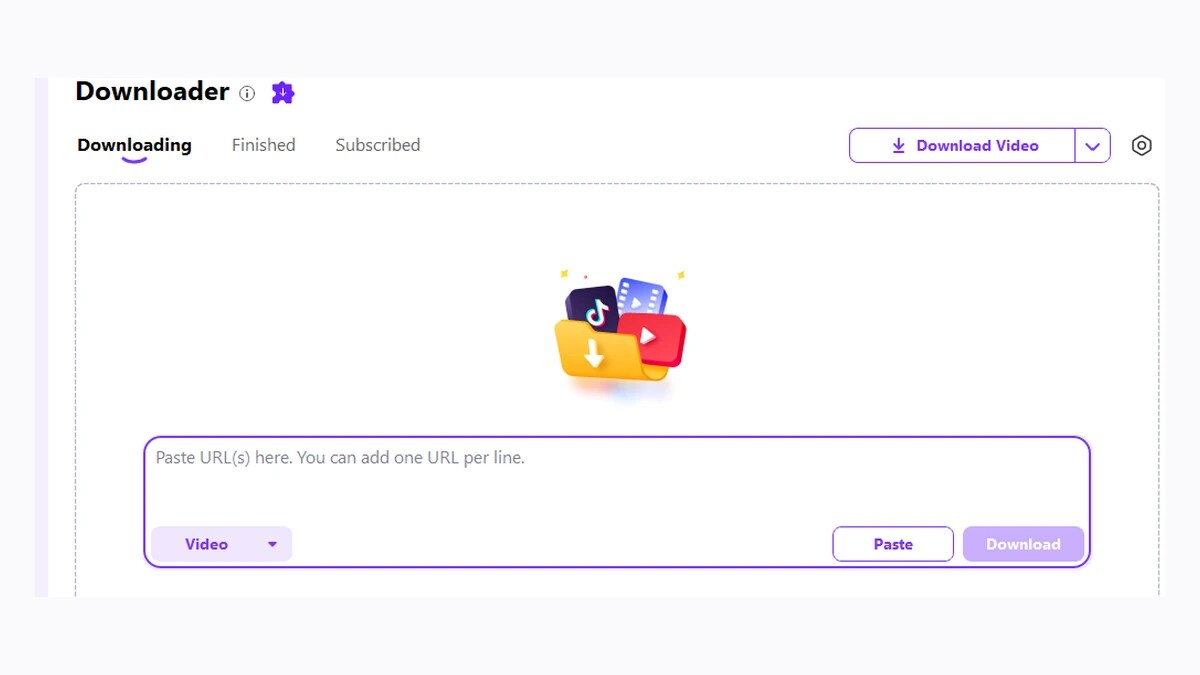
Paste the URL into the Downloader input field. To download multiple public ThisVid videos, add one authorized URL per line. Select Video from the media-type menu; Audio and Thumbnail are separate task types, not MP4 conversion settings.
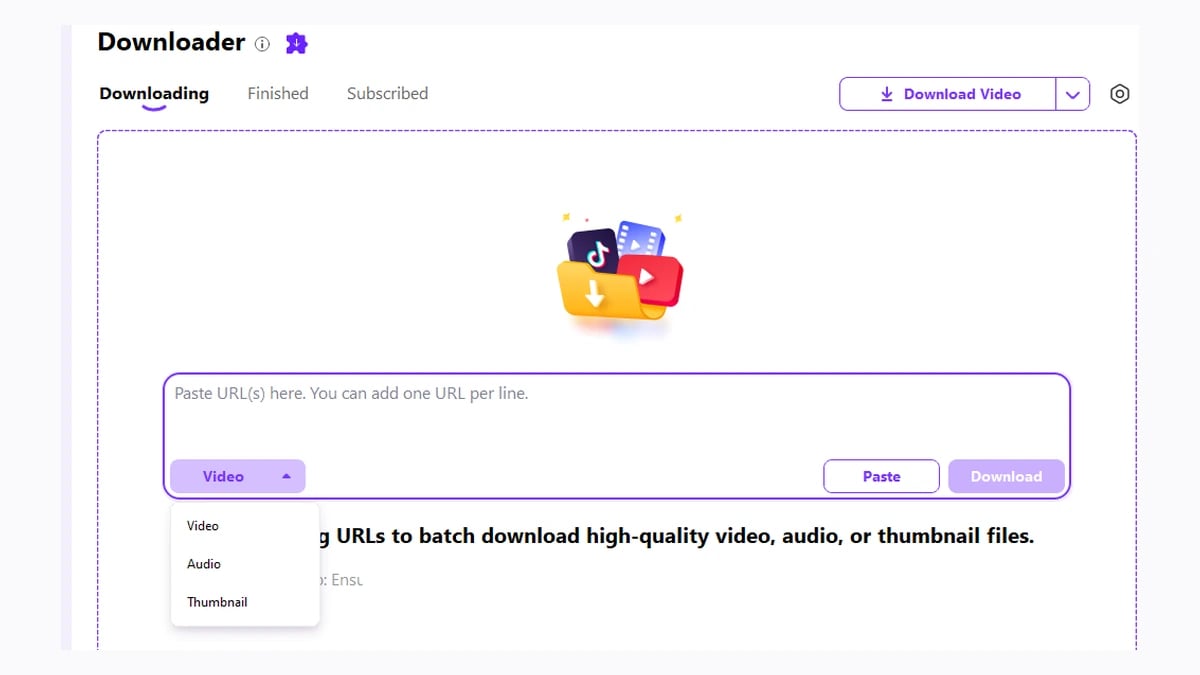
Step 4. Analyze and download the video.
Submit the link for analysis, review the media choices shown for that URL, then start the download. You can track task status in Downloading and use available pause/resume controls. UniConverter supports up to 10 simultaneous downloads, which describes parallel activity, not a 10-URL submission limit.

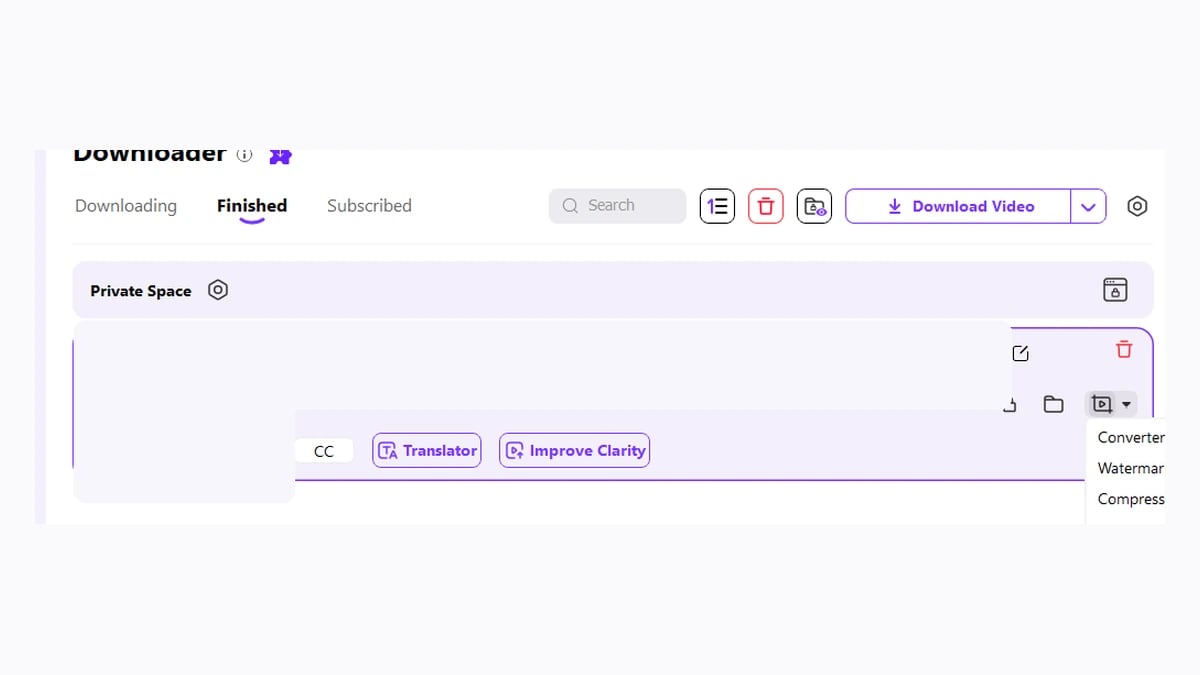
Step 5. Find your video in Finished.
When the download completes, open Finished. Use the completed item's file/folder control to find the saved video, then check playback and audio. If you later need an MP4 or a smaller file, open the local video in Converter or Video Compressor respectively. Those are post-download tasks, not the download itself.

Part 2. How to Download ThisVid Videos Online
dlthisvid: a browser option for one public video link
dlthisvid is a current browser-based ThisVid downloader built around a single public video-page URL. Its site describes the workflow as free and requiring neither an account nor installation, and it explicitly states that private videos are not supported. That makes it suitable for a quick public-link job when you do not need a desktop queue. The site published workflow shows Get video, multiple quality rows where available, and displayed file sizes before choosing a download.
How to use it:
- Open the individual public ThisVid video page and copy its URL. A profile or category URL is not the same as a video-page URL.
- Open dlthisvid, paste the link into the input field, and click Get video.
- Review the file options the tool returns and choose the available quality you want to save.
TubeOffline: a second online ThisVid downloader option
TubeOffline's dedicated ThisVID page displays a video-URL field and conversion-format controls. It is an alternative for a single public URL when the first online option is unavailable. Its current page confirms the dedicated ThisVID form, but the result for any particular URL depends on current source availability.
How to use TubeOffline:
- Open its dedicated ThisVID downloader page.
- Copy the authorized public video's URL and paste it into the video URL field.
- Use the site's displayed conversion/download controls and save a file if the page returns an available result.
Part 3. Download ThisVid Videos with a Browser Extension
A dedicated extension can be useful when you prefer to work from the video page already open in a desktop browser. The current ThisVid Video Downloader project describes a flow that detects supported media from the active page, shows available quality options, and saves MP4 output. Its listed v4.0.5 release provides builds for Chrome, Edge, Brave, Opera, Yandex, and Whale. The publisher currently labels Firefox as coming soon on its product page, even though older releases offered Firefox files. The extension requires a separate installation and has a limited trial according to its publisher.
Step 1. Install the current build for your desktop browser.
Open the project's latest release and choose the build that matches your browser. Follow the publisher's installation instructions.
Step 2. Open the public video page and let the player load.
Use a page that is already publicly viewable and that you are authorized to save. The project documentation says playback may need to start before the extension can detect the stream.
Step 3. Choose an available option and save the MP4.
Open the extension popup or its in-page download control, select one of the available media options, and start the download. The project documentation places the saved file in the browser's download workflow; the exact folder can depend on the browser and extension settings.
Part 4. Why Is My ThisVid Download Not Working?
A failed ThisVid download does not always mean the downloader is unsupported. First identify what failed: the URL, media detection, transfer, file location, or playback.
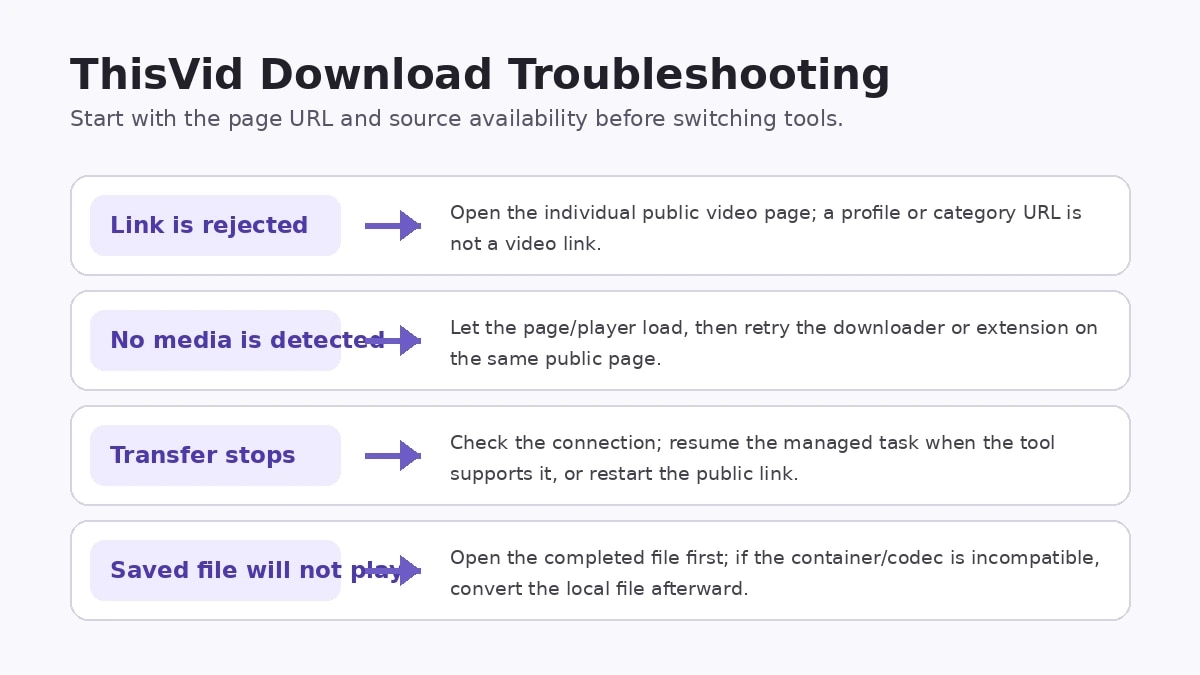
| What you see | Possible reason | What to do |
| The tool rejects the link | You copied a profile, category, or another non-video page. | Open the individual public video page and copy that page's URL. |
| The page used to work, but no file is found | The video may have been removed or is no longer publicly available. | Check whether the public page itself still loads. Do not try to bypass a changed access restriction. |
| The tool does not detect media | The player has not exposed a supported source yet, or the current method cannot read that page. | Let the public page/player load normally and retry. For the extension, start playback if its documentation requires it. |
| The download stops partway through | The network connection or source transfer was interrupted. | Resume the managed task when the tool provides resume controls; otherwise restart the public-link workflow. |
| You cannot find the completed file | The file went to a different save location. | In UniConverter, check Finished and the folder controls. In a browser, check the configured Downloads location. |
| Video quality looks lower than expected | The public source only provides certain resolutions. | Select the best available source option; downloading cannot create missing source detail. |
| The download finishes but will not play correctly | Your player may not support the saved container or codec. | Try a compatible player first. If needed, convert the local file to MP4 with UniConverter; conversion cannot restore quality that was absent from the source. |
FAQs about ThisVid Downloading
-
How do I download ThisVid videos?
Copy a public ThisVid video-page URL and paste it into Wondershare UniConverter Downloader. Choose Video, start the download, and find the saved file in Finished. Online tools and browser extensions offer alternatives for single links. -
Can I download ThisVid videos on Windows and Mac?
Yes. Wondershare UniConverter Downloader supports downloading public ThisVid videos by URL on Windows and Mac. Choose the video URL, then manage the saved file in Finished. -
Can I download multiple ThisVid videos?
Yes, when the URLs are supported. UniConverter lets you add multiple URLs to a queue and configure up to 10 simultaneous downloads. That setting controls concurrent tasks; it does not mean the queue is limited to only 10 URLs. -
Is there an online ThisVid downloader?
Yes. dlthisvid accepts public ThisVid video-page URLs and displays available download choices. TubeOffline also offers a dedicated ThisVID input page, although the result for an individual link is not guaranteed. -
Why is my ThisVid download not working?
Check whether you copied an individual public video-page URL, whether the page still exists, whether the media was detected, and whether the transfer was interrupted. If the file downloaded but will not play, the issue may be playback compatibility rather than the download itself. -
Where can I find my downloaded videos?
In UniConverter, open Finished and use the file or folder controls for the completed task. Browser-based methods normally save to the browser's configured Downloads location. -
How can I convert a downloaded ThisVid video to MP4?
If the saved local file is not already in the format you need, add it to UniConverter Converter, choose MP4 as the target, and convert the file. This is a separate post-download operation and cannot increase the original source quality.
Conclusion
For one authorized public link, an online downloader or a current browser extension can be enough. For repeated ThisVid download tasks, multiple URLs, queue controls, and easier file management, Wondershare UniConverter Downloader provides the more complete desktop workflow: add the URLs, manage active tasks, find files in Finished, then convert or compress the local results only when needed.