PlayVids is a video-sharing site where a viewer may want to save an authorized public clip for offline use. That is why people searching for a PlayVids downloader usually have one practical question: which URL should they copy, which tool can grab it, and where does the finished file go? This guide answers exactly that for public videos you are allowed to save. It walks through a desktop workflow with batch queue controls, two online alternatives, and a browser extension, then explains what to check when a download fails. None of the methods below bypasses private access, age walls, or DRM.
In this article
Part 1. How to Download PlayVids Videos with Wondershare UniConverter
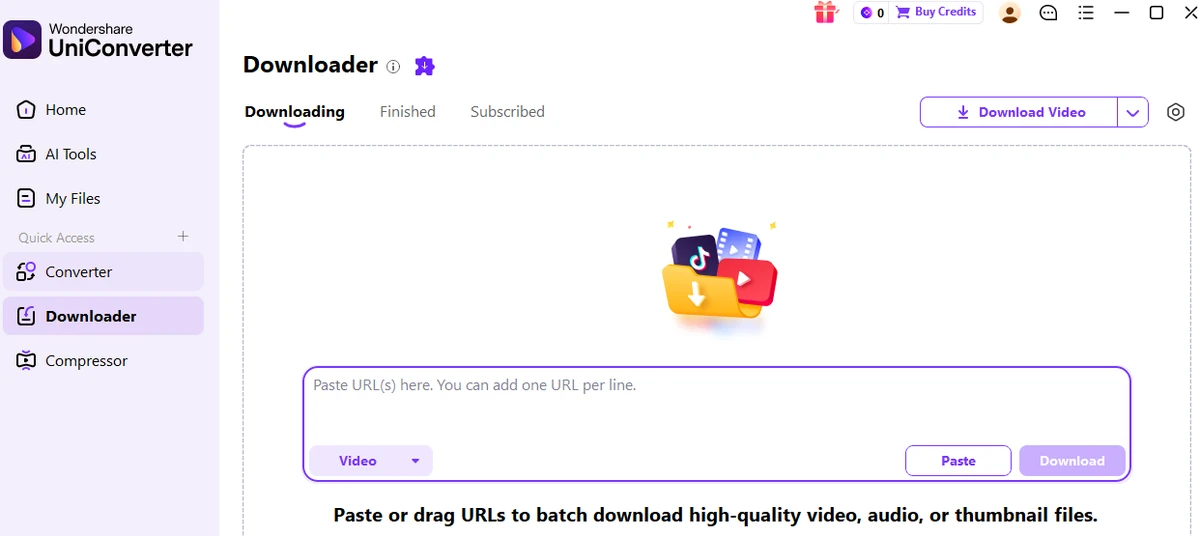
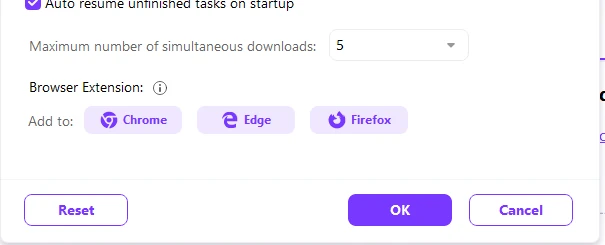
Wondershare UniConverter Downloader provides URL-based video download tasks on Windows and Mac; PlayVids is listed in the supplied Windows and Mac compatibility records. Instead of pasting links one at a time, you can add multiple video URLs to a single queue, monitor every task under Downloading, and collect the results from Finished. Download Preferences lets you run up to 10 simultaneous downloads, and once a file is on disk, UniConverter's Converter and Video Compressor are one click away if you need another format or a smaller file.
Download PlayVids Videos and Manage Multiple URLs in One Place
Save authorized public PlayVids videos, paste several URLs into one queue, watch each task's progress, and find the finished files. Convert or compress a saved video afterward when you need a different format or size.
How to Download PlayVids Videos with UniConverter: 5 Steps
Step 1. Launch UniConverter and open Downloader.
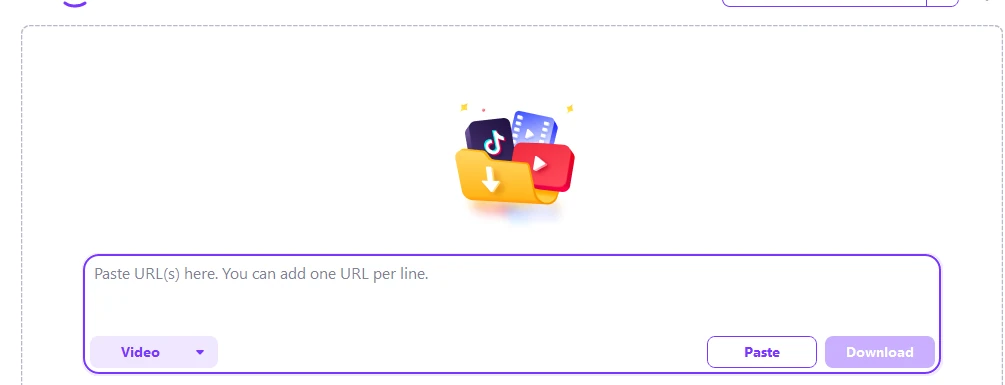
Install and open UniConverter on Windows or Mac. Select Downloader from the workspace navigation. This is the URL download module, not the Converter for local files.
Step 2. Copy the PlayVids video URL.
Open the individual public video page at playvids.com and copy its address from the browser bar. Individual watch-page URLs vary in structure; copy the full address of the specific video you are viewing. Copy the video page itself, not a category page, a tag listing, or a search result page.
Step 3. Paste the URL and select Video.
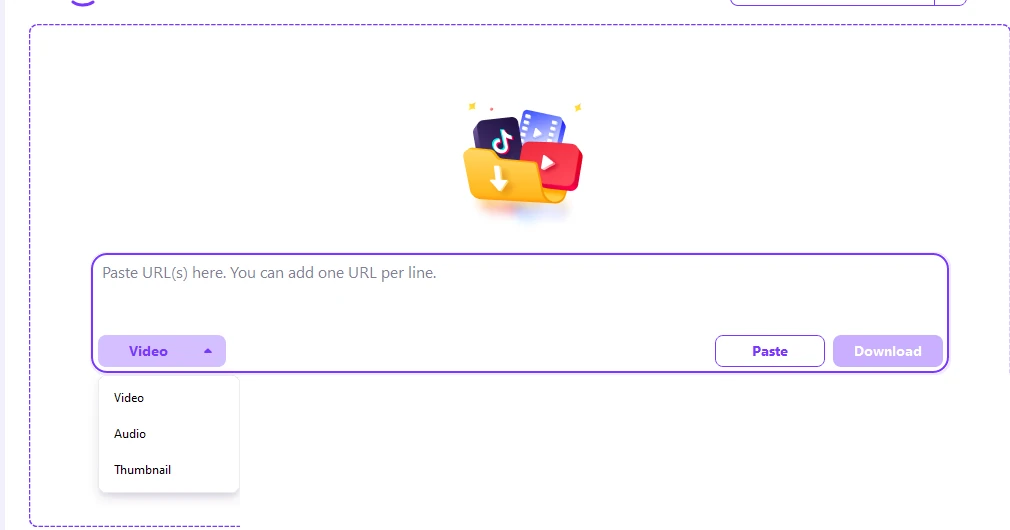
Paste the link into the Downloader input field. To download several public PlayVids videos, add one URL per line so each becomes its own managed task. Choose Video from the media-type menu; Audio and Thumbnail are separate task types, not MP4 conversion settings.
Step 4. Analyze and download the video.
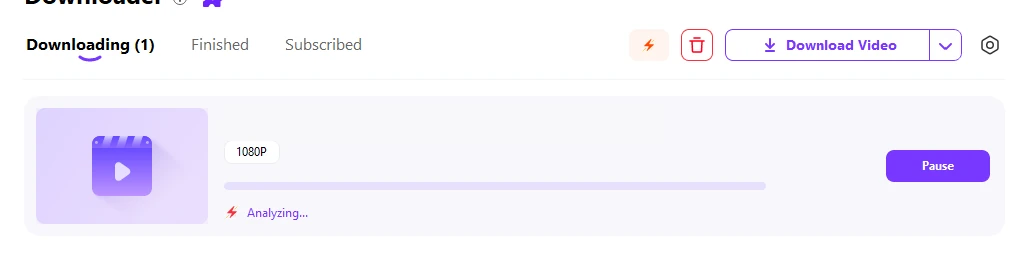
Submit the link for analysis, review the media options actually offered for that URL, then start the download. Active tasks appear under Downloading, where you can pause, resume, or manage individual tasks and run up to 10 simultaneous downloads. That number describes parallel activity in Download Preferences; additional URLs can stay queued in the task list.
Step 5. Find your video in Finished.
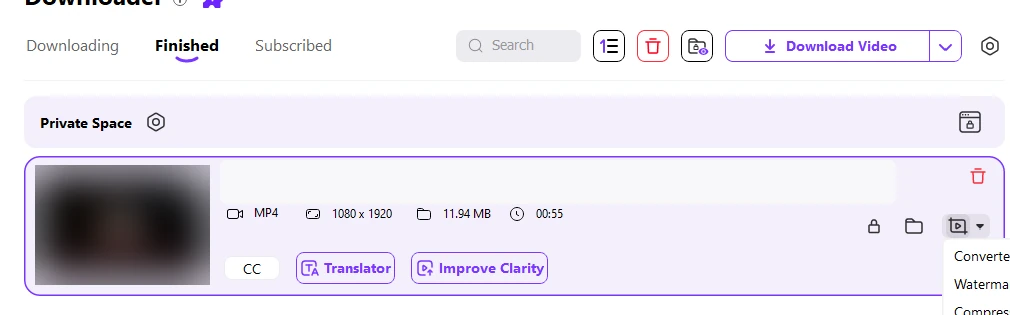
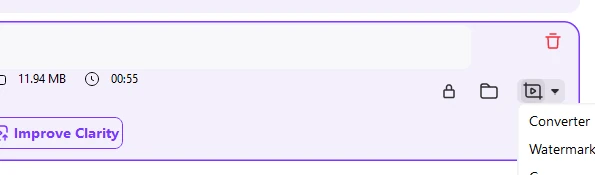
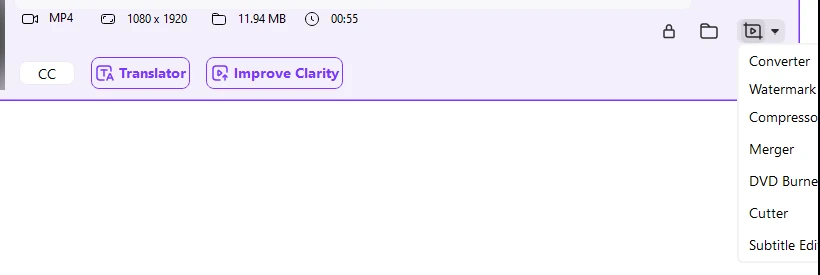
When a task completes, open Finished and use the file or folder control on the completed item to locate the saved video. Check that it plays with sound. If you need a different format afterward, open the local file in Converter; if the size is too large for storage, run it through Video Compressor. Those are separate post-download steps and cannot add quality the source never had.
Part 2. How to Download PlayVids Videos Online
6Buses PlayVids Downloader: a browser tool for short public clips
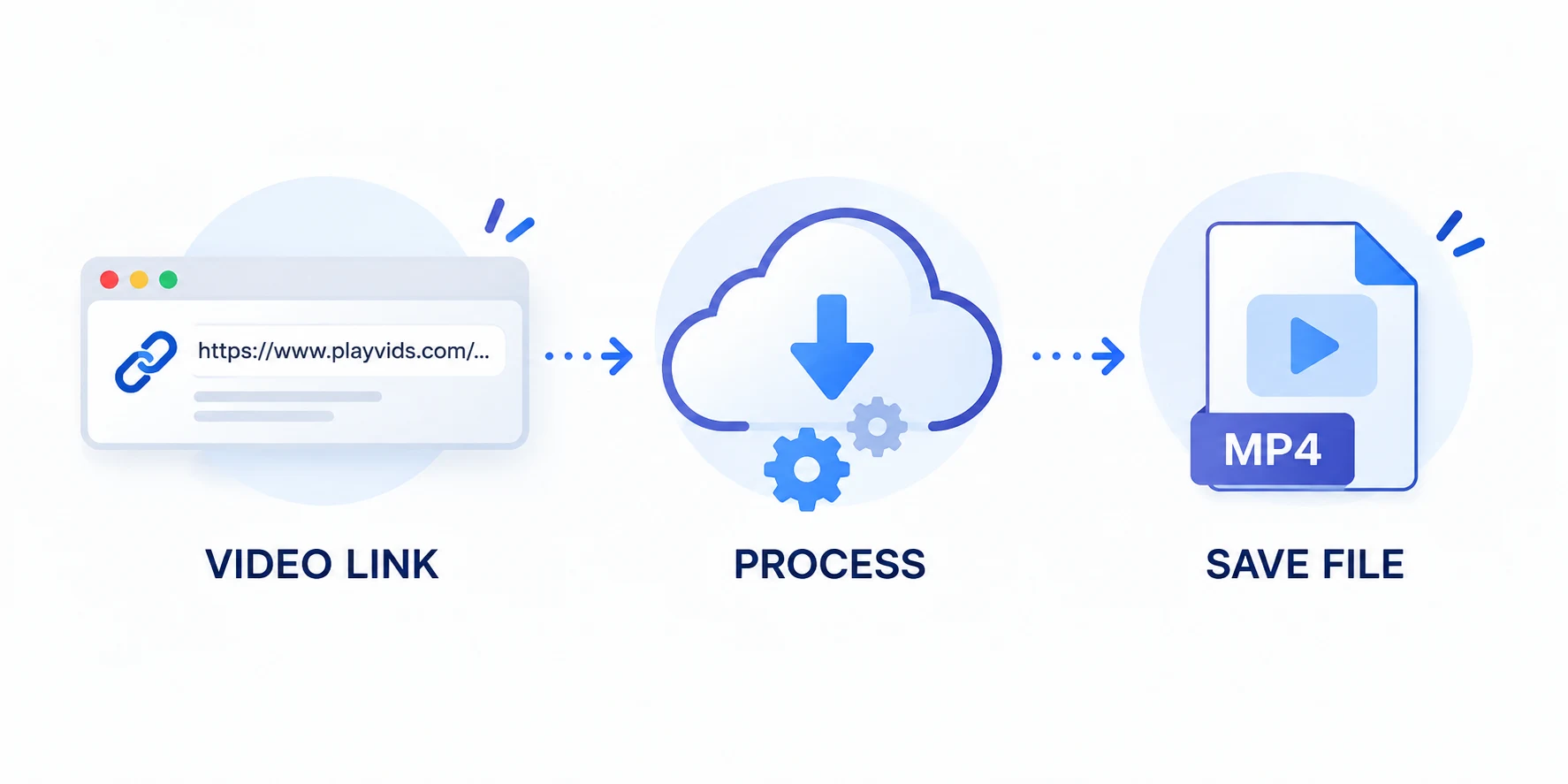
6Buses publishes a dedicated online PlayVids downloader that needs no installation and no account. Its own page documents the limits up front: the free web tool saves videos up to 10 minutes long in SD quality, applies a daily download cap, and points longer or heavier jobs to its separate desktop software. That makes it a reasonable pick when you want one quick public clip without installing anything.
How to use it:
1. Open the public PlayVids video page in your browser, copy its URL, and paste it into the input box on the 6Buses PlayVids downloader page. The service analyzes the pasted video link.
2. Click the download button, wait for the preview, and choose the offered MP4 or audio option to save the file.
Pros: No installation or account claimed by the provider; dedicated PlayVids input page; MP4 and audio choices described on its page.
Cons: 10-minute and SD ceilings on the free web tool; daily download cap; one link at a time instead of a managed multi-URL queue.
TubeOffline: a second online option for a single public link
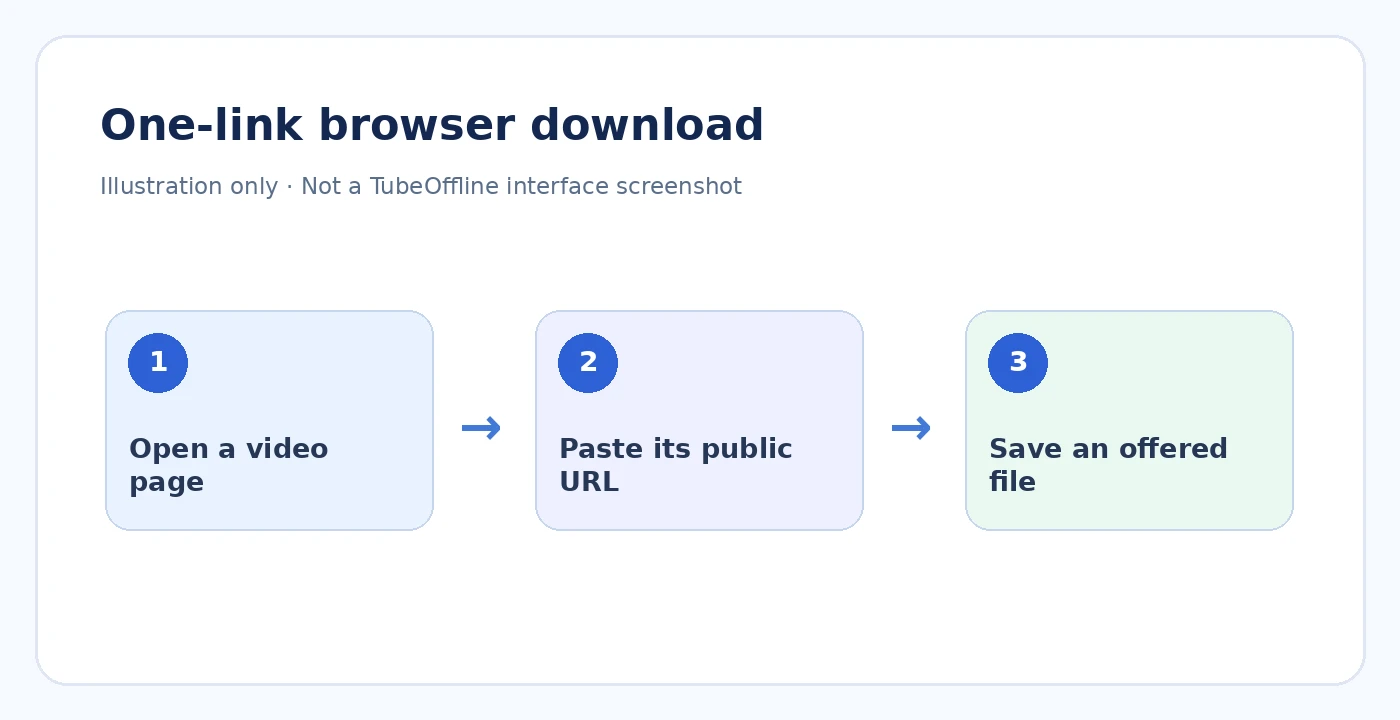
TubeOffline keeps a dedicated Playvids downloader page with a video-URL field and conversion-format controls. Its page shows the expected link format as an example, which is useful for double-checking that you copied the video page and not a listing page. Results for any particular URL depend on current source availability, so treat it as a fallback for one-off public links.
How to use it: open the dedicated Playvids page, paste the public video URL into the field, then use the site's displayed format controls and save the file if the page returns an available result.
Pros: Dedicated Playvids form; browser based; a second place to try if the first tool fails.
Cons: Single-link workflow with no task queue; a dedicated form does not guarantee a result for every video.
Part 3. Download PlayVids Videos with a Browser Extension
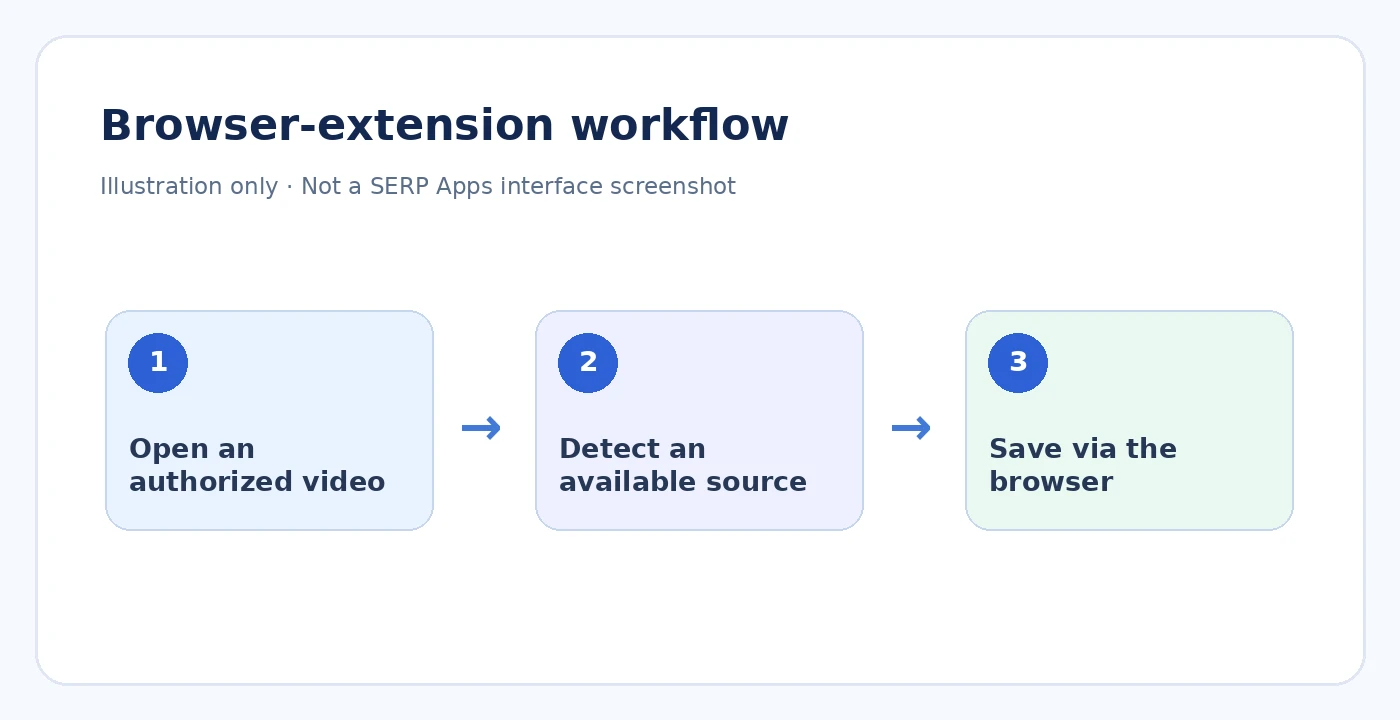
If you prefer working from the video page you already have open, SERP Apps publishes a PlayVids Video Downloader extension for desktop browsers. According to its product page, the extension detects the available video source on the PlayVids page you are watching and starts the download from there, with local browser downloads according to its publisher. The publisher offers a 3-download free trial and a license for continued use, and lists the current browser builds on its download section. Install it from the publisher's page, open a public video page you are allowed to save, let the extension detect the source, and choose an available option to save the file. Because installation, browser support, and licensing are controlled by that publisher and can change, check its page for the current terms before relying on this route.
Which PlayVids Downloader Should You Choose?
| Method | Devices | Install? | Best for | Main condition |
|---|---|---|---|---|
| UniConverter Downloader | Windows / Mac | Yes | Multiple media URLs, monitoring, local file management | Individual supported public URLs |
| 6Buses Online | Modern browser | No | One short video | Online mode: up to 10 minutes, SD, one task at a time |
| TubeOffline | Browser | No | Single URL fallback | Current source and tool availability |
| SERP Apps extension | Supported desktop browser | Yes | Current-page workflow | Publisher build / licensing requirements |
Part 4. Why Is My PlayVids Download Not Working?
A failed PlayVids download does not always mean the site is unsupported. First identify what actually failed: the URL, media detection, the transfer itself, the file location, or playback.
| What you see | Possible reason | What to do |
|---|---|---|
| The tool rejects the link | You copied a category page, tag listing, or search page instead of a video page. | Open the individual public video page at playvids.com and copy that address (playvids.com/ID/video-title). |
| The page used to work, but no file is found | The video was removed or is no longer publicly available. | Check whether the public page itself still loads and plays. If it is gone, the download cannot be recovered. |
| The tool does not detect media | The player has not exposed a source yet, or the current method cannot read that page. | Let the page and player load fully, then retry; try the alternative method from this guide. |
| The download stops partway through | The network connection or the source transfer was interrupted. | In UniConverter, resume the task from Downloading; in a browser tool, restart the single-link flow. |
| You cannot find the completed file | The file went to a different save location. | In UniConverter, open Finished and use the folder control; in a browser, check the browser's Downloads folder. |
| Quality looks lower than expected | The source only provides certain resolutions (the free online tools also cap quality). | Pick the best option the source actually offers; downloading cannot create detail the source lacks. |
| The file downloads but will not play | Your player does not support the saved container or codec. | Try a compatible player first, or convert the local file to MP4 with UniConverter. |
FAQs about PlayVids Downloading
How do I download videos from PlayVids?
Copy the public video-page URL and paste it into Wondershare UniConverter Downloader, choose Video, start the download, and collect the file from Finished. 6Buses and TubeOffline cover one-off public links in the browser.
Can I download PlayVids videos on Windows and Mac?
Yes. UniConverter Downloader saves public PlayVids videos by URL on both Windows and Mac, with the same queue and Finished workflow on each system.
Is there an online PlayVids downloader?
Yes. 6Buses runs a dedicated online PlayVids downloader, and TubeOffline offers a Playvids form as an alternative. Both are single-link tools with the limits described in Part 2.
Can I download multiple PlayVids videos?
Yes, when the URLs are supported. UniConverter lets you paste multiple URLs into one queue and set up to 10 simultaneous downloads in Download Preferences. That setting controls parallel tasks, not the number of URLs the queue can hold.
Can I save PlayVids videos as MP4?
Desktop downloads save the media offered by the source, and UniConverter can convert a downloaded file to MP4 and over 1,000 other formats afterward if you need a specific container.
Why is my PlayVids download not working?
Work through the checklist in Part 4: confirm you copied an individual video page, that the page still exists, that media was detected, and that the transfer was not interrupted. A file that downloads but will not play is usually a playback compatibility issue, not a failed download.
Where are my downloaded videos saved?
In UniConverter, open the Finished tab and use the file or folder control for the completed task. Browser-based methods save to the browser's configured Downloads location.
Related Download Guides
Conclusion
For one authorized public PlayVids video, an online tool or the published extension is enough. For several videos, repeat downloads, or anything that needs queue control, UniConverter Downloader keeps every URL in one managed list, runs up to 10 simultaneous downloads, and hands the finished files over to conversion or compression when you need them. Add your URLs, start the batch, and pick the results up in Finished.