
A useful PeekVids downloader should do more than accept a link. It should help you submit the correct clip-page URL, show whether the source is being analyzed or downloaded, and make the finished file easy to locate. UniConverter provides that complete desktop workflow for recurring or multi-URL tasks, while the online method below is a lighter choice for an occasional public link.
Manage PeekVids URL Tasks in One Desktop Workspace
In this article
Part 1. Which PeekVids Download Method Should You Use?
Use UniConverter when you want a Windows or Mac workspace for multiple URL tasks, visible progress, a Finished list, and follow-up file processing. Use a browser-based tool when you have one public video-page URL and do not need a persistent queue. If the page is deleted, private, login-only, download-disabled, age- or geo-restricted, or protected by DRM, neither method should be used to bypass that restriction.
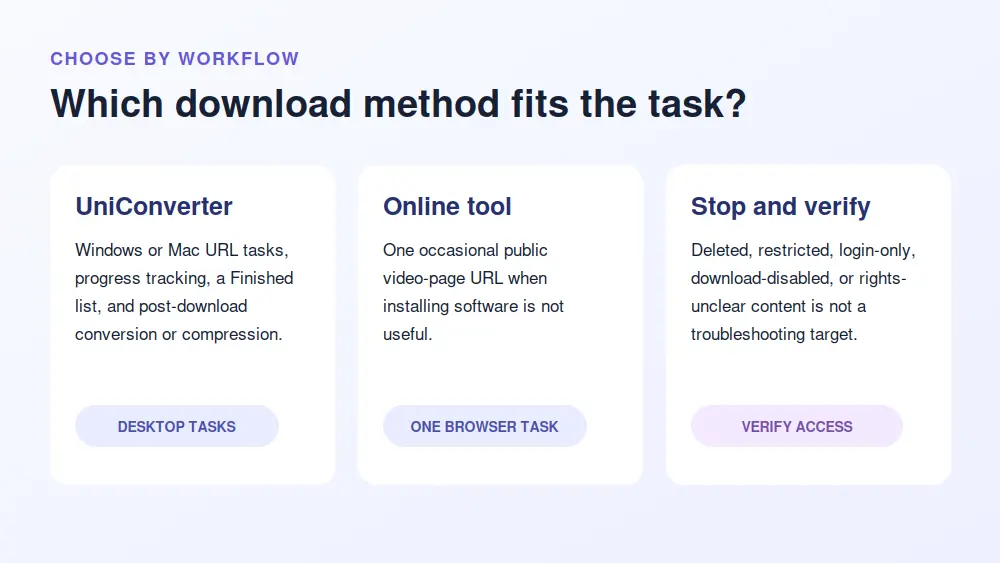
| Method | Best for | Install | Task style | Main condition |
| Wondershare UniConverter Downloader | Windows or Mac task management | Desktop app | Single or multiple URL tasks | The individual media URL must be supported and publicly accessible |
| Downloader.org PeekVids page | One occasional browser task | No desktop install | Paste a public video-page URL | Use only the result and file option the page actually returns |
What about a browser extension?
Generic stream-detection extensions can identify certain media playlists, but their official listings do not establish PeekVids-specific compatibility. Some also copy a playlist address or prepare a command for a separate tool instead of producing a normal saved file. For that reason, this guide does not present a browser extension as a verified PeekVids download method.
Part 2. How to Download PeekVids Videos with UniConverter
Wondershare UniConverter Downloader is the stronger fit when you need to keep several URL tasks organized. UniConverter's supported-site records include peekvids.com for Windows and Mac. Because site delivery can change, the result still depends on the individual public media URL. The screenshots below show the official Windows Downloader workflow rather than a claimed PeekVids-specific test; controls can appear in a different position on Mac or in another product version.
Step 1. Copy the individual PeekVids video-page URL
Open the public clip page in your browser and start playback to confirm that the source is still available. Copy the complete address from the browser bar. Do not copy the PeekVids home page, a category or search page, or an embedded-player address from another website: a downloader needs the individual page that contains the video. Continue only when you own the content or have permission to save it.
Step 2. Open Downloader and configure the URL task
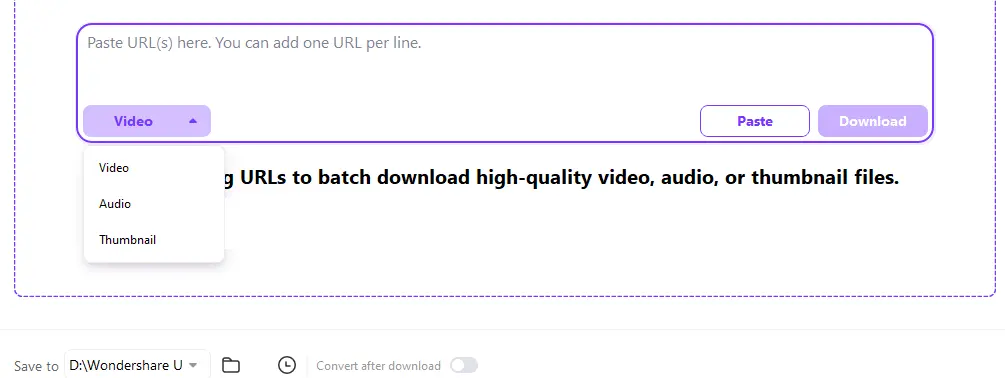
Launch UniConverter and choose Downloader. Paste the PeekVids video-page address into Paste URL(s) here. Select Video for this task and confirm the destination under Save to. When adding multiple URLs, enter one URL per line so each becomes a separate task.
Step 3. Start the task and watch the download status
Click Download. In the current documented workflow, UniConverter analyzes the URL automatically; there is no separate Analyze button in the shown interface. If the source exposes selectable options, choose only an option that actually appears. Available quality cannot exceed what the source provides.
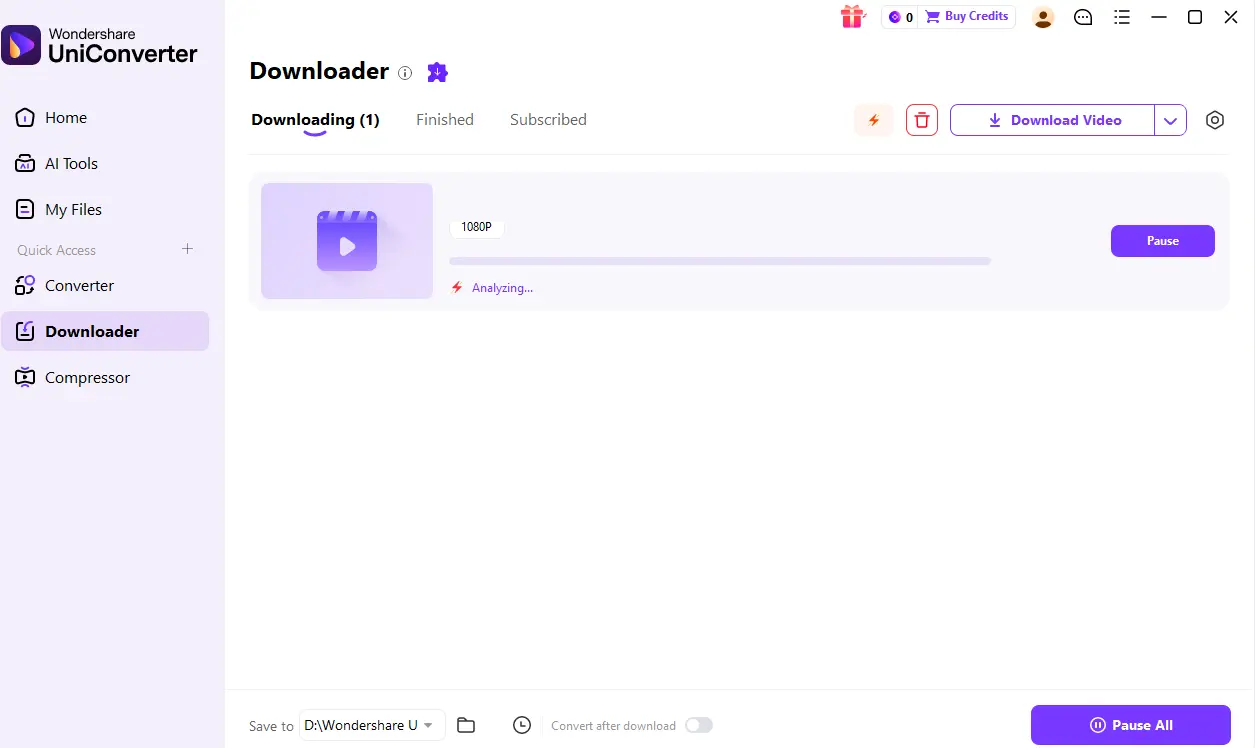
The task then appears under Downloading. You can follow progress and use controls such as Pause or Pause All. UniConverter supports up to 10 simultaneous downloads. That number describes concurrent transfers, not the total number of URLs you may place in the queue.
Step 4. Open Finished and locate the downloaded file
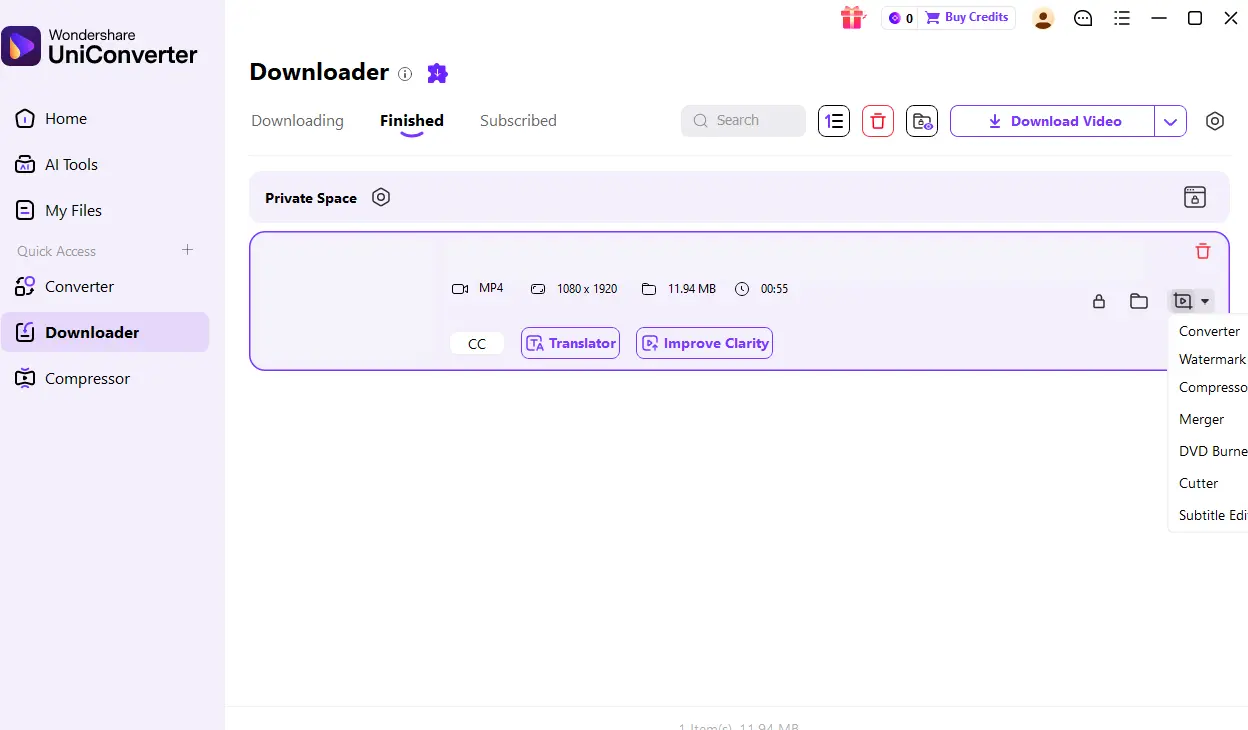
When the transfer finishes, open Finished. Review the completed item and use the folder control to open its local location. Play the file before moving, converting, compressing, or sharing it so you know the transfer completed correctly.

Part 3. How to Use an Online PeekVids Downloader
Downloader.org maintains a page specifically labeled for PeekVids with a URL field and a Download button. It suits an occasional public link when you do not want to install desktop software. It is a third-party service rather than a UniConverter feature, and the formats or results available for a submitted URL can change.
- Copy the clip-page address: open the individual public PeekVids video page, confirm that it plays, and copy its complete browser URL.
- Submit the link: open the Downloader.org PeekVids page, paste the address into the input field, and click Download.
- Review before saving: use only a video file option that the result page actually displays, then save it through the browser's normal download dialog.

Pros
- No desktop installation for an occasional task.
- The page explicitly identifies PeekVids and provides a paste-and-download flow.
Cons
- It does not provide UniConverter's persistent Downloading and Finished workspaces.
- The file options depend on what the service returns for the submitted public URL.
If the page returns no media, do not assume that changing the file extension will fix it. Recheck that you copied the individual clip page, then use the troubleshooting table below. For recurring multi-URL work or a clear Finished list, use the desktop workflow instead of opening many separate browser tasks.
Part 4. Convert or Compress a Downloaded PeekVids Video
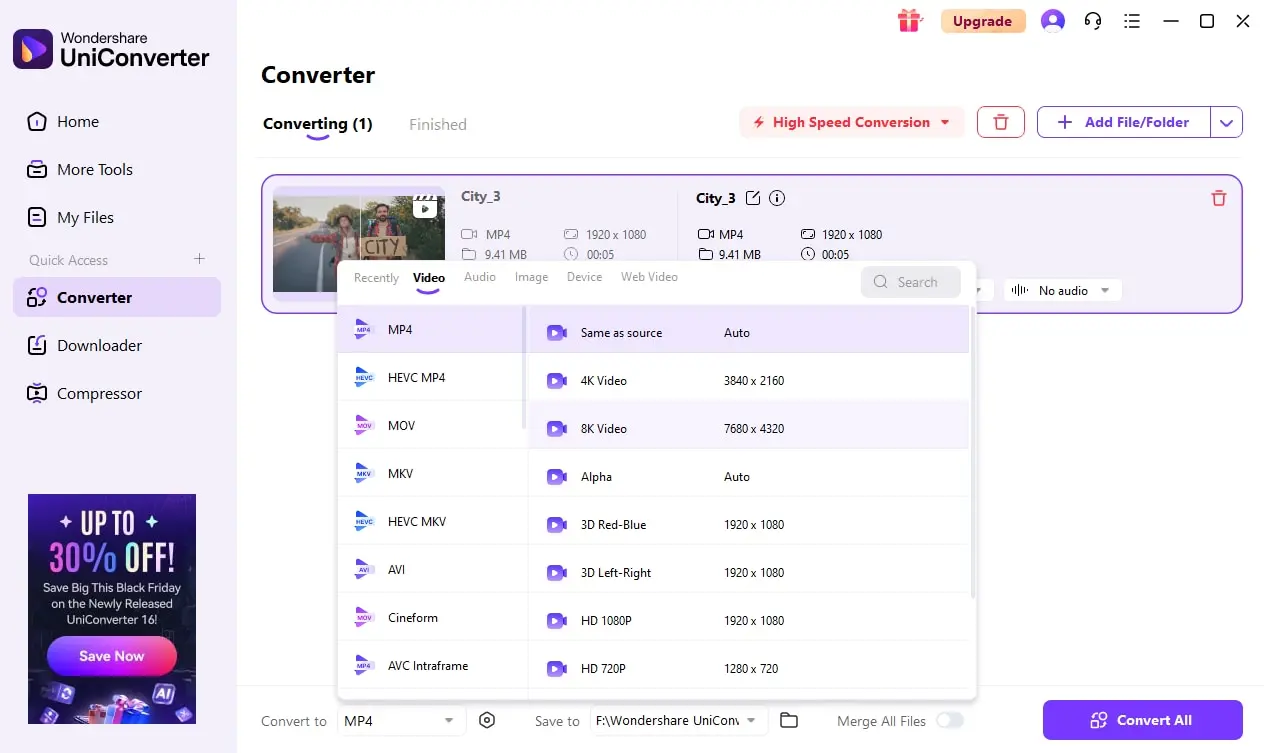
Downloading and conversion are separate jobs. If the completed local file already plays in the apps and devices you use, keep it as it is. If playback compatibility is the problem, add the local file to Converter and choose MP4 only as a post-download output. This does not change which URLs the Downloader can process.
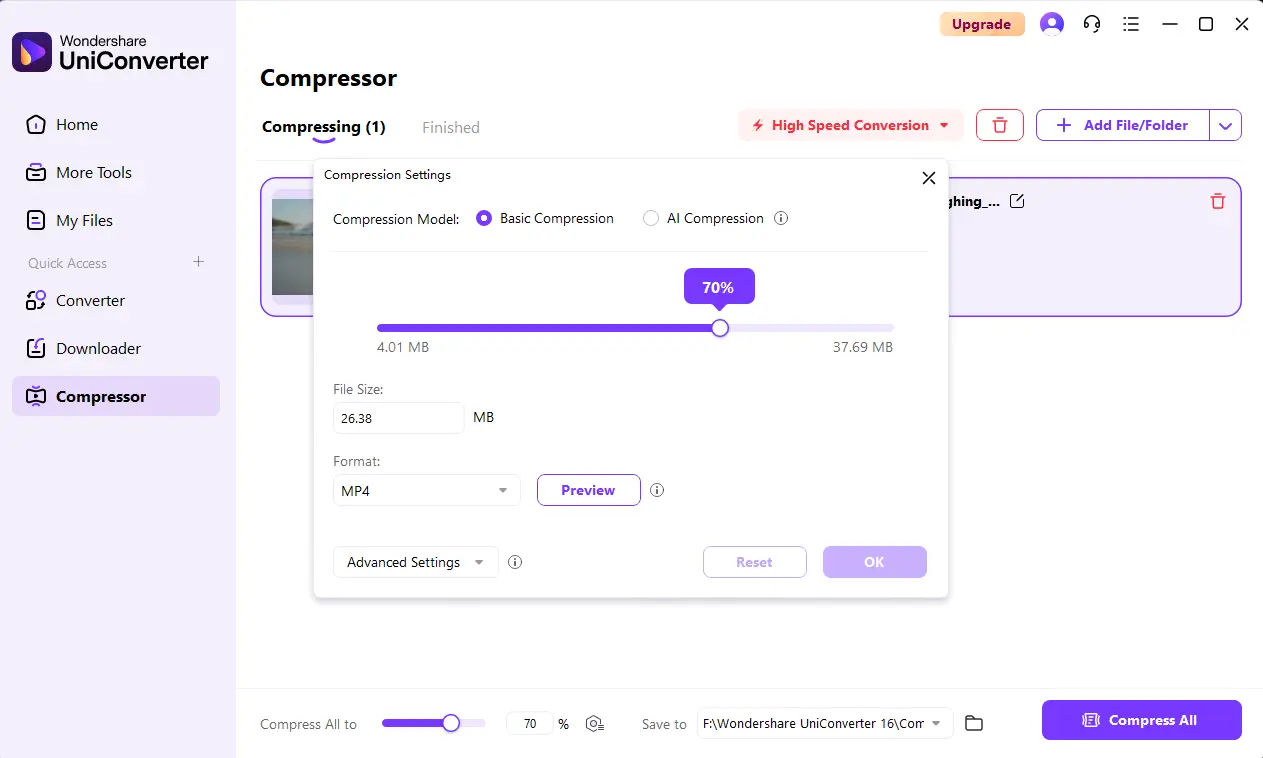
If file size is the issue, open UniConverter Compressor, choose settings suited to the target device or upload limit, and review the output. Compression can reduce file size but may trade detail for a smaller result; it does not repair an unavailable URL or an incomplete transfer.
Part 5. PeekVids Download Not Working: Causes and Fixes
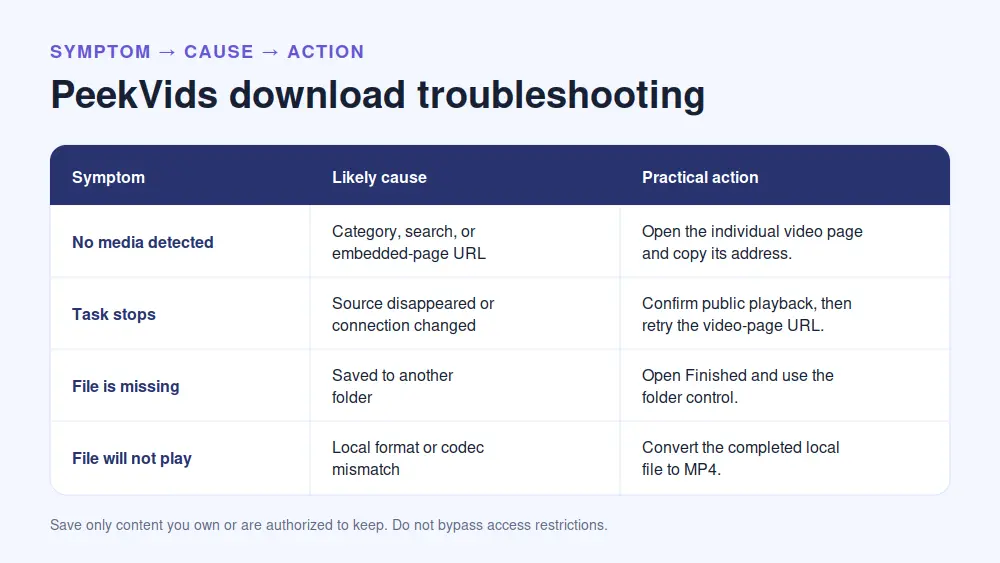
Start with the symptom rather than repeatedly submitting the same address. The most common distinction is whether the URL points to an individual video page, whether that source remains publicly available, and whether the file has already completed but was saved somewhere unexpected.
| Symptom | Possible cause | What to do |
| The tool detects no media | You copied a home, category, search, or embedded-player URL instead of the individual video page. | Open the public video page in the address bar, copy that page URL, and submit it as a new task. |
| The source cannot be analyzed | The video was deleted, the source is unavailable, or the site's delivery method changed. | Reopen the original public page and confirm normal playback. If it is unavailable, stop; do not try to bypass the restriction. |
| The download is interrupted | The network connection changed or the source stopped responding. | Keep the page available, stabilize the connection, and restart the individual task. Do not assume other queued tasks have failed. |
| You cannot find the saved file | The Save to folder differs from the browser's Downloads folder. | In UniConverter, open Finished and use the folder control. For an online tool, check the browser's download history and selected save location. |
| The completed file does not play | The transfer is incomplete or the local format/codec is not supported by the player. | Check file duration and size first. If the file is complete, convert the local file to a compatible MP4 profile. |
Related Download Guides
For other platform-specific workflows, see the ThisVid downloader guide, Sendvid downloader guide, and PlayVids downloader guide. Each platform can expose different page links and media-delivery behavior, so do not substitute one site's URL pattern or download options for another's.
Conclusion
For one occasional public clip, the PeekVids-specific online page offers the shortest route. For multiple URL tasks, visible progress, Finished-file location, and a clean handoff to conversion or compression, UniConverter Downloader provides the more complete Windows and Mac workflow. Start with the individual video page, verify the completed local file before processing it further, and save only content you are authorized to keep.
FAQs About PeekVids Downloads
-
How do I download videos from PeekVids?
Copy the individual public video-page URL, paste it into Wondershare UniConverter Downloader, choose Video and a Save to folder, then click Download. Open Finished after the task completes. -
Is there an online PeekVids downloader?
Yes. Downloader.org maintains a PeekVids-specific browser page. Paste an authorized public video-page URL and use only the download option the page actually returns. -
Can I download PeekVids videos on Windows and Mac?
UniConverter has a desktop Downloader workflow for Windows and Mac. The interface images in this guide show the Windows workflow, so placement can differ on Mac or in another version. -
Can I download multiple PeekVids videos?
You can add multiple supported media URLs as separate UniConverter tasks. UniConverter allows up to 10 simultaneous downloads; this is a concurrency limit, not a total queue limit. -
Can I save a PeekVids video as MP4?
Choose an MP4 option only when the downloader offers it. If the completed local file uses another supported format, convert that file to MP4 afterward in UniConverter Converter. -
Why is my PeekVids download not working?
Common causes include copying a category or search URL instead of an individual video page, an unavailable source, interrupted connectivity, or a tool that cannot detect the current media-delivery method. Confirm normal public playback before retrying. -
Where are my downloaded videos saved?
In UniConverter, check the Save to folder before starting. After completion, open Finished and use the folder control to open the local location. Browser-based tools use the browser's selected download location.