


Struggling to remove backgrounds from SVG files without losing quality or clean edges? Many designers, marketers, and content creators face common challenges like jagged cutouts, inaccurate edge detection, time-consuming manual edits, and low-quality exports when using unreliable tools. A powerful svg background remover or svg bg remover can solve these issues by delivering precise, fast, and professional-grade results.
In this guide, we explore the top SVG background remover tools in 2026, compare their features, and show you how to achieve flawless, high-quality SVG cutouts with ease. Whether you’re working on logos, product images, web graphics, or marketing creatives, choosing the right tool can save hours of editing time. This article also includes expert tips, comparisons, and step-by-step guidance to help you get the best possible results.
In this article
Part 1: Key Features to Look for in an SVG Background Remover
Choosing the right SVG background remover can make a major difference in image quality, workflow speed, and overall productivity. Before selecting a tool, it’s important to understand the key features that ensure clean, accurate, and professional results:
Features of a Qualified SVG Background Remover
Precision & Edge Detection
A high-quality SVG background remover should deliver sharp, accurate edge detection to preserve fine details like curves, thin lines, and transparent areas. Advanced precision helps avoid jagged edges, halos, or unwanted artifacts, ensuring smooth and natural cutouts suitable for professional design work.
AI-Powered Automation
AI-powered automation allows tools to intelligently detect subjects and remove backgrounds with minimal manual effort. Smart algorithms improve accuracy over time, making the process faster, more consistent, and ideal for handling complex images or large workloads without constant user adjustments.
Export Quality (SVG, PNG, Transparent Formats)
Export flexibility is essential for maintaining high-quality output across multiple formats, including SVG, PNG, and transparent files. The best tools preserve vector integrity, color accuracy, and resolution, ensuring your images remain crisp and scalable for both digital and print use.
Speed and Batch Processing
Fast processing saves time, especially for professionals handling multiple files. Batch processing capabilities allow users to remove backgrounds from several SVG files at once, improving workflow efficiency and making large-scale projects quicker and more manageable.
Ease of Use
A user-friendly interface ensures that both beginners and experienced designers can remove backgrounds effortlessly. Intuitive controls, preview options, and minimal setup reduce learning time and make the editing process smoother and more productive.
Pricing and Platform Compatibility
The ideal tool should offer good value for money while supporting multiple platforms such as Windows, Mac, and web-based systems. Flexible pricing plans and broad compatibility ensure accessibility for freelancers, businesses, and creative teams with varying budgets and device preferences.
Part 2: 10 Best SVG Background Removers in 2026
1. Wondershare UniConverter — Batch Process SVG Background Remover
Wondershare UniConverter is a powerful all-in-one media tool that includes an advanced background remover designed for speed, accuracy, and professional-quality results. Powered by AI, it can automatically detect subjects, remove backgrounds with precision, and export high-quality SVG and transparent images. Beyond background removal, UniConverter also offers SVG image conversion, compression, editing, and image enhancement tools, making it a versatile choice for creators and professionals. Its intuitive interface ensures ease of use for beginners, while its batch processing and customization options cater to advanced users. If you’re looking for a fast, reliable, and feature-rich svg bg remover, UniConverter is one of the best choices in 2026.
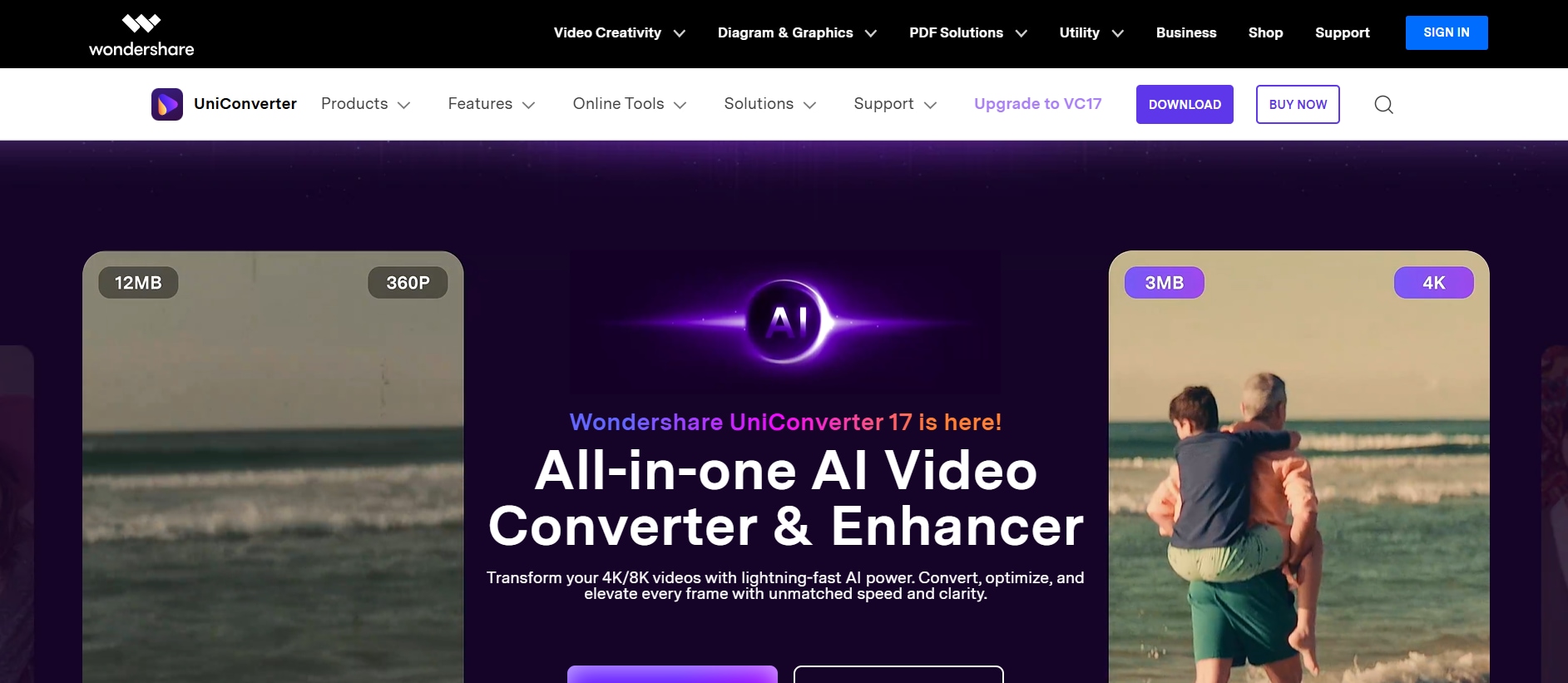
Key Features:
AI-powered background removal with precise edge detection
Supports SVG, PNG, JPG, and transparent exports
Batch processing for multiple files
High-quality, lossless output
Multi-platform support (Windows & Mac)
All-in-one media editing and conversion toolkit

Precise SVG Background Removal Without Quality Loss
2. Remove.bg — Best for Quick AI Background Removal
Remove.bg is a widely trustedAI-powered background remover designed for speed, simplicity, and instant results. It automatically detects foreground subjects and removes backgrounds in seconds, making it ideal for quick SVG and image cutouts. The tool works well for portraits, product images, logos, and simple vector graphics, requiring minimal manual effort. With integrations for Photoshop, Canva, Figma, and API support for developers, Remove.bg fits smoothly into creative and technical workflows. While it excels in fast edits, it may struggle with complex edges or highly detailed SVG files.
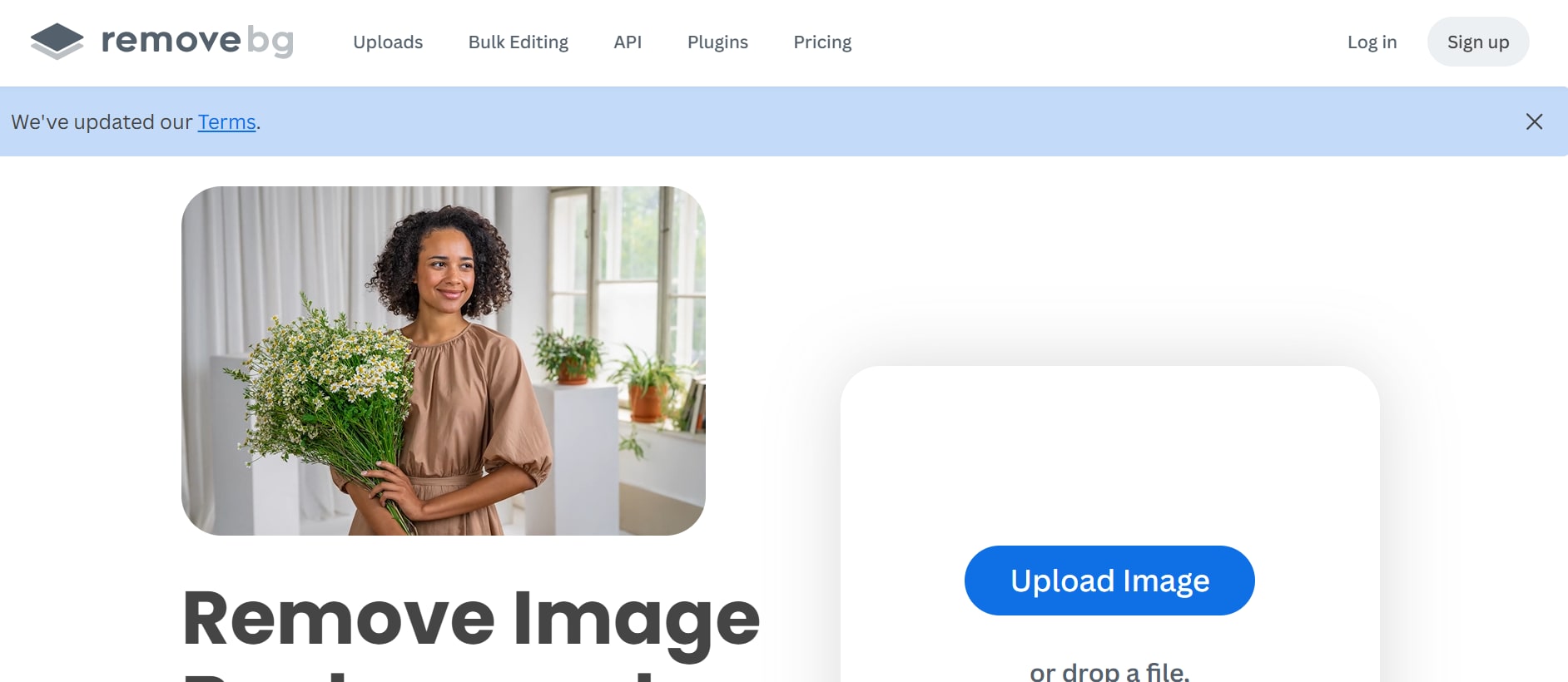
Key Features:
One-click AI background removal
Transparent PNG and SVG exports
API integration for developers
Photoshop, Canva, and Figma plugins
High-speed cloud processing
Auto subject detection
Bulk image upload support
3. Adobe Photoshop — Best for Advanced Manual Control
Adobe Photoshop is a professional-grade image editing powerhouse offering advanced AI and manual background removal tools, making it a powerful option to remove background SVG files with precision. It is ideal for designers who need pixel-perfect accuracy, refined masking, and deep creative control. Photoshop allows users to fine-tune transparency, preserve intricate details, and maintain top-tier export quality for both SVG and raster formats. Its AI-powered selection tools accelerate workflows, while advanced layers and masking provide unmatched flexibility. Though it requires experience and a subscription, it remains a premium choice for high-end editing and professional SVG background remover.

Key Features:
AI-powered subject selection
Advanced masking and edge refinement
Layer-based transparency editing
High-resolution SVG and PNG exports
Manual retouching and cleanup tools
Non-destructive editing workflow
Professional color correction tools
4. Canva Background Remover — Best for Beginners
Canva’s background remover is built for beginners, marketers, and small businesses who want fast, clean SVG and image cutouts, making it easy to remove background from SVG files without design expertise. Its AI-driven one-click tool removes backgrounds instantly, allowing users to continue editing within Canva’s intuitive design platform. It’s ideal for social media graphics, marketing creatives, logos, and presentations. Canva’s cloud-based workflow ensures easy access across devices, and its template library speeds up content creation. While advanced manual controls are limited, it remains one of the easiest tools for non-designers who want quick and professional SVG background remover.
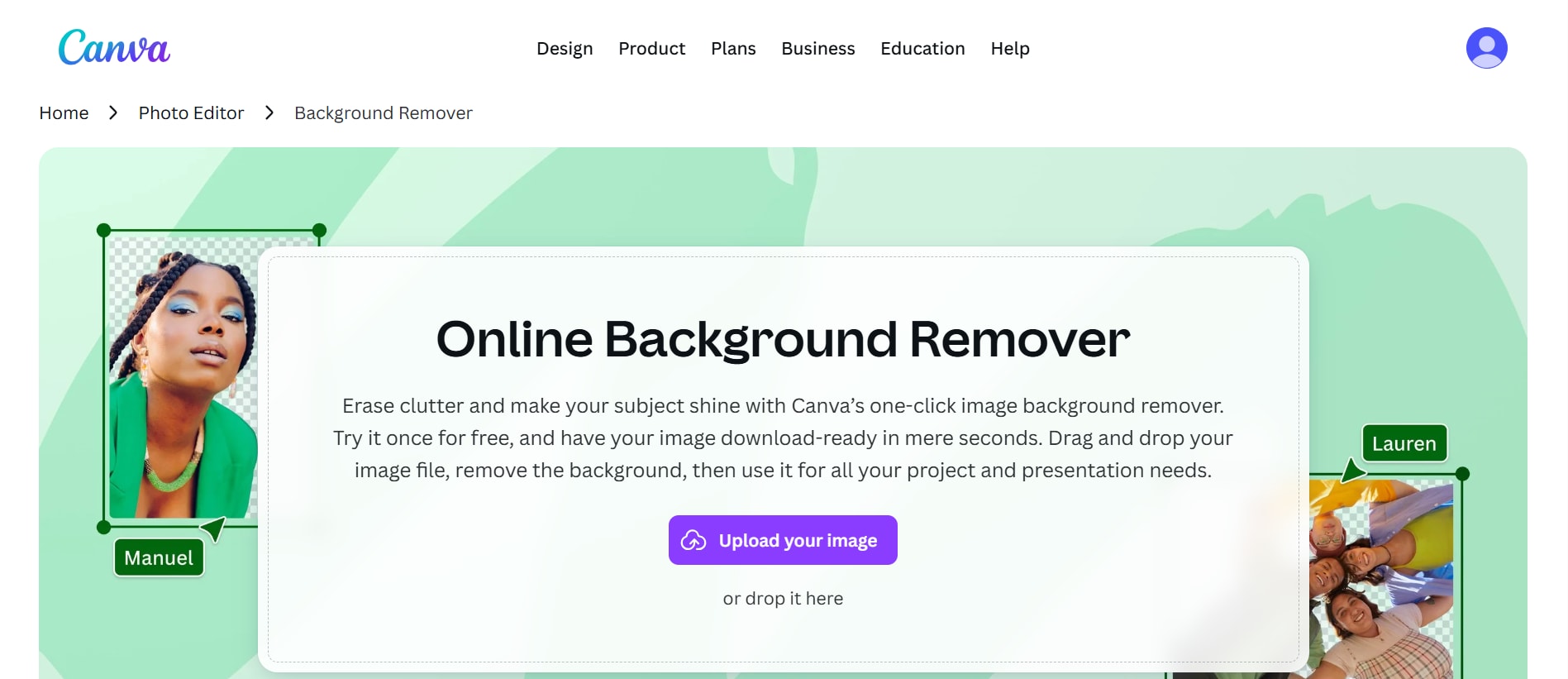
Key Features:
One-click AI background removal
Beginner-friendly drag-and-drop editor
Cloud-based access
Built-in design templates
SVG and PNG export support
Quick resizing and editing tools
Brand kit integration
5. Figma — Best for UI & Vector Designers
Figma is a collaborative design platform built for UI/UX designers and vector-focused professionals. While not a dedicated background remover, it supports plugins that enable users to remove background from SVG files while preserving vector integrity. Figma excels at SVG editing, path refinement, and vector optimization, making it ideal for web assets, branding, and interface design. Its real-time collaboration tools make it perfect for design teams working on shared creative projects. For users who value vector precision over automation, Figma provides an excellent workflow. Additionally, it allows designers to fine-tune SVG layers and maintain clean, scalable vector outputs. This makes Figma a strong choice for professionals who prioritize detailed control and high-quality SVG background cleanup.
Key Features:
Advanced SVG and vector editing
Plugin-based background removal
Real-time team collaboration
Cloud-based design environment
SVG export optimization
Path and node editing tools
Version history and sharing
6. Pixlr — Best Free Online Option
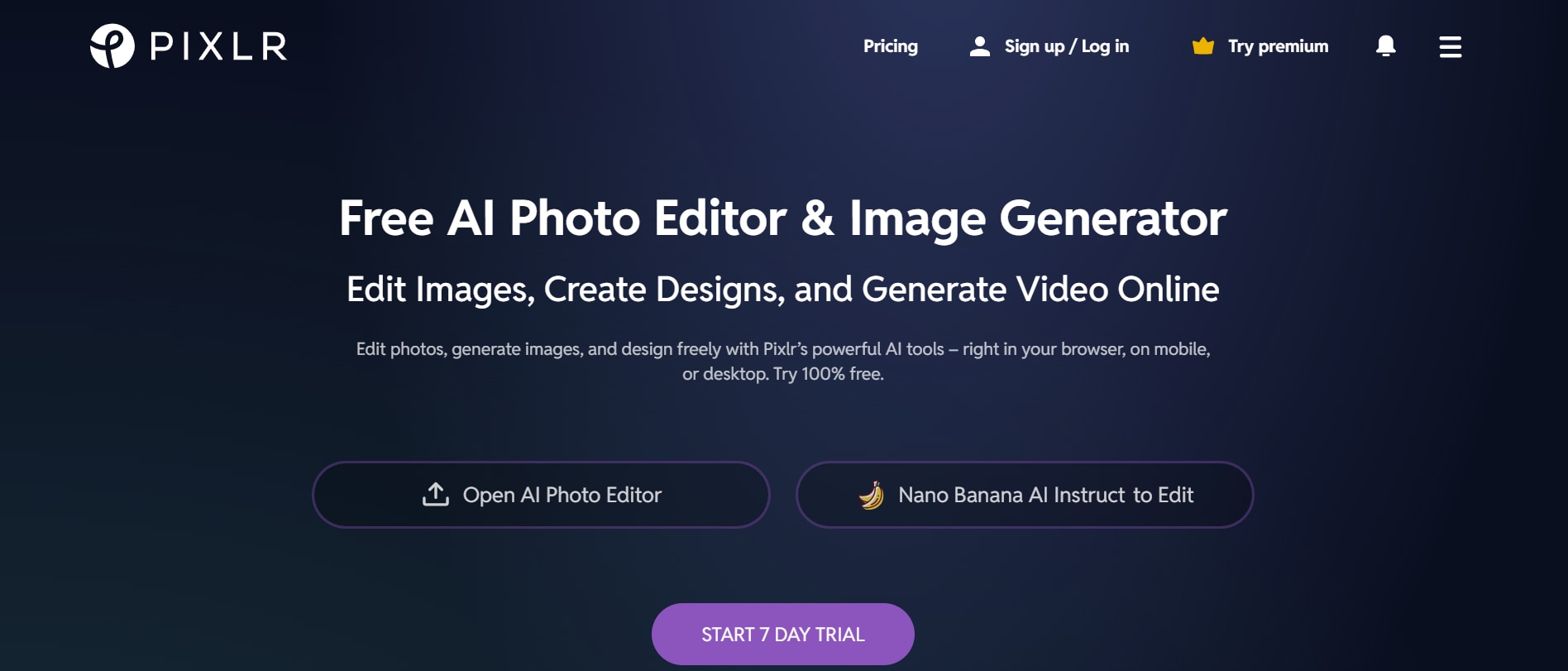
Pixlr is a lightweight browser-based background remover offering quick AI cutouts without software installation. It’s ideal for casual users, students, and small creators who need to remove background from SVG files or other image formats quickly. Pixlr combines automatic detection with basic manual tools for touch-ups. Its simple interface makes it easy to use on any device. While it lacks premium-level precision, it delivers strong value as a free online tool. Additionally, users can refine edges and maintain transparent SVG outputs for professional-looking results. This makes Pixlr a convenient choice for anyone needing fast, accessible, and effective SVG background remover online.
Key Features:
AI-assisted background removal
Browser-based editor
Transparent export support
Manual retouching tools
Quick image filters and effects
Layer-based editing options
Mobile-friendly access
7. Inkscape — Best Free Open-Source SVG Editor
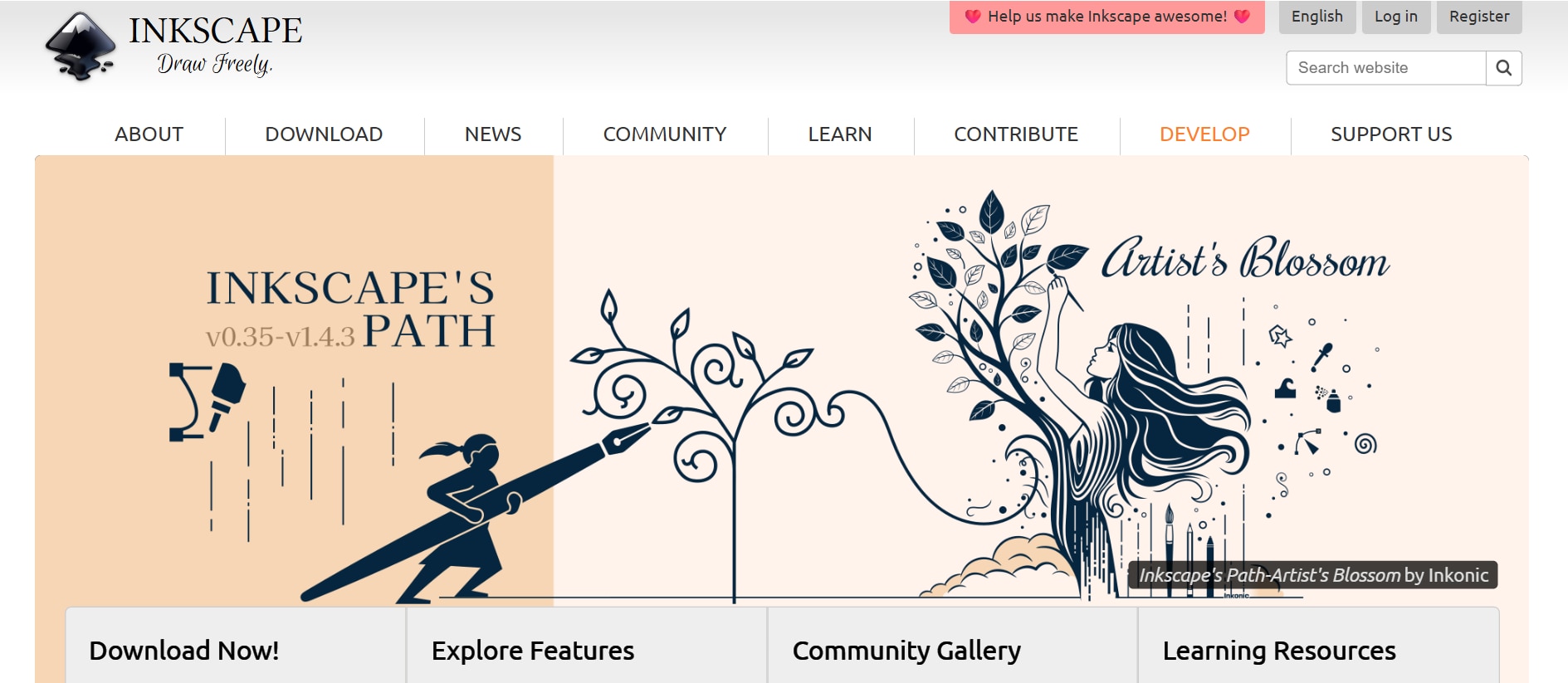
Inkscape is a free, open-source vector editor ideal for designers who want full control to remove background from SVG files. Unlike AI-based tools, it allows users to manually refine paths, nodes, and shapes for maximum precision. It’s best suited for logos, icons, and technical vector graphics where SVG integrity matters most. While it requires more effort and learning, it provides unmatched flexibility for free software. Users can achieve perfectly clean SVG cutouts by carefully editing nodes and paths, ensuring professional-quality results. Its extensive vector editing capabilities make Inkscape a top choice for creators who prioritize accuracy and customization in SVG background removal.
Key Features:
Full vector and path editing
Node and shape control
SVG optimization tools
Manual background removal
Cross-platform compatibility
Advanced transformation tools
Open-source and community-supported
8. PhotoRoom — Best for Product & E-Commerce Images
PhotoRoom is designed for eCommerce sellers, marketers, and product photographers who need a professional SVG background remover and other images quickly and efficiently. It specializes in product images, offering AI cutouts, background replacement, and shadow effects to improve visual appeal. With mobile and web versions available, it supports quick edits anywhere. Although it focuses more on raster images than SVG, it remains excellent for commercial visuals. Users can create clean and professional SVG cutouts for product catalogs and marketing materials with minimal effort. Its intuitive interface and AI tools make it a top choice for fast, high-quality background removal from SVG files and images.

Key Features:
AI-powered background removal
Product-focused cutout optimization
Batch processing tools
Background replacement options
Shadow and lighting effects
Mobile and web support
Transparent export formats
9. Clipping Magic — Best for Edge Refinement
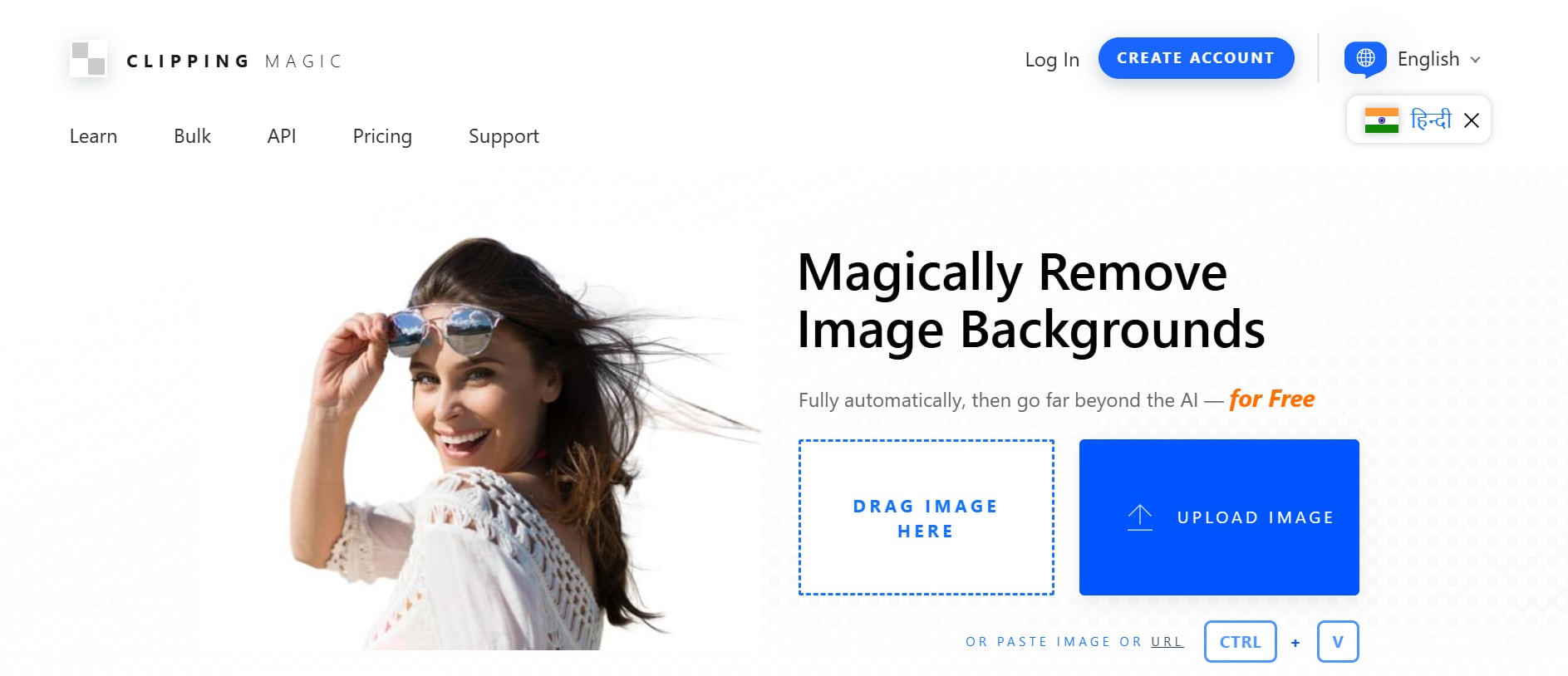
Clipping Magic blends AI automation with manual refinement, making it ideal for users who want to remove background from SVG files and achieve clean, precise cutouts. It offers smart brushes, edge correction tools, and real-time previews to fine-tune results. The tool performs well on complex borders, curved shapes, and fine details. While it’s not optimized for bulk workflows, it excels in quality-focused editing. Users can manually refine hair, intricate curves, and small details to ensure professional-quality SVG outputs. Its combination of AI speed and manual control allows for highly accurate background removal. This makes Clipping Magic a reliable choice for designers who need precise SVG background remover for logos, graphics, and detailed vector artwork.
Key Features:
Smart edge detection
Manual refinement brushes
Real-time preview editing
Transparent export support
Hair and fine-detail optimization
Color correction tools
Undo and history tracking
10. Cutout.pro — Best for AI-Powered Bulk Processing
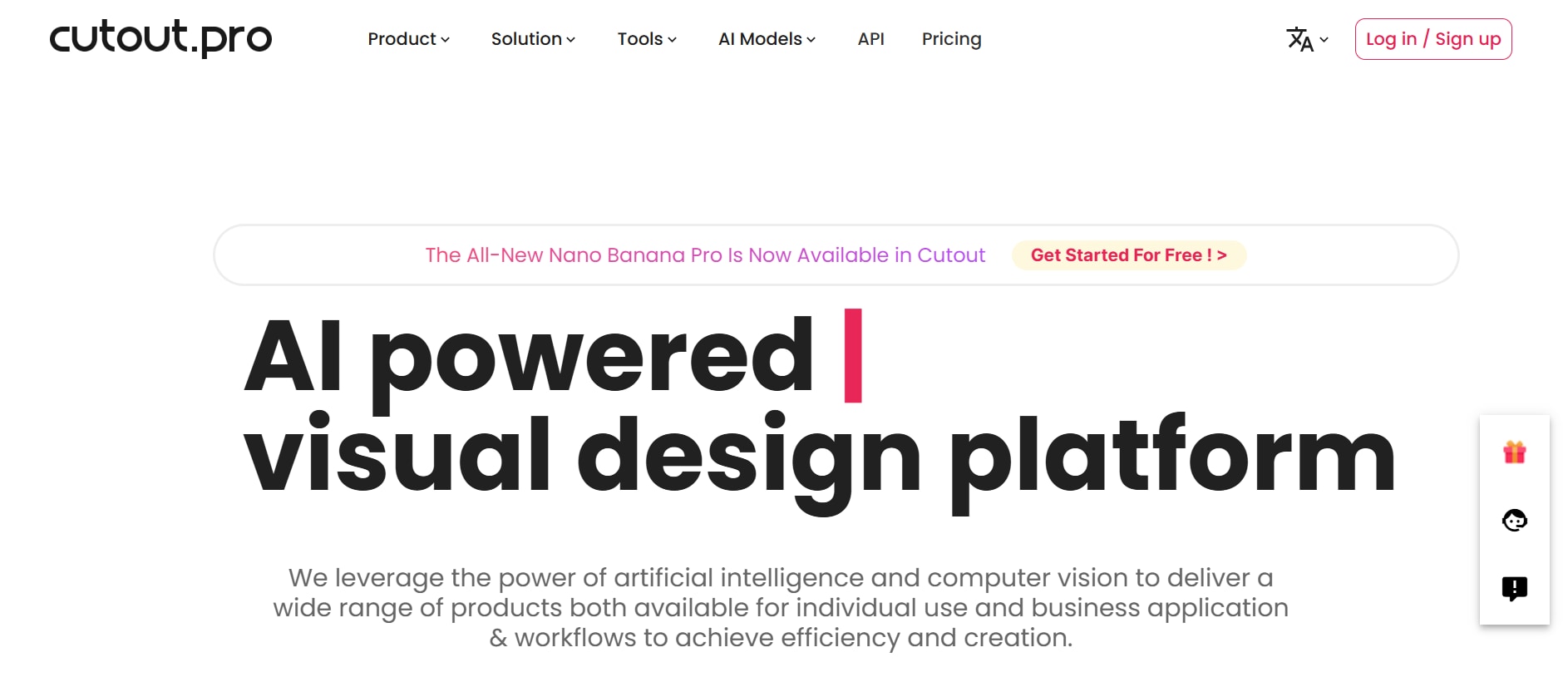
Cutout.pro is built for automation, scalability, and high-volume background removal, making it a powerful solution for anyone looking for an efficient SVG background remover. It supports batch processing, API automation, and cloud-based editing, making it ideal for agencies, businesses, and content teams. The platform processes images quickly and supports SVG and transparent exports. While complex details may require refinement, its speed makes it excellent for bulk tasks. Cutout.pro also offers a version that can be used as an SVG background remover free for limited usage, allowing small projects or testing without immediate cost. Its AI-driven system ensures consistent and clean cutouts across multiple files. For teams and professionals seeking reliable, scalable, and fast SVG background remover tools, Cutout.pro provides an all-in-one solution.
Key Features:
AI background removal
Bulk image processing
API automation tools
Cloud-based workflow
Multi-format export support
Portrait and product optimization
High-speed processing engine
Part 3: Comparison Table of Best SVG Background Removers
| Best Tool | Best Features | Pricing | Works On | Perfect For |
| Wondershare UniConverter | AI-powered SVG & image background removal, batch processing, high-quality exports, media editing | Paid (free trial available) | Windows, Mac | Designers, marketers, content creators |
| Remove.bg | One-click AI removal, API & plugin integrations, SVG/PNG export, fast processing | Free limited, Paid plans | Web, Photoshop, Canva, Figma plugins | Quick edits for logos, portraits, simple SVGs |
| Adobe Photoshop | Manual & AI background removal, advanced masking, high-res SVG export, layer editing | Paid | Windows, Mac | Professionals needing detailed SVG removal |
| Canva | AI background remover, drag-and-drop editor, templates, SVG export | Free limited, Paid Pro | Web, iOS, Android | Social media graphics, small business use |
| Figma | Vector editing, plugin-based background removal, real-time collaboration | Free limited, Paid plans | Web, Windows, Mac | UI/UX designers, vector-based workflows |
| Pixlr | Browser-based AI removal, transparent export, basic editing tools | Free, Paid Pixlr X/Premium | Web, Windows, Mac | Casual users, students, small creators |
| Inkscape | Manual vector editing, SVG path/node control, optimization | Free | Windows, Mac, Linux | Designers needing full control of SVGs |
| PhotoRoom | AI cutouts, batch editing, background replacement, shadow effects | Free limited, Paid plans | Web, iOS, Android | eCommerce sellers, marketers |
| Clipping Magic | AI & manual edge refinement, real-time preview, precise SVG cleanup | Paid | Web | Designers needing high-precision SVG editing |
| Cutout.pro | AI background removal, batch & API automation, cloud-based, svg background remover free | Free limited, Paid plans | Web | Agencies, businesses, content teams |
Part 4: How To Remove SVG Background Using Wondershare Uniconverter
Here comes a quick steps guide on how to use UniConverter to remove SVG background:
Steps Guide on Removing SVG Background with UniConverter
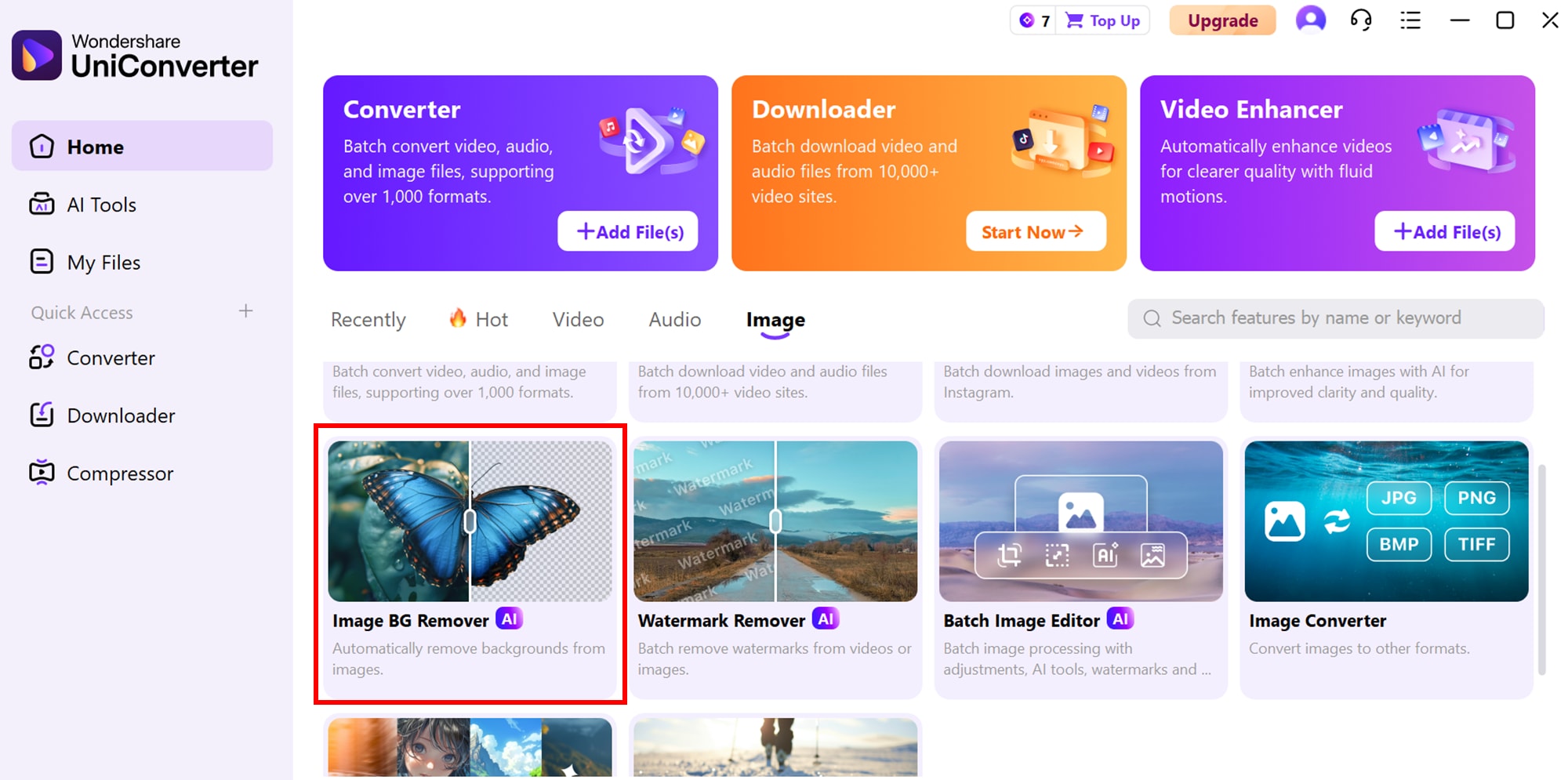
Step 1: Open the Background Remover
Launch Wondershare UniConverter on your computer. From the Home screen, navigate to the image section > Background Remover to open the background removal interface.
Step 2: Import Your SVG Files
Click the “+” icon located at the centre to add the SVG files or images you want to edit. You can import multiple files at once for batch processing.
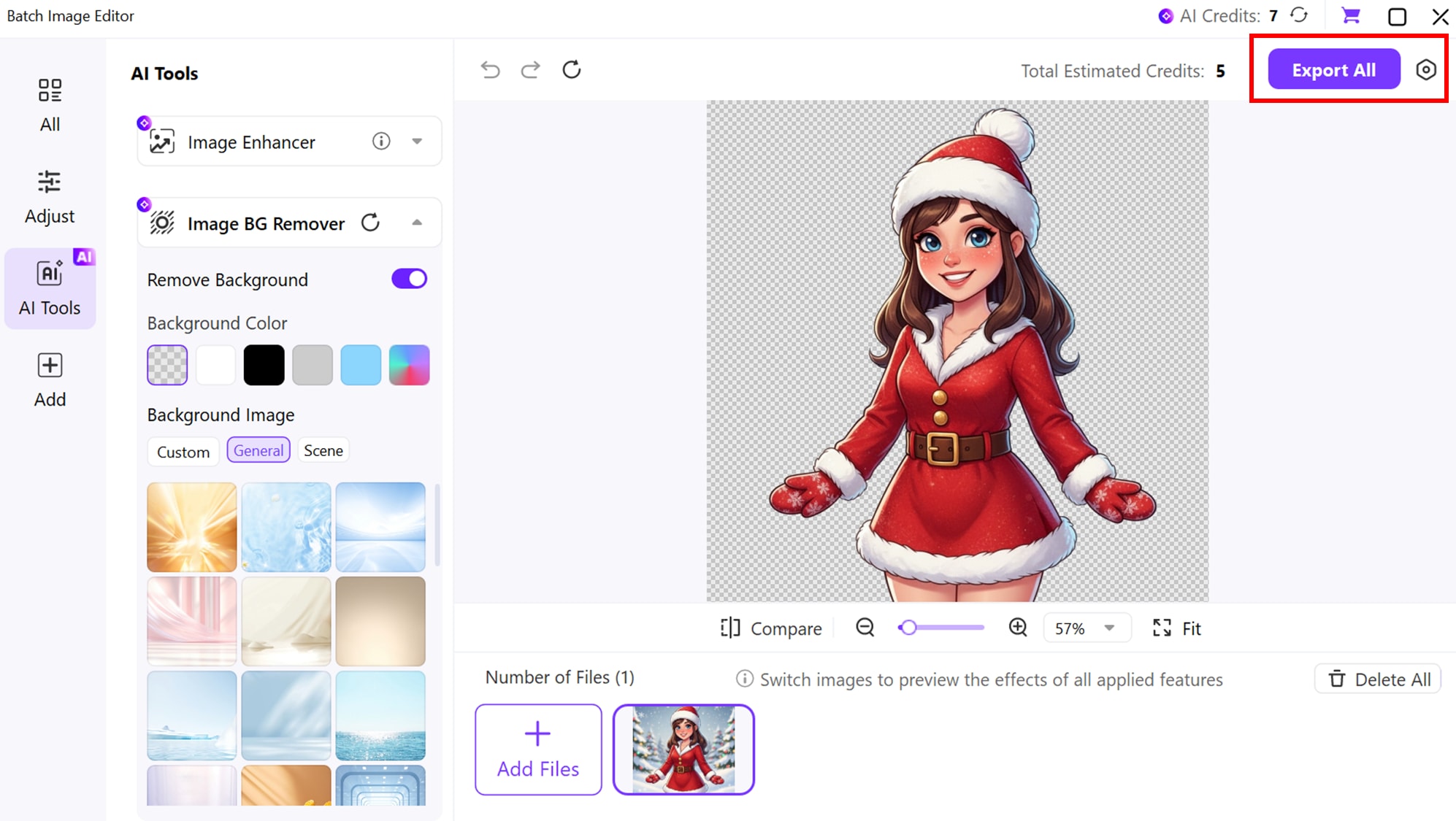
Step 3: Start Removing Backgrounds
Select the SVG or image you want to process, then click the remove background button. The AI-powered tool will automatically remove the background, preserving the quality and edges of your SVG file.
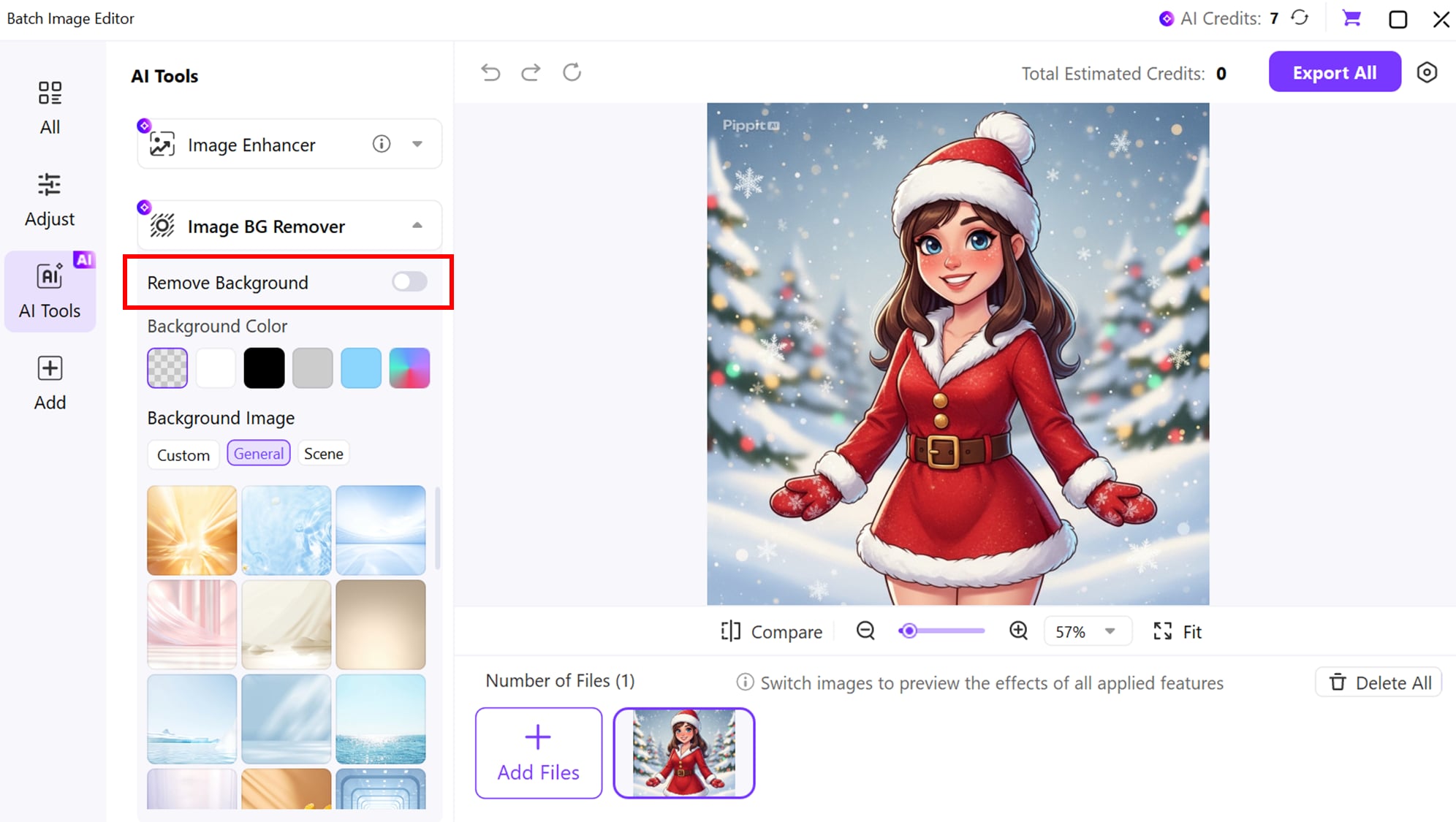
Step 4: Access Your Background-Free Files
Once the process is complete, click export and your files will appear in the output interface. Click “Click to check details” to view them, or use the folder icon next to File Location at the bottom-left to directly open the folder containing your background-removed SVGs.
Tip: You can process multiple SVGs at once using batch mode, which saves time while maintaining clean, professional results.
Part 5: Tips for Getting the Cleanest SVG Cutouts
Even with the best SVG background remover, achieving perfectly clean and professional cutouts often requires a few smart optimization steps. Follow these expert tips to ensure your SVG images remain sharp, scalable, and visually flawless:
Best Practices for Best SVG Cutouts
Use High-Quality Source Files
Starting with a high-resolution, clean source file makes background removal more accurate and reduces errors in edge detection. Clear contrast between the subject and background helps tools produce smoother cutouts with fewer distortions. The better your original file quality, the less time you’ll spend fixing imperfections later.
Refine Edges Manually When Needed
While AI tools are highly effective, manual edge refinement can further enhance precision, especially around fine details like curves, text, or intricate shapes. Small touch-ups help eliminate rough edges and ensure a more polished final result. This step is especially important for logos and complex vector artwork.
Optimize SVG After Removal
After removing the background, optimize your SVG file to reduce file size while maintaining visual quality. Cleaning up unnecessary paths, nodes, and metadata keeps the vector lightweight and improves loading performance on websites and apps. An optimized SVG also ensures faster rendering across devices and browsers.
Avoid Compression Quality Loss
Excessive compression can degrade SVG clarity and sharpness, leading to blurry edges or distorted shapes. Always use lossless or minimal compression to preserve the original vector quality, especially for professional design and print projects. Maintaining high quality ensures your visuals remain crisp at any scale.
Conclusion
In conclusion, choosing the right SVG background remover can make a huge difference in the quality and efficiency of your design workflow. Whether you’re a professional designer, marketer, or casual creator, having a tool that delivers fast, precise, and clean SVG cutouts is essential. Among the top options in 2026, Wondershare UniConverter stands out as a versatile, all-in-one solution, offering AI-powered background removal, batch processing, and high-quality exports that save time while maintaining professional results. While other tools may excel in specific areas, UniConverter provides the perfect balance of speed, accuracy, and usability, making it the ideal choice for anyone who wants reliable and efficient svg background remover capabilities.
FAQs
-
1. What is an SVG background remover?
An SVG background remover is a tool that allows you to remove or replace the background of SVG (Scalable Vector Graphics) files without affecting the quality of the design. These tools are especially useful for designers, marketers, and content creators who need clean, professional cutouts for logos, icons, and other vector graphics. -
2. Can I remove background from SVG files for free?
Yes. Several online tools offer free SVG background removal options, such as Remove.bg, Pixlr, and Cutout.pro’s limited free plan. However, free versions may have limitations like lower resolution, fewer batch processing options, or watermarks. -
3. Which tool is the best for professional SVG background removal?
For professional use, UniConverter is a top choice. It provides AI-powered background removal, batch processing, and high-quality exports for SVG and other formats, making it fast, accurate, and reliable for designers, marketers, and businesses. -
4. Can SVG background removers also handle complex designs?
Yes. Many advanced tools like Adobe Photoshop, Clipping Magic, and Figma (with plugins) can handle complex SVG designs with detailed edges, curves, and multiple layers. Manual refinement features in these tools allow precise control over intricate designs. -
5. Are SVG background removers compatible with all devices?
Most modern SVG background removers are web-based and work on Windows, Mac, iOS, and Android devices. Some desktop tools like Photoshop or UniConverter require installation on Windows or Mac, while web-based tools like Canva, Pixlr, and PhotoRoom can be accessed from any browser or mobile device.

