


Whether you’re watching foreign movies or you’re trying to learn a new language, subtitles can help you understand every word that’s said in a video clearly. However, the big question is: how do you download a video with subtitles?
Well, this process can vary depending on the device you’re using, the platform you want to download the video from, and the type of subtitle associated with the video (that is, embedded or separate subtitles).
In this guide, we’ll walk you through different methods to download videos with subtitles on various devices without requiring any technical skills.
In this article
Part 1. How to Download a Video with Subtitles on a Computer
Downloading a video with subtitles is easy if you have the ideal tools. Here, you’ll learn how to use the Wondershare UniConverter video editing toolkit and the VLC freeware tool to download videos with subtitles on a Mac or Windows computer.
Method 1: Download Video With Subtitles Using Wondershare UniConverter
The simplest way to download a video with subtitles on your computer is by using the Wondershare UniConverter software - a versatile video editing toolkit that allows you to edit and enhance videos on your computer without any advanced skills.
UniConverter features a powerful “Downloader” that can download videos with subtitles from YouTube, Facebook, and other popular websites efficiently. This feature allows you to download videos with subtitles in many popular formats, including MP4, MOV, and more. And it supports a YouTube Chrome extension that allows you to download videos with subtitles directly from YouTube’s interface.
Also, this software supports a built-in subtitle editor and subtitle generator, which enables you to upload and customize subtitles according to your requirements.
Key Features
- Batch download videos with subtitles in a single click.
- Built-in subtitle editor to customize subtitle fonts, style, and language.
- Powerful AI editing and enhancement tools to re-edit downloaded videos efficiently.
- Supports both SRT and TXT subtitle extraction from YouTube.
How to Download Video With Subtitle Using UniConverter
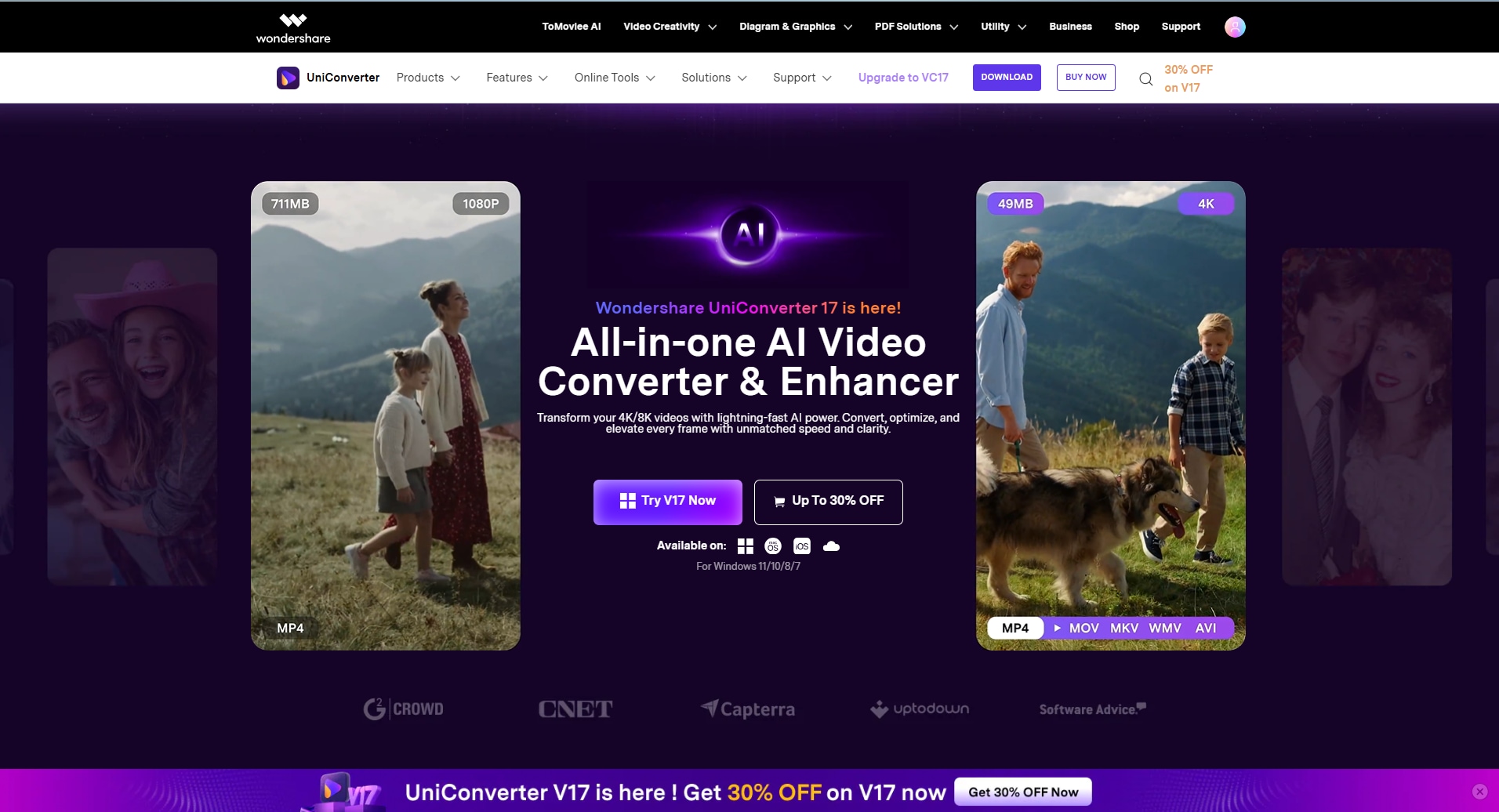
Step 1: Install UniConverter
Visit UniConverter homepage and click 'Download' to free download the software. Install “UniConverter” on your Mac or Windows computer and launch the program. It sends certain free AI credits for .
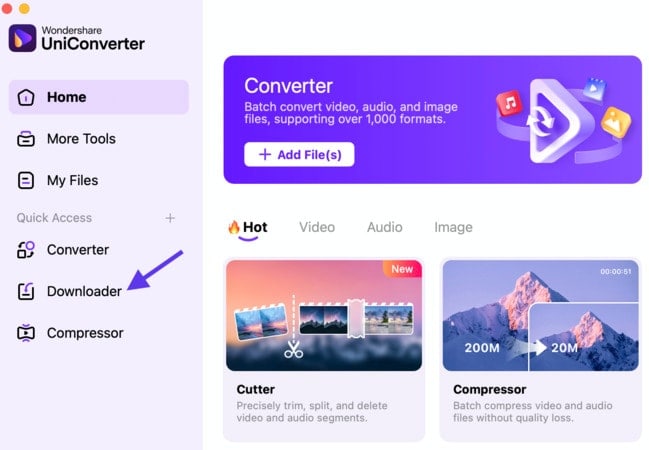
Step 2: Choose Downlaoder
Click on “Downloader” from the left interface.
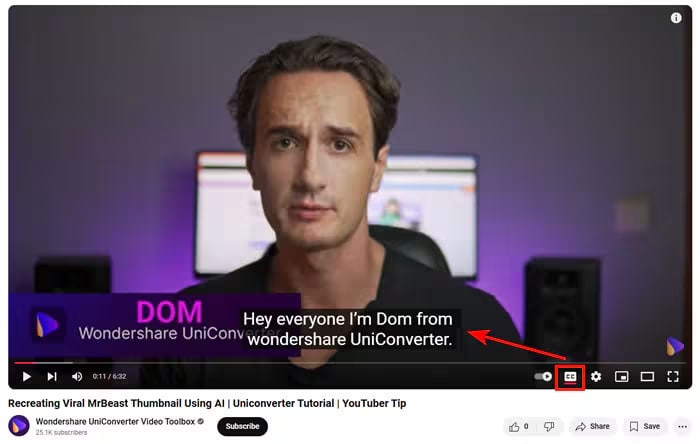
Step 3: Copy URL
Navigate to the video website you want to download the video from and enable the “CC” option when playing the video. Then, copy the video URL.
Step 4: Paste URL
Go back to UniConverter and paste the link into the “URL field.”
Step 5: Wait for Download
Click on the “Settings” icon at the top-right corner and click on the “Subtitles” tab. Then, adjust the subtitle settings according to your needs and click on “Ok” to apply the changes.
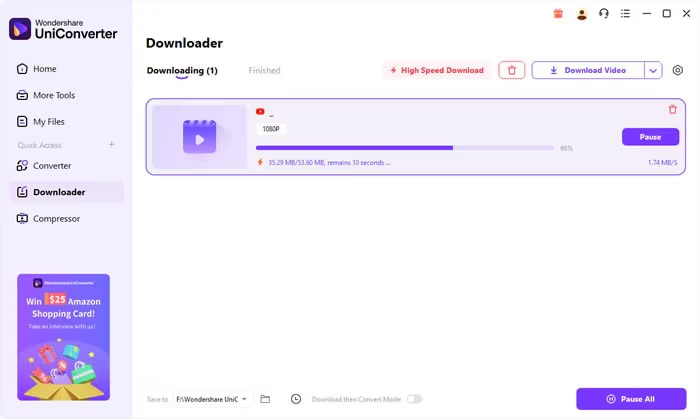
Step 6: Download Video
Click on the “Download” button to start downloading the video with subtitles.
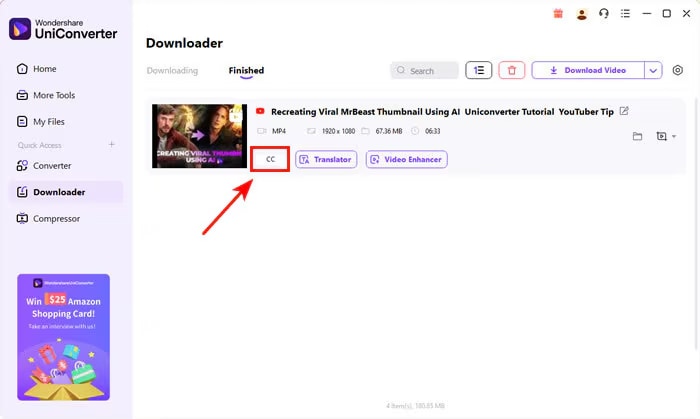
Step 7: Check Subtitle
Once the download is complete, you should see the “CC” tab attached to the video file, which means you’ve successfully added subtitles to the video. You can export the file locally afterward.
Pros
- Easy interface.
- Multiple subtitle language options.
- Supports batch processing.
- Works on both Mac and Windows computers.
Cons
- Free version limitations.

Download Video with Subtitle in One Step
Method 2: Download Video With Subtitles Using VLC
VLC media player is a free, open-source, and cross-platform media player that supports nearly every video and subtitle format. While it is primarily known for playing media files, it also allows you to convert videos and embed subtitle files into them.
VLC offers an open-source automatic subtitle generator known as VLsub, which allows you to load subtitles for the video you’re playing.
How to Use VLC to Download Video With Subtitles
Step 1: Open VLC
Open the video you want to add subtitles to in the “VLC” app on your Mac or PC and click on “View” > “VLsub” from the menu bar.
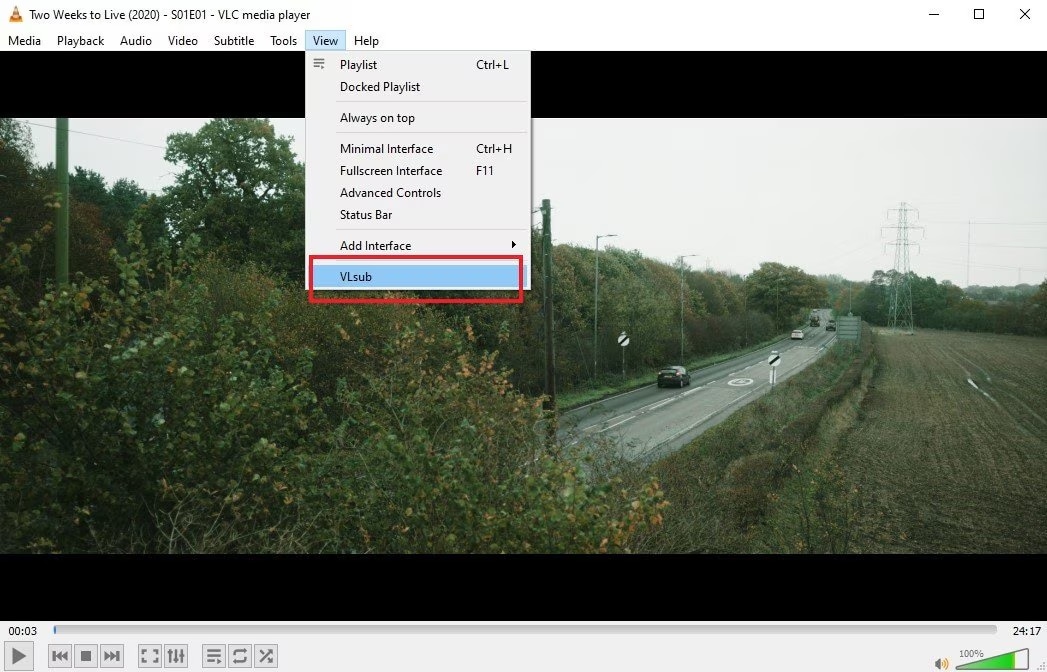
Step 2: Search by Name
Select the preferred subtitle language in the window that pops up and search for the related video subtitle by “name.”
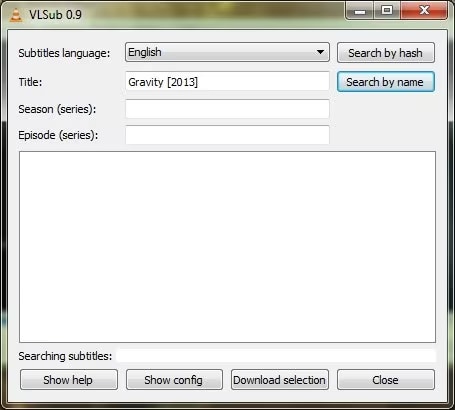
Step 3: Download
You should get a list of related subtitles for the video, as shown in the image below. Select the one you want to use and click “Download Selection” to proceed.
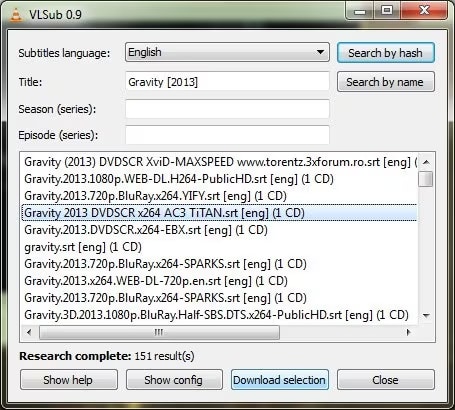
VLC will automatically add the selected subtitle to your video within a few minutes.
Pros
- It’s free.
- Supports all videos and subtitle formats.
- It’s compatible with Windows, Mac, and Linux.
Cons
- Newbies might find the process a little technical.
- The subtitle integration process is slow.
Part 2. How to Download Video with Subtitles on Mobile
For mobile users, the most effective way to download a video with subtitles is by using the VLC mobile app. The VLC mobile app also allows you to download subtitles for your videos, and here are the steps.
Steps Guide to Download Video with Subtitles on Mobile
Step 1: Download App
Download and launch the VLC Media Player app on your phone. Then, upload the video you want to add subtitles to.
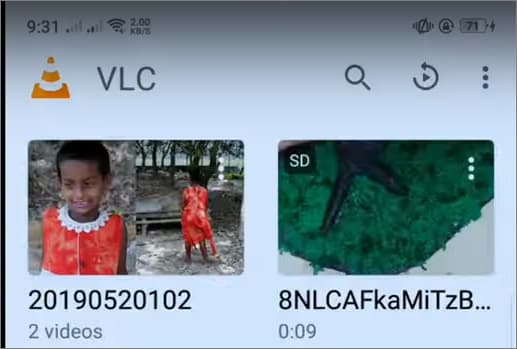
Step 2: Download Subtitles
Once you upload the video file, tap on the “Subtitle” icon and select “Download Subtitles.”
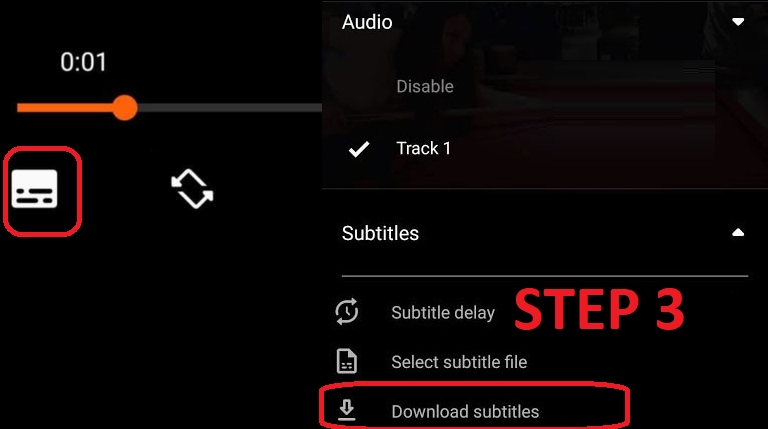
Step 3: Enter the Name of the Subtitle
Enter the name of the subtitle related to the video into the search box and select one of the subtitles from the list.
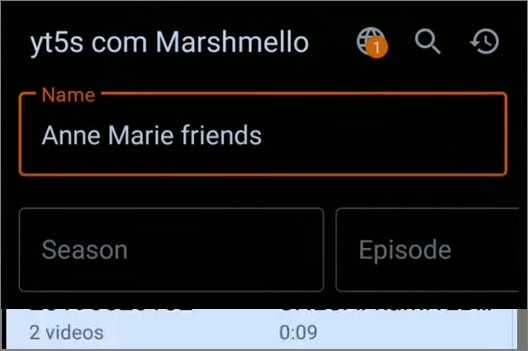
VLC will automatically add the selected subtitle to your video.
Part 3. How to Download Video with Subtitle Online (No Software)
DownSub is a free online subtitle downloader that allows you to extract subtitles directly from supported video platforms without installing any software. Unlike general video downloaders, DownSub focuses specifically on downloading subtitle files (usually in SRT or TXT format). This makes it a great option if you already have the video file or plan to download the video separately and just need the subtitles.
Steps to Download Subtitles Online
Step 1: Copy Video Link
Go to the video page (such as YouTube or another supported platform) and copy the video link.
Step 2: Open DownSub
Open your browser and navigate to the DownSub homepage.
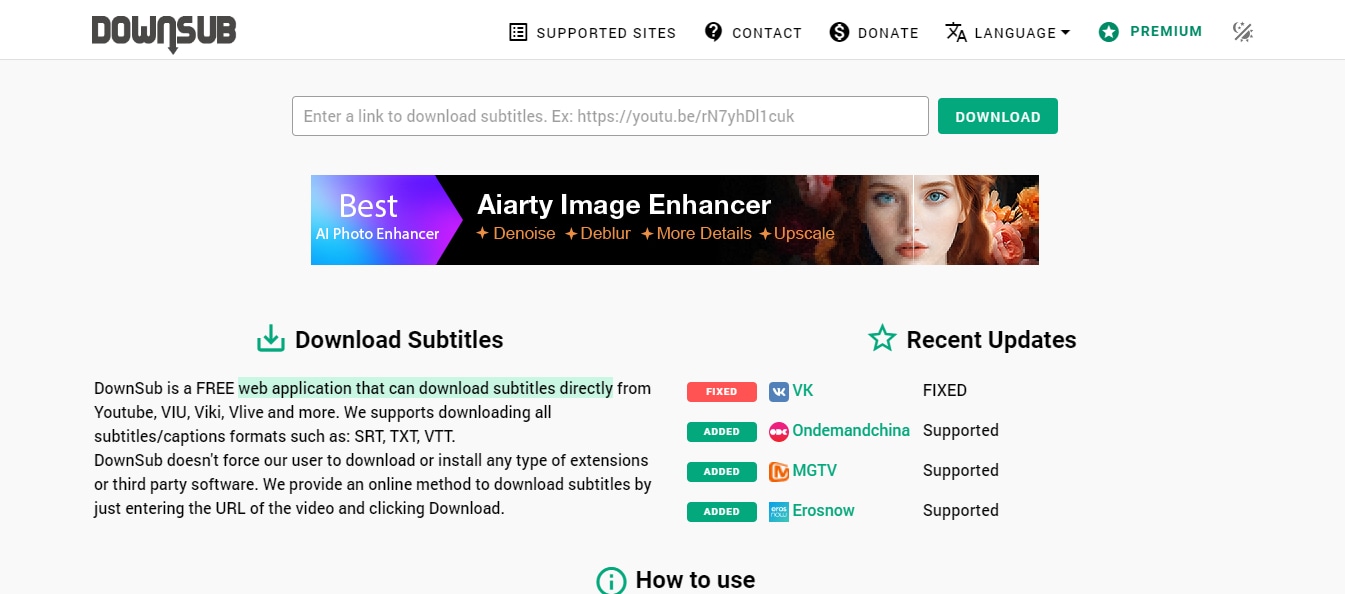
Step 3: Press the Download Button
Paste the copied link into the provided search box. Select your preferred language and format (SRT is recommended for compatibility). Press the download button to generate available subtitle files.
Step 4: Download File
Download the file to your device. You can then merge it with your video using a media player like VLC or video editing software.
Pros
- Free and easy to use
- Multiple subtitle language options (if available)
- Works on all major devices
- Supports common formats like SRT
Cons
- Downloads subtitles only (not the video itself)
- No subtitle editing features
- Requires manual merging with the video
Part 4. Bonus: How to Add Subtitles to a Video After Downloading
If you have the subtitle file for your video and you’re wondering how to add it, there are several ways you can do that. Here, we’ve shared different tricks you can use to add subtitles to your video after downloading.
Method 1: Using UniConverter on Windows
Steps on a Windows Computer
Step 1. Open UniConverter
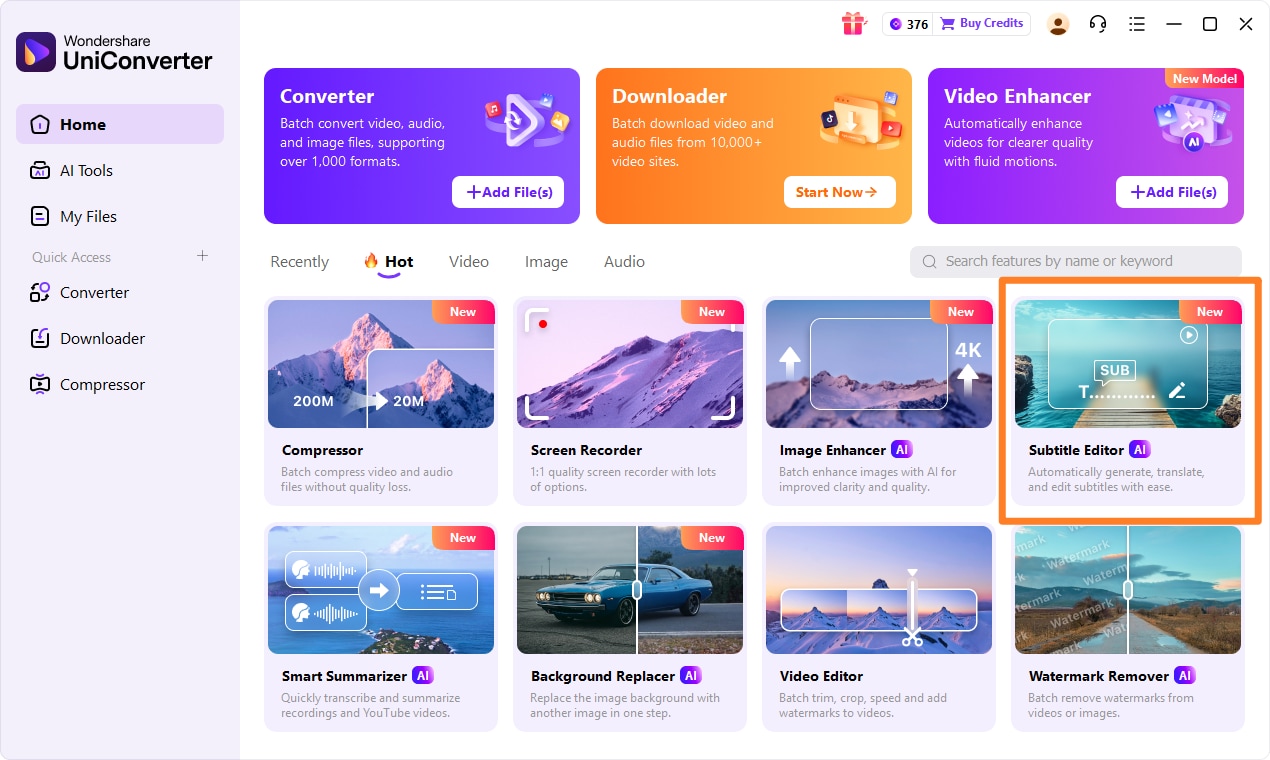
Launch UniConverter on your Windows PC. From the Home interface, click Subtitle Editor under the Tools section.
Step 2: Import Your Video
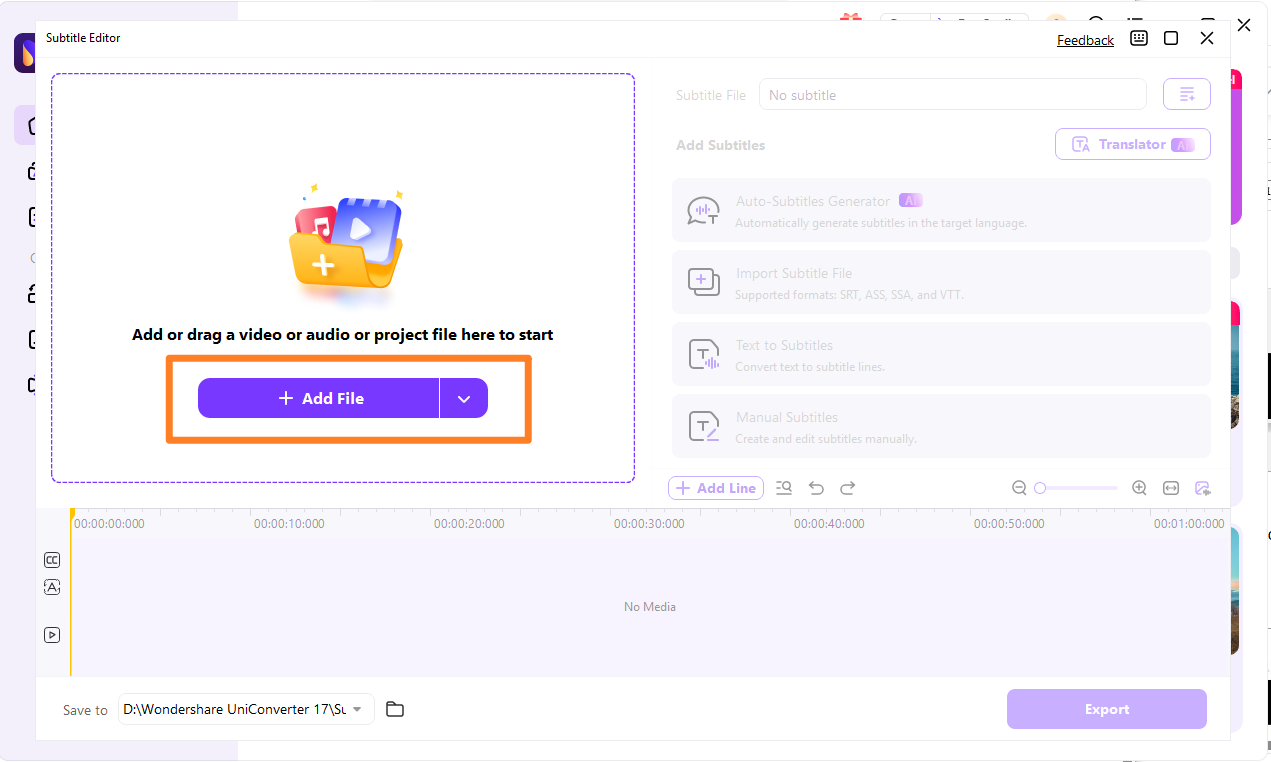
Click Add Files to upload the video you want to generate subtitles for. Once imported, choose Auto-Subtitle Generator and select the correct video language.
Step 3: Edit the Subtitles
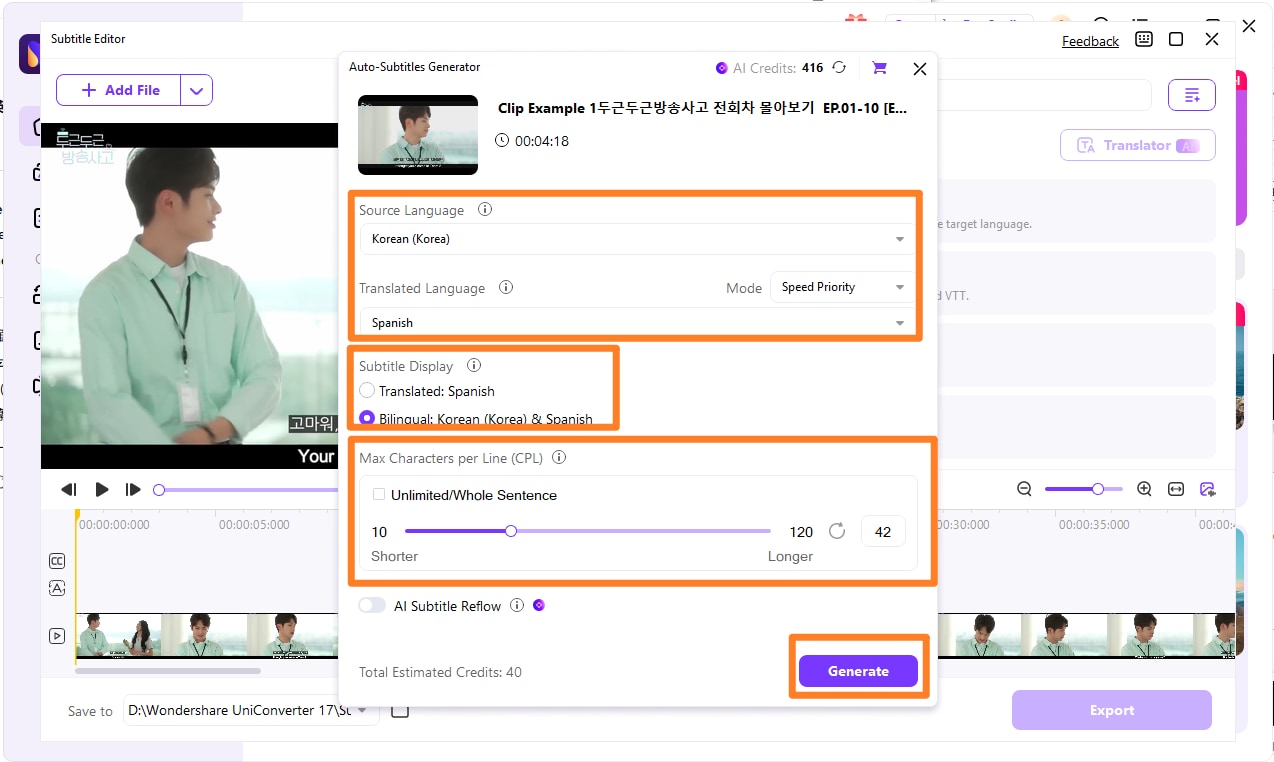
Click Generate to automatically create subtitles. After generation, review and edit the subtitle text, adjust timing, and customize font style, size, color, and position if needed.
Step 4: Export the Video
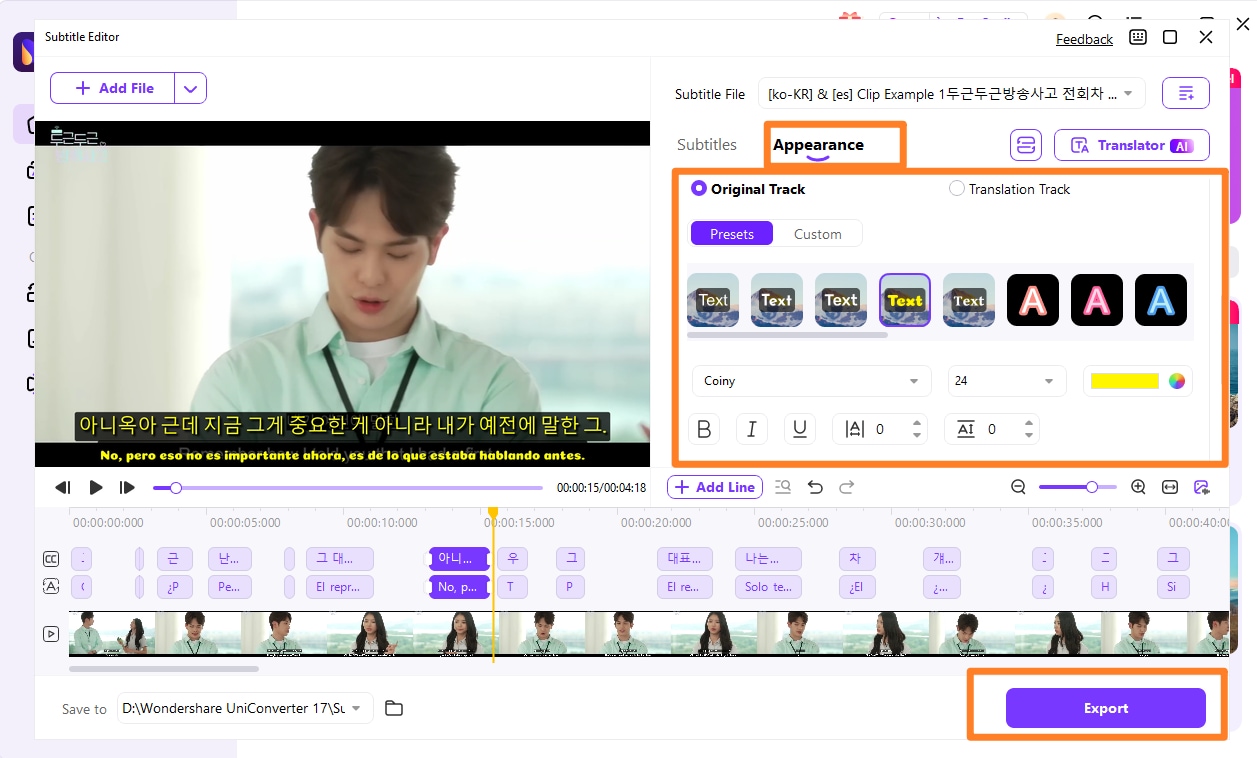
Choose to export subtitles as an SRT file or embed them into the video. Click Export to save the final video with subtitles to your computer.
Method 2: Using iMovie (Mac only)
Mac’s iMovie can also be used to download a video with subtitles on a Mac. Here comes a detailed steps guide.
Steps Guide on Using iMovie to Download Video with Subtitles
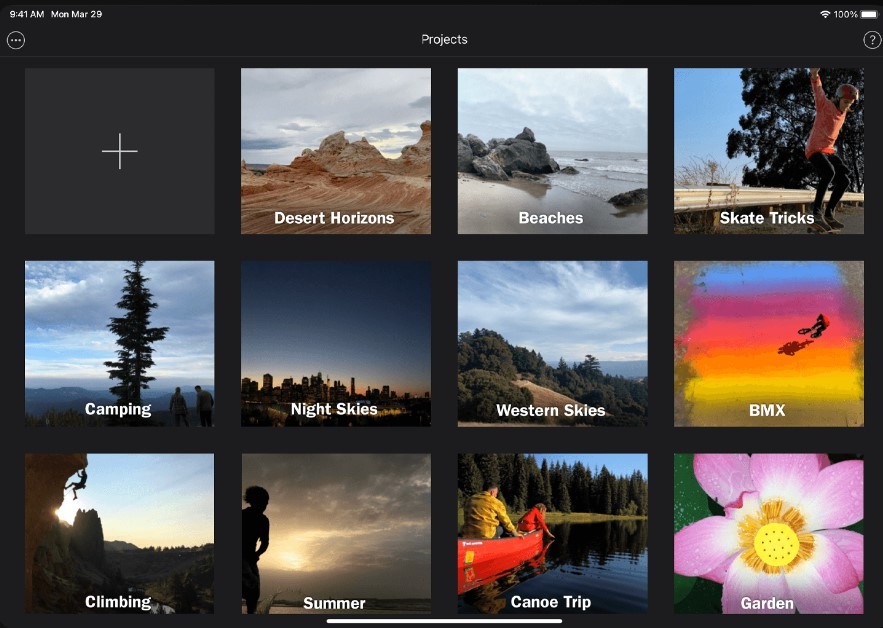
Step 1: Upload Files
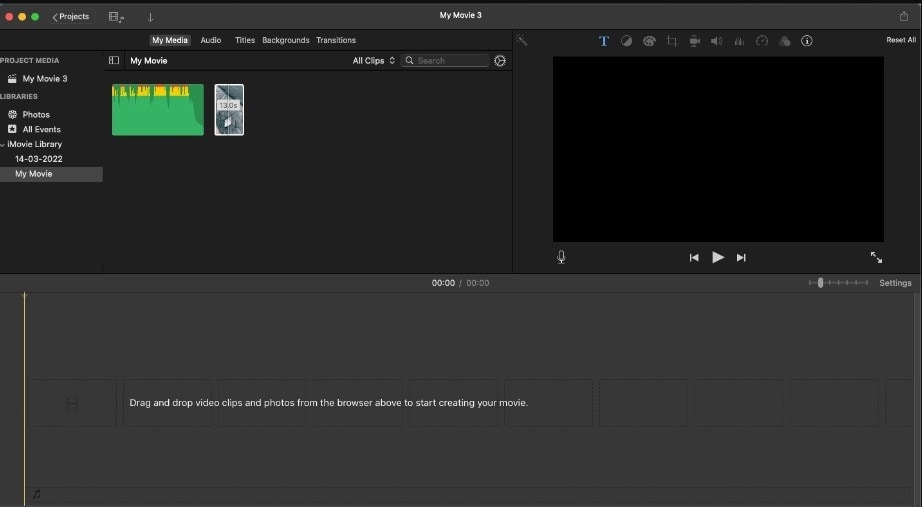
Open “iMovie” and click on the “+” icon to import your video file.
After uploading the video, drag it to the filmstrip area.
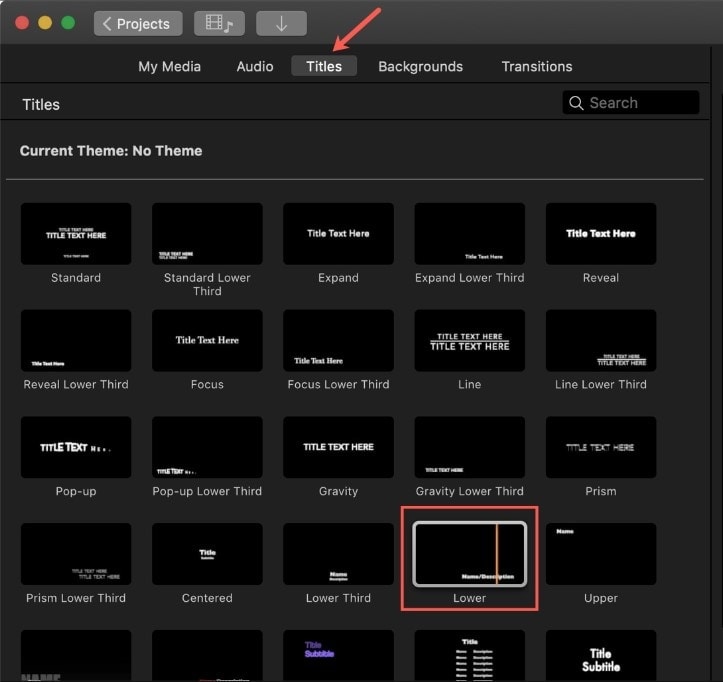
Step 2: Set Titles
Click the “Titles” tab and double-click the Lower style.
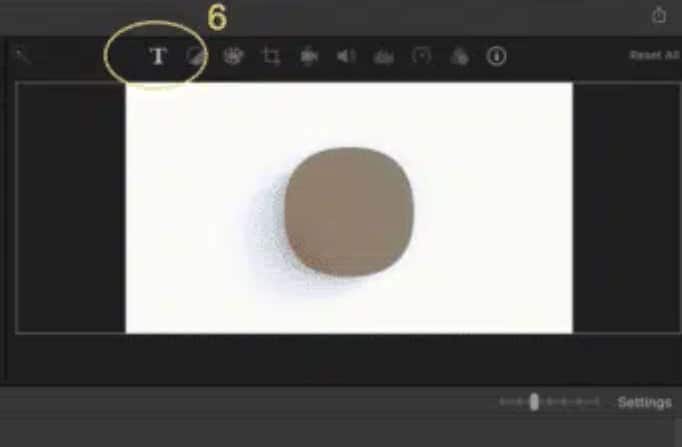
Step 3: Choose Text Box
Select the timestamp on the video in the timeline to add subtitles. Then, click on the “Text” box icon above the viewer and enter your subtitles.
Step 5: Adjust Timeline Duration
Adjust the subtitle duration in the timeline to match the audio of your video.
After that, you can add more titles and repeat the process until you add all the subtitles for your video.
Step 6: Save and Share
After completing the above steps, click File > Share. Then, select 'File' again and save your video.
Part 5: Embedded vs Separate Subtitles: Which Should You Choose?
When you download a video with subtitles, you’ll typically encounter two subtitle formats: embedded (hardcoded) subtitles and separate subtitle files (usually SRT). Choosing the right option depends on how you plan to watch, share, or edit your video.
Let’s break down both options in detail.
What Are Embedded Subtitles (Hardcoded)?
Embedded subtitles are permanently “burned” into the video image. They become part of the video itself, which means they cannot be turned off or removed. No matter which device or media player you use, the subtitles will always appear on screen.
This format is commonly used for:
- Social media videos
- Foreign films shared online
- Videos meant for universal playback
- Content where subtitles must always be visible
What Are Separate Subtitle Files (Soft Subtitles)?
Soft subtitles, on the other hand, come as an external file, most commonly in .SRT format. These files contain timestamped text that syncs with the video during playback. The video file remains unchanged, and the subtitles are loaded by the media player.
This option is ideal for:
- Language learners
- Users who want to switch between subtitle languages
- Viewers who prefer turning subtitles on or off
- Maintaining smaller video file sizes.
Key Differences at a Glance
| Feature | Embedded Subtitles | Separate Subtitle File (SRT) |
| Visibility | Always visible | Can be turned on/off |
| Removability | Cannot be removed | Can be removed anytime |
| Device Compatibility | Works on any device | Requires a compatible player |
| File Structure | Integrated with the video file | Separate .SRT file |
| Language Switching | Not possible | Easy to switch languages |
| File Size | Slightly larger | Smaller video file size |
| Customization | Fixed style | Adjustable font, size, sync |
| Best For | Social sharing, universal playback | Personal viewing, multi-language use |
Conclusion
Downloading videos with subtitles is not as difficult as you think. This article explained the best methods to download videos with subtitles on different devices from different websites.
With UniConverter, you can quickly download videos with subtitles from any website using the video link directly. VLC, on the other hand, is a great choice if you don’t mind going through the manual process of adding subtitles to your video. And you can use an online tool like DownSub to download the subtitle if you don’t want to use a third-party software or VLC.
FAQs
-
1. Can I download a video with subtitles already included?
Yes, depending on the platform and tool you use. Some video downloaders allow you to select subtitle languages and either embed them directly into the video file or download them as a separate SRT file. Streaming services like Netflix and Amazon Prime Video support offline viewing with subtitles inside their apps, but these files are encrypted and cannot be transferred outside the app. If a downloader does not support subtitles, you can download the video first and then merge a separately downloaded subtitle file using tools such as VLC or a video editor. -
2. What is the best subtitle format to download?
SRT (SubRip Subtitle) is the most recommended format. It is lightweight, widely supported, and compatible with most media players, smart TVs, and editing software. SRT files use plain text with timestamps, making them easy to edit if timing or translation adjustments are needed. Other formats like VTT and ASS are available, but SRT remains the most universally accepted option. -
3. Can you extract subtitles from a YouTube video?
Yes. If subtitles are available, you can copy the YouTube video URL and use a subtitle downloader tool that supports caption extraction. The subtitles can typically be downloaded in formats such as SRT or TXT. -
4. Can subtitles be embedded in MP4 files?
Yes. The MP4 format supports both hardcoded (burned-in) subtitles and soft subtitle tracks. You can embed subtitles into MP4 files using tools like HandBrake or VLC media player.

