


Struggling with blurry footage, dull colors, or videos that just don’t look professional enough—no matter how much you edit? In 2026, video quality isn’t just a “nice to have”; it’s the difference between being watched or skipped in seconds. Many creators, marketers, and businesses want cleaner, sharper videos without spending hours learning complex software or investing in expensive hardware. That’s where tools like Flixier video enhancer promise a solution. But does it actually fix common quality issues, or is it just another cloud editor with big claims?
In this review on Flixier video enhancer, we dig deep to see whether Flixier truly delivers on its promise—or if you should look elsewhere before wasting time and budget.
In this article
- What Is Flixier Video Enhancer?
- Core Features, Pros and Cos of Flixier video Enhancer
- User Reviews and Ratings on Flixier Video Enhancer
- How to Use Flixier Video Enhancer Step by Step
- Who Can Utilize Flixier Video Enhancer Best
- Best Flixier Video Enhancer Alternative for AI Quality Upscaling
- Steps Guide: How to Easily Batch Enhance Videos on PC
- Conclusion
- FAQs
Part 1: What Is Flixier Video Enhancer?
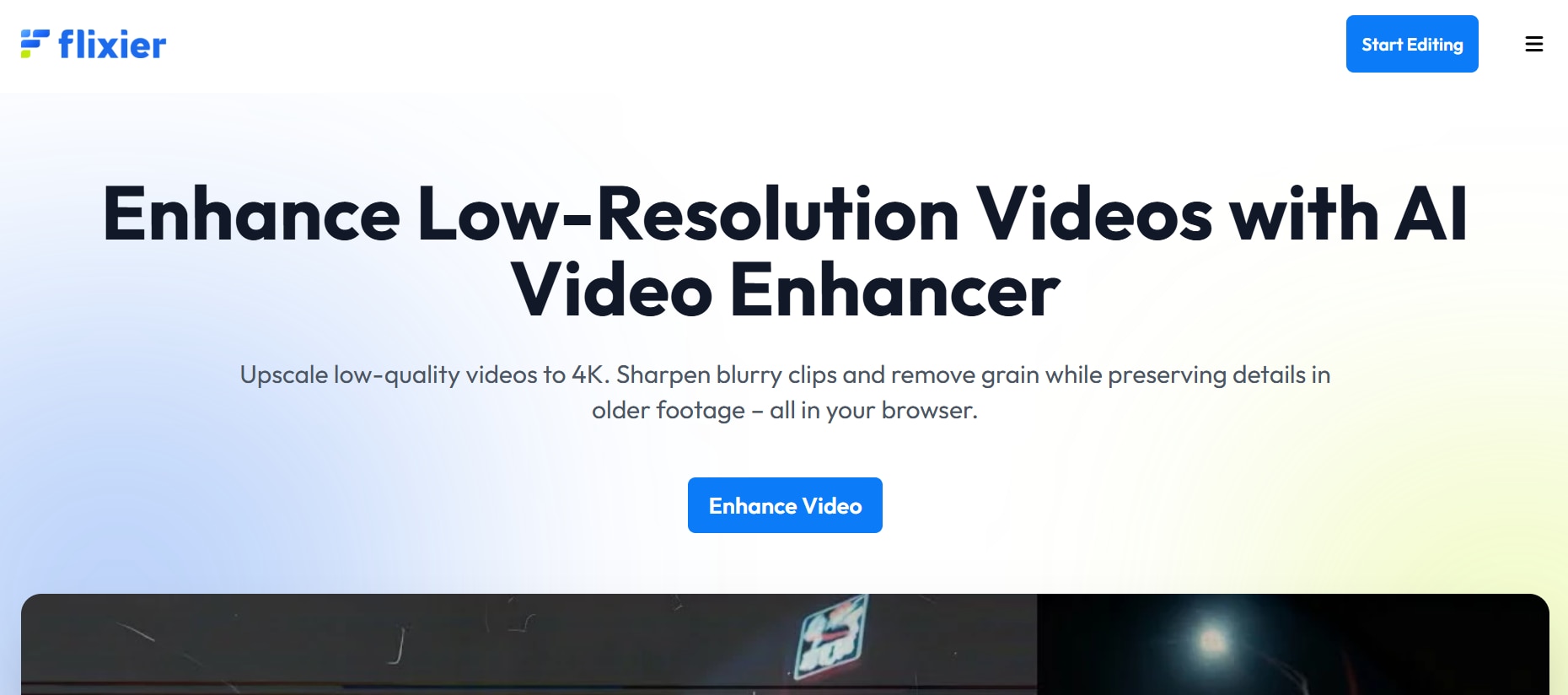
Flixier Video Enhancer is a cloud-based video editing tool that helps users quickly improve video quality directly from a web browser. It enhances clarity, brightness, contrast, and sharpness while also offering basic editing features like trimming, text, transitions, and audio controls. Since all processing happens in the cloud, it works smoothly even on low-spec devices. Flixier is ideal for creators, marketers, businesses, and educators who need fast, collaborative, and hassle-free video enhancement.
Overview of Flixier as a cloud-based video editor with enhancement features
Flixier stands out as a browser-first video editor that blends editing, enhancement, and collaboration into one platform. Users can upload raw footage, apply visual enhancements, trim clips, add branding elements, and export high-quality videos without switching tools. Its real-time collaboration feature allows multiple users to work on the same project simultaneously, making feedback, revisions, and approvals much faster. This cloud-based structure is ideal for remote teams that need speed and consistency across projects.
Who Flixier is primarily designed for
Flixier is not built for advanced cinematic post-production but rather for users who value simplicity, speed, and teamwork. It is best suited for:
Content creators: YouTubers, vloggers, and social media creators who need quick video enhancements without complex editing workflows.
Marketing teams: Professionals creating ads, reels, and promotional videos who benefit from fast turnaround and team collaboration.
Businesses and startups: Companies producing product demos, explainers, and internal videos without investing in expensive editing software.
Educators and trainers: Teachers and course creators who need clear, well-enhanced instrucs, cloud-based convenience, and efficient collaboration in one easy-to-use platform.

Powerful Flixier Video Enhancer Alternative
Part 2. Core Features, Pros and Cos of Flixier video Enhancer
Flixier Video Enhancer focuses on speed, flexibility, and ease of use, making it a practical choice for everyday video enhancement needs. Below is a clear breakdown of its core features, supported formats, device compatibility, and key pros and cons.
Core features of Flixier video enhancer:
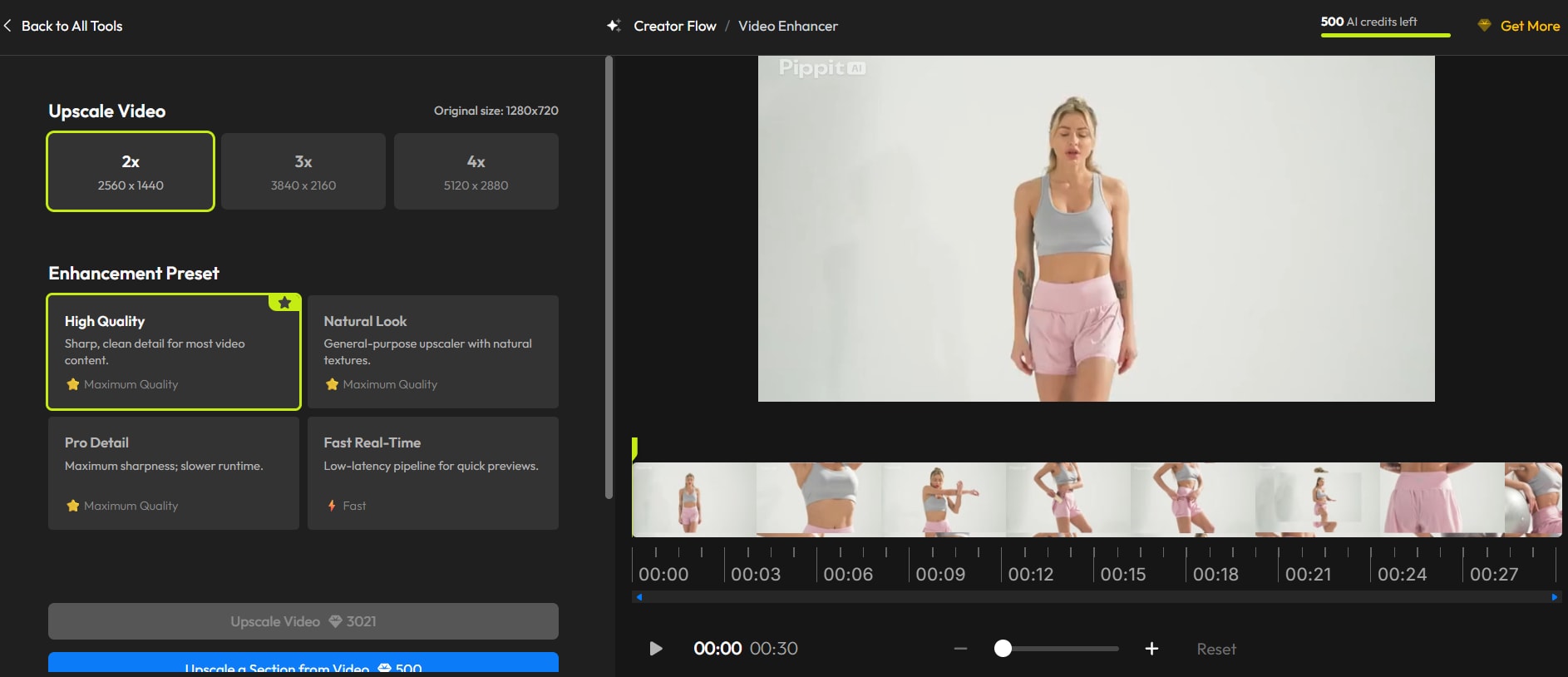
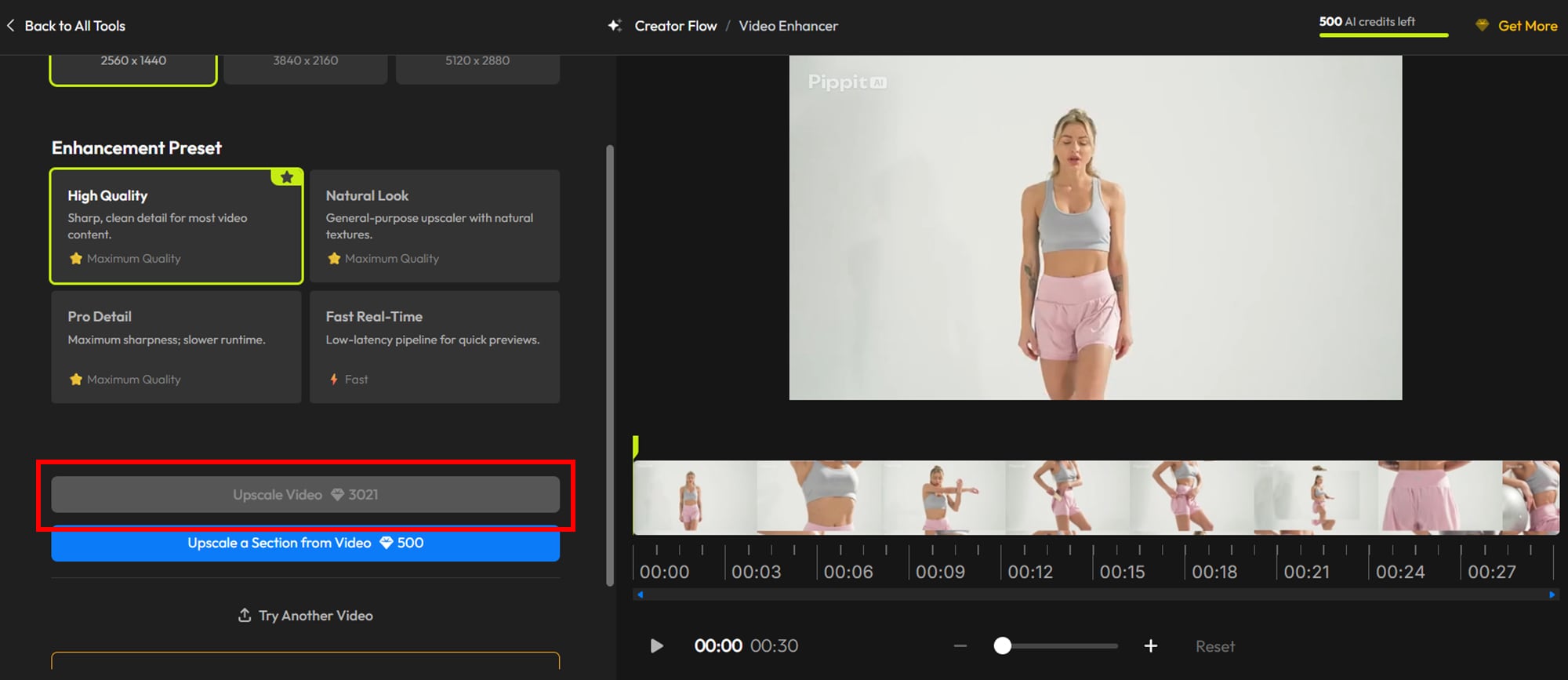
Optional Upscaling Size
Flixier allows users to export videos in different resolutions, making it easy to upscale content for platforms like YouTube, Instagram, and presentations. While it doesn’t offer deep AI-based super resolution, it supports resolution adjustments that help videos look cleaner and more platform-ready.
Optional Enhancement Preset
Flixier offers built-in enhancement presets that simplify video improvement without manual adjustments. Common preset types include:
- Auto Enhance: Automatically balances brightness, contrast, and clarity for quick quality improvement.
- Vibrant Colors: Boosts saturation and color depth to make videos more eye-catching.
- Low-Light Fix: Improves visibility and reduces dullness in dark or underexposed footage.
- Sharp & Clear: Enhances sharpness to make details appear crisper and more defined.
Supported Input and Output Formats
Flixier supports popular video formats such as MP4, MOV, AVI, and WebM, along with common audio formats like MP3 and WAV. This wide compatibility ensures smooth importing and exporting across most platforms.
Supported Device Type
As a cloud-based editor, Flixier works on Windows, macOS, Chromebooks, and Linux through modern web browsers. It can be used on desktops and laptops without requiring high-end hardware.
Real-Time Cloud Collaboration
Flixier enables multiple users to edit the same video project simultaneously, making it ideal for teams. This feature speeds up feedback, revisions, and approvals, especially for remote or distributed workflows.
Fast Cloud Rendering & Export
Because rendering happens in the cloud, Flixier significantly reduces export time and prevents system slowdowns. Users can continue working on other tasks while videos are processed in the background.
Pros and Cons
Pros:
- No software installation required
- Fast cloud-based rendering
- Beginner-friendly interface
- Real-time team collaboration
- Works on low-spec devices
Cons:
- Limited advanced AI upscaling
- Internet connection required
- Fewer cinematic-level controls for professionals
Overall, Flixier Video Enhancer is best suited for users who prioritize speed, simplicity, and collaboration over advanced post-production depth.
Flixier Video Enhancer Alternative with Broad Format Support
Part 3: User Reviews and Ratings on Flixier Video Enhancer
Real User Feedback (Positive & Negative)
Positive User Review (Reddit):
“I recommend giving Flixier a shot. They have a glitch effect, which is very customizable, and I think that you can achieve a similar one if you fiddle around with the glitch settings there.” – Reddit user recommending the tool for effects and reliability.
Positive Sentiment (Trustpilot):
“Very good and nice… Flixier is really efficient for small video edits… easy and smooth to use.” – Recent Trustpilot reviewer praising ease of use and smooth workflow.
Negative User Review (Reddit):
“Flixier is probably one of the WORST editing sites… super glitchy… I have completely stopped going to their site.” – Reddit user expressing frustration with reliability and glitches.
Negative User Review (Reddit Scam Claim):
“THIS WEBSITE IS A SCAM! … they will continue to charge your account… Can’t even render a 15 sec clip in 720p.” – Strong negative claim about functionality and billing issues.
Average Ratings from Review Platforms
Trustpilot – ~4.2 / 5:Flixier holds a 4.2 out of 5 TrustScore based on over 200 user reviews, with many users highlighting its intuitive interface, cloud performance, and accessibility, while some reviewers mention billing confusion or export limits as downsides.
Capterra – ~4.8 / 5 (selected reviews):On Capterra, Flixier scores highly for ease of use, customer service, and value, with many users calling it beginner-friendly and effective for straightforward edits.
Takeaway: Most users appreciate Flixier’s cloud-based ease of use, quick edits, and smooth interface, but a minority reports export glitches, billing confusion, or reliability issues, especially in more intensive tasks.
Batch Video Enhancer as Flixier Video Enhancer Alaternative
Part 4: How to Use Flixier Video Enhancer Step by Step
Below is a simple, beginner-friendly textual guide, to help users easily follow each step:
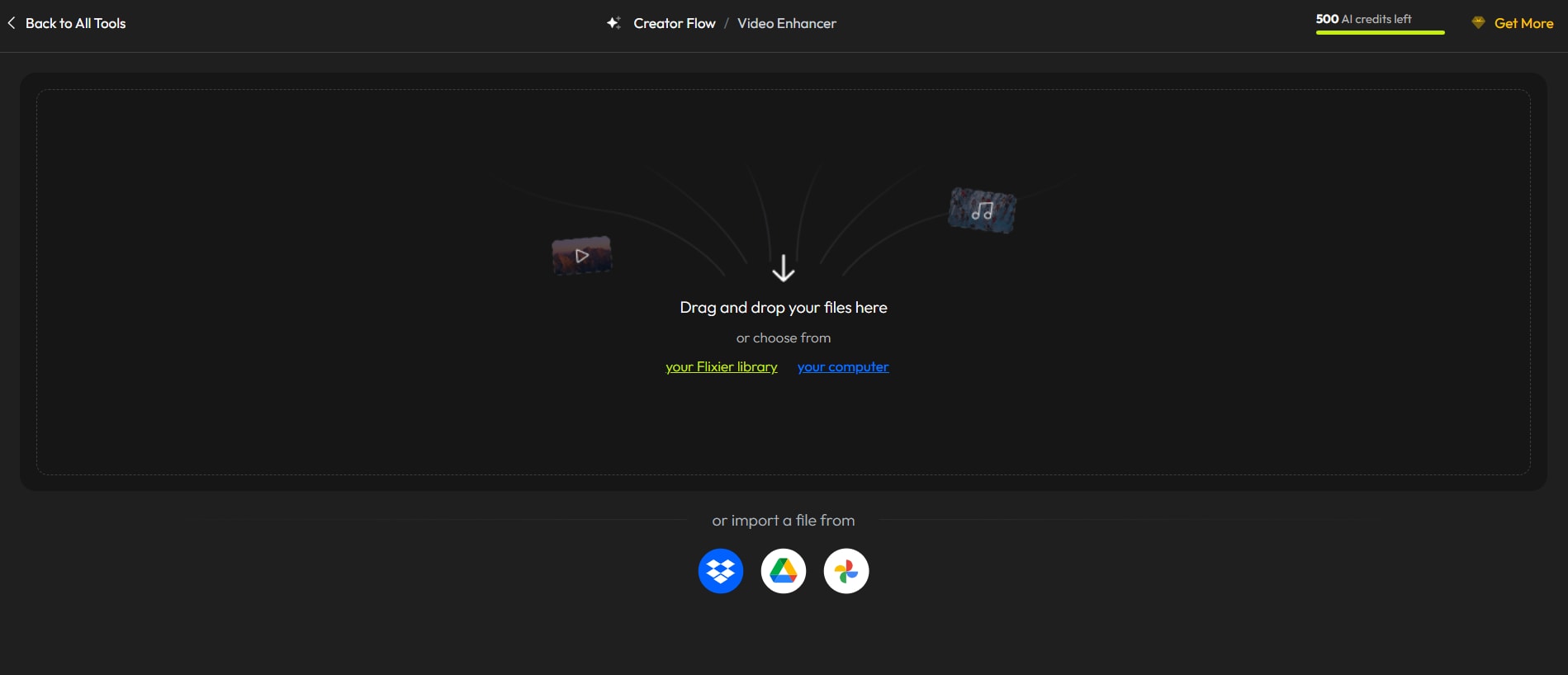
Step 1: Uploading Footage to the Cloud
After opening Flixier in your browser, click on “Import” or “Upload Media” from the dashboard. You can upload videos directly from your computer, Google Drive, Dropbox, or OneDrive. Once uploaded, your footage is stored securely in the cloud and appears in the media library.
Step 2: Applying Enhancement and Editing Tools
Drag your video from the media library onto the timeline. Select the clip to access enhancement options such as brightness, contrast, sharpness, and preset enhancements like Auto Enhance or Vibrant Colors. You can also trim clips, add text, transitions, and adjust audio levels. Changes are applied instantly, making it easy to preview results in real time.
Step 3: Export Settings and Supported Formats
Once editing is complete, click “Export” in the top-right corner. Choose your desired resolution (such as 720p, 1080p, or higher), frame rate, and output format like MP4 or WebM. Flixier processes the video in the cloud, allowing you to continue working while it renders.
Tips : Common Beginner Mistakes to Avoid
1. Expecting Heavy AI Upscaling from Low-Quality Footage
Many beginners assume Flixier can completely restore blurry or pixelated videos. While it improves clarity and balance, it is not designed for deep AI reconstruction. Starting with reasonably good footage delivers better results. Always set realistic expectations about what the tool can achieve to avoid disappointment.
2. Ignoring Internet Stability During Upload and Export
Since Flixier is cloud-based, an unstable internet connection can interrupt uploads or exports. Beginners often close the tab or switch networks mid-process, causing failed renders. Always wait for confirmation before exiting. A stable and fast connection ensures smooth editing and prevents wasted time.
3. Overusing Enhancement Presets
Applying multiple presets or extreme adjustments can make videos look unnatural. New users may stack effects without previewing changes. It’s best to use subtle enhancements and review results in real time. Focus on small, gradual adjustments to maintain a professional look.
4. Choosing Incorrect Export Settings
Beginners often export videos in unnecessarily high resolutions or wrong formats. This increases render time and file size without visible benefits. Select export settings based on the platform where the video will be published. Always double-check platform requirements before exporting your final video.
5. Not Saving or Duplicating Project Versions
Some users forget to duplicate projects before making major edits. This makes it hard to revert changes if something goes wrong. Creating backup versions helps avoid redoing work from scratch. Keeping multiple versions also allows experimentation without risking the original project.
Stable Video Enhancer Alternative to Flixier
Part 5: Who Can Utilize Flixier Video Enhancer Best
Flixier Video Enhancer is a versatile tool, but knowing who benefits most—and who might find it limiting—can save time and set the right expectations. Here’s a quick guide to see if it fits your workflow.
Best For
Social Media Creators: Perfect for YouTubers, TikTokers, and Instagram creators who need fast, polished videos without complicated software.
Marketing Teams: Ideal for producing ads, promo videos, and social media campaigns quickly, with collaborative cloud features for team projects.
Lightweight Enhancement + Editing: Great for users who want simple adjustments like brightness, contrast, sharpness, and text overlays without diving into advanced post-production.
Not Recommended For
Professional Video Restoration: Flixier isn’t designed to fix heavily damaged or extremely low-quality footage.
Face Detail Recovery: It cannot reconstruct fine facial features or restore missing details in portraits.
4K/8K Heavy Upscaling Needs: High-resolution AI upscaling for cinematic projects exceeds Flixier’s capabilities; it’s better suited for HD and social media resolutions.
Part 6: Best Flixier Video Enhancer Alternative for AI Quality Upscaling
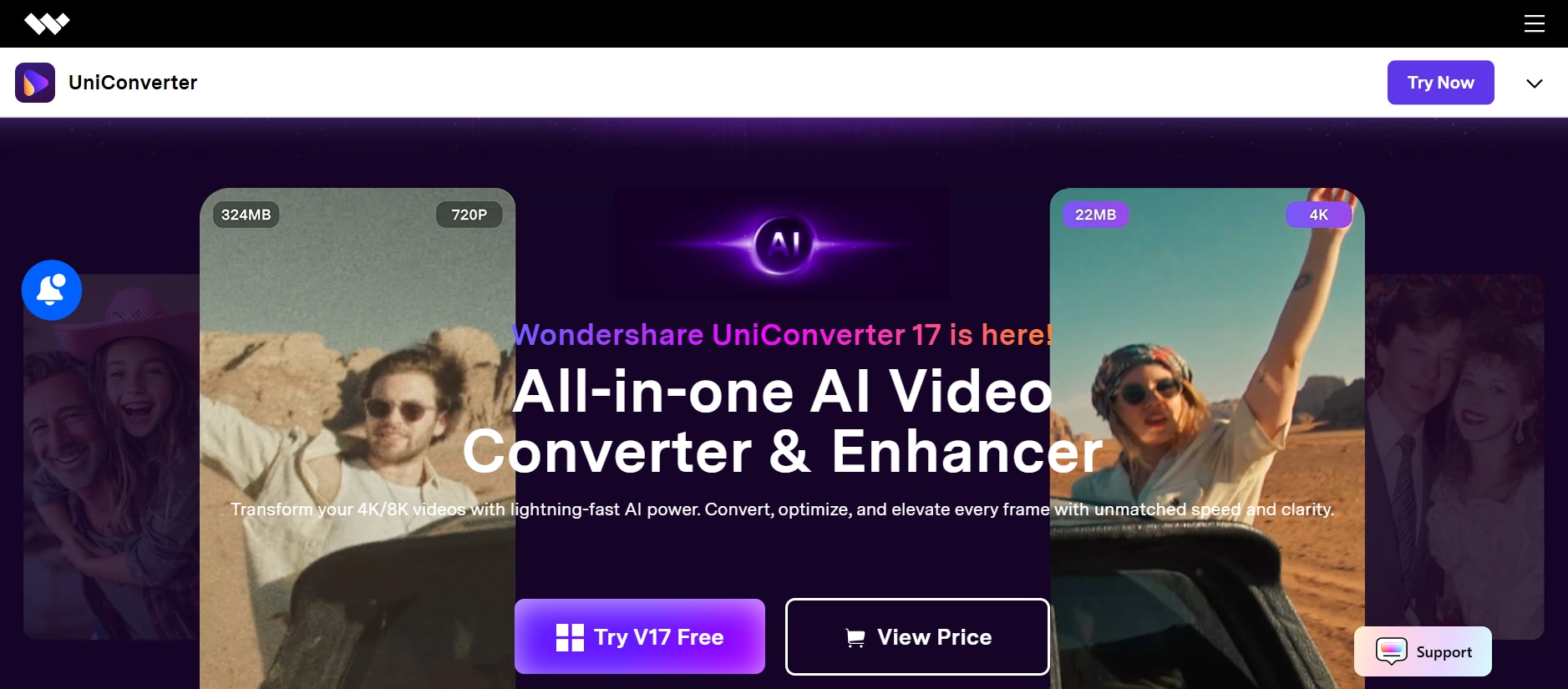
1. Wondershare UniConverter — All‑in‑One AI Video Upscaler & Enhancer
Wondershare UniConverter isn’t just a bas ic converter—it includes an advanced AI video enhancer that uses deep learning to upscale, denoise, and improve details in your footage. Leveraging powerful algorithms (including integrated support for Topaz generative enhancement model), UniConverter is capable of transforming old or compressed videos into clearer, sharper versions with minimal effort. Unlike tools that only focus on one aspect (like resolution), UniConverter gives you an all‑around upgrade in quality while still offering traditional video conversion, subtitle generation, and wide format support.
You can remove visual noise, unblur footage, and upscale videos to resolutions like 4K or even 8K without manually tinkering with every setting. Whether you’re enhancing mobile clips, old family footage, or content destined for social platforms, this tool provides a balanced mix of power and accessibility.
Best For: Creators and editors who want all‑in‑one upscaling plus conversion and editing tools without steep hardware requirements.
Pros:
- Integrated color correction, noise reduction and frame interpolation
- Easy, intuitive interface
- Supports batch processing
- Wide format compatibility
- Works well on mid‑range laptops/desktops
Cons:
- Some advanced AI features may require credits or subscriptions
- Not as specialized as dedicated upscalers for cinematic quality
Easy-to-Use Flixier Alternative for Video Enhancement
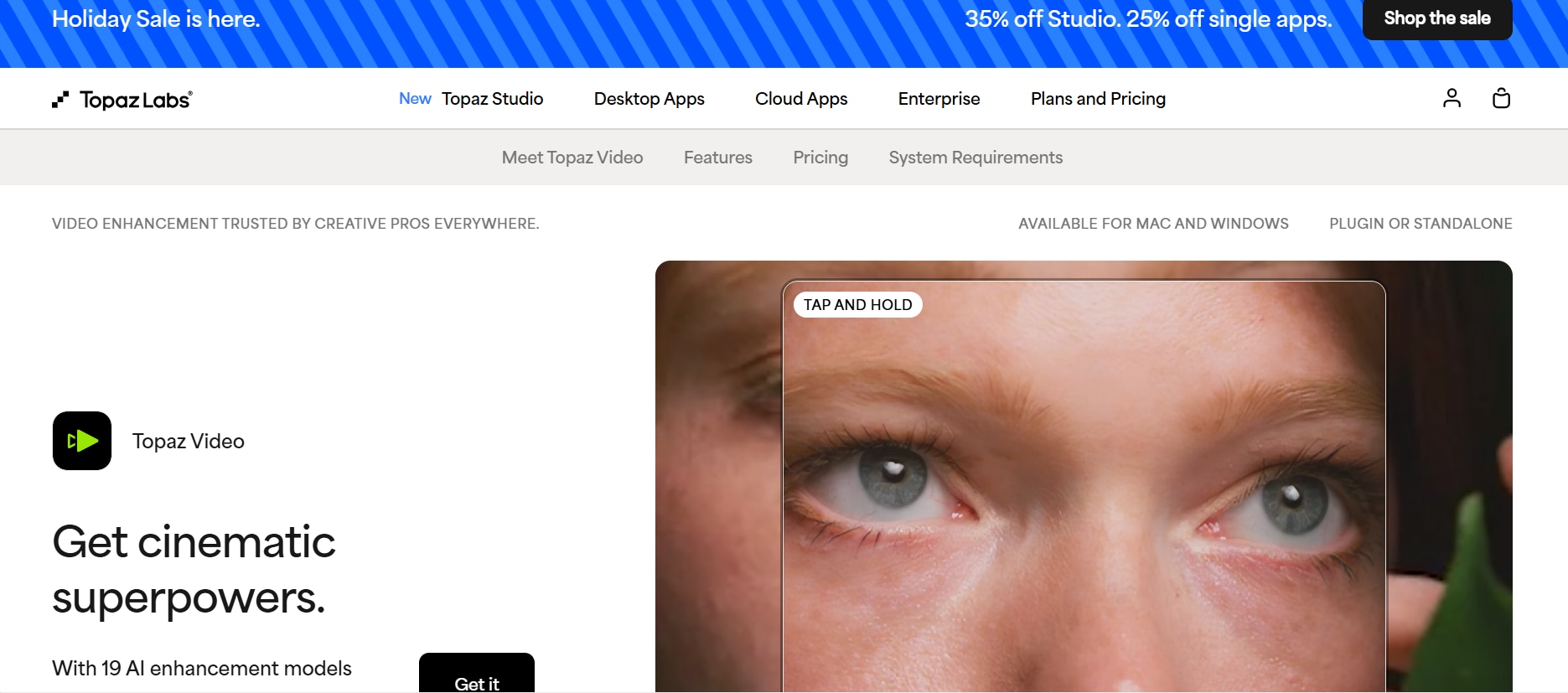
2. Topaz Video AI — Pro‑Level AI Upscaling & Detail Enhancement
Topaz Video AI is a professional desktop AI upscaling tool designed for creators and videographers seeking cinematic-quality enhancements. It offers multiple specialized AI models, including upscaling, denoising, motion interpolation, and detail reconstruction, allowing users to restore fine textures, edges, and motion even in older or compressed footage.
The software supports output resolutions up to 4K, 8K, and beyond, with flexible format and encoder options. While home users can achieve excellent results with simple settings, advanced users benefit from full control over AI models and processing parameters. Overall, Topaz Video AI excels in detail fidelity and pro-level visual enhancement, producing results far superior to typical cloud-based editors.
Best For: Professional editors, videographers, and filmmakers needing maximum AI quality and resolution upscaling.
Pros:
- Exceptional detail reconstruction and upscaling
- Variety of AI models for different tasks
- Supports high‑end output like 8K
- Customizable processing options
- Works offline (no cloud upload)
- Strong motion interpolation & denoising
Cons:
- Requires powerful hardware to run smoothly
- Can be slower for very high resolutions
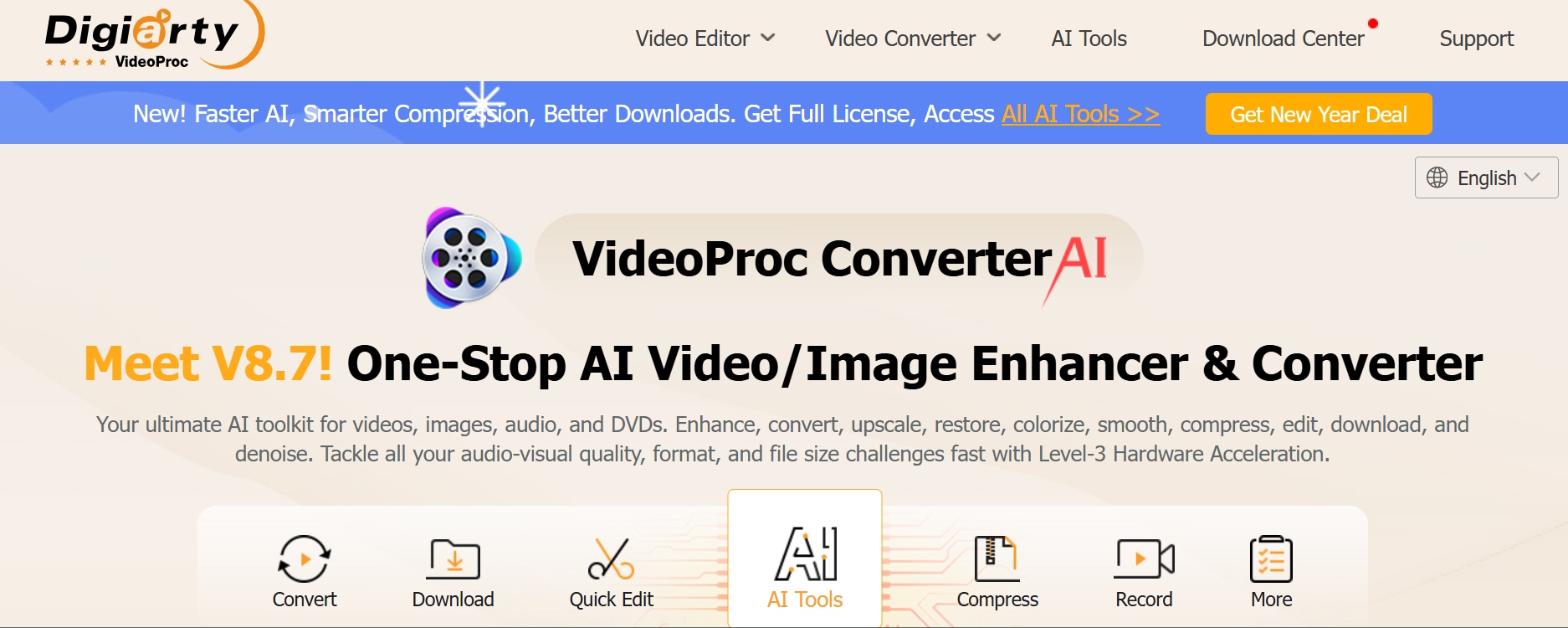
3. VideoProc Converter AI — Fast & Lightweight AI Upscaler
VideoProc Converter AI is a lightweight yet powerful video processing tool that leverages AI super-resolution technology to upscale videos while maintaining clarity and detail. Its Super Resolution feature allows footage to be enhanced up to 4K and beyond, handling tasks like denoising, deblurring, and detail refinement in a single workflow.
Optimized for mid-range systems, it delivers strong performance without straining hardware, making it ideal for casual creators. While it may not match the advanced depth of specialized upscalers like Topaz, its combination of speed, usability, and broad format support makes it a reliable choice for everyday video projects.
Best For: Users who want efficient, easy AI upscaling with some enhancement tools without heavy hardware or complexity.
Pros:
- Fast AI upscaling with minimal hardware demands
- Effective noise reduction and detail refinement
- Supports multiple resolutions and formats
- Includes basic editing enhancements
- Good performance on lightweight systems
- Handles dynamic footage well
Cons:
- Some online feedback claims mixed results for certain videos
Professional Video Enhancer with Wider Compatibility
Quick Comparison Table of Flixier Video Enhancer and Alternatives
Here’s a simple comparison table showing how Flixier Video Enhancer stacks up against Wondershare UniConverter, Topaz Video AI, and VideoProc Converter AI on key practical metrics:
| Feature / Tool | Flixier Video Enhancer | UniConverter | Topaz Video AI | VideoProc Converter AI |
| Supported Video Formats | Most common formats (e.g., MP4, MOV, AVI via browser upload & conversion) | 1000+ video/audio formats including MP4, AVI, MKV, etc. | Wide list including AVI, FLV, 3GP, MKV, MOV, MP4, MPG, WMV, WEBM | 370+ codecs & 420+ formats including MP4, AVI, MOV, MKV, WebM, etc. |
| Batch Process Support | Limited (typical cloud editor workflow, not focused on batch upscaling) | Yes (convert multiple files at once) | Limited batch queue but can process multiple files (some user reports of settings quirks) | Yes – supports batch conversion & processing |
| Supported Device Type | Any device with a modern browser (Windows, macOS, Chromebook, Linux) | Windows & macOS (software install) | Windows & macOS (desktop app) | Windows & macOS (software install) |
| AI Upscaling Capability | Basic enhancement presets, not deep AI upscaling | Moderate AI upscaling plus enhancement tools | Industry‑leading AI upscaling to 4K/8K | AI super resolution upscaling to high resolutions |
| Cloud vs Local Processing | Cloud‑based processing | Local install with optional cloud/cpu acceleration | Local desktop processing | Local desktop processing |
| Export to 4K/8K | 4K (via export settings, not deep upscaling) | Yes, supports up to 8K exports | Yes, up to 8K & beyond | Yes, supports 4K upscaling |
Key Notes:
Flixier Video Enhancer runs entirely in the browser and is best for light editing and enhancement, but it doesn’t offer deep AI upscaling like the specialized tools.
UniConverter is a flexible all‑purpose converter with strong format support and moderate AI enhancement capabilities.
Topaz Video AI specializes in professional‑grade AI upscaling, making it the go‑to for high‑fidelity detail improvement.
VideoProc Converter AI combines efficient AI upscaling with broad format support and batch processing, great for everyday enhancement tasks.
All-in-One Video Enhancement Alternative to Flixier
Part 7. Steps Guide: How to Easily Batch Enhance Videos on PC
UniConverter AI video enhancement uses artificial intelligence to improve the visual quality of your footage. This process typically involves upscaling resolution, sharpening details, and increasing frame rates to transform low-quality videos into smoother, clearer, and more professional-looking content. Simply follow the straightforward instructions below to enhance your videos.
Step-by-Step Instructions
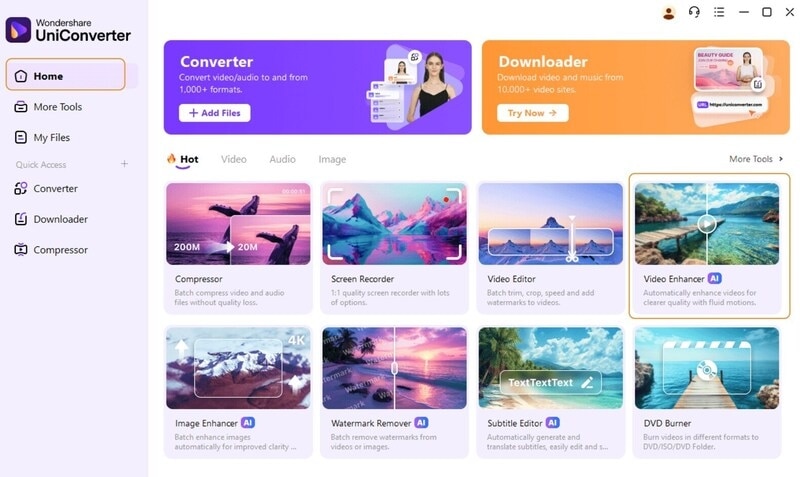
Step 1: Launch UniConverter and Access the AI Tool
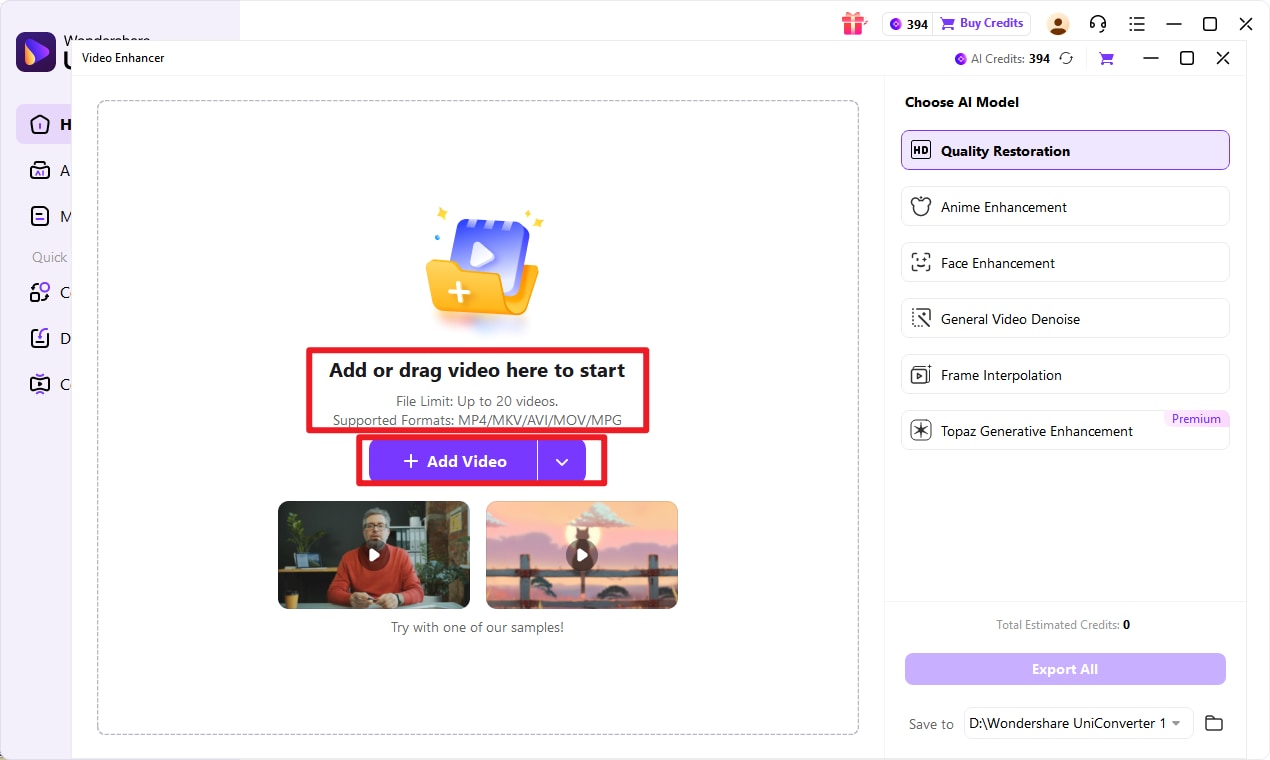
After downloading and installing Wondershare UniConverter, open the application. On the main homepage, you'll find a "Hot" features section. Select "AI Video Enhancer" from this menu to begin.
Step 2: Import Your Video
You can add the videos you wish to enhance by either dragging and dropping them directly into the software interface or by clicking the "+" icon. Clicking the "+" will open a file browser, allowing you to locate and select your video files.
Safe Flixier Video Enhancer Alternative
Step 3: Choose an AI Enhancement Model
The AI Video Enhancer offers several specialized models, each designed for a specific type of improvement:
- Quality Restoration: Improves overall video quality with a single click.
- Anime Enhancement: Revitalizes old anime clips with more vivid colors and sharper lines.
- Face Enhancement: Softens skin imperfections like wrinkles and scratches for a brighter, clearer appearance.
- General Video Denoise: Reduces visual noise and graininess, ideal for footage shot in low-light conditions.
- Frame Interpolation: Increases the video's frame rate to create smoother motion.
- Topaz Generative Enhancement: Leverages integrated Topaz Video AI technology for a comprehensive, professional-grade enhancement that recovers detail, sharpens edges, and restores true-to-life color vibrancy.
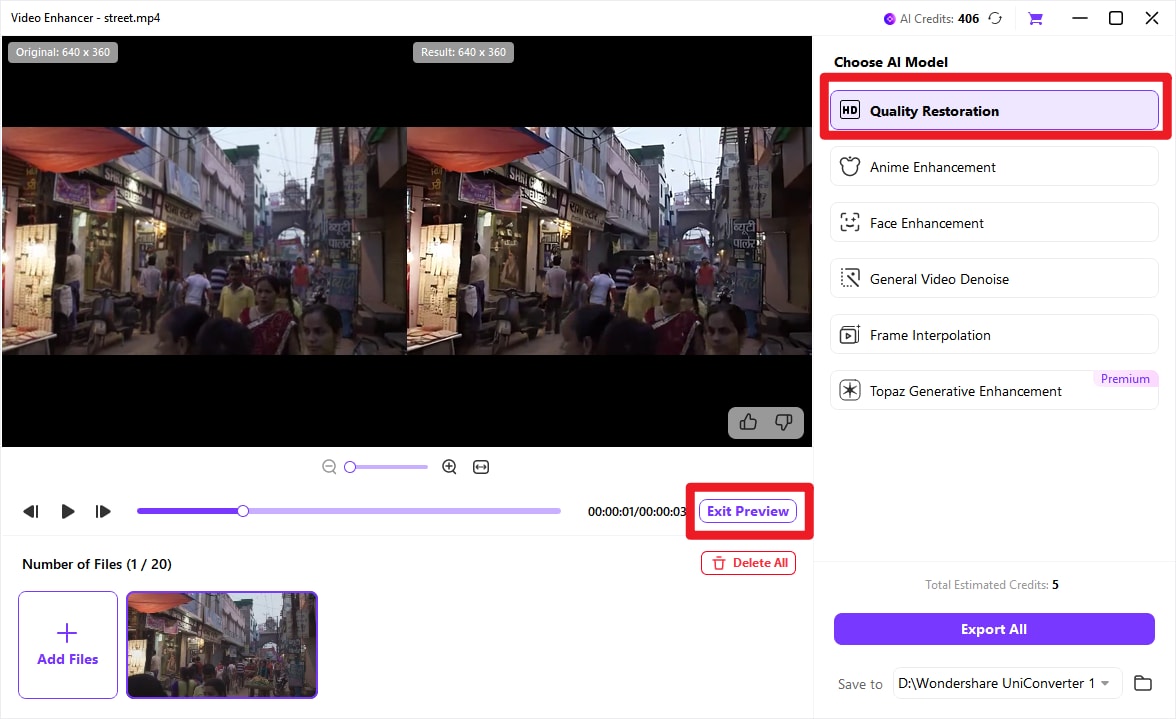
For this guide, we will use the standard Video Enhancement model.
Step 4: Preview and Export
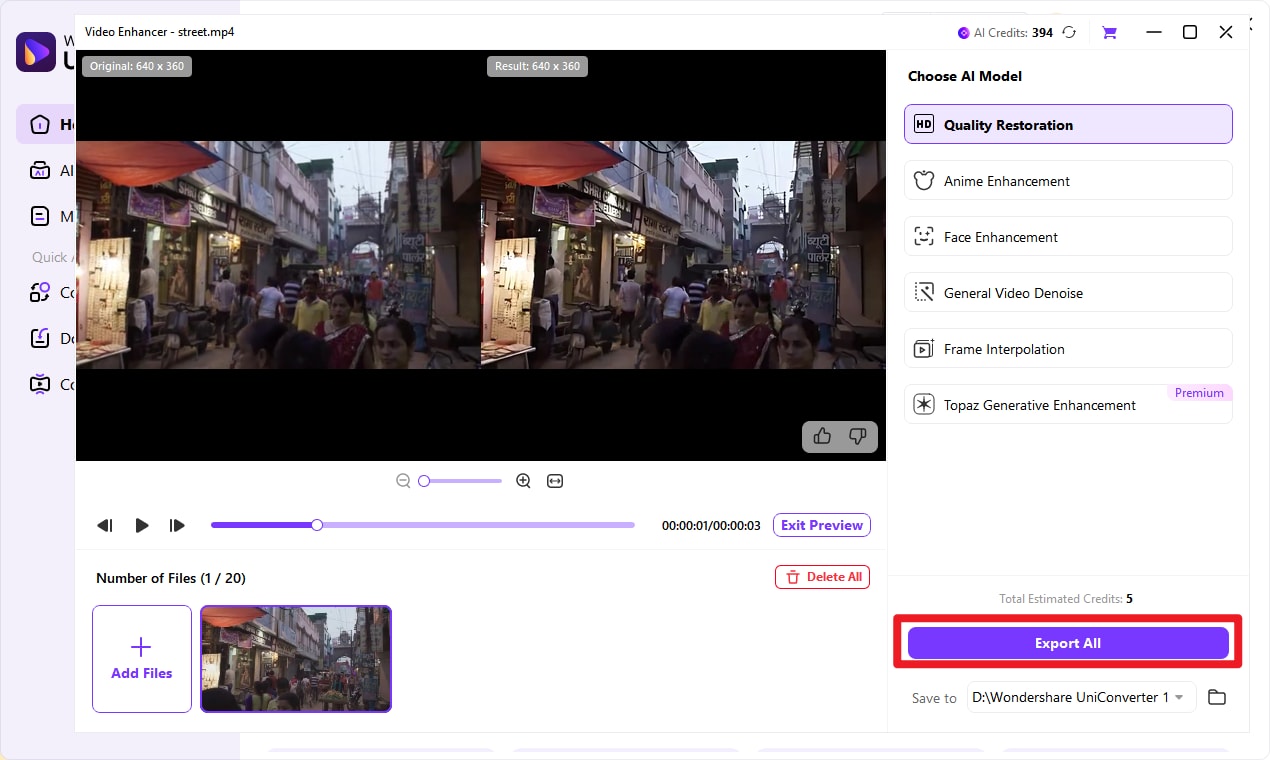
Click the "Preview" button to see the enhanced result. Once satisfied, click "Export." The processing time will depend on the length of your video. Wait for the export progress bar to complete, and the software will automatically open the folder containing your newly enhanced video.
Easy-to-Use Flixier Video Enhancer Alternative
Conclusion
Now we have detailed review on Flixier Video Enhancer, which is a reliable, browser-based tool ideal for creators, marketers, and teams who want quick video improvements without heavy software or hardware. However, for advanced AI upscaling or professional detail restoration, Flixier has limitations. Tools like Wondershare UniConverter or Topaz Video AI can step in to provide higher resolution, noise reduction, and cinematic-quality output.
Choosing the right tool depends on your video goals, system capabilities, and project complexity. For lightweight edits, Flixier offers speed and simplicity, while UniConverter and other AI upscalers deliver the extra edge for higher fidelity projects. This way, you can efficiently enhance your videos and achieve the quality you need.
FAQs
-
1. Can Flixier Video Enhancer work on low-spec devices?
Yes. Flixier is completely cloud-based, meaning all video processing happens on its servers. Even low-spec laptops or desktops can edit and enhance videos smoothly without performance issues. -
2. Does Flixier support 4K video export?
Yes, Flixier supports exporting videos in 4K resolution. However, it focuses on general enhancement rather than deep AI upscaling, so while clarity improves, it won’t add significant detail to very low-quality footage. -
3. What formats can I import and export in Flixier?
Flixier supports common video formats such as MP4, MOV, AVI, and WebM, along with popular audio formats like MP3 and WAV. This makes it suitable for social media, presentations, and professional workflows. -
4. Is there a better alternative for AI-powered upscaling?
Yes. For advanced AI-driven upscaling and restoration, tools like UniConverter offer features such as denoising, color enhancement, and resolution upscaling up to 8K, making them better suited for high-end or cinematic-quality results. -
5. Can multiple team members collaborate on a Flixier project?
Yes. Flixier supports real-time collaboration, allowing multiple users to edit, comment, and make changes simultaneously. This is ideal for marketing teams, content creators, and remote collaborators.

