


You have a great photo, but when you enlarge it, the details start to disappear or become blurry. A product image looks less professional, an old family photo may appear softer, and an AI-generated image loses the sharpness it had on-screen. Here, Clipdrop Image Upscaler can do its magic by using AI to enhance resolution and restore details. But how well does Clipdrop work?
In this Clipdrop Image Upscaler review, you will see how it works, its image quality, pricing, and also compare it with other AI image upscalers to see where it stands.
In this Article
- Part 1: What Is the Clipdrop Image Upscaler
- Part 2: How Good Is Clipdrop's Upscaling Quality
- Part 3: How Much Does the Clipdrop Image Upscaler Cost
- Part 4: What Are the Best Clipdrop Image Upscaler Alternatives in 2026
- Part 5: Clipdrop Image Upscaler vs. Alternatives: Quick Comparison Guide
- Part 6: Tips to Get the Best Upscaling Results
- Conclusion
- FAQs
Part 1: What Is the Clipdrop Image Upscaler

Clipdrop Image Upscaler is a browser-based AI tool that enlarges an image while trying to keep detail intact instead of just stretching pixels. You upload a photo, pick a scale factor, and Clipdrop rebuilds edges and texture rather than smearing them.
Clipdrop works entirely online, so you do not need to install software or manage complex settings. You upload an image, select the upscale option, and download the enhanced result.
Key Features of Clipdrop's Image Upscaler
Instead of giving users dozens of technical controls, Clipdrop Image Upscaler automatically handles most enhancement decisions. Here are the main features that matter:
The free tier caps out at 2x, while a Pro subscription unlocks 4x, 8x, and 16x scaling.
The Clipdrop Image Upscaler does not just add pixels. It also removes compression artifacts, reduces grain, and smooths color banding in a single pass.
Free users can upscale images one by one, and paid users can drop up to 10 files into the tool at once, speeding up small batches without needing a separate app.
Everything runs in the browser, so there is nothing to download on Windows, Mac, or Chromebook.
Jasper's developer platform lets teams call the same upscaling model programmatically for usage-based pricing.
Most single images are processed in a few seconds, which matters if you are working through a queue of product photos.
How to use Clipdrop to Upscale Images
Here is how to use Clipdrop Image Upscaler online:
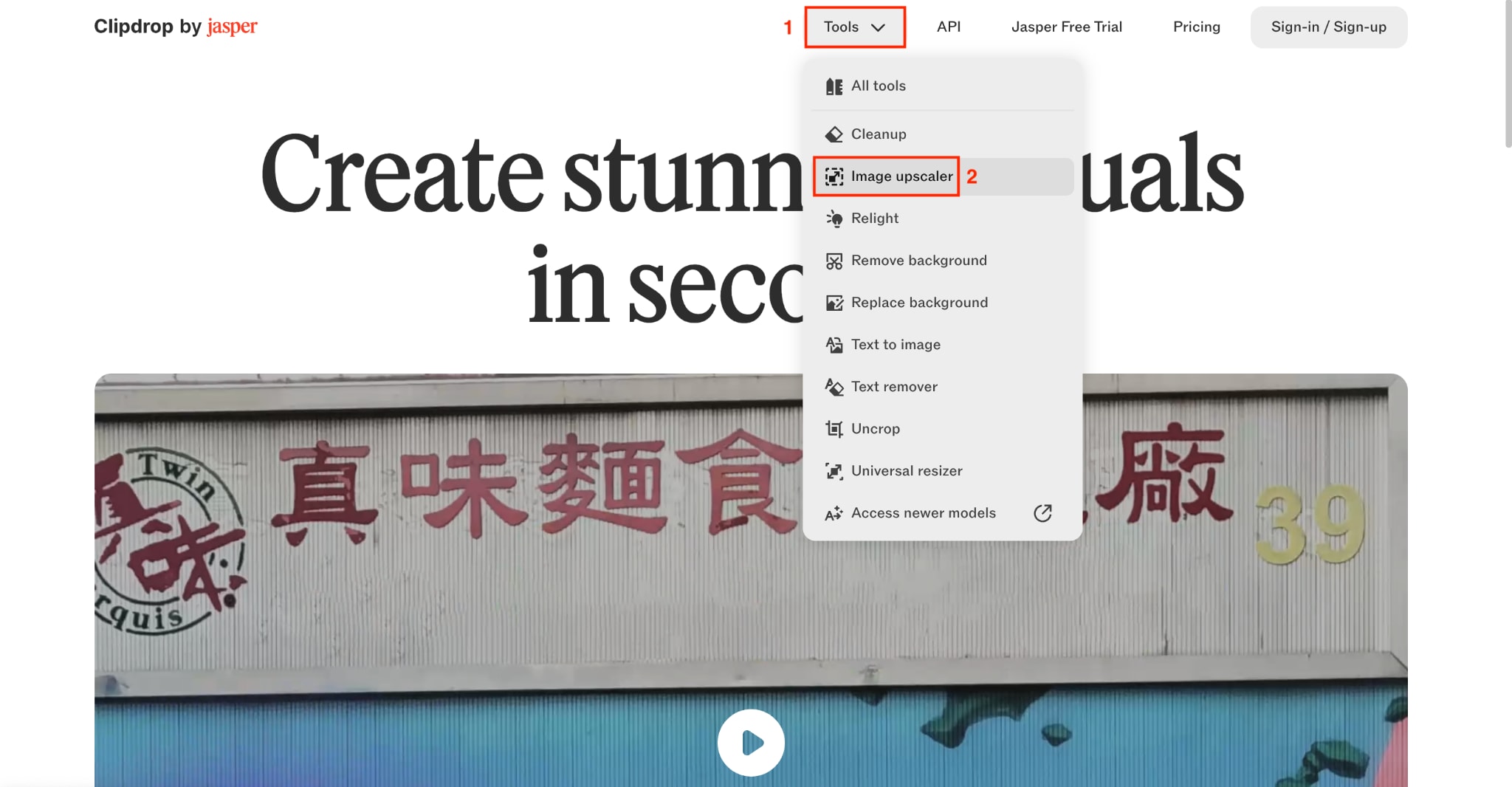
Step 1: On the Clipdrop homepage, navigate to the Tools option and choose Image upscaler.
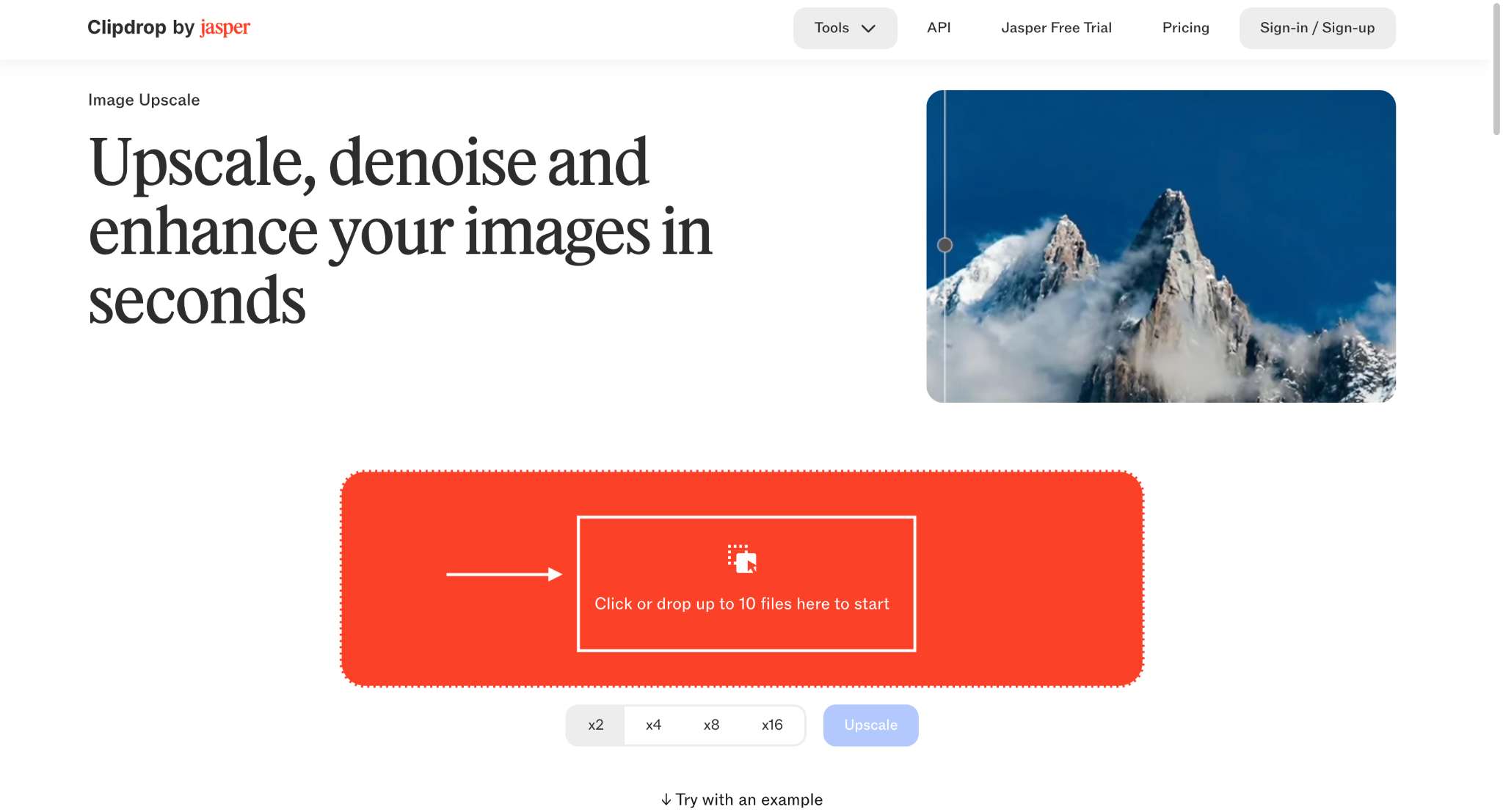
Step 2: Upload the image you want to upscale from your device. You can add up to 10 images at once if you have a paid plan.
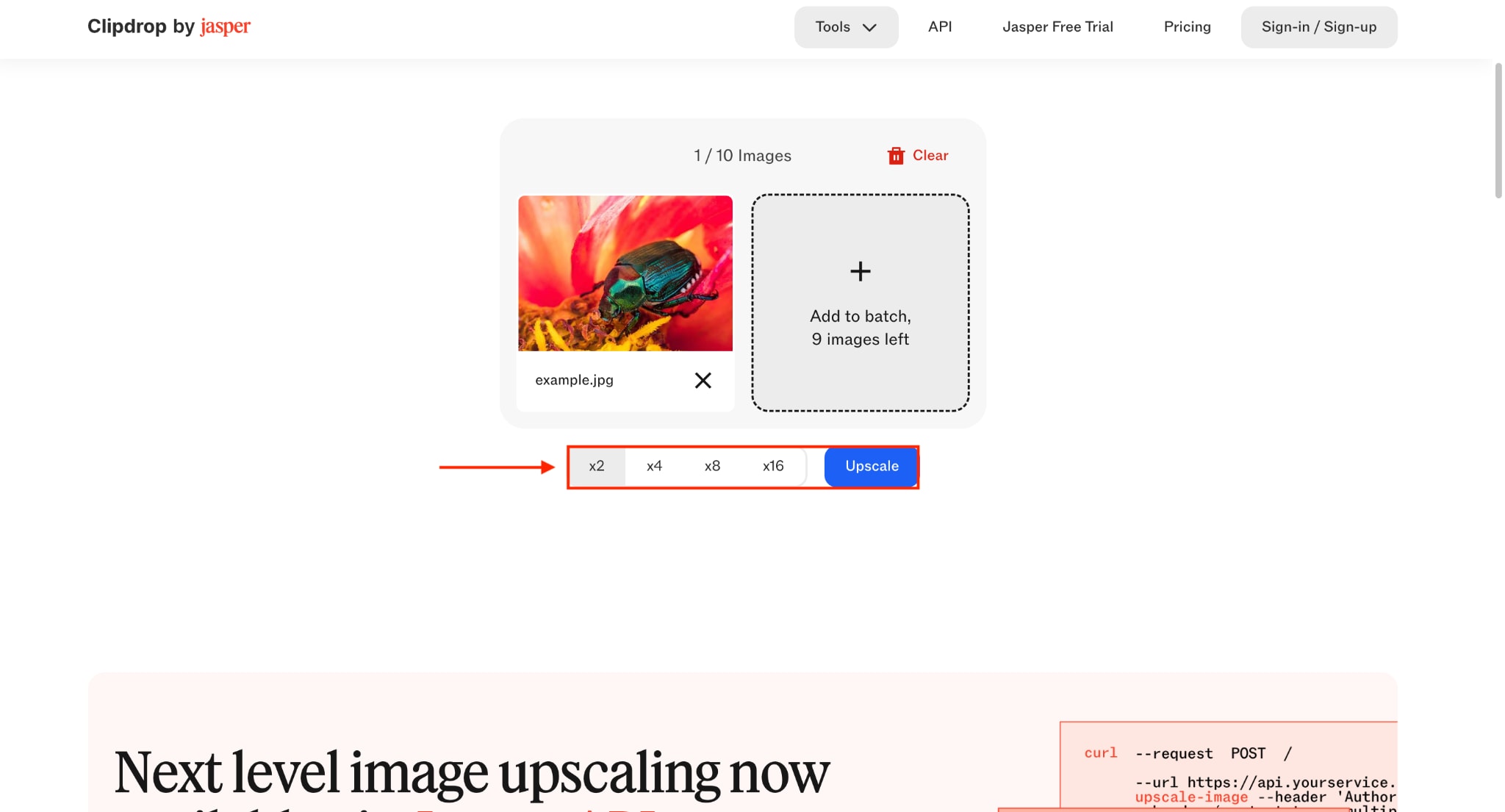
Step 3: Choose the quality from 2x, 4x, 8x, and 16x if you have a paid plan. For the free trial, you get only the 2x option. Click the Upscale button.
Step 4: Within a few seconds, it will upscale the photo, and click the Download button to save the image in .jpeg format.
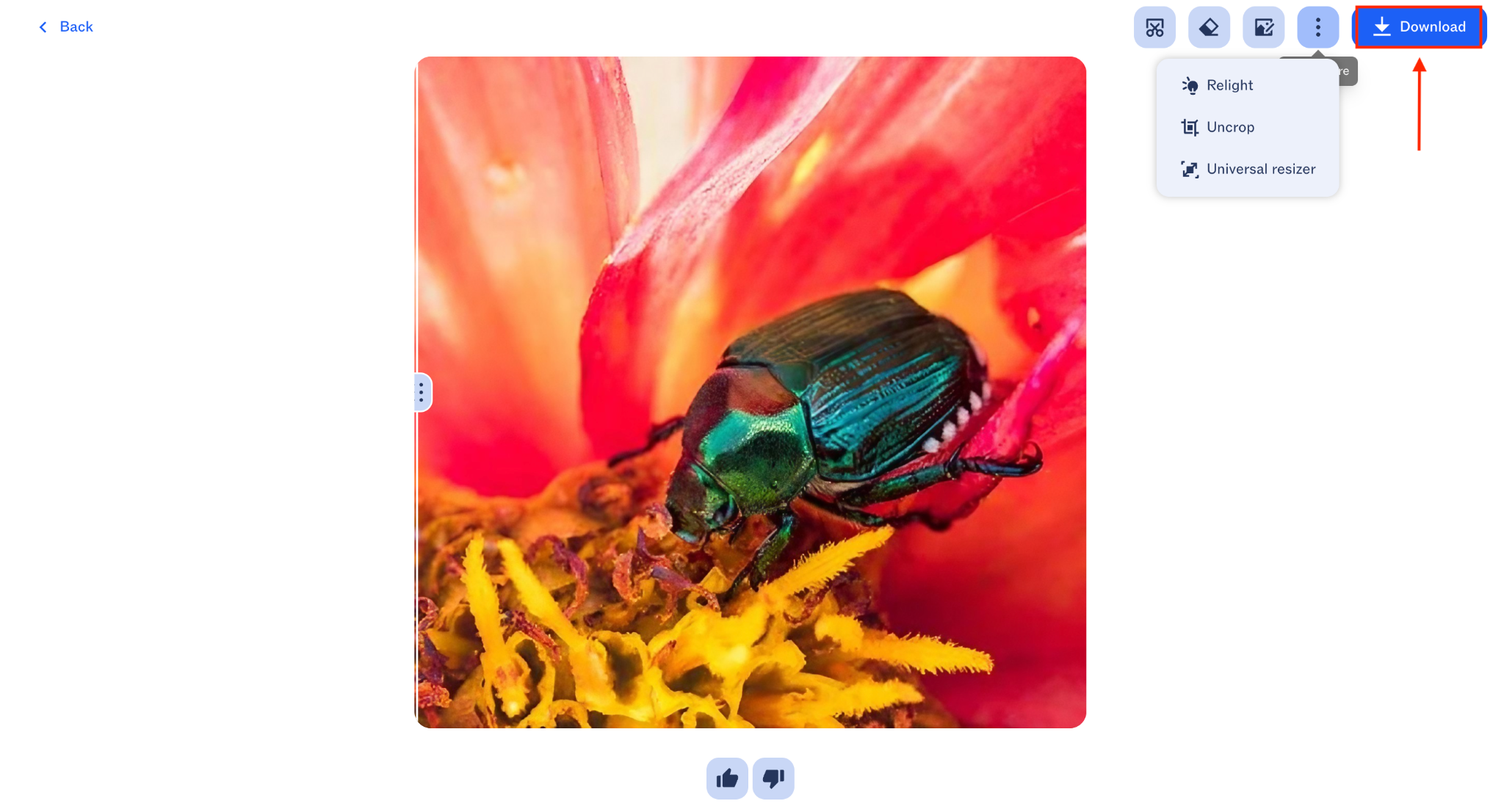
Part 2: How Good Is Clipdrop's Upscaling Quality
A feature list can tell you what an AI upscaler promises, but the real question is whether the final image actually looks better. After testing the Clipdrop Image Upscaler with different image types, the results show that it works best when the original image already has some visible details but needs more clarity.
Clipdrop is particularly effective for improving images that look slightly soft, compressed, or too small for their intended use. It adds sharpness, improves edge definition, and makes images appear cleaner without requiring manual editing.
However, the results are not identical across all images. AI upscaling works by predicting missing details, which means the quality depends heavily on the original photo.
Testing Clipdrop with product images
Product images are one of the strongest use cases for the Clipdrop Image Upscaler. For testing, we used the sample product image provided by Clipdrop, featuring a sofa, a flower pot, and other home décor items.
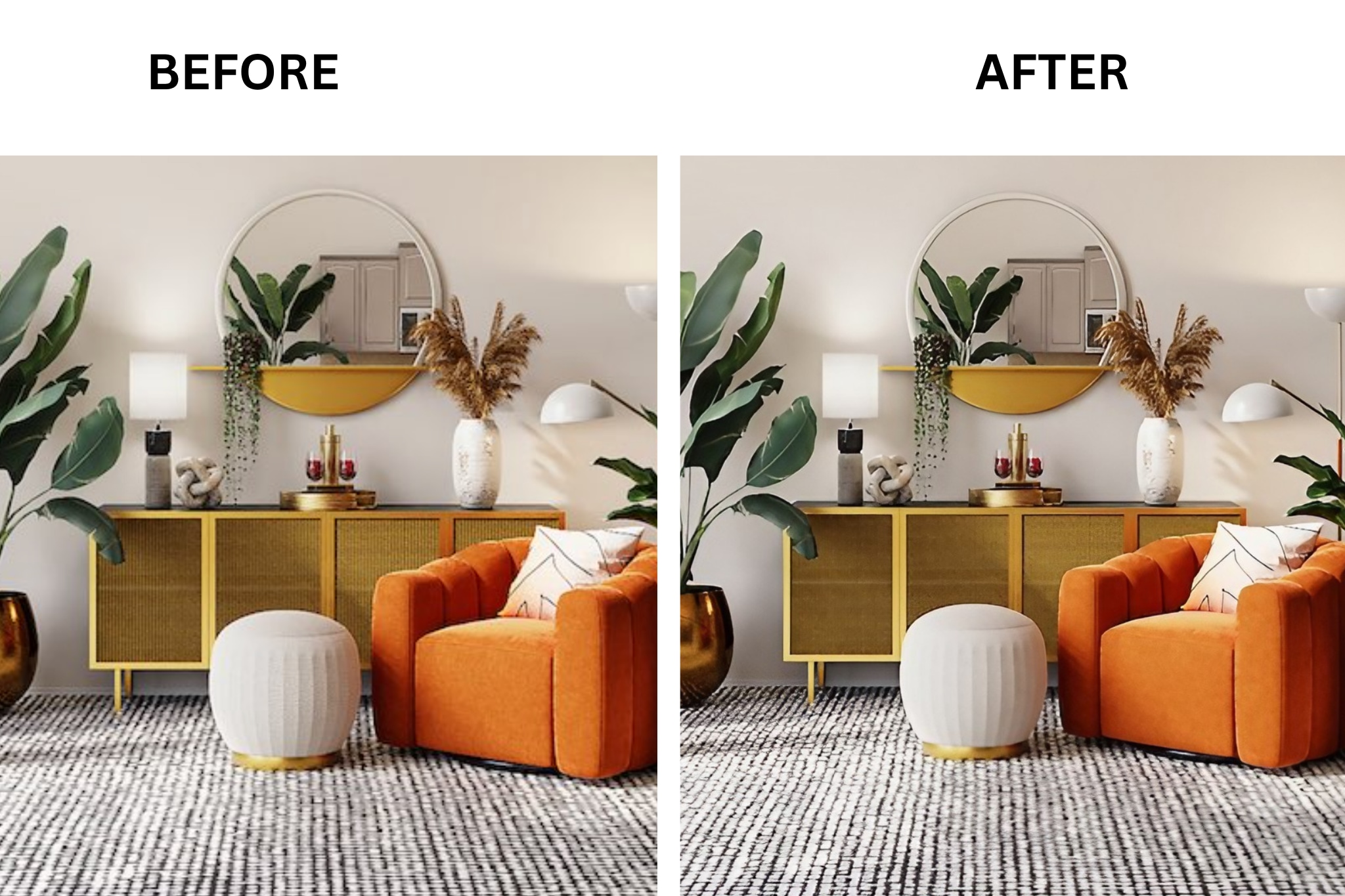
The upscaled image looked noticeably sharper than the original. Furniture edges appeared cleaner, the textures on the sofa became more defined, and smaller decorative elements remained clear after enlargement. The overall image looked more suitable for product listings or promotional graphics.
Testing Clipdrop with a mobile photo
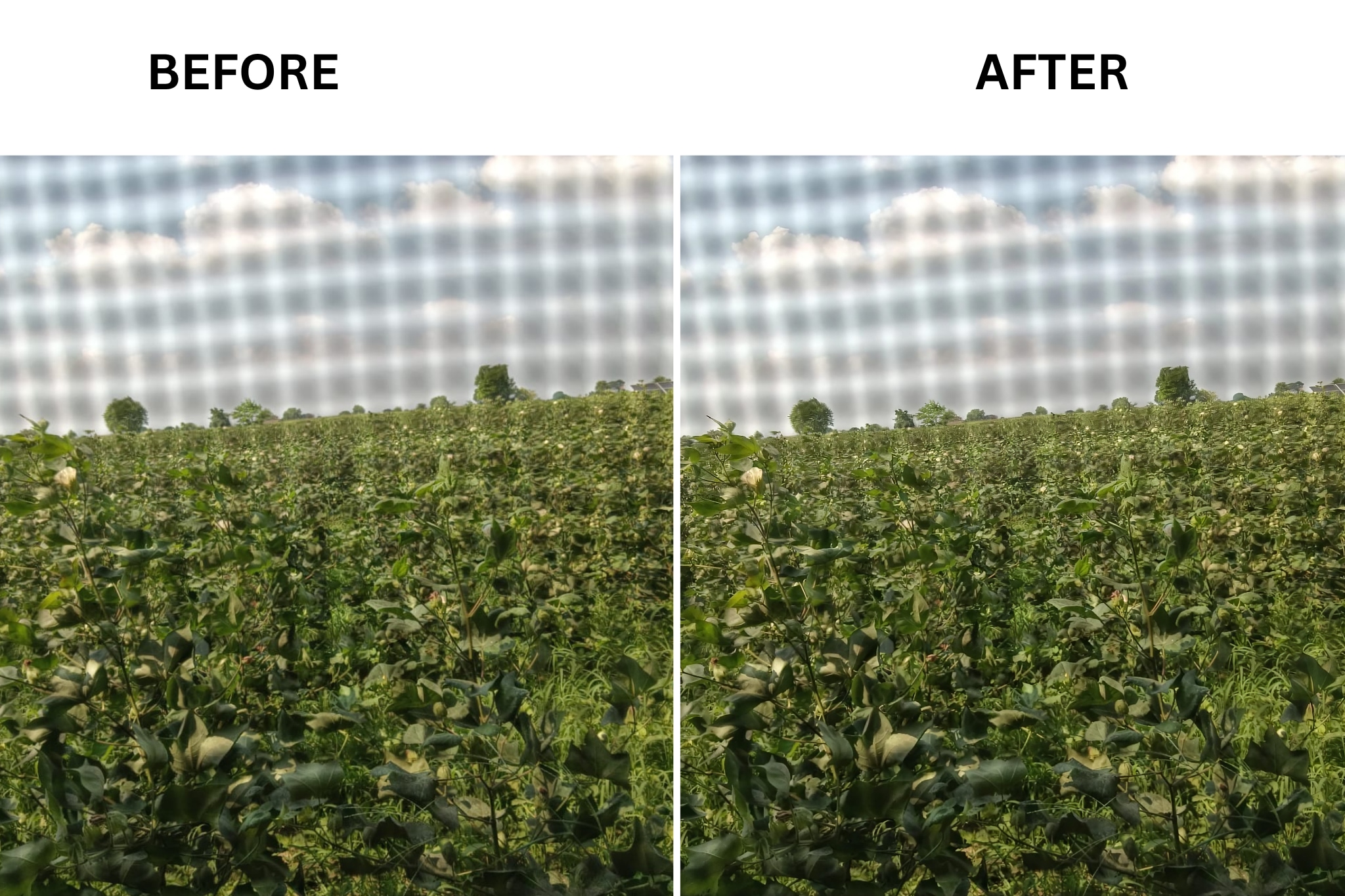
We also tested the Clipdrop Image Upscaler using a nature photo with a phone. Since the original image already had decent lighting and visible details, Clipdrop produced a clean result after upscaling.
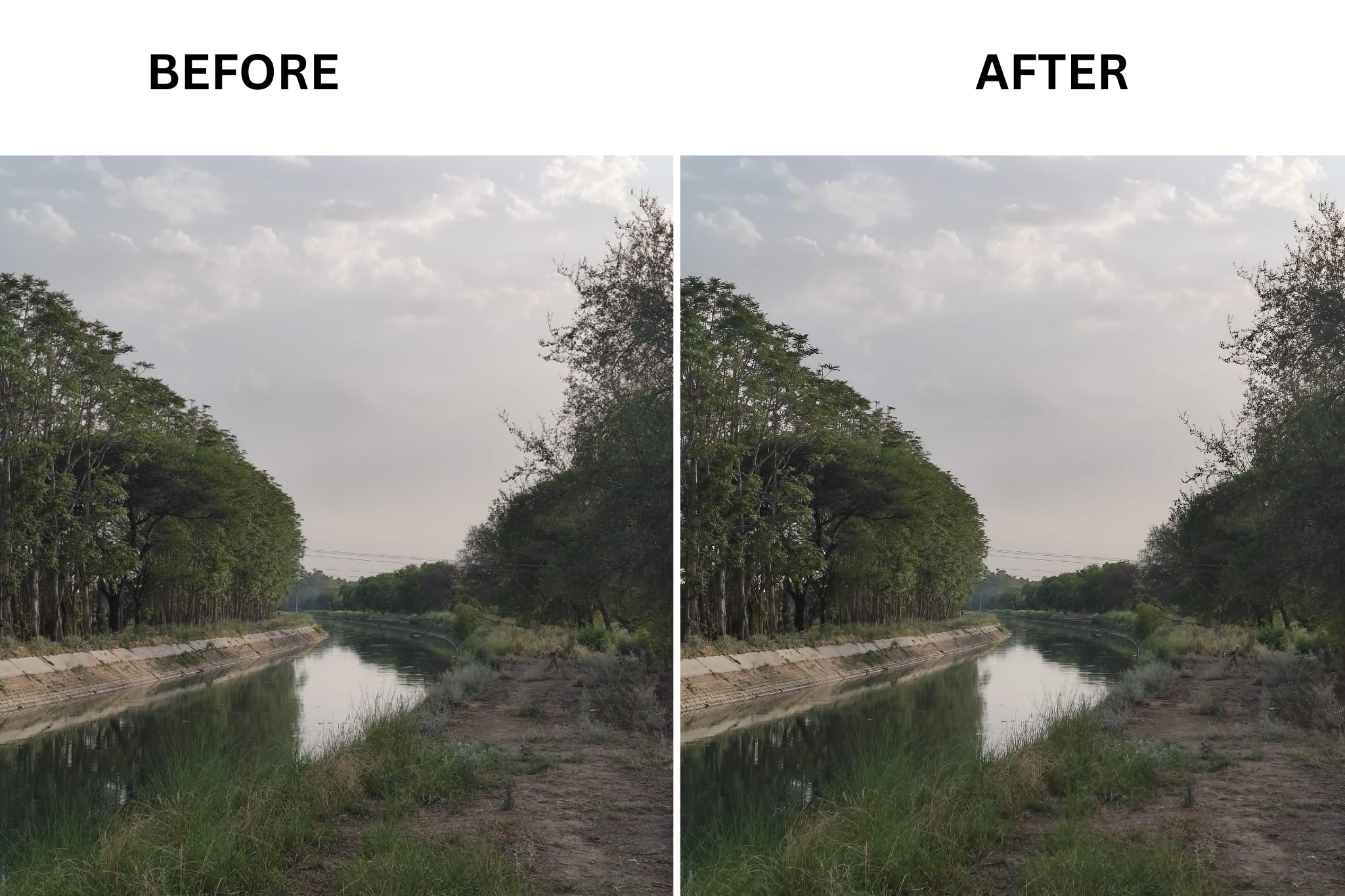
The leaves, trees, and other natural elements appeared sharper, while the overall image retained a natural look instead of becoming overly processed. Colors remained consistent, and I did not notice any major artifacts or unnatural textures after enlargement.
From this test, it became clear that Clipdrop performs best when the original photo is already of reasonable quality. It can enhance details and improve clarity, but it is not designed to recreate information that is missing from a poor-quality image.
Testing Clipdrop with AI-generated images
AI-generated images are another area where the Clipdrop Image Upscaler performs well. Many AI image generators create impressive visuals but export them at limited resolutions, making them less suitable for printing or larger displays.
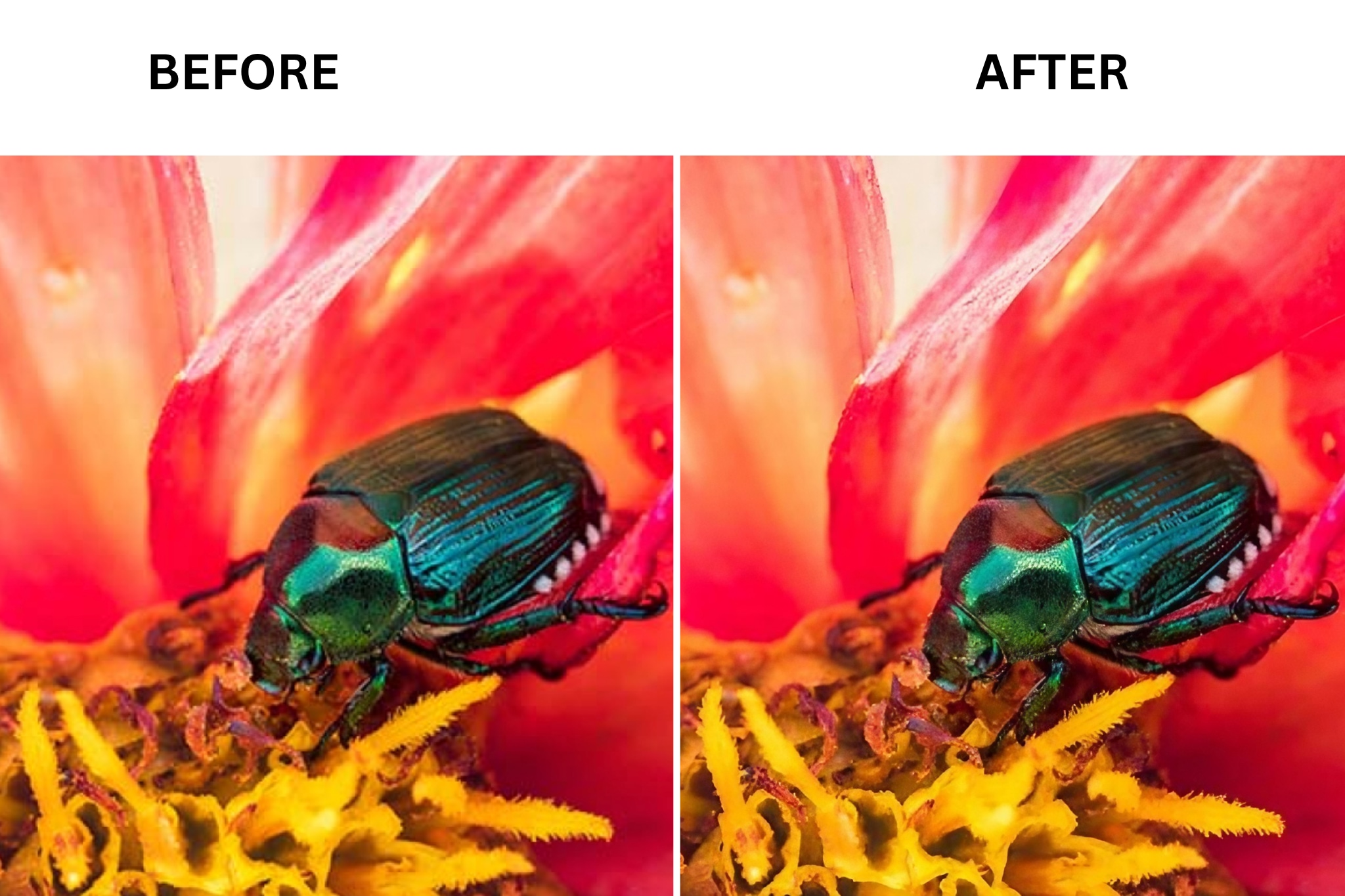
During testing, Clipdrop increased the resolution while preserving most of the image's original style and details. The enhanced version looked cleaner and was better suited for presentations, website graphics, and digital artwork.
Where Clipdrop struggles
While the Clipdrop Image Upscaler performs best on images that already contain a good amount of detail, the results become less impressive as the source quality decreases.
For example, heavily compressed images, low-resolution screenshots, photos with motion blur, or images containing very small text may still appear soft after upscaling. The AI can make them look cleaner, but it cannot recover details that were never captured in the original image.
Which Upscaling Jobs Is Clipdrop Best For?
The best AI upscaler depends on what you are trying to improve. Clipdrop is better suited for quick online enhancement than for advanced professional restoration.
| Use case | Fits Clipdrop? | What to watch for |
| Ecommerce product photos | Yes | Check fine product details after processing |
| Social media images | Yes | Higher resolution may not always improve composition |
| AI-generated artwork | Yes | Some artistic details may change |
| Old family photos | Partially | Damaged images may need restoration tools |
| Professional printing | Depends | Large prints may require specialized software |
| Bulk image processing | Limited | Better options exist for large workflows |
For everyday creators who need fast improvements without learning complicated editing software, Clipdrop provides a convenient solution.
For photographers, designers, or businesses that regularly process hundreds of images, dedicated desktop applications may offer better control.
Part 3: How Much Does the Clipdrop Image Upscaler Cost
Before choosing an AI image enhancer, pricing matters because many tools limit resolution, downloads, or daily usage on free plans.
Clipdrop follows a freemium model. Users can try basic features for free, while the Pro plan increases usage limits and unlocks higher-resolution processing.
| Plan | Price | Resolution | Watermark | Usage limits | Speed |
| Free | $0/month | Image Upscaler x2 | No visible watermark on enhanced images | Limited daily usage | Standard processing |
| Pro | $15/month | Image Upscaler up to x16 | No watermark | Higher daily limits (up to 1000 uses/day for supported tools) | Priority processing |
| API | Usage-based pricing | Depends on API usage | Depends on implementation | Designed for integrations | Developer-focused |
For someone who upscales a handful of images a month, the free plan of the Clipdrop Image Upscaler is enough. For anyone running client work, marketing campaigns, or e-commerce catalogs, the daily cap on the free tier gets restrictive fast, and the $15 monthly Pro plan starts to make more financial sense.
Part 4: What Are the Best Clipdrop Image Upscaler Alternatives in 2026
The Clipdrop Image Upscaler is convenient, but it is not the only option, and it is not the strongest one for every job. If you need heavier batch processing, offline privacy, or more control over the AI model doing the work, these five tools are worth comparing against the Clipdrop Image Upscaler.
Wondershare UniConverter

All-in-One Multimedia Processing Tool

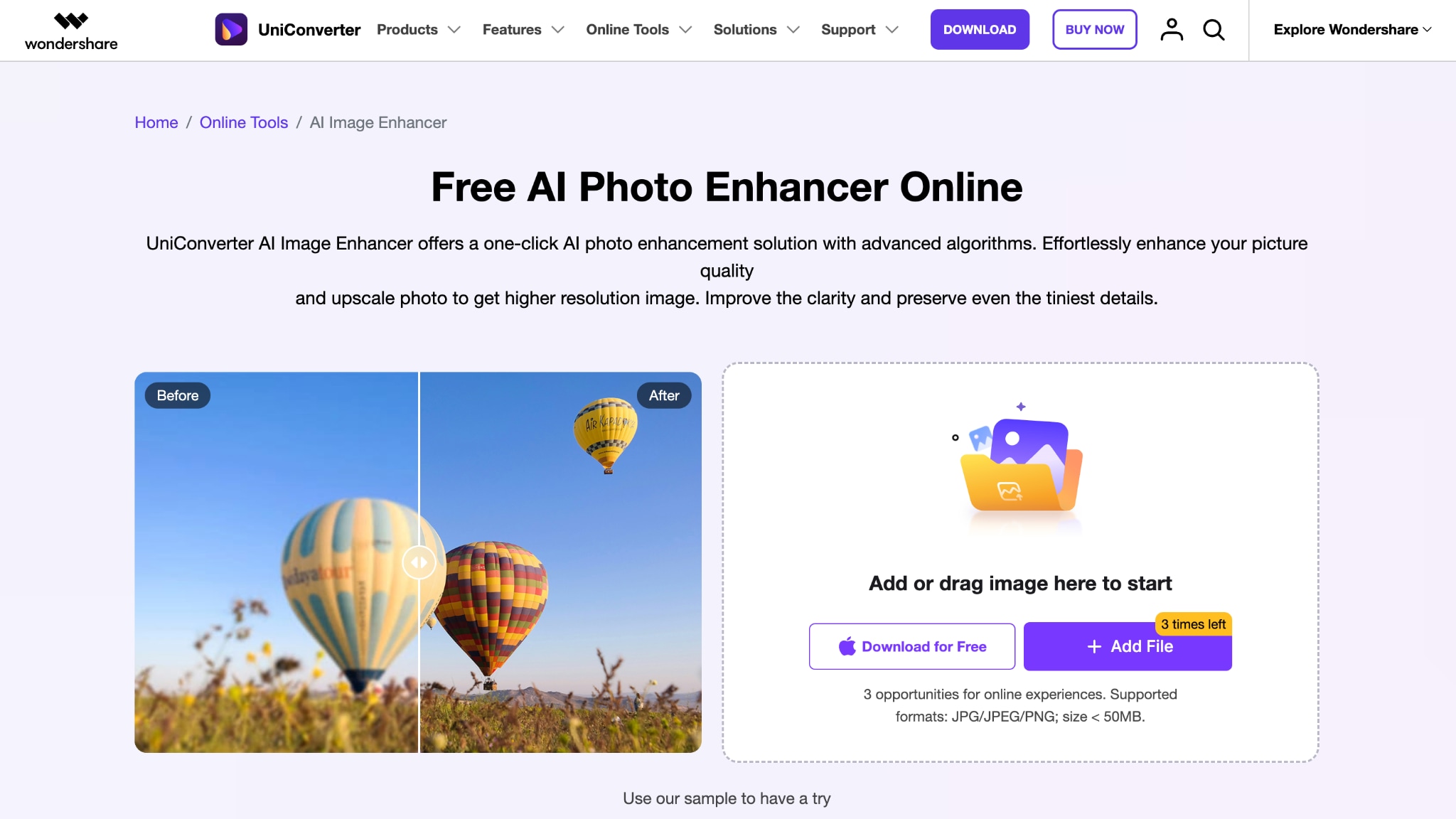
Wondershare UniConverter's AI Image Enhancer goes further than a single upscale button. It combines resolution boosting, portrait retouching, and old photo restoration in a single workflow, giving it an edge over the Clipdrop Image Upscaler for anyone dealing with damaged or aging photos. It works as both a desktop application and an online tool, so you are not locked into a browser-only workflow.
Key Features of Wondershare UniConverter
Batch image enhancement for processing large photo sets in one run
Portrait enhancer that retouches and deblurs faces during the upscale
Old photo restoration with colorization for faded or damaged prints
Topaz Gigapixel AI
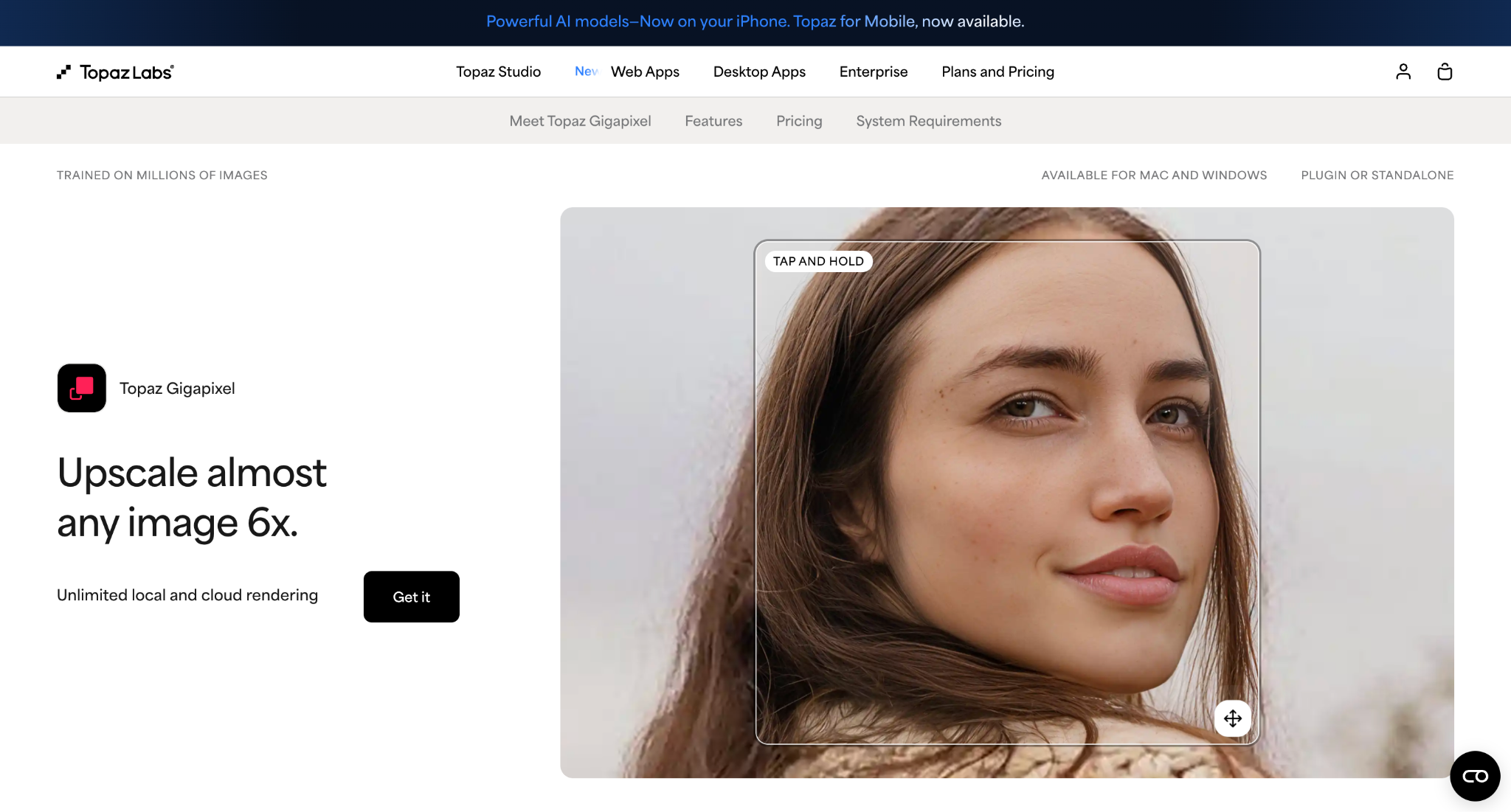
Topaz Gigapixel is a desktop application built for photographers and designers who need the most accurate detail reconstruction available, running entirely on your own machine rather than in a browser like the Clipdrop Image Upscaler. Because processing happens locally, there is no daily request cap to work around.
Key Features of Topaz Gigapixel AI
Nine specialized AI models, including dedicated modes for faces, low-resolution files, and digital art
Unlimited local rendering, so files never leave your computer
Lossless zoom up to 6x with detail built for large prints.
Upscayl
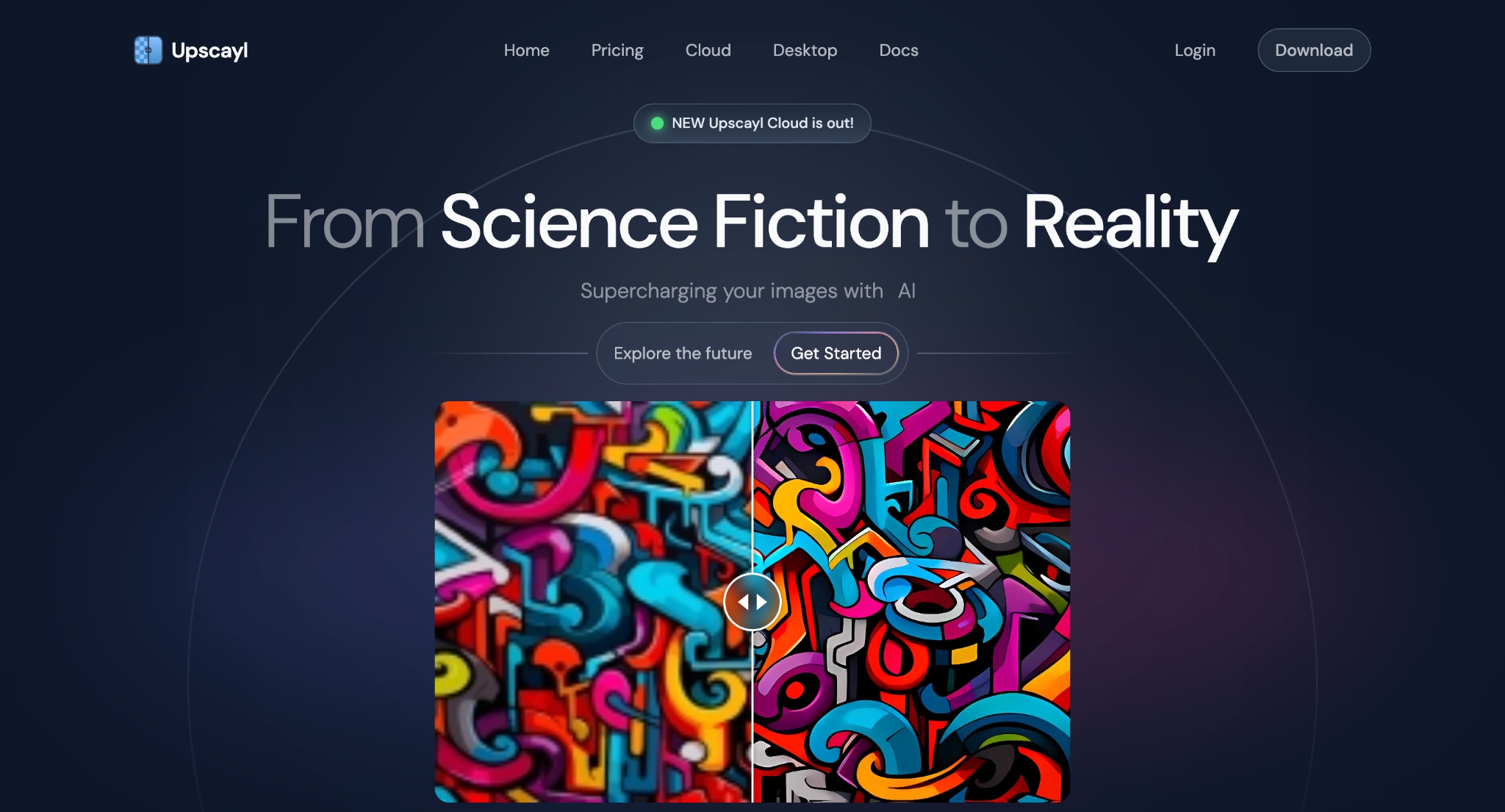
Upscayl is a free, open-source desktop app that processes everything offline through your own GPU. Upscayl is appealing to privacy-focused users who would rather not upload images to a cloud tool the way the Clipdrop Image Upscaler requires. There is no subscription, no watermark, and no account to create.
Key Features of Upscayl
Six built-in Real-ESRGAN-based models, including options tuned for anime and illustration
Folder-level batch processing for hundreds of files in one queue
Double Upscayl mode that chains two passes for up to 16x enlargement
VanceAI
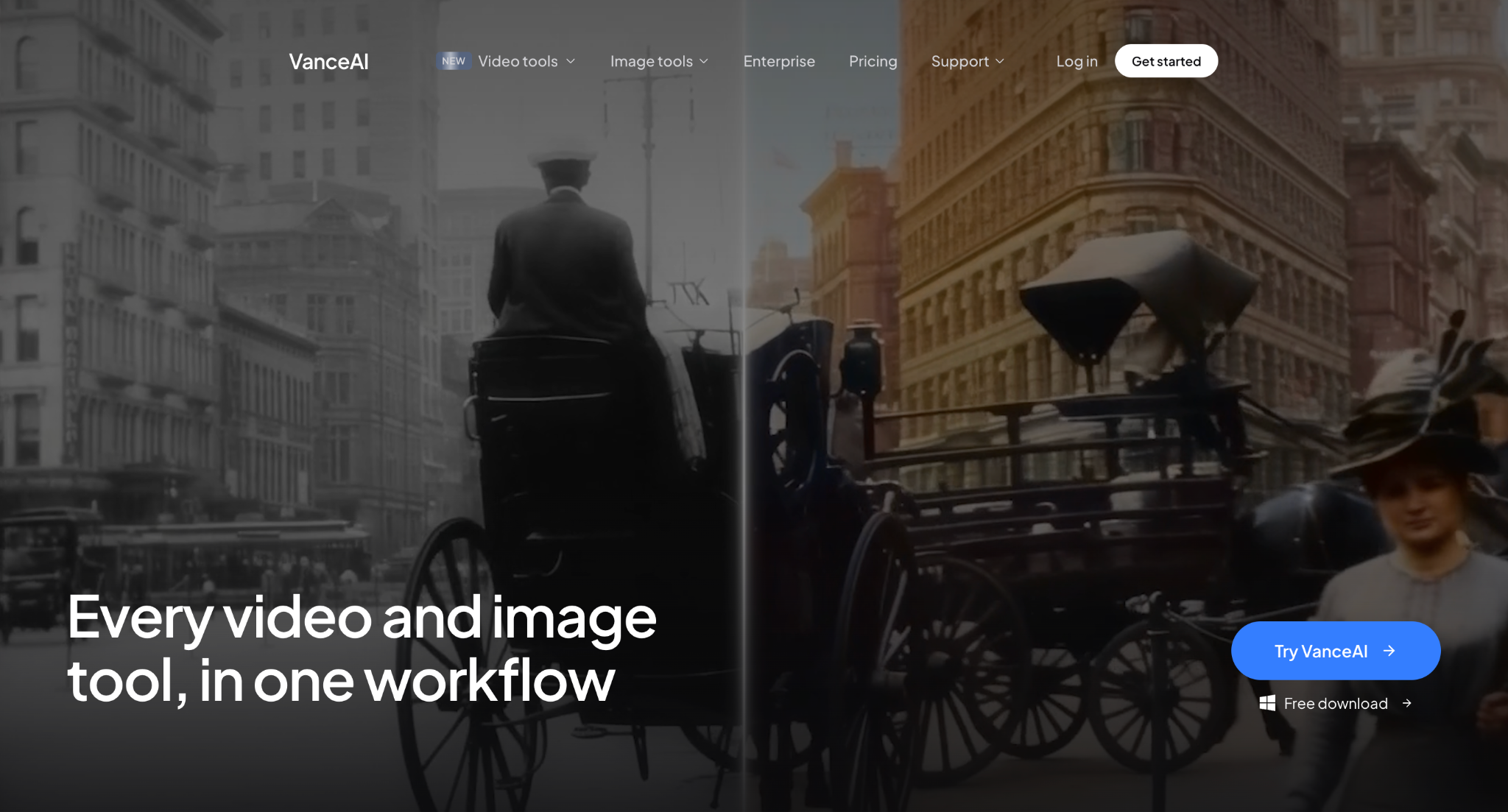
VanceAI runs on a credit system rather than a flat subscription, which suits people with unpredictable or seasonal upscaling needs better than the fixed daily caps on the Clipdrop Image Upscaler. The browser tool handles single images well, while the separate VanceAI PC app is built for the batch-heavy side of the workflow.
Key Features of VanceAI
Upscaling options up to 8x through the standard workspace, with higher multipliers on select workflows
Shared workspace with restoration, denoising, sharpening, and colorizing tools
Desktop app for Windows with offline batch processing on paid plans
Fotor
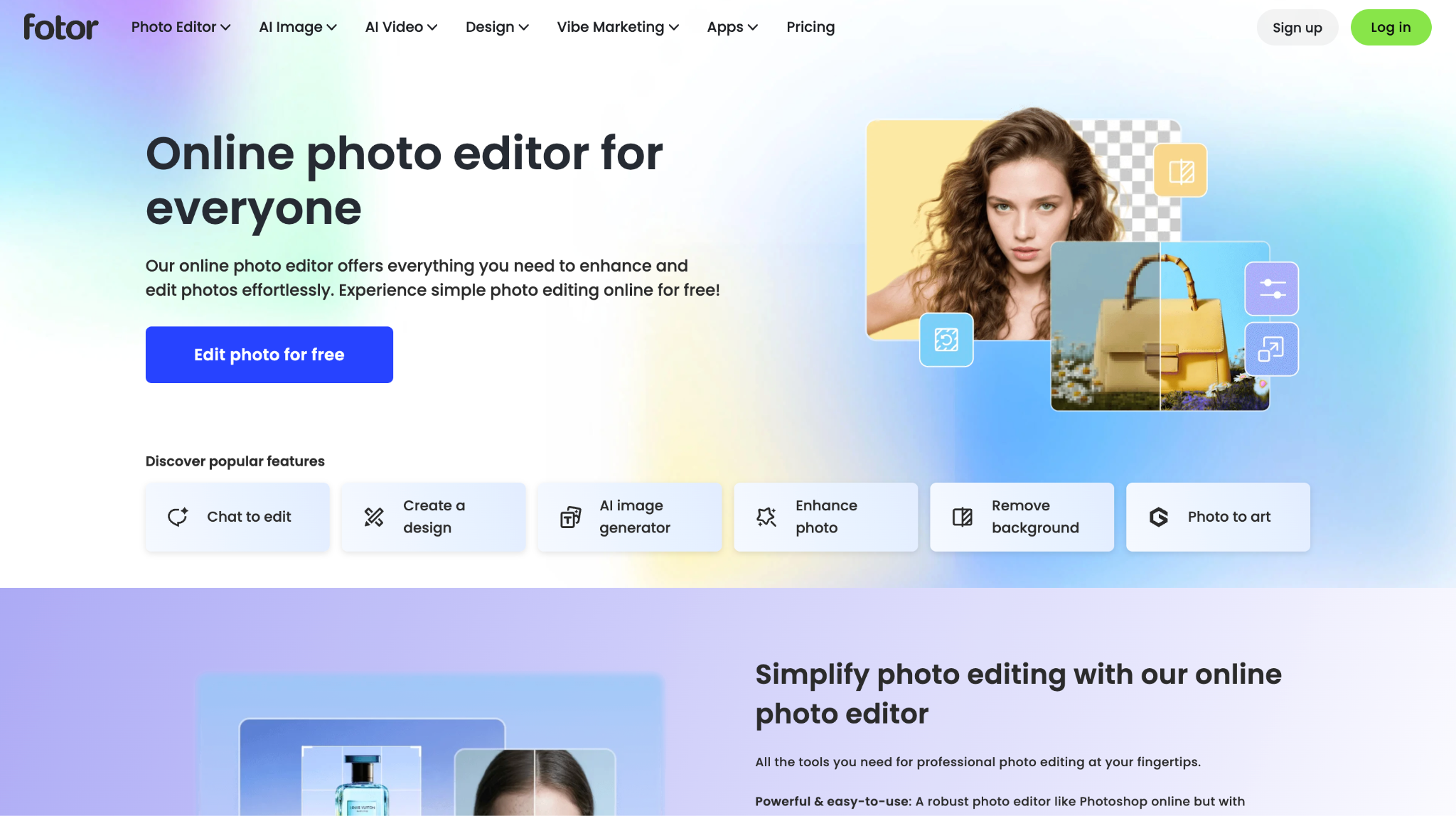
Fotor works well for anyone who already wants templates and batch editing alongside resolution boosting, an area where the Clipdrop Image Upscaler stays narrowly focused. Because upscaling is next to background removal, filters, and design templates in the same dashboard, it suits social media managers and small business owners who are already building graphics in Fotor.
Key Features of Fotor
An AI image enlarger built into a full photo editing and design platform
Batch editing is available on paid Pro and Pro+ tiers.
Cloud storage is bundled with the subscription for saved projects.
Before picking one, it helps to see how these tools stack up side by side against the Clipdrop Image Upscaler on the specs that actually matter for day-to-day use.
| Tool | Max Upscale | Batch | Watermark on Free | Offline | Best For | Starting Price |
| Clipdrop | 16x (Pro) | Up to 10 files | None | No | Quick one-click upscales | Free, Pro at $15/mo |
| Wondershare UniConverter | Up to 4K output | Yes | Limited on free tier | Yes (desktop app) | Batch photo restoration plus upscaling | Starts at $9.99/month |
| Topaz Gigapixel AI | 6x lossless zoom, nine models | Yes | No free tier | Yes, fully local | Professional print quality | $69/month |
| Upscayl | Up to 16x (double pass) | Yes, folder-based | No watermark, fully free | Yes, fully offline | Privacy-focused batch work | Free |
| VanceAI | Up to 8x standard | Yes, on paid tiers | Limited free credits | Yes (desktop app) | Flexible credit-based pricing | Pay as you go from $40 |
| Fotor | Up to 8x (Pro) | Yes, on Pro plans | 2x download only | No | All-in-one design and editing | Free tier, Pro from $3.99/month |
Part 5: Clipdrop Image Upscaler vs. Alternatives: Quick Comparison Guide
Choosing the right AI upscaler depends on what you expect from the tool. Clipdrop is designed for quick, browser-based image enhancement, but other tools may be a better fit if you need professional-level quality, offline processing, or large-scale editing.
Here is a quick comparison to help you make the right choice:
| Tool | Best suited for | Why choose | Main limitation |
| Clipdrop Image Upscaler | Quick online enhancement | Simple browser-based AI upscaling | Limited batch workflow |
| Wondershare UniConverter | Batch image processing | Better for handling multiple files | Less focused on single-image enhancement |
| Topaz Gigapixel AI | Professional photography | Higher-quality enlargement controls | Requires desktop installation |
| Upscayl | Free offline upscaling | Keeps images on your device | Depends on system hardware |
| VanceAI | Specialized AI enhancement | More image-specific AI models | Credit limits on usage |
| Fotor | Casual photo editing | Combines upscaling with editing tools | Fewer advanced controls |
Part 6: Tips to Get the Best Upscaling Results
Getting the best results from the Clipdrop Image Upscaler depends on both the quality of your original image and the amount of enlargement you choose. These simple tips can help you achieve sharper, more natural-looking results.
Start with the best-quality image available: AI upscalers work best when the original image already contains good detail. A high-resolution source will usually produce better results than a compressed thumbnail or screenshot.
Choose the right upscale level: Avoid using the largest scale unless you really need it. A 2x or 4x upscale often delivers a more natural result than extreme enlargement.
Avoid heavily compressed images: JPEG files that have been saved multiple times often contain compression artifacts, making it harder for the AI to improve image quality.
Test one image first: Before processing multiple files, upscale a sample image to check whether the output quality meets your expectations.
Reduce noise before upscaling: If your photo is grainy or taken in low light, removing noise first can help the AI produce a cleaner final image.
Conclusion
The Clipdrop Image Upscaler is a convenient choice for users who want quick AI-powered image enhancement without installing software. It delivers good results for everyday photos, product images, and AI artwork, but it may feel limited for users who need batch processing, offline editing, or advanced restoration.
If you regularly work with multiple images or need more control over enhancement, Wondershare UniConverter offers a more workflow-focused approach with AI image enhancement and additional editing features. Choose Clipdrop for speed and simplicity, or explore UniConverter when your image editing needs go beyond occasional upscaling.

