

Did VEO generate captions in videos despite the prompt explicitly mentioning “no subtitles”? This is a common problem with Google’s latest video-generating AI model, VEO 3. Its video outputs are excellent, but it auto-generates subtitles, and mostly they are gibberish. These can make the videos look cluttered and unprofessional, especially in business presentations. Besides, the misinterpreted subtitles can pull viewers’ attention away from the main content.
What makes it worse is that the subtitles are hard-coded, and despite editing or regenerating clips by burning costly credits, one can't remove VEO AI captions. Fortunately, there are ways to deal with the problem. You can use negative prompts, manual cropping, and robust AI tools to remove VEO3 subtitles and generate clearer and professional-looking videos.
| Method | Platform | Best For | Advantages | Limitations |
| Negative Prompts | VEO 3 prompt | Prevention | Zero post-editing needed | Not always effective |
| Manual Cropping | UniConverter | Quick fix | Simple, fast | Cuts off the frame, less aesthetic |
| AI Tools | UniConverter and Media.io | Effective subtitle removal | Quick and effective | Limited control |
In this article
Part 1. Why VEO AI Captions Appear and Why They’re Hard to Remove?
The auto-generated VEO AI captions aren’t a bug or a software glitch, but a training data problem. Although Google hasn’t made the information public, it probably sources its training data from billions of scraped videos from YouTube, TikTok, gaming streams, and vlogs, and many have embedded subtitles. The AI model mimics human-created videos and learns to add them to the outputs to make them more realistic.
The main problem arises when you try to remove VEO 3 subtitles. These are “hardcoded,” which means they’re a part of the video’s image frames rather than separate text layers and cannot be turned on or off. Users have reported many reasons to remove these from videos, which are as follows:
- Misspelled Captions: Most of the time, VEO 3 generates subtitles without the user’s request, and these might have numerous typos and misspellings. It can distract the audience from the main content and undermine the creator's credibility.
- Misaligned Text: The AI captions by VEO 3 mostly have synchronization issues. That is, they appear at the wrong time or move incorrectly. It could disrupt the flow of the video.
- Poor Readability: The font size of the captions is too small, or the text sometimes overlaps, which affects their readability.
Method 1 – Prevent VEO3 Auto Subtitles at Generation
As mentioned earlier, removing the subtitles from downloaded videos can be challenging. What you can do is prevent AI from adding subtitles. Keep in mind that generating a subtitle-free video involves a degree of luck. While no methods are guaranteed to work every time, the following strategies are recommended by the users:
1. Provide Descriptive Prompts
Those who use AI video generators like VEO 3 might already know the importance of prompt writing in generating quality results. But beyond the basics, there’s a prompting technique called “top to bottom” that can help remove any unwanted captions from the video. This technique involves filling the prompt with so many details that AI has no room to improvise. If you include everything in your prompt, from lighting to camera angle and character behavior, the chances of AI generating subtitles are low.
Consider you’re trying to create a person explaining space in their lab. You can write out a prompt describing the person’s attributes in detail, the room where they’re present, lighting conditions, how they are explaining, and more. As a result, you might get a video that aligns with your vision and doesn’t have any subtitles.
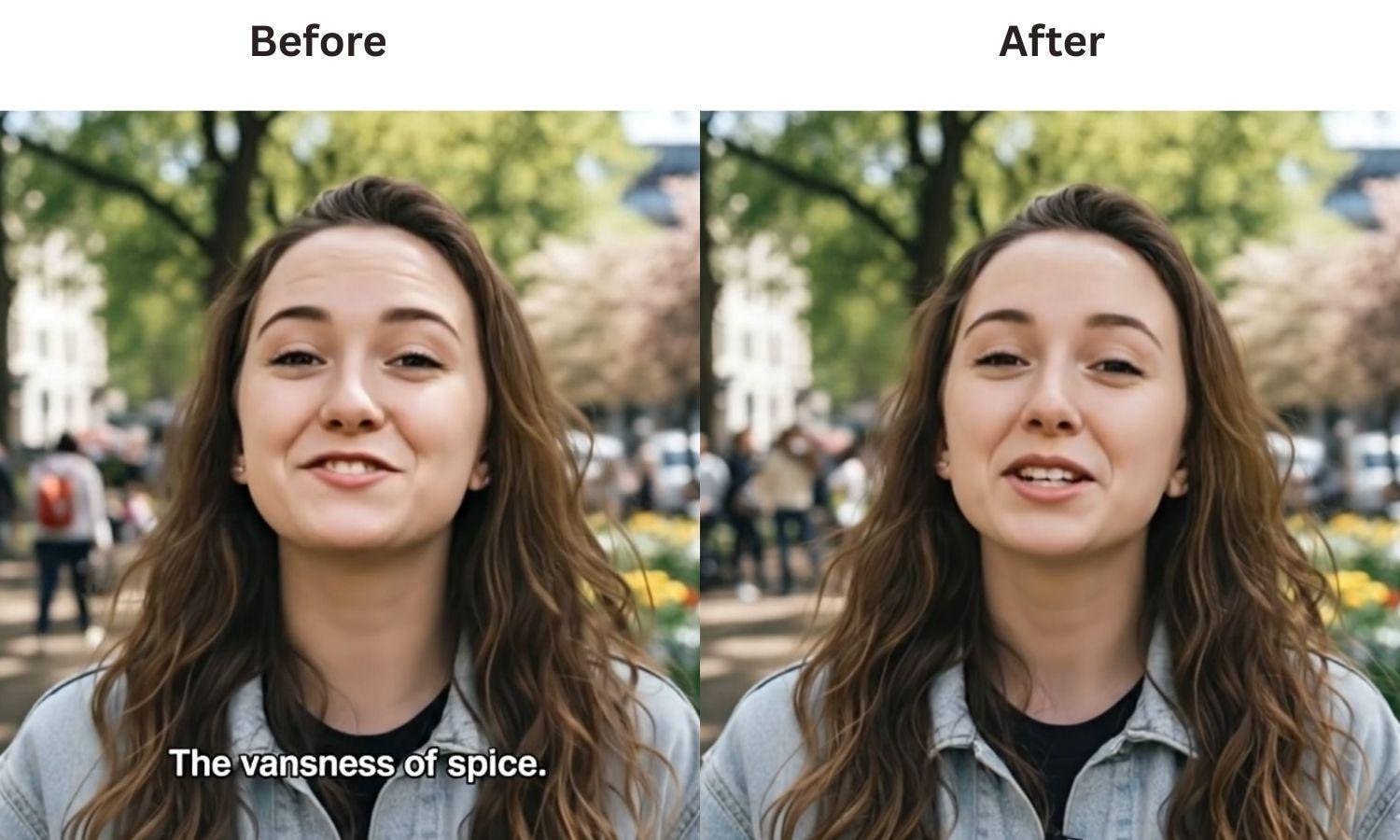
2. Use Negative Prompts
To directly instruct VEO 3 not to generate captions for your videos, negative prompts can be useful. In simple words, it’s instructing the AI on what not to do in the video. VEO 3 has no separate field for that, so include these at the end of your regular prompt.
For example, end your prompt like, “Do not include any captions,” “No subtitles or text overlays should appear,” or “Exclude any captions in the video.” Although the method isn’t foolproof, the odds of stopping VEO AI captions from generating with this method are high.
3. Avoid Any Apostrophes or Quotation Marks
Removing apostrophes and quotation marks from the prompt is another way to prevent subtitles from appearing in your videos. For example, replace contractions like “don’t” with full words like “do not.” A Reddit user also discourages the use of quotation marks. He shares a similar example:
❌ The woman says, “I can’t find my purse.”
✅The woman says: I cannot find my purse.
Method 2 – Post Editing to Remove VEO AI Captions After Export
If you've already generated and downloaded the video, and it comes baked in with subtitles, then you must remove them manually. You can use video editing tools to crop the video or turn it into an AI-powered tool that specializes in watermark or subtitle removal.
1. Cropping Video Frames
Cropping and resizing video frames are the basics of editing, and they shouldn’t require you to watch hours of tutorial videos. If you want a user-friendly tool, try out Wondershare UniConverter.
The tool is simple, allowing users to manually remove unwanted areas from videos or have the tool do it automatically. With the manual cropping method, users have control over the area to crop and multiple aspect ratios to choose from. Other than cropping, this all-in-one editor can cut, trim, or enhance your video with a few clicks. Its AI subtitle translator can translate the subtitles into 120+ languages, while its AI Watermark Remover can remove watermarks or unwanted elements from a photo.

Best Video Editor
How to Crop Video Frames Using UniConverter to Remove Captions Post-Editing
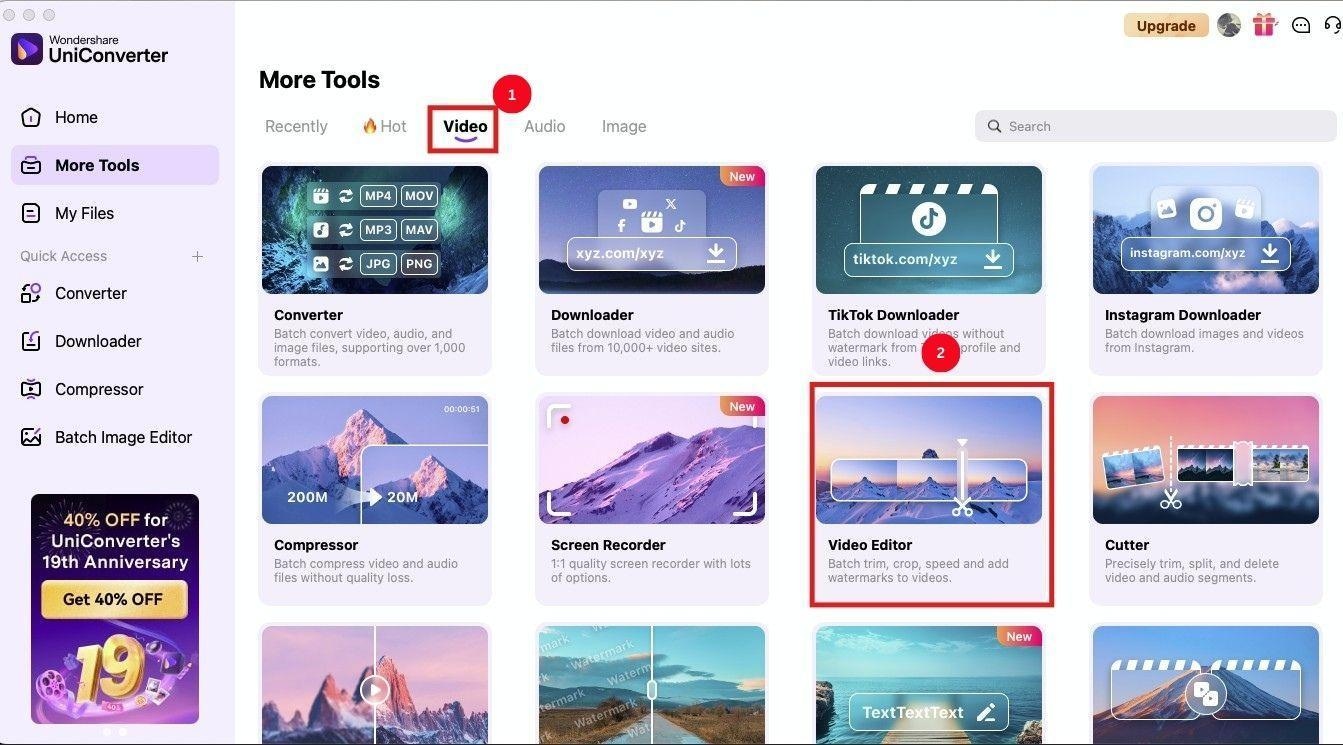
Step 1: Launch Wondershare UniConverter on your desktop and click the “Video” tab followed by the “Video Editor” option.
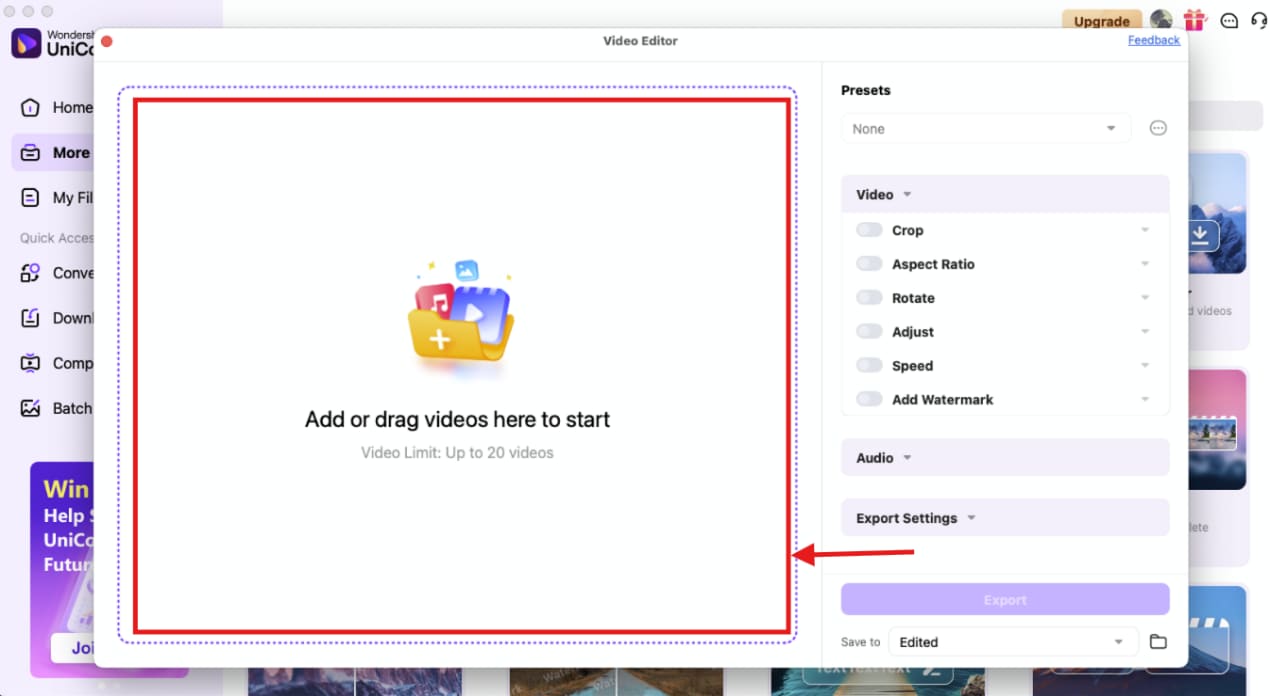
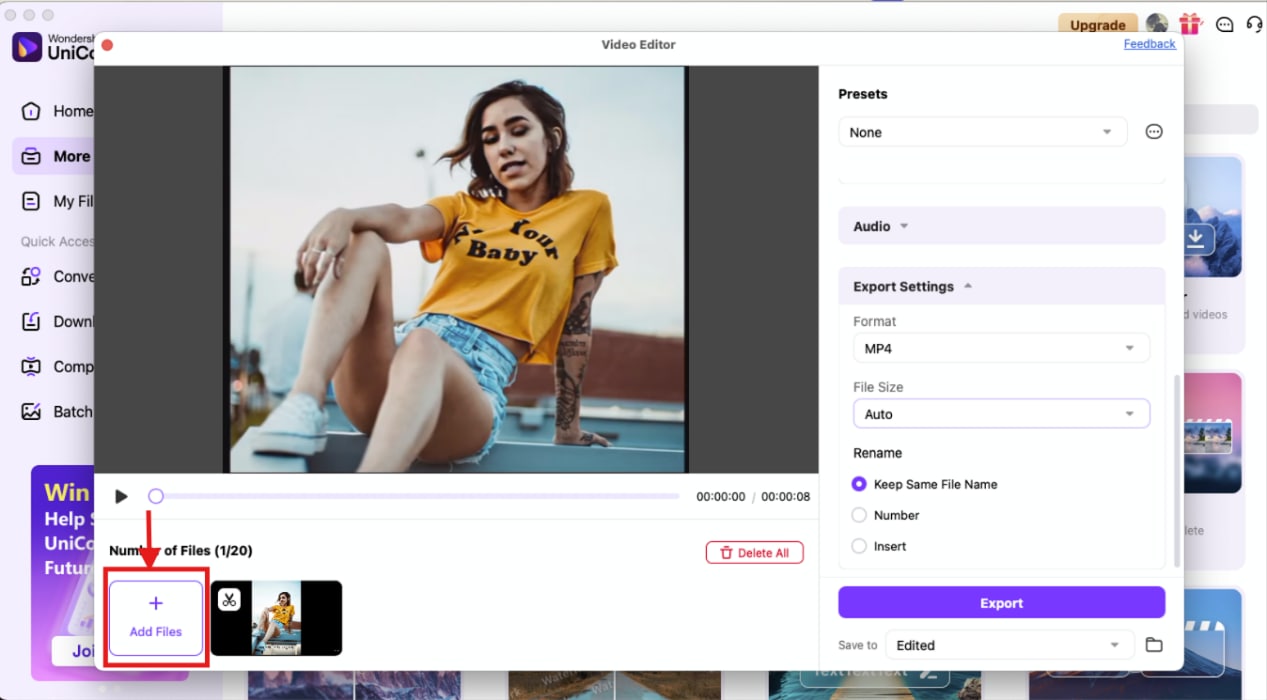
Step 2: On the new window, click the “Add File(s)” button to upload the VEO-generated video caption.
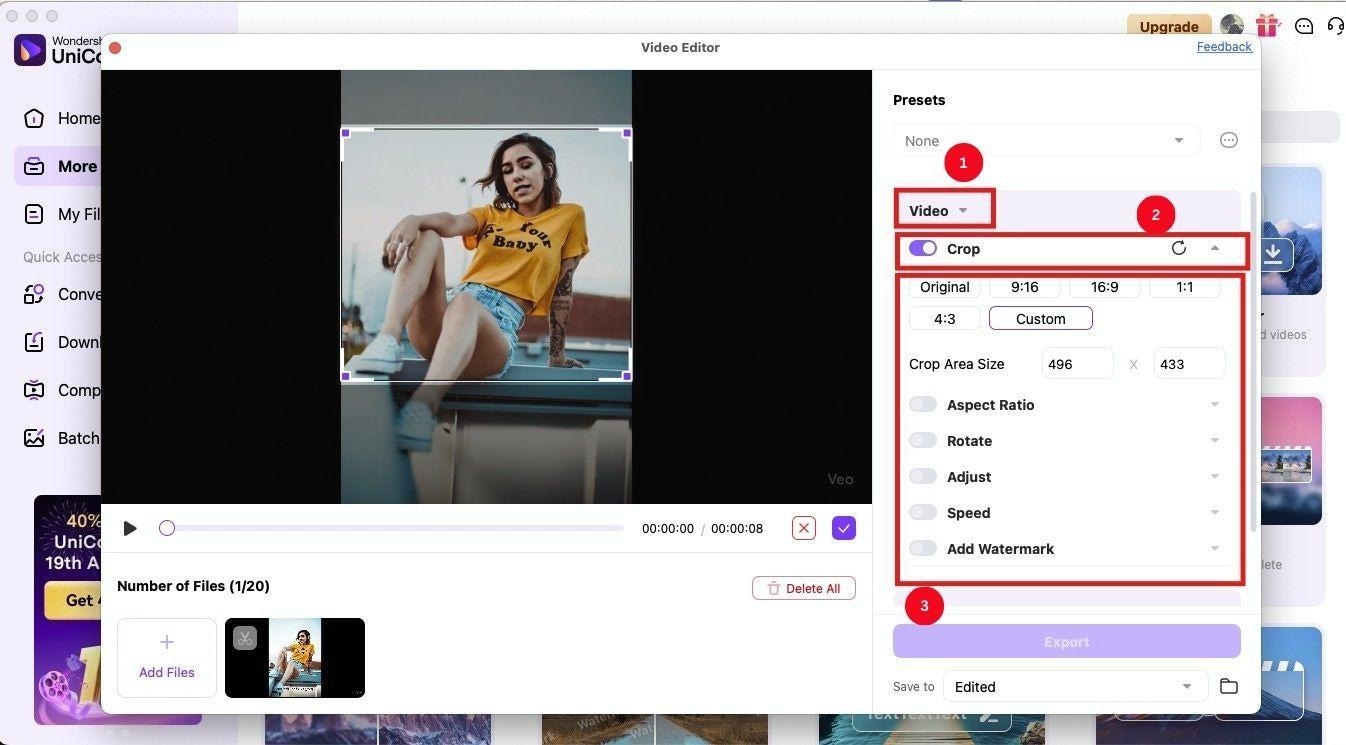
Step 3: As the video upload is complete, expand the “Video” section on the right and toggle the “Crop” option to open multiple aspect ratio options. Or, select the “Custom” option to select and crop the area of your choice.
Step 4: If you want to work with more than one video, click the “+Add File” option and upload the videos to crop.
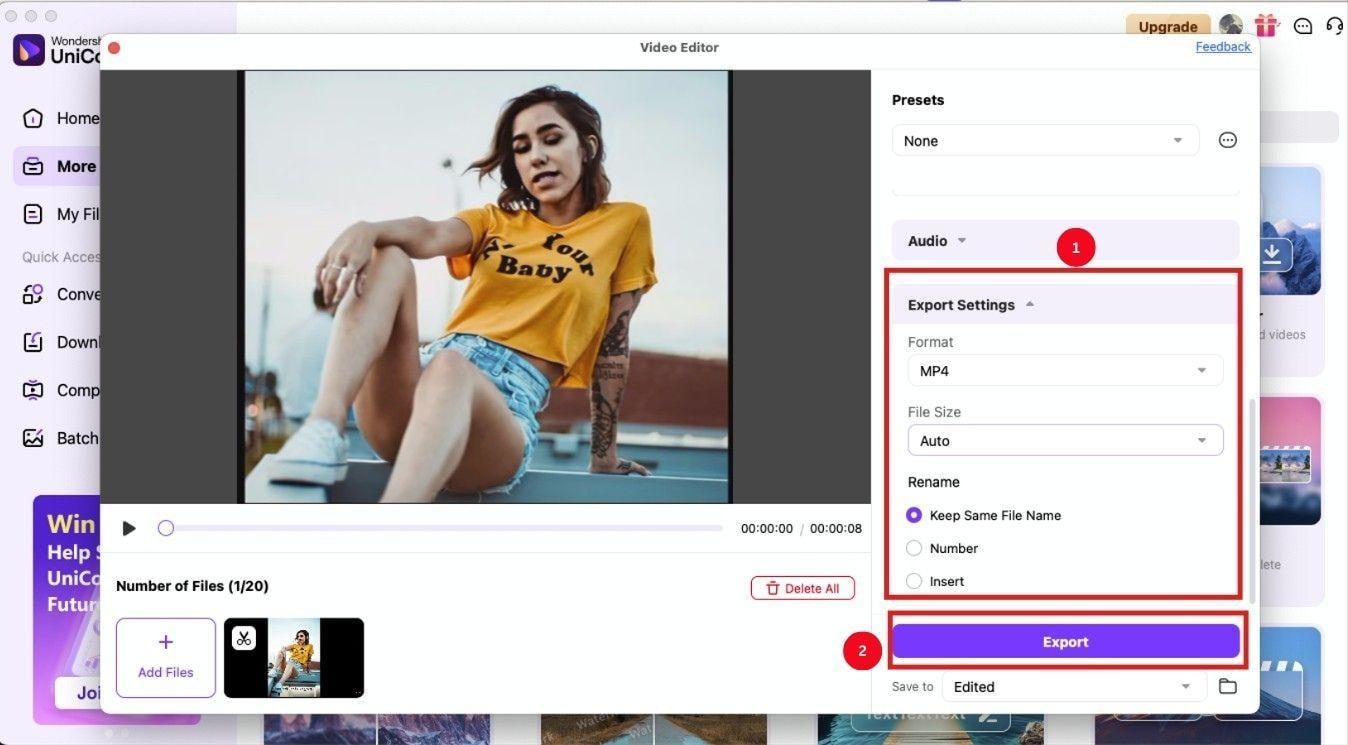
Step 5: Finally, expand the “Export Settings” option to change the format and size and rename the file, and hit the “Export” button to save the cropped video in your local storage.
Cropping can be a quick way to remove burned-in captions from VEO video, but there are many limitations to it.
- Loss of Content: For one, cropping removes a portion of the video, which can contain essential visual information or action from the scene. This can potentially affect the viewing experience of audiences.
- Reformatting Requirements: The generated videos from VEO 3 are in a 16:9 aspect ratio, and cropping the bottom can create an unnatural aspect ratio. You may need to use tools like UniConverter to reformat the video. Choose the available preset options and custom inputs, and adjust the video by zooming or reframing it.
- Inconsistent Results: The VEO-generated subtitles are not only inaccurate, but in many videos, they are inconsistent in position or size. And cropping might not remove the subtitles cleanly.
2. AI-Based VEO3 Caption Removal Tools
As you already know, removing hardcoded captions from a VEO video can be challenging. Although cropping can be a way, it affects the aesthetics and requires you to reformat to adjust the aspect ratio. The best method is to use AI-powered VEO 3 caption removal tools, and Media.io and Wondershare UniConverter are the top available. Know the reasons and how to use them to obtain a clear video.
Tool 1. Wondershare UniConverter
Wondershare UniConverter can be a great tool to remove hardcoded video captions on Windows and Mac devices. This user-friendly tool not only makes the process simple but also provides access to its video editing tools to trim, crop, enhance, or rescale a video. Other than that, it supports 1000+ file formats, so you can work with any videos without worrying about converting the file first.
Best AI Caption Remover
How to Remove VEO AI captions using Wondershare UniConverter
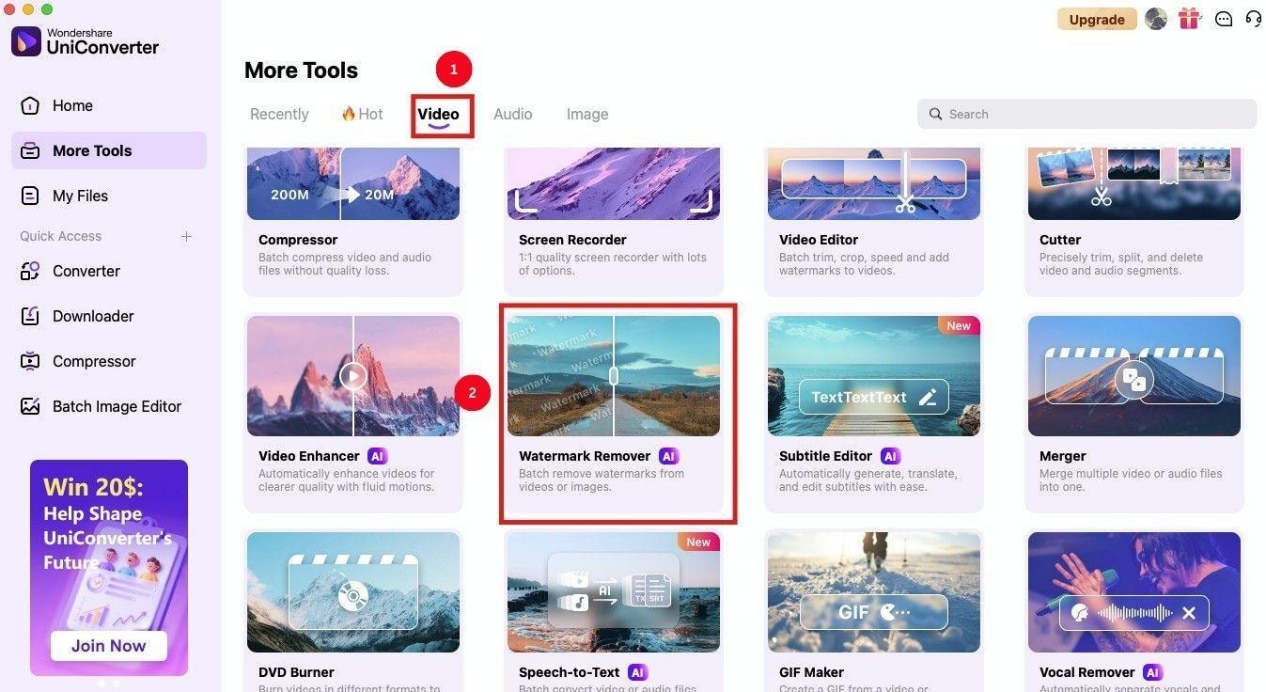
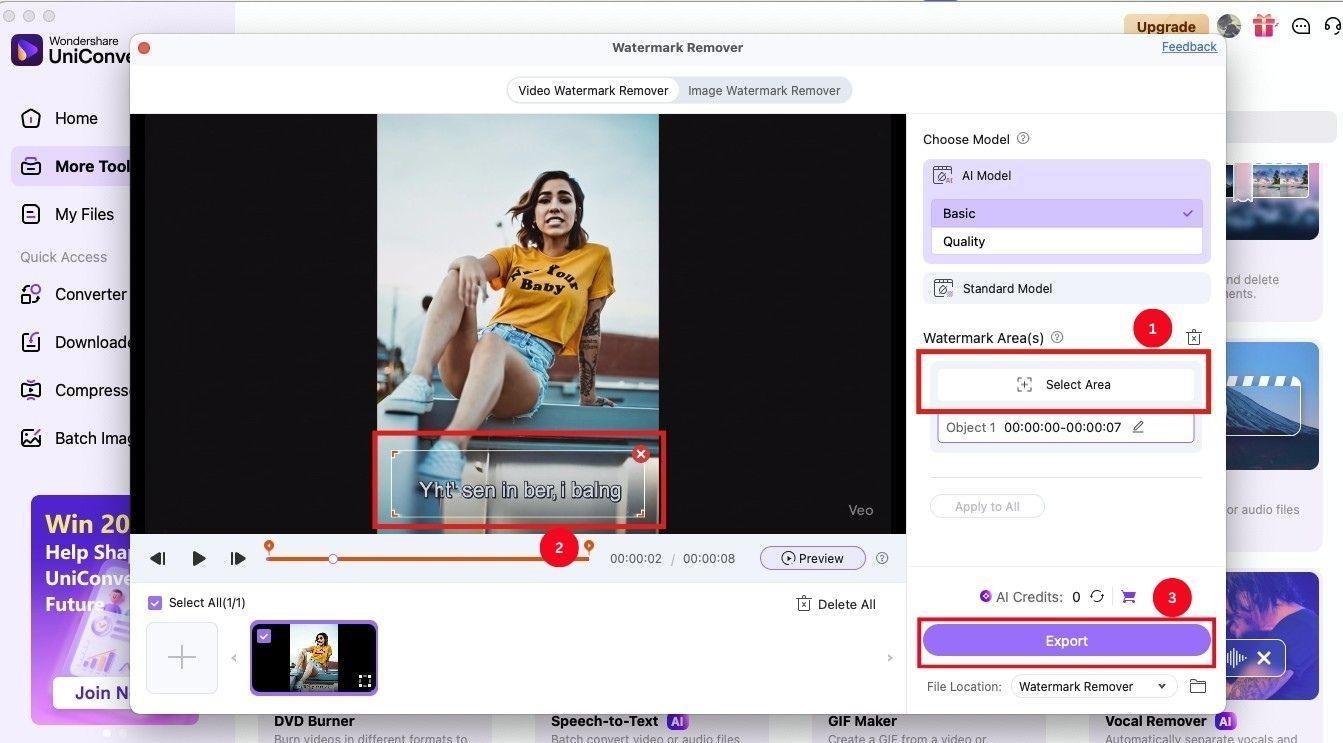
Step 1: On the UniConverter homepage, head over to the “Video” tab, followed by “AI Watermark Remover.”
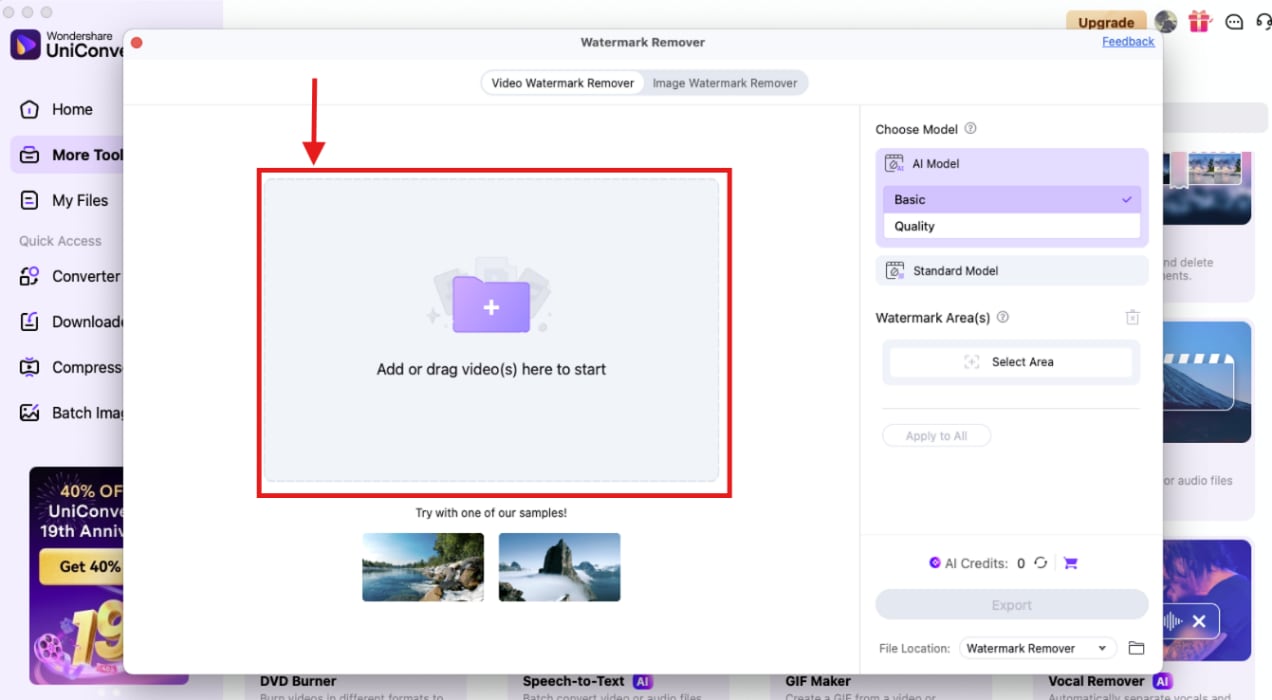
Step 2: Hit “+Add Files” to upload the VEO AI video or drag and drop the video. It takes a few seconds to upload the video.
Step 3: Click “Select Area” and use the cursor to select the area where the subtitles are located in the video. Once done, click the “Export” button to save the video to your local storage.
Tool 2. Media.io
If you’re looking for a quick and simple way to remove burned-in captions from appearing on the video, then try out Media.io. Its AniEraser is a highly functional object removal tool that can remove any hardcoded subtitles from a video. Its intuitive interface makes it simple to work on the video, and you’ll be surprised by the precision and its ultra-fast speed.
How to Remove VEO3 Subtitles using Media.io AniEraser
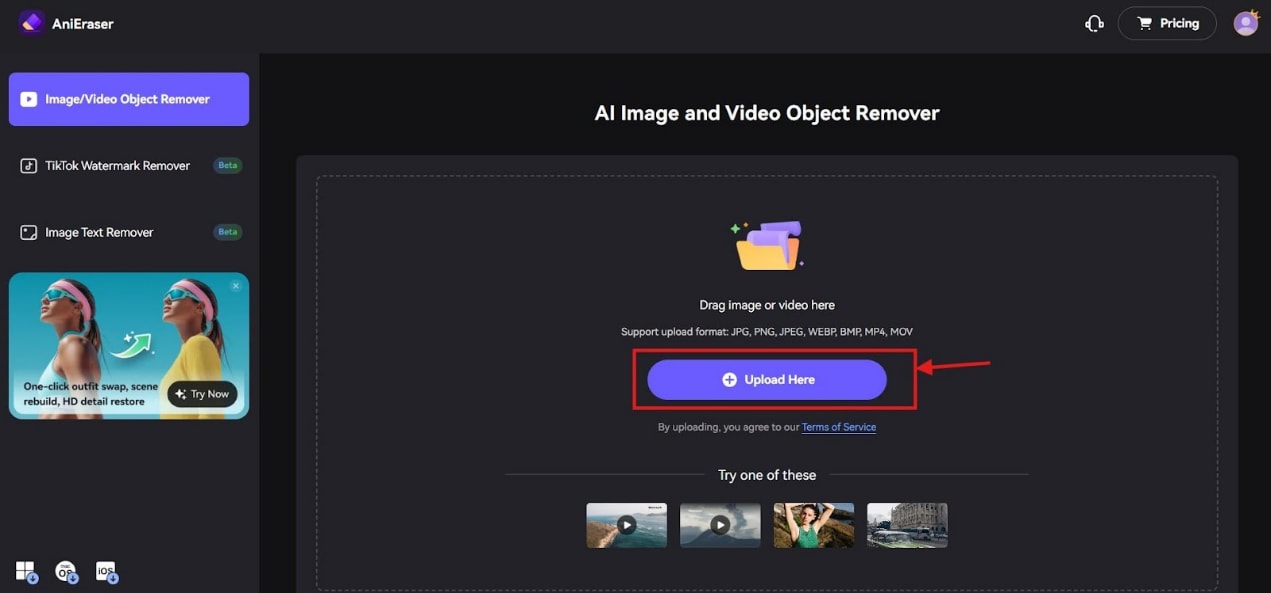
Step 1: Access Media.io’s AniEraser on your browser and click the “Upload Here” button to upload the VEO AI video.
Step 2: On the new window, you will see that the “AI Model” option on the right panel is auto-selected. Click on “Select,” and adjust the “Brush Size.”
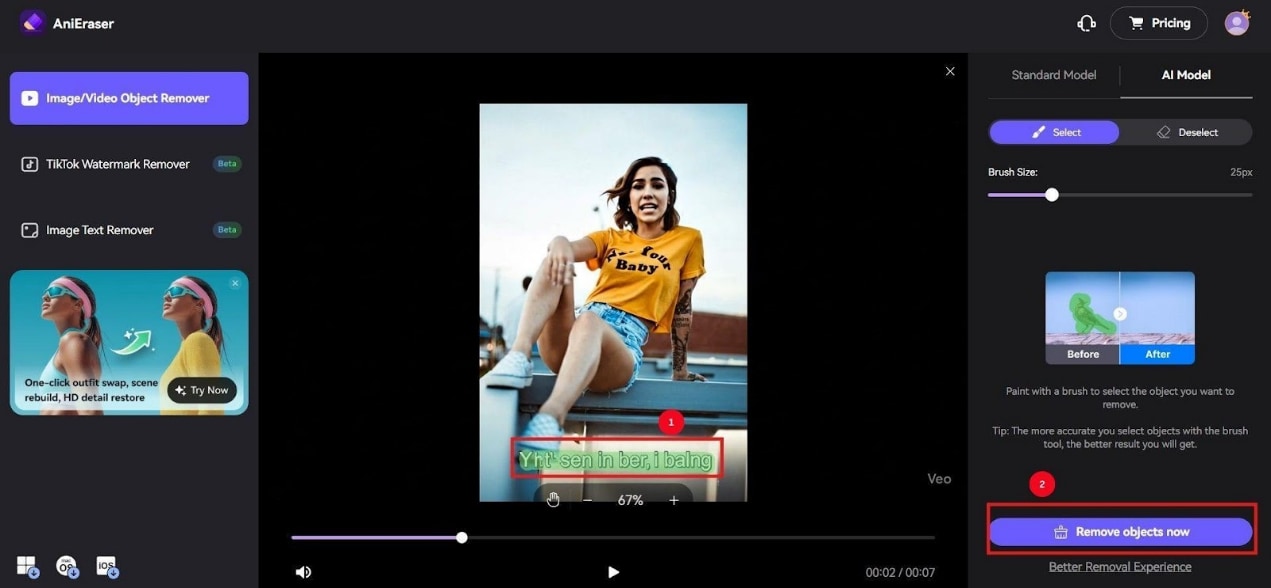
Step 3: Select the area where subtitles appear on the video and click on “Remove objects Now.”
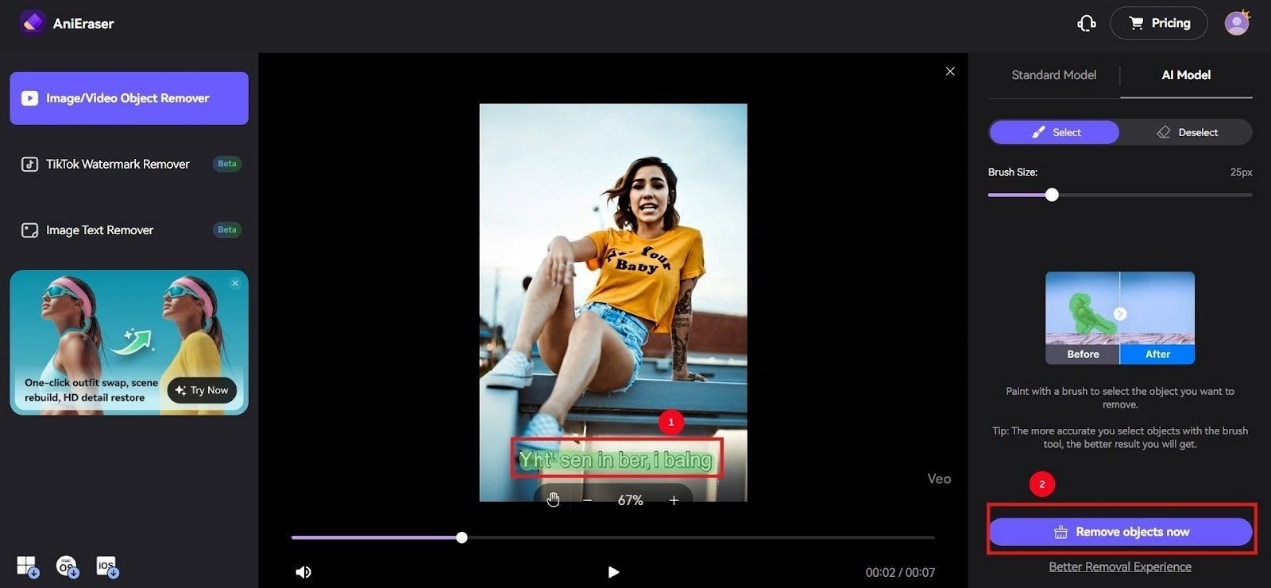
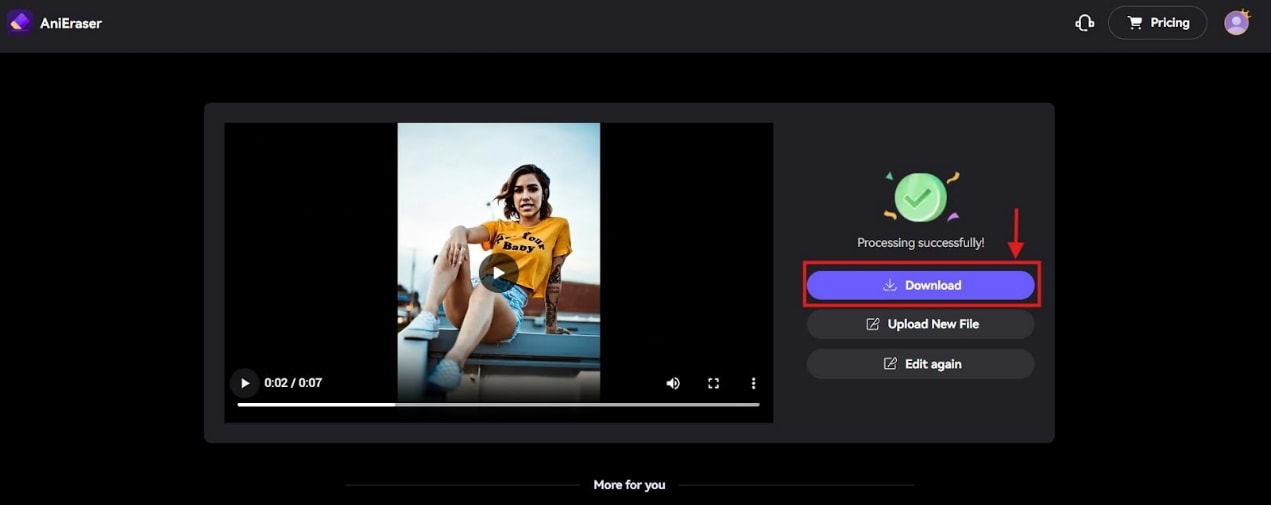
Step 4: As AI generates the video, preview it and click on “Download” to export the file to your local storage.
Conclusion
The above-mentioned methods should help you remove VEO AI captions from the videos. Prompting techniques can be a viable way to stop captions from appearing, but the results are inconsistent. You might end up wasting your credits. Other than that, cropping the video can also be a quick fix, but it may lose some information and impact the aspect ratio. Thereby, the most reliable method is to use AI-powered subtitle removers, such as Wondershare UniConverter. The interface is simple, and you always have a high-quality video that you can use in professional presentations. So, try it now!

