


Editing travel vlogs or phone clips often comes with a common headache: bad video quality. Grainy footage, poor lighting, and shaky motion can make great moments look dull or unwatchable. If you’re not an editing pro—or don’t want to spend money—finding the right free video quality enhancer can be tricky. But good news: you don’t need expensive tools to get better results.
In this article, we’ll share four of the best free video enhancer for enhancing video quality free on your PC, phone, or browser. Plus, we’ll reveal a top pick that’s surprisingly powerful and free to use.
In this article
Part 1. How to Easily Batch Enhance Videos Free on PC
To enhance your video quality, Wondershare UniConverter is an excellent choice that offers multiple advanced features, including AI models and support for both Mac and Windows systems. It provides HD restoration to give perfectly crisp videos for posting on social media or for professional use.
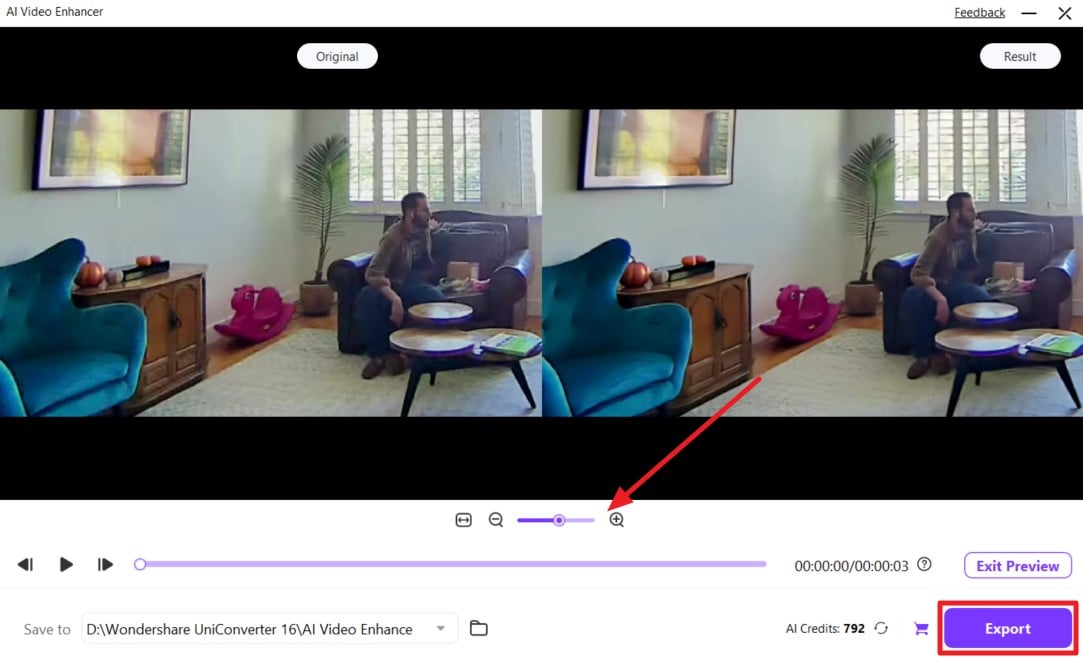
You can also customize the destination folder for the output videos to keep your media content organized while enhancing video quality free. Video can be zoomed in on when you are reviewing the changes to avoid missing out on any details. The specifications of your original videos can be viewed directly on the tool interface to compare them with the enhanced videos later.
Key Features
- Frame Interpolation: You can increase the frame rate of the video to create a smoother motion, which is ideal for gaming or slow-motion edits.
- Video Denoising: The tool gives an advanced option to remove unwanted background noise and grain from the video to improve clarity.
- Wide Format Support: There is wide support for video formats within this tool that includes MP4, MOV, and MKV to aid easy enhancement without requiring extra conversion tools.
- Preview Availability: Once you apply an AI model for enhancement to the video, the results can be previewed before downloading to ensure complete satisfaction.
- Anime Enhancement: This advanced feature allows you to select from two resolution qualities before turning your video into an eye-catching anime video.
A Comprehensive Guide on Enhancing Video Using UniConverter
Once you have decided to use this best video enhancer free tool, go through the following steps to carry out the process smoothly:
Step 1. Access The Program and Select the Video Enhancer Tool
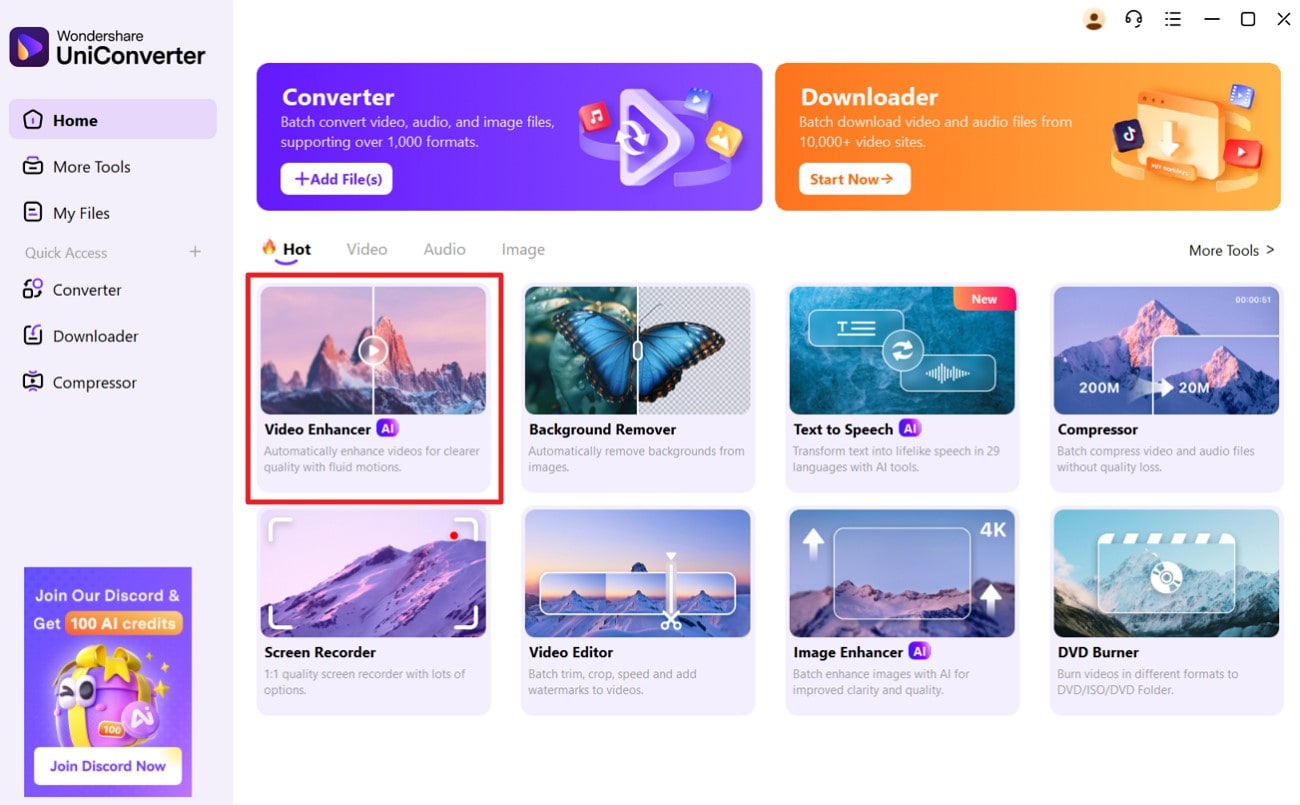
Launch the tool and select the “Video Enhancer” tool in the “Videos” section. Once the tool is accessed, add your blurry video(s) that needs fixing by clicking on the “Add Video” button.
Step 2. Choose The Preferred Model to Enhance Your Video
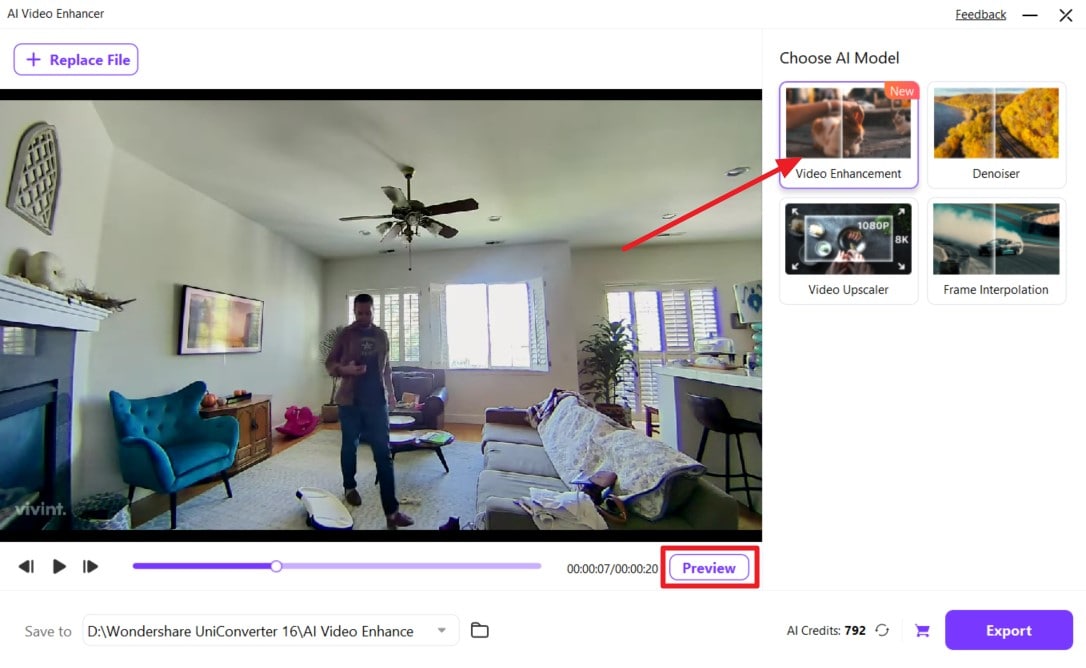
Once you have imported your video, select the “Video Enhancement” model under the “Choose AI Model” section to enhance the content. Click on the “Preview” button to initiate the enhancement process for your imported video.
Step 3. Export The Enhanced Video to The Device
After you have edited the video and are satisfied with the quality, hit the “Export” button to save the video to the device.

Easy to Use Batch Video Enhancer
Part 2. How to Enhance Videos for Free Online?
A user-friendly free AI video enhancer, Clideo, helps improve video quality without changing the original audio quality. You can change the saturation and hue of your visual while being compatible with multiple video formats, including WMV and VOB. It also claims complete data security while you enhance the videos conveniently without installation. To enhance your videos using this tool without hogging your system resources, follow the given steps:
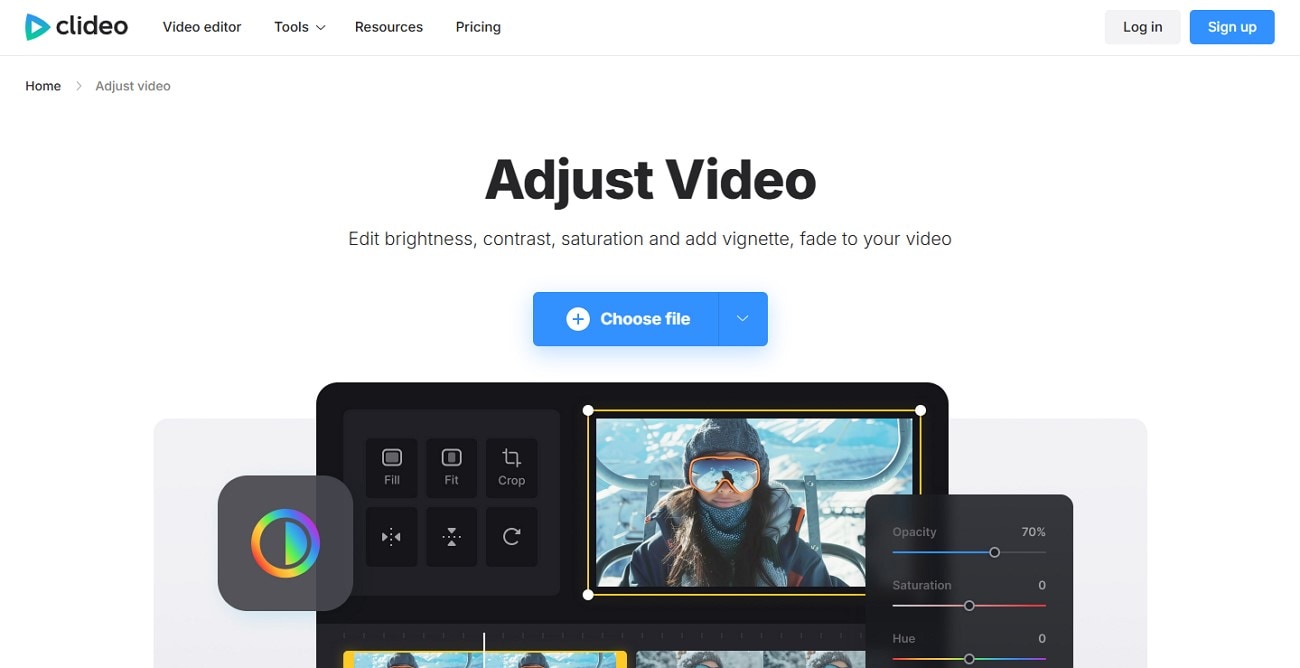
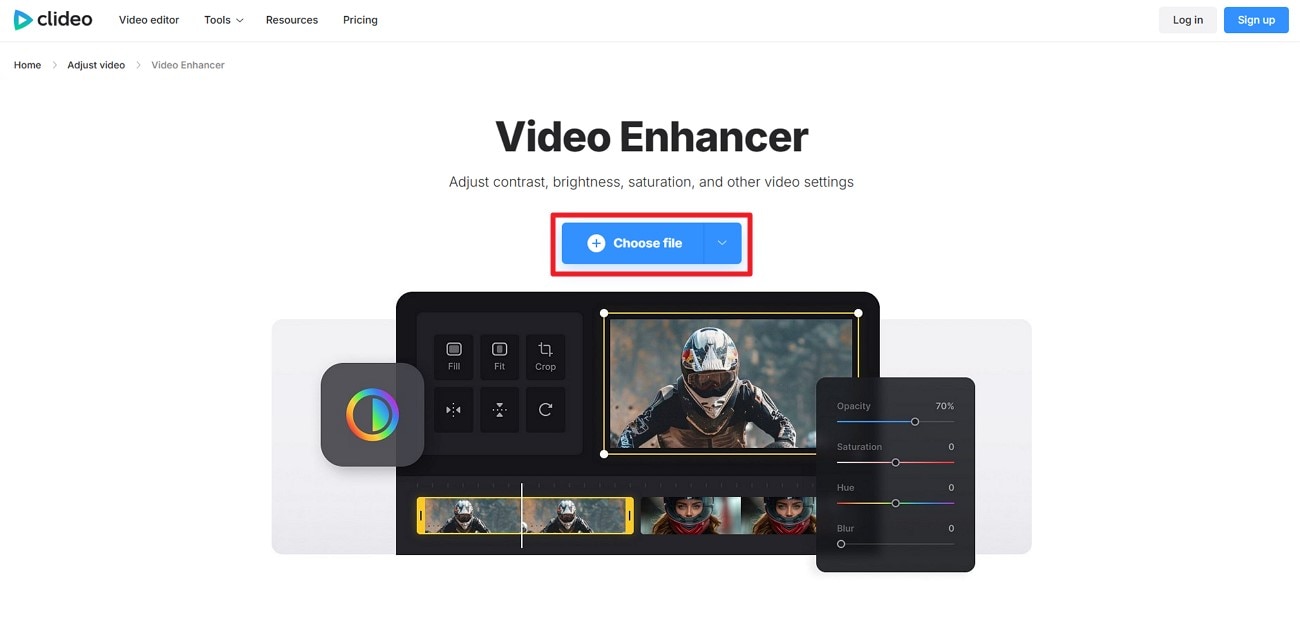
Step 1. Go to the tool page and click on the “Choose file” button to insert your low-quality video.
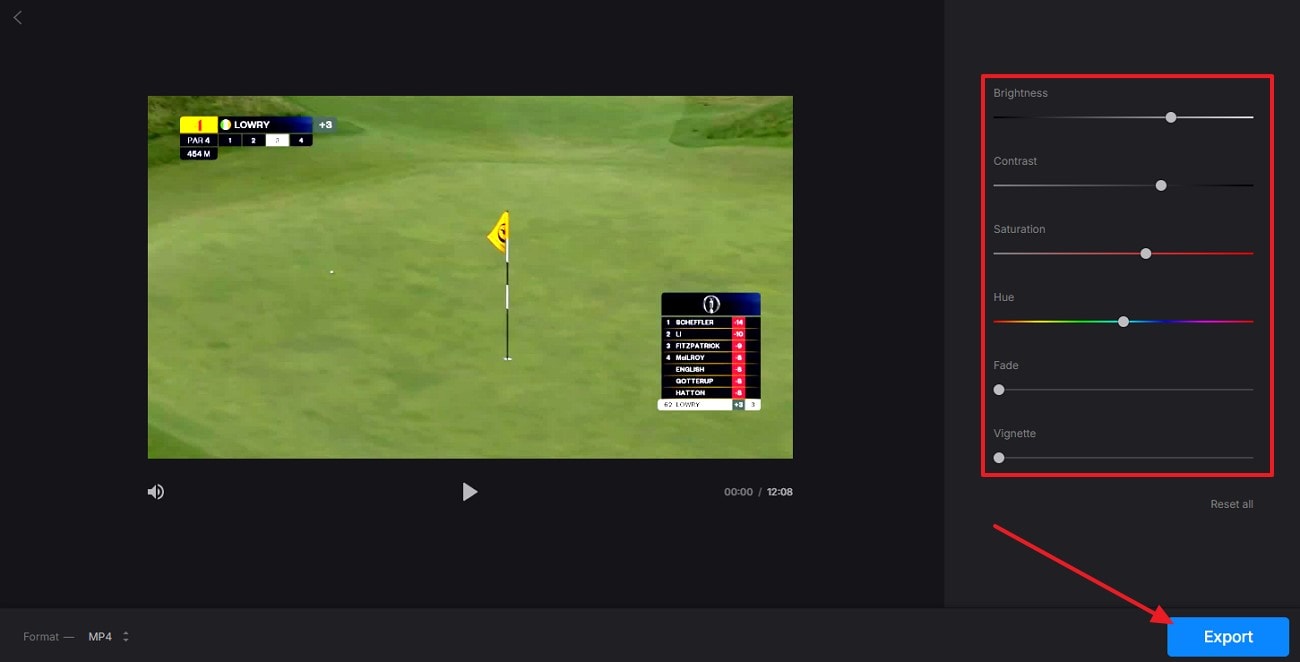
Step 2. Once the video is added, adjust the parameters, including “Brightness,” “Saturation,” and more by dragging the given slider. When you are done editing and satisfied with the quality, hit the “Export” button to save the video to the device.
Part 3. How to Upscale Videos to 4K Resolution with a Free Mobile App
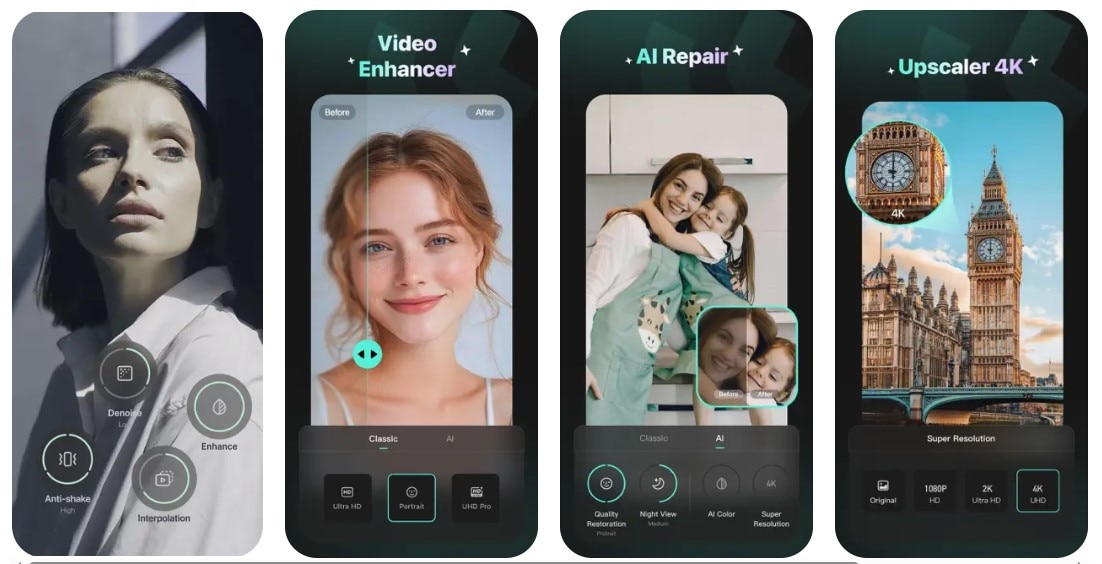
Designed for transforming videos with quality upscaling, the Winkit app (Android | iOS) has additional AI color adjustment and object removal features. The app allows you to share your enhanced video directly to social media platforms. You can also crop and make collages of your enhanced photos within this tool. Applying the AI video enhancement free is a simple procedure with Winkit, as described below:
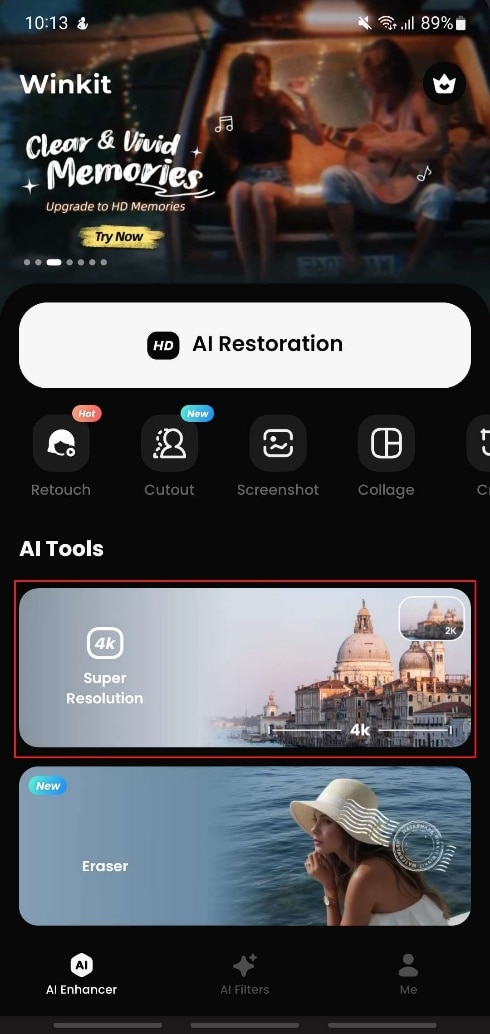
Step 1. Inside the “AI Enhancer” tab, choose the “Super Resolution” feature and add the video from the device storage.
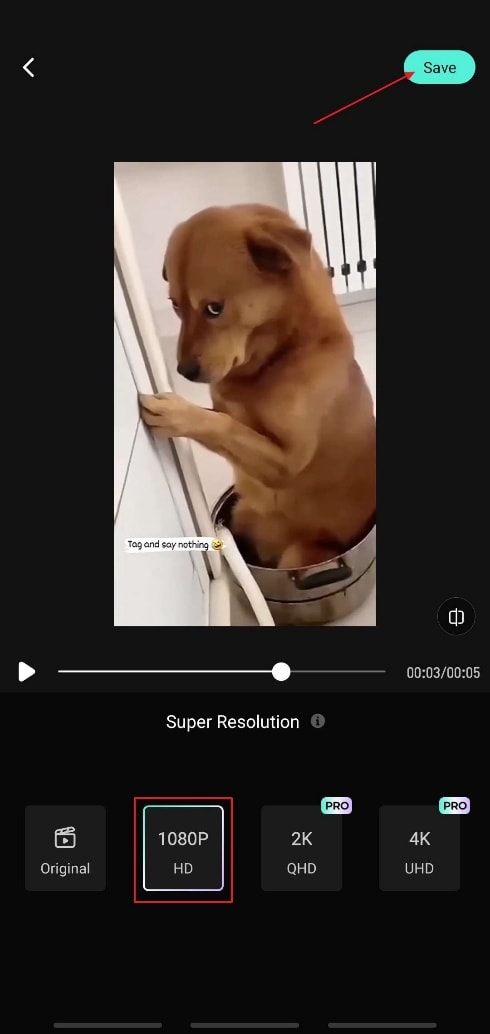
Step 2. Select the “HD resolution” option to enhance the video, and once you are satisfied with the results, tap on “Save” to download it.
Part 4. How to Upscale Videos to 4K with a Free Chrome Extension
You can use a Chrome extension like Video Enhancer-Color Grading to transform the standard low-resolution videos you watch online. This works on many streaming sites and video platforms, including YouTube and Netflix, by applying real-time enhancements. It is especially effective for outdoor visual content and upscale videos up to 4K resolution. You can turn this free AI video enhancer extension on safely for color clarity by following these instructions:
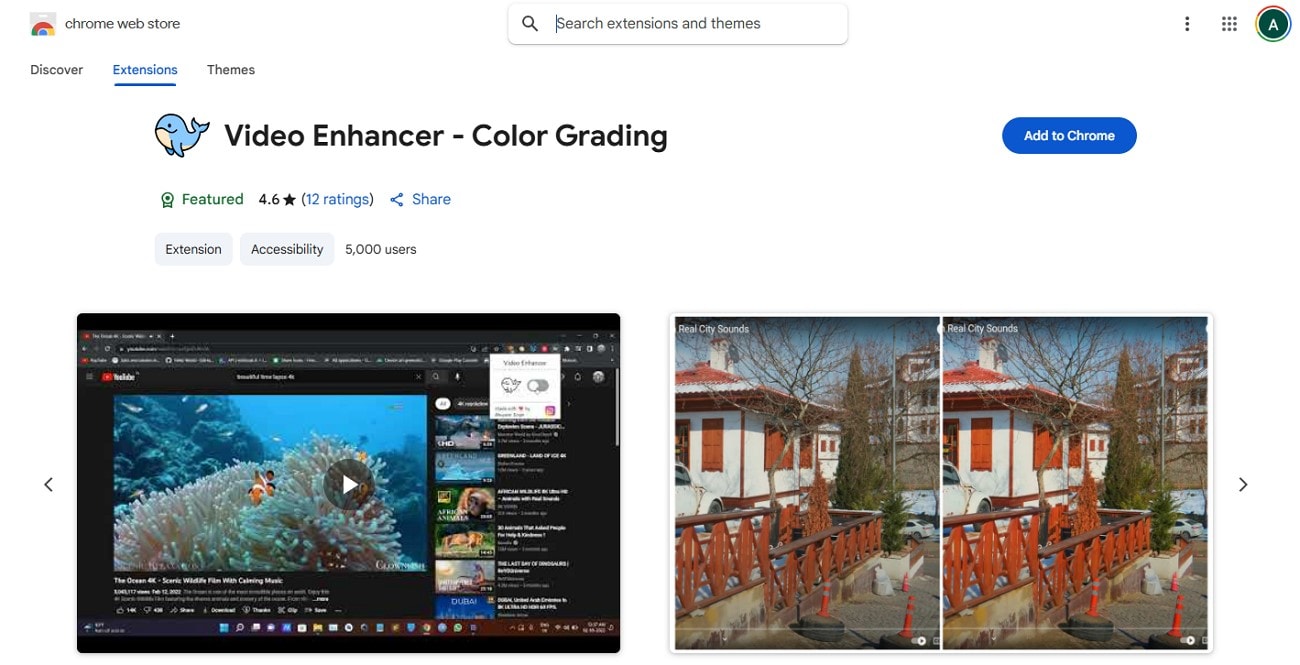
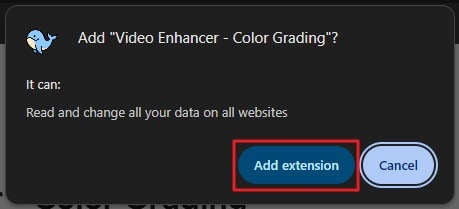
Step 1. Go to the extension page on Chrome Web Store and click on the “Add to Chrome” button before tapping “Add Extension” on the next pop-up.
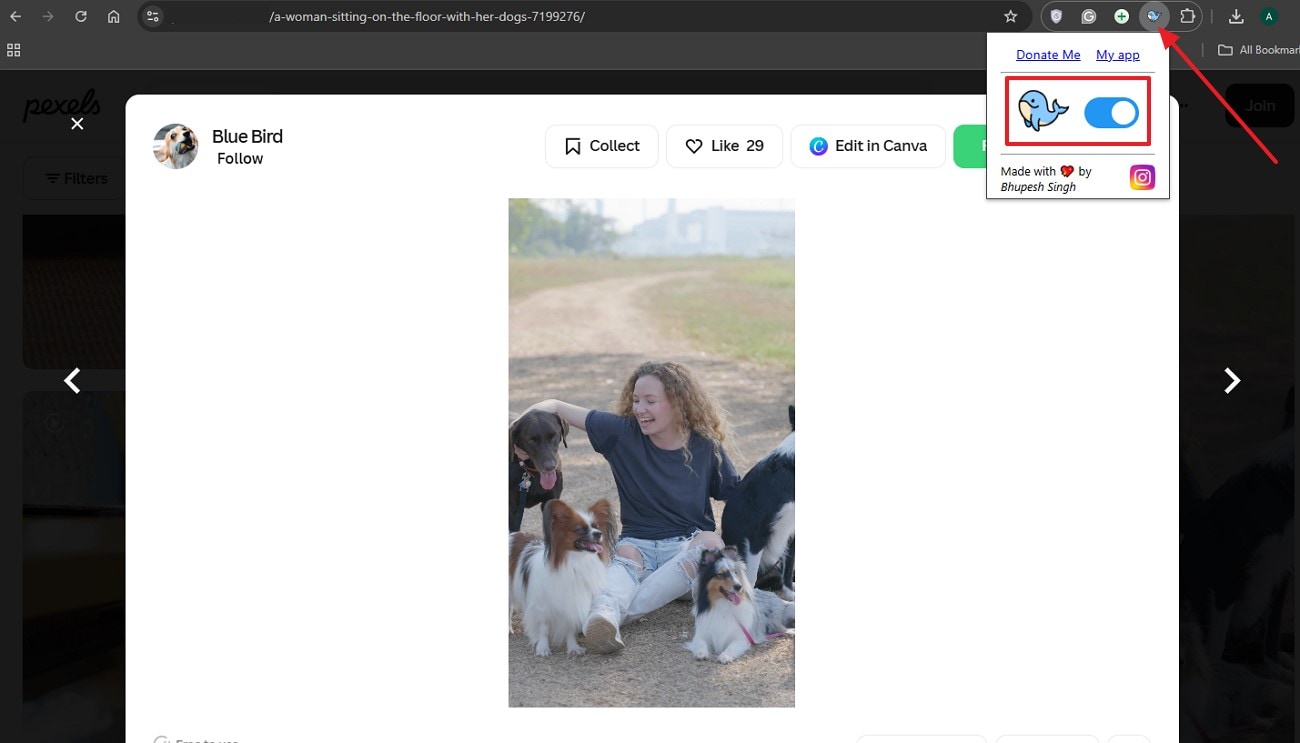
Step 2. Play a video on your preferred site and go to the extension window to toggle the “Extension” icon. The video parameters, including brightness and hues, will be automatically enhanced and adjusted.
Easy to Use Batch Video Enhancer
Conclusion
To sum up, enhancing videos can seem like an insurmountable challenge due to a lack of knowledge about proper resources. We have discussed multiple video enhancer free tools to upgrade your video content quality on your PC or phone. If you're looking for a more professtional tool to help delivery videos and photos of quality, UniConverter can always be your trustable choice.
FAQ
-
1. Are free video enhancers safe to use?
Most of the video enhancers are free to use if they are downloaded from reputable sites and official sources. You should always review app permissions and read user reviews before trying any AI video enhancer free. -
2. Do I need an account to use online video enhancement tools?
You don’t need an account to use most of the basic features of the online video enhancement tools. These apps may require logging into an account for exporting videos in high quality. -
3. Does video enhancement permanently change the video specs?
The enhanced video you will save and export will be altered permanently, while your original video remains the same. You can do an extra backup of your files to ensure a safe copy for you. -
4. Are mobile apps as powerful as desktop software for professional video enhancement?
Many mobile apps only give basic features to enhance videos and lack advanced features. You can use tools like UniConverter for professional results in our video processing.

