

You captured the perfect moment, but the footage is a jittery mess. Handheld recording often results in shaky video that is hard to watch. Fortunately, you don't need expensive equipment to fix this. You can use a free video stabilizer to smooth out the motion in post-production.
Whether you are editing a family vacation vlog or a professional clip, software solutions can save your footage. This guide explores the best video stabilizer freeware and online tools available in 2026. We test them for speed, quality, and ease of use. You will find the right tool here, from advanced desktop editors to a simple free video stabilizer app for your phone.
Table of Contents
Part 1. The "Free" Reality Check: What to Look For
Before you download the first free video stabilization software you see, you need to know the trade-offs. Not all free tools are created equal. Some "free" tools are actually paid software in disguise, while others compromise your data.

Watermarks: The #1 Dealbreaker
Nothing ruins a cinematic shot like a giant brand logo stamped across the center. Many tools advertised as free video editing software stabilization will let you do the work but demand payment to remove the watermark. We explicitly look for software that allows clean exports or clearly states watermark policies. You want your audience to focus on your content, not the software you used.
Privacy Warning
This is crucial if you search for terms like stabilize video free online. When you use a browser-based tool, you are uploading your file to a remote server.
- Risk: You lose control over who sees your footage.
- Advice: Never upload personal family moments, sensitive corporate data, or videos of children to unknown cloud servers. For these files, offline desktop software is the only safe choice.
Processing Power
Video stabilization is math-intensive. It requires tracking pixels frame-by-frame.
- Desktop Software: Programs installed on your PC (like UniConverter or DaVinci) utilize your computer's GPU. They are faster and safer.
- Online Tools: These rely on internet speed and server limits. They often crash with 4K files or large videos. A free online video stabilizer is usually best reserved for short, low-resolution clips (under 500MB).
Part 2. Top 12 Free Video Stabilizers Ranked (By Platform)
We have grouped these tools to help you navigate easily. Whether you need a heavy-duty editor or a quick mobile fix, here are the real-world results.
Group A: Best Free Desktop Software (Windows/Mac)
Desktop software offers the best performance. These tools use your hardware to analyze footage, resulting in smoother video with fewer artifacts.
1. DaVinci Resolve (Free Version)
DaVinci Resolve is widely considered the industry standard for color grading, but its stabilization features are equally impressive. The free version includes the same powerful tracking engine used in Hollywood films. It offers precise control over smooth, translation, and rotation parameters. However, it requires a powerful computer to run smoothly.
Best For: Aspiring filmmakers and professionals.
2. Wondershare UniConverter
Wondershare UniConverter has evolved into an intelligent creative suite. Its standout feature is the AI Video Stabilization tool, which utilizes advanced deep learning models to automatically detect and correct camera shakes. Unlike traditional tools that require manual tracking points, this AI analyzes the footage frame-by-frame to distinguish between intentional movement and unwanted jitter. It delivers buttery-smooth results in a single click, making professional stabilization accessible to everyone.

UniConverter Video Stabilization Software
Best For: Users who want the speed and precision of AI without learning complex editing software.
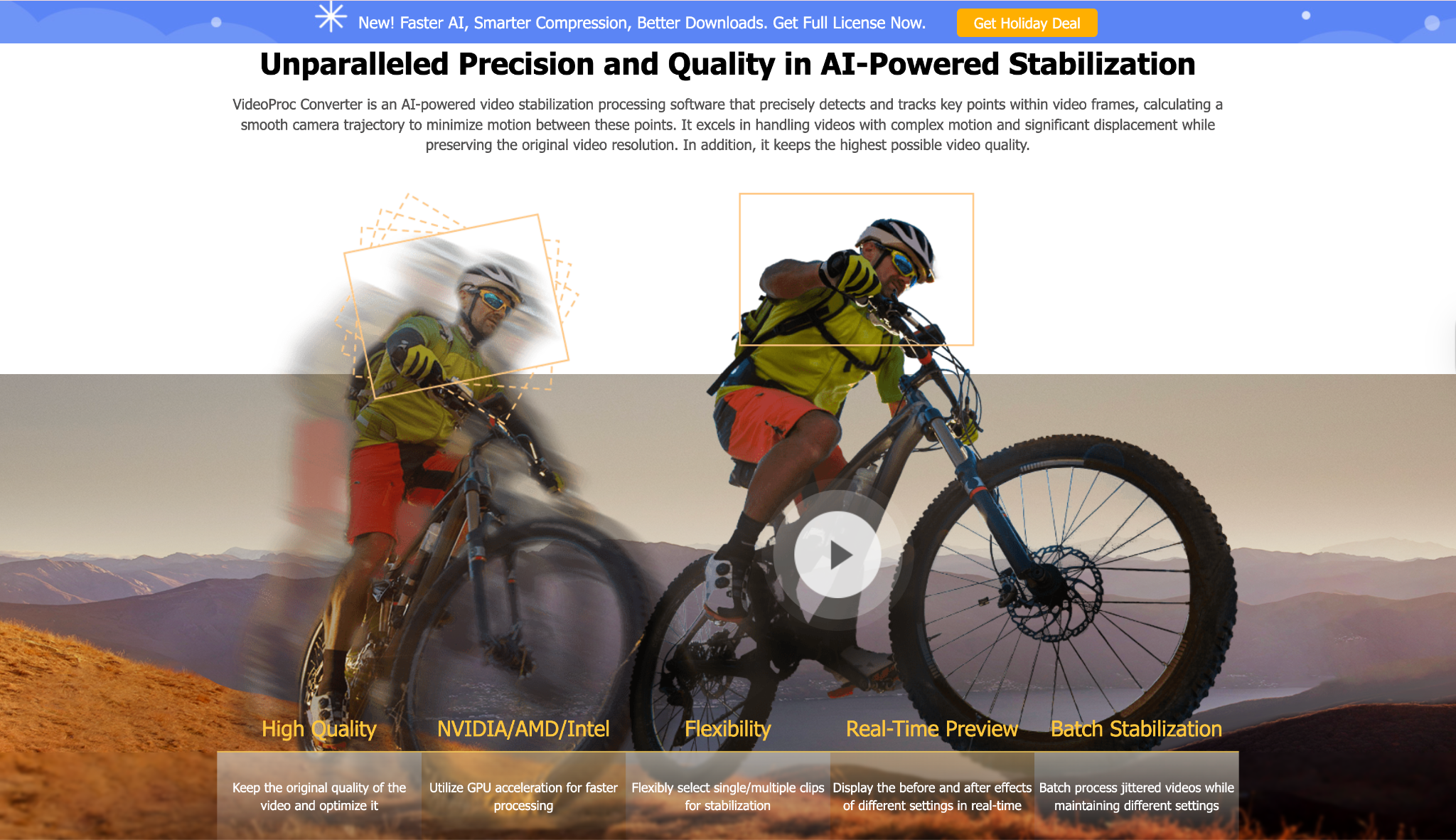
3. VideoProc Converter AI
VideoProc Converter AI is a robust video processing tool that utilizes artificial intelligence for stabilization. It features a dual-mode system designed for specific shake types. You can choose between "Mode 1" (for general handheld shaky footage) and "Mode 2" (for complex shakes with significant parallax or rolling shutter issues). It allows you to select from four distinct presets—Best Stability, Fastest, Balanced, and Minimum Crop—giving you control over the final look.
Best For: Users with GoPro or Drone footage needing rolling shutter correction.
4. CapCut Desktop
Originally famous as a mobile app, CapCut's desktop version has become a favorite for free video stabilisation software. It is surprisingly capable. The stabilization feature has three simple distinct levels: Recommended, Minimum Cut, and Most Stable. It is optimized for social media formats (9:16) but handles standard video well too.
Best For: Social media content creators.
5. OpenShot
OpenShot is an open-source video stabilizer freeware that relies on the ffmpeg library. It is completely free with no hidden costs. The stabilization is an "effect" you drag onto your clip. It analyzes the video and attempts to smooth the jitters. It is a bit more technical than CapCut but offers a strictly free environment.
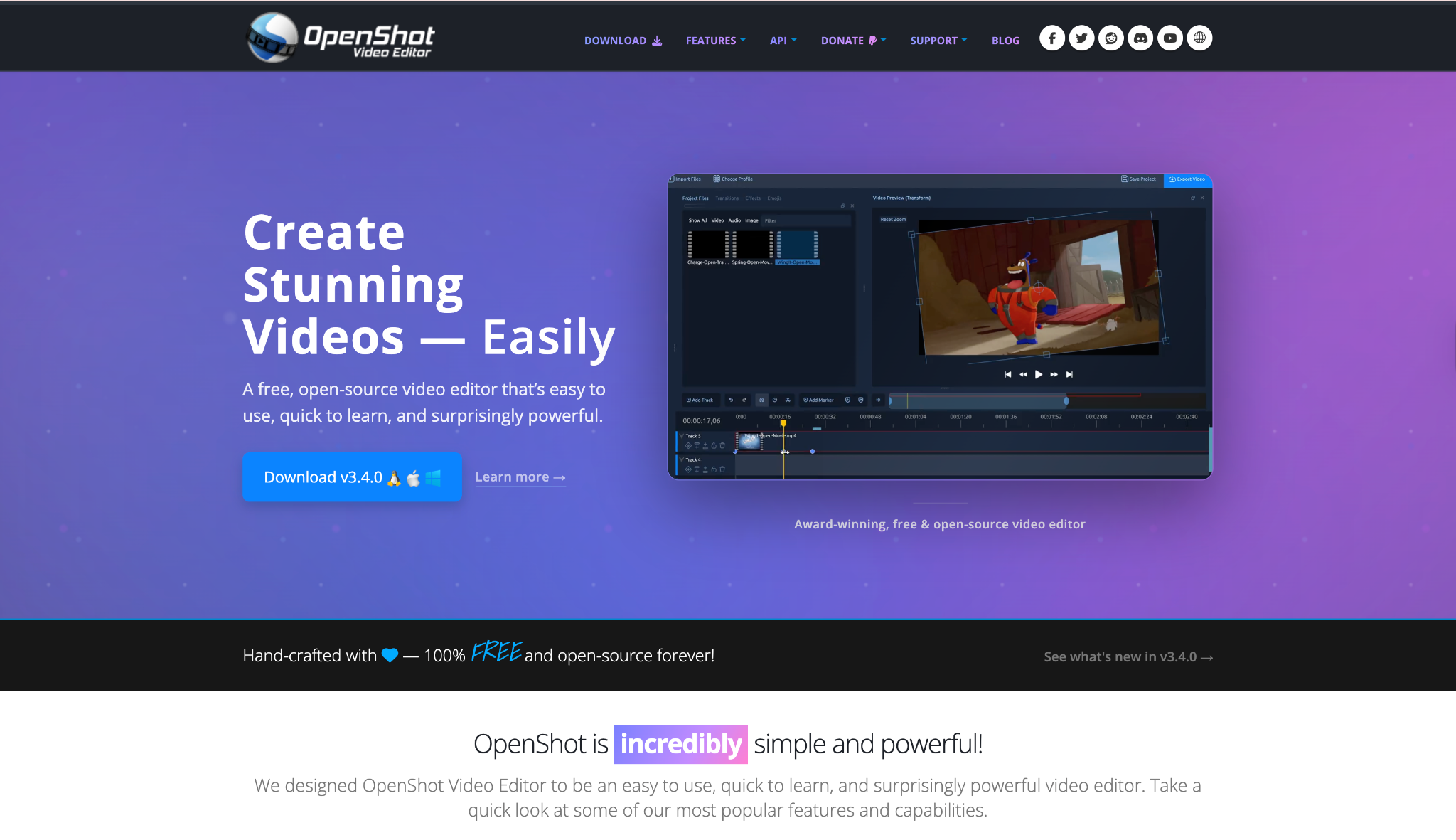
Best For: Linux users and open-source enthusiasts.
6. Shotcut
Shotcut is another open-source contender. It uses a stabilization filter that provides detailed graphs of the motion vectors. You can adjust the "shakiness" and "accuracy" parameters. It is powerful but essentially unguided; you need to experiment with settings to get the best result.
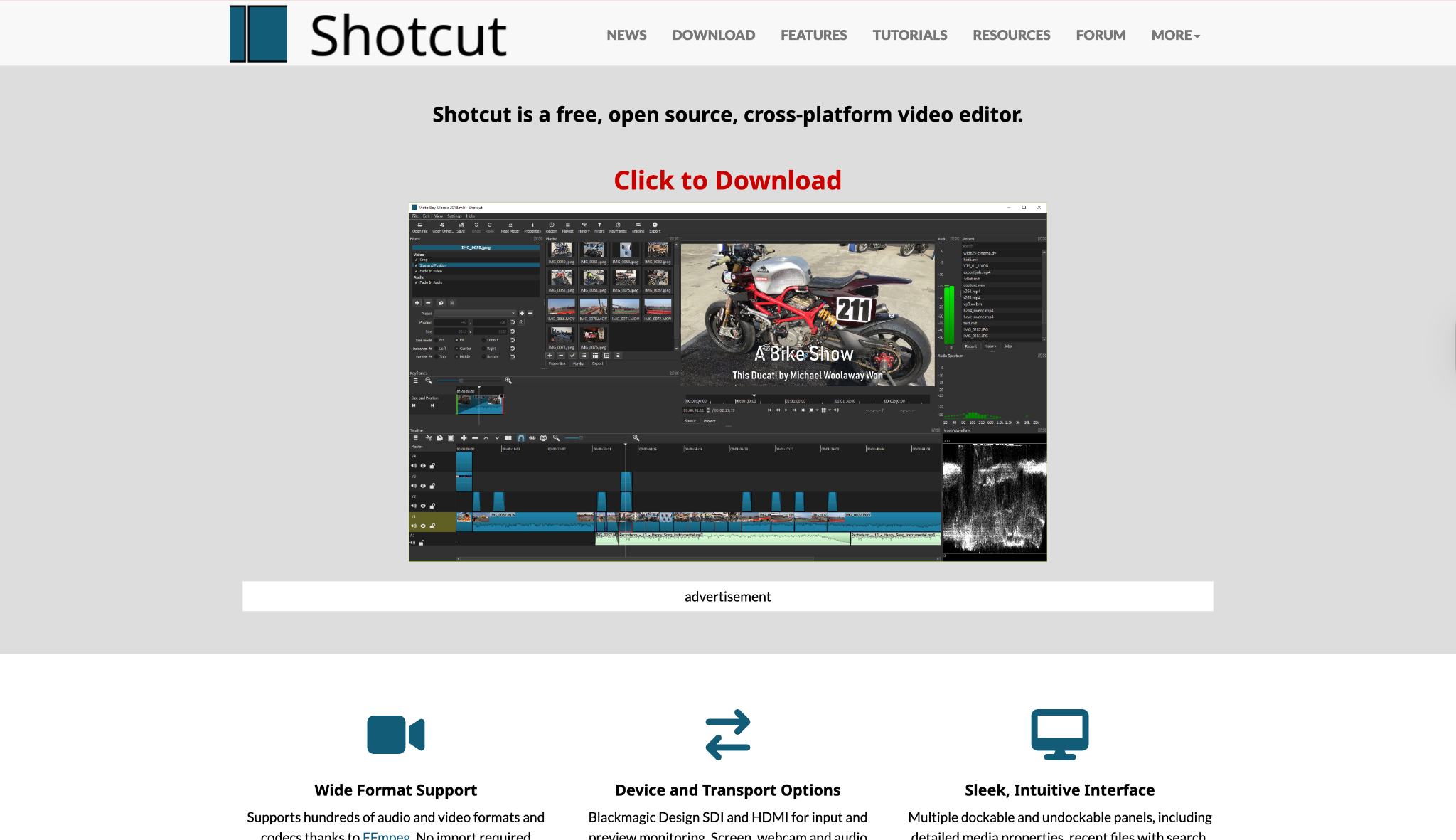
Best For: Users who want detailed control without paying.
7. VSDC Free Video Editor
VSDC is a Windows-only non-linear editor. Its stabilization tool is tucked away in the "Video Effects" menu. It allows you to create a "shaker" map and then smooth it out. It is effective for removing minor jitters but struggles with heavy rolling shutter issues found in drone footage.
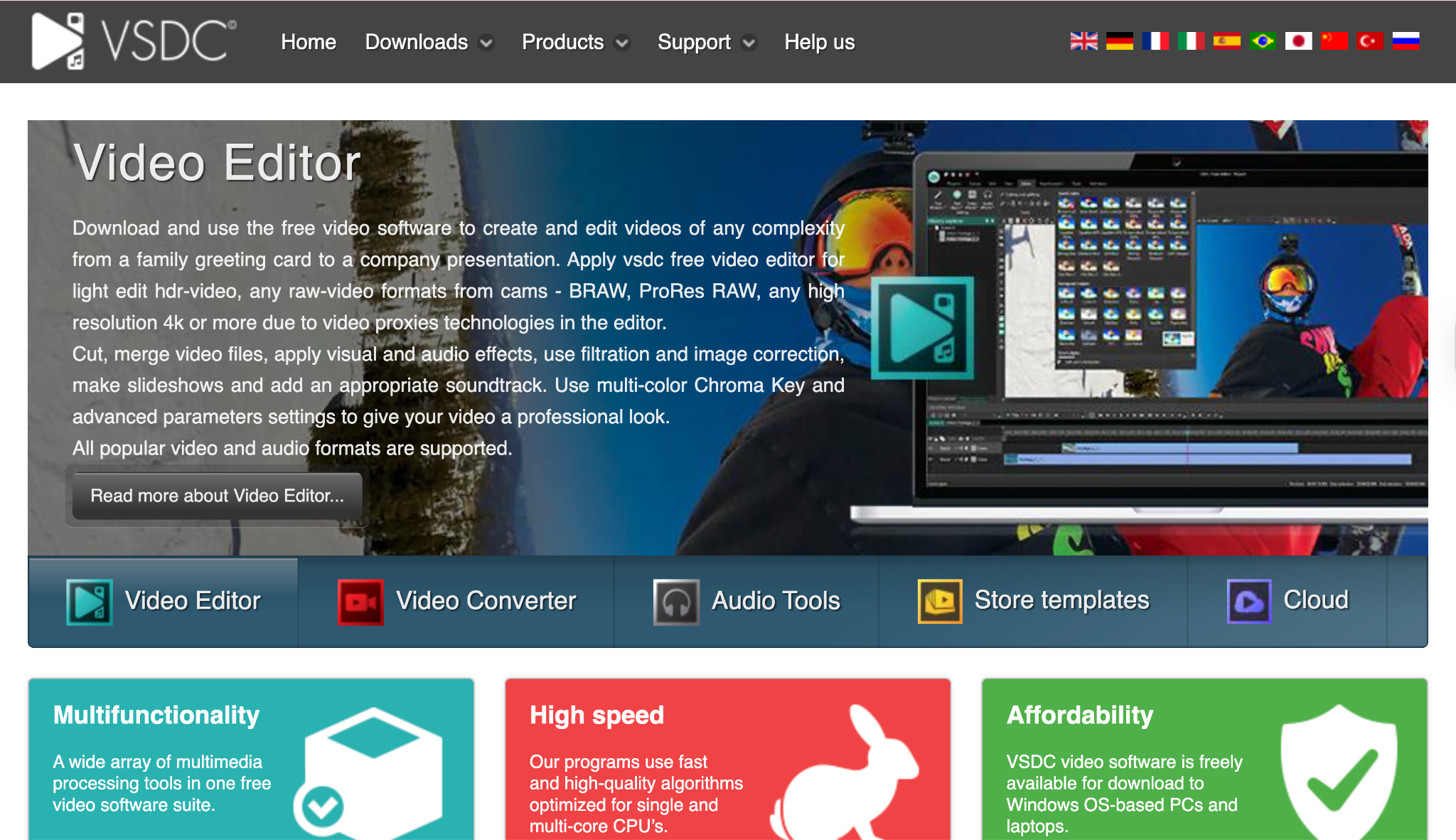
Best For: Windows users with older hardware.
Group B: Best Free Online Video Stabilizer (No Download)
If you cannot install software, a free online video stabilizer is your backup plan. Remember the privacy warning from Part 1.
8. 123Apps (Online Video Stabilizer)
123Apps offers a suite of browser tools. Their stabilizer is straightforward. You upload a video, toggle the stabilizer switch, and wait. It is purely automated. It works well for short clips like a 10-second meme or a quick family update sent via WhatsApp.
Best For: One-off tasks on a borrowed computer.
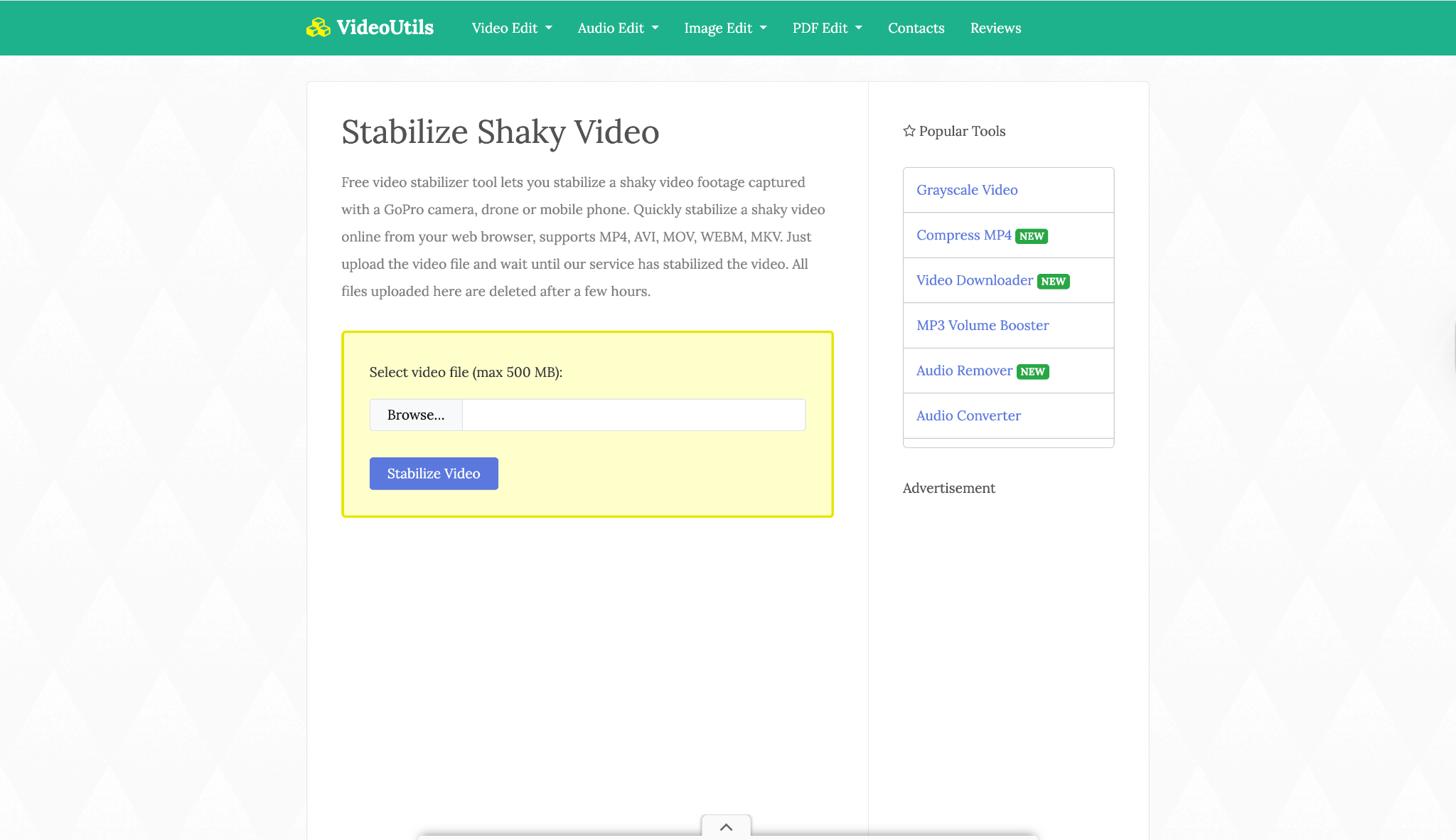
9. VideoUtils
VideoUtils is a utilitarian site designed for specific tasks. Their free video stabilizer online tool supports MP4, AVI, and MOV. It processes the video on the server and provides a download link. It is functional but lacks any preview capability; you have to download the result to see if it worked.
Best For: Quick stabilization of small, non-sensitive files.
Group C: Best Free Video Stabilizer App (Mobile)
Sometimes the best free video stabilizer app is the one already in your pocket.
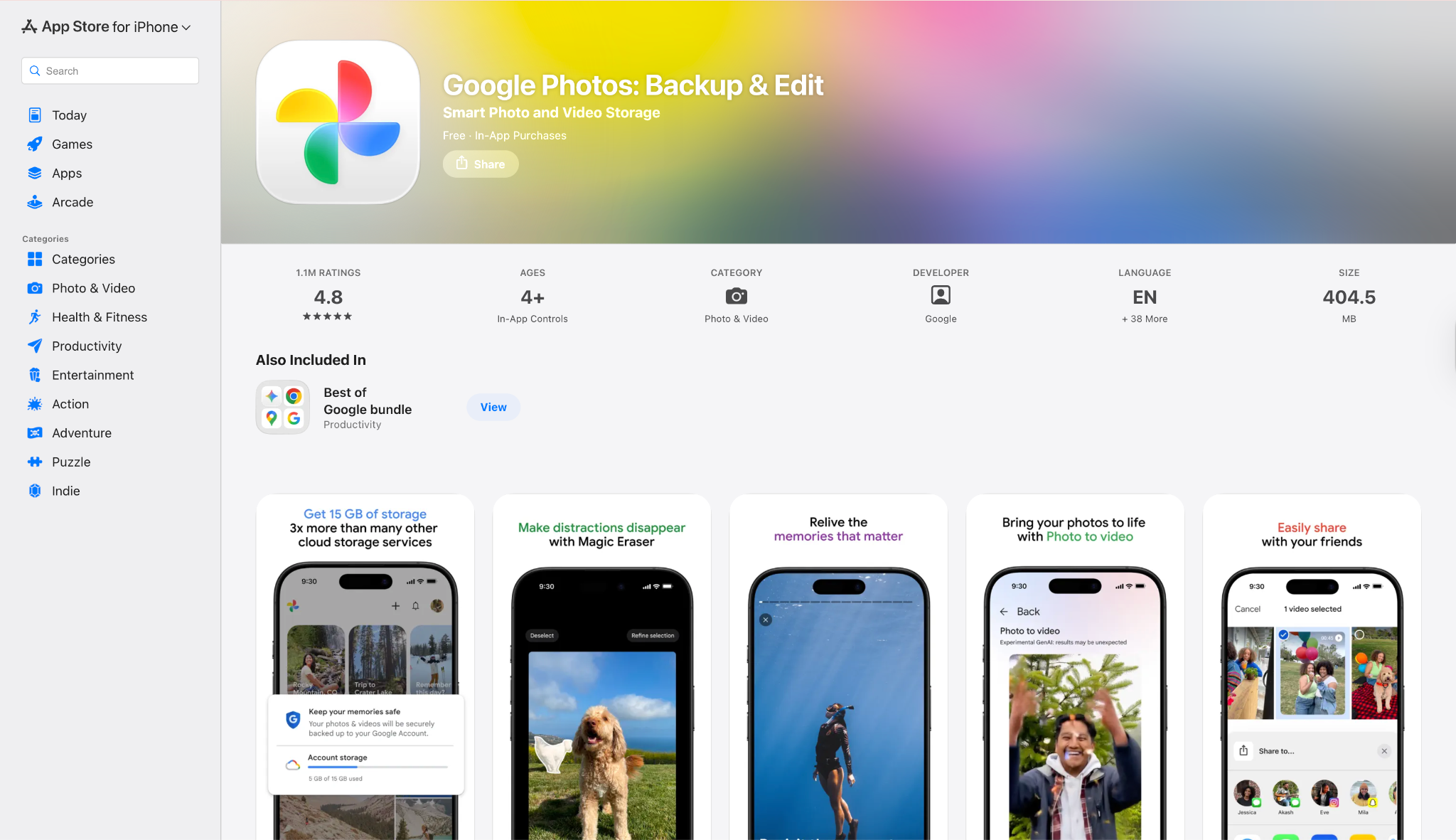
10. Google Photos (Android/iOS)
You might not realize that Google Photos is also a video stabilizer app free of charge. Open any video, hit "Edit," and tap the stabilization icon (a rectangle with a tilted frame). It performs miracles on handheld phone footage, cropping slightly to smooth the motion.
Best For: Everyone with a smartphone.
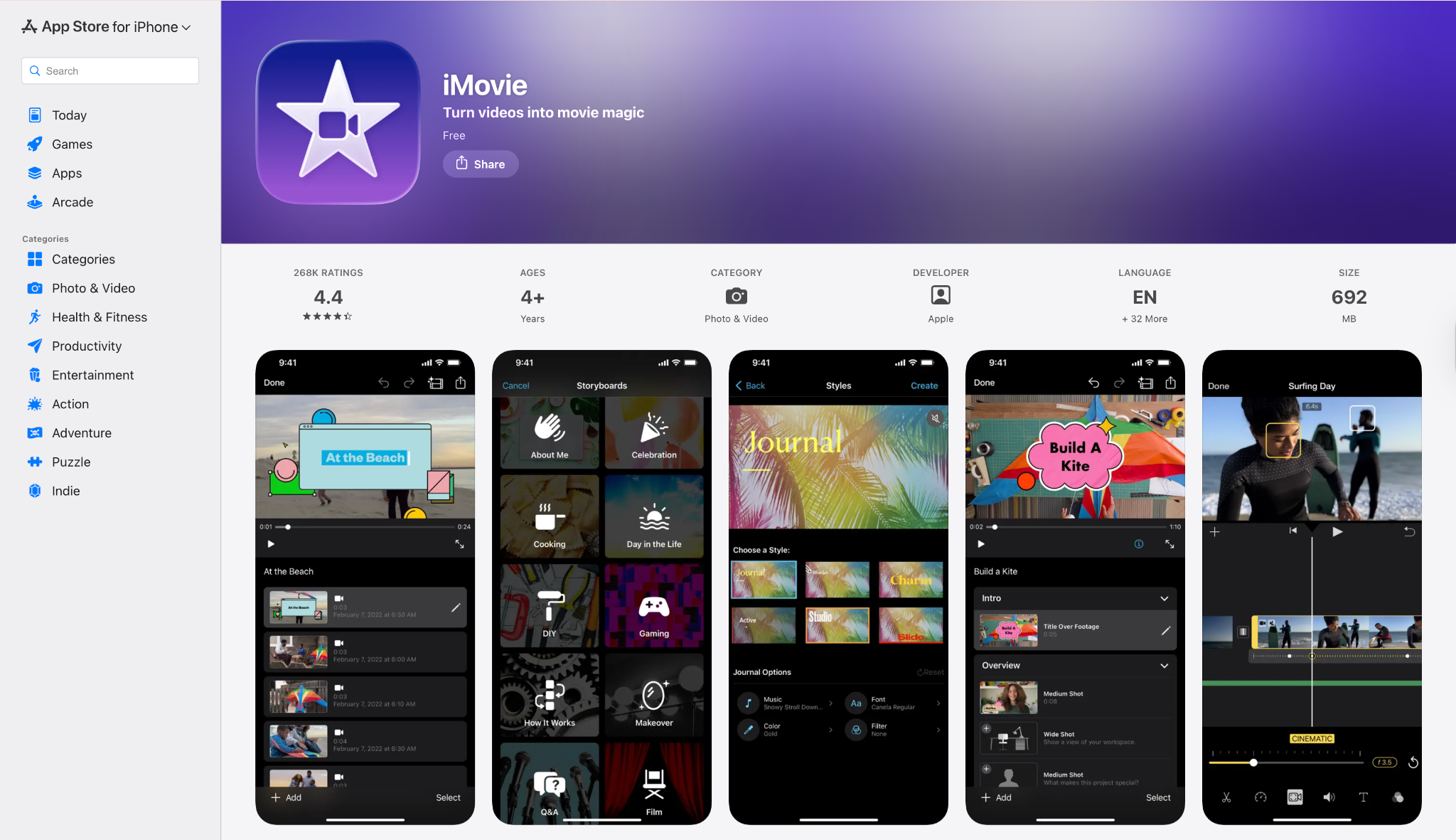
11. iMovie (iOS)
For iPhone users, iMovie is the default editor. It includes a stabilization feature in the inspector menu. It is more robust than Google Photos because you can adjust the amount of stabilization applied. It integrates seamlessly with the Apple ecosystem.
Best For: iPhone and iPad users.
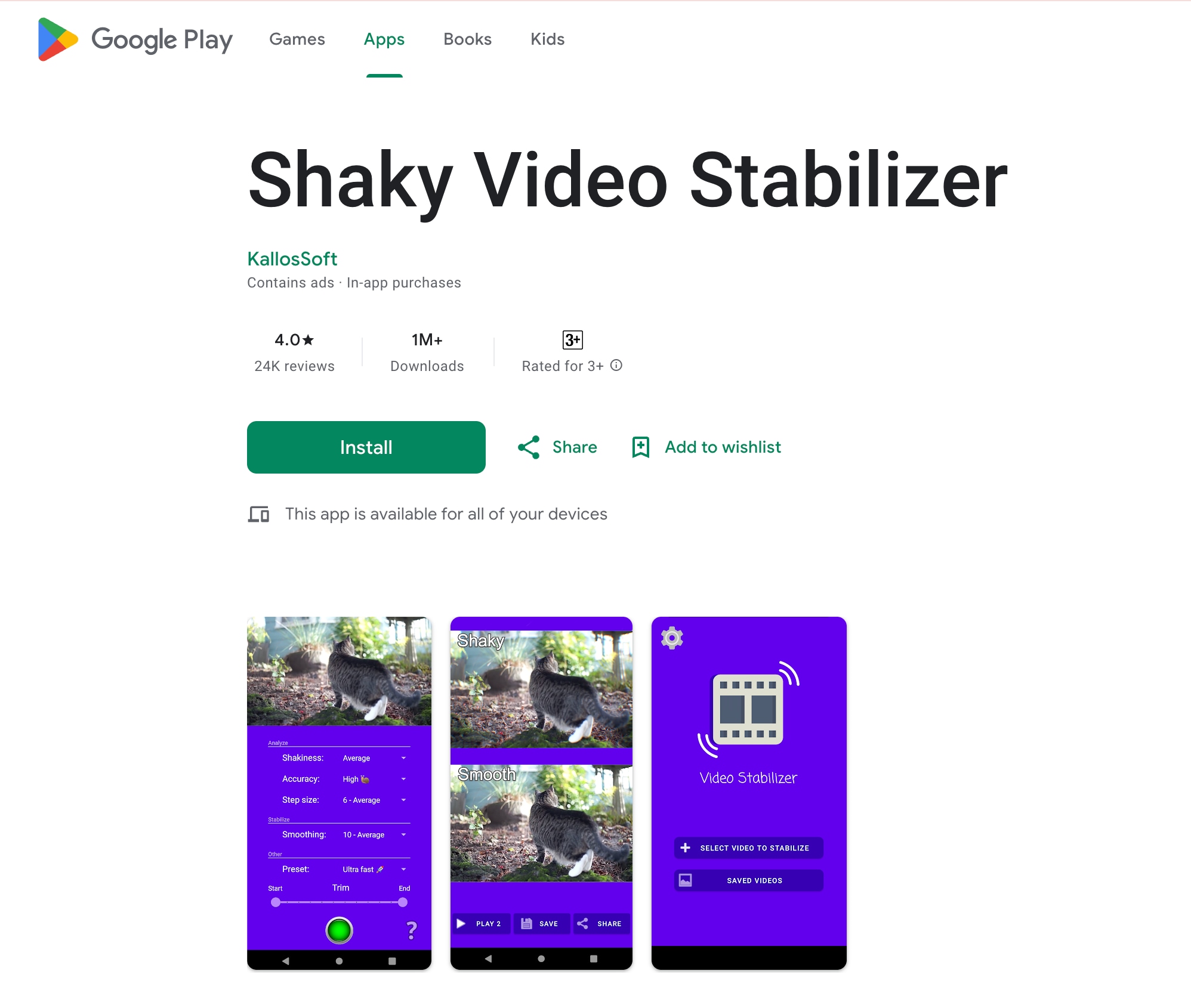
12. Shaky Video Stabilizer (Android)
This is a dedicated third-party app. It analyzes video and provides a side-by-side comparison of the original vs. stabilized version before you save. It supports various formats like MP4, 3GP, and MKV. It is a good alternative if you don't use Google Photos.
Best For: Android users needing a dedicated tool.
Part 3. Comparison: Which Free Tool is Right for You?
| Software | Availability | Watermark | High Quality | Steep Learning Curve |
| DaVinci Resolve | Win / Mac / Linux | No | Yes (Pro) | Yes (High) |
| Wondershare UniConverter | Win / Mac | No (Trial) | Yes (AI) | No (Easy) |
| VideoProc Converter | Win / Mac | Yes (Trial) | Yes (AI) | Medium |
| CapCut Desktop | Win / Mac | No | Medium | No (Easy) |
| OpenShot | Win / Mac / Linux | No | Medium | Medium |
| Shotcut | Win / Mac / Linux | No | Medium | High |
| VSDC Free Editor | Windows | No | Medium | Medium |
| 123Apps | Online | No | Low/Med | No (Very Easy) |
| VideoUtils | Online | No | Low | No (Very Easy) |
| Google Photos | Android / iOS | No | Medium | No (Very Easy) |
| iMovie | iOS / Mac | No | High | No (Easy) |
| Shaky Video Stabilizer | Android | No (Ads) | Low/Med | No (Easy) |
Part 4. Bonus: How to Stabilize Video for Free (Step-by-Step)
If you want a balance of quality and simplicity, desktop software is the way to go. Here is how to stabilize footage using UniConverter as an example. Its AI engine handles the complex calculations for you, saving you hours of manual editing.
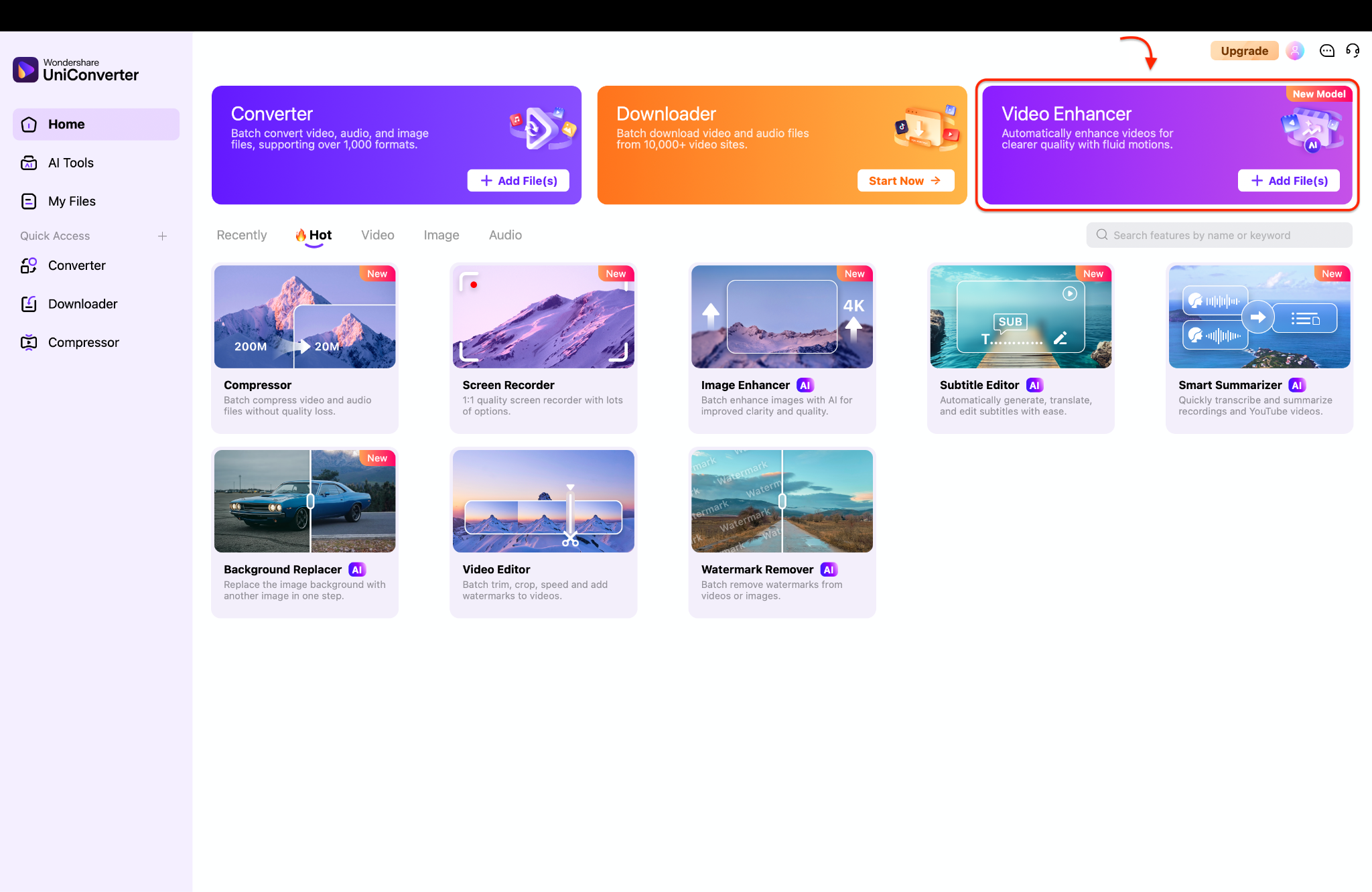
Step 1: Open the Video Enhancer Tool
Launch Wondershare UniConverter on your computer and navigate to the main home screen. Locate the "Video Enhancer" module situated prominently at the top right of the dashboard and click it to open the workspace. This dedicated section houses advanced AI features, acting as excellent video stabilizer freeware to repair your jittery clips.
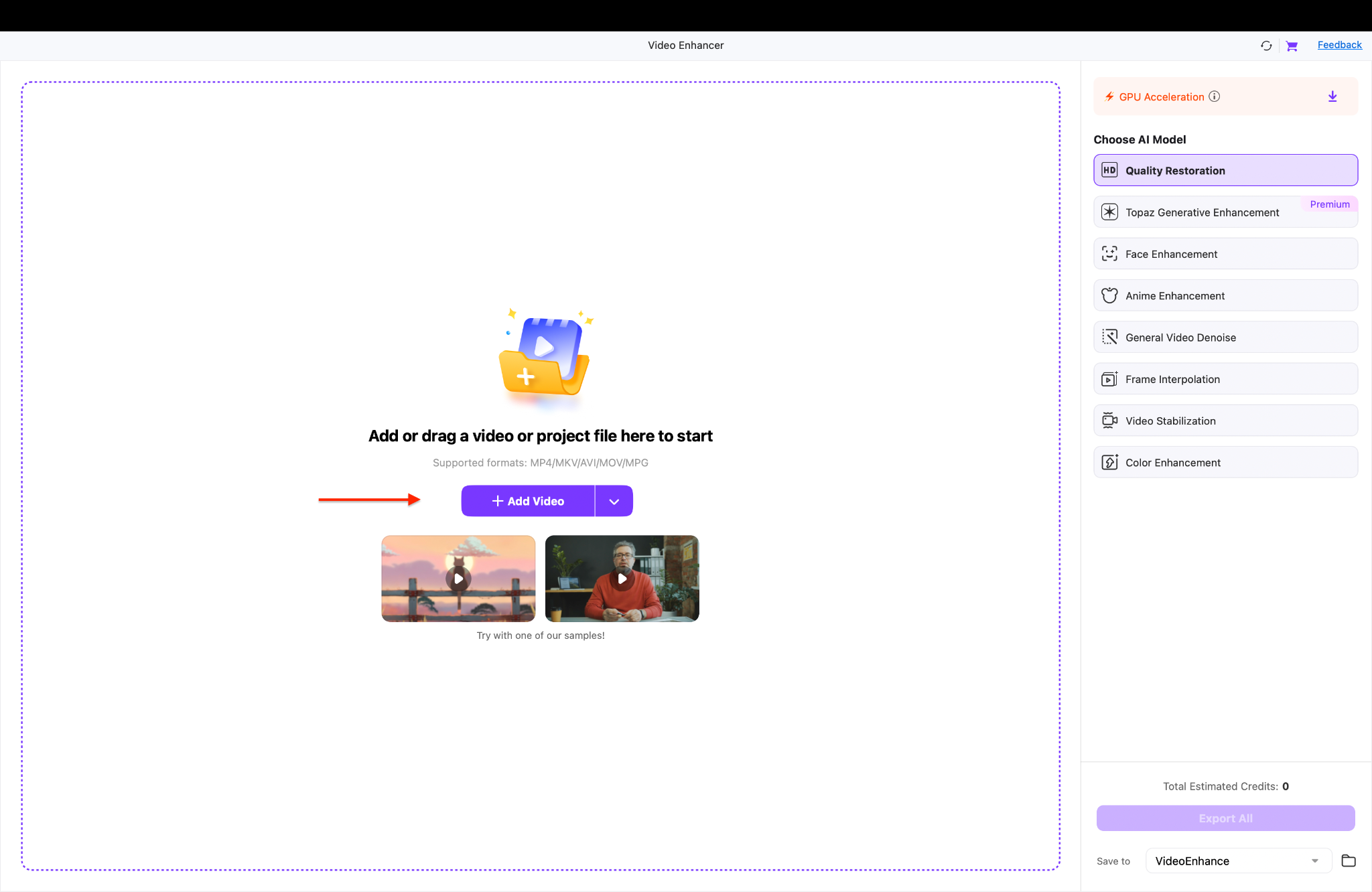
Step 2: Upload and Apply Stabilization
Click the "+ Add Video" button or simply drag your shaky media file directly into the center of the upload window. Look to the right-hand panel and choose the "Video Stabilization" AI model to apply the free video stabilization software to your project. Next, adjust the "Smooth Level" slider to control the overall intensity of the stabilization effect on your footage.

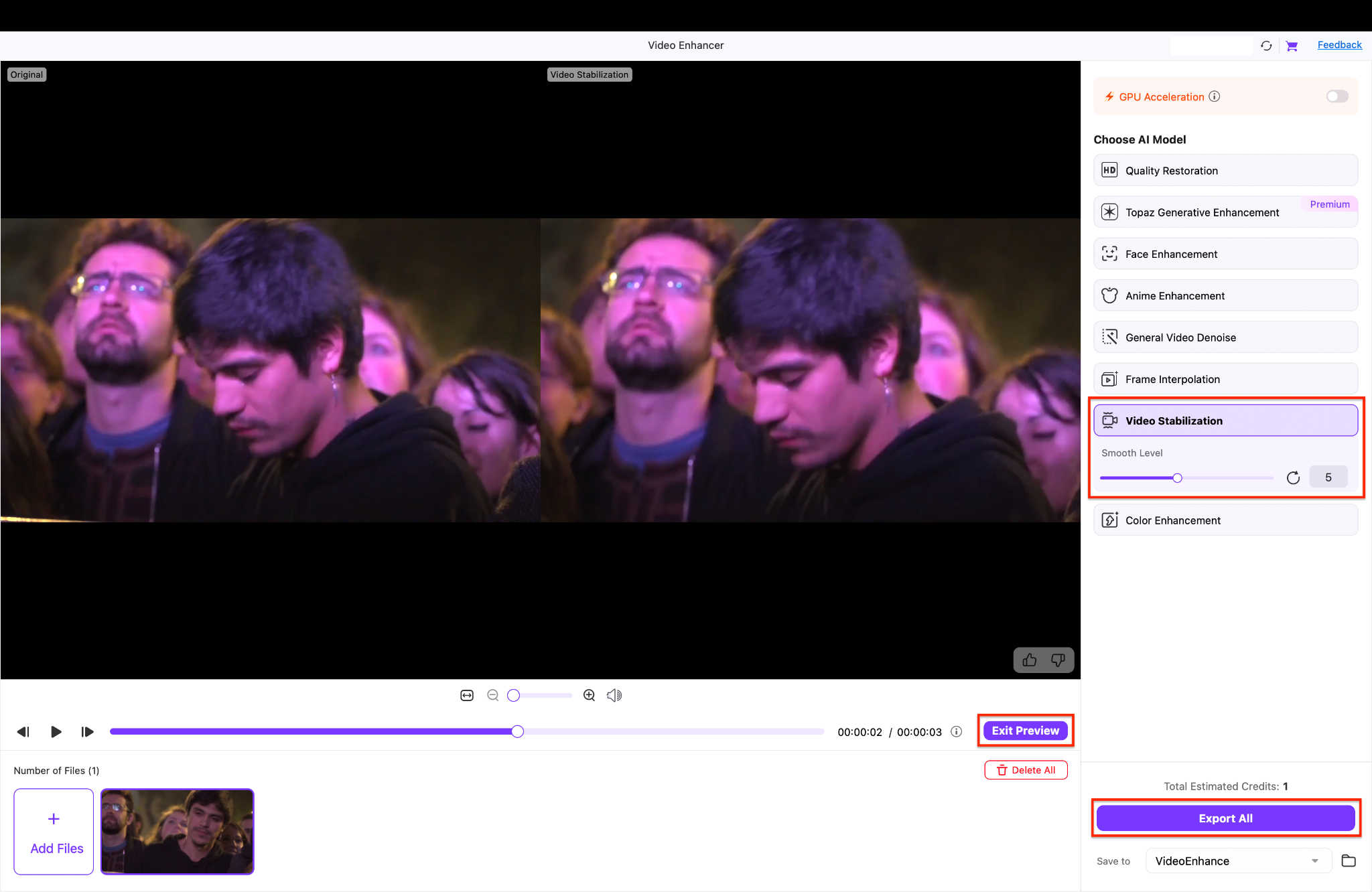
Step 3: Preview and Export Your Video
Take a moment to watch the side-by-side playback to verify how the free video stabilizer has corrected the unwanted camera shake. Once you are happy with the visual improvements, click the "Exit Preview" button located near the playback timeline. Finally, choose your preferred output folder at the bottom right and click the purple "Export All" button to save your smooth footage.
Part 5. 5 Common Mistakes That Ruin Stabilized Footage
Even with the best free video image stabilization software, user error can ruin a clip. Here is how to avoid the "wobbly jelly" look often seen in amateur edits.

Mistake 1: The "100% Smoothness" Trap
- The Error: Cranking the stabilization slider to max.
- The Result: The video looks robotic and unnatural. It eliminates intentional camera movement, like a pan, making the footage feel stuck.
- The Fix: Aim for 10-30% smoothness. The goal of a free video stabilizer is to reduce jitter, not to freeze the camera in space perfectly.
Mistake 2: Ignoring the "Dancing Borders"
- The Error: Not checking the edges of the frame.
- The Result: Black bars flicker on the sides as the software rotates and moves the image to counter the shake.
- The Fix: Always ensure the "Auto-Scale" or "Zoom" feature is checked. Tools like DaVinci Resolve or UniConverter usually crop out these dancing edges automatically, but you must verify it.
Mistake 3: Double-Stabilization Artifacts
- The Error: Using heavy software stabilization on footage that was already heavily stabilized by the camera's internal OIS (Optical Image Stabilization).
- The Result: Strange warping or a "floating" sensation, often called the "jello effect."
- The Fix: If your camera's OIS did a decent job, use a very light touch (5%) in your free video stabilisation software, or disable it entirely.
Mistake 4: Exporting at Default Settings (The Quality Killer)
- The Error: Hitting "Export" without checking bitrate or resolution.
- The Result: Free online video stabilizer tools often default to low-bitrate 720p to save server costs. Your crisp 4K video becomes a blocky mess.
- The Fix: Always manually set your export to "High Quality" or "Original Resolution" (4K). If the file is too big, use a tool to compress video efficiently after stabilizing.
Mistake 5: Stabilizing the Wrong Axis
- The Error: Trying to fix "focus breathing" or "motion blur" with a stabilizer.
- The Result: The image pulses in and out but remains blurry.
- The Fix: Understand that video stabilizer freeware only fixes position (X/Y axis) and rotation. It cannot fix a lens that lost focus or a shutter speed that was too slow.
Conclusion
Shaky video doesn't have to be the end of your project. As we have seen, there are excellent free video stabilizer options for every platform.
- PC/Mac Power: If you have time to learn, DaVinci Resolve offers Hollywood-grade control.
- Quick & Easy: UniConverter provides the best balance of AI speed and user-friendly design.
- Mobile: Google Photos is the undisputed king of the video stabilizer app free category.
- Browser: 123Apps works for quick, non-private clips.
In this article, you've discovered various methods to fix shaky footage effortlessly. From comprehensive software like Wondershare UniConverter to quick online tools, there's something for everyone. Each option has its strengths, but if you want an effective, secure, and user-friendly solution, Wondershare UniConverter stands out.
Its advanced AI features allow you to stabilize videos without the artifacts common in free tools. You can enjoy your moments as they were meant to be seen—smooth and professional. Start using a video stabilizer today and elevate your content! You can also try our advanced features from AI tools.
FAQs about Free Video Stabilizers
-
What should I look for in the best free online video stabilizer in 2026?
When choosing the best free online video stabilizer in 2026, check file size limits, export quality, privacy policy, and whether the tool adds a watermark. A good option should also process shaky video quickly and work smoothly in your browser without forcing account registration.
-
Is there a best free online video stabilizer no watermark option for casual creators?
Some tools may offer clean exports for short clips, but availability can change over time. If you specifically need a best free online video stabilizer no watermark option, always review the export page carefully and test a short sample first before uploading a full project.
-
How is a best free AI video stabilizer different from a regular stabilizer?
A best free AI video stabilizer usually automates shake detection and correction, which can save time for beginners. Traditional stabilizers often require more manual adjustment, while AI-based tools are better suited for users who want faster results with less trial and error.
-
Are the best free video stabilization apps in 2026 good enough for social media content?
Yes, many of the best free video stabilization apps in 2026 are good enough for TikTok, Reels, YouTube Shorts, and casual vlogs. They are especially useful for fixing light handheld shake, though desktop software is still a better choice for long videos, 4K footage, or more precise control.
-
Can a best free online video stabilizer and enhancer improve both smoothness and clarity?
Some tools can improve both motion stability and overall visual quality, but stabilization and enhancement are not the same process. A best free online video stabilizer and enhancer may reduce shake and make footage look cleaner, but the final result still depends on the original resolution, lighting, and compression quality.

