

Editorial feature-based comparison; not a controlled side-by-side quality benchmark. Features, platform access and free limits can change.
Searching for apps to increase video quality can lead to two very different products: editors that polish an already usable video, and AI enhancers that target softness, noise, facial detail or low resolution. This guide compares both types so you can choose a realistic workflow rather than downloading an app that only changes the output size.
10 Best Apps to Improve Video Quality: Quick Comparison
Shortlist: UniConverter is best for advanced AI video enhancement on desktop; CapCut and InShot suit quick social edits; PowerDirector and KineMaster offer editing control; Wink and Remini focus on accessible AI-assisted enhancement. The table makes the distinction between restoring quality and improving presentation explicit.
| App | Platform | Best for | How it helps | Main trade-off |
|---|---|---|---|---|
| Wondershare UniConverter | Windows, macOS; browser tool | AI restoration, upscaling and batches | Dedicated AI quality, face, motion and correction tools | Not a native phone video-enhancer app |
| CapCut | iPhone, Android; desktop/web variants | Social clips and quick edits | Editing, visual adjustments and export controls | AI restoration depth and feature access vary |
| PowerDirector | iPhone, Android; desktop versions | More control on mobile | Timeline editing plus AI-assisted editing options | Advanced capabilities may require a plan |
| Wink | iPhone, Android | One-tap mobile enhancement | AI-oriented portrait and quality treatments | Limited precision for complex footage |
| Remini | iPhone, Android; online options | Low-detail faces and portraits | AI face-focused enhancement | Results may modify fine facial features |
| InShot | iPhone, Android | Beginner-friendly social exports | Brightness, color, filters and export controls | Not a specialized restoration suite |
| KineMaster | iPhone, Android | Layered mobile editing | Effects, color and multi-layer timeline | Steeper learning curve for basic fixes |
| VN Video Editor | iPhone, Android; desktop options | Manual cleanup and basic edits | Timeline, color adjustments and export settings | Limited dedicated generative restoration |
| Adobe Premiere on mobile | iPhone; Android rollout subject to availability | Adobe-style mobile editing | Color, trimming, audio and export workflow | iPhone-first; not a specialized video restorer |
| Videoleap | iPhone, Android | Polished creative content | Effects, color and creator-oriented tools | More focused on presentation than recovery |
How we chose these apps: We assessed the documented editing or enhancement purpose, practical use cases, platform fit, output workflow and feature limitations. This is an editorial comparison, not a claim that every tool was laboratory-tested on the same sample, or that every paid feature is free.
1. Wondershare UniConverter – Best Overall App to Enhance Video Quality
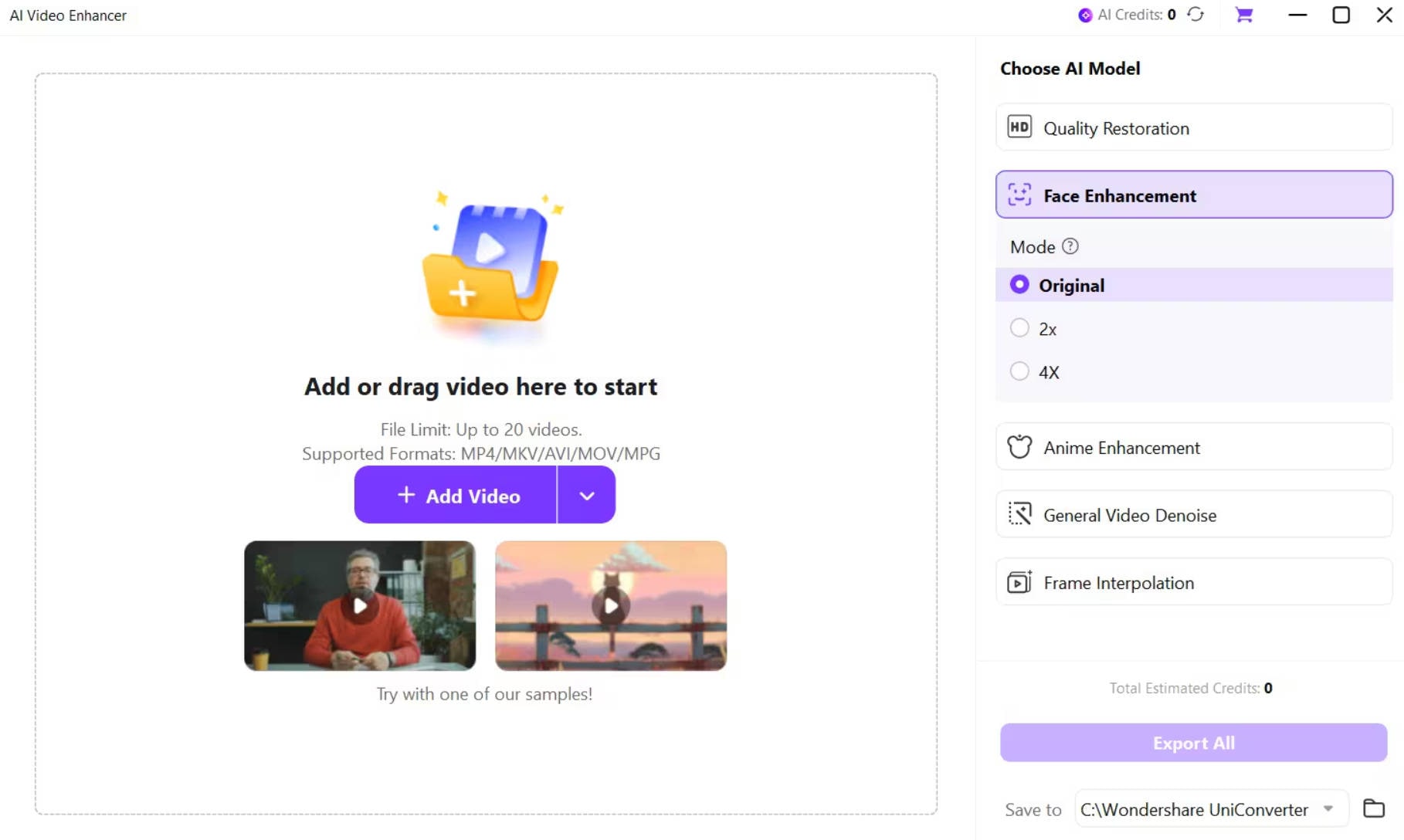
Best for: people who need to improve low-quality video for YouTube, business, old recordings or repeated desktop workflows.
UniConverter is our overall pick because its Video Enhancer targets specific quality problems rather than treating every clip with the same filter. In Quality Enhancement, Standard is intended for basic processing, Ultra (Gen AI) aims for clearer natural-looking details, and Topaz Ultra (Gen AI) provides a supported 1080p or 4K target-output option. Available settings depend on the model and source.
Its other video enhancement tools cover portrait detail, anime and night scenes, denoising, color enhancement, de-flicker, stabilization and frame interpolation. On desktop, you can preview a short result, review the output and estimated AI Credit usage, and manage multiple files in an enhancement queue.
Important: UniConverter's full enhancement workflow runs on Windows and Mac. The separate browser tool is useful for a quick supported clip, while the native mobile editors below are more convenient for on-phone editing. AI-generated details can be inaccurate; retain original files and compare motion, text and faces in the preview.
- Pros: dedicated AI models for different problems; supported 4K output in Topaz Ultra; face and motion tools; preview and multi-file queue.
- Cons: desktop installation for the complete workflow; AI Credits or plan limits may apply; not a native mobile editor.
- Best use case: a soft or noisy clip that needs more faithful visual improvement than filters alone provide.
Explore the complete AI video enhancement software workflow, including compatible models and output options.
Try a dedicated AI video enhancer
Choose a model that matches your footage, preview the result, and compare the output before you commit to a full export.
2. CapCut – Best App for Better-Looking Social Videos
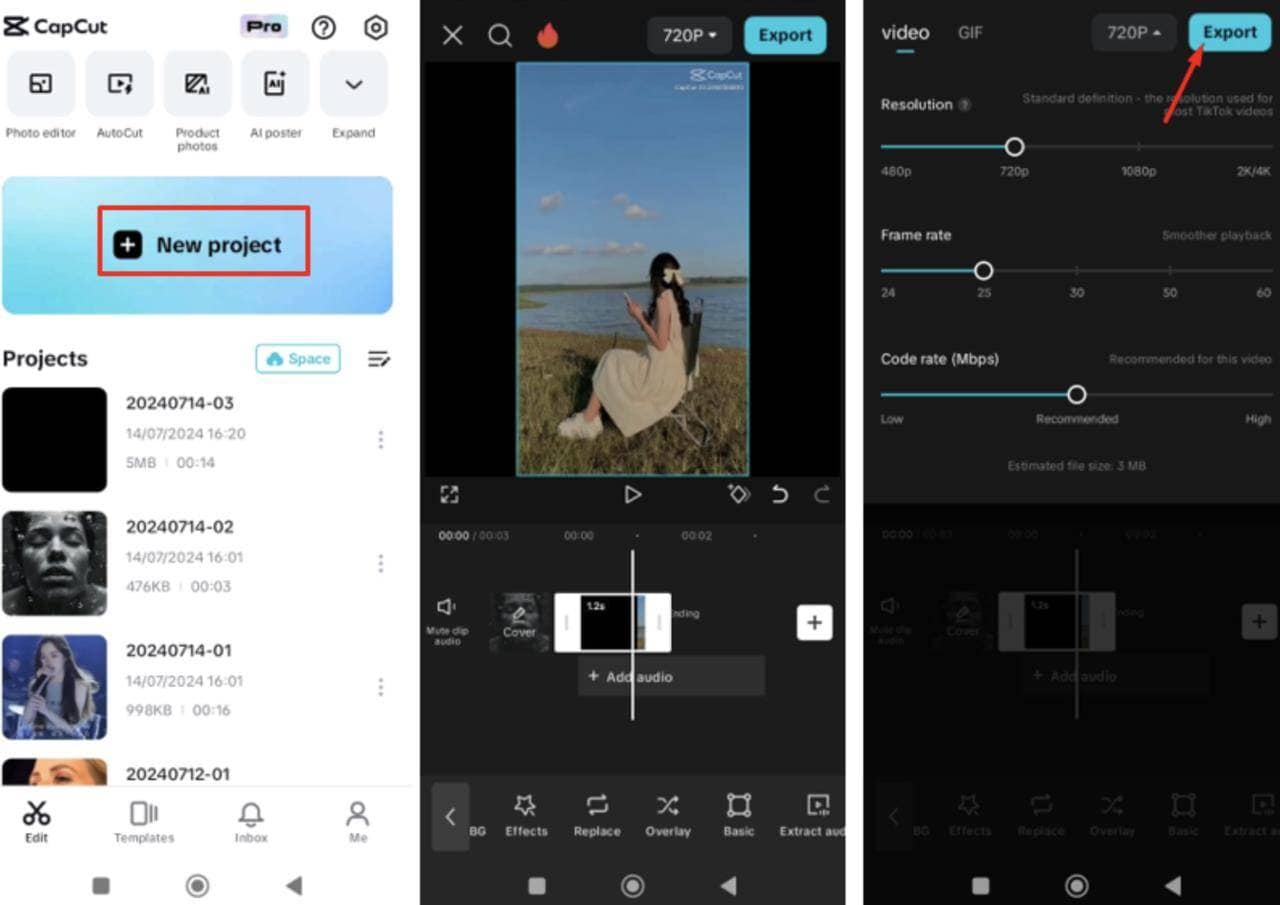
CapCut is a convenient video editing app for creators whose footage is already usable but needs a cleaner finish. You can adjust the look of a clip, trim distracting footage, add captions, and select appropriate export settings in a short workflow.
It is a strong fit for TikTok, Instagram Reels, and Shorts. If the source is badly compressed or very blurry, check whether the available enhancement tools actually improve visible detail rather than just making the export larger.
- Pros: Fast editing, familiar creator workflow, straightforward exports.
- Cons: Specialized AI restoration is not the main reason to choose it.
3. PowerDirector – Best for More Control on Mobile
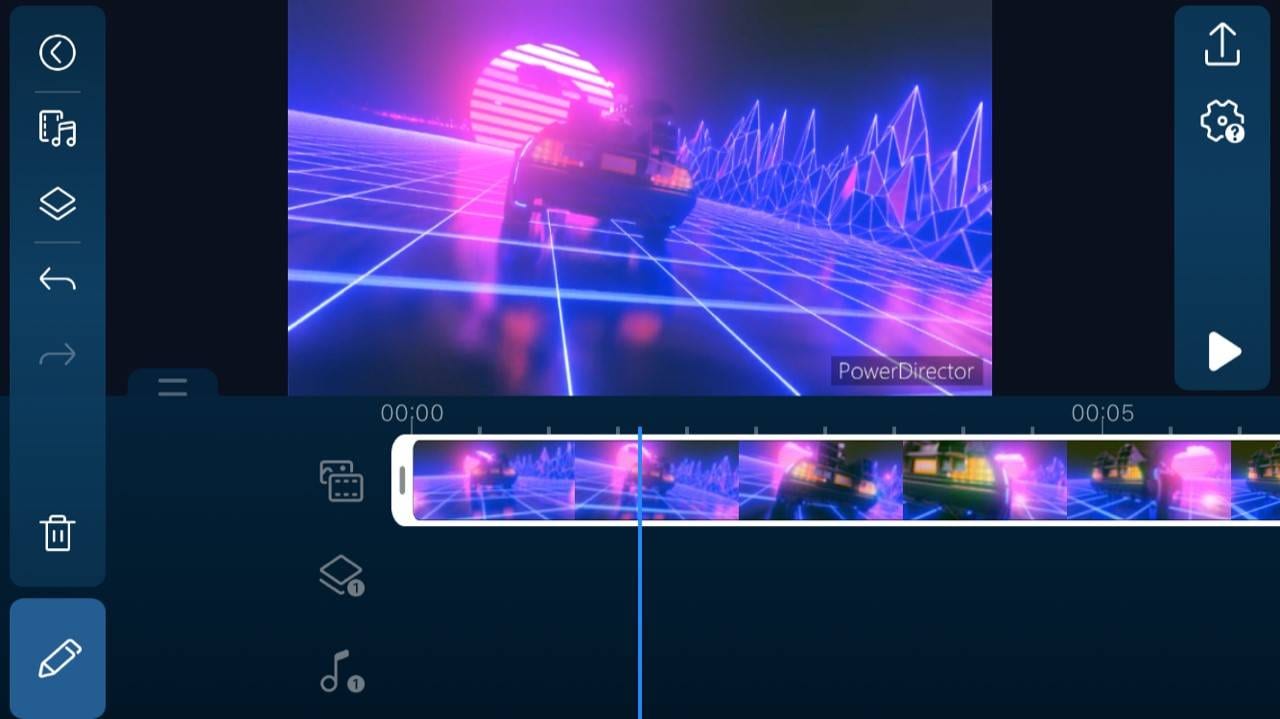
PowerDirector is a practical choice when you want an enhance video quality app that also offers a more capable timeline. It suits longer edits that involve several clips, color changes, transitions, or controlled export settings.
Compare the mobile feature set with your needs before subscribing. Some AI-assisted tools and export options may differ between mobile, desktop, and plans.
- Pros: Timeline depth, editing control, creator features.
- Cons: May be more involved than a one-tap enhancement app.
4. Wink – Best for Fast AI Video Enhancing on a Phone

Wink focuses on simple AI-assisted visual enhancement with an accessible mobile experience. It is most appealing for selfie clips, short portraits, and social content where fast processing matters more than extensive settings.
Use a short sample first to judge whether skin, eyes, and facial textures still look natural. Strong automatic enhancement is not always appropriate for archival or identity-sensitive footage.
- Pros: One-tap experience, portrait-focused treatments.
- Cons: Fewer controls for difficult noise, motion and batch tasks.
5. Remini – Best for Faces in Low-Quality Videos
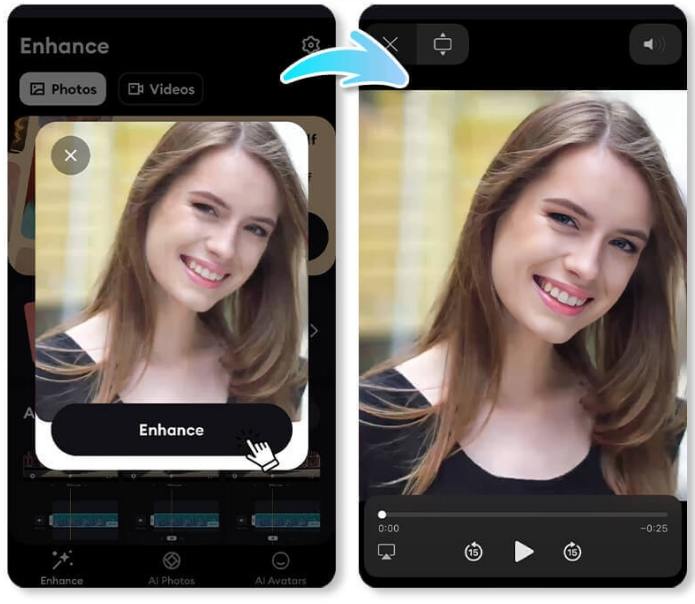
Remini focuses on AI-driven face and portrait enhancement. It is worth considering for talking-head clips and old family videos when the most distracting issue is soft or low-detail faces.
The visible result may look much clearer, but synthesized features are not guaranteed to be historically accurate. Inspect moving expressions, hairlines, and other fine details rather than relying on a single preview frame.
- Pros: Portrait-focused quality improvements.
- Cons: Less versatile for full editing or broad environmental restoration.
Working with more than portraits?
Face-focused enhancement is useful, but landscapes, grainy recordings and full-length projects can require different AI models. UniConverter provides separate workflows for those problems.
6. InShot – Best for Simple Quality Tweaks and Export
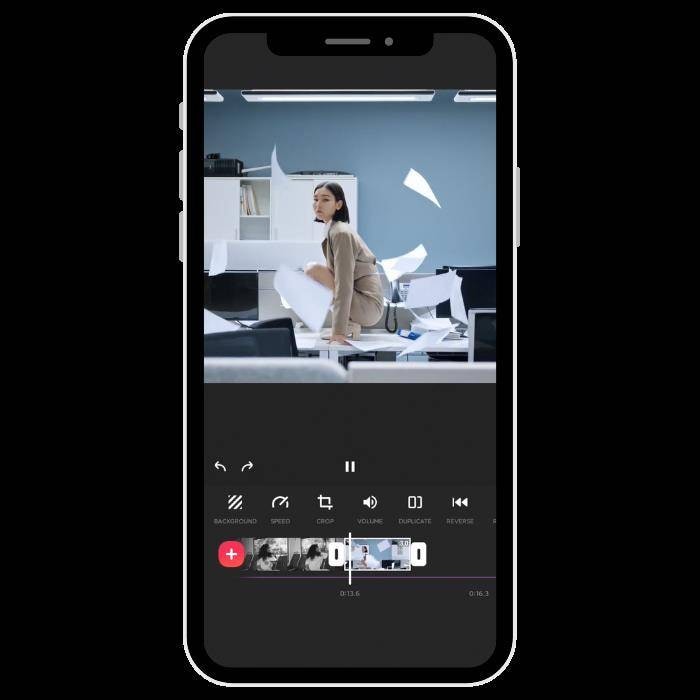
InShot makes it easy to clean up everyday mobile recordings with trims, visual adjustments and sensible export choices. It is a good entry point if “make my video quality better” means improving color, light, framing, and presentation.
Choose it for straightforward clips rather than damaged video. Raising brightness or export bitrate cannot by itself reconstruct pixels missing from an overly compressed or out-of-focus source.
- Pros: Simple controls, social formats, low learning curve.
- Cons: Limited restoration capability compared with dedicated AI tools.
7. KineMaster – Best for Layered Mobile Video Projects
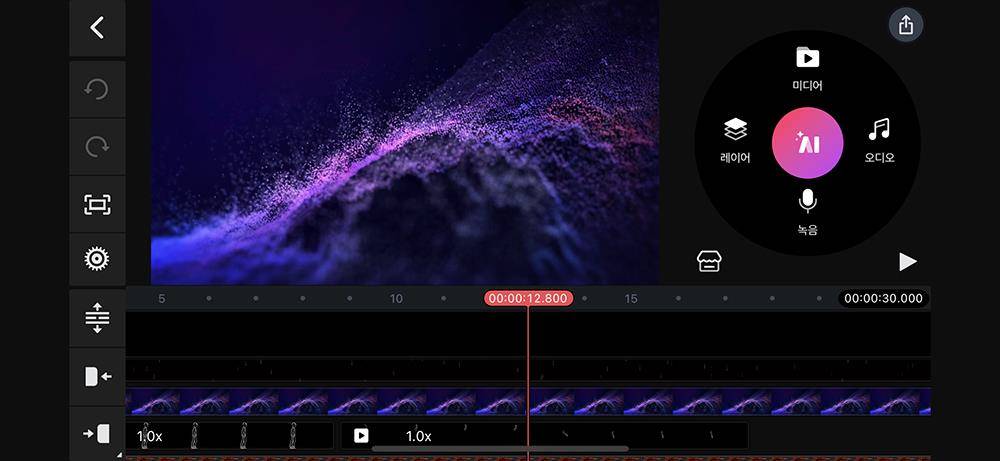
KineMaster gives you a multi-layer editing workflow for projects that need more than a quick filter. With timeline and effects controls, it can help improve how a clip looks within a complete edited video.
Its strength is editing flexibility. If your main problem is serious blur or noise across every frame, a dedicated AI enhancer is a more directly matched tool.
- Pros: Layered timeline, editing flexibility, export options.
- Cons: More work than a basic one-tap repair.
8. VN Video Editor – Best for Manual Quality Adjustments
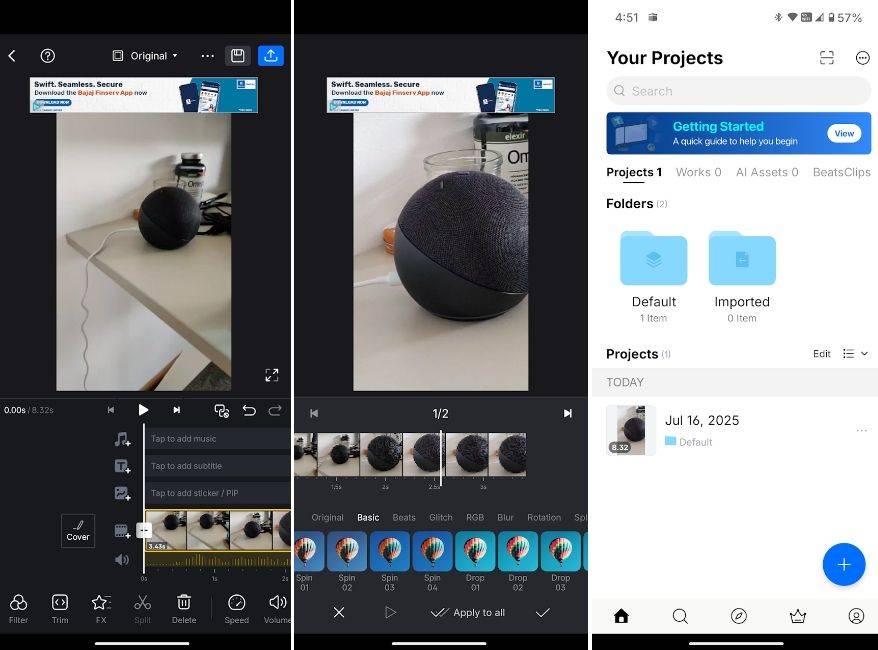
VN Video Editor is a practical choice for users who prefer hands-on control and a clean editing interface. It works well for improving the presentation of already-decent phone video with color adjustments and careful exporting.
It should not be treated as a substitute for neural video restoration. For noisy or very low-resolution sources, you may want a separate enhancement pass before editing in VN.
- Pros: Accessible manual editing, clear workflow.
- Cons: Not primarily built around advanced generative upscaling.
9. Adobe Premiere on Mobile – Best for iPhone Creators
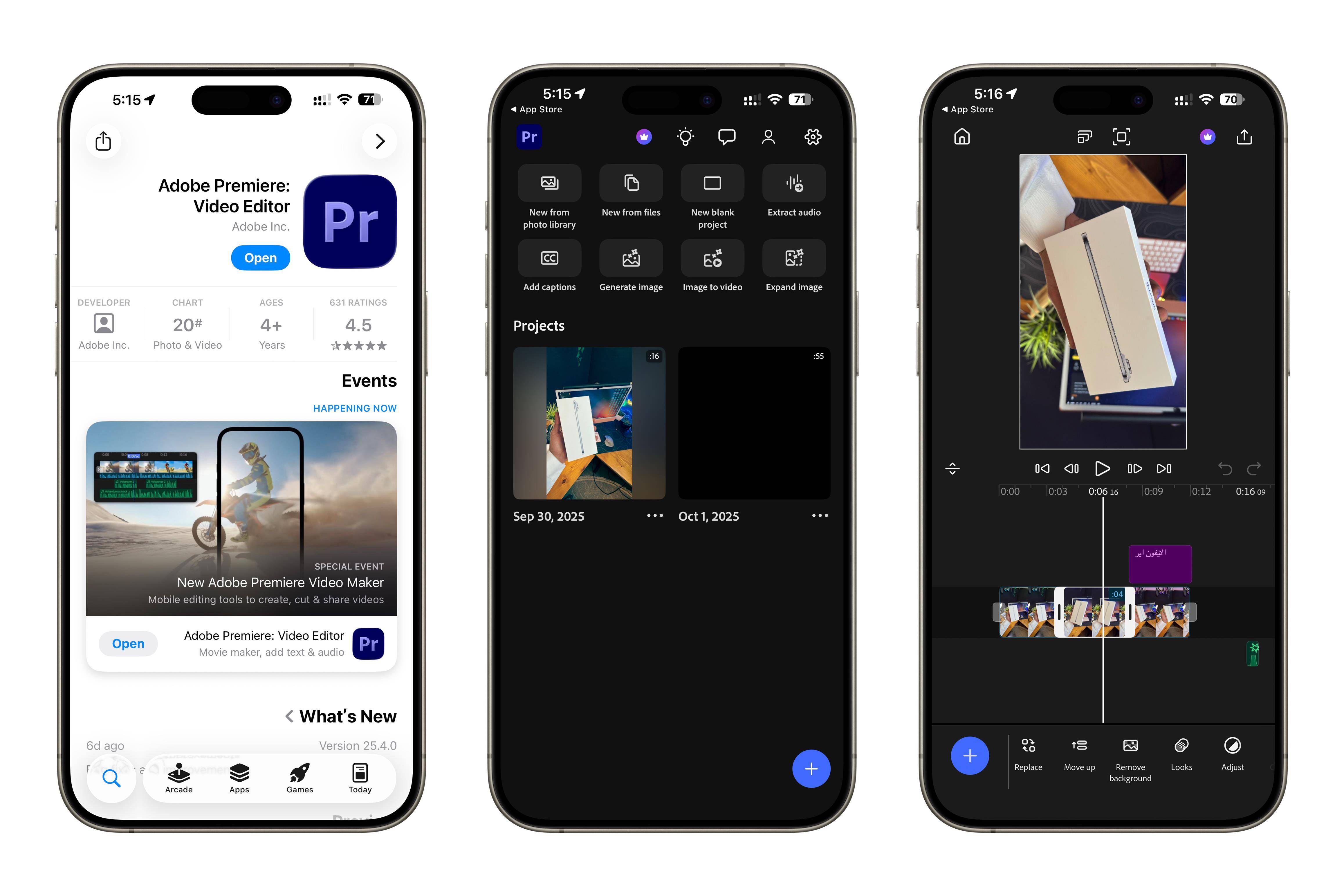
Adobe Premiere on mobile is the current successor to the discontinued Premiere Rush. For iPhone users already familiar with Adobe, it provides a contemporary video editing workflow for arranging clips, adjusting their look and preparing exports.
This is an editing-focused recommendation, not a claim that it is the strongest AI video restorer. As of the currently published Adobe support guidance, the mobile app is available on iPhone; Android availability should be checked in your region before listing it as supported.
- Pros: Adobe workflow, polished mobile editing and export.
- Cons: iPhone-focused availability; limited dedicated video restoration.
10. Videoleap – Best for Creative, Polished Video Edits
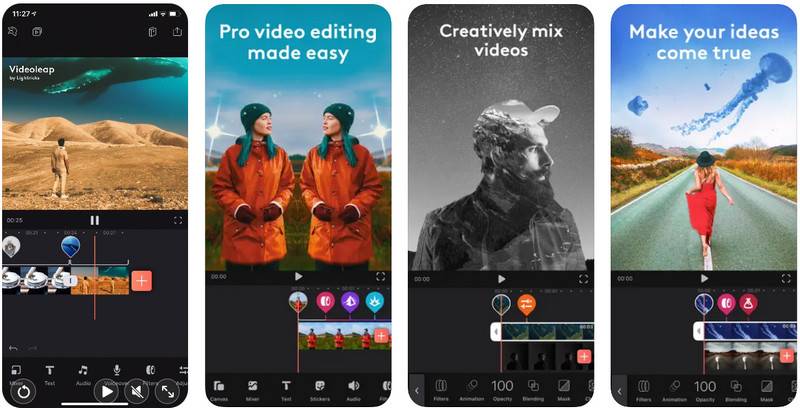
Videoleap helps creators improve the presentation of short videos with creative effects, color treatments and editing options. It is well suited to engaging social content and stylized projects.
If your source is heavily blurred, noisy or severely compressed, evaluate dedicated AI enhancement software first. A dramatic visual effect can change the mood without correcting the underlying source-quality problem.
- Pros: Creative effects, social-first editing, visual polish.
- Cons: Not primarily designed for faithful restoration.
How to Choose the Best Video Quality Enhancer App
Before picking an app to make video quality better, identify what is actually wrong with the source. The words “higher quality” might mean larger resolution, more visible texture, less grain, better color or steadier motion. These are separate tasks.
| Your problem | Relevant technique | Best starting options |
|---|---|---|
| 480p/720p footage looks soft | AI quality enhancement and optional upscaling | UniConverter; compare dedicated AI upscalers |
| Faces lack detail | Face-targeted AI enhancement with careful preview | Remini, UniConverter, Wink |
| Night footage is grainy | Denoising and low-light correction | UniConverter, then an editor for final color |
| Colors are flat or too dark | Exposure/color adjustments | CapCut, InShot, PowerDirector, VN |
| Phone video is shaky | Video stabilization | UniConverter or compatible editing tools |
| Need fast Reels or Shorts | Editing, framing and appropriate export settings | CapCut, InShot, Videoleap |
| Need to handle multiple videos | Desktop preview, queue and batch export | UniConverter |
AI enhancement vs. editing vs. upscaling
Video editing changes the presentation of the clip: crop, color, trim, add text or prepare exports. AI enhancement attempts to improve perceived image detail or remove defects. Upscaling changes the pixel dimensions and may be paired with AI reconstruction. A 4K export from an SD source is still an interpretation, not a recovery of the exact original camera data.
For more information about output resolution, compare these AI video upscaler tools. If you prefer a quick browser test before downloading desktop software, you can also enhance video quality online.
How to Improve Video Quality with UniConverter in 3 Steps
For a clip that needs deeper AI treatment than a simple mobile editor can provide, follow this desktop workflow. The process combines selection, model choice, preview and export without implying that every model offers the same resolution options.
Step 1. Open Video Enhancer and import a file
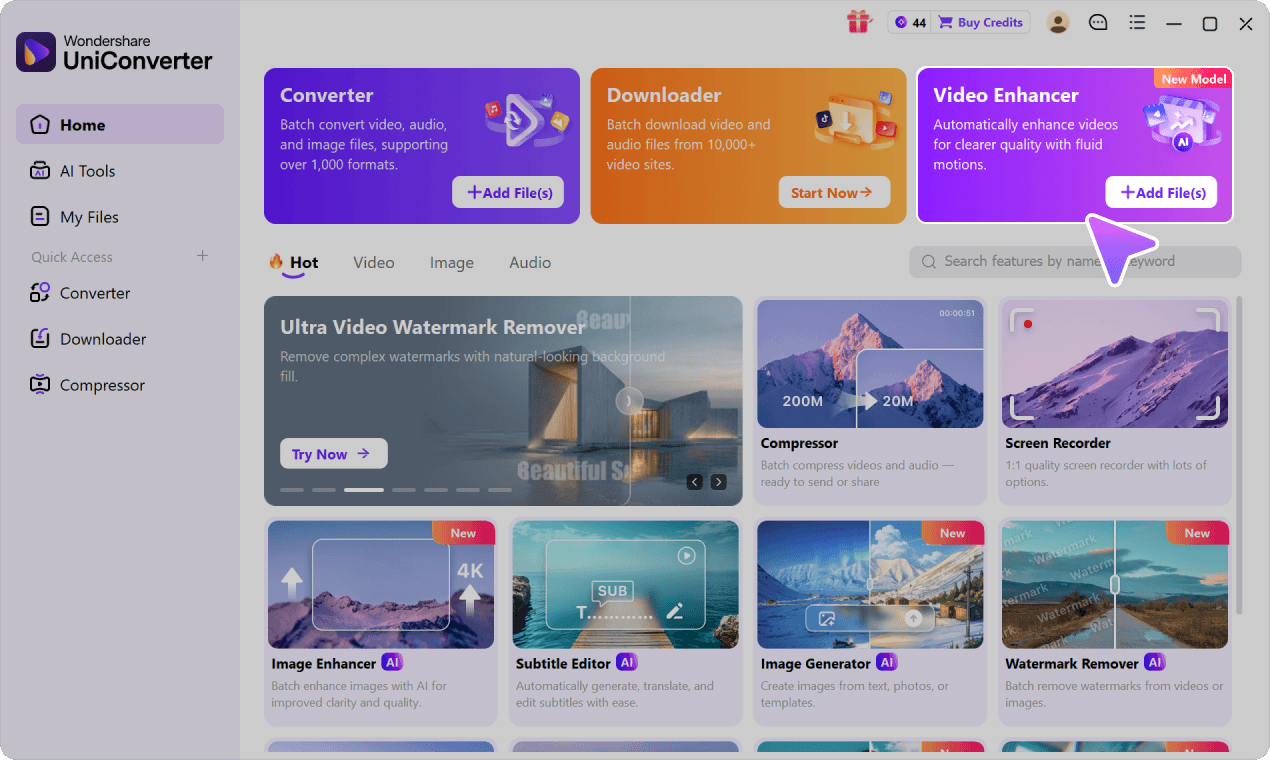
Launch UniConverter, open the Video Enhancer tool, and add the video you want to improve. For multiple clips, import them into the enhancement queue.
Step 2. Select an AI enhancement model and output
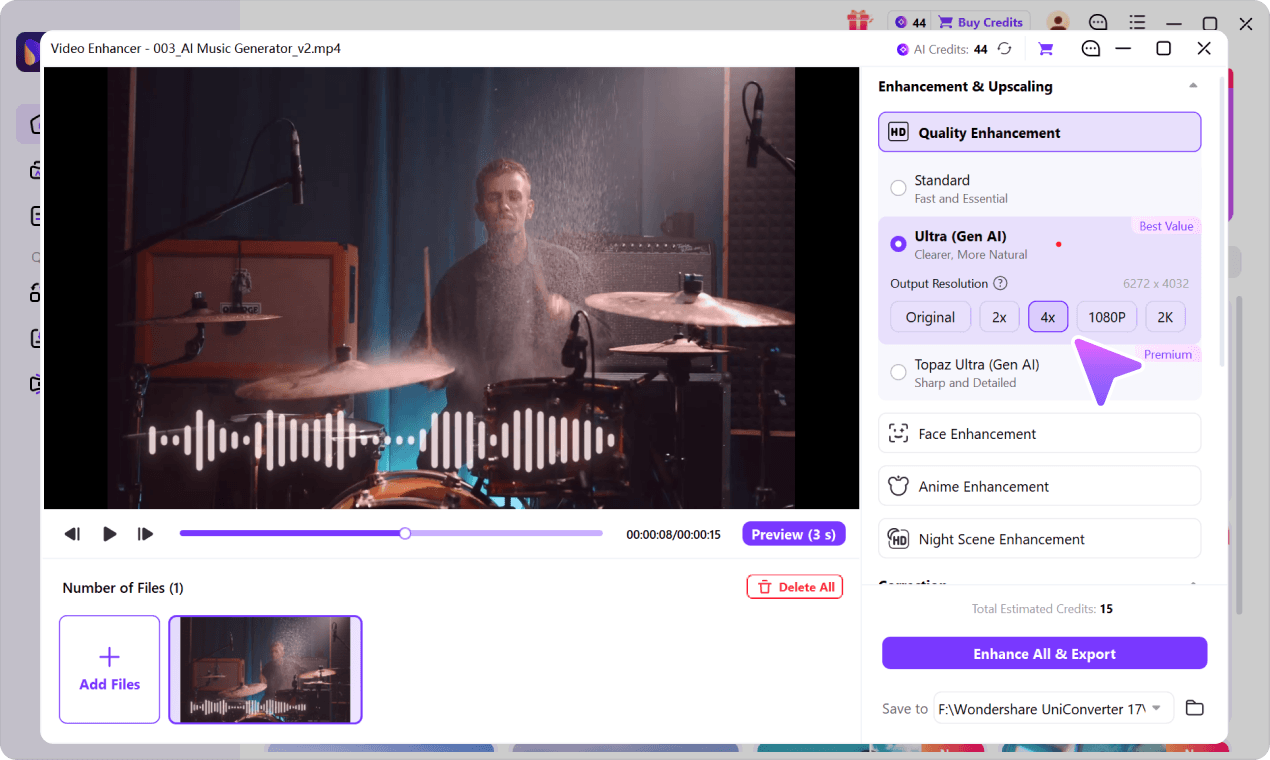
Use a general quality model for soft footage, face enhancement when portraits are the priority, or a matching denoise, stabilization or motion tool as needed. The Topaz Ultra (Gen AI) mode offers 1080p/4K target output; other models provide different settings.
Step 3. Preview the result and export
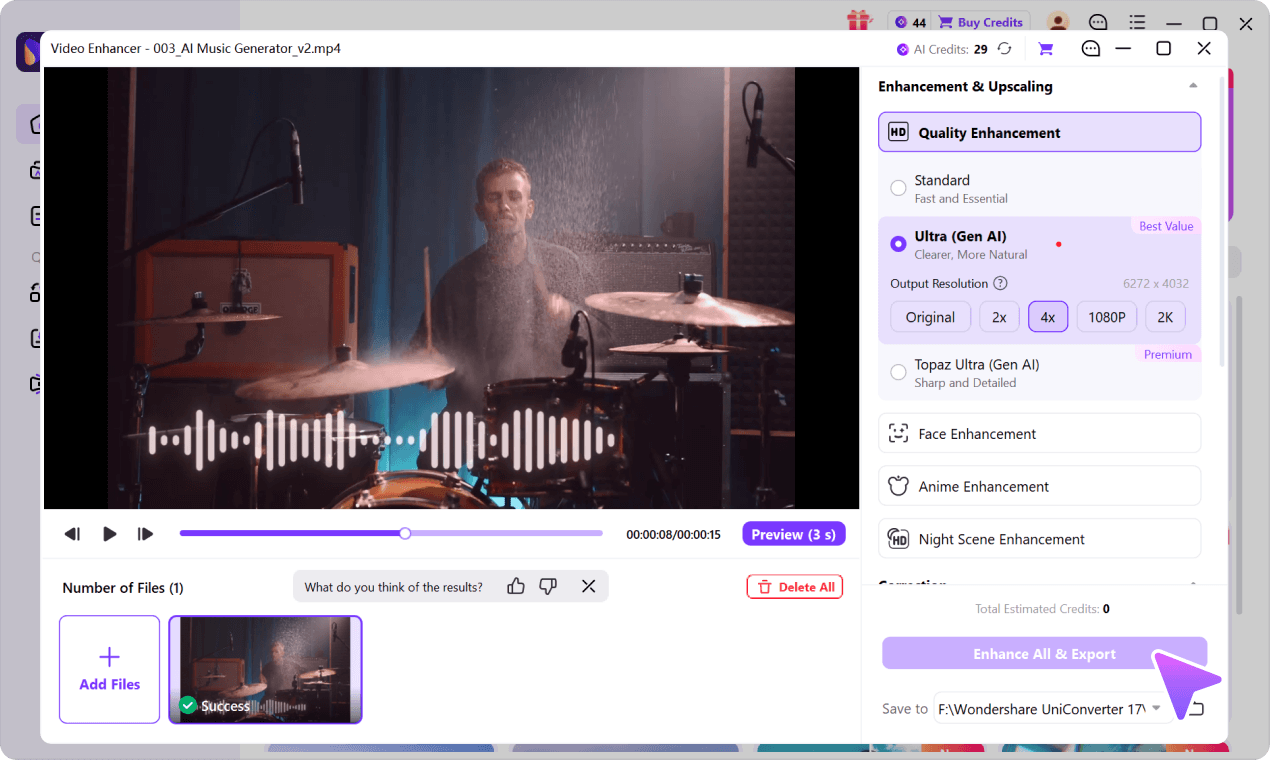
Inspect moving faces, fine text and textures in the preview, confirm the output settings and estimated AI Credits, then export. Keep the original so you can compare results and avoid relying on generated visual detail as a factual reconstruction.
More Video Enhancement Guides
Need a broader comparison than this list of video-enhancing apps? Our guide to video quality enhancer tools covers additional enhancement approaches. For a browser-focused comparison, see these online video enhancer tools. These guides target broader software and web queries, while this page focuses on apps and choosing by device and task.
Frequently Asked Questions About Video Enhancer Apps
-
1. What is the best app to improve video quality in 2026?
UniConverter is our recommended choice for more demanding AI enhancement on Windows or Mac. For quick iPhone or Android edits, CapCut and PowerDirector are more convenient. The right choice depends on whether you need restoration or everyday editing. -
2. What is the best video enhancer app for iPhone?
CapCut, PowerDirector, Wink, and Remini cover different iPhone needs. Use CapCut for social clips, PowerDirector for editing controls, Wink for fast AI treatments, and Remini when faces are the main concern. -
3. Which apps can increase video quality on Android?
CapCut, PowerDirector, Wink, Remini, InShot, KineMaster, VN, and Videoleap offer Android workflows. Availability of specific AI features can vary by app version, device, country, and subscription. -
4. Is there a free app to make video quality better?
Yes. Some mobile video editors have free editing and export features. However, free access is not the same as unlimited AI restoration: certain AI models, watermark removal, exports, or cloud processing may require payment. -
5. Can a video quality enhancer app turn 480p or 720p footage into real 4K?
Some AI tools can export an upscaled video at 4K, but that does not recreate the original camera detail. UniConverter offers a 4K output option with its Topaz Ultra (Gen AI) enhancement mode, subject to compatible media and tool availability. -
6. How do I make a blurry video look clearer?
First identify the cause: low resolution, compression, noise, motion shake, or a missed focus. Use a matching tool—AI upscaling for low-resolution material, denoising for grain, or stabilization for shake—and preview the result before exporting. -
7. Is AI video enhancement better than increasing export resolution?
They solve different problems. Raising export resolution changes the output dimensions, while AI enhancement attempts to improve perceived detail or reduce defects. Upscaling can be useful, but cannot guarantee recovery of lost original information. -
8. What app should I use for old videos with blurry faces?
Remini is worth considering for face-focused mobile enhancement. UniConverter provides dedicated face enhancement on desktop as well as broader video restoration options. Check faces across moving frames because AI-generated details may not match the original exactly. -
9. Does UniConverter work directly as an iPhone or Android app?
The UniConverter Video Enhancer evaluated here is primarily a Windows and Mac desktop workflow, with a separate browser-based enhancement option. It should not be confused with the native iPhone and Android editing apps in this list. -
10. What is the best way to enhance multiple videos at once?
A desktop workflow is usually easier to manage for larger sets of clips. UniConverter supports multi-video queues and Enhance All & Export in supported enhancement tasks; review each clip’s settings and AI Credit estimate before processing.
Final Verdict: Which App Makes Video Quality Better?
Choose UniConverter for deeper AI restoration and repeat desktop workflows; choose CapCut or InShot for quick mobile edits; PowerDirector and KineMaster for more editing control; and Remini or Wink when accessible portrait-focused AI tools matter most. The most useful app is the one matched to your source problem and device—not simply the one advertising the largest export resolution.
Start with a short sample, inspect it at normal playback speed, and decide whether the change is genuine improvement or only a different visual treatment. To revisit our recommended desktop workflow, see UniConverter's AI video enhancement review above.

